WooCommerce Product Page Embeds
Overview
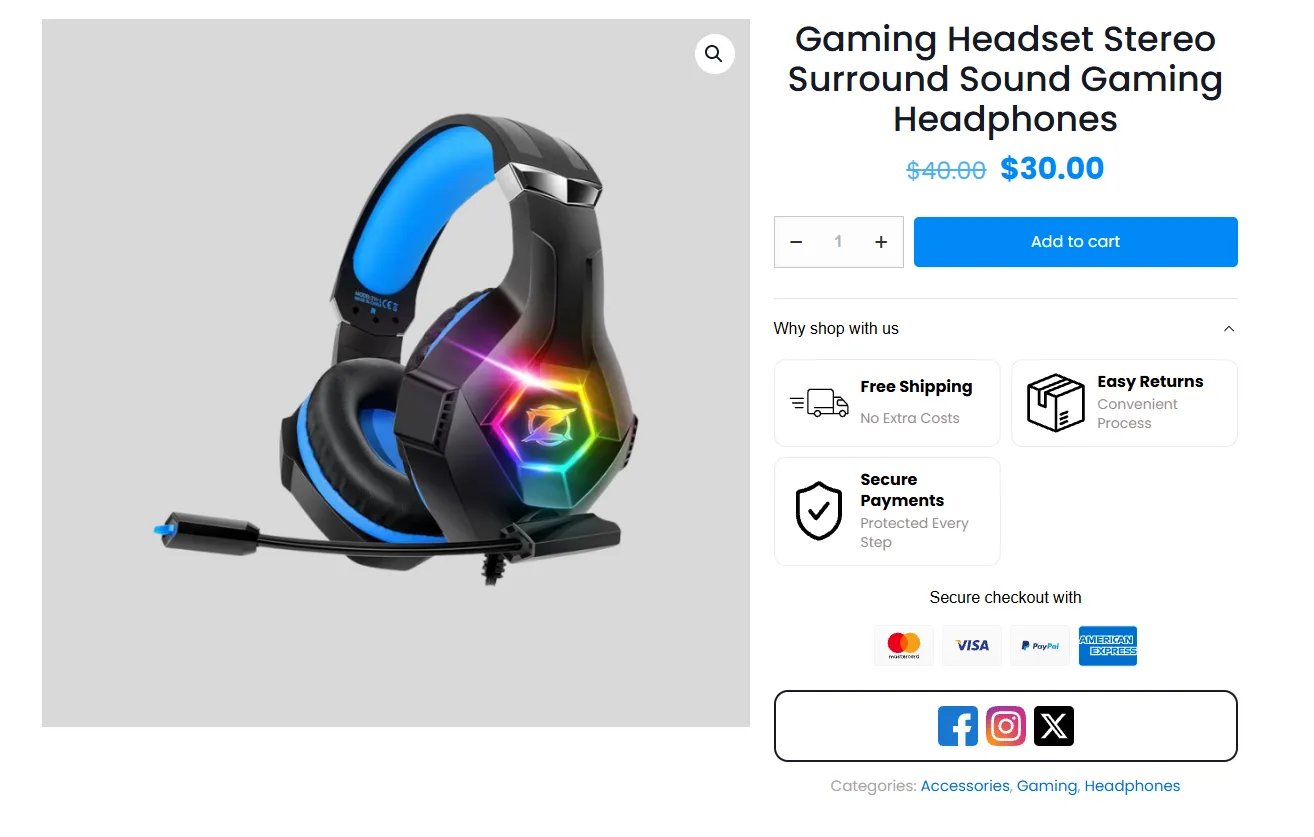
Embeds are rich content blocks you insert directly into the product page (or anywhere, via a CSS selector or WooCommerce hook). Unlike badges that sit on the product image, embeds are full sections — countdown timers, stock-scarcity meters, trust/payment/social icons, feature banners, free-shipping progress bars, announcements, countdown banners, and Shop the Look galleries. They're how you add persuasion and reassurance right where shoppers decide to buy.
Use Sale Booster as a WooCommerce embed plugin when you need to add content to a WooCommerce product page, build flexible WooCommerce product page customization, and deploy practical product page conversion tools from one editor.
How it works
On your product pages you want more reassurance near the Add to Cart button. You create a Trust Badges embed (secure-payment, free-returns, quality-guarantee icons) and place it right after the cart form. Conversions improve because shoppers feel safe — and you set it up once for the whole store.
Embeds are available in the Pro version.
Embed types
Pick one of the eight Embed Type options. Payment Icons and Social Media Icons are presets within the Trust Badges type. Each has its own guide:
| Tile | What it is | Guide |
|---|---|---|
| Countdown Timer | Headline + description + large countdown digits. | Countdown Timer |
| Countdown Banner | A full-width banner with a live countdown. | Countdown Banner |
| Countdown Stock | Scarcity meter — how many items are left. | Countdown Stock |
| Free Shipping | On-page free-shipping progress bar (+ upsell). | Free Shipping |
| Announcement | A compact promo callout with an optional CTA. | Announcement |
| Banner | A row of feature highlights (icon + two lines). | Feature Banner |
| Payment Icons | Accepted-payment logo row. | Payment Icons |
| Social Media Icons | Links to your social profiles. | Social Media Icons |
| Trust Badges | Reassurance icon row (Free Shipping, Easy Returns…). | Trust Badges |
| Shop the Look | A shoppable image with product hotspots. | Shop the Look |
Payment Icons and Social Media Icons are presets of the Trust Badges icon-row type. Choosing either preset pre-fills the content while keeping the same placement, styling, scheduling, and targeting controls.
Popular use cases
Embeds are conversion blocks you place on the product page (and cart). Match your goal to the right embed:
| Your goal | Best embed | Where to place it |
|---|---|---|
| Create urgency for a sale | Countdown Timer / Countdown Banner | Near the price or Add to Cart. |
| Show scarcity on low stock | Countdown Stock | Product page ("Only 3 left!"). |
| Raise average order value | Free Shipping (+ upsell) | Product and Cart pages. |
| Boost checkout confidence | Trust Badges | Right under the Add to Cart button. |
| Show accepted payment methods | Payment Icons | Under Add to Cart / near checkout. |
| Grow your social following | Social Media Icons | Product page. |
| Communicate store benefits | Feature Banner | Below Add to Cart. |
| Promote a deal on specific products | Announcement | Targeted products only. |
| Cross-sell "complete the look" | Shop the Look | Fashion / decor product and landing pages. |
Reassurance embeds (Trust Badges, Payment Icons) work best right under the Add to Cart button, where hesitation is highest. Urgency embeds (Countdown, Stock) belong near the price. Use Targeting so each embed only shows where it helps.
Managing embeds
Open Sale Badges → Embeds. The list supports Add New, Edit, Duplicate, Status toggle, and Delete. Each embed has an Embed Type selector, ready-made templates, and a live preview beside the settings.
Step-by-step setup
- Click Add New and give the embed a Name; toggle Status on.
- Choose an Embed Type (one of the eight options above).
- Configure its Content and styling (see that type's guide).
- Set Placement and Targeting (below).
- Optionally add a Schedule, then Save.
The editor tabs
Once you pick a type, the editor shows the tabs relevant to it:
| Tab | What it configures | Shown for |
|---|---|---|
| Content | The embed's text, messages, icons, coupon/button, etc. | All types |
| Banner Design | Layout, background (solid / gradient / image), overlay, padding, height. | Countdown Banner only |
| Countdown Timer | Timer mode, end date / evergreen, labels, and timer style. | Countdown Timer & Countdown Banner |
| Upsell | Recommend products to reach the free-shipping threshold. | Free Shipping only |
| Theme & Styles | Color templates, fonts, borders, margins, width, shadow. | All except Countdown Banner |
| Colors | Individual element colors (background, text, timer, button…). | All types |
| Schedule | Run the embed for a set date/time window. | All types |
| Targeting | Placement (position/CSS selector), devices, products, and conditions. | All types |
Placement & Targeting
Open the Targeting tab.
Placement (Position)
By default an embed uses the global placement from Settings → Embeds. To place this embed somewhere specific, tick Custom Position:
| Option | What it does |
|---|---|
| Position on Product Page | Insert Before or After a CSS selector. Related Products position is available for Shop the Look and Countdown Banner. |
| CSS Selector | The element to anchor to (default form.cart). |
| Devices | Show on Desktop, Mobile, or both. |
Products
Limit the embed to matching products. Add rules and combine them with And (within a group) and + Or Group (alternative sets); each rule can be Included or Excluded:
| Rule | Notes |
|---|---|
| All Products | Everything (default). |
| Products / Categories / Tags / Brands / Shipping Class | Pick specific items. |
| Stock status | In stock / Out of stock / On backorder. |
| Is on sale | Yes / No. |
| Recently Added | Products added within the last N days / weeks / months. |
| Featured Products | Yes / No. |
| Product Attributes / Custom Attributes | Match by attribute. |
| Discount rules | Products covered by a discount rule. |
| Best Seller | Top N by sales for Today / This Week / This Month / Last month / This Year. |
| Quantity / Price / Sale Price / Regular Price | Compare with less than, less/greater than or equal to, equal to, not equal to. |
Conditions
Restrict by visitor conditions — logged-in state, user roles, countries, time/date, and more — again with And/Or groups. See Products & Conditions for the full reference.
Schedule
The Schedule tab runs the embed only within a date/time window (and optionally specific days), so seasonal embeds switch on and off automatically.
Styling & Translation
- Theme & Styles carries templates (Default, Red Rush, Night Mode, Blue Exclusive, Golden Hour, Cool Breeze, Urgent Clearance Deal, Luxury Golden Hour, Midnight Madness, gradient Peach Sunrise), gradient/background image, fonts, border, margins, radius, width (desktop & mobile), and shadow.
- Colors carries individual element colors (background, messages, timer, button, coupon, borders, and icon-row header/text).
- Every text field has a Translate button for per-language values (WPML/Polylang friendly).
Global settings (Settings → Embeds)
These defaults apply to every embed that doesn't set a Custom Position:
| Setting | What it does |
|---|---|
| Embed Position On Product Page | The default hook/anchor — before/after the product images, title, price, Add to Cart button or form; product thumbnails; Related Products; several Elementor positions; a CSS selector; or None. |
| CSS Selector | Used when the position is Before/After CSS selector. |
| Embed Custom Hooks | Comma-separated WooCommerce hooks for advanced placement. |
| Preload for Faster Loading | Render embeds directly into the page so they appear instantly (instead of a separate REST request). |
| Advanced Performance Cache | Cache which products each badge/embed targets (recommended only with a persistent object cache like Redis/Memcached). |
| Cache Lifetime (minutes) | How long the cached targeting is kept before rebuilding. |
How embeds render on the storefront
Embeds are rendered by React into a precise spot on the page:
- Placement — into your Custom Position (before/after the CSS selector), the Related Products anchor, or the global position from Settings → Embeds.
- Countdown Stock only appears when real stock is at or below your threshold (unless Fake Stock is on). It re-reads stock live for variable and grouped products.
- Devices — hidden on desktop or mobile per your Targeting choice.
What customers see
A clean, well-placed block — reassurance icons under the buy button, a countdown by the price, a free-shipping bar in the cart — that quietly lifts conversions at the moment of decision.
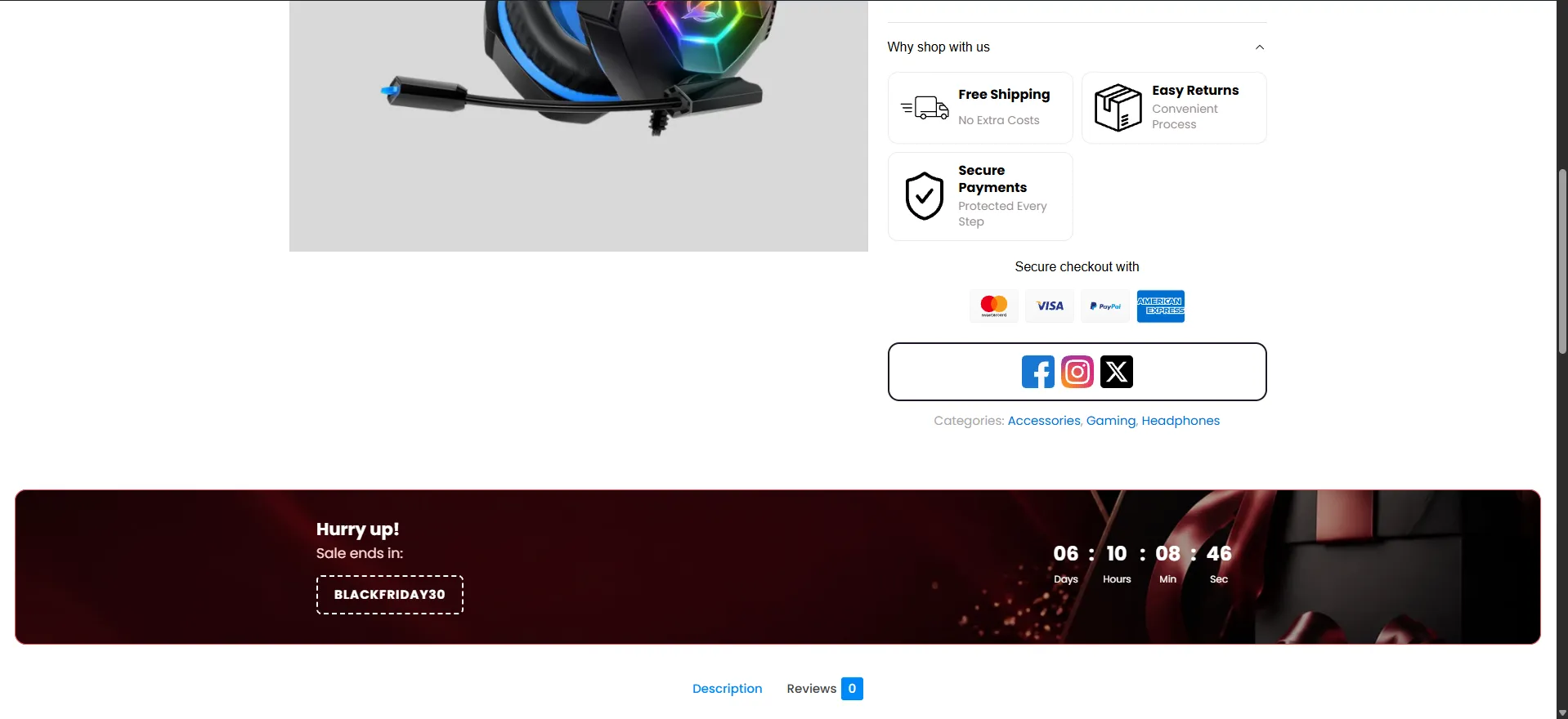
- Place trust/payment rows near the Add to Cart button, where doubt peaks.
- Use stock countdown only on genuinely low-stock items — false scarcity erodes trust.
- Keep each embed focused; stack two small ones rather than one cluttered block.
Next Steps
Frequently Asked Questions
What are WooCommerce product page embeds?
WooCommerce product page embeds are reusable content sections placed on product pages or other WooCommerce locations. Sale Booster embeds can show countdowns, stock messages, trust badges, payment icons, banners, free-shipping progress, announcements, and shoppable product galleries.
How do I add content to a WooCommerce product page?
Go to Sale Badges → Embeds → Add New, choose an embed type, configure its content and design, then use Targeting to select a product-page position, CSS selector, devices, products, and conditions before saving.
Are WooCommerce embeds available in the free version?
Embeds are a Pro feature. The Pro editor includes the embed types, templates, targeting, scheduling, styling, and live preview described in this guide.