WooCommerce Low Stock Countdown
Overview
The Countdown Stock embed is a scarcity meter that shows how few items remain (e.g. "Hurry up! Only 10 items left") with a progress bar, circle, or simple number — driven by the product's real stock.
Use this countdown stock plugin for a WooCommerce low stock countdown, a live WooCommerce stock countdown, a clear low stock product message, or a visual WooCommerce scarcity bar.
How it works
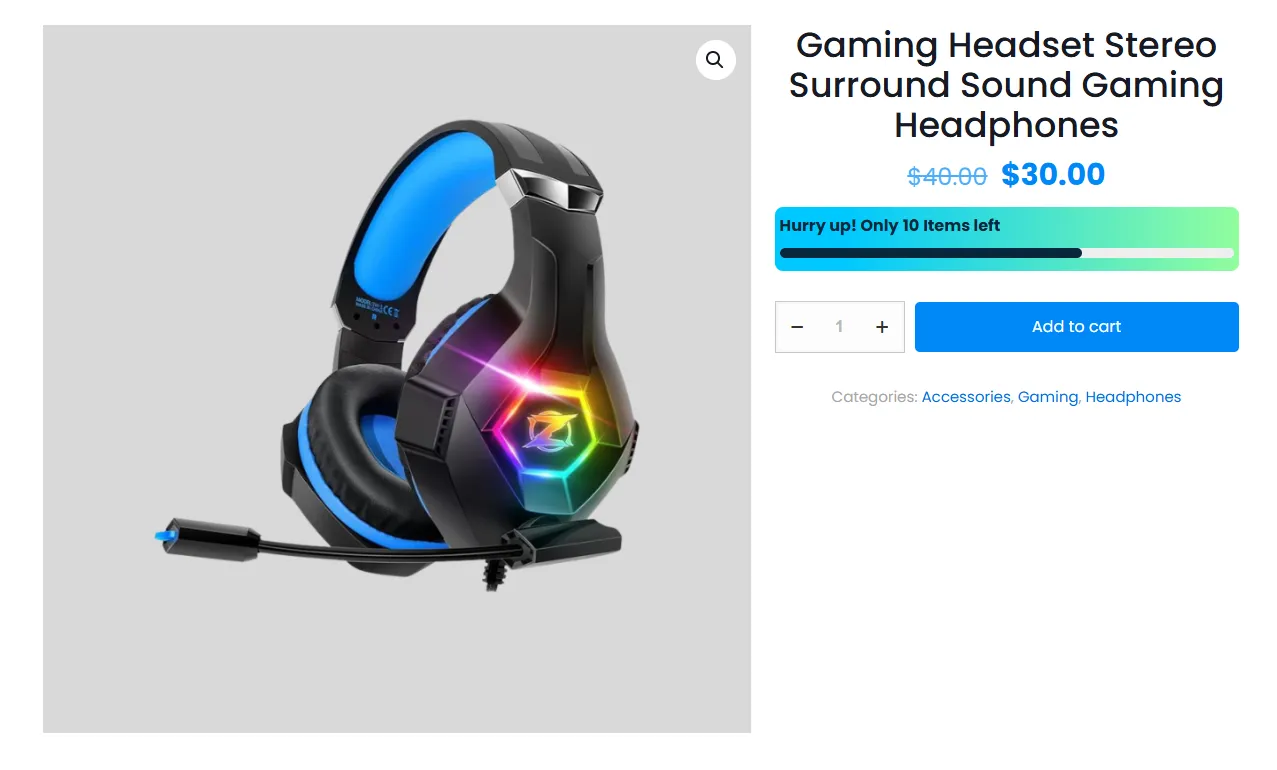
A product is running low. The Countdown Stock embed appears — "Hurry up! Only 10 items left" with a bar that's nearly full — nudging hesitant shoppers to act before it sells out.
Embeds are available in the Pro version.
Step-by-step setup
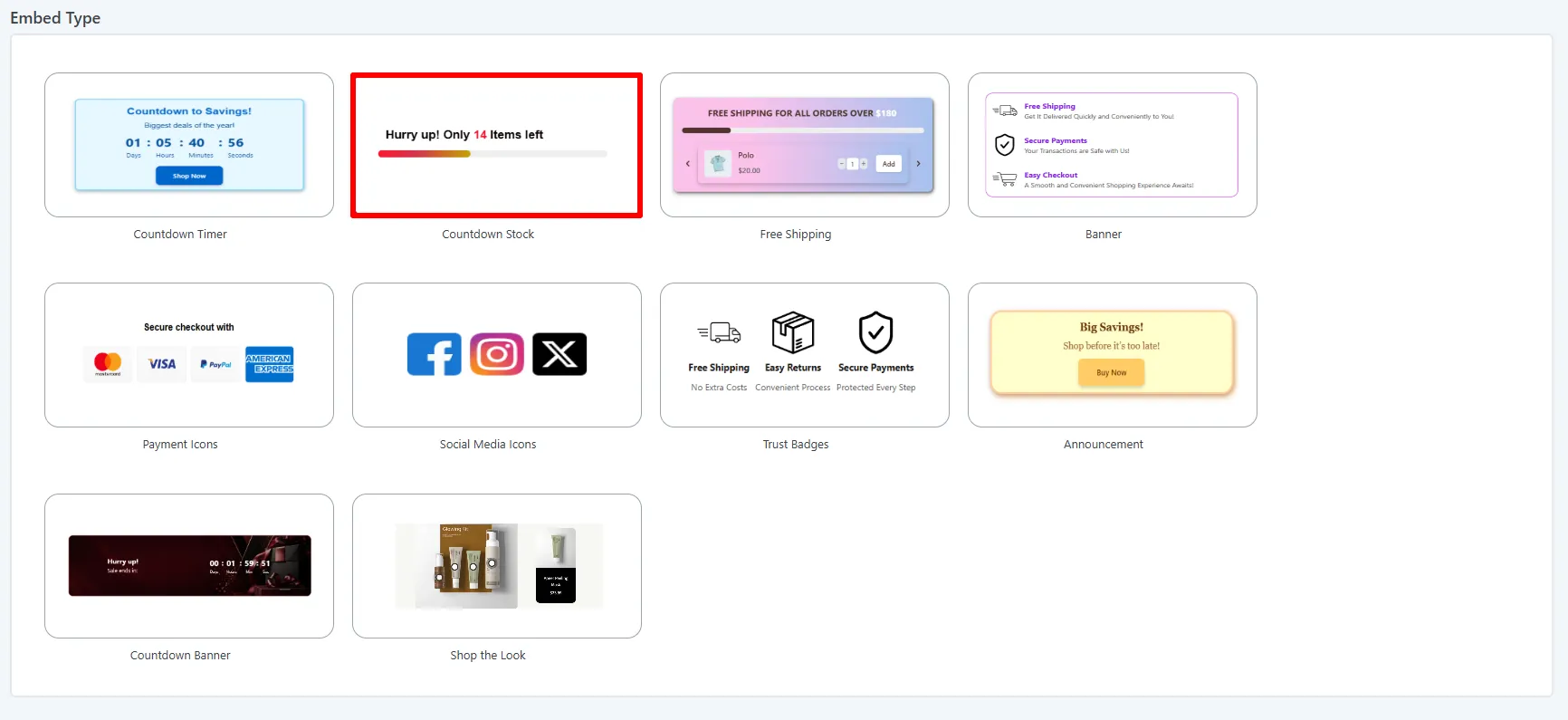
1. Pick the Countdown Stock type
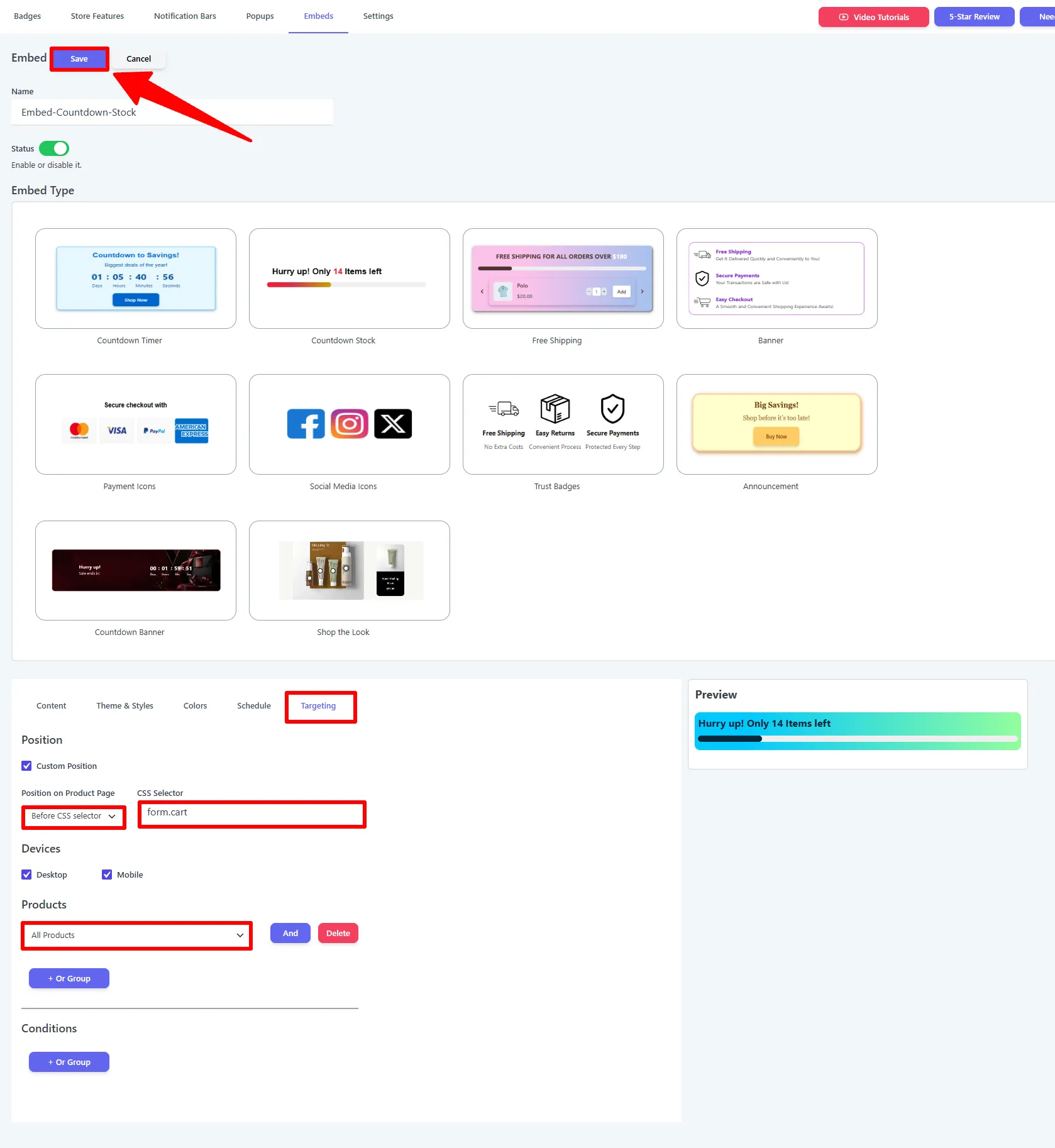
Open Sale Badges → Embeds → Add New, give the embed a Name, and turn Status on. Under Embed Type choose Countdown Stock.
2. Set the threshold and message
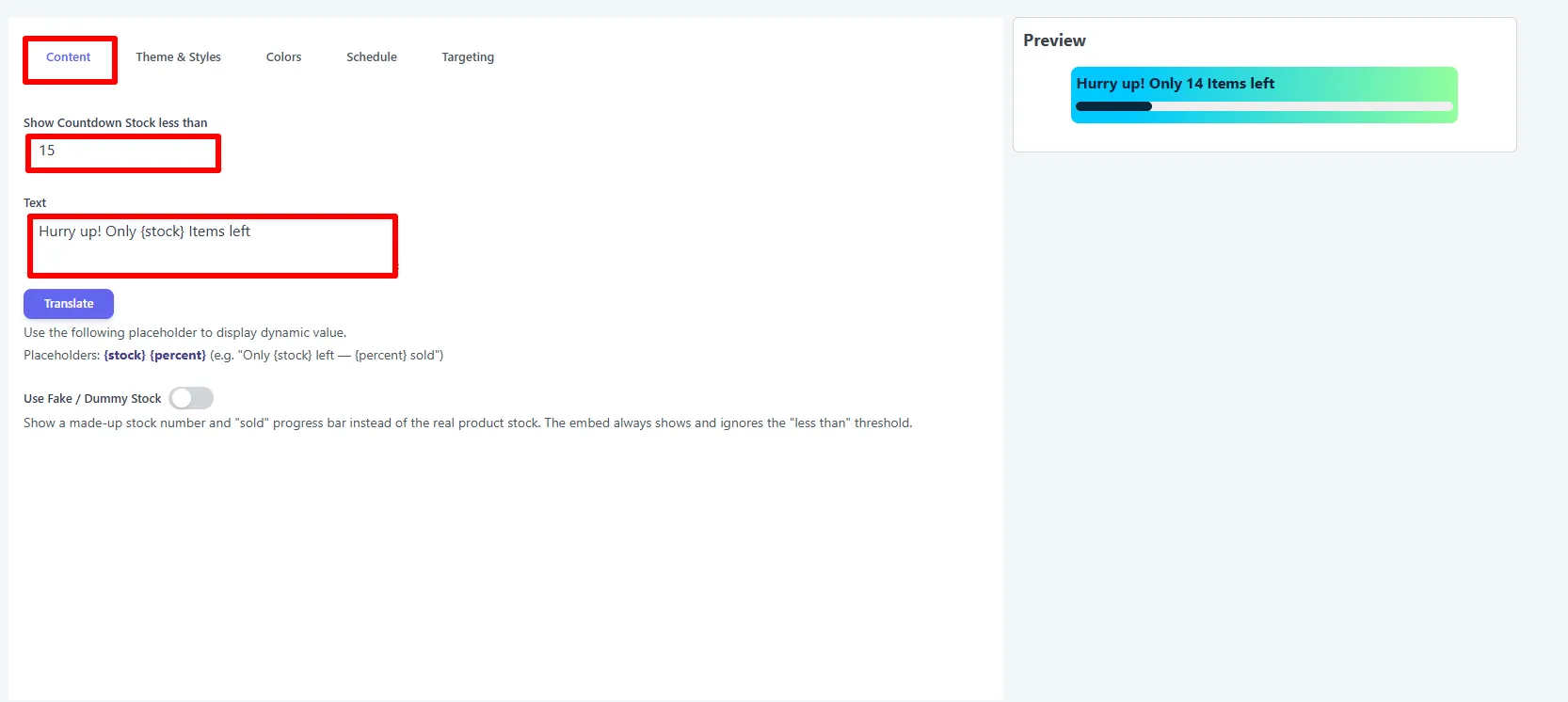
On the Content tab:
- Show Countdown Stock less than — the threshold; the embed only appears when stock is at or below this number (e.g.
15). - Text — the message, with placeholders
{stock}(units left) and{percent}(percent sold). e.g.Hurry up! Only {stock} Items left. - Use Fake / Dummy Stock — optionally show a made-up number and "sold" bar instead of real stock. This ignores the threshold and always shows.
3. Style it
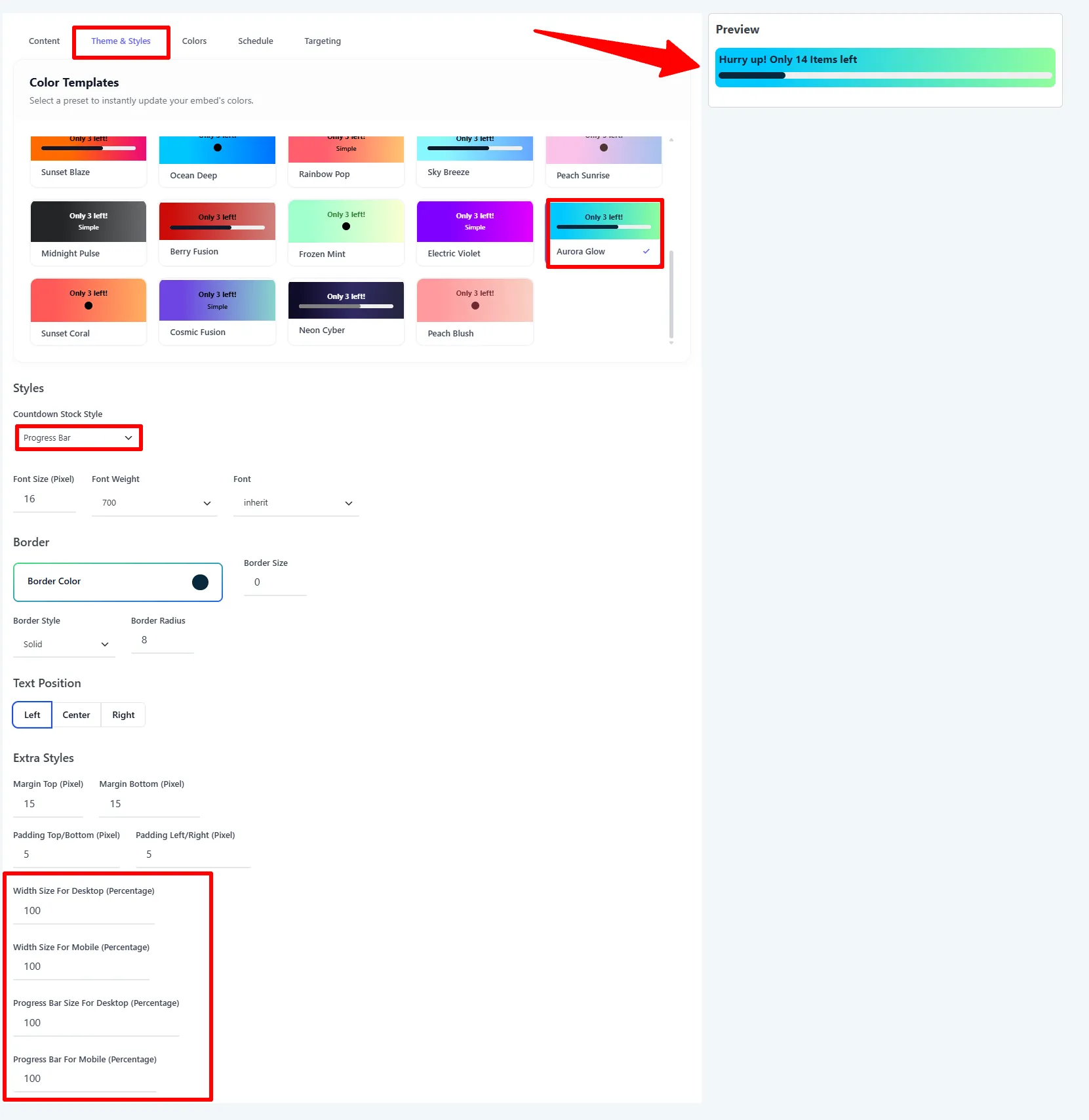
On the Theme & Styles tab, pick a Color Template (e.g. Aurora Glow), then choose the Countdown Stock Style and fine-tune the rest:
- Countdown Stock Style — Progress Bar, Circle, or Simple.
- Font — size, weight, and family; Border — color, size, style, radius.
- Text Position — Left / Center / Right.
- Extra Styles — margins, padding, embed width, and progress-bar width (desktop & mobile).
4. Place it, target, then Save
On the Targeting tab, tick Custom Position and set Position on Product Page (e.g. Before CSS selector) with a CSS Selector (default form.cart). Pick the Devices, add Products rules (e.g. All Products), then click Save.
Options explained
| Setting | What it does |
|---|---|
| Show Countdown Stock less than | The stock threshold that triggers the embed. |
| Text | The message with {stock} and {percent} placeholders. |
| Use Fake / Dummy Stock | Show a made-up Fake Stock Quantity and Percent Sold (%); always shows. |
| Countdown Stock Style | Progress Bar / Circle / Simple. |
| Text Position | Left / Center / Right. |
| Widths | Embed width and progress-bar width for desktop & mobile. |
On the storefront
- The embed appears only when real stock is ≤ your threshold (unless Fake Stock is on).
- For variable and grouped products the count updates live as the shopper selects a variation or changes quantities.
🧪 Example configuration
The meter shown in the screenshots:
| Setting | Value |
|---|---|
| Type | Countdown Stock |
| Show less than | 15 |
| Text | Hurry up! Only {stock} Items left |
| Style | Progress Bar |
| Color template | Aurora Glow |
| Placement | Before form.cart |
| Targeting | All Products |
What customers see
Between the price and the Add to Cart button, a colored bar reads "Hurry up! Only 10 items left" — honest, real-time scarcity that pushes the decision.
Use real stock and a sensible threshold. False scarcity (or leaving Fake Stock on everywhere) erodes trust when shoppers notice.
Placement, targeting & schedule
For the full placement, product-rule, condition, and schedule reference, see the Embeds overview.
Next Steps
Frequently Asked Questions
How do I show a low-stock countdown in WooCommerce?
Create a Countdown Stock embed, set Show Countdown Stock less than to your threshold, write the stock message with {stock}, choose a style, and configure its product-page placement.
Does Countdown Stock use real WooCommerce inventory?
Yes. The embed uses the product’s real stock and appears when inventory is at or below the threshold. Fake / Dummy Stock is optional and always displays instead of following the real-stock threshold.
Does the stock countdown work with variable products?
Yes. For variable and grouped products, the displayed count updates as the shopper selects a variation or changes quantities.