Shop the Look for WooCommerce
Overview
Shop the Look turns a single lifestyle photo into an interactive shopping experience. You place clickable hotspots on the image and link each to a product; a shopper clicks a hotspot and the product appears — with its title, price, and a link to buy — alongside a "Shop the Look" slider. It's ideal for fashion, beauty, home décor, and any store that sells "complete the look" combinations.
Use the Shop the Look WooCommerce embed as a shop the look plugin for a WooCommerce shoppable image, interactive product hotspots WooCommerce shoppers can click, and a conversion-focused shoppable product gallery.
How it works
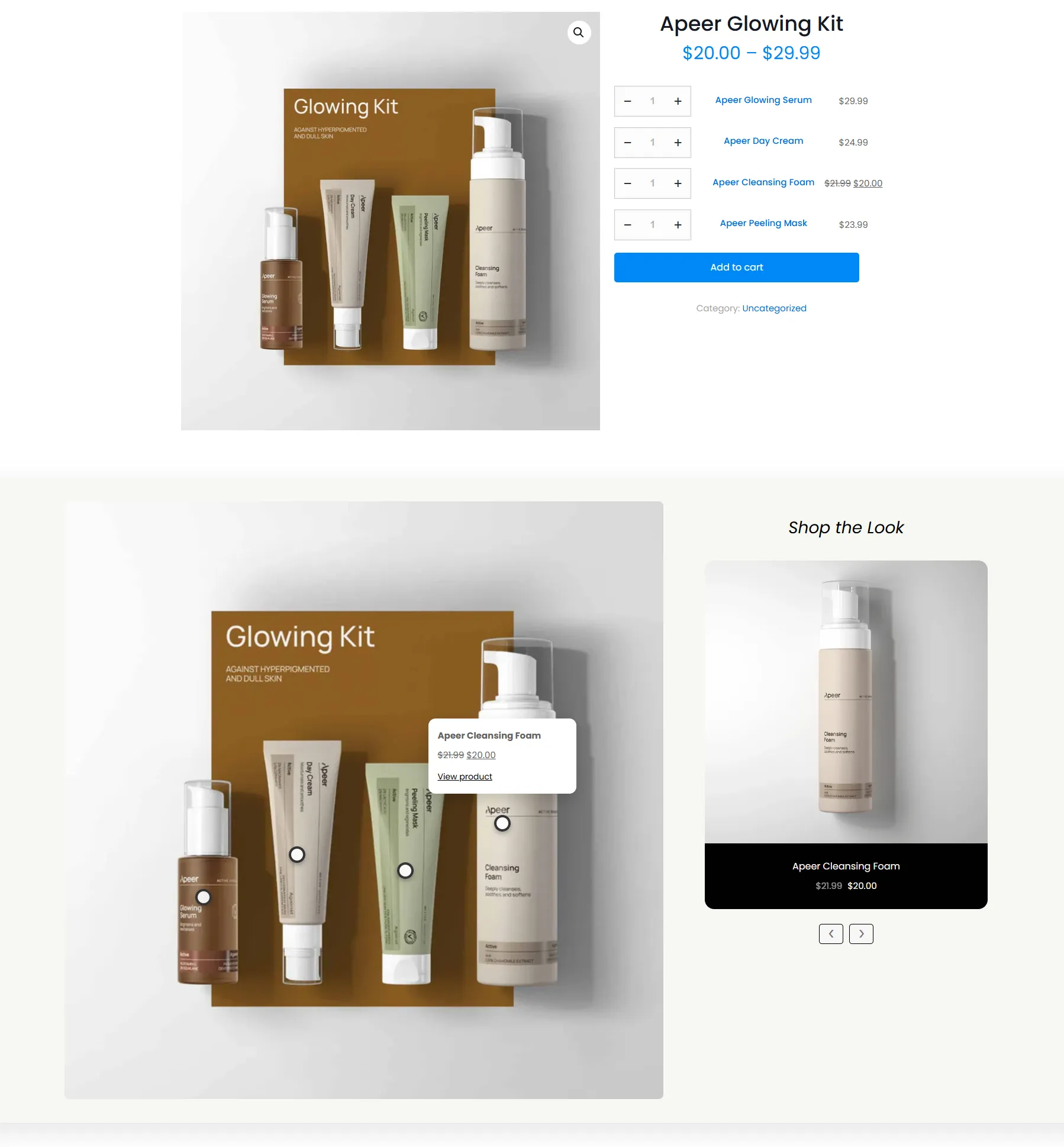
You photograph a styled skincare kit — serum, day cream, peeling mask, cleansing foam. You upload it, drop a hotspot on each item, and link it to the matching product. A shopper clicks the cleansing foam, sees its card (price + View product), and browses the rest of the set from the slider — one image sells the whole look.
Shop the Look is available in the Pro version. The same feature also ships as the Shop the Look block for hand-placing it on any page or post.
Step-by-step setup
1. Add the image and hotspots
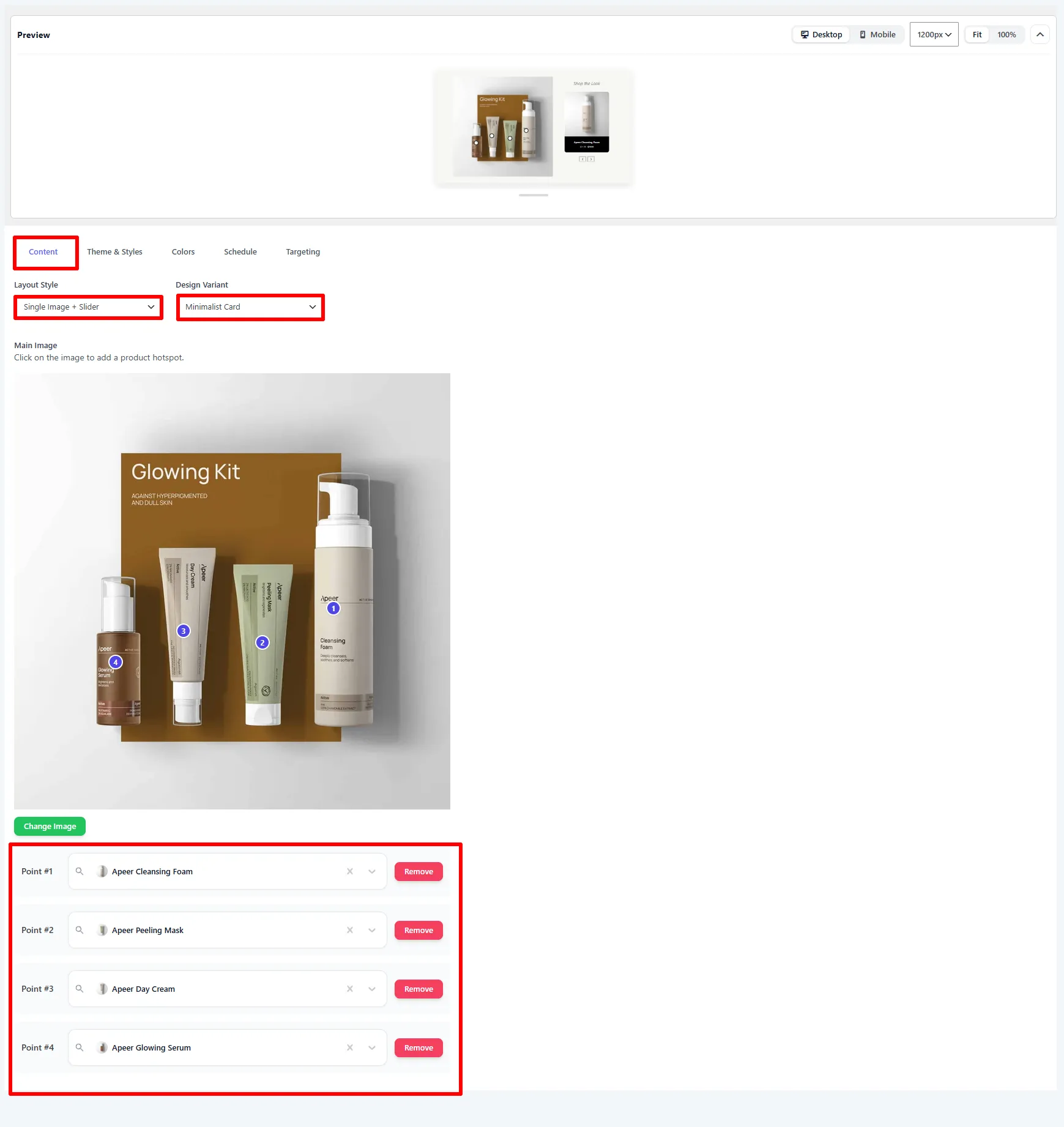
Open Sale Badges → Embeds → Add New and choose Shop the Look. On the Content tab:
- Layout Style — how the image and product list are arranged (e.g. Single Image + Slider).
- Design Variant — the visual style of the product card (e.g. Minimalist Card).
- Main Image — upload your photo (Change Image), then click on the image to add a product hotspot.
- Points — each hotspot becomes a numbered Point; link it to a product (e.g. Point #1 → Apeer Cleansing Foam) or Remove it.
2. Style it
Use the Theme & Styles and Colors tabs to adjust the block background, the Shop the Look heading, and the product-card colors (title, price, background) so the card stays readable over your photo.
3. Place it and target
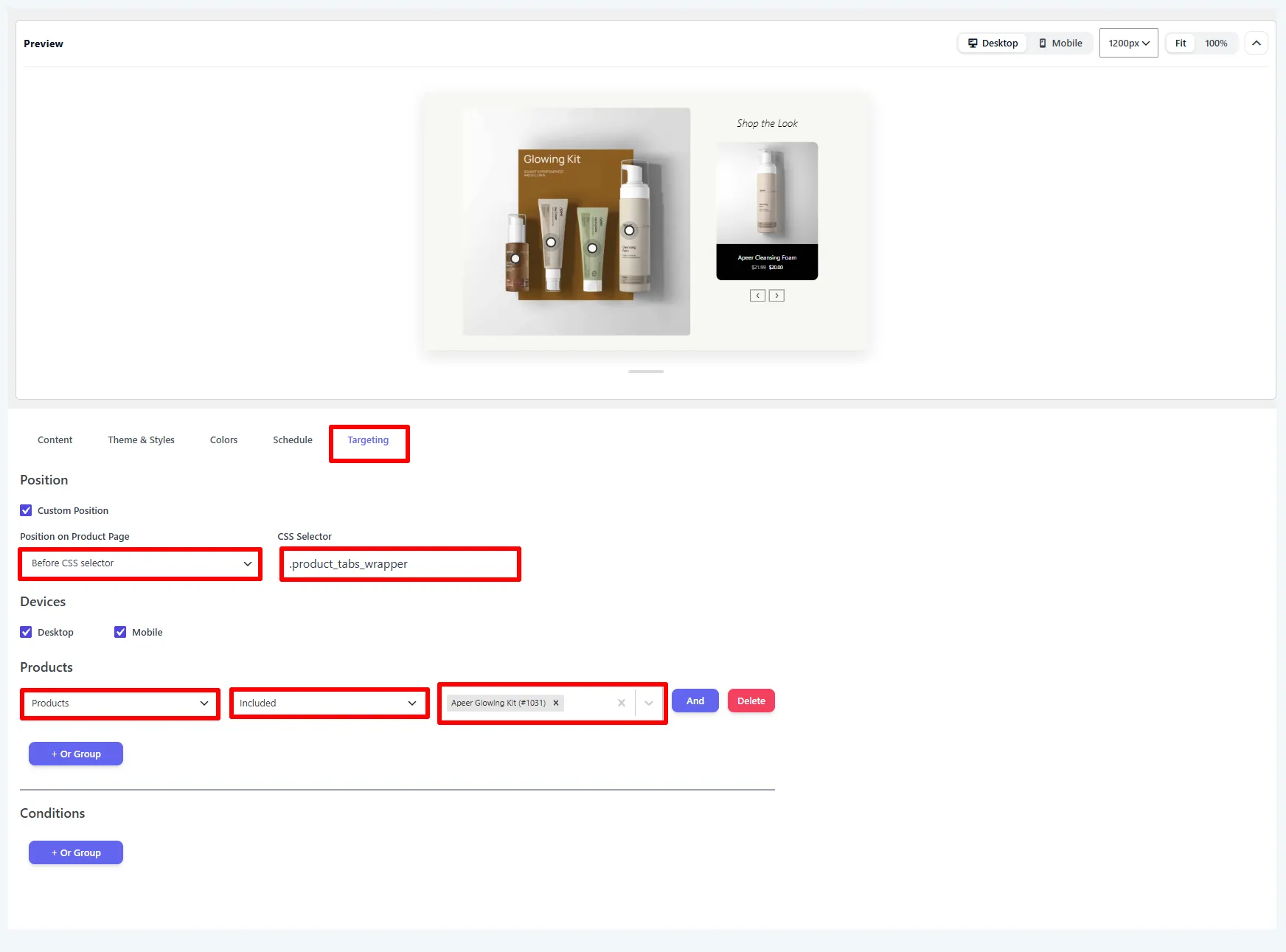
On the Targeting tab, tick Custom Position and pick where it appears — for a full-width section below the summary, use Before CSS selector with a selector like .product_tabs_wrapper (the Related Products position is also available). Choose the Devices, then add Products rules — e.g. Products → Included → the parent product (here Apeer Glowing Kit).
4. Name it and Save
Give the embed a Name, confirm Status is on, and click Save.

Options explained
| Option | What it does | When & why to use |
|---|---|---|
| Layout Style | Arrangement of the image and product list (e.g. Single Image + Slider). | Match the space you're placing it in. |
| Design Variant | The product card's look (e.g. Minimalist Card). | Fit your store's aesthetic. |
| Main Image | The lifestyle photo; click to add hotspots. | Use high-quality, well-lit photography. |
| Points / hotspots | Clickable markers, each linked to a product. | One per key product in the scene. |
| Theme / Colors | Background, heading, and card colors. | Keep the card readable over the image. |
🧪 Example configuration
The look shown in the screenshots:
| Setting | Value |
|---|---|
| Type | Shop the Look |
| Layout / Variant | Single Image + Slider · Minimalist Card |
| Image | "Glowing Kit" flat-lay |
| Hotspots | Cleansing Foam, Peeling Mask, Day Cream, Glowing Serum |
| Placement | Before .product_tabs_wrapper |
| Targeting | Products → Included → Apeer Glowing Kit |
What customers see
A striking lifestyle image where each product is a click away: tapping a hotspot opens the product card (price + View product), and the Shop the Look slider lets shoppers browse the rest of the set — turning inspiration into multiple add-to-carts.
- Keep hotspots to 3–6 so the image stays clean and clickable.
- Use real lifestyle photography, not plain product shots — the context is what sells the look.
- Link hotspots to in-stock products so shoppers can buy immediately.
Next Steps
- Shop the Look block — the same feature, hand-placed on any page.
- Embeds overview
- Settings
Frequently Asked Questions
What is Shop the Look for WooCommerce?
Shop the Look is a shoppable image section with clickable hotspots linked to WooCommerce products. Each product can appear in a card with its title, price, and a link to view or buy it.
How do I add product hotspots to a WooCommerce image?
Create a Shop the Look embed, upload the Main Image, click the image to add a point, and select a product for each hotspot. Remove points you do not need, then save the embed.
Can Shop the Look appear on selected product pages?
Yes. Use Targeting to select the placement, devices, products, conditions, and schedule. The feature is also available as a block for manual placement on pages or posts.