Troubleshooting
Overview
Almost every "my badge isn't showing" report comes down to where the badge attaches to your theme, and it's fixed in Sale Booster → Settings → General. This guide walks the common issues in the order you should try them, starting with a badge that doesn't appear at all.
Sale Booster displays badges using standard WooCommerce hooks. Some themes move, rename, or remove those hooks, so if a badge doesn't appear, the fix is almost always trying a different position hook or entering a custom hook your theme provides.
Badge not showing
Work through these steps in order — the first two solve most cases.
1. Confirm the badge is enabled and matches a product
- In Sale Booster → Badges, check the badge's Status toggle is on.
- Open the badge's Products & Conditions tab and confirm its rules actually match the product you're viewing (for example, Is On Sale → Yes only shows on products currently on sale). See Products & Conditions.
- Make sure the badge is set to display where you're looking — Archive (shop/category) and Product page are controlled separately.
2. Check plugin versions
Ensure the Free and Pro plugins are both updated to matching versions. Outdated or mismatched versions can cause display problems. Update from Plugins, then activate your license under Settings → Enable Updates.
3. Test the position hooks
Go to Settings → General and try the available positions one at a time — some themes don't fire every hook. Test archive and product pages separately, and remember On Image and Out of Image badges have their own position options:
| Where the badge sits | Setting to test |
|---|---|
| Over the product image, shop grid | On Image Position On Archive Page |
| Below the title/price, shop grid | Out of Image Position On Archive Page |
| Over the product image, product page | On Image Position On Product Page |
| Below the title/price, product page | Out of Image Position On Product Page |
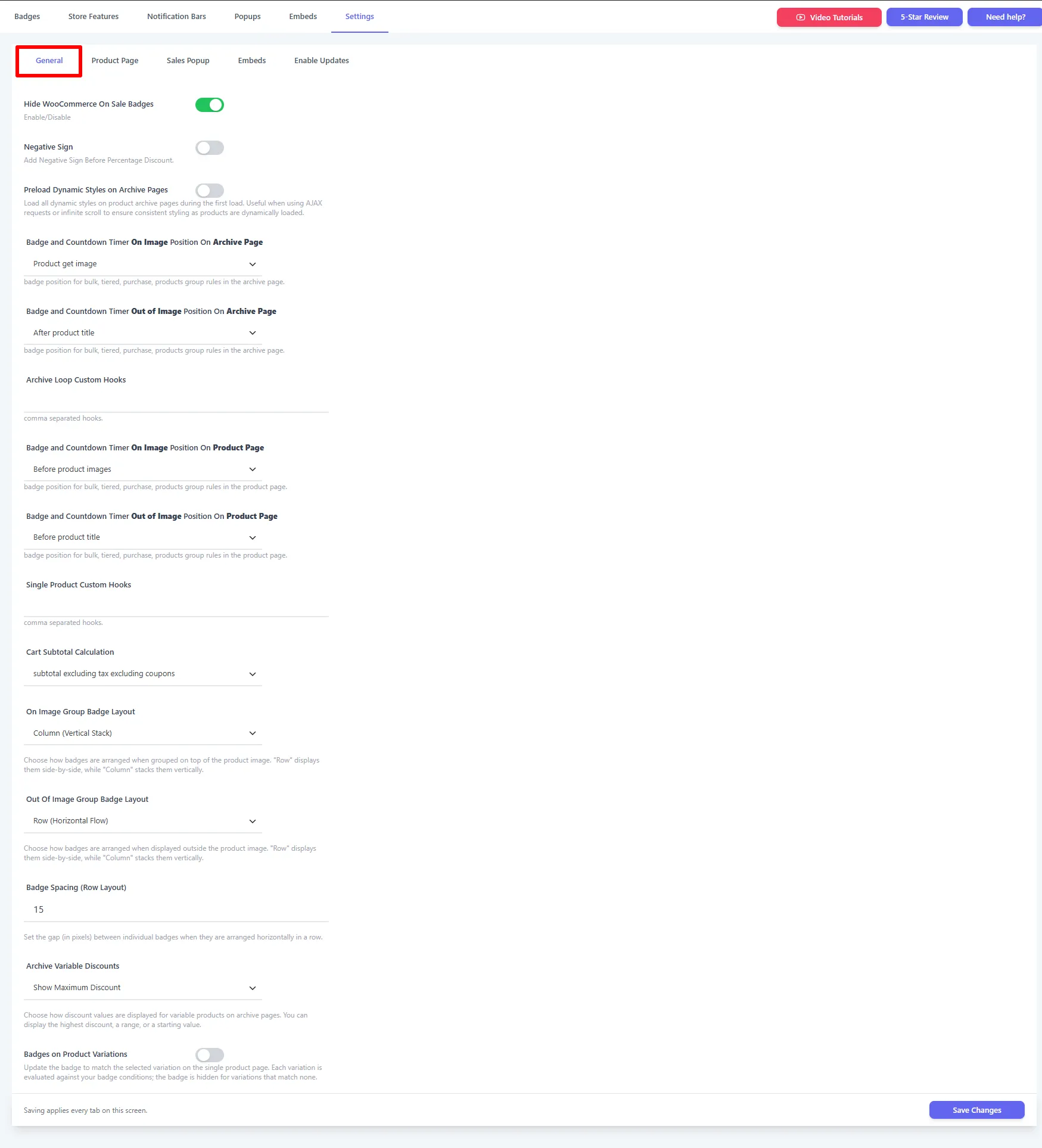
If no On Image position works, switch the badge to Out of Image and set the matching out-of-image hook (or the reverse). One of the two placement modes almost always fits the theme.
4. Enter a custom hook from your theme
If none of the built-in positions work, your theme developer can give you the exact hook name to target. Enter it in:
- Archive Loop Custom Hooks — for shop/category pages.
- Single Product Custom Hooks — for product pages.
Both accept comma-separated hook names. See Settings → General for every field.
5. Place the badge manually with a shortcode
As an alternative to hooks, drop the badge exactly where you want it using a shortcode in the template, block, or page:
Product page:      [asnp_badge hide="1"]
Archive/shop:      [asnp_badge]
A specific product: [asnp_badge product_id="7" hide="1"]
- Use
id="12"to render one specific badge:[asnp_badge id="12"]. hide="1"suppresses the automatic (hooked) output so the badge only appears where you placed the shortcode — useful to avoid duplicates on the product page.
6. Hide WooCommerce's default "Sale!" flash
If your badge and WooCommerce's built-in flash overlap or fight for the same spot, enable Hide WooCommerce On Sale Badges in Settings → General so only your badge shows.
Badge shows in the wrong place or overlaps
- Try a different position hook for that page (Step 3 above).
- Switch between On Image and Out of Image placement.
- For several badges on one product, set the Group Badge Layout (Row/Column) and Badge Spacing in Settings → General, and use the Order field in the Badges list so the most important badge leads.
Wrong discount or percentage on variable products
Open Settings → General → Archive Variable Discounts and choose whether to show the maximum, minimum, or a range/starting discount. This controls how {saved_percent} and price placeholders read on variable products.
Badge doesn't follow the selected variation
On the product page, enable Badges on Product Variations in Settings → General so the badge is re-evaluated against the selected variation (and hidden on variations it doesn't match).
Styling looks broken on AJAX / infinite-scroll shops
If badges lose their styling as more products load, turn on Preload Dynamic Styles on Archive Pages in Settings → General so all dynamic styles load on the first archive request.
Countdown badge or timer not counting down
- Confirm the badge's Schedule window is active — a timer with a past end date won't display. See Scheduling Badges and Countdown Timer.
- Check your site's timezone under Settings → General (WordPress) matches the schedule you intend.
Using the Discount Rules plugin's sale badge?
If your sale badge is generated by the Discount Rules and Dynamic Pricing plugin instead of Sale Booster, the fixes differ slightly:
- Verify Show Sale Badge is enabled for that pricing rule.
- Test each badge position — separate options exist for archive and product pages.
- To place it manually, set the position to None and add
[wccs_sale_flash]in your theme template.
See the Discount Rules guide: Sale Badge → Troubleshooting: Badge not showing.
Still stuck?
If a badge still won't appear after trying the steps above, reach out with your theme name and a link to the affected product:
Frequently Asked Questions
Why is my WooCommerce sale badge not showing?
In most cases the badge's position hook isn't supported by your theme. Open Sale Booster → Settings → General and test the On Image and Out of Image positions for archive and product pages one at a time, or enter a custom hook from your theme developer. Also confirm the badge's Status is enabled and its conditions match the product.
How do I show a badge if no position hook works?
Use a shortcode. Place [asnp_badge hide="1"] (or [asnp_badge id="12" hide="1"] for a specific badge) directly in the product template, and [asnp_badge] on archive pages. The hide="1" attribute prevents duplicate hooked output.
My badge shows the wrong percentage on variable products. How do I fix it?
Set Archive Variable Discounts in Settings → General to maximum, minimum, or a range, and enable Badges on Product Variations so the badge updates when a shopper selects a variation.
Do I need both the Free and Pro plugins updated?
Yes. Keep the Free and Pro versions on matching, up-to-date releases. Mismatched versions can cause badges to render incorrectly or not at all.
Next Steps
- Settings → General — position hooks and custom hooks.
- Managing Badges
- Products & Conditions
- Admin Overview