WooCommerce Discount Popup
Overview
Use a WooCommerce discount popup when a coupon popup WooCommerce shopper sees can remove purchase hesitation at the right moment. The Sale Booster WooCommerce coupon popup displays a discount code popup with copy or apply behavior, making a one-click coupon popup available without interrupting the whole page.
The Discount Popup is the coupon-focused type of Sales Popup. It shows a small popup in the corner of the store with a discount code shoppers can copy or apply in one click — a gentle nudge that turns browsers into buyers without a full-screen interruption.
How it works
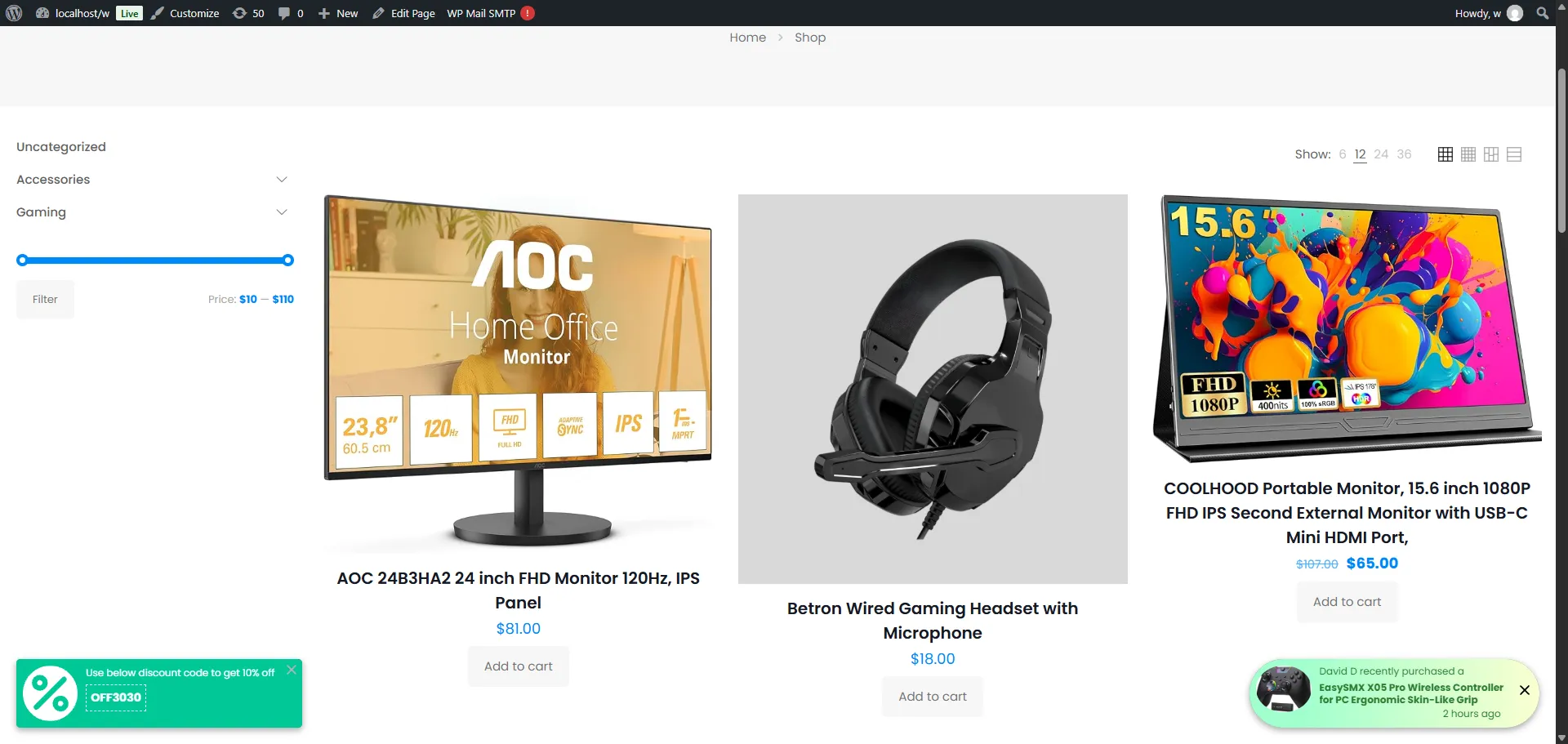
A visitor is browsing your shop. After a short delay, a small popup slides in from the corner: "Use below discount code to get 10% off — OFF3030." They copy the code (or hit Apply) and it's ready at checkout — no page reload, no lost momentum.
The Discount Popup is available in the Pro version. Configure it from Sale Badges → Popups.
Step-by-step setup
1. Pick the Discount type
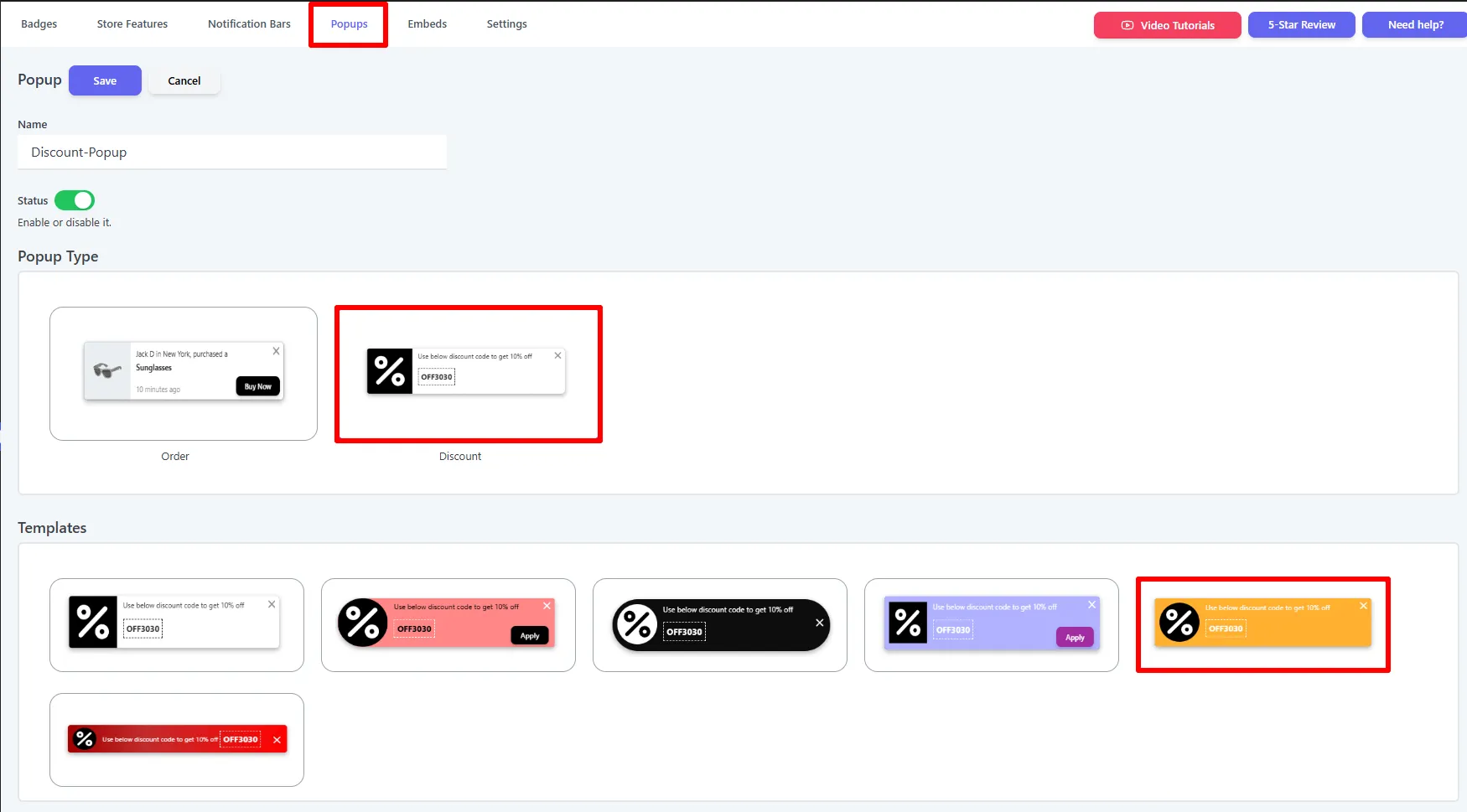
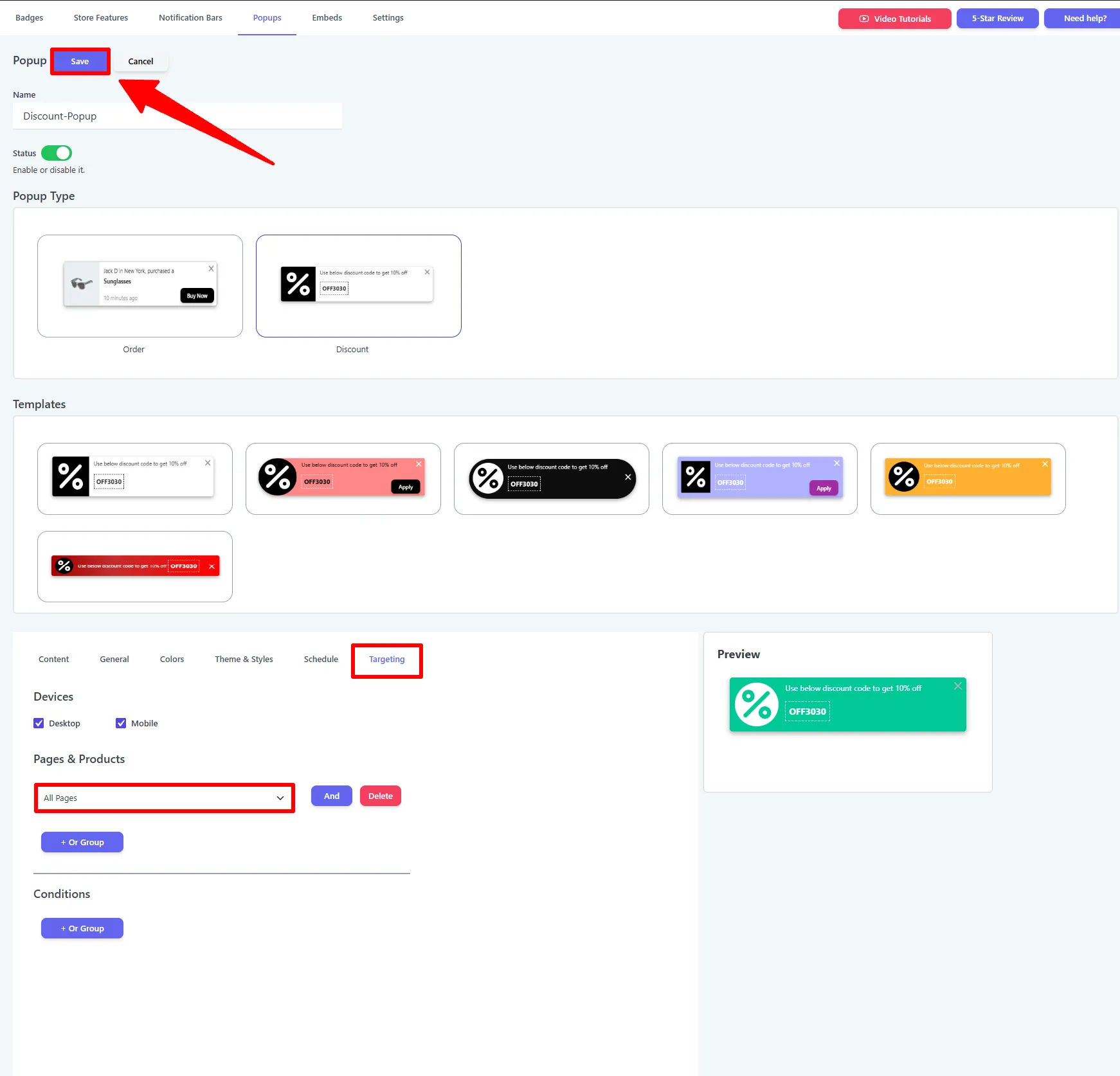
Open Sale Badges → Popups → Add New, give the popup a Name (e.g. Discount-Popup), and turn Status on. Under Popup Type choose Discount, then pick a template from the gallery.
2. Set the coupon and message
On the Content tab:
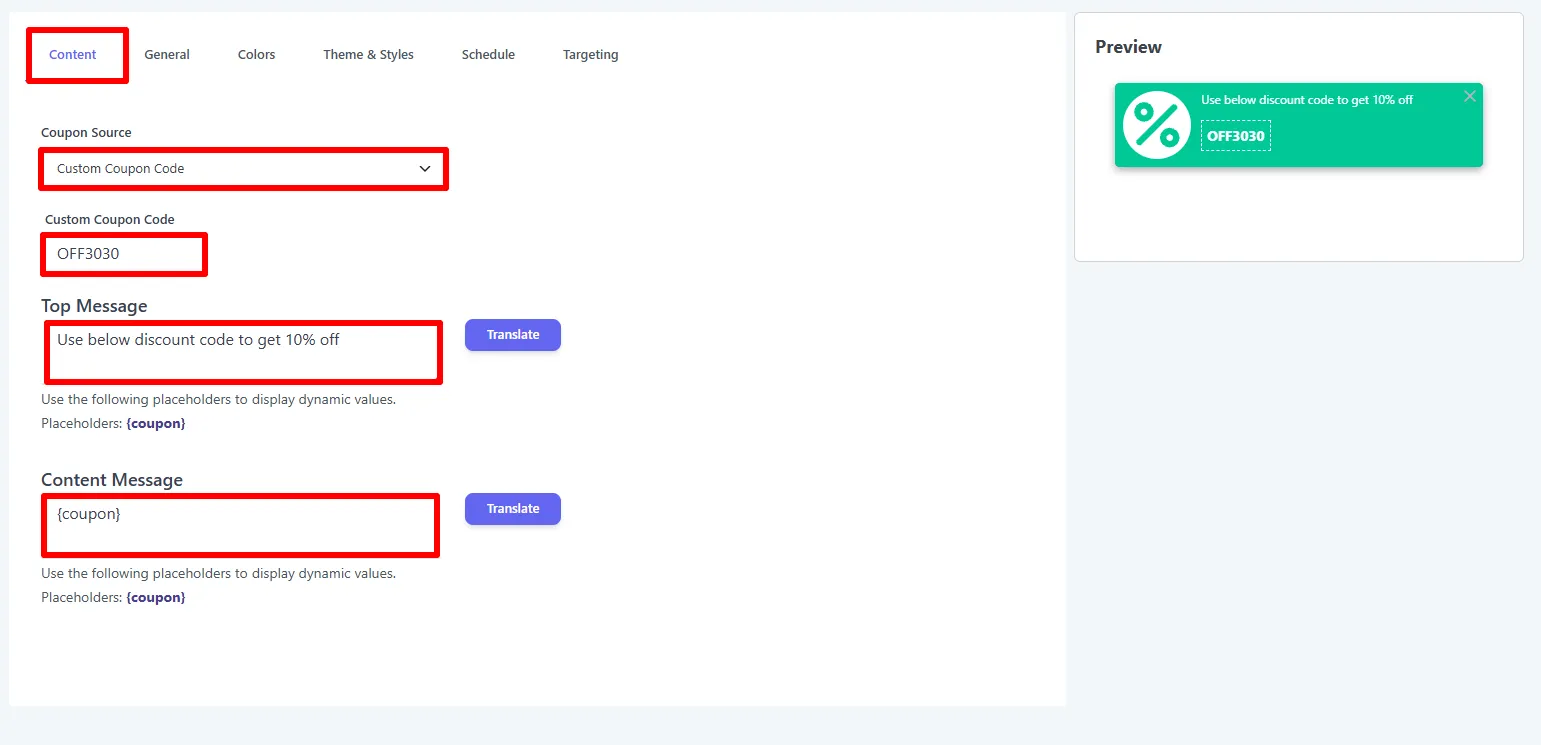
- Coupon Source — choose Custom Coupon Code (type your own) or select an existing WooCommerce coupon.
- Custom Coupon Code — the code to show, e.g.
OFF3030. - Top Message — the headline, e.g.
Use below discount code to get 10% off(placeholder:{coupon}). - Content Message — the code line, usually just
{coupon}.
Use Translate beside each field to localize it per language.
3. Set timing, position & link
On the General tab:
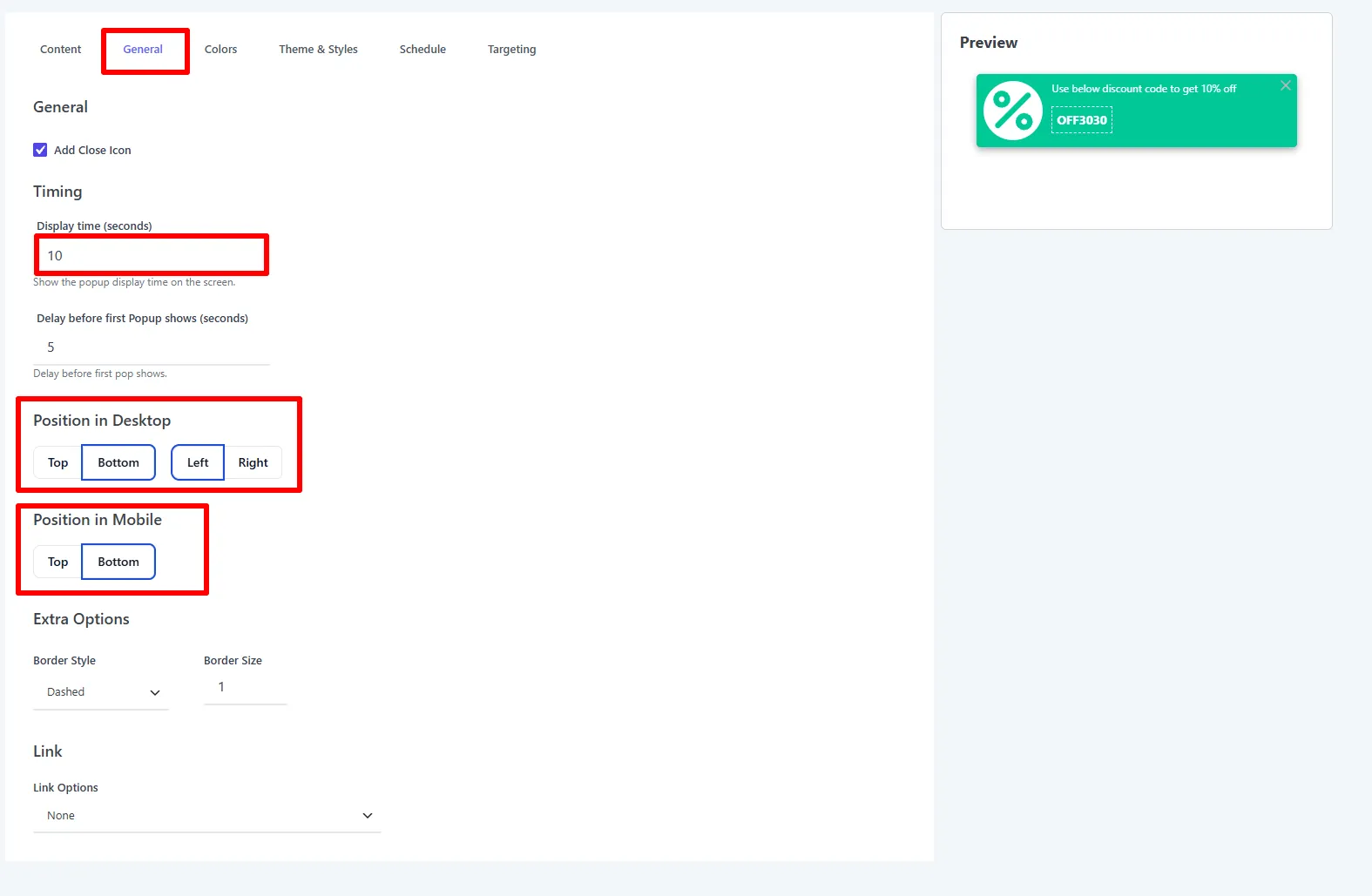
- Add Close Icon — let visitors dismiss the popup.
- Timing — Display time (10s) and Delay before first Popup (5s).
- Position in Desktop (e.g. Bottom + Left) and Position in Mobile (e.g. Bottom).
- Extra Options — Border Style (e.g. Dashed) and Border Size.
- Link Options — what clicking the popup does (see the table below).
4. Style it
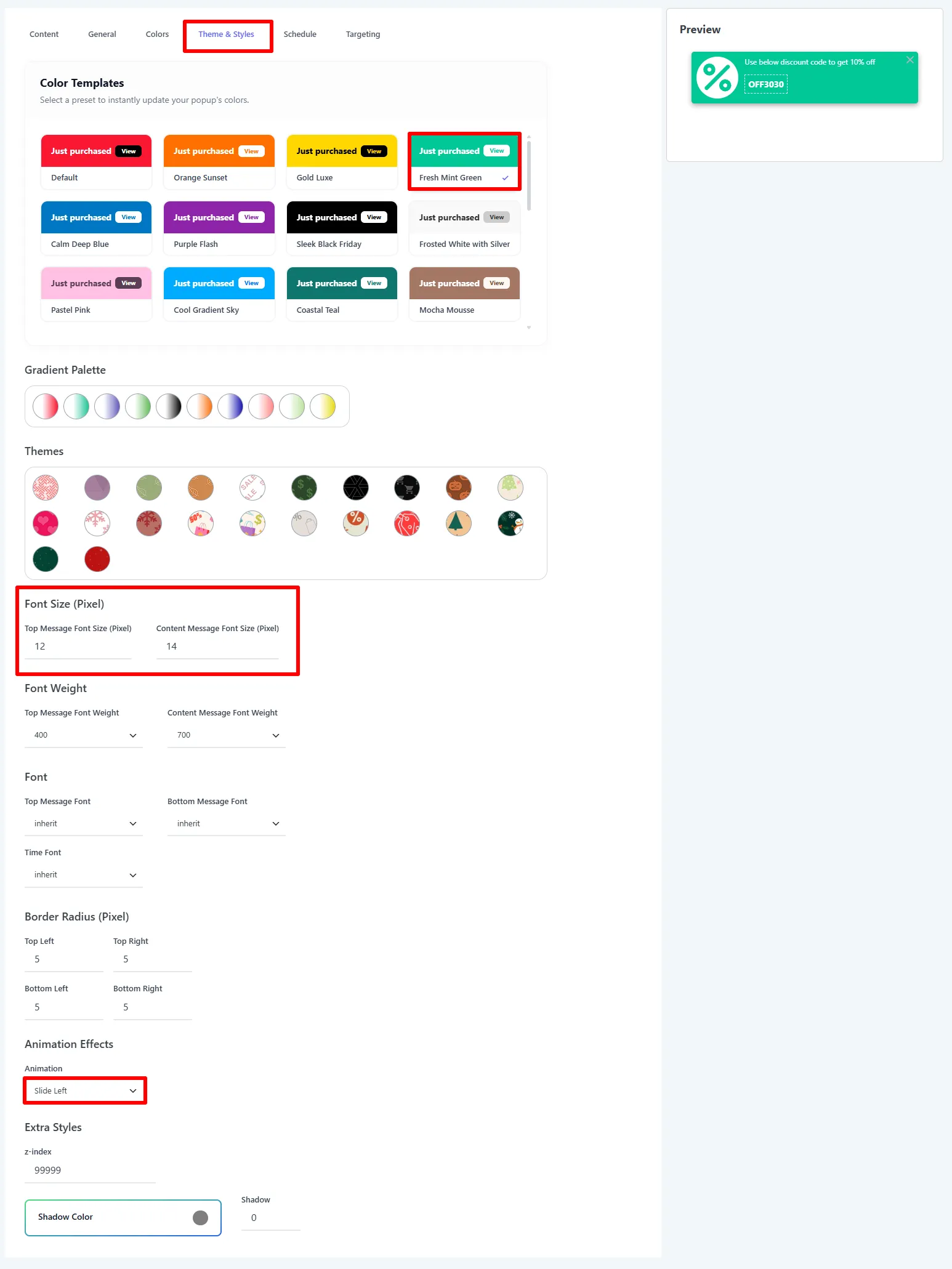
On the Theme & Styles tab, pick a Color Template (e.g. Fresh Mint Green) to recolor the popup in one click, or choose a Gradient Palette / Theme. Then fine-tune Font Size (Top / Content), Font Weight, Border Radius, and the entrance Animation (e.g. Slide Left).
5. Choose where it shows, then Save
On the Targeting tab, pick the Devices (Desktop / Mobile), add Pages & Products rules (default All Pages) and optional Conditions, then click Save.
Coupon link options
The Link Options setting (General tab) controls what the popup does for the shopper:
| Option | What it does | When & why to use |
|---|---|---|
| None | Just displays the code. | Shoppers type it manually at checkout. |
| Copy Coupon | Click to copy the code to the clipboard. | Fastest way to hand over a code. |
| Apply Coupon | Applies the coupon in one click. | Removes friction — the discount is ready at checkout. |
| Custom URL | Links the popup somewhere (e.g. a sale page). | Drive traffic to a landing page. |
Options explained
Content
| Setting | What it does | Example |
|---|---|---|
| Coupon Source | Use a custom code or an existing WooCommerce coupon. | Custom Coupon Code |
| Custom Coupon Code | The code to display. | OFF3030 |
| Top Message | The headline line. | Use below discount code to get 10% off |
| Content Message | The code line. | {coupon} |
General & Design
| Setting | What it does |
|---|---|
| Add Close Icon | Let visitors dismiss the popup. |
| Display time / Delay before first | How long it shows and when it first appears. |
| Position (Desktop / Mobile) | Corner placement per device. |
| Border Style / Size | Dashed/solid border around the coupon. |
| Color Template / Gradient / Theme | One-click styling for the whole popup. |
| Font Size / Weight | Type sizing for the top and content lines. |
| Border Radius | Corner rounding. |
| Animation | Entrance effect (Slide Left, Fade…). |
| z-index | Stacking order above sticky headers. |
Targeting, conditions & schedule
Limit the popup by page, product/category, visitor conditions (login, roles, countries), and a schedule. See Products & Conditions.
🧪 Example configuration
The discount popup shown in the screenshots:
| Setting | Value |
|---|---|
| Type | Discount |
| Coupon Source / Code | Custom Coupon Code · OFF3030 |
| Top Message | Use below discount code to get 10% off |
| Content Message | {coupon} |
| Timing | Display 10s · Delay 5s |
| Position | Desktop Bottom-Left · Mobile Bottom |
| Border | Dashed · size 1 |
| Color template / Radius / Animation | Fresh Mint Green · 5 · Slide Left |
What customers see
A small coupon popup in the corner of the store (bottom-left in the image above) with the code ready to copy or apply — a low-friction nudge toward checkout.
Search visibility and conversion measurement
The popup should make the offer easier to use, not replace the product page’s primary content. Keep the coupon terms, expiration, minimum spend, eligible products, and pricing consistent with the WooCommerce coupon configuration. Give this guide a unique title, description, and URL; Google may choose visible page text or the meta description for a search snippet depending on the query (Google Search snippets).
Measure the funnel from popup impression to code copy, coupon application, product-page click, add to cart, checkout start, and completed order. Test Copy Coupon against Apply Coupon, compare different delays, and segment results by device and target page. Do not promise a discount in the message if the coupon is expired, restricted, or unavailable to the visitor.
Use a close icon and a repeat-display limit to keep the coupon helpful. Target the popup to relevant landing pages or campaigns instead of showing the same offer on every page, and write the message so it remains understandable when the code or discount changes.
- If you use an existing WooCommerce coupon, make sure it's valid and active.
- Prefer Apply Coupon to remove friction — the discount is waiting at checkout.
- Set a Close Behavior and the global cap in Settings → Sales Popup → Limit so returning shoppers aren't nagged.
Next Steps
Frequently Asked Questions
What is a WooCommerce discount popup?
A WooCommerce discount popup is a small promotional notification that displays a coupon code in the storefront. Sale Booster can let shoppers copy the code, apply it in one click, or follow a custom URL.
Can a coupon popup in WooCommerce apply the code automatically?
Yes. Set Link Options to Apply Coupon. The popup can apply the configured code so shoppers do not need to leave the page and type it manually at checkout.
What is the difference between Copy Coupon and Apply Coupon?
Copy Coupon places the code on the shopper’s clipboard for manual use. Apply Coupon sends the code into the WooCommerce cart or checkout flow automatically when the action is supported.
How should I target a discount code popup?
Use the Targeting tab to select devices, pages, products, conditions, and schedules. Match the popup to the campaign’s eligible products and coupon rules so customers do not see an offer they cannot redeem.