WooCommerce Product Badge Conditions
Overview
The Products & Conditions tab is what makes badges automatic. Instead of tagging products one by one, you write rules — "which products" and "which visitors" — and the plugin applies the badge everywhere those rules match. Set it once; it maintains itself as your catalog changes.
Use WooCommerce product badge conditions and WooCommerce badge rules to target WooCommerce badges by product, category, sale status, customer context, or user role product badges requirements. This is especially useful for WooCommerce product category badges that should appear only for a defined audience.
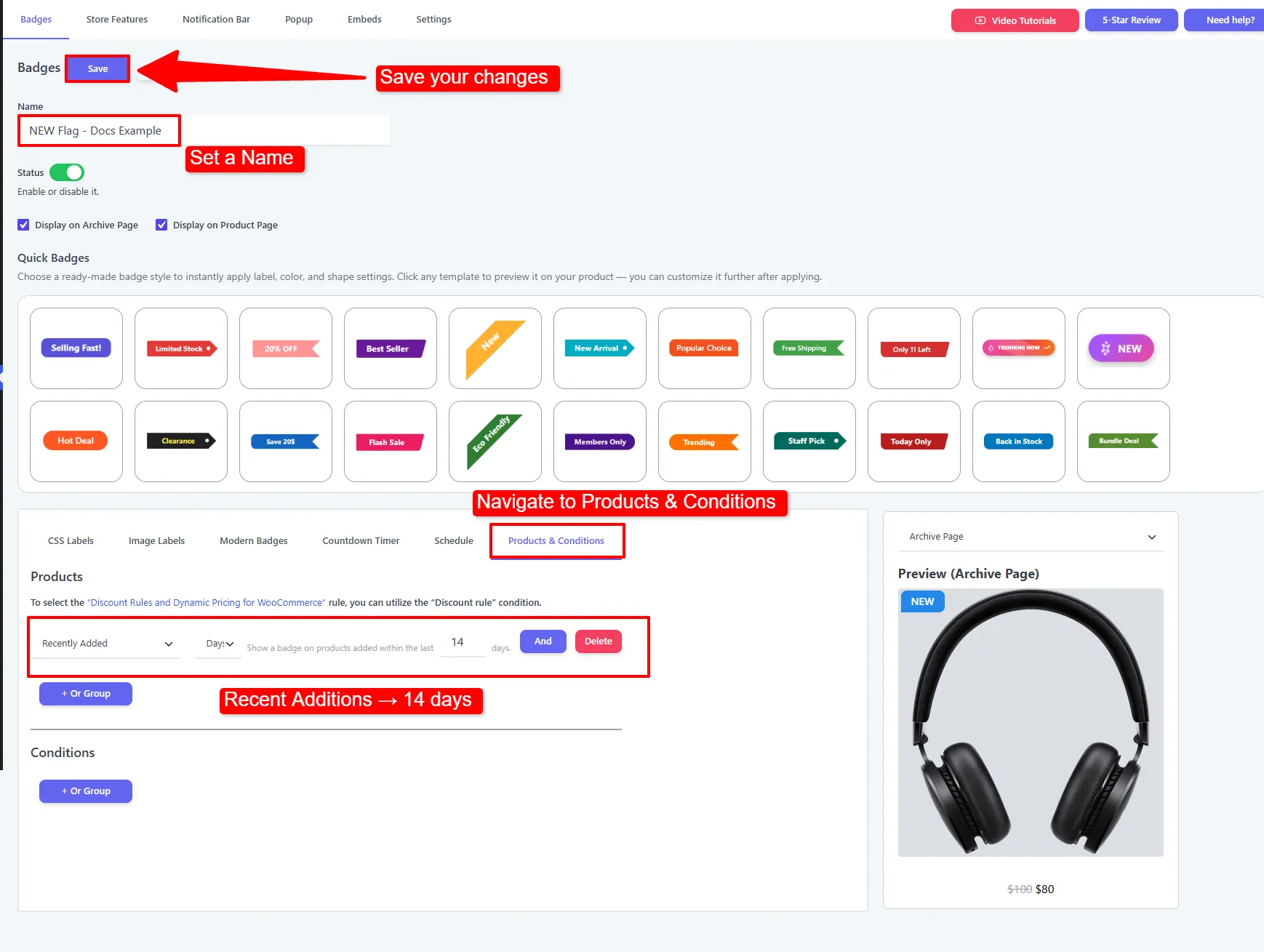
The screenshot below shows the whole flow in context: give the badge a Name, open the Products & Conditions tab, add a product rule (here Recently Added → 14 days for a "NEW" badge), and Save.
How it works
You want a "Members Only" badge, but only on Gaming/Game Controllers, and only for logged-in Wholesale customers. You add a product rule (Categories → Gaming/Game Controllers) and a condition (User Role → Wholesale). Now the badge appears exactly where and for whom you intended — and never for regular visitors.
Core product rules (products, categories, tags, on-sale, stock status) are in the Free version. Advanced product rules (quantity, price ranges, best-seller, featured, custom attributes) and all visitor conditions (login, roles, geolocation, money spent) are Pro.
How rules combine
Rules are grouped with AND and OR logic — the same pattern used across the plugin:
- + And New Rule — all rules in a group must match.
- + OR New Group — any group can match.
Example: (Category = Gaming/Game Controllers AND Is On Sale) OR (Tag = Clearance).
Product rules
Add one or more rules to decide which products show the badge. Open the first dropdown to choose a rule type:
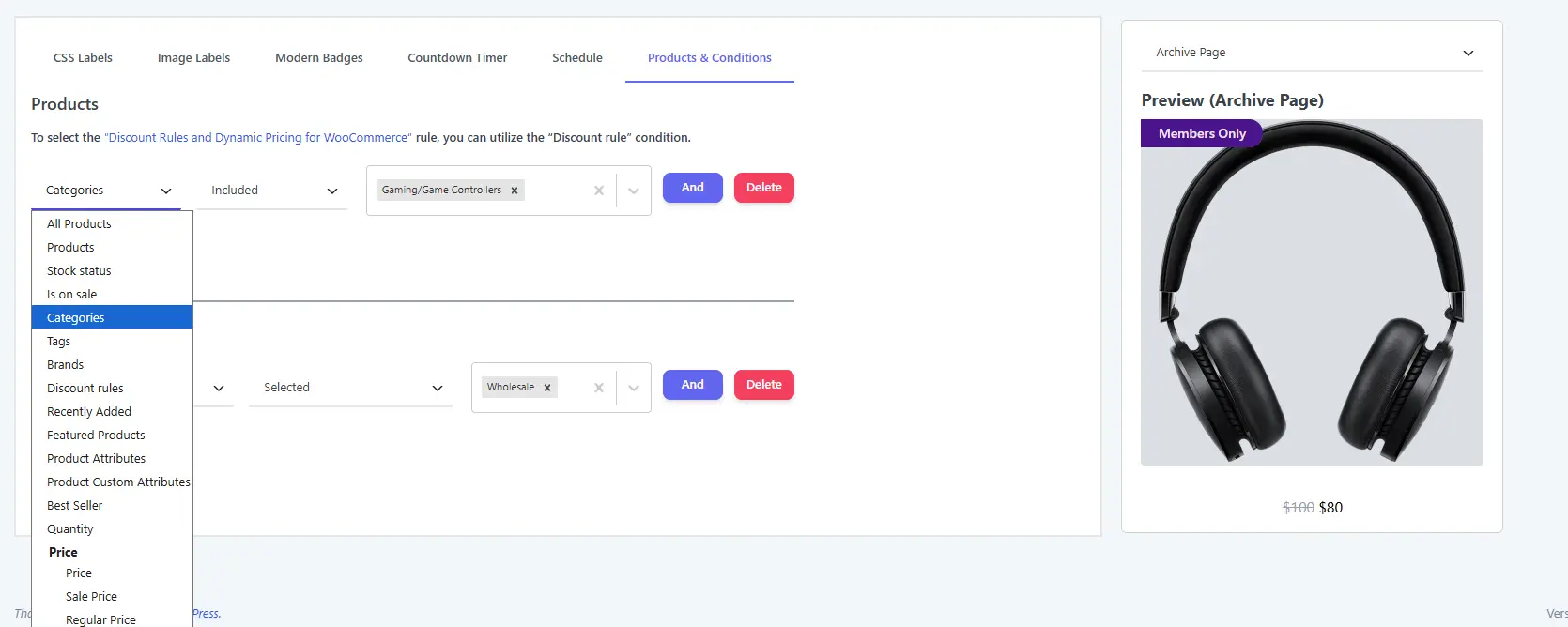
| Rule | Matches products by | Typical use |
|---|---|---|
| All Products | Every product in the store. | A storewide seasonal badge. |
| Products | A hand-picked list (Included or Excluded). | Feature or exclude specific items. |
| Stock status | In stock / out of stock / on backorder. | "Sold Out" or "Back in Stock" labels. |
| Is on sale | Products currently on sale (Yes / No). | Auto "Sale" badge on discounted items. |
| Categories | Product categories (Included or Excluded). | Category-wide promotions. |
| Tags | Product tags (Included or Excluded). | Cross-category campaigns (e.g. "clearance"). |
| Brands | Product brands (Included or Excluded). | Brand-specific promotions. |
| Shipping Class | Products assigned to a shipping class. | Apply a badge to products with a delivery or handling class. |
| Discount rules | Products matched by your Discount Rules & Dynamic Pricing plugin rules. | Badge everything currently discounted by a pricing rule. |
| Recently Added | Added within the last N days / weeks / months. | "New" badge on fresh arrivals. |
| Featured Products | Products marked featured (Yes / No). | Highlight your curated picks. |
| Product Attributes | A WooCommerce attribute (Included or Excluded). | Target by color, size, material, etc. |
| Product Custom Attributes | A specific custom attribute name/value. | Target by any custom attribute. |
| Best Seller | Top-selling products in a period — Today / This Week / This Month / Last month / This Year — showing the top X by sales. | "Best Seller" trust badge. |
| Quantity | Stock quantity, via a numeric operator. | Low-stock urgency (e.g. quantity ≤ 5). |
| Price / Sale Price / Regular Price | A numeric price comparison. | Badge products under/over a price. |
- Numeric operators (Quantity & Price rules): Less than, Less equal to, Greater than, Greater equal to, Equal to, Not equal to.
- The selector is Included or Excluded for Products, Categories, Tags, Brands, and Attributes — so you can target a set, or everything except a set.
Visitor conditions
Under Conditions, restrict the badge to certain visitors or contexts. Open the condition dropdown to pick a type:
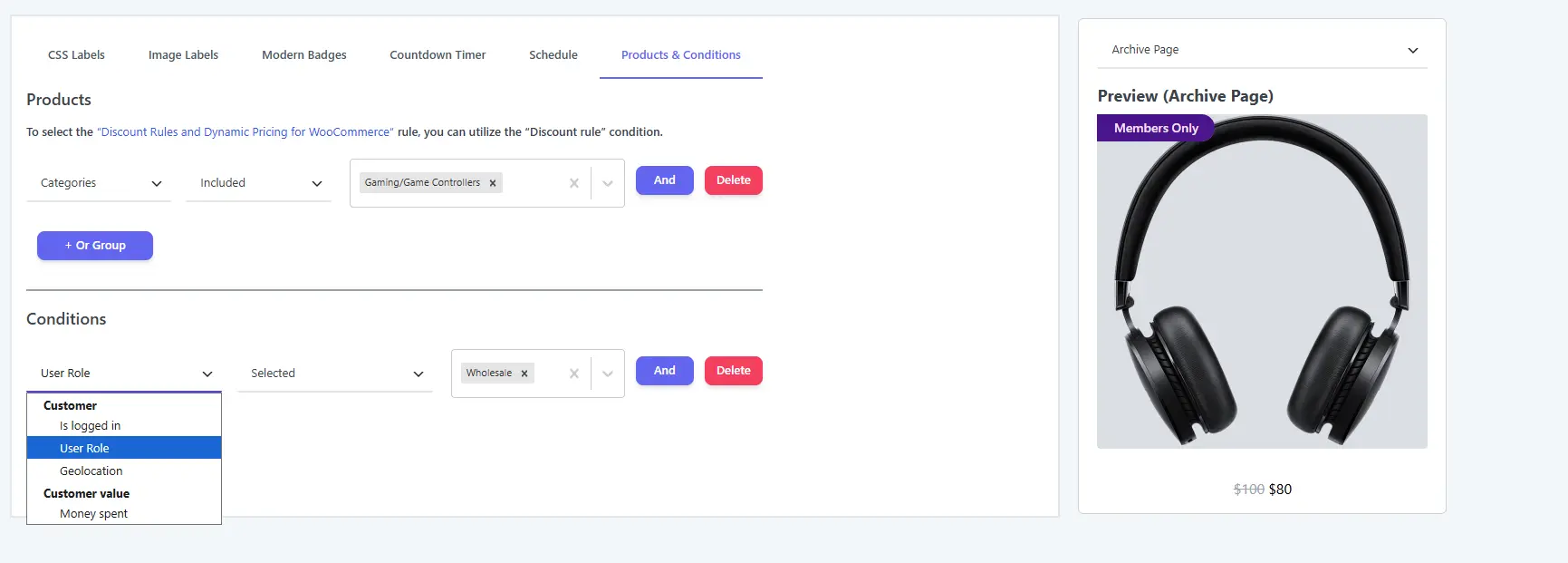
| Condition | What it checks | When & why to use |
|---|---|---|
| Is Logged In | Logged in vs guest. | Show member-only offers. |
| User Role | Specific roles (selected / not selected). | Wholesale, subscriber, VIP pricing badges. |
| Geolocation | The visitor's country (selected / not selected). | Region-specific promotions. |
| Money Spent | The customer's total spend vs an amount, using a numeric operator — optionally limited to a time window (all time, or within the last N days/weeks/months/years). | Reward big spenders, or win back lapsed ones. |
🧪 Example configuration
The "Members Only" badge shown in the screenshots:
| Setting | Value |
|---|---|
| Product rule | Categories → Included → Gaming/Game Controllers |
| Condition | User Role → Selected → Wholesale |
What customers see
A logged-in Wholesale customer browsing Gaming/Game Controllers sees the "Members Only" badge (visible in the editor preview); a regular visitor sees nothing — same store, tailored messaging.
- Start broad (e.g. Is On Sale) and add conditions only if you need to narrow the audience.
- Use Exclude on a Products rule to keep a badge off specific items (e.g. gift cards).
- Combine with a Schedule to run targeted campaigns for a set period.
Next Steps
Frequently Asked Questions
How do I target a WooCommerce product badge to specific products?
Open the badge’s Products & Conditions tab, choose Products, select Included, and pick the products that should display the badge. Use Excluded to keep the badge off selected products.
Can WooCommerce product badges target categories or tags?
Yes. Use Categories, Tags, or Brands with the Included or Excluded selector. You can also target stock status, sale status, shipping class, attributes, price, quantity, and best sellers.
How do AND and OR rules work for product badges?
Rules in the same group use And, so every rule must match. A new Or Group creates an alternative group, so the badge shows when any complete group matches.