Installation & Setup
This guide walks you through installing Side Cart & Upsell for WooCommerce (the Easy Upsells, Related Products & Product Recommendations plugin) and its optional Pro add‑on. The whole process takes just a few minutes.
📋 Table of Contents
Before you begin
Make sure your site meets these requirements:
| Requirement | Details |
|---|---|
| WordPress | 5.8 or higher |
| WooCommerce | Installed and activated (required) |
| PHP | 7.0 or higher |
| Pro only | The Free version must be installed and active first |
Always create a full backup of your site before installing a new plugin, and test on a staging environment if one is available.
Install the Free version
Step 1 — Download the plugin
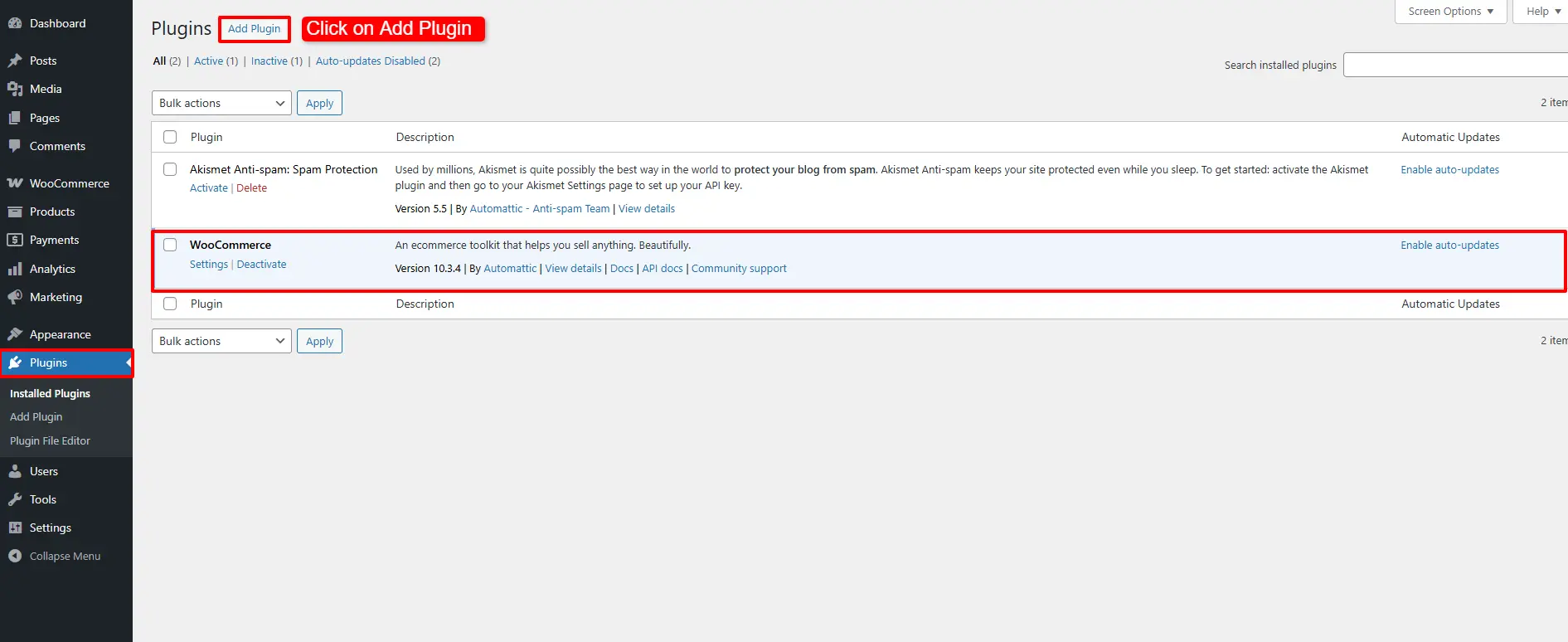
Go to the Side Cart & Upsell for WooCommerce
page on WordPress.org and download the .zip file. You can also install it
directly from Plugins → Add New by searching for "Easy Upsells".
Step 2 — Upload and install
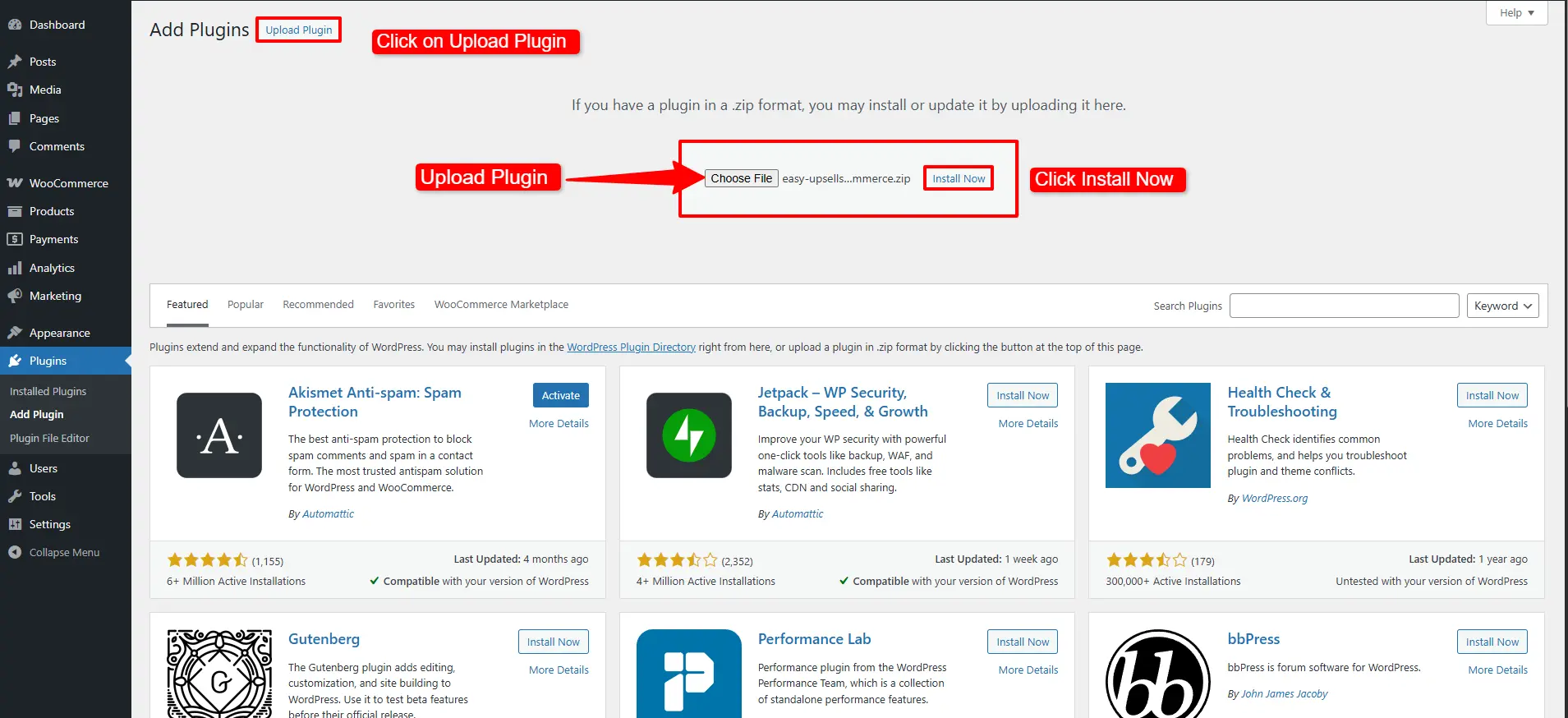
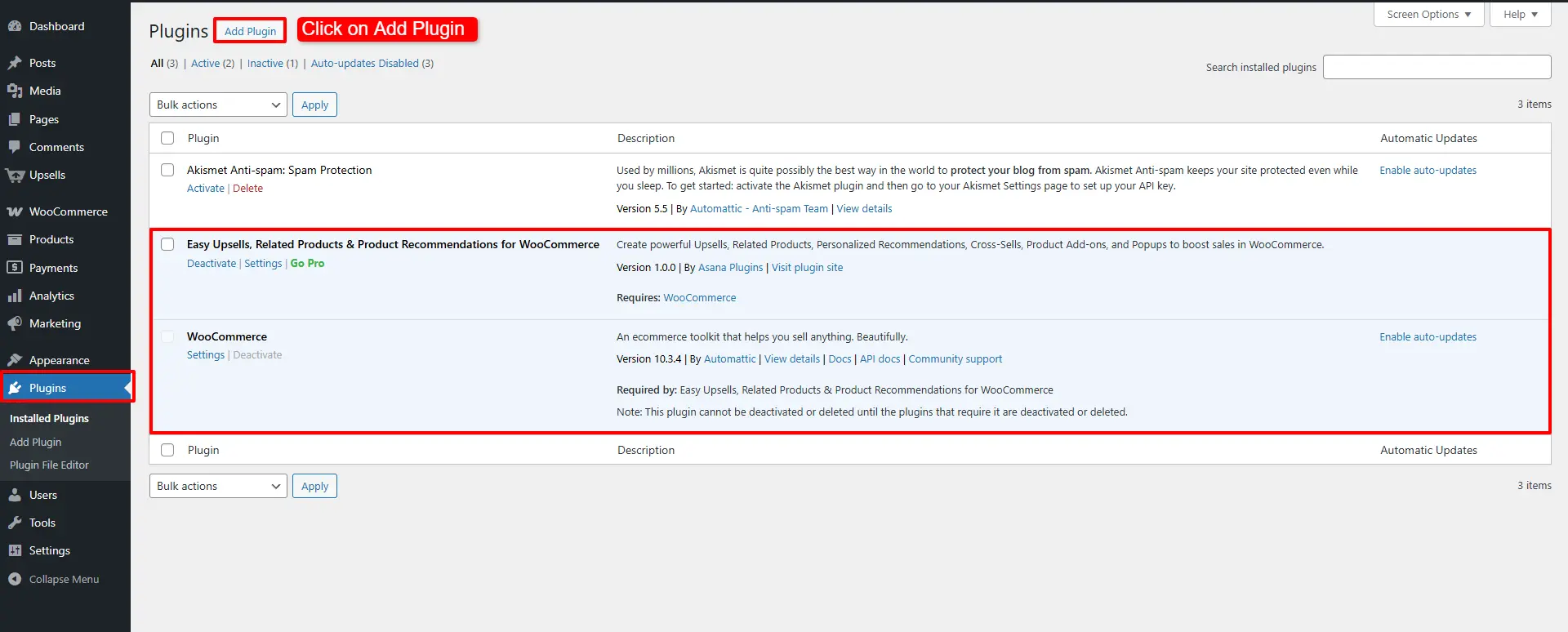
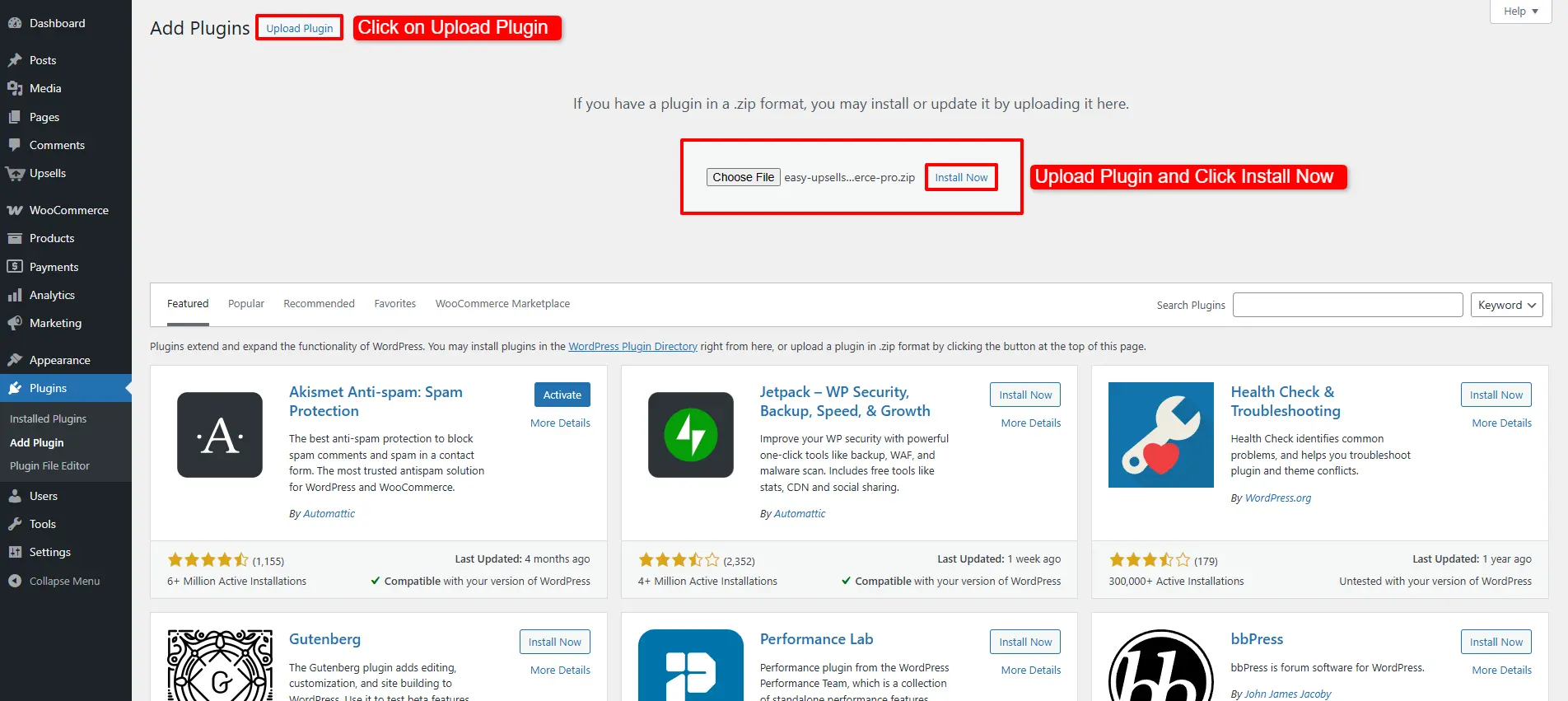
In your WordPress dashboard, go to Plugins → Add New → Upload Plugin, choose
the downloaded .zip, and click Install Now. Confirm WooCommerce is
already active before you begin.
Step 3 — Activate
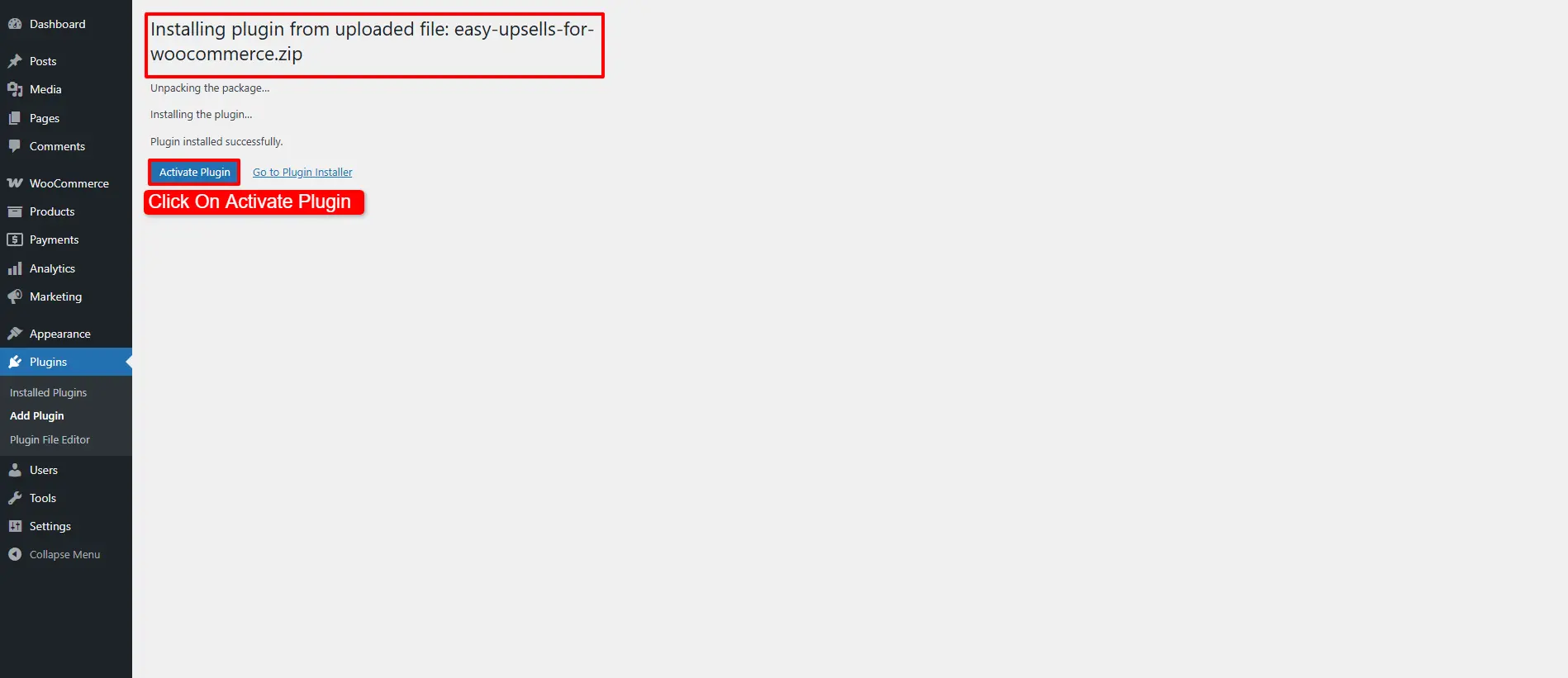
Once installed, click Activate Plugin.
Step 4 — Open the plugin
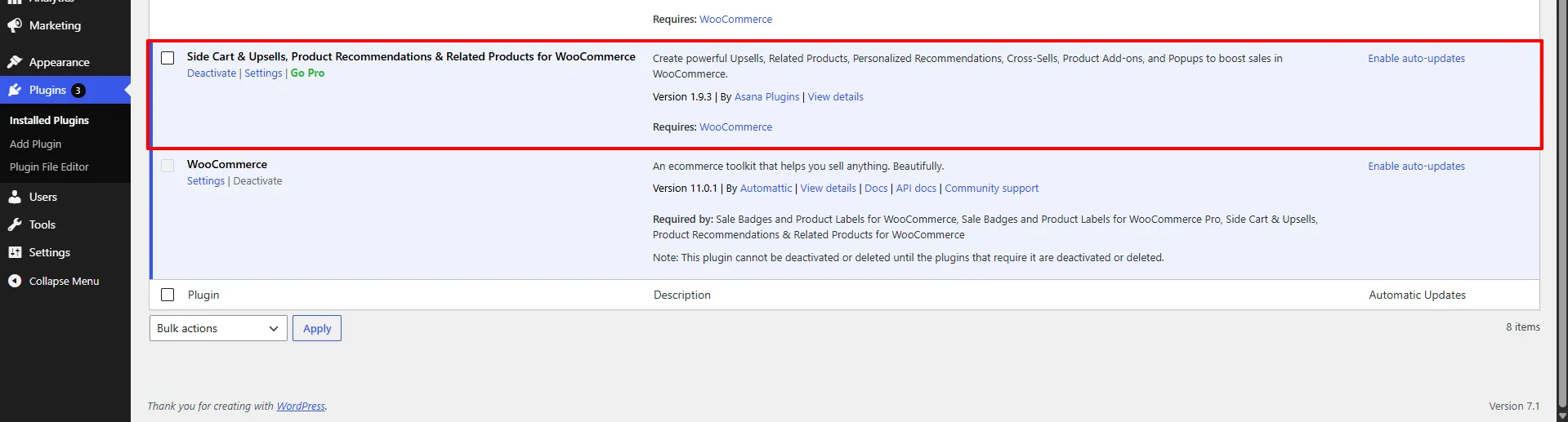
A new Side Cart & Upsell menu appears in your dashboard sidebar. Open it to start creating campaigns and configuring the side cart.
Install the Pro version
The Pro version unlocks additional layouts (List, Slider, Popup), advanced targeting, and the premium Side Cart add‑ons (Free Shipping Bar, Rewards, Stock Countdown, and more).
Step 1 — Download Pro
Download the WooCommerce Upsells & Related Products – Boost Sales with Smart Recommendations plugin from your AsanaPlugins account.
Step 2 — Upload and install
Go to Plugins → Add New → Upload Plugin and upload the Pro .zip. Make sure
both WooCommerce and the Free version are installed and active first —
Pro extends the free plugin and won't work without it.
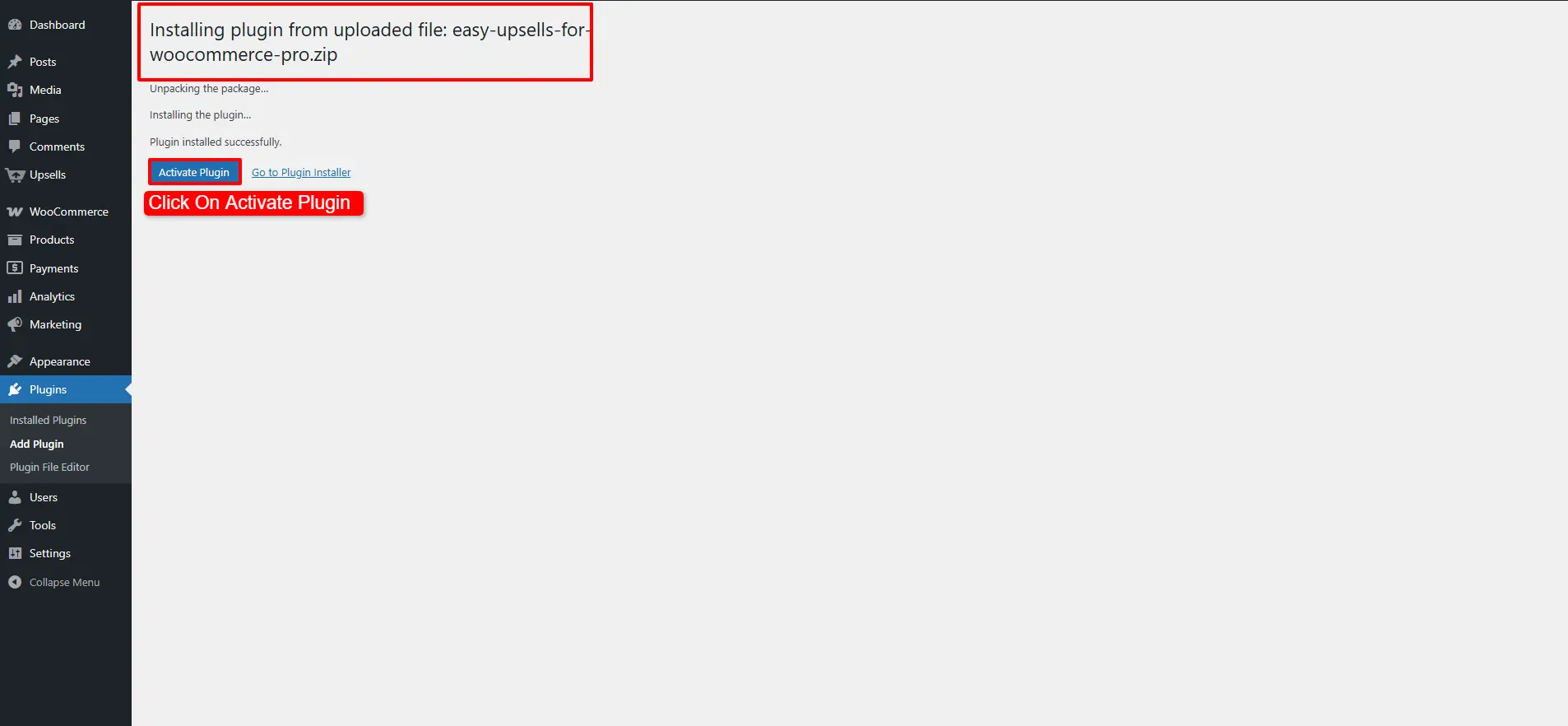
Step 3 — Activate
Click Activate Plugin to enable the Pro features.
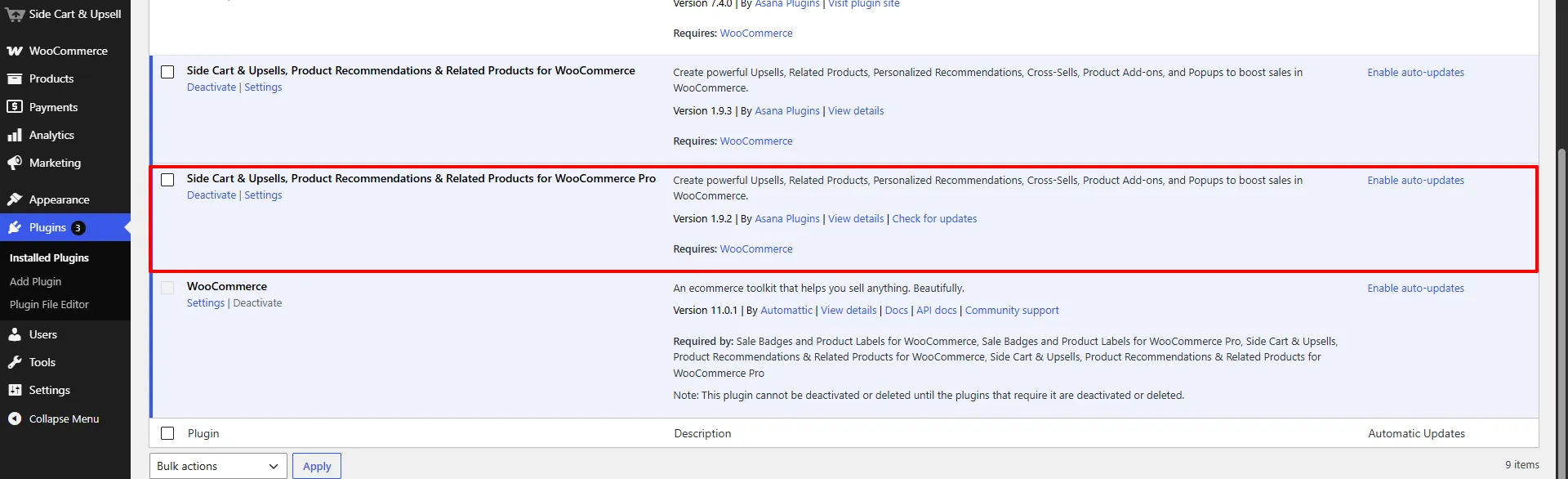
Step 4 — Confirm Pro is active
Return to the Side Cart & Upsell menu — the Pro‑only options are now unlocked throughout the interface.
📚 Next Steps
You are ready to go! Explore these guides to configure your side cart and create high-converting upsell campaigns:
- Side Cart Setup — Configure the floating side cart drawer, style, and behavior.
- Side Cart Upsells — Recommend relevant cross-sell products inside the side cart drawer.
- Rewards & Milestones — Add free shipping and discount progress bars inside the side cart.
- Product Upsell Campaigns — Place high-converting upsell offers on single product pages.
- Cart Upsell Campaigns — Add upsell product blocks to the standard WooCommerce cart page.