WooCommerce Product Announcement Banner
Overview
The Announcement embed is a compact promo callout — a Top Message, a Bottom Message, and an optional button or coupon — that you place on the product page to highlight a specific deal or notice.
Use this product announcement plugin to add a WooCommerce product announcement, WooCommerce announcement banner, or targeted product page announcement for a promotion. It also works as a flexible WooCommerce promo banner when you need a button or coupon near the cart.
How it works
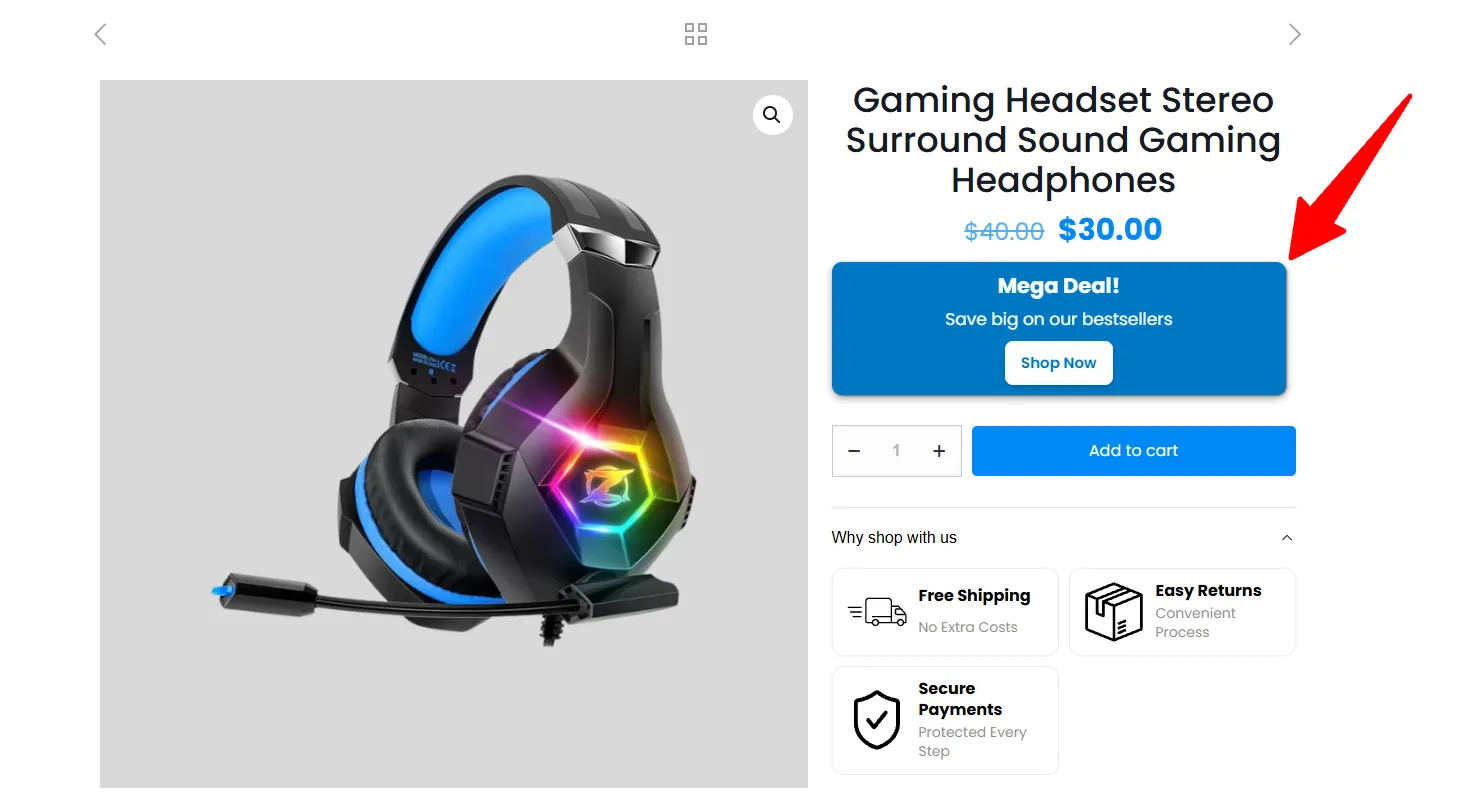
You're pushing a bestsellers promotion. On those product pages you add an Announcement embed reading "Mega Deal! — Save big on our bestsellers" with a Shop Now button, targeted only to the products in the promotion.
Embeds are available in the Pro version.
Step-by-step setup
1. Pick the Announcement type
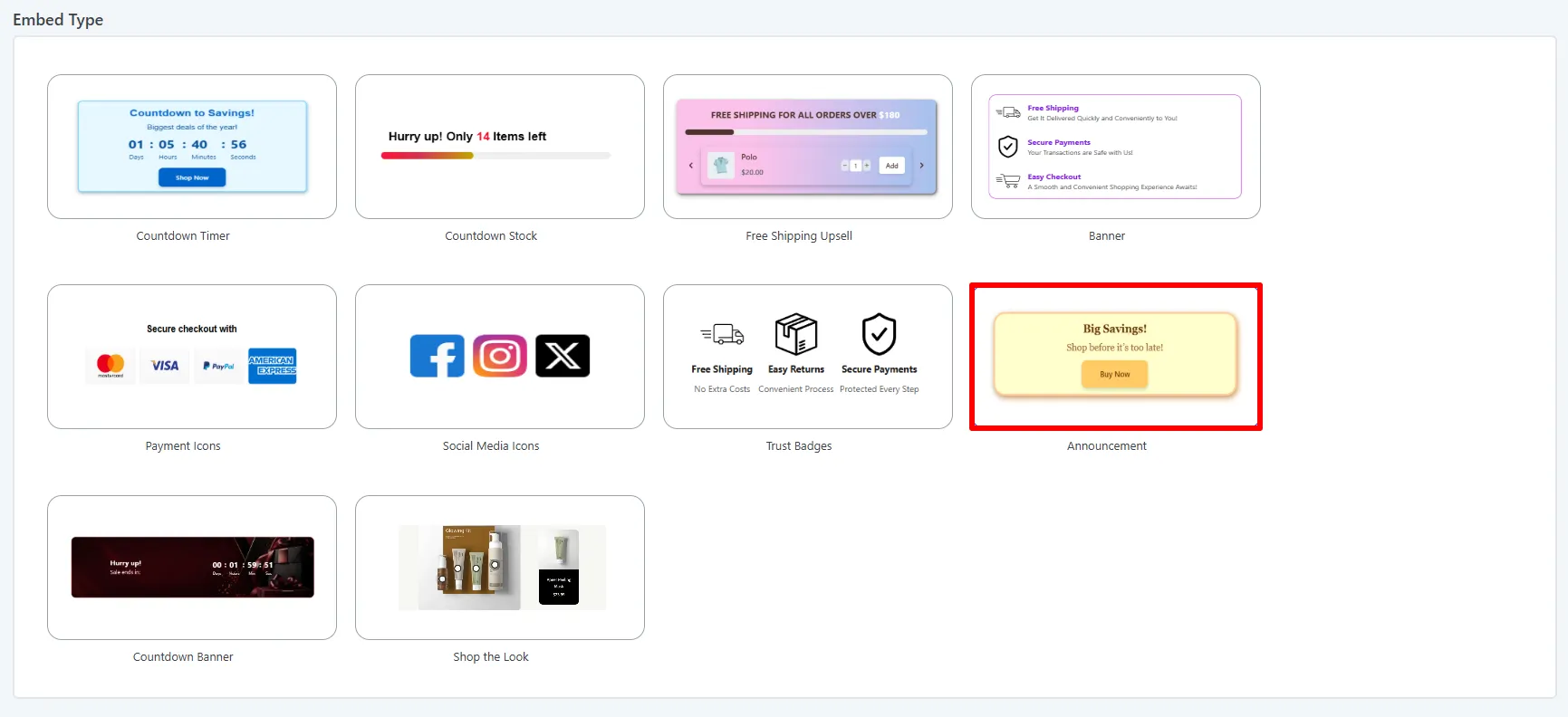
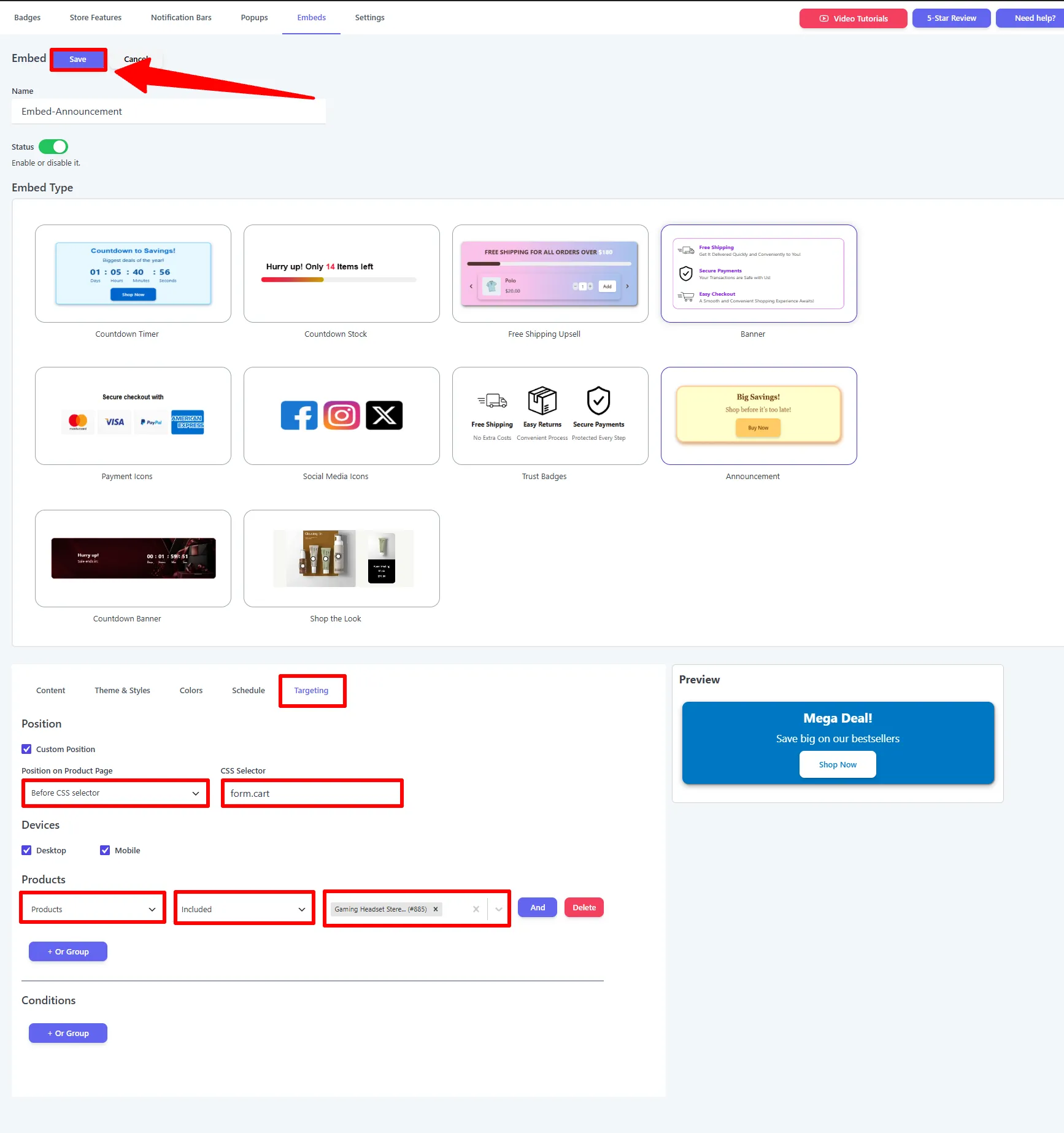
Open Sale Badges → Embeds → Add New, give the embed a Name, and turn Status on. Under Embed Type choose Announcement.
2. Write the message
On the Content tab:
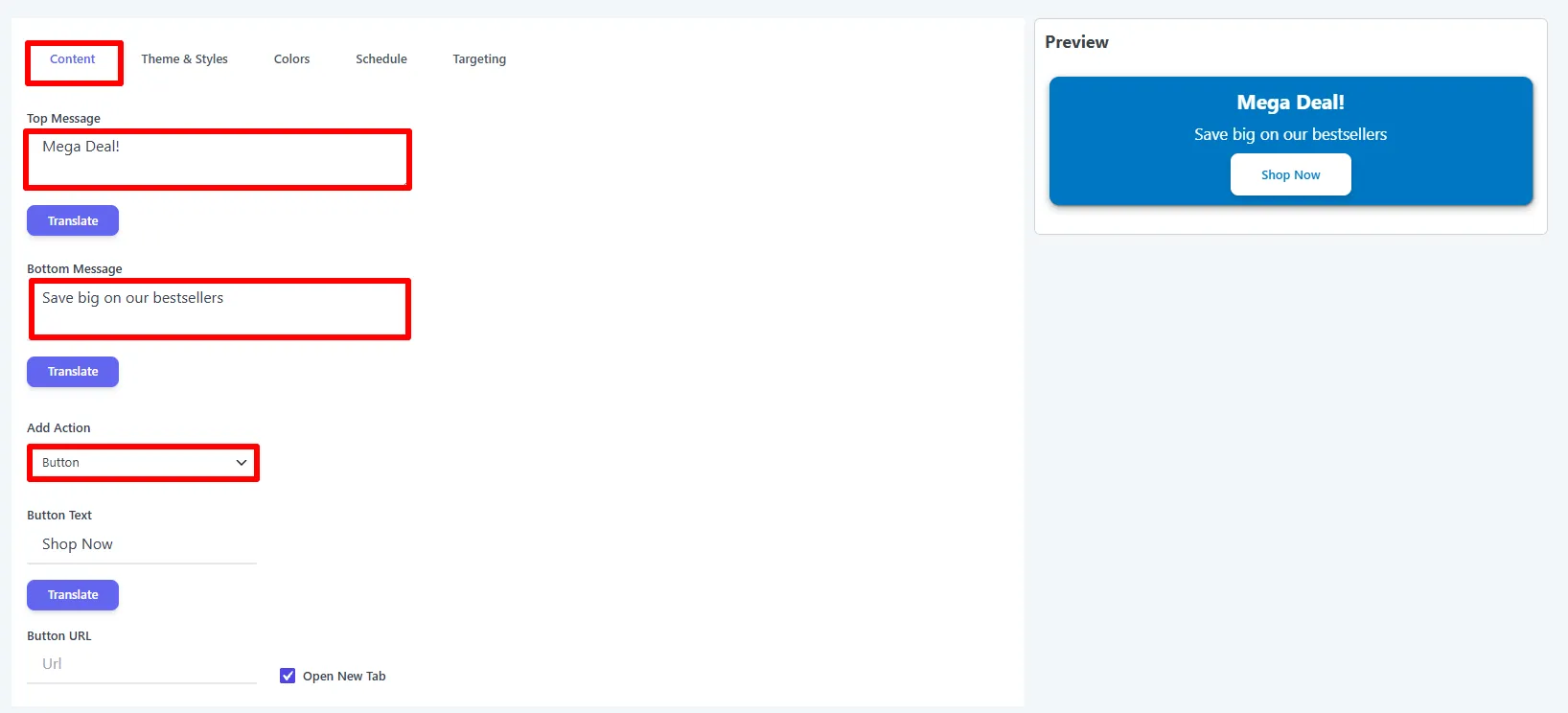
- Top Message — the headline, e.g.
Mega Deal! - Bottom Message — the sub-line, e.g.
Save big on our bestsellers - Add Action — None, Button (Button Text, Button URL, Open New Tab), or Coupon (Coupon Text + Border Style).
Each field has a Translate button for per-language values.
3. Style it
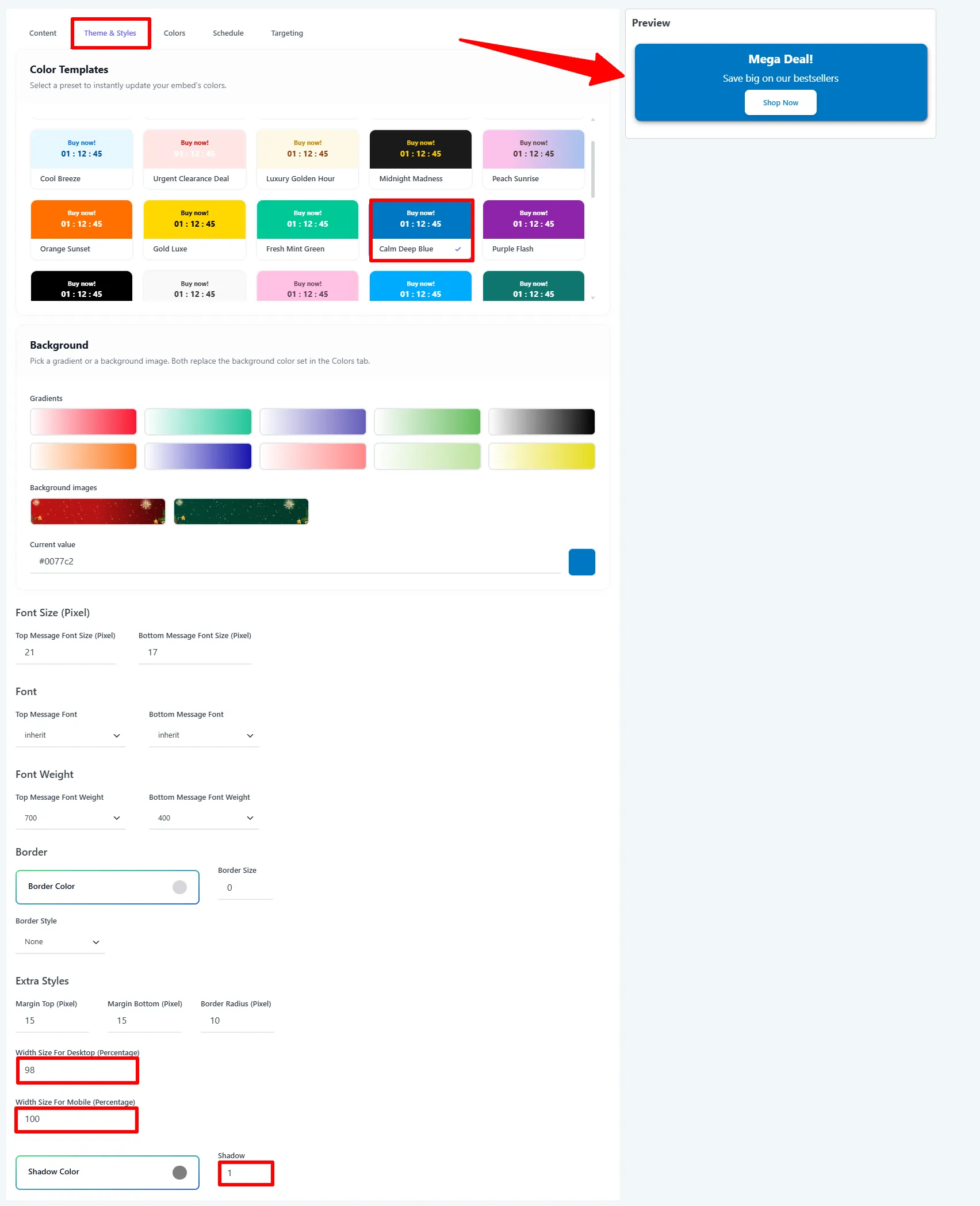
On the Theme & Styles tab, pick a Color Template (e.g. Calm Deep Blue) to recolor the callout in one click, or set a Background gradient / image. Then fine-tune Font Size / Font / Weight, Border, margins, Border Radius, Width (desktop & mobile), and shadow. Individual element colors live on the Colors tab.
4. Place it, target, then Save
On the Targeting tab, tick Custom Position and set Position on Product Page (e.g. Before CSS selector) with a CSS Selector (default form.cart — this places the callout just above the Add to Cart form). Pick the Devices, add Products rules (e.g. Products → Included → a specific product), then click Save.
Options explained
| Setting | What it does | Example |
|---|---|---|
| Top Message | The headline line. | Mega Deal! |
| Bottom Message | The sub-line. | Save big on our bestsellers |
| Add Action → Button | Button Text, Button URL, Open New Tab. | Shop Now |
| Add Action → Coupon | Coupon Text + Border Style (Solid / Dashed / Dotted). | SAVE20 |
| Color Template | One-click color preset for the whole callout. | Calm Deep Blue |
🧪 Example configuration
The callout shown in the screenshots:
| Setting | Value |
|---|---|
| Type | Announcement |
| Top / Bottom Message | Mega Deal! / Save big on our bestsellers |
| Add Action | Button → Shop Now |
| Color template | Calm Deep Blue |
| Width (Desktop / Mobile) | 98% / 100% |
| Placement | Before form.cart |
| Targeting | A specific product (Included) |
What customers see
A bold, brand-colored callout between the price and the Add to Cart button — a clear pointer to your promotion right where it counts.
Placement, targeting & schedule
For the full placement, product-rule, condition, and schedule reference, see the Embeds overview.
Next Steps
Frequently Asked Questions
How do I add an announcement banner to a WooCommerce product page?
Open Sale Badges → Embeds → Add New, choose Announcement, add the top and bottom messages, select an optional button or coupon, configure placement and targeting, and save.
Can a WooCommerce announcement banner include a coupon?
Yes. Set Add Action to Coupon, then enter the coupon text and choose a border style. You can also use a Button action with custom text, URL, and new-tab behavior.
Can I target an announcement to selected products?
Yes. In Targeting, add a Products rule and choose Included or Excluded products. You can also use devices, conditions, and schedules.