WooCommerce Dynamic Product Badge Placeholders Guide
Overview
WooCommerce dynamic product badge placeholders let a single Sale Booster badge show different, live values on every product. Instead of writing "20% OFF" by hand, use reusable dynamic sale badge text such as {saved_percent} OFF; the plugin fills in each product's current value automatically.
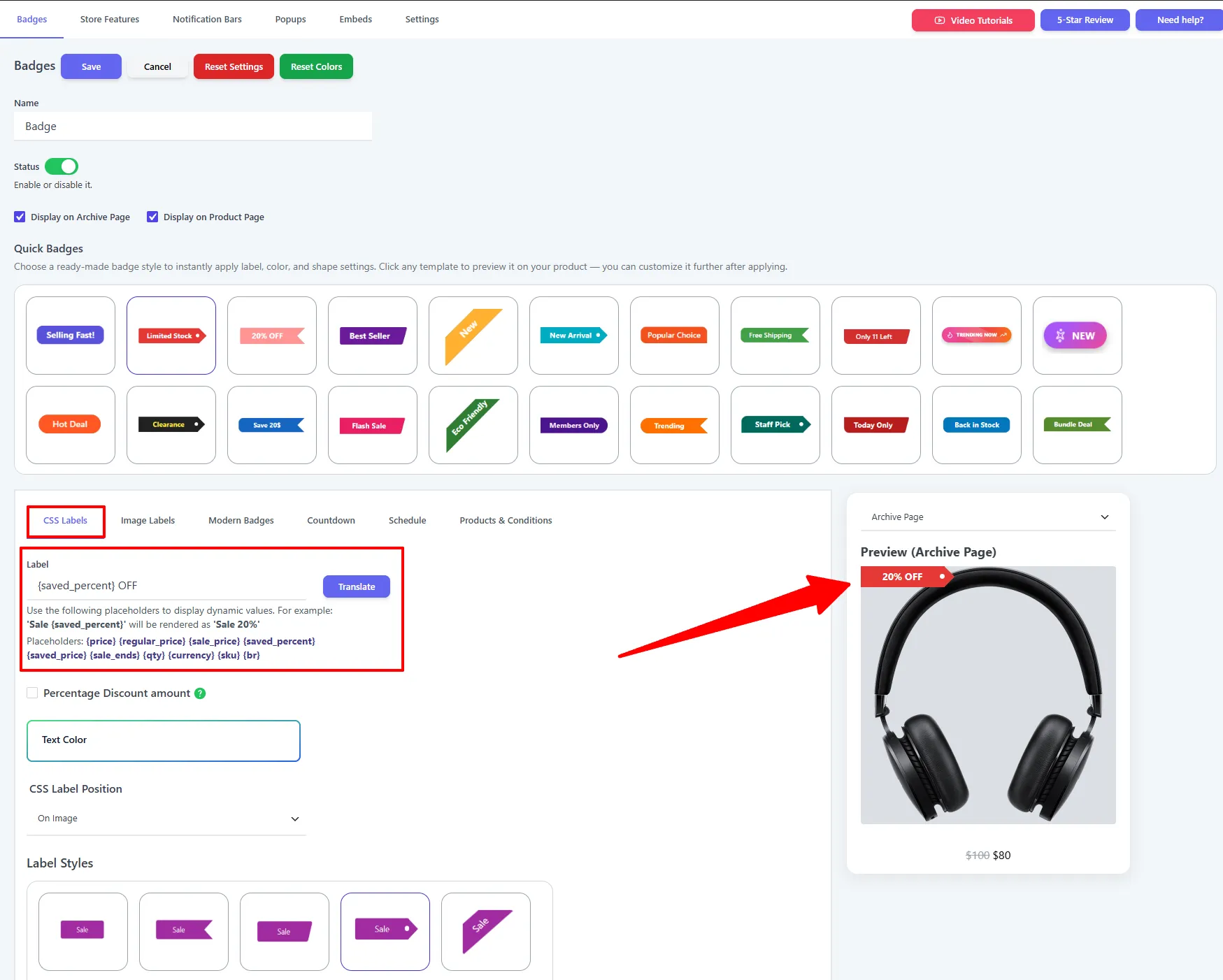
How it works
You sell 500 products at different discounts. You create one CSS label with the text Save {saved_price}. On a product discounted by $5 it shows "Save $5"; on one discounted by $12 it shows "Save $12". One badge, always accurate, zero maintenance.
How to use them
Type a placeholder anywhere in the Label field:
Sale {saved_percent}
renders as:
Sale 20%
Mix text and multiple placeholders freely — e.g. Only {qty} left — save {saved_price}.
Available placeholders
| Placeholder | Displays | Great for |
|---|---|---|
{price} | Current (sale) price. | Now {price} badges. |
{regular_price} | Original price before discount. | Showing the "was" price. |
{sale_price} | The sale price. | Emphasizing the deal price. |
{saved_percent} | Discount percentage (e.g. 20%). | {saved_percent} OFF sale badges. |
{saved_price} | Amount saved (e.g. $5). | Save {saved_price} value badges. |
{sale_ends} | Time left until the sale ends. | Urgency labels. |
{qty} | Stock quantity. | Only {qty} left scarcity. |
{currency} | Store currency symbol. | Custom price formatting. |
{sku} | Product SKU. | Ops/wholesale labels. |
{br} | A line break. | Splitting a badge onto two lines. |
For a pure "percentage off" badge you can either use {saved_percent}, or tick the Percentage Discount amount option in the CSS Labels / Modern Badges tab — which replaces the whole label with the live percentage for on-sale products.
🧪 Example recipes
| Label input | Renders as | Use it for |
|---|---|---|
-{saved_percent} | -20% | Minimal sale tag. |
Save {saved_price} | Save $5 | Value-focused badge. |
{saved_percent}{br}OFF | 20% / OFF (two lines) | Bold two-line badge. |
Only {qty} left! | Only 11 left! | Low-stock urgency. |
Best practices
- Keep placeholder labels short — dynamic values add characters, and badges have limited space.
- Test on a variable product to confirm the value reads correctly across variations.
- Combine
{saved_percent}with a red badge for the classic, high-converting sale look.
SEO, accuracy, and conversion checklist
Use WooCommerce product badge placeholders to keep visual offer text synchronized with product data. A WooCommerce discount percentage badge should calculate from the product’s current regular and sale prices, while a WooCommerce stock quantity label should reflect the store’s actual inventory. Keep product titles, descriptions, prices, availability, and structured data in the normal product content; a dynamic label supports that information but should not replace it or repeat keywords unnaturally.
Before publishing, test a simple product, a variable product, a product without a sale price, a product with low stock, and a product with no stock. Check that {saved_percent}, {saved_price}, {sale_ends}, and {qty} render correctly, that labels fit at mobile widths, and that the value updates when a variation changes. Track badge impressions, product-card clicks, product-page visits, add-to-cart events, and completed orders. For the underlying offer data, follow Google’s Product structured data guidance and review Sale Booster product targeting when the label should appear only for qualifying products.
Frequently Asked Questions
What are WooCommerce dynamic product badge placeholders?
WooCommerce dynamic product badge placeholders are tokens such as {saved_percent}, {saved_price}, {sale_ends}, and {qty} that Sale Booster replaces with a product’s current value inside a badge label.
How do I create a WooCommerce discount percentage badge?
Create or edit a badge under Sale Booster → Badges, open CSS Labels or Modern Badges, enter {saved_percent} OFF in the Label field, and use Products & Conditions to target products with an active sale.
Can placeholders work with variable products?
Yes. Test the label after selecting each variation because price, sale price, stock quantity, and the calculated saving can change with the selected variation.
Can I use placeholders as SEO keywords?
Use them to show accurate shopper-facing values, not to insert repeated keywords. Keep the product’s normal title, description, links, price, availability, and structured data as the source of its search content.