WooCommerce Sales Popup
Overview
Use a WooCommerce sales popup as a WooCommerce social proof popup, recent sales popup, or WooCommerce purchase notification. Sale Booster also includes a WooCommerce coupon popup so the same popup workflow can move shoppers from reassurance to action.
Sales Popups are small, unobtrusive popups in the corner of the screen that build trust and urgency. There are two types, chosen with the Popup Type toggle:
- Order (Social-Proof) Popup — shows recent real purchases (
{name} recently purchased a {product_title}) to prove your store is active and trustworthy. - Discount Popup — offers a coupon code shoppers can copy or apply in one click. See Discount Popup.
How it works
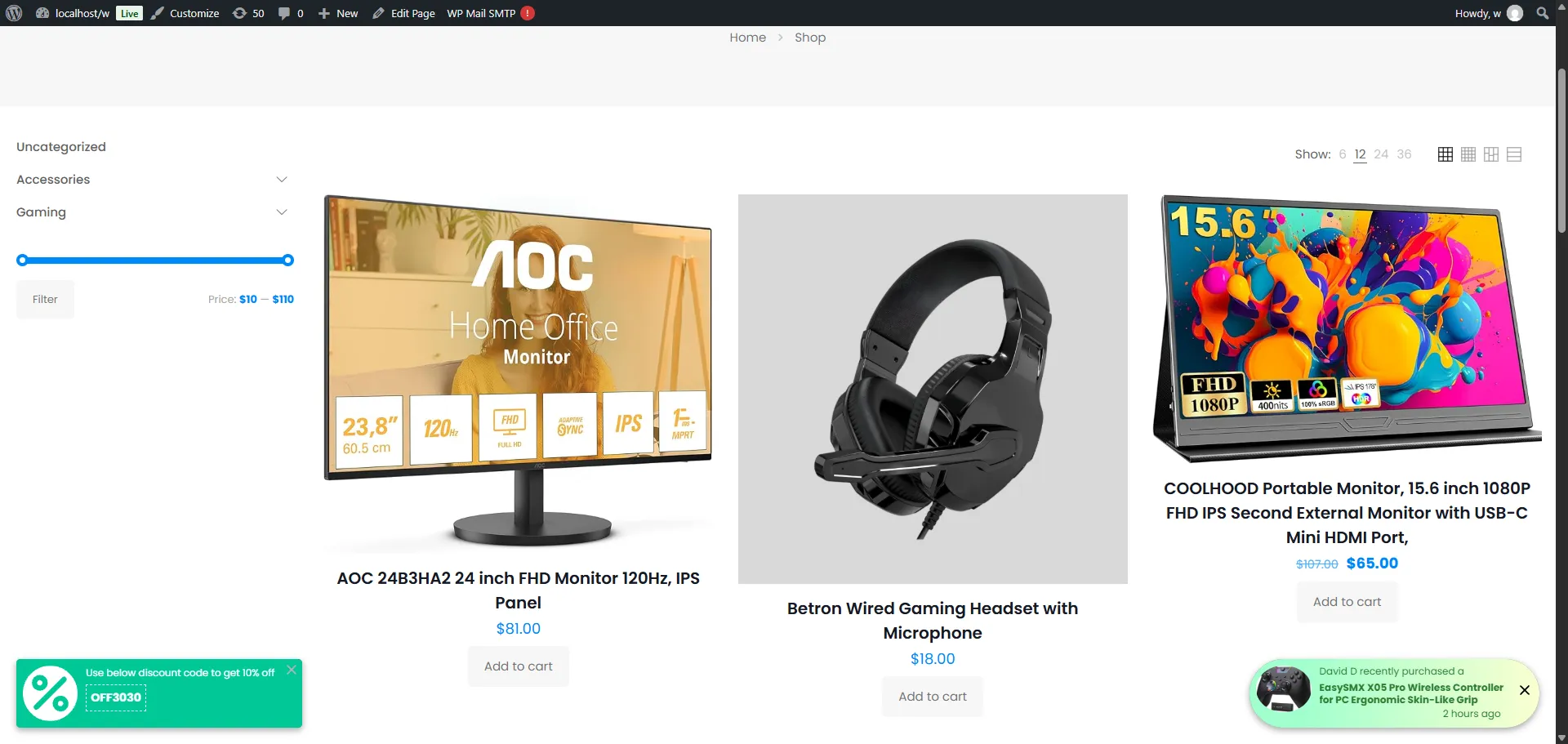
A new visitor lands on your shop. After a few seconds, a small popup slides in from the corner: "David D recently purchased an EasySMX X05 Pro Wireless Controller — 2 hours ago." A moment later another recent order appears. The visitor sees that others are buying right now, feels reassured, and is more likely to complete their own order.
Sales Popups are available in the Pro version.
Popular use cases
Match your goal to the right popup type:
| Your goal | Popup type | How to set it up |
|---|---|---|
| Build trust with social proof | Order | Show recent real orders — {name} recently purchased {product_title}. |
| Create FOMO on quiet pages | Order | Enable Loop Popup + Random Order so activity keeps flowing. |
| Show only genuinely paid sales | Order | Set Order Status to Completed / Processing. |
| Keep proof fresh | Order | Display the last N orders from the last X days. |
| Promote a specific category | Order | Product Filter → Categories. |
| Drive clicks to the product | Order | Link Options → Product Page (+ optional Buy Button). |
| Combine busy carts into one popup | Order | Group Text for Multiple Orders ("…and 3 more"). |
| Convert new visitors with a coupon | Discount | Show a coupon with Apply Coupon (one-click at checkout). |
| Let shoppers copy a code | Discount | Link Options → Copy Coupon. |
| Avoid being spammy | Both | Tune Delay before first + Delay between popups, set a Close Behavior, and cap the total in Settings → Sales Popup → Limit. |
| Tailor to device / page / visitor | Both | Set Position separately for Desktop / Mobile; use Targeting (pages, products, conditions, schedule). |
Social proof works best when it's real and recent — filter to paid orders and a tight recency window. Space popups out (a few seconds between each) and use a Close Behavior delay so returning shoppers aren't nagged.
Managing popups
Open Sale Badges → Popups. The list supports Add New, Edit, Duplicate, Status toggle, and Delete. Each popup starts from a Popup Type (Order or Discount) and a template, and shows a live preview beside the settings.
| Type | What it shows | Guide |
|---|---|---|
| Order (Social Proof) | Recent real WooCommerce purchases, one at a time. | This page (below). |
| Discount | A coupon to copy or apply. | Discount Popup |
Sale Popup (Order / Social Proof) — step by step
1. Pick the Order type
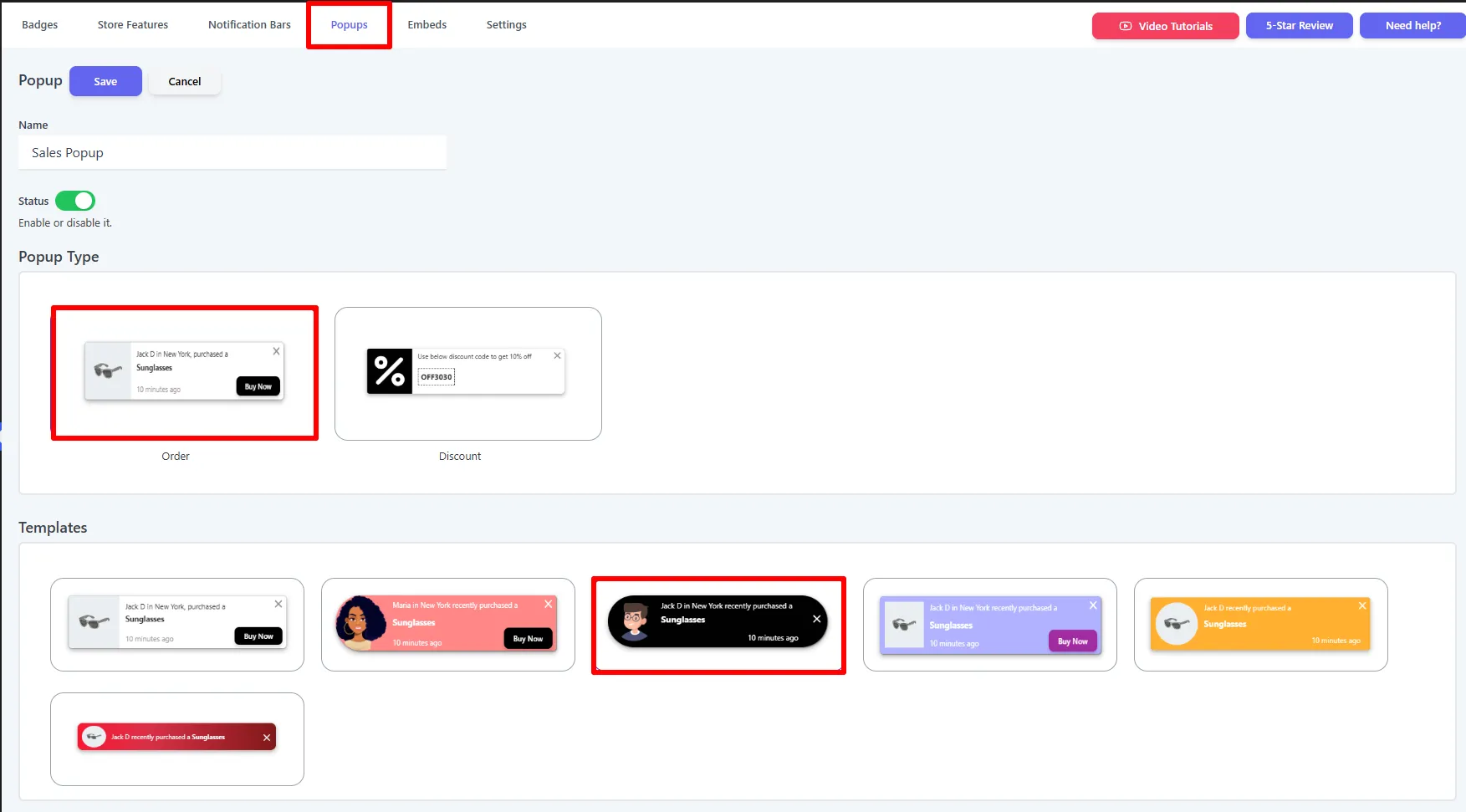
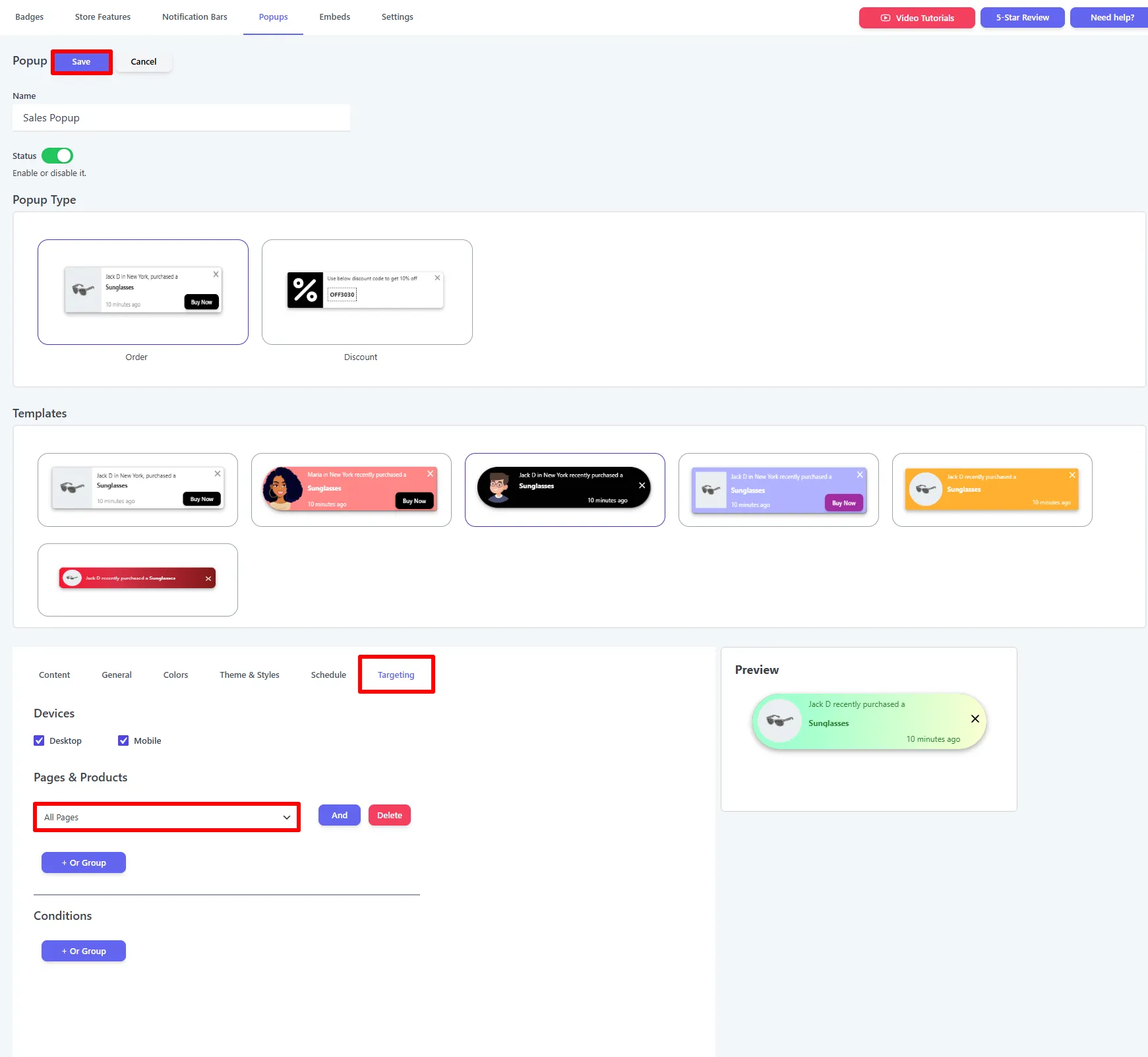
Open Sale Badges → Popups → Add New, give the popup a Name, and turn Status on. Under Popup Type choose Order, then pick a template from the gallery.
2. Write the message
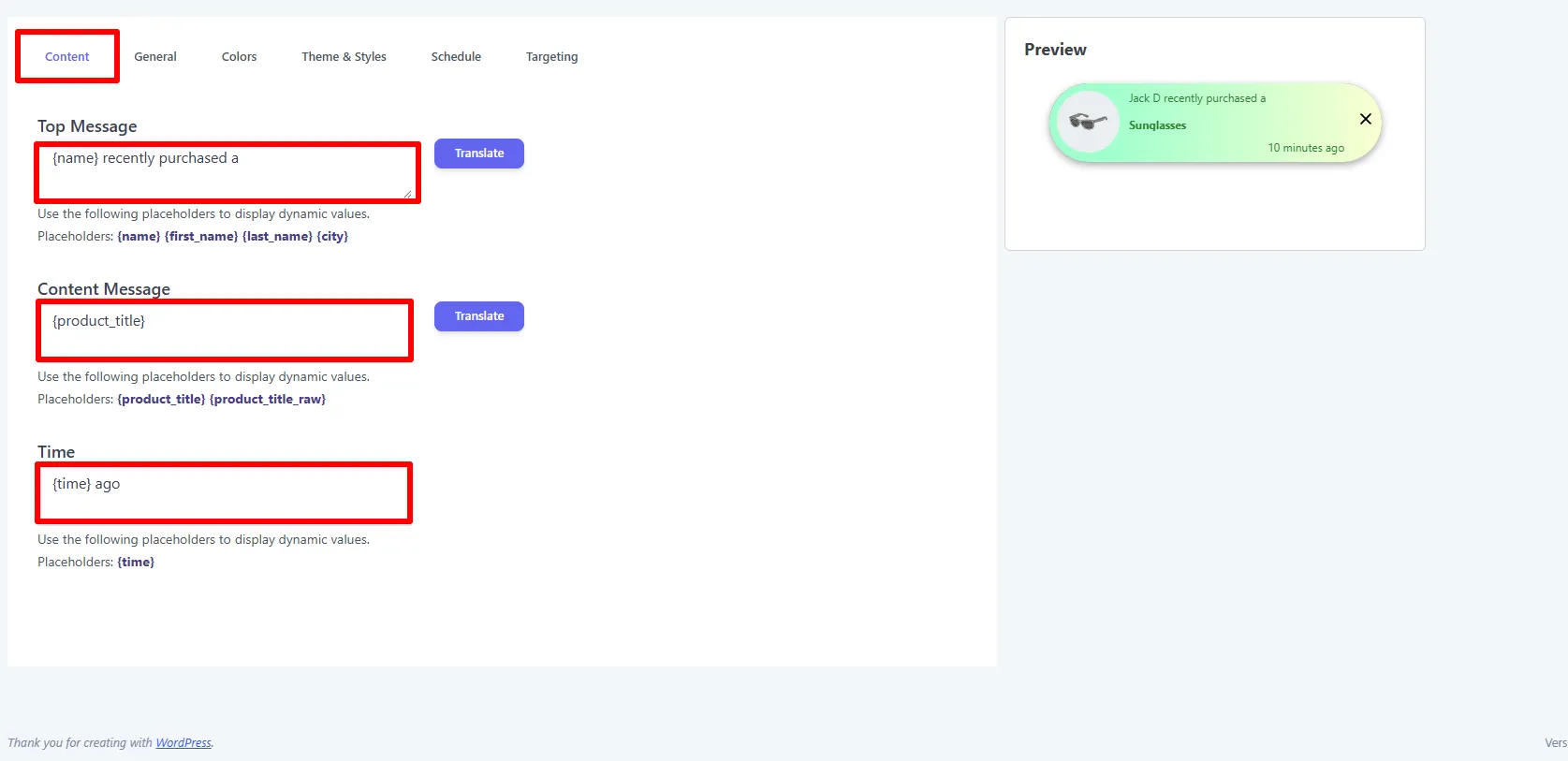
On the Content tab, write the three lines using placeholders that fill in from each real order:
- Top Message —
{name} recently purchased a(placeholders:{name},{first_name},{last_name},{city}). - Content Message —
{product_title}(placeholders:{product_title},{product_title_raw}). - Time —
{time} ago(placeholder:{time}).
Use Translate beside each field to localize it per language.
3. Choose which orders show, and the timing
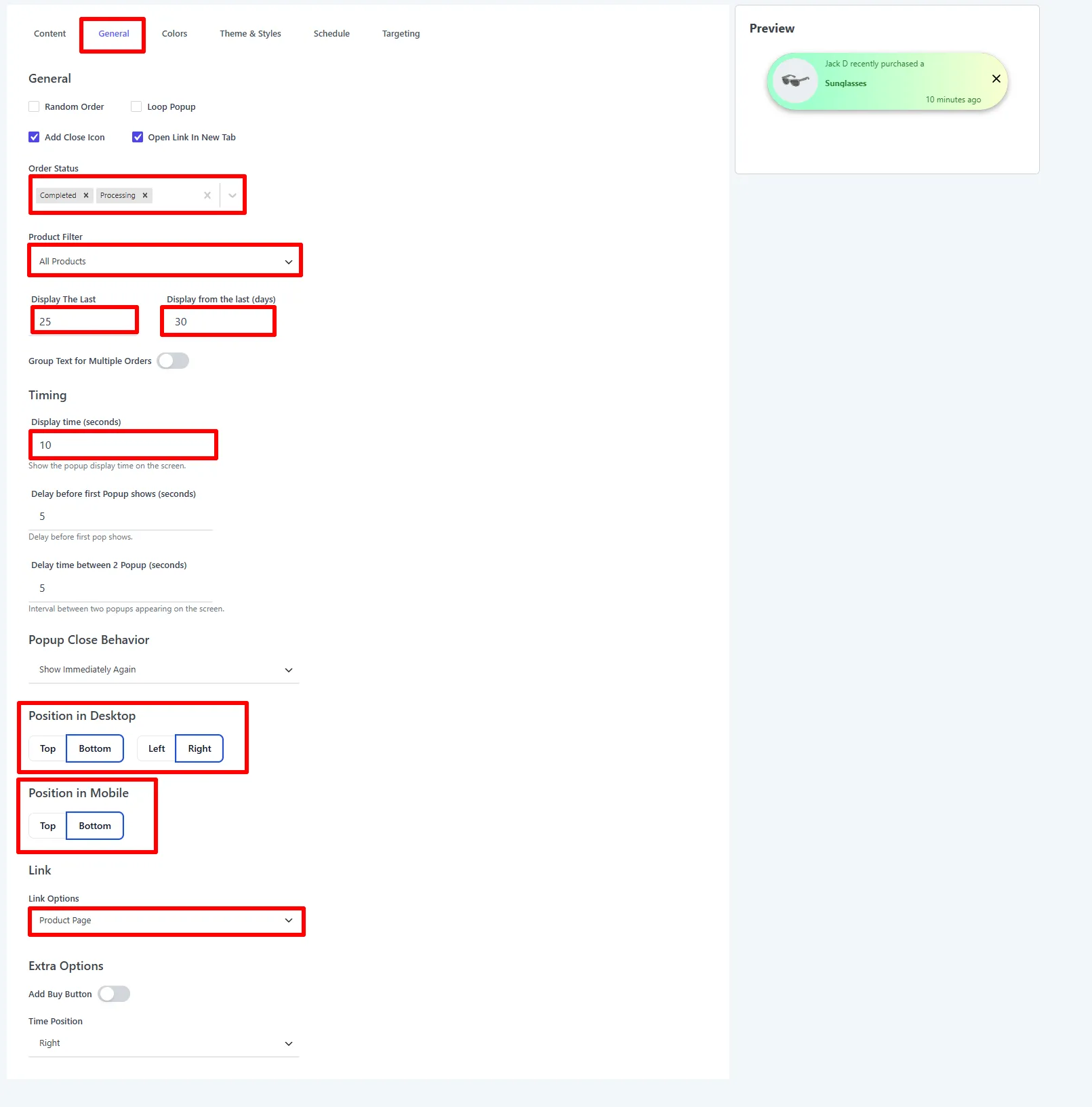
On the General tab, decide which orders qualify and how the popup behaves:
- Order Status — which statuses count (e.g. Completed, Processing).
- Product Filter — All Products or limit to certain products/categories.
- Display The Last (N) orders from the last (X) days — e.g. last
25orders from the last30days. - Random Order, Loop Popup, Group Text for Multiple Orders, Add Close Icon, Open Link In New Tab.
- Timing — Display time (10s), Delay before first Popup (5s), Delay time between 2 Popups (5s).
- Popup Close Behavior — Show Immediately Again, or hide for 1h / 4h / 12h / 1 Day / Never.
- Position in Desktop (e.g. Bottom + Right) and Position in Mobile (e.g. Bottom).
- Link Options — where the popup links (e.g. Product Page), plus Add Buy Button and Time Position.
4. Style it
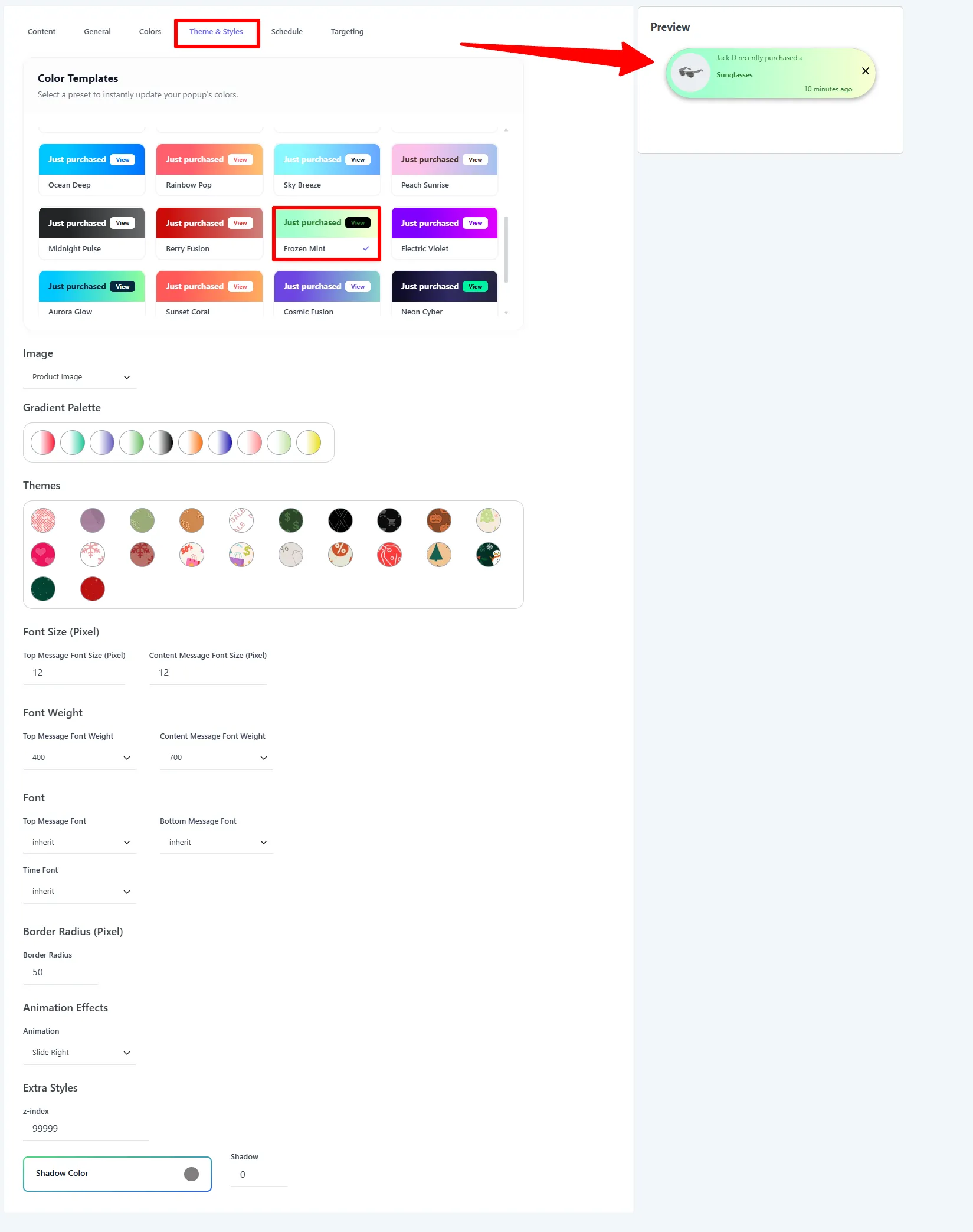
On the Theme & Styles tab, pick a Color Template (e.g. Frozen Mint) to recolor the popup in one click, choose the Image (Product Image or custom), and fine-tune Font Size / Weight, Border Radius (e.g. 50 for a pill shape), and the entrance Animation (e.g. Slide Right).
5. Choose where it shows, then Save
On the Targeting tab, pick the Devices (Desktop / Mobile), add Pages & Products rules (default All Pages) and optional Conditions, then click Save.
Options explained
Content
| Setting | What it does | Example |
|---|---|---|
| Top Message | The headline line. | {name} recently purchased a |
| Content Message | The product line. | {product_title} |
| Time | The recency line. | {time} ago |
General
| Setting | What it does | When & why to use |
|---|---|---|
| Order Status | Which statuses qualify. | Only show genuinely paid orders. |
| Product Filter | Limit to certain products/categories. | Promote a specific collection. |
| Display The Last / from the last days | How many recent orders, and how far back. | Keep proof fresh; avoid stale orders. |
| Random Order | Shuffle instead of chronological. | Keep the feed varied on quiet days. |
| Loop Popup | Restart after the last order. | Keep social proof going on long sessions. |
| Group Text for Multiple Orders | Combine into one popup ("and 3 more"). | Highlight busy carts. |
| Display / Delay / Between | Show duration and gaps. | Space popups out so they're not spammy. |
| Popup Close Behavior | What happens after a shopper closes it. | Avoid nagging returning visitors. |
| Position (Desktop / Mobile) | Corner placement per device. | Bottom-right is classic for social proof. |
| Link Options / Add Buy Button | Make the popup clickable to the product. | Turn proof into clicks. |
Design (Theme & Styles)
| Setting | What it does |
|---|---|
| Color Template | One-click color preset for the whole popup. |
| Image | Product image or a custom image. |
| Font Size / Weight | Type sizing per line. |
| Border Radius | Rounding (50 = pill). |
| Animation | Entrance effect (Slide, Fade…). |
| z-index | Stacking order above sticky headers. |
Targeting, conditions & schedule
Limit popups by page, product/category, visitor conditions (login, roles, countries), and a schedule. See Products & Conditions.
🧪 Example configuration
The trust-building order popup shown in the screenshots:
| Setting | Value |
|---|---|
| Type | Order (Social Proof) |
| Top / Content / Time | {name} recently purchased a / {product_title} / {time} ago |
| Order status | Completed, Processing |
| Product filter | All Products |
| Recency | Last 25 orders, from the last 30 days |
| Timing | Display 10s · Delay 5s · Gap 5s |
| Close behavior | Show Immediately Again |
| Position | Desktop Bottom-Right · Mobile Bottom |
| Link | Product Page |
| Color template / Radius / Animation | Frozen Mint · 50 · Slide Right |
What customers see
A gentle stream of "someone just bought…" popups in the corner — real activity that reassures new shoppers. Pair it with a Discount Popup (shown bottom-left in the storefront image above) to add a coupon nudge.
Search visibility and conversion measurement
Popup text is a conversion interface, not a place to hide extra search keywords. Keep product names, prices, availability, and promotional claims accurate in the visible product-page content and WooCommerce Product/Offer data. Use a descriptive page title and meta description for this guide; Google can generate snippets from page content and may use the meta description when it better matches a query (Google Search snippets).
For marketing performance, compare an order popup with and without a product link or Buy Button. Track popup impressions, dismissals, product clicks, add-to-cart events, checkout starts, and revenue per session. Display only genuine, recent orders and use statuses such as Completed or Processing; social proof loses credibility when the source data is stale or misleading.
Protect customer privacy when showing names, cities, or product titles. Use the least identifying message that still communicates activity, check the store’s privacy requirements, and provide a close control with a sensible repeat-display limit.
- Keep the gap comfortable (5s+) so it never feels spammy.
- Use the global limit in Settings → Sales Popup to cap how many show per session.
- Filter to Completed / Processing orders and a tight recency window so the proof is real.
Next Steps
Frequently Asked Questions
What is a WooCommerce sales popup?
A WooCommerce sales popup is a small storefront notification that displays recent purchase activity or a coupon in a corner of the screen. Sale Booster supports Order social-proof popups and Discount coupon popups.
Does the WooCommerce social proof popup show real orders?
The Order popup reads qualifying WooCommerce orders according to the selected order statuses, product filters, recency window, and display limit. Configure those rules so the notification represents genuine store activity.
Can a recent sales popup link to the product?
Yes. Set Link Options to Product Page and optionally enable Add Buy Button. The shopper can move from the purchase notification directly to the product or buying flow.
How do I prevent a WooCommerce sales popup from becoming annoying?
Increase the delay between popups, set a close behavior, limit the number shown per session, and target the popup to relevant pages, devices, products, visitors, or campaign periods.