WooCommerce Shop the Look Block: Shoppable Image Guide
Overview
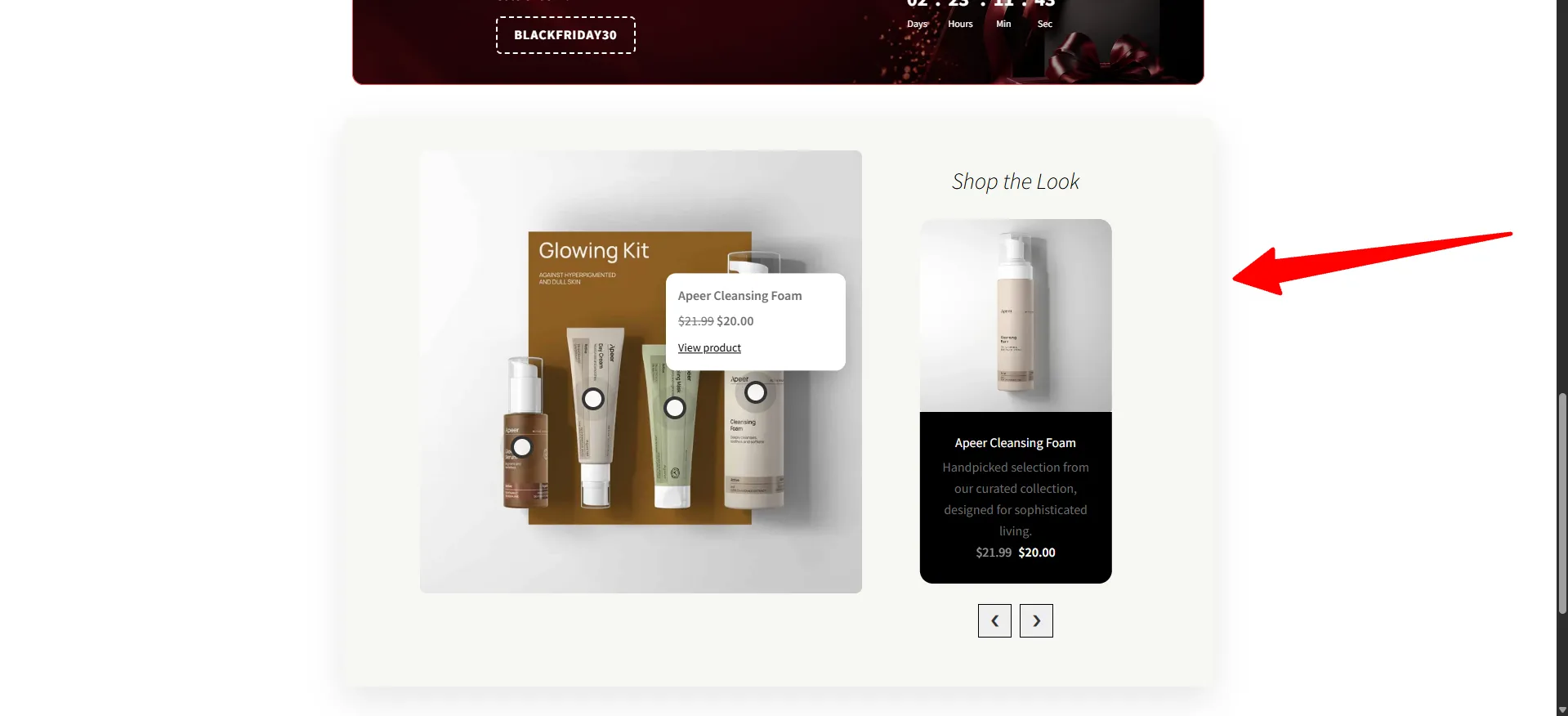
WooCommerce Shop the Look turns a single lifestyle photo into an interactive shopping experience. Place clickable WooCommerce product hotspots on the image, and each one opens the linked product with its title, price, and a link to buy alongside a Shop the Look sidebar card.
This page covers using it as a block. For the full option reference, see Shop the Look — the block and the embed share the same settings.
Shop the Look is available in the Pro version, as this block, as an embed type, and as an Elementor widget.
How it works
You've written a styling post — "How to build a glowing skincare routine" — and you want the products shoppable inside the article rather than bolted onto a product page. You insert the Shop The Look block, upload the flat-lay photo, and drop a hotspot on each product. Readers click a hotspot, see the product card, and jump straight to buy.
Step-by-step setup
- Edit the page or post and insert the Shop The Look block.
- Upload your lifestyle image.
- Click on the image to place a hotspot, then link it to a product. Repeat for each product in the scene.
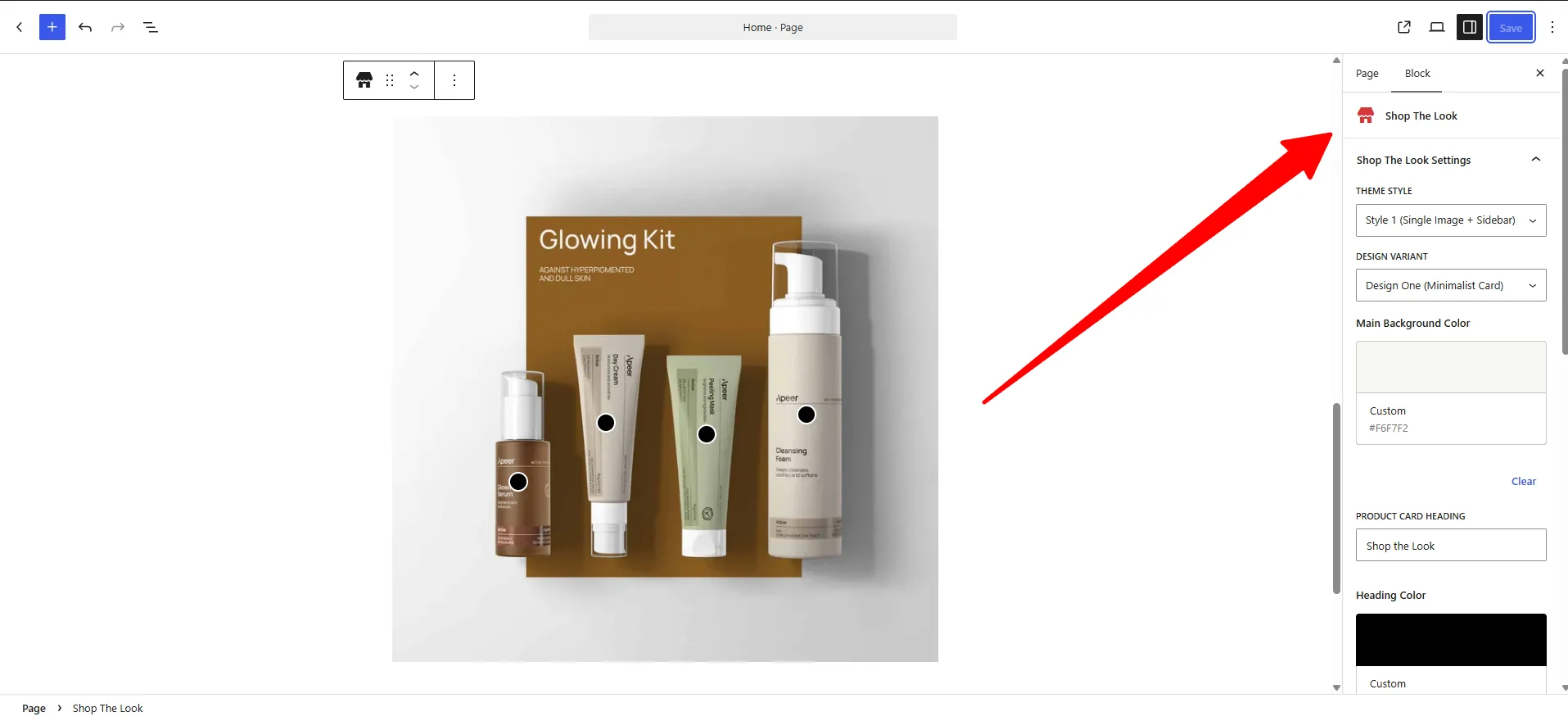
- In the sidebar's Shop The Look Settings, pick a Theme Style and Design Variant.
- Adjust the colours (background, heading, product card), then Save.
Options
The Shop The Look Settings sidebar exposes the same options as the embed:
| Setting | What it does |
|---|---|
| Theme Style | The layout — e.g. Style 1 (Single Image + Sidebar). |
| Design Variant | The product-card look — e.g. Design One (Minimalist Card). |
| Main Background Color | The block's background (e.g. #F6F7F2). |
| Product Card Heading + Heading Color | The "Shop the Look" title above the card and its colour. |
| Product card colours | Title, price, and card background. |
| Hotspots | Click the image to add a point, then link each to a product. |
See Shop the Look → Options explained for what each one does.
Block or embed?
| Block | Embed | |
|---|---|---|
| Best for | A specific post, page, or landing page | Appearing on many product pages automatically |
| Placement | Wherever you insert it | A hook or CSS selector on the product page |
| Targeting & scheduling | Not available | Full targeting and conditions |
🧪 Example configuration
The look shown in the screenshots:
| Setting | Value |
|---|---|
| Image | "Glowing Kit" skincare flat-lay |
| Hotspots | Glowing Serum, Day Cream, Peeling Mask, Cleansing Foam |
| Theme Style | Style 1 (Single Image + Sidebar) |
| Design Variant | Design One (Minimalist Card) |
| Heading | Shop the Look |
What customers see
A striking lifestyle image where each product is a click away: tapping a hotspot opens the product card (price + View product), and the Shop the Look sidebar lets shoppers browse the rest of the set with Previous/Next arrows.
- Keep hotspots to 3–6 so the image stays clean and clickable.
- Use real lifestyle photography — the context is what sells the look.
- Link hotspots to in-stock products so shoppers can buy immediately.
SEO, accessibility, and conversion checklist
Use a WooCommerce shoppable image to connect visual inspiration with real product pages. Give the source image descriptive alt text, keep each hotspot large enough to tap on mobile, make linked product names and prices readable, and ensure every hotspot has an accessible label. The block should supplement the article or landing page copy; do not rely on hotspots alone to communicate product names, benefits, price, or availability.
Before publishing, test every WooCommerce product hotspot on desktop and mobile, confirm that product links open the intended canonical pages, and check the experience with keyboard navigation and a screen reader. Remove unavailable products or replace them with current equivalents. Track image views, hotspot clicks, product-page visits, add-to-cart events, and completed orders. Keep product titles, images, prices, availability, and structured data accurate on the linked product pages according to Google’s Product structured data guidance.
Frequently Asked Questions
What is a WooCommerce Shop the Look block?
A WooCommerce Shop the Look block is a shoppable lifestyle image with clickable product hotspots. Each hotspot can open a product card with its title, price, and link to the full WooCommerce product page.
How do I add product hotspots to a WooCommerce image?
Insert the Shop The Look block, upload the main lifestyle image, click the image to place a point, and select a product for that hotspot. Repeat for each item, choose a theme and design variant, then save and test the published page.
Can I use Shop the Look in a blog post or landing page?
Yes. Insert the block into a compatible page or post wherever the visual story needs a shopping path. Use an embed instead when the same experience must appear automatically on multiple product pages.
Does Shop the Look work with mobile shoppers?
Yes. The block is designed for responsive layouts, but test hotspot size, spacing, product-card readability, and tap targets on real phone widths. Keep hotspots separated when products sit close together in the image.