Free Shipping Bar
Overview
The Free Shipping Bar motivates bigger carts by showing shoppers exactly how much more they need to spend to unlock free shipping. As items are added, the message and progress bar update live — a simple, proven way to raise average order value.
How it works
Your free-shipping threshold is $100. A shopper with $70 in their cart sees "Spend $30 more to get free shipping" with a progress bar 70% full. They add one more item to avoid paying shipping, and the bar switches to "Congratulations! You got free shipping!" — a small nudge that lifts the whole order.
The Notification Bar module is available in Sale Booster Pro.
Step-by-step setup
-
Open Sale Booster → Notification Bar → Add New and name the bar.
-
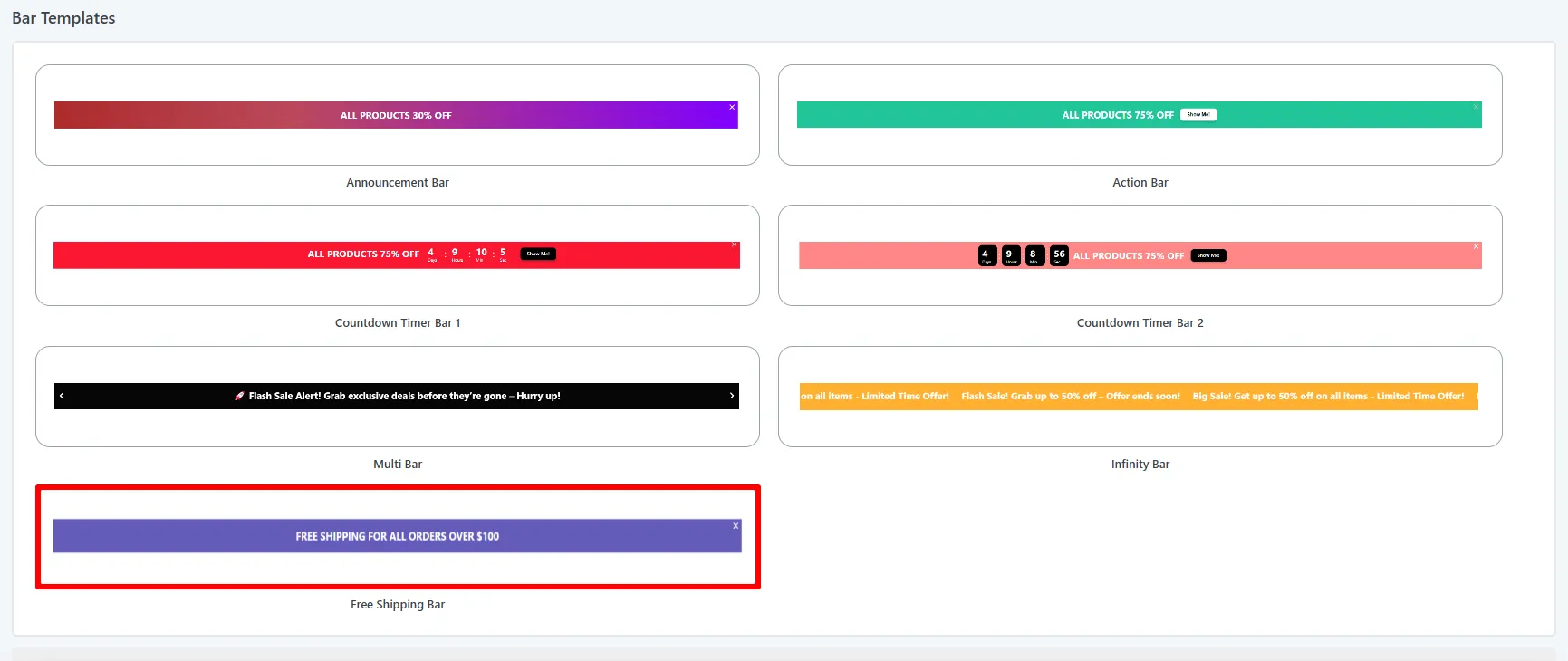
Pick the Free Shipping template on the Type tab.
-
On the Content tab, set the Free shipping amount (the cart total required to qualify, e.g.
100) and customize the three messages (below).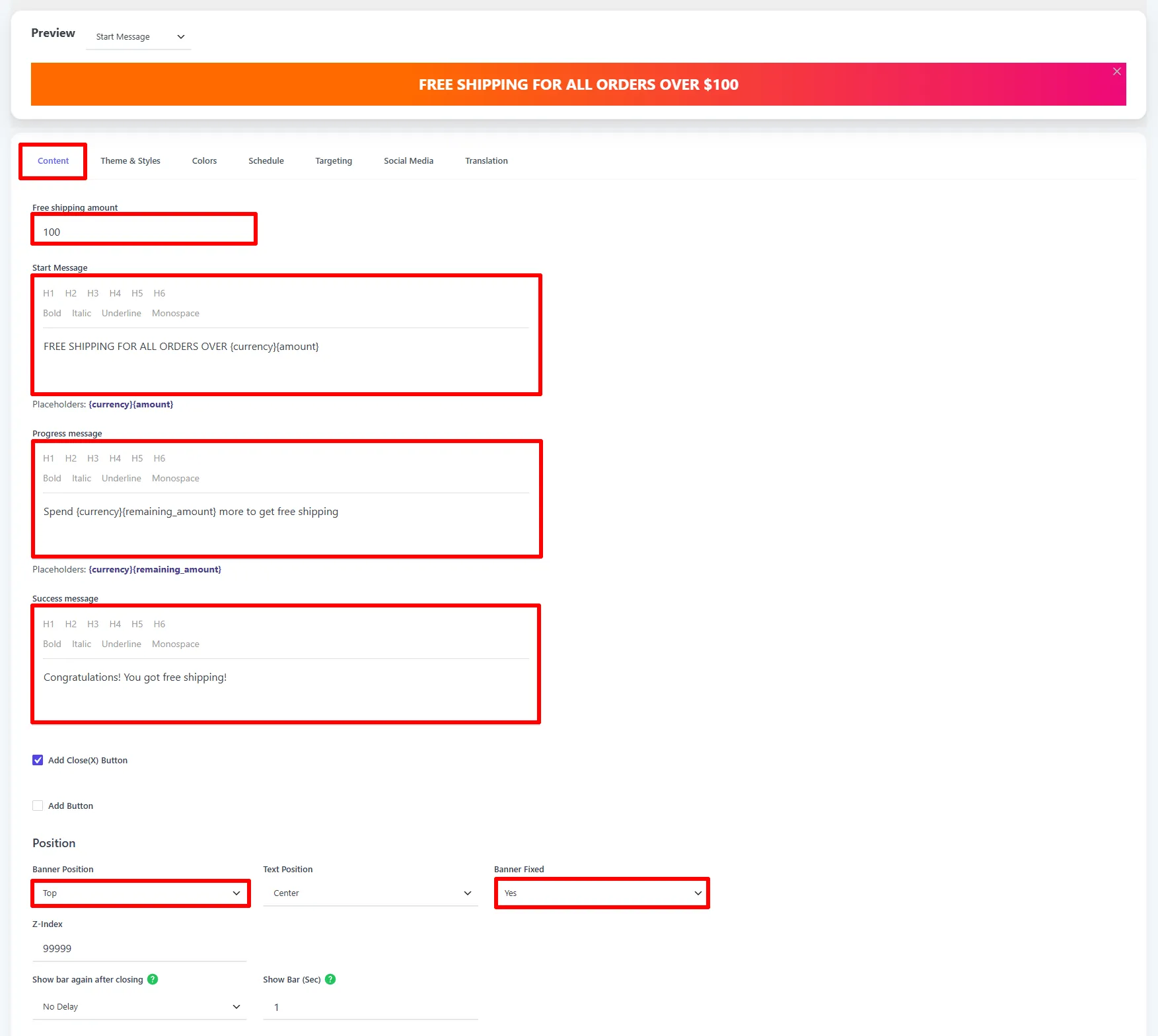
-
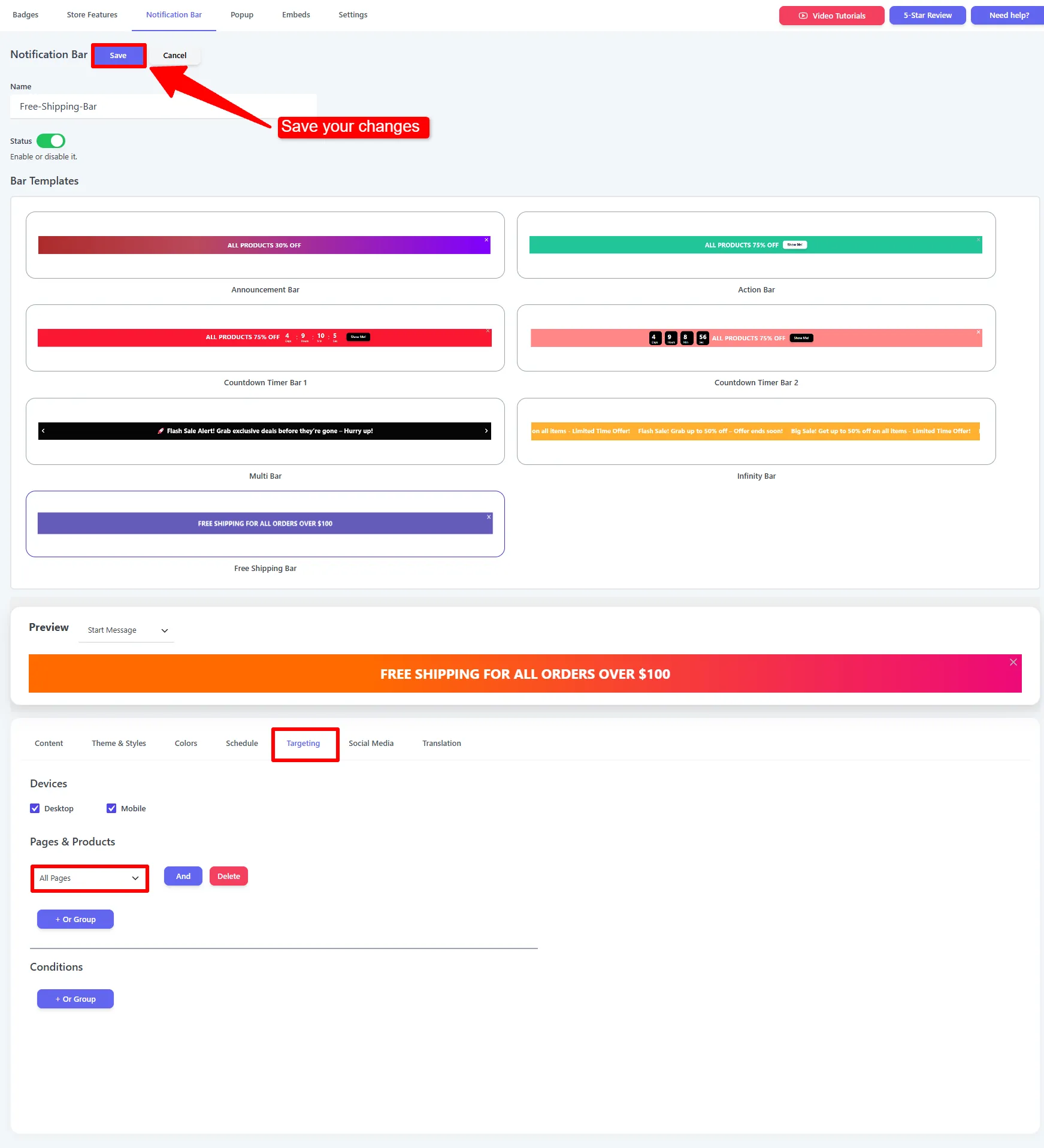
On the Targeting tab, choose which pages the bar appears on and who sees it.
-
Style the bar (colors, progress-bar color, position) and Save.
The three messages
| Message | Shown when | Example |
|---|---|---|
| Start message | Initially. | FREE SHIPPING FOR ALL ORDERS OVER {currency}{amount} |
| Progress message | Cart is below the threshold. | Spend {currency}{remaining_amount} more to get free shipping |
| Success message | Threshold reached. | Congratulations! You got free shipping! |
Placeholders
| Placeholder | Displays |
|---|---|
{currency} | Store currency symbol. |
{amount} | The free-shipping threshold. |
{remaining_amount} | How much more the shopper needs to spend. |
See Shared settings for position, close-behavior, targeting, schedule, and translation.
🧪 Example configuration
| Setting | Value |
|---|---|
| Type | Free Shipping |
| Amount | 100 |
| Progress message | Spend {currency}{remaining_amount} more to get free shipping |
| Success message | You've unlocked FREE shipping! |
| Position | Top, fixed |
What customers see
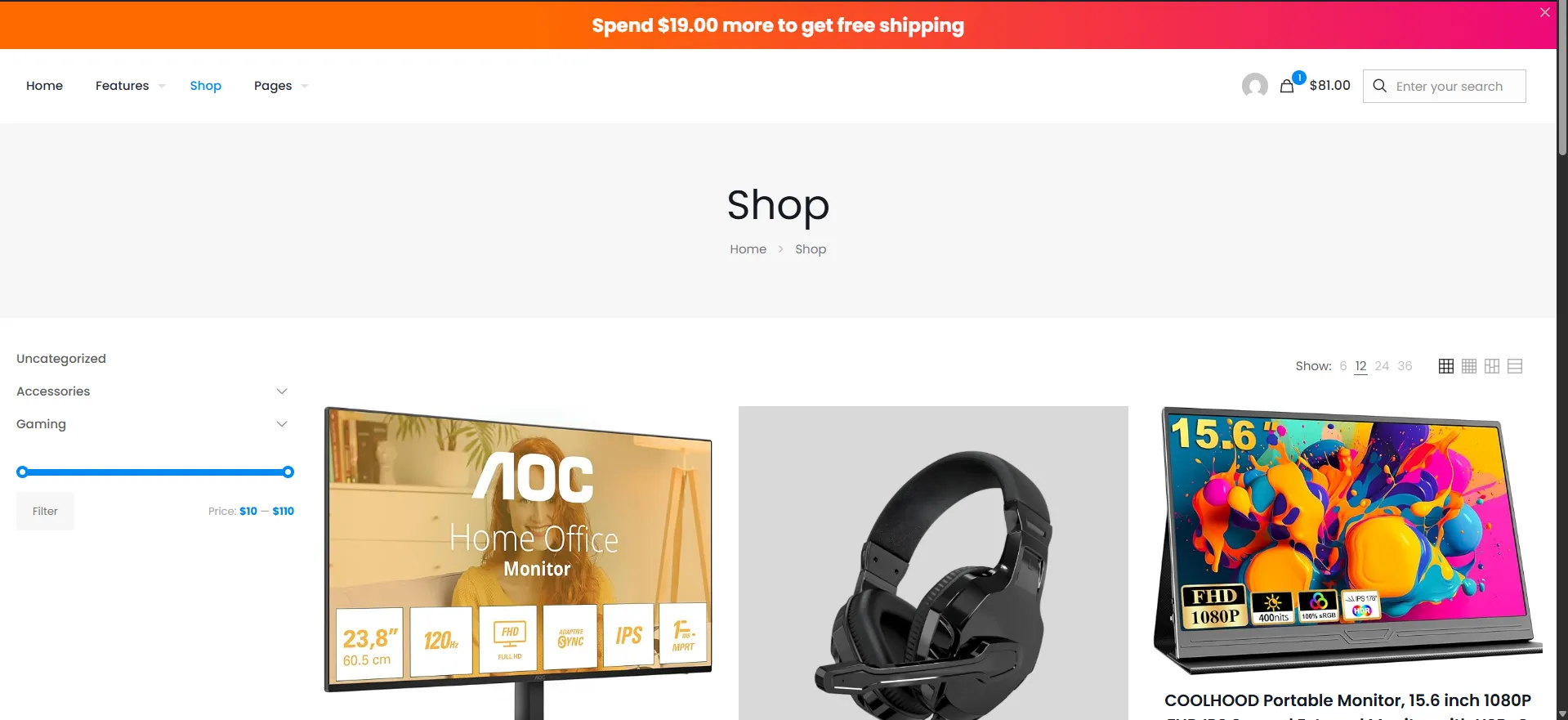
A live progress bar that counts down the remaining amount and celebrates when they qualify — encouraging one more item in the cart.
- Set the threshold slightly above your average order value so it's an achievable stretch.
- Keep the progress and success messages upbeat and short.
Next Steps
- Notification Bar overview
- Free Shipping Bar embed — the same progress bar directly on the product/cart page.
Frequently asked questions
How does the WooCommerce Free Shipping Bar work?
The bar compares the shopper's cart total with the configured Free shipping amount and displays a start, progress, or success message. The progress message can show the remaining amount with {remaining_amount}.
Does the Free Shipping Bar configure WooCommerce shipping rates?
No. Configure the actual free-shipping method and threshold in WooCommerce first, then use the Sale Booster bar to communicate progress toward that offer. Keep both thresholds aligned.