Action Bar
Overview
The Action Bar is an Announcement Bar with a call-to-action button. Use it to drive clicks — a message plus a "Show Me!" / "Shop Now" button that sends shoppers straight to your sale or collection.
How it works
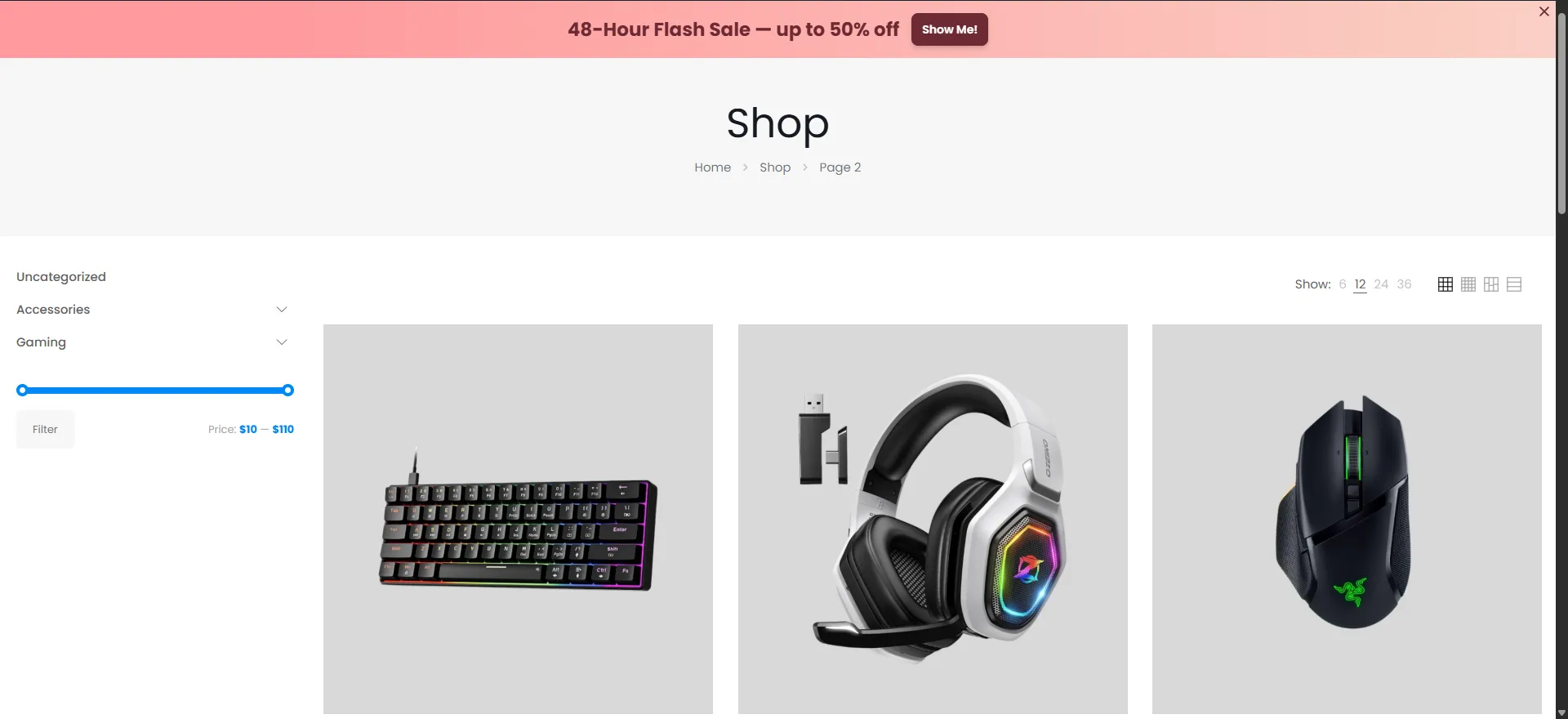
Your flash sale is live. You create an Action Bar that reads "48-Hour Flash Sale — up to 50% off" with a "Show Me!" button linking to the shop. Every visitor sees the message and can jump to the offer in one click.
The Notification Bar module is available in Sale Booster Pro.
Step-by-step setup
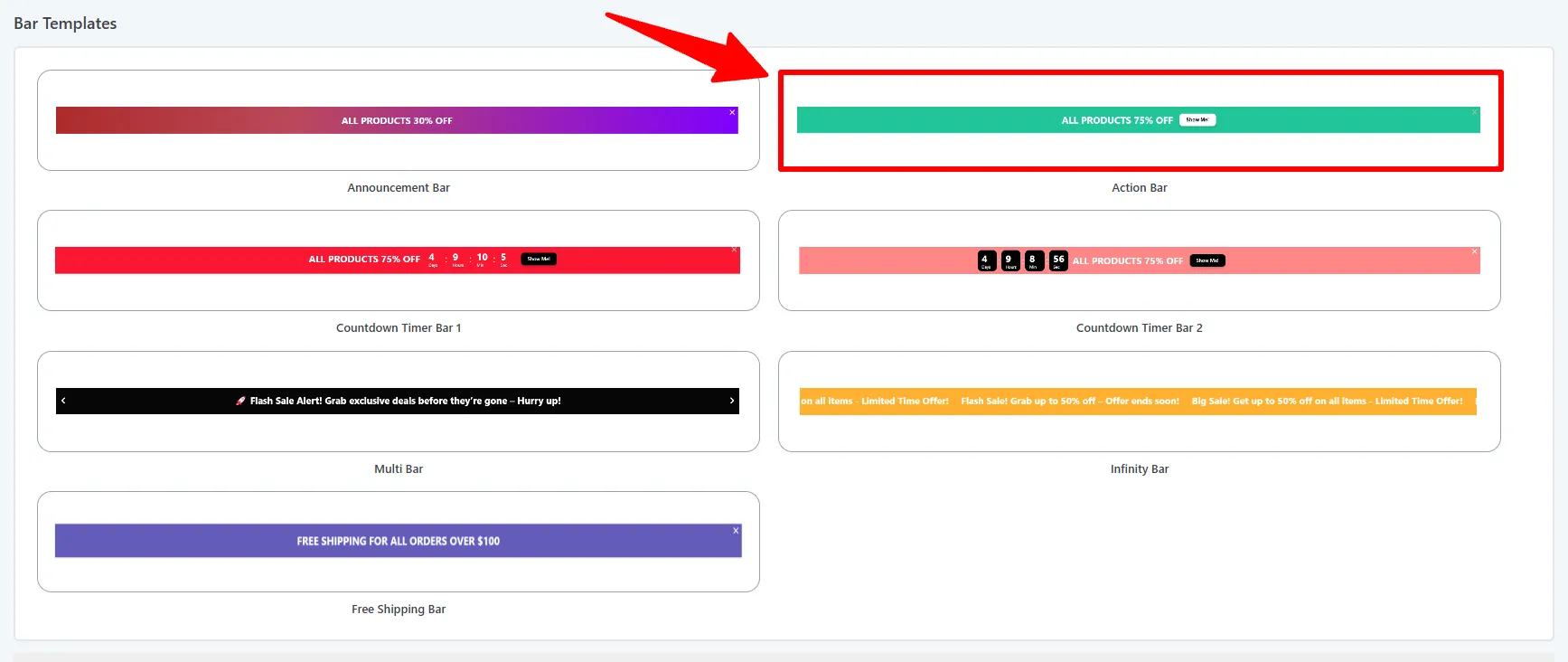
1. Pick the Action Bar template
Open Sale Booster → Notification Bar → Add New, name the bar, and pick the Action Bar template from the gallery.
2. Write your message and add the button
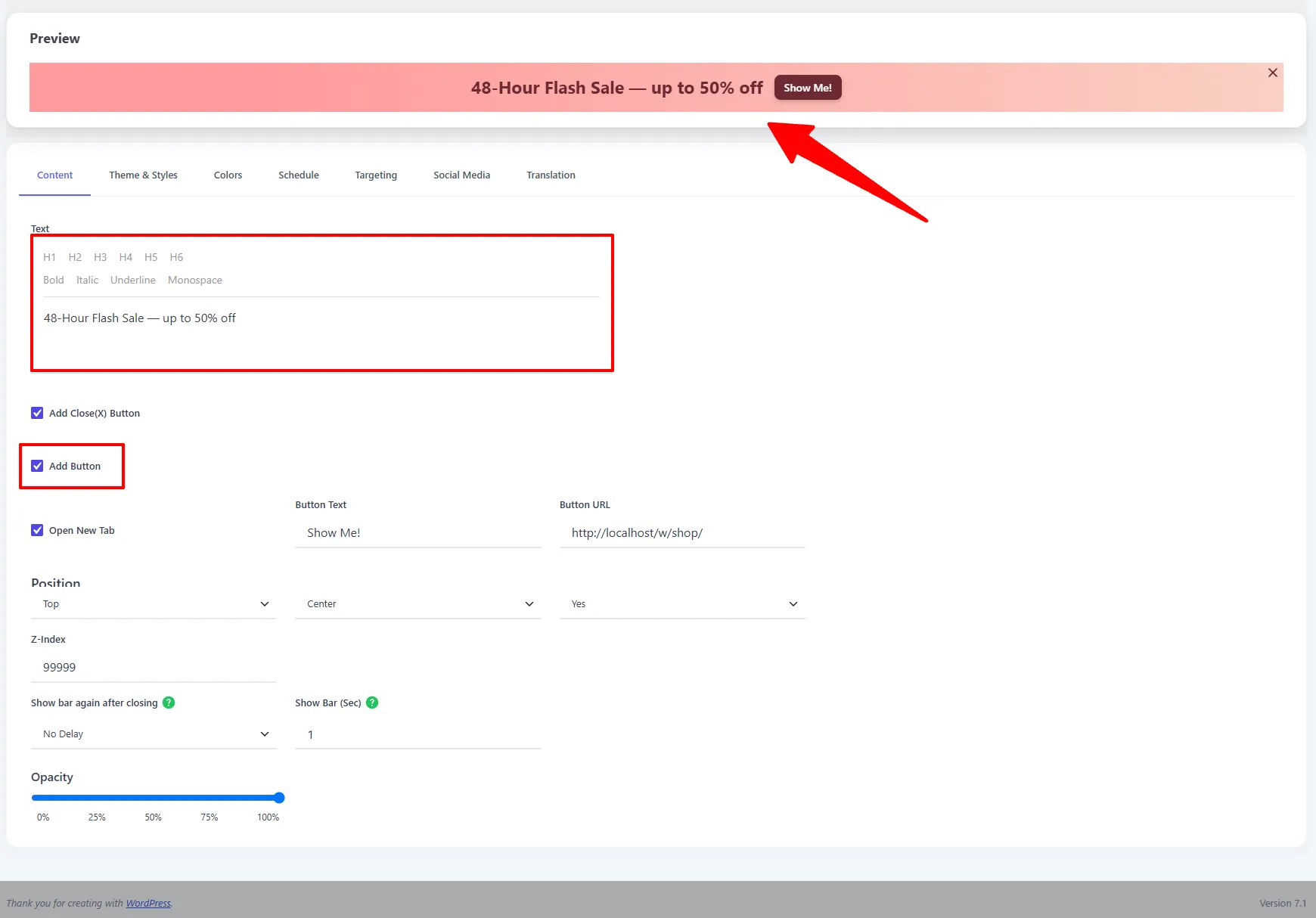
On the Content tab, write your Text message, then enable Action Button. In older screenshots this control is labelled Add Button. Choose Button as the Action Type to reveal the button options:
- Button Text (e.g.
Show Me!) - Button URL (e.g. your shop or sale page)
- Open New Tab
Set the Position (Top / Bottom), Text Position, and Banner Fixed as needed.
3. Style it with a Color Template
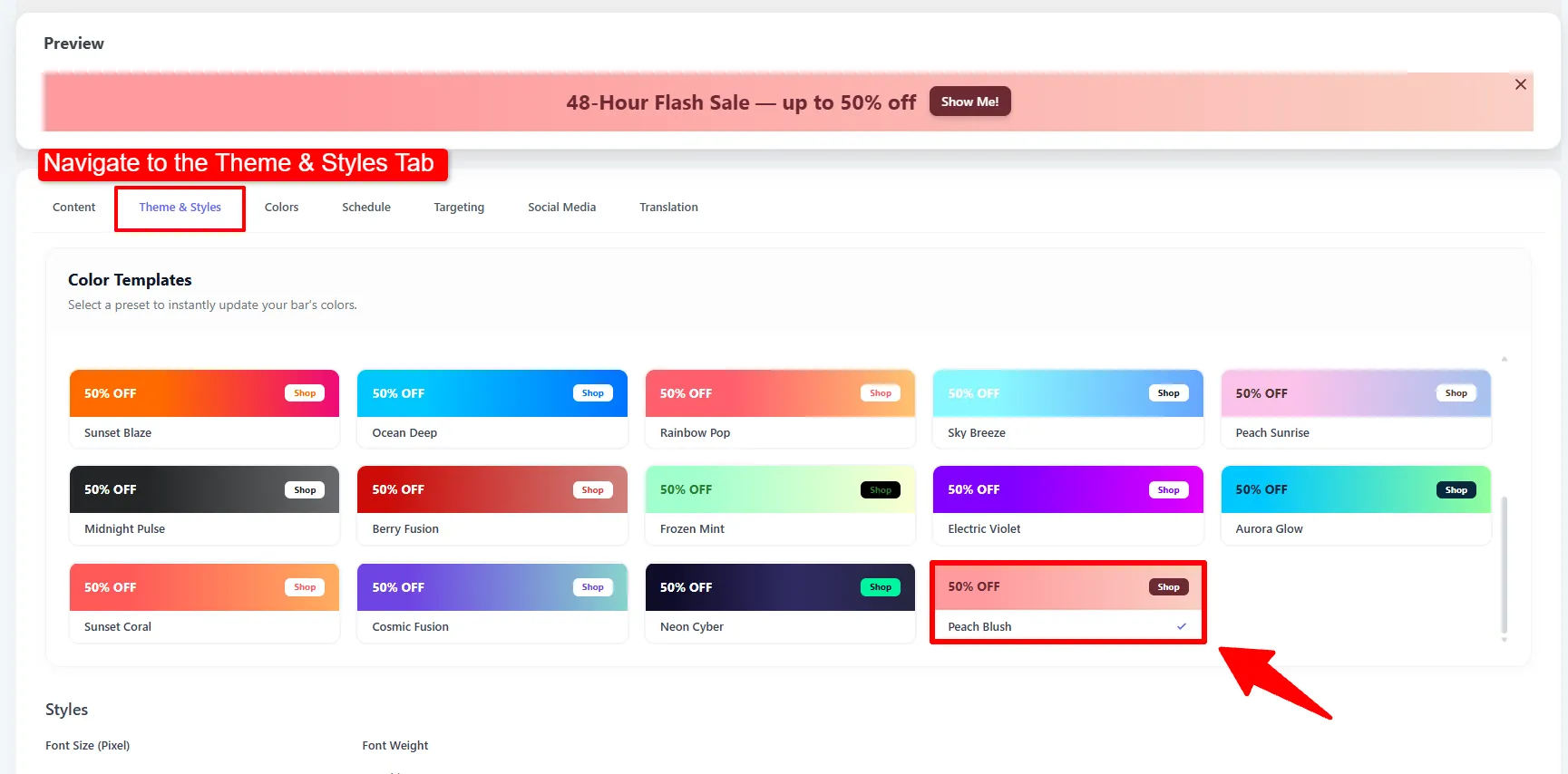
Switch to the Theme & Styles tab and click a Color Template to instantly recolor the whole bar. From here you can also set the Font Size / Weight, an optional Border, a background Theme image, the Banner / Text Animation, and a Shadow. Style the button colors on the Colors tab.
4. Choose where it shows, then Save
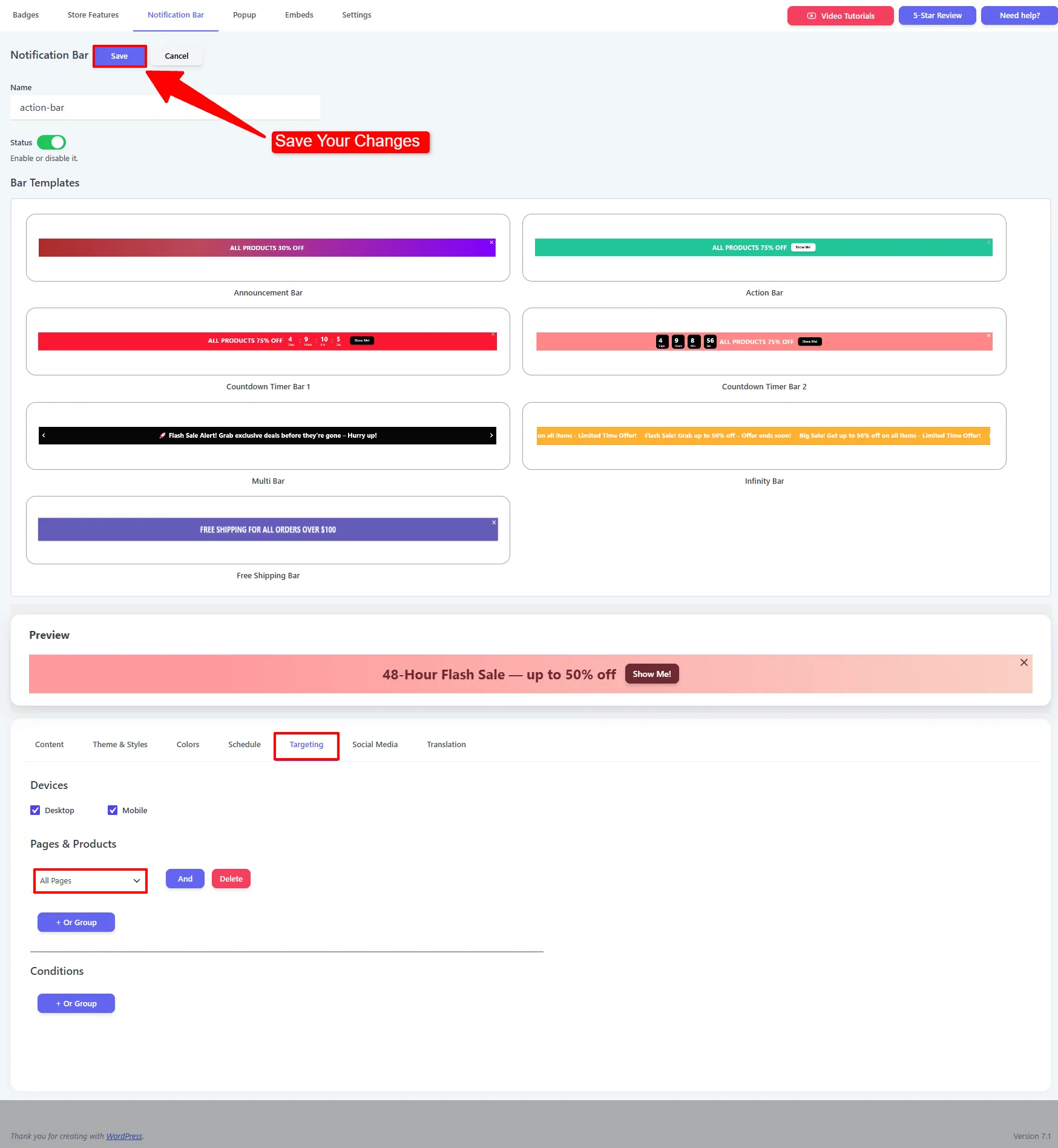
On the Targeting tab, pick the Devices (Desktop / Mobile) and add Pages & Products rules — for example show it on the Shop page. Add Conditions to limit it by visitor, then click Save.
Options explained
| Option | What it does |
|---|---|
| Text | The bar message (rich text). |
| Action Button | Enables a clickable action on the bar. Older versions may display this as Add Button. |
| Action Type → Button | Reveals Button Text, Button URL, and Open New Tab. |
| Action Type → Coupon | Shows a copyable coupon chip with Coupon Text, border style, and copied message. |
| Button colors / font / radius | Style the button on the Colors tab. |
| Text Position / Banner Position / Fixed | Alignment, placement, and sticky behavior. |
| Close (X) Button | Lets visitors dismiss the bar. Older screenshots may display this as Add Close (X) Button. |
| Color Template / Animation / Shadow | Full styling on the Theme & Styles tab. |
| Devices / Pages & Products / Conditions | Where and to whom the bar appears (Targeting tab). |
🧪 Example configuration
| Setting | Value |
|---|---|
| Type | Action |
| Text | 48-Hour Flash Sale — up to 50% off |
| Button | Show Me! → /shop (open in new tab) |
| Banner Position | Top, fixed |
| Targeting | Devices: Desktop + Mobile · Shop page |
What customers see
A message bar with a prominent button that takes shoppers straight to the offer — here the pink "48-Hour Flash Sale — up to 50% off" bar with a Show Me! button on the Shop page.
- Use a verb-led button label ("Show Me!", "Shop Now", "Get the Deal").
- Point the button at the exact sale/collection page, not the homepage.
Next Steps
- Countdown Timer Bar — add a live deadline.
- Multi Bar — rotate several offers with their own buttons.
Frequently asked questions
What is a WooCommerce Action Bar?
A WooCommerce Action Bar is a promotional notification bar with a clickable CTA button or coupon action. Use it to send shoppers directly to a sale, collection, product, or shop page.
How do I add a CTA button to a WooCommerce bar?
Open Sale Booster → Notification Bar → Add New, choose Action Bar, enable Action Button, select Button under Action Type, then enter the button text and URL.