Multi Bar
Overview
The Multi Bar rotates through several messages in a single bar, each with its own optional button or coupon. Instead of choosing one promotion, you cycle through all of them automatically — and shoppers can use the left/right arrows to move between messages themselves.
How it works
You have three things to promote — a sale, free shipping, and a new arrival. You add three bars to one Multi Bar; it fades between them every few seconds, and each carries its own button or coupon code.
The Notification Bar module is available in Sale Booster Pro.
Step-by-step setup
1. Pick the Multi Bar template
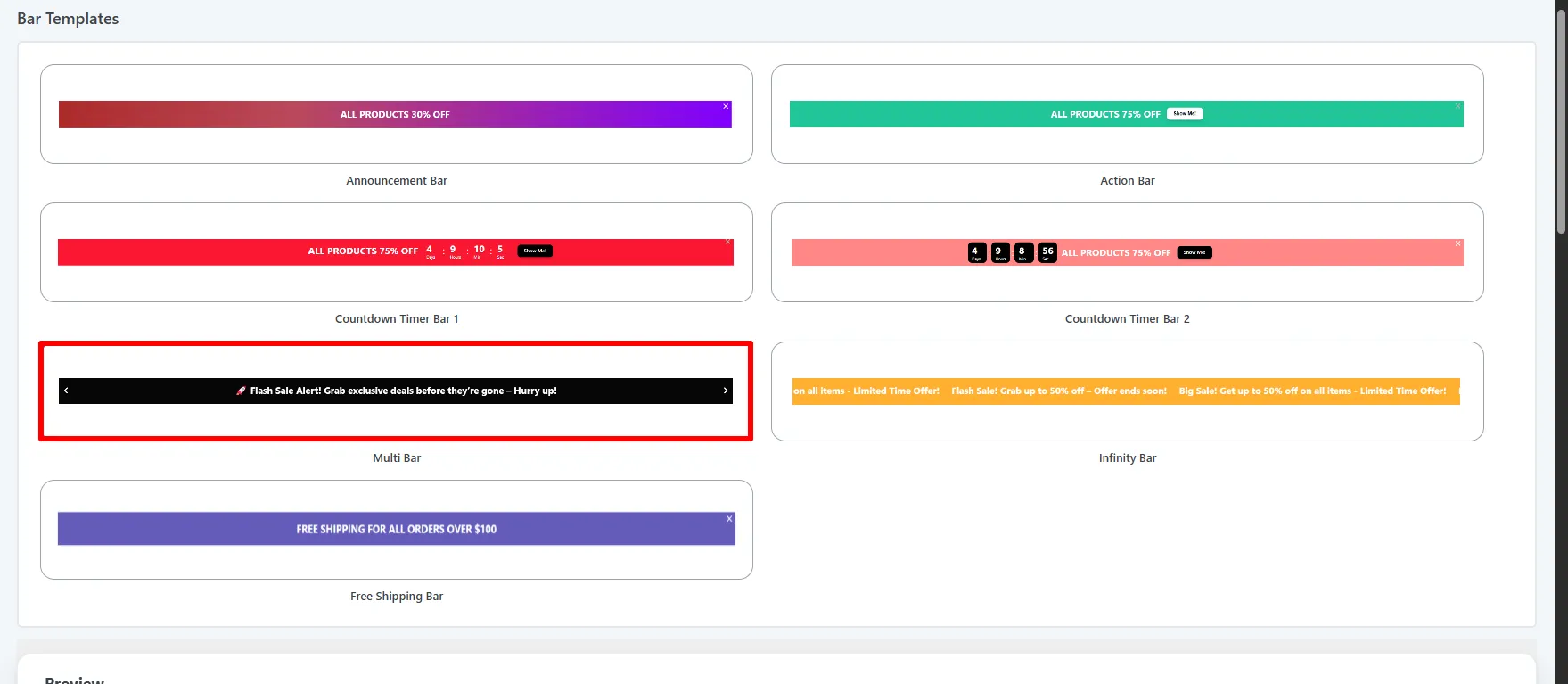
Open Sale Booster → Notification Bar → Add New, name the bar, and pick the Multi Bar template from the gallery — it previews as a bar with left/right arrows.
2. Add your rotating messages
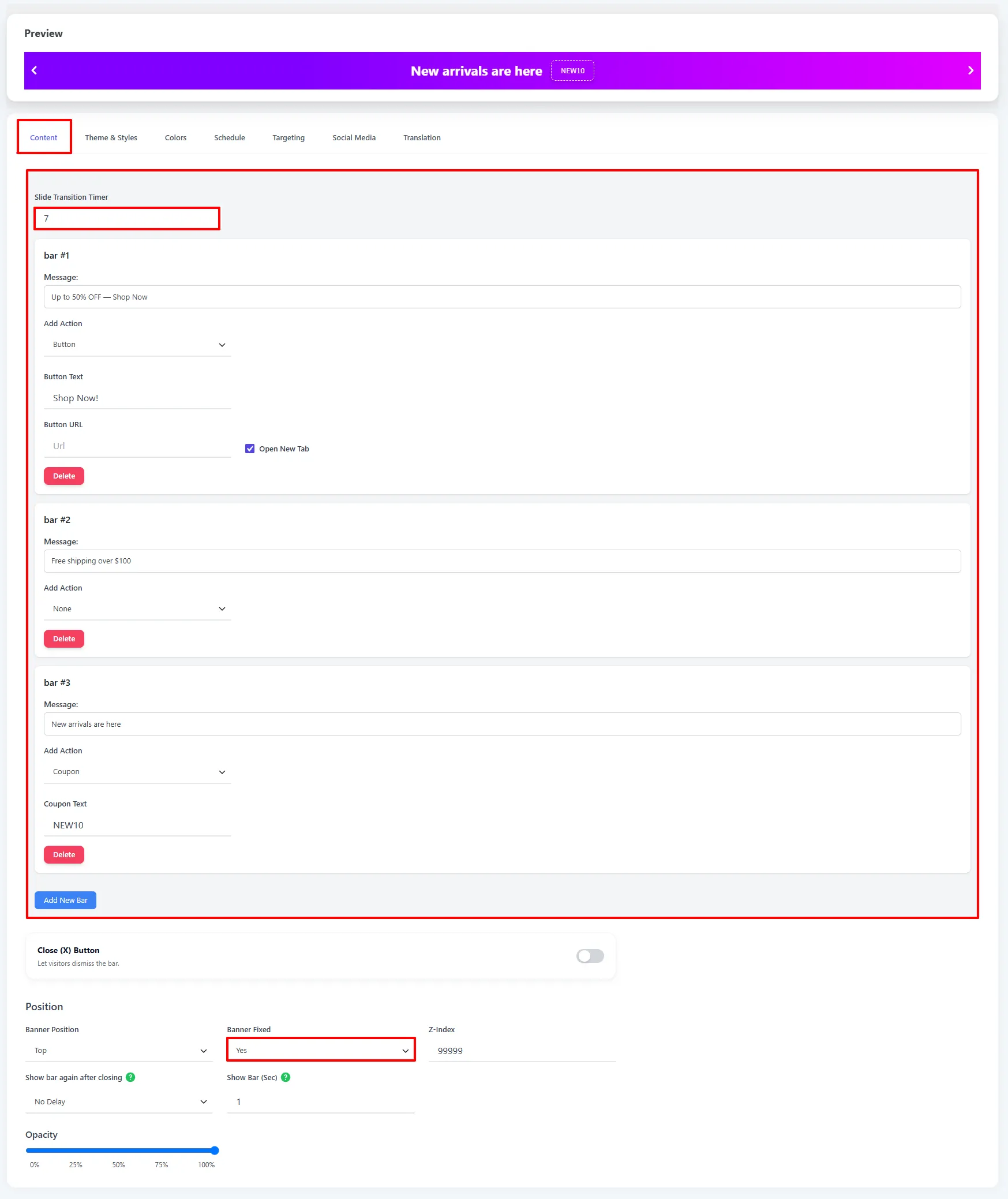
On the Content tab, set the Slide Transition Timer (seconds between messages), then add a bar for each message. For each one, type the Message and choose an Add Action:
- None — message only (e.g.
Free shipping over $100). - Button — adds Button Text, Button URL, and Open New Tab (e.g.
Shop Now!). - Coupon — shows a copyable Coupon Text code (e.g.
NEW10).
Click Add New Bar for more messages, or Delete to remove one.
3. Style the bar
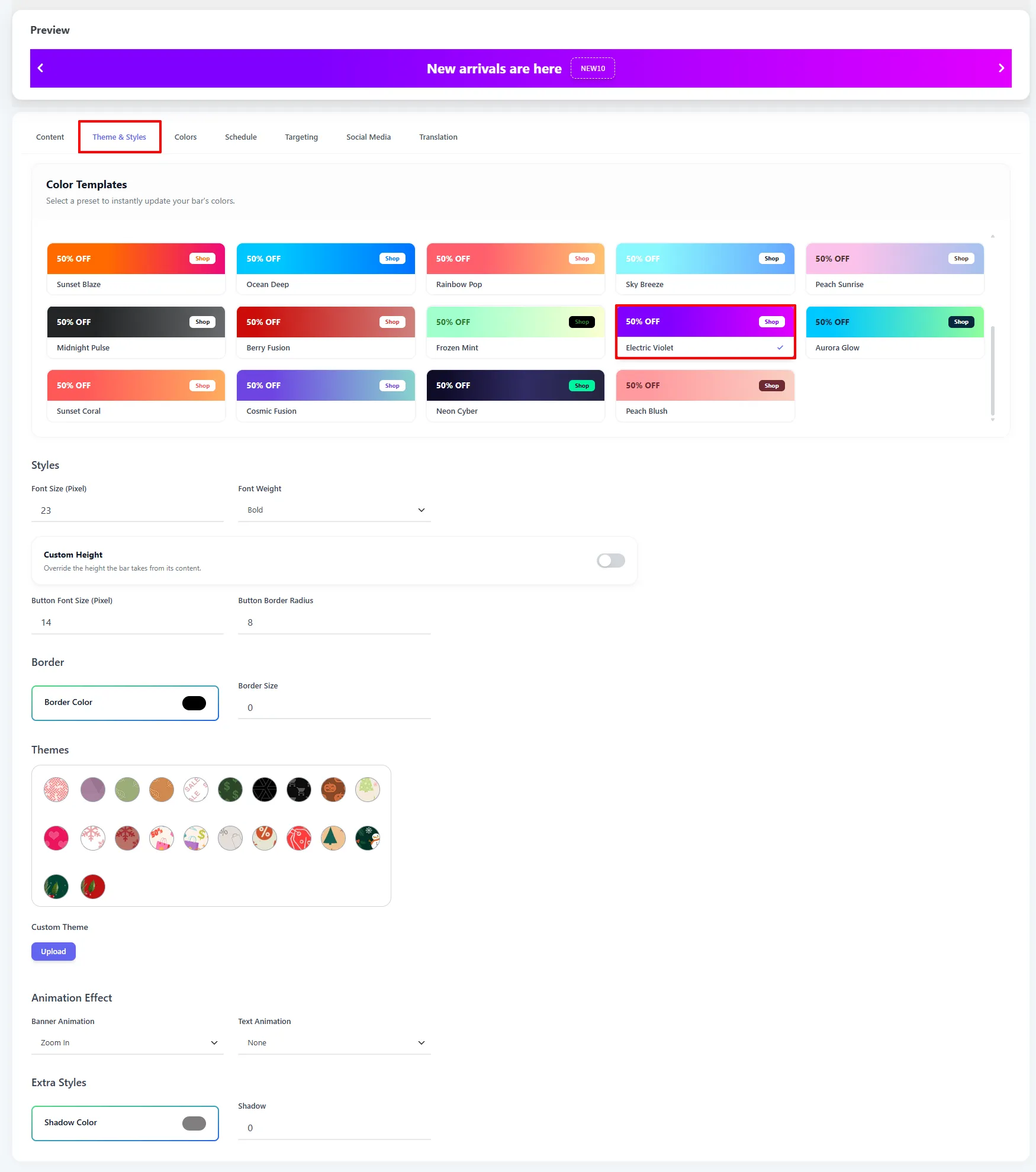
On the Theme & Styles tab, pick a Color Template (e.g. Electric Violet) to recolor the whole bar in one click, then fine-tune the Font Size / Weight, Button Border Radius, background Theme, and Banner Animation.
4. Choose where it shows, then Save
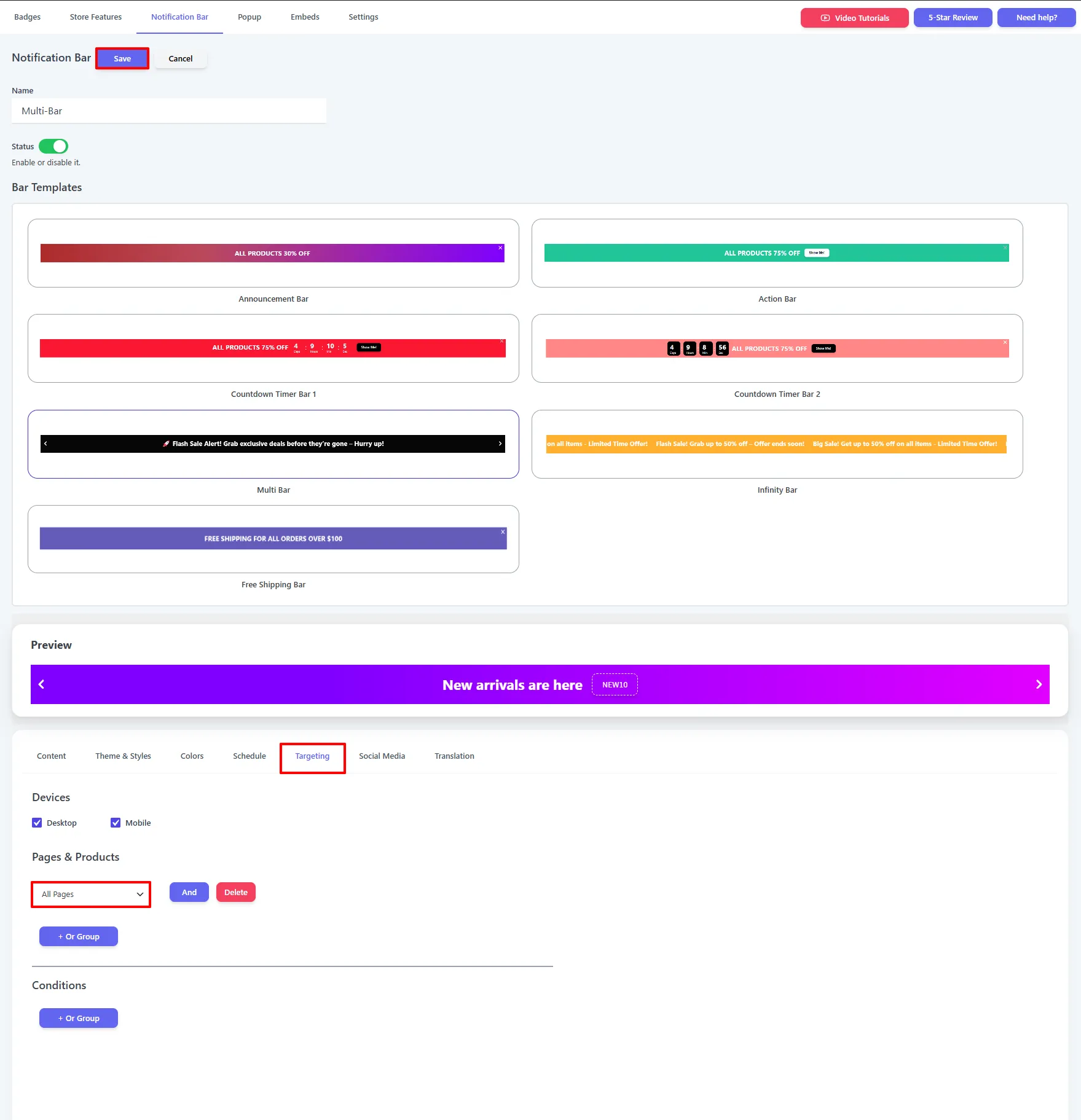
On the Targeting tab, pick the Devices (Desktop / Mobile) and add Pages & Products rules (default All Pages), then click Save.
Options explained
| Option | What it does |
|---|---|
| Slide Transition Timer | Seconds each message shows before rotating to the next. |
| Message | The text for that bar. |
| Add Action → None | Message only. |
| Add Action → Button | Adds a button with Button Text, Button URL, and Open New Tab. |
| Add Action → Coupon | Shows a copyable Coupon Text code. |
| Add New Bar / Delete | Add or remove messages. |
| Arrow colors | Color of the left/right navigation arrows (on the Colors tab). |
See Shared settings for position, close-behavior, targeting, schedule, and translation.
🧪 Example configuration
The setup shown in the screenshots above:
| Setting | Value |
|---|---|
| Type | Multi Bar |
| Slide Transition | 7 seconds |
| bar #1 | Up to 50% OFF — Shop Now · Button → Shop Now! |
| bar #2 | Free shipping over $100 · None |
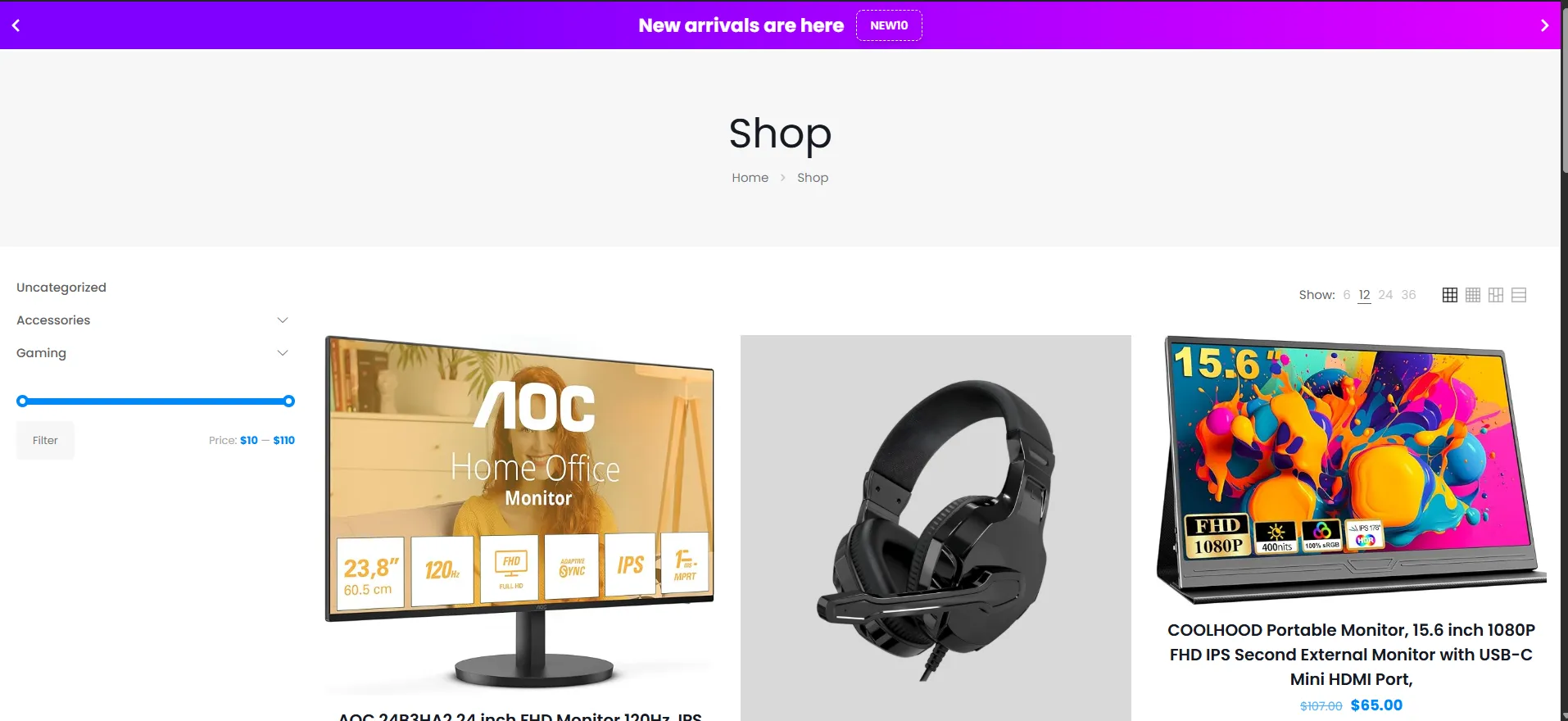
| bar #3 | New arrivals are here · Coupon NEW10 |
| Color template | Electric Violet |
| Position | Top, fixed |
What customers see
A single bar that fades between your messages, with arrows to browse and per-message buttons or coupons — here the "New arrivals are here" slide with its NEW10 coupon.
- Keep to 2–4 messages so the rotation isn't overwhelming.
- Set a comfortable transition timer (6–8s) so each message is readable.
- Mix action types — a Button for your main offer, None for a benefit reminder, and a Coupon for a code.
Next Steps
- Infinity Bar — a continuously scrolling marquee instead of fading slides.
- Announcement Bar
Frequently asked questions
What is a WooCommerce Multi Bar?
A WooCommerce Multi Bar rotates several messages inside one notification bar. Each message can use no action, a button, or a copyable coupon action.
How many messages should I add to a Multi Bar?
Use two to four messages so each offer remains readable. Set the Slide Transition Timer long enough for shoppers to understand the message before it changes.