Modern WooCommerce Product Badges
Overview
Modern Badges (also called Advanced or Dynamic badges) are premium, gradient, icon-driven badges designed to look great with zero design work. They support two lines of text, animated icons, and gradient backgrounds — ideal for flash sales, best-sellers, "hot deal", and free-shipping callouts that need to pop.
Use WooCommerce modern badges and dynamic WooCommerce product badges to add an animated product badge, a WooCommerce best seller badge, or a polished WooCommerce gradient badge to selected products.
How it works
You want your top products to feel special. You open Modern Badges, choose the ready-made "Best Seller" dynamic badge with its gradient and star icon, and target Best Seller products. Your most popular items now wear an eye-catching, animated badge that looks custom-designed — in about a minute.
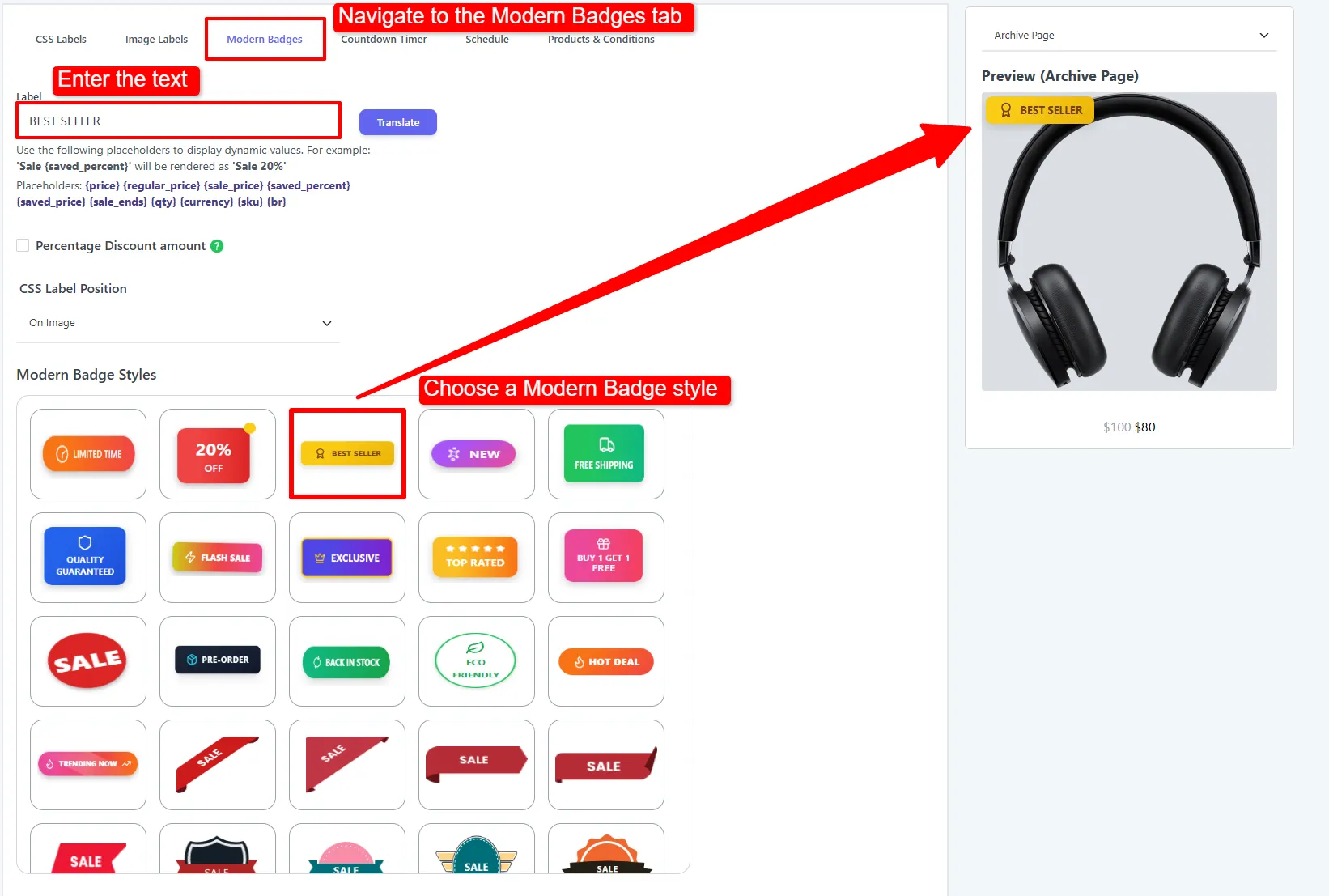
Modern Badges are a Pro feature. They include ready-made dynamic badges such as Limited Time, 20% OFF, Best Seller, New, Free Shipping, Quality Guaranteed, Flash Sale, Exclusive, Top Rated, Buy 1 Get 1 Free, Sale, Pre-Order, Back in Stock, Eco Friendly, Hot Deal, and Trending Now — plus a set of ribbon-style SALE designs.
Step-by-step setup
1. Open the Modern Badges tab, enter your text, and pick a style
Open the Modern Badges tab. Type your badge text in the Label field (e.g. BEST SELLER), then choose a design from the Modern Badge Styles gallery. The live preview on the right updates instantly.
2. Fine-tune the colors, size, and icon
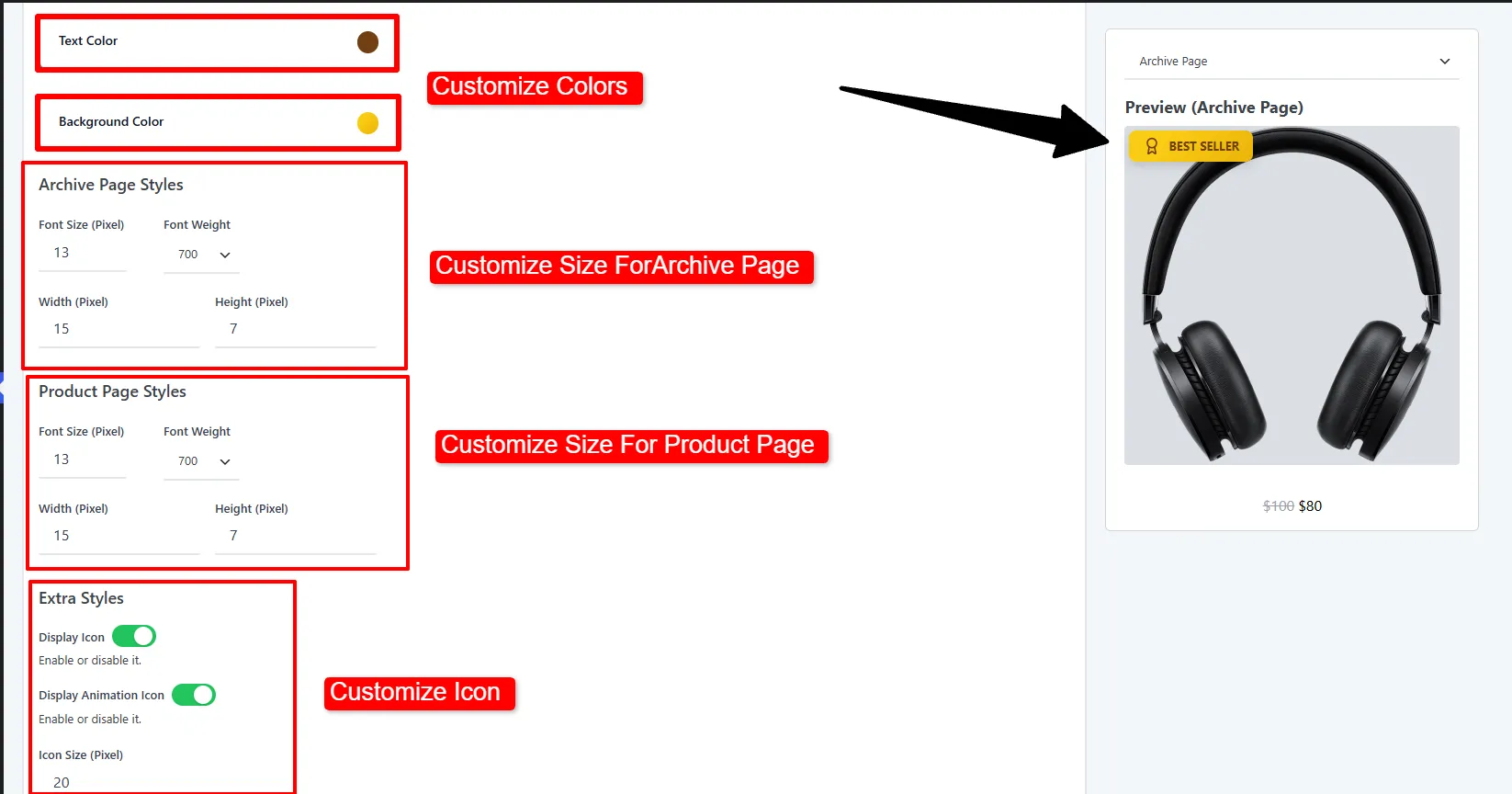
Scroll down to style the badge: set the Text Color and Background Color, adjust the size separately for the Archive Page and Product Page, and toggle/resize the icon.
3. Target it to your best-selling products, then Save
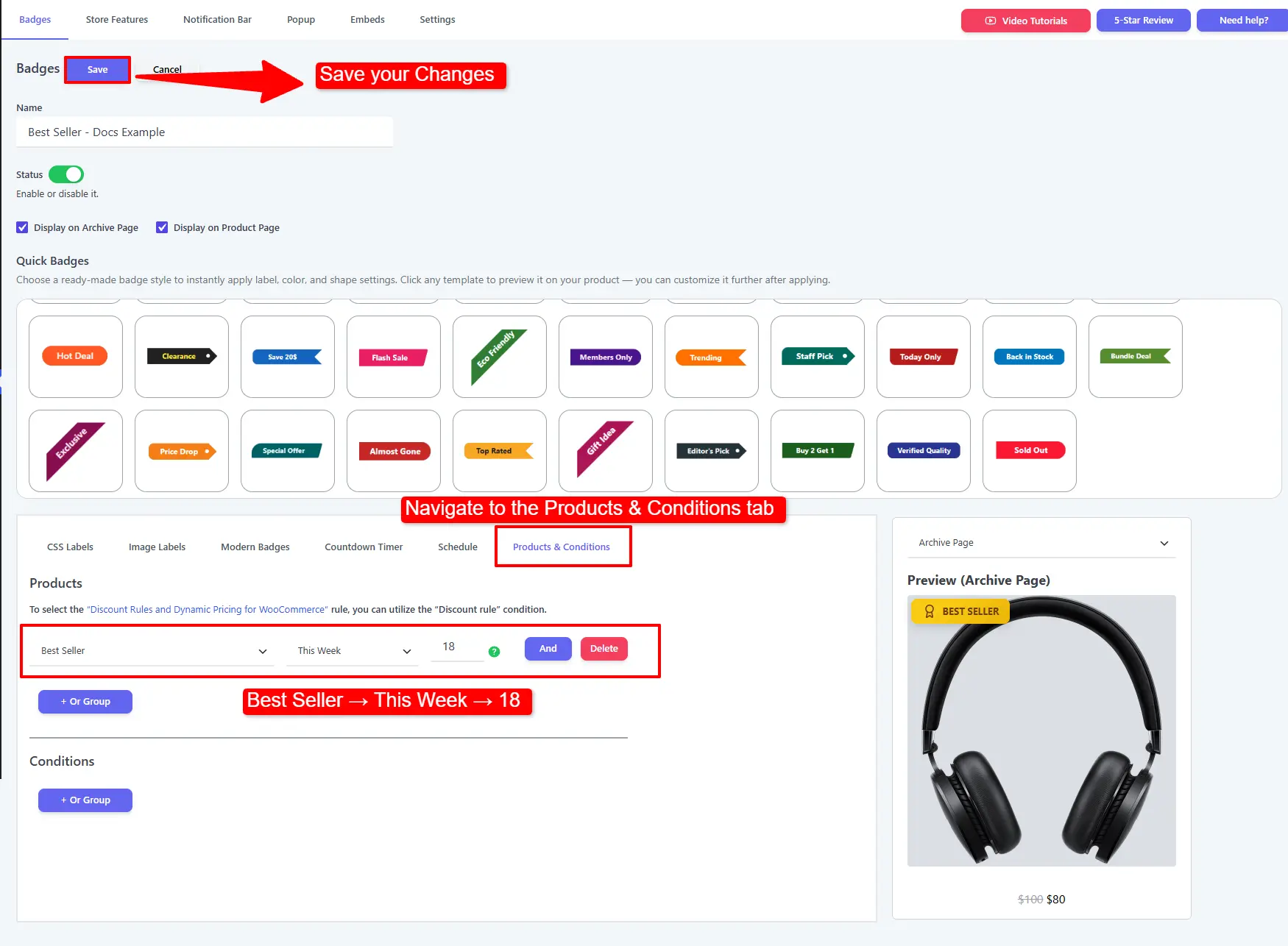
Open the Products & Conditions tab and add a Best Seller rule — for example Best Seller → This Week → top 18 — so the badge shows only on your genuine best-sellers. Then click Save.
Options explained
| Option | What it does | When & why to use |
|---|---|---|
| Label | The main badge text (supports placeholders). | The headline word, e.g. SALE or BEST SELLER. |
| Second Text | An optional second line — shown only for two-line dynamic badges (Discount %/OFF, Quality/Guaranteed, Buy 1 Get 1/Free, Eco/Friendly). | Split an offer into two punchy lines. |
| Percentage Discount amount | Inserts the live discount %. | Automate "X% OFF" across on-sale products. |
| CSS Label Position | On Image or Out of Image. | Move out of image if it covers the product. |
| Modern Badge Styles | The pre-designed dynamic badge (Best Seller, Flash Sale, etc.). | Pick one for an instant professional look. |
| Text / Background Color | Badge colors and gradient. | Match your brand accent for a native feel. |
| Archive / Product Page size | Font size, font weight, width, height — set separately per page. | Enlarge on product pages where there's more room. |
| Display Icon / Animation Icon / Icon Size | Toggle, animate, and size the badge icon. | A subtle animated icon adds motion without noise. |
🧪 Example configuration
The "Best Seller" badge shown in the screenshots:
| Setting | Value |
|---|---|
| Label | BEST SELLER |
| Style | Modern Badge Styles → Best Seller |
| Background | Gold/yellow gradient |
| Icon | On (animated), size 20 |
| CSS Label Position | On Image |
| Targeting | Best Seller (or All Products) |
What customers see
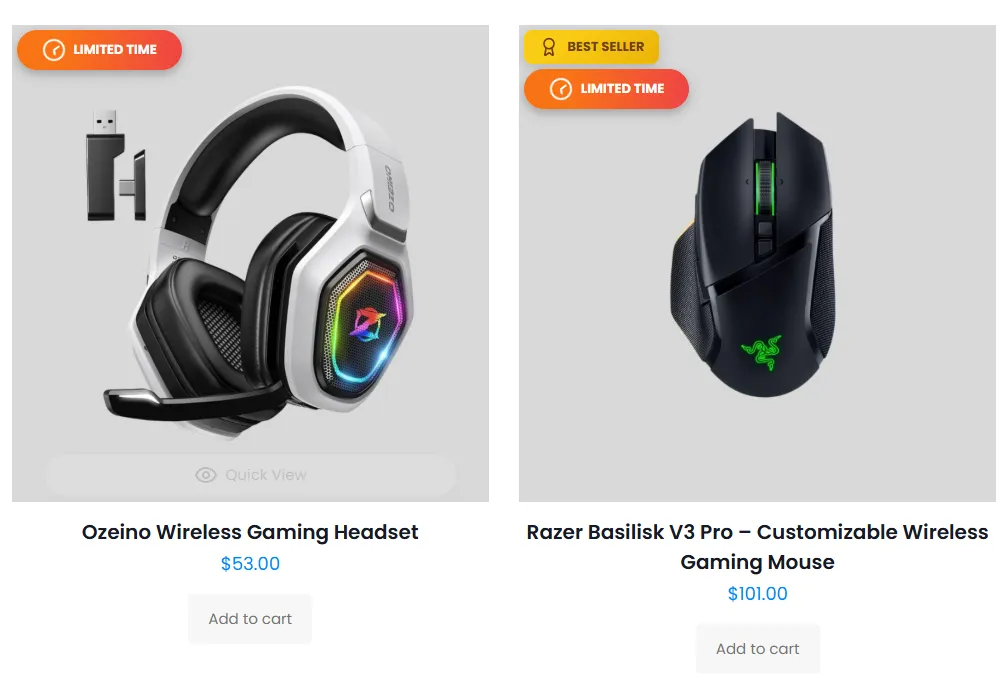
Your products display the animated, gradient modern badges — here a "BEST SELLER" badge and a "LIMITED TIME" badge on live gaming products — instantly signalling popularity and urgency.
- Gradient badges stand out most on plain product photos.
- Match the gradient to your brand accent so the badge looks built-in, not bolted on.
- Reserve Modern Badges for key products (best-sellers, flash sales) so they stay special.
Next Steps
Frequently Asked Questions
What are modern product badges in WooCommerce?
Modern Badges are Sale Booster Pro styles with gradients, icons, optional second-line text, and ready-made designs for messages such as Best Seller, Flash Sale, and Free Shipping.
How do I add a WooCommerce best seller badge?
Choose a Best Seller design in Modern Badge Styles, customize its text and colors, then open Products & Conditions and add the Best Seller rule for the period and number of products you want to highlight.
Can I customize modern WooCommerce badges?
Yes. You can change the label, optional second text, text and background colors, archive and product-page sizes, icon settings, position, and animation.