WooCommerce Multilingual Product Badges with WPML Guide
Overview
WooCommerce multilingual product badges let shoppers see sale labels in their active language. Sale Booster includes a built-in WooCommerce badge translation panel for label fields and works with WPML product badges, so multilingual stores can keep campaigns clear and consistent.
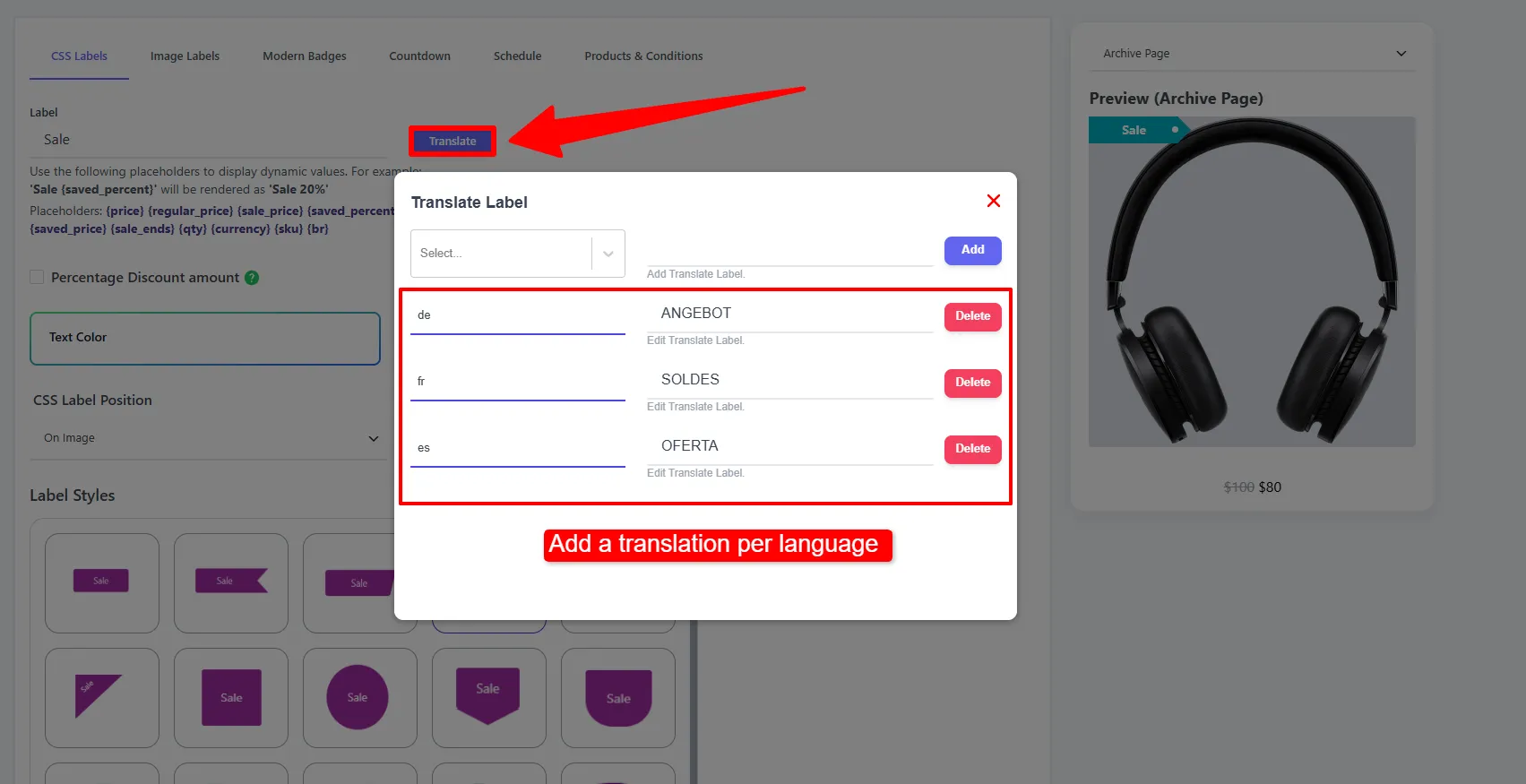
How it works
Your store serves English and German shoppers. You write the label SALE and add a German translation ANGEBOT. A visitor browsing in German sees "ANGEBOT"; an English visitor sees "SALE" — from the same badge, chosen automatically by the site language.
Per-label multilingual translations are available in the Pro version.
Step-by-step setup
- In the CSS Labels or Modern Badges tab, enter your default label text.
- Click the Translate button next to the label field.
- Choose a language from the dropdown (100+ WordPress locales supported).
- Enter the translated text and add it.
- Repeat for each language, then Save.
At display time the plugin shows the translation matching the active language; if none exists, it falls back to your default label.
What gets translated
- Each translatable field (primary label, secondary label, timer labels, bar/popup messages, etc.) has its own translation set.
- Modern Badges with two text lines can be translated independently for each line.
WPML compatibility
If you run a multilingual site with WPML, the badge strings integrate with your existing WPML workflow — no separate process to learn.
🧪 Example configuration
| Language | Label |
|---|---|
| English (default) | SALE |
| German | ANGEBOT |
| French | SOLDES |
| Spanish | OFERTA |
- Keep translations short — a long word can overflow a small badge shape. Preview each language before publishing.
- Translate the whole campaign (badge + any bar/popup) so the experience is consistent per language.
SEO, localization, and conversion checklist
Use translate WooCommerce product labels when the badge message affects a shopper’s decision in a localized store. Translate the complete phrase rather than swapping individual words, preserve dynamic placeholders such as {saved_percent}, and check that the translated value still fits the badge shape. Keep product URLs, localized product titles, descriptions, prices, availability, and other page content consistent with the language version so the badge supports the page instead of creating a confusing mixed-language experience.
Test each active language on shop archives, category pages, product pages, mobile layouts, and the fallback path. Confirm that a missing translation shows the default label, that plural or currency wording remains natural, and that a campaign’s badge, notification bar, popup, and button use the same offer terms. Track clicks and conversions by language so you can identify translations that need shorter copy or a different CTA. For WPML field-translation concepts, see WPML’s custom-field translation guide.
Frequently Asked Questions
How do I translate WooCommerce product badges?
Open a badge’s CSS Labels or Modern Badges tab, enter the default label, click Translate, select a language, add the translated text, and save. Repeat for every language used by the store.
Does Sale Booster support WPML product badges?
Yes. Sale Booster’s translation panel works with WPML-based multilingual stores. Keep the default text as a fallback and preview each translated badge on the storefront before publishing.
Should dynamic placeholders be translated?
Translate the surrounding words and keep the placeholder token intact. For example, translate Save {saved_price} while preserving {saved_price} so Sale Booster can insert the current value.
What happens when a badge translation is missing?
Sale Booster falls back to the default label. Add a translation for every active language when a promotion, price message, or stock notice needs to be understood by all shoppers.