How to Display "You Saved" Total Discount in WooCommerce Cart and Checkout
Learn how to display a "You Saved" total savings amount in the WooCommerce cart and checkout pages. This comprehensive guide walks you through enabling the feature, customizing labels and negative signs, positioning totals, and including cart discounts, coupons, and on-sale product savings to maximize buyer motivation and reduce cart abandonment.
📋 Table of Contents
- Why Display "You Saved" Savings?
- How Total Savings Are Calculated
- How to Enable & Configure "You Saved"
- Cart & Checkout Display Example
- Configuration Settings Reference
- Conversion Optimization Best Practices
- Troubleshooting & FAQs
- Next Steps
🚀 Why Display "You Saved" Savings?
Displaying a clear "You Saved" or "Total Savings" line item in the WooCommerce cart and checkout totals is one of the most effective psychological triggers in eCommerce:
- Reinforces Purchase Validation: Reminds customers of the instant reward they earned by taking advantage of your promotions, BOGO deals, or bulk discounts.
- Reduces Cart Abandonment: Shoppers are significantly less likely to leave when they see tangible dollar savings right before hitting the checkout button.
- Increases Perceived Value: Highlights the gap between what items cost originally versus what the buyer actually pays.
- Enhances Transparency: Summarizes complex layered deals (coupons + bulk tiers + sale prices + BOGO gifts) into a single, satisfying total savings figure.
🧮 How Total Savings Are Calculated
The Discount Rules and Dynamic Pricing for WooCommerce plugin accurately sums all qualifying discount types to provide a unified savings total:
- Dynamic Pricing Rules: Bulk quantity discounts, tiered pricing, BOGO promotions, and category-wide discounts.
- WooCommerce On-Sale Products: Standard WooCommerce sale price differences.
Example: If a product's regular price is $20.00 and its sale price is $18.00, the $2.00 difference is automatically included in the Total Discounts calculation.
- Cart Discounts & Coupons: Storewide coupons, cart total discounts, and shipping discounts (when enabled in settings).
- Free Promotional Gifts (BOGO): The value of complimentary free products automatically added to the cart.
⚙ How to Enable & Configure "You Saved"
Follow these simple steps to enable and customize the "You Saved" display without writing any custom code:
Step 1: Navigate to Promotion Settings
- Log into your WordPress Admin Dashboard.
- Go to Woo Pricing & Discounts > Settings.
- Click on the Promotion tab.
- Select the You Saved sub-navigation menu.
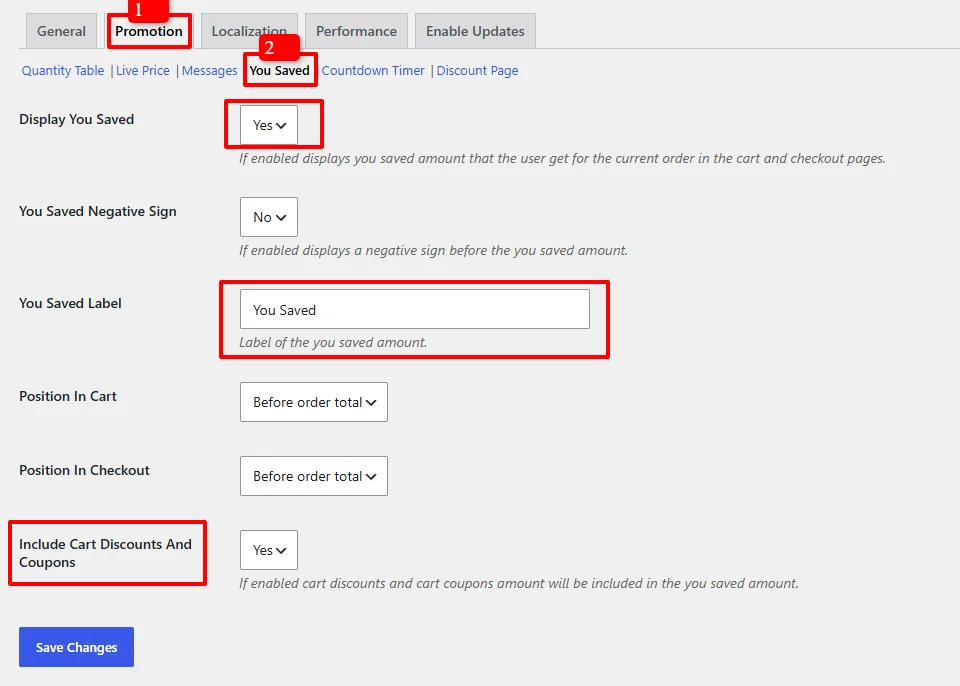
Step 2: Configure "You Saved" Options
In the You Saved section, configure the following settings according to your store's branding:
- Display You Saved: Set to Yes to enable the savings row in cart and checkout tables.
- You Saved Negative Sign:
- Choose Yes to display a minus sign (e.g.,
-$50.00). - Choose No to display the raw savings amount (e.g.,
$50.00).
- Choose Yes to display a minus sign (e.g.,
- You Saved Label: Enter your custom label. Defaults to
You Saved. (Alternatives:Total Savings,Your Discount,Total Saved). - Position In Cart: Select where the savings line appears within the Cart Totals table (e.g.,
Before order totalorAfter order total). - Position In Checkout: Select where the savings line appears within the Checkout Order Review table (e.g.,
Before order totalorAfter order total). - Include Cart Discounts And Coupons: Set to Yes to include standard WooCommerce coupon codes and cart-level rules in the final savings calculation.
Step 3: Save Changes
Click the Save Changes button at the bottom of the page to apply your settings.
🛒 Cart & Checkout Display Example
Once enabled, your customers will see their total savings dynamically calculated and updated in the Cart Totals and Checkout review summaries.
Here is an example of a customer receiving a Buy 1 Get 1 Free (BOGO) discount with automatic free items and a highlighted You Saved: $50.00 row:
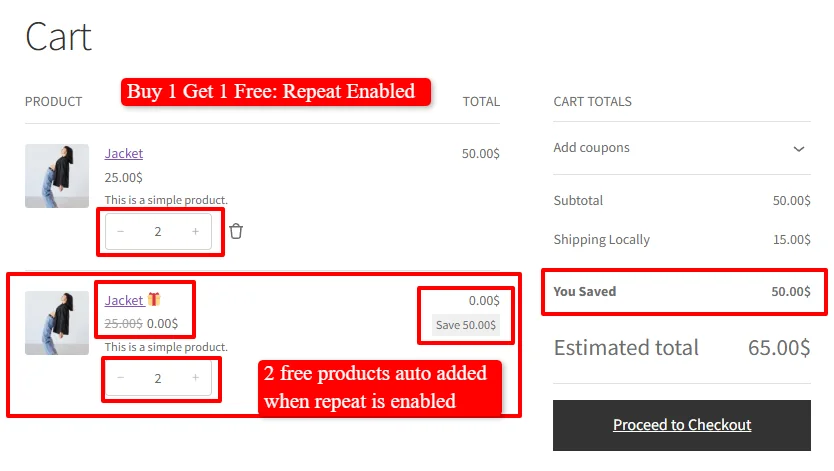
What the Customer Sees:
- Subtotal:
$50.00 - Shipping:
$15.00 - You Saved:
$50.00(Reinforcing the huge value received!) - Estimated Total:
$65.00
📋 Configuration Settings Reference
| Setting | Options | Default | Description |
|---|---|---|---|
| Display You Saved | Yes / No | No | Toggles the visibility of the savings display in cart and checkout totals. |
| You Saved Negative Sign | Yes / No | No | Prepends a minus symbol (-) before the discount value. |
| You Saved Label | Text field | You Saved | Customizable text string shown alongside the discount amount. |
| Position In Cart | Before order total, After order total, etc. | Before order total | Controls vertical placement inside the WooCommerce Cart Totals table. |
| Position In Checkout | Before order total, After order total, etc. | Before order total | Controls vertical placement inside the Checkout Order Review table. |
| Include Cart Discounts And Coupons | Yes / No | Yes | When enabled, standard coupon codes and cart rule discounts merge into the savings figure. |
💡 Conversion Optimization Best Practices
- Keep the Label Action-Oriented: Test variations like
You Saved! 🎉,Your Total Savings, orDiscount Appliedto see what resonates best with your audience. - Position Before Order Total: Placing the "You Saved" line immediately above the Order Total creates a clear contrast between total savings and the final amount due.
- Combine with BOGO & Tiered Pricing: Use the savings display in conjunction with BOGO Rules or Bulk Quantity Rules to showcase massive multi-item discounts.
- Include On-Sale Items: Keep on-sale items calculated into the total discount so customers seeing sale badges on product pages feel the full impact in their final cart summary.
❓ Troubleshooting & FAQs
Why is the "You Saved" row not appearing in the cart?
- Active Discounts: Ensure the items in the cart qualify for an active discount rule, coupon, or sale price. If total savings are
$0.00, the row remains hidden automatically. - Feature Toggle: Confirm that Display You Saved is set to Yes under Woo Pricing & Discounts > Settings > Promotion > You Saved and changes were saved.
- Cart Blocks vs Classic Cart: If your theme uses modern WooCommerce Gutenberg Cart/Checkout Blocks, ensure your block theme supports classic totals action hooks or dynamic totals rendering.
Does "You Saved" include WooCommerce regular on-sale products?
Yes. The calculation automatically accounts for the difference between a product's regular price and its WooCommerce sale price (e.g., $20 Regular - $18 Sale = $2 Saved).
Can I translate the "You Saved" label into multiple languages?
Yes. You can change the label directly in the You Saved Label input field, or translate it using standard WordPress localization tools such as WPML, Polylang, or Loco Translate.
🚀 Next Steps
Explore more promotional display features to boost your store's conversion rate:
- How to Promote Discounts with Dynamic Messages
- Display Product Live Discounted Price
- WooCommerce Discount Rules Shortcodes Reference
- Display Quantity Tables for Bulk Discounts
- How to Add a Countdown Timer for WooCommerce Sales
- Customize Sale Badges on WooCommerce Products
- Display Percentage Discount Badges