How to Create Shipping Discounts in WooCommerce (Percentage & Fixed Rates)
High shipping costs are the #1 reason shoppers abandon their carts in e-commerce stores. While offering 100% free shipping is not always feasible for heavy items, long-distance deliveries, or low-margin products, shipping discounts offer the perfect middle ground: rewarding shoppers with reduced shipping fees while protecting your fulfillment margins.
Whether you want to offer a global 10% discount on all shipping methods, deduct a fixed $5 off express courier rates, configure per-item or per-weight shipping discounts, or launch scheduled holiday shipping promotions, this comprehensive guide walks you through every step using the Discount Rules and Dynamic Pricing for WooCommerce PRO plugin and its dedicated Shipping Discount for WooCommerce addon.
To create shipping discounts in WooCommerce, you will need:
- Discount Rules and Dynamic Pricing for WooCommerce PRO — The core dynamic pricing and discount engine (PRO version is required).
- Shipping Discount for WooCommerce — The dedicated addon that unlocks the Shipping Discounts tab, advanced calculation models, and conditional delivery pricing rules.
📋 Table of Contents
- Why Offer Shipping Discounts in WooCommerce?
- Shipping Discounts vs. Free Shipping: Which Is Better?
- Discount Types Explained (Fixed, Percentage, Per Item, Per Weight)
- Step-by-Step: How to Create a Shipping Discount
- Step 1: Access Shipping Discounts and Select a Template
- Step 2: Configure Basic Discount Settings
- Step 3: Choose Apply Mode (Rule Interaction)
- Step 4: Select Discount Type and Amount
- Step 5: Set Usage Limit (Optional)
- Step 6: Restrict to Specific Shipping Methods (Optional)
- Step 7: Schedule the Shipping Discount (Optional)
- Step 8: Add Conditional Rules (Optional)
- Step 9: Save and Test
- Result Example: 10% Global Shipping Discount in Cart
- Real-World Shipping Discount Scenarios
- Apply Mode Behavior (Exclusive vs. Non-Exclusive)
- Troubleshooting: Shipping Discount Not Showing?
- Frequently Asked Questions (FAQ)
- Related Guides & Next Steps
- SEO Keywords & Summary
💡 Why Offer Shipping Discounts in WooCommerce?
Unexpected delivery fees at checkout cause up to 48% of online shoppers to drop out before paying. Offering discounted delivery provides tangible, psychological value to your buyers without completely sacrificing your shipping budget.
Key benefits of WooCommerce shipping discounts include:
- Reduce Cart Abandonment: Buyers who see their shipping fee reduced directly in the cart totals feel they are getting a fair deal.
- Protect Profit Margins: Unlike unconditional free shipping, a percentage discount (e.g., 10% or 25% off delivery) ensures you still collect revenue to cover courier base costs.
- Encourage Upgraded Shipping: Offer a discount specifically on premium or express shipping methods to prompt buyers to upgrade from standard ground delivery.
- Boost Average Order Value (AOV): Combine shipping discounts with minimum order values (e.g., "Spend $75 to get 50% off shipping") to incentivize higher cart totals.
- Clear Transparency: The plugin displays the shipping discount as a distinct negative line item in the cart totals (e.g.,
shipping discount: -2.00$), making customer savings immediately obvious.
⚖️ Shipping Discounts vs. Free Shipping: Which Is Better?
| Feature | Shipping Discounts | Free Shipping |
|---|---|---|
| Cost to Merchant | Shared cost (customer pays partial shipping) | 100% absorbed by merchant |
| Flexibility | Supports percentage, fixed, per item, or per weight deductions | All-or-nothing ($0 shipping cost) |
| Best For | Heavy/bulky items, international freight, high express rates | Lightweight goods, high-margin items, high spend thresholds |
| Customer Perception | "I'm getting a discount on my delivery" | "Delivery is completely free" |
| Cart Line Item | Clear discount line item (e.g., -$2.00) | Replaces shipping cost with Free |
⚙️ Discount Types Explained (Fixed, Percentage, Per Item, Per Weight)
The plugin gives you 6 advanced discount calculation models to match any logistics strategy:
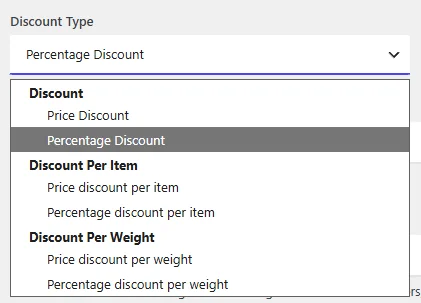
1. Order-Level Shipping Discounts
- Price Discount (Fixed Amount): Subtracts a flat monetary amount from the total shipping cost.
Example: A flat $5.00 off any selected shipping method. - Percentage Discount: Reduces the selected shipping rate by an exact percentage.
Example: A 10% discount on a $20.00 local delivery method reduces shipping by $2.00.
2. Item-Level Shipping Discounts
- Price discount per item: Deducts a fixed amount multiplied by the quantity of qualifying items in the cart.
Example: Deduct $0.50 off shipping for each shirt purchased in the cart. - Percentage discount per item: Deducts a percentage based on the quantity of qualifying items.
3. Weight-Based Shipping Discounts
- Price discount per weight: Subtracts a fixed dollar amount for each unit of weight (e.g., kg or lbs).
Example: Save $1.00 off shipping per kilogram for bulk orders. - Percentage discount per weight: Calculates a tiered percentage reduction based on total cart weight.
🛠️ Step-by-Step: How to Create a Shipping Discount
Follow this step-by-step tutorial to configure and launch a shipping discount in WooCommerce.
Step 1: Access Shipping Discounts and Select a Template
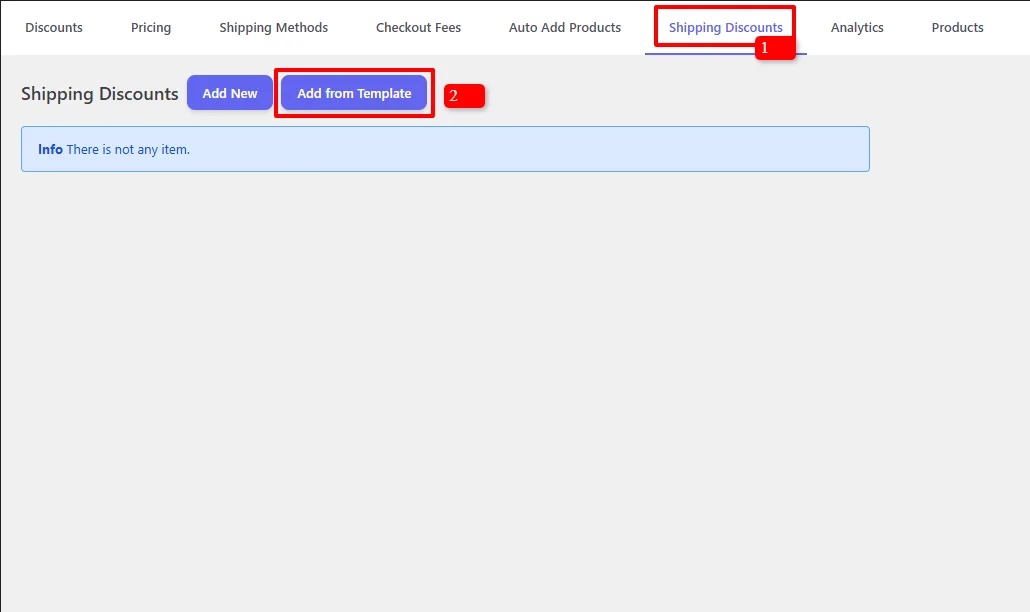
- In your WordPress admin dashboard, navigate to Woo Pricing & Discounts.
- Click on the Shipping Discounts tab at the top (marked 1).
- Click the Add from Template button to load pre-configured campaigns, or click Add New to build from scratch (marked 2).
- In the "Choose your shipping discount template" modal:
- Under Standard Campaigns, select "Global Percentage Discount" (marked 1).
- Under Campaign Timing, choose Normal, Black Friday, or Seasonal.
- Click the blue Add Item button (marked 2).
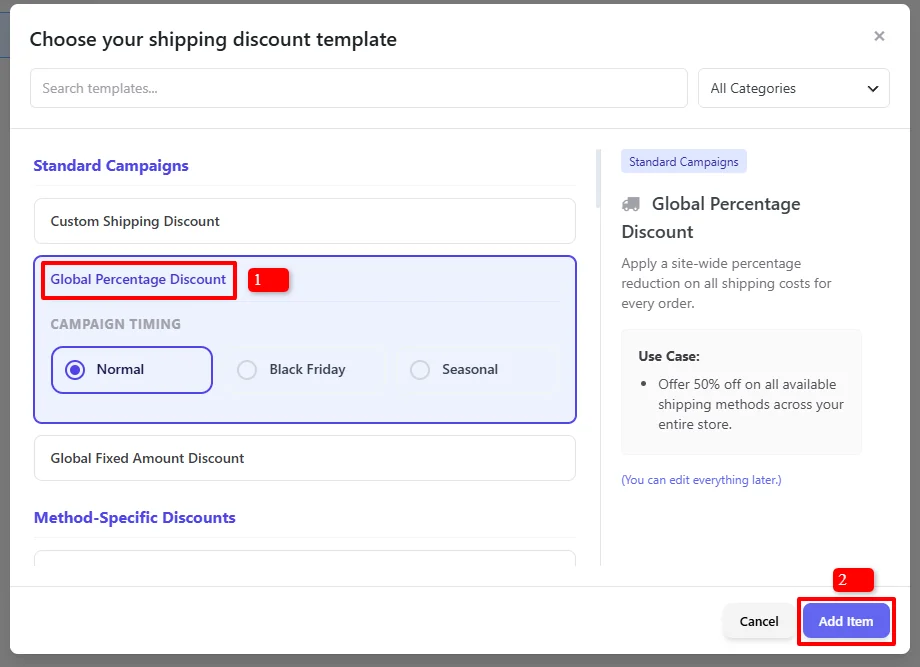
Template Description: Apply a site-wide percentage reduction on all shipping costs for every order. Use Case: Offer 50% off on all available shipping methods across your entire store.
Step 2: Configure Basic Discount Settings
Once the discount editor opens, configure the core rule details:
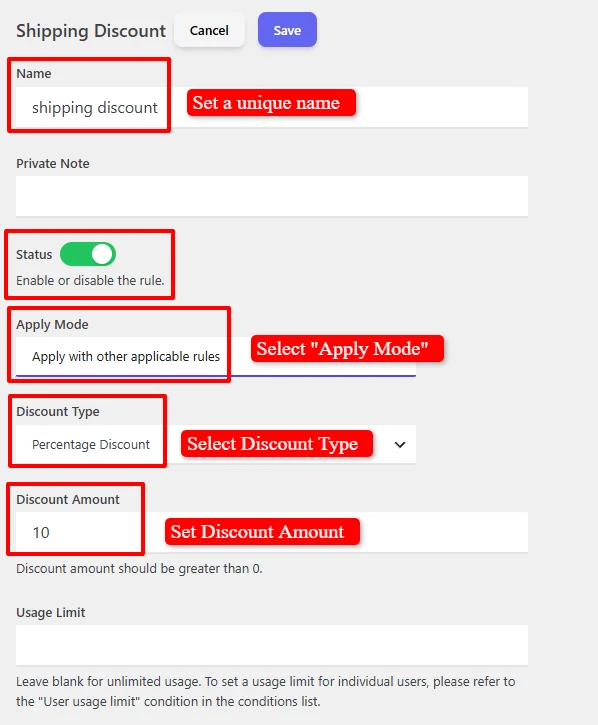
- Name: Enter a clear, customer-facing title (e.g.,
shipping discountor10% Shipping Discount). This title is displayed directly as a line item on the Cart and Checkout totals. - Private Note: (Optional) Add an internal note for your store administrators (e.g., "10% storewide shipping reduction campaign").
- Status: Switch the toggle to Active (Green) to enable the discount rule.
Step 3: Choose Apply Mode (Rule Interaction)
The Apply Mode controls how this shipping discount interacts with other active shipping discounts in your store:

Select one of the three options:
- Apply with other applicable rules (Non-Exclusive - Recommended): Stacks this shipping discount alongside other eligible shipping rules.
- Apply this rule and disregard other rules (Exclusive): If this discount qualifies, all other shipping discount rules are ignored. This rule takes absolute priority.
- Apply if other rules are not applicable (Exclusive Fallback): Only applies as a fallback if no other shipping discount rules matched the order.
Step 4: Select Discount Type and Amount
- Discount Type: Choose how the shipping reduction is calculated:
- Percentage Discount — Deducts a percentage of the shipping fee (e.g., 10% off shipping).
- Price Discount — Deducts a fixed dollar amount (e.g., $5.00 off shipping).
- Price discount per item / Percentage discount per item
- Price discount per weight / Percentage discount per weight
- Discount Amount: Enter the numeric value (must be greater than 0):
- For a 10% shipping reduction, choose Percentage Discount and enter
10. - For a $5.00 flat deduction, choose Price Discount and enter
5.
- For a 10% shipping reduction, choose Percentage Discount and enter
Note: Do not enter currency symbols (
$) or percentage signs (%) in the Discount Amount field; enter numeric values only.
Step 5: Set Usage Limit (Optional)
- Usage Limit: Leave this field blank for unlimited usage across all customers.
- To limit the promotion storewide (e.g., only the first 200 orders get discounted shipping), enter a maximum number.
- To restrict discounts on a per-customer basis, leave this blank and use the User usage limit condition in the conditions list.
Step 6: Restrict to Specific Shipping Methods (Optional)
By default, the discount is global and applies automatically across all available shipping methods in your store:
Info! Add shipping methods to apply discount on them or leave empty to apply discount on all of shipping methods.
If you prefer to restrict the discount to specific shipping methods (e.g., only discount Local Shipping or Express Delivery while keeping Freight at full price), use the Shipping Methods section:

- Click the blue Add button under Shipping Methods.
- Select "Search by title" from the criteria dropdown.
- Search for and select your target shipping method (e.g.,
Local Shipping). - You can add multiple shipping methods to the list if you want the discount to apply to several specific services.
Step 7: Schedule the Shipping Discount (Optional)
You can schedule your shipping discount to run during specific dates, flash sale hours, or recurring days of the week, exactly like other pricing rules in the plugin.
By default, the discount rule is unscheduled and remains active continuously:

To schedule holiday delivery specials, weekend shipping promotions, or flash sale discounts, configure the Date Time section directly above the conditions:

Available Scheduling Options:
- Date Range: Run the shipping discount during a calendar window (e.g.,
2026-11-20to2026-11-30for Black Friday delivery savings). - Date Time Range: Set exact start and end minute timestamps for flash promotions.
- Specific Date: Activate the discount only on designated calendar days.
- Days: Restrict the promotion to specific days of the week (e.g., Free or Discounted Weekend Shipping).
- Time: Restrict the discount to specific daily hours (e.g., "Happy Hour" delivery discounts).
You can combine schedule rules using + And New Rule (e.g., Weekends AND Between 12:00 - 18:00) or add alternate windows with + OR New Group.
For complete instructions on timezones, recurring schedules, and multi-tier scheduling logic, read our comprehensive Scheduling & Date-Time Guide.
Step 8: Add Conditional Rules (Optional)
Under the Conditions section, specify who qualifies for the shipping discount and under what circumstances:
Popular Conditions for Shipping Discounts:
- Cart Subtotal (
subtotal_inc_taxorsubtotal_ex_tax): Offer 50% off shipping when the customer spends $75.00 or more. - Customer Role (
roles): Grant exclusive shipping discounts for VIP Club members, Subscribers, or Wholesale B2B customers. - Shipping Country / State (
shipping_country,shipping_state): Restrict discounted delivery to domestic or regional customers. - Cart Item Quantity (
cart_items_count): Apply shipping discounts when orders contain 3 or more products. - Specific Products / Categories (
products,categories): Provide shipping discounts when specific promotional goods are in the cart.
For complete details on all 14 condition groups, AND/OR logic, and available comparison operators, check out our Complete Rule Conditions Guide.
Step 9: Save and Test
Review your complete shipping discount rule configuration:
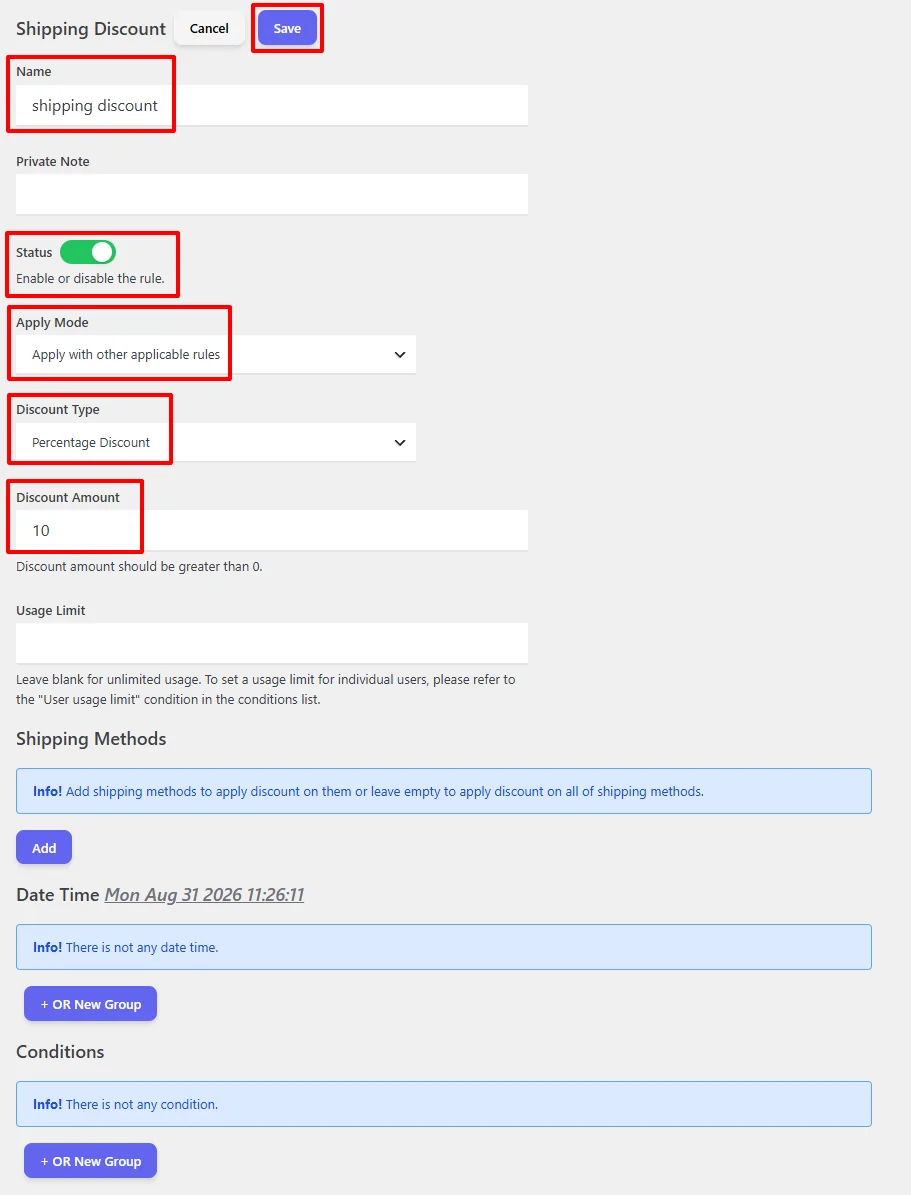
- Name:
shipping discount - Status: Enabled (Green toggle)
- Apply Mode:
Apply with other applicable rules - Discount Type:
Percentage Discount - Discount Amount:
10 - Shipping Methods: Empty (applies to all shipping methods)
- Date Time: Unscheduled (or configured schedule)
- Conditions: Empty (or configured conditions)
Click the blue Save button in the top header.
🛒 Result Example: 10% Global Shipping Discount in Cart
Once your rule is saved, test it by adding products to the shopping cart:
Cart items:
- Shirt: 20.00$ × 2 = 40.00$
- Shirt – Green: 25.00$ × 1 = 25.00$
Subtotal: 65.00$
Shipping Method: Local Shipping (20.00$)
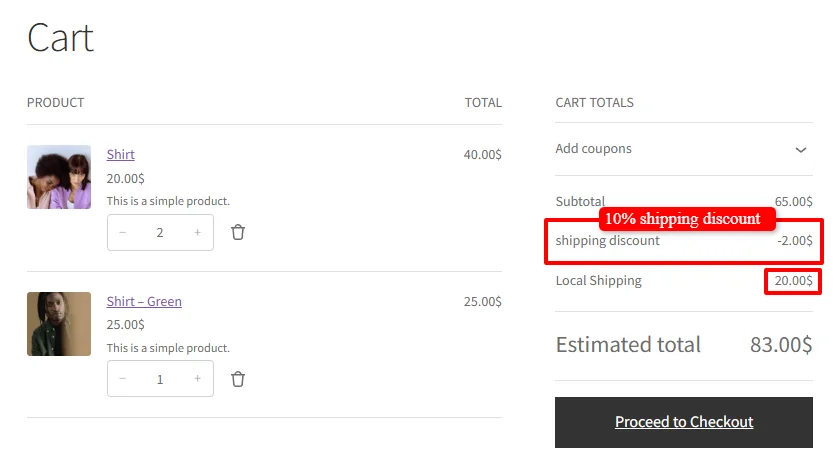
Cart Totals Calculation:
- Subtotal: 65.00$ (Shirt 40.00$ + Shirt – Green 25.00$)
- Local Shipping: 20.00$
- Shipping Discount (10%): -2.00$ (10% off the $20.00 Local Shipping fee)
- Estimated Total: 83.00$ (65.00$ + 20.00$ - 2.00$ = 83.00$)
As shown in the Cart Totals, the plugin automatically creates a distinct shipping discount line item displaying -2.00$ (10% off the $20.00 Local Shipping fee), bringing the final estimated total to 83.00$.
🎯 Real-World Shipping Discount Scenarios
Scenario 1: Global 10% Discount on All Shipping Methods
- Goal: Provide an automatic 10% discount on all shipping methods across your entire catalog.
- Name:
shipping discount - Discount Type:
Percentage Discount - Discount Amount:
10 - Shipping Methods: None (all methods qualify)
- Result: Whether the customer selects Standard Delivery ($10), Local Shipping ($20), or Express ($30), they receive an immediate 10% reduction.
Scenario 2: Fixed $5.00 Off Express Shipping
- Goal: Encourage customers to upgrade to premium delivery by reducing the cost difference.
- Name:
Express Shipping $5 Off - Discount Type:
Price Discount - Discount Amount:
5 - Shipping Methods: Search by title
Express Shipping - Result: Standard shipping remains at its regular price, but Express Shipping receives an instant $5.00 credit.
Scenario 3: 50% Off Shipping for Orders Over $100
- Goal: Increase average order value by offering half-price shipping on qualifying carts.
- Name:
50% Off Shipping Over $100 - Discount Type:
Percentage Discount - Discount Amount:
50 - Conditions:
- Condition:
Subtotal including tax - Operator:
Greater equal to - Value:
100
- Condition:
- Result: Carts with $100 or more receive a 50% shipping cost reduction automatically.
Scenario 4: Exclusive 20% Shipping Discount for VIP Members
- Goal: Reward loyal customers and membership program subscribers.
- Name:
VIP Member Shipping Discount - Discount Type:
Percentage Discount - Discount Amount:
20 - Conditions:
- Condition:
User roles - Operator:
In list - Value:
VIP Customer
- Condition:
- Result: Only logged-in customers with the VIP role receive the 20% discount on shipping.
Scenario 5: Weight-Based Shipping Relief ($1.00 Off Per Kg)
- Goal: Offset high freight charges for heavy wholesale or bulk orders.
- Name:
Bulk Weight Shipping Discount - Discount Type:
Price discount per weight - Discount Amount:
1 - Conditions:
- Condition:
Cart total weight - Operator:
Greater than - Value:
10
- Condition:
- Result: Orders weighing over 10 kg receive a $1.00 shipping deduction for every kilogram.
🔀 Apply Mode Behavior (Exclusive vs. Non-Exclusive)
When managing multiple shipping promotions simultaneously, the Apply Mode determines rule priority:
| Apply Mode | Type | How It Works | Best For |
|---|---|---|---|
| Apply with other applicable rules | Non-Exclusive | Stacks this shipping discount alongside other eligible shipping rules. | General promotions (e.g., 10% global discount + member credit). |
| Apply this rule and disregard other rules | Exclusive Priority | Triggers this shipping discount and cancels all other shipping rules. | Overriding campaigns (e.g., VIP 50% discount overrides all minor discounts). |
| Apply if other rules are not applicable | Exclusive Fallback | Triggers only if zero other shipping discount rules qualified. | Default fallback shipping relief. |
🔍 Troubleshooting: Shipping Discount Not Showing?
If your shipping discount does not appear in the cart or checkout totals, follow this troubleshooting checklist:
- Verify Rule Status: Ensure the Status toggle switch is set to Enable (Green) and the rule is saved.
- Check Shipping Method Matching: If you restricted the rule to specific shipping methods under the Shipping Methods section, ensure the customer actually selected one of those methods.
- Verify Date & Time Constraints: If you configured scheduling under Date Time, verify your site's local timezone under Settings > General > Timezone.
- Check Condition Thresholds: If conditions are configured (e.g., subtotal or user roles), verify that the cart satisfies all criteria simultaneously (AND logic).
- Check Apply Mode Conflicts: If another rule has "Apply this rule and disregard other rules" enabled and has higher priority, it may be suppressing your shipping discount.
- Clear Browser & Object Cache: Clear your WordPress caching plugin, Redis/Memcached object cache, and browser cookies, or test inside an Incognito window.
- Check for Plugin Conflicts:
- Third-party shipping plugins (like Table Rate Shipping, dynamic rate calculators, or shipping method hide/show rules) can override WooCommerce shipping packages or recalculate shipping fees after discounts are applied.
- Competing coupon, dynamic pricing, or free shipping bar plugins may also interfere with cart totals. Temporarily deactivate third-party shipping and pricing plugins to test.
- If the admin screen fails to load or save rules, check your browser console (F12) for JavaScript errors caused by plugins enqueued globally across all admin pages (such as SkyVerge or analytics plugins).
- For an in-depth step-by-step diagnostic walkthrough, refer to our Complete Troubleshooting Guide.
❓ Frequently Asked Questions (FAQ)
What plugin or addon do I need to create shipping discounts in WooCommerce?
You will need the Discount Rules and Dynamic Pricing for WooCommerce PRO plugin installed alongside the Shipping Discount for WooCommerce addon. Both the PRO plugin and the addon are required to unlock the dedicated Shipping Discounts engine, calculation formulas, and templates.
Can I apply a shipping discount to all shipping methods automatically?
Yes! Simply leave the Shipping Methods section empty. The discount will automatically apply to every available shipping method (Local Shipping, Flat Rate, Express Delivery, etc.) in your store.
Can I restrict the shipping discount to a specific shipping method?
Yes. Under the Shipping Methods section, click Add, select Search by title, and choose the specific shipping method (e.g., Local Shipping). The discount will only calculate when the customer selects that particular method.
How does the shipping discount appear to customers?
The shipping discount appears as a clear, distinct line item directly in the Cart Totals and Checkout Order Summary (e.g., shipping discount: -2.00$), ensuring full transparency before placing an order.
Can I offer free shipping instead of a discount?
Yes! If you want to eliminate shipping costs entirely (100% discount), you can use our dedicated Free Shipping Rules or enter 100 in the Percentage Discount field.
Can I combine shipping discounts with product discounts and coupons?
Yes. The plugin integrates seamlessly with WooCommerce's native cart calculation architecture. You can configure whether shipping discounts stack with product discounts and coupons using the Apply Mode setting.
📚 Related Guides & Next Steps
- Minimum Spend Shipping Discounts — Offer shipping discounts when order subtotal reaches a minimum threshold.
- Auto Add Free Gift on Minimum Spend — Automatically add complimentary promotional gifts when cart spend reaches a threshold.
- Create Free Shipping Threshold — Offer 100% free delivery when customers reach a minimum cart subtotal.
- Create First Order Free Shipping — Incentivize new customer registrations with first-purchase free shipping.
- Create Free Shipping for User Roles — Grant free delivery perks to VIP members or wholesale buyers.
- Create Custom Shipping Methods — Set up flat rate, location-based, and conditional shipping methods.
- How to Create Checkout Fees — Add handling fees, fragile item surcharges, or order fees.
- Payment Method Fees (Gateway Surcharges) — Add extra fees or COD surcharges based on the selected payment method.
- Complete Troubleshooting Guide — Diagnose and fix cart calculation, caching, and plugin conflict issues.
🔎 SEO Keywords & Summary
- Primary Keywords: create shipping discount in WooCommerce, how to create shipping discounts in WooCommerce, WooCommerce shipping discount, discount shipping WooCommerce, percentage shipping discount WooCommerce, fixed shipping discount WooCommerce.
- Secondary & Long-Tail Keywords: WooCommerce discount on shipping, shipping discount rules WooCommerce, WooCommerce conditional shipping discount, discount shipping method by title, WooCommerce shipping rate discount, schedule shipping discount WooCommerce, reduce cart abandonment shipping, WooCommerce shipping promotion, Discount Rules and Dynamic Pricing for WooCommerce.