Create a Custom Shipping Method in WooCommerce (Flat Rate Shipping)
Learn how to create a custom shipping method in WooCommerce using the Discount Rules and Dynamic Pricing plugin. This complete guide covers setting up a flat rate shipping method, configuring costs, and adding conditions. Offer flexible shipping options that match your store's needs.
📋 Table of Contents
- Why Create Custom Shipping Methods?
- Step-by-Step: Create a Flat Rate Shipping Method
- Result Example
- Shipping Cost Calculation Options
- Troubleshooting: Shipping Method Not Showing?
- Next Steps
🚀 Why Create Custom Shipping Methods?
Creating custom shipping methods allows you to offer flexible shipping options that match your store's needs. Whether you want to charge a flat rate, offer free shipping based on conditions, or create role-based shipping, custom methods give you full control .
Common Shipping Methods
| Shipping Method | Description | Use Case |
|---|---|---|
| Flat Rate | Charge a fixed amount per order or per item | Most common for simple shipping costs |
| Free Shipping | Offer complimentary delivery based on conditions | Encourage larger orders or reward customers |
| Local Pickup | Allow customers to collect orders in person | Reduce shipping costs for local customers |
Key Statistic: 78% of shoppers are willing to spend more to qualify for free shipping offers.
Step-by-Step: Create a Flat Rate Shipping Method
Best for: Charging a fixed shipping amount for all orders or based on specific conditions. Perfect for stores with consistent shipping costs.
Scenario: Create a flat rate shipping method called "Local Shipping" with a cost of $20.
Step 1: Access Shipping Methods and Choose a Template
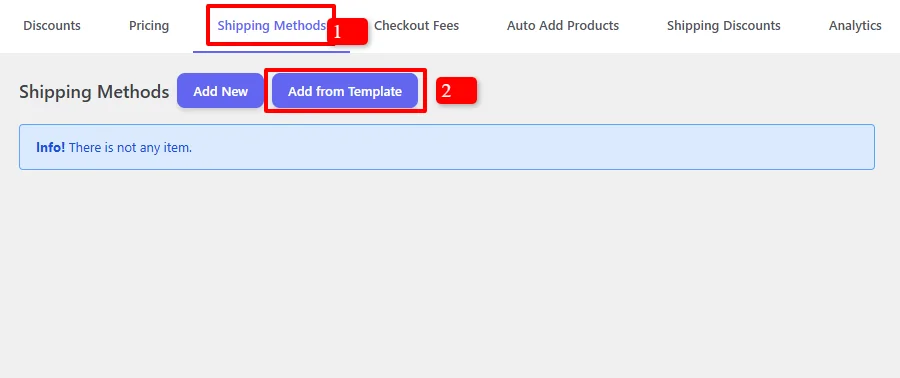
- In your WordPress admin, go to the Woo Pricing & Discounts menu
- Open the Shipping Methods tab
- Click on the Add from Template button to quickly start a new rule
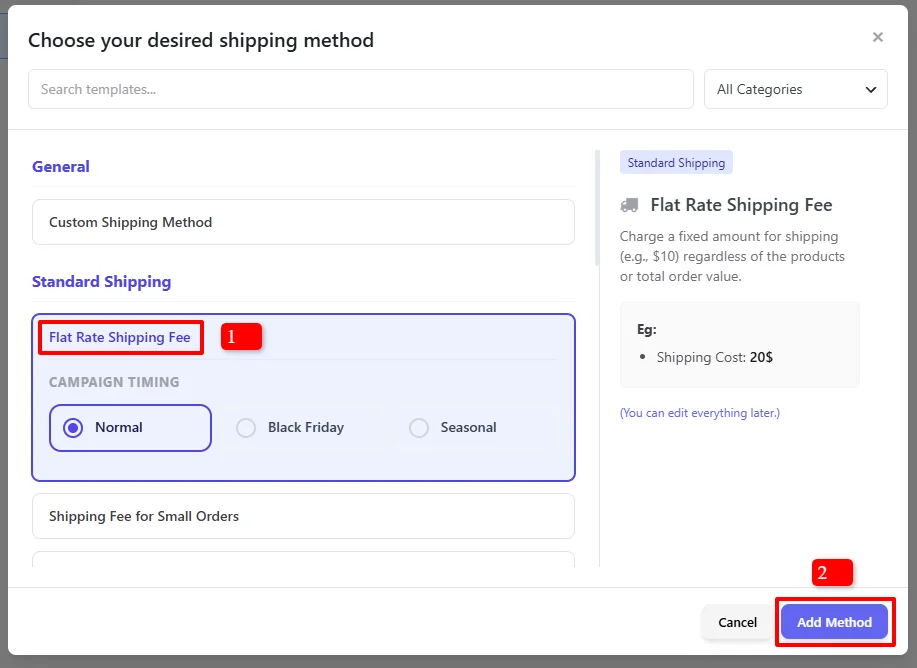
- In the "Choose your desired shipping method" modal, search for templates
- Under Standard Shipping, find and select "Flat Rate Shipping Fee"
- Click "Add Method"
Step 2: Configure the Shipping Method
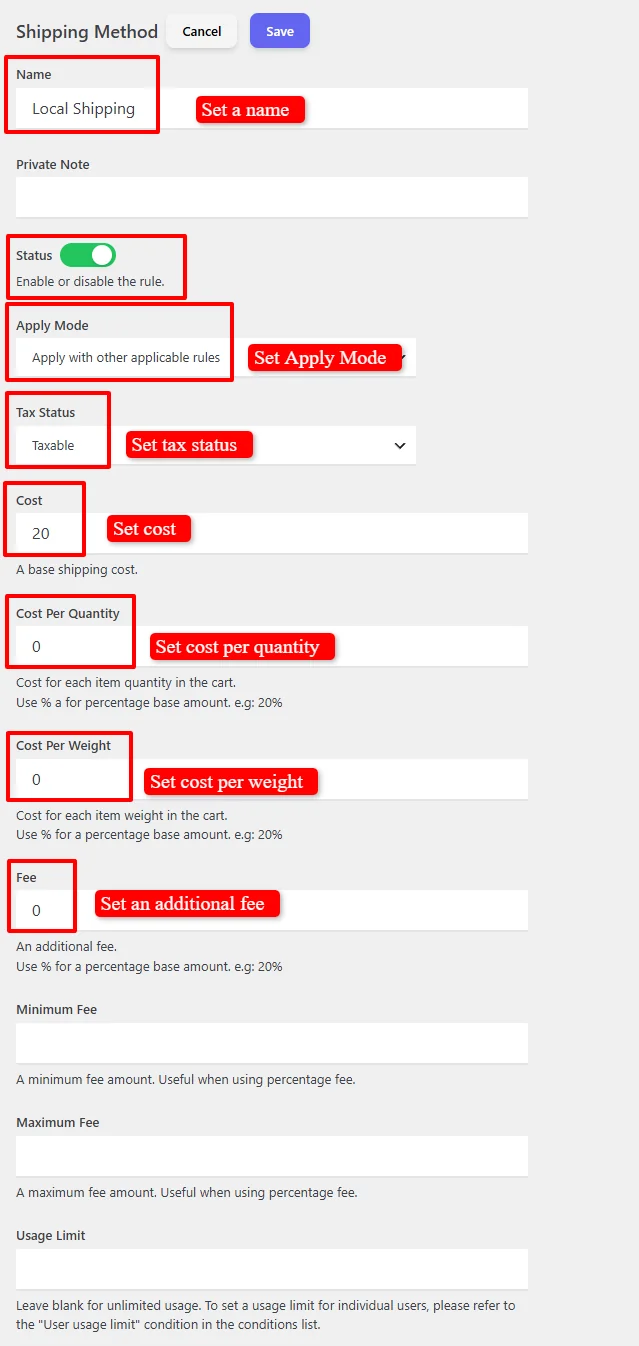
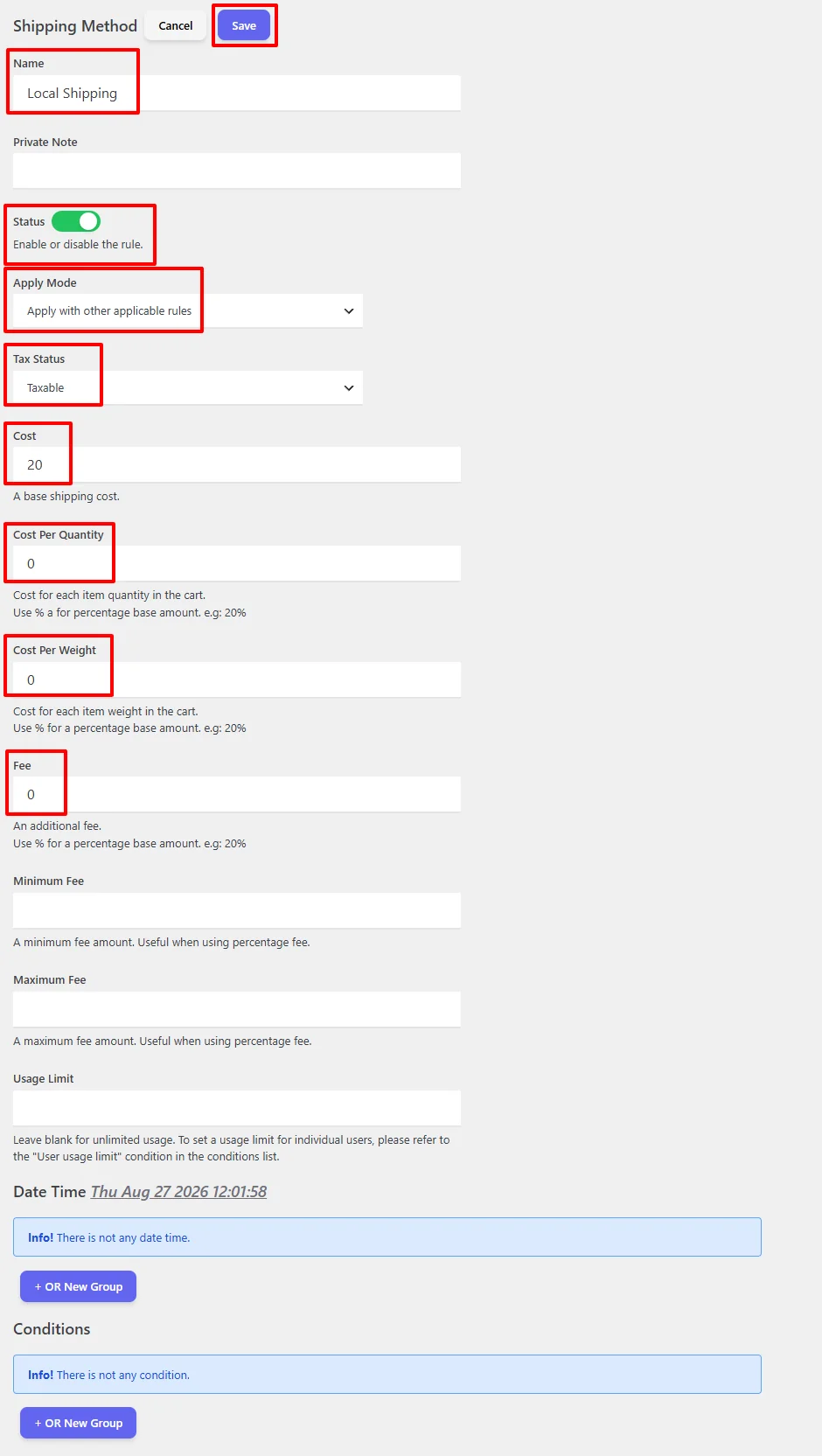
- Name: "Local Shipping" (customizable) — This is the title customers see at checkout
- Status: Ensure Enable is checked
- Apply Mode: Choose how this rule interacts with other shipping methods
- Apply this rule and disregard other rules — Only this shipping method will be shown
- Apply with other applicable rules — This method will appear alongside other options
- Apply if other rules are not applicable — This metthod will appear if other shipping methods are not applicable
- Tax Status: Choose Taxable or None
- Cost: Enter the base shipping cost (e.g.,
20)
Step 3: Configure Additional Fees (Optional)
Customize additional shipping fees based on your needs:
- Cost Per Quantity: Set a cost for each item in the cart. For example,
2would add $2 per item - Cost Per Weight: Set a cost per weight unit. For example,
1would add $1 per kg/lbs - Fee: Add an additional fixed fee. Use
%for percentage-based fees (e.g.,10%for 10% of the cart subtotal) - Minimum Fee: Set a minimum fee amount (useful with percentage fees)
- Maximum Fee: Set a maximum fee amount (useful with percentage fees)
Step 4: Schedule the Shipping Rule (Optional)
By default, the campaign is unscheduled and runs immediately:

For scheduled promotions, under the "Date Time" section to configure:
- Date Range — Run a promotion over a period (e.g., for a holiday sale)
- Date Time Range — Precise start and end date/time for limited-time offers
- Specific Date — Single date activation (e.g., Black Friday)
- Days — Recurring weekly promotions (e.g., Free Shipping Fridays)
- Time — Daily time ranges (e.g., flash free shipping)

Use "+ And New Rule" to combine conditions or "+ OR New Group" for alternative schedules.
For a deep dive into timezone setup, recurring schedules, and multi-tier scheduling logic, read our comprehensive Scheduling & Date-Time Guide.
Step 5: Add Conditions (Optional)
Under the Conditions section, you can control when this shipping method appears :
Common Conditions:
- Subtotal including tax — Show method when cart subtotal meets a threshold
- Subtotal excluding tax — Show method based on subtotal before tax
- Number of cart items — Show method based on item count in cart
- User roles — Show method only for specific user roles (e.g., Wholesale, VIP)
- Products in cart — Show method when specific products are in the cart
- Product Categories in cart — Show method when products from specific categories are in the cart
- And more
Example: To offer this shipping method only for orders over $100, add a "Subtotal including tax" condition with "Greater equal to" set to 100.
For full details on all 14 condition groups, AND/OR logic, and available comparison operators, check out our Complete Rule Conditions Guide.
Step 6: Save and Test
Click Save and test by adding products to your cart.
Result Example
Cart with Flat Rate Shipping Applied
Cart items:
- Shirt: $20.00
- Shirt - Green: $25.00
Subtotal: $45.00
Result: The "Local Shipping" method appears with a flat rate of $20.00.
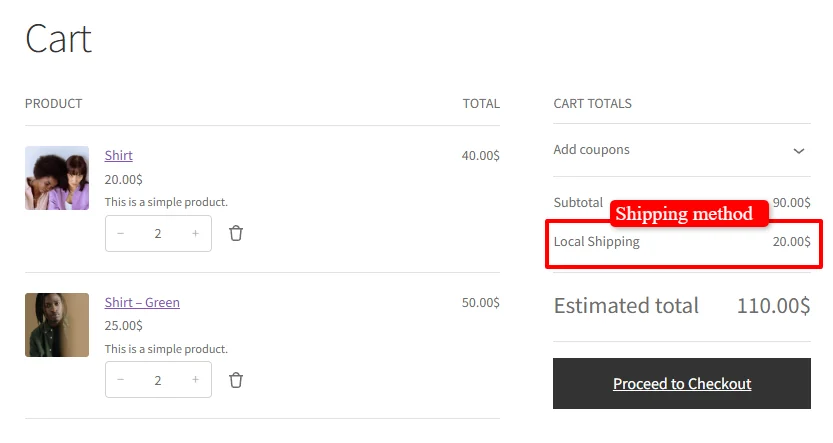
Cart display shows:
- Subtotal: $90.00
- Shipping method: Local Shipping — $20.00
- Estimated total: $110.00
Shipping Cost Calculation Options
The plugin offers flexible cost calculation options to match your shipping strategy:
| Cost Type | Description | Example |
|---|---|---|
| Base Cost | Fixed shipping charge per order | $20 per order |
| Cost Per Quantity | Fee multiplied by item quantity | $2 × 5 items = $10 |
| Cost Per Weight | Fee multiplied by cart weight | $1 × 10 kg = $10 |
| Percentage Fee | Percentage of cart subtotal | 10% of $100 = $10 |
Formula for Advanced Calculations
You can combine costs using the following formula:
Total Cost = [Base Cost] + ([Cost Per Quantity] × [Qty]) + ([Cost Per Weight] × [Weight])
🚀 Troubleshooting: Shipping Method Not Showing?
If your shipping method doesn't appear at checkout, follow these steps:
Step 1: Check Your Conditions
- If you added conditions, verify they are met by the cart
- Test with a cart that clearly meets the conditions
- Try removing conditions temporarily to test
Step 2: Check Shipping Zones
- Go to WooCommerce > Settings > Shipping > Shipping Zones
- Ensure the shipping method is added to the correct zone
- Verify the customer's address falls within that zone
Step 3: Check Apply Mode
- If Apply Mode is set to "Apply this rule and disregard other rules", ensure no conflicting rules exist
- Try switching to "Apply with other applicable rules"
Step 4: Check for Plugin Conflicts
- Third-Party Shipping Plugins: Having multiple shipping plugins (e.g., Table Rate Shipping, dynamic rate calculators, or shipping method hide/show rules) active simultaneously can override WooCommerce shipping packages or suppress custom methods. Temporarily deactivate competing shipping and discount plugins to test.
- Admin JavaScript Conflicts: If the rule editor fails to load, save, or show dropdowns, check your browser console (F12) for JavaScript errors caused by plugins that inject scripts across all admin pages (such as SkyVerge or analytics plugins).
- Caching & Theme: Clear your site cache and test in an incognito browser window. If needed, test with a standard WooCommerce theme (such as Storefront) to rule out theme hook issues.
- Learn More: Follow our detailed step-by-step conflict isolation guide in the Complete Troubleshooting Guide.
🎉 Success!
You've learned how to create a custom shipping method in WooCommerce using the Discount Rules and Dynamic Pricing plugin. This powerful feature allows you to:
- Create flat rate shipping methods with custom names and costs
- Add conditional logic to control when shipping methods appear
- Schedule promotions for specific dates or recurring campaigns
- Offer flexible shipping options that match your store's needs
📚 Next Steps
Now that you've mastered custom shipping methods, explore other powerful ways to use the Shipping Methods features:
- Create Shipping Discounts — Apply percentage or fixed discounts on all or specific shipping methods.
- Create Location-Based Shipping Methods — Configure dynamic shipping rates restricted by country, state, city, or postcode.
- Create Free Shipping Threshold — Offer free shipping when customers reach a minimum cart subtotal.
- Create First Order Free Shipping — Encourage new buyers and increase signups with first-purchase free shipping.
- Create Free Shipping for User Roles — Grant free delivery perks to specific customer groups or wholesale buyers.
- Create Checkout Fees — Add conditional surcharges, handling fees, or payment method fees at checkout.
🔍 SEO Keywords
Primary Keywords: custom shipping method WooCommerce, flat rate shipping WooCommerce, create shipping method, WooCommerce shipping, shipping method configuration
Secondary Keywords: WooCommerce shipping settings, add shipping method, conditional shipping, shipping cost formula, WooCommerce shipping zones, flat rate shipping cost, Discount Rules and Dynamic Pricing plugin