Display Quantity Table for Bulk Discounts in WooCommerce
Learn how to display the quantity table for bulk discounts on product pages in WooCommerce. This complete guide covers table positioning, shortcode usage, variation price updates, and theme customization for the Discount Rules and Dynamic Pricing plugin.
📋 Table of Contents
- Introduction to the Quantity Table
- Prerequisites: Create a Bulk Pricing Rule
- Positioning the Quantity Table
- Using the Shortcode for Custom Placement
- Enabling Variation Price Updates
- Customizing with Themes & Styles
- Troubleshooting
- Next Steps
🚀 Introduction to the Quantity Table
The quantity table is a powerful visual feature of the Discount Rules and Dynamic Pricing plugin that displays bulk discount tiers directly on product pages. This transparent pricing display helps customers understand the savings they can unlock by purchasing more items, ultimately increasing conversion rates and average order value.
What the Quantity Table Shows
When you create a bulk pricing rule, the plugin automatically generates a quantity table on eligible product pages showing:
- Quantity ranges (e.g., 2-5 items)
- Discount percentage or amount (e.g., 10% off)
- Discounted price per unit (e.g., $22.50)
This table gives customers a clear incentive to buy more, creating a powerful psychological trigger for larger purchases.
Default Behavior
By default, the plugin automatically adds the quantity table on the product page before the Add to Cart button. If it doesn't appear, you can easily adjust its position or use a shortcode for custom placement.
📋 Prerequisites: Create a Bulk Pricing Rule
Before the quantity table can appear, you must first create a bulk pricing rule for your products. The quantity table will only display for products that have an active bulk discount rule.
Please refer to one of the following guides to create a bulk pricing rule:
- Bulk Quantity Discounts for Products
- Bulk Quantity Discounts for Product Variations
- Bulk Quantity Discounts for Categories
Note: If you have created a bulk pricing rule properly and the quantity table still doesn't show on the product page, follow the troubleshooting steps below.
Positioning the Quantity Table
The plugin provides flexible options for positioning the quantity table on product pages. If the default position doesn't work with your theme, you can easily change it.
Step 1: Access Plugin Settings
- In your WordPress admin, go to Woo Pricing & Discounts > Settings
- Click on the Promotion tab
- Find the Quantity Table section

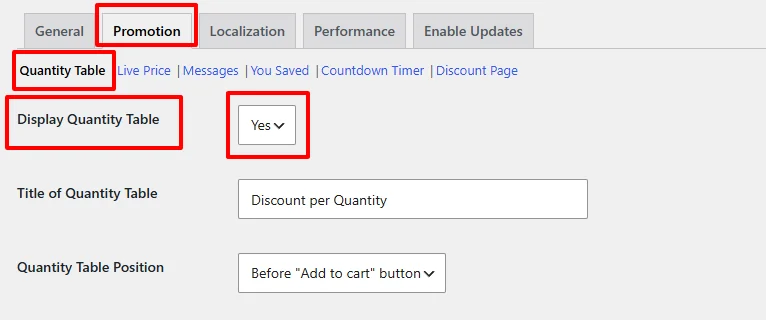
Step 2: Select a Position
-
Ensure that "Display Quantity Table" is
Yesor Enabled -
Locate the "Quantity Table Position" dropdown
-
Choose from the following positions:
- Before Add to Cart Button (Default) - Table appears before the Add to Cart button
- After Add to Cart Button - Table appears after the Add to Cart button
- Before Add to Cart form - Table appears before the Add to Cart form
- After Add to Cart form - Table appears after the Add to Cart form
- Before Product excerpt - Table appears before the product excerpt
- After Product excerpt - Table appears after the product excerpt
- After Product meta - Table appears after the product meta
- None - Disables automatic display (use shortcode instead)
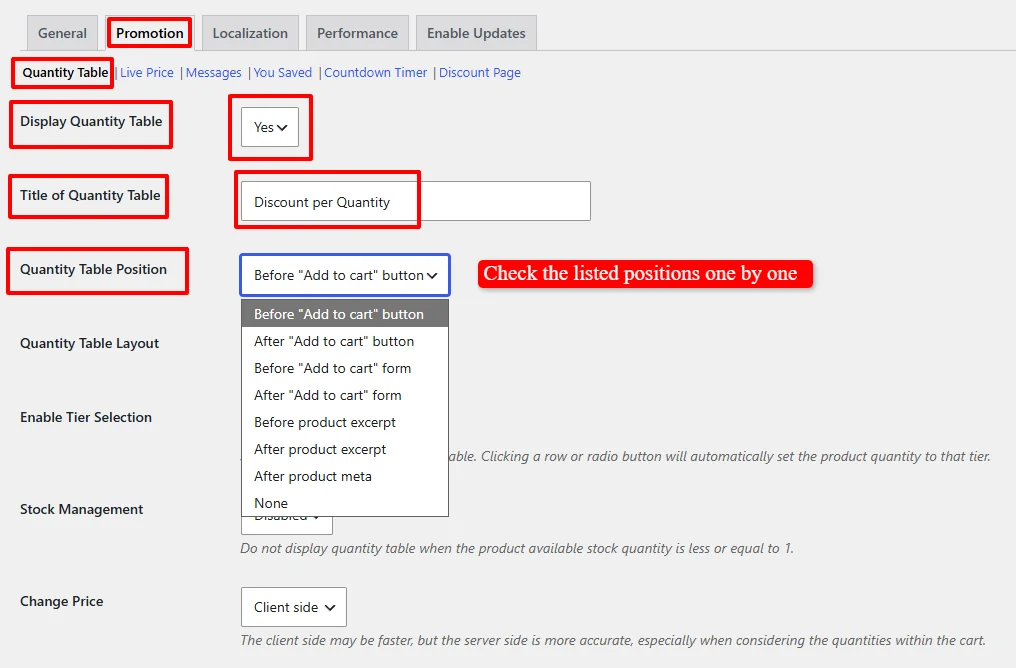
-
Click Save Changes
Step 3: Test the Position
- Visit a product page that has a bulk pricing rule
- Check if the quantity table appears in the selected position
- If it doesn't work, try another position
Troubleshooting Position Issues
If none of the listed positions work with your theme:
- Set "Quantity Table Position" to "None"
- Use the shortcode method described below
Using the Shortcode for Custom Placement
If the automatic positioning doesn't work with your theme, or you want more control over where the quantity table appears, you can use the [wccs_bulk_table] shortcode.
Basic Shortcode
Simply add this shortcode to your product page content:
[wccs_bulk_table]
This will display the quantity table for the current product.
Shortcode with Product ID
You can also display the quantity table for a specific product:
[wccs_bulk_table product_id="1"]
Replace 1 with the actual product ID.
Where to Add the Shortcode
- Product description - Add the shortcode directly in the product description field
- Custom theme files - Add the shortcode to your theme's template files using
echo do_shortcode('[wccs_bulk_table]'); - Widgets - Add the shortcode to a text widget on product pages
Enabling Variation Price Updates
When you offer bulk discounts on product variations (e.g., different sizes or colors of a variable product), you can enable automatic price updates when a variation is selected.
Why Variation Price Updates Matter
Without this feature, the price displayed on the product page may not reflect the discount for the selected variation. When enabled:
- The product page shows the original price
- When a customer selects a variation (e.g., Size: Large, Color: Beige)
- The price automatically updates to show the discounted price for that specific variation
How to Enable Variation Price Updates
- Go to Woo Pricing & Discounts > Settings
- Click on the Promotion tab
- Find the Quantity Table section
- Locate the "Variation Price Update" field
- Set it to "Enabled"
- Click Save Changes

Note: When Variation Price Update is enabled, the product price will automatically update to reflect the selected variation's price when a variation is chosen on the product page.
Customizing with Themes & Styles
The quantity table supports preset themes that allow you to match the table's appearance to your store's design.
How to Apply a Theme
- Go to Woo Pricing & Discounts > Settings
- Click on the Promotion tab
- Find the Quantity Table section
- Locate the "Table Theme Preset" option
- Choose from the available themes
- A Live Table Preview will show you how the table will look
- Click Save Changes
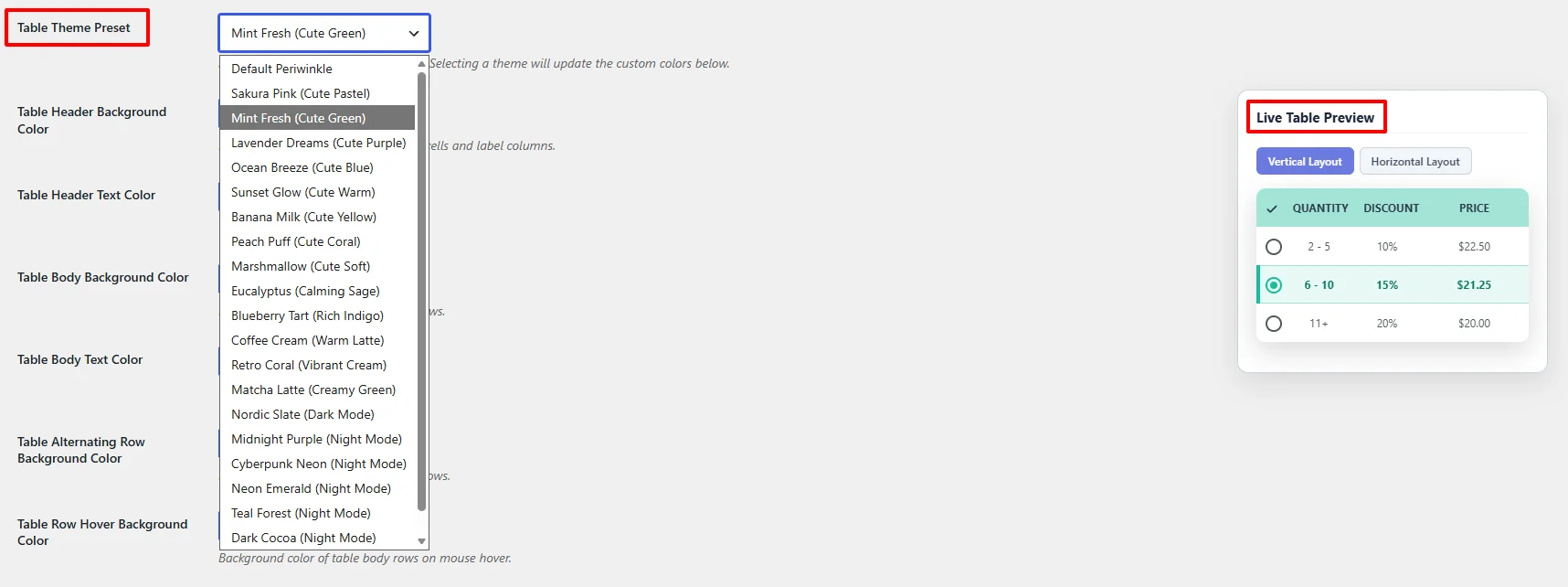
Custom CSS
For advanced customization, you can add custom CSS to override the theme styles:
- Go to Appearance > Customize > Additional CSS
- Add your custom CSS rules
- Target the quantity table using the
.wccs-bulk-pricing-table-containerclass
Troubleshooting
Quantity Table Not Showing
| Issue | Solution |
|---|---|
| Table doesn't appear | Ensure a bulk pricing rule is created and active for the product |
| Table doesn't appear | Check if the product is in the Discounted products list |
| Table doesn't appear | Try changing the Quantity Table Position in settings |
| Table doesn't appear | Set position to "None" and use the shortcode |
| Table doesn't appear | Check if the product is excluded from discounts |
| Table appears but is mispositioned | Try a different position in settings |
| Table appears but looks broken | Apply a different Table Theme Preset |
Variation Price Not Updating
| Issue | Solution |
|---|---|
| Price doesn't update when variation selected | Ensure Variation Price Update is set to "Enabled" |
| Price doesn't update when variation selected | Check that the variation has a bulk pricing rule applied |
| Price doesn't update when variation selected | Clear your site cache |
Shortcode Not Working
| Issue | Solution |
|---|---|
| Shortcode displays empty | Ensure the product has an active bulk pricing rule |
| Shortcode displays empty | Check that the product ID is correct (if specified) |
| Shortcode displays empty | Set Quantity Table Position to "None" in settings |
🎉 Success!
You've learned how to display and customize the quantity table for bulk discounts in WooCommerce. You can now:
- Position the quantity table anywhere on product pages
- Use shortcodes for custom placement
- Enable variation price updates for variable products
- Apply preset themes to match your store design
- Troubleshoot common issues
The quantity table is a powerful conversion tool that clearly communicates savings to customers, encouraging larger purchases and increasing average order value.
Experience all discount rules and pricing strategies in action on our Live Demo Website.
Upgrade to Discount Rules and Dynamic Pricing for WooCommerce PRO to unlock advanced conditions, user role pricing, recurring schedules, tiered variations, and priority support.
📚 Next Steps
Now that you've mastered the quantity table, explore the discount rules that power volume pricing:
- Bulk Quantity Discounts for Products — Configure the bulk pricing rules displayed in the table.
- Bulk Discounts for Variations — Set up variation-specific bulk quantity tiers.
- Bulk Discounts for Categories — Configure category-level volume pricing rules.
- Create Tiered Pricing for Products — Explore bracket-based tiered pricing as an alternative.
- Display Percentage Badges — Highlight bulk savings with badges on product cards.
🔍 SEO Keywords
Primary Keywords: quantity table WooCommerce, bulk discounts display, WooCommerce discount table, pricing table WooCommerce, WooCommerce discount rules, dynamic pricing WooCommerce
Secondary Keywords: bulk pricing table, quantity discount table, variation price update, table theme preset, shortcode bulk table, display quantity discounts, WooCommerce product page pricing, bulk table positioning, Discount Rules and Dynamic Pricing plugin