Bulk Quantity Discounts for Products in WooCommerce (Pricing Rules)
Learn how to create powerful bulk quantity discounts for specific products in WooCommerce using the Discount Rules and Dynamic Pricing for WooCommerce plugin. This complete guide covers percentage discounts and price discounts based on quantity ranges. Encourage customers to buy more by offering increasing discounts on larger quantities.
📋 Table of Contents
- Understanding Bulk Quantity Discounts
- Step-by-Step: Create a Bulk Quantity Discount
- Quick Reference Table
- Next Steps
🚀 Understanding Bulk Quantity Discounts
Bulk quantity discounts are one of the most effective ways to increase average order value and encourage customers to purchase more items. By offering tiered discounts based on quantity, you can incentivize larger purchases while maintaining profitability.
How Bulk Discounts Work
When you create a bulk pricing rule, the discount is applied based on the quantity of items in the cart:
- Example: Buy 2-5 items, get 10% off; Buy 6-10 items, get 20% off; Buy 11+ items, get 30% off
- The discount applies to all units in the cart once the quantity threshold is reached
- For example, if a customer buys 10 items, all 10 items get the 20% discount
Adjustment Types Explained
| Adjustment Type | How It Works | Example |
|---|---|---|
| Percentage discount | Applies a percentage off the original product price | 20% off a $25 product = $20.00 |
| Price discount | Applies a fixed dollar amount off the original product price | $5 off a $25 product = $20.00 |
| Fixed price | Sets the product price to a specific fixed amount | Fixed price of $20 on a $25 product = $20.00 |
Now you're ready to create bulk quantity discount rules under the Woo Pricing & Discounts > Pricing tab.
Step-by-Step: Create a Bulk Quantity Discount
Best for: Encouraging customers to buy more units of a product by offering increasing discounts. Perfect for wholesale, bulk purchases, and increasing average order value.
Scenario: Create a bulk quantity discount on Jackets with the following tiers:
- 2-5 items: 10% off
- 6-10 items: 20% off
- 11+ items: 30% off
Step 1: Access Pricing and Choose a Template
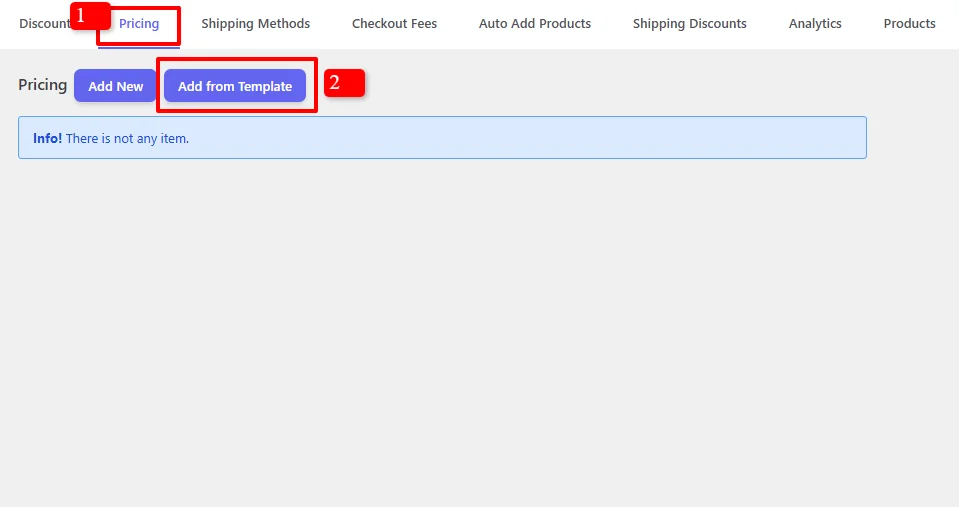
- In your WordPress admin, go to the Woo Pricing & Discounts menu
- Open the Pricing tab
- Click on the Add from Template button to quickly start a new rule
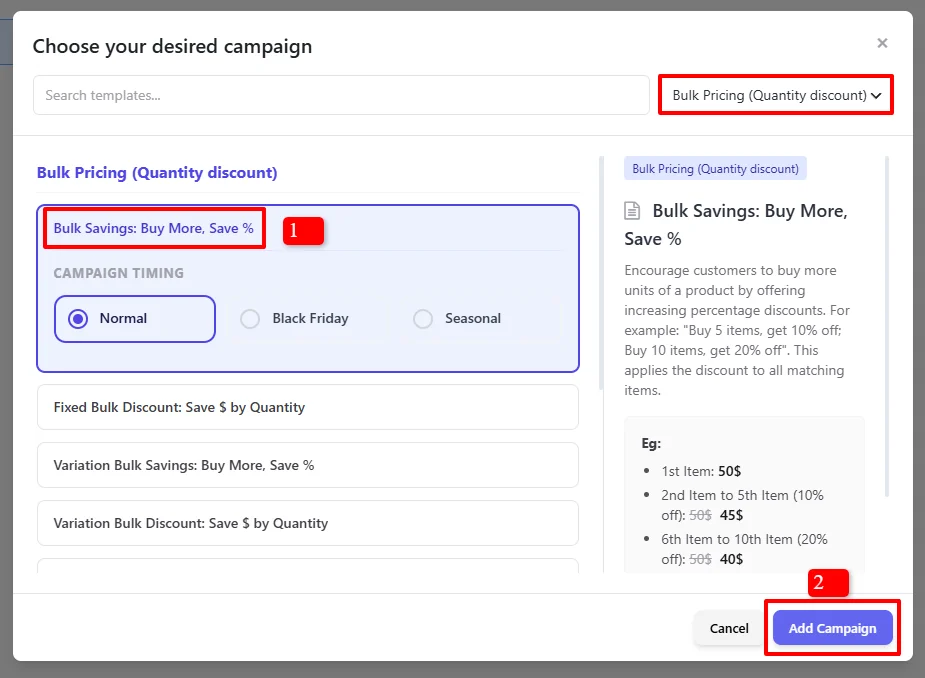
- In the "Choose your desired campaign" modal, search for templates
- Under Bulk Pricing (Quantity discount), find and select "Bulk Savings: Buy More, Save %"
- Click "Add Campaign"
Step 2: Configure the Discount Rule
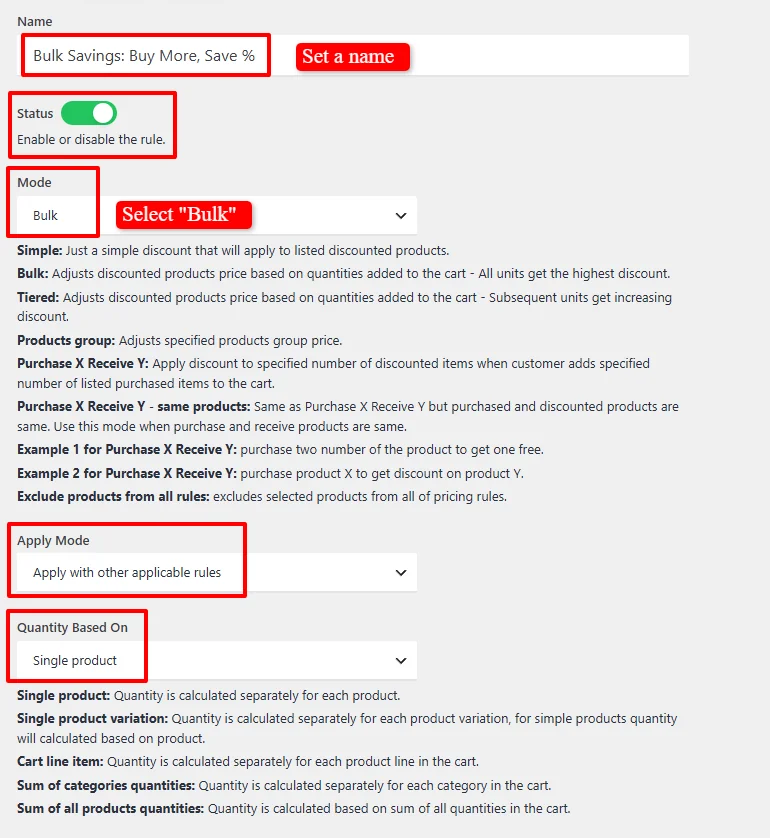
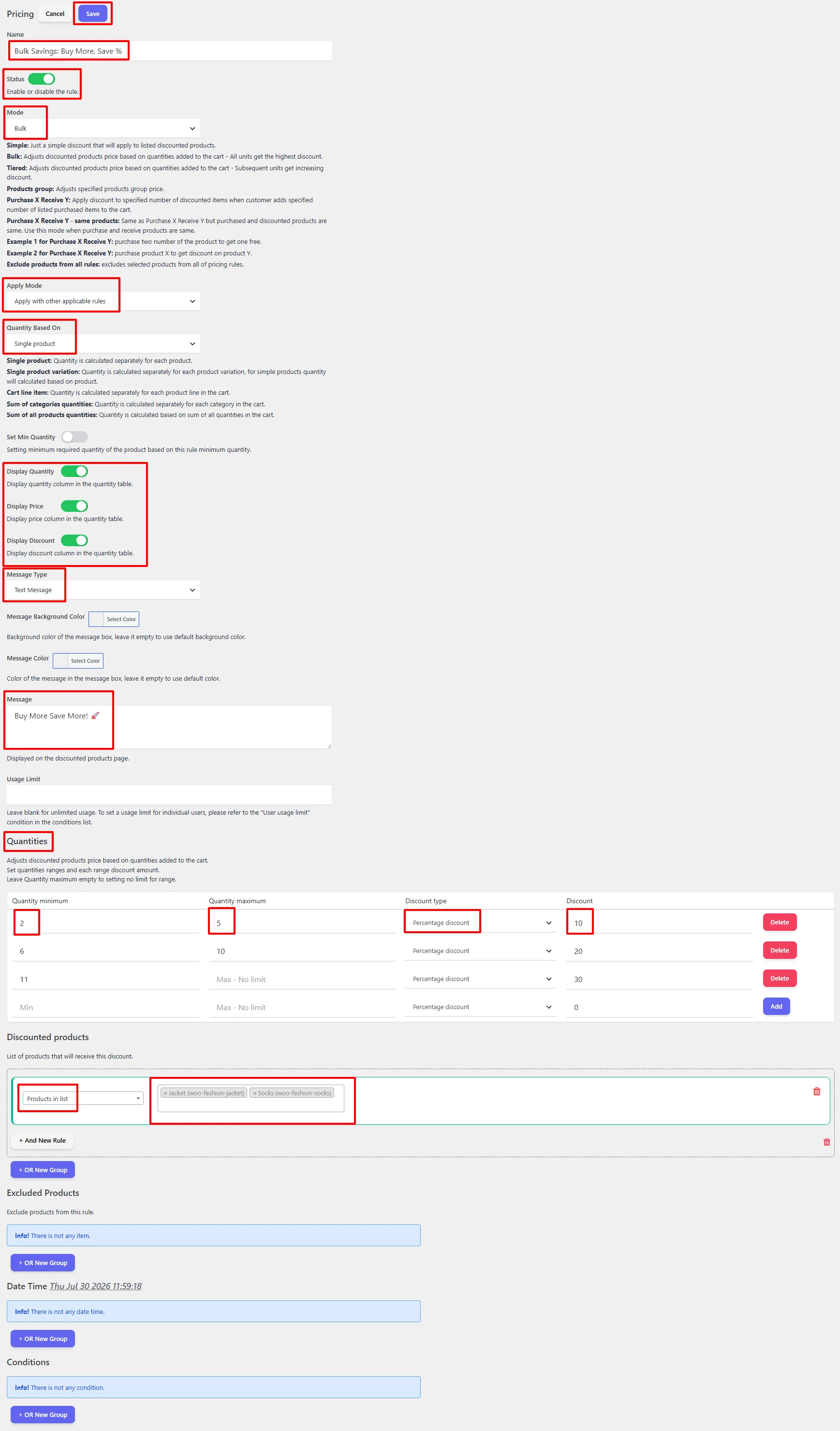
- Name: "Bulk Savings: Buy More, Save %" (customizable)
- Status: Ensure Enable is checked
- Mode: Select "Bulk" - This adjusts discounted products price based on quantities added to the cart - All units get the highest discount
- Simple: Just a simple discount that will apply to listed discounted products
- Bulk: Adjusts discounted products price based on quantities added to the cart - All units get the highest discount
- Tiered: Adjusts discounted products price based on quantities added to the cart - Subsequent units get increasing discount
- Apply Mode: Choose how this rule interacts with other pricing rules
- Apply with other applicable rules (Non-Exclusive): Works alongside other discounts
- Apply this rule and disregard other rules - Exclusive: Disregards all other applicable rules
- Apply if other rules are not applicable: Acts as a fallback
Step 3: Configure Quantity Calculation
Under Quantity Based On, select how the quantity is calculated:
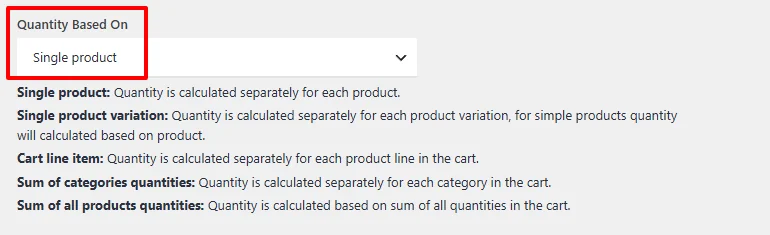
- Single product: Quantity is calculated separately for each product
- Single product variation: Quantity is calculated separately for each product variation
- Cart line item: Quantity is calculated separately for each product line in the cart
- Sum of categories quantities: Quantity is calculated separately for each category in the cart
- Sum of all products quantities: Quantity is calculated based on sum of all quantities in the cart
Example: Select "Single product" to calculate quantity per product.
Step 4: Configure Display Options
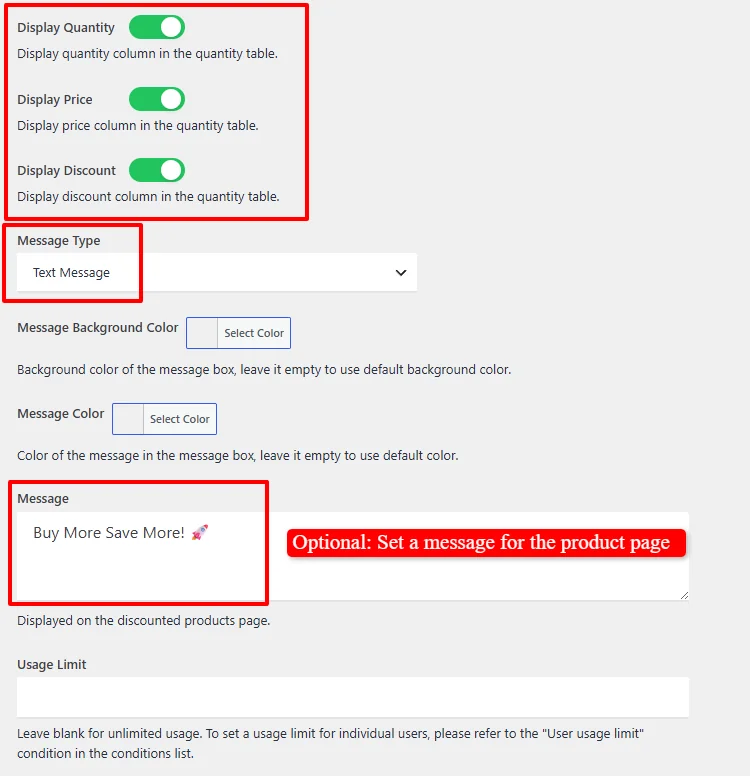
- Display Quantity: Show the quantity column in the quantity table
- Display Price: Show the price column in the quantity table
- Display Discount: Show the discount column in the quantity table
- Message Type: Select "Text Message"
- Message: Set a compelling message, e.g., "Buy More Save More! ❤️"
- Message Background Color: (Optional) Customize the message box background color
- Message Color: (Optional) Customize the message text color
- Usage Limit: Leave blank for unlimited uses
Step 5: Set Quantity Ranges
Under the Quantities section, you define the quantity ranges and associated discounts:
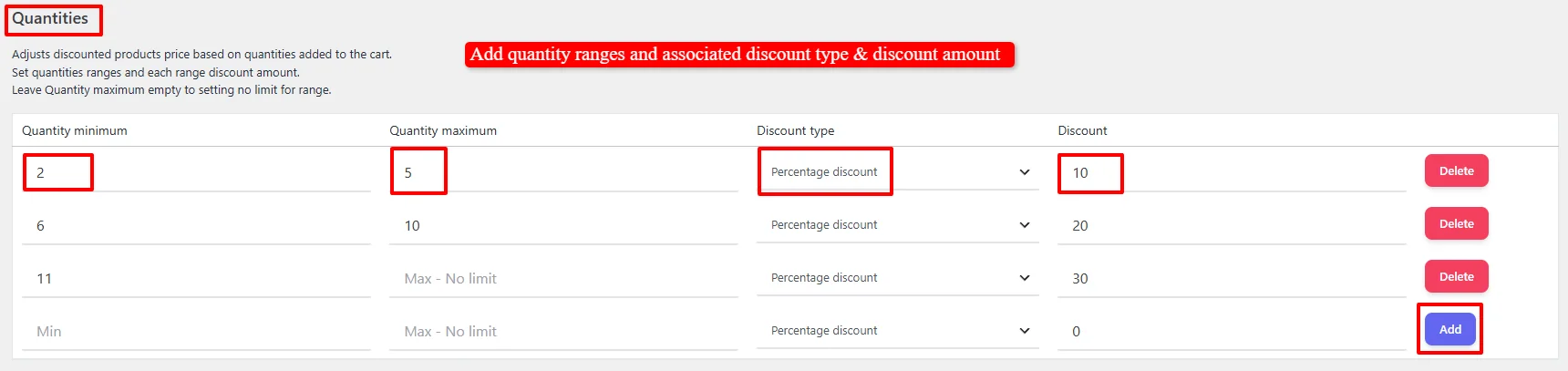
- Quantity Minimum: Set the minimum quantity for each tier
- Quantity Maximum: Set the maximum quantity (leave blank for no limit)
- Discount Type: Choose between Percentage discount, Price discount, or Fixed price
- Discount: Set the discount value for each tier
- Click "Add" to add more tiers as needed
Example Tiers:
| Quantity Minimum | Quantity Maximum | Discount Type | Discount |
|---|---|---|---|
| 2 | 5 | Percentage discount | 10 |
| 6 | 10 | Percentage discount | 20 |
| 11 | Max - No limit | Percentage discount | 30 |
Step 6: Select Discounted Products
Under the Discounted products section, you define which products receive the bulk discount:
- Add a "Products in list" condition
- Search for and select your desired products
- You can add multiple products into the search field

Example: Select Jacket & Socks as the discounted products.
For detailed information on filtering products by categories, variations, attributes, stock status, or dynamic segments, check out our Product Selection Guide.
Step 7: Schedule the Discount (Optional)
By default, the campaign is unscheduled and runs immediately:

For scheduled promotions, under the "Date Time" section to configure:
- Date Range - Run a promotion over a period (e.g.,
2026-07-20to2026-07-31for a summer sale) - Date Time Range - Precise start and end date/time for flash sales
- Specific Date - Single date activation (e.g.,
2026-11-27for Black Friday) - Days - Recurring weekly promotions (e.g., Saturday & Sunday)
- Time - Daily time ranges (e.g., "happy hour" between 14:00-16:00)

Use "+ And New Rule" to combine conditions or "+ OR New Group" for alternative schedules.
For a deep dive into timezone setup, recurring schedules, and multi-tier scheduling logic, read our comprehensive Scheduling & Date-Time Guide.
Step 8: Save and Test
Click Save and test by adding different quantities to the cart.
Result Example
Product Page - Bulk Discount Display
The product page displays:
- Original price with strikethrough: $25.00
- Discounted price: $20.00 (based on quantity)
- Discount per quantity table showing all tiers
- "Buy More Save More!" message
- Quantity selector with automatic discount updates
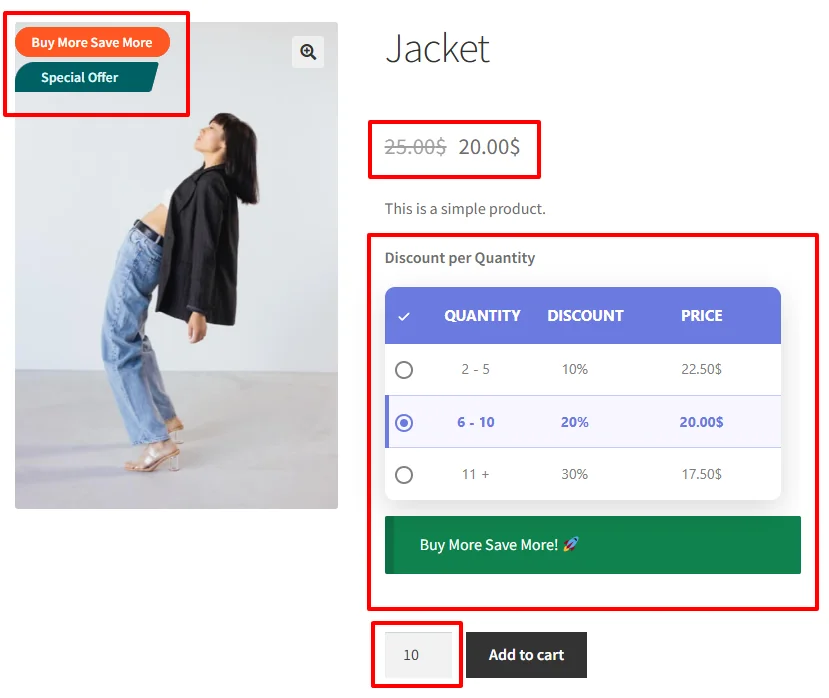
- The quantity table is automatically displayed on the product page. If it doesn't appear, check our Display Quantity Table Guide for troubleshooting.
- To display sale badges, check our Add Sale Badges Guide.
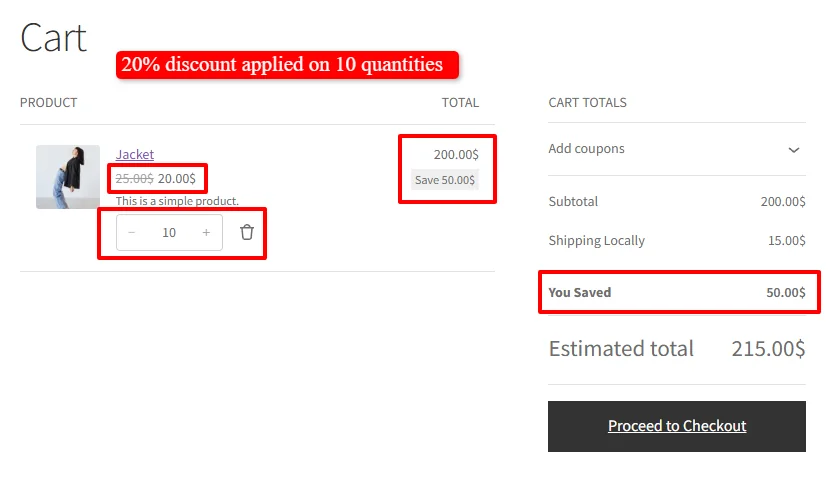
Cart Example - 10 Items (20% Discount)
Cart with 10 Jackets:
- Per item: $25.00 → $20.00 (Save $5.00)
- Subtotal: $200.00 (Original: $250.00)
- You Saved: $50.00
Quick Reference Table
| Quantity | Discount Type | Discount | Price Per Item | Total Savings |
|---|---|---|---|---|
| 1 item | No discount | 0% | $25.00 | $0.00 |
| 2-5 items | Percentage | 10% | $22.50 | $2.50-$12.50 |
| 6-10 items | Percentage | 20% | $20.00 | $30.00-$50.00 |
| 11+ items | Percentage | 30% | $17.50 | $82.50+ |
🎉 Success!
You've learned how to create bulk quantity discounts using the Discount Rules and Dynamic Pricing plugin for WooCommerce. This powerful feature allows you to:
- Encourage larger purchases by offering tiered discounts
- Increase average order value with quantity-based incentives
- Display clear discount tables on product pages
- Automatically apply discounts based on cart quantity
The bulk pricing mode applies the highest discount to all units once a quantity threshold is reached, creating a powerful incentive for customers to buy more.
Experience all discount rules and pricing strategies in action on our Live Demo Website.
Upgrade to Discount Rules and Dynamic Pricing for WooCommerce PRO to unlock advanced conditions, user role pricing, recurring schedules, tiered variations, and priority support.
📚 Next Steps
Now that you've mastered bulk product discounts, explore complementary quantity pricing tools:
- Display Quantity Table on Product Pages — Showcase available bulk discount tiers directly on single product pages.
- Bulk Discounts for Variations — Apply volume pricing rules specifically to variable products and variations.
- Bulk Discounts for Categories — Apply bulk pricing across entire product categories.
- Create Tiered Pricing for Products — Apply progressive tiered bracket pricing where each tier has its own price.
- Create Volume Kick Discounts — Unlock special pricing once a specific volume threshold is reached.
🔍 SEO Keywords
Primary Keywords: bulk quantity discounts WooCommerce, tiered pricing WooCommerce, WooCommerce discount rules, dynamic pricing WooCommerce, WooCommerce pricing rules, quantity discounts WooCommerce
Secondary Keywords: bulk pricing WooCommerce, quantity based discounts, tiered discounts WooCommerce, percentage discount quantity, price discount quantity, fixed price quantity, WooCommerce bulk discounts, wholesale pricing WooCommerce, increase average order value, Discount Rules and Dynamic Pricing plugin