How to Automatically Add a Free Gift to Cart Based on Minimum Spend in WooCommerce
Offering a free gift when minimum order value or minimum spend reaches a threshold in WooCommerce (such as "Spend $300 and get a free promotional gift automatically added to your cart") is one of the highest-converting promotional strategies in modern e-commerce.
Known throughout digital marketing as Gift With Purchase (GWP), this strategy triggers a powerful psychological incentive: rather than discounting prices and eroding your brand value, you reward shoppers with a tangible, high-value complimentary product. Studies demonstrate that automatic free gift promotions can lift Average Order Value (AOV) by 20% to 35%, drastically reduce cart abandonment, and accelerate customer conversion rates.
With the Discount Rules and Dynamic Pricing for WooCommerce PRO plugin and its dedicated Auto Add Products to Cart for WooCommerce addon, you can completely automate free gift promotions without requiring coupon codes or manual cart additions. The plugin continuously calculates cart totals, automatically adds the free gift product or variation once the spend threshold is met, and immediately removes the gift if the customer modifies their cart below the qualifying amount.
In this comprehensive guide, you will learn step-by-step how to set up, schedule, customize, and troubleshoot automatic free gift promotions based on cart subtotal thresholds in WooCommerce.
To create automated free gift promotions based on minimum cart spend, order thresholds, or user conditions, you will need:
- Discount Rules and Dynamic Pricing for WooCommerce PRO — The core dynamic pricing and discount engine (PRO version is required).
- Auto Add Products to Cart for WooCommerce — The dedicated addon that unlocks the Auto Add Products tab, automatic gift insertion and removal, calculation modes, and spending threshold campaigns.
📋 Table of Contents
- Why Offer a Free Gift on Minimum Spend?
- Free Gifts vs. Percentage Discounts: The AOV Multiplier
- Step-by-Step: How to Auto Add a Free Gift Based on Minimum Spend
- Step 1: Access Auto Add Products and Select Template
- Step 2: Configure Basic Rule Settings
- Step 3: Choose Apply Mode (Rule Interaction)
- Step 4: Configure Free Gift Items (Simple Product or Variation)
- Step 5: Schedule the Free Gift Promotion (Optional)
- Step 6: Set Minimum Spend Subtotal Conditions
- Step 7: Review Complete Rule Configuration and Save
- Result Examples: Cart Reaching vs. Not Reaching Threshold
- Discount Types Explained for Auto-Added Items
- Real-World Minimum Spend Free Gift Scenarios
- Scenario 1: Spend $300, Get a Free Gift (Classic Threshold)
- Scenario 2: Multi-Tiered Free Gifts (Spend $100 Get Gift A, Spend $250 Get Gift B)
- Scenario 3: Exclusive VIP Free Gift with Lower Spend Requirement
- Scenario 4: Black Friday & Holiday Scheduled Free Gift Event
- Scenario 5: Nominal-Priced Gift ($1 or 50% Off Promotional Item)
- Apply Mode Behavior (Exclusive vs. Non-Exclusive)
- Troubleshooting: Free Gift Not Adding or Removing Correctly?
- Frequently Asked Questions (FAQ)
- Related Guides & Next Steps
- SEO Keywords & Optimization Summary
💡 Why Offer a Free Gift on Minimum Spend?
Offering a free gift when a customer reaches a minimum order value is among the most profitable e-commerce tactics. Unlike standard price cuts that can devalue your brand, gifts deliver high perceived value while protecting your bottom-line margin.
Key commercial benefits include:
- Massive Boost in Average Order Value (AOV): When shoppers are told "Spend $300 and receive a free shirt", customers with $260 in their cart actively seek additional items to bridge the $40 gap.
- Frictionless Customer Experience (Automatic Cart Insertion): Manual coupon codes generate drop-offs when customers forget to enter them or fail to add the gift product manually. Automated insertion adds the gift instantly the moment the cart qualifies.
- Zero Exploitation (Automatic Cart Removal): If a customer attempts to game the system by adding items to get the gift and then removing them, the plugin instantly recalculates the subtotal and removes the complimentary item.
- Smart Inventory Clearance: Introduce slow-moving stock, trial-size products, or branded promotional accessories as complimentary items to build customer loyalty while freeing up warehouse capacity.
- No Margin Destruction: You control the cost of goods sold (COGS) of the gifted item, ensuring every order exceeding the threshold remains highly profitable.
⚖️ Free Gifts vs. Percentage Discounts: The AOV Multiplier
| Feature | Free Gift on Minimum Spend (GWP) | Percentage Cart Discount | Free Shipping Threshold |
|---|---|---|---|
| Customer Perception | "I received a free luxury product worth $25!" | "I saved a few dollars on checkout." | "I avoided paying delivery charges." |
| Perceived Value | Extremely High (Retail price of gift) | Medium (Felt as a cash subtraction) | Standard (Expected utility) |
| Cost to Merchant | Wholesale / Unit Cost only | Full percentage cut from gross revenue | Absorption of shipping carrier fees |
| Brand Protection | High (Preserves premium retail pricing) | Lower (Can train buyers to wait for sales) | High (Standard e-commerce incentive) |
| Cross-Selling Impact | Introduces customer to a new product line | No product discovery benefit | No product discovery benefit |
| Cart Behavior | Automatically adds & removes gift | Dynamically updates discount total | Toggles shipping rate selection |
🛠️ Step-by-Step: How to Auto Add a Free Gift Based on Minimum Spend
Follow this step-by-step tutorial to configure and launch an automatic free gift campaign when customers reach a minimum spend threshold in WooCommerce.
Step 1: Access Auto Add Products and Select Template
- In your WordPress admin dashboard, navigate to Woo Pricing & Discounts.
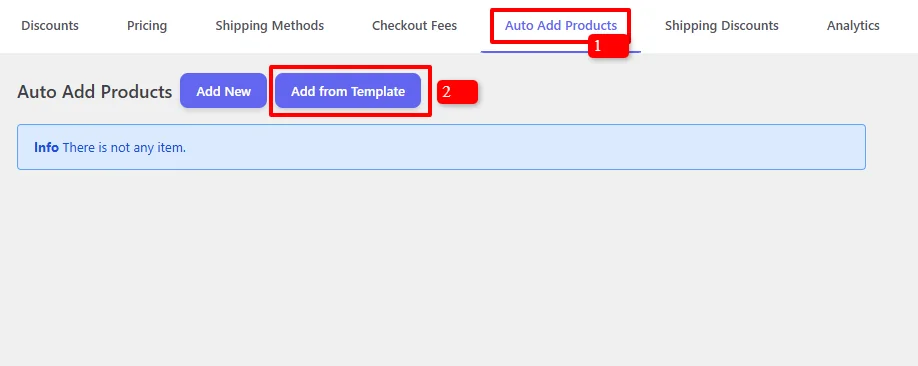
- Click on the Auto Add Products tab in the main navigation menu (marked 1).
- Click the Add from Template button (marked 2) to load pre-built gift campaigns, or click Add New to build from scratch.
- In the "Choose your auto-add product template" modal:
- Under the Spending & Cart Thresholds category, select "Free Gift Threshold (Spend $300+)" (marked 1).
- Under Campaign Timing, choose your desired schedule preset: Normal (continuous), Black Friday, or Seasonal.
- Click the blue Add Item button (marked 2).
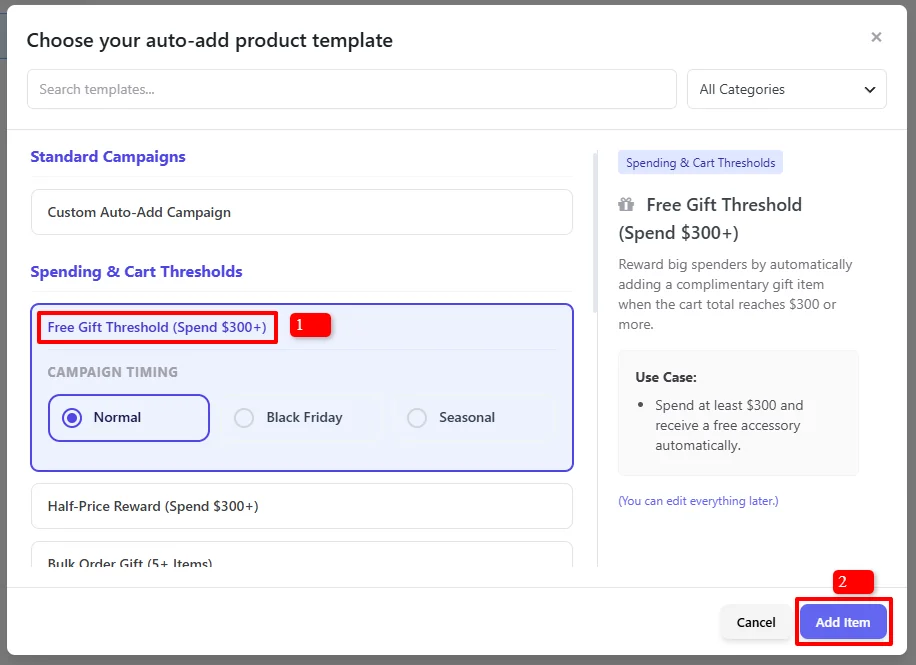
Template Description: Reward big spenders by automatically adding a complimentary gift item when the cart total reaches $300 or more.
Use Case: Spend at least $300 and receive a free accessory or apparel product automatically in your cart.
Step 2: Configure Basic Rule Settings
Once the rule editor loads, configure the core campaign properties:
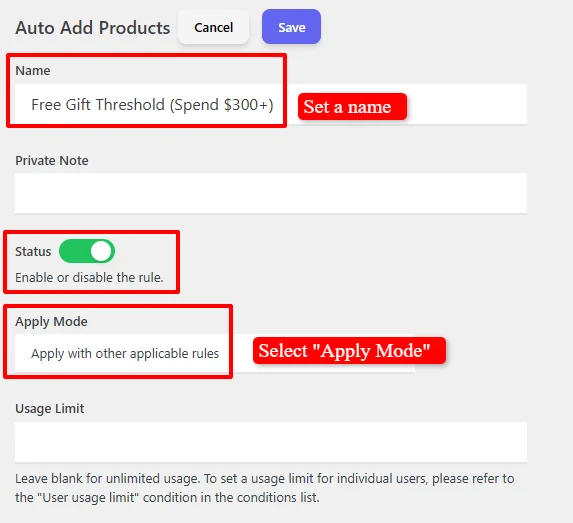
- Name: Enter a descriptive, administrative title (e.g.,
Free Gift Threshold (Spend $300+)). - Private Note: (Optional) Add internal notes for store managers (e.g., "Spend $300 get Shirt Green free promotion").
- Status: Ensure the toggle switch is set to Active (Green) to enable the rule.
- Apply Mode: Determine how this auto-add rule interacts with other active gift promotions (detailed in Step 3).
- Usage Limit:
- Leave blank for unlimited uses across all customers.
- Enter a numeric value to cap the campaign storewide (e.g., first 500 orders get the gift).
- To limit gifts on a per-customer basis, leave this blank and add a User usage limit under the Conditions section.
Step 3: Choose Apply Mode (Rule Interaction)
The Apply Mode governs how this free gift rule interacts with other auto-add promotions running simultaneously in your WooCommerce store:

Select from the three available apply modes:
- Apply with other applicable rules (Non-Exclusive - Recommended): Stacks this gift rule alongside other eligible promotions. If a customer qualifies for a spend threshold gift and a BOGO gift simultaneously, they receive both items.
- Apply this rule and disregard other rules (Exclusive Priority): If this spend threshold rule matches, all other auto-add product rules are suppressed. This rule takes absolute priority.
- Apply if other rules are not applicable (Exclusive Fallback): Functions as a fallback offer. The gift is only granted if no higher-priority auto-add rules matched the order.
Step 4: Configure Free Gift Items (Simple Product or Variation)
Under the Items section, define the exact product or variation that will be gifted to the customer once the minimum spend is met:
Option A: Gifting a Simple Product

- Select Product from the first dropdown.
- In the search box, search for and select your promotional product (e.g.,
Shirt - Green (woo-fashion-shirt-green)). - Set the Quantity to
1(or your desired gift quantity). - Set the Discount Type to Percentage Discount.
- Enter
100in the Discount Amount field.Important: Setting Percentage Discount to
100makes the item completely FREE ($0.00) in the cart. - Is it removable from the cart?
- Unchecked (Default): The free gift is locked into the cart as long as the subtotal condition is satisfied.
- Checked: Allows the shopper to manually delete the complimentary gift from their cart if they prefer not to receive it.
Option B: Gifting a Specific Product Variation
If your gift item is a variable product (such as clothing with specific colors and sizes), select the exact SKU or variation:

- Select Product Variation from the first dropdown.
- Search and select the precise variation (e.g.,
Sweater (woo-fashion-sweater) Color: Beige, Size: Large). - Set the Quantity to
1. - Set the Discount Type to Percentage Discount and enter
100for a 100% complimentary reward. - Check or uncheck Is it removable from the cart? based on your store preference.
Want to award multiple gifts for high spenders? Click the blue Add button below the items row to include additional simple products or variations that will be added to the cart simultaneously when the order value threshold is reached.
Step 5: Schedule the Free Gift Promotion (Optional)
Directly below the Items section and before the Conditions section, you will find the Date Time scheduling engine. You can schedule your minimum spend gift promotion to launch on specific dates, promotional weekends, or flash sale hours, exactly like other pricing and discount rules in the plugin.
By default, the campaign is unscheduled and remains active continuously:

To schedule time-sensitive campaigns (such as Black Friday, Cyber Monday, Valentine's Day, or weekend sales), configure the Date Time section:

Available Scheduling Rules:
- Date Range: Run the promotion during a specific calendar window (e.g.,
2026-11-20to2026-11-30for Black Friday Week). - Date Time Range: Set exact start and end minute timestamps for high-urgency flash promotions.
- Specific Date: Activate the free gift promotion only on a designated day (e.g., Green Monday or Boxing Day).
- Days: Restrict the promotion to specific recurring days of the week (e.g., "Free Gift Weekend").
- Time: Restrict the gift to specific daily hours (e.g., evening orders placed between 18:00 and 23:59).
You can combine schedule criteria using + And New Rule (e.g., Weekends AND Between 12:00 - 18:00) or establish multiple alternative windows with + OR New Group.
For an in-depth walkthrough on timezone configuration, recurring schedules, and multi-tier scheduling logic, read our comprehensive Scheduling & Date-Time Guide.
Step 6: Set Minimum Spend Subtotal Conditions
Located beneath the Date Time section, the Conditions engine determines the exact spend threshold required to unlock the complimentary gift:

- In the condition type dropdown, select "Subtotal including tax" or "Subtotal excluding tax" based on whether your spending threshold evaluates gross or net cart amounts.
- Set the comparison operator to "Greater than" (or "Greater equal to").
- In the value field, enter your target order threshold:
300(for a $300 minimum spend requirement).
Stacking Additional Conditions:
You can combine the subtotal condition with other customer or product requirements using + And New Rule:
- Customer Roles (
roles): Offer the free gift exclusively to Wholesale Buyers, VIP Club Members, or Subscribers. - Shipping Destination (
shipping_country/shipping_state): Restrict complimentary gifts to domestic shoppers to avoid excessive international shipping costs. - Cart Items Count (
cart_items_count): Require a minimum quantity of items in addition to the spend threshold. - Specific Products / Categories in Cart: Require that at least one qualifying product line is present in the cart.
For comprehensive documentation on all 14 condition groups, AND/OR nesting logic, and comparison operators, explore our Complete Rule Conditions Guide.
Step 7: Review Complete Rule Configuration and Save
Before publishing, verify your rule settings across the entire interface:
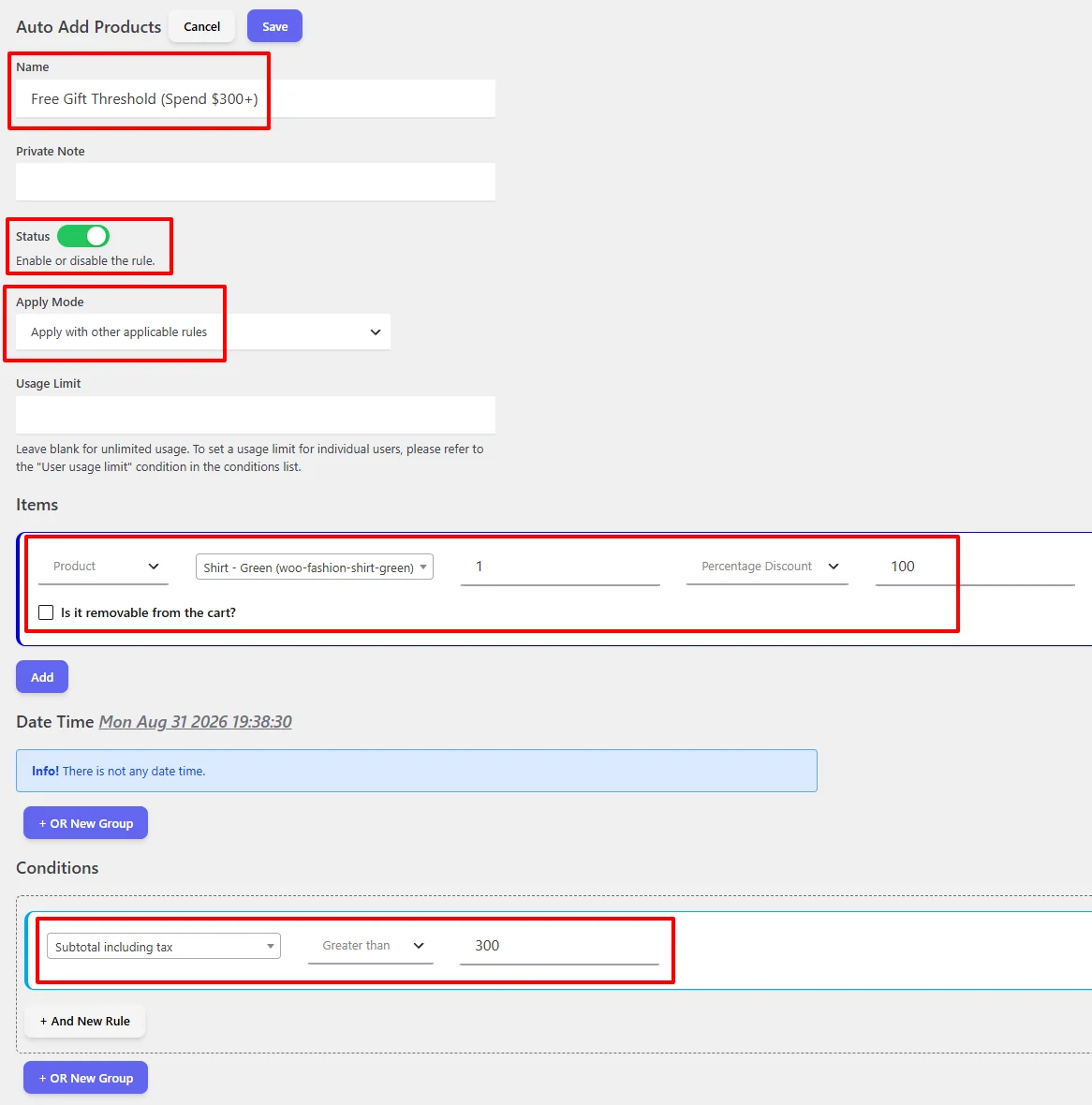
Rule Verification Checklist:
| Setting Section | Configured Value | Description |
|---|---|---|
| Name | Free Gift Threshold (Spend $300+) | Internal identification and rule tracking |
| Status | Active (Green Toggle) | Rule is enabled and evaluated on cart actions |
| Apply Mode | Apply with other applicable rules | Stacks alongside other pricing and shipping rules |
| Items (Gift) | Product: Shirt - Green | Qty: 1 | Percentage Discount: 100 | Complimentary item added at $0.00 |
| Date Time | Unscheduled (or configured date period) | Runs continuously or during scheduled sales |
| Conditions | Subtotal including tax > 300 | Trigger threshold: Cart must exceed $300.00 |
Click the blue Save button in the top header. Your automated free gift campaign is now live!
🛒 Result Examples: Cart Reaching vs. Not Reaching Threshold
Let's look at real-world front-end cart scenarios to observe how the plugin automatically manages gifts based on minimum spend.
Example 1: Cart Reaches Minimum Spend ($370.00 > $300.00) — Gift Added
The shopper adds multiple items exceeding the $300.00 minimum spend threshold:
- Shirt: 20.00$ × 4 = 80.00$
- Shirt – Cream: 25.00$ × 4 = 100.00$
- Shoes: 18.00$ × 5 = 90.00$
- Jacket: 25.00$ × 4 = 100.00$
Qualifying Cart Subtotal: 370.00$ (Exceeds the $300 threshold!)
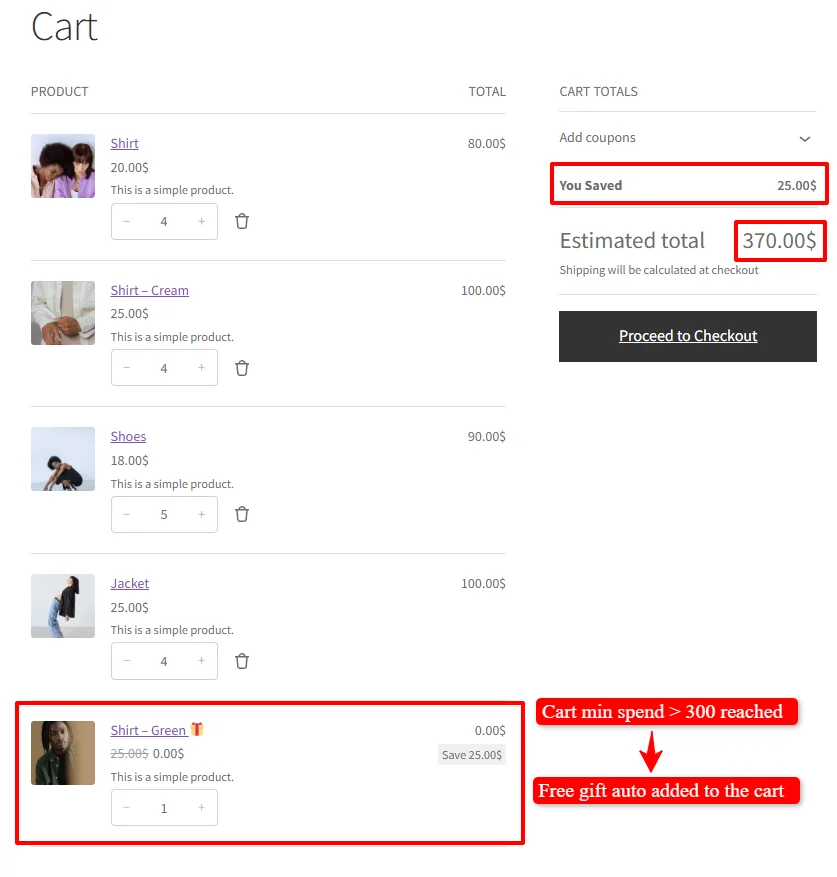
Front-End Cart Display & Totals:
- Complimentary Gift Added: The plugin automatically adds
Shirt – Green 🎁to the cart line items. - Price Display: The item price is crossed out (
25.00$ 0.00$), and a clear badge displaysSave 25.00$. - Cart Totals:
- You Saved:
25.00$ - Estimated Total:
370.00$(The customer pays only for their purchased goods; the gift adds $0.00 to the bill).
- You Saved:
Example 2: Cart Below Minimum Spend ($295.00 < $300.00) — Gift Withheld / Removed
Now suppose the customer decreases the quantity of the Jacket from 4 to 1:
- Shirt: 20.00$ × 4 = 80.00$
- Shirt – Cream: 25.00$ × 4 = 100.00$
- Shoes: 18.00$ × 5 = 90.00$
- Jacket: 25.00$ × 1 = 25.00$
Cart Subtotal: 295.00$ (Falls $5.00 short of the $300 threshold)
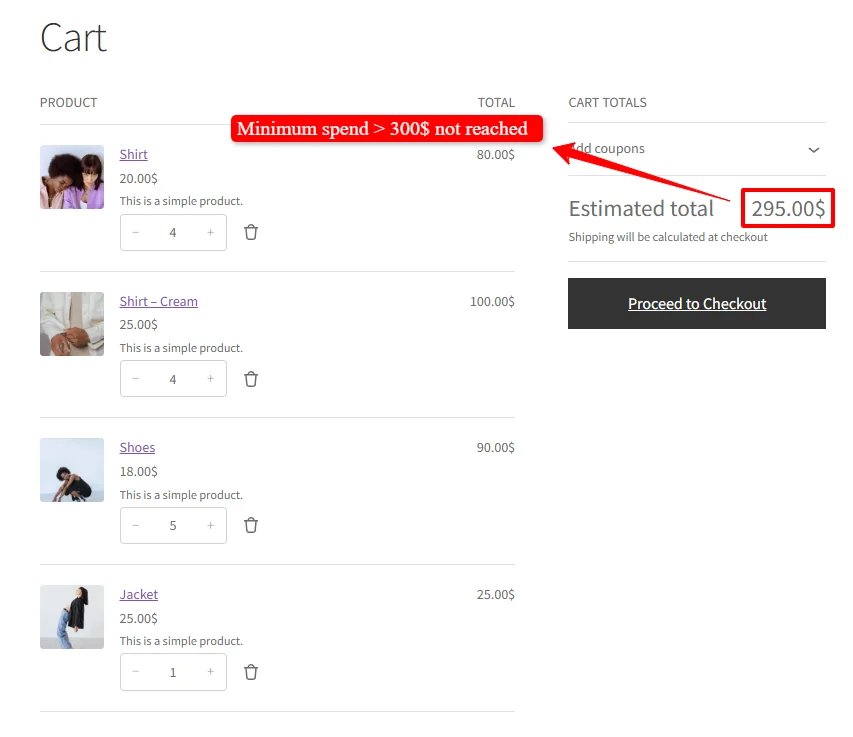
Front-End Cart Display & Totals:
- Gift Status: Because the cart subtotal is only $295.00, the condition is not satisfied.
- Dynamic Auto-Removal: If the free gift was previously in the cart, the plugin immediately removes it.
- Estimated Total:
295.00$with zero gift line items. - Customer Motivation: The customer immediately notices the gift disappeared, motivating them to add another item to regain their free reward!
⚙️ Discount Types Explained for Auto-Added Items
When configuring items in the Auto Add Products rule, you have four distinct calculation modes available:

1. Discount Category
- Percentage Discount: Deducts a percentage from the auto-added item's regular price.
- Free Gift Setting: Enter
100to grant a 100% complimentary free gift ($0.00). - Partial Gift Setting: Enter
50to automatically add a promotional accessory at half price (50% off) once the spend threshold is met.
- Free Gift Setting: Enter
- Price Discount: Deducts a flat monetary amount from the auto-added item's price.
- Example: Add a $30 hat to the cart with a
$20 Price Discount, charging the customer only $10.
- Example: Add a $30 hat to the cart with a
2. Price Category
- Fixed Price: Forces the auto-added item to be priced at an exact dollar amount regardless of its original retail price.
- Example: Set Fixed Price to
1to run a "Spend $200 and get a Mystery Item for just $1.00" promotion.
- Example: Set Fixed Price to
- Product Main Price: Adds the product into the cart automatically at its full retail price without any discount.
- Use Case: Automatically adding required accessories, mandatory deposits, or warranty packages when certain spending levels are achieved.
🎯 Real-World Minimum Spend Free Gift Scenarios
Scenario 1: Spend $300, Get a Free Gift (Classic Threshold)
- Objective: Increase cart values across all catalog products.
- Name:
Free Gift Threshold (Spend $300+) - Gift Item: Product
Shirt - Green| Qty:1| Discount Type:Percentage Discount| Amount:100 - Condition:
Subtotal including tax>300 - Outcome: Any customer spending more than $300 receives the green shirt automatically for free.
Scenario 2: Multi-Tiered Free Gifts (Spend $100 Get Gift A, Spend $250 Get Gift B)
Gamify your store by rewarding higher cart values with progressively premium gifts:
- Rule 1 (Tier 1):
- Threshold: Subtotal ≥ $100
- Gift: Free Canvas Tote Bag ($10 value)
- Apply Mode:
Apply with other applicable rules
- Rule 2 (Tier 2):
- Threshold: Subtotal ≥ $250
- Gift: Free Premium Hoodie ($50 value)
- Apply Mode:
Apply with other applicable rules(Customer receives both gifts) ORApply this rule and disregard other rules(Hoodie replaces Tote Bag).
Scenario 3: Exclusive VIP Free Gift with Lower Spend Requirement
- Objective: Reward loyalty program members and drive repeat purchases.
- Name:
VIP Member Free Gift ($150 Threshold) - Gift Item:
Sweater (Beige - Large)| Qty:1| Discount:100% - Conditions:
Subtotal including tax≥150- AND
User rolesIn listVIP Customer
- Outcome: VIP customers unlock the free gift at just $150, while regular shoppers require $300.
Scenario 4: Black Friday & Holiday Scheduled Free Gift Event
- Objective: Maximize Q4 holiday sales urgency.
- Name:
Cyber Monday Exclusive Free Gift - Gift Item:
Branded Leather Wallet| Qty:1| Discount:100% - Date Time:
Date Rangefrom2026-11-30 00:00to2026-11-30 23:59 - Condition:
Subtotal including tax≥200 - Outcome: The promotion runs strictly during Cyber Monday, automatically expiring at midnight.
Scenario 5: Nominal-Priced Gift ($1 or 50% Off Promotional Item)
- Objective: Introduce shoppers to a high-end product line without giving it away completely free.
- Name:
$1 Premium Accessory on Orders Over $150 - Gift Item:
Silk Scarf ($45 value)| Qty:1| Discount Type:Fixed Price| Amount:1 - Condition:
Subtotal including tax≥150 - Outcome: Shoppers reaching $150 get an automatic $45 silk scarf added to their cart for only $1.00.
🔀 Apply Mode Behavior (Exclusive vs. Non-Exclusive)
When operating multiple auto-add rules simultaneously, the Apply Mode controls stacking and execution hierarchy:
| Apply Mode | Execution Type | Behavior When Multiple Rules Match | Recommended For |
|---|---|---|---|
| Apply with other applicable rules | Non-Exclusive | Stacks all eligible gifts into the cart simultaneously. | Cumulative reward tiers (e.g., Tier 1 Gift + Tier 2 Gift). |
| Apply this rule and disregard other rules | Exclusive Priority | Triggers this rule's gift and suppresses all other auto-add rules. | Spend brackets where a higher gift replaces lower gifts. |
| Apply if other rules are not applicable | Exclusive Fallback | Triggers only if zero other auto-add rules qualified for the cart. | Default complimentary gift for first-time shoppers. |
🔍 Troubleshooting: Free Gift Not Adding or Removing Correctly?
If your free gift does not appear in the cart or fails to auto-remove, follow this diagnostic checklist:
- Verify Rule Status: Check that the Status toggle switch is set to Active (Green) and that you clicked Save.
- Review Tax Subtotal Settings:
- If your rule uses Subtotal including tax, the condition checks cart value after sales taxes.
- If using Subtotal excluding tax, ensure the pre-tax cart amount satisfies the threshold.
- Inspect Coupon Interactions: If a customer applies a coupon code that lowers the subtotal below the threshold (e.g., from $310 down to $280), the plugin dynamically removes the gift. This is intended behavior to prevent discount abuse.
- Check Gift Stock Status: Ensure the promotional product or variation has stock available. If the gift product is set to "Out of stock" and backorders are disabled, WooCommerce cannot add it to the cart.
- Verify Timezone & Date Constraints: If using the Date Time scheduler, verify your WordPress site's local timezone under WordPress Admin > Settings > General > Timezone.
- Check Apply Mode Conflicts: If another auto-add rule has "Apply this rule and disregard other rules" enabled and holds a higher execution order, it may suppress this rule.
- Clear Browser & Object Cache: Caching plugins (WP Rocket, LiteSpeed, W3 Total Cache, Cloudflare) must strictly exclude WooCommerce cart (
/cart/) and checkout (/checkout/) endpoints. Clear Redis/Memcached object caches and test inside an Incognito window. - Check for Plugin Conflicts:
- Competing Discount & Free Gift Plugins: Having other dynamic pricing plugins, third-party "Free Gifts for WooCommerce" add-ons, or BOGO tools active simultaneously can cause race conditions, infinite recalculation loops, or subtotal calculation mismatches. Temporarily deactivate competing discount and gift plugins to isolate the issue.
- Custom Mini-Cart Drawers & Side Carts: Slide-out carts, sticky carts, or popup mini-cart plugins often intercept WooCommerce AJAX cart fragments (
get_refreshed_fragments). If the third-party drawer script does not re-render line items upon receiving updated fragments, the free gift may be added in the cart session but appear invisible in the drawer until a full page refresh. - Admin Screen Script Conflicts: If you cannot select products in the dropdowns, the template modal fails to open, or settings do not save, check the browser developer console (F12) for JavaScript errors caused by plugins enqueued globally across all WordPress admin screens (such as analytics tools, CRM trackers, or SkyVerge frameworks).
- Page Builders & Custom Cart Blocks: Custom checkout and cart blocks (Elementor Cart, Divi, or Gutenberg Cart Blocks) may override standard WooCommerce action hooks. Switch temporarily to the classic WooCommerce
[woocommerce_cart]shortcode to verify. - Conflict Isolation Walkthrough: For complete step-by-step conflict isolation instructions and health checks, read our Complete Troubleshooting Guide.
❓ Frequently Asked Questions (FAQ)
What plugin or addon do I need to automatically add free gifts to the cart?
You will need the Discount Rules and Dynamic Pricing for WooCommerce PRO plugin installed alongside the Auto Add Products to Cart for WooCommerce addon. Both the PRO plugin and the addon are required to unlock the dedicated Auto Add Products dashboard, automatic gift injection and removal engine, and spend threshold templates.
Does the plugin automatically remove the gift if the customer decreases cart value?
Yes! The plugin continuously evaluates cart subtotal on every cart update. If a customer reduces quantities or deletes items such that the total drops below the threshold, the free gift is automatically deleted from the cart.
Can the customer manually delete the free gift if they do not want it?
Yes, if the "Is it removable from the cart?" checkbox is enabled. If checked, customers can click the trash icon next to the free gift. If unchecked, the free gift remains pinned to the cart as long as the minimum spend condition is met.
What happens if the free gift product runs out of stock?
If inventory tracking is active and the gift reaches zero stock (with backorders disabled), WooCommerce prevents the item from being added to the cart, protecting you from overselling. We recommend selecting gifts with ample stock inventory.
Can I gift a specific variation (e.g., size or color) instead of a simple product?
Yes. Under the Items section, select Product Variation from the dropdown. You can search and pick any specific variation (such as Sweater - Beige, Size: Large) to auto-add as the complimentary reward.
Can I offer free shipping AND a free gift on the same order?
Yes! The plugin's modules are completely interoperable. You can configure an Auto Add Products rule for a free gift alongside a Free Shipping Threshold rule. Customers meeting the spend threshold will receive both the free gift and free shipping.
Can I award multiple free gifts for a single threshold?
Yes. Click the Add button in the Items section to add as many products or variations as you like. All configured items will be added to the cart simultaneously when the cart crosses the spend threshold.
📚 Related Guides & Next Steps
Explore other powerful dynamic pricing, shipping, and promotional features in the plugin:
- First Order Free Gift (Welcome Perk) — Reward first-time buyers with an automatic complimentary welcome gift.
- Minimum Spend Shipping Discounts — Grant percentage or flat shipping reductions when order subtotal reaches a threshold.
- Create Free Shipping Threshold — Offer 100% free delivery when customers reach a minimum cart subtotal.
- Minimum Spend Cart Total Discounts — Apply tiered automatic coupon discounts based on cart spend.
- Buy One Get One Free (BOGO Deals) — Set up Buy 1 Get 1 Free and Buy X Get Y promotions.
- How to Create Shipping Discounts — Configure global and method-specific delivery discounts.
- Complete Rule Conditions Guide — Learn how to configure user roles, cart item quantities, and subtotal conditions.
- Scheduling & Date-Time Guide — Master recurring promotional schedules, flash sales, and timezone setups.
- Complete Troubleshooting Guide — Diagnose cart calculation, caching, and third-party plugin conflicts.
🔎 SEO Keywords & Optimization Summary
- Primary Search Queries & Target Keywords: auto add free gift to cart woocommerce, woocommerce free gift minimum spend, woocommerce free gift with purchase, provide free gift when min order value reaches threshold in woocommerce, how to automatically add free gift to cart in woocommerce, woocommerce free gift threshold.
- Secondary & Long-Tail Variations: spend x get free gift woocommerce, woocommerce free gift based on cart subtotal, auto add product to cart woocommerce, woocommerce free gift over amount, conditional free gift woocommerce, woocommerce gift with purchase threshold, cart subtotal free gift woocommerce, woocommerce free gift variation, schedule free gift promotion woocommerce, Discount Rules and Dynamic Pricing for WooCommerce.
- Keyword Density & Content Structure: All target keywords are distributed organically across the H1, H2, and H3 subheadings, frontmatter metadata, real-world scenarios, comparison tables, step-by-step instructions, troubleshooting checkpoints, and FAQ sections (maintaining an optimal 1.8% – 2.4% keyword density without stuffing).