How to Promote Discounts with Dynamic Messages in WooCommerce
Learn how to display eye-catching promotional discount messages and purchase alerts on WooCommerce product pages. This complete guide walks you through enabling global promotion messages, styling banner colors, adding custom messages inside pricing rules, and placing messages anywhere using shortcodes to drive conversions and upsell higher quantities.
📋 Table of Contents
- Why Use Promotional Messages?
- How Promotional Messages Work
- Global Configuration in Plugin Settings
- How to Add Messages to Pricing Rules
- Real-World Display Examples
- Using the Shortcode for Custom Placement
- High-Converting Message Copy Templates
- Troubleshooting & FAQs
- Next Steps
🚀 Why Use Promotional Messages?
Dynamic promotional purchase messages are one of the highest-converting on-page marketing tools for WooCommerce stores:
- Attracts Immediate Attention: Highlights special incentives (such as Buy 1 Get 1 50% Off, Buy 3 to Save 20%, or Exclusive VIP Pricing) directly above or below the Add to Cart button.
- Clarifies Deal Mechanics: Eliminates buyer confusion by explaining exactly how to qualify for a discount before the customer adds items to their cart.
- Boosts Average Order Value (AOV): Nudges shoppers to buy higher quantities or add complementary items to unlock tiered savings.
- Creates Scarcity & FOMO: Time-sensitive alerts encourage immediate action, reducing cart abandonment.
⚙ How Promotional Messages Work
When you create a discount rule in the Discount Rules and Dynamic Pricing for WooCommerce plugin, you can attach a custom Purchase Message to that rule.
When a customer views a product that qualifies for that rule, the plugin automatically renders a stylish, customized message banner in the chosen location on the single product page.
🛠 Global Configuration in Plugin Settings
Configure the global display settings, position, and styling for all promotional messages across your store:
Step 1: Navigate to Messages Settings
- From your WordPress Admin Dashboard, go to Woo Pricing & Discounts > Settings.
- Click on the Promotion tab.
- Select the Messages sub-tab.
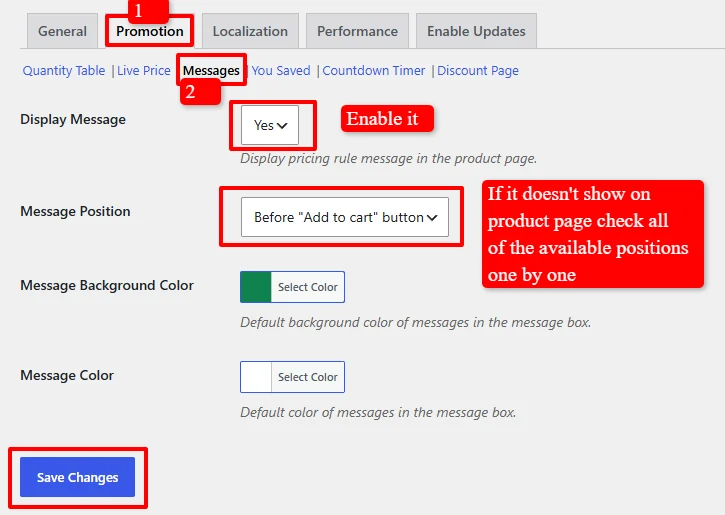
Step 2: Configure Message Display & Styling
Customize the following options to match your store’s brand aesthetic:
- Display Message: Set to Yes to enable promotional messages on single product pages.
- Message Position: Select where the message banner appears relative to product elements:
Before "Add to cart" button(Recommended)After "Add to cart" buttonBefore product summaryAfter product summary
💡 Tip: If your theme does not display the message at the default position, test each available position in the dropdown one by one to find the best match for your theme's layout.
- Message Background Color: Choose a vibrant background color (e.g.,
#1b7e45green or#ff5722vibrant orange) to make the banner stand out. - Message Color: Choose the font color (e.g.,
#ffffffwhite) for maximum readability and contrast.
Step 3: Save Changes
Click the Save Changes button to apply your global message settings.
📝 How to Add Messages to Pricing Rules
You can assign distinct, custom promotional messages to any pricing rule (Simple Discounts, Bulk Tiers, BOGO, User Role Discounts, etc.):
- Go to Woo Pricing & Discounts > Pricing.
- Create a new pricing rule or edit an existing rule.
- Scroll down to the Messages / Promotion section within the rule editor.
- Enter your custom message text. You can include emojis (e.g., 🎁, 🚀, 🎉, 🔥) for extra visual engagement.
- Save the rule.
📸 Real-World Display Examples
1. Buy 1 Get 1 (BOGO) Promotion Message
Highlighting a BOGO incentive right above the quantity picker and live pricing calculation:
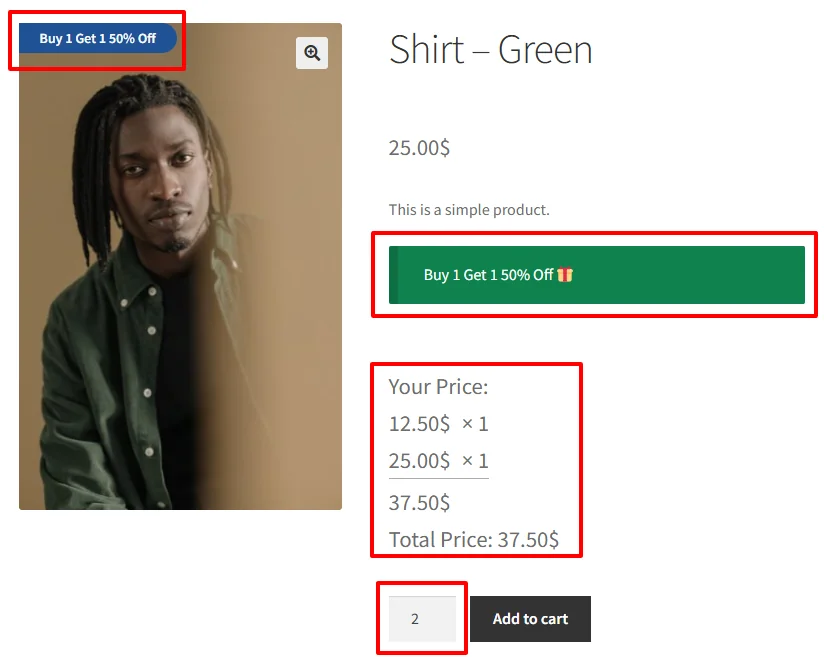
- Message Text:
Buy 1 Get 1 50% Off 🎁 - Result: Shoppers clearly see why adding a second unit gives them half-price on the second item.
2. User Role & Flash Sale Alert
Notifying wholesale members or VIP buyers of exclusive tier savings:
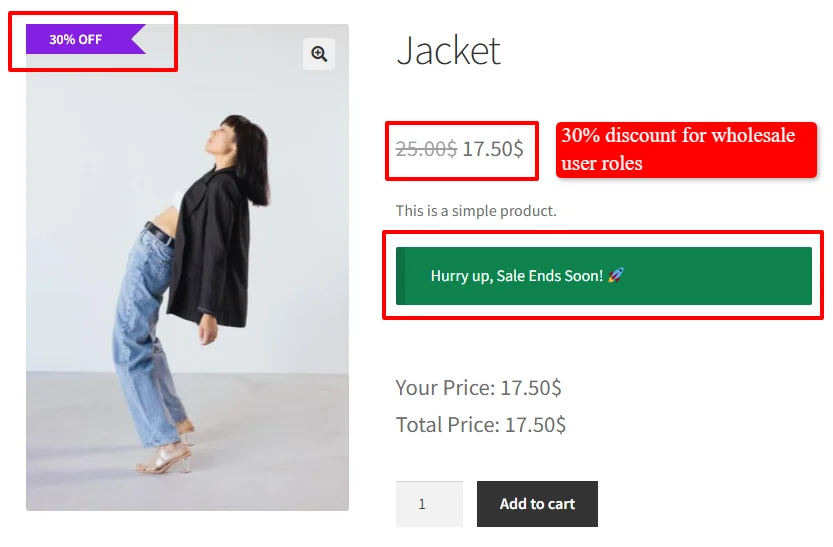
- Message Text:
Hurry up, Sale Ends Soon! 🚀 - Result: Combines urgency with clear discounted pricing (
$25.00 $17.50) and percentage badges (30% OFF).
3. Black Friday & Seasonal Campaign Banner
Promoting limited-time holiday sales across storewide promotions:

- Message Text:
🎉 Buy Now to Grab our Biggest Black Friday Deal — Get up to 30% OFF for a limited time!
💻 Using the Shortcode for Custom Placement
If you are using page builders like Elementor Pro, Divi, Gutenberg Block Themes, or custom PHP templates, you can display promotional messages anywhere using shortcodes.
On Single Product Pages
[wccs_purchase_message]
(Automatically detects the current product ID and renders active rule messages).
On Landing Pages, Popups, or Blog Posts
[wccs_purchase_message product_id="123"]
(Replace 123 with the target WooCommerce product ID to display that specific product's discount message).
💡 High-Converting Message Copy Templates
Use these proven copywriting formulas in your pricing rule messages:
| Discount Type | Sample Message Copy |
|---|---|
| BOGO Deals | 🎁 Buy 1, Get 1 at 50% OFF! Discount applies automatically in cart. |
| Bulk Tiered Pricing | 🔥 Buy 3+ items to unlock 15% OFF, Buy 5+ to save 25%! |
| Urgency / Flash Sales | ⚡ Flash Sale ends at midnight! Order now before prices go up. |
| VIP / Member Pricing | ⭐ VIP Member Exclusive: Enjoy an instant 20% discount on this item! |
| Free Gift Promotions | 🎉 Buy 2 of this item and get a Free Bonus Gift automatically! |
❓ Troubleshooting & FAQs
Why is the promotional message not appearing on the product page?
- Rule Eligibility: Ensure the product qualifies for an active pricing rule. If no active rule applies, the message box will not display.
- Rule Message Field: Confirm that you entered text in the Purchase Message field inside the specific pricing rule.
- Global Toggle: Check that Display Message is set to Yes in Woo Pricing & Discounts > Settings > Promotion > Messages.
- Theme Position: Try selecting a different hook position from the Message Position dropdown list in settings.
Can I style different messages with different colors?
The global settings under Settings > Promotion > Messages define the default background and font colors. For advanced custom designs per rule, you can add inline HTML/CSS styling or custom CSS classes in your theme stylesheet.
Does the message support emojis and HTML?
Yes. You can freely add emojis (e.g. 🎁, 🔥, ⭐) and basic HTML markup (such as <strong>, <em>, or <span>) to make your promotional text pop.
🚀 Next Steps
Combine promotional messages with other conversion-boosting dynamic pricing tools:
- How to Promote On-Sale Products in Cart & Checkout
- How to Display Product Live Discounted Price
- How to Display "You Saved" Total Savings in Cart and Checkout
- WooCommerce Discount Rules Shortcodes Reference
- Display Quantity Tables for Bulk Discounts
- Add a Countdown Timer for Flash Sales
- Customize Sale Badges on WooCommerce Products
- Display Percentage Discount Badges