How to Display Product Live Discounted Price in WooCommerce
Learn how to display a real-time live discounted price and live total price on WooCommerce product pages. This comprehensive guide covers how to enable live pricing, customize price labels, choose calculation methods, and position the dynamic price container next to your Add to Cart button to increase conversions and eliminate buyer hesitation.
📋 Table of Contents
- Why Display Live Discounted Price?
- How Live Price Updates Work
- How to Enable & Configure Live Price
- Live Price Display Modes & Examples
- Cart Quantity vs. Current Quantity Calculation
- Using the Shortcode for Custom Placement
- Troubleshooting & FAQs
- Next Steps
🚀 Why Display Live Discounted Price?
When running dynamic pricing promotions—such as bulk discounts, BOGO deals, or tiered volume pricing—standard WooCommerce product pages only show the base regular or static sale price until the item is added to the cart.
Displaying a dynamic live price directly on the product page provides immediate customer benefits:
- Instant Price Reassurance: Shoppers immediately see their discounted unit and total prices adjust as they change quantities or switch variation attributes.
- Eliminates Checkout Friction: Eliminates the guesswork and uncertainty of "Will my discount apply at checkout?", significantly reducing cart abandonment.
- Boosts Average Order Value (AOV): Motivates customers to increase the quantity selector to see their live unit price drop and total savings increase.
- Full Transparency: Renders step-by-step tiered breakdown calculations directly above the Add to Cart button.
⚙ How Live Price Updates Work
When a shopper changes the quantity input (or selects a product variation), the plugin dynamically evaluates your active pricing rules and recalculates:
- Live Unit Price (
Your Price): The effective discounted price per item. - Live Total Price (
Total Price): The total cost for the selected quantity (Live Price × Quantity). - Tier Breakdown (Multi-Tier Rules): If a tiered bulk rule applies across different quantities, it displays the itemized tiers and the sum total.
🛠 How to Enable & Configure Live Price
Follow these steps to enable and customize the dynamic live price display on your store:
Step 1: Open Live Price Settings
- In your WordPress Admin Dashboard, navigate to Woo Pricing & Discounts > Settings.
- Click on the Promotion tab.
- Select the Live Price section.
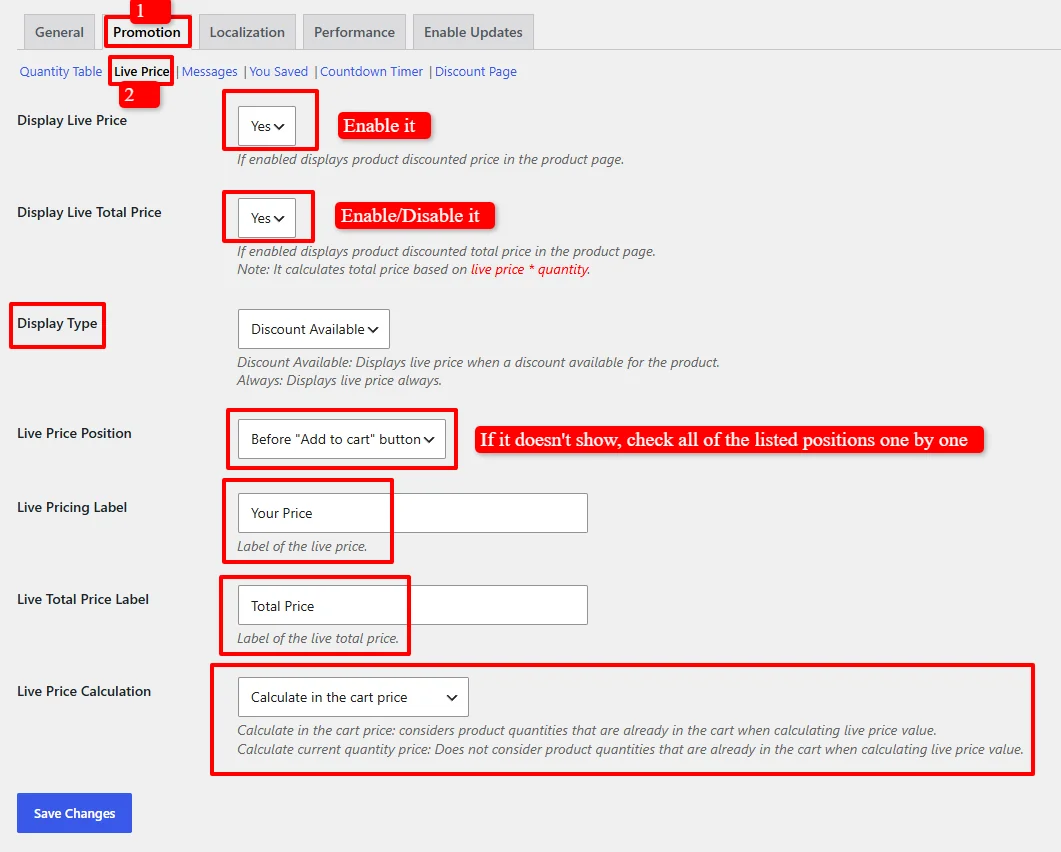
Step 2: Configure Live Price Options
Customize each setting according to your store's requirements:
- Display Live Price: Set to Yes to enable live dynamic pricing on product pages.
- Display Live Total Price: Set to Yes to calculate and display the total amount (
Live Price × Quantity). - Display Type:
Discount Available(Recommended): Displays the live price container only when an active discount rule applies to the product.Always: Always displays the live price box on all products, even at full regular price.
- Live Price Position: Select the hook position on the product page (e.g.,
Before "Add to cart" buttonorAfter "Add to cart" button).💡 Tip: If your theme does not show the live price box at the default position, test the other positions in the dropdown one by one.
- Live Pricing Label: Enter your custom unit price label (e.g.,
Your Price:,Discounted Price:,Unit Price:). - Live Total Price Label: Enter your custom total price label (e.g.,
Total Price:,Subtotal:). - Live Price Calculation: Choose how previous cart items affect product page calculation:
Calculate in the cart price(Recommended for volume rules): Considers quantities of this product already in the customer's cart when calculating tiered pricing on the product page.Calculate current quantity price: Calculates live price solely based on the quantity currently selected on the product page.
Step 3: Save Changes
Click Save Changes to activate your dynamic live pricing display.
📸 Live Price Display Modes & Examples
1. Single Unit Live Price
For simple percentage or fixed discounts, the live price displays the discounted unit price and total price:

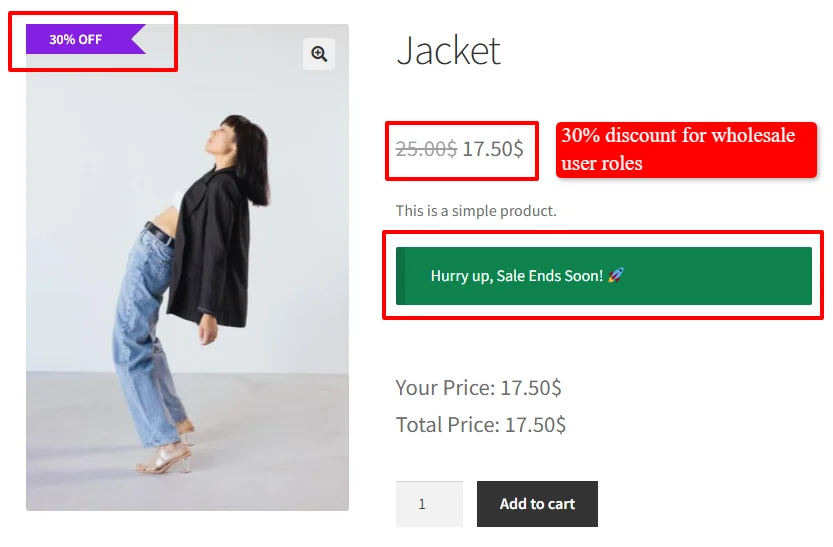
- Your Price:
$17.50 - Total Price:
$17.50
2. Tiered Quantity Breakdown
When volume or bulk tier discounts are active, the live price dynamically displays the breakdown of each tier and the resulting total:

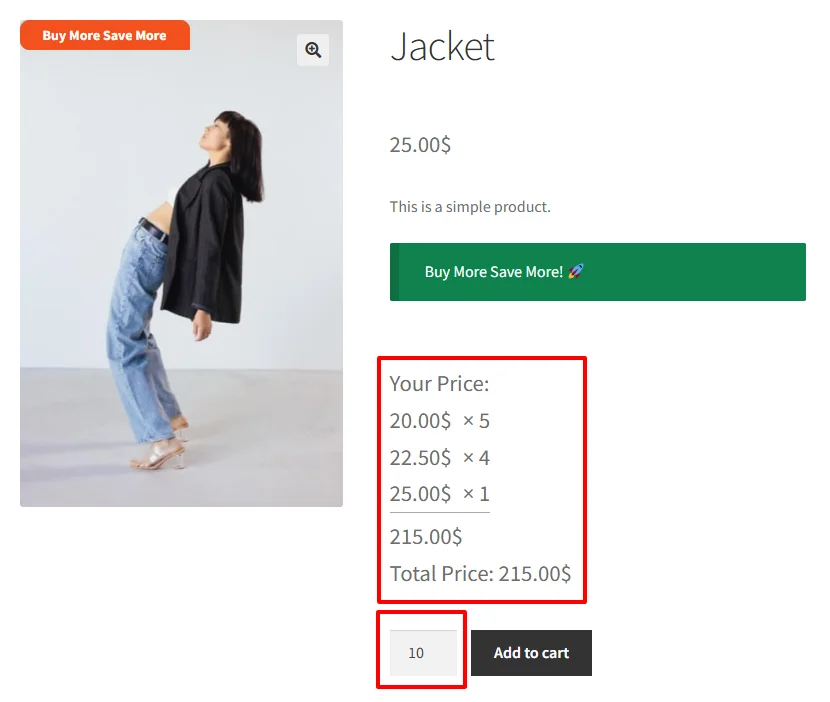
20.00$ × 522.50$ × 425.00$ × 1- Total Price:
$215.00
3. BOGO & Buy X Get Y Live Display
When running Buy 1 Get 1 (BOGO) or Buy X Get Y promotions, the live price immediately updates when the customer selects the qualifying quantity:
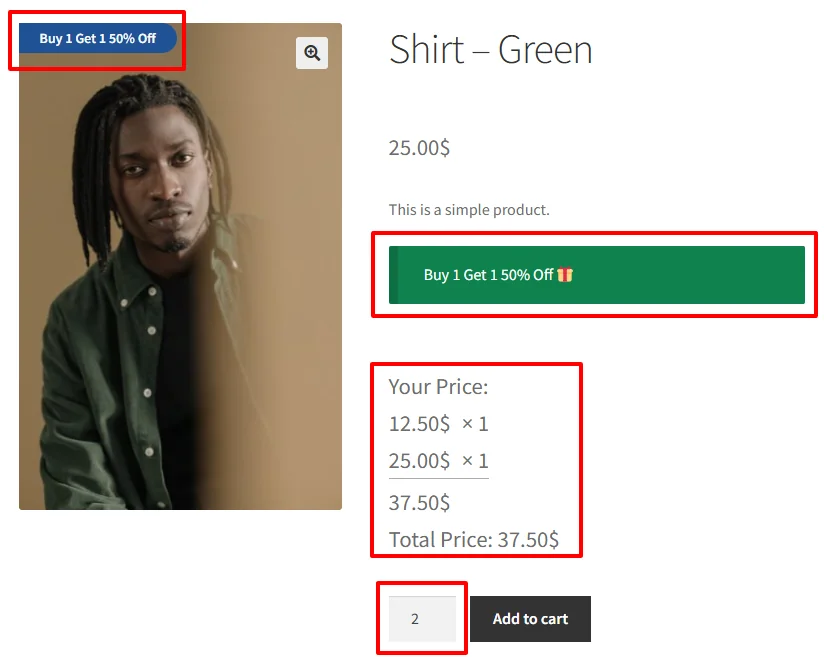
In this example of a Buy 1 Get 1 50% Off deal with quantity set to 2:
12.50$ × 1(50% off second item)25.00$ × 1(1st item at full price)- Total Price:
$37.50(Automatically calculated before adding to cart!)
🔍 Cart Quantity vs. Current Quantity Calculation
Understanding the Live Price Calculation setting ensures accurate pricing for returning or multi-item shoppers:
| Mode | How it Works | Best Use Case |
|---|---|---|
| Calculate in the cart price | If a customer already has 2 items in their cart and visits the product page to add 3 more, the plugin calculates the tier for 5 total items. | Bulk / wholesale stores where cumulative quantity unlocks higher discount tiers. |
| Calculate current quantity price | Ignores items already in the cart and calculates the discount strictly based on the number selected in the current quantity input box. | Stores where promotions are per-action or simple standalone quantity deals. |
💻 Using the Shortcode for Custom Placement
If you are using page builders like Elementor Pro, Divi, Bricks, or Gutenberg Block Themes, you can place the live price anywhere within your single product template using the live price shortcode:
[wccs_live_price]
⚠️ Important Note: The
[wccs_live_price]shortcode is context-dependent and designed exclusively for Single Product Pages. It does not accept theproduct_idparameter because it communicates directly with the active page's quantity input and variation selectors.
For more details on all available shortcodes, see the WooCommerce Discount Rules Shortcodes Guide.
❓ Troubleshooting & FAQs
Why is the live price not showing on my product page?
- Rule Check: Verify that an active pricing rule applies to the product. If Display Type is set to
Discount Availableand the product has no active discount, the box remains hidden. - Theme Hook Position: Some custom themes remove or rename standard WooCommerce action hooks. Go to Woo Pricing & Discounts > Settings > Promotion > Live Price and try selecting different options under Live Price Position.
- Page Builder Template: If using a custom single product builder template, add the
[wccs_live_price]shortcode widget directly above your Add to Cart block.
Does live price support variable products and variations?
Yes. As customers select different variation attributes (e.g., Size, Color) or adjust the quantity counter, the live price updates in real time to reflect the specific variation's discounted pricing.
Can I change the text "Your Price" and "Total Price"?
Yes. You can customize both labels in the Live Pricing Label and Live Total Price Label fields in the plugin settings, or translate them using localization plugins like WPML or Loco Translate.
🚀 Next Steps
Explore additional promotional display tools to maximize store revenue:
- How to Promote Discounts with Dynamic Messages
- Display "You Saved" Total Discount in Cart and Checkout
- WooCommerce Discount Rules Shortcodes Reference
- Display Quantity Tables for Bulk Discounts
- Add a Countdown Timer for Flash Sales
- Customize Sale Badges on WooCommerce Products
- Display Percentage Discount Badges