How to Create Checkout Fees in WooCommerce (Extra Fees & Surcharges)
Learn how to create checkout fees in WooCommerce using the Discount Rules and Dynamic Pricing for WooCommerce plugin. Whether you need to charge an order handling fee, a payment gateway surcharge (e.g., Cash on Delivery fee), a fragile item packaging charge, a heavy product delivery fee, or offer an automatic checkout credit through a negative fee, this comprehensive guide covers every step.
📋 Table of Contents
- Why Add Checkout Fees to WooCommerce?
- Fee Types Explained (Fixed, Percentage, Per Item)
- Step-by-Step: How to Create a Checkout Fee
- Step 1: Access Checkout Fees and Select a Template
- Step 2: Configure Basic Fee Settings
- Step 3: Choose Apply Mode (Rule Interaction)
- Step 4: Select Fee Type and Amount
- Step 5: Set Usage Limit (Optional)
- Step 6: Schedule the Checkout Fee (Optional)
- Step 7: Add Conditions (Optional)
- Step 8: Save and Test
- Result Example
- Real-World Checkout Fee Examples & Scenarios
- Apply Mode Behavior (Exclusive vs. Non-Exclusive)
- Troubleshooting: Checkout Fee Not Showing?
- Frequently Asked Questions (FAQ)
- Related Guides & Next Steps
- SEO Keywords & Summary
💡 Why Add Checkout Fees to WooCommerce?
Checkout fees allow WooCommerce store owners to offset operational costs, manage special handling requirements, charge payment processing surcharges, or disincentivize unprofitable micro-orders.
Unlike standard shipping charges or product base prices, checkout fees appear as distinct line items in the cart and checkout order summary, giving buyers full transparency.
Common E-Commerce Checkout Fee Use Cases
| Fee Use Case | Fee Type | Description | Typical Amount |
|---|---|---|---|
| Order Handling Fee | Percentage or Fixed | Covers general packaging, handling, and order fulfillment | 5% – 10% or $5.00 |
| Payment Gateway Surcharge | Fixed or Percentage | Offsets gateway transaction fees (e.g., Credit Card or COD fee) | 2.9% + $0.30 or $3.00 |
| Small Order Fee | Fixed Price Fee | Disincentivizes low-value carts below a minimum order threshold | $5.00 for orders under $30 |
| Rush Order / Express Processing | Fixed Price Fee | Priority warehouse packing and expedited fulfillment | $10.00 – $25.00 |
| Fragile / Heavy Item Packaging | Price Fee Per Item | Extra fee per unit requiring special freight or protective wrapping | $2.50 – $15.00 per item |
| Bottle Deposit / Eco Recycling Surcharge | Price Fee Per Item | Government-mandated environmental or recycling surcharge | $0.10 – $1.00 per unit |
| Cart Credit / Instant Rebate | Negative Fee Amount | Rewarding customers with a visible line-item discount at checkout | -$10.00 or -5% |
⚙️ Fee Types Explained (Fixed, Percentage, Per Item)
The plugin gives you 4 distinct fee calculation models to handle every pricing scenario:

1. Fee (Order-Level)
- Price fee (Fixed Amount): A flat dollar fee added once to the entire cart, regardless of the number of items.
Example: A flat $5.00 handling fee per checkout. - Percentage fee: A percentage surcharge calculated against the qualifying cart subtotal.
Example: A 10% surcharge on a $120.00 subtotal adds a $12.00 fee line item.
2. Fee Per Item (Item-Level)
- Price fee per item: Multiplies a fixed fee amount by the quantity of qualifying products in the cart.
Example: A $2.00 glass bottle deposit applied to a quantity of 4 equals an $8.00 fee. - Percentage fee per item: Calculates a percentage surcharge individually on each qualifying product line subtotal.
Example: A 5% insurance charge on high-ticket electronics line items.
Negative Fee Amount as a Discount: Entering a negative number in the Fee Amount field (e.g., -10 or -5) transforms the fee into an automatic checkout discount or credit line item!
🛠️ Step-by-Step: How to Create a Checkout Fee
Follow this step-by-step walkthrough to create a checkout fee rule in WooCommerce.
Step 1: Access Checkout Fees and Select a Template
- In your WordPress admin dashboard, navigate to Woo Pricing & Discounts.
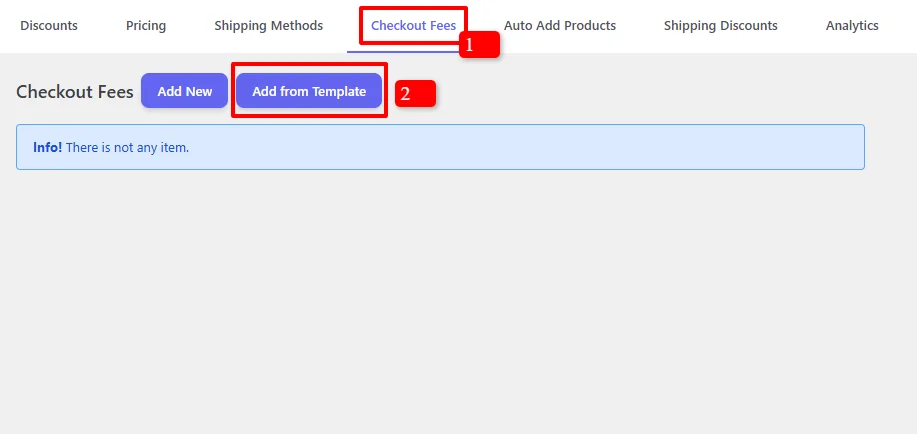
- Click on the Checkout Fees tab at the top.
- Click the Add from Template button to browse pre-built campaigns, or click Add New to build from scratch.
- In the "Choose your desired fee template" modal:
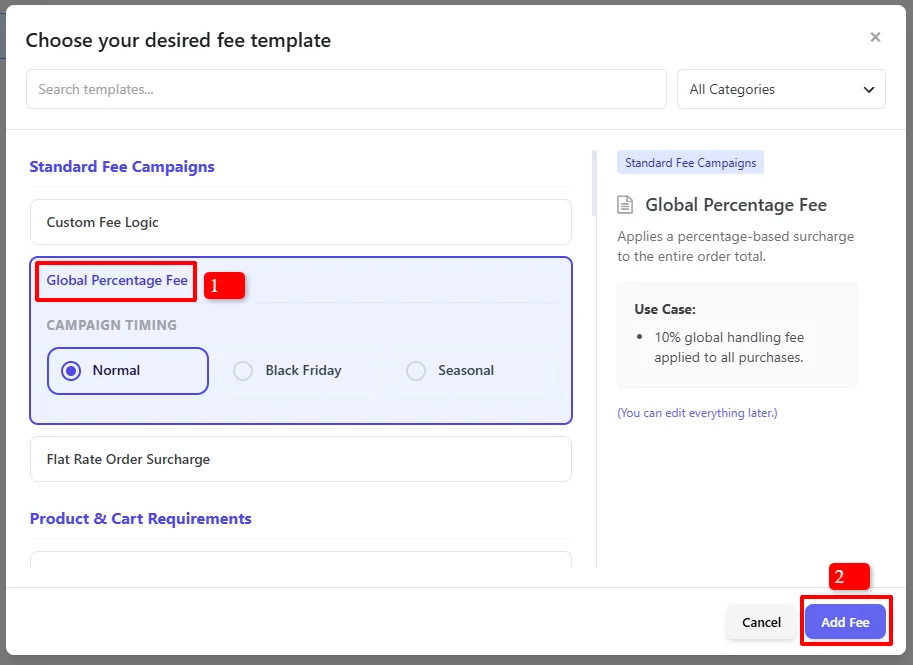
- Under Standard Fee Campaigns, select "Global Percentage Fee" (or choose Flat Rate Order Surcharge / Custom Fee Logic).
- Under Campaign Timing, choose Normal, Black Friday, or Seasonal.
- Click the blue Add Fee button.
Step 2: Configure Basic Fee Settings
Once the rule editor opens, configure the core fee parameters:
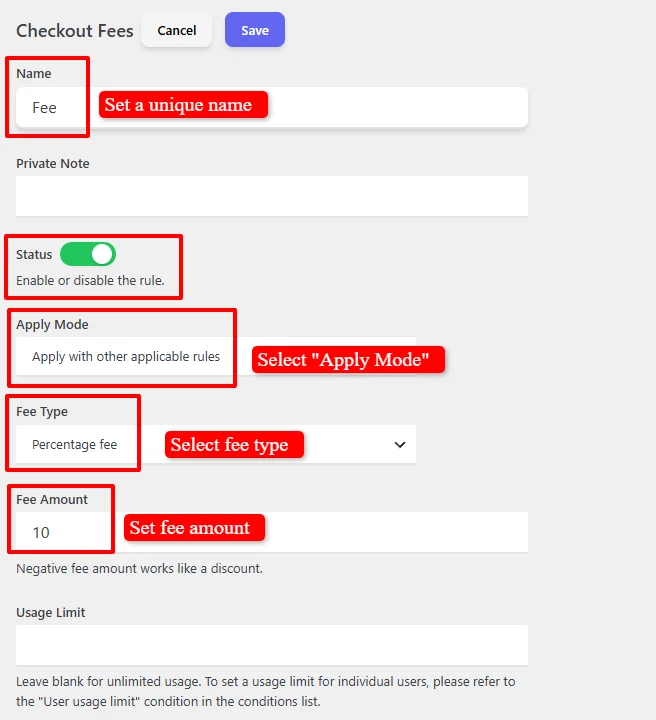
- Name: Enter a clear, customer-friendly unique title (e.g., Fee, Handling Fee, or Processing Surcharge). This name is displayed directly to shoppers on the Cart and Checkout pages.
- Private Note: (Optional) Add an internal note for store administrators explaining why this fee was created.
- Status: Switch the toggle to Active (Green) to enable the fee rule.
Step 3: Choose Apply Mode (Rule Interaction)
The Apply Mode setting determines how this checkout fee interacts with other active fee rules in your store:

Select one of the three available modes:
- Apply with other applicable rules (Non-Exclusive - Recommended): This fee will be applied alongside other eligible checkout fees. Use this when you have multiple independent fees (e.g., a payment surcharge AND a fragile packaging fee).
- Apply this rule and disregard other rules (Exclusive): If this rule qualifies, all other checkout fee rules are ignored. This rule takes absolute priority.
- Apply if other rules are not applicable (Exclusive Fallback): This fee acts as a fallback; it only applies if no higher-priority fee rules matched the customer's cart.
Step 4: Select Fee Type and Amount
-
Fee Type: Choose how the fee is calculated from the dropdown:
- Price fee (Fixed order amount)
- Percentage fee (Percentage of cart subtotal)
- Price fee per item (Fixed amount multiplied by qualifying item quantities)
- Percentage fee per item (Percentage of line item subtotal)
-
Fee Amount: Enter the numeric value:
- For a 10% handling fee, select Percentage fee and enter
10. - For a $5.00 flat fee, select Price fee and enter
5. - For a $5.00 checkout discount / instant credit, enter
-5.
- For a 10% handling fee, select Percentage fee and enter
Note: Do not enter currency symbols (
$) or percentage signs (%) in the Fee Amount input field; enter only numeric values.
Step 5: Set Usage Limit (Optional)
- Usage Limit: Leave this field blank for unlimited usage across all customers.
- If you want the fee or promotion to apply only a limited number of times storewide (e.g., the first 100 checkout credits), enter a maximum number.
- To limit usage on a per-customer basis, leave this blank and use the User usage limit condition under the Conditions section.
Step 6: Schedule the Checkout Fee (Optional)
You can schedule your checkout fee to run on specific dates, times, or recurring days of the week, exactly like other discount rules in the plugin.
By default, the fee campaign is unscheduled and remains active continuously:

To schedule time-sensitive surcharges, holiday fees, or weekend promotions, scroll to the "Date Time" section:

Available Scheduling Conditions:
- Date Range: Run the fee during a calendar window (e.g.,
2026-11-20to2026-11-30for a holiday rush fee). - Date Time Range: Set exact start and end minute timestamps for flash promotions or limited-time checkout credits.
- Specific Date: Activate the fee only on selected calendar dates (e.g., peak holiday order dates).
- Days: Restrict the fee to specific days of the week (e.g., Saturday and Sunday weekend surcharges).
- Time: Restrict the fee to specific daily hours (e.g., night-shift processing fee between 22:00 and 06:00).
You can combine schedule rules using + And New Rule (e.g., Weekends AND Between 18:00 - 23:59) or create alternative windows using + OR New Group.
For a deep dive into timezone setup, recurring schedules, and multi-tier scheduling logic, read our comprehensive Scheduling & Date-Time Guide.
Step 7: Add Conditions (Optional)
Conditions allow you to transform a basic surcharge into a smart, dynamic conditional checkout fee. Under the Conditions section, specify exactly when this fee should appear:
Most Popular Conditions for Checkout Fees:
- Payment Method (
payment_method):- Apply surcharges only when a customer selects a specific gateway, such as Cash on Delivery (COD), wire transfer, or high-fee merchant gateways.
- Cart Subtotal (
subtotal_inc_taxorsubtotal_ex_tax):- Apply a small order handling fee when the cart subtotal is Less than or equal to $50.00.
- Shipping Country / State / City (
shipping_country,shipping_state):- Charge an extra surcharge for remote deliveries, non-continental territories, or international destinations.
- Customer Role (
roles):- Apply different fees for Retail Customers vs. Wholesale B2B buyers, or waive handling fees for VIP members.
- Products or Categories in Cart (
products,categories):- Add extra handling charges only when bulky items, refrigerated goods, or hazardous materials are in the cart.
- Cart Item Quantity (
cart_items_count):- Add a high-volume packing fee when carts contain more than 20 individual items.
For full details on all 14 condition groups, AND/OR logic, and available comparison operators, check out our Complete Rule Conditions Guide.
Step 8: Save and Test
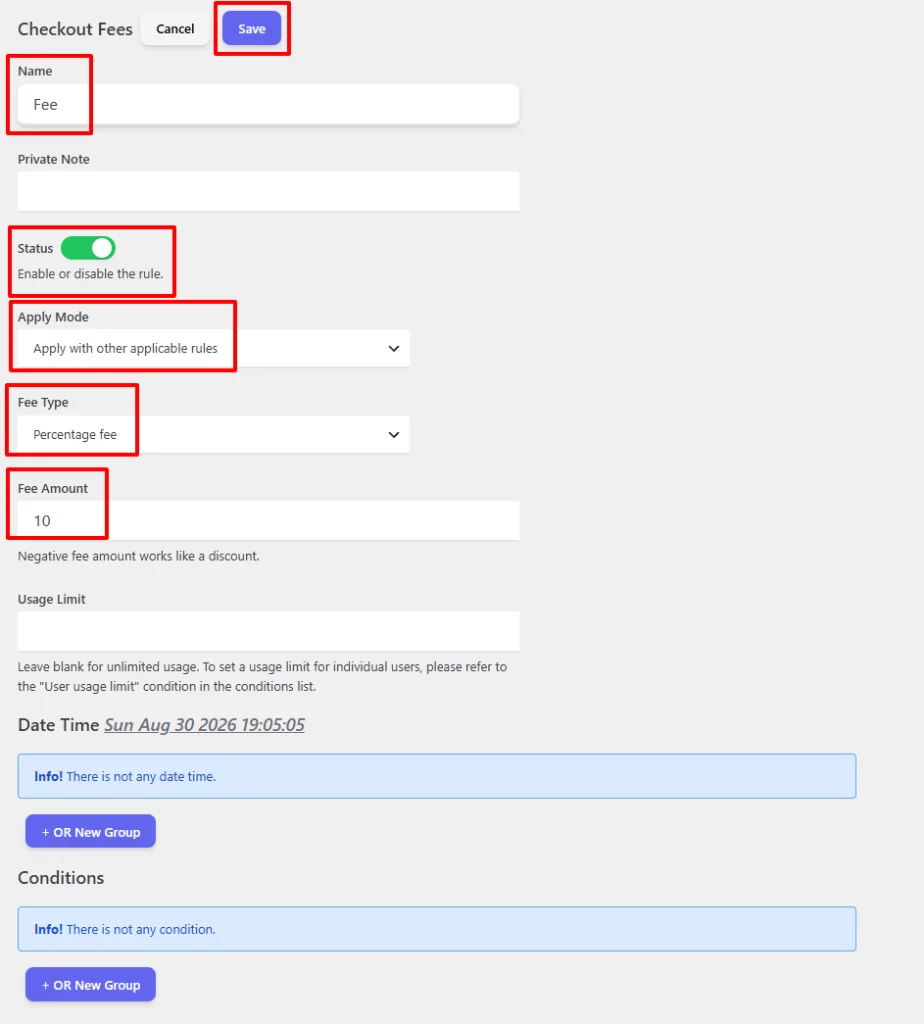
- Review your configured parameters:
- Name: "Fee"
- Status: Enabled
- Apply Mode: "Apply with other applicable rules"
- Fee Type: "Percentage fee"
- Fee Amount: "10"
- Click the blue Save button at the top right of the rule editor.
Result Example
Cart with 10% Percentage Fee Applied
Once your checkout fee rule is saved, test it by adding products to the shopping cart:
Cart items:
- Shirt: 20.00$ × 1 = 20.00$
- Shirt – Green: 25.00$ × 2 = 50.00$
Subtotal: 70.00$
Result: The "Fee" rule automatically calculates a 10% surcharge on the $70.00 cart subtotal, adding a 7.00$ fee line item directly to the cart totals:
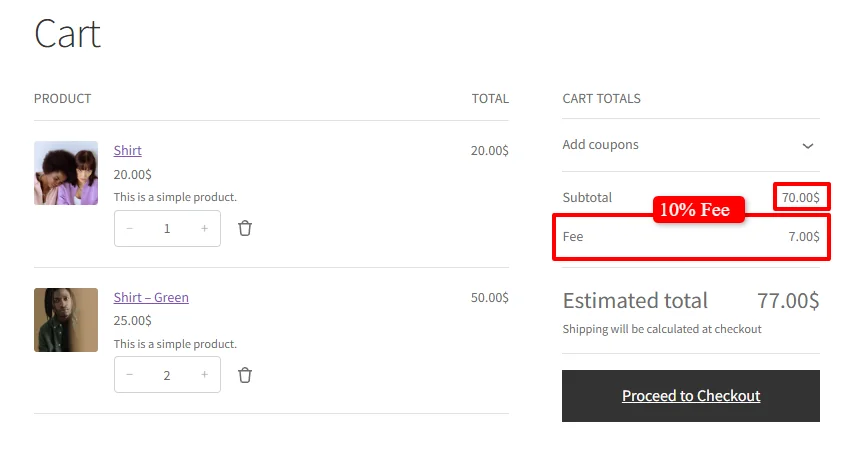
Cart Totals display shows:
- Subtotal: 70.00$
- Fee: 7.00$ (10% fee on qualifying subtotal)
- Estimated total: 77.00$
🎯 Real-World Checkout Fee Examples & Scenarios
Scenario 1: Global Percentage Fee (10%)
- Goal: Apply an automatic 10% percentage fee on all store orders.
- Name:
Fee - Apply Mode:
Apply with other applicable rules - Fee Type:
Percentage fee - Fee Amount:
10 - Date / Time: Unscheduled (always active)
- Conditions: None (applies to all carts)
Cart Calculation:
- Shirt (20.00$ × 1) + Shirt – Green (25.00$ × 2) = 70.00$
- Fee (10%): +7.00$
- Estimated Total: 77.00$
Scenario 2: Cash on Delivery (COD) Payment Surcharge
- Goal: Charge a flat $5.00 fee when customers choose "Cash on Delivery" to offset courier collection charges.
- Name:
Cash on Delivery Collection Surcharge - Apply Mode:
Apply with other applicable rules - Fee Type:
Price fee - Fee Amount:
5 - Conditions:
- Condition: Payment Method
- Operator: In list
- Value:
Cash on delivery (cod)
Checkout Behavior:
- When the customer selects Credit Card: No extra fee is applied.
- When the customer switches to Cash on Delivery: The $5.00 COD fee appears automatically in the order summary.
Scenario 3: Small Order Fee for Orders Under $50
- Goal: Charge a $4.00 small order fee on low-value carts to maintain profitable margins.
- Name:
Small Order Processing Fee - Fee Type:
Price fee - Fee Amount:
4 - Conditions:
- Condition: Subtotal including tax
- Operator: Less than
- Value:
50
Cart Calculation:
- Cart subtotal of $35.00: Surcharge of +$4.00 is added.
- Customer adds another item, bringing subtotal to $65.00: The fee disappears automatically!
Scenario 4: Negative Fee as a Checkout Discount
- Goal: Give an instant $10.00 checkout courtesy credit for VIP customers.
- Name:
VIP Member Checkout Credit - Fee Type:
Price fee - Fee Amount:
-10 - Conditions:
- Condition: User roles
- Operator: In list
- Value:
VIP Customer
Cart Calculation:
- Cart Subtotal: $100.00
- VIP Member Checkout Credit: -$10.00
- Order Total: $90.00
🔀 Apply Mode Behavior (Exclusive vs. Non-Exclusive)
When running multiple fee campaigns simultaneously, the Apply Mode controls priority and combination:
| Apply Mode | Mode Category | How It Works | Best For |
|---|---|---|---|
| Apply with other applicable rules | Non-Exclusive | Stacks this fee together with any other active fees that qualify. | Independent surcharges (e.g., COD Fee + Fragile Packing Fee). |
| Apply this rule and disregard other rules | Exclusive Priority | Triggers this fee and cancels all other checkout fee rules. | Overriding fees (e.g., a mandatory Flat Freight Fee that replaces all standard handling). |
| Apply if other rules are not applicable | Exclusive Fallback | Triggers only if zero other fee rules qualified for this order. | Default fallback handling fees. |
🔍 Troubleshooting: Checkout Fee Not Showing?
If your checkout fee does not appear during cart or checkout testing, verify the following checklist:
- Verify Rule Status: Ensure the Status toggle is switched to Enable (Green).
- Review Condition Logic:
- If using multiple conditions inside the same group, ensure the cart satisfies all criteria simultaneously (AND logic).
- If testing a payment method fee, make sure you actually select that payment method on the checkout page (WooCommerce refreshes checkout totals dynamically via AJAX).
- Verify Scheduling & Timezone:
- If you set a date or time window, check your WordPress timezone under Settings > General > Timezone. Rules evaluate according to your site's local time.
- Check Apply Mode Conflicts:
- If another rule has "Apply this rule and disregard other rules" enabled and ranks higher in priority, it may be suppressing your fee.
- Clear Browser & Object Cache:
- Clear your site cache and test using an Incognito / Private browser window to avoid stale WooCommerce cart sessions.
- Check for Plugin Conflicts:
- Having multiple dynamic pricing, checkout fee, payment surcharge, or cart-altering plugins active simultaneously can overwrite WooCommerce fee hooks (
woocommerce_cart_calculate_fees) or cause calculation loops. - Temporarily deactivate competing checkout fee or pricing plugins and test in an incognito window. If the admin screen fails to load or save rules, check for JavaScript conflicts from plugins enqueued globally (such as SkyVerge or analytics tools).
- For an in-depth diagnostic walkthrough, see our Complete Troubleshooting Guide.
- Having multiple dynamic pricing, checkout fee, payment surcharge, or cart-altering plugins active simultaneously can overwrite WooCommerce fee hooks (
❓ Frequently Asked Questions (FAQ)
Can I charge different checkout fees for different payment gateways?
Yes! Under the Conditions section, add a Payment Method condition and select the target gateway (e.g., Cash on Delivery, Stripe, PayPal, or BACS). The fee updates dynamically on the checkout page when the shopper switches payment methods.
Are checkout fees taxable in WooCommerce?
Yes, checkout fees generated by the plugin integrate with WooCommerce's native fee API (WC_Cart::add_fee). You can configure whether fees are taxable or exempt in the plugin's global checkout fee settings.
Can I set a maximum cap on checkout fees?
Yes! In the plugin settings, you can configure a Checkout Fee Limit (either a maximum fixed price or a maximum percentage of the cart subtotal) to prevent stacked fees from exceeding a safe ceiling.
Can I combine multiple fees into a single line item at checkout?
Yes. In the global settings, choose between displaying each fee as a separate line item (recommended for itemized transparency) or combining all fees under a single unified title (such as "Additional Fees" or "Handling").
📚 Related Guides & Next Steps
- Create Shipping Discounts — Apply percentage or fixed discounts on all or specific shipping methods.
- Payment Method Fees (Gateway Surcharges & COD Fees) — Add extra fees or COD surcharges based on the selected payment gateway.
- Scheduling & Date-Time Guide — Master date ranges, flash sale minutes, and recurring day schedules.
- Complete Rule Conditions Guide — Explore all 14 condition groups to build targeted conditional fee rules.
- Create Custom Shipping Methods — Set up flat rate, location-based, and conditional shipping methods.
- Create Automatic Cart Discounts — Set up subtotal-based tiered cart discounts.
🔎 SEO Keywords & Summary
- Primary Keywords: create checkout fees in WooCommerce, how to create checkout fees in WooCommerce, add checkout fee WooCommerce, WooCommerce checkout fees, WooCommerce extra fee at checkout, WooCommerce checkout surcharge, WooCommerce handling fee.
- Secondary & Long-Tail Keywords: WooCommerce payment method fee, conditional checkout fee WooCommerce, add surcharge to WooCommerce checkout, WooCommerce dynamic checkout fee, WooCommerce small order fee, cash on delivery fee WooCommerce, WooCommerce fee per item, negative fee discount WooCommerce, schedule checkout fee WooCommerce, WooCommerce extra fees plugin.