Partial Payments
RestockBeacon Pro lets a Preorder campaign collect a deposit at checkout and record the remaining balance on the order. The Free plugin must be active alongside Pro. The balance is collected separately before fulfilment; the plugin does not charge it automatically.
Configure the deposit
Open Preorders → Campaigns, create or edit a Preorder campaign, and select the Content tab. Under Payment, choose Partial Payment. Set Deposit type to Percentage of price or Fixed amount, then enter a deposit greater than zero. A fixed deposit is applied per item when customers order more than one unit.
Use Show on product page to choose whether shoppers can select Full payment or Partial payment, or must pay the deposit. The screenshot uses a 30% deposit and lets shoppers choose.
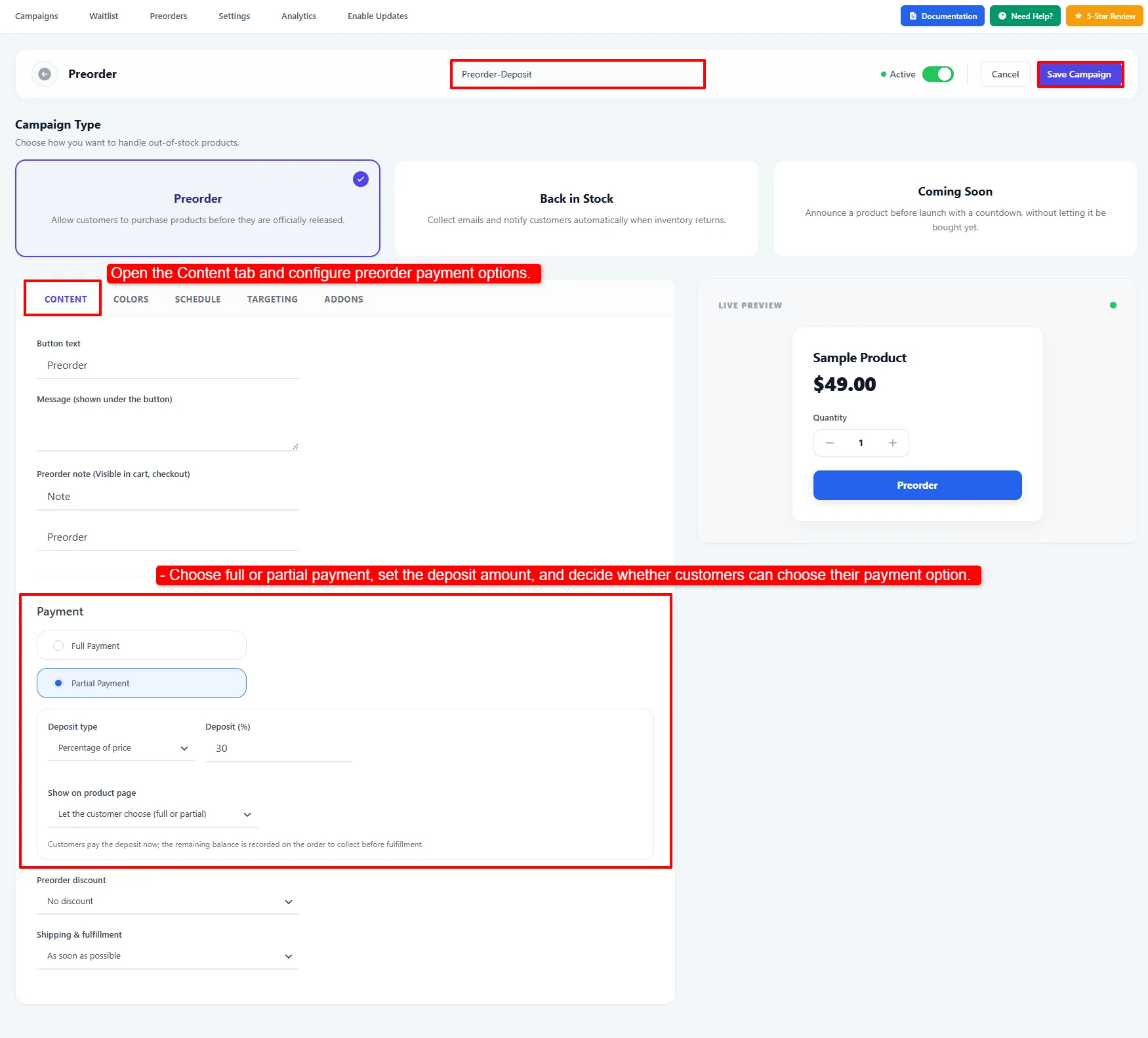
Choose the deposit type and amount, then decide whether full payment remains available.
Target products and place the payment box
On the Targeting tab, choose when the campaign applies and select the products under Apply to. In the screenshot, the campaign targets one product when it is out of stock. Use the availability setting that fits your launch, then confirm the selected products before saving.
The Payment option box settings control where the deposit choice appears on the product page. Choose a built-in position or place it before or after a CSS Selector such as form.cart. If the selector matches nothing, the box stays in its normal position. Check the product page after changing the position, especially when your theme changes the Add to Cart layout.
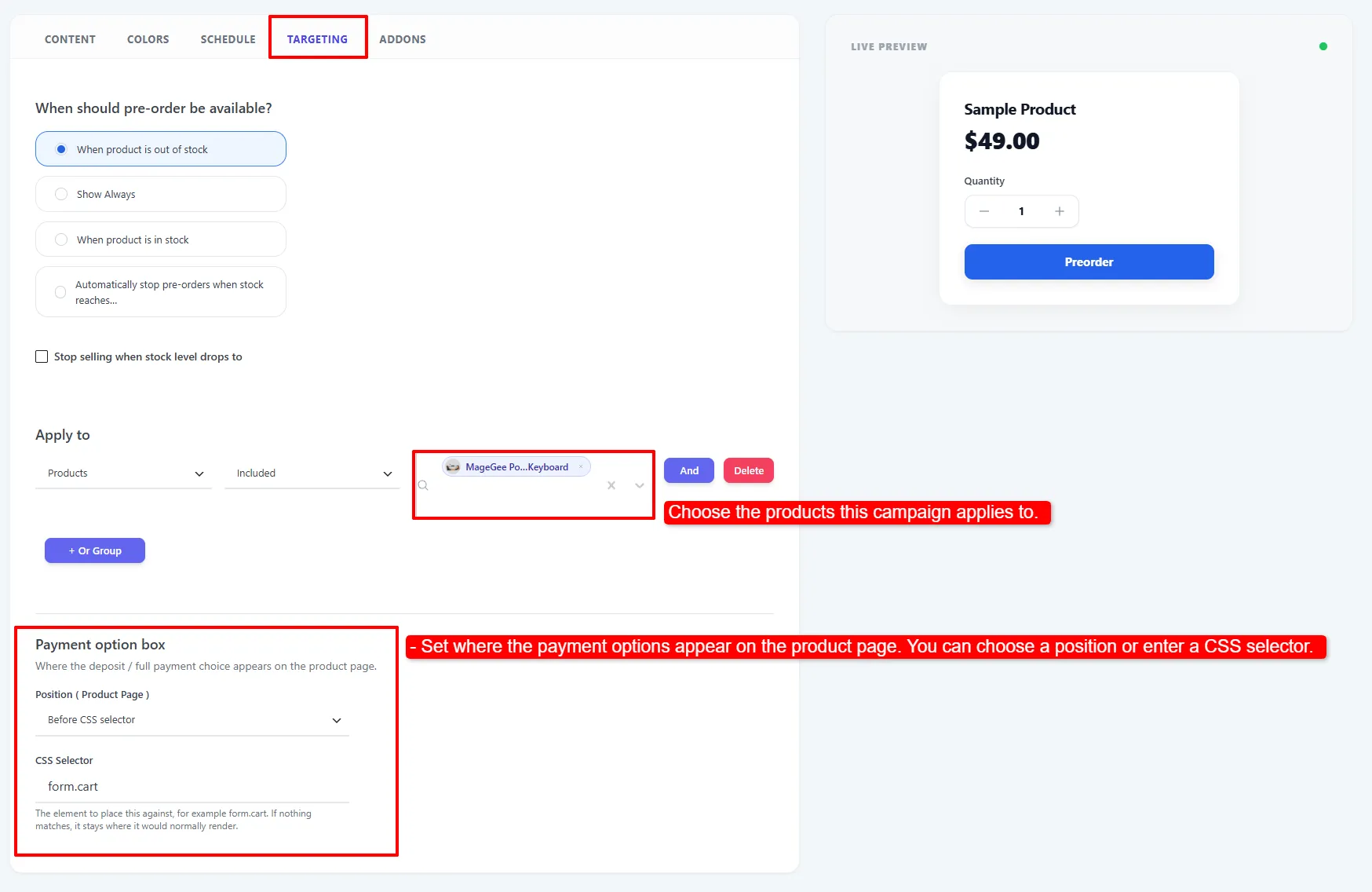
Target the right products and choose where the payment options appear.
Click Save Campaign, then open a targeted product page to confirm the campaign is active.
Check the customer experience
When shoppers can choose, the product page shows Full payment and Partial payment above the Preorder button. The deposit amount is displayed next to the partial option. With the screenshot's $50 product and 30% deposit, the shopper pays $15 now and owes $35 later.
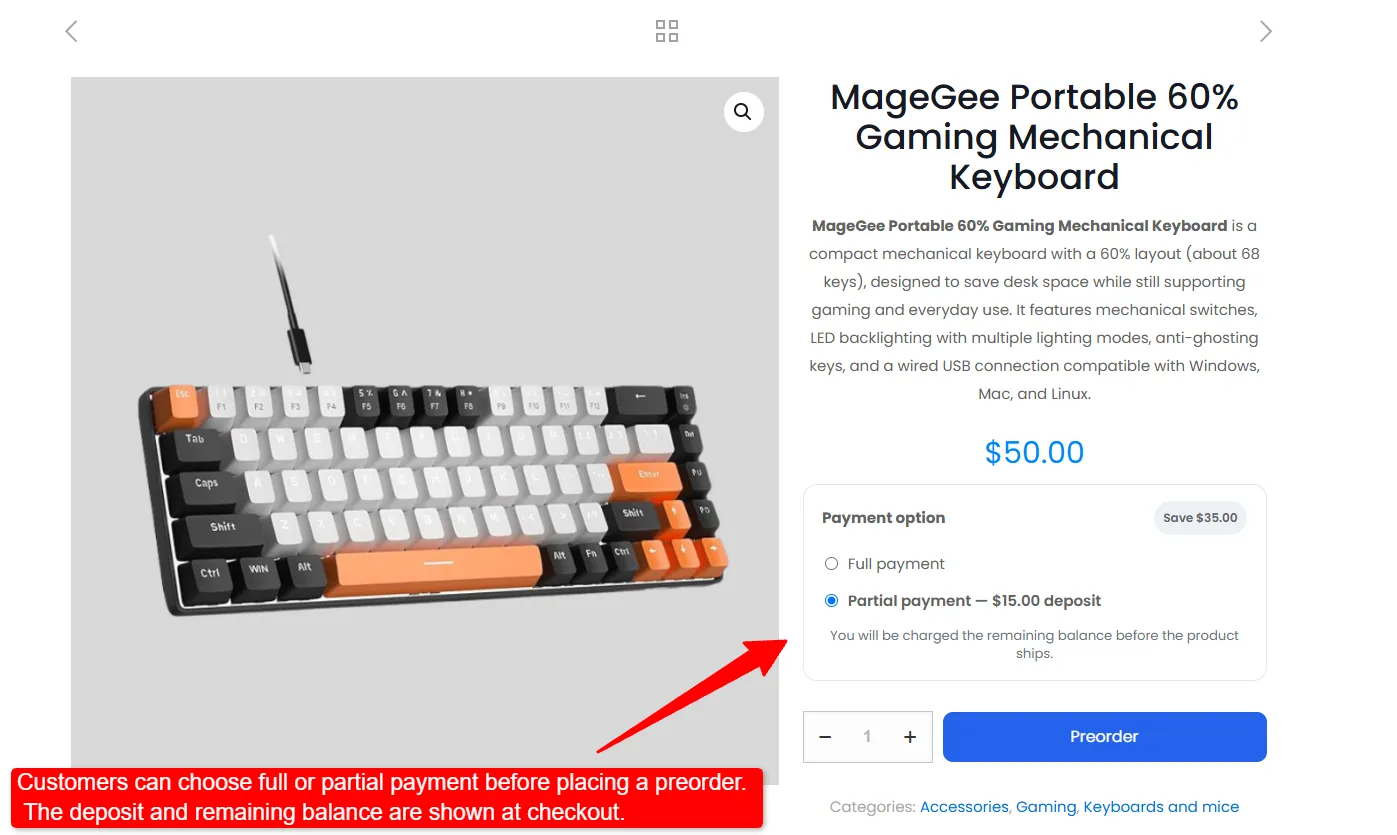
The customer can choose the deposit before adding the product to the cart.
The screenshot's Save $35.00 badge refers to the amount deferred until later. It is part of the product price, not a discount.
In the cart, the selected payment option appears on the preorder item. Balance due later reduces the amount payable at checkout, and the payment plan states what is due now and before fulfilment. This example has no additional shipping or tax charges, so the $50 subtotal becomes $15 payable now and $35 due later.
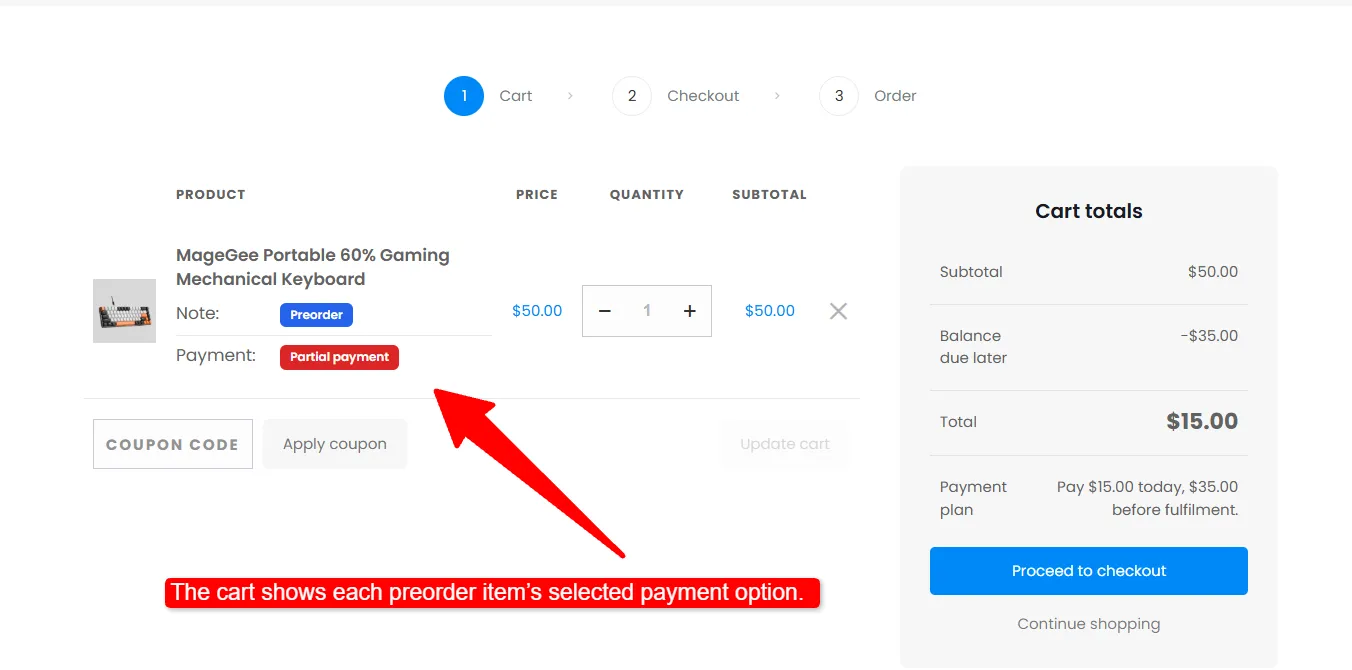
The cart shows the selected payment option, the deferred balance, and today's total.
Collect and record the remaining balance
After checkout, the order records the deposit paid and balance due. Arrange and collect the remaining payment before fulfilment using your normal payment process. Once you have actually received it, open the order in WooCommerce → Orders, select Mark preorder balance as paid from the order actions, and apply the action. This updates the recorded balance status and adds an order note; it does not take a payment from the customer.
Tax is calculated on the full order when the deposit order is placed. If you offer a preorder discount, the deposit is calculated from the discounted price. See Preorders for the rest of the campaign setup and Pro Features for the other Pro options.