Targeting & Scheduling
Overview
Every campaign has two rule sets that decide which products it applies to and when it is active. Both live as tabs in the campaign editor, and both are optional — a campaign with no schedule runs always.
How it works
Rules are built in groups. Within one group, every rule must match (AND — the And button adds one). Separate groups are alternatives (OR — the + Or Group button adds one). Combined with Include/Exclude, that is enough to express almost any product set — for example "everything in Summer, except the sample pack".
The same AND/OR structure applies to scheduling, so you can run a campaign on specific weekdays inside a date window.
Targeting
The Targeting tab answers two questions: when the campaign should be available, and which products it covers.
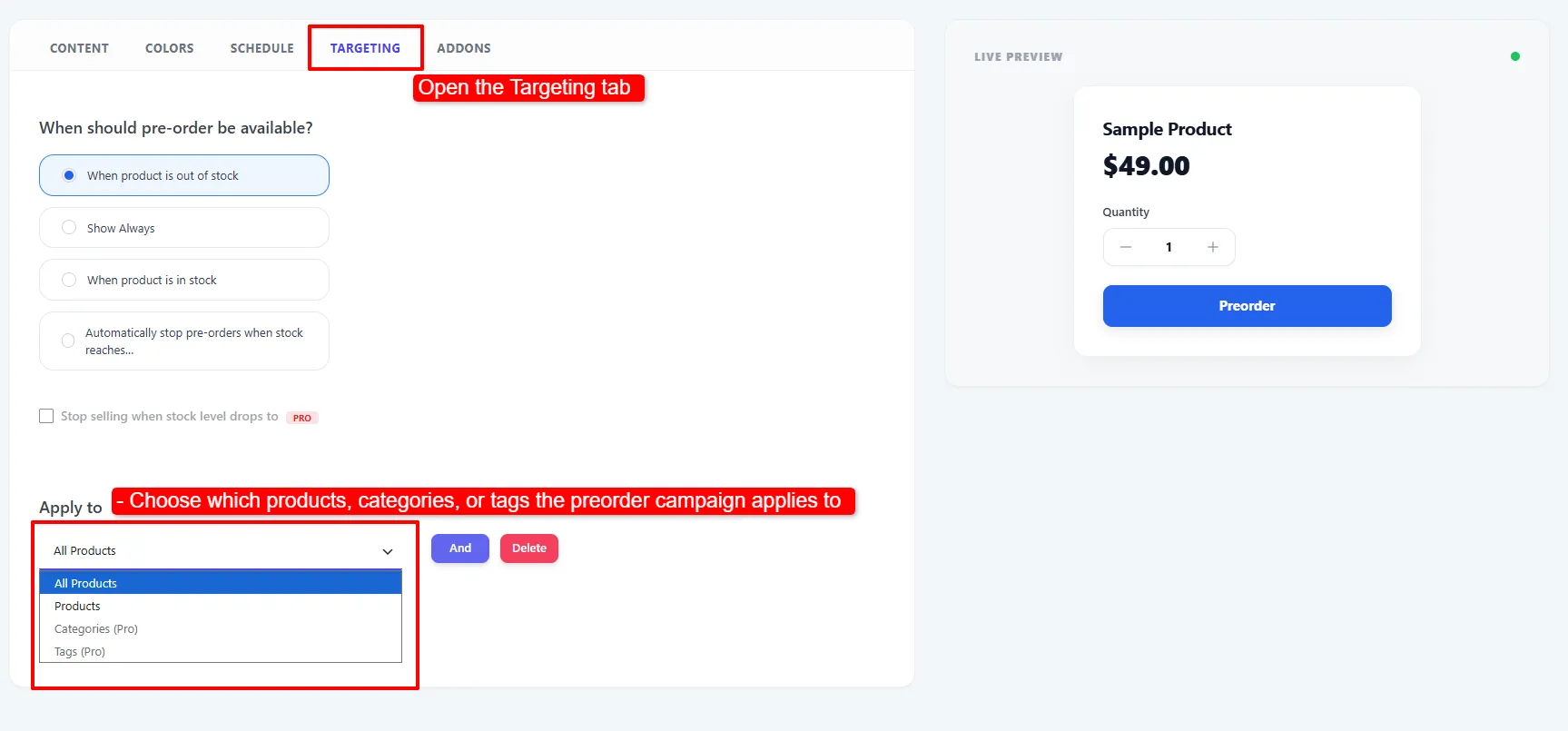
The Targeting tab. The Apply to dropdown is open, showing the two Free options and the two Pro ones.
Availability
| Option | What it does |
|---|---|
| When product is out of stock | The default, and the right choice for most campaigns. |
| Show Always | Applies regardless of stock. |
| When product is in stock | For staged launches. |
For a Coming Soon campaign the same choices appear under When should coming soon apply?
A Back in stock campaign has no availability choices: its Notify me form always shows while the product is out of stock.
Stop taking preorders after a set number (Pro)
Tick Stop taking preorders after a set number and enter how many preorders each product may take — for example 10. Once a product reaches it, preorders close and the product shows like any other out-of-stock product — WooCommerce's Out of stock label and no Add to Cart button. If a back-in-stock campaign also covers the product, the Notify me form shows instead. A customer whose unpaid order holds the last place can still pay for it.
- The limit is per product (per variation for variable products), not shared across the campaign.
- One cart can never go over it: the quantity box stops at the preorders left, and adding more — on the product page, in the cart, or at checkout — shows “Only 2 of … are left to preorder.”
- Failed, cancelled and refunded orders free their place, so abandoned orders don't close preorders early.
- Manage stock on: the count comes from stock going below zero (−1, −2, …) as preorders are paid for.
- Manage stock off: the plugin counts preorders itself and starts again from zero when you mark the product In stock.
- Leave the field blank for no limit. The option appears on Preorder campaigns only — Coming Soon and Back in stock campaigns never take orders.
For a limit on total preorder units set on the product itself, see Order limits.
In the Free version the option carries a PRO badge and stays greyed out.
Apply to
| Target | Availability |
|---|---|
| All Products | Free |
| Products (specific products, incl. variations) | Free |
| Categories | Pro |
| Tags | Pro |
Choosing Products, Categories or Tags reveals a second dropdown — Included or Excluded — and a picker for the items themselves. All Products needs neither.
Free targets All Products or specific Products. Pro adds Categories and Tags, which is what makes store-wide rules practical on a large catalogue.
Scheduling
The Schedule tab controls when the campaign is active. Leave it empty to run always.
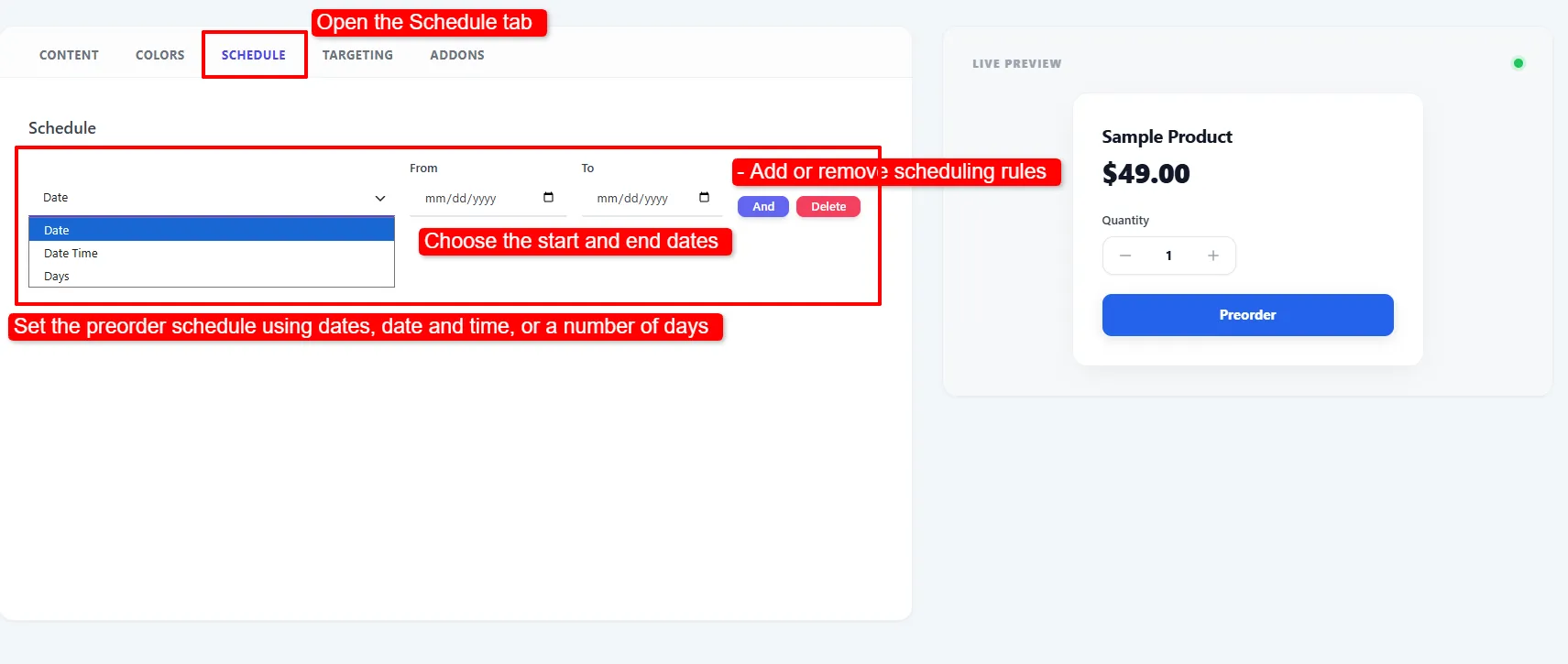
The Schedule tab. Pick a rule type, then set the window with From and To.
| Option | What it does |
|---|---|
| Date | A start and/or end date, using the From and To fields. |
| Date Time | The same window, but with a specific time of day. |
| Days | Weekday checkboxes — Monday to Sunday. The campaign runs only on the days you tick. |
Use And to add another rule to the same group, and Delete to remove one. A Date rule plus a Days rule in the same group means inside this window, but only on these weekdays.
The Days option shows a row of weekday checkboxes. It does not take a duration — for a rolling window, use Date or Date Time.
🧪 Example configuration
A preorder campaign for a summer range that opens on a fixed date:
| Tab | Rule |
|---|---|
| Targeting | Availability → When product is out of stock |
| Targeting | Apply to → Categories → Included → Summer (Pro) |
| Targeting | And → Products → Excluded → Summer Sample Pack |
| Schedule | Date → From 1 May, To 30 June |
| Status | Active |
Result: every product in Summer except the sample pack is preorderable, but only between 1 May and 30 June. Outside that window the campaign silently stops applying and products behave normally.
- Leave the schedule empty unless you need a window. An expired schedule is the most common cause of "my campaign stopped working".
- Prefer one broad campaign plus narrow exceptions over many overlapping campaigns — the newest match wins, which gets hard to reason about at scale.
- Use Excluded rather than building a long Included list. It is shorter and survives new products being added.
Schedules use your WordPress site timezone (Settings → General), not the visitor's. Check it before scheduling a launch that starts at midnight.
Next Steps
- Campaigns — how campaigns are structured.
- Waitlist — manage the sign-ups your campaigns generate.
- Pro Features — category/tag targeting, B2B and region rules.
Frequently asked questions
Can I apply preorders to a whole category?
Yes, with Pro. Category and tag targeting are Pro features; the free version targets All Products or specific Products.
How do Included and Excluded work together?
Excluded wins. A product matched by an Included rule but also matched by an Excluded rule is not covered by the campaign.
What happens when a schedule expires?
The campaign stops applying immediately and products revert to normal WooCommerce behaviour. Nothing is deleted — clear or extend the schedule to resume.
Can I target variations individually?
Yes. In Apply to → Products, the search lists each variation separately, so a campaign can cover a single variation. Choosing the parent product covers all its variations; with When product is out of stock, only the variations that are out of stock become preorders.
Can two campaigns target the same product?
Yes. If both are active and the same type, the newest one wins. A Preorder and a Back in Stock campaign can both apply to one product at the same time.
Does the Targeting tab look the same on a Back in Stock campaign?
Yes — both campaign types share it, including the heading, which reads "When should pre-order be available?" either way. On a Back in Stock campaign it decides when the Notify me button appears.