Preorder
Overview
A Preorder campaign keeps the Add to Cart button active on out-of-stock or upcoming products, relabels it, adds a message and a note, and records a ship date on the order. Customers can buy before the product is available; you fulfil when it arrives.
How it works
You are launching a new product and stock has not arrived. Rather than hiding the product or letting it sit as "Out of stock", you create a Preorder campaign: the button now reads "Preorder", a line underneath says "Ships on 15 September", and the order that arrives records the ship date so your fulfilment team knows not to pick it yet.
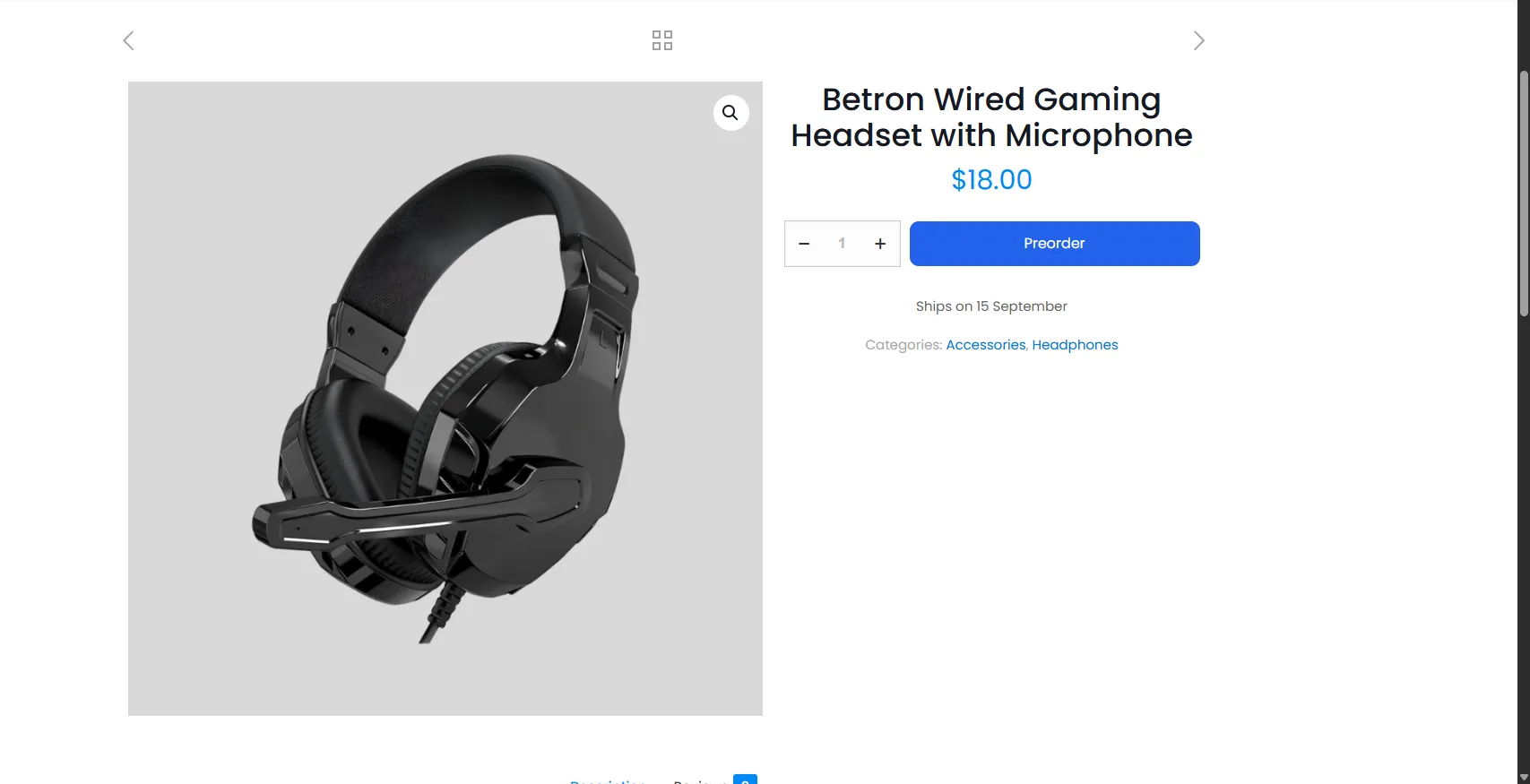
The product page in preorder mode: the Add to Cart button is relabelled and the ship date sits directly underneath.
Step-by-step setup
The campaign editor has five tabs. A preorder needs three of them, in this order: Content, Colors, Targeting.
1. Name it, pick the type, and write the content
Open Preorders → Campaigns → Add New, give the campaign a name, and choose Preorder as the type. Then on the Content tab set:
- Button text — what replaces "Add to Cart", e.g.
Preorder. - Message (shown under the button) — free text under the button, e.g.
Ships on 15 September. - Preorder note — a label and a value (
Note/Preorder) that follow the item into the cart, the checkout and the order. - Payment —
Full Paymentcharges the whole price now.Partial Paymentis the Pro deposit option. - Shipping & fulfillment —
Specific dateplus a date, or a relative offset. This is what gets saved to the order.
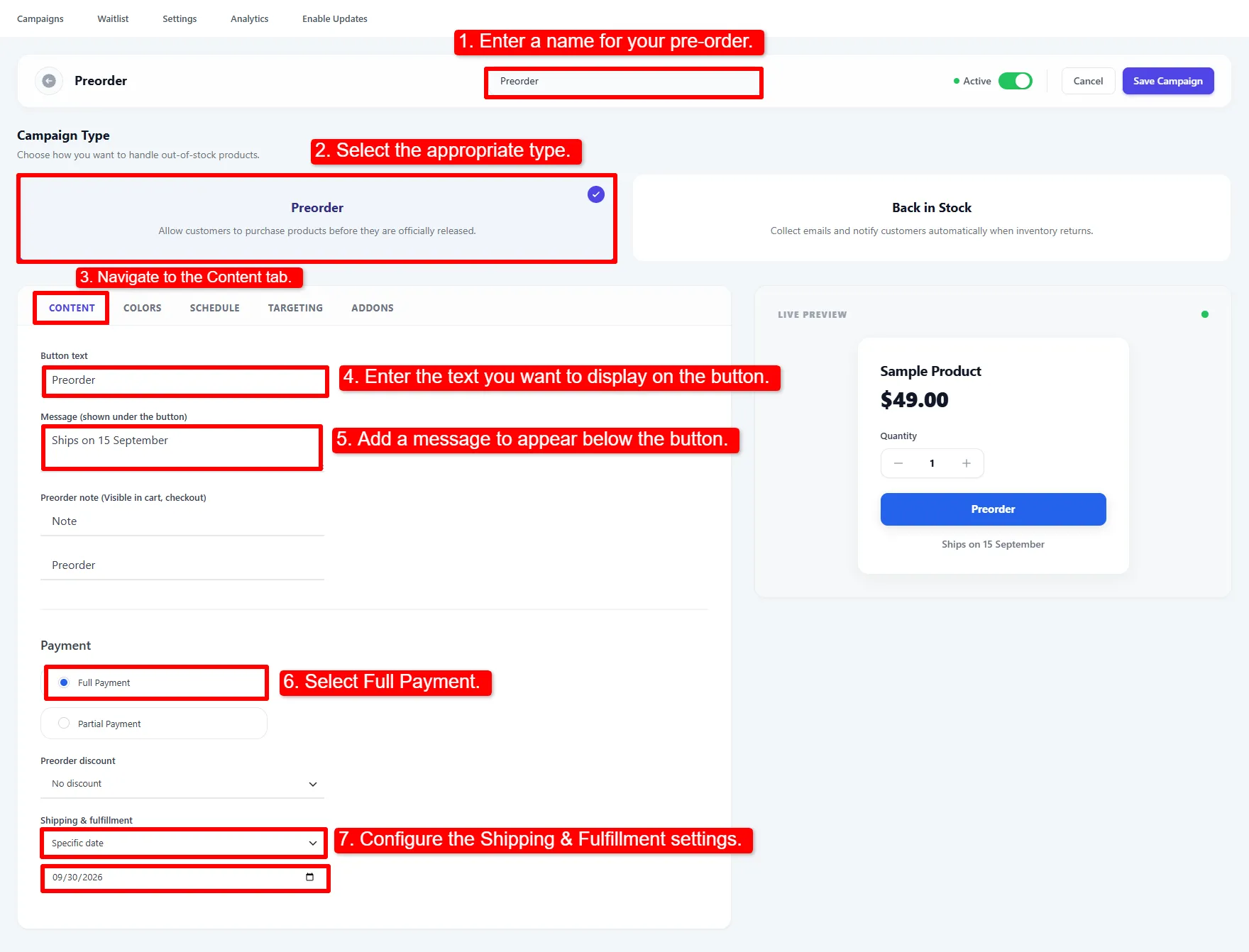
Steps 1–7: name the campaign, select Preorder, then fill in the Content tab. The live preview on the right updates as you type.
The screenshot shows an older sample with a 15 September message but a 30 September date. Set the actual Shipping & fulfillment date to 15 September before publishing that example, so the order and email agree with the product page.
Message is free text and Shipping & fulfillment is a real date. Nothing keeps them in step, so if you write "Ships on 15 September" in the message, set the date field to match — the date is what lands on the order and in the confirmation email.
2. Colour the button
On the Colors tab set the Button background, the Button text colour and the Button border radius. These apply to the preorder button on the product page and are printed as scoped CSS, so they survive most themes.
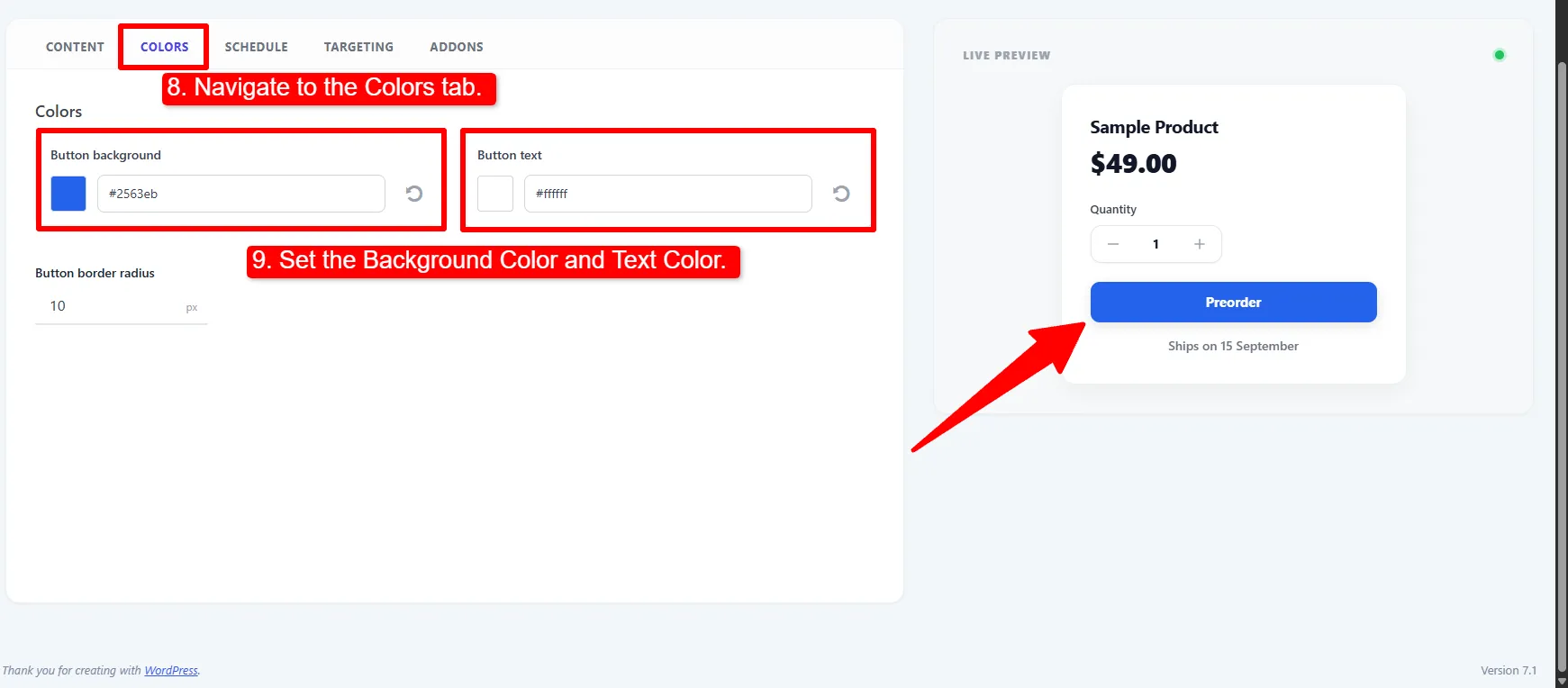
Steps 8–9: pick the button background and text colour. The live preview shows the result immediately.
3. Choose when it applies, target products, and save
The Targeting tab answers two questions — when preorder should kick in, and which products it covers.
When should pre-order be available?
- When product is out of stock — the usual choice. The campaign stops acting the moment real stock arrives.
- Show Always — preorder regardless of stock.
- When product is in stock — for staged launches.
Stop taking preorders after a set number (Pro) — closes preorders once a product has taken that many. See the Targeting tab below.
Apply to — set the selector to Products / Included and pick the products. Use + Or Group to add another condition group.
Finally toggle Active and click Save Campaign.
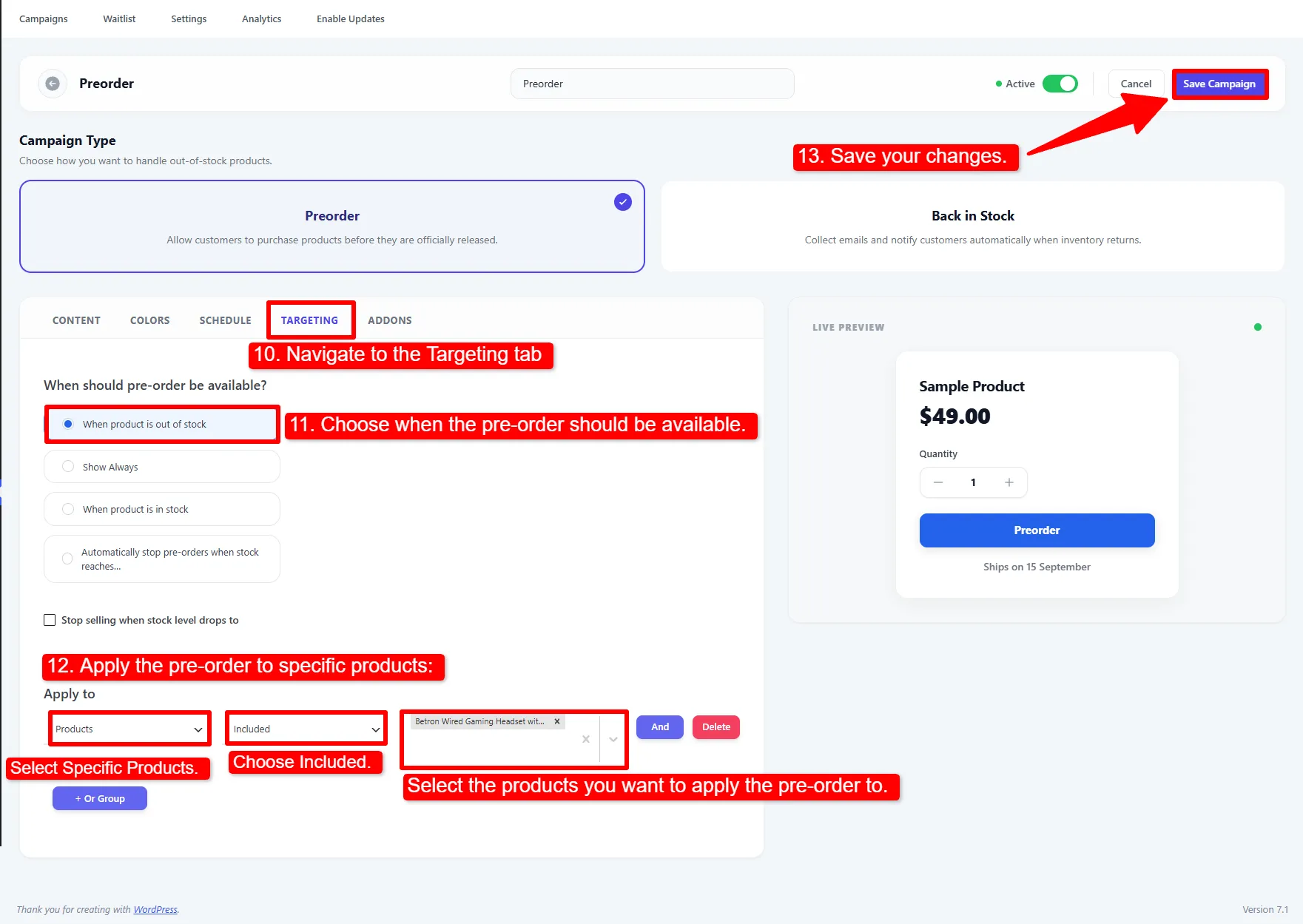
Steps 10–13: choose when preorder applies, target the products, then save.
Options explained
Content tab
| Setting | What it does |
|---|---|
| Button text | Replaces the Add to Cart label (e.g. "Preorder"). |
| Message | Free text shown under the button. |
| Preorder note | A label and value shown on the cart, checkout and order. |
| Payment | Full Payment, or Partial Payment to take a deposit (Pro). |
| Preorder discount | A discount applied to preordered items (Pro). |
| Shipping & fulfillment | As soon as possible, a specific date, or X days/weeks/months out. Saved to the order. |
Colors tab
| Setting | What it does |
|---|---|
| Button background | Background colour of the preorder button. |
| Button text | Label colour. |
| Button border radius | Corner rounding, in pixels. |
Targeting tab
| Setting | What it does |
|---|---|
| When should pre-order be available? | Out of stock (default), always, or only in stock. |
| Stop taking preorders after a set number | Closes preorders once a product has taken that many (Pro). Failed and cancelled orders free their place. |
| Apply to | Which products the campaign covers. All products and specific products are Free; Categories and Tags are Pro. |
Button text, message, note, ship date, colours and targeting are Free. Pro adds partial payments / deposits, preorder discounts, the stop-after limit, Early Bird pricing, and the countdown / progress / info panel widgets — see Pro Features. For deposit setup, see Partial Payments.
Pro-only fields still appear in the editor while Pro is inactive; they simply have no effect until it is installed.
🧪 Example configuration
The setup shown in the screenshots above:
| Setting | Value |
|---|---|
| Name | Preorder |
| Type | Preorder |
| Button text | Preorder |
| Message | Ships on 15 September |
| Preorder note | Label Note · Value Preorder |
| Payment | Full Payment |
| Shipping & fulfillment | Specific date → 09/15/2026 (corrected from the screenshot) |
| Button background | #2563eb · text #ffffff · radius 10px |
| Availability | When product is out of stock |
| Apply to | Products → Included → the launch product |
| Status | Active |
What customers see
The product page sells instead of stalling, and the preorder note follows the item through to the order.
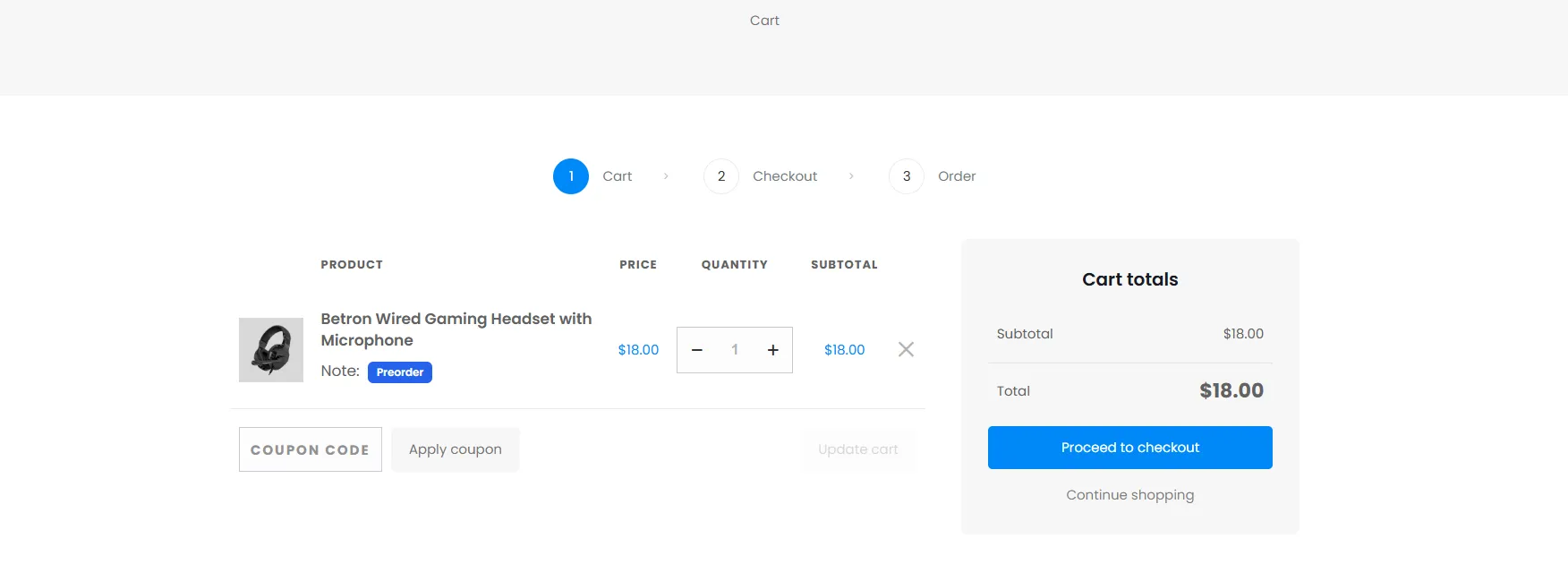
The preorder note on the cart line item. It carries through to the checkout and the finished order.
When the order is placed, the ship date is saved against the line item, an order note is added, and the customer receives the Preorder Confirmation email automatically.
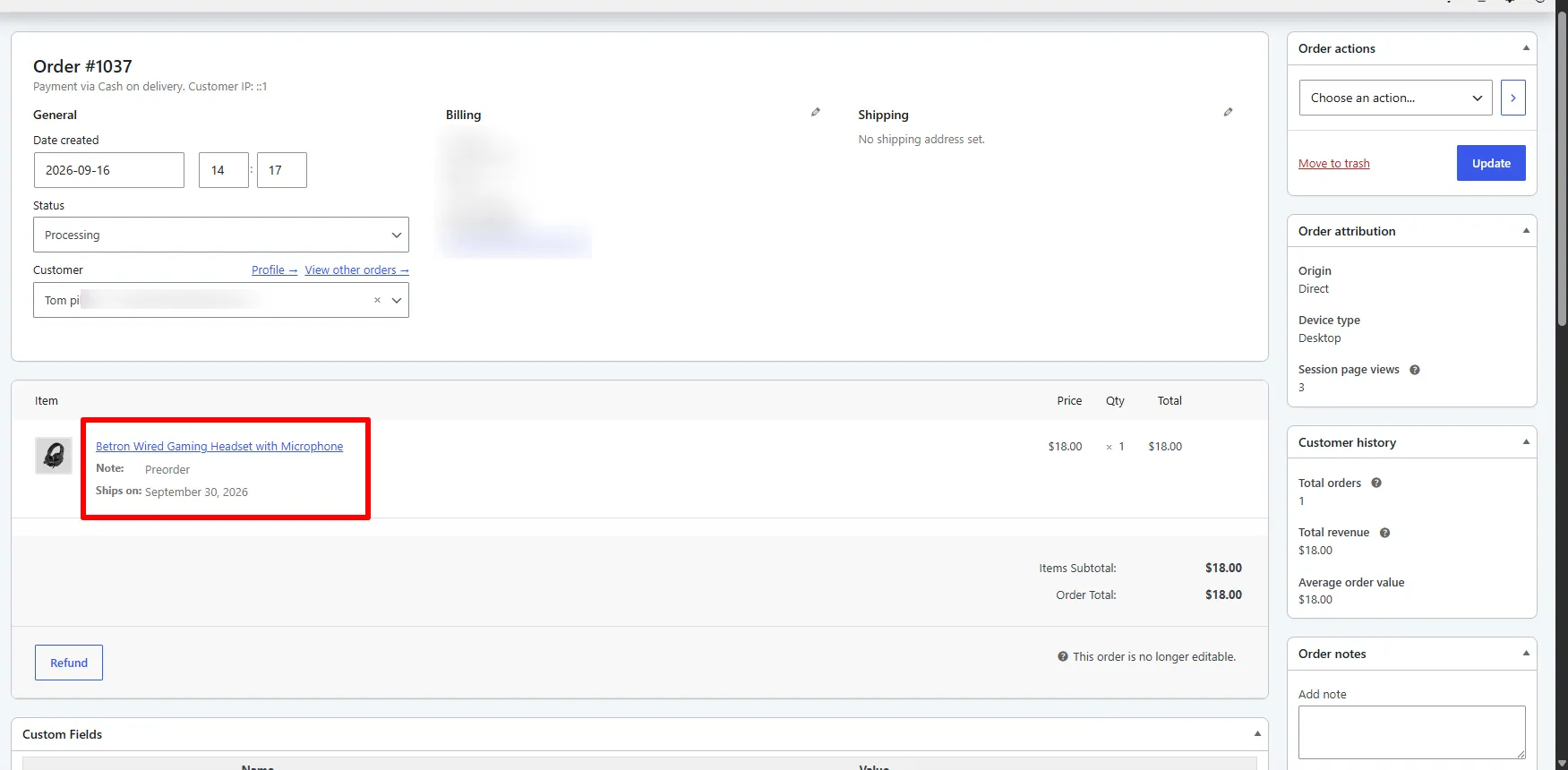
The order in the admin. The line item carries the note and the ship date in your store's date format.
- Put the ship date in the button message, not only the note — it is the single biggest driver of preorder conversion and refund avoidance.
- Use When product is out of stock so the campaign stops acting the moment real stock arrives.
- If you take payment up front, say so plainly in the message. Surprises here generate refunds.
Next Steps
- Emails — customize the Preorder Confirmation email.
- Targeting & Scheduling — control exactly which products and when.
- Pro Features — deposits, discounts, Early Bird pricing and widgets.
Frequently asked questions
How do I accept preorders in WooCommerce?
Create a Preorder campaign, set the button text and ship date on the Content tab, target the product on the Targeting tab, and activate it. The Add to Cart button stays usable even though the product is out of stock, and the ship date is recorded on the resulting order.
Can I take a deposit instead of the full price?
Yes, with Pro. Set Payment to Partial Payment on the Content tab and the customer pays a percentage or fixed amount now, with the balance recorded on the order for collection before fulfilment. See Partial Payments for setup and balance handling.
Does the ship date show on the order?
Yes. The ship date is saved against the line item, added as an order note, and included in the Preorder Confirmation email.
Can I preorder variable products?
Yes. Preorder mode applies to variations through the parent product's targeting.
What is the difference between preorder and backorder?
A backorder is WooCommerce's own setting, under Product → Inventory → Allow backorders. It lets customers buy stock you expect imminently, with no extra messaging, no ship date and no order tagging.
A preorder is a deliberate pre-release sale: its own button text, message, note, ship date and confirmation email. That is what this plugin adds, as a campaign.
The two are independent — you can leave WooCommerce backorders off entirely and still take preorders, because a Preorder campaign keeps Add to Cart usable on its own.
Which campaign types are available?
The Free plugin supports Preorder and Back in Stock. Pro adds Coming Soon, which announces a product without allowing purchase. Choose one of the three type cards in the campaign editor; see Back in Stock and Coming Soon for their setup.