Campaigns
Overview
A campaign is the heart of the plugin. It decides which products become Preorder or Back in Stock (or Coming Soon with Pro), how they look, and when the behaviour is active. You create a campaign once and the plugin applies it automatically everywhere it matches — no per-product editing.
How it works
You are launching a new product next month. You create a Preorder campaign, target that product (or its whole category, with Pro), set the button to "Preorder", add a "Ships on 15 September" message, and save. Instantly the product becomes purchasable with your custom button and note — and when the order comes in, the ship date is recorded and the customer gets a confirmation email. Nothing else to touch.
The Campaigns list
Preorders → Campaigns is where every campaign lives. The table shows the ID, Name, Type and Status of each one, with the actions on the right.
From here you can:
- Add New — start a fresh campaign.
- Toggle status — activate or pause a campaign with one click, without deleting it.
- Edit (pencil) — open it in the editor.
- Duplicate (copy) — clone its settings as the basis for another.
- Delete (bin) — remove it. Tick the checkboxes to remove several at once.
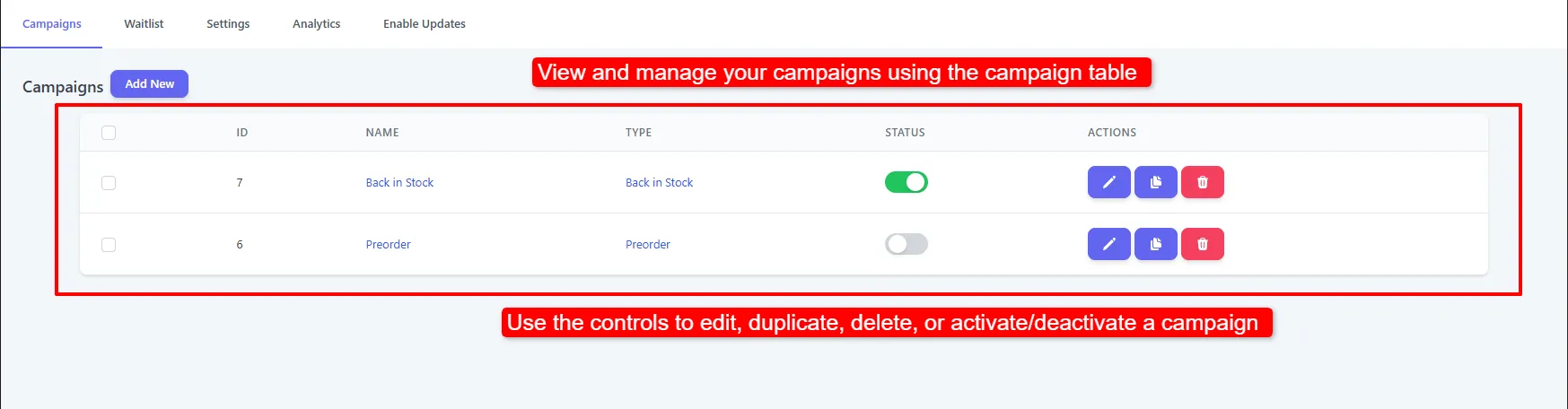
Two campaigns: a Back in Stock campaign that is active, and a Preorder campaign paused as a draft.
Switching the status toggle off stops the campaign affecting the storefront immediately, but keeps every setting. It is the safest way to test a change or take a launch offline.
Anatomy of a campaign
| Part | What it controls |
|---|---|
| Type | Preorder, Back in Stock, or Coming Soon (Pro). Decides which tabs you get. |
| Name | Your internal label — it is not shown to customers. |
| Status | Active or draft. |
| Content | The button text and the core behaviour for the chosen type. |
| Colors | Button background, text colour and radius. Preorder only. |
| Signup Form | The Notify me pop-up. Back in Stock only. |
| Email Notification | The restock email. Back in Stock only. |
| Schedule | Optional start/end dates or weekdays. |
| Targeting | Which products the campaign applies to, and when it is available. |
| Addons | Pro widgets (Early Bird, countdown, progress bar, info panel). |
Step-by-step setup
1. Open the editor and choose the type
Click Add New, give the campaign a name, then pick Preorder, Back in Stock, or Coming Soon. Coming Soon requires Pro. The tabs below change to match — a Preorder campaign gets Colors, a Back in Stock campaign gets Signup Form and Email Notification, and Coming Soon gets Countdown.
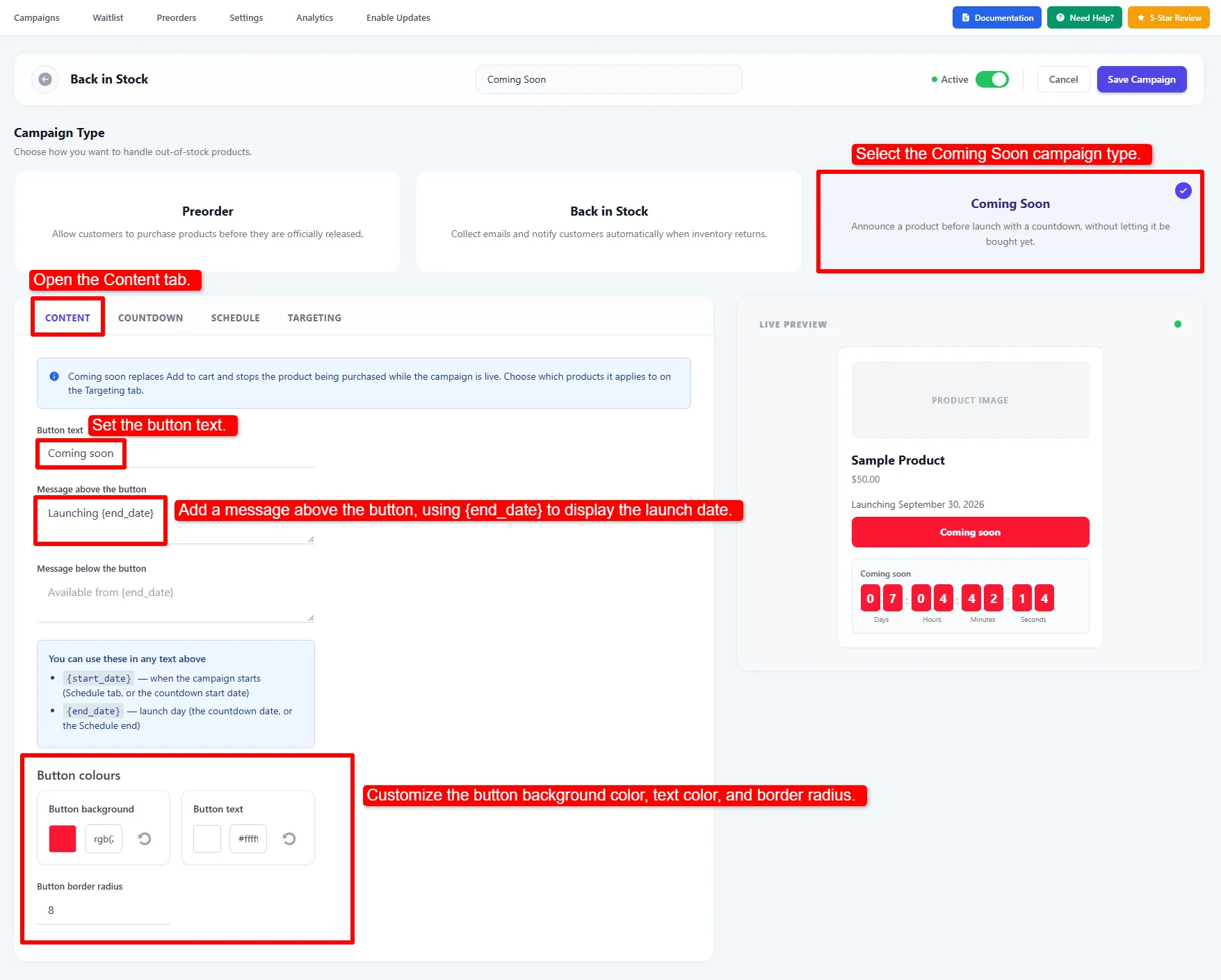
The editor offers three campaign types; Coming Soon is the Pro option. Choose the type before configuring its tabs.
Picking a type also sets the campaign name to match, so you are not left with a list of campaigns all called the same thing. Type your own name at any point and it will be kept.
2. Work through the tabs
Settings sit on the left and a live preview on the right updates as you type, so you can see the button or pop-up before saving.
- Preorders — button text, message, note, ship date and colours.
- Back in Stock — Notify me button, sign-up form and restock email.
- Coming Soon — announce a product without allowing purchase (Pro).
- Targeting & Scheduling — which products, and when.
3. Activate and save
Toggle the campaign Active, then click Save Campaign. A campaign left as a draft does nothing on the storefront.
🧪 Example configuration
A two-campaign setup that covers a whole store:
| Campaign | Type | Targeting | Purpose |
|---|---|---|---|
Back in Stock | Back in Stock | All products | Catches every out-of-stock product |
Preorder | Preorder | Specific products → the launch items | Sells the new range before it arrives |
Both can be active at once. A launch product that is out of stock shows the preorder button, and — if you enable coexistence — a Notify me button alongside it.
If several active campaigns match the same product, the newest matching campaign of each type is used. A Preorder and a Back in Stock campaign can both apply to one product (see Back in Stock for coexistence).
- Duplicate rather than rebuild. Most second campaigns are a variation of the first.
- Name campaigns for their targeting, not their styling —
Spring launchbeatsBlue button. - Keep one broad catch-all campaign and layer specific ones on top; the newest matching campaign of the same type takes priority. Do not overlap Coming Soon and Preorder on one product.
Next Steps
- Preorders — configure preorder button, message, ship date, colours.
- Back in Stock — the Notify Me button and waitlist.
- Coming Soon — the Pro-only launch announcement and countdown.
- Targeting & Scheduling — control which products and when.
Frequently asked questions
Do I have to create a campaign for every product?
No. One campaign can target all products. Create additional campaigns only when you want different text, styling or rules for a subset.
What happens if two campaigns match the same product?
The newest matching campaign of each type wins. A product can have one active Preorder campaign and one active Back in Stock campaign at the same time.
Can I pause a campaign without losing its settings?
Yes. Switch the status toggle off from the Campaigns list, or set it to draft in the editor. Every setting is preserved and the campaign stops affecting the storefront immediately.
Can I target a whole category instead of listing products?
Yes, with Pro. Free targets All products or Specific products; Categories and Tags targeting come with the Pro add-on.
Can I copy a campaign to another site?
Not directly. Campaigns are stored in a custom database table on the site they were created on. Duplicate within a site with the row action.