Waitlist
Overview
The plugin keeps two demand lists, each on its own tab in the main navigation:
| Tab | What it shows |
|---|---|
| Waitlist | Customers waiting for an out-of-stock product to return. |
| Preorders | Products customers have already bought and are waiting to receive. |
They sit side by side because merchants think of them together — who wants to buy, and who has already bought. The navigation reads Campaigns · Waitlist · Preorders · Settings.
The Waitlist tab
Each row is one customer waiting for one product — or one specific variation.
How it works
Every sign-up from the storefront lands here with a status. Pending means they are still waiting. Notified means the restock email has been sent. Unsubscribed means they opted out. The plugin moves rows between these states automatically; you only touch this screen to look, filter, or clean up.
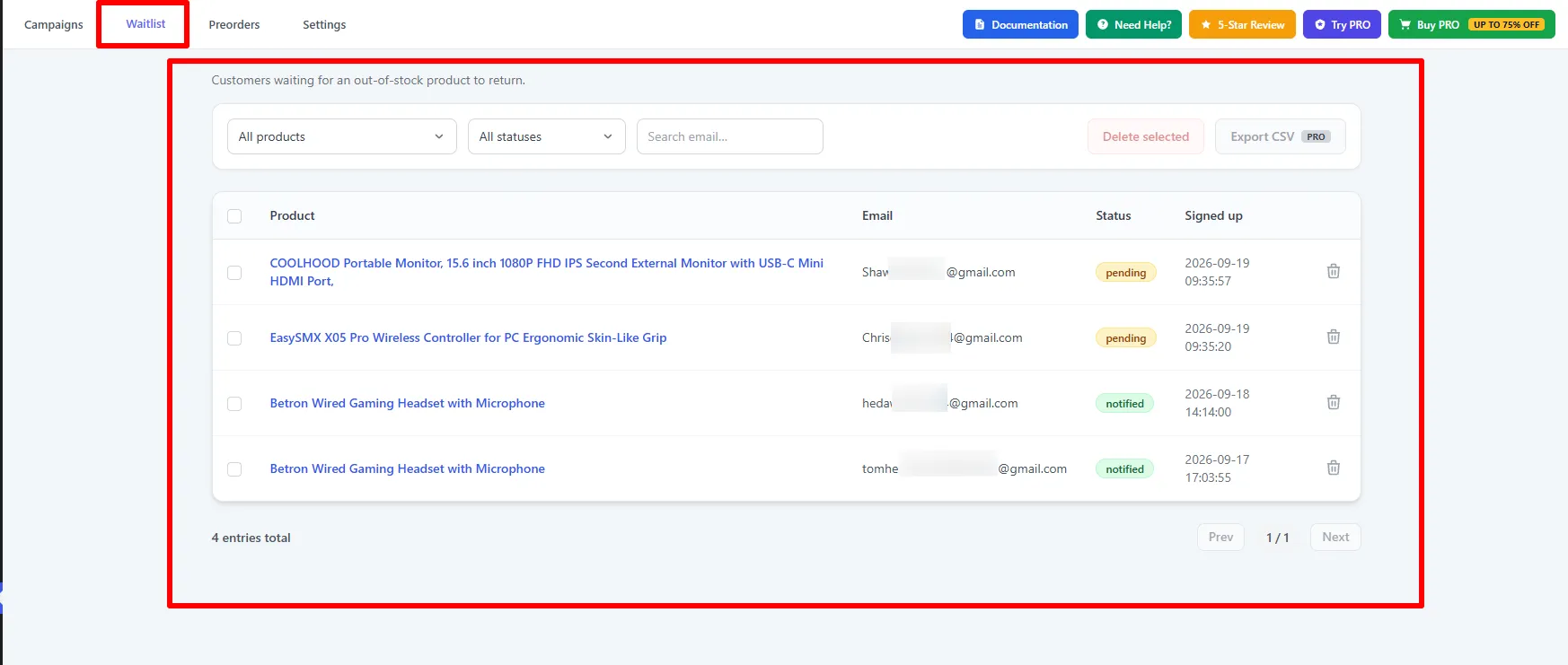
The Waitlist screen: filters along the top, then every sign-up with its status.
Filter the list
The controls above the table narrow it down: filter by product, by status, or search by email. Use them to answer a specific question — for example every pending sign-up on one product before you decide how much to reorder.
The counter under the table always reflects the current filter, so it doubles as a quick demand count.
Export to CSV
CSV export is part of RestockBeacon Pro. On the free version the Export button is visible but disabled, with a PRO badge.
With Pro active, Export CSV downloads the currently filtered view — the same rows you can see, with product, email, status, type and dates — for use in your email platform or reordering spreadsheet. Exported values are escaped so spreadsheet formulas cannot be injected.
Send alerts manually
The plugin automatically emails the waitlist when stock returns through WooCommerce. But if you restock a product outside WooCommerce — raw SQL, an importer, or an ERP sync — those stock hooks never fire, so nothing is detected.
1. Switch the option on
The manual action is off by default. On a store that restocks through WooCommerce the automatic path already covers everything, so the button's only likely use would be emailing the same customers twice.
Turn on Send alerts manually under Preorders → Settings → General, then Save Changes.
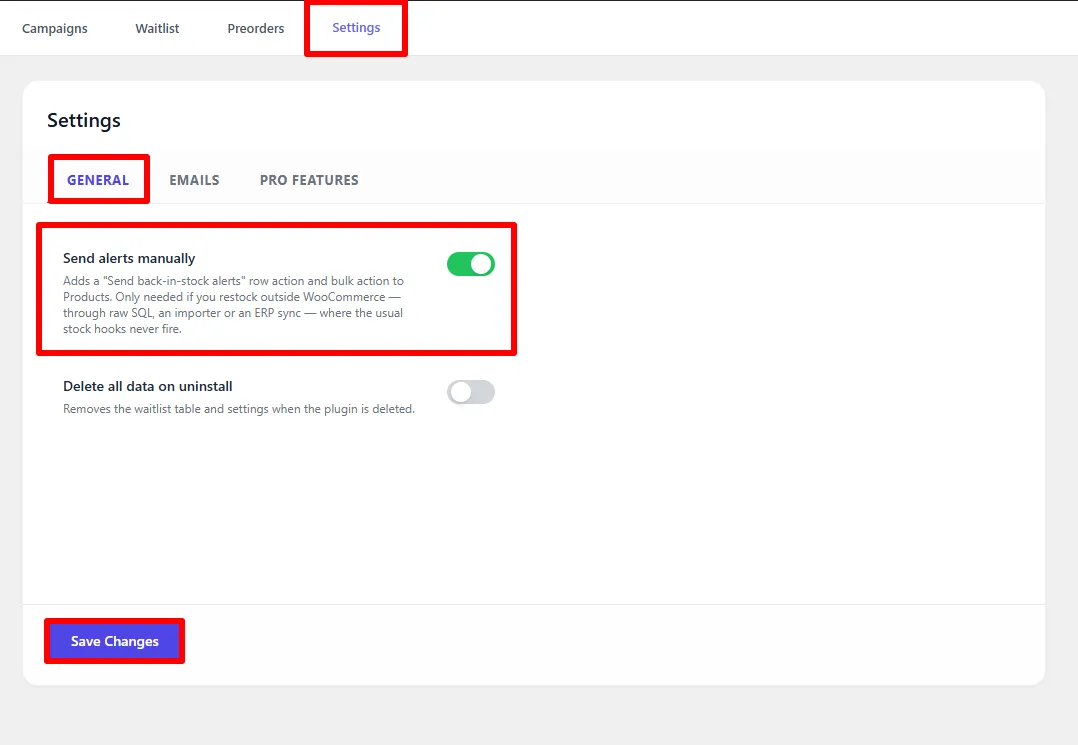
Preorders → Settings → General → Send alerts manually.
2. Use the action on Products
With the option on, Products → All Products gains a Send back-in-stock alerts action on each product row, and a matching bulk action for several products at once. The plugin notifies waitlisted customers for any selected product that is now in stock and has pending sign-ups.

The Send back-in-stock alerts row action, alongside Edit, Quick Edit, Trash and View.
If you restock through the WooCommerce product screen, the REST API, or by refunding/cancelling an order, you never need this — it is automatic. Reach for the manual action only when an external system wrote the stock value directly.
If you cannot find the action on the Products list, the setting above is still off.
🧪 Example workflow
Working out what to reorder:
| Step | Action |
|---|---|
| 1 | Open Preorders → Waitlist |
| 2 | Set Status to Pending |
| 3 | Use the product filter to see which items have the most people waiting |
| 4 | (Pro) Export CSV and pivot by product |
| 5 | Reorder the top items — the waitlist is a pre-qualified demand signal |
Working out what to ship:
| Step | Action |
|---|---|
| 1 | Open Preorders → Preorders |
| 2 | Leave the sort on Soonest ship date |
| 3 | Work down the list — anything with a red stock figure needs stock before its date |
| 4 | Use the Preorders only filter on WooCommerce → Orders to pick the orders for a product |
| 5 | Once a product's orders are all Completed, tick it and Clear selected to tidy the list |
The Preorders tab
The Waitlist tab answers "who wants to buy this". The Preorders tab answers the question you ask before a launch ships: how many units of each product do I owe, and when are they due?
One row per product, with the quantities added up across every order:
| Column | What it means |
|---|---|
| Product | Links to the product edit screen. The SKU is shown underneath when set. |
| Status | How far along fulfilment is — see below. |
| Preordered | Total units preordered across all orders. |
| Orders | How many separate orders those units came from. |
| Stock | Current stock. Shown in red with "short" when it is below the preordered quantity. |
| Ships on | The earliest ship date recorded for that product, or As soon as possible when the campaign promises no specific date. |
Sort by Soonest ship date to get a fulfilment queue, or Most preordered to see where demand is concentrated. The search box filters by product name.
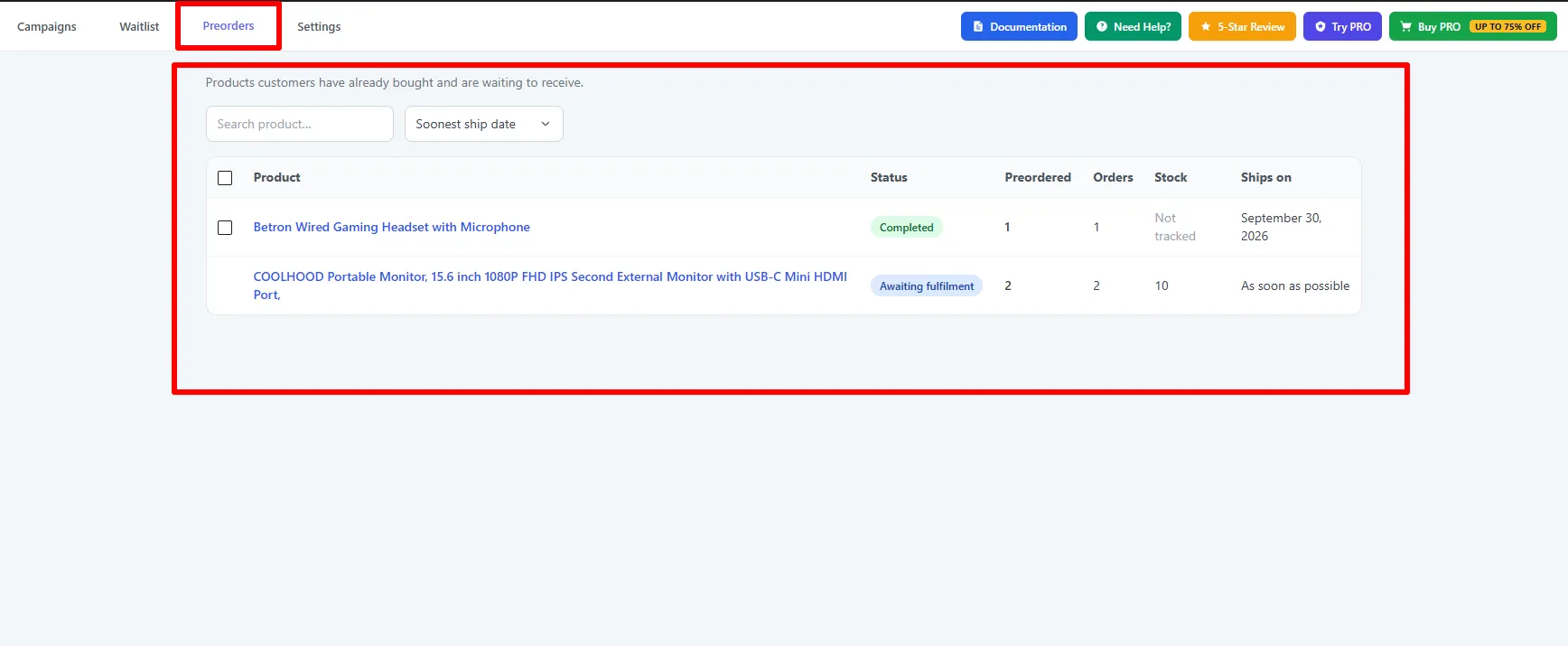
The Preorders tab: one row per product, sorted by the nearest ship date.
Status
| Status | Meaning |
|---|---|
| Awaiting fulfilment | None of the orders for this product are completed yet. |
| Partly shipped | Some are. The figure beside it reads completed / total, for example 2 / 5. |
| Completed | Every order containing this product has been completed. |
A product is only Completed when all of its orders are — one shipped order and one still processing is Partly shipped, not done. That distinction is the point of the column: it stops you clearing a product you still owe someone.
Clearing finished products
Completed rows get a checkbox in the first column. Tick one or more and a Clear selected button appears, which removes them from the list so the tab keeps showing only what still needs work.
These rows are totals calculated from your real orders, so there is nothing to delete — removing an order to tidy a report would destroy the sale.
Clearing simply hides the row, and remembers the newest order it had at that moment. If the same product is preordered again later, the row comes straight back with the new order counted. Rows that are not yet Completed have no checkbox and cannot be cleared.
Only live orders are counted — pending, on hold, processing and completed. Cancelled, refunded and failed orders are excluded, because a fulfilment list that counts refunded units tells you to buy stock you do not need.
Products that do not manage stock show Not tracked rather than 0. Those are not the same thing, and showing zero would look like a shortfall that is not real.
Where else preorders appear
The Preorders tab is the summary. Three other places show them per order:
- WooCommerce → Orders has a Preorder column showing the ship date, and an All orders / Preorders only filter above the list. Use this when you need the orders themselves rather than the totals.
- Opening an order shows Note: Preorder and Ships on against each preordered line item.
- With Pro's Auto-tag products setting on, Products → All Products gains a Preorder status column, so you can see at a glance which products a campaign currently covers.
Customer self-service
Customers see everything under My Account → Preorders, in two sections:
- Back-in-stock waitlist — the products they are waiting on, each with an unsubscribe link.
- Your preorders — what they have already bought, with the order number, the date, when it ships and the order status.
Both lists are scoped strictly to the logged-in customer's own account and email.
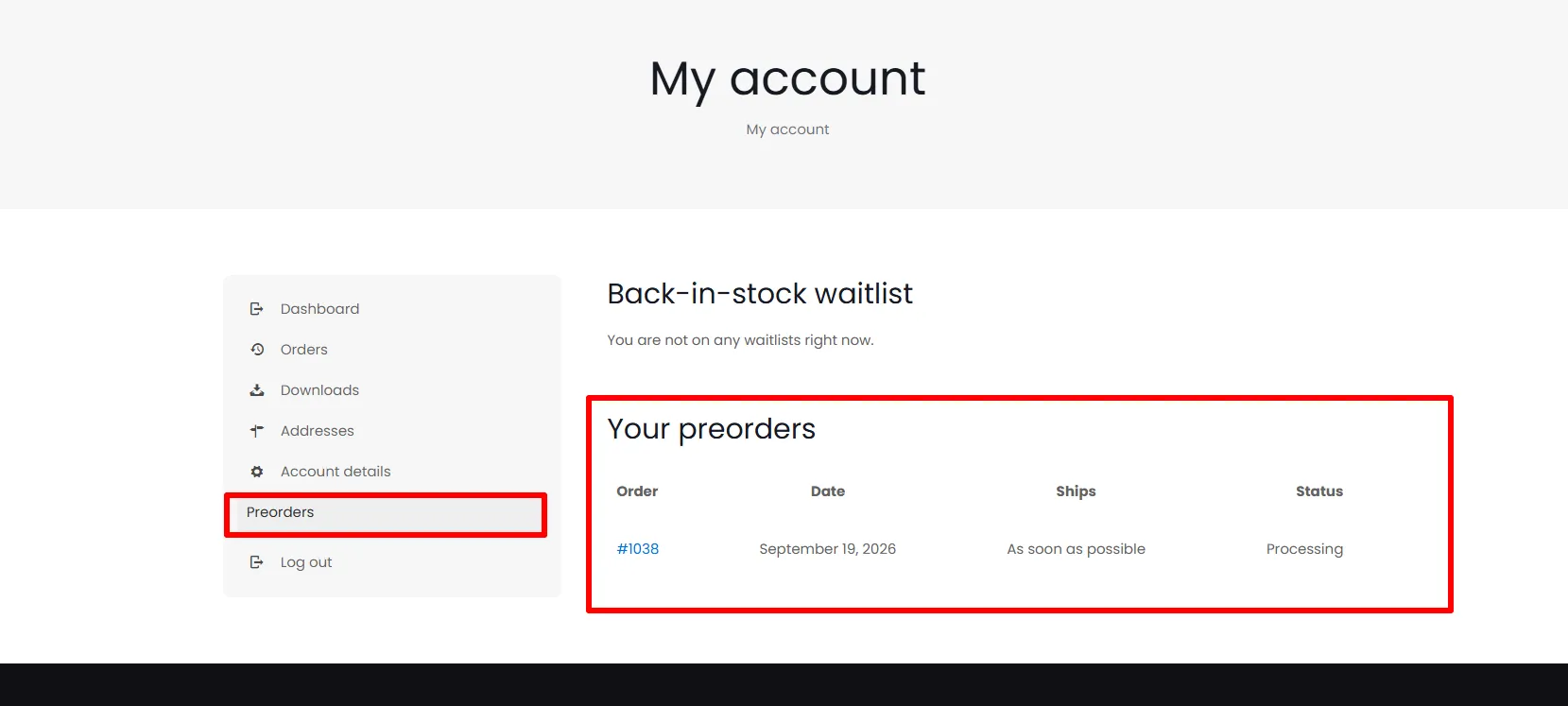
The Preorders tab in the customer's My Account area, showing both lists.
Every notification email also includes a secure one-click unsubscribe link, signed with a token that is verified before anything is changed.
Housekeeping
- Delete individual waitlist rows, or select several and delete in bulk.
- On the Preorders tab, Clear selected hides completed products without touching the orders behind them.
- Waitlist data is included in WordPress personal-data export and erasure, so GDPR requests are handled through the standard WordPress tools.
- If you enable Delete all data on uninstall in Settings, the waitlist table is dropped when the plugin is removed.
Next Steps
- Emails — design the email these sign-ups receive.
- Back in Stock — the button and form that create these rows.
- Settings — where Send alerts manually lives.
- Analytics — review waitlist trends and most-wanted products with Pro.
- Pro Features — the other Pro options, including CSV export.
Frequently asked questions
Can I export the WooCommerce waitlist?
Yes, with Pro. The Export CSV button downloads the currently filtered rows. On the free version the button is shown but disabled.
Why is a customer still Pending after I restocked?
Either the restock bypassed WooCommerce's stock functions (enable and use the manual Send back-in-stock alerts action), the product is not actually purchasable yet, or the email failed to send — check WooCommerce → Status → Logs.
I cannot find "Send back-in-stock alerts" on the Products list
It is off by default. Switch on Send alerts manually under Preorders → Settings → General and save, then the row action and bulk action appear.
Does the waitlist track variations separately?
Yes. The variation ID is stored with each sign-up, so rows are per-variation, not per-parent-product.
Can customers remove themselves?
Yes — via the one-click unsubscribe link in any email, or from My Account → Preorders.
Where do I see which products have been preordered?
Preorders → Preorders. It lists one row per product with the total units preordered, how many orders they came from, current stock, the earliest ship date and how far along fulfilment is.
Why does a product say "As soon as possible" instead of a date?
Because its campaign was set to ship as soon as possible rather than on a fixed date. Nothing is missing — that is the promise being made to the customer, and it appears the same way on the order, in the confirmation email and in the customer's account.
Why is a product missing from the Preorders tab?
Either its orders are cancelled, refunded or failed — only pending, on-hold, processing and completed orders are counted — or it was Completed and someone cleared it. A cleared product reappears as soon as it is preordered again. A preorder placed but never paid for shows as pending and does count.
Can I delete a preorder from the Preorders tab?
No, and deliberately so. The rows are totals derived from real orders, so the only way to remove one would be to delete the order itself. Clear selected hides completed rows from the report instead, leaving the orders untouched.
Is waitlist data included in GDPR exports?
Yes. The plugin registers a personal-data exporter and eraser, so waitlist rows are covered by WordPress's built-in privacy tools.