Coming Soon
Coming Soon is part of RestockBeacon Pro. On the free version the campaign type is visible with a PRO badge but cannot be selected.
Overview
A Coming Soon campaign announces a product before you are ready to sell it. The Add to Cart button is replaced with an inert label, the product cannot be bought, and an optional countdown tells customers exactly when it arrives.
It is the mirror image of a Preorder campaign:
| Preorder | Coming Soon | |
|---|---|---|
| Add to Cart | Stays active, relabelled | Replaced with an inert label |
| Can customers buy? | Yes, now | No, not yet |
| You collect | Money and demand | Attention and anticipation |
| Best for | Products you can commit to shipping | Launches with no firm date, or no stock to promise |
Use Preorder when you want the revenue. Use Coming Soon when you want the audience — a teaser page you can share before anything is sellable.
How it works
The product is made non-purchasable at the WooCommerce level, not merely hidden
in the template. That matters: a theme that renders its own Add to Cart button, or
a direct ?add-to-cart= link, would otherwise sell a product you have not released.
Blocking it at the product level means nothing can route around it.
On shop and category pages the Add to Cart button becomes a plain link through to the product, so the listing still works — it just leads to the announcement rather than the cart.
Step-by-step setup
1. Create the campaign
Go to Preorders → Campaigns → Add New, choose Coming Soon as the campaign type, and give it a name. The editor shows four tabs: Content, Countdown, Schedule and Targeting.
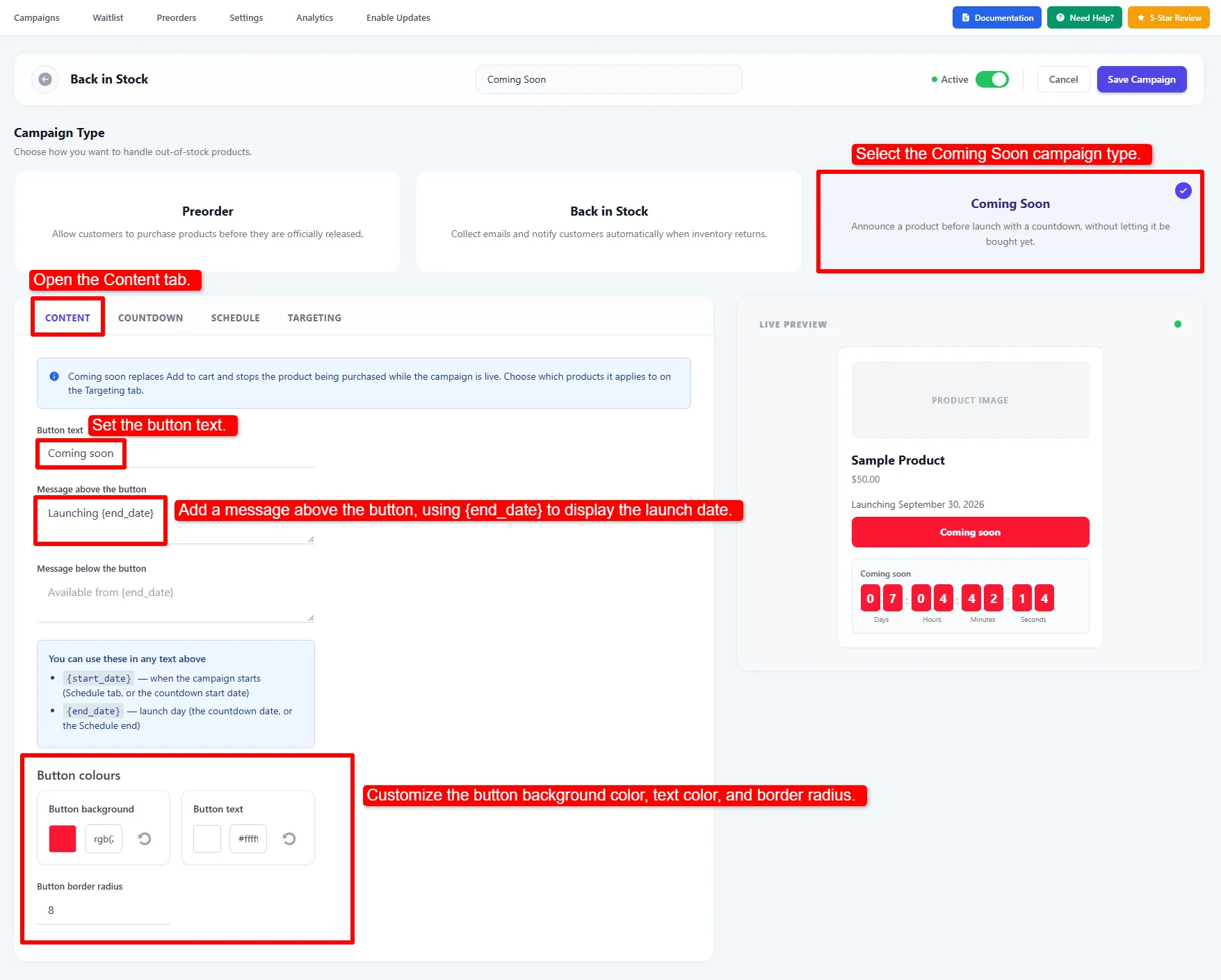
Select Coming Soon, then use the Content tab to set the button and announcement text.
2. Write the content
On the Content tab:
| Setting | What it does |
|---|---|
| Button text | The label replacing Add to Cart. Default Coming soon. |
| Message above the button | A teaser line above the button. Optional. |
| Message below the button | An availability note below the button. Optional. |
| Button colours | Background and text, plus a corner radius. |
Both messages accept two tokens:
{start_date}— the campaign's earliest scheduled start date{end_date}— the campaign's next scheduled end date
So Launching {end_date} renders as Launching 30 September 2026, formatted to
your store's date format. Keep the campaign end aligned with the launch date if you
use this token; setting a different Counts down to date does not change its text.
3. Set up the countdown
The Countdown tab is separate from Schedule on purpose. The schedule decides when the campaign runs; the countdown tells the customer when the product arrives. Usually the same moment — but they do not have to be.
| Setting | What it does |
|---|---|
| Show a countdown timer | Off hides the timer entirely. |
| Start showing from | Hides the timer until this date and time. Leave blank to show it as soon as the campaign starts. |
| Counts down to | The launch moment. Leave blank to use the campaign end date from Schedule. |
| Heading above the timer | Optional line above the digits. Blank shows none. |
| Units to show | Days + hours + minutes + seconds, down to days only. |
| Unit labels | Rename Days / Hours / Minutes / Seconds — useful for translation. |
| Digit background / text | Colours for the digit boxes. |
| Digit corner radius | In pixels. |
| When the timer runs out | Replaces the digits once the moment passes, e.g. Available now. Blank keeps showing zeros. |
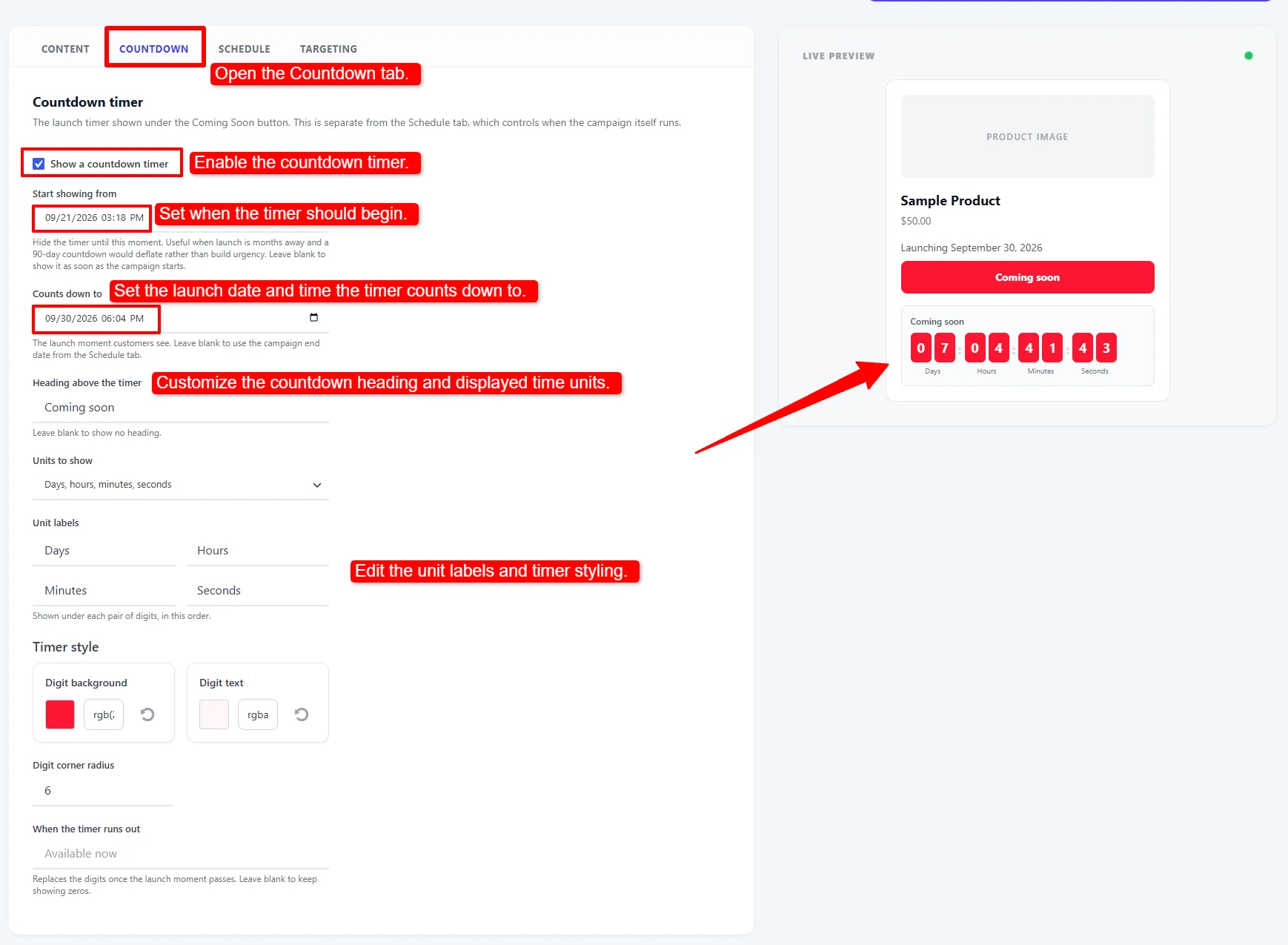
The Countdown tab controls when the timer appears, its launch date, and its display.
If you set an explicit countdown date that has already gone by, the timer is hidden rather than falling back to the campaign end date — counting down to a different moment than the one you chose would be worse than showing nothing.
Leaving the field blank is what triggers the fallback.
The same timer design is used by the preorder and back-in-stock Addons countdown, so a store running several campaign types looks consistent.
4. Choose when and where it applies
Schedule sets the start and end. Targeting picks the products, and carries the same availability rule every campaign type uses:
| Option | Effect |
|---|---|
| When product is out of stock | Default. An in-stock product that is selling today keeps selling. |
| Show Always | Every targeted product, in stock or not. |
| When product is in stock | The inverse — rarely what you want here. |
Out of stock only is the safe default. Show Always is the one to pick for a true pre-launch teaser, where the product may have stock loaded but must not sell yet.
Select the products under Apply to, then click Save Campaign. The screenshot shows the default out-of-stock option; choose Show Always for an in-stock product that must remain unavailable before launch.
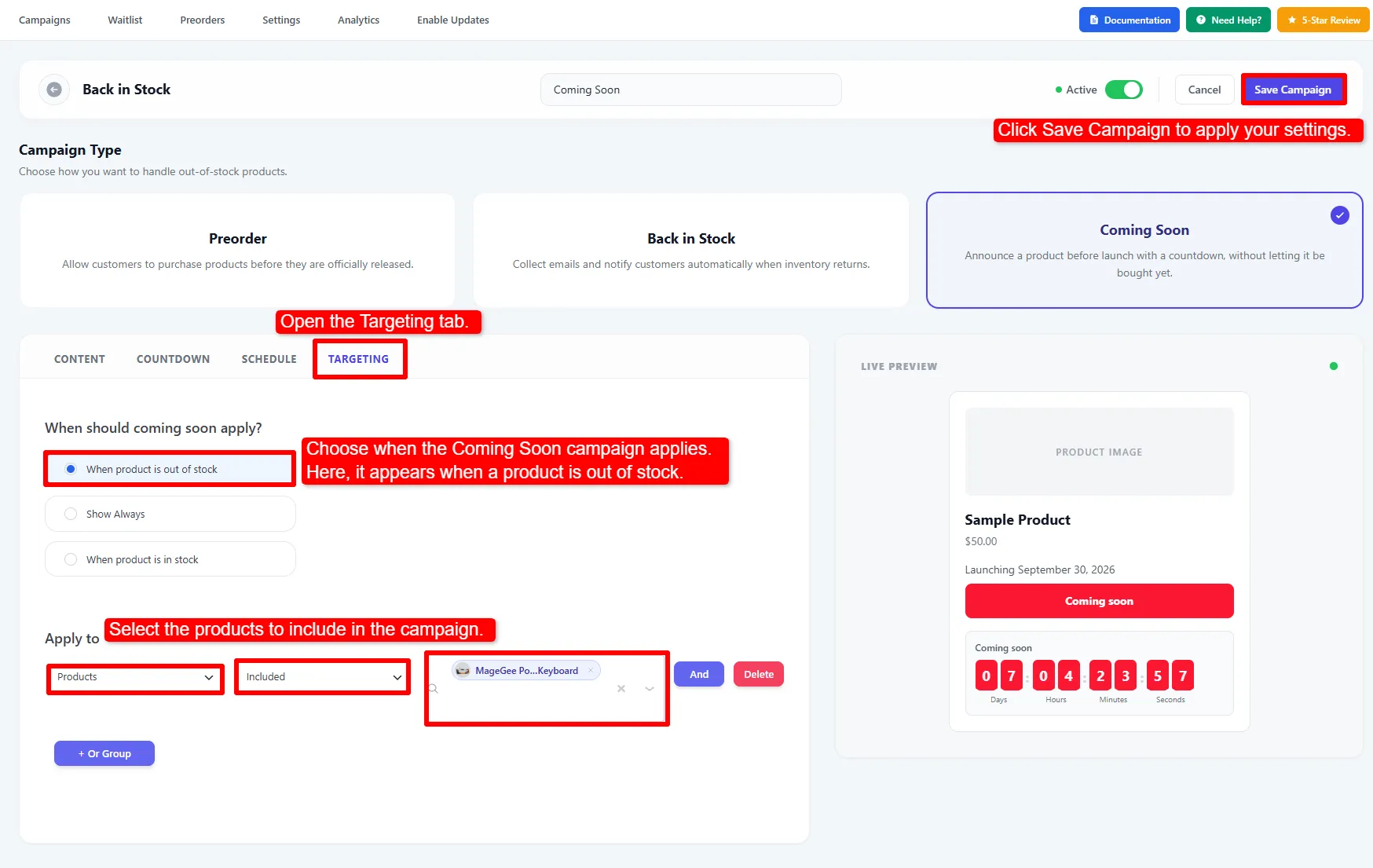
Choose when the campaign applies and which products it covers, then save it.
🧪 Example configuration
A product launching at the end of the month:
| Setting | Value |
|---|---|
| Type | Coming Soon |
| Button text | Coming soon |
| Message above the button | Launching {end_date} |
| Message below the button | Join the waitlist to hear first. |
| Apply to (Targeting) | Show Always |
| Schedule | Now → 30 September, 00:00 |
| Countdown | On, blank date (uses the schedule end) |
| When the timer runs out | Available now |
What customers see
The storefront shows the teaser line, the inert Coming soon button, an availability note if you set one, and the countdown if enabled. The timer displays days, hours, minutes and seconds in flip-style digit boxes.
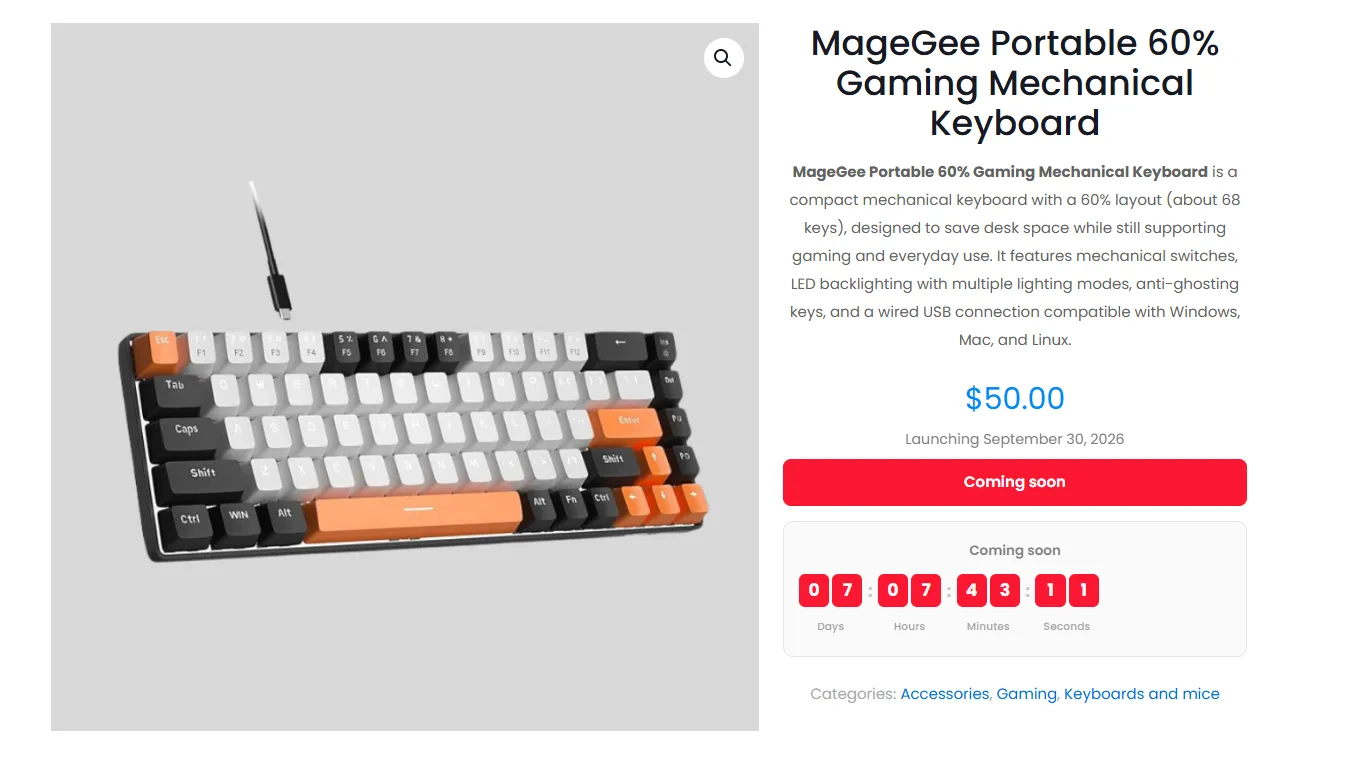
The product can be viewed before launch, but the Add to Cart control is replaced by the Coming Soon announcement.
The button is a real disabled control rather than styled text, so screen readers
announce it as unavailable instead of reading a stray label. The timer respects
prefers-reduced-motion, and the digits are rendered by the server already filled
in, so they are correct in the first frame even on a cached page.
Pairing with Back in Stock
Coming Soon answers "when?". It does not capture anyone's email.
To collect demand while the product is unreleased, add a Back in Stock campaign targeting the same products. Customers then see the coming-soon announcement and a Notify Me form, and you get a waitlist to email on launch day. Campaigns of different types coexist on the same product by design.
See Back in Stock for the form, and Waitlist for the sign-ups it produces.
Next Steps
- Back in Stock — capture emails while the product is unreleased.
- Preorders — when you want to take the money now instead.
- Targeting & Scheduling — narrowing which products a campaign covers.
- Pro Features — everything else the add-on unlocks.
Frequently asked questions
How do I show a coming soon product in WooCommerce without letting people buy it?
Create a Coming Soon campaign targeting the product. The Add to Cart button is replaced with a label and the product is made non-purchasable, so it cannot be bought from the product page, a shop listing, or a direct add-to-cart link.
Does the countdown use the campaign's end date?
By default, yes — leave Counts down to blank and it follows the Schedule tab. Set an explicit date when the launch moment differs from when the campaign stops running.
Can I still collect emails while a product is coming soon?
Yes. Add a Back in Stock campaign for the same products and the Notify Me form renders alongside the announcement.
What happens when the campaign ends?
The Coming Soon restriction stops applying automatically. WooCommerce then uses the product's normal stock and purchasability rules: Add to Cart returns only if the product is sellable (or a separate Preorder campaign makes it preorderable). If it is still out of stock, customers cannot buy it yet.
Will it work with my theme?
Purchasability is blocked on the product object, so every theme honours it. The
button label comes from WooCommerce's own product methods, which classic themes and
block themes both read. If your theme does not fire
woocommerce_single_product_summary, point the output at a hook it does fire with
the asnp_wepo_display_hook filter.
Can I use Coming Soon and Preorder on the same product?
Do not run both on the same product at the same time. Preorder makes an unavailable product purchasable, while an active Coming Soon campaign blocks purchase separately; the newest campaign does not override the other type. End or pause Coming Soon before starting the Preorder campaign.