Emails
Overview
The plugin adds two automatic customer emails. You never send anything by hand.
| Sent to | When | |
|---|---|---|
| Back in stock | Waitlisted customer | The product they subscribed to is restocked. |
| Preorder confirmation | Buyer | They place an order containing a preorder item. |
Both are standard WooCommerce emails — enable/disable them and set the base subject/heading under WooCommerce → Settings → Emails.
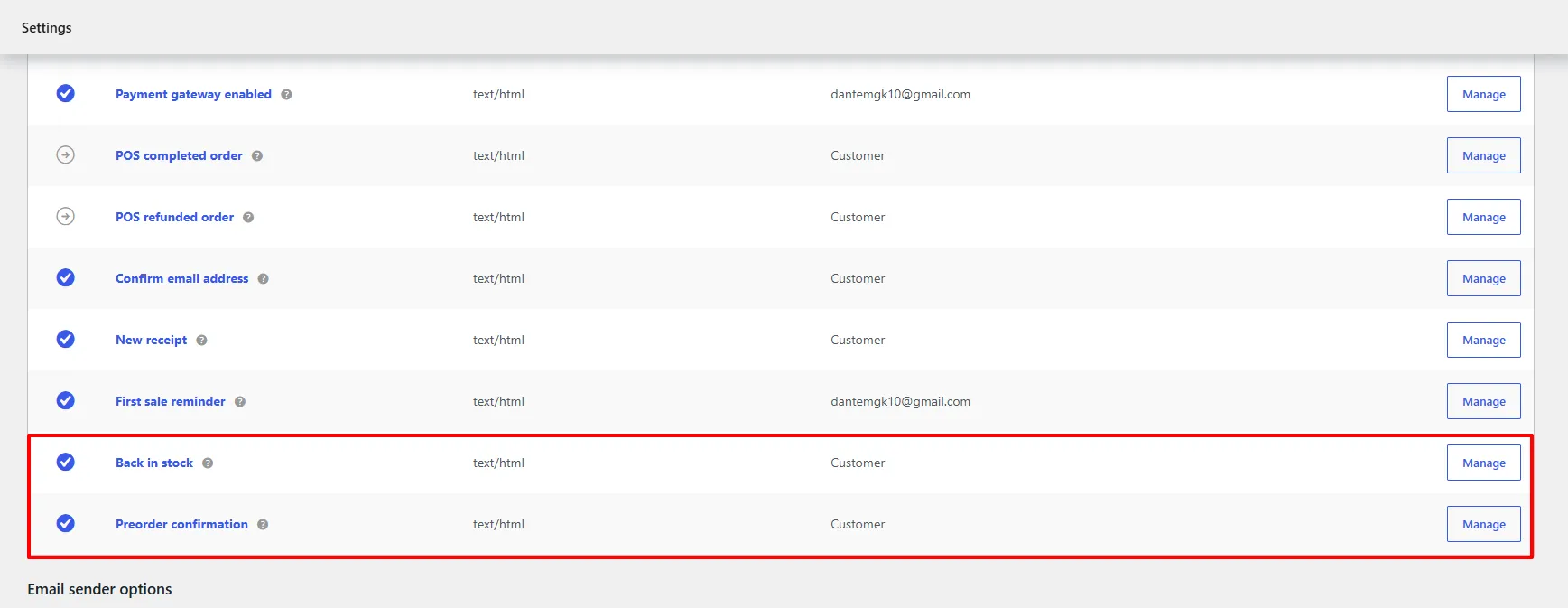
The Back in stock and Preorder confirmation emails in WooCommerce → Settings → Emails, each with its own Manage button.
What a preorder actually sends
WooCommerce keeps sending its own order emails as normal, so a single preorder produces three emails at checkout, not one:
| To | From | |
|---|---|---|
| New order | Store admin | WooCommerce |
| Processing order | Customer | WooCommerce |
| Preorder confirmation | Customer | This plugin |
Completed order follows later, when you mark the order complete. If the payment method is offline — cheque or bank transfer — the customer gets Order on-hold instead of Processing order.
Processing order and Preorder confirmation arrive together. WooCommerce's email already carries the full breakdown — line items, totals, addresses — so the preorder email deliberately does not repeat it. It carries the one thing the other cannot: the ship date, per line.
If you would still rather send only one, switch off either email under WooCommerce → Settings → Emails.
How it works
The Back in stock email is the product here — it is the thing the customer actually receives, and it is what turns a waitlist row into a sale. Because of that it has its own designer inside each campaign, with a live preview: you edit on the left and see the finished email on the right, then the same markup is what sends.
Step-by-step: design the Back in stock email
Open a Back in Stock campaign and go to the Email Notification tab.
1. Choose a template and layout
- Branded template — a fully styled, self-contained email (logo, colours, social links, footer) built from the options below.
- WooCommerce template — wraps your content in your store's standard WooCommerce email design.
Show product image includes the product thumbnail in the email.
The Branded template ships four layouts, shown as thumbnails:
| Layout | Look | Availability |
|---|---|---|
| Centered | Product card centred in a rounded panel | Free |
| Hero | Full-width product image across the top | Pro |
| Split | Image left, text and button right | Pro |
| Minimal | No card chrome, centred type, accent rule | Pro |
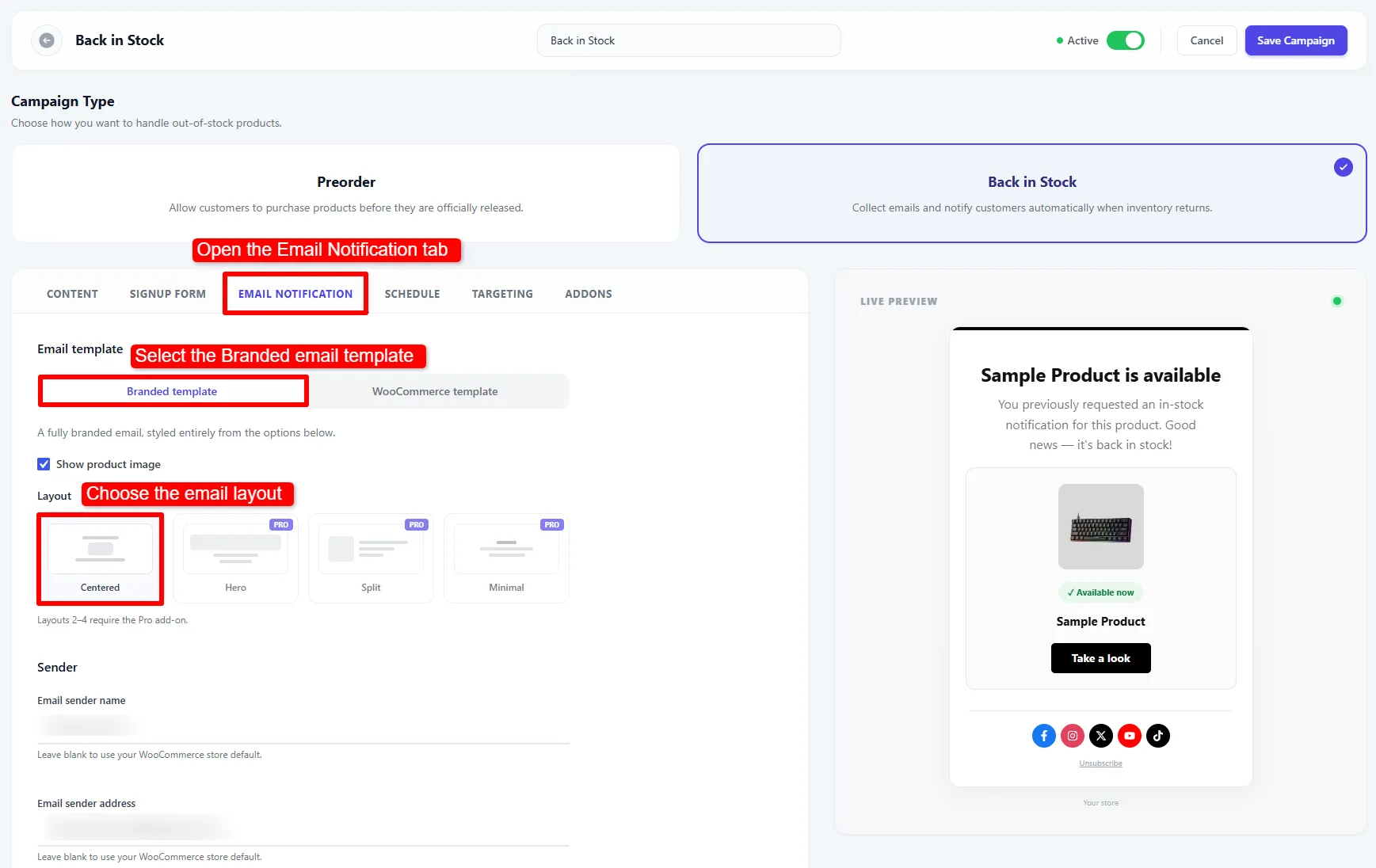
Step 1: open Email Notification, pick Branded template, then choose a layout. Layouts 2–4 carry a PRO badge.
2. Set the sender, content, branding and styling
Everything below the layout grid feeds the live preview on the right.
| Section | Setting | What it does |
|---|---|---|
| Sender | Email sender name / address | Per-campaign From name and email. Leave blank to use your WooCommerce store default. |
| Content | Email subject & heading | One field, used for both. Supports the {product_name} token. |
| Description | The body text under the heading. | |
| Button text | The call-to-action linking to the product. | |
| Unsubscribe text | The label on the one-click unsubscribe link. | |
| Branding | Branding text | Shown when no logo URL is set. |
| Logo image URL / Logo width | Your logo and its width in pixels. | |
| Footer | Footer message | Free text, for example your postal address. |
| Facebook, Instagram, X, YouTube, TikTok | Social icons. Leave everything blank to hide the footer entirely. | |
| Styling | Heading size, Description size, Button radius | In pixels. |
| Email text colour, Email background, Button text colour, Button colour | Each with a reset arrow back to the default. |
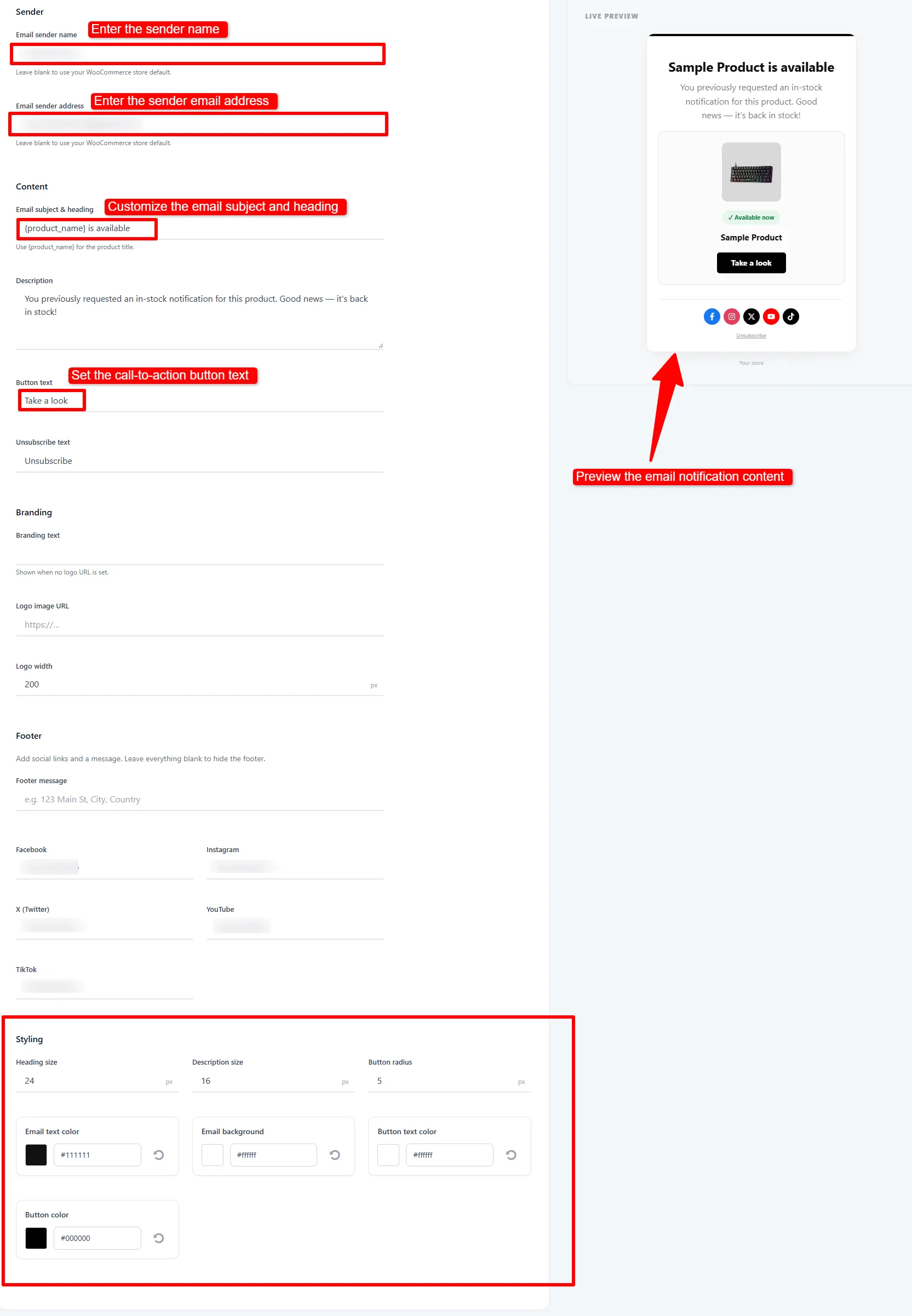
Step 2: sender, subject, description and button text — with branding, footer and styling below, all reflected live in the preview.
The panel on the right renders the same markup that sends. Edit a colour or the button text and it updates immediately — there is no separate "preview" step to run.
🧪 Example configuration
| Setting | Value |
|---|---|
| Template | Branded |
| Layout | Centered |
| Email subject & heading | {product_name} is available |
| Description | You previously requested an in-stock notification for this product. Good news — it's back in stock! |
| Button text | Take a look |
| Show product image | On |
| Button colour | Your brand colour |
What customers see
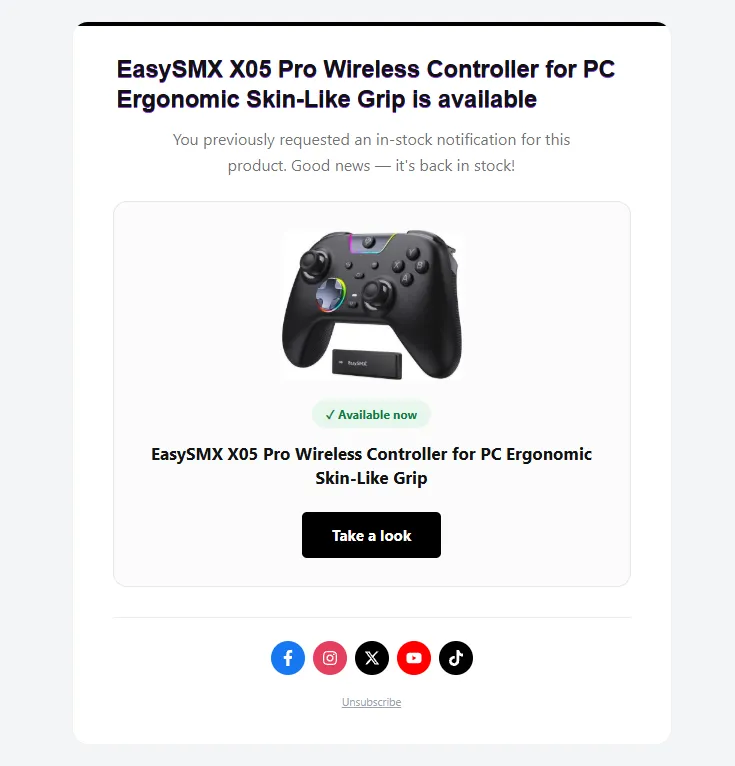
The Back in stock email a customer receives: subject as the heading, the product card with an Available now badge, the call-to-action, then your social icons and the unsubscribe link.
Preorder confirmation email
When a customer places an order containing a preorder item, they automatically receive the Preorder confirmation email.
Unlike the Back in stock email, this one has no designer of its own — it uses your store's WooCommerce email template, so the coloured header, base colours and footer all follow whatever you set under WooCommerce → Settings → Emails. Change your base colour there and this email changes with it.
What the email contains
It is deliberately compact — a single table rather than a second copy of the order:
- A greeting and one line confirming the items are reserved.
- One table, headed with the order number and date. Each preordered line shows the product thumbnail, the product name linked to the product page, the quantity when more than one, your campaign's note, the line price, and a ship-date pill reading "Ships on {date}" — or "Ships as soon as possible" when the campaign promises no fixed date. Ship dates are read per line item, so an order with two preorders on different dates shows both correctly.
- An Order total row. If the order also contains non-preorder items, a line underneath says so — "Includes 2 other items in this order." — because the total covers the whole order while the table lists only preorders.
- A note naming the earliest ship date and stating plainly that dates are estimates.
- What happens next — nothing to do, you will email again when it ships, and a link to the order in My Account.
WooCommerce's Processing order email arrives at the same moment with the line items, totals and addresses already in it. Repeating all of that produced two near-identical emails seconds apart, so this one carries only what the other cannot: the ship dates.
What you can change without code
Go to WooCommerce → Settings → Emails → Preorder confirmation and press Manage:
| Setting | Default | Notes |
|---|---|---|
| Enable/Disable | On | Switch the email off entirely. |
| Subject | Your preorder is confirmed (order {order_number}) | {order_number} and {order_date} are available. |
| Email heading | Thanks for your preorder | Same tokens. |
| Additional content | (empty) | Shown above the footer. |
| Email type | HTML | Or plain text / multipart. |
The header image, colours and footer come from your global WooCommerce email settings, not from here.
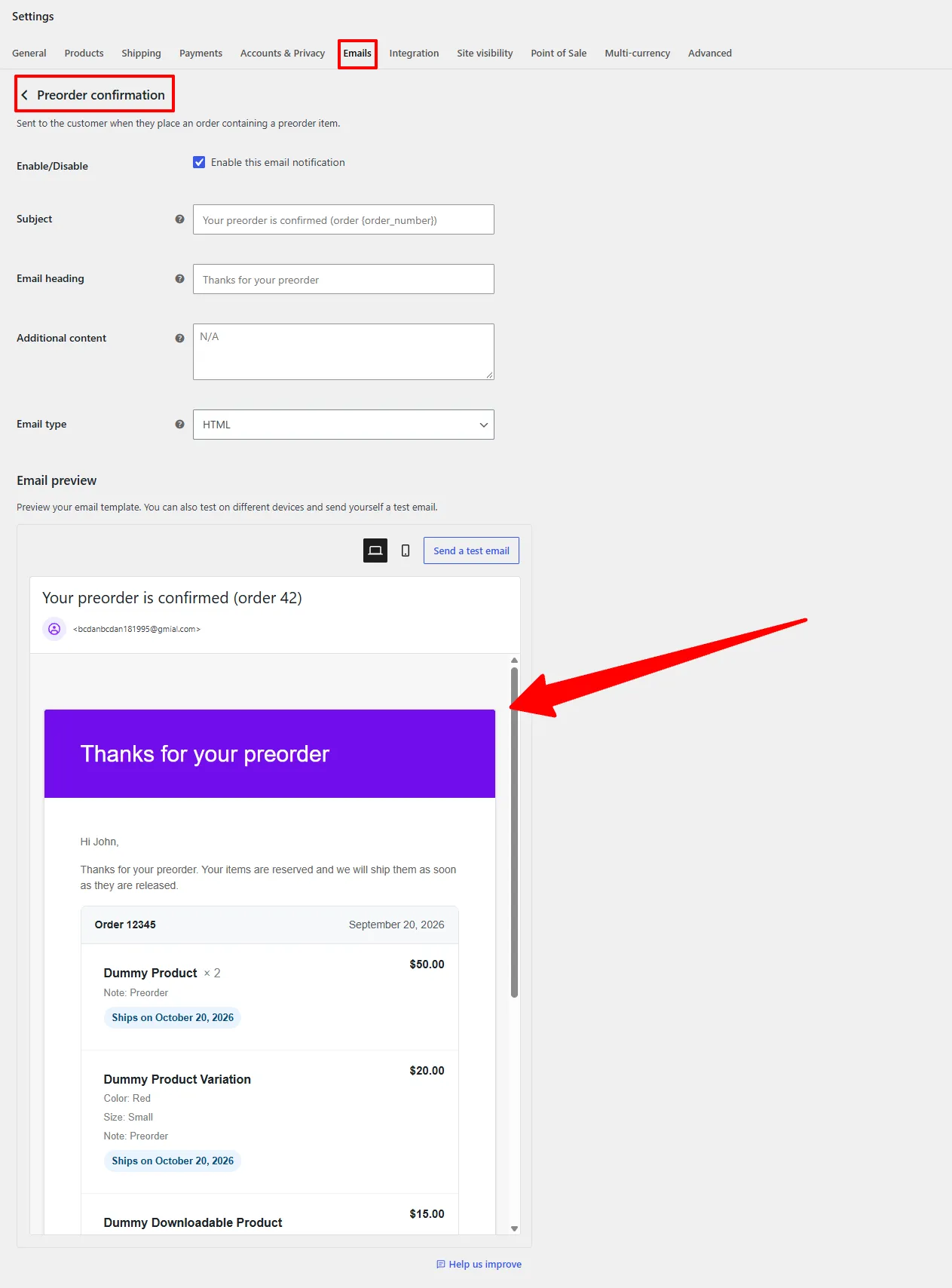
WooCommerce → Settings → Emails → Preorder confirmation, with the live preview underneath.
The Email preview on the same screen renders the real template with sample products — order header, per-line notes, ship-date pills and prices — so you can check the layout, switch between desktop and mobile, and send yourself a test without placing an order.
Advanced customisation
To change the email markup beyond these options, copy the template into your theme:
yourtheme/woocommerce/emails/back-in-stock.php
yourtheme/woocommerce/emails/preorder-confirmation.php
Plain-text versions live under emails/plain/ and can be overridden the same way.
- Put the product name in the subject with
{product_name}— it is the difference between a generic blast and an email the customer was waiting for. - Keep the description to one sentence. The customer already wants the product; do not sell, just link.
- Leave every footer field blank if you do not want a footer — it hides itself rather than rendering empty.
- Send yourself a test with a mail-catcher before going live. Email rendering is the one thing a live preview cannot fully guarantee.
Restock notifications are queued through Action Scheduler with a processing lock and a per-row notified status, so saving stock several times in a row cannot produce duplicate emails.
Delivery troubleshooting
- Confirm the email is enabled in WooCommerce → Settings → Emails.
- Confirm your store can send email at all — install an SMTP plugin if needed. On local and staging sites, plain PHP mail usually fails silently.
- Use the Preview action in WooCommerce → Settings → Emails to check the layout without sending.
- Send failures are logged under WooCommerce → Status → Logs, source
restockbeacon-preorder-back-in-stock-for-woocommerce.
Next Steps
- Waitlist — see who is waiting and send manual alerts.
- Back in Stock — the button and sign-up form.
- Pro Features — the Hero, Split and Minimal layouts.
- Analytics — waitlist notification and preorder trends.
Frequently asked questions
Why is the back in stock email not sending?
In order of likelihood: the email is disabled in WooCommerce → Settings → Emails; the site cannot send mail at all (no SMTP); the product was restocked in a way that bypasses WooCommerce's stock functions; or nobody on the waitlist is still pending. Check WooCommerce → Status → Logs for send failures.
Can I change the From name and address per campaign?
Yes. The Email sender name and Email sender address fields on the Email Notification tab override your WooCommerce defaults for that campaign only. Leave them blank to use the store default.
Can I use the product name in the subject line?
Yes. Use the {product_name} token in the Email subject & heading field — one field fills both.
Which email layouts are free?
Centered is included in the free version. Hero, Split and Minimal require the Pro add-on and show a PRO badge on their thumbnails.
Will a customer ever get two emails for the same restock?
No. Each waitlist row is marked notified when sent, and a processing lock prevents concurrent batches from double-sending.
Why does the customer get two emails when they preorder?
Because WooCommerce sends its own Processing order email at the same moment as the plugin's Preorder confirmation. They do not duplicate each other — WooCommerce's carries the order breakdown, the plugin's carries the ship dates. Either can be switched off under WooCommerce → Settings → Emails.
Does the preorder email show the order total and line items?
It shows the preordered lines with their prices and the order total, but not the full WooCommerce breakdown — that is already in the Processing order email arriving at the same time. If the order also contains ordinary items, the email says so under the total.
Does the preorder email show the ship date?
Yes — one per line item, so an order containing two preorders with different release dates shows both. Lines with no fixed date read "Ships as soon as possible", and a summary underneath names the earliest date.
Can I hide the email footer?
Yes. Leave the footer message and all five social URL fields blank and the footer is not rendered at all.
Can I edit the email HTML?
Yes. Copy back-in-stock.php or preorder-confirmation.php into yourtheme/woocommerce/emails/ and edit there, so your changes survive plugin updates.