Product Upsell
📋 Table of Contents
Overview
Product Upsell displays a curated set of complementary or higher‑value products directly on the single product page. It's the classic "complete the look" or "you may also need" block — a proven way to lift average order value and guide shoppers toward matching or premium items.
You control exactly which products trigger the upsell, which offers appear, whether customers can adjust quantities, and any bundle discount.
How it works
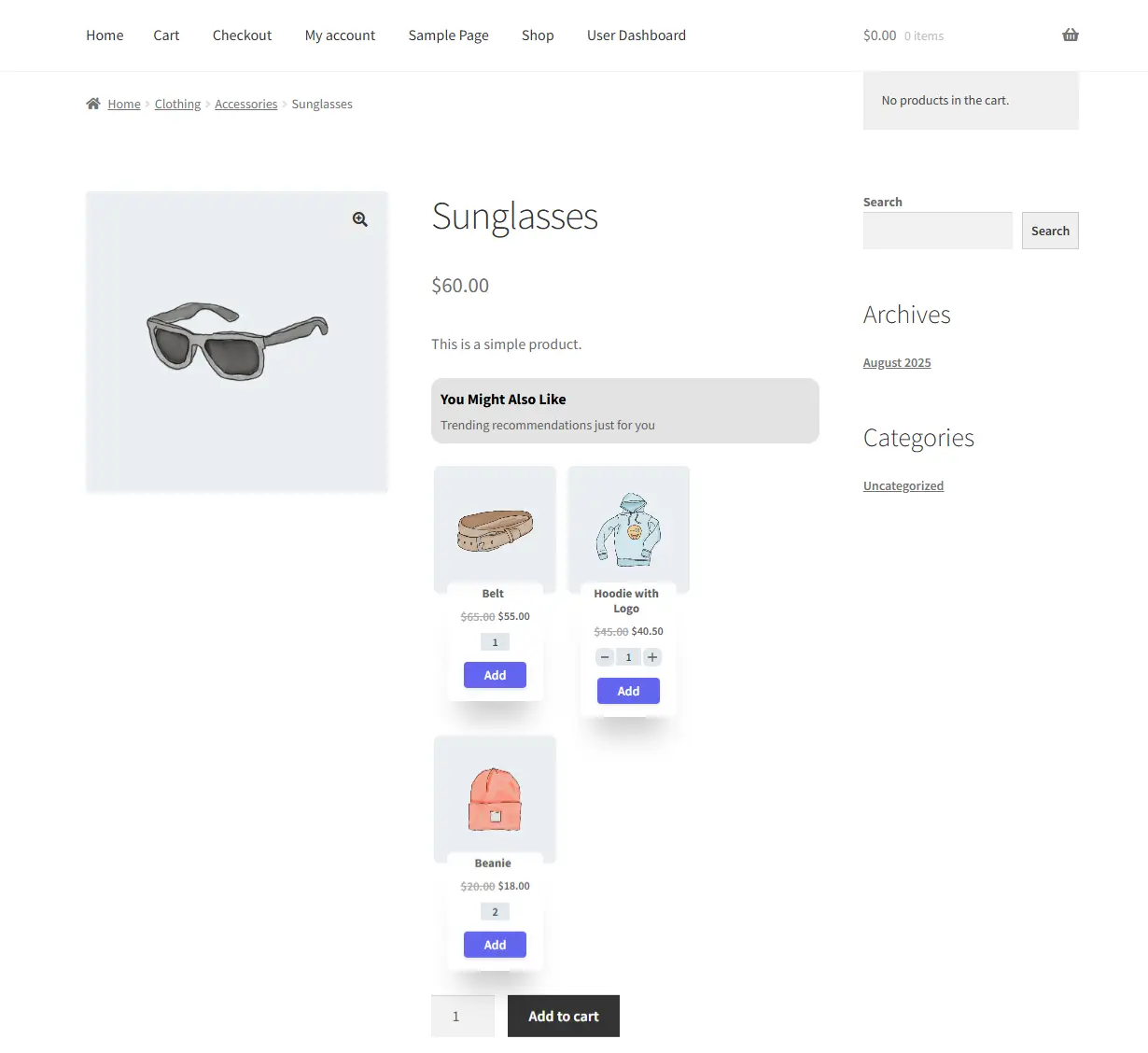
A customer opens the Sunglasses product page. Just below the Add to Cart button, an upsell block appears recommending a Belt, a Hoodie with Logo, and a Beanie — with a small bundle discount on one of them. The shopper adds a matching item in one click, and your order value grows without any extra browsing.
The Grid layout is available in the Free version. List and Slider layouts, plus advanced targeting, require Pro.
Step-by-Step Setup
1. Create the campaign
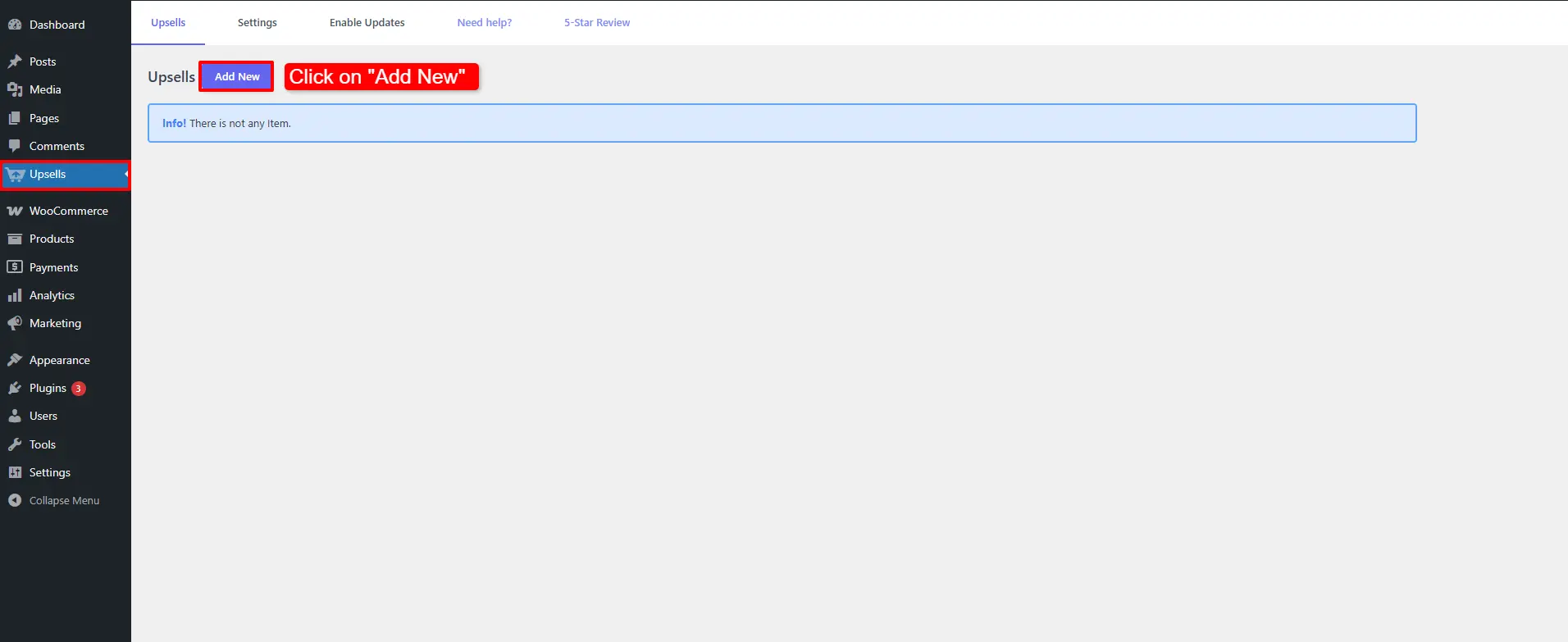
Open Side Cart & Upsell → Campaigns, then click Add New.
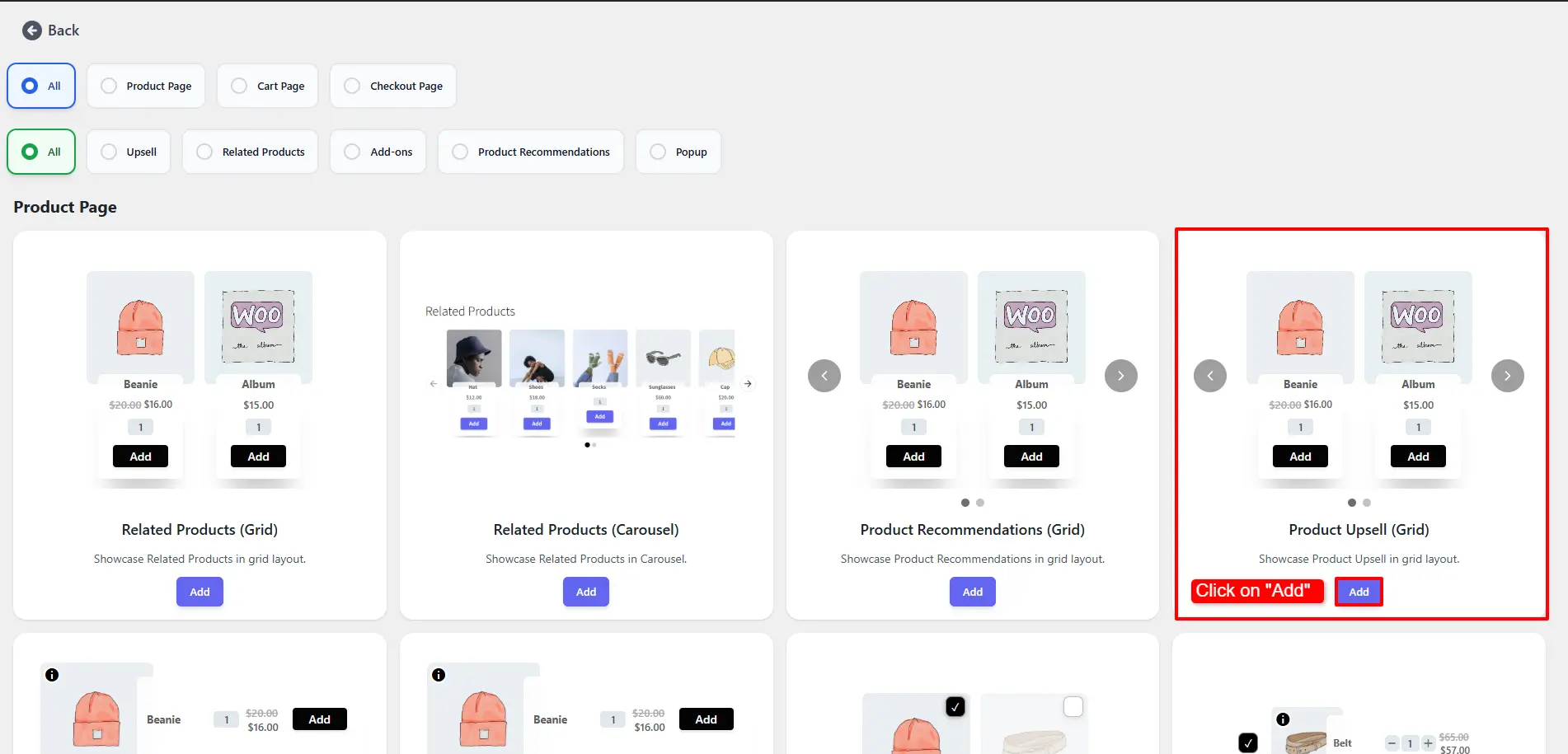
Choose Product Upsell (Grid) from the Product Page group and click Add.
2. Configure the General tab
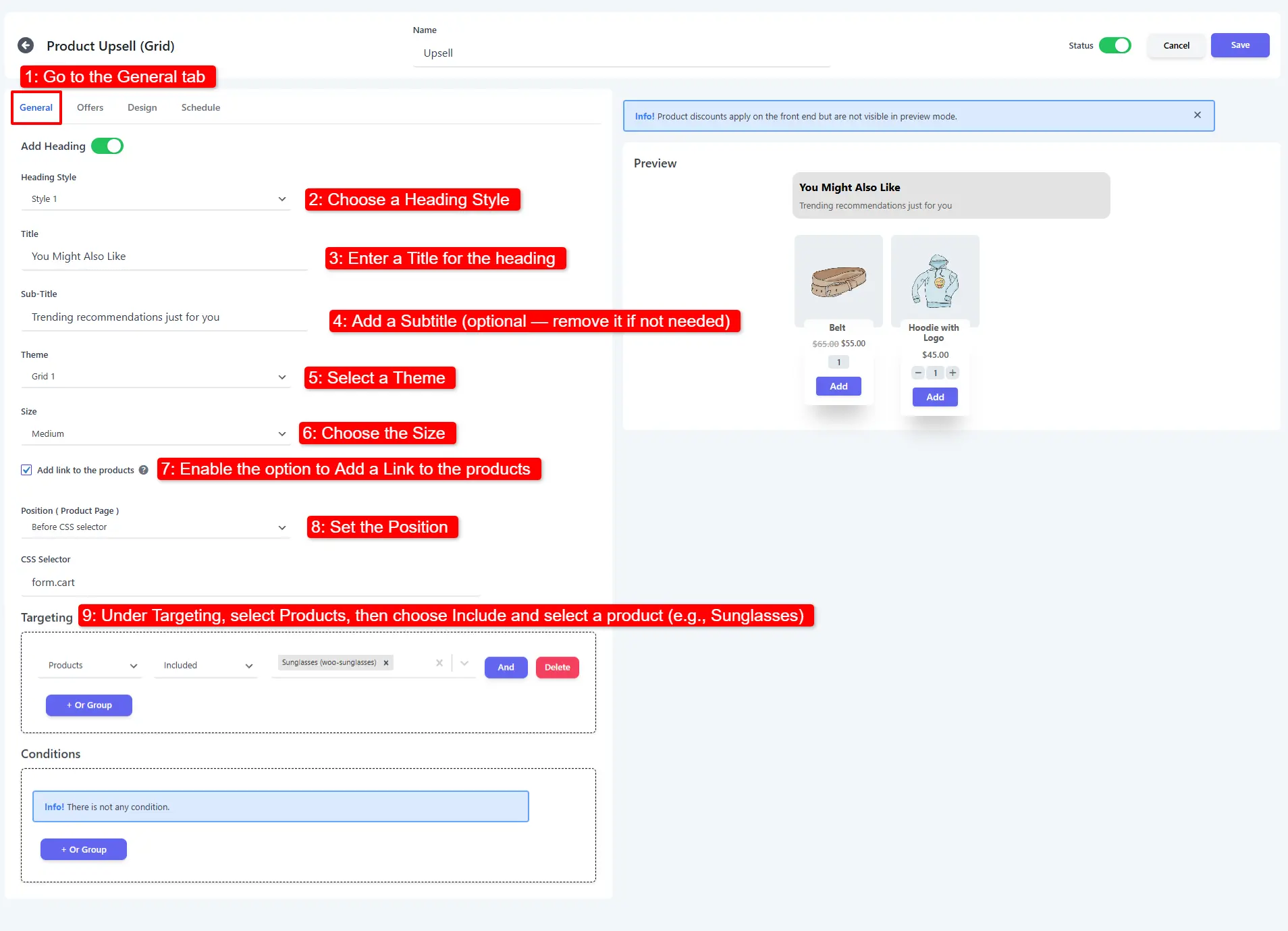
- Pick a Heading Style.
- Enter a Title (e.g.
Complete the look). - Optionally add a Subtitle — or remove it if not needed.
- Select a Theme and a Size.
- Enable Add a Link to the Products so customers can open each item's page.
- Set the Position where the block appears on the product page.
- Under Targeting, choose Products → Include and select the trigger product (e.g. Sunglasses).
3. Add your offers
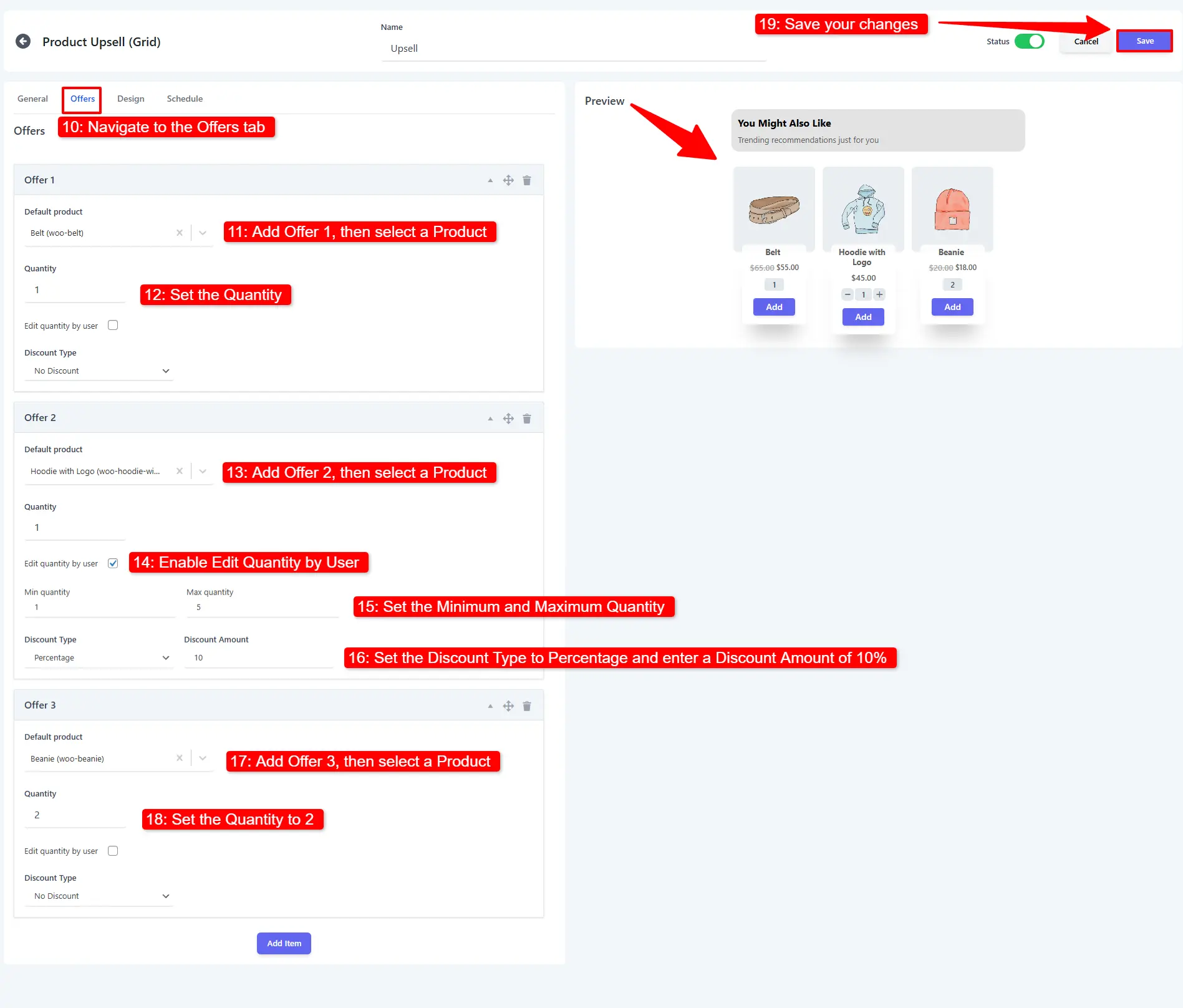
- Open the Offers tab.
- Add Offer 1 and select a product (e.g. Belt); set its Quantity.
- Add Offer 2 (e.g. Hoodie with Logo), enable Edit Quantity by User, and set the Minimum and Maximum quantity.
- Apply a Discount Type of Percentage with a value of 10%.
- Add Offer 3 (e.g. Beanie) with a Quantity of 2.
- Click Save Changes.
🧪 Example configuration
Use this exact recipe to reproduce the screenshots in this guide.
| Setting | Value |
|---|---|
| Layout | Product Upsell (Grid) |
| Title | Complete the look |
| Theme / Size | Grid 1 / Medium |
| Add link to products | Enabled |
| Position | Before form.cart |
| Targeting | Products → Include → Sunglasses |
| Offer 1 | Belt — qty 1 |
| Offer 2 | Hoodie with Logo — edit qty by user, min 1 / max 3, 10% off |
| Offer 3 | Beanie — qty 2 |
What customers see
When the campaign is active, the upsell block renders on the Sunglasses product page with your chosen theme, layout, and discount.
- Recommend genuinely related products — accessories for a main item convert best.
- Keep offers to 2–4 products so the block stays scannable.
- Use a small discount on one offer to create a clear "deal" without eroding margin across the board.
📚 Next Steps
Now that you've configured product page upsells, explore other campaign types across the funnel:
- Product Upsell Popup — Show a high-converting modal popup when an item is added to cart.
- Product Add-ons — Add checkboxes and options for warranties, gift wrapping, or accessories.
- Cart Upsell Campaigns — Recommend additional items on the cart page.
- Side Cart Upsells — Display upsells in the slide-out side cart drawer.
- Checkout Upsell Campaigns — Add last-minute order bumps on the checkout page.