Related Products
📋 Table of Contents
Overview
Related Products shows a slider (or grid) of items similar to the one a customer is viewing, helping them discover more of your catalog and encouraging multiple purchases. It's automatic, responsive, and fully styleable — a dependable way to keep shoppers browsing.
You control how many products appear per device, the sort order, and where the block sits on the page.
How it works
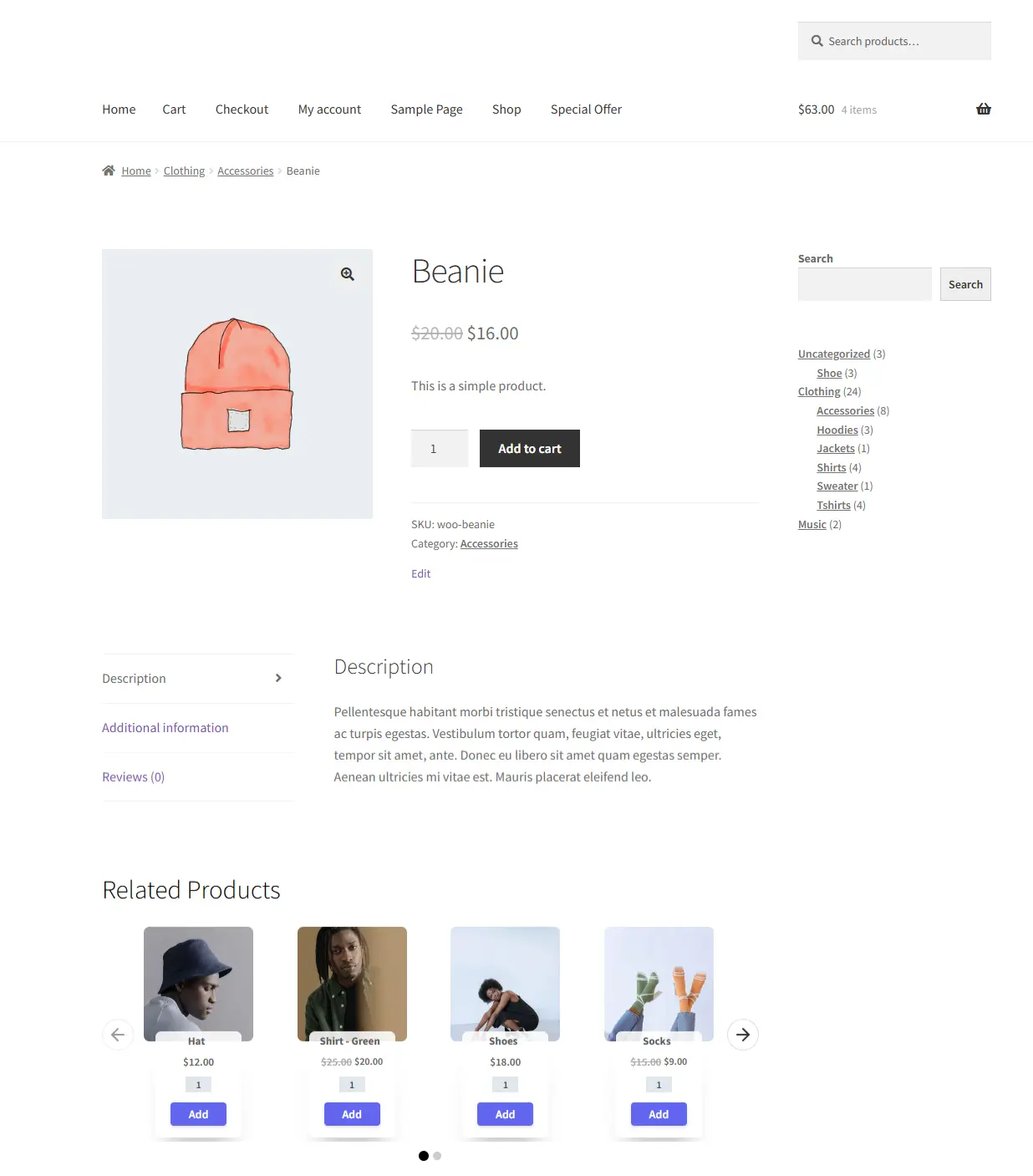
A customer is browsing a Beanie. A Related Products carousel appears showing similar items — a Hat, a Shirt, some Shoes, and Socks — so they can keep exploring without hitting a dead end. The slider adapts to show the right number of products on mobile, tablet, and desktop.
The Grid and Carousel layouts on the product page are available in the Free version.
Step-by-Step Setup
1. Create the campaign
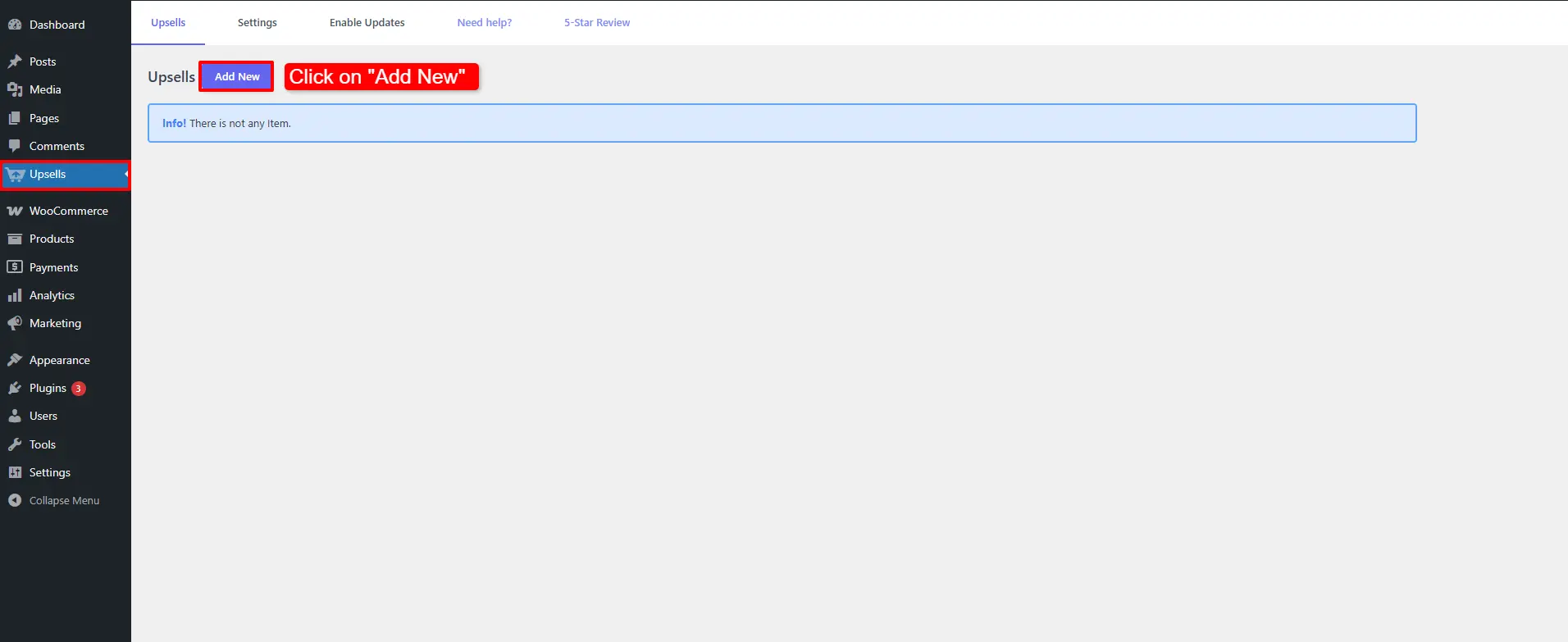
Open Side Cart & Upsell → Campaigns, then click Add New.
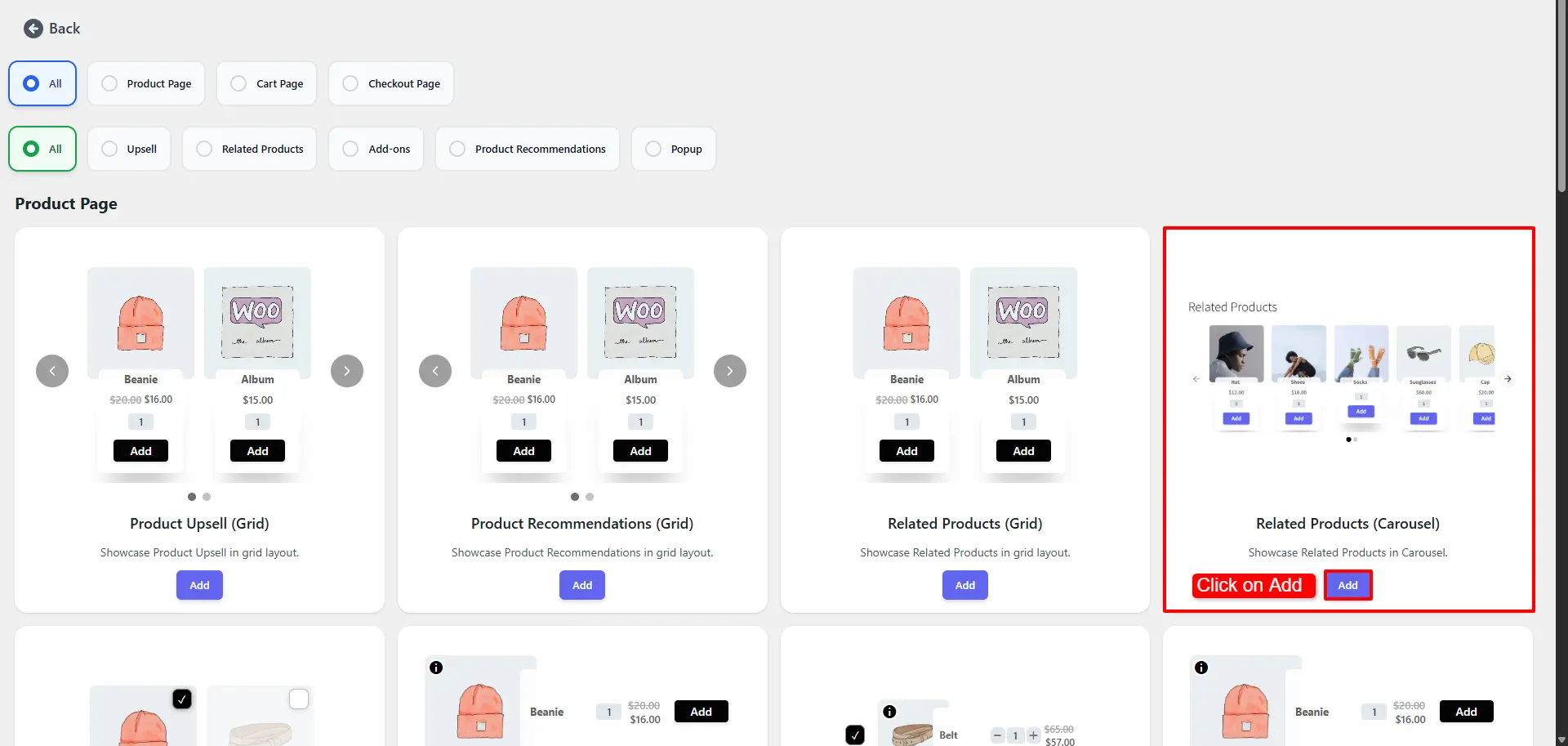
Choose Related Products (Carousel) (or Grid) and click Add.
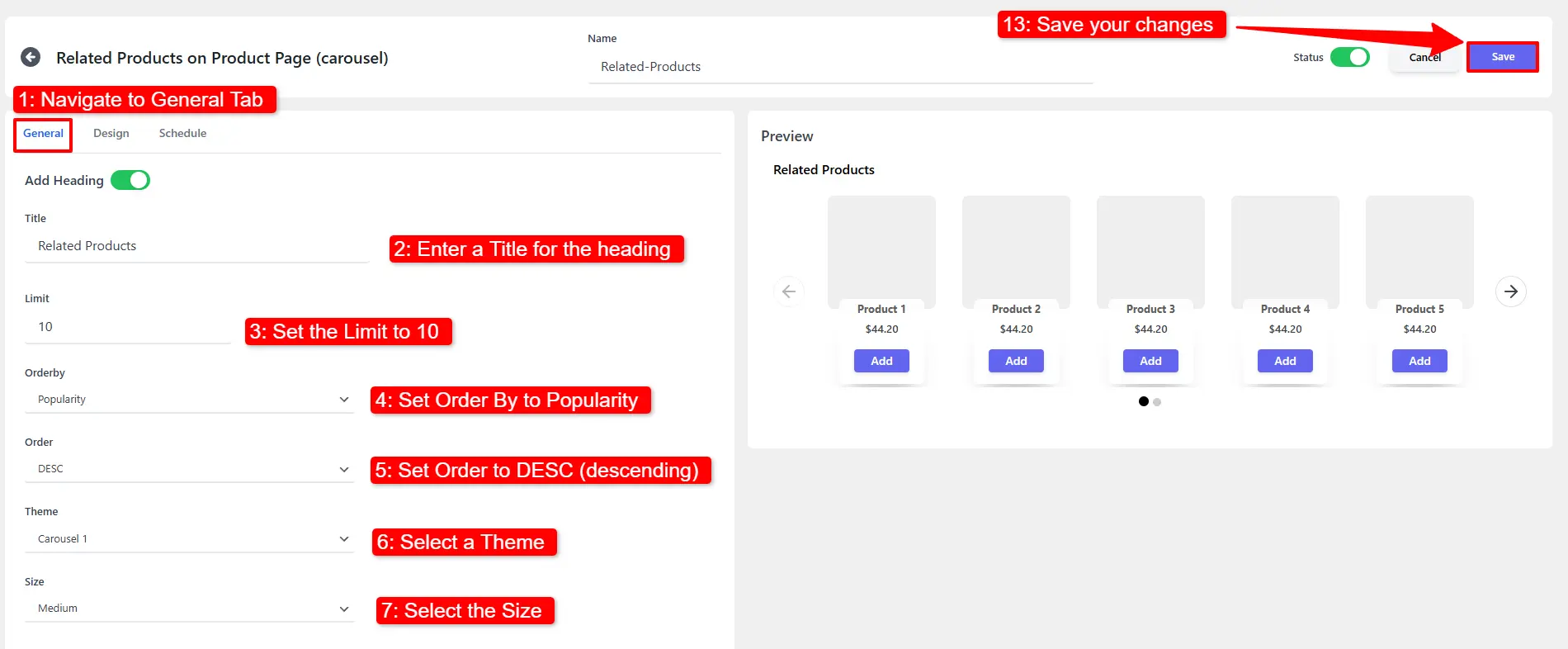
2. Configure the General tab
- Enter a Title for the block (e.g.
Related products). - Set the Limit — the maximum number of products to pull (e.g. 10).
- Set Order By to Popularity and Order to DESC (descending).
- Select a Theme and a Size.
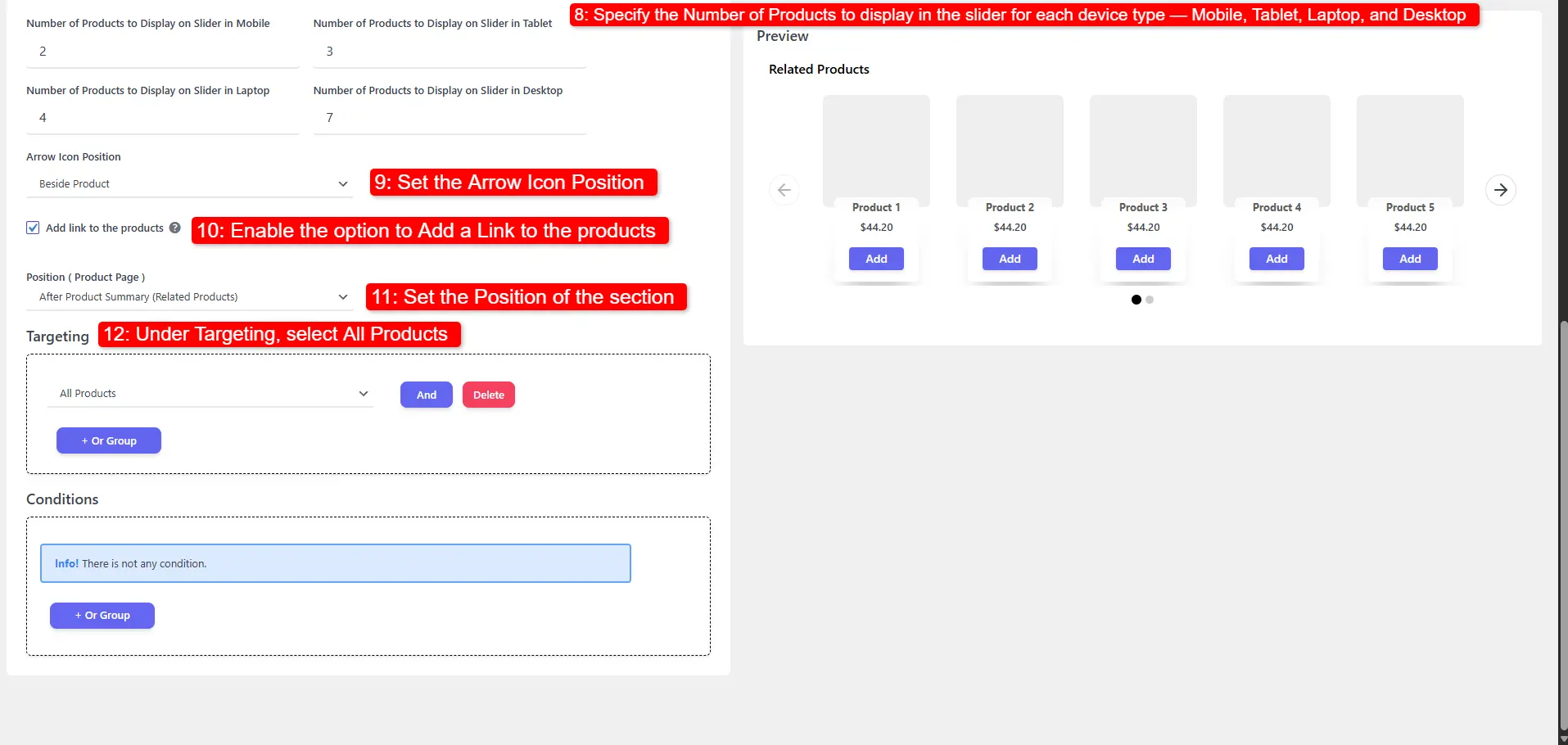
3. Set layout, position, and targeting
- Set the Number of Products to show per device — Mobile, Tablet, Laptop, and Desktop.
- Choose the Arrow Icon Position for the slider.
- Enable Add a Link to the Products.
- Set the Position of the block on the page.
- Under Targeting, choose All Products.
- Click Save Changes.
🧪 Example configuration
| Setting | Value |
|---|---|
| Layout | Related Products (Carousel) |
| Title | Related products |
| Limit | 10 |
| Order By / Order | Popularity / DESC |
| Per device | Mobile 1 · Tablet 2 · Laptop 3 · Desktop 4 |
| Add link to products | Enabled |
| Targeting | All Products |
What customers see
The Related Products slider appears on every product, adapting the number of visible items to the shopper's screen size.
- Set per‑device counts intentionally — 1 on mobile keeps the slider legible.
- Related Products is rule‑free discovery; pair it with a targeted Product Upsell for hand‑picked offers.
- Place the block after the product summary so it doesn't push the Add to Cart button down.
📚 Next Steps
Now that you've set up related products, explore other cross-sell and upsell placements:
- Product Recommendation Campaigns — Set up custom algorithmic and manual product recommendations.
- Product Add-ons — Add optional checkboxes for accessories and warranties.
- Product Upsell Campaigns — Embed targeted upsell blocks on single product pages.
- Cart Upsell Campaigns — Recommend related items on the cart page.
- Side Cart Upsells — Suggest related items inside the side cart drawer.