Side Cart Upsells
📋 Table of Contents
Overview
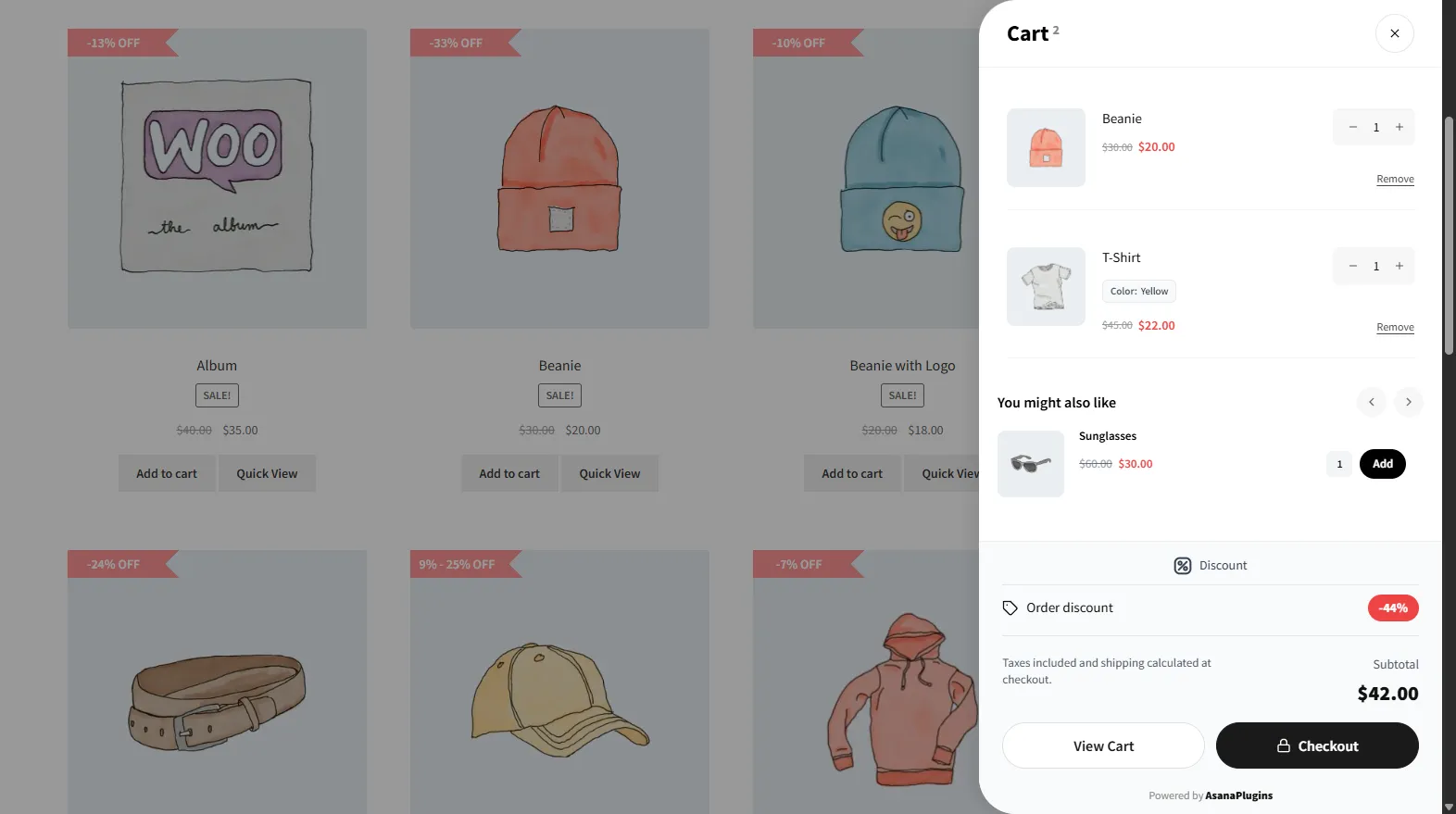
Side Cart Upsells add a rules‑based "You might also like" row right inside the Side Cart drawer. Every time the drawer opens, the plugin reads the cart, matches it against the rules you've defined, and recommends the products most likely to be added — all without leaving the page.
Unlike a fixed product list, these upsells are conditional: you decide who sees each offer (based on cart contents, cart total, user role, purchase history, and more) and which products they see. A Default Upsell Rule acts as a safety net so the drawer never looks empty.
The Side Cart Upsells engine is available in the Free version, which supports up to 3 rules. Pro removes the rule limit and unlocks the Display Customer Conditions controls (exclude if in cart / exclude if purchased).
How it works
A customer adds a Beanie to their cart. The Side Cart slides in and, just below their items, a "You might also like" row suggests Sunglasses and a Belt — the accessories that pair best. Because you created a rule targeting carts that contain an Accessories product, the right customers see the right offer at the exact moment they're deciding whether to check out. One tap adds the upsell and the drawer totals update instantly.
Step-by-Step Setup
1. Enable Side Cart Upsells
- Open Side Cart & Upsell → Side Cart.
- Switch to the Addons tab.
- In the add‑on list, select Upsells and toggle Enable Upsells on.
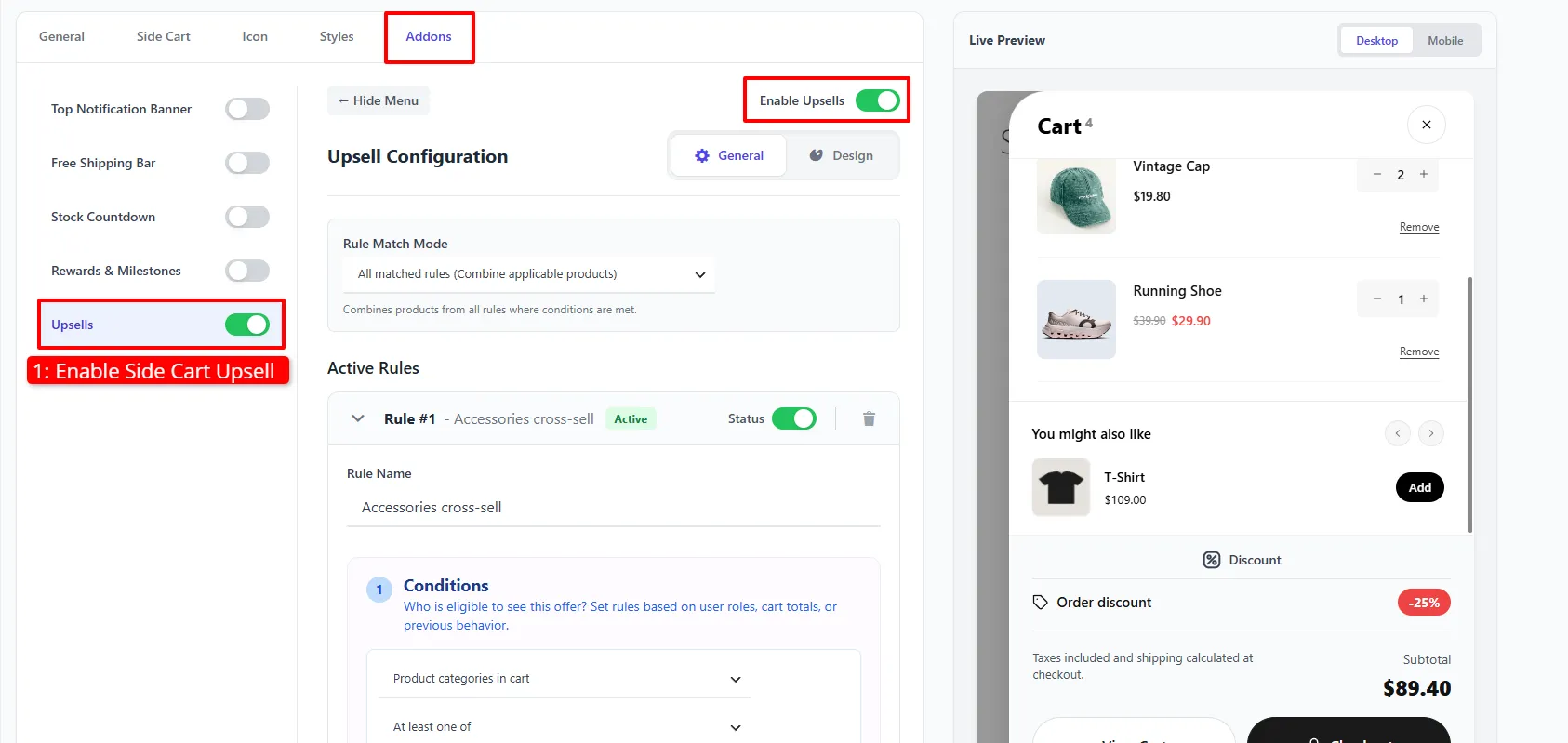
The Upsell Configuration area has two tabs: General (rules and products) and Design (appearance).
2. General — build your rules
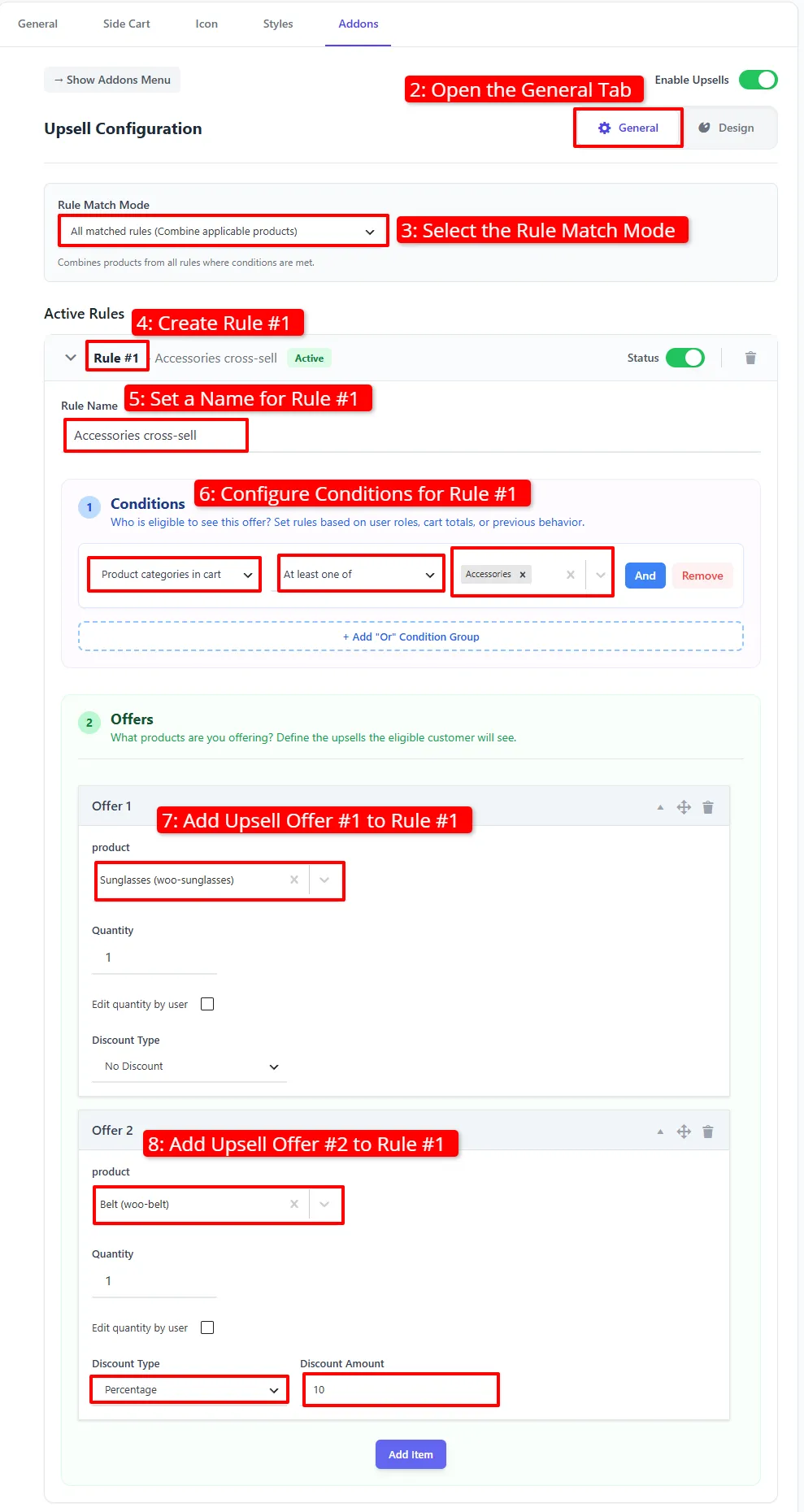
- On the General tab, set the Rule Match Mode:
- First match wins — recommends products from the first matching rule.
- All matched rules (Combine applicable products) — merges products from every matching rule.
- Click + Add New Rule to create Rule #1, then give it a Rule Name
(e.g.
Accessories cross-sell). - Under ① Conditions, define who is eligible — for example Product categories in cart → At least one of → Accessories. Add more conditions and group them with And / "Or" Condition Group for complex logic.
- Under ② Offers, click Add Item for each product eligible customers
will see. For every offer you can set:
- Product and Quantity.
- Edit quantity by user — reveals Min quantity / Max quantity.
- Discount Type — No Discount, Percentage, Price (exact price override), or Fixed price (Pro) — plus the Discount Amount.
- Drag the offer cards to set their order in the drawer.
- Use the Status toggle to activate or pause each rule.
- Repeat for additional rules (up to 3 in the Free version).
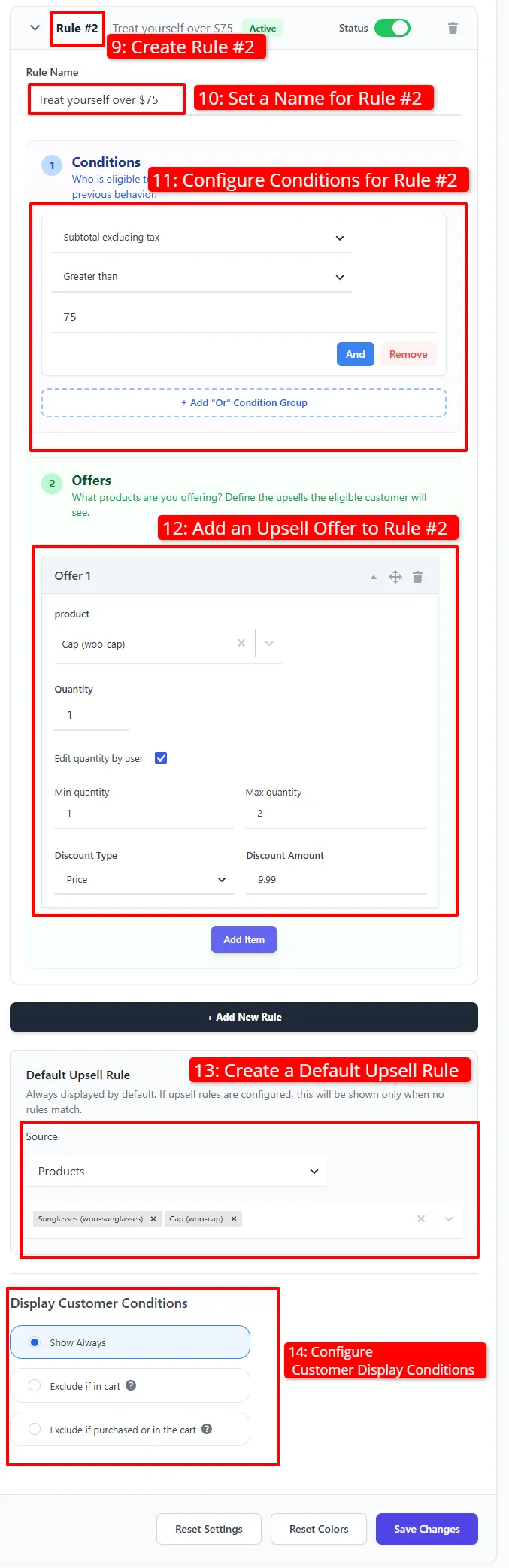
3. General — add a default rule and customer conditions
The Default Upsell Rule is shown only when no other rule matches, so the upsell row is never empty.
- Leave Source on Products and select one or more default products to fall back to (e.g. best‑sellers).
- (Pro) Under Display Customer Conditions, choose when an eligible offer
should be hidden:
- Show Always — always show matching offers.
- Exclude if in cart — hide an offer that's already in the cart.
- Exclude if purchased or in the cart — also hide items already bought.
4. Design — style the row
Switch to the Design tab.
- Set the Title (defaults to "You might also like").
- Choose the Button action — Add to cart or Go to product page — and the Button label (defaults to "Add").
- Choose the Item price display — Product price or Product subtotal.
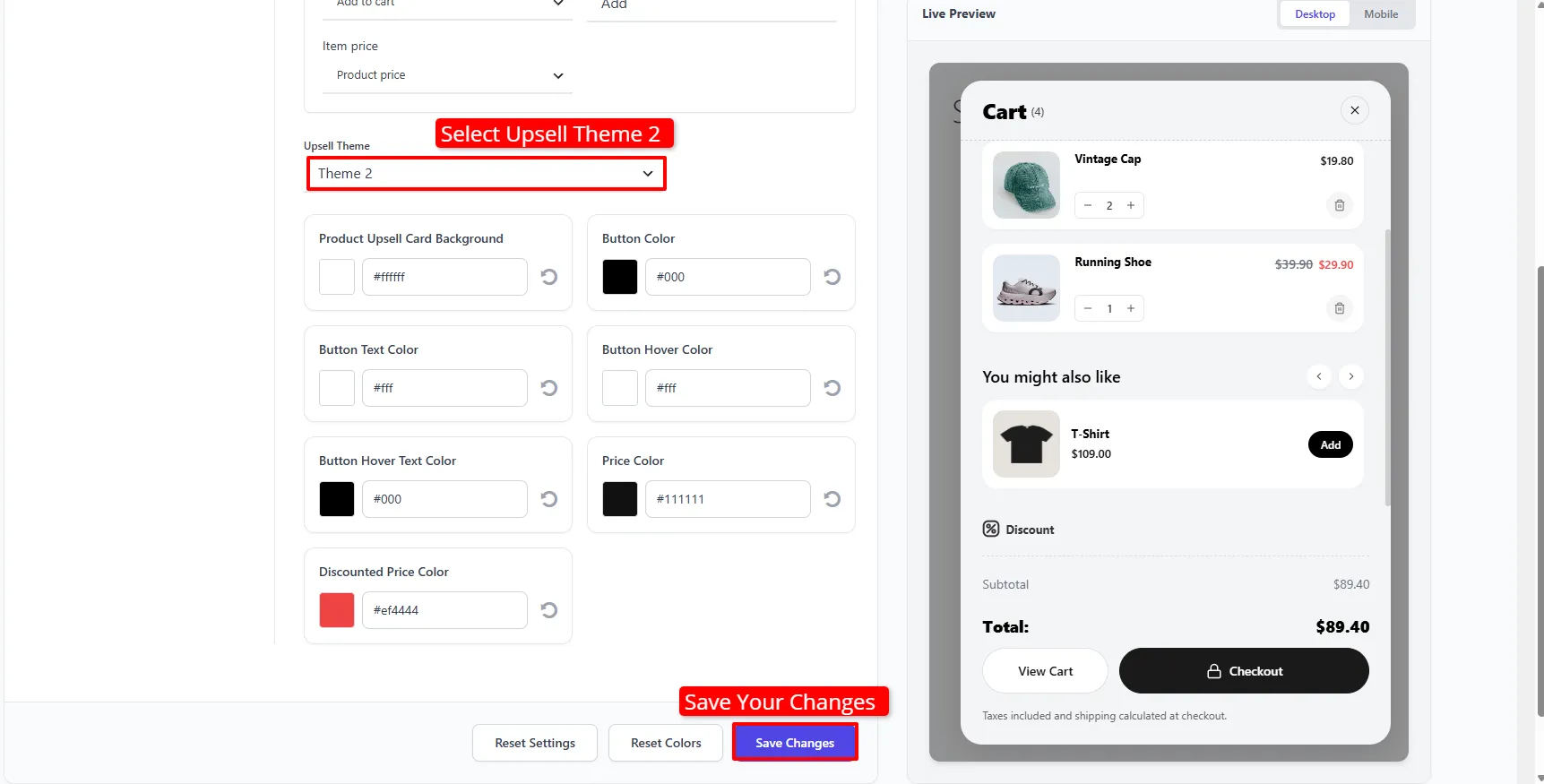
- Pick an Upsell Theme — Theme 1 or Theme 2.
- Adjust the colors: Button, Button Text, Button Hover / Hover Text, Price, and Discounted Price (Theme 2 also exposes a Product Upsell Card Background color).
- Click Save Changes.
Example configuration
Scenario: An apparel store cross‑sells accessories inside the cart drawer, sweetens the deal for bigger baskets, and never shows an empty upsell row.
Global
| Setting | Value |
|---|---|
| Rule Match Mode | All matched rules (Combine applicable products) |
Rule #1 — Accessories cross-sell
| Field | Value |
|---|---|
| Status | Active |
| ① Condition | Product categories in cart → At least one of → Accessories |
| ② Offer 1 | Product Sunglasses · Quantity 1 · Discount Type No Discount |
| ② Offer 2 | Product Belt · Quantity 1 · Discount Type Percentage · Discount Amount 10 |
Rule #2 — Treat yourself over $75
| Field | Value |
|---|---|
| Status | Active |
| ① Condition | Subtotal excluding tax → Greater than → 75 |
| ② Offer 1 | Product Cap · Edit quantity by user ✔ · Min 1 / Max 2 · Discount Type Price · Discount Amount 9.99 |
Default Upsell Rule (shown only when no rule matches)
| Field | Value |
|---|---|
| Source | Products |
| Default products | Sunglasses, Cap |
Design tab
| Field | Value |
|---|---|
| Title | You might also like |
| Button action | Add to cart |
| Button label | Add |
| Item price | Product price |
| Upsell Theme | Theme 2 |
| Colors | Button #000000 · Button Text #ffffff · Price #111111 · Discounted Price #ef4444 |
What customers see
Each time the Side Cart opens, the plugin evaluates your rules against the current cart and shows the best‑matching products (or the default products when nothing matches) as a "You might also like" row — one tap to add, no page reload.
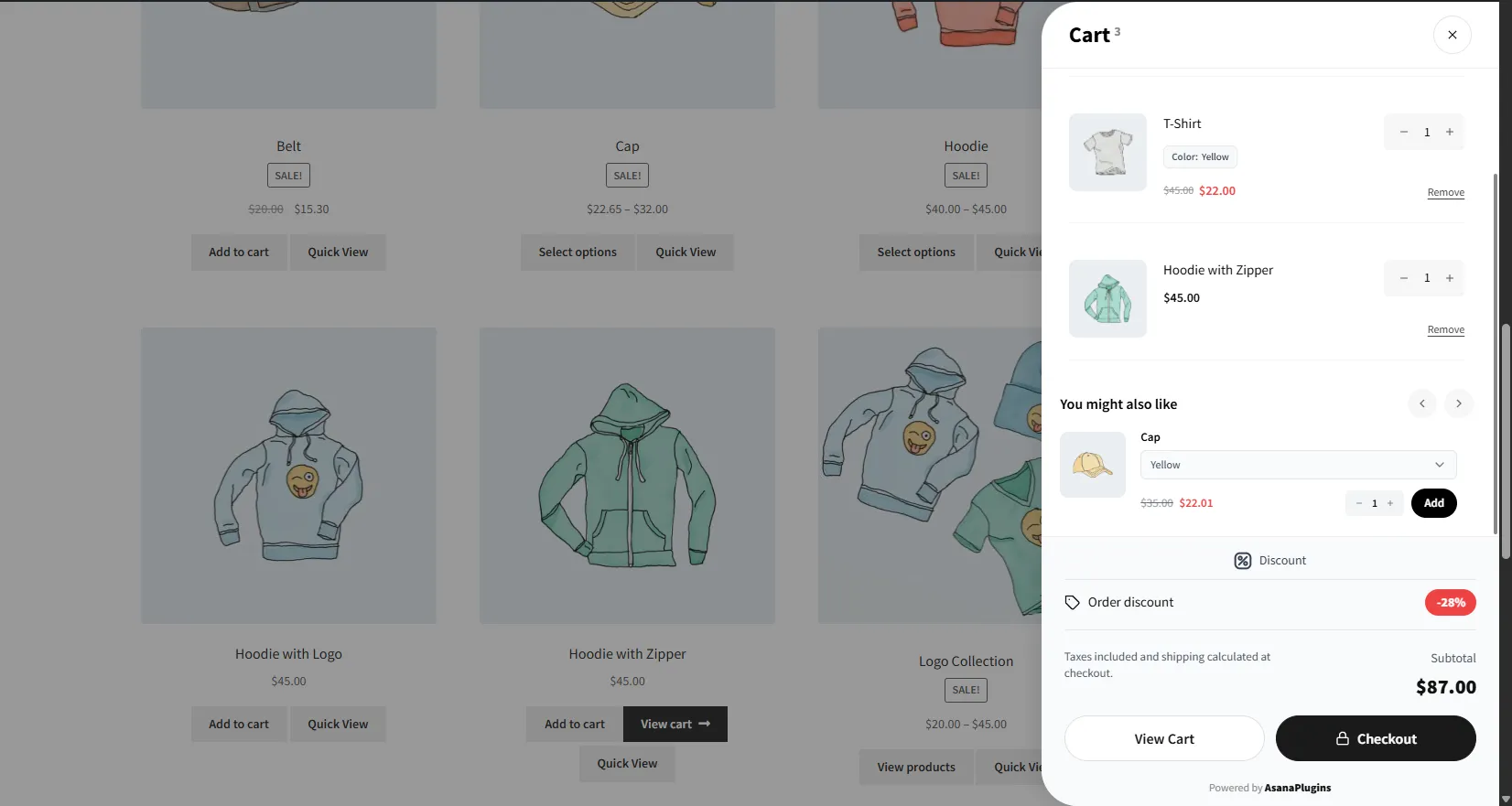
Offers can include variable products, letting customers choose options right in the drawer before adding:
- Use All matched rules for broad coverage, or First match wins when rules overlap and you want a single, prioritized offer.
- Always set a Default Upsell Rule so the drawer never shows an empty upsell row.
- Keep each rule's offers to 2–3 products so the row stays scannable inside the narrow drawer.
- Enable Edit quantity by user only for items customers buy in multiples, and set a sensible Max to protect stock.
📚 Next Steps
Now that you've configured side cart upsells, explore other ways to increase average order value:
- Rewards & Milestones — Add a progress bar for free shipping or gifts right above side cart upsells.
- Side Cart Setup — Customize drawer layout, colors, open triggers, and floating cart button.
- Product Upsell Campaigns — Offer complementary products on single product pages.
- Cart Upsell Campaigns — Set up upsell offers on the standard cart page.
- Checkout Upsell Campaigns — Add last-chance impulse purchases on the checkout page.