Checkout Upsell
📋 Table of Contents
Overview
Checkout Upsell places targeted offers directly on the checkout page — the last opportunity to grow an order before payment. Because the customer is already committed to buying, a well‑matched offer here converts strongly without disrupting the checkout flow.
As with Cart Upsell, offers are conditional, so shoppers see only the suggestions relevant to what's already in their cart.
How it works
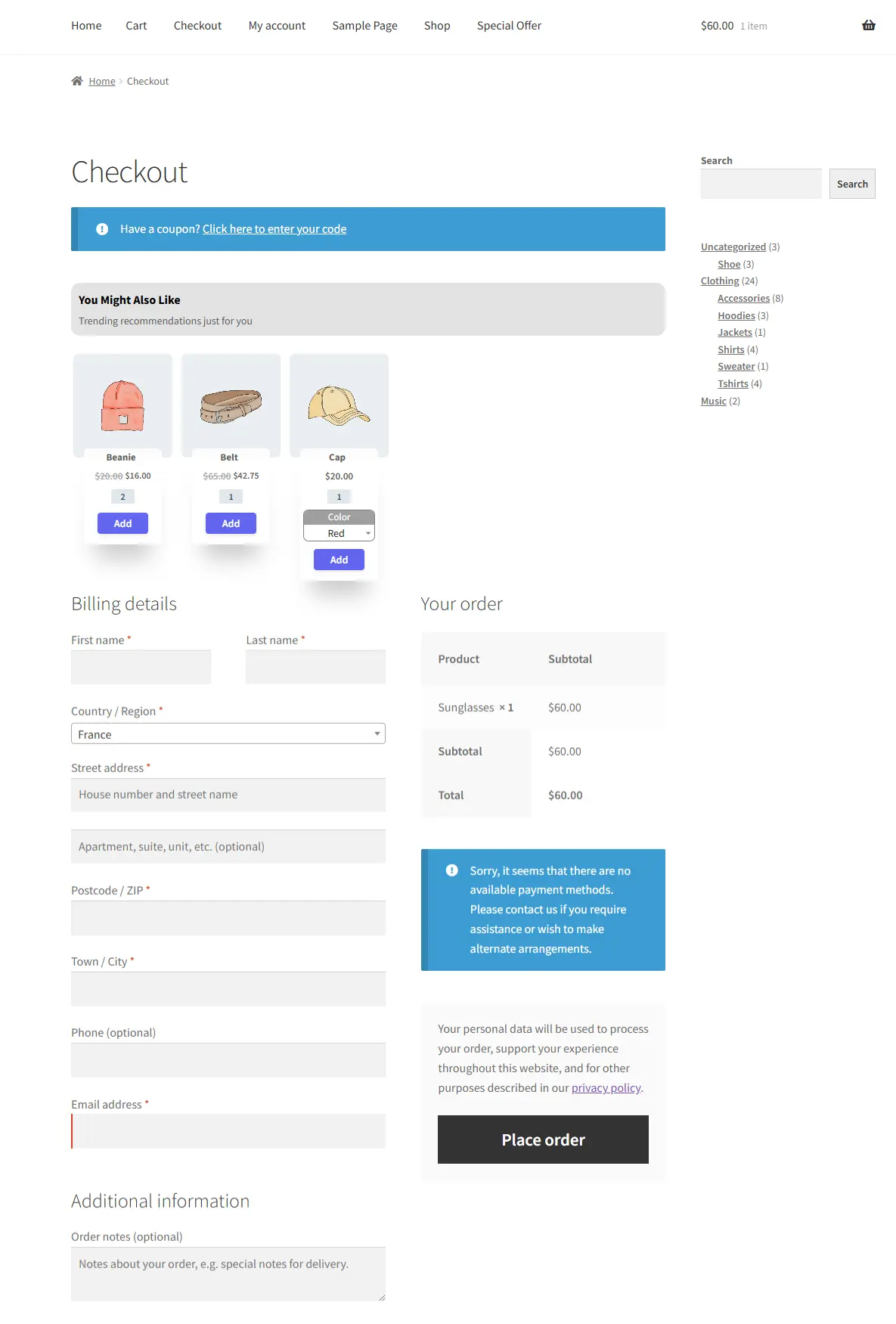
A customer reaches checkout with only Sunglasses in their cart. A Checkout Upsell section appears at the top of the page recommending a Beanie, a Belt (discounted), and a Cap. They add a matching item in one click and complete a larger order — no detour required.
The Grid layout is available in the Free version. The Slider layout requires Pro.
Step-by-Step Setup
1. Create the campaign
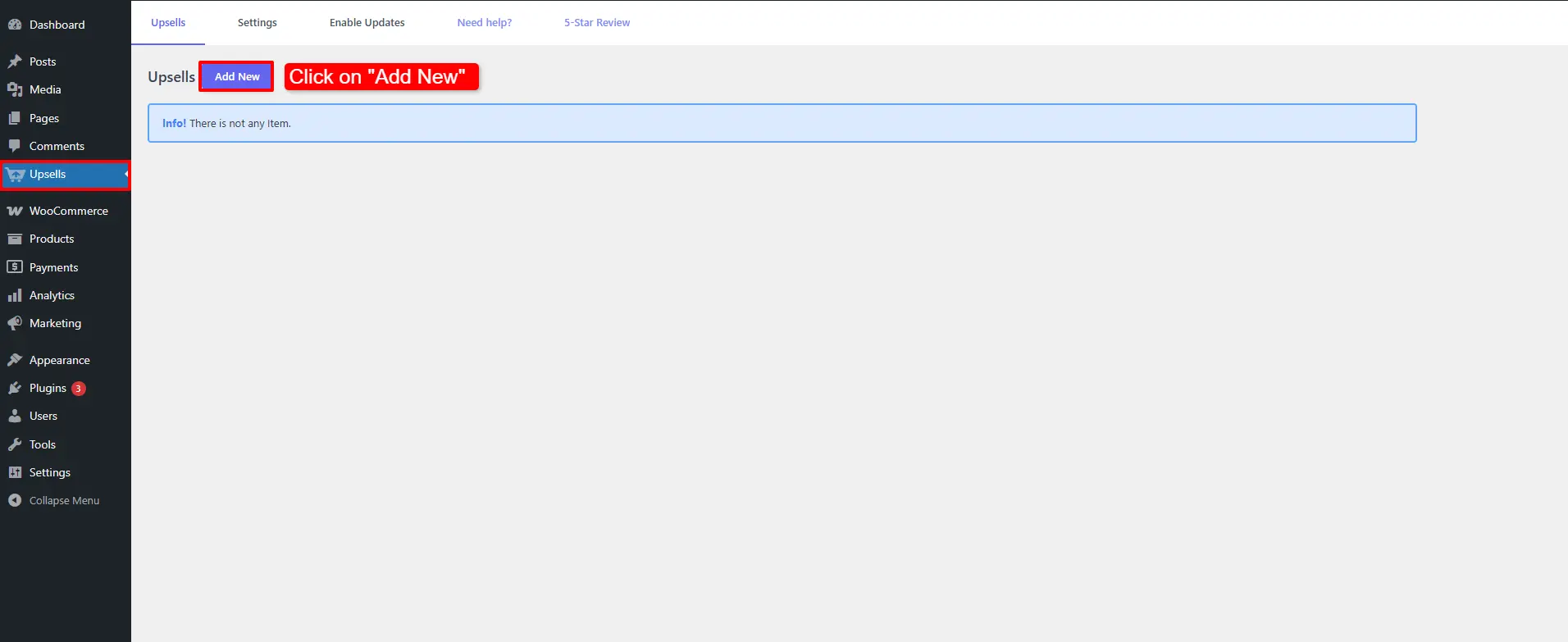
Open Side Cart & Upsell → Campaigns, then click Add New.
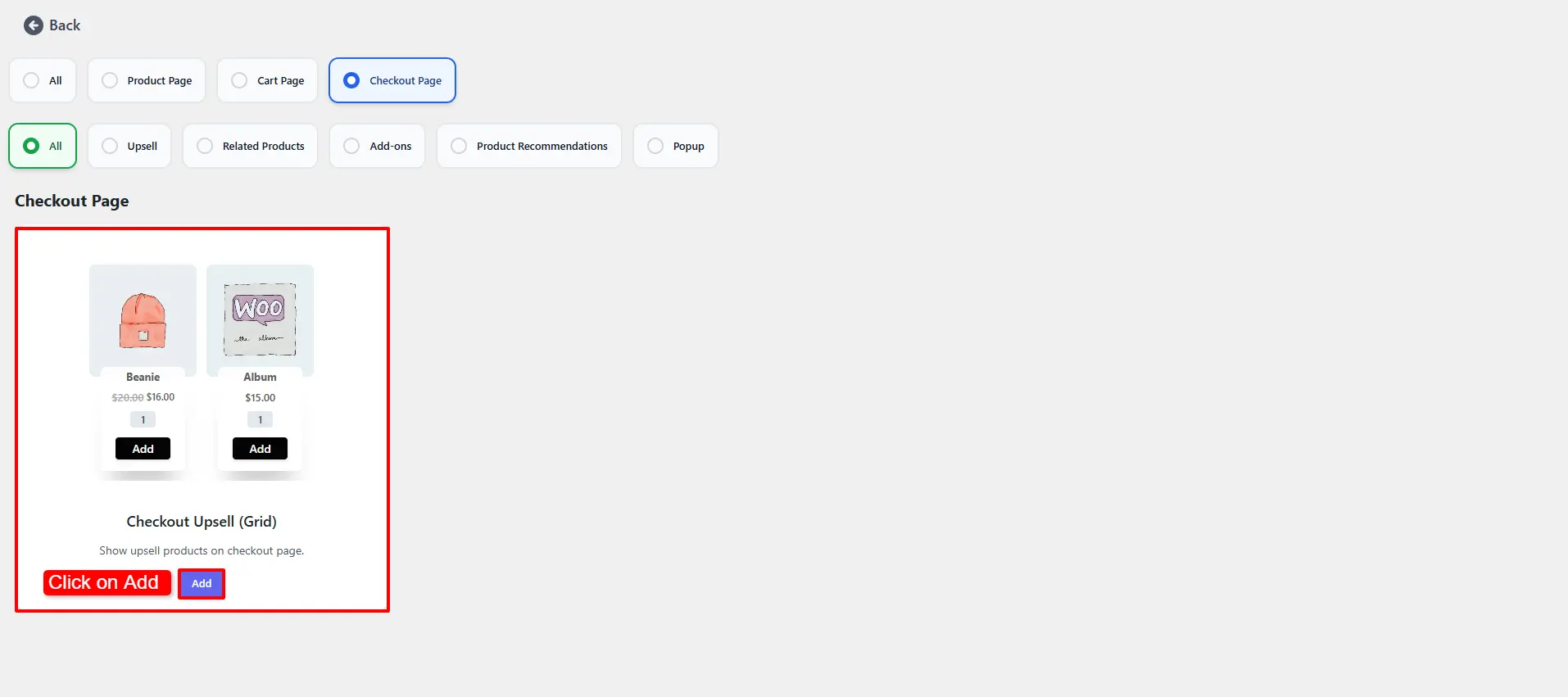
Choose Checkout Upsell (Grid) and click Add.
2. Configure the General tab
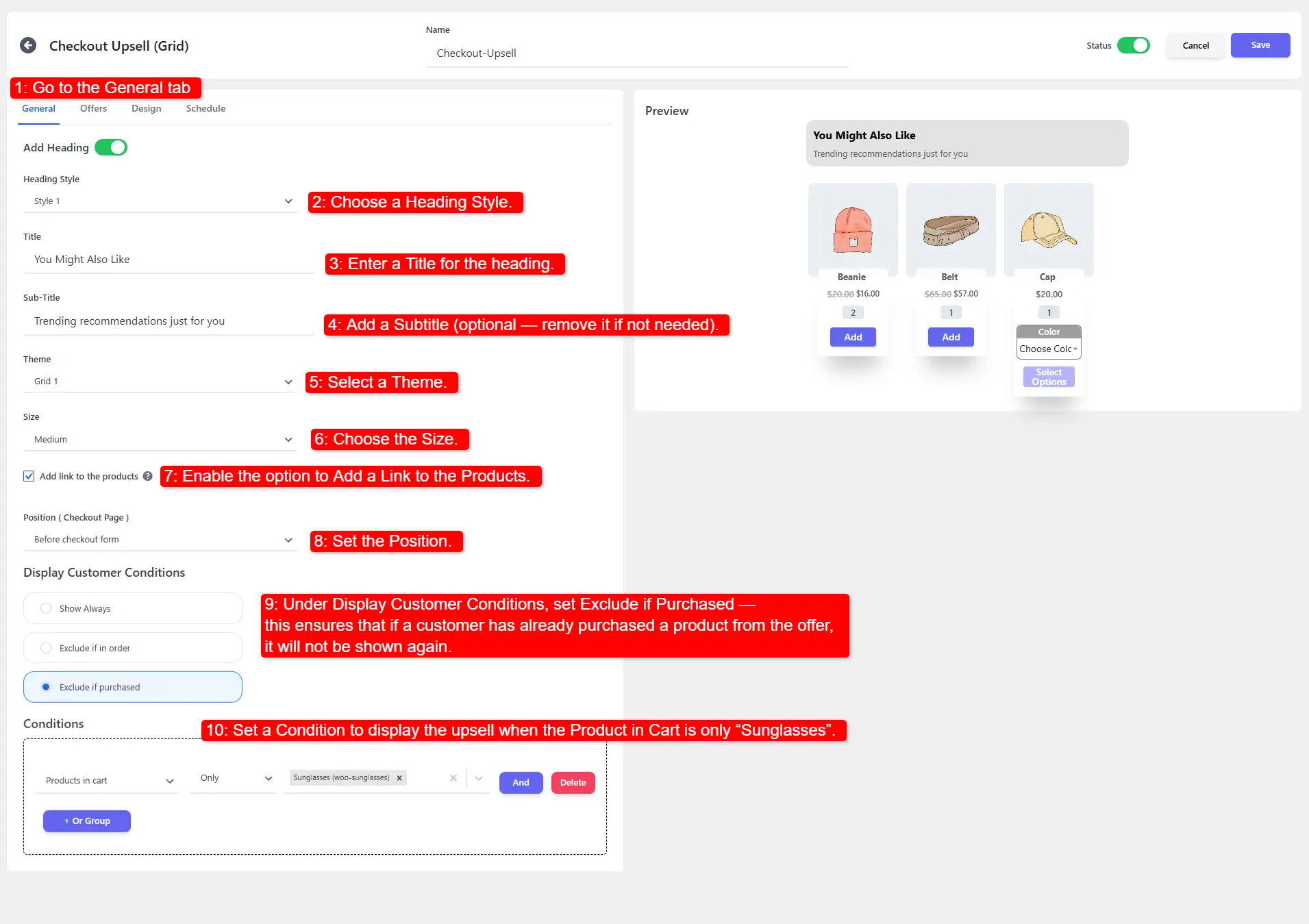
- Pick a Heading Style, enter a Title, and optionally a Subtitle.
- Select a Theme and a Size.
- Enable Add a Link to the Products.
- Set the Position (e.g. top of the checkout page).
- Under Display Customer Conditions, enable Exclude if Purchased.
- Add a Condition: show the upsell only when the Product in Cart is Sunglasses.
3. Add your offers
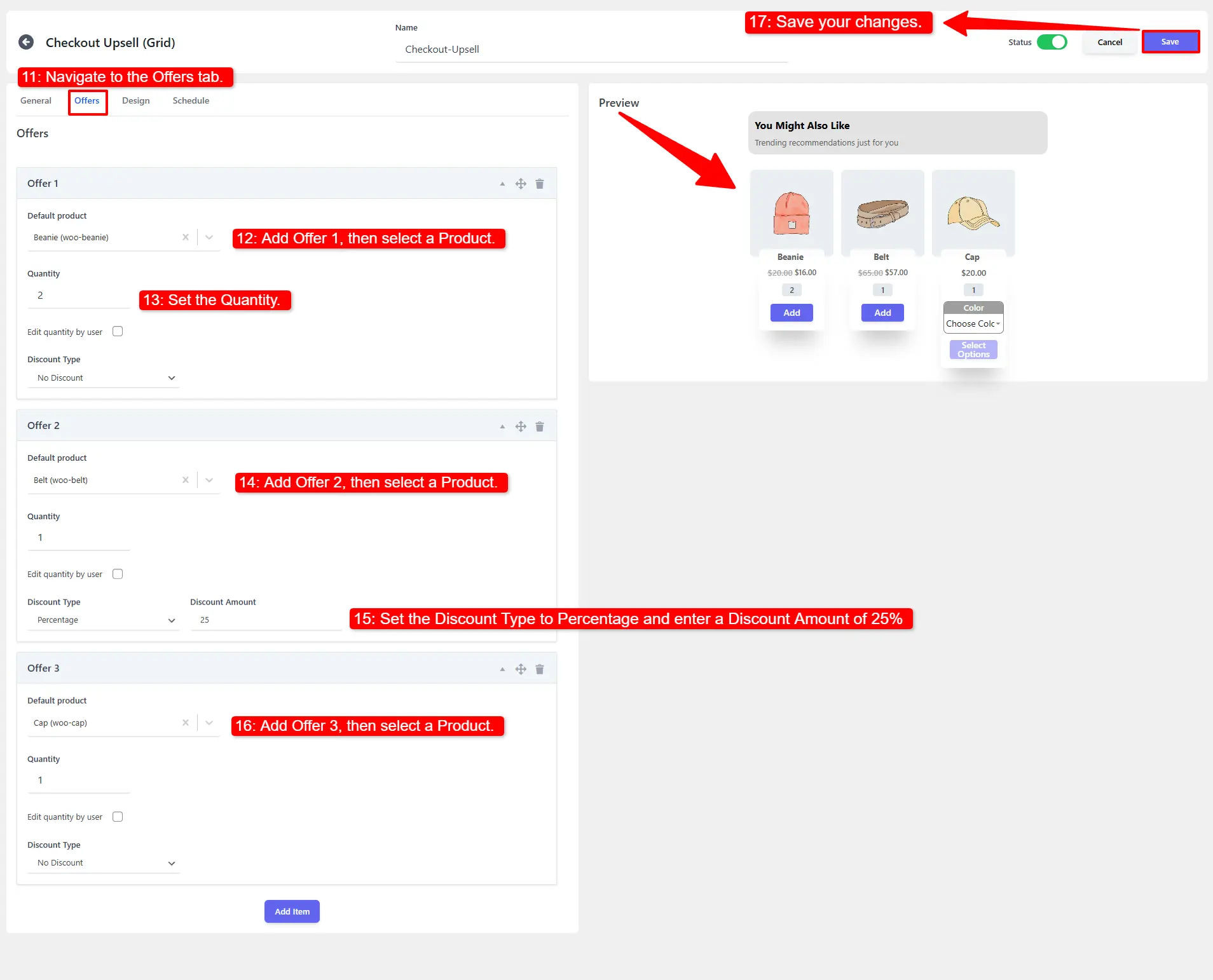
- Open the Offers tab.
- Add Offer 1 (e.g. Beanie) and set the Quantity.
- Add Offer 2 (e.g. Belt) with a Discount Type of Percentage and a value of 25%.
- Add Offer 3 (e.g. Cap).
- Click Save Changes.
🧪 Example configuration
| Setting | Value |
|---|---|
| Layout | Checkout Upsell (Grid) |
| Title | Add before you pay |
| Position | Top of checkout |
| Customer condition | Exclude if purchased |
| Condition | Product in Cart is only → Sunglasses |
| Offer 1 | Beanie — qty 1 |
| Offer 2 | Belt — 25% off |
| Offer 3 | Cap — qty 1 |
Checkout page — the upsell appears at the top of the form.
What customers see
When the cart contains only Sunglasses, the Checkout Upsell section appears at the top of the checkout page with your selected offers.
- Keep checkout offers few and frictionless — this is the wrong place to distract a buyer with a long list.
- One‑click add matters most here; avoid offers that require the customer to pick variations.
- Use Exclude if Purchased so repeat buyers don't see items they already own.
📚 Next Steps
Now that you've set up checkout page upsells, explore other touchpoints in the shopping journey:
- Cart Upsell Campaigns — Present upsell offers on the cart page before customers reach checkout.
- Side Cart Upsells — Display upsells in the floating side cart drawer.
- Rewards & Milestones — Encourage customers to increase cart value to unlock free shipping.
- Product Upsell Campaigns — Recommend items on single product pages.
- Product Recommendation Campaigns — Display recommended products on the order confirmation / thank you page.