Rewards & Milestones
📋 Table of Contents
- Overview & How It Works
- Before You Start
- Step-by-Step Setup
- Example Configuration
- What Customers See
- Next Steps
Overview
Rewards & Milestones turns the Side Cart drawer into a gamified sales driver. By displaying a dynamic progress bar that updates in real time as shoppers add items, you motivate customers to reach spending thresholds to unlock perks — such as Free Shipping, a Discount Coupon, or a Free Gift.
Rewards & Milestones is an advanced feature available in Side Cart & Upsell Pro. You will need an active license and the Pro version to configure it.
How it works
A customer's cart reaches $42. The drawer shows a progress bar reading "You're $8.00 away from Free Shipping." They add a $12 item, cross the $50 threshold, and the free‑shipping coupon is applied instantly — while the bar now points them toward the next tier at $100. This visible, ever‑advancing goal is a proven way to lift average order value.
Before you start
Create the reward coupons first, under WooCommerce → Marketing → Coupons — one per tier. For example a free shipping coupon for the first tier and percentage coupons for the rest. You'll link each tier to its coupon during setup.
Step-by-Step Setup
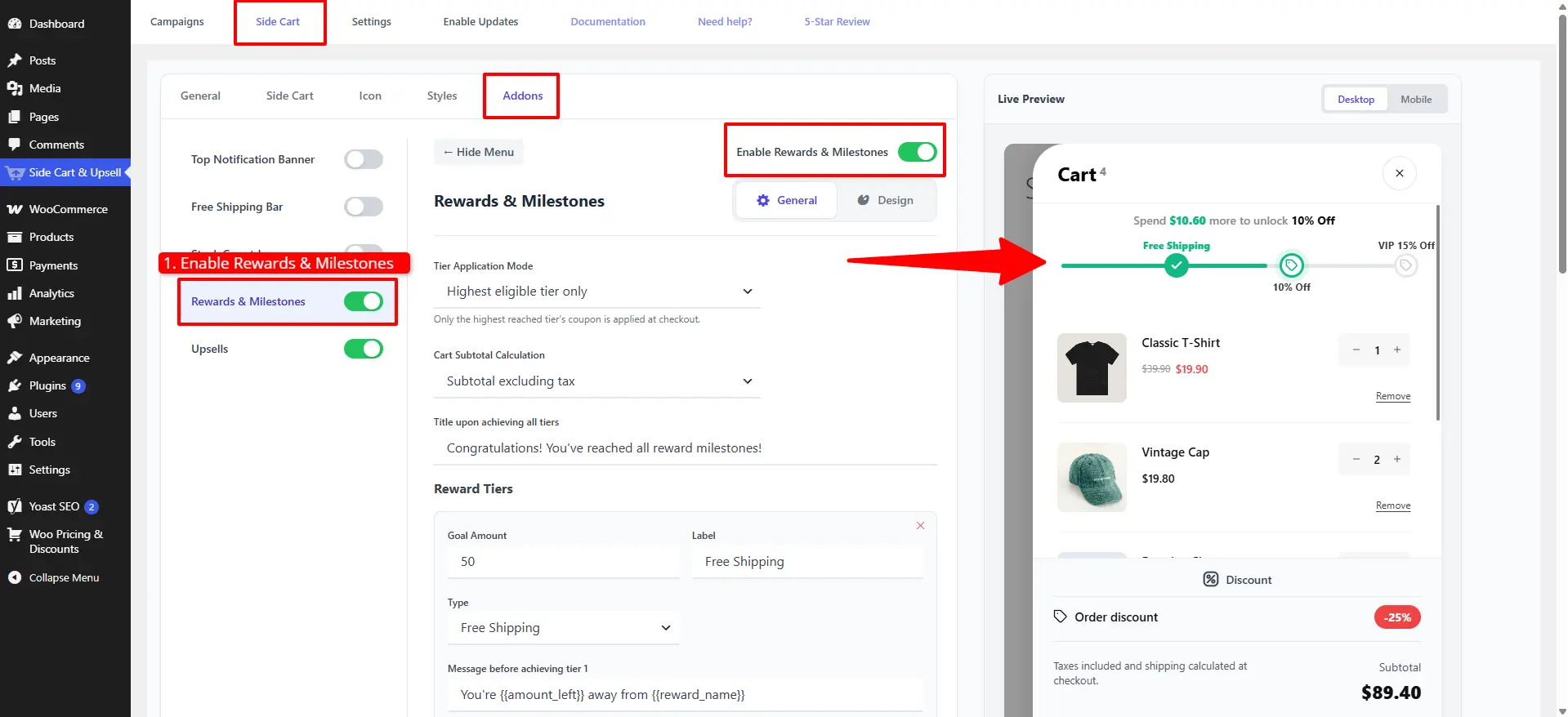
1. Open the Rewards add‑on
- Open Side Cart & Upsell → Side Cart.
- Switch to the Addons tab.
- Select Rewards & Milestones and toggle it on.
The configuration area has two tabs: General (tiers and behavior) and Design (colors).
2. General — set the behavior
- Choose the Tier Application Mode:
- Highest eligible tier only — applies just the top reward the cart qualifies for.
- All eligible tiers (stack) — applies every reached reward at once.
- Set Cart Subtotal Calculation — Subtotal excluding tax or including tax — to decide how the progress is measured.
- Enter the Title upon achieving all tiers (shown when every reward is unlocked).
3. General — add reward tiers
For each tier, click to add a row and set:
- Goal Amount — the cart subtotal that unlocks the reward.
- Label — the reward's short name (e.g.
Free Shipping). - Type — Free Shipping or Discount.
- For a Discount type, set the Discount Type (Percentage or Fixed Discount) and the Discount Value.
- Message before achieving tier — the progress text. Use the variables
{{amount_left}}and{{reward_name}}. - Tick Select Discount and search for the WooCommerce coupon that delivers this reward.
- Click Save Changes.
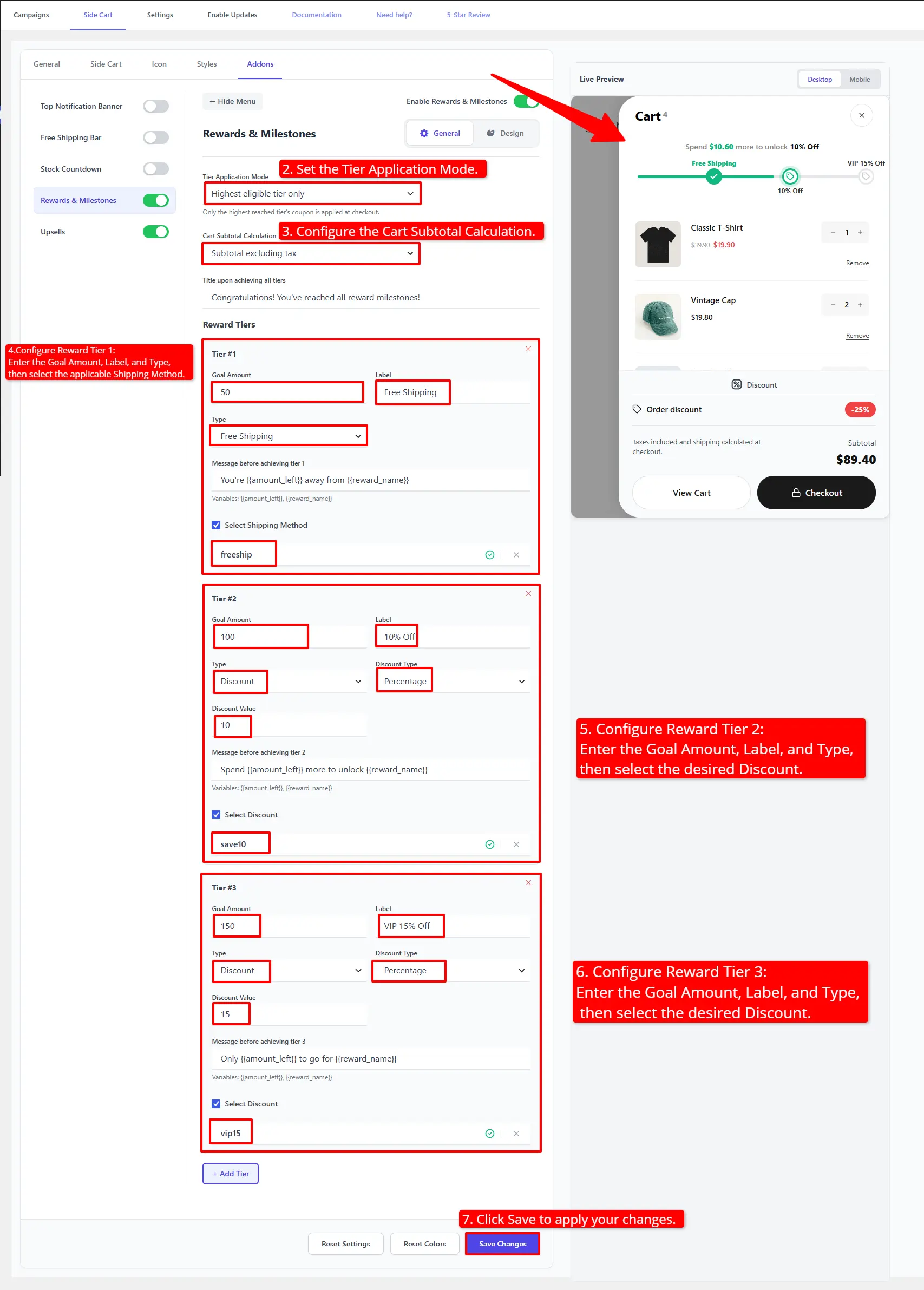
Every tier with Select Discount enabled must have a coupon selected, or the settings won't save.
🧪 Example configuration
General
| Setting | Value |
|---|---|
| Tier Application Mode | Highest eligible tier only |
| Cart Subtotal Calculation | Subtotal excluding tax |
| Title upon achieving all tiers | 🎉 You've unlocked every reward! |
Reward tiers
| # | Goal | Label | Type | Discount | Message | Coupon |
|---|---|---|---|---|---|---|
| 1 | 50 | Free Shipping | Free Shipping | — | You're {{amount_left}} away from {{reward_name}} | freeship |
| 2 | 100 | 10% Off | Discount | Percentage · 10 | Spend {{amount_left}} more to unlock {{reward_name}} | save10 |
| 3 | 150 | VIP 15% Off | Discount | Percentage · 15 | Only {{amount_left}} to go for {{reward_name}} | vip15 |
What customers see
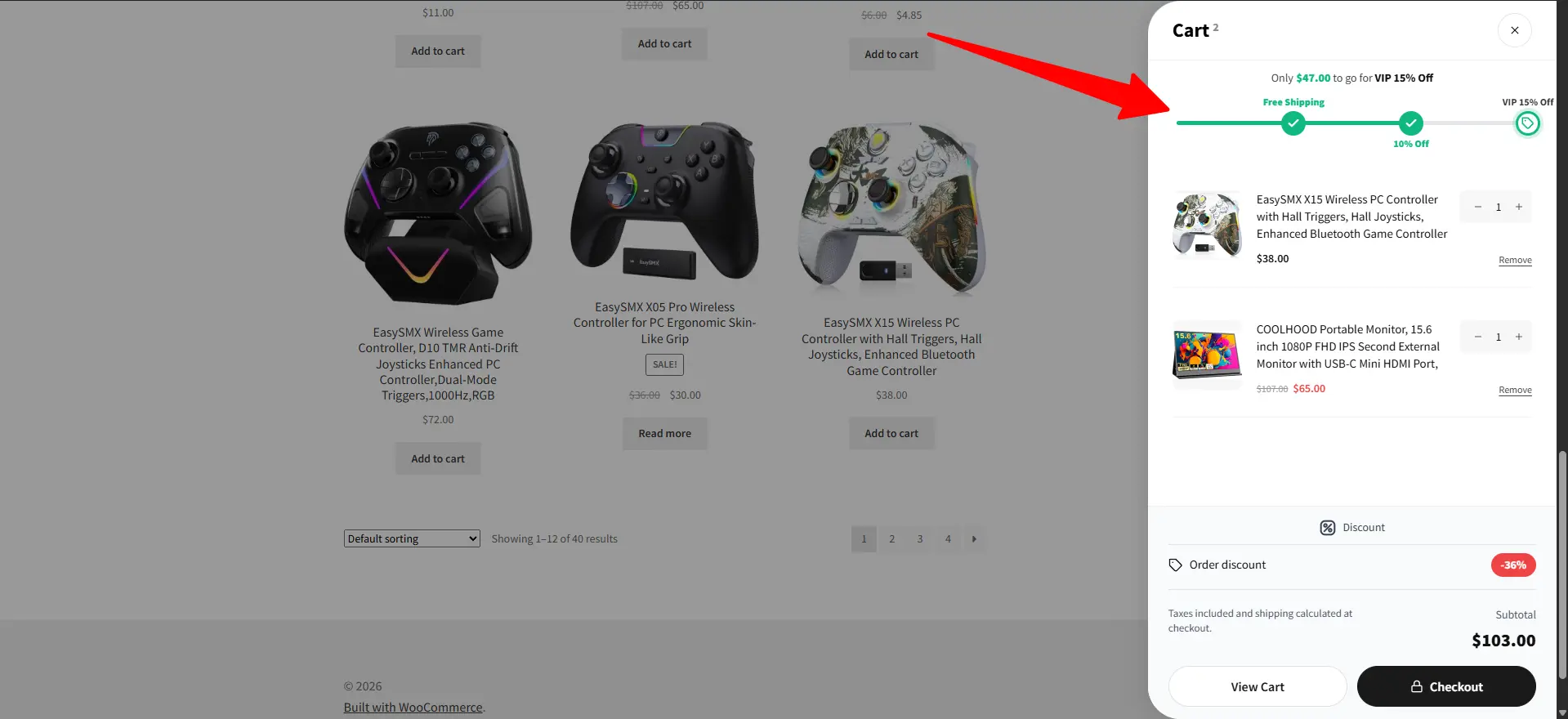
The Side Cart shows a live progress bar toward the next reward and applies the tier coupon automatically the moment its goal is reached — an always‑visible reason to add one more item.
- Set your first tier near your average order value so most shoppers see a reachable goal.
- If you use All eligible tiers (stack), make sure the reward coupons do not have "Individual use only" enabled in WooCommerce, or only one will apply.
- Keep tier Labels short — they appear inline on the progress bar.
📚 Next Steps
Now that you've set up rewards & milestones, explore other upsell placements and side cart features:
- Side Cart Upsells — Suggest products in the side cart to help shoppers reach milestone thresholds.
- Side Cart Setup — Configure the overall side cart drawer styling and settings.
- Cart Upsell Campaigns — Add upsell offers on the main cart page.
- Checkout Upsell Campaigns — Capture impulse buys at checkout.
- Product Add-ons — Allow customers to add optional paid extras on product pages.