Product Add-ons
📋 Table of Contents
Overview
Product Add-ons let customers attach optional extras — accessories, upgrades, or complementary items — to a product before they add it to the cart. Each add‑on has a checkbox or toggle, so shoppers can build a bundle right on the product page. It's a low‑friction way to raise average order value and promote related items.
You can even include the parent product's price in the running add‑ons total so customers see the full bundle price at a glance.
How it works
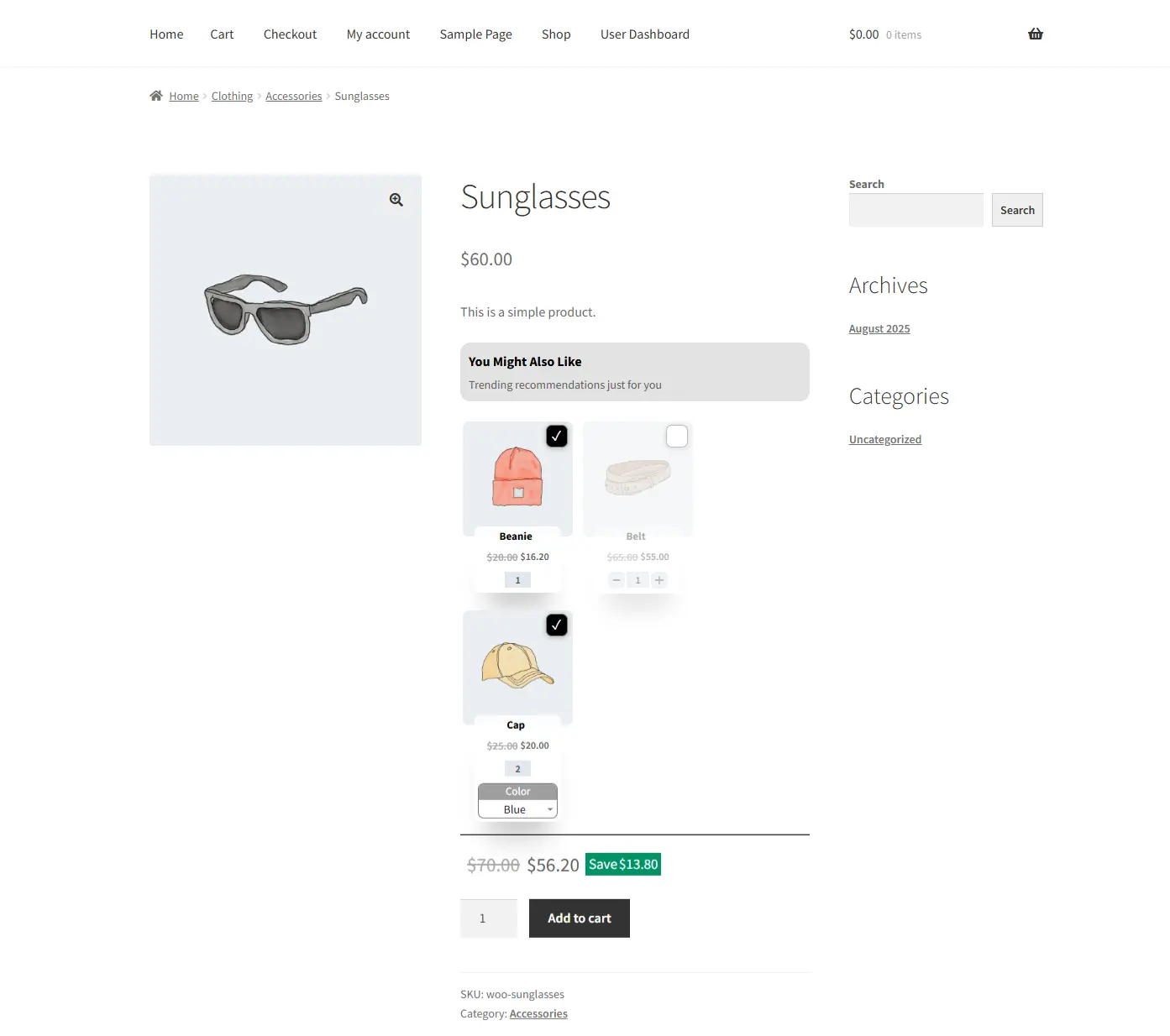
A customer views a pair of Sunglasses. Below the product details, a set of optional add‑ons appears — a Beanie, a Belt, and a Cap — each with a checkbox. The shopper ticks the ones they want and adds everything to the cart together, in a single action.
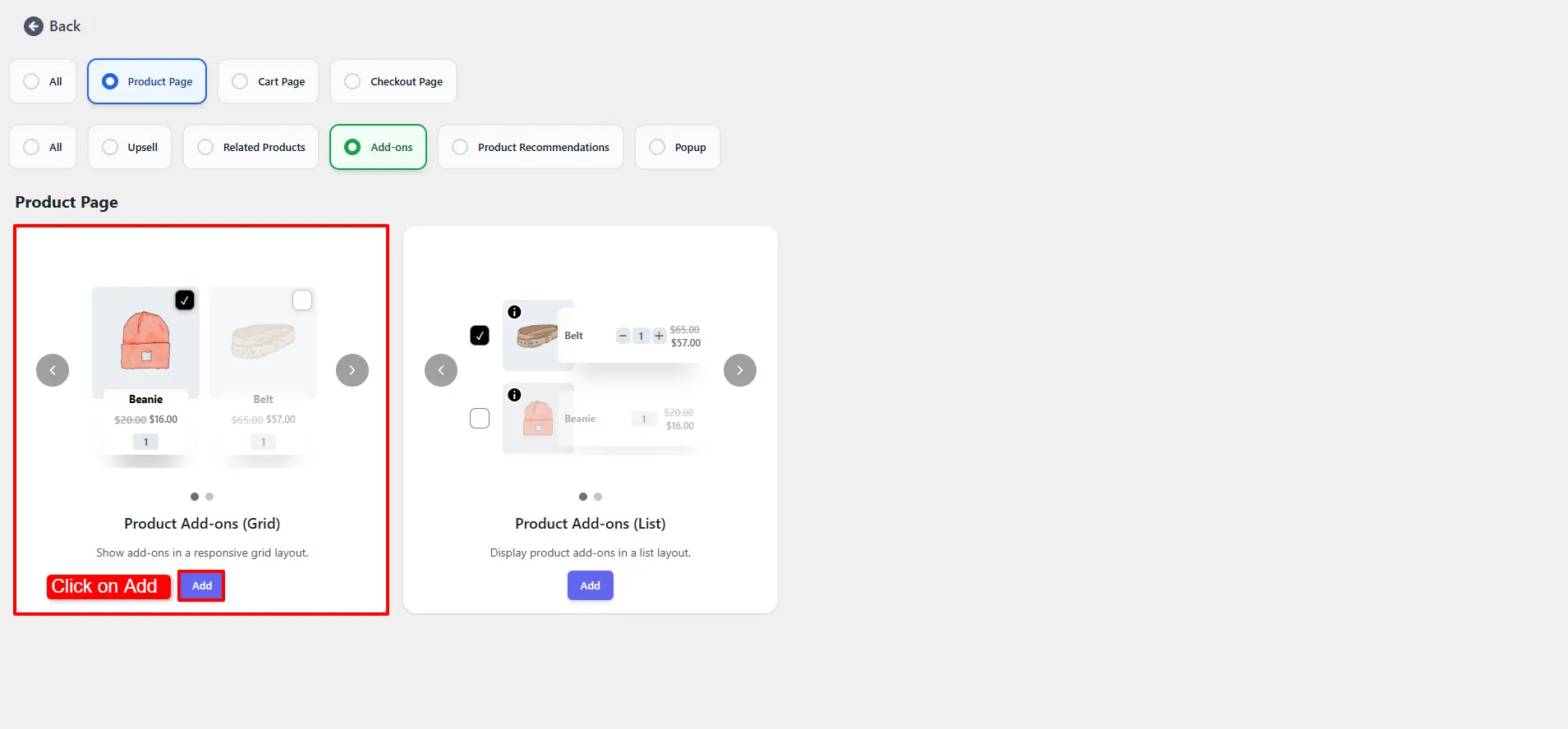
The Grid layout is available in the Free version. The List layout requires Pro.
Step-by-Step Setup
1. Create the campaign
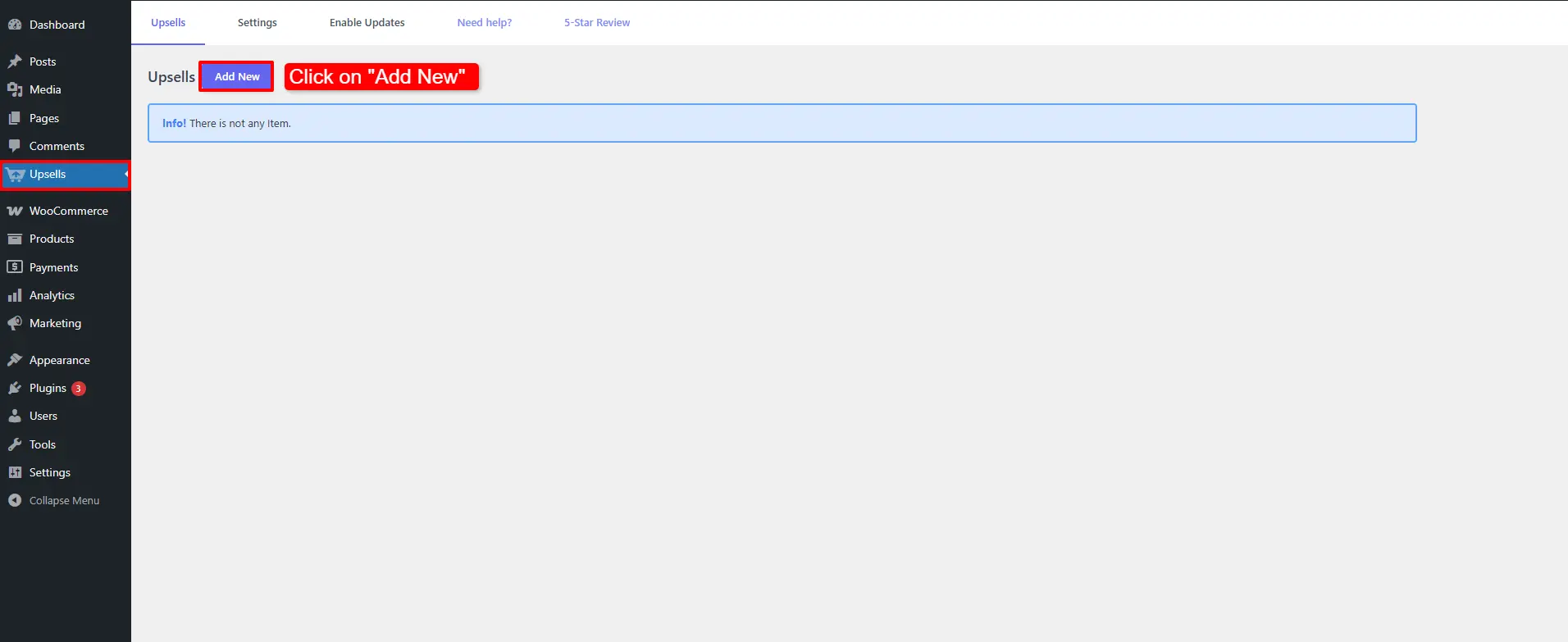
Open Side Cart & Upsell → Campaigns, then click Add New.
Choose Product Add-ons (Grid) and click Add.
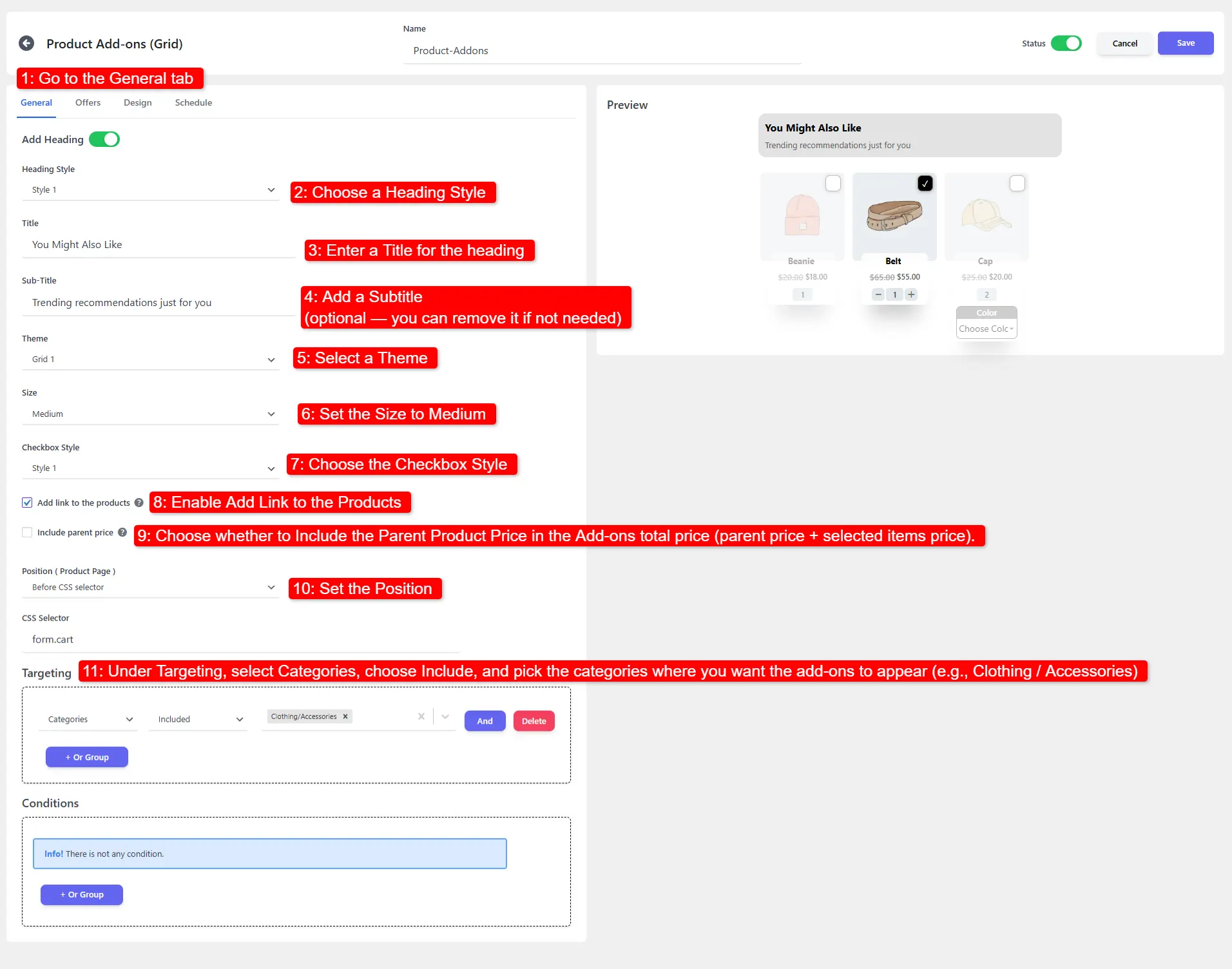
2. Configure the General tab
- Pick a Heading Style, enter a Title, and optionally a Subtitle.
- Select a Theme and set the Size (e.g. Medium).
- Choose the Checkbox Style.
- Enable Add Link to the Products.
- Decide whether to include the parent product price in the add‑ons total.
- Set the Position on the product page.
- Under Targeting, choose Categories → Include and pick the categories where add‑ons should appear (e.g. Clothing / Accessories).
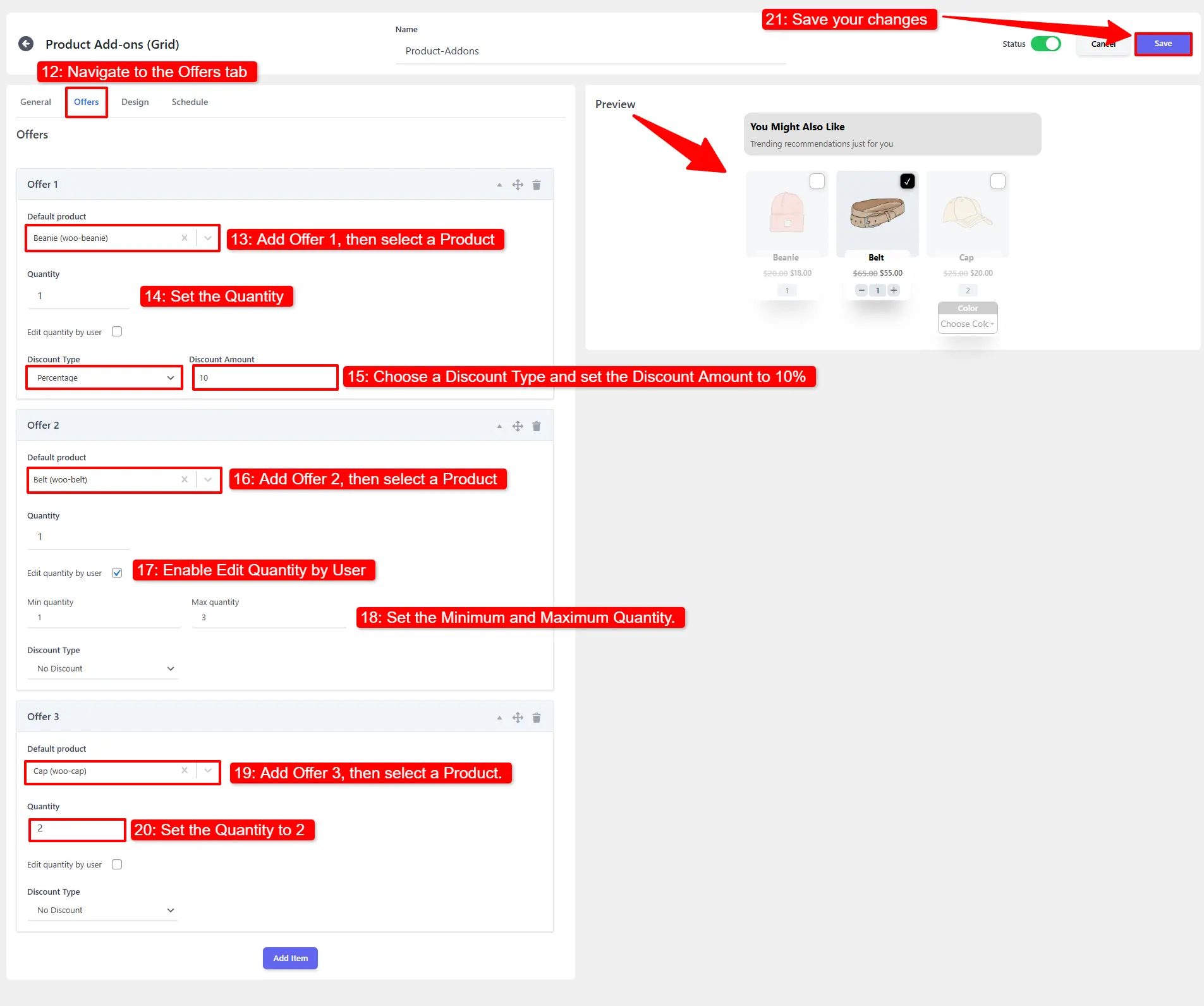
3. Add your offers
- Open the Offers tab.
- Add Offer 1 (e.g. Beanie), set the Quantity, and apply a Discount Type with a value of 10%.
- Add Offer 2 (e.g. Belt), enable Edit Quantity by User, and set the Minimum and Maximum quantity.
- Add Offer 3 (e.g. Cap) with a Quantity of 2.
- Click Save Changes.
🧪 Example configuration
| Setting | Value |
|---|---|
| Layout | Product Add-ons (Grid) |
| Title | Add these to your order |
| Size | Medium |
| Include parent price | Enabled |
| Targeting | Categories → Include → Accessories |
| Offer 1 | Beanie — qty 1, 10% off |
| Offer 2 | Belt — edit qty by user, min 1 / max 2 |
| Offer 3 | Cap — qty 2 |
What customers see
Add‑ons appear for every product in the targeted categories, letting customers tick the extras they want and add the whole bundle at once.
- Add‑ons work best when they're inexpensive extras relative to the main product.
- Enabling Edit Quantity by User suits consumables (e.g. spare parts, refills).
- Turn on include the parent product price so the displayed total matches what will land in the cart.
📚 Next Steps
Now that you've set up product add-ons, explore other ways to offer extras and upgrades:
- Product Upsell Campaigns — Display standalone complementary products on product pages.
- Product Upsell Popup — Trigger a modal popup when adding items to cart.
- Related Products Campaigns — Display related product carousels or grids.
- Side Cart Upsells — Suggest add-ons and cross-sells inside the side cart drawer.
- Cart Upsell Campaigns — Offer add-on items on the cart page.