Cart Upsell
📋 Table of Contents
Overview
Cart Upsell promotes complementary or higher‑value products right on the Cart page — the moment before checkout when customers are still adding to their order. By showing relevant, optionally discounted offers here, you grow the basket while intent is high.
Offers are shown conditionally: you decide which cart contents trigger the upsell, so shoppers only see suggestions that make sense for what they're buying.
How it works
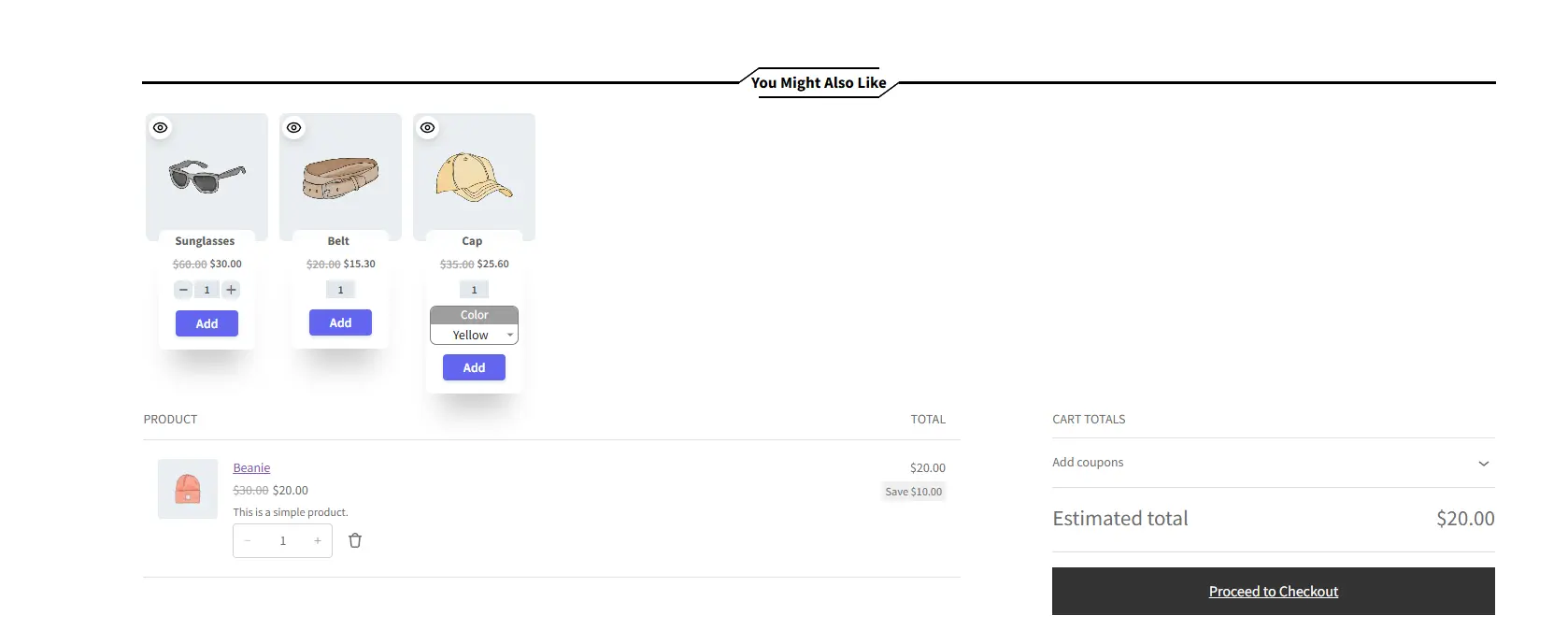
A customer's cart contains an item from your Accessories category. At the top of the cart, an upsell section appears recommending a Sunglasses, a Belt, and a Cap — with a bundle discount. They add a matching accessory in one click and head to checkout with a larger order.
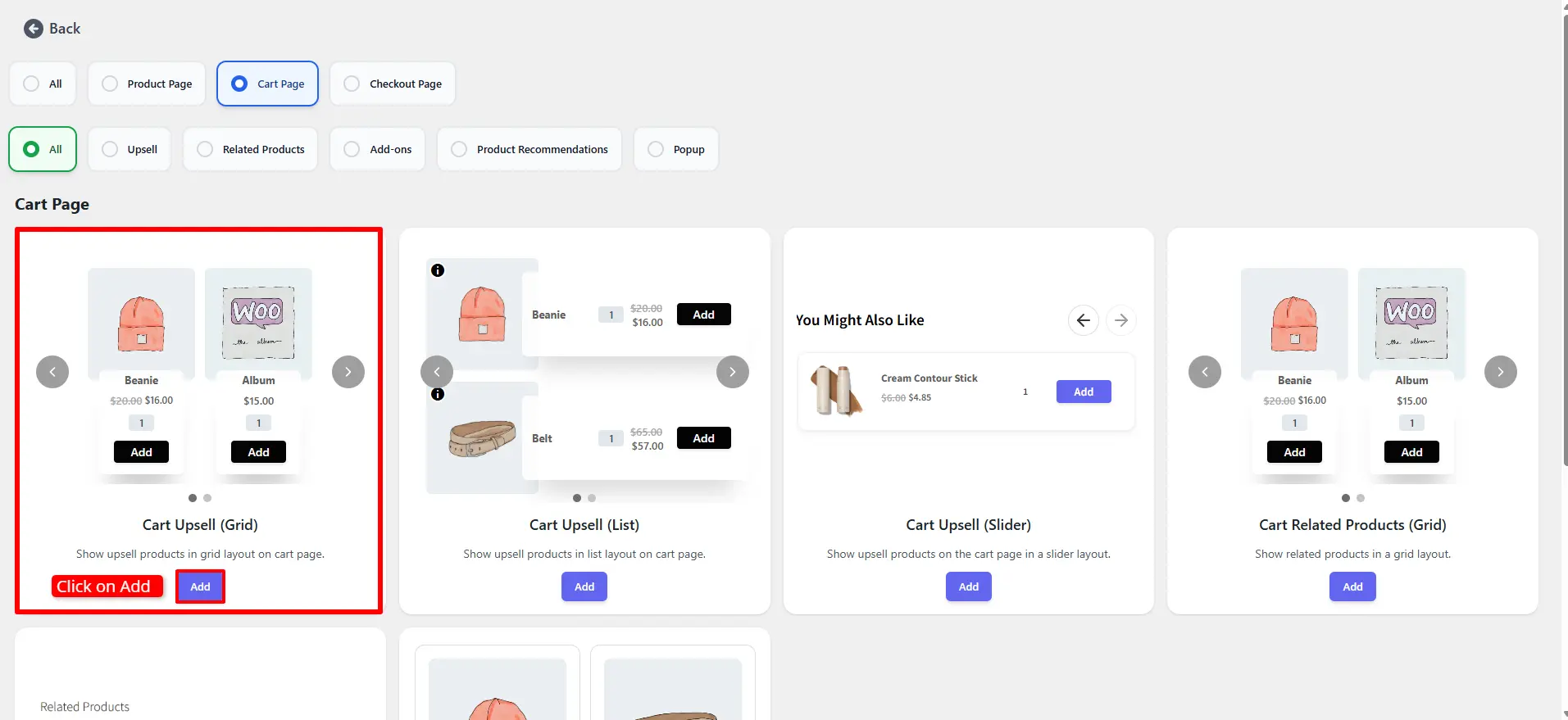
The Grid layout is available in the Free version. List and Slider layouts require Pro.
Step-by-Step Setup
1. Create the campaign
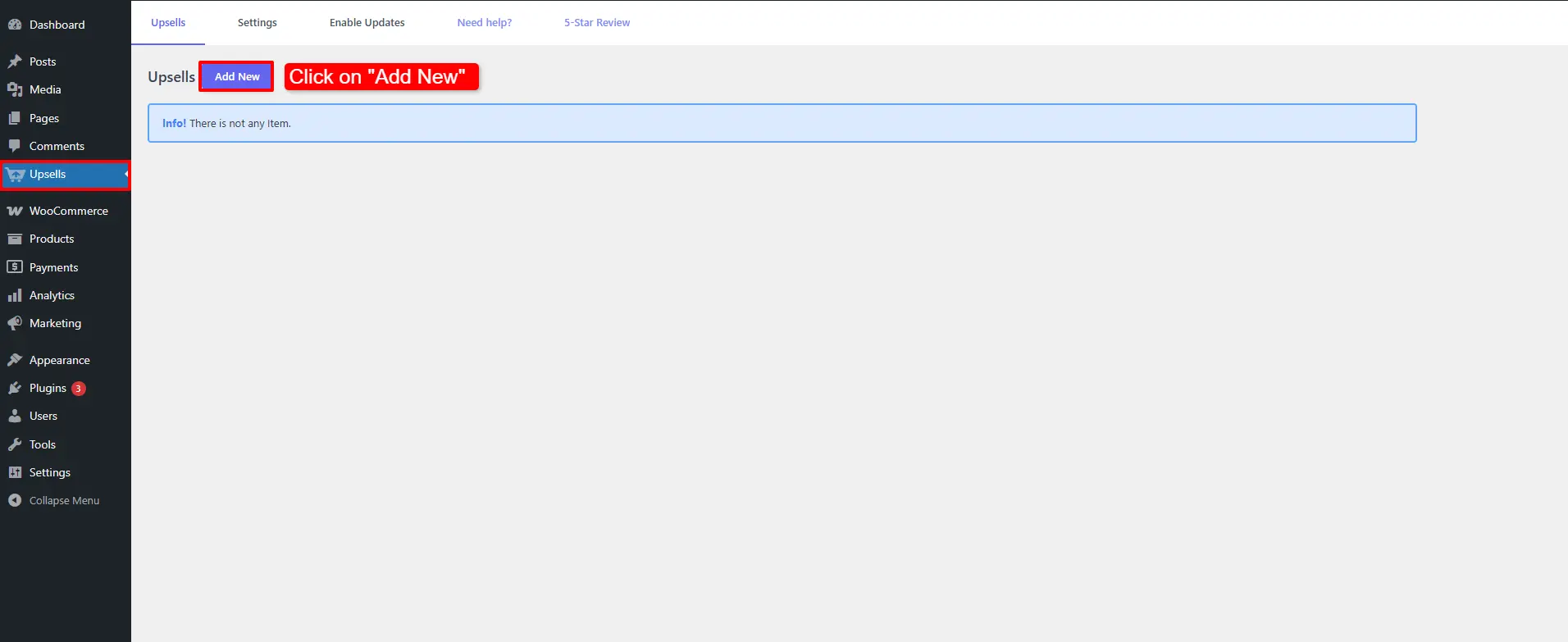
Open Side Cart & Upsell → Campaigns, then click Add New.
Choose Cart Upsell (Grid) and click Add.
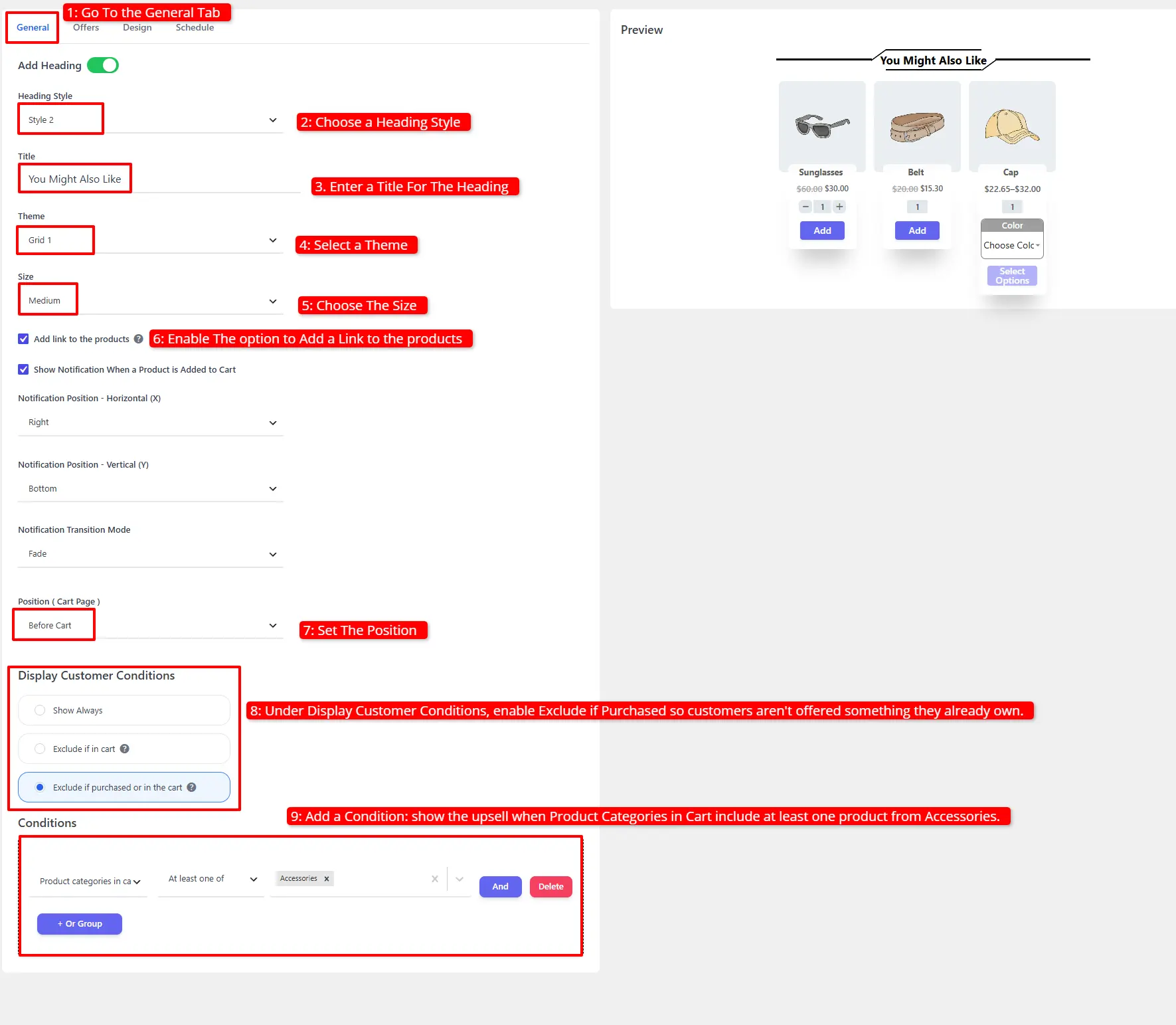
2. Configure the General tab
- Pick a Heading Style, enter a Title, and optionally a Subtitle.
- Select a Theme and a Size.
- Enable Add a Link to the Products.
- Set the Position (e.g. top of the cart).
- Under Display Customer Conditions, enable Exclude if Purchased so customers aren't offered something they already own.
- Add a Condition: show the upsell when Product Categories in Cart include at least one product from Accessories.
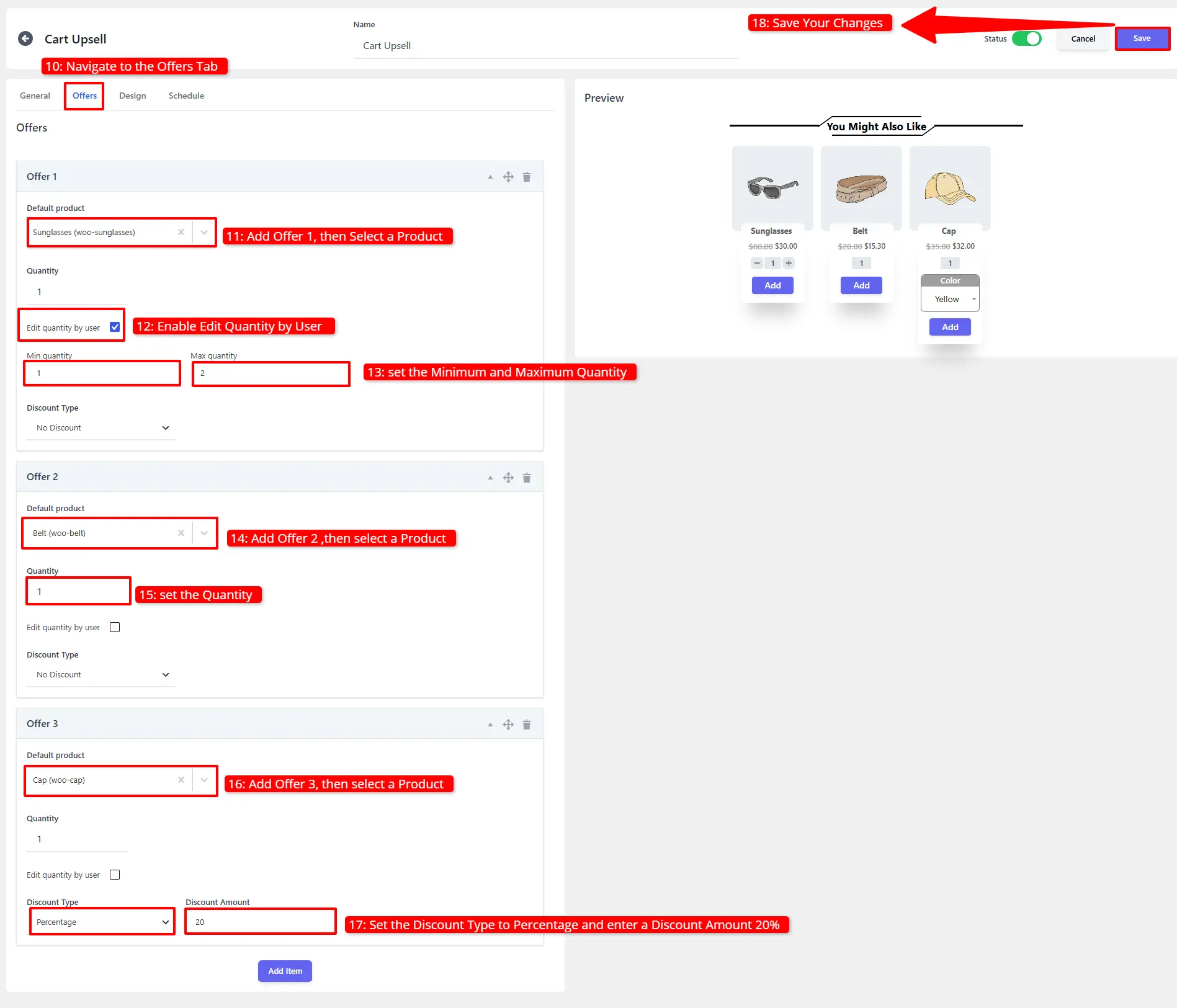
3. Add your offers
- Open the Offers tab.
- Add Offer 1 (e.g. Sunglasses), enable Edit Quantity by User, and set the Minimum and Maximum.
- Add Offer 2 (e.g. Belt) and set the Quantity.
- Add Offer 3 (e.g. Cap) with a Discount Type of Percentage and a value of 20%.
- Click Save Changes.
🧪 Example configuration
| Setting | Value |
|---|---|
| Layout | Cart Upsell (Grid) |
| Title | You Might Also Like |
| Position | Top of cart |
| Customer condition | Exclude if purchased |
| Condition | Product Categories in Cart → at least one → Accessories |
| Offer 1 | Sunglasses — edit qty by user, min 1 / max 2 |
| Offer 2 | Belt — qty 1 |
| Offer 3 | Cap — 20% off |
To capture screenshots: add an Accessories product to the cart, then open the Cart page — the upsell appears at the top.
What customers see
When the cart contains at least one Accessories product, the upsell offers appear automatically at the top of the cart.
- Category‑based conditions scale better than product‑by‑product rules as your catalog grows.
- Enable Exclude if Purchased to avoid recommending items a returning customer already owns.
- Reserve the discount for one offer to signal a deal without discounting the whole bundle.
📚 Next Steps
Now that you've configured cart page upsells, guide customers through the rest of the sales funnel:
- Checkout Upsell Campaigns — Add impulse buy offers directly to the checkout page.
- Side Cart Upsells — Display cross-sell recommendations inside the slide-out side cart drawer.
- Rewards & Milestones — Add a progress bar for free shipping and rewards.
- Product Upsell Campaigns — Present upsell offers on individual product pages.
- Product Upsell Popup — Show an instant modal upsell when shoppers add items to cart.