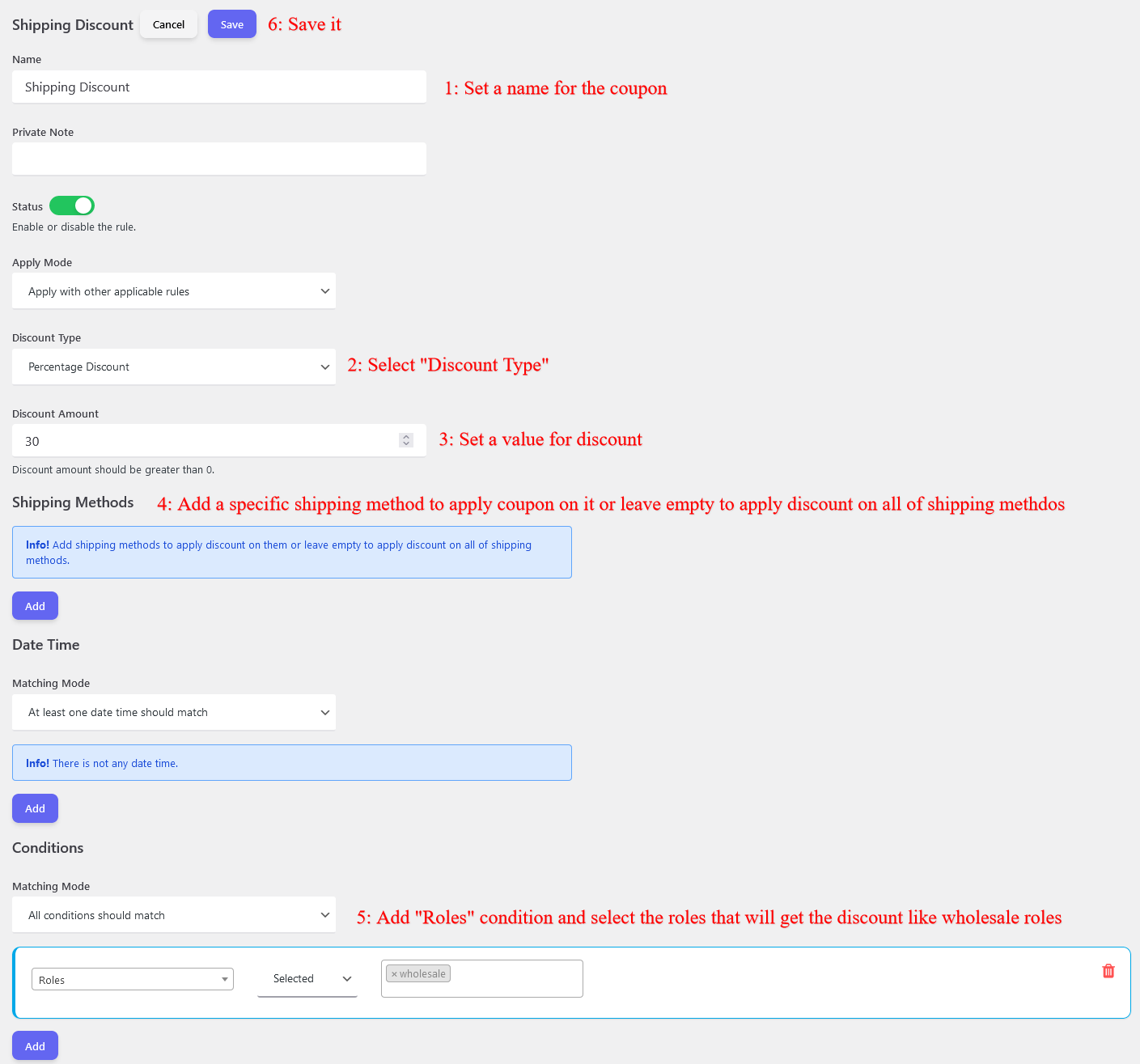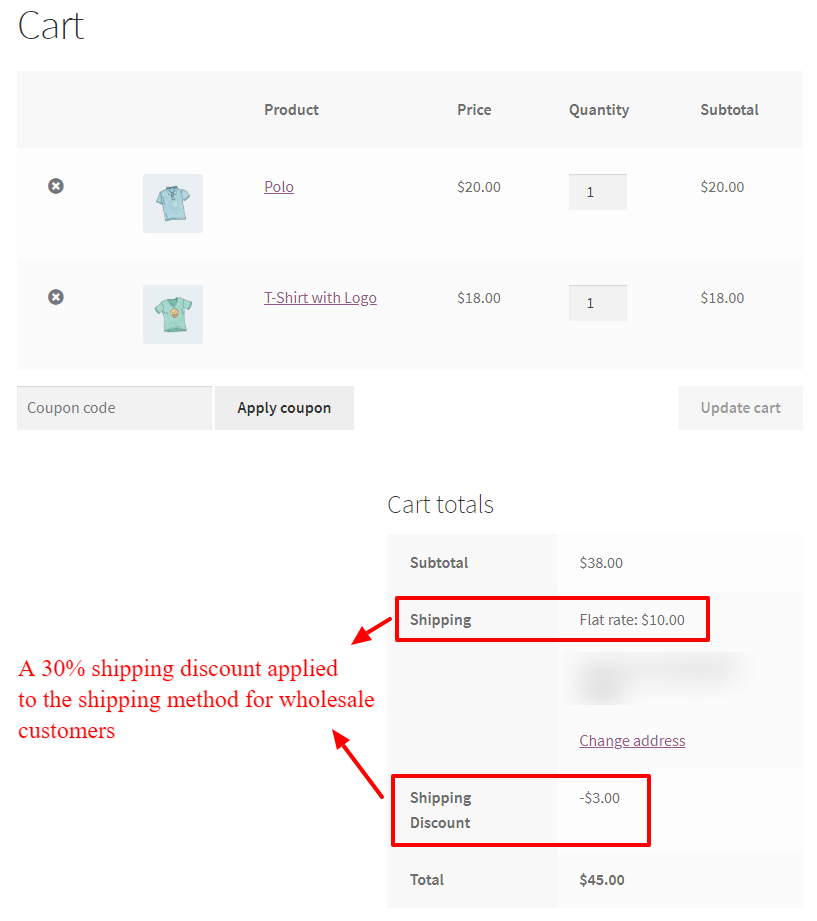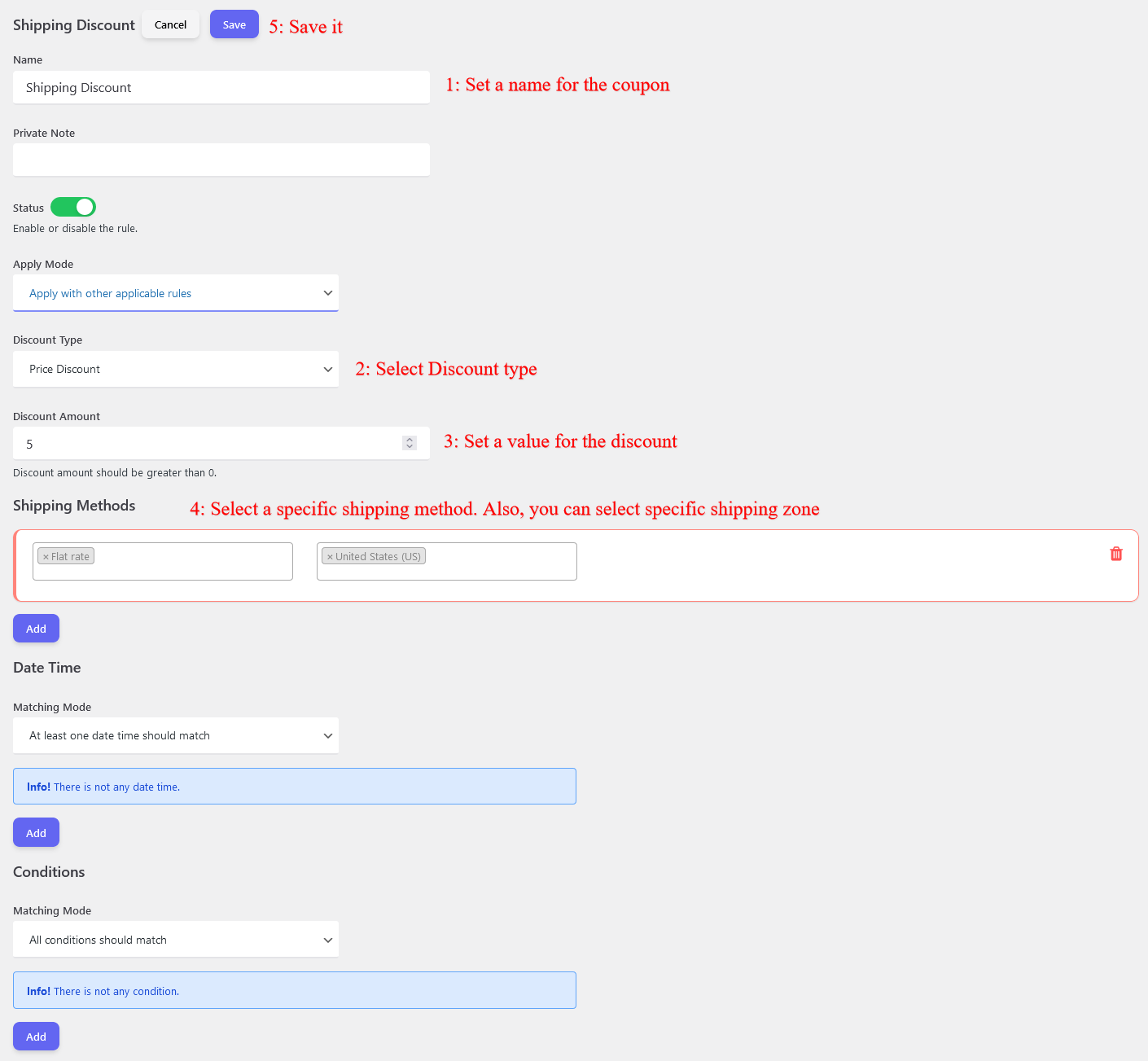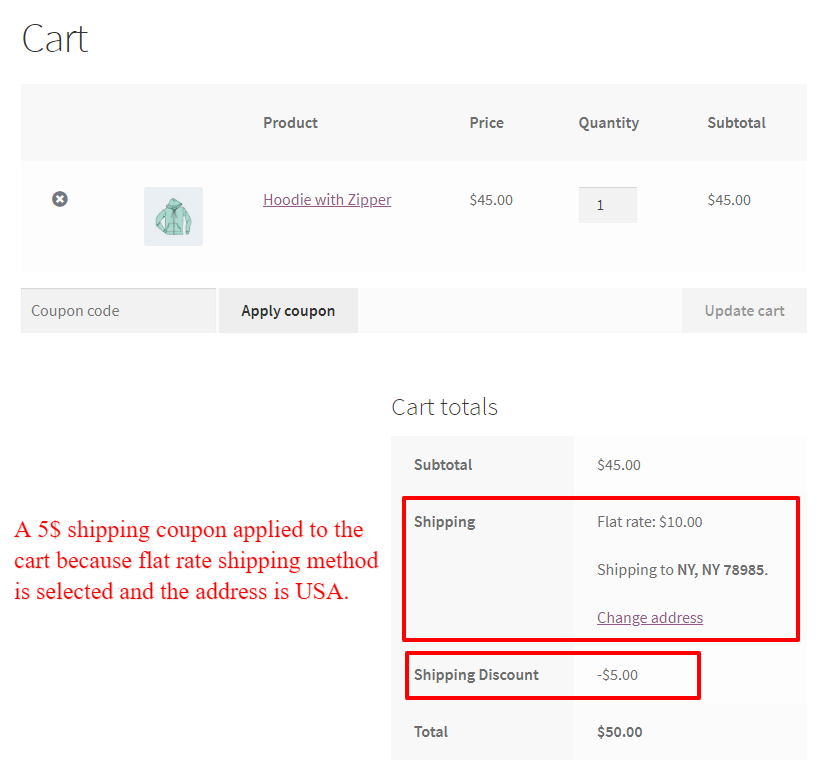
Updated on Leave a comment

Provide Free Gift Products in WooCommerce Complete Guide

free-gift-products-in-woocommerce

Giving free gift products to customers is a powerful strategy that can elevate your WooCommerce store to new heights. Not only does it boost customer loyalty and engagement, but it also helps expand your store’s reach and ignite sales. In this detailed guide, we will walk you through the process of setting up free gift products in WooCommerce step-by-step. We will also explore the various ways you can utilize this feature to enhance your customers’ shopping experience and transform your store into something extraordinary. So, get ready to unlock the potential of gift a product in WooCommerce!

Unleashing the Power of Free Gift Products in WooCommerce

The power of free gift products in WooCommerce is undeniable. Not only do they attract customers and boost sales, but they also contribute to the overall success and growth of your store. By providing free gift products, you create a memorable experience for your customers, leaving a lasting impression that can lead to repeat purchases and word-of-mouth marketing. In this section, we will explore the different ways you can unleash this power and transform your store into a hub of customer satisfaction and loyalty.

Benefits of Providing Free Gift Products in WooCommerce

Providing free gift products in WooCommerce can offer several benefits to both the online store owners and the customers. Firstly, it can help in driving more sales and increasing customer loyalty. By offering free gifts, store owners can incentivize customers to make purchases and encourage them to return for future transactions. This can also help in attracting new customers and standing out from competitors.

Secondly, providing free gift products can be an effective marketing strategy. It allows store owners to promote specific products or encourage customers to explore and try new items. This can lead to increased awareness and exposure for certain products, potentially leading to higher sales in the long run.

Moreover, offering free gifts can enhance the overall customer experience. It adds value to the purchase and can create a positive impression of the brand. Customers feel appreciated and valued, which can foster loyalty and encourage them to recommend the store to others.

In conclusion, providing free gift products in WooCommerce can have several advantages, including increased sales, improved marketing, and enhanced customer experience. It is a strategy worth considering for online store owners looking to boost their business and maintain a loyal customer base.

Expanding Your Store’s Reach with Free Gift Products

Want to reach a wider audience and expand your store’s reach? Look no further than the magic of free gift products in WooCommerce. These enticing offerings can act as a powerful marketing tool, attracting new customers and encouraging them to explore your store. By strategically selecting and promoting free gift products, you can create buzz and generate interest in your brand. In this section, we will share valuable insights and tips on how to leverage free gift products to expand your store’s reach and attract a whole new customer base.

Boost Customer Loyalty: The Magic of Free Gift Products

In the competitive world of e-commerce, it’s crucial for online retailers to find innovative ways to stand out from the crowd and keep customers coming back for more. One powerful strategy that has been proven to boost customer loyalty is offering free gift products. By providing unexpected surprises to shoppers, businesses can create a sense of delight and appreciation that goes beyond the transactional. In this detailed guide, we will explore how to set up free gift products in WooCommerce and unleash the magic of this game-changing feature.

Free Gift Products: Elevating the Shopping Experience

Shopping online can sometimes feel impersonal and transactional. However, by incorporating free gift products into your WooCommerce store, you can turn a regular shopping experience into a memorable one. When customers receive unexpected gifts alongside their purchases, it creates a sense of surprise and joy. This not only enhances customer satisfaction but also increases the likelihood of repeat purchases and word-of-mouth referrals. By strategically selecting unique and desirable gifts that align with your target audience’s preferences, you can create a truly elevated shopping experience that sets your store apart from the competition.

Ultimate Guide to WooCommerce’s Free Gift Products Feature

WooCommerce’s Free Gift Products feature is a game-changer for any online store. It allows you to offer complimentary items to your customers, creating a sense of surprise and delight. By leveraging this feature, you can enhance the overall shopping experience and set your store apart from the competition. Whether you want to reward loyal customers or entice new ones, the Free Gift Products feature can help you achieve your goals. In this ultimate guide, we will delve into the various strategies and techniques to make the most out of this incredible feature.

Video Tutorial

Step-by-Step Tutorial: Setting Up Free Gift Products in WooCommerce

Setting up free gift products in WooCommerce is a breeze. We will introduce some methods to provide gift products in this article.

1. BOGO Deals

BOGO, or ‘Buy One Get One’, deals are a popular marketing strategy used by retailers to entice customers into making a purchase. These deals typically offer customers the opportunity to buy one product and receive another product of equal or lesser value for free, or at a significantly discounted price. BOGO deals are effective in attracting customers as they offer the perception of getting more value for their money. Whether it’s buy one get one free on clothing, groceries, or electronics, these promotions encourage customers to make a purchase by appealing to their desire for discounts and savings. BOGO deals also benefit retailers by increasing sales and clearing out excess inventory. Overall, BOGO deals are a win-win for both customers and retailers, providing a mutually beneficial opportunity for savings and increased revenue.

To implement BOGO deals in WooCommerce, we are using Discount Rules and Dynamic Pricing for WooCommerce plugin.

With the Discount Rules and Dynamic Pricing for WooCommerce, you can implement all variations of BOGO deals like “Buy One Get One Free“, “Buy One Get One-Half price“, “Buy 2 Get 1 Free“, “Buy 2 Get 1 half price“, “Buy 3 Get 1 Free“, “Buy 3 Get 1 half price” and etc.

Product BOGO Deals

In this example, we will implement Buy Product A Get Product B as a free gift, but you can do Buy Product A Get another A for free.

To implement a BOGO deal let’s follow the below steps.

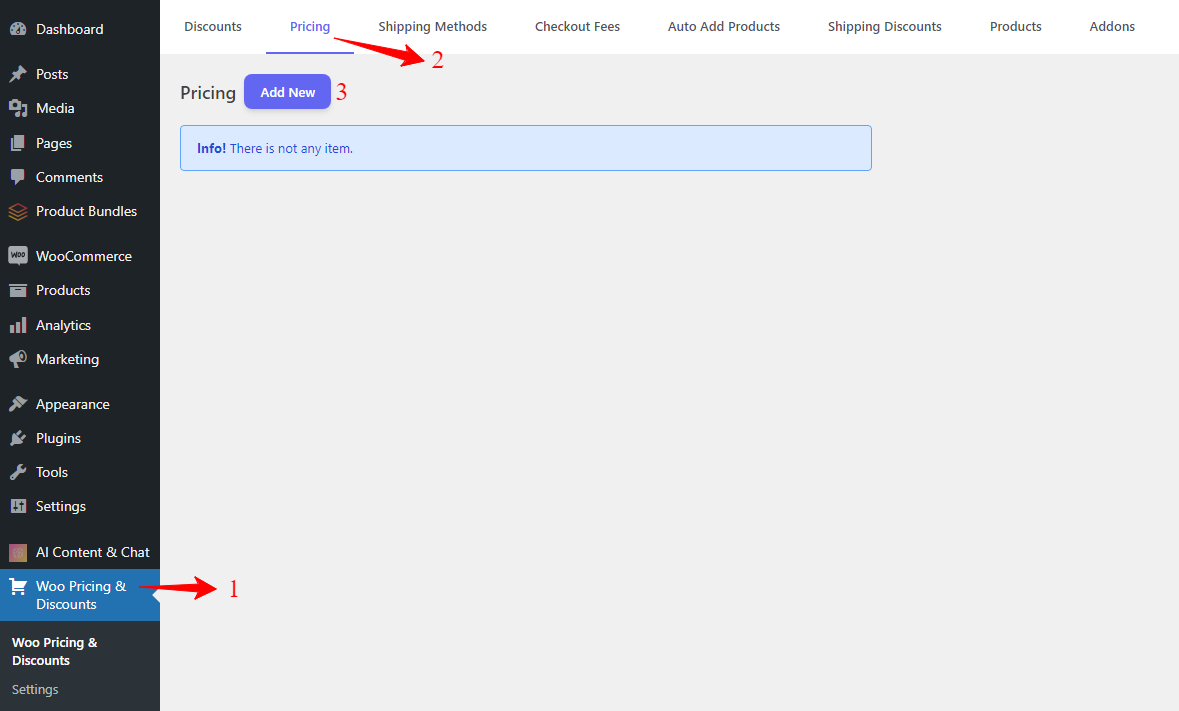
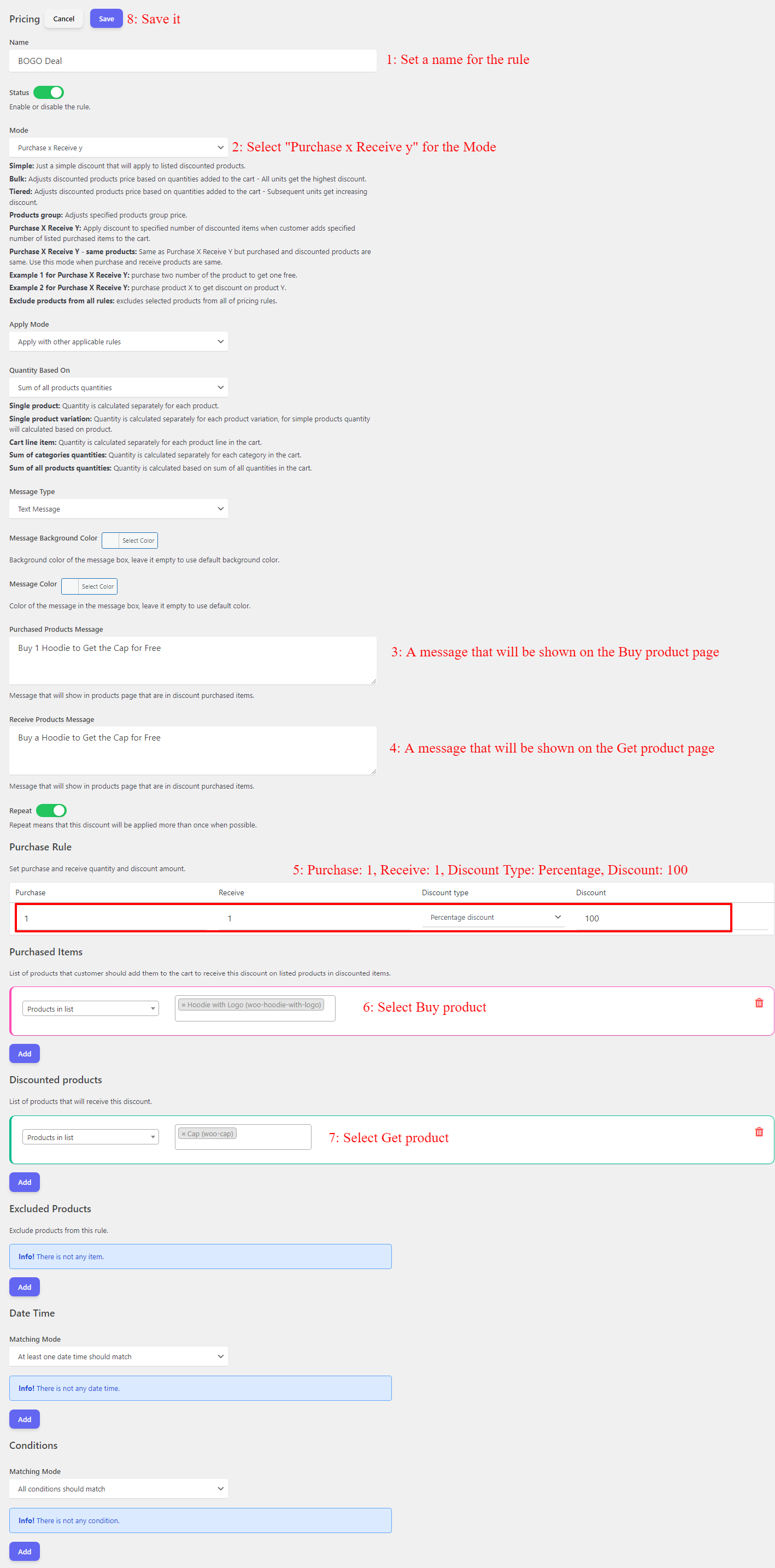
  • Navigate to the “Woo Pricing & Discounts” menu, then open the “Pricing” tab.
  • Click on the Add New button to create a new WooCommerce discount rule.
  • Set a name for the BOGO deal. e.g. Product BOGO deal
  • Select “Purchase x Receive y” for the “Mode” field.
  • Select “Sum of all products quantities” or “Single product” for the “Quantity based on” field.
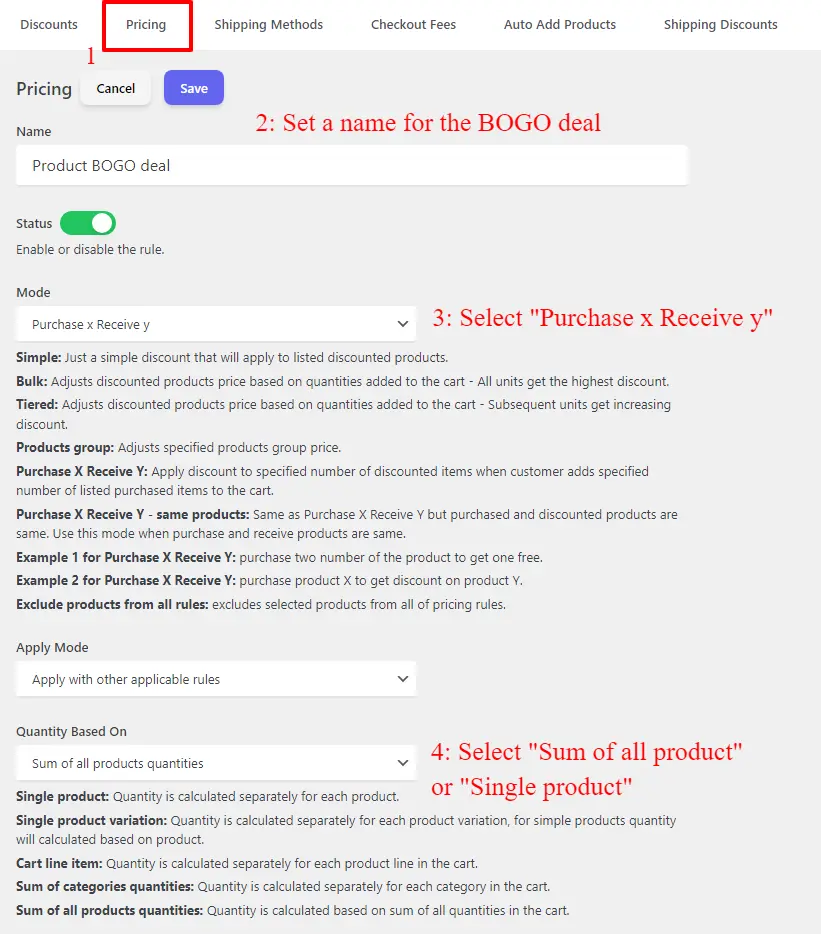
Product BOGO deal setup in WooCommerce
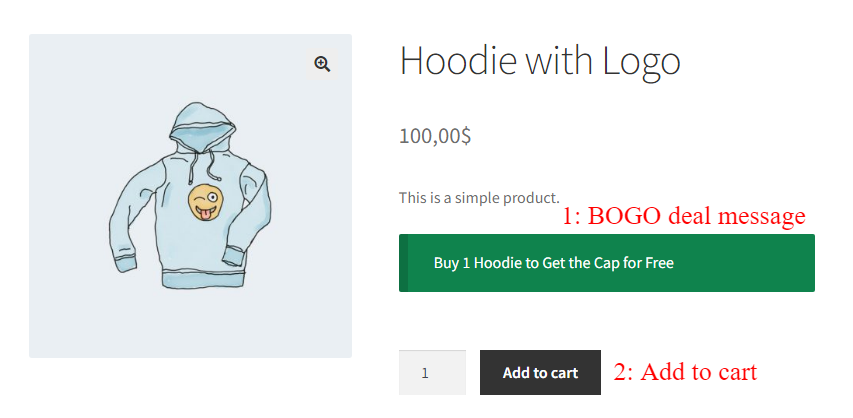
  • Set a message for Buy product. It will be shown on the Buy product page.
  • Set a message for the Get product. It will be shown on the free gift product page.
  • Enable/Disable the Repeat field based on your requirements. When it is enabled, for each 1 buy user will get 1 free gift product.
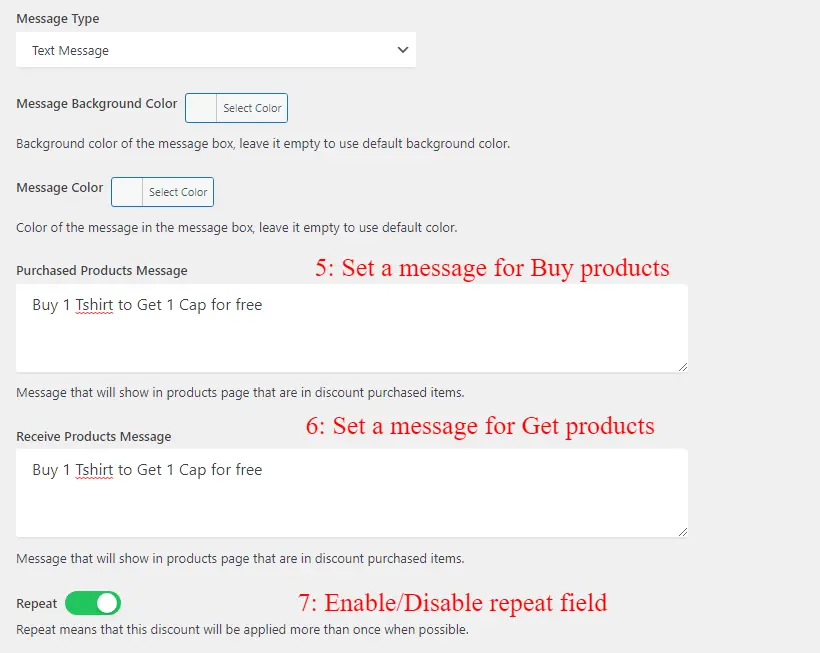
Product BOGO deal setup in WooCommerce step two
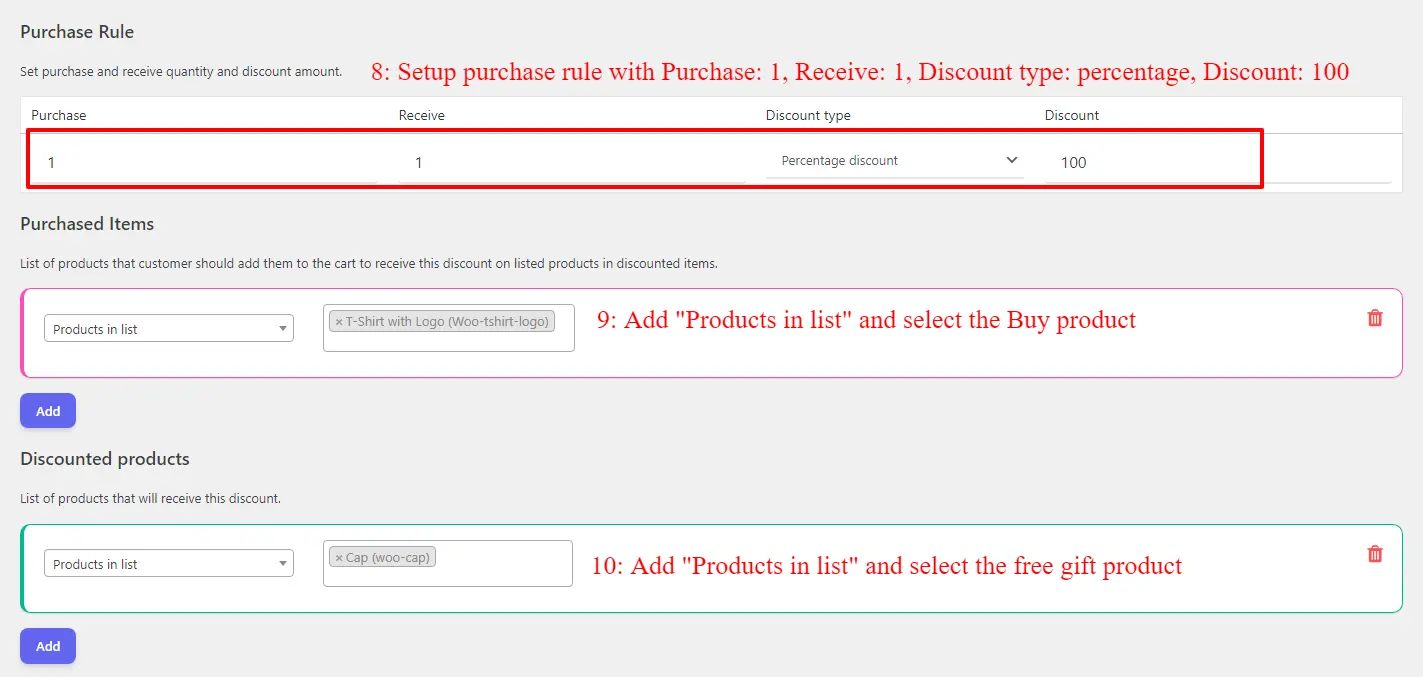
  • Setup the Purchase Rule with the values like, Purchase: 1, Receive: 1, Discount Type: Percentage discount, Discount: 100
  • Under “Purchase items” add a “Products in list” and select the Buy product.
  • Under “Discounted products” add a “Products in list” and select the free gift product.
  • Save the rule.
Product BOGO deal setup in WooCommerce step 3

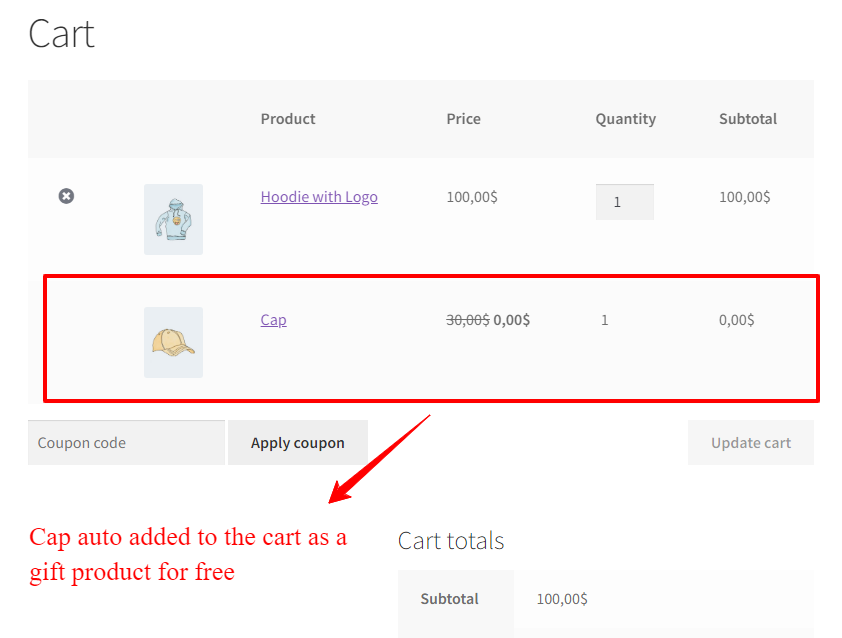
It is done. Now if a user purchase the Buy product he will get a free gift product automatically.
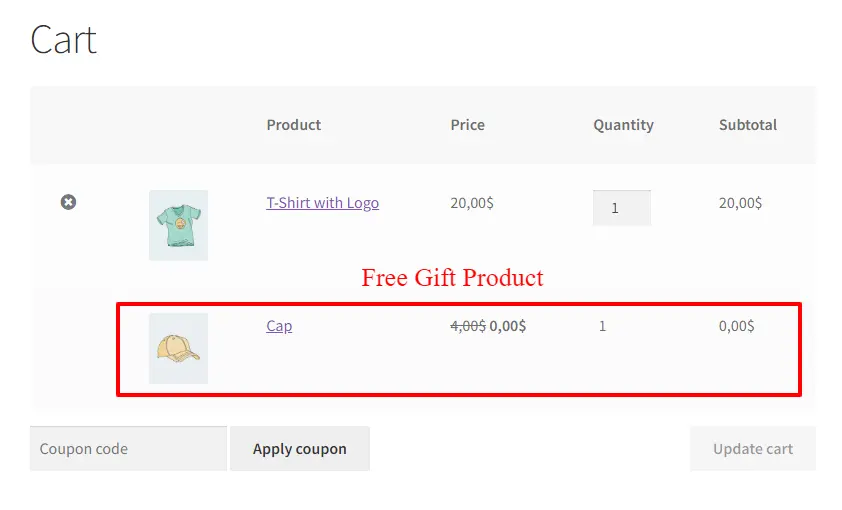
Provide free gift products in WooCommerce

Category BOGO Deals

You can effectively motivate customers to make purchases from a specific category by implementing enticing Buy One Get One (BOGO) deals tailored specifically to those categories. By incorporating this strategy, whenever a customer buys a product from the designated category, they will not only enjoy their purchase but also receive an exciting free gift as an added bonus.

To create a BOGO deal for categories and gift a product in WooCommerce, follow the below steps.

  • Navigate to the “Woo Pricing & Discounts” menu, then open the “Pricing” tab.
  • Click on the Add New button to create a new WooCommerce discount rule.
  • Set a name for the deal.
  • Select “Purchase x Receive y” for the mode.
  • Select “Sum of all products quantities” for the “Quantity based on” field.
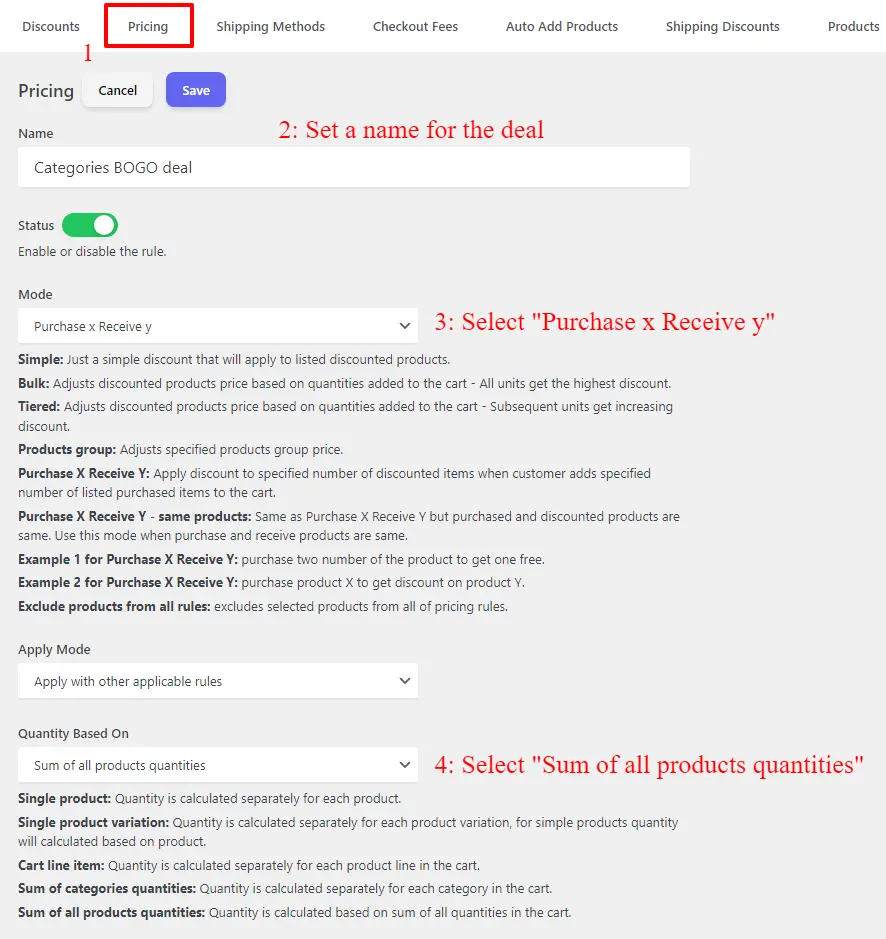
Setup category BOGO deal in WooCommerce
  • Set a message to the Buy products. It will be shown on the Buy Products page.
  • Set a message for the Get products. It will be shown on the Get Products page.
  • Enable/Disable the repeat field based on your requirements. When it is enabled, for each buy 2 products, 1 get product will be added to the cart.
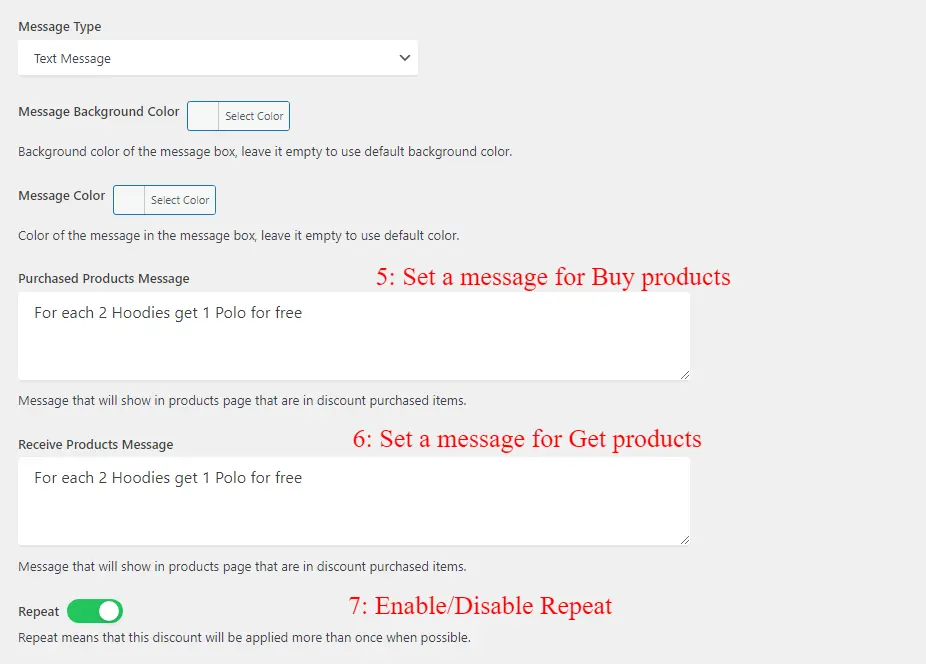
Setup category BOGO deal in WooCommerce step 2
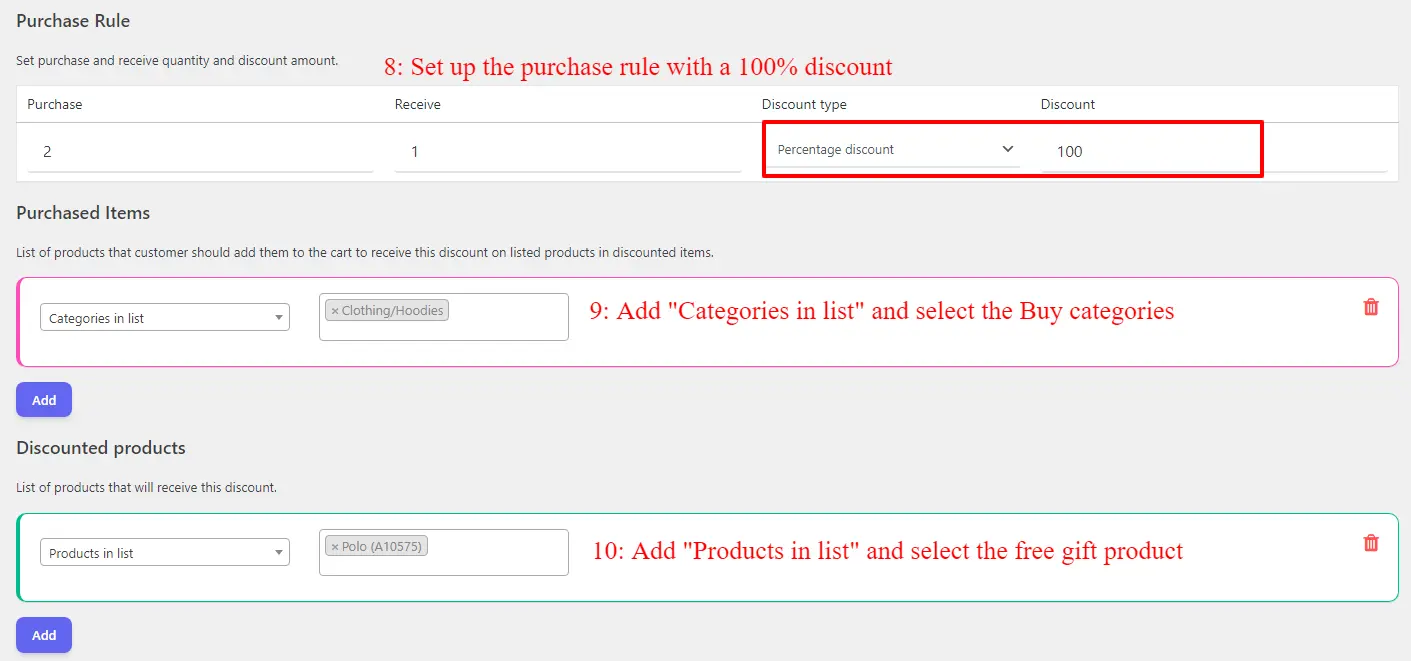
  • Set up the purchase rule with a 100% discount. E.g: Purchase: 2, Receive: 1, Discount type: Percentage discount, Discount: 100
  • Under “Purchase items” add “Categories in list” and select the Buy categories.
  • Under “Discounted products” add a “Products in list” and select the free gift product.
  • Save the rule.
Setup category BOGO deal in WooCommerce step 3

The setup of the category BOGO deal is done successfully. Now if a user buys 2 products from the selected categories a free gift product will be added automatically to the cart.

As you can see in the below image, there are 2 hoodies with an auto-added free gift product.
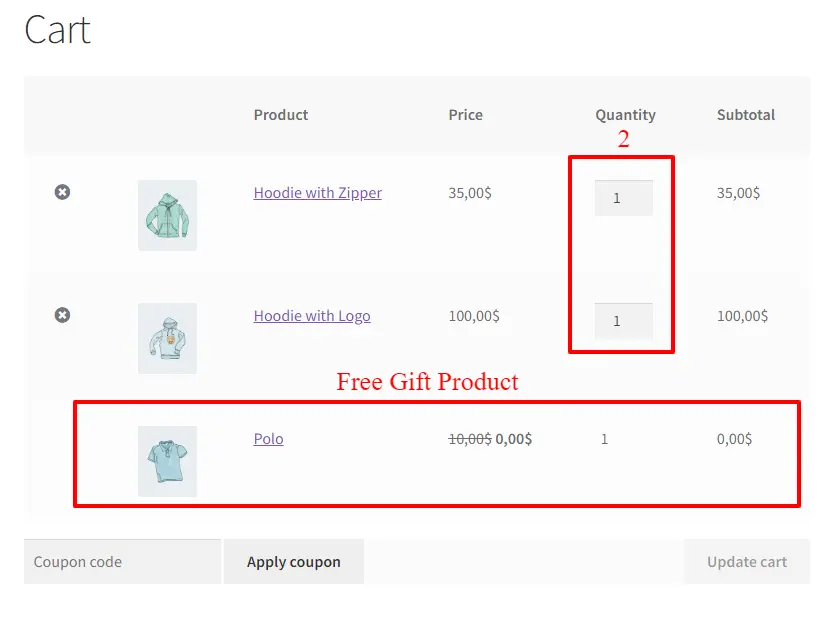
WooCommerce Category BOGO deal

2. Conditinally Added Gift Products

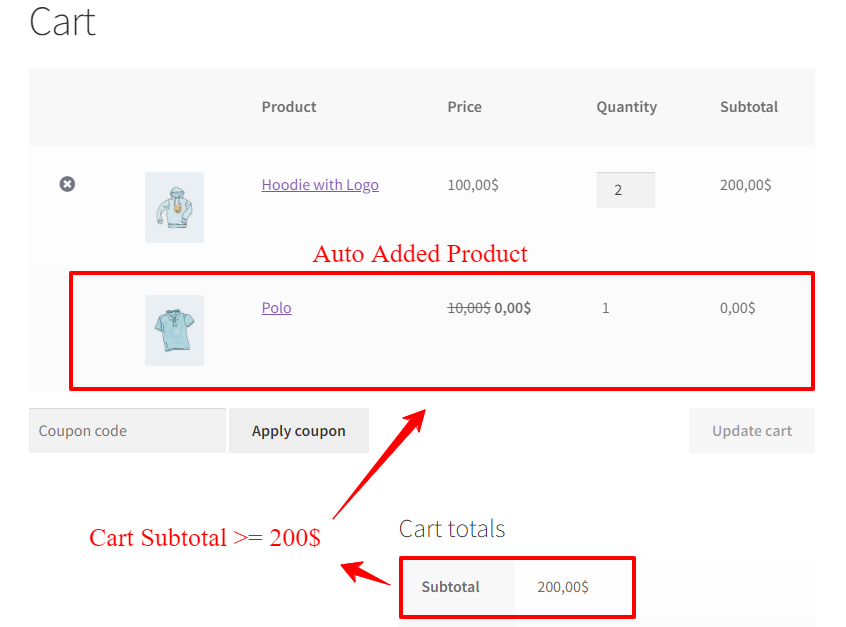
Sometimes you want to auto-add free gift products to the cart when some conditions are met. For example, provide free gift products when the cart subtotal is more than 200$.

To provide such free gift products, we will use the Auto Add Products to Cart addon for the Discount Rules and Dynamic Pricing for WooCommerce.

Gift a Product for Cart Subtotal in WooCommerce

Gift a Product for Cart Subtotal is a strategy implemented by businesses to incentivize customers to make a purchase by offering a complimentary product when their cart subtotal reaches a certain amount. This tactic not only encourages customers to add more items to their cart to meet the threshold but also creates a sense of excitement and value for the customer. By offering a free product, businesses can increase sales and customer satisfaction, as customers feel like they are getting an added bonus for their purchase. This strategy can also help businesses promote specific products or clear out excess inventory. Overall, “Gift a Product for Cart Subtotal” is an effective marketing technique that benefits both the customers and the business.

To gift a product based on cart subtotal in WooCommerce, follow the below steps.

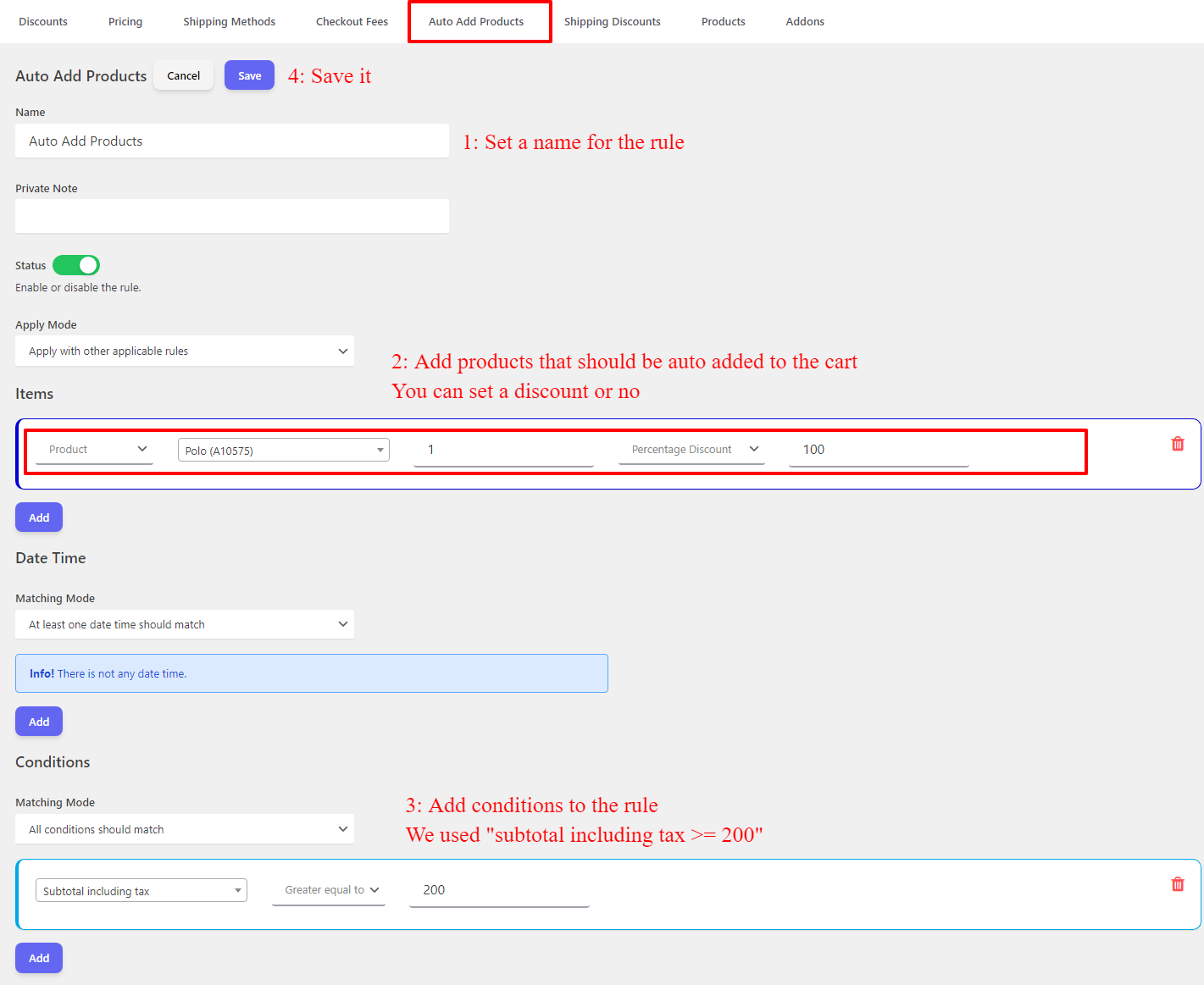
  • Navigate to the “Woo Pricing & Discounts” menu, then open the “Auto Add Products” tab.
  • Set a name for the rule. e.g. Free gift for cart subtotal in WooCommerce
  • Add a product or product variation under items and then select the free gift product with a 100% discount.
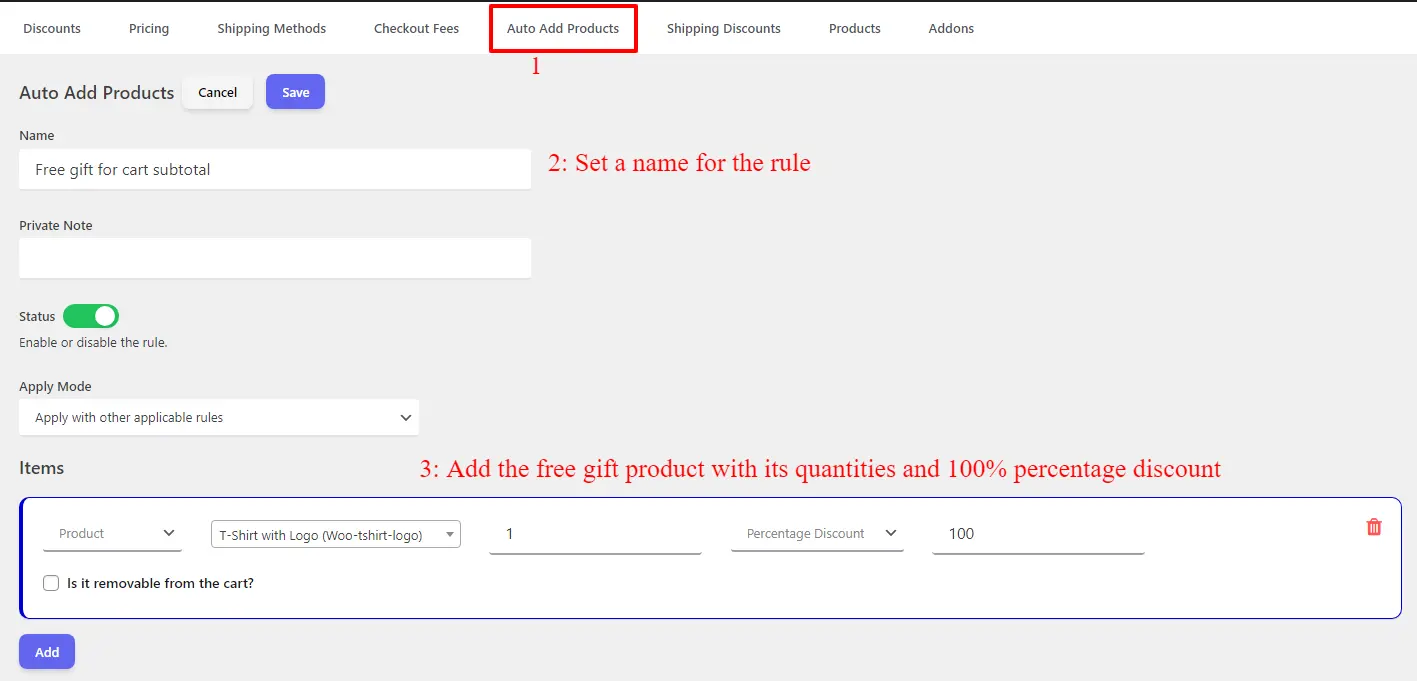
Setup gift a product in WooCommerce
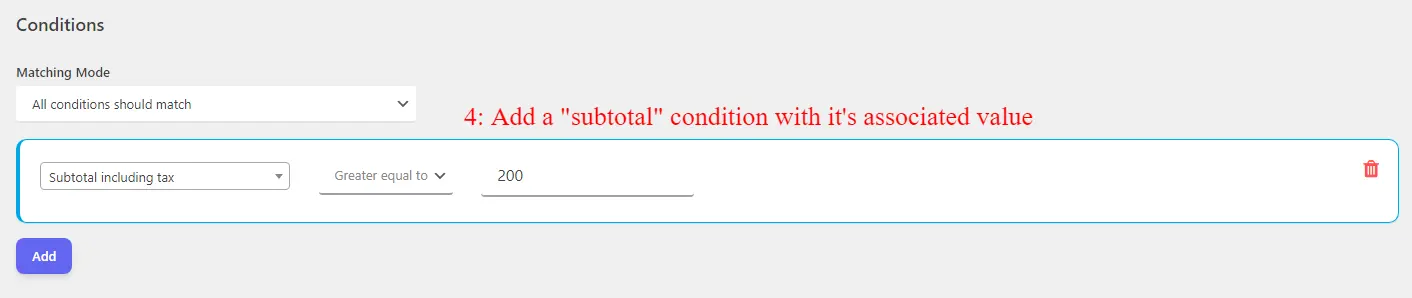
  • Under Conditions, add a subtotal condition like “Subtotal including tax” and set a value for it. You can also, check specific products or categories subtotal with appropriate subtotal conditions.
  • Save the rule.
Setup gift a product in WooCommerce conditions

Now when the cart subtotal is greater or equal to 200$ then the free gift product will be auto add to the cart.
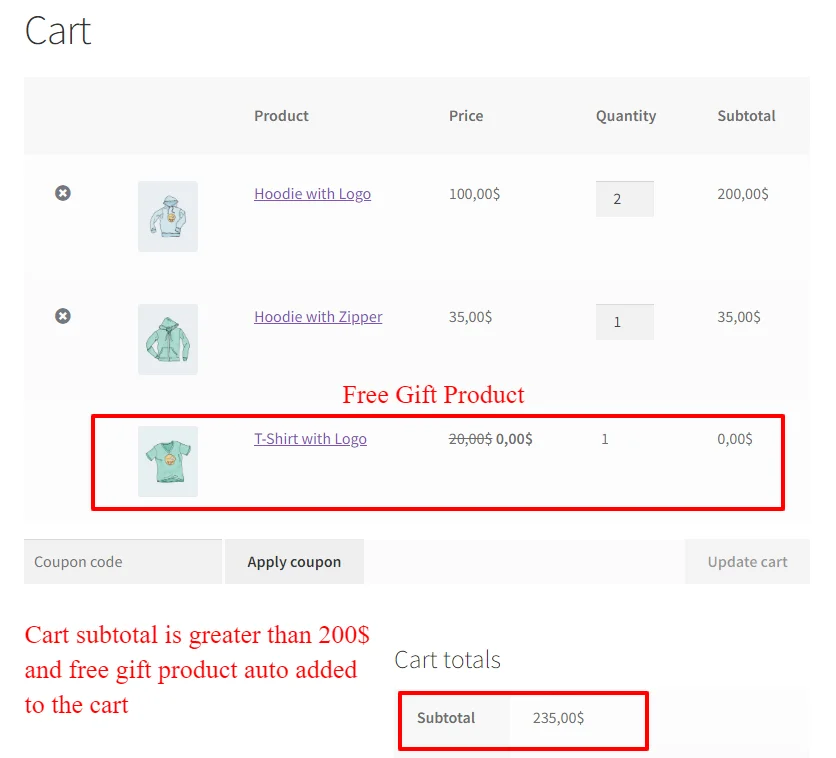
Gift a product for cart subtotal in WooCommerce

Gift a Product on Black Friday

Black Friday, known for its incredible deals and discounts, presents a unique opportunity for businesses to connect with customers and expand their customer base. By gifting a product on Black Friday, businesses can attract new customers and build long-lasting relationships. Offering a free or discounted product not only creates excitement and engagement among potential customers but also showcases the value and quality of the brand. This gesture of generosity can leave a lasting impression, encouraging customers to return for future purchases and spreading positive word-of-mouth, ultimately resulting in increased sales and customer loyalty.

To gift a product on Black Friday, follow the below steps.

  • Navigate to the “Woo Pricing & Discounts” menu, then open the “Auto Add Products” tab.
  • Set a name for the rule. e.g. Free gift for cart subtotal in WooCommerce
  • Add a product or product variation under items and then select the free gift product with a 100% discount.
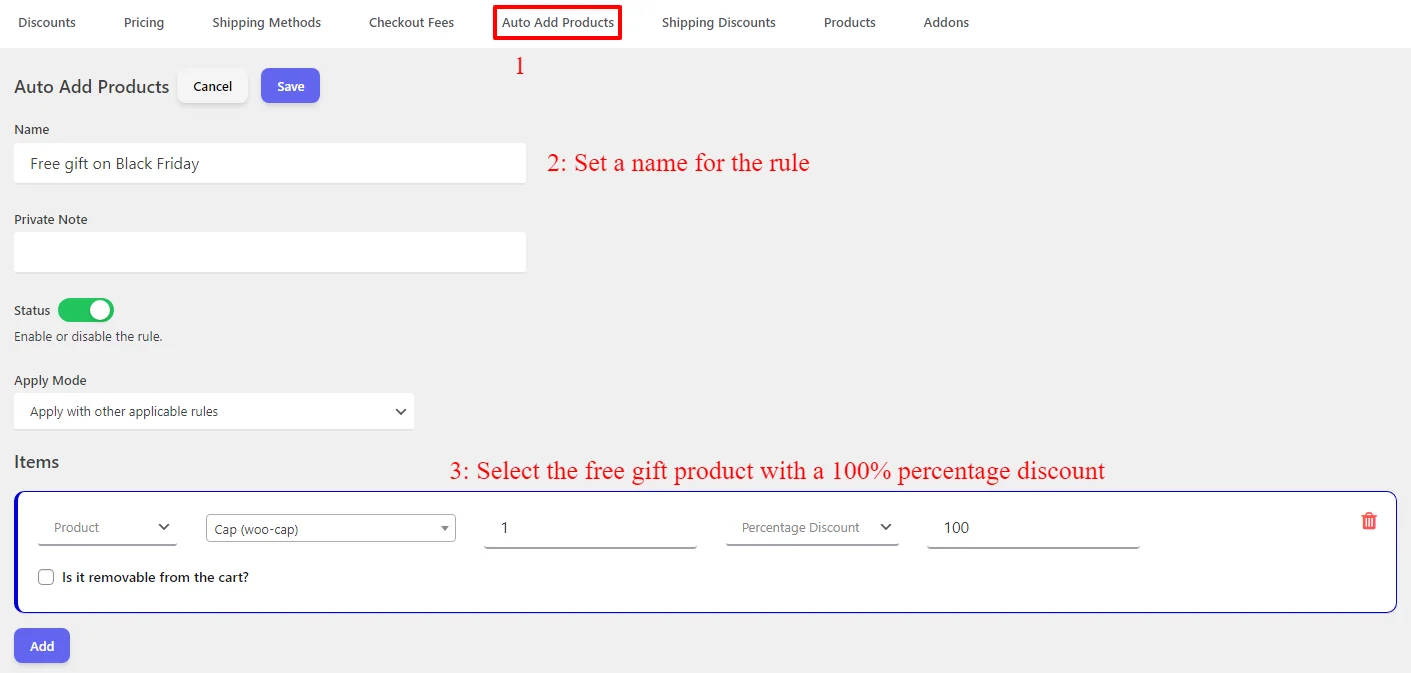
Gift a product in WooCommerce for Black Friday
  • Add a “Specific Date” and select 24 November for 2023 Black Friday.
  • Save the rule.
Gift product on Black Friday 2023

On Black Friday the gift product will be auto add to the cart, like the below image.
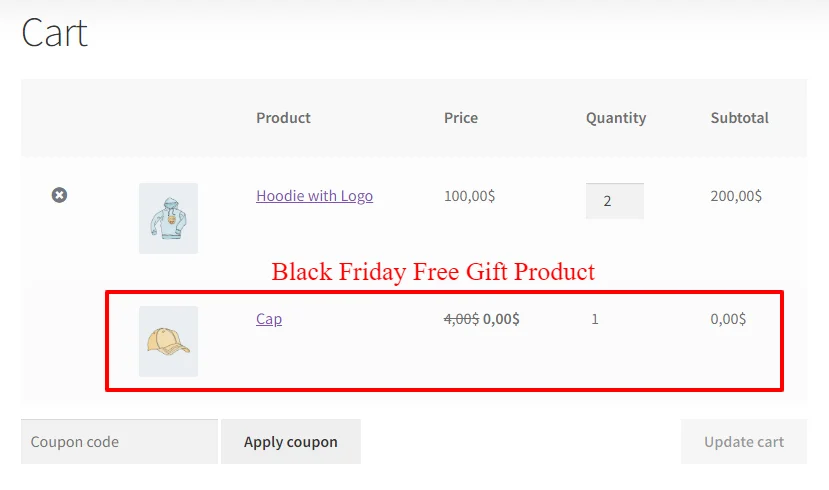
Black Friday Free Gift Product in WooCommerce

3. Gift a Product in WooCommerce with Product Bundles

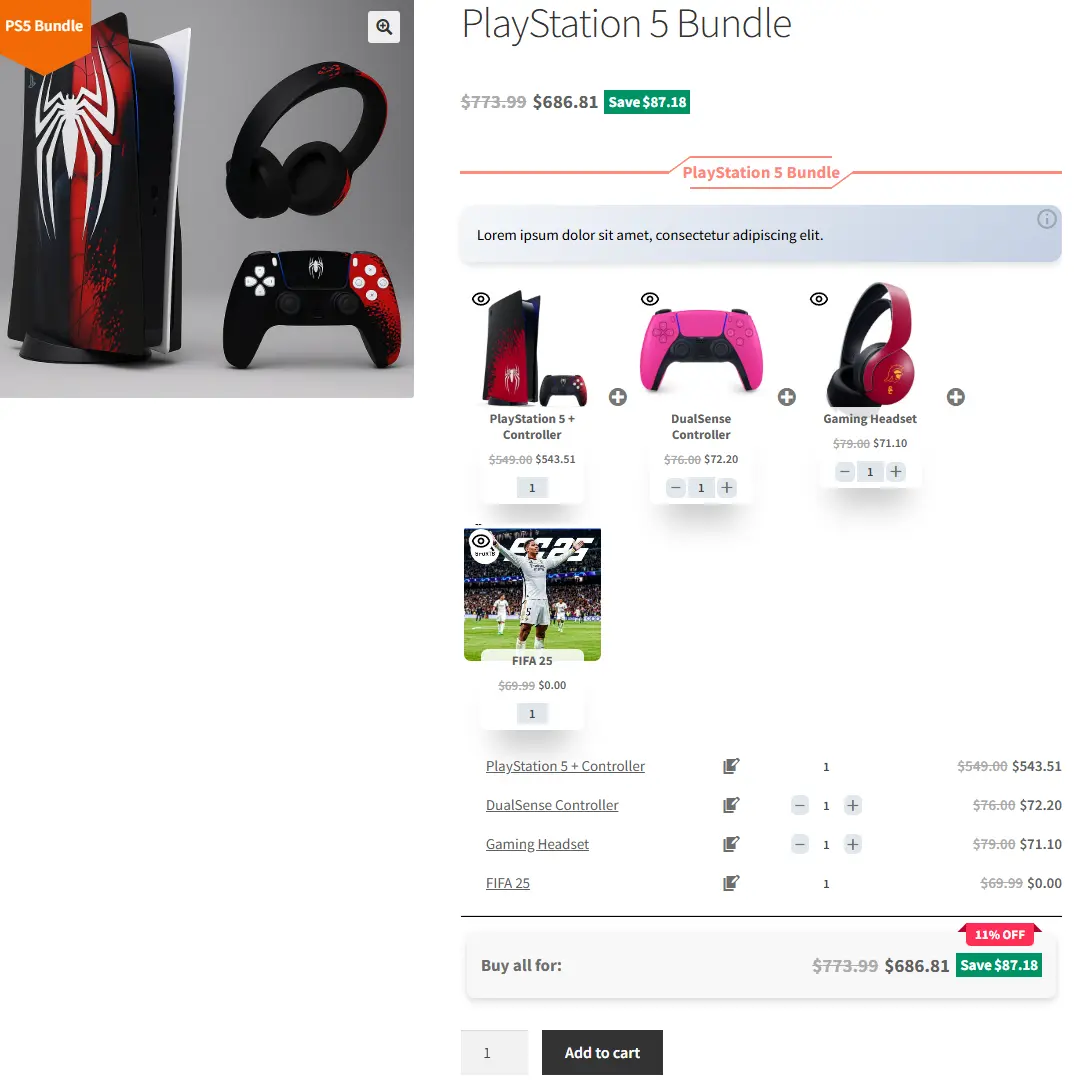
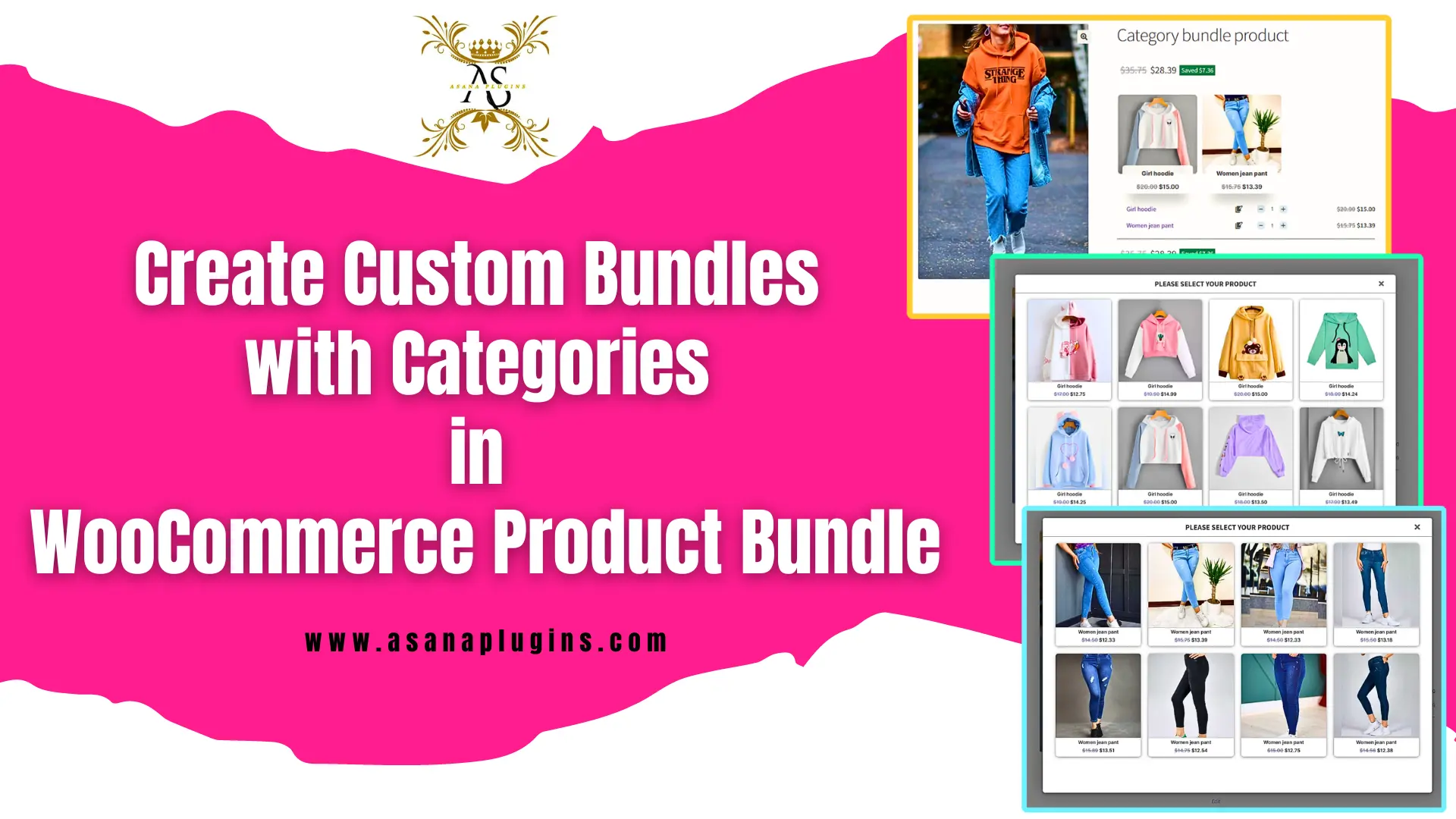
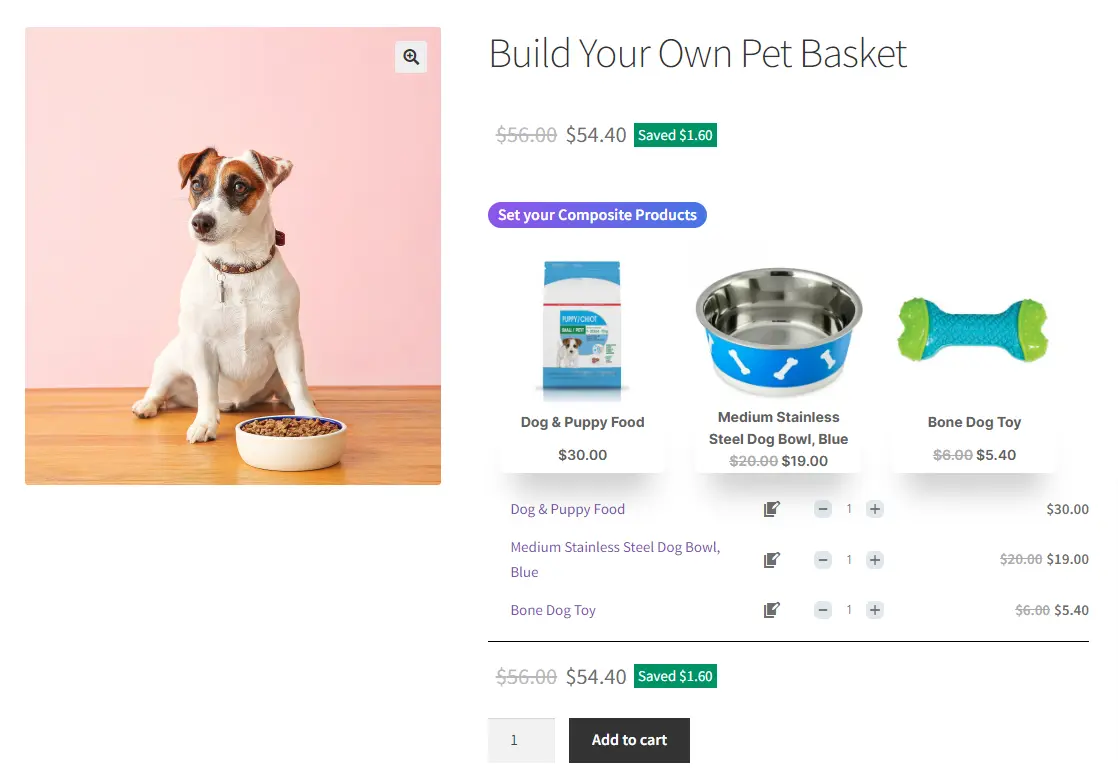
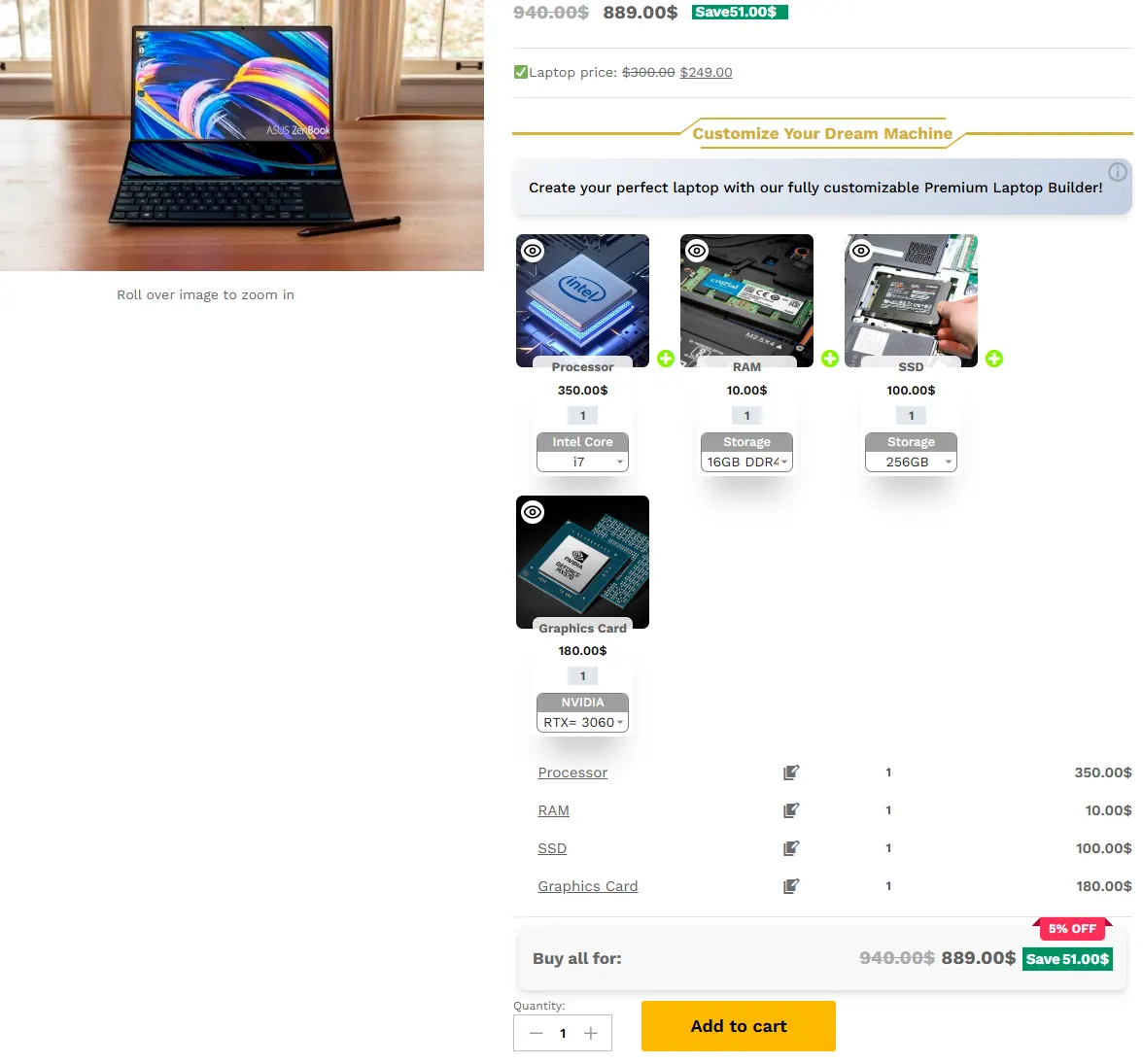
WooCommerce Product Bundles is an exceptional plugin that revolutionizes your WooCommerce experience by providing you with a multitude of features to create innovative product bundles. With this plugin, you can effortlessly mix and match products, assemble products, create custom product boxes, composite products, and even offer gift products – all within the WooCommerce platform. This comprehensive tool empowers your business to offer unique and captivating product options, ultimately boosting customer satisfaction and driving sales. Say goodbye to limitations and hello to unlimited possibilities with WooCommerce Product Bundles.

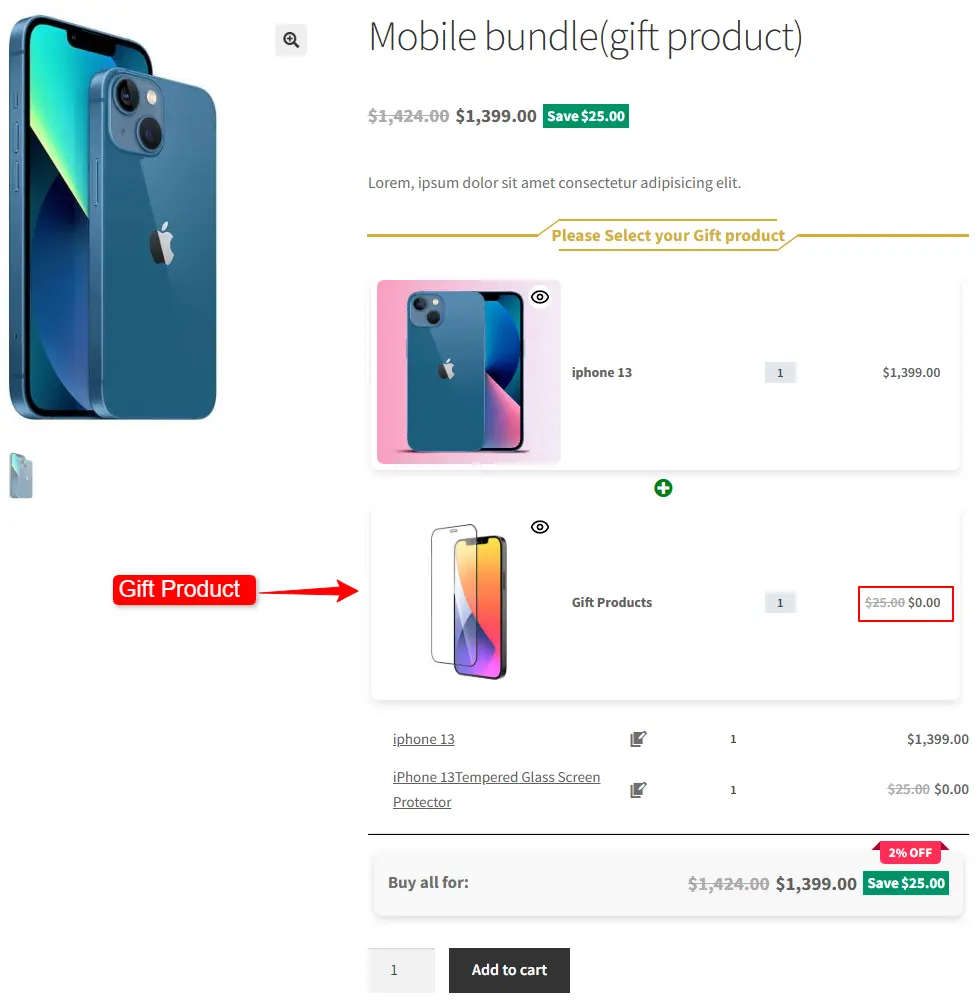
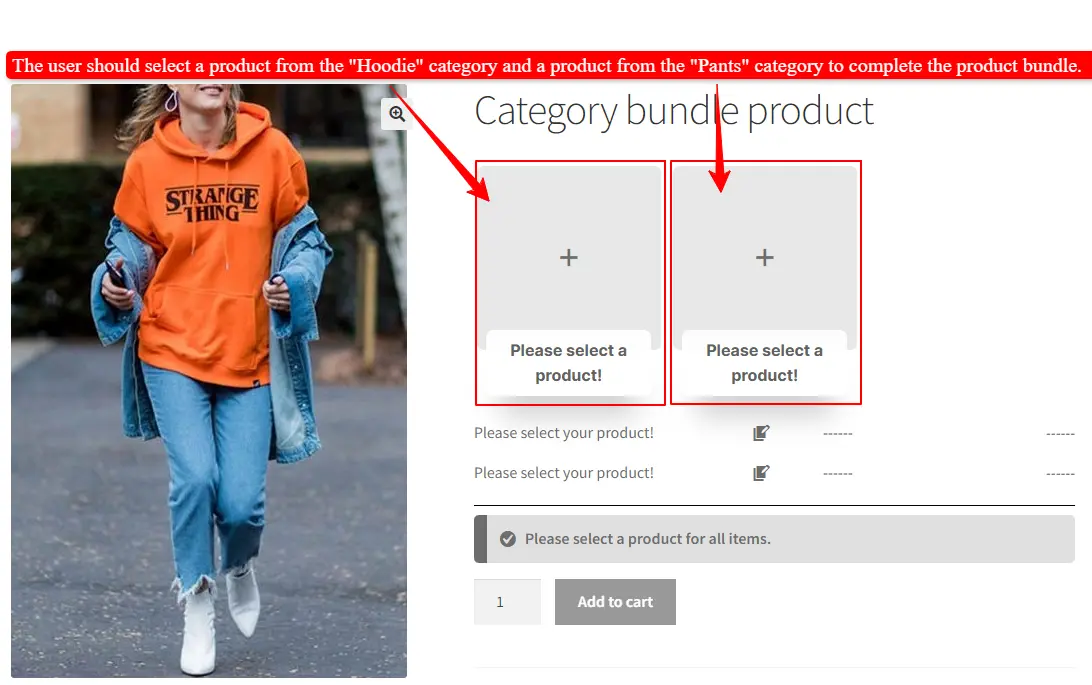
You can provide multiple gifts in a product bundle and allow the customer to choose the gift product from multiple available products.

You can read creating product bundles in WooCommerce for more information.

To create a gift product in WooCommerce with product bundles, follow the steps below.

Step 1: Installing the WooCommerce Product Bundle Builder

The Easy WooCommerce Product Bundles free plugin is one of the best WooCommerce plugins for creating Dynamic Bundles in your online store, so follow the steps below to install this plugin :

1. Navigate to the Plugins >> Add New menu on your WordPress website

2. Then search for “Easy Product Bundles for WooCommerce“ or “Asana Plugins“

3. Find the “Bundles – WooCommerce Product Bundles” by “Asana Plugins“

4. Install the plugin and activate it.
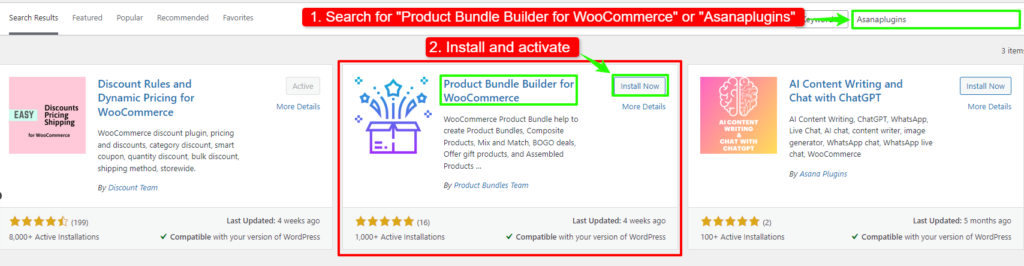
install product bundle

Step 2: Creating Product Bundle

Follow the steps below to add a new product bundle in WooCommerce:

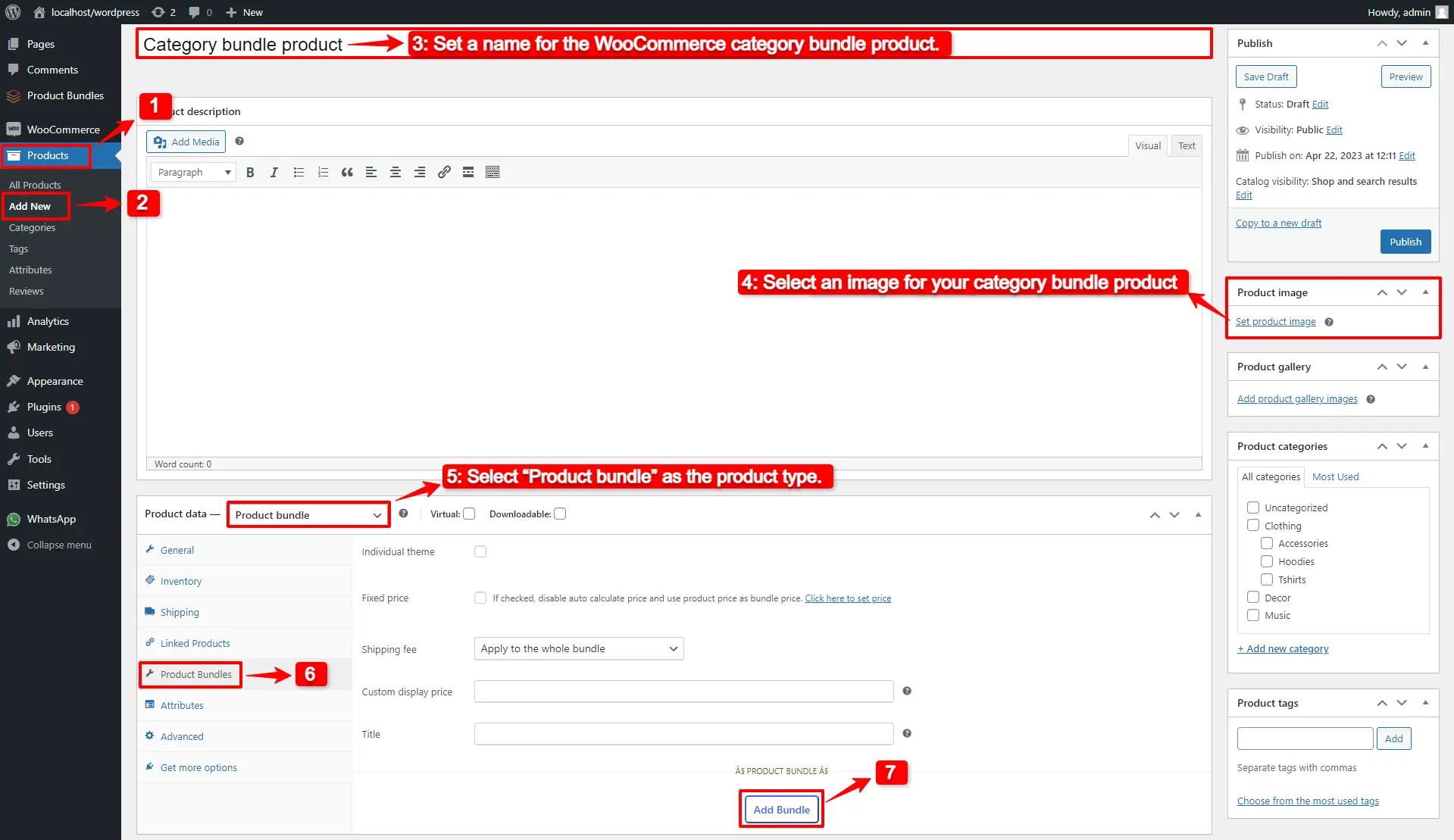
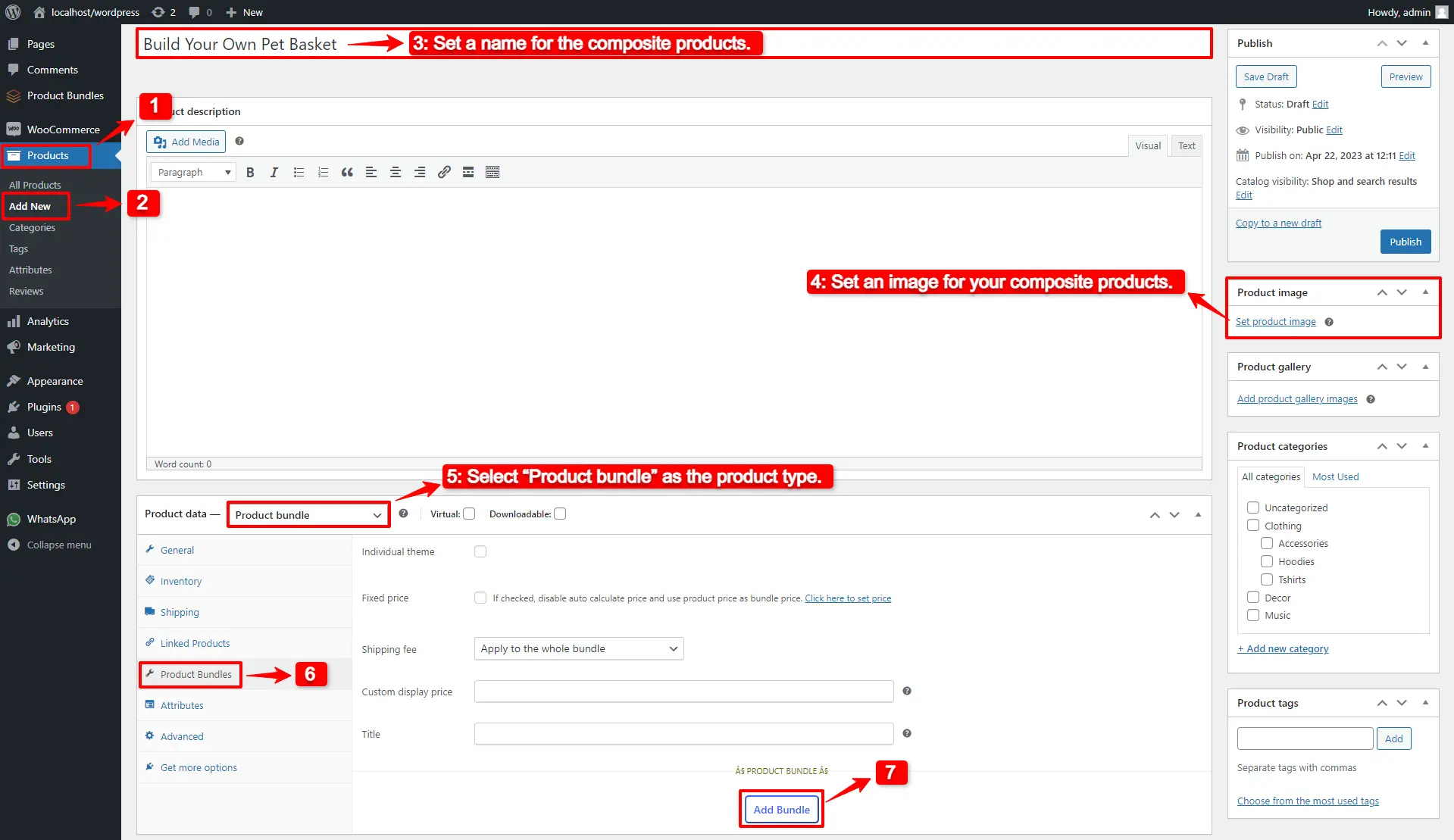
1. Navigate to WooCommerce “Products”.

2. Click on “Add New” to create a new product.

3. Set a name for the WooCommerce product bundle.

4. Click  “Set product image” from the right sidebar and select an image for your product bundle.

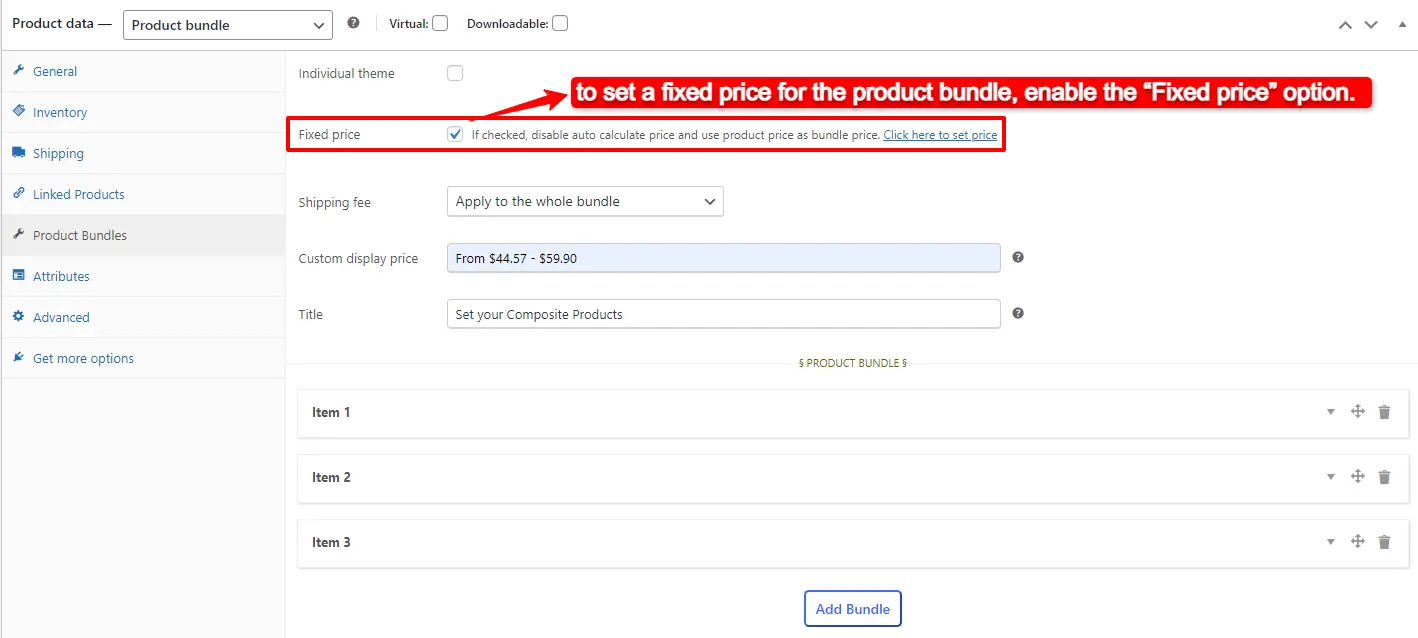
5. Now navigate to the Product data panel, and select “Product bundle” as the product type.

6. After selecting “Product bundle” as the product type the “Product Bundles” tab will appear in the product data panel.

7. Navigate to the “Product Bundles” tab and click on the “Add Item” button to add a new bundle item.
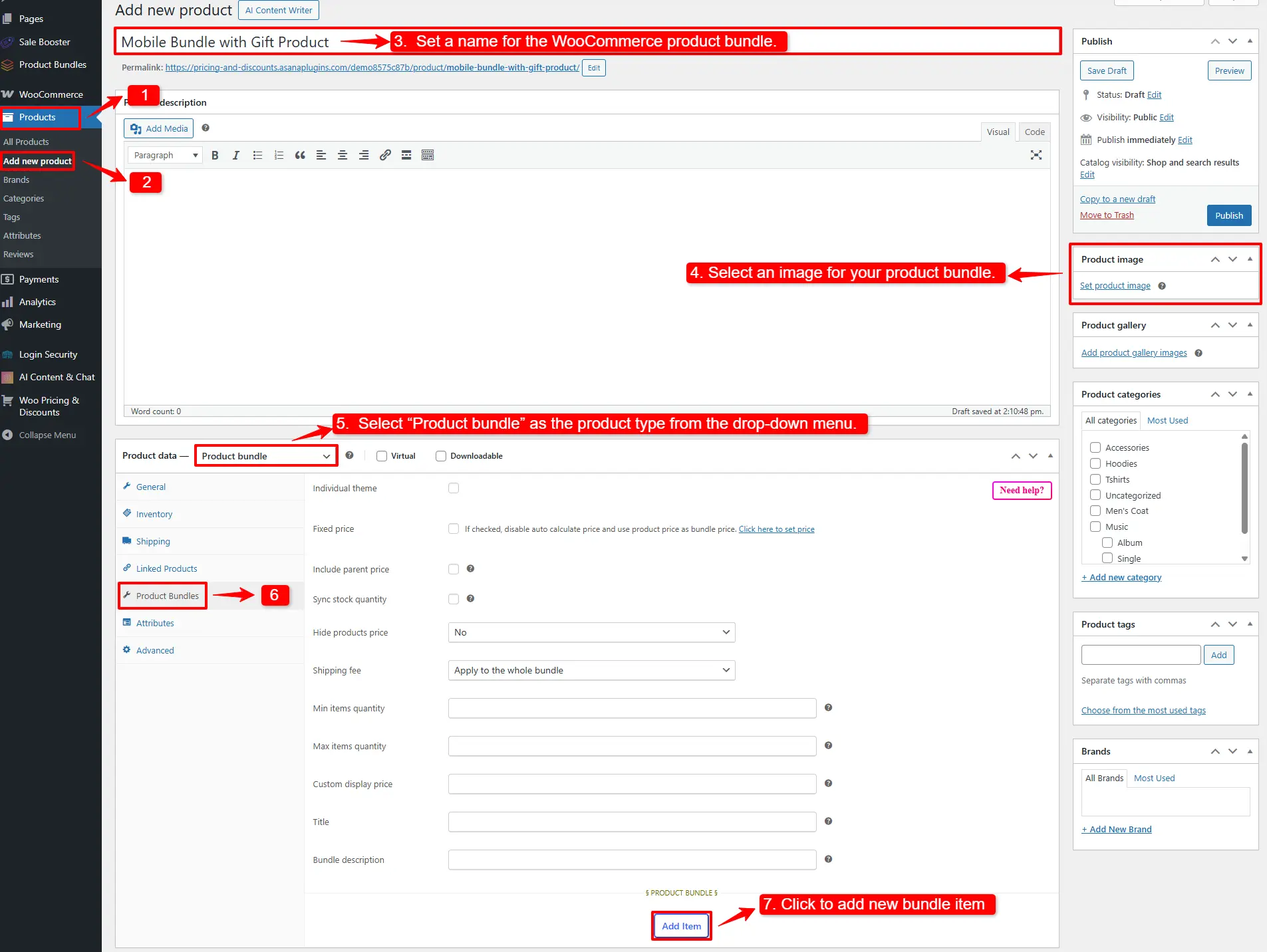
Creating Product Bundle

Step 3: Adding Product Bundle Items

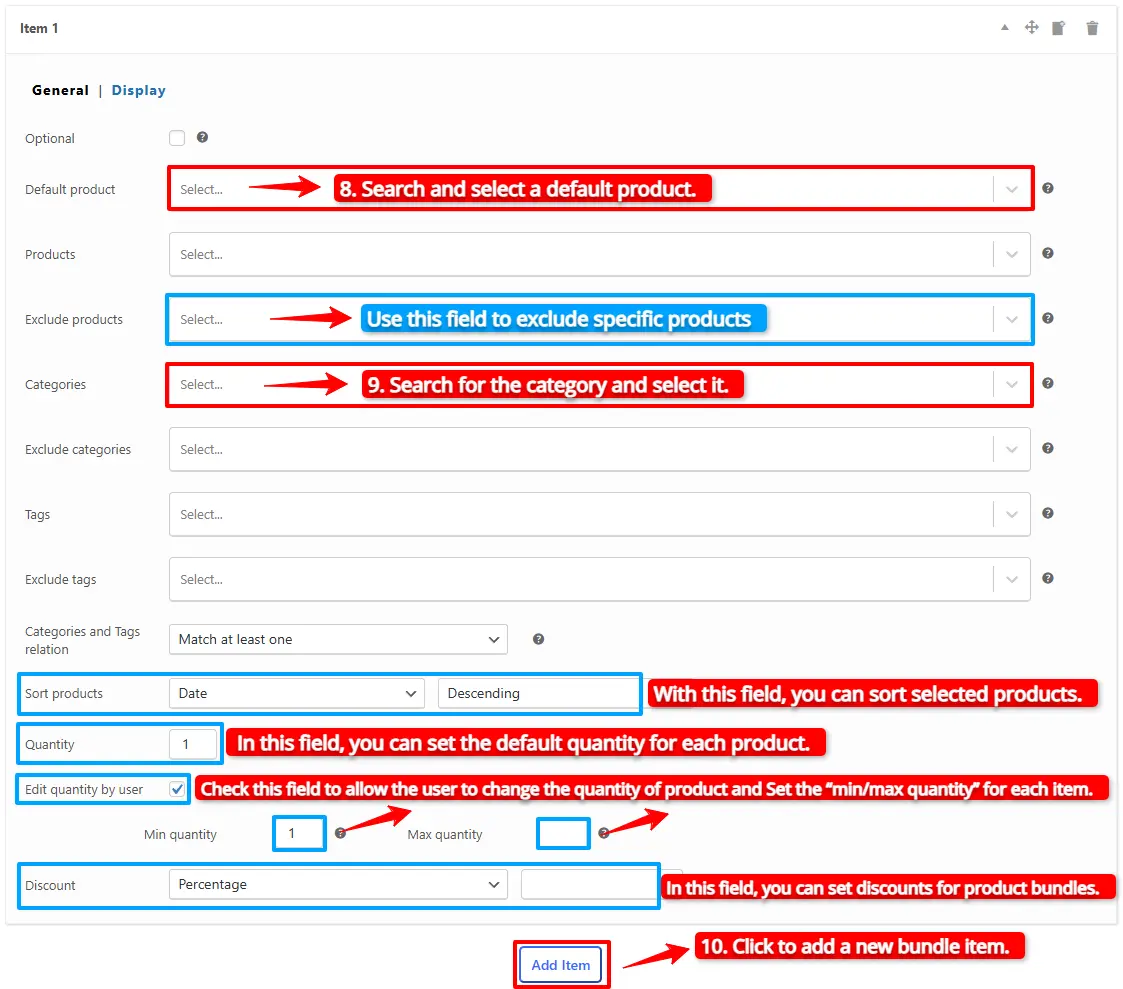
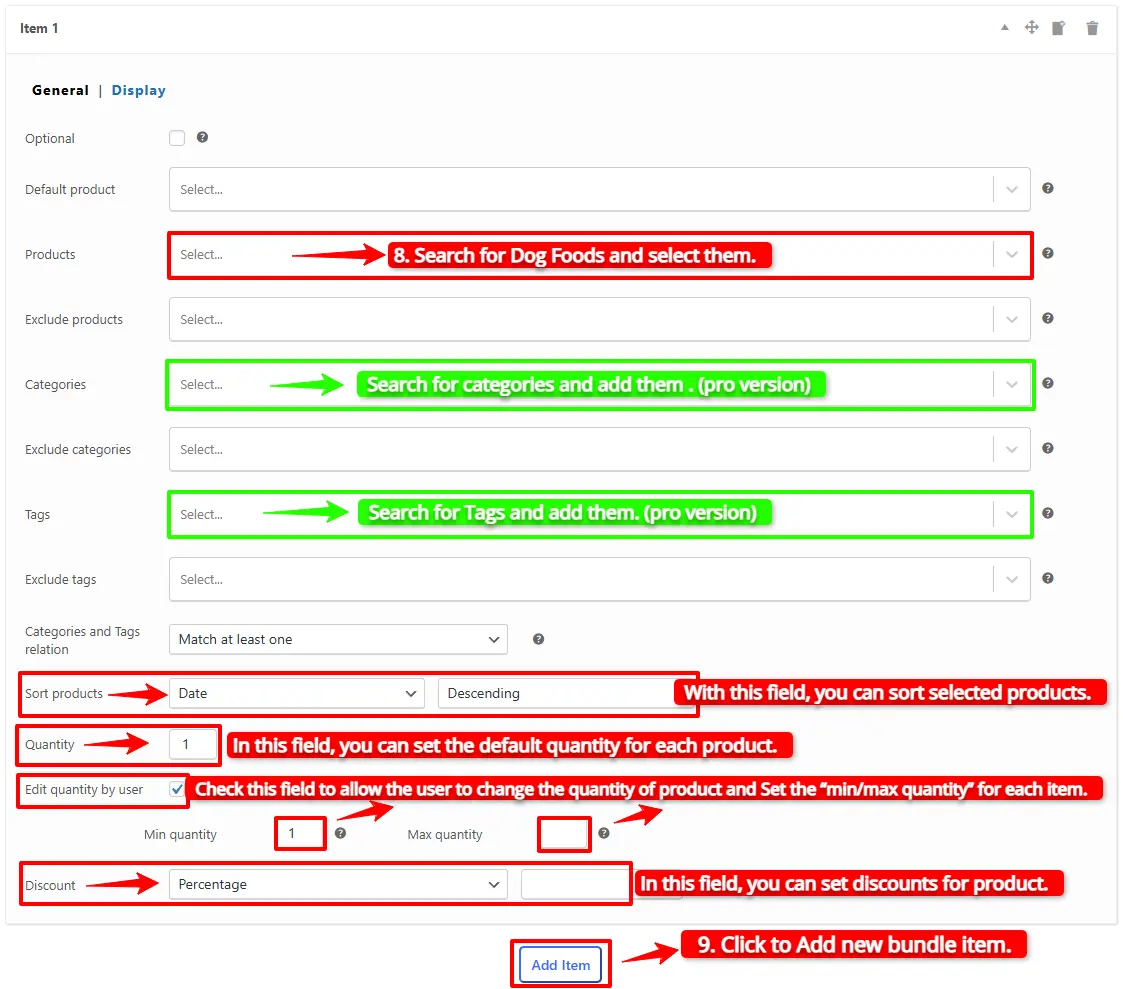
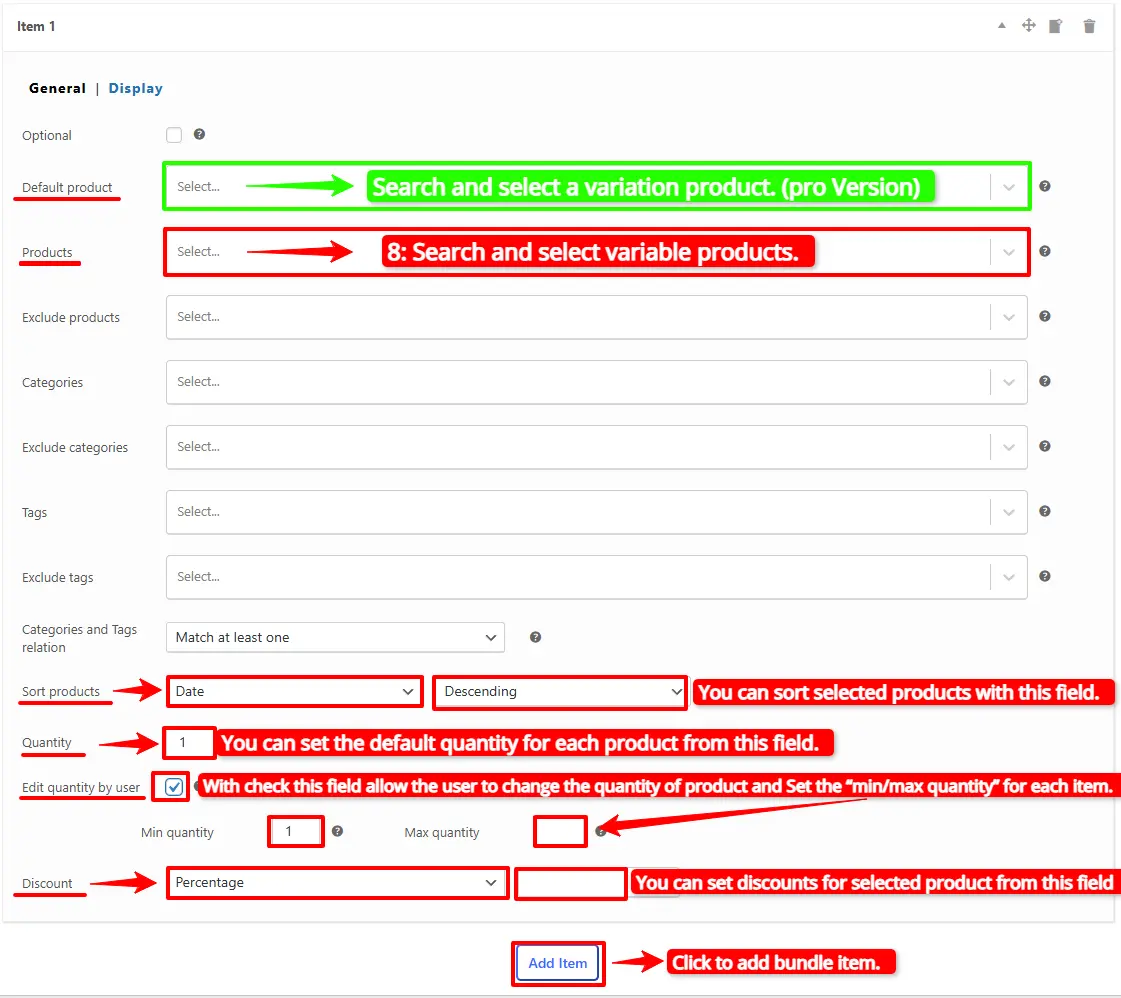
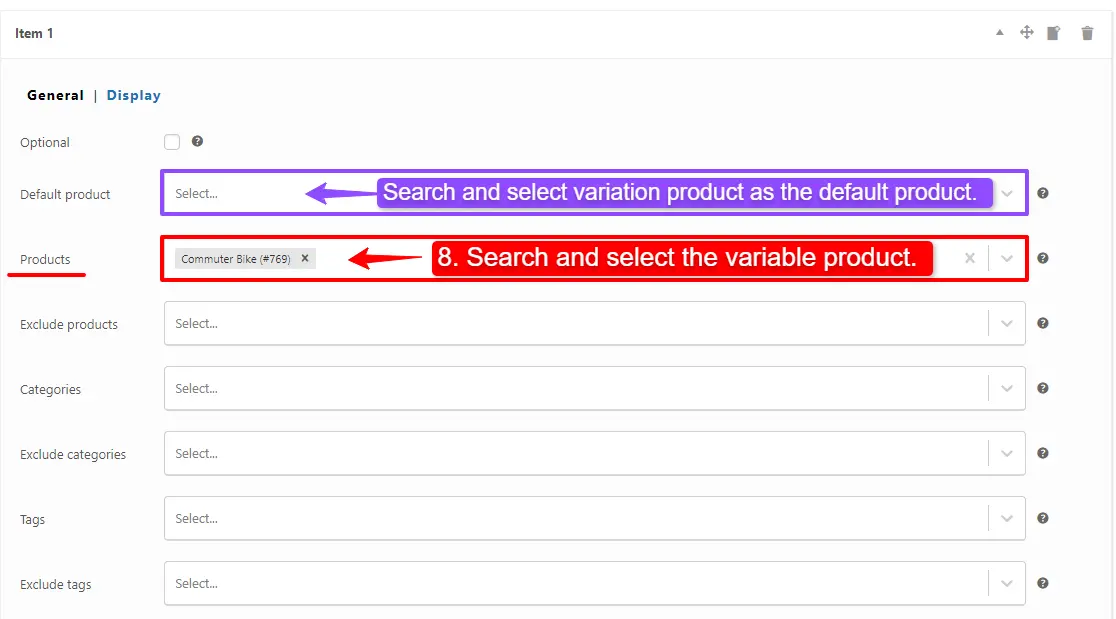
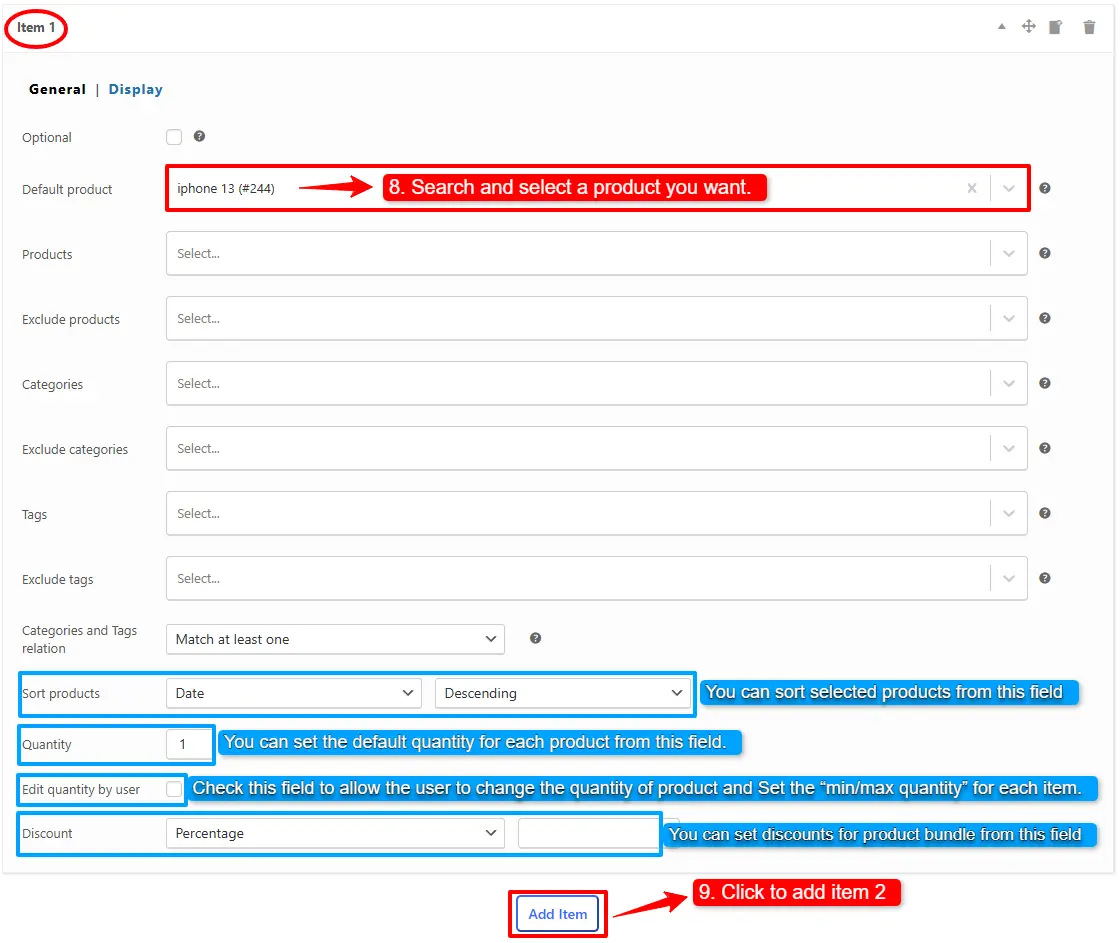
8. In the first item, in the “default product” field, we selected the Buy product. You can provide multiple products, categories, or tags.

You can also configure the below settings to your WooCommerce Product Bundle in the item field:

  • Sort products: With this field, you can sort selected products by “ID”, “Title”, “Menu order”,” Date”, “Price”, “popularity” and“Rating”.
  • Quantity: In this field, you can set the default quantity for each product.
  • Edit quantity by user: Check this field to allow the user to change the quantity of product and Set the “min/max quantity” for each item.
  • Discount: In this field, you can set discounts for product bundles by percentage, price or fixed price.
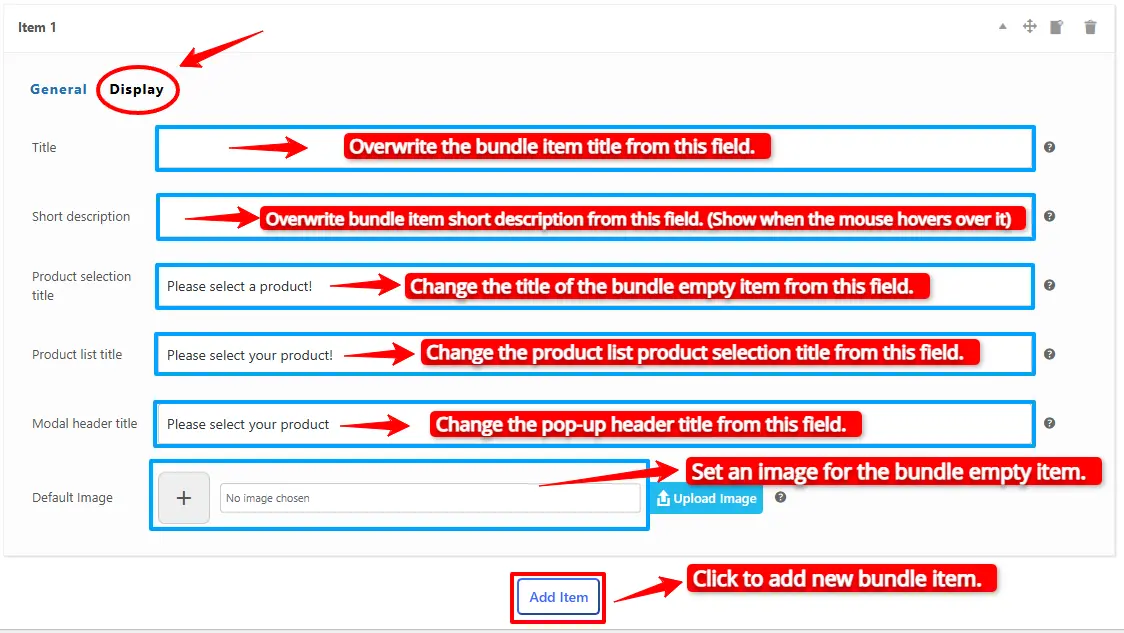
Now you can go to the “display” tab of the item1 and configure the following sections:

  • Overwrite bundle item title.
  • Overwrite bundle item short description. (Show when the mouse hovers over it)
  • Change the title of the bundle empty item.
  • Change the product list product selection title.
  • Change the pop-up header title.
  • Set an image for the empty item.
Display tab of product bundle item

9. Then click on the Add item button to add as many items as you want to the bundle and configure them.

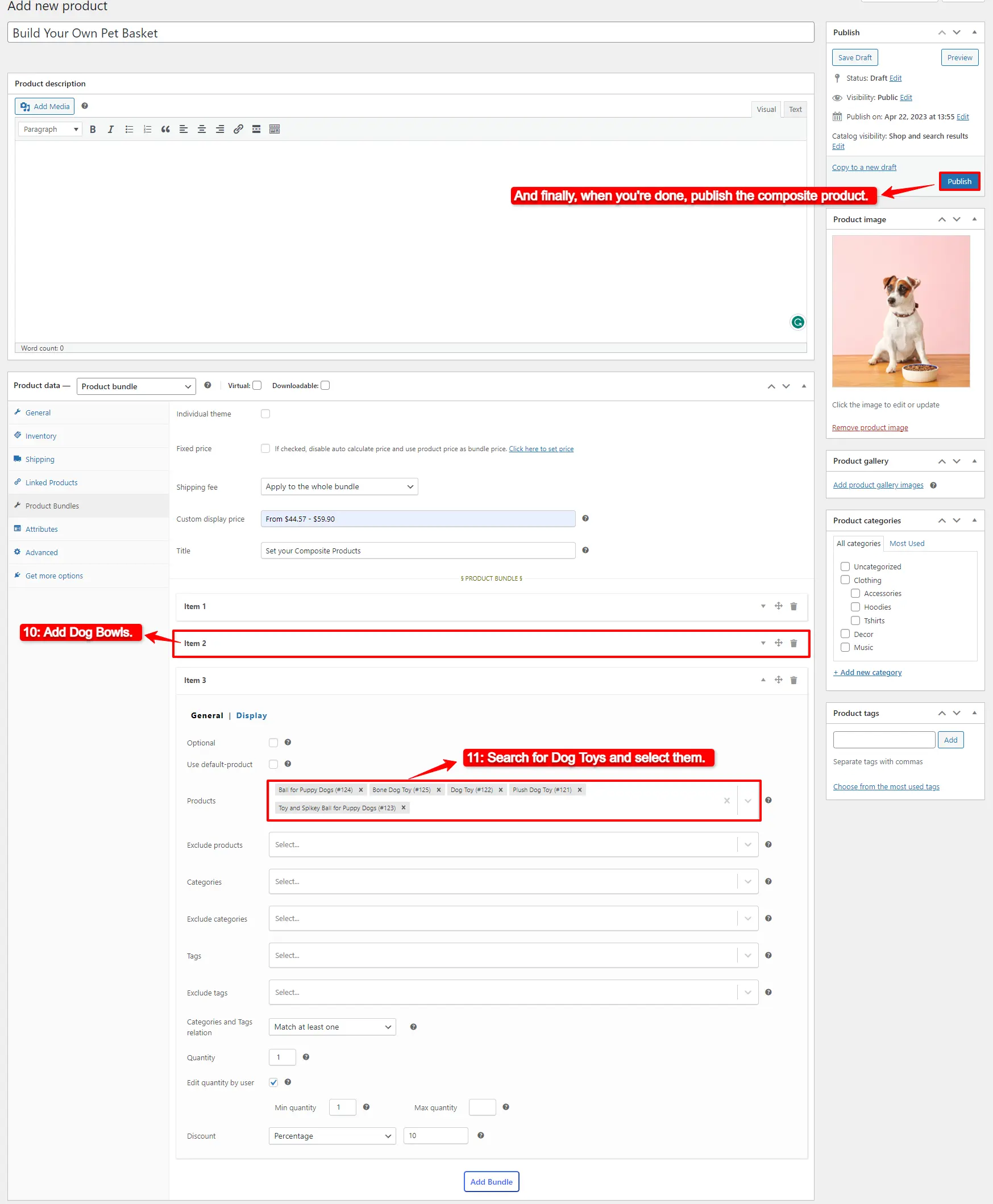
10. In the second item, we provided multiple gift products.

11. Set a 100% percentage discount on the gift products.
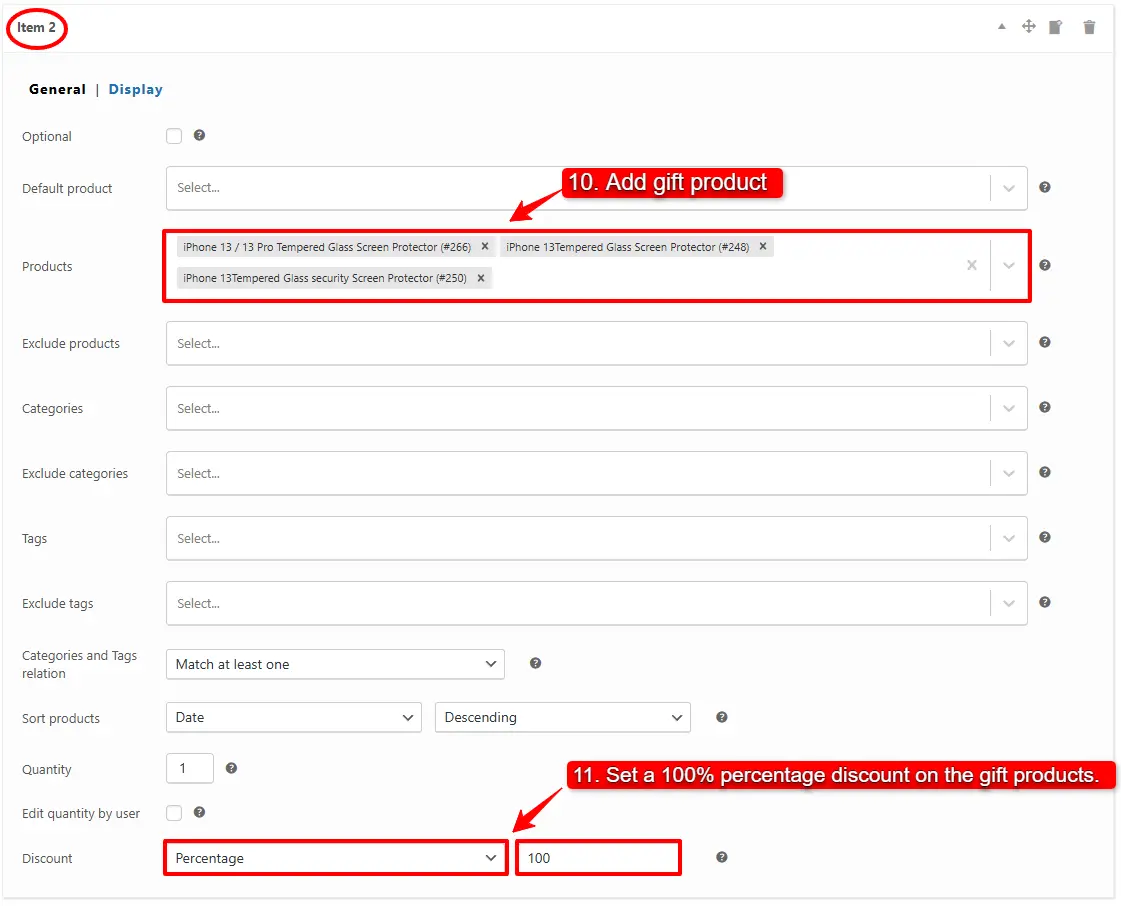
12. At the end, publish the product bundle.

Step 4: Configure the Plugin Settings

All the plugin settings you need can be found on the “Product Bundles” tab in the WordPress dashboard.
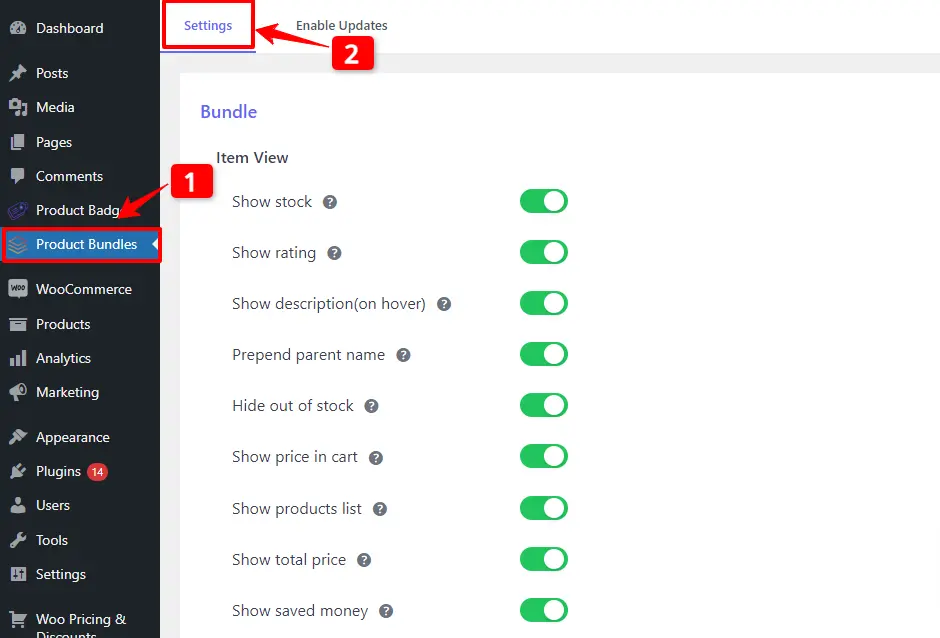
Configure the Product Bundles plugin Settings

Settings and customization are available on this page:

Item View: In this section, you can configure various settings, such as displaying stock availability, showing product ratings and descriptions, enabling modal quick views, adding a quantity field on item pages, displaying a plus icon for items, setting the theme and size options, positioning product bundles on the product page, defining custom CSS selectors, specifying the product price selector, and many other customizable options.

Change product model: In this section, you can configure the number of products per pop-up page.

Styles: In this section, you can customize the colours of different parts of your bundle and set the product image object-fit CSS.

Also you can use the below shortcodes of the plugin:

  • [asnp_wepb_product] Use it on the product page to show the bundles.
  • [asnp_wepb_product show_add_to_cart="1"] Use it on the product page to show the bundles + add to cart button

Final result

  • On the product page, user can select a gift product from multiple available gift products.
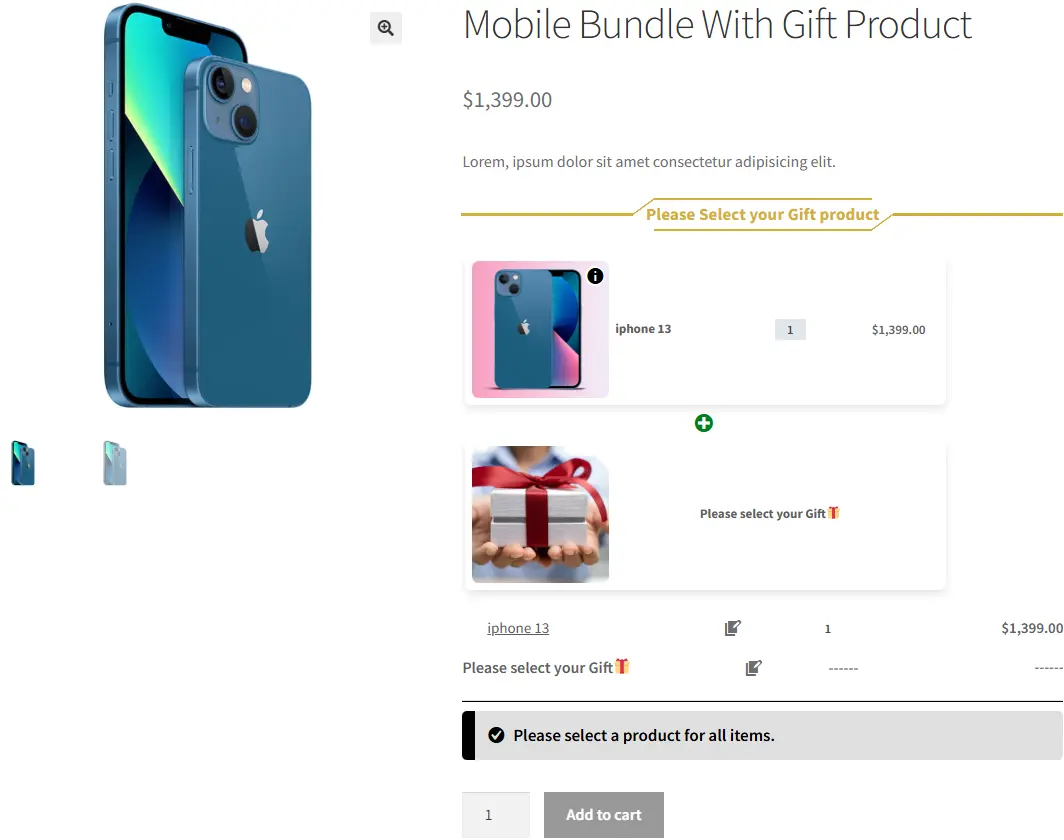
Final result of creating a gift product with  product bundle plugin
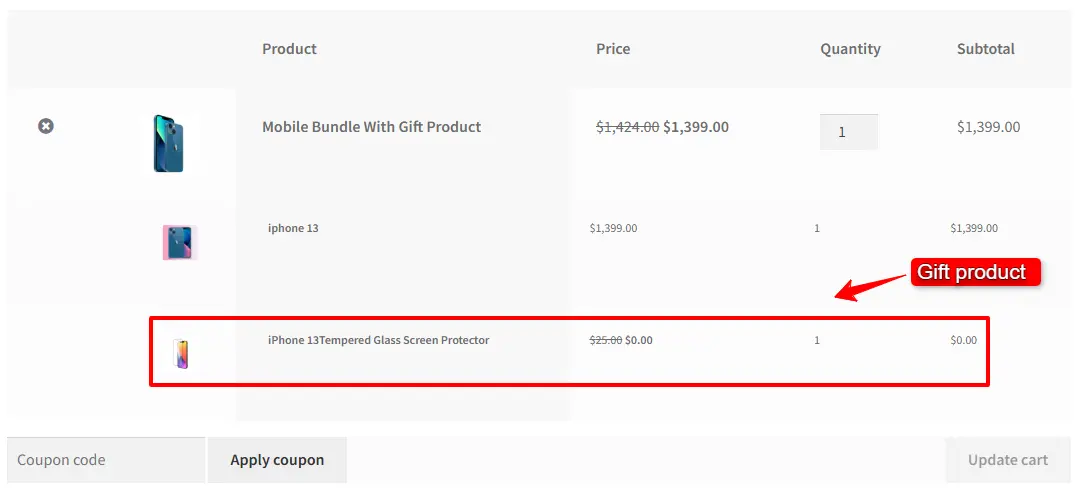
  • After selecting a gift product, the user can add the product bundle to the cart.
  • As you can see in the below image, gift a product in WooCommerce is done successfully.
4. Gift a Product with a Campaign

You can take your marketing efforts to the next level by implementing special campaigns, such as a Summer deal, that entice customers with the offer of free gift products. To effectively execute these campaigns, consider sending a personalized URL Coupon directly to customers’ email addresses or sharing it across various social networks. The beauty of this URL Coupon lies in its ability to automatically add the free gift product to the customer’s cart, ensuring a seamless and delightful shopping experience.

To create a campaign that auto adds multiple products to the cart with a free gift product, we use Product Bundles Builder for WooCommerce and URL Coupons plugins.

Create a Package for the Campaign

First, we need to create a package that has items plus a free gift product. To do so, we are using a product bundle for it.

  • Add a new product and select “Product bundle” as the product type in the “Product data” panel.
  • Open the “Product Bundles” tab.
  • Click on the “Add Bundle” to add as many items as you want. Don’t forget to add an item for the free gift product.
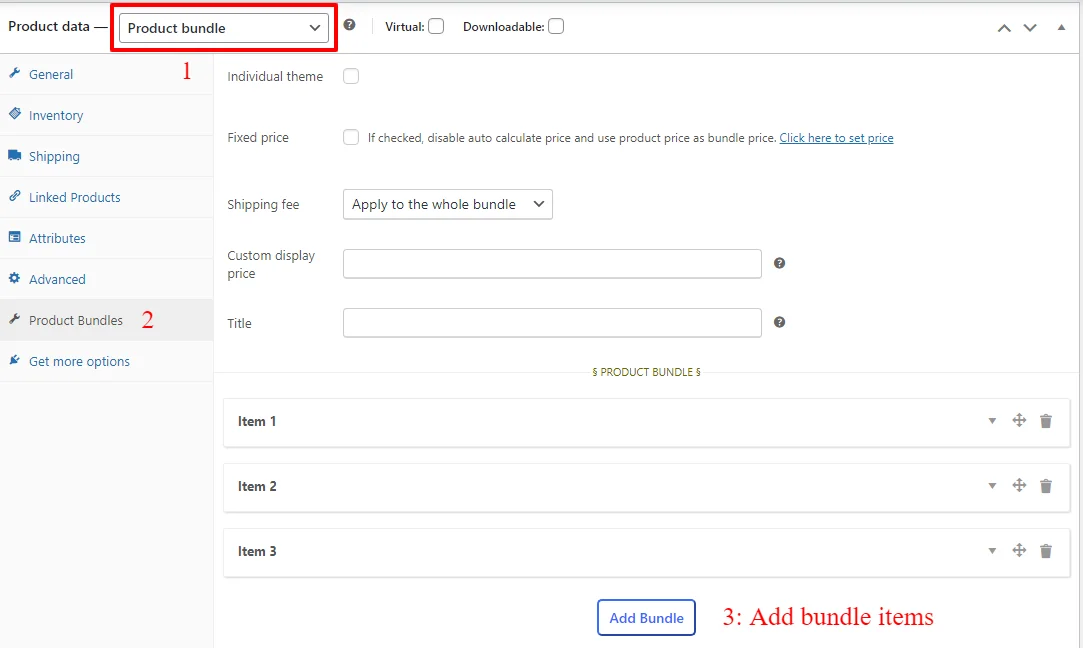
Create a Package for the Campaign
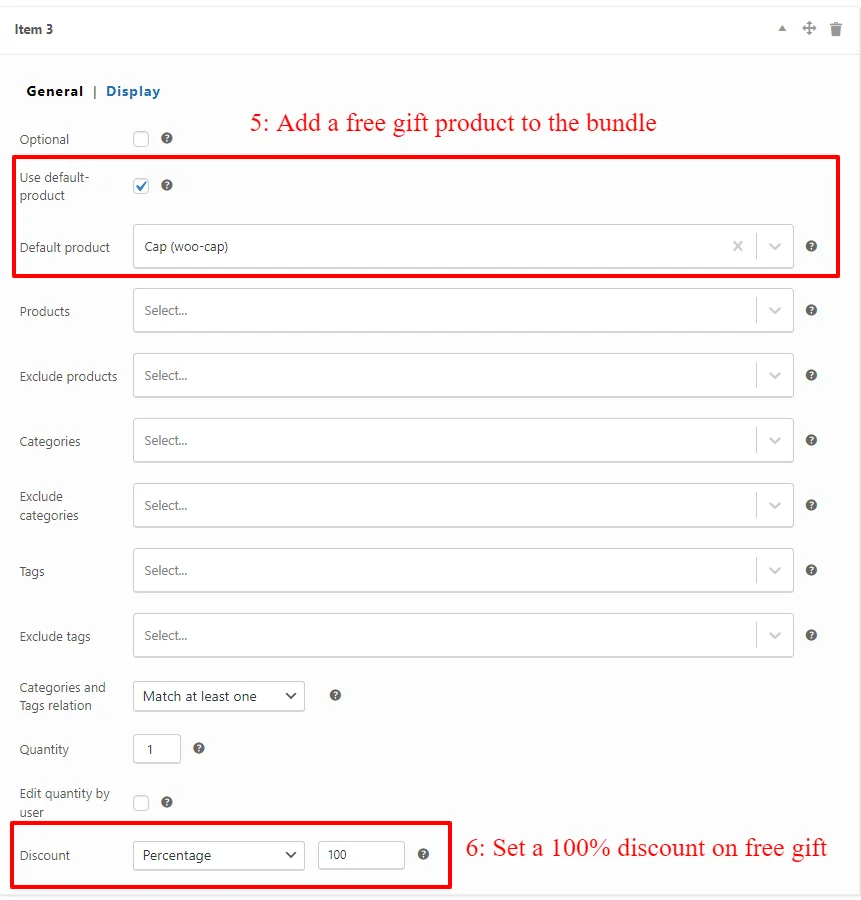
  • Set a default product for all of the added items. It is important.
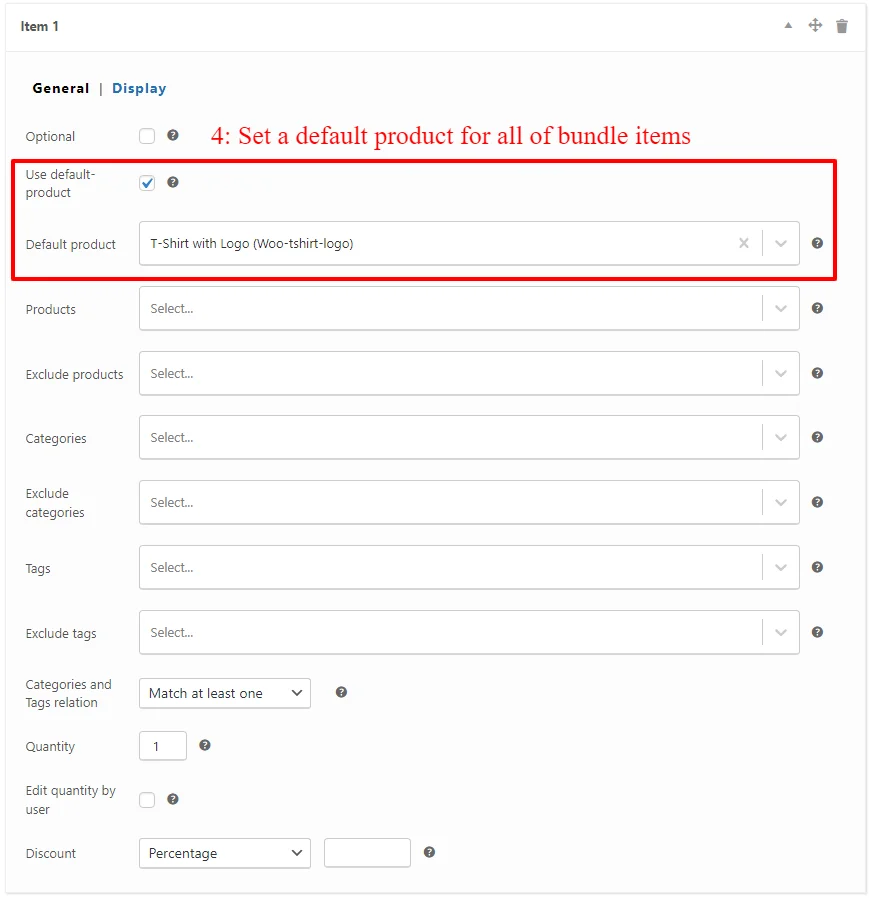
WooCommerce free gift product campaign setup
  • Set a default product as the gift product.
  • Apply a 100% percentage discount on the free gift product.
  • Publish the product bundle.
WooCommerce campaign setup step 3

Create a URL for the Campaign

After creating a product bundle for the campaign, we should create a URL that auto adds this package to the cart. To do so we are using URL Coupons for WooCommerce.

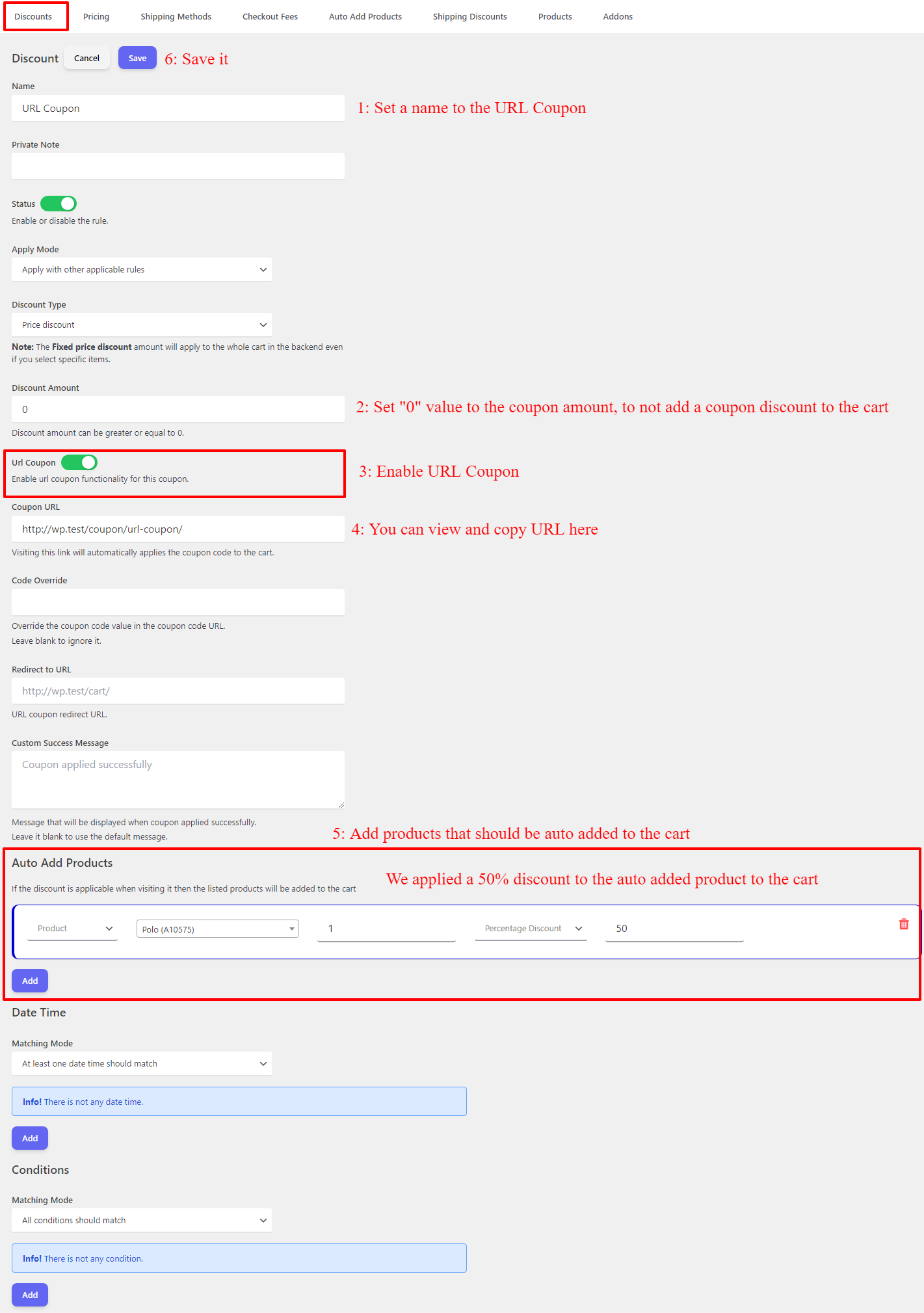
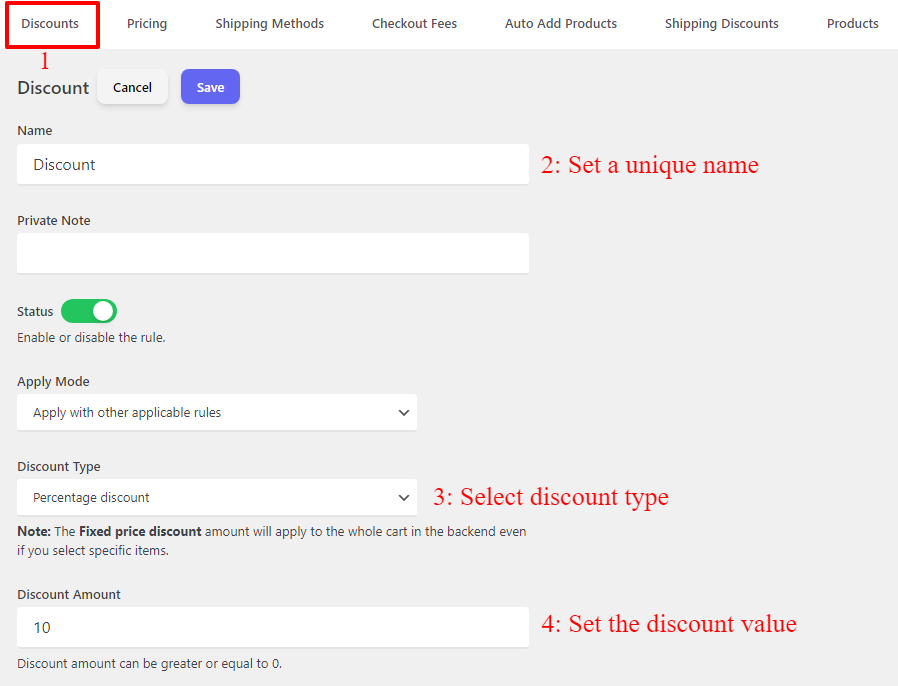
  • Navigate to the Discounts tab.
  • Set a unique name for the coupon.
  • Select “Price discount” as the “Discount Type”.
  • Set “0” to the “Discount Amount” field.
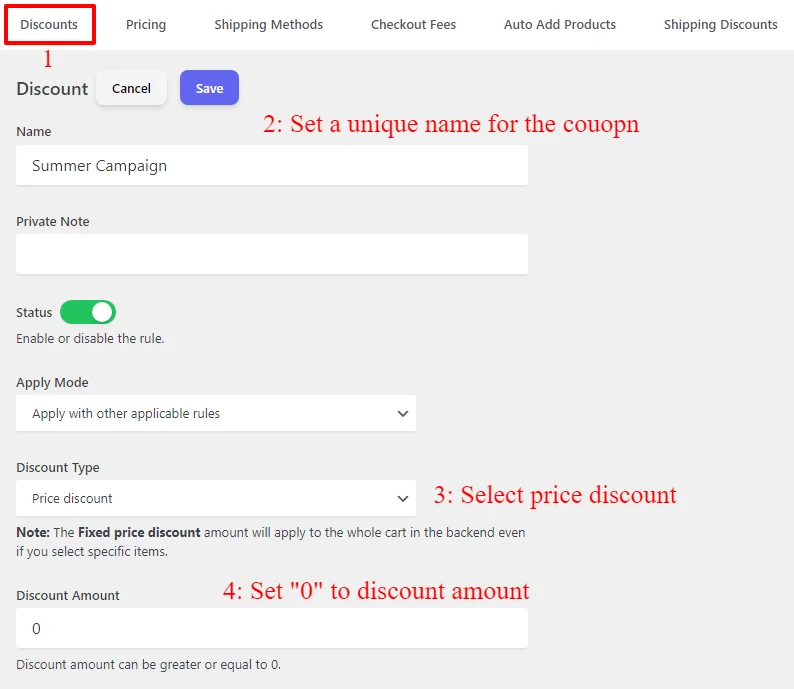
Create a URL for the Campaign
  • Enable the “URL Coupon” field.
  • Copy this URL to use it in the campaign.
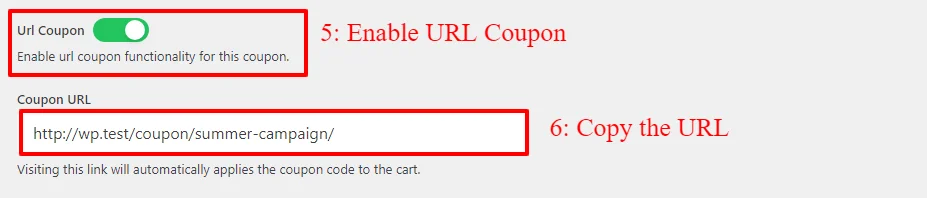
WooCommerce campaign setup step 5
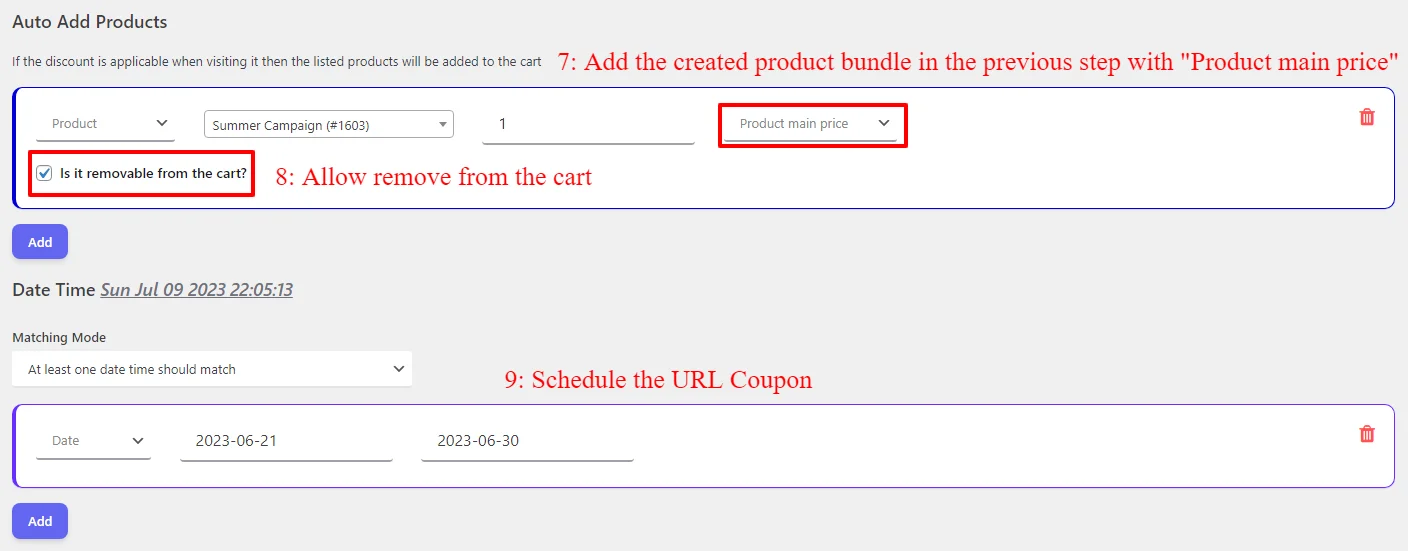
  • Under “Auto Add Products”, select the product bundle that you created in the above steps. And set a “Product main price” for it.
  • Allow removal from the cart.
  • Schedule the URL Coupon for the date or time that you want.
  • Save the rule.
WooCommerce free gift campaign setup schedule

Now you can use the URL in your campaigns and send it to customers’ email address or share it on social networks.

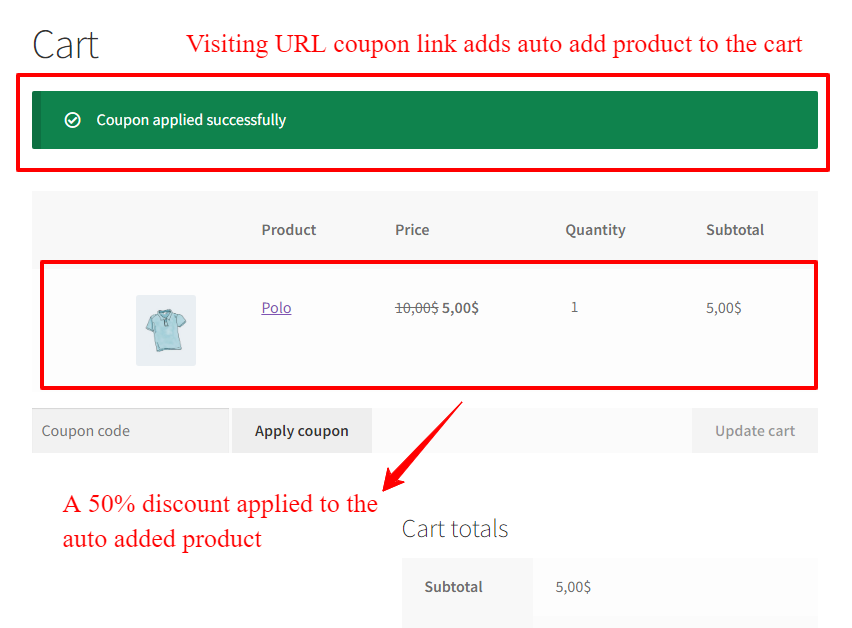
When a user visits the URL the package will be auto added to the cart with a gift product.
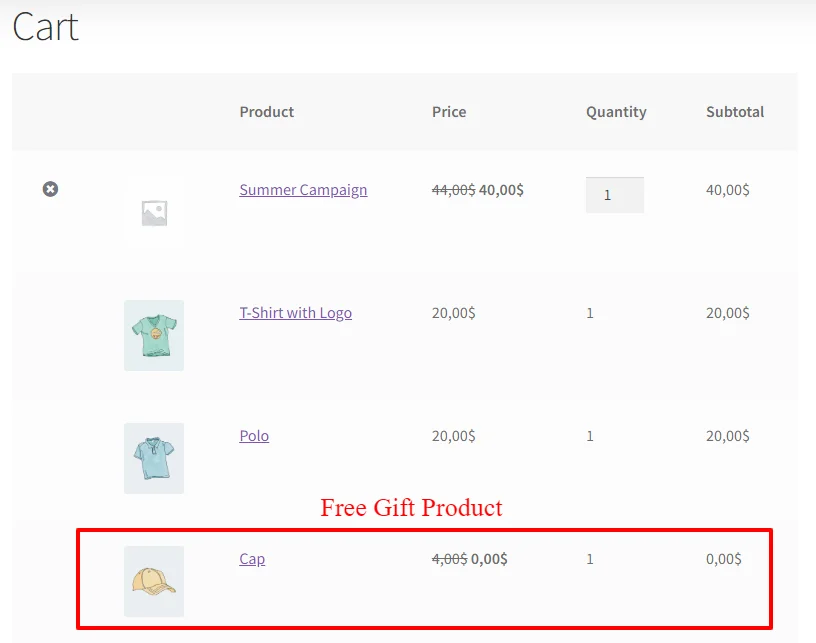
Free gift product campaign in WooCommerce

From Ordinary to Extraordinary: Free Gift Products in WooCommerce

In today’s competitive e-commerce landscape, it’s crucial to find innovative ways to engage customers and foster loyalty. Free gift products in WooCommerce provide a powerful tool for achieving this goal. By following our step-by-step guide and implementing this feature in your store, you can unlock the potential to boost customer loyalty, enhance the shopping experience, and ignite sales. So, why settle for the ordinary when you can offer something extraordinary? Start integrating free gift products into your WooCommerce store today and watch your customer engagement and sales soar to new heights.

Free gift products in WooCommerce are more than just a marketing strategy – they are an opportunity to elevate the shopping experience and build customer loyalty. By following our step-by-step tutorial and implementing the techniques and strategies discussed in this guide, you can transform your store from ordinary to extraordinary. So, why wait? Start using free gift products in WooCommerce today and witness the transformative power of this game-changing feature for your online store. Happy gifting!

FAQ

How do I offer a free product on WooCommerce?

You can offer a free product on WooCommerce, with a BOGO deal or Buy One Get One deal. When a customer buys a specific product or category he will get the free gift product automatically in the cart. There are other types of gifting products in WooCommerce e.g. cart subtotal-based gift products, Black Friday gifts, gifting a product with a campaign and etc.

Can I offer a free gift product in WooCommerce with a campaign?

To offer a free gift product in WooCommerce with a campaign you can create a URL Coupon and send the URL to your customers’ email address or share it on social media. The URL Coupon can automatically add products and the free gift product to the cart when the URL is visited.

Which methods are available to provide free gift products in WooCommerce?

There are various methods to offer free gift products in WooCommerce like BOGO deals, Buy 2 Get 1 Free, Buy 3 Get 1 Free, Category BOGO deals, gift a product for cart subtotal, gift a product on Black Friday, provide gift products with product bundles, and gift a product with a campaign.
Posted on Leave a comment

User Role Based Pricing for WooCommerce Detailed Guide

WooCommerce user role based pricing

User roles in WordPress and WooCommerce offer the opportunity to personalize and customize pricing for each customer. With role-based pricing, businesses can take advantage of tailored pricing strategies to unlock sales potential and maximize profits. In this article, we will learn how to create WooCommerce user role-based pricing and discounts.

What is a User Role in WordPress?

A user role in WordPress defines the capabilities that each user has within the platform. This includes the tasks that can be done, such as creating posts, editing pages, or managing plugins and themes. WordPress has six pre-defined user roles, including Super Admin, Admin, Editor, Author, Contributor, and Subscriber. Each role has its own set of capabilities, from the most unrestricted (Super Admin) to the most restricted (Subscriber).

How to Create a User Role in WordPress

Creating a user role in WordPress is relatively straightforward. You can read create user roles in WordPress article to add as many user roles as you want. For example, you can create a user role for the wholesale users or etc.

Why to Offer User Role Prices in WooCommerce?

Role-based pricing in WooCommerce allows businesses to tailor their pricing strategies based on the user’s role. This allows businesses to better target their market and offer competitive pricing for each customer. For example, a business may offer discounted prices for large volume orders, or discounts for members of a loyalty program. This level of customization helps businesses to maximize their profits and stay ahead of the competition.
Benefits of Using User Role Prices

User role prices offer businesses a range of advantages. By offering different prices to each user, businesses can target customers more effectively and increase sales. This also allows businesses to boost their customer loyalty, as customers can get discounts for being loyal customers. Furthermore, businesses can use user role pricing to create loyalty programs and reward customers for their loyalty.
1. The Art of Tailored Pricing

Role-based pricing enables businesses to tailor their pricing strategies to each customer. This allows businesses to segment their market and offer more competitive prices, as well as target specific customers with tailored promotions and discounts. With tailored pricing, businesses can ensure that each customer receives the best possible offer.

2. Unlocking Sales Potential

By offering tailored pricing, businesses can unlock their sales potential and increase their profits. Customers are more likely to purchase when they feel that they are getting a good deal, so businesses can attract more customers with competitive pricing. In addition, businesses can target specific customers with tailored promotions and discounts, which can further boost sales.

3. Personalize Your WooCommerce Store

Customized pricing allows businesses to personalize their WooCommerce store. By tailoring the price for each customer, businesses can further engage customers and create a more personalized shopping experience. This can help businesses create a stronger connection with their customers and increase customer loyalty.

4. Maximizing Profit with Customized Pricing

Customized pricing also allows businesses to maximize their profits. By offering different prices for each customer, businesses can attract more customers and increase their sales. This also allows businesses to boost their customer loyalty, as customers can get discounts for being loyal customers.

5. Unleashing the Power of Individualization

WooCommerce user role-based pricing enables businesses to personalize their pricing strategies and better target their market. This can help businesses increase their profits, boost customer loyalty, and create a stronger connection with their customers. With tailored pricing, businesses can unlock their sales potential and unleash the power of individualization.

6. Adapting Pricing Strategies for Different Roles

Once the user roles are set up, businesses can adapt their pricing strategies for each role. This allows businesses to target specific customers and offer discounts or promotions that are tailored to their needs. For example, businesses can offer discounts for large orders or loyalty program members, or offer special discounts for certain user roles.

How to Customize Pricing for Each Customer

Customizing pricing for each customer requires a few steps. First, businesses must create custom user roles in WordPress. They can then assign the appropriate role to each customer based on their needs. Finally, businesses must set up the custom prices for each user role using the Discount Rules and Dynamic Pricing for WooCommerce plugin.

Store Wide Discounts for Specific User Roles

Store-wide discounts for specific user roles are a great way to reward loyal customers and encourage them to continue shopping with your business. By offering discounts to specific user roles, such as VIP members or frequent shoppers, you can create a sense of exclusivity and build customer loyalty. These discounts can be applied to all products in the store, providing an added incentive for customers to make a purchase. This strategy not only increases customer satisfaction but also drives sales and promotes customer retention. By tailoring discounts to specific user roles, businesses can effectively target their marketing efforts and enhance the overall shopping experience for their customers.

Store-wide discounts can be done in simple steps with the Discount Rules and Dynamic Pricing for WooCommerce plugin.

One example of store-wide discounts is applying a 10% discount on the cart when the cart subtotal is greater or equal to a specific value e.g. ‘200$”. With this type of discount, you’ll encourage specific customers to spend at least an amount on your store.

To create a store-wide discount or WooCommerce user role-based pricing follow the below steps.

  • Navigate to the “Woo Pricing & Discounts” menu, then open the “Discounts” tab.
  • Click on the Add New button to create a new WooCommerce discount rule.
  • Set a unique name for the rule, e.g. “Discount”. It will be shown as the coupon name.
  • Select the “Discount type” based on your requirements. We selected “Percentage Discount”.
  • Set a value for the discount. We set a 10 as the value to provide a 10% discount.
storewide discount setup
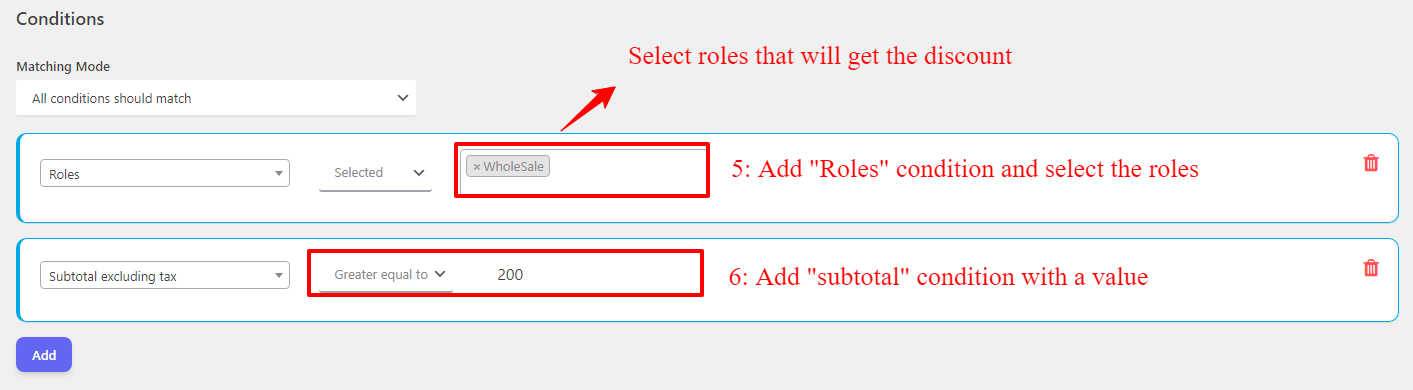
  • Add a “Roles” condition to the rule and select the roles that will get the discount. We used the “wholesale” user role.
  • Add a “Subtotal” condition to the rule and set a value for it. You can use a “Subtotal including tax”, “Subtotal excluding tax”, “Subtotal of specific products in cart”, “Subtotal of specific categories in cart”, etc.
  • Save the rule.
storewide discount conditions

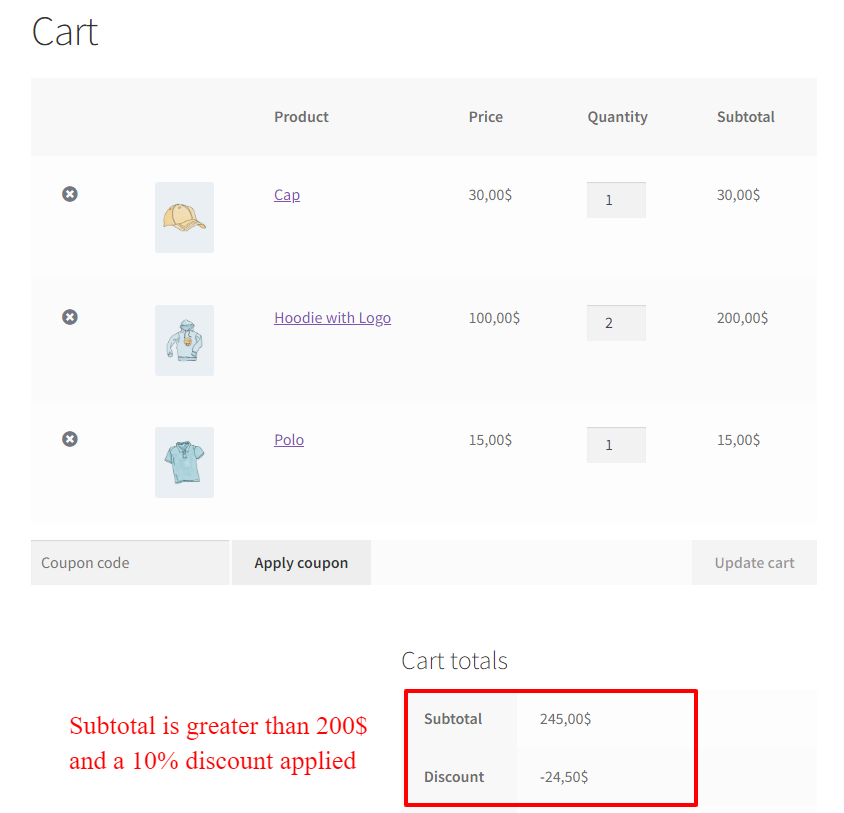
It is done. Now if a “wholesale” user spends at least 200$ in the store, he will get a 10% discount in the cart.

Encourage Wholesalers to Buy More Items

In order to boost sales and promote growth, it is essential to encourage wholesalers to buy more items. By offering incentives such as bulk discounts, flexible payment terms, and exclusive deals, wholesalers are more likely to increase their purchase quantities. Additionally, fostering strong relationships with wholesalers through personalized communication and exceptional customer service can also motivate them to buy more. By providing them with detailed information about the benefits and profitability of purchasing higher quantities, wholesalers can be motivated to expand their orders, resulting in increased revenue and a strengthened market presence.

1. Offer Buy More Items for Wholesalers

For example, you can have this promotion. Our company is excited to offer a special promotion exclusively for wholesalers. With our “Buy More Items” deal, wholesalers can now enjoy even greater savings and benefits. By purchasing a larger quantity of items, wholesalers can unlock exclusive discounts and incentives, maximizing their profit margins and business growth. This promotion not only provides wholesalers with the opportunity to increase their inventory but also enables them to offer a wider range of products to their own customers. With our “Buy More Items” offer, we aim to support our valued wholesalers in expanding their businesses while providing them with the best deals and opportunities in the market.

To create a buy more items promotion in WooCommerce, follow the below steps.

  • Navigate to the “Woo Pricing & Discounts” menu, then open the “Discounts” tab.
  • Click on the Add New button to create a new WooCommerce discount rule.
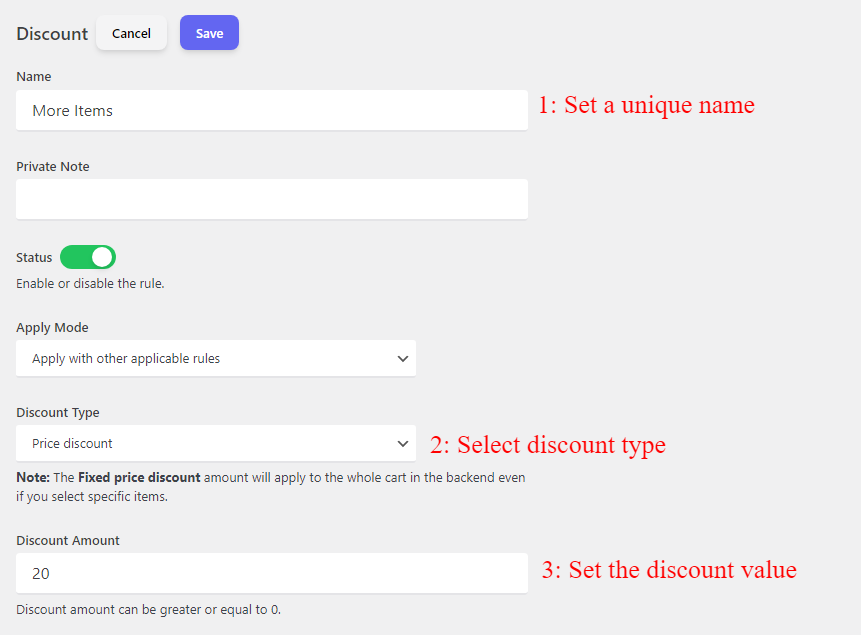
  • Set a unique name for the rule, e.g. “More items”. It will be shown as the coupon name.
  • Select the “Discount type” based on your requirements. We selected “Price Discount”.
  • Set a value for the discount. We set a 20 as the value to provide a 20$ discount.
WooCommerce user role based pricing setup
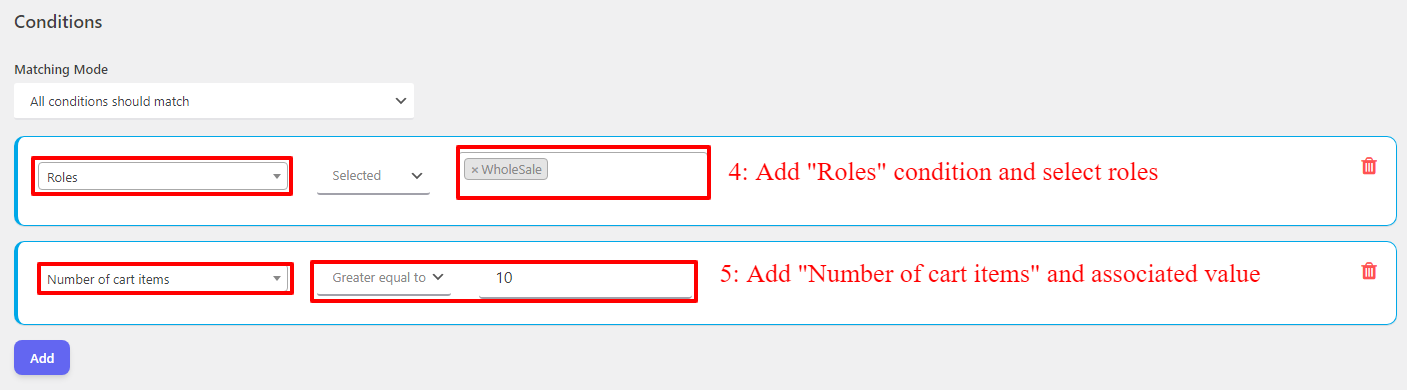
  • Add a “Roles” condition to the rule and select the roles that will get the discount. We used the “wholesale” user role.
  • Add a “Number of cart items” condition and set a value for it. We used the number of items greater or equal to 10.
User role conditions

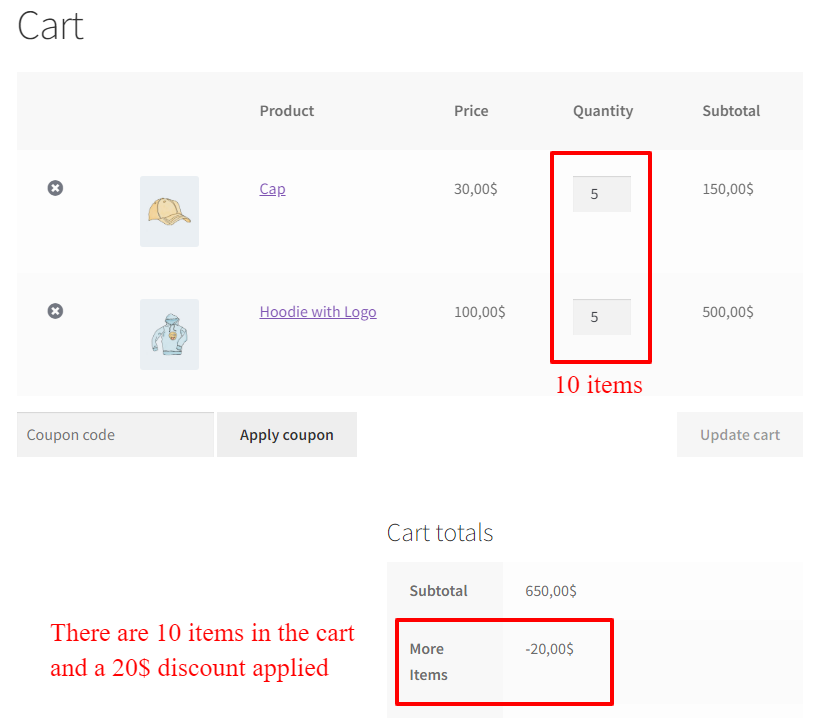
Now if a wholesale user role has at least 10 items in the cart, he will get a 20$ discount.

WooCommerce user role based pricing 10 items in cart

2. Offer Bulk Discounts or Quantity Discounts for Wholesalers

When catering to wholesale users, one effective strategy is to provide them with various incentives, such as bulk discounts or quantity discounts, which can be applied to specific products or specific categories. By offering such discounts, you can encourage wholesale buyers to purchase larger quantities or place larger orders, resulting in increased sales and revenue for your business.

Bulk discounts are an advantageous option to offer as they allow wholesale users to enjoy reduced pricing based on the quantity of products they purchase. This approach not only benefits the customers by providing them with cost savings, but it also benefits your business by promoting higher sales volumes and creating customer loyalty. Wholesale buyers are more likely to continue purchasing from your company if they perceive your prices to be competitive and favorable.

Moreover, you can extend quantity discounts to specific products or categories, tailoring your offerings to meet the unique needs and preferences of your wholesale customers. This customization enables you to target certain product lines or categories that are in high demand or align with your wholesale buyers’ specific requirements. By providing discounts on these selected items, you effectively entice wholesale users to purchase more of those products, translating into enhanced profitability for your business.

To create a quantity-based discount for user roles in WooCommerce, you can simply follow the below steps.

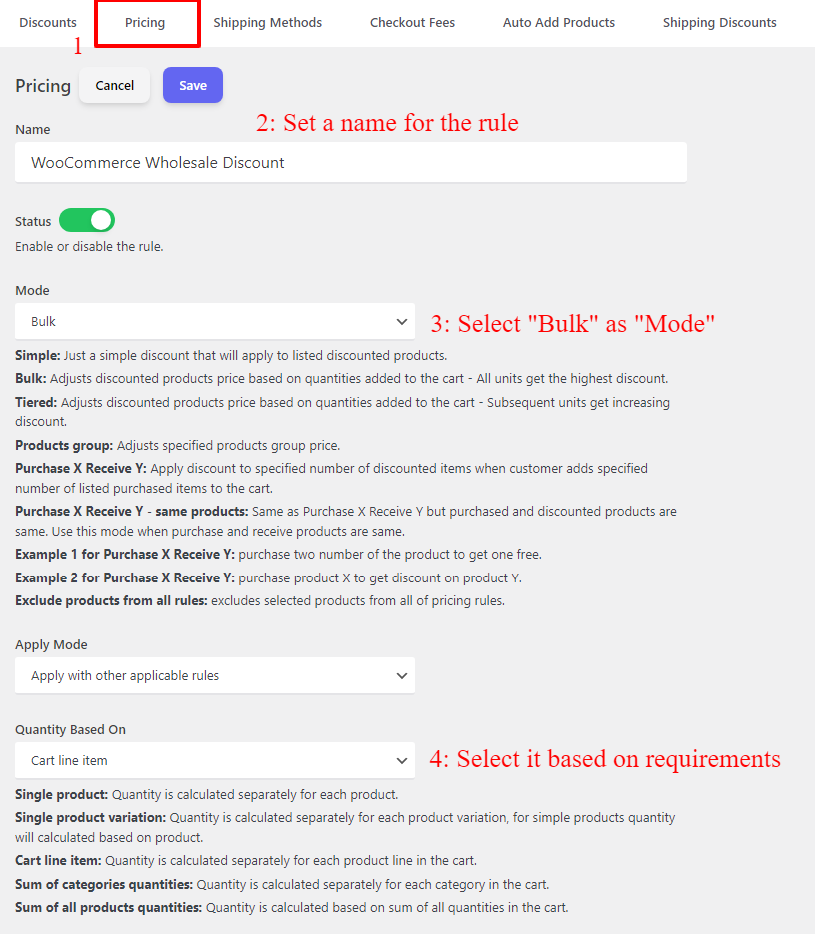
  • Navigate to the “Woo Pricing & Discounts” menu, then open the “Pricing” tab.
  • Click on the Add New button to create a new WooCommerce pricing rule.
  • Set a name for the rule, e.g. “WooCommerce Wholesale Discount”.
  • Select “Bulk” for the “Mode”.
  • Select “Quantity based on” value based on your requirements. We used “Cart line item” to calculate quantities separately for each cart line item.
quantity discount setup for user roles in woocommerce
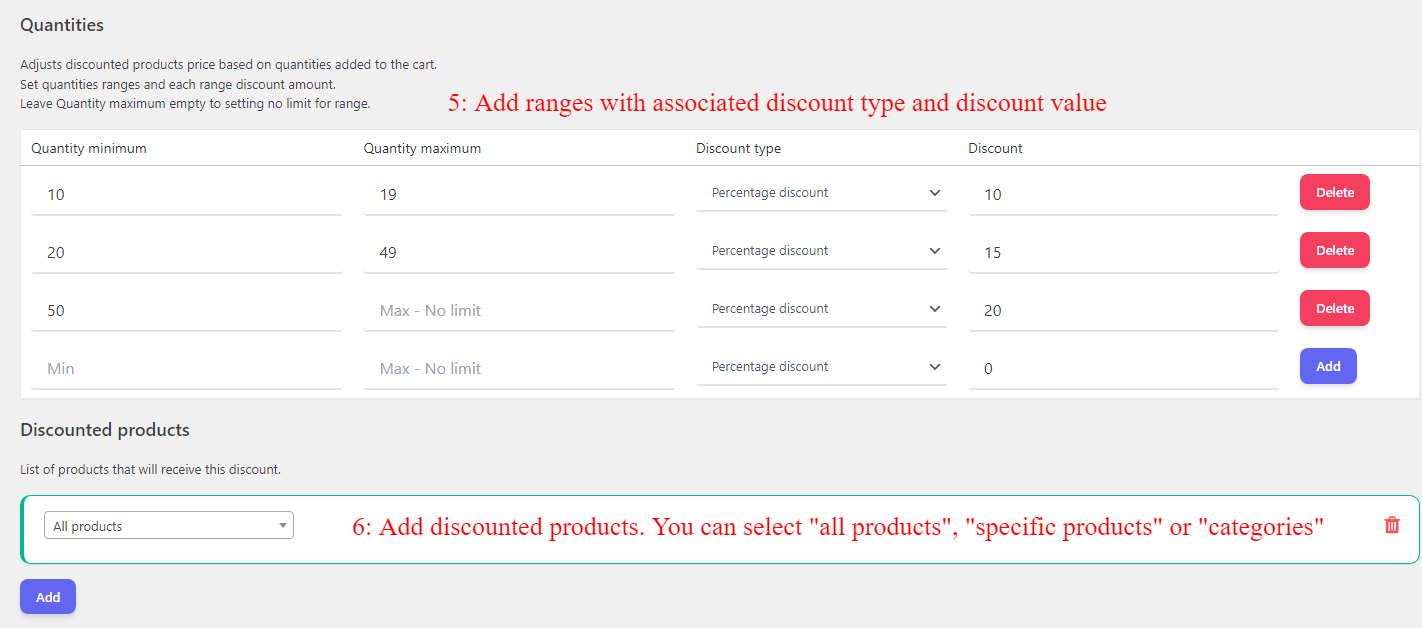
  • Specify discounts for tiers and ranges. You can set “percentage, price, fixed price” discounts to ranges.
  • Under the “Discounted Products” section you can select “all products” or select “specific products” or “categories” to apply this pricing to them. We used “all products” to apply this pricing on all of the store’s products.
Quantity ranges configuration
  • You can also create WooCommerce wholesale discounts for products by selecting specific products like the below image. We didn’t select specific products in this rule and just selected “All products”.
Select specific products
  • Under “Conditions” add a new condition and select “Role” for the condition type.
  • Now select the user role, that you created in step 1. We selected the “wholesale” user role.
Select wholesale user role
  • Click on the save button to save the rule.

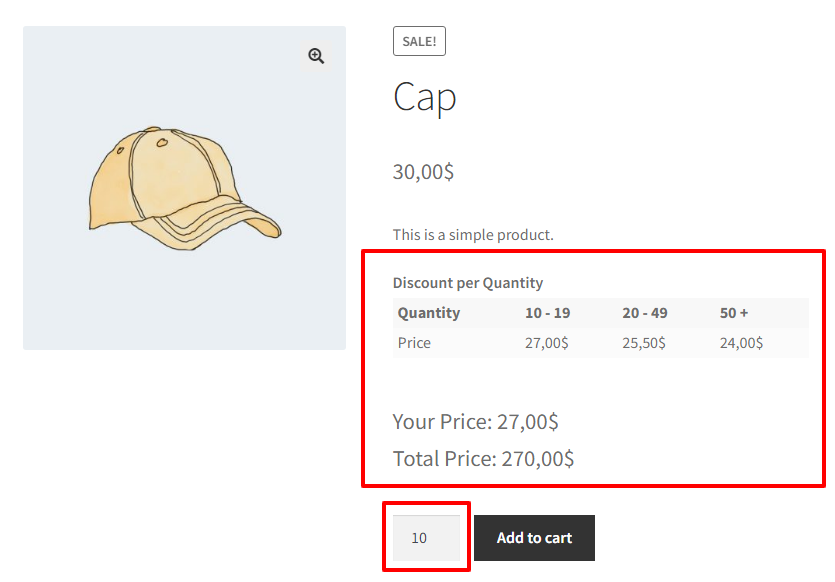
Now if a wholesale user visits a product that has a bulk discount. The quantity table will be shown on the product page like the below image.

The quantity table has a live price feature that shows the selected quantity price when the quantity changes.

Quantity discount for user roles in woocommerce

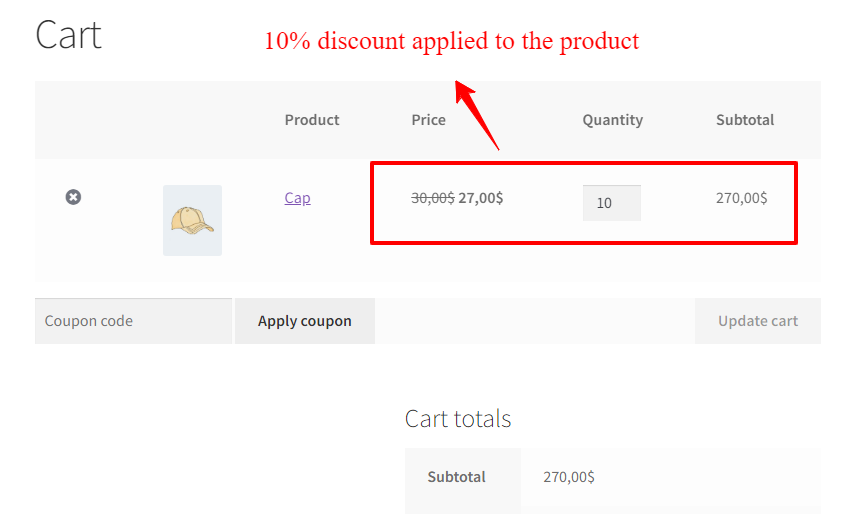
When the product is added to the cart, the discount applies to the product automatically.

wholesalers quantity based discount in woocommerce

3. Offer BOGO Deals for User Roles

Offering BOGO (Buy One Get One) deals for different user roles is a great way to incentivize and reward loyal customers. By providing special offers exclusively to specific user roles, businesses can create a sense of exclusivity and make customers feel valued. BOGO deals can encourage customers to make repeat purchases and also motivate them to upgrade their user roles to avail these exciting offers. This strategy not only increases customer satisfaction and engagement but also helps businesses to build a strong and loyal customer base.

BOGO deals have some variations like “Buy One Get One Free“, “Buy 2 Get One Free“, “Buy 3 Get One Free” etc.

Offer Shipping Discount

As a way to attract and retain customers, businesses often offer shipping discounts to incentivize purchases. By providing a shipping discount, customers are more likely to complete their purchase as it reduces the overall cost of their order, making it more affordable and appealing. This strategy not only encourages customers to make more frequent purchases but also helps businesses stand out from competitors who may not offer such incentives. Additionally, offering shipping discounts can help businesses build brand loyalty and trust, as customers appreciate the added value and convenience provided. Overall, implementing a shipping discount is an effective marketing technique that benefits both businesses and their customers.

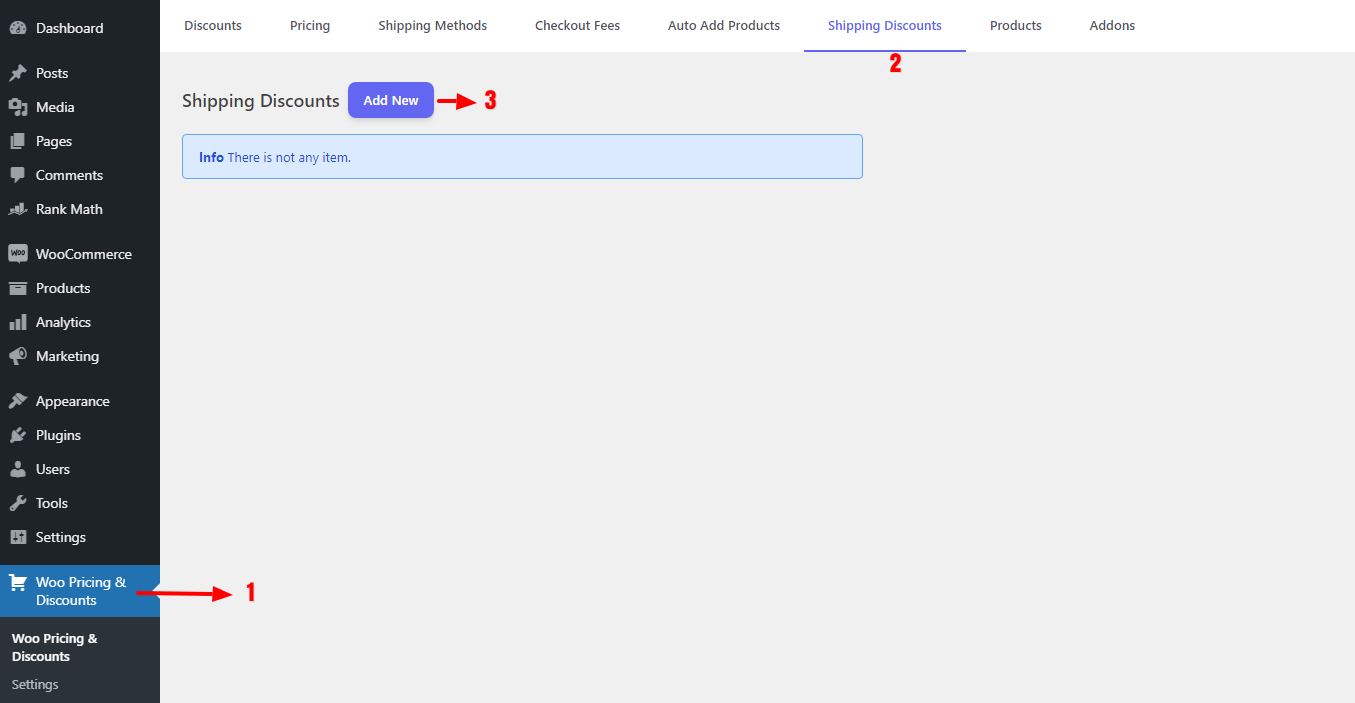
You can read the shipping discount article to offer one.

Create Campaigns and specialize WooCommerce user role based pricing

To effectively entice user roles to make more purchases from your store, consider implementing compelling campaigns such as offering exclusive gift products or distributing personalized URL coupons.

1. Offer Gift Products

Offering gift products is a great way for businesses to generate additional revenue and attract new customers. By creating a range of gift items, businesses can tap into the lucrative market of gift-giving occasions such as birthdays, anniversaries, weddings, and holidays. These products can range from personalized items like engraved jewelry or custom-made photo frames to more generic options like scented candles or gourmet gift baskets. By offering gift products, businesses can provide their customers with convenient and thoughtful options for their gifting needs, while also increasing brand visibility and customer loyalty. Furthermore, with the option to offer customization or personalization, businesses can create unique and memorable gifts that stand out from the competition.

To offer a gift product for a user role you can read the auto add products to the cart article. Also, you can provide gift products with packages or product bundles in WooCommerce.

2. URL Coupons to enhance WooCommerce user role based pricing

You can create URL Coupons that auto-add products and discounts to the cart just with a click. When a customer visits the URL, products and discounts automatically apply to the cart.

After creating a URL coupon you can send it via email or share it on social media.

Conclusion

User role prices in WooCommerce offer businesses the unique and valuable opportunity to personalize their pricing strategies based on specific customer roles. This capability allows businesses to effectively segment their customer base and tailor their pricing to different customer groups, such as wholesale buyers, loyal customers, or VIP members.

By implementing WooCommerce role-based pricing, businesses can maximize their profits by strategically adjusting prices for specific user roles. This means they can reward loyal customers with exclusive discounts, offer competitive rates to wholesale buyers, or provide special privileges and incentives to VIP members.

In conclusion, WooCommerce user role based pricing empowers businesses to revolutionize their pricing strategies. By leveraging the power of individualization and customization, businesses can optimize their profits, enhance customer targeting, and create a more engaging and personalized shopping experience. This invaluable tool is essential for businesses looking to stay competitive and thrive in today’s dynamic market landscape.

Updated on Leave a comment

Boost Your E-commerce Sales with WooCommerce Product Bundle

Boost Your E-commerce Sales with WooCommerce Product Bundle

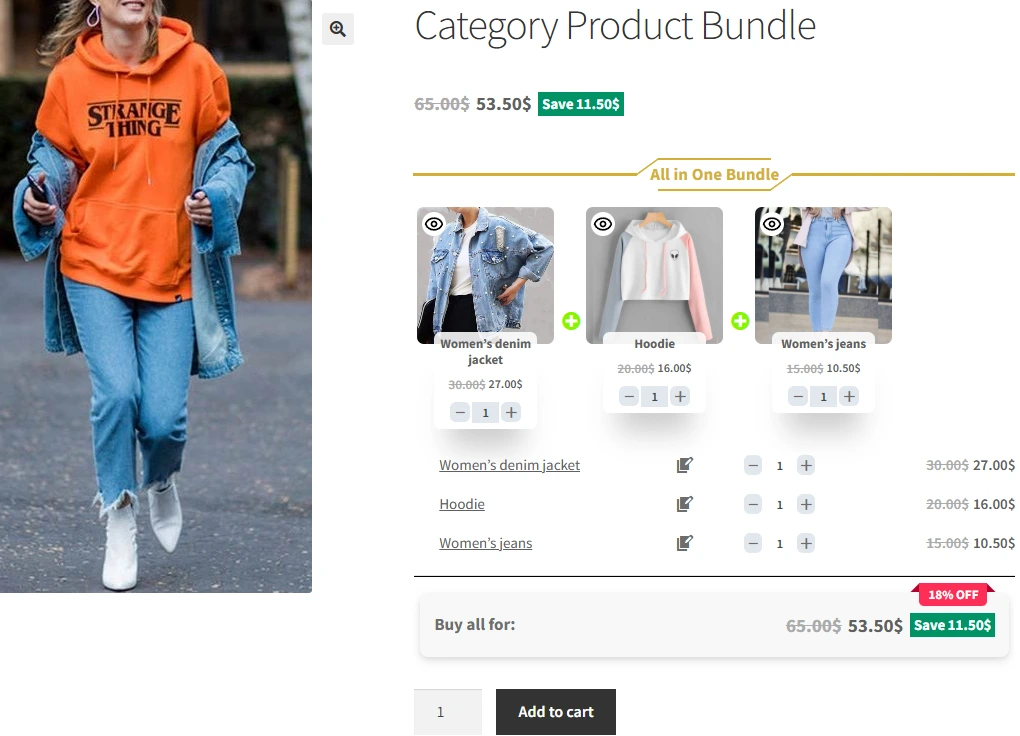
WooCommerce Product Bundle is one of the best and most powerful plugins that can help boost your e-commerce sales and revenue by offering a bundle of products at a discounted price compared to buying each product separately and bundling related products. therefore using these features, you can sell multiple products together as a bundle with a discount, encouraging customers to buy more items and increasing their average order value.

Benefits of using WooCommerce Product Bundle

One of the key benefits of using a WooCommerce Product Bundle is that it encourages customers to buy multiple products at once. This can increase your sales revenue, as customers are more likely to take advantage of bundled discounts rather than buying individual products at full price.

Another benefit of using WooCommerce Product Bundle is that it allows you to create custom bundles of products that suit your customers’ needs. also, You can choose which products to include in your bundles, and set the discount level for each bundle, giving you full control over your pricing strategy.

Here we introduce some examples of using WooCommerce Product Bundle to increase your sales:

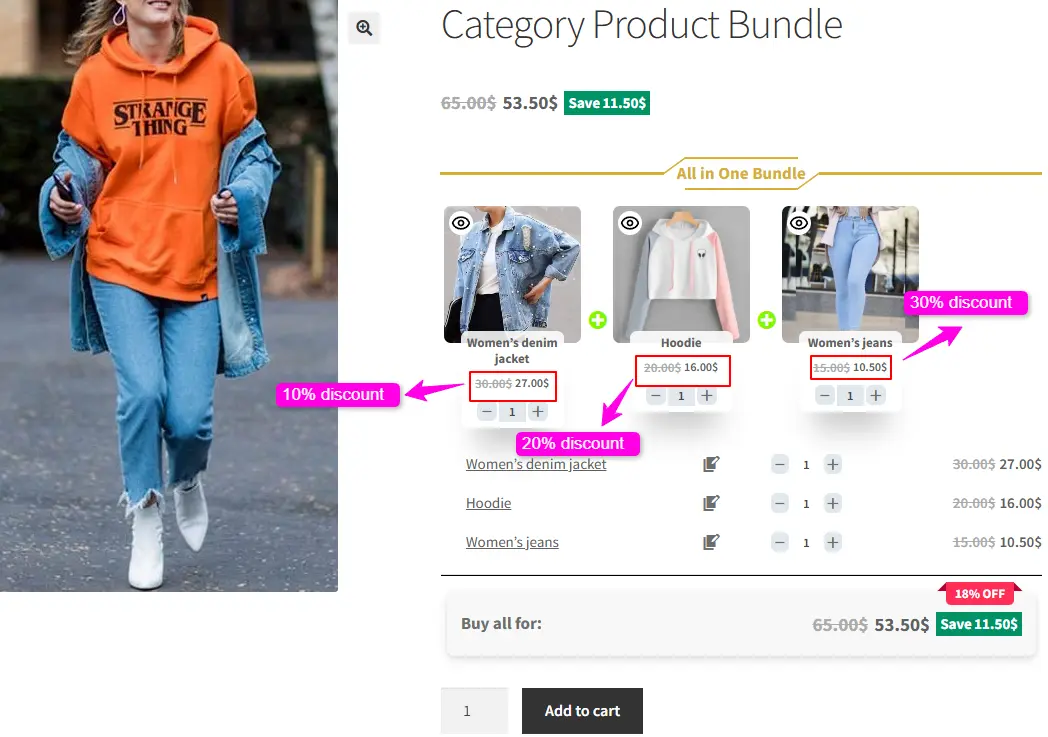
  1. Offer discounts: To encourage customers to buy, be sure to offer a discount or special price for the bundle. also, You can offer free shipping for bundle purchases.
Boost Your E-commerce Sales with WooCommerce Product Bundle-Offer discounts

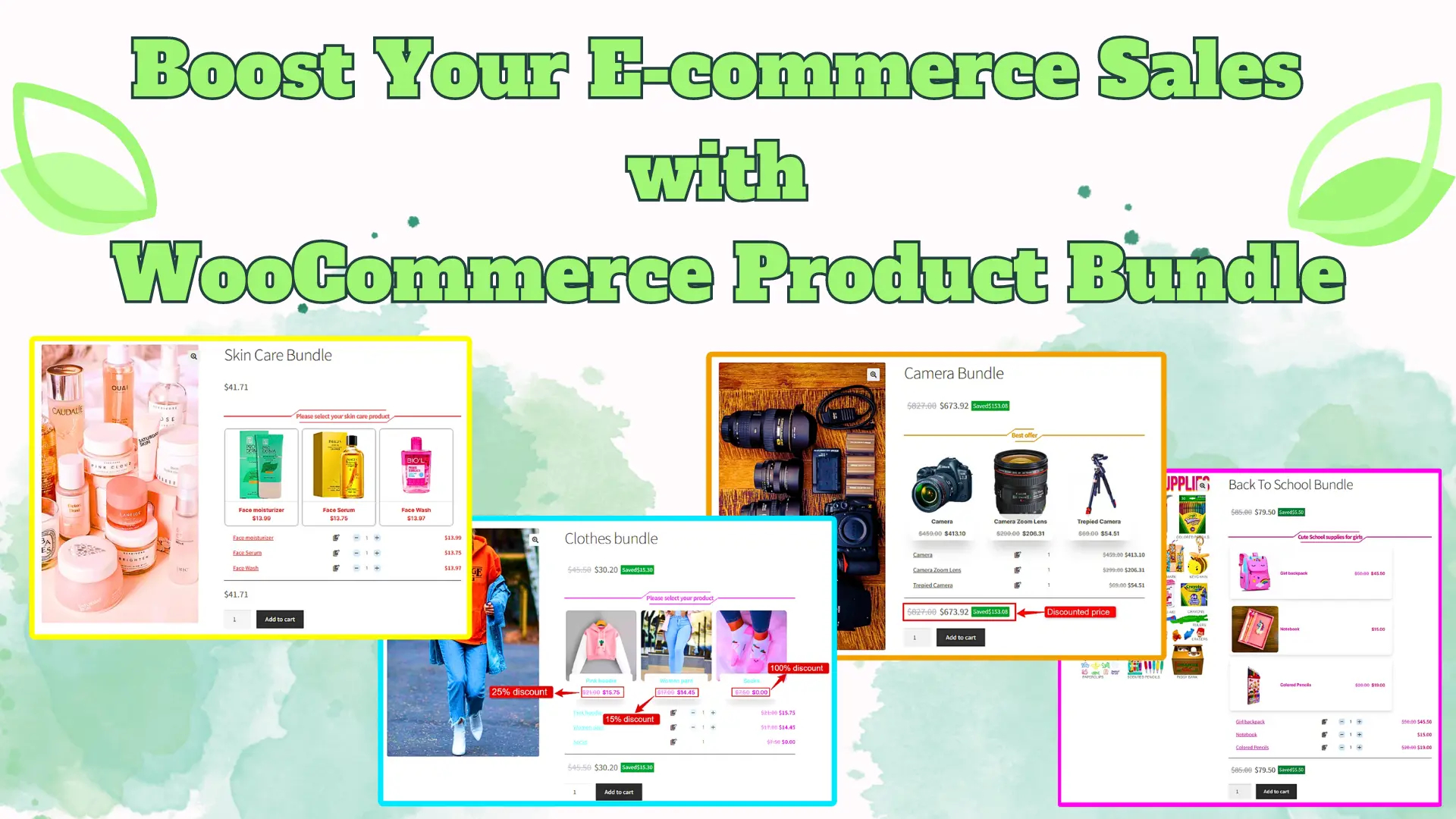
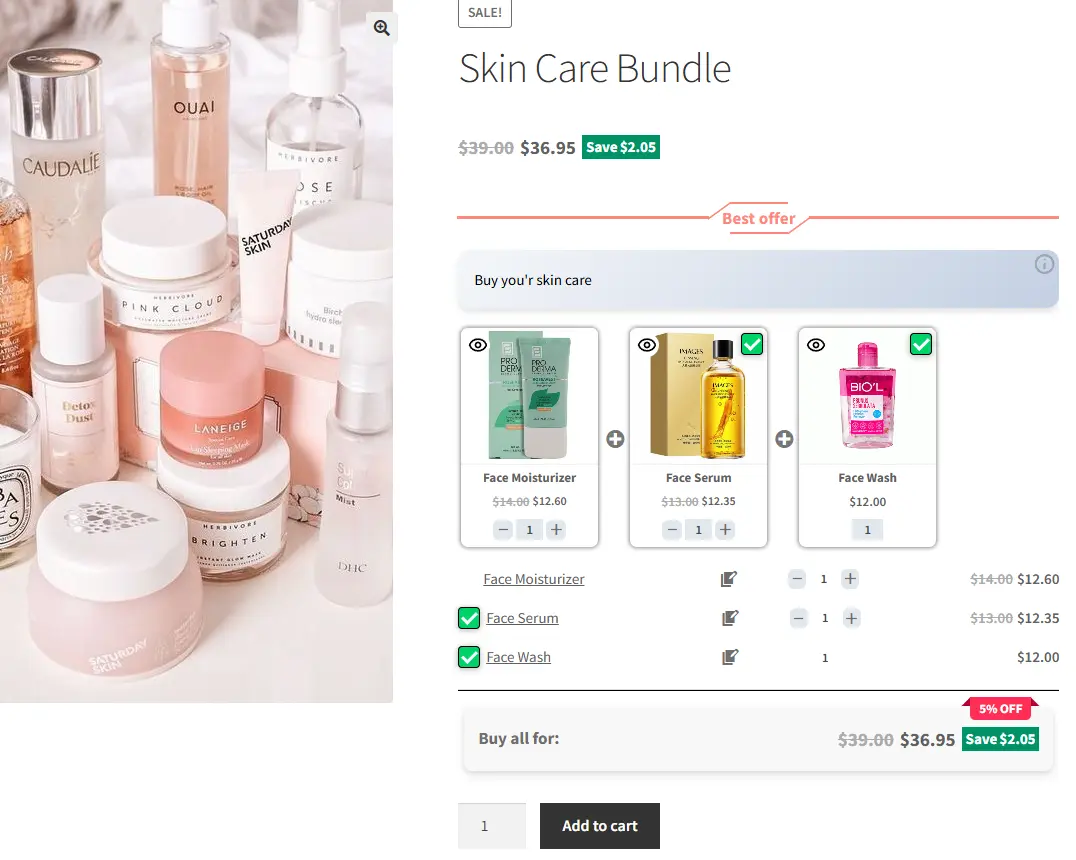
2. Cross-Sell Bundles: Put together complementary products that customers often buy together For example, if you sell skin care products, you can create a bundle that includes a moisturizer, serum, and face wash.

Cross-Sell Bundles

3. Seasonal Packages: Create bundles themed around specific seasons or holidays For example, create a back-to-school package that could include a backpack, notebook, pen and pencil, or offer a bundle of Halloween decorations.

Seasonal Packages by WooCommerce product bundle

4. Highlight savings: Firstly, be sure to highlight and display the savings customers can get by purchasing a product bundle. Furthermore, display the original price and the discounted price side by side to show the bundle value.

Highlight savings price of product bundle plugin

5. Gift bundles: Create pre-packaged gift bundles that are ready to be given as gifts For example, make gift bundles for Valentine’s Day.

6. Understand your customers: Before creating product bundles, it is important to know and understand your customers and their needs. Additionally, Analyze customers’ purchase history, search trends and feedback to identify popular products and product combinations.

7. Clearance Bundles: WooCommerce Product Bundles are also a great way to promote new or slow-moving products. By combining these products with more popular items, you can increase their visibility and encourage customers to try them.

8. customer loyalty: By offering bundled discounts, you can show your customers that you value them and are committed to providing them with the best offers possible.

Some other examples that you can create with the Easy WooCommerce Product Bundles plugin to boost sales:

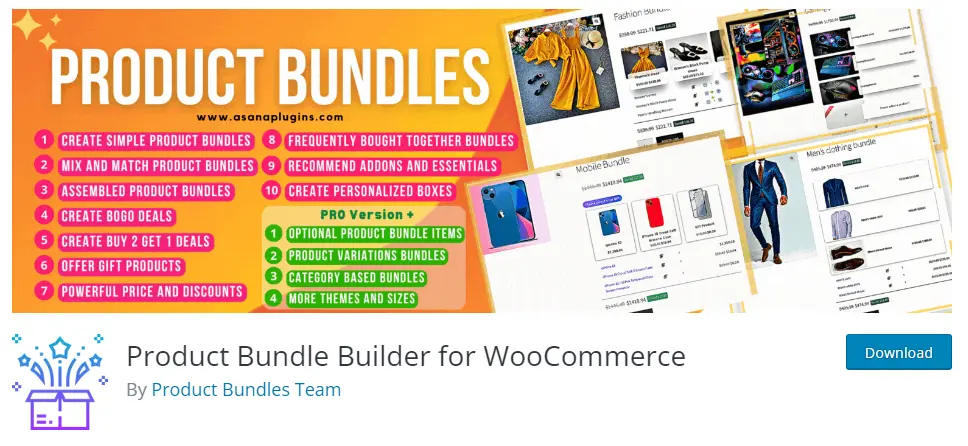
Product Bundle Builder for WooCommerce

Overall, WooCommerce Product bundle is a powerful and modern tool with many features that allow you to create and manage products in your online store, helping you sell products more comfortably, effectively and efficiently to increase your income.

Articles

To delve deeper into the realm of Product Bundle plugin and their applications, we invite you to explore the array of informative resources we’ve compiled in the list below. These resources promise to expand your understanding and proficiency in leveraging the potential of this plugin to the fullest:

Updated on Leave a comment

Create a Buy 3 Get 1 Free Deal for Woocommerce

WooCommerce buy 3 get 1 free deals

In the competitive world of e-commerce, it’s crucial for businesses to stay ahead of the curve by offering enticing deals and promotions. One of the most popular strategies to attract customers and drive sales is the Buy 3 Get 1 Free deal. With WooCommerce, a leading e-commerce platform, businesses can effortlessly create and implement this irresistible offer. In this article, we will explore what a WooCommerce Buy 3 Get 1 Free deal is, how it can help you dominate the market, how it can level up your sales, and ultimately, how it can win over shoppers and boost your overall revenue.

What is a WooCommerce Buy 3 Get 1 Free Deal

A WooCommerce Buy 3 Get 1 Free deal is a marketing strategy that encourages customers to purchase more items by offering a free product when they buy a specific quantity. This deal is a win-win situation for both businesses and customers. Customers get an extra product for free, while businesses benefit from increased sales and customer loyalty. With WooCommerce, setting up this deal is a breeze. Simply create a coupon code or configure a promotion, and you’re ready to go!

Why and When to Offer BOGO Deals in WooCommerce?

BOGO deals, also known as Buy One Get One, are a popular promotional strategy in WooCommerce that can help increase sales and attract new customers. Offering BOGO deals can be beneficial for a variety of reasons. Firstly, it helps to clear out excess inventory and move slow-selling products by incentivizing customers to make a purchase. Additionally, BOGO deals create a sense of urgency and excitement, encouraging customers to take advantage of the offer while it lasts. Furthermore, BOGO deals are an effective way to reward loyal customers and build brand loyalty. Timing is crucial when offering BOGO deals, as they can be particularly effective during holiday seasons, special events, or when launching new products. Ultimately, by strategically implementing BOGO deals in WooCommerce, businesses can drive sales, increase customer engagement, and ultimately boost their bottom line.

Dominate the Market: WooCommerce’s Buy 3 Get 1 Free

In a saturated market, businesses are constantly seeking innovative ways to stand out. With WooCommerce’s Buy 3 Get 1 Free deal, you can easily dominate the market and leave your competitors in the dust. This deal creates a sense of urgency and FOMO (Fear Of Missing Out) among customers, compelling them to take advantage of the offer before it expires. As a result, your sales will skyrocket, and your brand will gain recognition for offering irresistible deals. By using this strategy, you can position yourself as a market leader and attract a loyal customer base.

Level Up Your Sales: Introducing Buy 3 Get 1 Free Deal

If you’re looking to boost your sales and increase your revenue, introducing a Buy 3 Get 1 Free deal on your WooCommerce store is a game-changer. This deal not only entices customers to purchase more items but also encourages them to explore other products in your inventory. By strategically selecting the products for this offer, you can cross-promote and upsell, leading to higher average order values. Additionally, by offering a free product, you create a sense of delight and satisfaction among customers, enhancing their overall shopping experience and increasing the likelihood of repeat purchases.

How to Create Buy 3 Get 1 Free Deal in WooCommerce

To create a “Buy 3 Get 1 Free” which is a variation of BOGO deals, we are using the “Discount Rules and Dynamic Pricing for WooCommerce” plugin. With this plugin you can create any variation of BOGO coupons like “BOGO deal“, “Buy 2 Get 1 Free“, “Buy 2 Get 1 Half”, “Buy 3 Get 1 Free”, “Buy 3 Get 1 Half” and more.

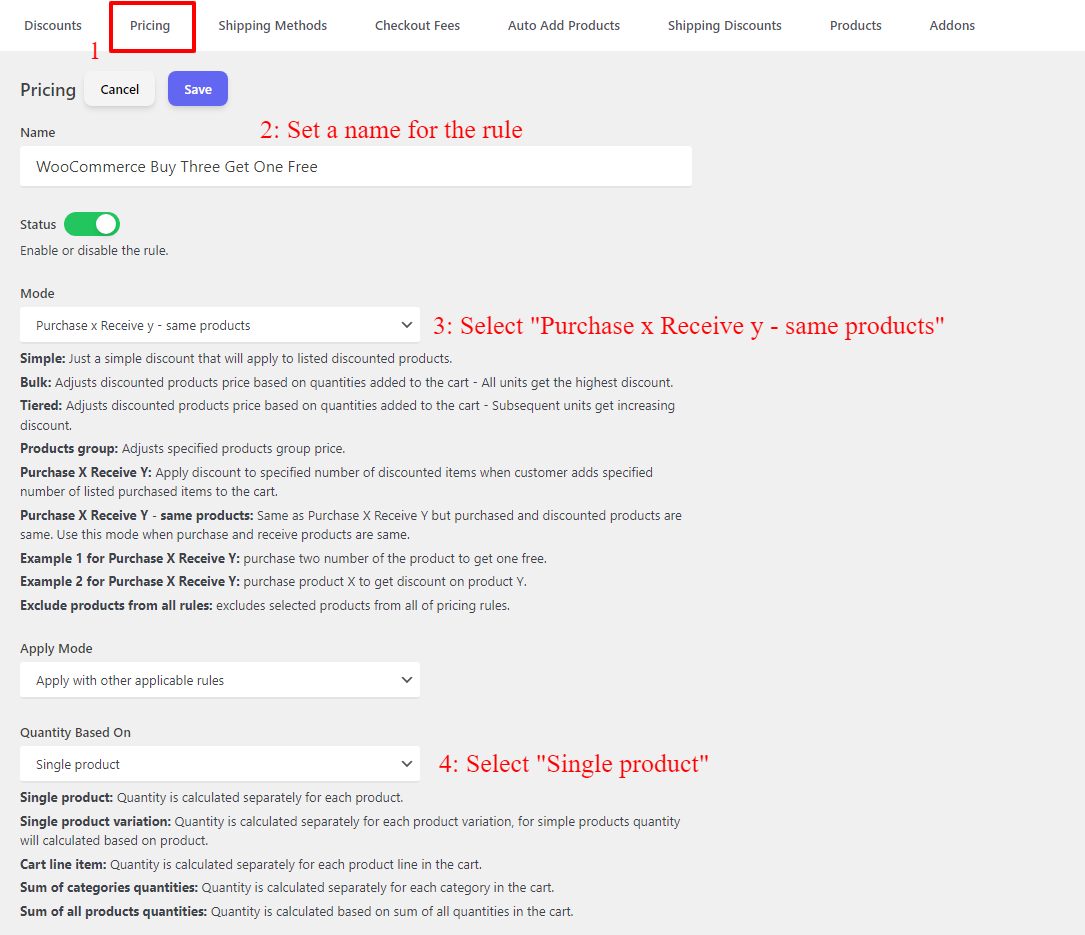
After installing the plugin, to create a “Buy 3 Get 1 Free” deal in WooCommerce, you can follow a few simple steps. First, go to your WordPress dashboard and navigate to the “Woo Pricing & Discounts” menu. From there open the “Pricing” tab and click on the “Add New” button and follow the below steps.

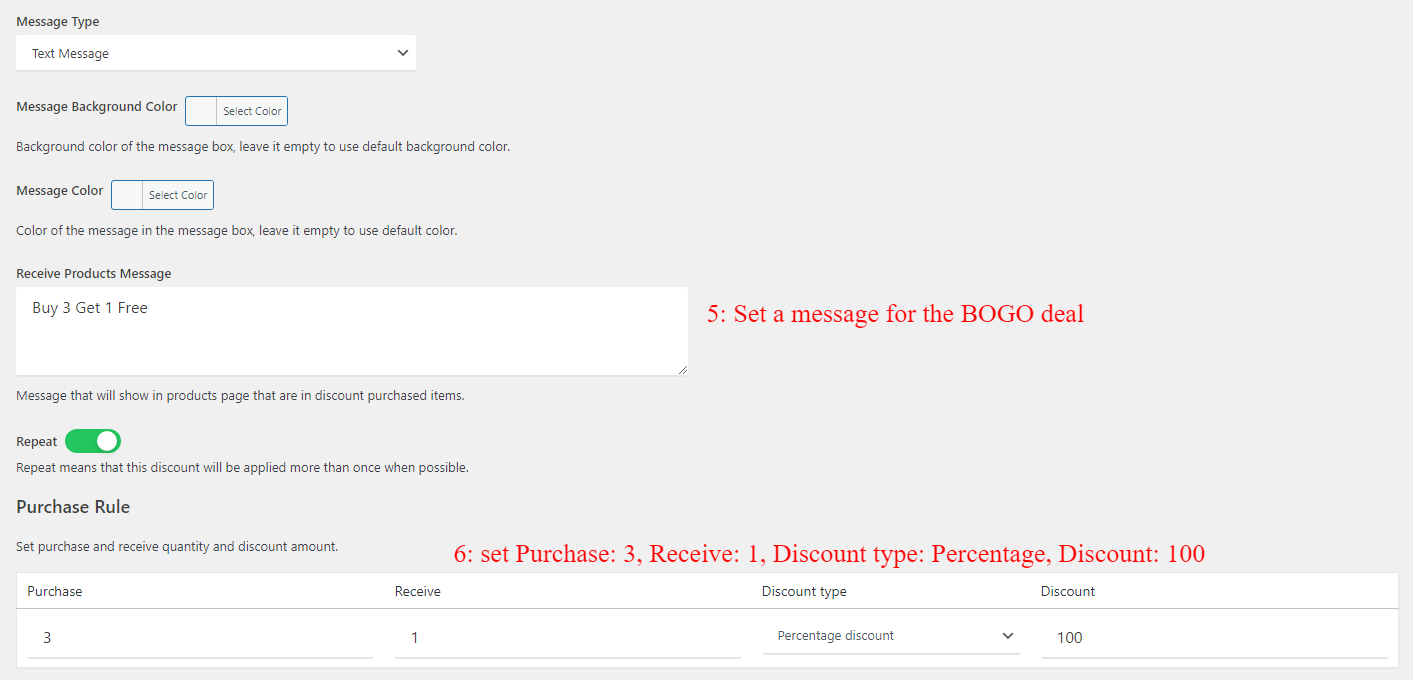
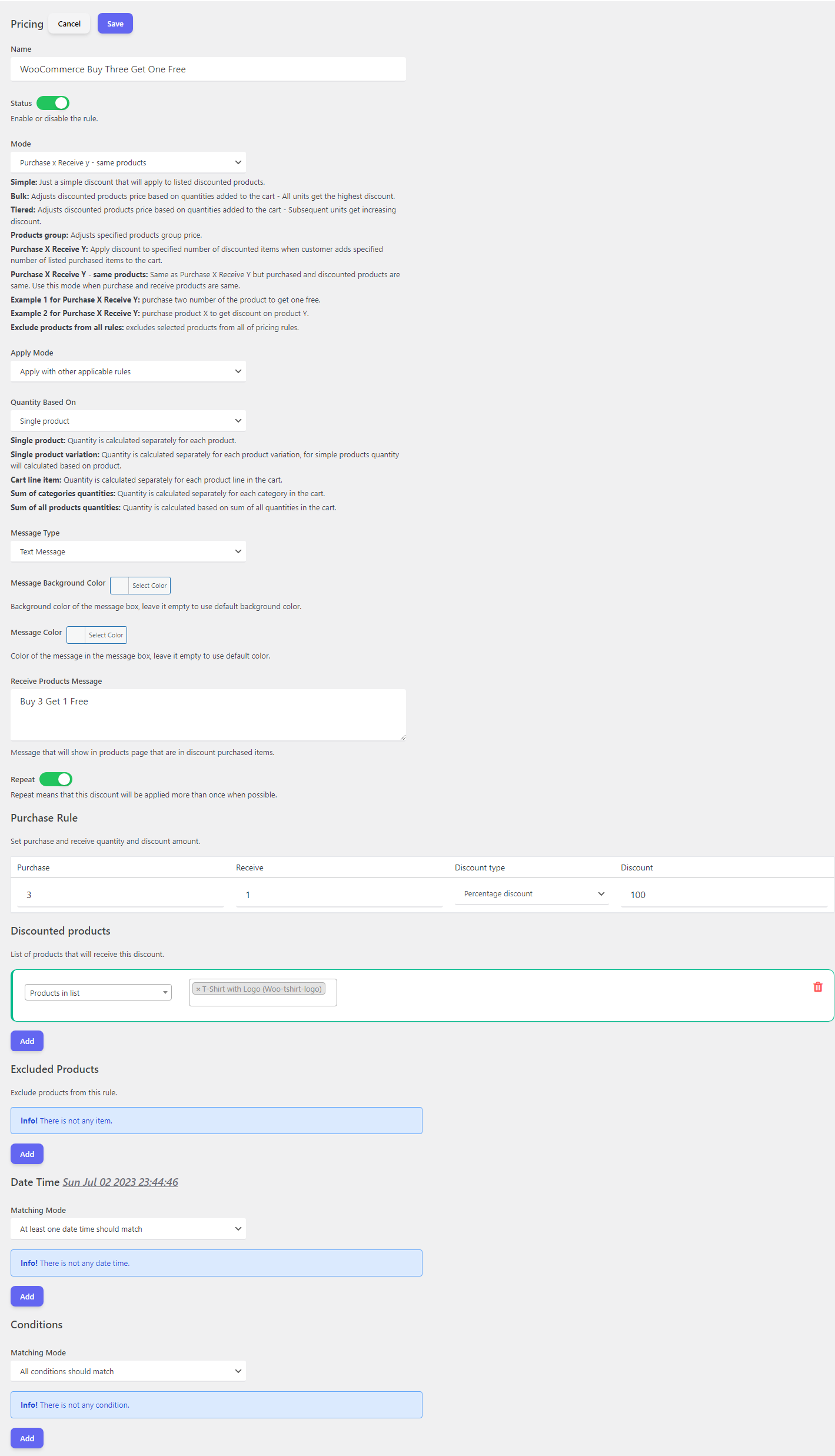
  • Set a name for the rule, e.g. “WooCommerce Buy Three Get One Free”.
  • Select “Purchase x Receive y – same products” for the “Mode”.
  • Set “Quantity based on” to the “Single Product”.
Buy Three Get 1 Free deal config
  • Set a message for the deal. This message will show on the product page.
  • Configure purchase rule with values, purchase: 3, Receive: 1, Discount type: “Percentage discount”, Discount: 100
Rule config
  • Under the Discount Products, use “products in list” and then select a product that you would like to offer it.
Select products for the deal
  • Save the rule. The entire rule will be like the below image.
BOGO deal configuration

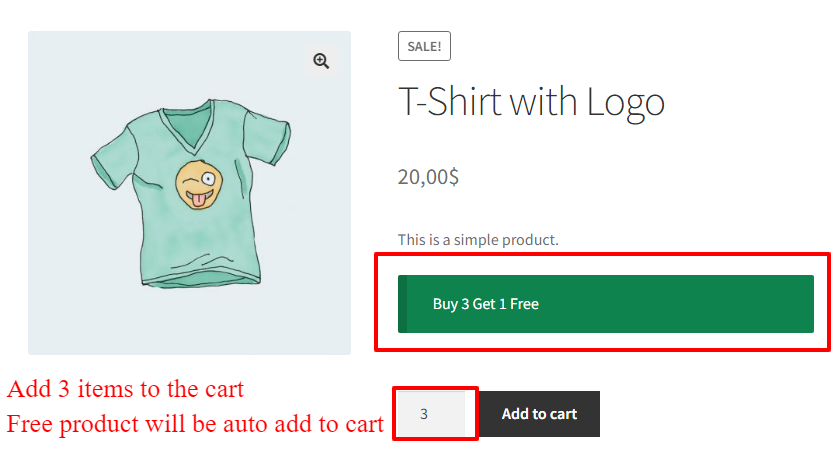
Now, open the product page and add 3 quantities of the product to the cart. The free product will be auto added to the cart.

Buy 3 Get 1 Free deal for WooCommerce

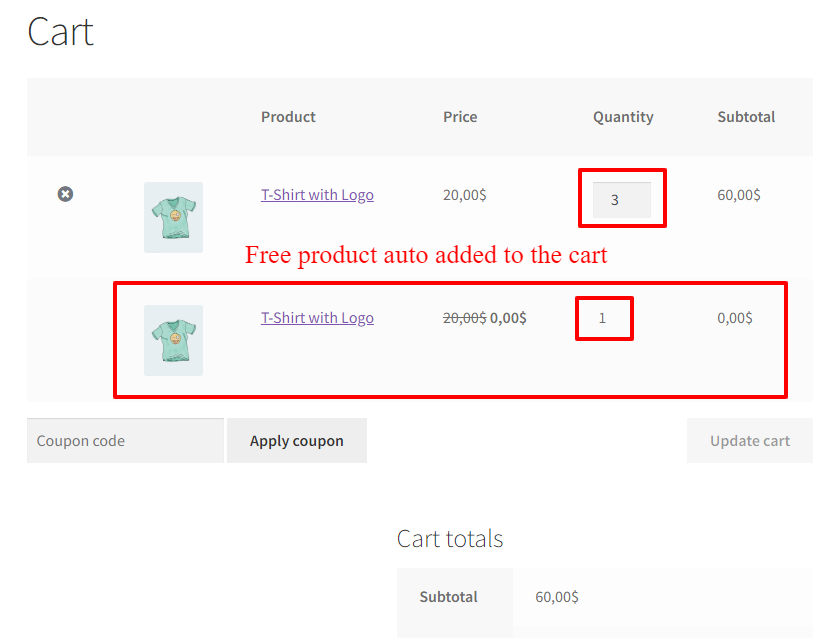
As you can see at the below image, the free product automatically added to the cart.

Create Buy 3 Get 1 Free Deal for WooCommerce

In the above rule, we created a Buy 3 Get 1 Free deal. In other words user buys 3 quantities and get 1 quantity for free. If you want to create buy 2 get 1 free deal in WooCommerce, you can read Buy Two Get One Free deal article. Also, we have an article for Buy One Get One or BOGO deals in WooCommerce.

How to Create Buy 3 Get 1 Half Deal in WooCommerce

Buy 3 Get 1 Half Deals” offer an enticing opportunity for customers to maximize their savings while purchasing multiple items. This promotion allows customers to buy three items at their regular price and receive the fourth item at a discounted rate of 50%. Whether it’s clothes, electronics, or household items, this deal encourages customers to stock up on their favorite products without breaking the bank. It not only saves money but also provides the chance to try out new products or gift them to loved ones. With this attractive promotion, customers can enjoy the thrill of shopping while benefiting from significant savings.

To create a Buy 3 Get 1 Half Deal in WooCommerce, you can follow the below steps.

Note: In this rule we apply the “Buy 3 Get 1 deal in WooCommerce” to the categories. But you can configure it to a specific product too.

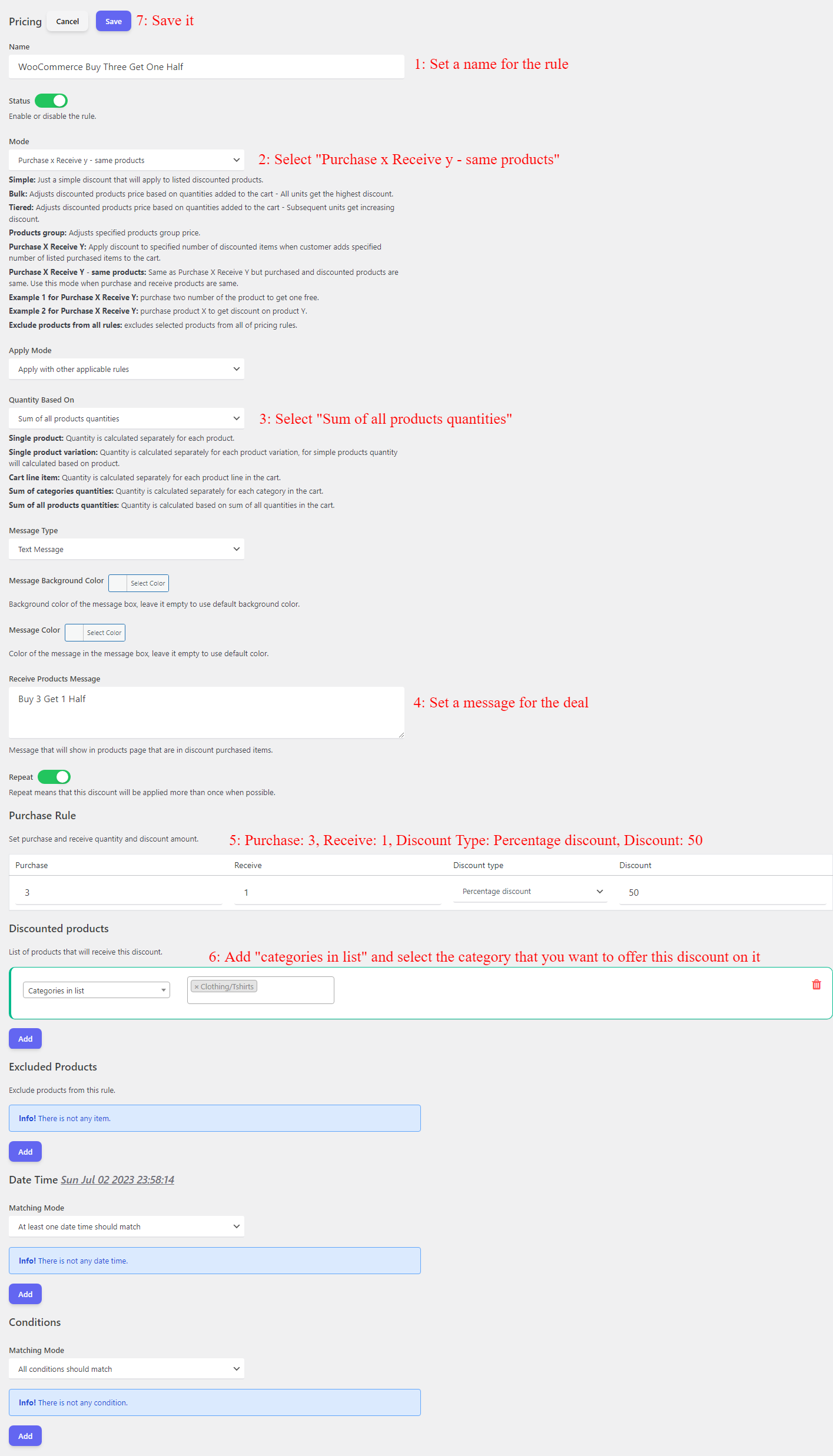
  • Set a name for the rule, e.g. “WooCommerce Buy Three Get One Half”.
  • Select “Purchase x Receive y – same products” for the “Mode”.
  • Set “Quantity based on” to the “Sum of all products quantities”.
  • Set a message for the deal, for example, “Buy 3 Get 1 half”.
  • Configure the purchase rule like Purchase: 3, Receive: 1, Discount Type: Percentage discount, Discount: 50
  • Add “categories in list” and select the category that you want to offer this discount on it.
Buy 3 Get 1 half deal

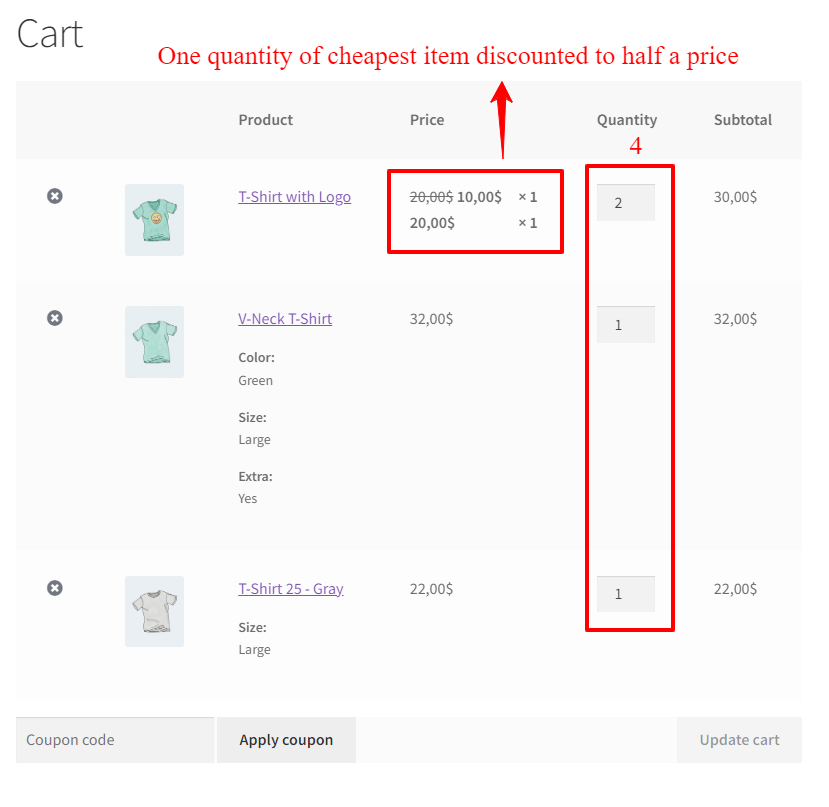
Now try to add 4 quantities of the specified category to the cart to see the result.

Here we added 4 t-shirts to the cart and the cheapest item discounted to half a price.

WooCommerce buy 3 get 1 half deal

Boost Conversions with Irresistible WooCommerce Offers

In the competitive world of e-commerce, conversion rates play a pivotal role in the success of any business. With WooCommerce’s Buy 3 Get 1 Free deal, you can significantly boost your conversions. By offering an irresistible deal, you create a sense of urgency and excitement among potential customers, compelling them to complete their purchase. The psychology behind this offer is simple: customers feel like they are getting more value for their money, making it harder for them to resist making a purchase. As a result, your conversion rates will soar, and your revenue will see a substantial increase.

Win Over Shoppers: Boost Sales with WooCommerce’s Deal

In today’s digital era, shoppers are constantly bombarded with countless options and deals. To win them over and boost your sales, you need to offer something truly irresistible. WooCommerce’s Buy 3 Get 1 Free deal is precisely what you need to stand out from the crowd and win the hearts of shoppers. This deal not only offers an extra product for free, but it also creates a sense of appreciation and loyalty among customers. By providing them with exceptional value and a memorable shopping experience, you can establish long-lasting relationships and turn one-time customers into brand advocates. With WooCommerce’s Buy 3 Get 1 Free deal, your business will thrive, and your sales will reach new heights.

Add Sale Badges

If you want to create eye-catching sale badges for your pricing rules, read these articles :

Conclusion

In the ever-evolving world of e-commerce, it’s essential for businesses to stay ahead of the competition. By implementing a Buy 3 Get 1 Free deal with WooCommerce, you can dominate the market, level up your sales, and win over shoppers. This irresistible offer not only boosts conversions but also enhances the overall shopping experience for customers. So why wait? Start creating your Buy 3 Get 1 Free deal today, and watch your sales soar to new heights with WooCommerce.

Posted on Leave a comment

How to Setup Wholesale Discounts for Products in WooCommerce

setup wholesale discounts for products in woocommerce

WooCommerce Wholesale discount is a powerful tool for businesses to attract and retain wholesale customers. By offering special pricing and incentives to bulk buyers, you can maximize your revenue and build strong relationships with your wholesale clients. If you’re using WooCommerce, the popular e-commerce platform, setting up wholesale discounts is a breeze. In this article, we’ll explore why wholesale discounts are essential, how they can unleash the full potential of your business, and provide a step-by-step guide on how to configure wholesale discounts in WooCommerce.

Why Setup Wholesale Discounts in WooCommerce?

Setting up wholesale discounts in WooCommerce is a smart move for businesses looking to tap into the wholesale market. Wholesale customers are typically bulk buyers who purchase a large quantity of your products. By offering them exclusive discounts, you not only attract more wholesale clients but also incentivize them to make larger purchases. This can lead to a significant boost in revenue for your business. Additionally, wholesale discounts help you build strong relationships with your wholesale customers, fostering loyalty and repeat business.

Furthermore, wholesale discounts can also help you build long-term relationships with your wholesale customers. By offering them exclusive pricing, you can make them feel valued and appreciated, which in turn can lead to repeat business and referrals. This can ultimately lead to increased revenue and brand loyalty.

Unleashing Potential: Maximizing Revenue with Wholesale Discounts

Wholesale discounts have the potential to unlock new revenue streams for your business. With a well-crafted wholesale pricing strategy, you can target a different segment of customers who are willing to buy in bulk. By offering them attractive discounts, you encourage them to spend more, increasing your average order value. This not only boosts your immediate revenue but also maximizes the lifetime value of your wholesale customers. Wholesale discounts can also help you streamline your inventory management by selling larger quantities at once, reducing storage costs, and increasing efficiency.

Additionally, wholesale discounts can help you achieve economies of scale. When customers purchase products in larger quantities, your production and distribution costs per unit decrease. This means that even though you are offering a discounted price, your profit margin per unit remains intact or even increases.

By setting up wholesale discounts in WooCommerce, you can tap into this untapped market segment, maximize your revenue potential, and take your online business to new heights.

Step-by-Step Guide: Configuring Wholesale Discounts in WooCommerce

Setting up wholesale discounts in WooCommerce is a straightforward process that can be done in a few simple steps. First, you need to install and activate a wholesale plugin that is compatible with WooCommerce. In this article, we are using Discount Rules and Dynamic Pricing for WooCommerce to set up wholesale discount strategies.

Once the plugin is installed, you can configure the wholesale settings by setting up user roles for wholesale customers and defining the wholesale pricing rules. You can set different pricing tiers based on the quantity purchased or offer percentage discounts. Also, you to create coupons specifically for wholesale customers.

After configuring the wholesale settings, you can start promoting your wholesale pricing to potential customers. This can be done through targeted marketing campaigns, email newsletters, or by displaying wholesale pricing prominently on your website. Remember to monitor and analyze the impact of your wholesale pricing strategy to make informed adjustments when necessary.

Setup Quantity or Bulk Discounts for Wholesale Users in WooCommerce

One popular way to set up wholesale discounts in WooCommerce is by offering quantity or bulk discounts. This means that the more products a wholesale customer purchases, the lower the price per unit becomes. For example, you can set a tiered pricing structure where customers receive a 10% discount for purchasing 10-19 units, a 15% discount for purchasing 20-49 units, and a 20% discount for purchasing 50 or more units.

To configure quantity or bulk discounts, you can use the Discount Rules and Dynamic Pricing for WooCommerce which allows you to set up pricing tiers based on the number of units purchased. This ensures that wholesale customers are rewarded for buying in larger quantities, while still maintaining profitability for your business.

1. Create a Wholesale User Role in WordPress

To offer a discount for wholesale customers we need to create a role for wholesale customers. You can read create user roles in WordPress to add a user role for wholesale customers.

2. Create WooCommerce Wholesale Discount

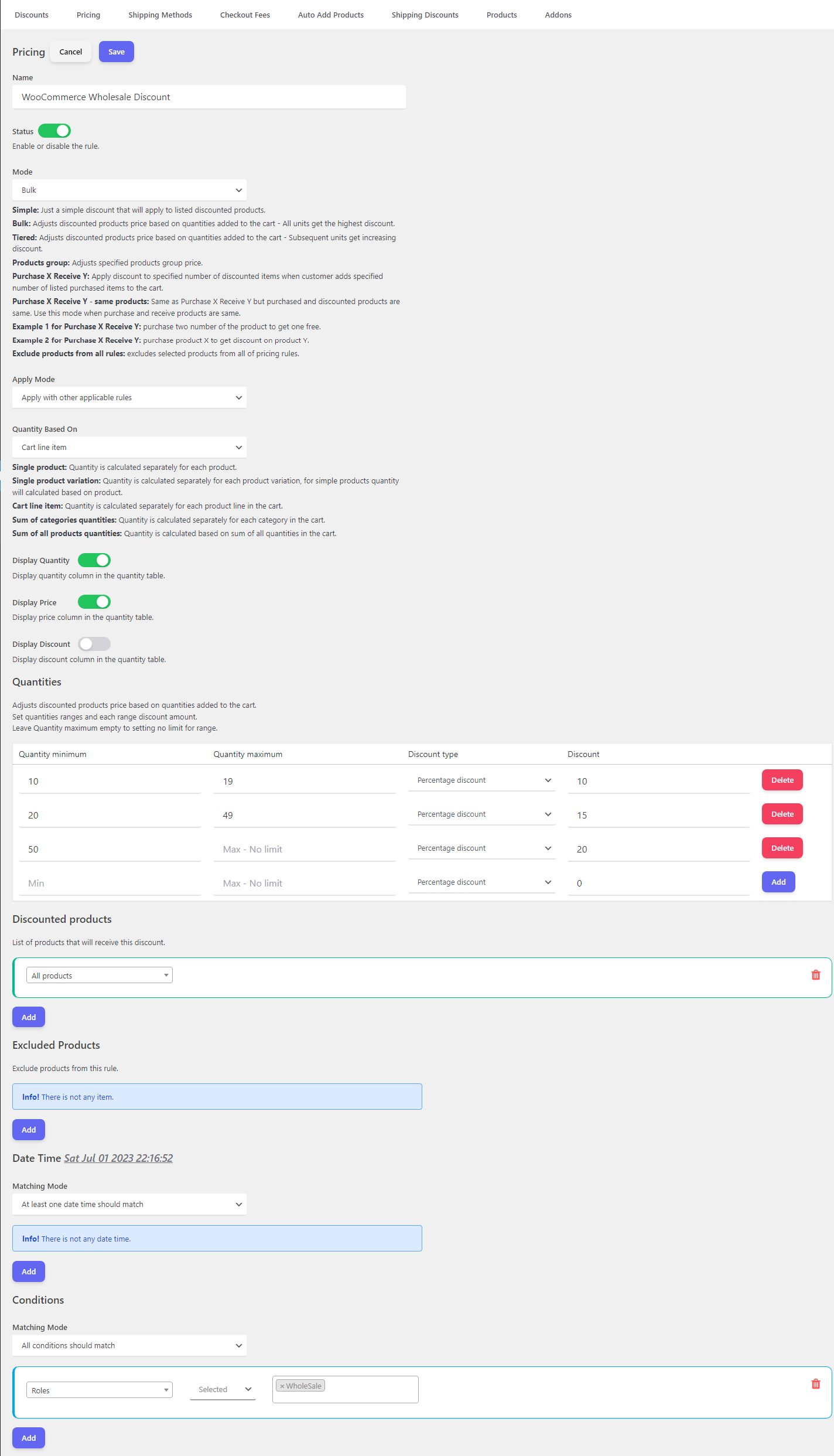
To create a WooCommerce wholesale discount, navigate to the “Woo Pricing & Discounts” menu, then open the “Pricing” tab.

  • Click on the Add New button to create a new WooCommerce pricing rule.
  • Set a name for the rule, e.g. “WooCommerce Wholesale Discount”.
  • Select “Bulk” for the “Mode”.
  • Select “Quantity based on” value based on your requirements. We used “Cart line item” to calculate quantities separately for each cart line item.
Setup WooCommerce wholesale discount
  • Specify discounts for tiers and ranges. You can set “percentage, price, fixed price” discounts to ranges.
  • Under the “Discounted Products” section you can select “all products” or select “specific products” or “categories” to apply this pricing to them. We used “all products” to apply this pricing on all of the store’s products.
Apply quantity discount for wholesale users in woocommerce
  • You can also create WooCommerce wholesale discounts for products by selecting specific products like the below image.
wholesale discount for specific products
  • Under “Conditions” add a new condition and select “Role” for the condition type.
  • Now select the user role, that you created in step 1. We selected the “wholesale” user role.
Select roles for wholesale user
  • Click on the save button to save the rule.

The entire pricing rule will be like the below image.

WooCommerce wholesale pricing

Now if a wholesale user visits a product that has a bulk discount. The quantity table will be shown on the product page like the below image.

The quantity table has a live price feature that shows the selected quantity price when the quantity changes.

quantity table on product page

When the product is added to the cart, the discount applies to the product automatically.

quantity discount applied on the product

Read more about WooCommerce Bulk Pricing Rules.

Apply Tiered Discounts

If you would like to apply different discounts for each quantity range, then you can use a “Tiered” pricing rule instead of a “Bulk” pricing rule.

Read more about WooCommerce tiered pricing rules.

Offer Coupons for Wholesale Users

One effective strategy to attract and retain wholesale users is by offering coupons. Wholesale users are typically businesses or individuals who purchase products in large quantities, and offering them coupons can provide them with additional savings on their purchases. By offering these coupons, businesses can incentivize wholesale users to continue purchasing from them, as they can enjoy discounted prices on their orders. This strategy not only helps businesses build a loyal customer base but also allows them to maintain a competitive edge in the market by providing an added benefit to wholesale users. Furthermore, coupons can also act as a promotional tool, as wholesale users may share the coupon codes with their networks, potentially attracting new customers to the business.

You can read Auto Add Coupons for more information. Also, you can create URL coupons and create campaigns with them.

WooCommerce Wholesale Discounts for Products

In this comprehensive article, we delved into the intricacies of creating WooCommerce wholesale discounts for products, providing you with valuable insights and practical steps. By understanding the step-by-step process, you can effortlessly implement wholesale discounts within your WooCommerce store, enabling you to attract and retain wholesale clients while boosting your revenue. With our in-depth analysis and expert guidance, you’ll gain a deeper understanding of the underlying concepts involved in setting up wholesale discounts, empowering you to optimize your pricing strategy and maximize your profitability.

Posted on Leave a comment

15 Ways to Add Discount in WooCommerce

15 Ways Add Discount in WooCommerce

WooCommerce is a great e-commerce platform that enables you to sell your products online. One of the best ways to boost your sales is to offer discounts to your customers. By adding discounts in WooCommerce, you can attract more customers and increase your revenue. This article highlights 15 ways to add discount in WooCommerce and how to use them to drive sales.

Add Discount in WooCommerce to Boost Your Sales

Adding discounts in WooCommerce is a great way to boost your sales. Customers are always looking for a good deal, and discounts can be the deciding factor in whether they choose to buy from you or not. Offering discounts also help you to retain customers who may be considering switching to a competitor.

How to Increase Sales with WooCommerce Discounts

To increase sales with WooCommerce discounts, you need to use them strategically. For example, offering discounts during the holiday season can help you attract more customers and increase your revenue. You can also use discounts to encourage customers to buy more by offering free shipping for orders above a certain amount.

The Secret to More Sales: WooCommerce Discounts

The secret to more sales in WooCommerce is to offer discounts that are relevant to your customers. You need to understand your customer’s needs and preferences and offer discounts that align with them. Discounts should also be easy to redeem and not require customers to jump through hoops to get them.

Get More Customers with WooCommerce Discounts

Offering discounts in WooCommerce is a great way to get more customers. Discounts can be used to attract new customers who may not have considered buying from you before. Discounts can also encourage existing customers to refer their friends and family to your store.

Learn How to Add Discounts in WooCommerce

Learning how to add discounts in WooCommerce is easy. The platform has built-in features that allow you to apply discounts to your products. You can also use plugins to add more advanced discount options, such as bulk discounts and time-based discounts.

Learning how to add discounts in WooCommerce is easy. We will use Discount Rules and Dynamic Pricing for WooCommerce plugin that offers advanced discount deals like percentage discounts, bulk discounts, quantity discounts, tiered discounts, BOGO deals, time-based discounts, group discounts, and more.

The Ultimate Guide to Add Discount in WooCommerce

This article is the ultimate guide to adding discounts in WooCommerce. It provides you with 10 ways to add discounts and explains how to use them to increase sales. By following the tips in this guide, you can create effective discount strategies that help you attract and retain customers.

15 Ways to Add Discounts in WooCommerce

  1. Create auto-add coupons: Customers don’t need to search and enter coupon codes.
  2. First order discount: Offer discounts on first order or sign up discount.
  3. Percentage Discounts: Offer a percentage discount on the entire order or specific products.
  4. Category-based Discounts: Offer discounts on specific categories of products.
  5. Product Variation Discounts: Offer discounts on specific variations of a variable product.
  6. Product Attributes Discounts: Offer discounts on specific product attributes.
  7. Quantity-based Discounts: Offer discounts based on the quantity of products bought.
  8. Tiered Discounts: Offer different prices for each quantity range.
  9. Buy One Get One Free: Offer a free product for every purchase of a specific product.
  10. Buy 2 Get 1 Discounts: Offer buy two get one deals.
  11. Product Bundle Discounts: Offer discounts on product bundles or groups of products.
  12. Auto Add Products to Cart: Automatically add products to the cart with or without discounts.
  13. Offer Shipping Discounts: Apply a discount on shipping methods when meet specific criteria.
  14. URL Coupons: Create URL campaigns in WooCommerce and offer discounts or auto-add products to the cart.
  15. Free Shipping: Offer free shipping to customers who meet specific criteria.

Auto Add Coupons

Auto Add Coupons is a feature that is becoming increasingly popular among online shoppers. With this feature, customers can save money on their purchases without having to manually search for and enter coupon codes. Instead, the system automatically applies any relevant coupons or discounts at checkout, making the process fast and easy. This not only saves time and effort but also makes it more likely that shoppers will complete their purchases, as they don’t have to worry about missing out on potential savings. With Auto Add Coupons, online retailers can improve customer satisfaction and loyalty by offering a seamless shopping experience that rewards customers for their loyalty.

Read more about Auto Add Discounts.

First Order Discount

A first order discount is a special promotion offered by businesses to attract new customers. It is a discount given to a customer when they make their first purchase with the company. This discount is usually a percentage off the total cost of the purchase or a set amount off the price of a specific item. First-order discounts are intended to entice new customers to try a company’s products or services. They can help businesses build their customer base and establish brand loyalty. Customers are often more likely to try a new product or service if they know they can get a discounted rate on their first purchase. Overall, first-order discounts are a useful tool for businesses to attract new customers and grow their sales.

Read more about first order discounts.

Add Percentage Discount in WooCommerce

Adding a percentage discount in WooCommerce is a great way to attract more customers to your online store. By offering discounts, you can encourage customers to buy more products and improve your sales revenue. Discount Rules and Dynamic Pricing for WooCommerce plugin make it easy to set up percentage discounts for specific products or categories. You can set a discount percentage for a specific price range, product type, or customer group. You can also set up discounts for specific periods, such as holidays or special events. With Discount Rules and Dynamic Pricing for WooCommerce plugin, you can easily manage your discounts and track the impact on your sales revenue. By offering discounts, you can improve customer loyalty and increase your profits, making it a valuable tool for any online store owner.

We have a detailed article on how to add a percentage discount in WooCommerce.

Add Category Discount in WooCommerce

Category discounts are a popular marketing strategy used by retailers to drive sales and increase customer loyalty. They involve offering discounts or promotions on a specific category of products, such as clothing, electronics, or home goods. By doing so, retailers can attract customers who are searching for deals on those products and increase the likelihood that they will make a purchase. Category discounts can also help retailers clear out excess inventory or introduce new products to the market. Additionally, these discounts can be personalized based on a customer’s past purchase history, increasing the chances of a repeat sale. Ultimately, category discounts can be a win-win situation for both the retailer and the customer, providing savings and increased sales, respectively.

Learn how to create a category discount in WooCommerce.

Product Variation Discount

Product variation discount is a pricing strategy in which businesses offer discounts on products with slight variations, such as different colors, sizes, or flavors. This strategy is used to encourage customers to purchase more than one variation of the same product. For instance, a clothing store may offer a discount on different colored t-shirts or a coffee shop may offer a discount on different flavors of coffee. This not only increases the sales of the business but also helps in clearing the stock of the less popular variations. It is an effective way to attract and retain customers by providing them with a more diverse shopping experience and offering them value for their money.

Read how to create a product variation discount in WooCommerce for more information.

Product Attributes Discount

A product attributes discount is a promotion strategy that applies a discount to specific features or characteristics of a product. For example, a clothing store might offer a discount on all black items or all items made from organic cotton. This type of discount can help increase sales of specific products and appeal to customers who are looking for particular features in their purchases. It can also help businesses differentiate themselves from competitors and highlight their unique offerings. However, it’s important to ensure that the discount doesn’t negatively impact profit margins and that the chosen product attributes are relevant and desirable to customers.

Learn more about product attributes discounts.

Add Quantity Based Discount (Bulk Discount)

Quantity based discounts are a great way to incentivize customers to purchase more of your products. By offering discounts for higher quantities, you can encourage customers to buy in bulk and increase your sales revenue. These discounts can be applied to individual products or entire orders and can be based on a variety of factors such as the total quantity of items purchased or the amount spent. Businesses can use quantity based discounts to drive customer loyalty and increase repeat business, as well as attract new customers through competitive pricing. Overall, quantity-based discounts are an effective strategy for boosting sales and improving customer engagement.

You can learn more about how to add quantity based discounts in WooCommerce here.

Tiered Discount

A tiered discount is a variation of quantity based discount but the difference is it calculates each range price separately and adds it to the total. With this pricing rule, you can set a different price for each range.

For instance, the product price is 30$ and a user wants to buy 4 quantities of it. We can set a different price for each range of quantities like the below example.

  • 1 quantity is inside 1-1 range without a discount.
  • 1 quantity is inside 2-2 range with a 4$ price discount.
  • 1 quantity is inside the 3-3 range with a 7$ price discount.
  • 1 quantity is inside the 4-4 range with a 30% discount.

(1 * 30$) + (1 * 25$) + (1* 23$) + (1*21$) = 99$

Read more about adding tiered discounts in WooCommerce.

Add BOGO Deals in WooCommerce

BOGO deals, or “Buy One, Get One” deals, are a great way to engage customers and increase sales. In WooCommerce, adding BOGO deals is simple and can be done in just a few steps. By offering BOGO deals in WooCommerce, store owners can encourage customers to make larger purchases and boost their revenue.

The Discount Rules and Dynamic Pricing for WooCommerce can add free products to the cart automatically.

Learn how to create BOGO deals in WooCommerce.

Add Buy 2 Get 1 Free Deal

Adding a buy 2 get 1 free deal is a great way to attract customers and boost sales. This type of deal not only incentivizes customers to purchase more products but also helps to clear out inventory. It is a win-win situation for both the business and the customers. Customers feel like they are getting a good deal and are more likely to come back for more purchases in the future. Additionally, this type of promotion can be easily advertised through social media and email marketing, further increasing its reach and impact. Overall, adding a buy 2 get 1 free deal is a smart marketing strategy that can benefit businesses in multiple ways.

The free product or gift product can be auto-added to the cart with Discount Rules and Dynamic Pricing for WooCommerce.

Learn how to create a buy 2 get 1 free deal in WooCommerce.

Add Product Bundle Discount in WooCommerce

A product bundle discount refers to a marketing strategy that involves offering multiple products at a discounted price. The idea behind this strategy is to incentivize customers to purchase more than one product by offering a price that is lower than what they would pay if they were to purchase the products individually. By bundling products together and offering a discount, companies can increase their sales and revenue while providing their customers with a perceived value that they would not receive if they purchased the items separately. Additionally, a product bundle discount can also help companies move inventory for products that may be slow sellers or less popular than others. Overall, a product bundle discount is an effective way for companies to increase sales, revenue, and customer satisfaction.

Read how to create product bundle discounts in WooCommerce for more information.

Also, you can check out the WooCommerce Product Bundle Builder plugin to create beautiful product bundles with or without a discount.

Auto Add Products to Cart by Conditions

Auto Add Products to Cart by Conditions is a feature that enables online stores to automatically add products to a customer’s cart based on specific conditions. This feature is particularly useful for stores that want to offer deals or promotions to their customers, as it allows them to add products to their cart without the need for customers to actively search for them. The conditions can be based on a range of factors, such as the customer’s location, their purchase history, or their shopping cart value. This feature helps to improve the customer experience by simplifying the purchasing process and making it more efficient. Auto Add Products to Cart by Conditions for WooComerce is an excellent tool for e-commerce stores looking to increase their sales and improve their customer satisfaction.

Read more about Auto Add Products to Cart in WooCommerce.

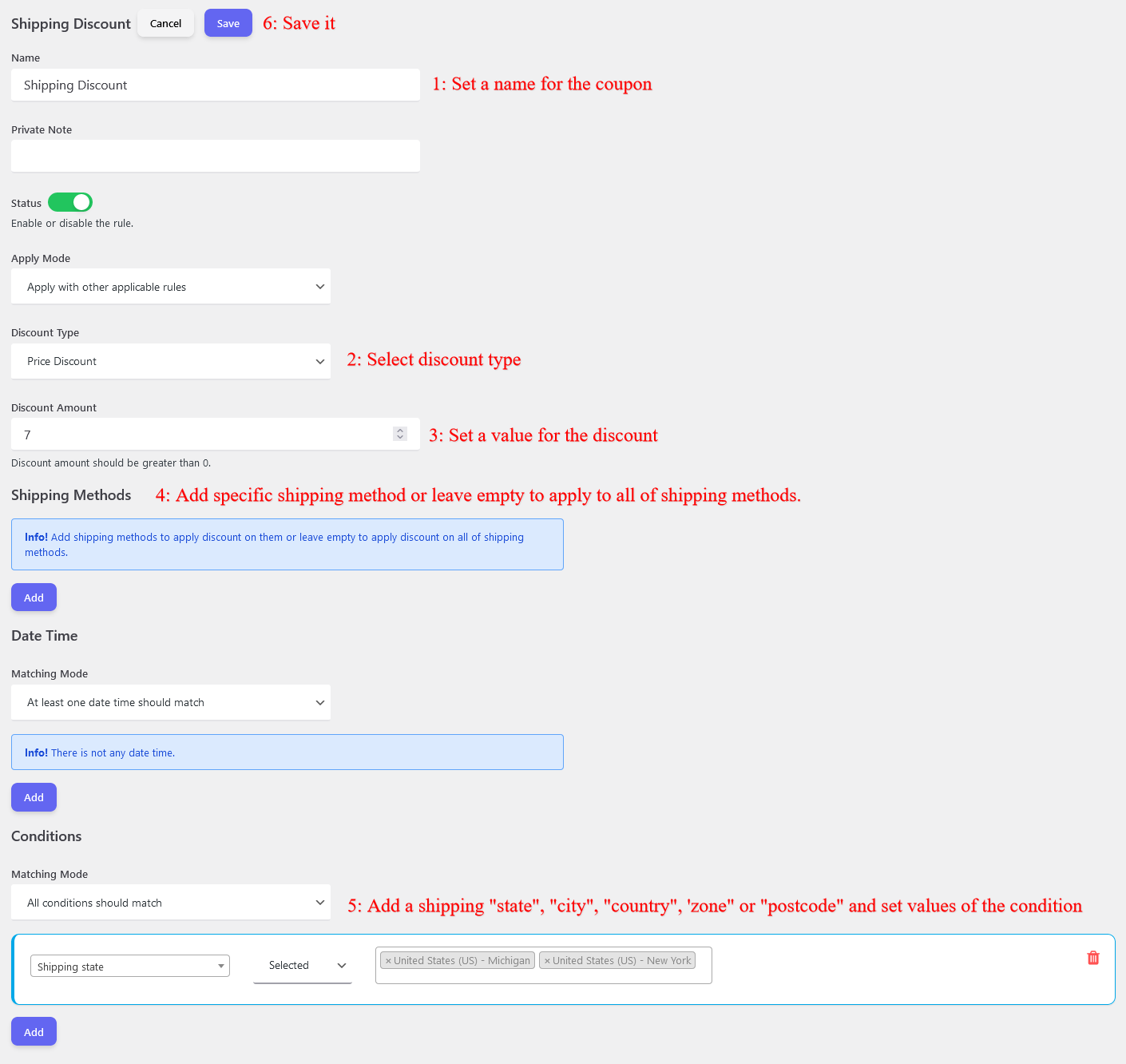
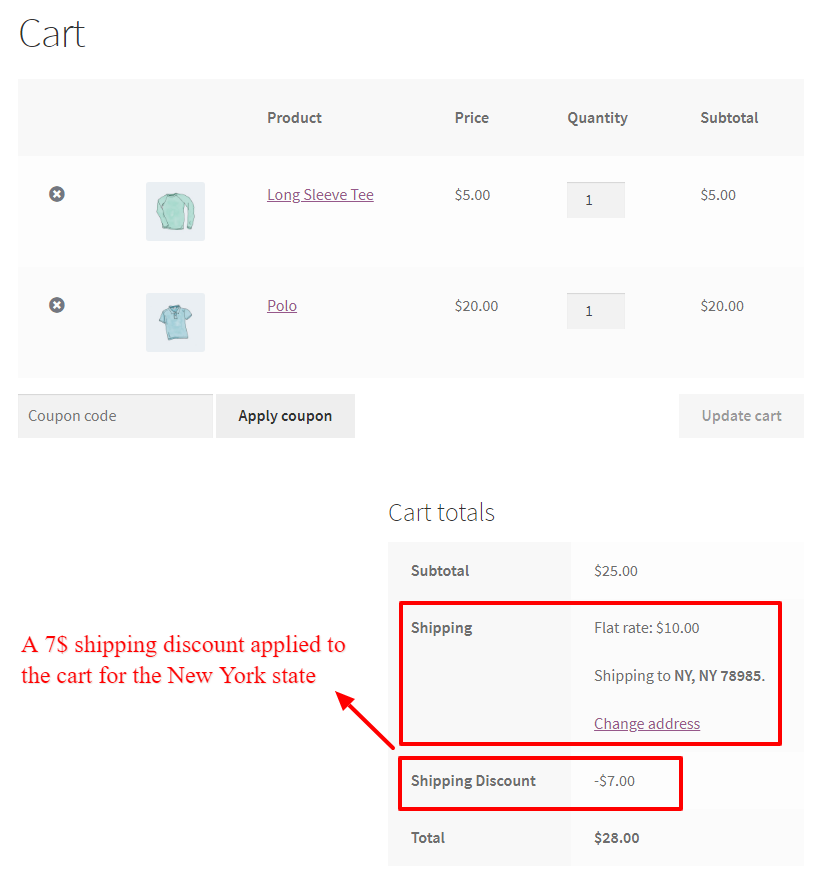
Add Shipping Discount in WooCommerce

Shipping discount refers to the reduction in the cost of shipping goods or products from one place to another. It is offered by businesses to encourage customers to make purchases from their online stores. Shipping costs can be a significant factor in a customer’s decision to purchase a product online, particularly for larger items. Offering a shipping discount can help businesses to attract and retain customers, increase sales, and improve customer satisfaction. In addition to benefiting customers, shipping discounts can also benefit businesses by reducing the cost of shipping and increasing profits. Overall, shipping discounts are a win-win for both customers and businesses.

Read how to create a shipping discount in WooCommerce for more information.

URL Coupons for WooCommerce

URL Coupons for WooCommerce is a plugin that allows online store owners to create unique discount codes that are linked to a specific URL. With this plugin, store owners can create and distribute coupons that are automatically applied when customers visit a specific page on their website. This can be a powerful tool for increasing sales and improving customer retention, as it allows store owners to create targeted promotions that are tailored to specific products or pages on their websites. With URL Coupons for WooCommerce, store owners can easily track the performance of their coupons and adjust their marketing strategies accordingly. Overall, this plugin is a valuable addition to any WooCommerce store that is looking to boost sales and improve customer engagement.

Offer Free Shipping

Offering free shipping to customers who meet specific criteria is a great way to incentivize purchases and increase customer loyalty. By setting a minimum purchase amount or certain product categories, businesses can reward their customers with a valuable perk that encourages them to shop more. Free shipping can also help businesses stand out from competitors and attract new customers who prioritize convenience and value. Ultimately, offering free shipping can lead to a boost in sales and customer satisfaction, while also supporting a company’s overall branding and marketing efforts.

Learn more about free shipping discounts.

Use WooCommerce Discounts to Skyrocket Sales

Use WooCommerce discounts to skyrocket your sales. Discounts are a powerful tool for increasing revenue, retaining customers, and staying competitive. By offering discounts that are relevant to your customers, you can attract more customers and encourage more purchases.

Adding discounts in WooCommerce is a great way to increase your sales and improve your bottom line. By using the tips in this article, you can create effective discount strategies that help you achieve your sales goals. Whether you’re a small business owner or a seasoned e-commerce professional, adding discounts in WooCommerce should be part of your marketing strategy.

Updated on Leave a comment

Create Custom Bundles with Categories in WooCommerce Product Bundle Plugin

WooCommerce is a powerful platform for selling products online, but sometimes you need to offer your customers something extra. That’s where custom bundles come in. With the WooCommerce Product Bundle Plugin, you can create unique packages that combine multiple products into one convenient purchase. And now, with the ability to use categories in your bundles, you can take your product offerings to the next level. In this tutorial, we will learn how to create a WooCommerce categories product bundle easily.

Unleash the Power of Custom Bundles

Creating custom bundles is a great way to increase sales and offer your customers more value. With the WooCommerce Product Bundle Plugin, you can easily combine products into bundles with just a few clicks. This allows you to create unique packages that your customers won’t find anywhere else. And with the ability to use categories, you can even further customize your bundles to fit your customers’ needs.

Boost Your Sales with Custom Bundles in WooCommerce

As an online retailer, you’re always looking for ways to boost sales and increase customer satisfaction. One effective strategy is to offer custom product bundles that allow customers to purchase multiple products at once, often at a discounted price. With the WooCommerce Product Bundle Plugin, you can easily create custom bundles that will entice your customers and drive more sales to your store.

The Power of WooCommerce Categories Product Bundles

One of the key features of the WooCommerce Product Bundle Plugin is the ability to add categories to the bundle items. Categories allow you to group related products together, making it easier for customers to find what they’re looking for and create custom bundles that fit their needs. By using categories in your bundles, you can provide a seamless shopping experience for your customers and increase the likelihood of a sale.

Video Tutorial

How to Create Custom Bundles with Categories in WooCommerce

Creating custom bundles with categories in WooCommerce is a straightforward process. First, you’ll need to install the WooCommerce Product Bundle Plugin and configure the settings to suit your needs. Next, you can create a product bundle in WooCommerce and add categories for each item. You can set discounts and pricing for each bundle item that makes the bundle attractive to customers and profitable for your business. Follow the below steps to create a product bundle with categories in WooCommerce.

Step1: Installing the Product Bundle Builder for WooCommerce

The Easy WooCommerce Product Bundles free plugin is one of the best WooCommerce plugins for creating product bundles in your online store so Follow the steps below to install this plugin :

1. Navigate to the Plugins >> Add New menu on your WordPress website

2. Then search for “Easy Product Bundles for WooCommerce“

3. Find the “Bundles – WooCommerce Product Bundles” by “Asana Plugins“

4. Install the plugin and activate it.

Installing the Product Bundle Builder for WooCommerce

Step 2: Create a Category Product Bunlde in WooCommerce

1. Navigate to WooCommerce “Products”.

2. Click on “Add New” to create a new product.

3. Set a name for the WooCommerce category bundle product.

4. Click on “Set product image” from the right sidebar and select an image for your category bundle product.

5. Now navigate to the Product data panel, and select “Product bundle” as the product type.

6. After selecting “Product bundle” as the product type the “Product Bundles” tab will appear in the product data panel.

7. Navigate to the “Product Bundles” tab and click on the “Add Bundle” button to add a new bundle item.

Create a Category Product Bunlde in WooCommerce

Step 3: Add items to the WooCommerce categories product bundle

8. You can set a “Default Product” for the bundle item by selecting a product in the “Default product” field.

9. In the “Categories” field you can include as many categories as you want. It will load products from the selected categories.

Note: If you would like to exclude some of the category products, then you can use the “Exclude products” field and specify products that should be excluded.

Step 4: Customising WooCommerce Product Bundle

You can also configure the below settings to your WooCommerce Product Bundle in the item field:

  • Sort products: With this field, you can sort selected products by “ID”, “Title”, “Menu order”,” Date”, “Price”, “popularity” and“Rating”.
  • Quantity: In this field, you can set the default quantity for each product.
  • Edit quantity by user: Check this field to allow the user to change the quantity of product and Set the “min/max quantity” for each item.
  • Discount: In this field, you can set discounts for product bundles by percentage, price or fixed price.
Customising WooCommerce Product Bundle

Now you can go to the “display” tab of the item and configure the following sections:

  • Overwrite bundle item title.
  • Overwrite bundle item short description. (Show when the mouse hovers over it)
  • Change the title of the bundle empty item.
  • Change the product list product selection title.
  • Change the pop-up header title.
  • Set an image for the empty item.
Display tab of product bundle item

10. Then click on “Add Item” to add a new item to the bundle and select the category for it. We repeated the rule and added two items to the bundle: one for the hoodies category and another for the pants category.

Step 5: WooCommerce Categories product bundle Price

The WooComerce Product Bundle plugin offers two pricing strategies.

  1. A fixed price for the whole bundle product
  2. Auto calculate the price based on selected products

1. Fixed Price

If you would like to set a fixed price for the whole bundle product, then check the “Fixed Price” option.

pricing- Set Fixed price

Navigate to the “General” tab and set a regular price for the Product. You can set a Sale price too.

After setting a price, update the product.

Set fixed price

2. Auto Calculate Price

Auto calculates price helps to set a dynamic price for the product bundle based on selected items for the bundle.

To use the auto-calculate price feature, uncheck the “Fixed Price” option and update the product.

10. At the end, publish the product bundle on your website.

Step 6: Configure the Plugin Settings

All the plugin settings you need can be found on the “Product Bundles” tab in the WordPress dashboard.

Configure the Product Bundles plugin Settings

Settings and customization are available on this page:

  • Item View: In this section, you can configure various settings, such as displaying stock availability, showing product ratings and descriptions, enabling modal quick views, adding a quantity field on item pages, displaying a plus icon for items, setting the theme and size options, positioning product bundles on the product page, defining custom CSS selectors, specifying the product price selector, and many other customizable options.
  • Change product model: In this section, you can configure the number of products per pop-up page.
  • Styles: In this section, you can customize the colours of different parts of your bundle and set the product image object-fit CSS.

Final Result of Category Product Bundle

After creating and publishing the category product bundle in WooCommerce, navigate to the product page and select a product for each item then add it to the cart.

WooCommerce Category bundle product

Create Unique Product Bundles with Different Categories in WooCommerce

One of the most powerful aspects of the WooCommerce Product Bundle Plugin is the ability to create unique bundles that include products from different categories. This allows you to offer customers a more personalized shopping experience and increase the likelihood of a sale. For example, you could create a bundle that includes a shirt, pants, and shoes from different categories, and offer a discount on the total price. By offering these types of bundles, you can differentiate yourself from competitors and drive more sales to your store.

If you want to force users to select products from different categories, then you should add an item for each category.

For example, we want to force users to select a hoodie and a pant. We should add 2 items to the bundle.

  • Create a product bundle in WooCommerce.
  • Add two items to the bundle. The number of items can be different based on the number of categories that should be included in the bundle.
  • In the first item, we select the “Hoodie” category.
  • We can set the default quantity, min/max quantity, and a discount for the “Hoodie” item.
  • In the second item, we select the “Pant” category.
  • We can set the default quantity, min/max quantity, and a discount for the “Pant” item.

With this configuration, the user has to select an item for each category that we want.

As you can see in the below image, the user should select a product from the “Hoodie” category and a product from the “Pant” category to complete the product bundle.

Unique WooCommerce categories product bundle

The Ultimate Guide to Creating Product Bundle with Categories in WooCommerce

In conclusion, the WooCommerce Product Bundle Plugin is a powerful tool for online retailers looking to boost sales and offer a more personalized shopping experience to customers. By using categories in your bundles, you can organize products in a way that makes sense for your customers and create bundles that are both attractive and profitable. Whether you’re just starting with custom bundles or looking to take your existing bundles to the next level, the WooCommerce Product Bundle Plugin is a must-have tool for any online retailer.

Articles

To delve deeper into the realm of Product Bundle plugin and their applications, we invite you to explore the array of informative resources we’ve compiled in the list below. These resources promise to expand your understanding and proficiency in leveraging the potential of this plugin to the fullest:

Posted on Leave a comment

How to Add Shipping Discounts in WooCommerce

WooCommerce is a versatile and powerful platform that allows store owners to customize and implement various features that can enhance their customer’s shopping experience. One of these features is providing shipping discounts to your customers. Shipping discounts can be a great way to incentivize your shoppers to make a purchase and increase your overall sales. In this article, we’ll guide you through the process of adding shipping discounts in WooCommerce.

What Is a Shipping Discount

A shipping discount is a reduction in the cost of shipping that a customer has to pay for their order. This can be a fixed amount, a percentage of the total order, or a flat rate for shipping. Shipping discounts can be applied to specific items, in a particular duration, or for all orders.

Why Add a Shipping Discount

Shipping discounts can be a great way to attract and retain customers. The cost of shipping is often one of the most significant factors that determine whether a shopper will make a purchase or not. By offering shipping discounts, you can incentivize your customers to purchase or even spend more on your store.

With Shipping Discount for WooCommerce, adding shipping discounts is a simple process that can be done in a matter of minutes.

A Guide to Adding Shipping Discounts in WooCommerce

Adding shipping discounts in WooCommerce is a simple process that can be done in a few easy steps.

To create a WooCommerce Shipping Discount we will use the Shipping Discount for WooCommerce plugin which is an addon for the Discount Rules and Dynamic Pricing for WooCommerce.

After installing the plugin on your site, navigate to the Woo Pricing & Discounts >> Shipping Discounts tab and add a new shipping discount rule in WooCommerce like the below image.

shipping discount for woocommerce

Now create a shipping coupon rule in WooCommerce like the below image.

For instance, we will create a 30% discount on shipping methods for wholesale customers.

shipping discount rule for wholesale customers in WooCommerce

After that, as you can see in the below image a 30% discount was applied to the shipping cost for the wholesale customer.

shipping coupon for wholesale customers in WooCommerce

Easily Implement Shipping Discounts for Specific Shipping Methods

In case you would like to apply shipping discounts on a specific shipping method, therefore you can follow the below guide.

Firstly navigate to the Woo Pricing & Discounts >> Shipping Discounts tab and create a rule like the below image.

Discounting specific shipping method in WooCommerce

After adding a discount on a specific shipping method, it applies like the below image.

In this example, we applied the shipping discount on the flat rate shipping in the United States.

coupon for specific shipping method in WooCommerce

Give Shipping Discount for Specific Addresses

Businesses using WooCommerce can increase sales and customer loyalty by offering shipping discounts to specific addresses. This tactic is especially effective for local businesses or those in high shipping cost regions. Targeting specific addresses enables businesses to control shipping costs while still providing incentives for customers to make purchases.

Firstly create a shipping discount rule like the below image.

shipping coupon for specific addresses

In this example, we applied a discount to the shipping state, but you can use shipping country, state, city, zone, and postcode too.

Because we applied a discount to the New York state, it applied the discount to the cart.

Discount for shipping address

As an eCommerce store owner, staying ahead of the competition and providing your customers with the best shopping experience is essential. One way to do this is by offering shipping discounts. By doing so, you can incentivize your customers to make a purchase and increase your overall sales. With WooCommerce, adding shipping discounts is a straightforward process that can be done by even the most novice store owner.

Conclusion

In conclusion, adding shipping discounts in WooCommerce can be a great way to drive sales and retain customers. By following the steps outlined in this article, you can easily implement shipping discounts in your online store and take your eCommerce game to the next level. So, set sail with savings and offer your customers the best possible shopping experience.

Posted on Leave a comment

Auto Add Products to Cart in WooCommerce

Auto Add Products in WooCommerce

With the growing trend of e-commerce, online shopping has become a daily routine for many. Although it is convenient, sometimes the shopping process can be a bit tedious. Luckily, WooCommerce has a feature that can make shopping easier. By automating the product addition to the cart, you can save time and effort. In this article, we will discuss how you can use the auto-add products to cart feature to streamline your shopping experience.

Make Shopping a Breeze: Auto-Add Products to Cart in WooCommerce

Imagine visiting an online store, and all the products you need are automatically added to your cart. This is what the auto-add feature in WooCommerce offers. With just a click of a button, you can add multiple products to your cart without having to navigate through the store. This feature is especially helpful when you would like to provide gift products to your customers. The gift products will be auto add to the cart when customers purchase a special product or spend a specific money on your store.

WooCommerce Auto Add Products to Cart Plugin

WooCommerce Auto Add Products to Cart Plugin is an easy-to-use plugin that is an add-on for the Discount Rules and Dynamic Pricing plugin. You can use this plugin to give gift products, or auto-add products to the cart based on cart conditions.

Install Auto Add Products to Cart

In this article we are using Advanced Discounts plugin to create BOGO Deals, Auto Add Products by Cart Conditions, URL Coupons.

Installing the plugins are as easy as installing other WordPress plugins. You can upload the archive files and then install them.

BOGO Deals

BOGO (Buy One Get One) deals are a popular promotion for online stores. The good news is that you can set up BOGO deals in WooCommerce with the help of a plugin. One such plugin is “Discount Rules and Dynamic Pricing” This plugin enables you to create and apply BOGO deals easily. You can set up various types of BOGO deals, such as “Buy One Get One Free“, “Buy One Get One 50% Off”, “Buy 2 Get 1 Free“, “Buy 3 Get 1 Free” and so on. Once you’ve set up the deals, the plugin will automatically add the free or discounted product to the cart when the customer adds the qualifying product.

In this tutorial, we will explain a simple type of BOGO deal (Buy product A and Get product B for free) and you can read more here.

1. Create a Pricing Rule

Navigate to the Pricing tab in the plugin and create a pricing rule like the below image.

Discount Rules and Dynamic Pricing prices
BOGO deal in WooCommerce

2. Add Buy Product to the Cart

Now open the buy product page. You will see the purchase message on the product page. Add the product to the cart.

BOGO deal message

3. Get the Free Product Automatically

Open the cart page and you will see the free gift product in the cart. the gift product is automatically added to the cart.

Auto Add Products to Cart in WooCommerce

Auto Add Products by Cart Conditions

What if you want to offer a free product or a discount on a product when the customer adds a certain number of products to the cart? You can achieve this with the help of the “Auto Add Products to Cart” plugin. This plugin enables you to set up rules based on the cart contents and different conditions, such as the number of items, total price, product category, money spent, purchase history, specific items in the cart, and so on. Once you’ve set up the rules, the plugin will automatically add the free or discounted product to the cart when the cart meets the conditions.

To auto-add products to the cart based on cart conditions follow the below instructions.

1. Create an Auto Add Product rule

In this example, we will create an auto-add product rule based on the cart subtotal.

To create the rule navigate to the Auto Add Products tab and then add a rule like the below image.

Auto add product to cart rule

2. Check the Cart for Auto-Added Product

Now we add some products to the cart to meet the rule requirements (subtotal >= 200), and the auto-add product is automatically added to the cart.

WooCommerce Auto Add Products to Cart by conditions

Auto Add Products with a Link

Finally, you can also auto-add products to the cart with a link. This method is handy when you want to offer a promotion or discount to a specific group of customers, such as email subscribers or social media followers. To implement this method, you need to install and activate “URL Coupons for WooCommmerce” plugin and create a URL coupon in WooCommerce. Then, you can share the URL with your target audience. When they click on the link, the product will be added to their cart automatically.

To create a URL Coupon in WooCommerce follow the below steps.

1. Create a URL Coupon with Auto Add Products in WooCommerce

Navigate to the Discounts tab, and create a URL couopn rule like the below image.

WooCommerce URL coupon rule

2. Open URL Coupon link

If you open the URL coupon link the auto add product will be automatically add to the cart.

In this example we applied a 50% discount on the auto add product.

URL coupon in WooCommerce

3. Share URL Coupon link

You can share the URL coupon link with your target audience.

Conclusion

Automating the process of adding products to the cart is a great way to improve the shopping experience for your customers. With the three methods we’ve discussed in this article, you can offer BOGO deals, set up cart conditions, and provide targeted promotions with ease. So, go ahead and try these methods in your WooCommerce store and see the difference it makes!

Updated on Leave a comment

How to Create WooCommerce Composite Products? (free in 2025)

How to create WooCommerce composite products

This article provides straightforward and comprehensive guidance on How to Create WooCommerce Composite Products with the Easy WooCommerce Product Bundles free plugin. You’ll learn how to leverage the composite products feature in WooCommerce to assemble customizable and flexible product offerings. The guide covers setting up product components, managing inventory, configuring pricing, and enhancing the customer experience with tailored product options. Whether selling customizable kits, product bundles, or personalized packages, this guide will help you effectively utilize WooCommerce to meet your business needs.

What are WooCommerce Composite Products?

WooCommerce composite products are type of products in the WooCommerce e-commerce platform that allows customers to create and purchase customized products by selecting from a list of pre-defined components or options. A composite product allows your customers to assemble their favourite products for example “Assembled computer case” where customers can choose the case model, MotherBoard, Graphic card, and other components from a list of options to build a customized computer that meets their specific needs.

Another good example is “Build Your Pet Basket” which lets customers choose the items that will make up their unique gift basket for their beautiful furry friends. this composite product can offer Toys, Treats, Grooming products, and other pet items As the customer selects different options, the price of the pet gift basket will adjust accordingly. Once the customer has selected all the desired options, they can add the pet gift basket to their cart and proceed to checkout.

But these are just two examples of how WooCommerce composite products can offer customers customized shopping carts. With composite products, you can provide customers with a variety of options while simplifying the purchasing process and boosting sales and revenue in your online store.

Benefits of WooCommerce Composite Products

WooCommerce Composite Products has many Benefits that we will mention some examples of:

  • Customization: Allows customers to create personalized products by selecting components that meet their specific needs and preferences.
  • Flexibility: Supports a variety of product types, including kits, bundles, and configurable packages, making it adaptable to different business models.
  • Increased Sales: By offering customizable product options, businesses can cater to a wider audience and encourage upselling and cross-selling.
  • Competitive Advantage: Offering customizable and unique products sets your store apart from competitors, attracting more customers and fostering brand loyalty.
  • Cross-Selling Opportunities: Encourage customers to explore and purchase related products or accessories during the customization process, boosting sales and average order value.
  • Brand Alignment: Align your product offerings with your brand identity and values by allowing customers to personalize their shopping experience, enhancing brand perception and customer satisfaction.
  • Marketing Opportunities: Enables targeted marketing strategies by promoting custom bundles and personalized offers based on customer preferences.
  • Data Insights: Gain valuable insights into customer preferences and purchasing patterns through the detailed analytics and reporting features integrated into WooCommerce.

Example of composite products

Here are some examples of composite products that are created using the Easy WooCommerce Product Bundles plugin:

  • Gift Baskets: Snacks, Beverages, Gourmet Items, Personalized Messages, Gift Wrapping.
  • Custom Computers: CPUs, Motherboards, RAM, Storage, Graphics Cards, Power Supplies, Cases
  • Furniture Sets: Sofa, Chairs, Coffee Tables, Lamps, Rugs, Cushions
  • Home Theater Systems: TVs, Soundbars, Speakers, Blu-ray Players, Streaming Devices
  • Custom Jewelry: Chains, Pendants, Charms, Stones, Engravings
  • Meal Kits: Main Ingredients, Side Dishes, Sauces, Spices, Cooking Instructions
  • Custom Apparel: T-Shirts, Hoodies, Pants, Hats, Custom Prints
  • Beauty and Skincare Sets: Cleansers, Toners, Moisturizers, Serums, Masks

How to Create WooCommerce Composite Products

🎥Video Tutorial

Step1: Installing the Product Bundle Builder for WooCommerce

The Easy WooCommerce Product Bundles free plugin is one of the best WooCommerce plugins for creating composite products in your online store, so Follow the steps below to install this plugin :

1. Navigate to the Plugins >> Add New menu on your WordPress website

2. Then search for “Easy Product Bundles for WooCommerce“

3. Find the “Bundles – WooCommerce Product Bundles” by “Asana Plugins“

4. Install the plugin and activate it.

install product bundle
Some examples that you can create with the Easy WooCommerce Product Bundles plugin:
  • Simple or Pure product bundles
  • Advanced and Dynamic product bundles
  • Assembled products bundle
  • Mix-and-Match products bundle
  • Frequently bought together products bundle
  • Create BOGO deals
  • Give gift products
  • Create Personalized Boxes
  • Recommend addons and essentials
  • Optional products in WooCommerce Product Bundles

Step2: Creating WooCommerce Composite Products

Therefore after installing the Easy WooCommerce Product Bundles free plugin, you can create composite products in WooCommerce.
Here we will create composite products from Pet Supplies:

1. Navigate to WooCommerce “Products”.

2. Click on “Add New” to create a new product.

3. Set a name for the composite products, for instance, “Build Your Own Pet Basket”.

4. Click on “Set product image” from the right sidebar and select an image for your composite products.

5. Now navigate to the Product data panel, and select “Product bundle” as the product type.

6. After selecting “Product bundle” as the product type the “Product Bundles” tab will appear in the product data panel.

7. Navigate to the “Product Bundles” tab and click on the “Add Item” button to add a new bundle item to the composite products.

How to Create WooCommerce Composite Products

8. Now, in the “Products” field, search for Dog Foods and select them.

  • Or Likewise, if you would like to include products from a category, you can do it with the “Categories” field of the item. therefore you can search for categories and add them to the “Categories” field. (pro version)
  • in addition, you can do the same for the product tags and include them in the “Tags” field. (pro version)

Step 3: Customising WooCommerce composite product Bundle

You can also configure the below settings to your WooCommerce Product Bundle in the item field:

  • Sort products: With this field, you can sort selected products by “ID”, “Title”, “Menu order”,” Date”, “Price”, “popularity” and“Rating”.
  • Quantity: In this field, you can set the default quantity for each product.
  • Edit quantity by user: Check this field to allow the user to change the quantity of product and Set the “min/max quantity” for each item.
  • Discount: In this field, you can set discounts for product bundles by percentage, price or fixed price.

Now you can go to the “display” tab of the item and configure the following sections:

  • Overwrite bundle item title.
  • Overwrite bundle item short description. (Show when the mouse hovers over it)
  • Change the title of the bundle empty item.
  • Change the product list product selection title.
  • Change the pop-up header title.
  • Set an image for the empty item.
Display tab of product bundle item

9. Then click on the “Add Item” button to add a new bundle item for the Dog Bowls.

10. Now in Item 2 in the “Products” field, search for Dog Bowls and select them.

11. Click on the “Add Bundle” button to add a new bundle item for the Dog Toys. Then in the “Products” field search for Dog Toys and select them.

publish composite products

Step4: Pricing for WooCommerce Composite Products

After adding products you can choose how want to price your composite product.

The Easy WooCommerce Product Bundles free plugin offers two pricing strategies:

  1. Fixed Price: Sets a fixed price for the whole composite products
  2. Auto Calculate Bundle Price: Allow the plugin to calculate the composite product price using the selected products for the bundle items.

If you want to set a fixed price for the composite product, enable the “Fixed price” option then navigate to the “General tab”, and set a price for the “Regular price” field. You can set a “Sale price” too.

Fixed Price for WooCommerce Composite product


To use the “Auto Calculate Bundle Price” disable the “Fixed price” option.

12. Now you can publish the composite products on your website.

Step 5: Configure the Plugin Settings

All the plugin settings you need can be found on the “Product Bundles” tab in the WordPress dashboard.

Configure the Product Bundles plugin Settings

Settings and customization are available on this page:

Item View: In this section, you can configure various settings, such as displaying stock availability, showing product ratings and descriptions, enabling modal quick views, adding a quantity field on item pages, displaying a plus icon for items, setting the theme and size options, positioning product bundles on the product page, defining custom CSS selectors, specifying the product price selector, and many other customizable options.

Change product model: In this section, you can configure the number of products per pop-up page.

Styles: In this section, you can customize the colours of different parts of your bundle and set the product image object-fit CSS.

Final Result of WooCommerce Composite Products

As a result, the WooCommerce composite products are like the image below.

How to Create WooCommerce Composite Products

And the customer can choose other available products from the popup.

How to Create a WooCommerce Composite Product with Variable Products

Creating WooCommerce composite products with powerful variable options on your site unlocks a dynamic and personalized shopping experience, allowing customers to effortlessly customize product bundles to match their exact needs—whether it’s size, color, or model. For example, you can offer a custom laptop builder where users choose their preferred processor, RAM, storage, graphics card, and accessories, all within a single product page. This high-impact flexibility drives conversions, maximizes customer satisfaction, and sets your store apart. It also streamlines operations with smart inventory control while elevating your brand through convenience, customization, and value.

🎥Video Tutorial

Step 1: Create Variable Products in WooCommerce

First, you should create Variable products in WooCommerce.

To create variable product in WooCommerce read this article create variable products to create a variable product.

Step 2: Creating WooCommerce Composite Products

1. Navigate to WooCommerce “Products”.

2. Click on “Add new product” to create a new product.

3. Set a name for the composite products.

4. Click on “Set product image” from the right sidebar and select an image for your composite products.

5. Now navigate to the “Product data” panel, and select “Product bundle” as the product type.

6. After selecting “Product bundle” as the product type the “Product Bundles” tab will appear in the product data panel.

7. Navigate to the “Product Bundles” tab and click on the “Add Item” button to add a new bundle item to the composite products.

8. Now scroll down to the item field, and in the “Products” field of the item Search and select the Variable products you want.

you can also set the default variation product for this item in the default product field. (PRO VERSION)

Add variable product to WooCommerce Composite Product

Step 3: Customising WooCommerce composite products

For customising the composite product, please read this section of the article for more information.

9. Then click on “Add Item” to add a new item to the composite products with Variable product and configure it as in the previous steps. We have created 2 other bundle items.

Step 4: Pricing for composite Products with Variable Products

For customising the composite product, please read this section of the article for more information.

10. Now you can publish the composite products with variables on your website.

Step 5: Configure the Plugin Settings

To configure the Plugin Settings, you can just read this section of the article for more information.

Final Result

Now open the product page on the front end.
As a result, after selecting a variation product, for all of the bundle items, the WooCommerce composite products with variable will be shown in the image below.

composite product with variable product

Shortcodes

  • [asnp_wepb_product] Use it on the product page to show the bundles.

  • [asnp_wepb_product show_add_to_cart="1"] Use it on the product page to show the bundles + add to cart button.

Other Article

To delve deeper into the realm of the Product Bundle plugin and its applications, we invite you to explore the array of informative resources we’ve compiled in the list below, Furthermore, these resources promise to expand your understanding and proficiency in leveraging the full potential of this plugin: