Create Mix & Match Product Discounts in WooCommerce (Any 4 Items Discount)
Learn how to create powerful mix and match product discounts in WooCommerce using the Discount Rules and Dynamic Pricing for WooCommerce plugin. This complete guide covers group discounts where customers can pick any combination of products (e.g., "Any 4 Shirts for $60") to receive a discount. Boost average order value and increase sales with flexible mix and match pricing.
📋 Table of Contents
- What Are Mix & Match Discounts?
- Step-by-Step: Create a Mix & Match Discount
- Mix & Match Discount Types
- Quick Reference Table
- Next Steps
🚀 What Are Mix & Match Discounts?
A WooCommerce mix and match discount is a promotional strategy that allows customers to pick any combination of products from a selected group and receive a discount on the entire purchase . This strategy encourages customers to explore your product catalog and purchase multiple items at once . For example, you can offer promotions like "Buy any 3 T-shirts, get 15% off" or "Mix and match any 5 pairs of socks for $25" .
Why Use Mix & Match Discounts?
- Boost average order value — Customers buy more to reach the discount threshold
- Clear inventory — Move slow-selling products by bundling them with popular items
- Give customers freedom of choice — Unlike fixed bundles, customers choose their preferred items
- Increase product discovery — Encourage customers to explore your product catalog
Key Statistic: Mix and match offers during Black Friday and Cyber Monday can result in a 30% increase in average order value .
WooCommerce Default Limitations
WooCommerce does not have a native mix and match discount feature . You need a plugin like the Discount Rules and Dynamic Pricing for WooCommerce to create these flexible group discounts. The plugin uses "Products group" mode with a "Quantity" condition to count products together and apply discounts based on the total quantity.
Now you're ready to create mix and match discount rules under the Woo Pricing & Discounts > Pricing tab.
Step-by-Step: Create a Mix & Match Discount
Best for: Letting customers choose any combination of products from a group to receive a discount. Perfect for apparel, accessories, and any store with multiple product variations .
Scenario: Create a "Any 4 Shirts for $60" deal where customers can choose any 4 shirts from the Shirts category and get them for a fixed price.
Step 1: Access Pricing and Choose a Template
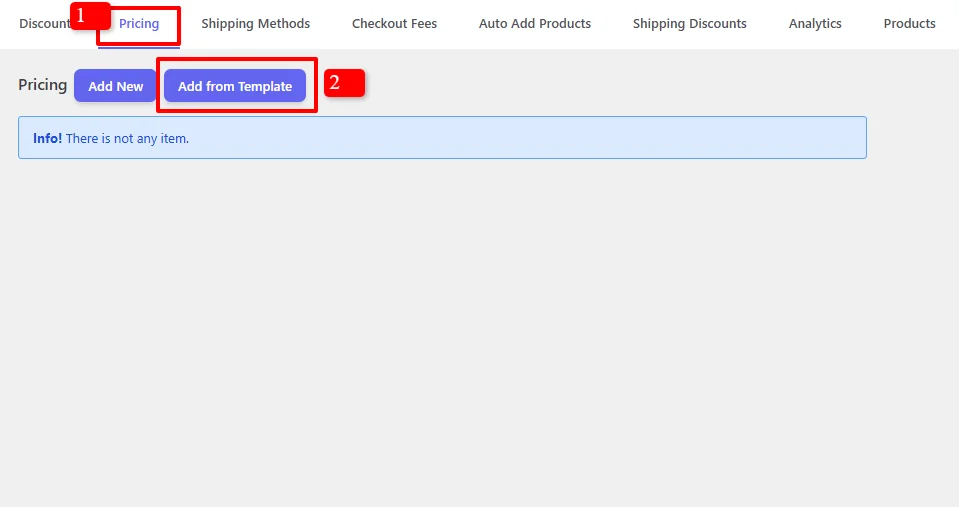
- In your WordPress admin, go to the Woo Pricing & Discounts menu
- Open the Pricing tab
- Click on the Add from Template button to quickly start a new rule
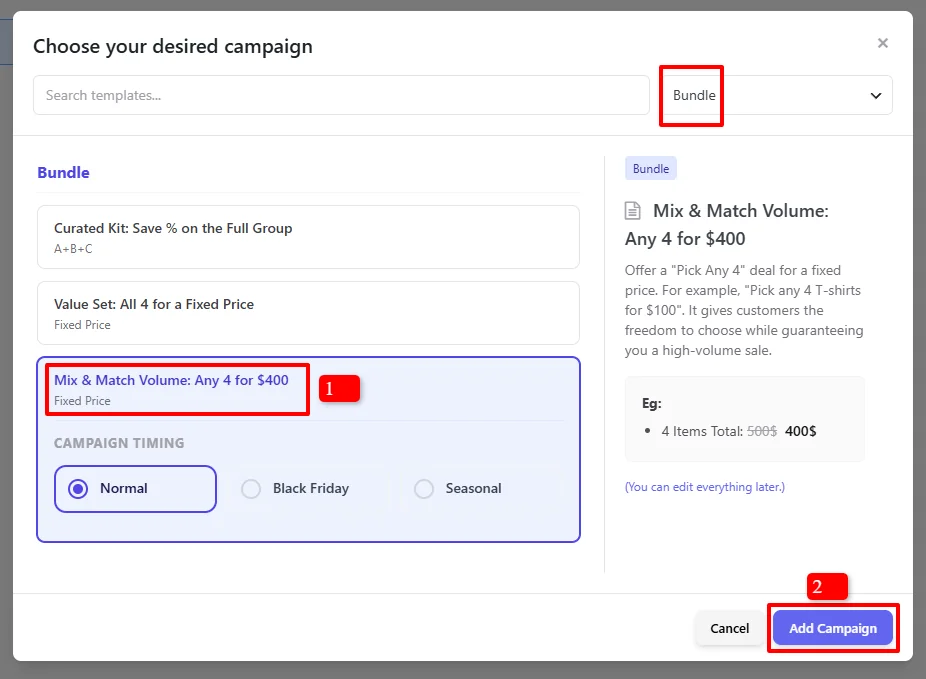
- In the "Choose your desired campaign" modal, search for templates
- Under Bundle, find and select "Mix & Match Volume: Any 4 for $400"
- Click "Add Campaign"
Step 2: Configure the Discount Rule
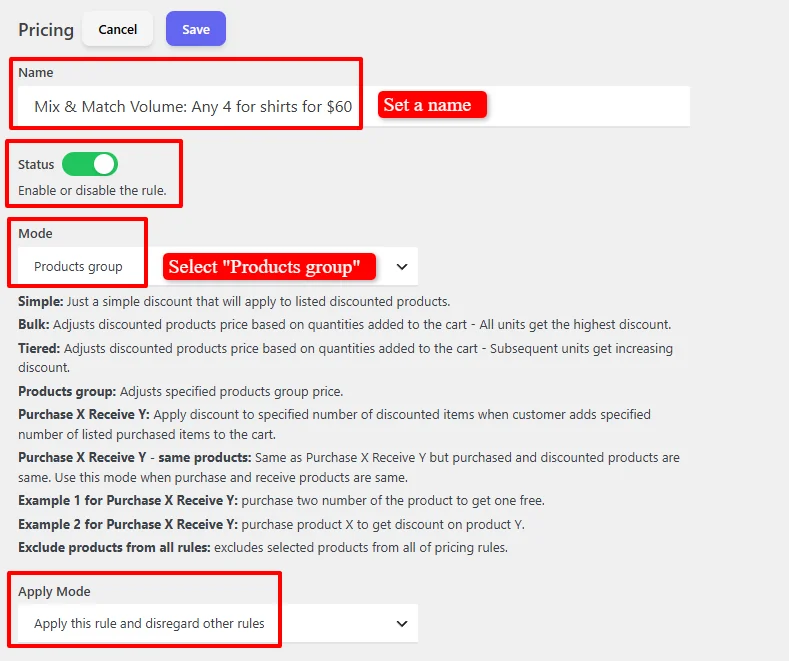
- Name: "Mix & Match Volume: Any 4 for shirts for $60" (customizable)
- Status: Ensure Enable is checked
- Mode: Select "Products group" — This adjusts the price of a group of products when the required quantity is met
- Apply Mode: set it to the Apply this rule and disregard other rules - Exclusive
Step 3: Configure Display Options
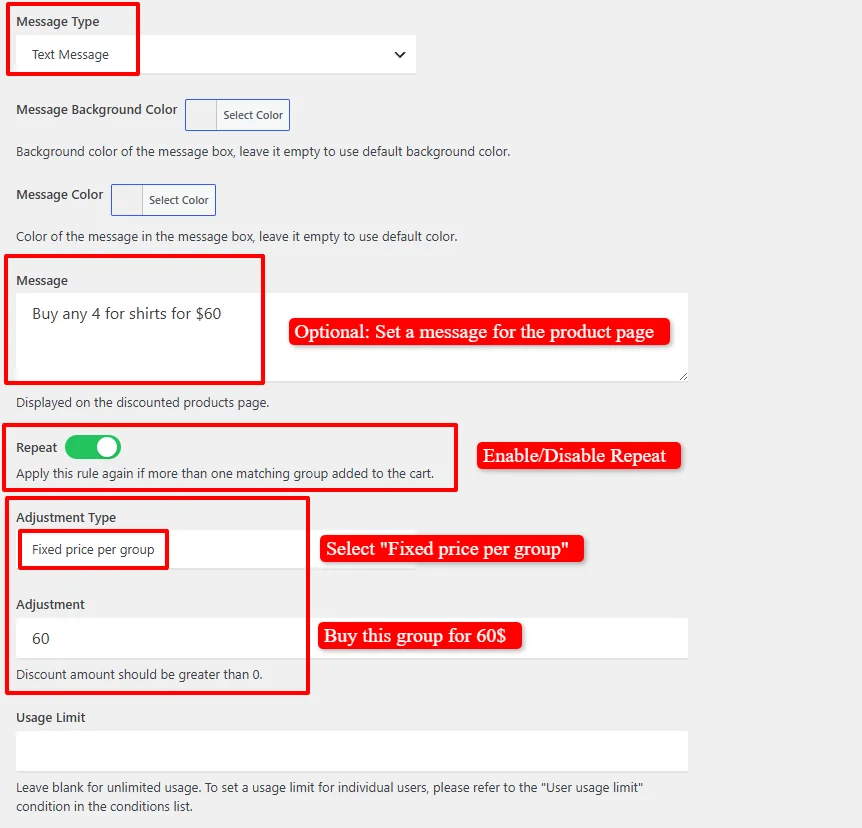
- Message Type: Select "Text Message"
- Message Background Color: (Optional) Customize the message box background color
- Message Color: (Optional) Customize the message text color
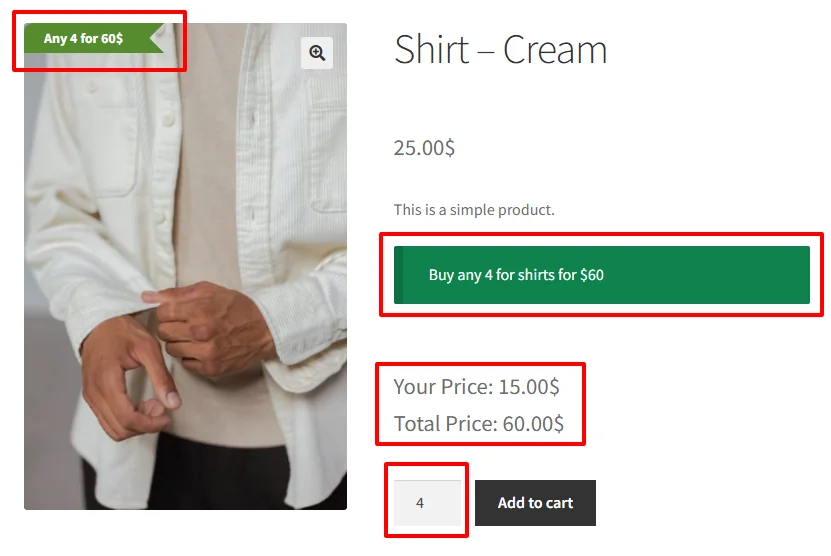
- Message: Set a compelling message displayed on product pages, e.g., "Buy any 4 shirts for $60"
- Repeat: Enable to apply this rule again if more than one matching group is added to the cart
- Adjustment Type: Choose the type of discount (see the Mix & Match Discount Types section below)
- Adjustment: Set the discount value
- Usage Limit: Leave blank for unlimited uses
Step 4: Select Products or Categories
Under the Products group section, you define which products are eligible for the mix and match discount:
Option A: Apply to Specific Categories
- Add a "Categories in list" condition to open the category selector
- Set the quantity value in the quantity field
- Search for and select your desired categories
- Customers can pick any combination of products from these categories

Example: In our tutorial, we'll select the Clothing/Shirts category.
Option B: Apply to All Products (Storewide)
- Add a "All products" condition to apply the discount storewide
- Customers can pick any combination of products from your entire store

Option C: Apply to Specific Products
- Add a "Products in list" condition to open the product selector
- Search for and select your desired products

For detailed information on filtering products by categories, variations, attributes, stock status, or dynamic segments, check out our Product Selection Guide.
Step 5: Schedule the Discount (Optional)
By default, the campaign is unscheduled and runs immediately:

For scheduled promotions, under the "Date Time" section to configure :
- Date Range - Run a promotion over a period
- Date Time Range - Precise start and end date/time for flash sales
- Specific Date - Single date activation
- Days - Recurring weekly promotions
- Time - Daily time ranges

Use "+ And New Rule" to combine conditions or "+ OR New Group" for alternative schedules.
For a deep dive into timezone setup, recurring schedules, and multi-tier scheduling logic, read our comprehensive Scheduling & Date-Time Guide.
Step 6: Save and Test
Click Save and test by adding the required quantity of products from the eligible group to the cart.
Product page display:
- "Any 4 shirts for $60" message on product pages
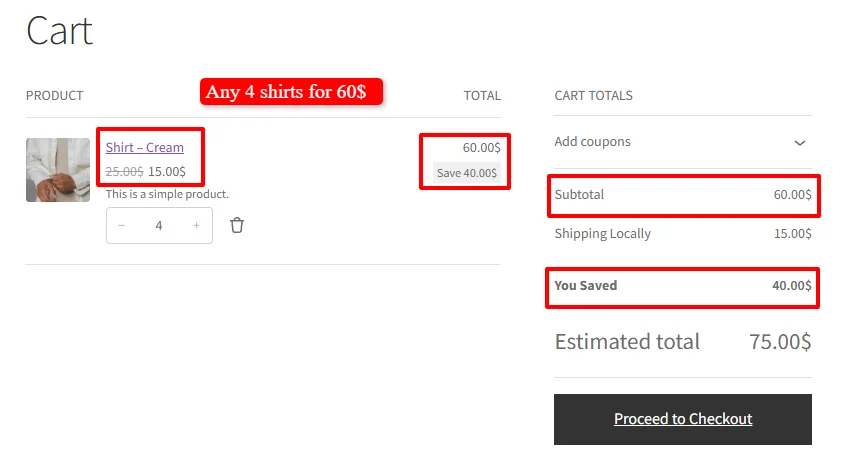
Cart page display:
- Same shirts
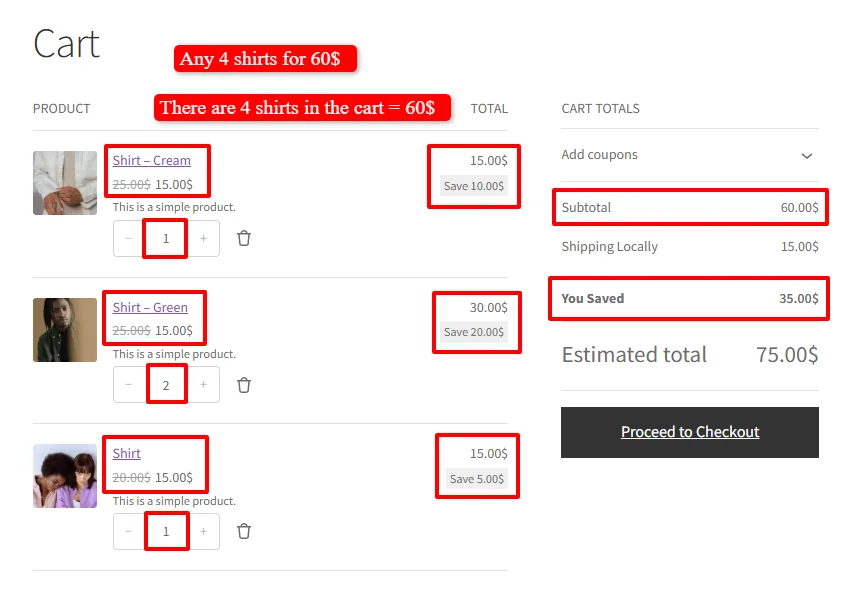
- Different shirts
Mix & Match Discount Types
The Products Group mode with the Quantity condition offers five different adjustment types for your mix and match discounts. Choose the one that best fits your promotion strategy.
Fixed Price Per Group
Best for: Offering a fixed price for any combination of products. Great for "Any 4 for $60" deals where customers know exactly what they'll pay.
How it works: The entire group is sold at a single fixed price, regardless of individual item prices, when the customer adds the required quantity.
Example: Any 4 shirts for $60
Calculation:
- Customer picks any 4 shirts
- Fixed group price: $60.00
- Individual prices: $25.00, $25.00, $25.00, $20.00
- Original total: $95.00
- Final price: $60.00
- Savings: $35.00 ($60 / 4 = $15 per item)
Product page display:
- "Any 4 shirts for $60" message on product pages
Fixed Price Per Item
Best for: Setting all items in the group to the same fixed price when the required quantity is met.
How it works: Each item in the group is set to a specific fixed price, regardless of its original price.
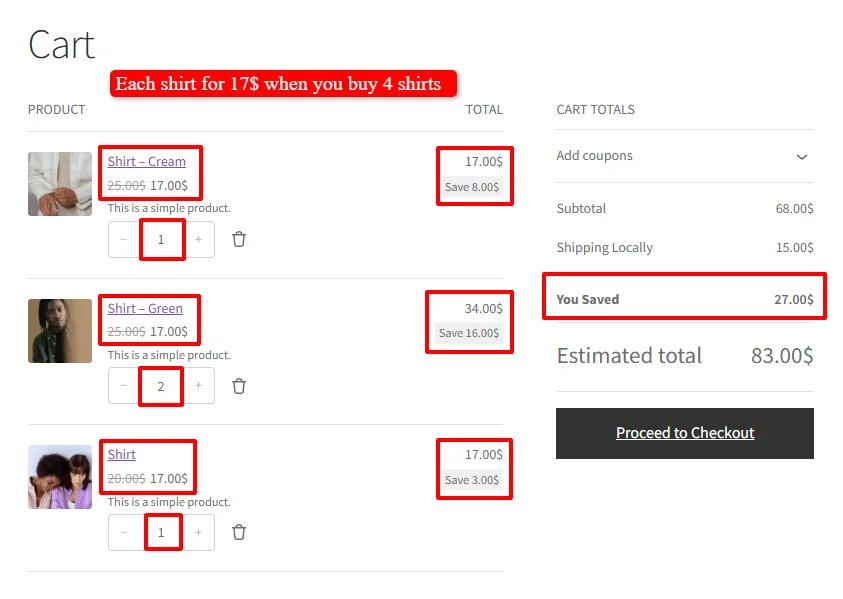
Example: Each shirt for $17 when you buy any 4 shirts
Calculation:
- Customer picks any 4 shirts
- Each item: $17.00
- Final price: $68.00
- Original total: $95.00
- Savings: $27.00

Percentage Discount on Group
Best for: Offering a percentage off the total price of the group. Perfect for proportional savings.
How it works: The discount percentage is applied to the total price of all items in the group.
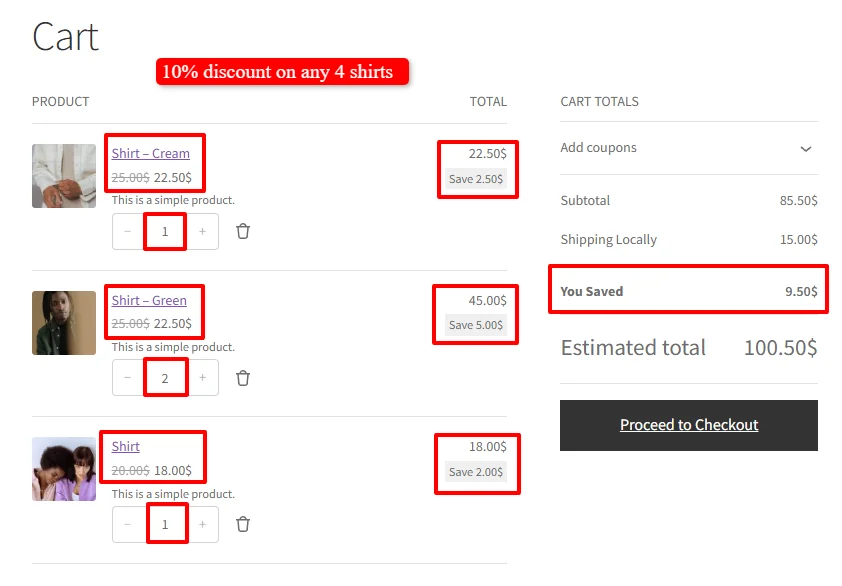
Example: 10% off when you buy any 4 shirts
Calculation:
- Customer picks any 4 shirts
- Subtotal: $95.00
- 10% discount: $9.50
- Final price: $85.50

Fixed Discount Per Group
Best for: Offering a fixed dollar amount off the total price of the group. Simple and easy for customers to understand.
How it works: A fixed dollar amount is subtracted from the total price of all items in the group.
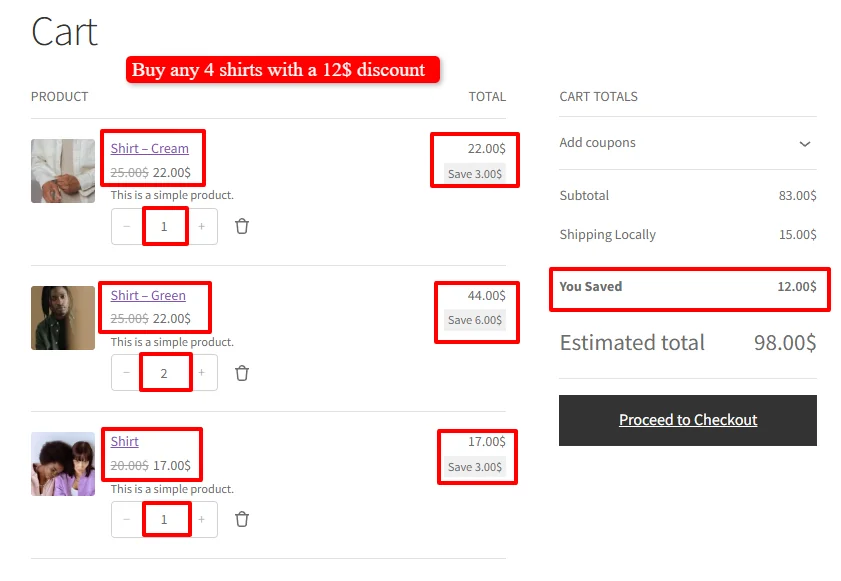
Example: $12 off when you buy any 4 shirts
Calculation:
- Customer picks any 4 shirts
- Subtotal: $95.00
- $12 discount
- Final price: $83.00

Fixed Discount Per Item
Best for: Offering a fixed discount on each item in the group. Encourages purchases by making each item more affordable.
How it works: A fixed dollar amount is subtracted from each item's individual price.
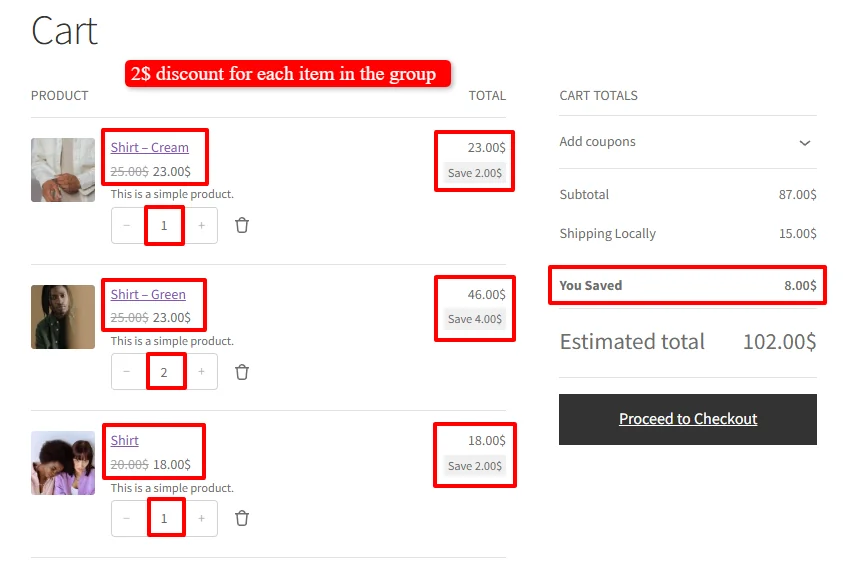
Example: $2 off each shirt when you buy any 4 shirts
Calculation:
- Customer picks any 4 shirts
- Each item: $2 off
- Original total: $95.00
- Final price: $87.00
- Total savings: $8.00

Quick Reference Table
| Adjustment Type | How It Works | Example | Best For |
|---|---|---|---|
| Fixed price per group | Sets a single price for the entire group | Any 4 shirts for $60 | Clear, simple offers |
| Fixed price per item | Sets each item to the same fixed price | Each shirt for $17 | Consistent pricing |
| Percentage discount | Applies a percentage off the total | 10% off any 4 shirts | Proportional savings |
| Fixed discount per group | Subtracts a fixed amount from the total | $12 off any 4 shirts | Simple dollar-off promotions |
| Fixed discount per item | Subtracts a fixed amount from each item | $2 off each shirt | Making each item more affordable |
🎉 Success!
You've learned how to create mix and match product discounts using the Discount Rules and Dynamic Pricing plugin for WooCommerce. This powerful feature allows you to:
- Create flexible group discounts where customers choose any combination of products
- Choose from five adjustment types to match your promotion strategy
- Display compelling messages on product pages to promote the deal
- Automatically apply discounts when the required quantity is in the cart
Mix and match discounts are one of the most effective ways to increase average order value and boost sales . By giving customers the freedom to choose their preferred items, you create a more appealing shopping experience that encourages larger purchases .
Experience all discount rules and pricing strategies in action on our Live Demo Website.
Upgrade to Discount Rules and Dynamic Pricing for WooCommerce PRO to unlock advanced conditions, user role pricing, recurring schedules, tiered variations, and priority support.
📚 Next Steps
Now that you've mastered mix & match discounts, explore complementary bundling & tier options:
- Product Bundle Discounts — Create fixed-combination product bundles.
- Tiered Pricing for Categories — Apply progressive tiered pricing across category items.
- Buy 3, Cheapest Item Free — Offer 3-item mix & match deals where the cheapest item is free.
- Bulk Discounts for Categories — Set volume discounts for customers buying large quantities from a category.
- Display Percentage Badges — Show savings badges on participating mix & match products.
🔍 SEO Keywords
Primary Keywords: mix and match WooCommerce, any 4 items discount WooCommerce, WooCommerce discount rules, dynamic pricing WooCommerce, group discount WooCommerce, mix and match discounts
Secondary Keywords: products group discount, fixed price bundle, percentage discount group, WooCommerce product bundles, group discount WooCommerce, increase average order value, WooCommerce bundle plugin, Discount Rules and Dynamic Pricing plugin