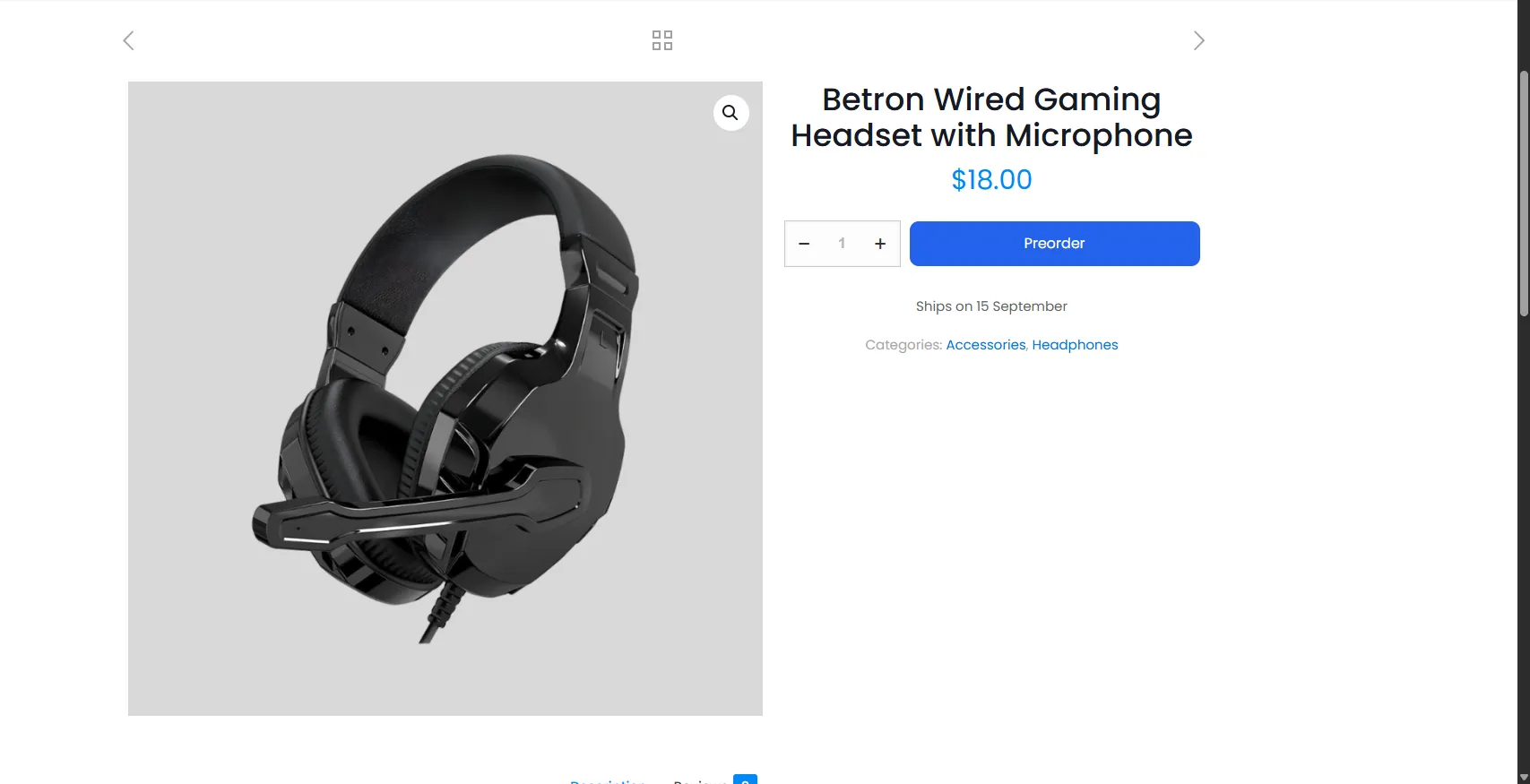
WooCommerce Preorders
Keep the buy button active on out-of-stock or unreleased products, relabel it, and add a message under it.
Explore featureSelling an out-of-stock product has two halves — take the order now, or capture the customer and email them later. RestockBeacon does both from one campaign screen, with waitlists, ship dates, branded restock emails, and deposits.
Works with simple and variable products, HPOS, the Cart & Checkout Blocks, block themes, and page builders. Translation ready and GDPR friendly.
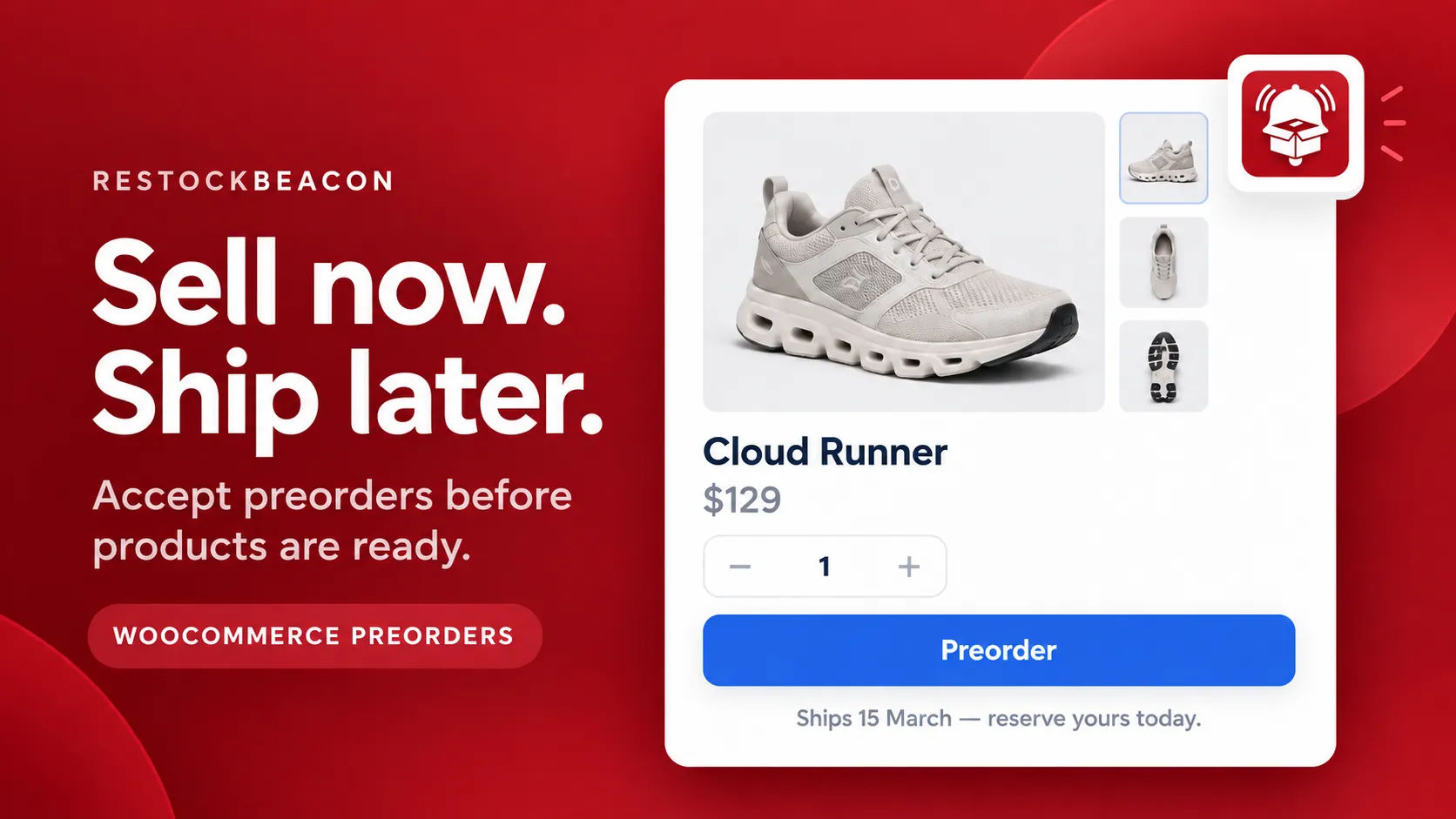
Explore the storefront experiences and management screens. Click any image to read its guide and setup details.
Keep selling before stock arrives, with a clear ship-date message.
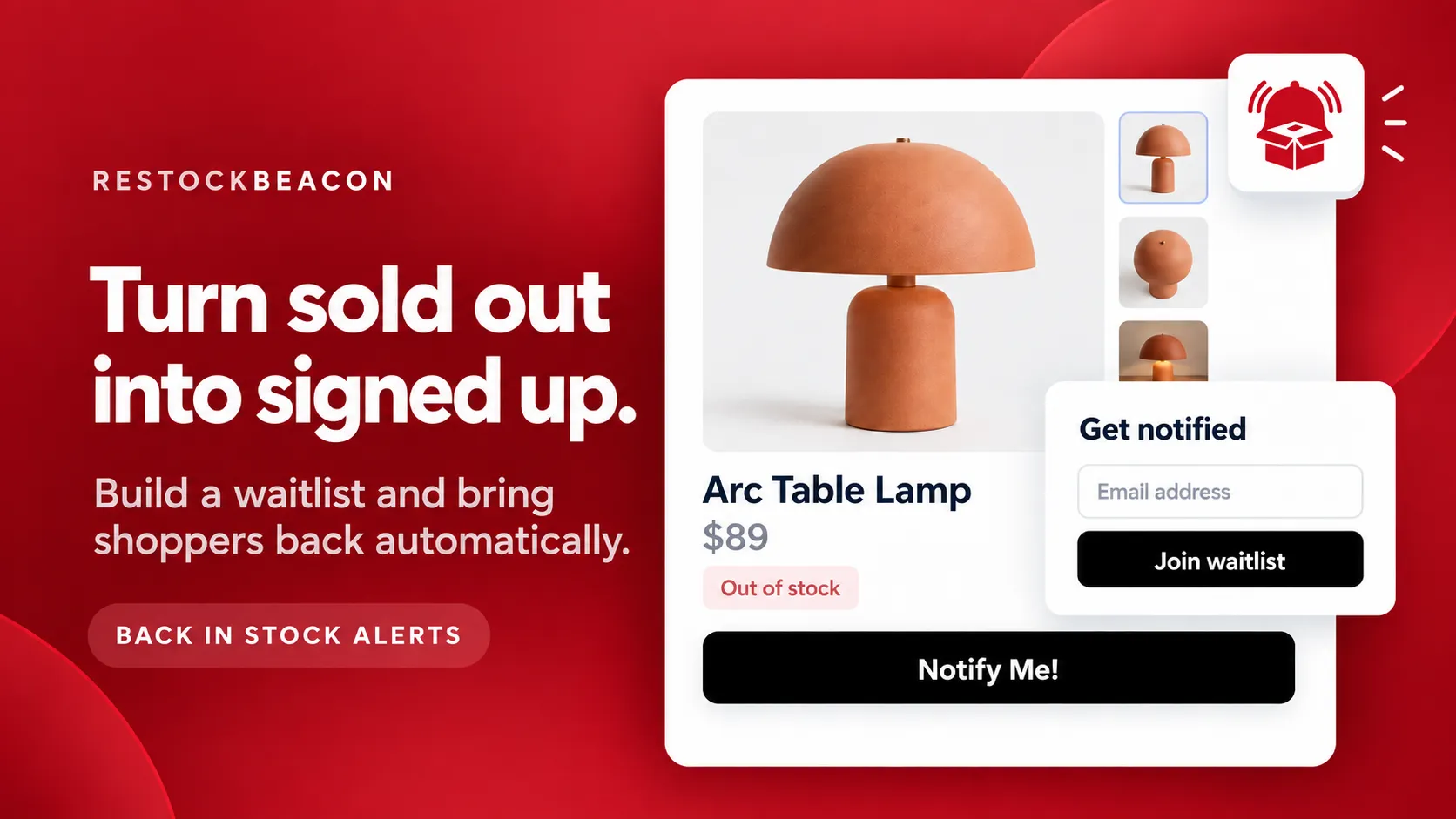
Collect sign-ups from sold-out products and notify shoppers after a restock.
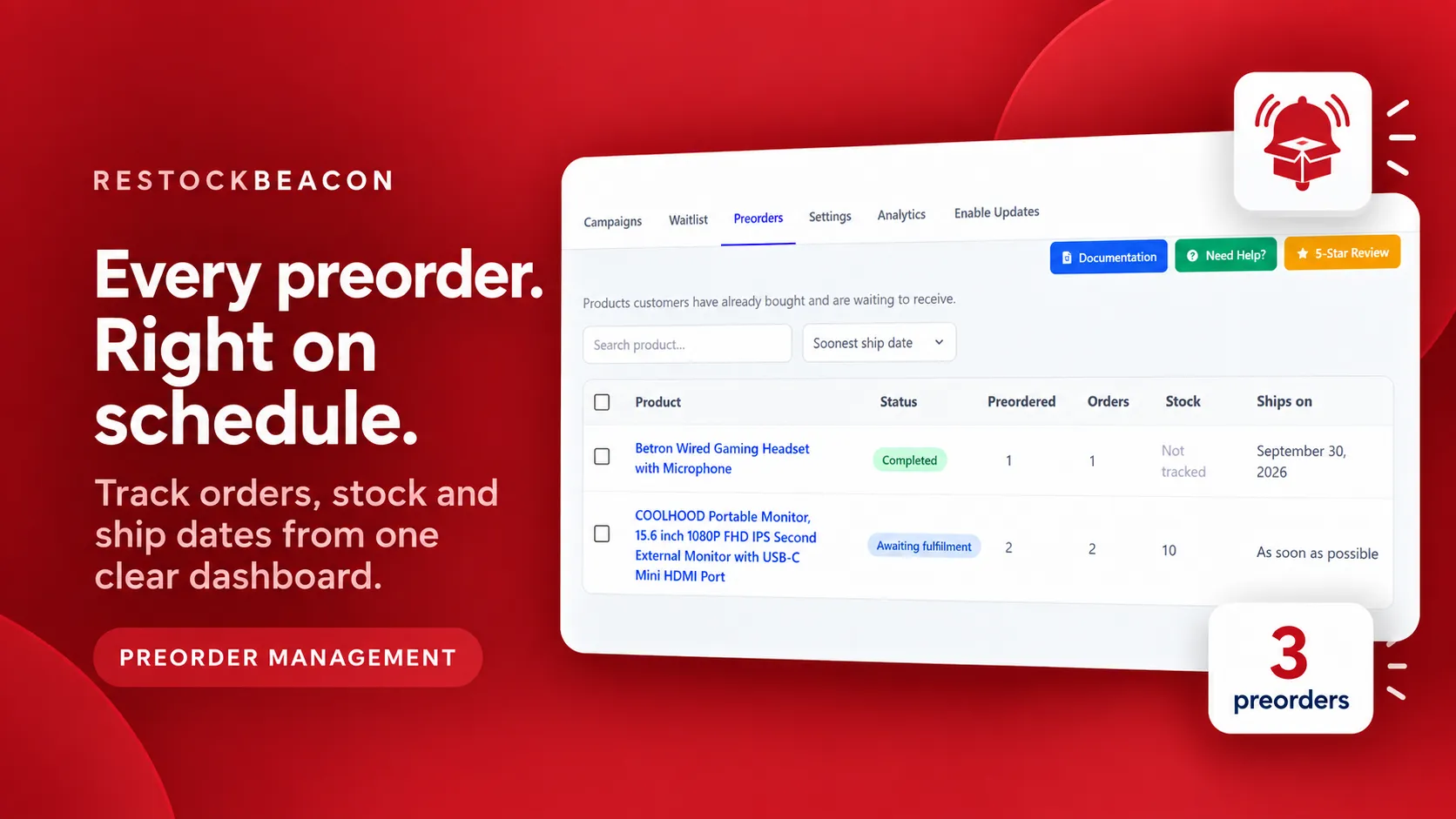
Review preorder demand, stock, order status, and expected ship dates.
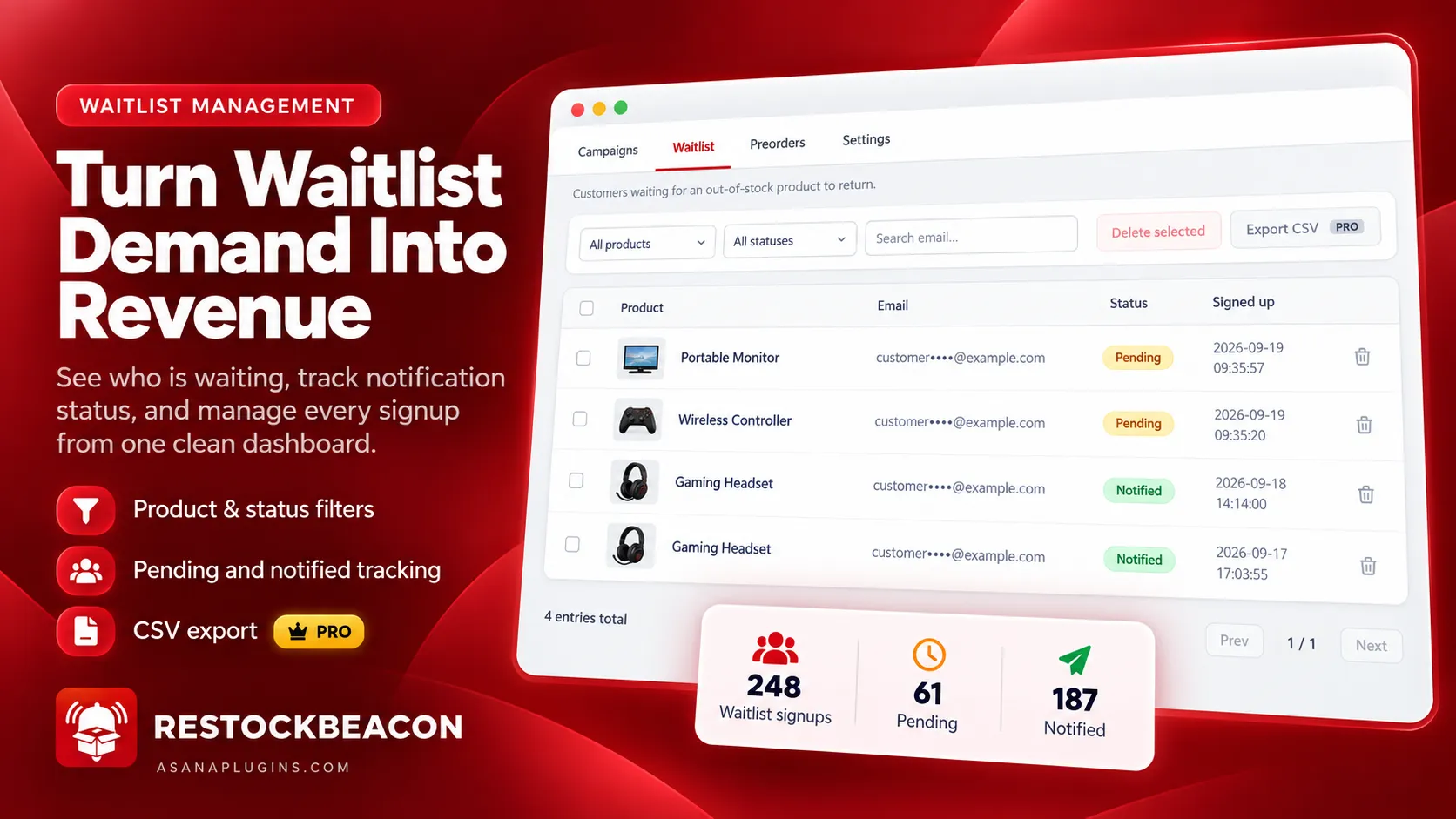
Find pending and notified sign-ups, with CSV export in Pro.
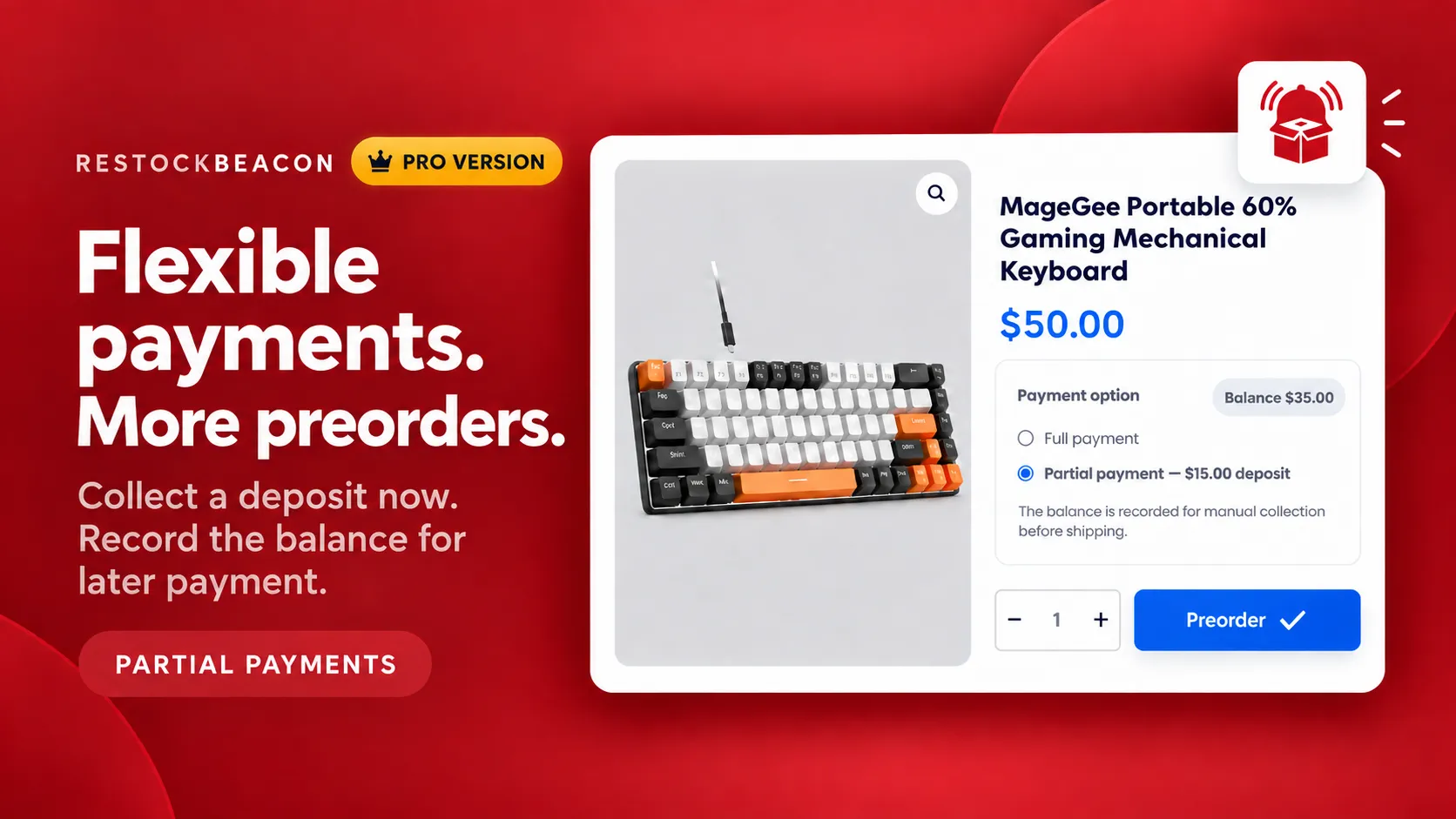
Offer a deposit at checkout and track the remaining balance on the order.
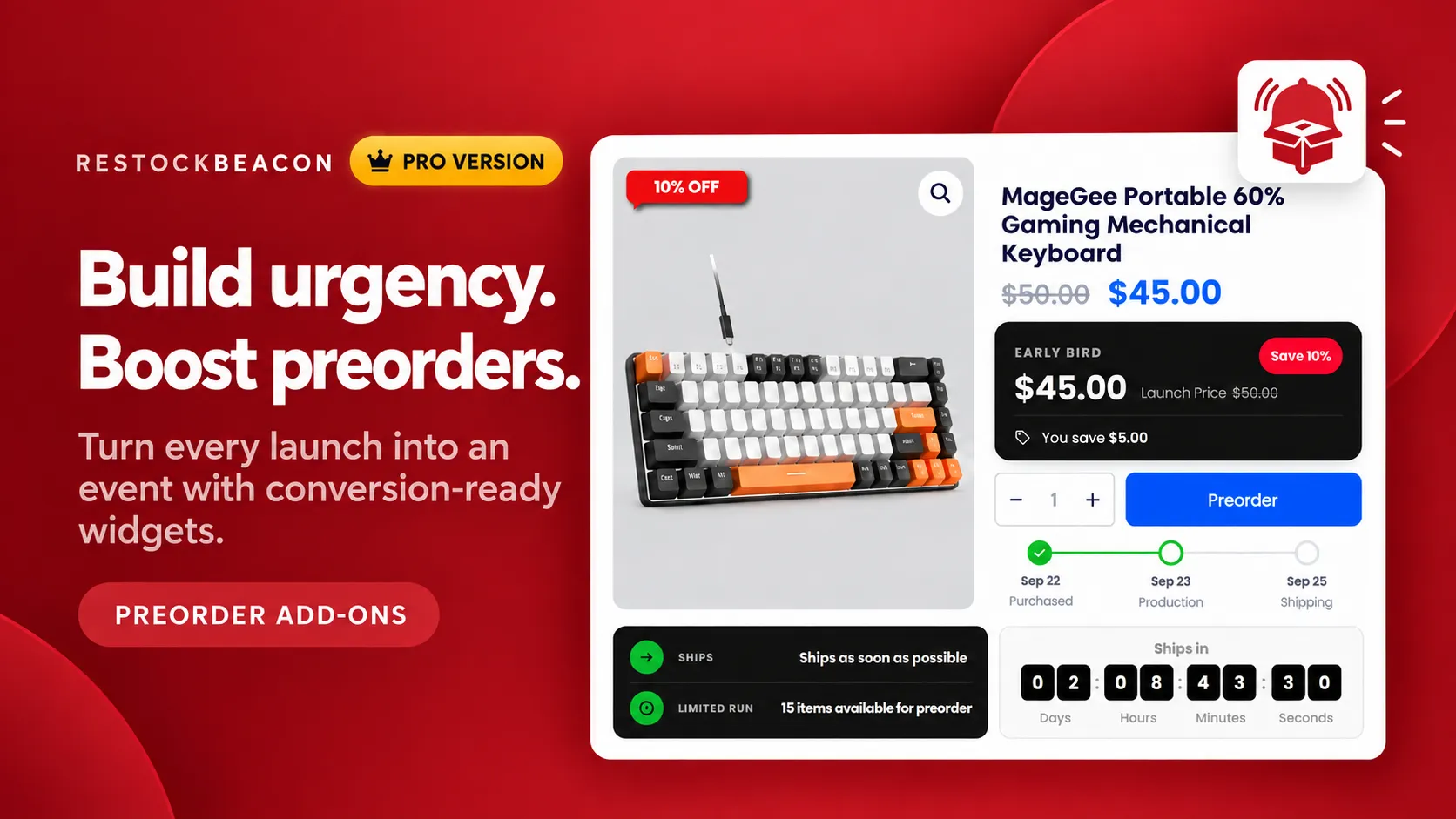
Show the preorder price beside the launch price and supporting widgets.
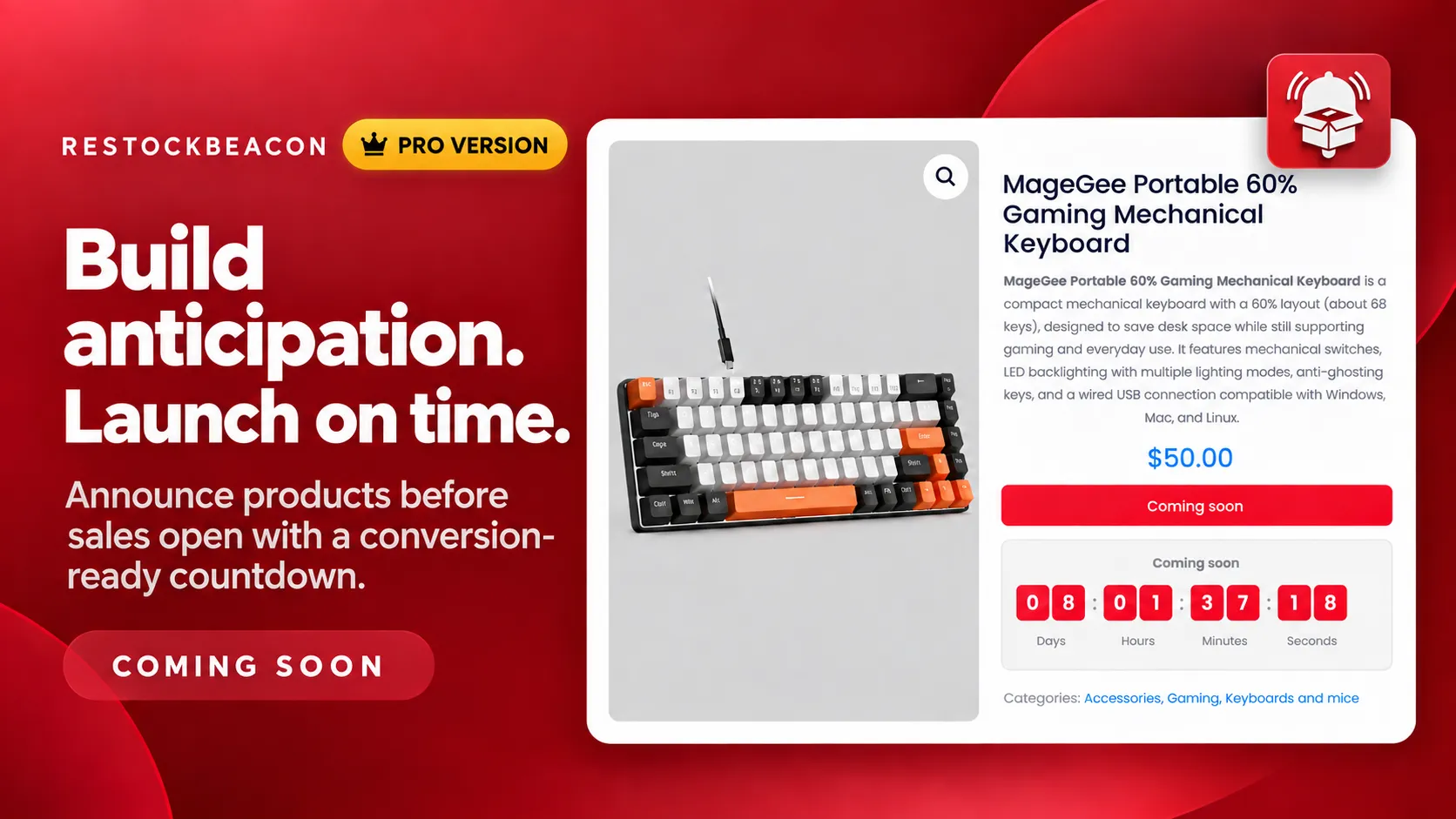
Announce a launch and show a countdown before purchasing opens.
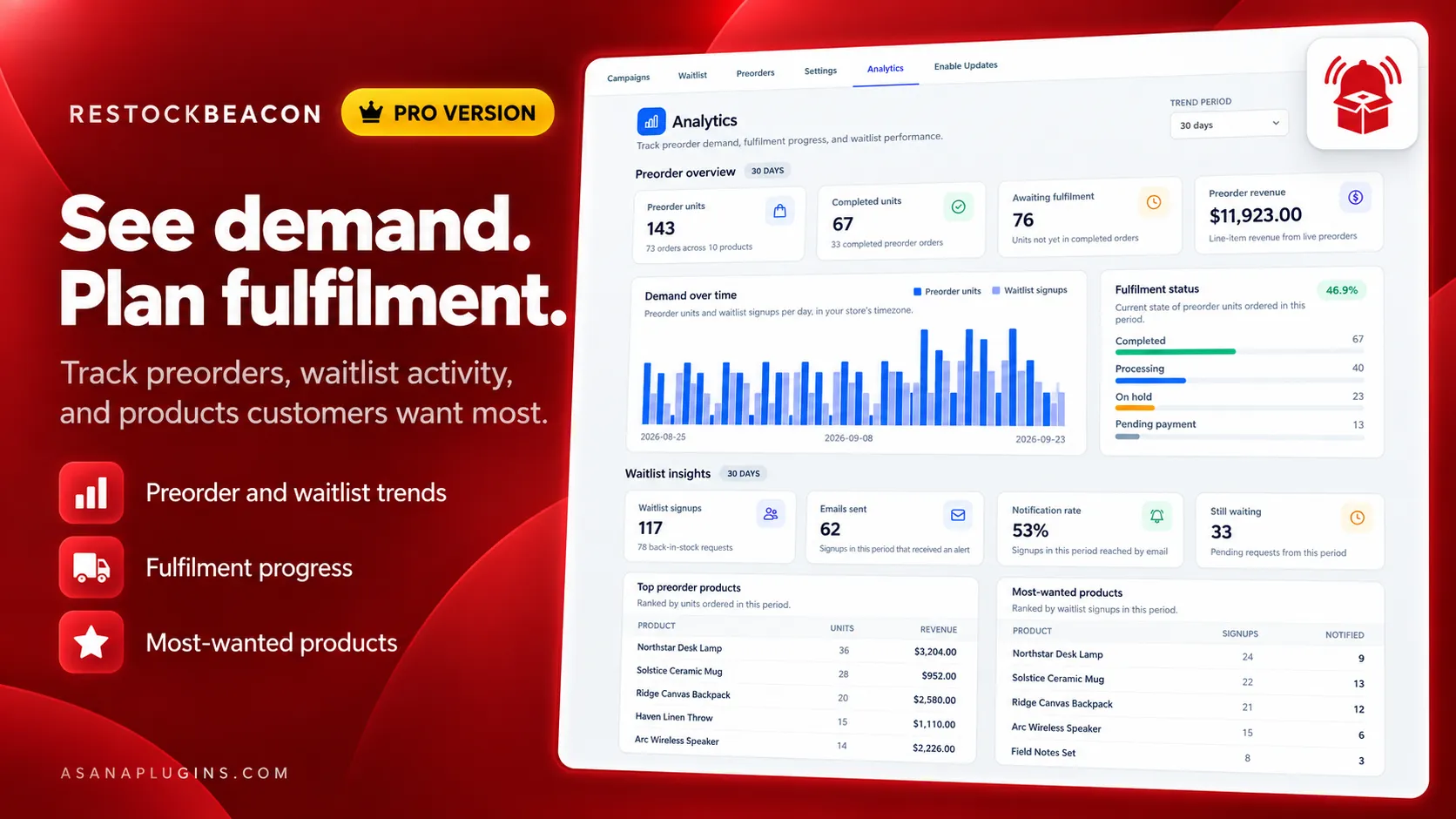
Compare preorder revenue, fulfilment progress, and waitlist demand.
Most stores install one plugin for back in stock alerts and another for preorders. Choose the behaviour that matches the product and the moment instead.
Keep Add to Cart working on upcoming and out-of-stock products, set expectations with a ship date, and flag the order for fulfilment.
Keep the buy button active on out-of-stock or unreleased products, relabel it, and add a message under it.
Explore feature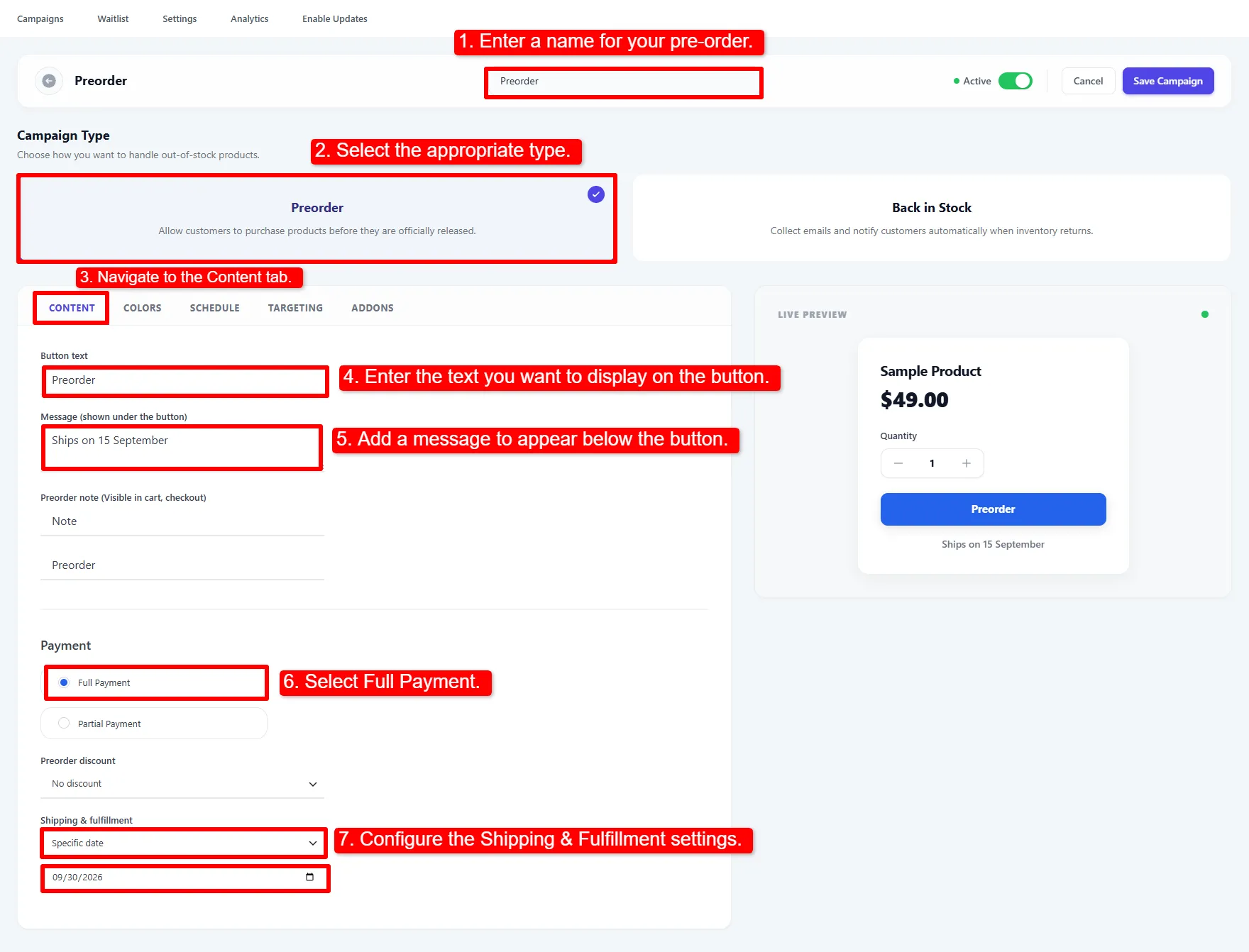
Ships as soon as possible, on a specific date, or X days, weeks or months out — shown on the button, cart, checkout and order.
Explore feature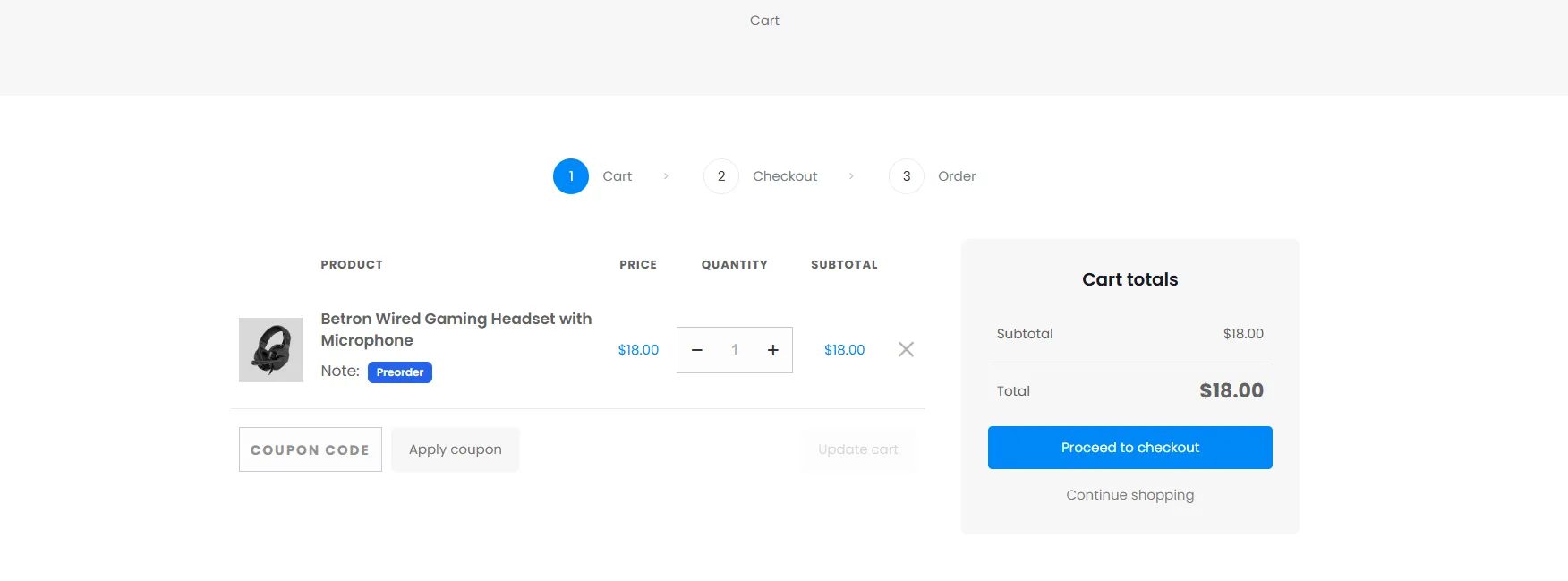
The preorder note follows the item through the cart and checkout on both the classic and Cart & Checkout Blocks experiences.
Explore feature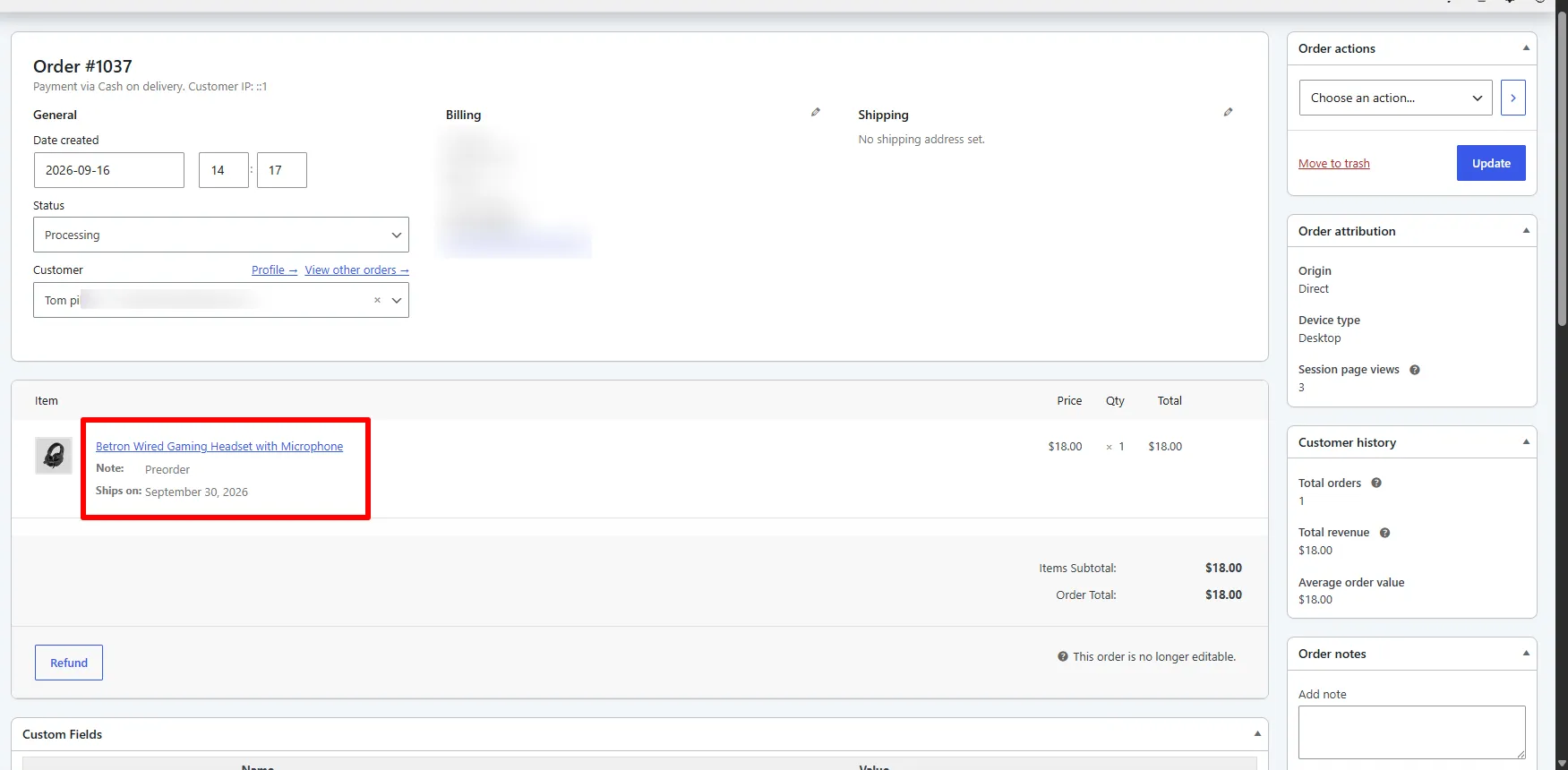
Every preorder is flagged on the order with an order note and the ship date saved, so fulfilment knows not to pick it yet.
Explore feature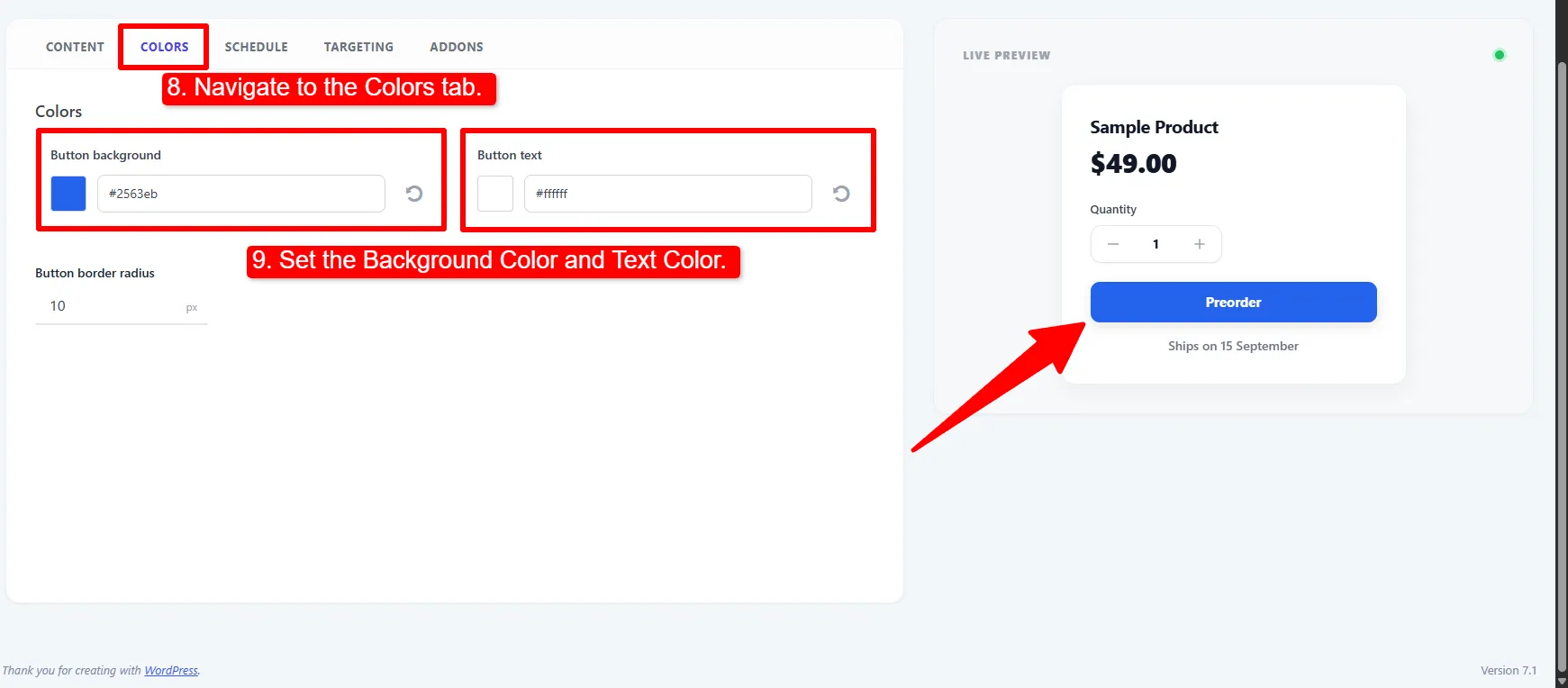
Set the preorder button background, text colour and border radius, printed as scoped CSS that survives most themes.
Explore feature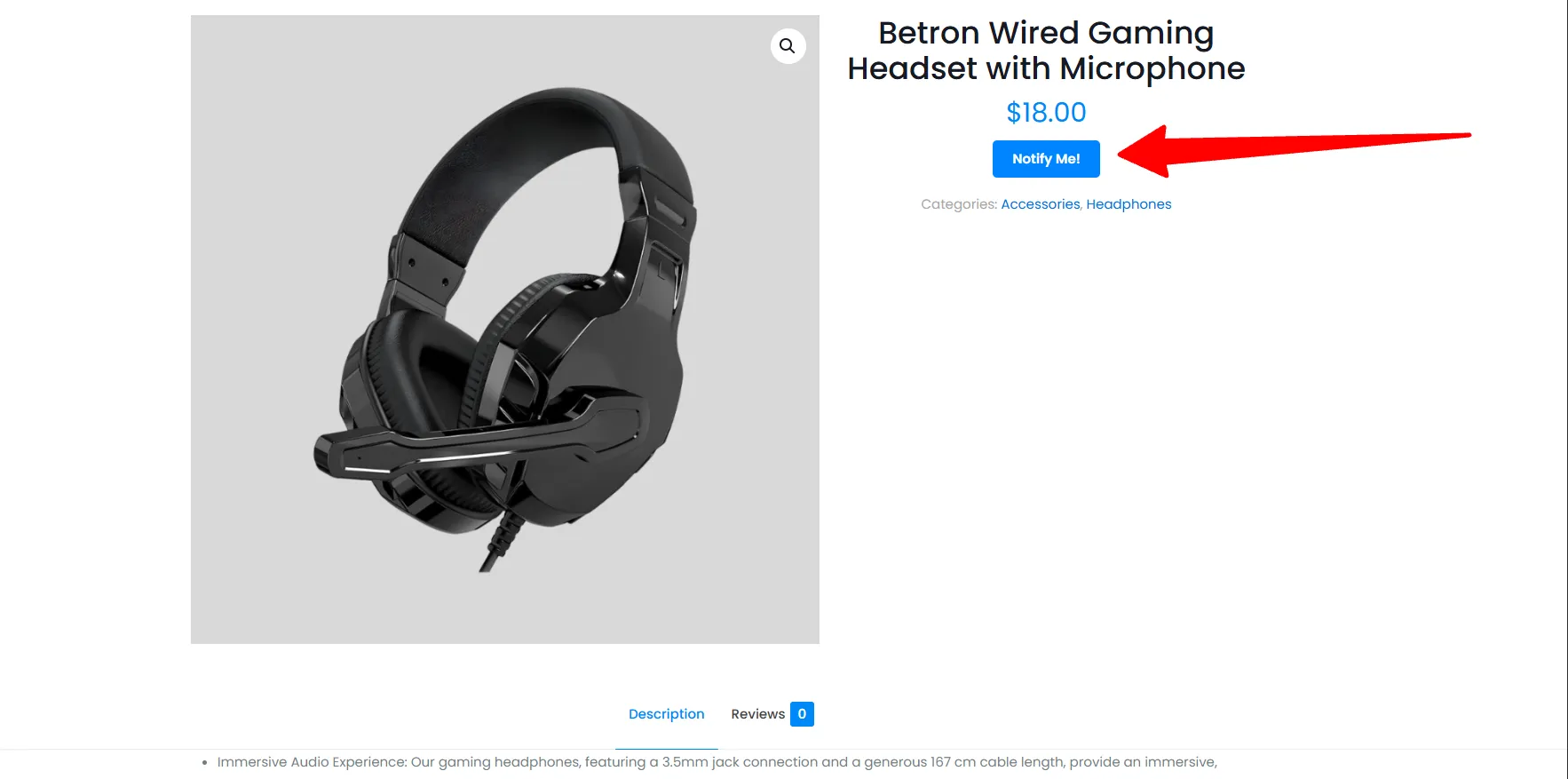
Notify Me and Preorder Message Gutenberg blocks plus a shortcode, for block themes and page builders that skip the standard hooks.
Explore featureTurn every out-of-stock product page into a waitlist sign-up, then email everyone the moment inventory returns.
Replace the dead buy button on out-of-stock products with a themed Notify me button that opens a pop-up sign-up form.
Explore feature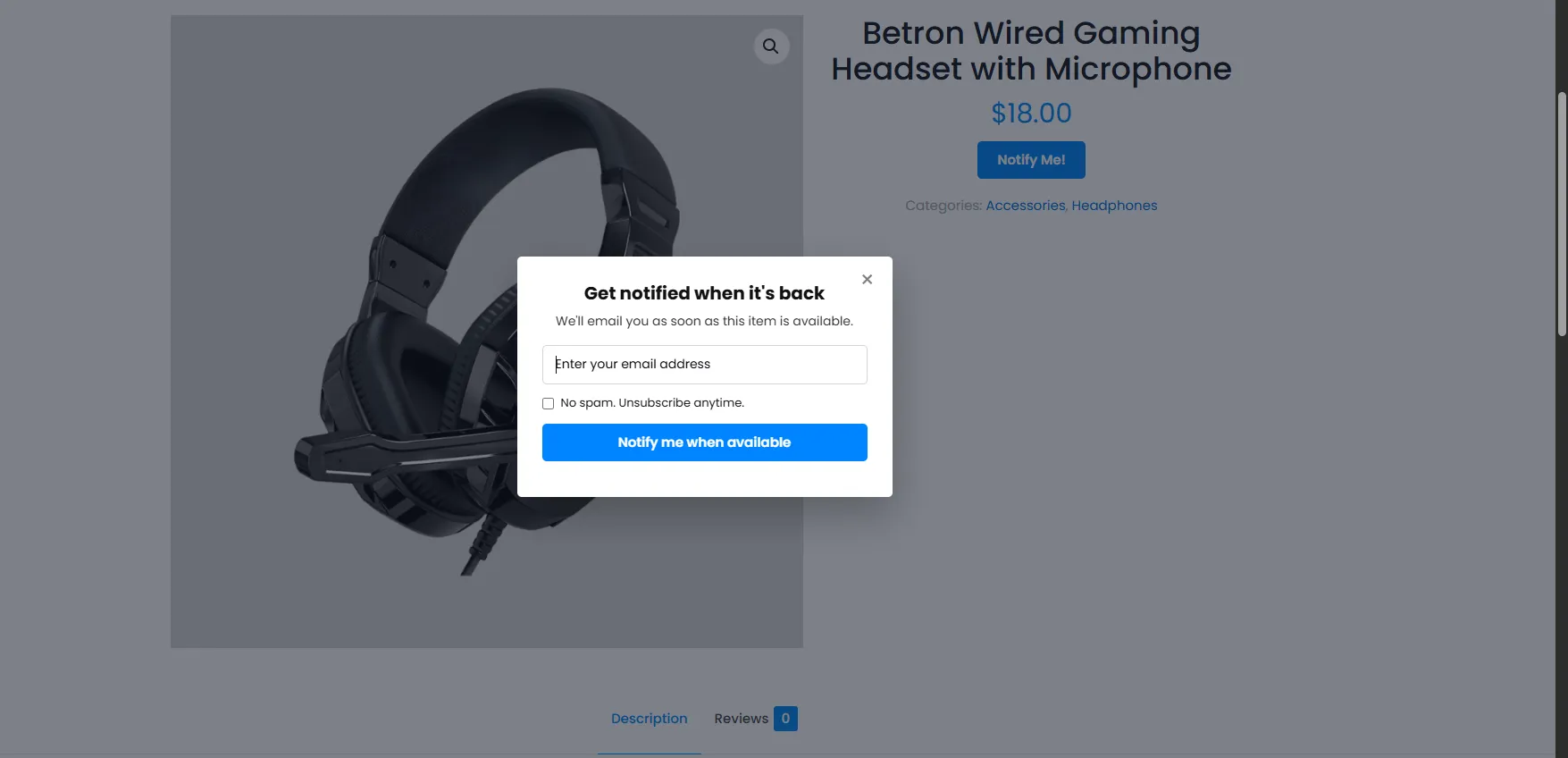
A fully styleable modal with email validation, GDPR consent, honeypot and per-IP rate limiting built in — no configuration needed.
Explore feature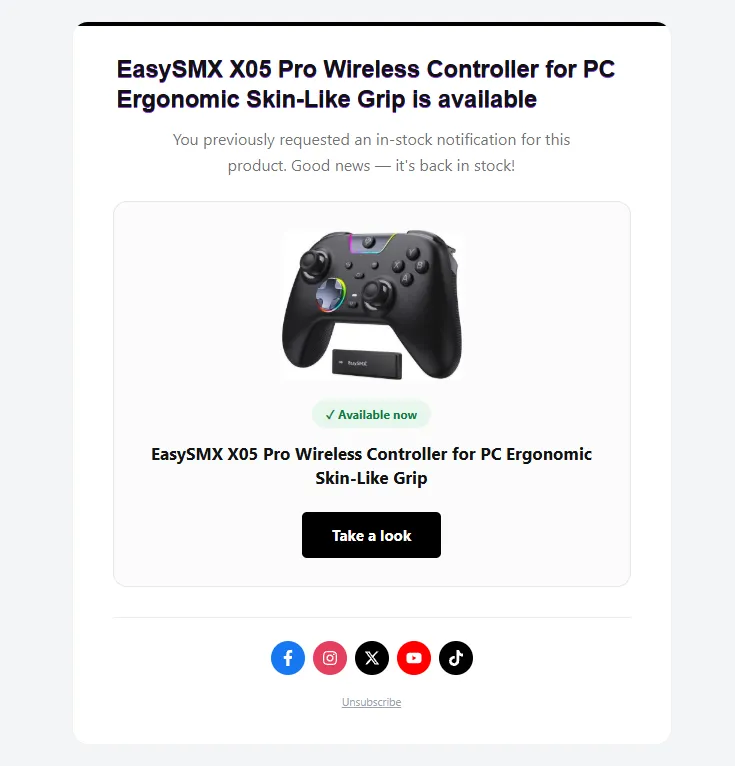
Restock detection is queued through Action Scheduler with a processing lock, so every customer is emailed once and never twice.
Explore feature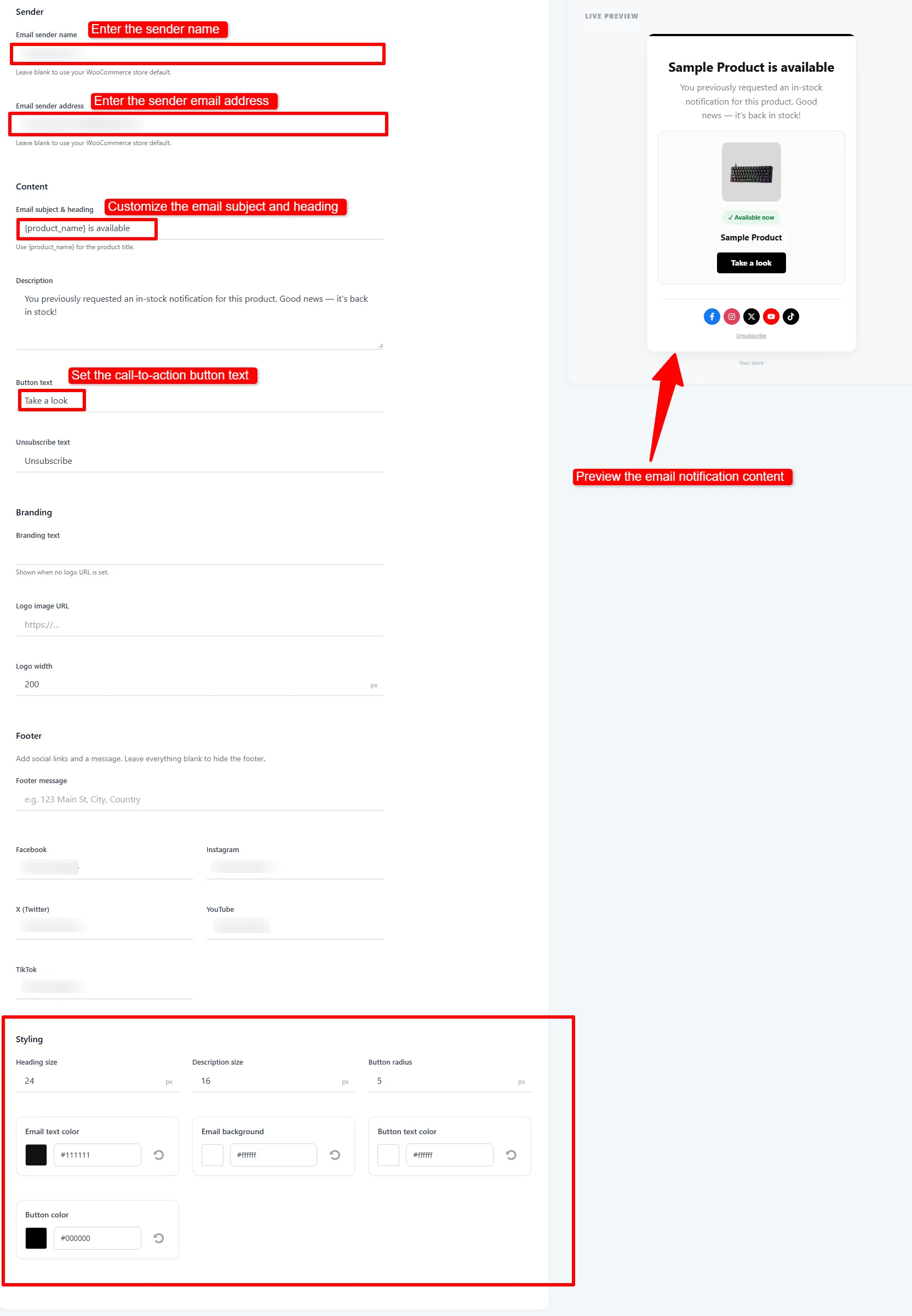
Four layouts, your logo, colours, social links and product image — with a live preview that matches exactly what sends.
Explore feature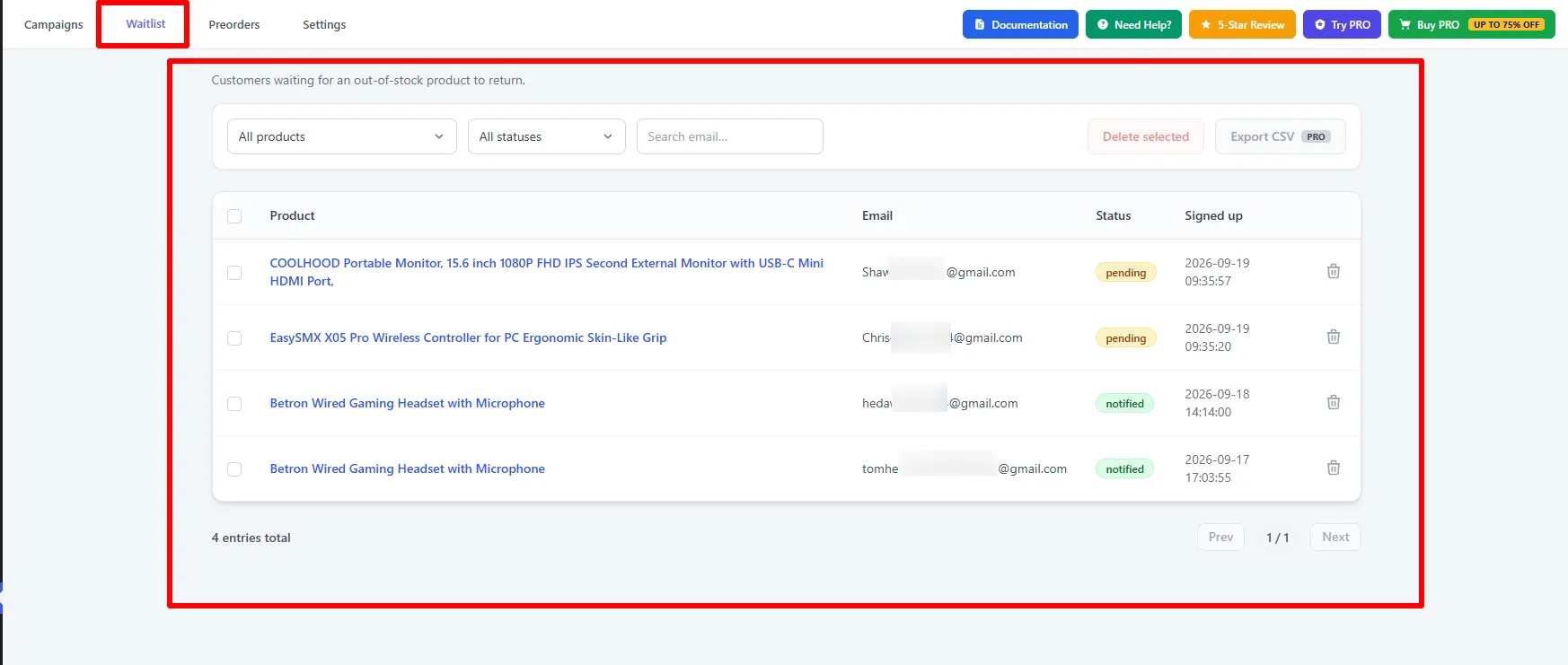
Browse and filter every sign-up by product and status, delete in bulk, and send alerts manually when stock changes outside WooCommerce.
Explore feature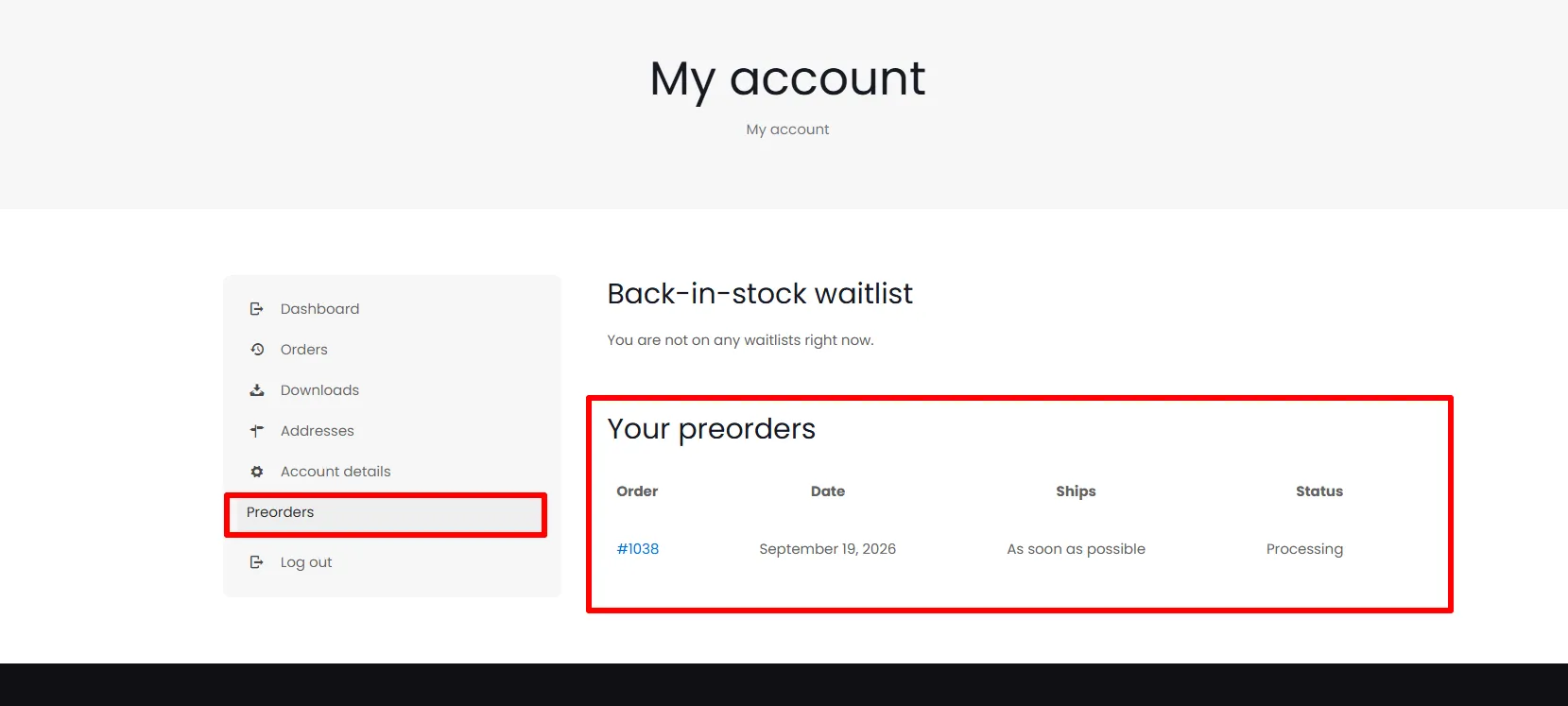
A My Account tab where customers see their own sign-ups and unsubscribe, plus a signed one-click unsubscribe link in every email.
Explore featureCampaigns replace per-product editing. Target the products, set the rules and the schedule, and the plugin applies the behaviour automatically.
Settings on the left, a live storefront preview on the right that updates as you type — before anything reaches customers.
Explore feature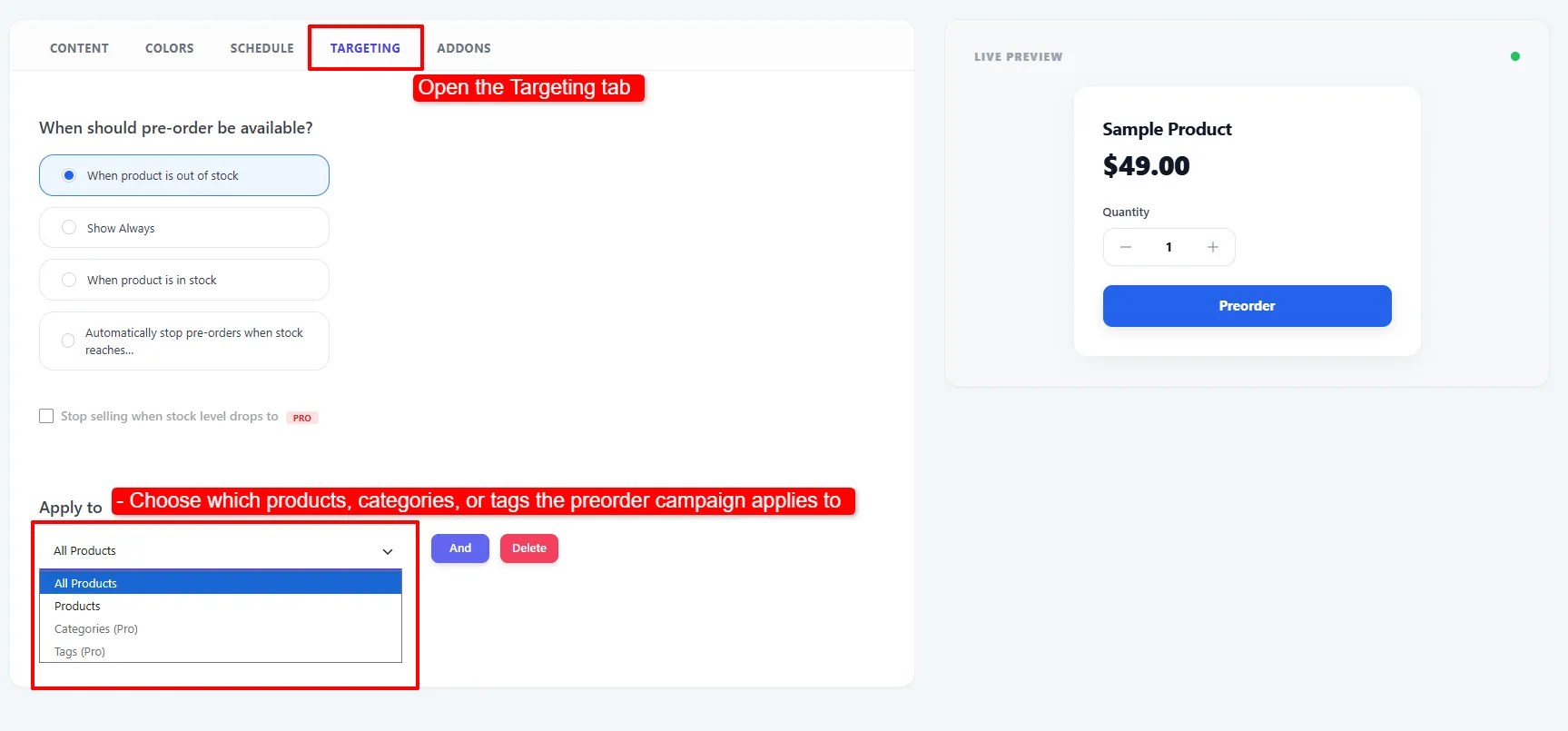
Target all products or specific products with Include and Exclude rules, plus categories and tags in Pro.
Explore feature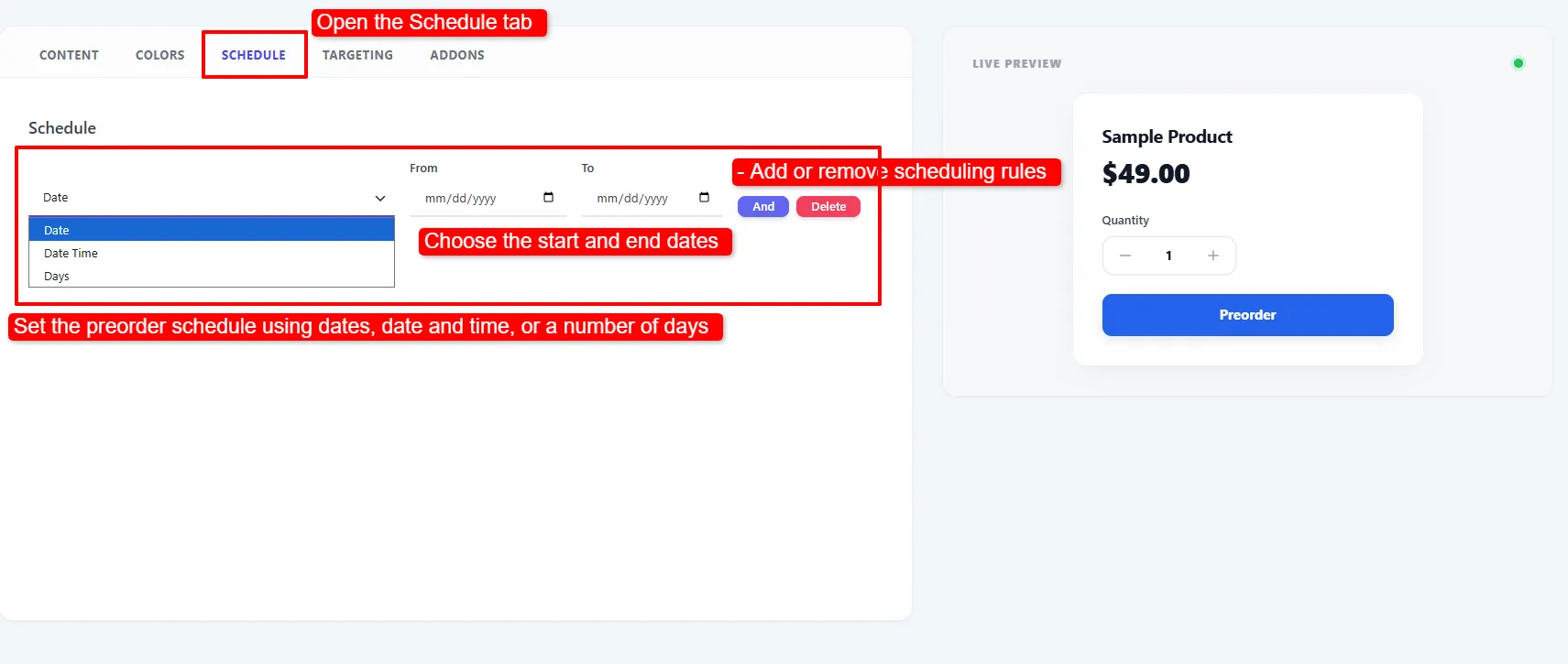
Open and close campaigns on dates, date-times or specific weekdays — or leave the schedule empty to run always.
Explore feature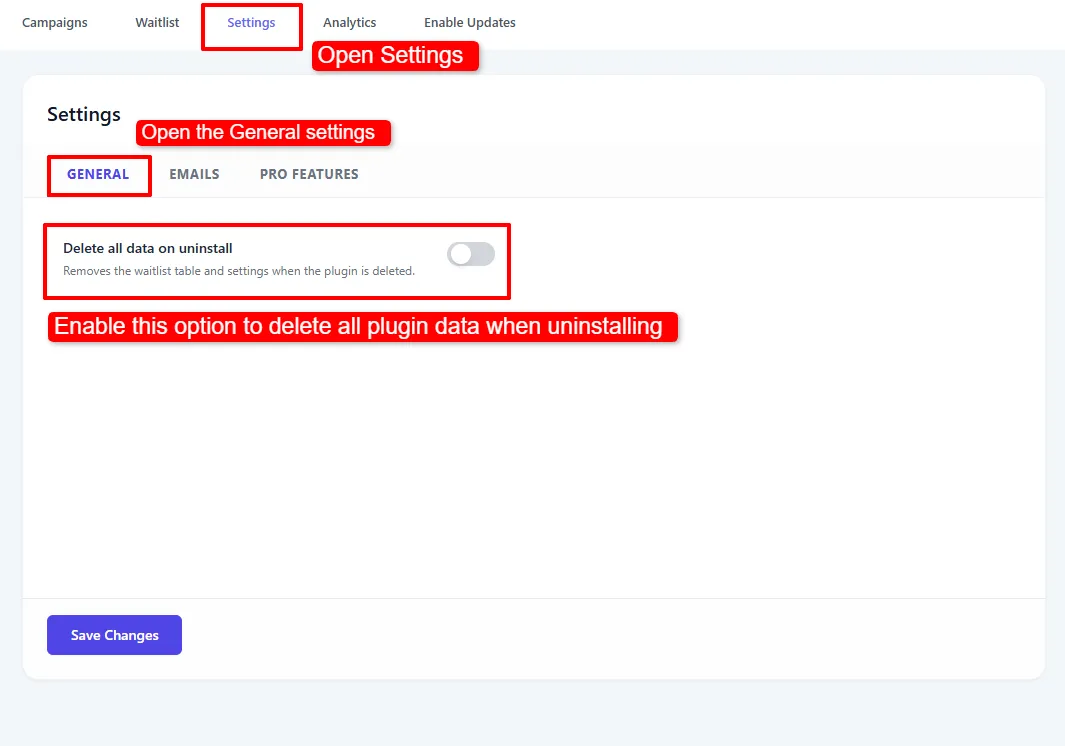
Consent at sign-up, one-click unsubscribe, personal-data export and erasure, and an opt-in clean uninstall.
Explore featureTake deposits, discount preorders, build urgency with widgets, and see what your waitlist is telling you to restock.
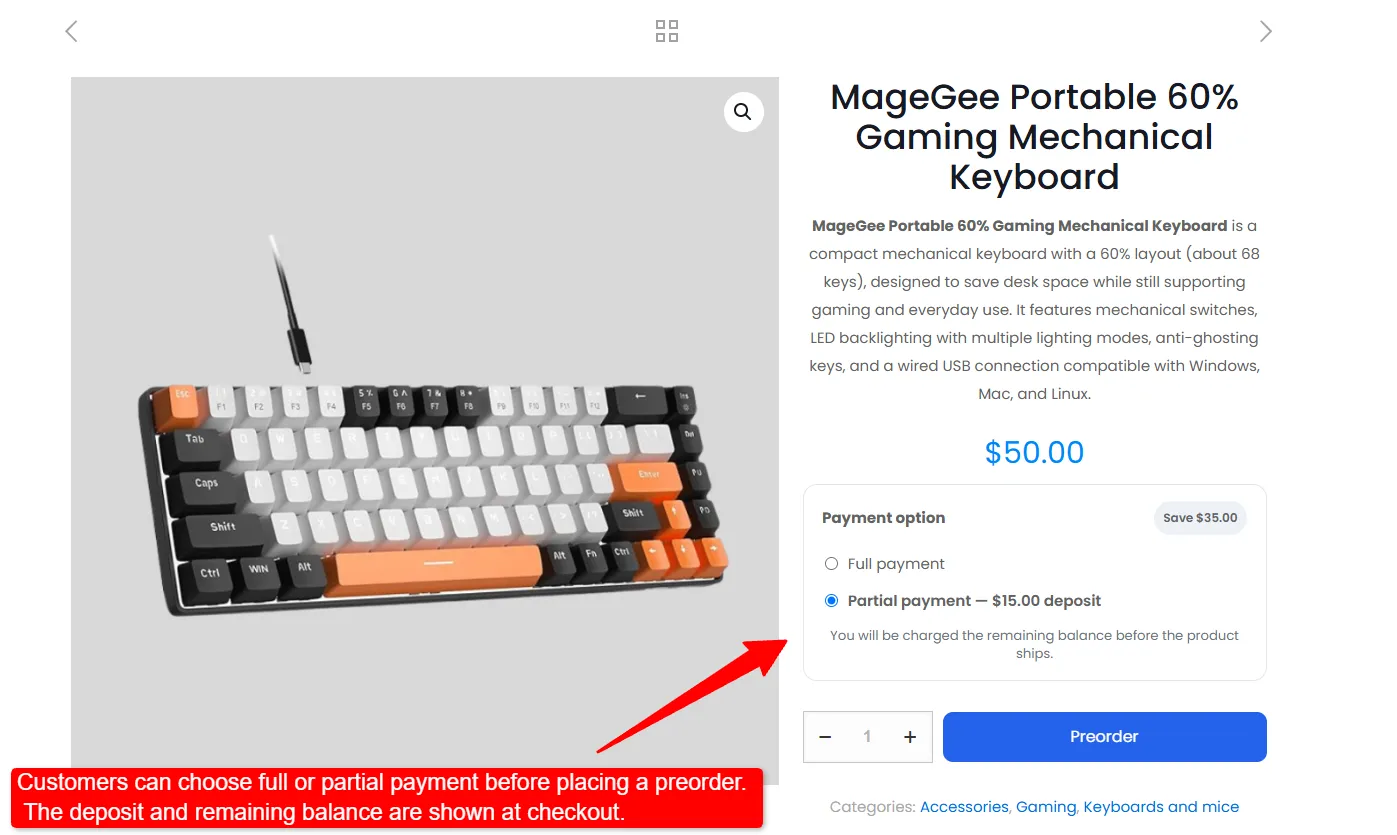
Let customers pay a percentage or fixed deposit now, with the remaining balance recorded on the order for collection before fulfilment.
Explore feature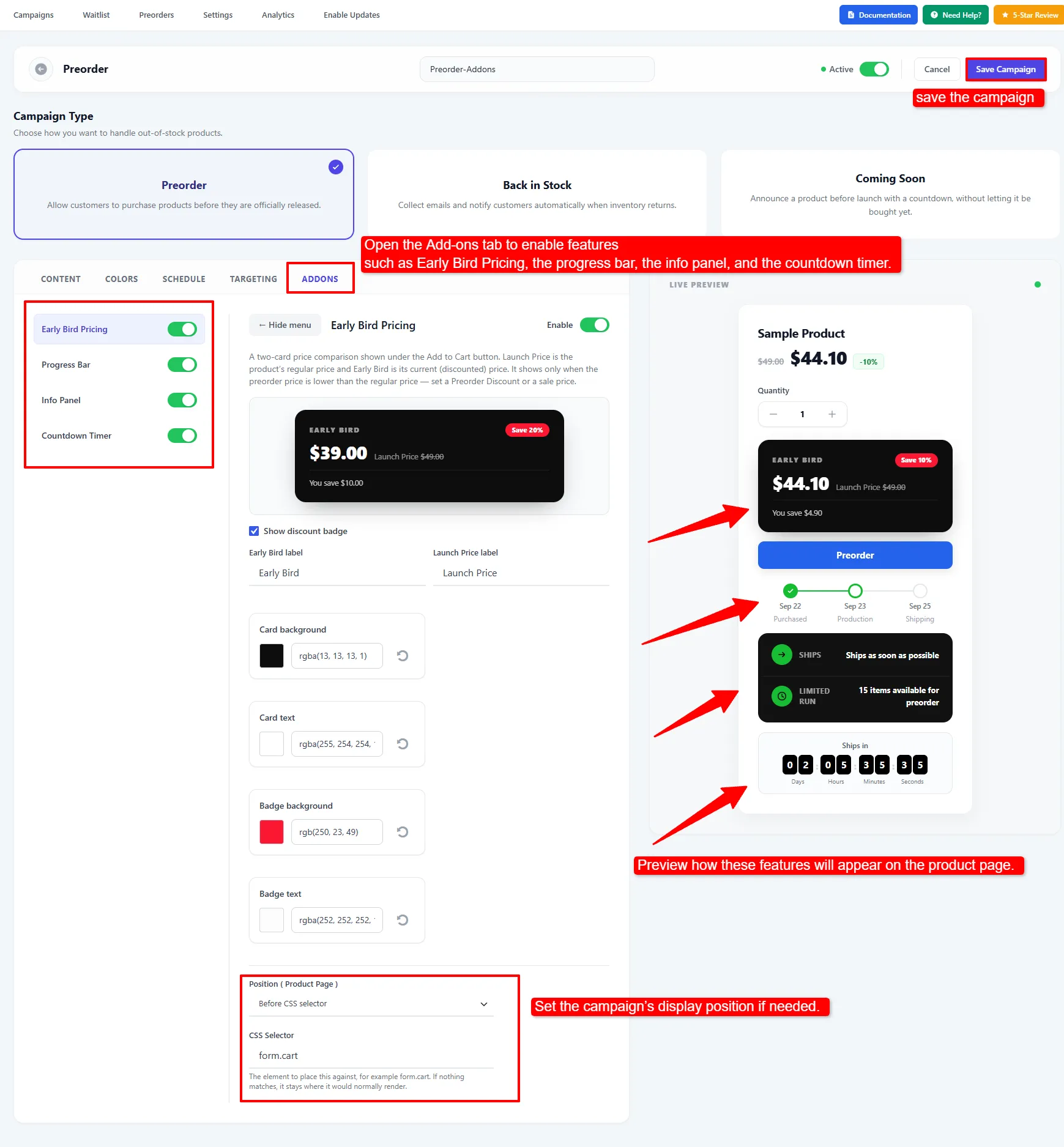
A countdown to the ship date, an order progress timeline, and an info panel with live stock, price and deposit tokens.
Explore feature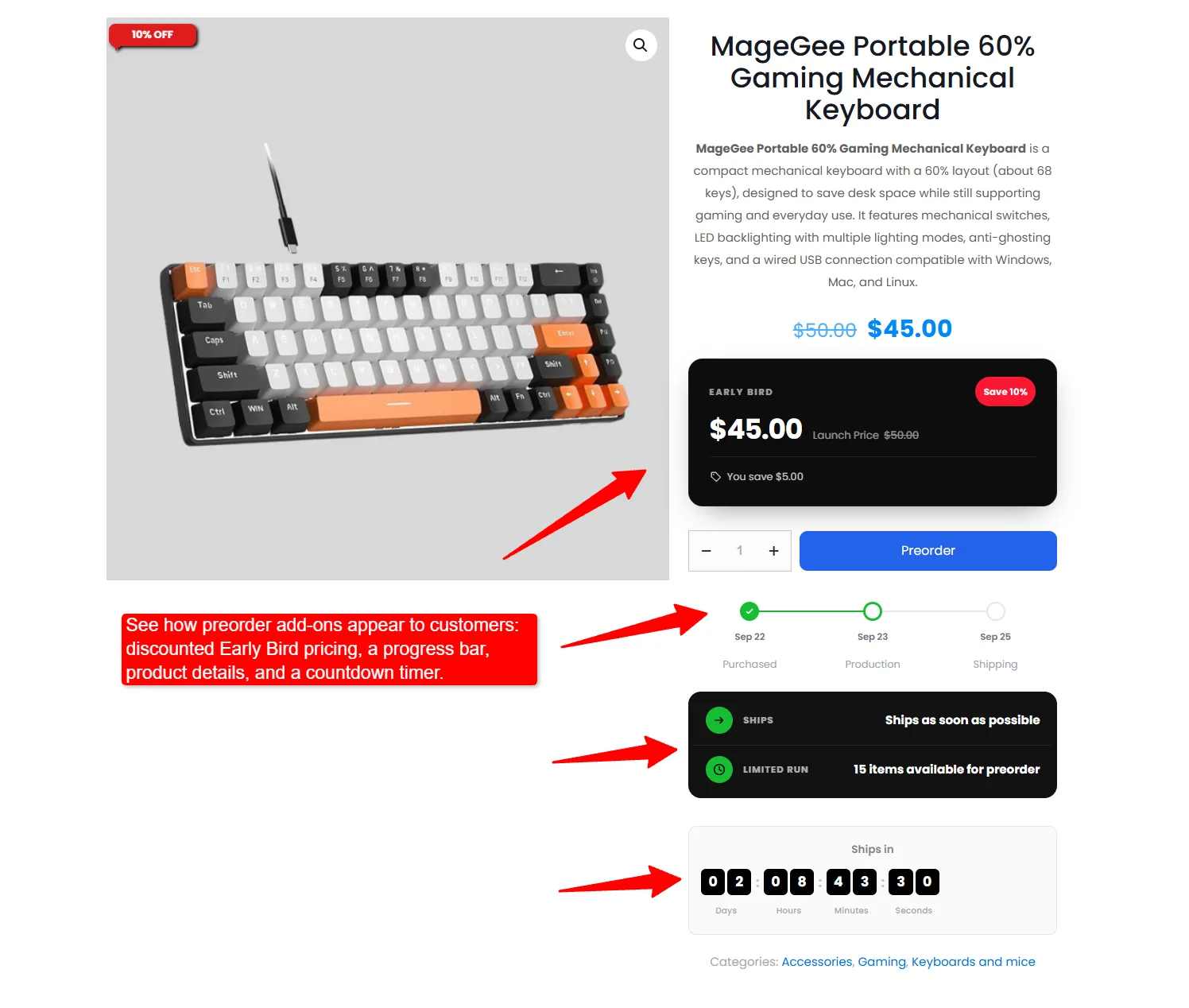
A two-card Launch Price versus Early Bird comparison that only appears when the preorder price is genuinely lower.
Explore feature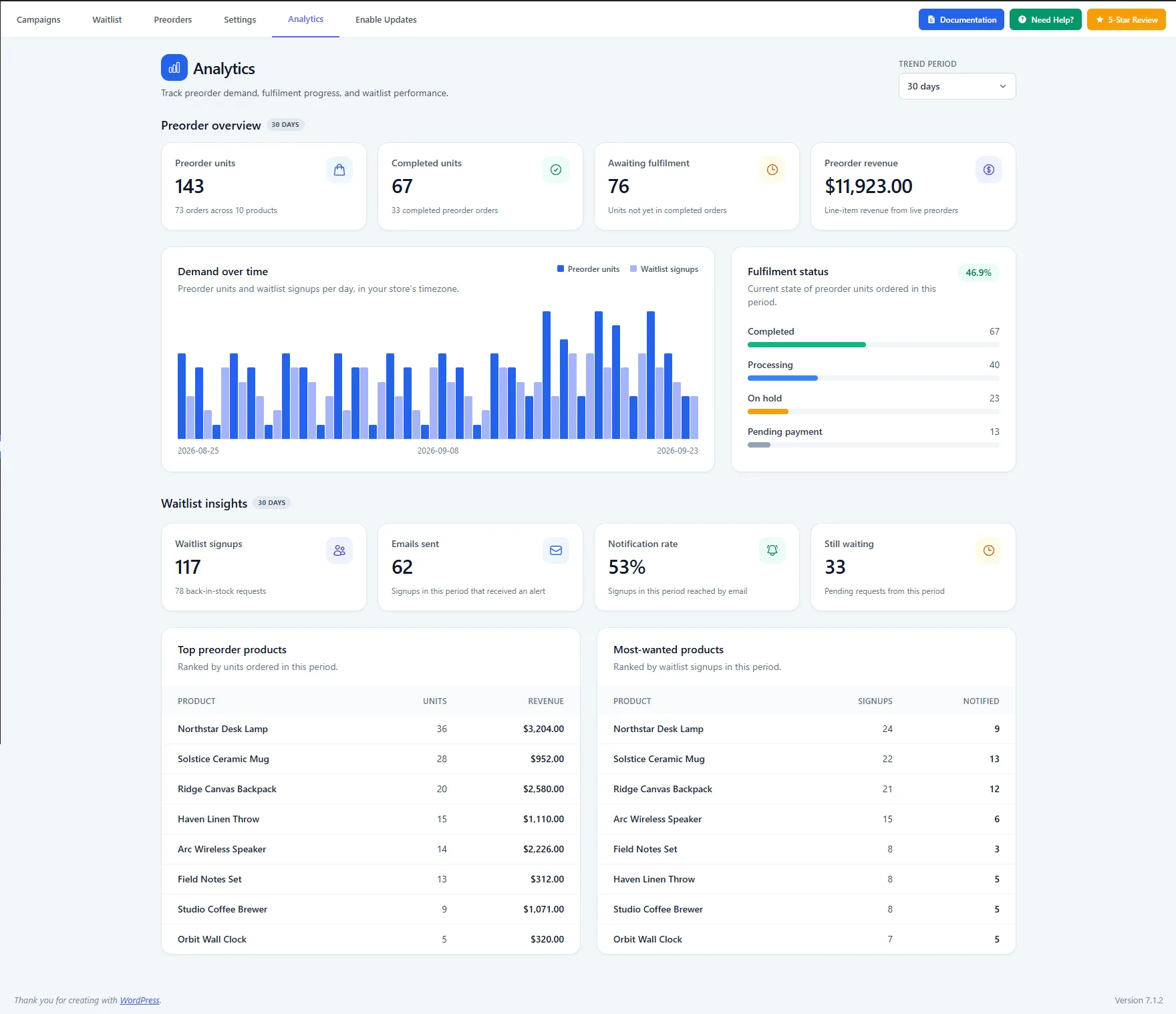
Signups over time, restock emails sent, notified rate, and your most-wanted products — a direct answer to what to reorder.
Explore featureA restock email that arrives twice, or never, costs more than the sale. These are the parts that are not optional.
Campaigns replace per-product editing, so a single configuration covers your whole catalogue — with a live preview before anything reaches customers.