How to Create Location-Based Shipping Methods in WooCommerce (City, State, Zip, Country)
Learn how to create a location-based shipping method in WooCommerce using the Discount Rules and Dynamic Pricing plugin. This complete guide covers setting up shipping costs based on customer location, including country, state, city, and postcode conditions. Offer flexible location-based shipping rates that match your store's needs.
📋 Table of Contents
- Why Create Location-Based Shipping Methods?
- Location-Based Condition Types
- Step-by-Step: Create a State-Based Shipping Method
- Step-by-Step: Create a Country-Based Shipping Method
- Step-by-Step: Create a City-Based Shipping Method
- Step-by-Step: Create a Postcode-Based Shipping Method
- Step-by-Step: Create a Shipping Zone-Based Method
- Result Example
- Troubleshooting: Shipping Method Not Showing?
- Next Steps
🚀 Why Create Location-Based Shipping Methods?
Creating location-based shipping methods allows you to offer different shipping rates and options based on where your customers are located. Whether you want to charge different rates for specific states, offer free shipping to certain cities, or create international shipping rules, location-based shipping gives you the flexibility to match your logistics needs.
Common Location-Based Shipping Scenarios
| Scenario | Description | Use Case |
|---|---|---|
| State-Based | Different rates for customers in specific states or provinces | Charge higher rates for distant states |
| Country-Based | Different rates for customers in specific countries | International shipping with different costs |
| City-Based | Different rates for customers in specific cities | Offer free delivery to local cities |
| Postcode-Based | Different rates for specific zip/postal codes | Local delivery zones with specific costs |
| Zone-Based | Different rates for entire shipping zones | Regional shipping with consistent rates |
Key Statistic: 31.6% of the top million online stores are powered by WooCommerce, with location-based shipping being a top requested feature.
Location-Based Condition Types
The Discount Rules and Dynamic Pricing plugin supports the following location-based conditions for shipping methods:
| Condition | Description | Example |
|---|---|---|
| Shipping Country | Apply method when customer's country matches | United States, Canada, United Kingdom |
| Shipping State | Apply method when customer's state/province matches | New York, California, Texas |
| Shipping City | Apply method when customer's city matches | New York, Los Angeles, Chicago |
| Shipping Postcode | Apply method when customer's postcode matches | 90210, 10001, 100* (wildcard) |
| Shipping Zone | Apply method when customer's shipping zone matches | Domestic US, Europe, Local |
Note: Shipping zones are matched in a hierarchy, from the top of the list to the bottom. WooCommerce chooses the first shipping zone that a customer matches and shows those options on the cart and checkout pages.
Step-by-Step: Create a State-Based Shipping Method
Best for: Charging different rates for customers in specific states or provinces. Perfect for stores with varying shipping costs by location.
Scenario: Create a shipping method called "New York Shipping" with a cost of $30 for customers in New York and New Mexico.
Step 1: Access Shipping Methods and Choose a Template
- In your WordPress admin, go to the Woo Pricing & Discounts menu
- Open the Shipping Methods tab
- Click on the Add from Template button
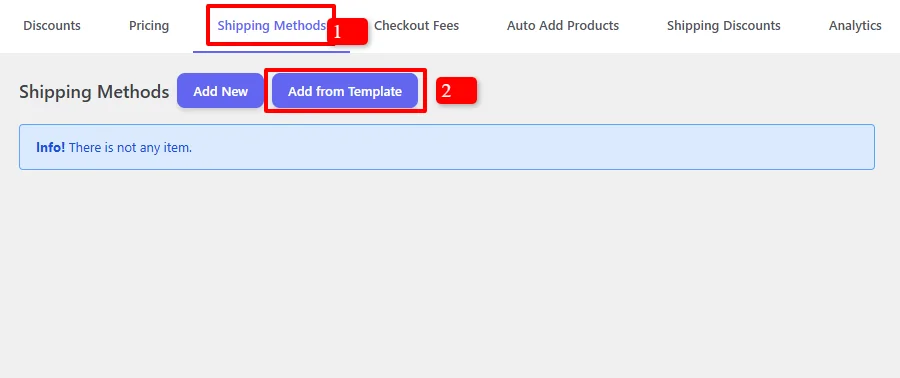
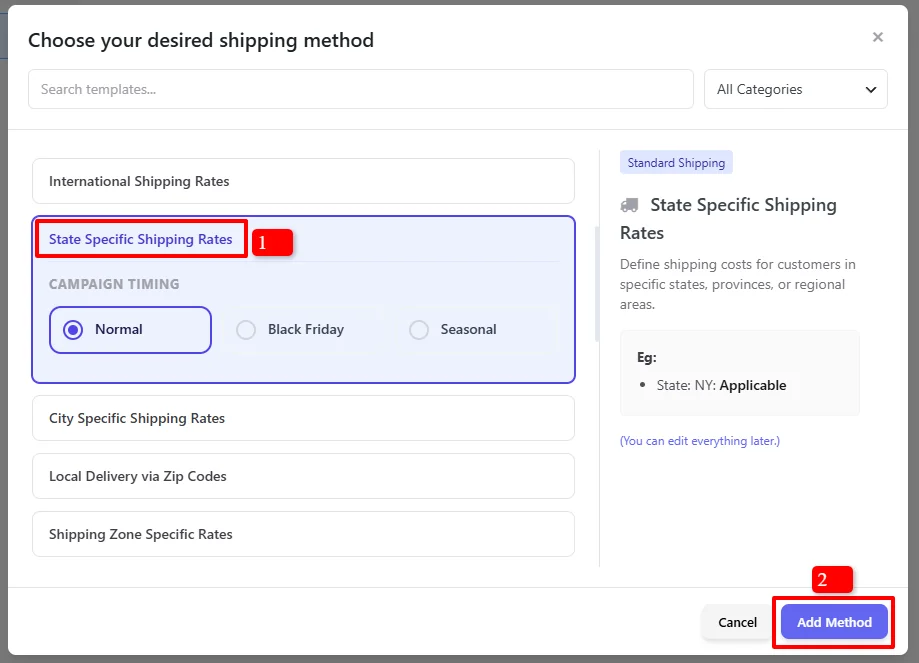
- Under Standard Shipping, find and select "State Specific Shipping Rates"
- Click "Add Method"
Step 2: Configure the Shipping Method
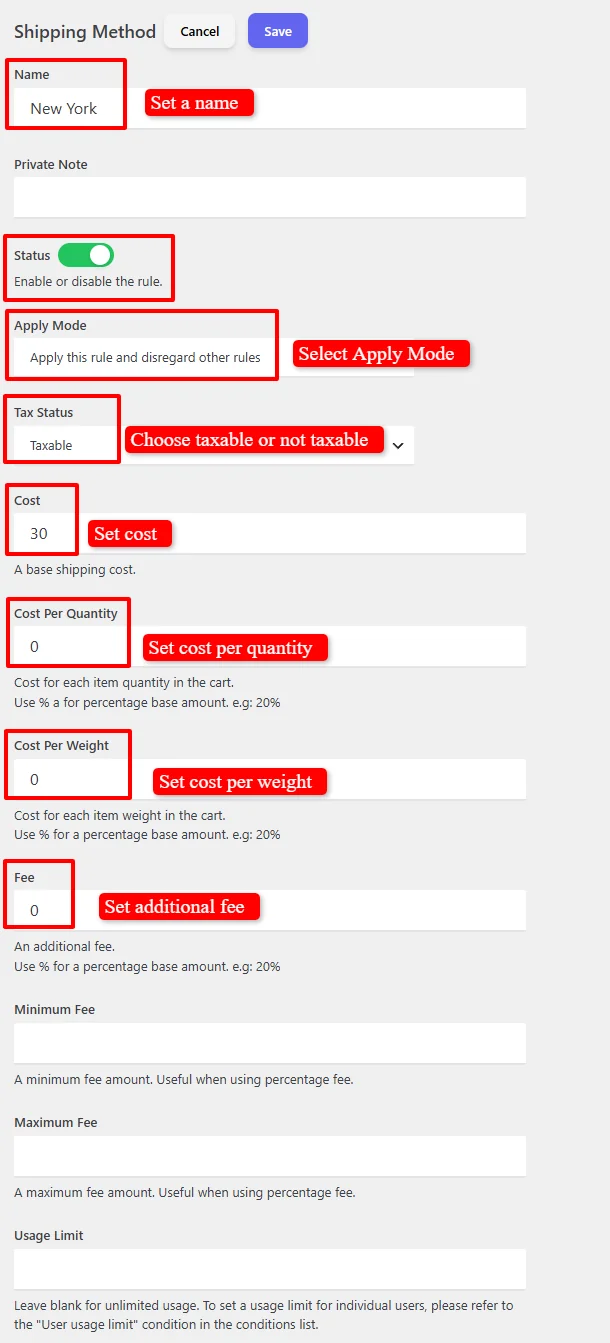
- Name: "New York" (customizable) — This is the title customers see at checkout
- Status: Ensure Enable is checked
- Apply Mode: Choose how this rule interacts with other shipping methods
- Apply this rule and disregard other rules — Only this shipping method will be shown
- Apply with other applicable rules — This method will appear alongside other options
- Apply if other rules are not applicable — This method will appear if other shipping methods are not applicable
- Tax Status: Choose Taxable or None
- Cost: Enter the base shipping cost (e.g.,
30) - Cost Per Quantity: (Optional) Set a cost per item
- Cost Per Weight: (Optional) Set a cost per weight unit
- Fee: (Optional) Add an additional fee
Step 3: Schedule the Shipping Rule (Optional)
By default, the campaign is unscheduled and runs immediately:

For scheduled promotions, under the "Date Time" section to configure:
- Date Range — Run a promotion over a period (e.g., for a holiday sale)
- Date Time Range — Precise start and end date/time for limited-time offers
- Specific Date — Single date activation (e.g., Black Friday)
- Days — Recurring weekly promotions (e.g., Free Shipping Fridays)
- Time — Daily time ranges (e.g., flash free shipping)

Use "+ And New Rule" to combine conditions or "+ OR New Group" for alternative schedules.
For a deep dive into timezone setup, recurring schedules, and multi-tier scheduling logic, read our comprehensive Scheduling & Date-Time Guide.
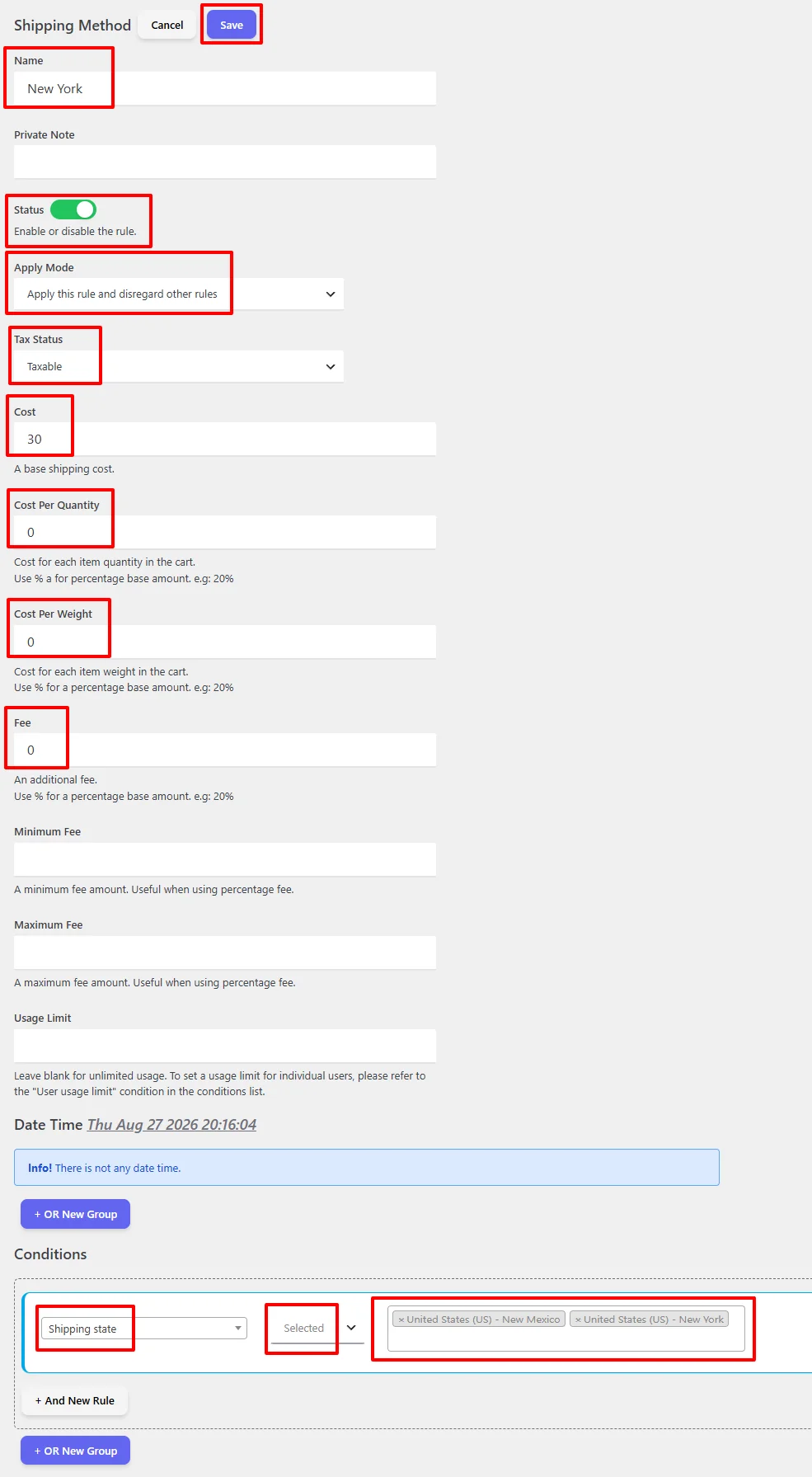
Step 4: Set State Conditions
Under the Conditions section:
- Add a "Shipping state" condition
- Select the states where this shipping method should apply
- You can select multiple states

Example: In our tutorial, we'll select United States (US) - New Mexico and United States (US) - New York.
For full details on all 14 condition groups, AND/OR logic, and available comparison operators, check out our Complete Rule Conditions Guide.
Step 5: Save and Test
Click Save and test by entering a shipping address in one of the selected states.
Step-by-Step: Create a Country-Based Shipping Method
Best for: Charging different rates for customers in specific countries. Perfect for international shipping.
Scenario: Create a shipping method for customers in the United States and United Kingdom.
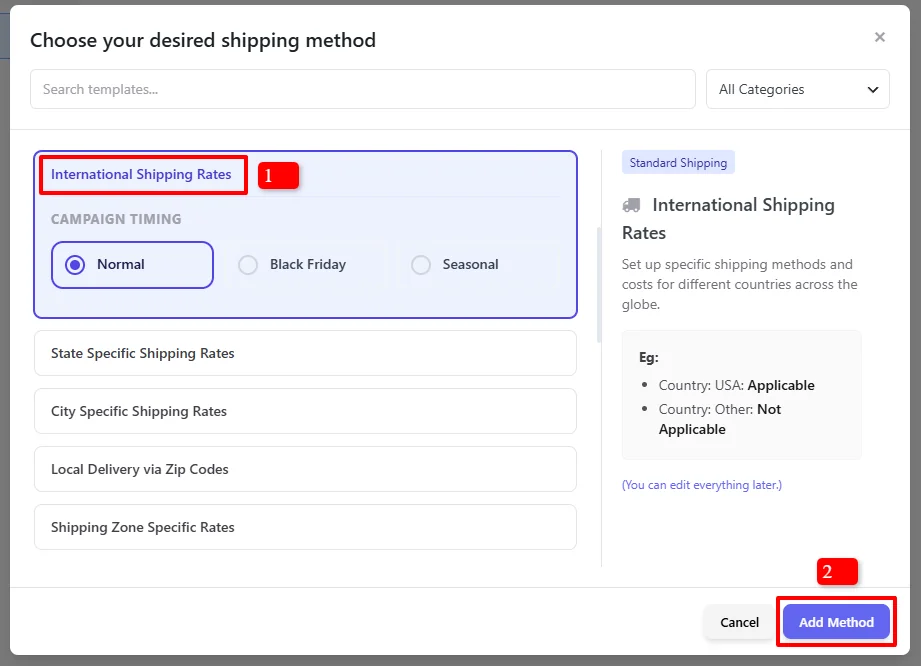
Step 1: Access Shipping Methods and Choose a Template
- Go to Woo Pricing & Discounts > Shipping Methods
- Click Add from Template
- Select "State Specific Shipping Rates" (or use "Custom Shipping Method")
- Click "Add Method"
Step 2: Configure the Shipping Method
Follow the same configuration steps as the state-based method, setting your desired shipping cost.
Step 3: Set Country Conditions
Under the Conditions section:
- Add a "Shipping country" condition
- Select the countries where this shipping method should apply
- You can select multiple countries

Example: In our tutorial, we'll select United Kingdom (UK) and United States (US).
For full details on all 14 condition groups, AND/OR logic, and available comparison operators, check out our Complete Rule Conditions Guide.
Step-by-Step: Create a City-Based Shipping Method
Best for: Offering free shipping or special rates to specific cities. Perfect for local delivery zones.
Scenario: Create a shipping method for customers in New York, Los Angeles, and Chicago.
Step 1: Access Shipping Methods and Choose a Template
- Go to Woo Pricing & Discounts > Shipping Methods
- Click Add from Template
- Select "City Specific Shipping Rates"
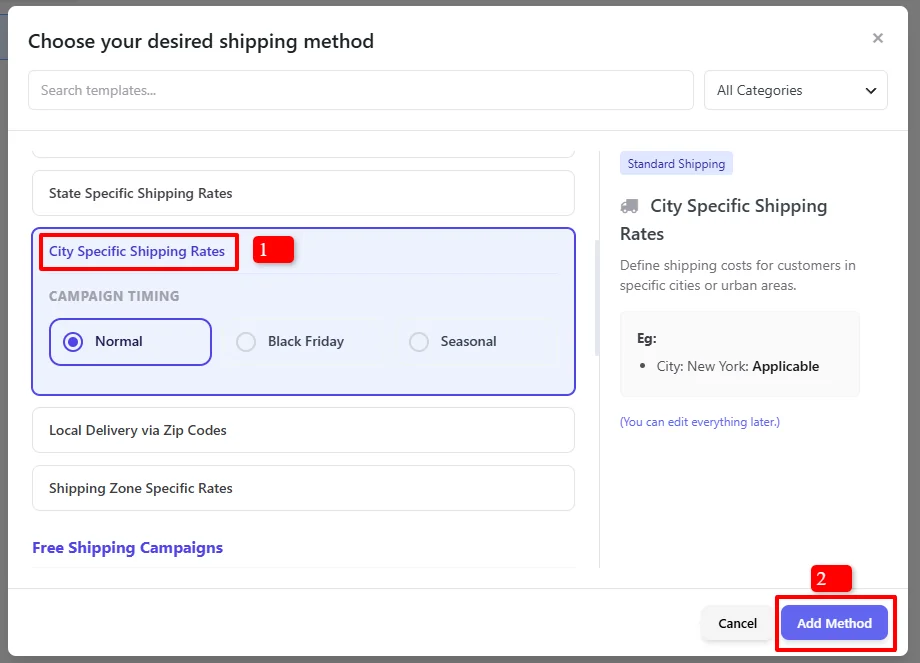
- Click "Add Method"
Step 2: Configure the Shipping Method
Follow the same configuration steps as the state-based method.
Step 3: Set City Conditions
Under the Conditions section:
- Add a "Shipping city" condition
- Select "Equal to comma separated list"
- Enter the city names separated by commas

Example: In our tutorial, we'll enter New York, Los Angeles, Chicago.
💡 Tip: Cities are matched exactly as entered. Make sure the city names match the format customers use at checkout.
For full details on all 14 condition groups, AND/OR logic, and available comparison operators, check out our Complete Rule Conditions Guide.
Step-by-Step: Create a Postcode-Based Shipping Method
Best for: Offering different rates for specific postal codes or zip codes.
Scenario: Create a shipping method for customers with specific postcodes.
Step 1: Access Shipping Methods and Choose a Template
- Go to Woo Pricing & Discounts > Shipping Methods
- Click Add from Template
- Select "Local Delivery via Zip Codes"
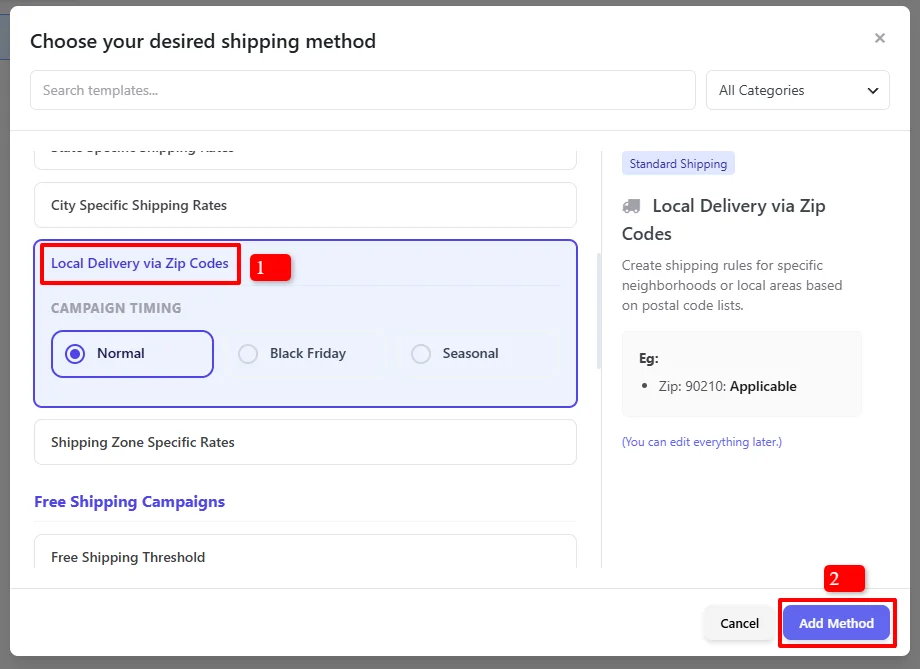
- Click "Add Method"
Step 2: Configure the Shipping Method
Follow the same configuration steps as the state-based method.
Step 3: Set Postcode Conditions
Under the Conditions section:
- Add a "Shipping postcode" condition
- Select "Match"
- Enter the postcode pattern

Supported Postcode Formats:
- Specific postcode:
96969 - Wildcard:
969**(matches all postcodes starting with 969) - Range:
[96960 - 96970] - UK Postcode:
SIQQ 1ZZ - Multiple:
96969, 969**, [96960 - 96970], SIQQ 1ZZ
For full details on all 14 condition groups, AND/OR logic, and available comparison operators, check out our Complete Rule Conditions Guide.
Step-by-Step: Create a Shipping Zone-Based Method
Best for: Applying shipping methods to entire shipping zones.
Scenario: Create a shipping method for customers in a specific shipping zone.
Step 1: Access Shipping Methods and Choose a Template
- Go to Woo Pricing & Discounts > Shipping Methods
- Click Add from Template
- Select "Shipping Zone Specific Rates"
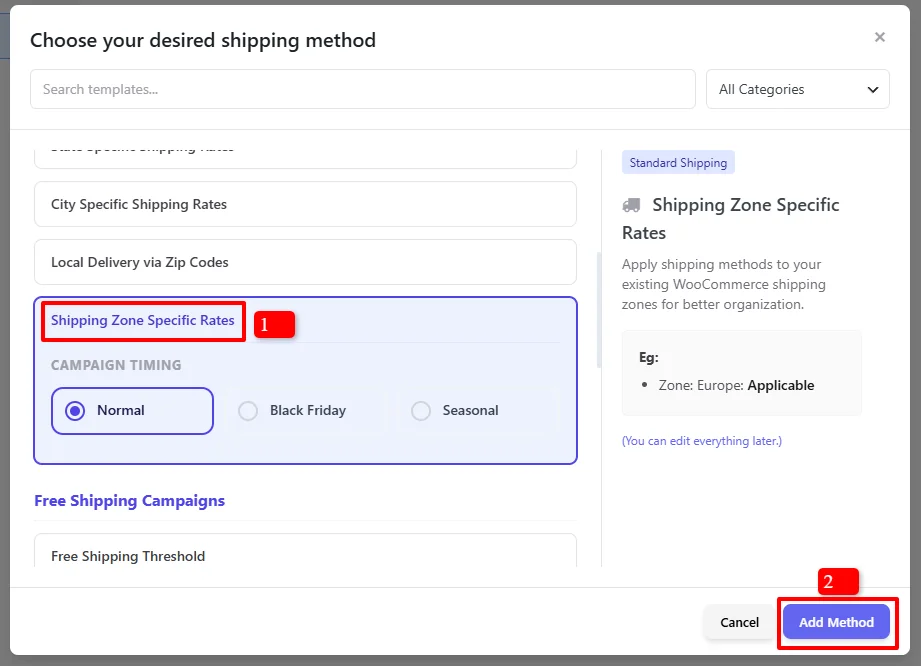
- Click "Add Method"
Step 2: Configure the Shipping Method
Follow the same configuration steps as the state-based method.
Step 3: Set Shipping Zone Conditions
Under the Conditions section:
- Add a "Shipping zone" condition
- Select the shipping zones where this method should apply

💡 Note: Shipping zones must be created in WooCommerce > Settings > Shipping > Shipping Zones before they appear in the conditions list.
For full details on all 14 condition groups, AND/OR logic, and available comparison operators, check out our Complete Rule Conditions Guide.
Result Example
State-Based Shipping Method Result
Cart items:
- Shirt: $20.00
- Shirt - Green: $25.00 × 2
Subtotal: $70.00
Customer Address: New York
Result: The "New York" shipping method appears with a cost of $30.00.
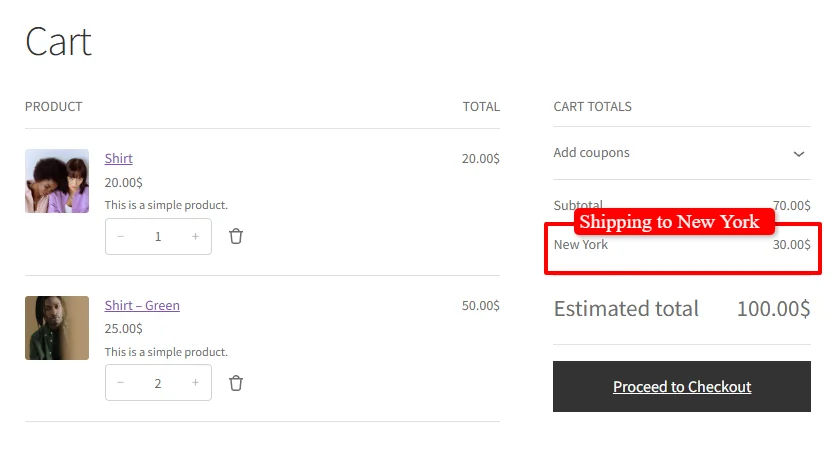
Cart display shows:
- Subtotal: $70.00
- Shipping method: New York — $30.00
- Estimated total: $100.00
Note: The result example above is for the state-based shipping method. Country-based, city-based, postcode-based, and zone-based shipping methods will display similar results — the shipping method name and cost will appear based on the conditions you've configured for each location type.
🚀 Troubleshooting: Shipping Method Not Showing?
If your location-based shipping method doesn't appear at checkout, follow these steps:
Step 1: Check Your Conditions
- Verify that the customer's address matches the condition (country, state, city, postcode, or zone)
- Test with an address that clearly meets the condition
- Try removing conditions temporarily to test
Step 2: Check Shipping Zone Hierarchy
- Go to WooCommerce > Settings > Shipping > Shipping Zones
- Ensure zones are ordered correctly — from smallest geographical area to largest
- For city-based shipping, drag the zone to the top of the list
Step 3: Check Apply Mode
- If Apply Mode is set to "Apply this rule and disregard other rules", ensure no conflicting rules exist
- Try switching to "Apply with other applicable rules"
Step 4: Check City Name Format (For City-Based Shipping)
- Ensure the city names in the condition match exactly how customers enter them at checkout
- Check your checkout page to see the exact city name format
Step 5: Check for Plugin Conflicts
- Conflicting Shipping or Zone Plugins: Third-party shipping plugins (like Table Rate, custom zone calculators, or address validator plugins) can alter location packages before WooCommerce evaluates shipping rules. Temporarily deactivate competing shipping and discount plugins to test.
- Admin Screen Conflicts: If you encounter blank admin screens or settings failing to save, check the browser console (F12) for JavaScript conflicts caused by plugins that inject scripts globally in the admin (such as SkyVerge or analytics tools).
- Caching & Caching Plugins: Ensure cart and checkout pages are excluded from page caching plugins. Clear your site and object cache before re-testing.
- Learn More: For complete conflict troubleshooting instructions, see our Complete Troubleshooting Guide.
🎉 Success!
You've learned how to create location-based shipping methods in WooCommerce using the Discount Rules and Dynamic Pricing plugin. This powerful feature allows you to:
- Create shipping methods for specific locations — countries, states, cities, postcodes, and shipping zones
- Set different shipping rates based on customer location
- Schedule promotions for specific dates or recurring campaigns
- Offer location-based free shipping for local customers
📚 Next Steps
Now that you've mastered location-based shipping methods, explore other powerful ways to use the Shipping Methods features:
- Create Shipping Discounts — Apply percentage or fixed discounts on all or specific shipping methods.
- Create a Custom Shipping Method — Set up flat rate, conditional, or tiered custom shipping methods.
- Create Free Shipping Threshold — Offer free shipping when customers reach a minimum cart subtotal.
- Create First Order Free Shipping — Encourage new buyers and increase signups with first-purchase free shipping.
- Create Free Shipping for User Roles — Grant free delivery perks to specific customer groups or wholesale buyers.
- Create Checkout Fees — Add conditional surcharges, handling fees, or payment method fees at checkout.
🔍 SEO Keywords
Primary Keywords: location-based shipping WooCommerce, shipping by state, shipping by city, shipping by postcode, WooCommerce shipping conditions, conditional shipping
Secondary Keywords: WooCommerce shipping zones, state-specific shipping, city-specific shipping, postcode shipping, country-based shipping, shipping method conditions, WooCommerce shipping rates, Discount Rules and Dynamic Pricing plugin