How to Automatically Add a Free Gift on First Order in WooCommerce (Welcome Gift)
Offering a first order free gift in WooCommerce (such as a complimentary welcome gift automatically added to the cart when a new customer makes their first purchase) is one of the highest-converting customer acquisition strategies in modern e-commerce.
In digital marketing, converting a first-time visitor into a paying customer is the hardest and most expensive step of the funnel. While standard welcome coupons and percentage discounts can devalue your brand and attract bargain hunters, a welcome gift on the first order (Gift With Purchase / GWP) creates an immediate delight factor. Industry data shows that offering an automatic first-order gift can increase new customer conversion rates by 25% to 40%, reduce initial cart abandonment, and dramatically increase customer lifetime value (LTV).
With the Discount Rules and Dynamic Pricing for WooCommerce PRO plugin and its dedicated Auto Add Products to Cart for WooCommerce addon, you can effortlessly automate first purchase rewards. The plugin checks customer order history in real time, automatically injects the free welcome product or variation into qualifying carts, and ensures returning customers cannot claim the new-customer gift.
In this step-by-step tutorial, you will learn how to set up, schedule, customize, and troubleshoot automatic first order free gifts in WooCommerce.
To create automated first order free gift campaigns based on purchase history, customer accounts, or order thresholds, you will need:
- Discount Rules and Dynamic Pricing for WooCommerce PRO — The core dynamic pricing and discount engine (PRO version is required).
- Auto Add Products to Cart for WooCommerce — The dedicated addon that unlocks the Auto Add Products tab, automatic gift injection and removal engine, purchase history conditions, and welcome gift templates.
📋 Table of Contents
- Why Offer a Free Gift on the First Order?
- First Order Free Gift vs. First Order Discount Coupons
- Step-by-Step: How to Auto Add a Free Gift on First Order
- Step 1: Access Auto Add Products and Select the Welcome Template
- Step 2: Configure Basic Rule Settings
- Step 3: Choose Apply Mode (Rule Interaction)
- Step 4: Configure Free Gift Items (Simple Product or Variation)
- Step 5: Schedule the Welcome Gift Promotion (Optional)
- Step 6: Set New Customer Conditions (Purchase History)
- Step 7: Review Complete Rule Configuration and Save
- Result Example: First-Time Customer Cart Verification
- How Guest Checkout vs. Logged-In Customers Work
- Real-World First Order Free Gift Scenarios
- Scenario 1: Storewide Free Welcome Gift for New Registered Shoppers
- Scenario 2: First Order Free Gift with Minimum Spend ($50+)
- Scenario 3: Category-Specific First Order Free Sample
- Scenario 4: Limited-Time Welcome Gift Event (Black Friday / New Year)
- Scenario 5: First Purchase Free Product Variation (Size / Color)
- Apply Mode Behavior (Exclusive vs. Non-Exclusive)
- Troubleshooting: Welcome Gift Not Showing in Cart?
- Frequently Asked Questions (FAQ)
- Related Guides & Next Steps
- SEO Keywords & Optimization Summary
💡 Why Offer a Free Gift on the First Order?
Acquiring new customers is one of the biggest challenges for WooCommerce store owners. A first order free gift directly addresses the skepticism and hesitation that first-time shoppers experience when visiting an unfamiliar store.
Key strategic advantages include:
- Overcome Buyer Inertia: The excitement of getting a tangible, premium product for free gives hesitant visitors the final psychological push needed to complete their first transaction.
- Eliminate Friction (Automatic Cart Insertion): Manual promo codes are easily forgotten or misspelled, resulting in abandoned checkouts. With automatic auto-add, the complimentary gift appears seamlessly in the cart the moment the customer qualifies.
- Encourage User Registration: Requiring users to log in or register to receive their welcome gift builds your customer database, enabling profitable future email and SMS marketing campaigns.
- Drive Product Sampling & Discovery: Gifting a travel-sized product, branded accessory, or complementary item introduces customers to new product lines, sparking repeat purchases of the full-sized item.
- Protect Margins and Brand Image: Unlike storewide 20% or 30% discount coupons that slash your gross revenue, a complimentary gift costs you only its wholesale manufacturing or purchase price (COGS) while delivering maximum customer satisfaction.
⚖️ First Order Free Gift vs. First Order Discount Coupons
| Feature | First Order Free Gift (Auto-Add) | First Order Discount Coupon | First Order Free Shipping |
|---|---|---|---|
| Customer Experience | Automatic & Frictionless (Gift injected into cart) | Manual (Customer must type code) | Automatic or coupon-based |
| Perceived Value | High ("I got a free $20 shirt!") | Moderate ("I saved $5 on my cart") | Expected utility ("Standard perk") |
| Merchant Cost | Wholesale cost of gift item only | Direct deduction from gross revenue | Absorption of courier delivery fees |
| Margin Preservation | High (Keeps core prices intact) | Low (Direct hit to product margin) | Medium |
| Exploitation Risk | Low (Tied strictly to 0 order history) | High (Codes can leak on coupon sites) | Low (Tied to order history) |
| Sampling Opportunity | Yes (Introduces new catalog products) | No | No |
🛠️ Step-by-Step: How to Auto Add a Free Gift on First Order
Follow this tutorial to configure and launch an automatic welcome gift campaign for first-time buyers in WooCommerce.
Step 1: Access Auto Add Products and Select the Welcome Template
- In your WordPress admin dashboard, navigate to Woo Pricing & Discounts.
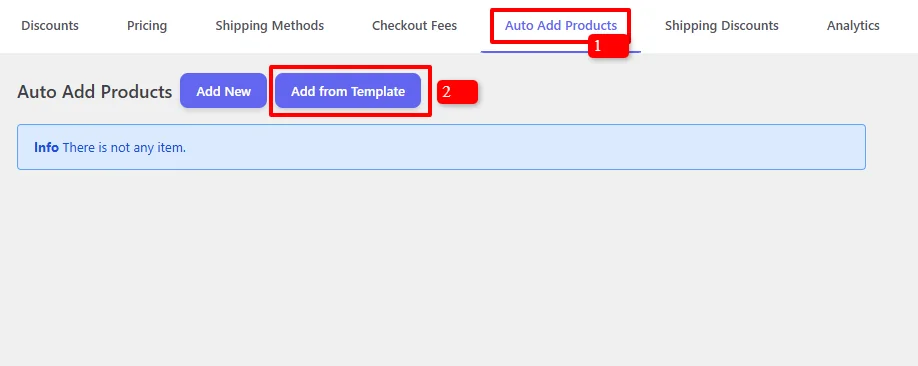
- Click on the Auto Add Products tab in the top navigation bar (marked 1).
- Click the Add from Template button (marked 2) to browse pre-built campaigns, or click Add New to configure from scratch.
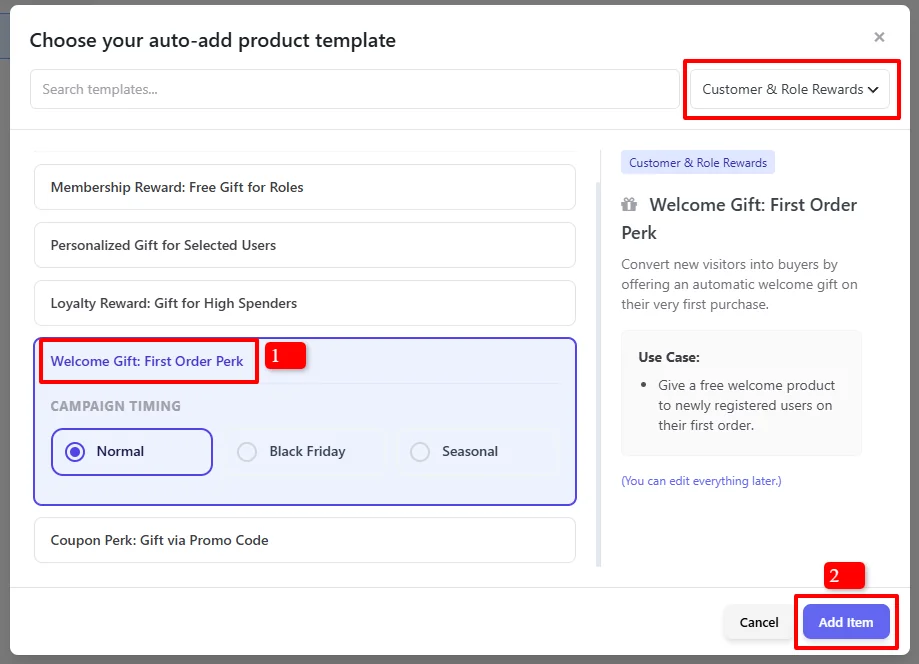
- In the "Choose your auto-add product template" modal:
- On the top-right category dropdown, select Customer & Role Rewards.
- Under the template list, select "Welcome Gift: First Order Perk" (marked 1).
- Under Campaign Timing, choose your desired schedule preset: Normal (continuous), Black Friday, or Seasonal.
- Click the blue Add Item button (marked 2).
Template Description: Convert new visitors into buyers by offering an automatic welcome gift on their very first purchase.
Use Case: Give a free welcome product to newly registered users on their first order.
Step 2: Configure Basic Rule Settings
Once the campaign editor loads, configure the core rule settings:
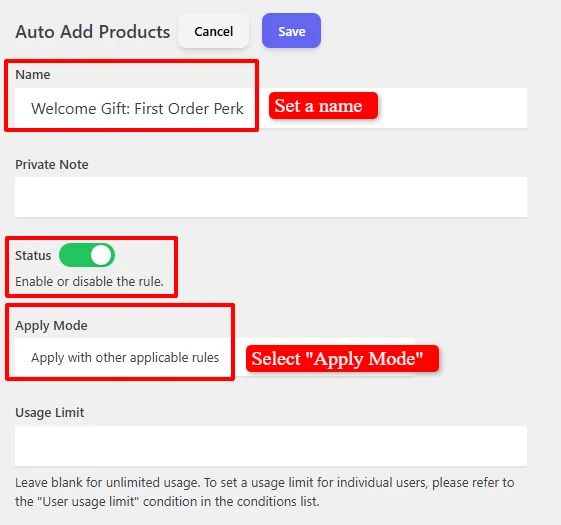
- Name: Enter a descriptive administrative title (e.g.,
Welcome Gift: First Order Perk). - Private Note: (Optional) Add internal notes for your team (e.g., "Free Shirt for new registered customer accounts").
- Status: Ensure the toggle switch is set to Active (Green) to enable the rule.
- Apply Mode: Determine how this rule interacts with other active dynamic pricing or auto-add promotions (detailed in Step 3).
- Usage Limit:
- Leave blank for unlimited usage across all eligible first-time customers.
- Enter a number (e.g.,
500) if you want to cap the promotion to the first 500 new buyers storewide.
Step 3: Choose Apply Mode (Rule Interaction)
The Apply Mode setting controls how your first-order welcome gift interacts with other auto-add promotions running in your WooCommerce store:

Select from the three available apply modes:
- Apply with other applicable rules (Non-Exclusive - Recommended): Stacks this welcome gift alongside other eligible promotions. For example, if a new customer also reaches a spend threshold that qualifies for a free gift, both complimentary items are added to their cart.
- Apply this rule and disregard other rules (Exclusive Priority): If this first-order rule applies, all other auto-add product rules are suppressed. The welcome gift takes absolute priority.
- Apply if other rules are not applicable (Exclusive Fallback): The welcome gift is only awarded if no other auto-add rules matched the customer's cart.
Step 4: Configure Free Gift Items (Simple Product or Variation)
Under the Items section, define the exact product or variation that will be given away as the welcome gift:
Option A: Gifting a Simple Product

- Select Product from the first dropdown.
- In the search box, search for and choose your promotional welcome item (e.g.,
Shirt (woo-fashion-shirt)). - Set the Quantity to
1. - Set the Discount Type to Percentage Discount.
- Set the Discount Amount to
100.Note: A Percentage Discount of
100makes the item completely FREE ($0.00) in the cart. - Is it removable from the cart?
- Unchecked (Default): The welcome gift stays locked into the cart as long as the first-order conditions are met.
- Checked: Gives the customer the option to manually remove the complimentary gift by clicking the trash icon if they do not wish to receive it.
Option B: Gifting a Specific Product Variation
If your welcome gift is a variable item (such as an apparel product with various sizes and colors), you can select the exact variation:

- Select Product Variation from the first dropdown.
- Search and select the specific variation SKU (e.g.,
Sweater (woo-fashion-sweater) Color: Beige, Size: Large). - Set the Quantity to
1. - Set Discount Type to
Percentage Discountand enter100for a 100% complimentary item. - Configure the Is it removable from the cart? setting as needed.
Want to give new customers a bundle of welcome items (such as a free tote bag AND a free sticker pack)? Click the blue Add button below the items row to add additional products or variations that will be added to the cart simultaneously.
Step 5: Schedule the Welcome Gift Promotion (Optional)
Directly below the Items section and before the Conditions section, you will find the Date Time scheduling engine. You can schedule your first-order welcome gift campaign to run during specific promotional events or calendar windows, exactly like other pricing and discount rules in the plugin.
By default, the campaign is unscheduled and remains active continuously:

To schedule time-sensitive welcome events (such as New Year signup incentives or Cyber Week first-purchase campaigns), configure the Date Time section:

Available Scheduling Conditions:
- Date Range: Run the welcome campaign during a specific calendar period (e.g.,
2026-09-01to2026-09-30for a Back-to-School welcome drive). - Date Time Range: Set exact start and end minute timestamps for flash welcome promotions.
- Specific Date: Activate the promotion on a single holiday or event day.
- Days: Restrict the welcome gift to customers completing their first purchase on specific days of the week (e.g., "Welcome Weekends").
- Time: Restrict the welcome offer to specific hours of the day.
You can combine schedule criteria using + And New Rule or add alternative promotional periods with + OR New Group.
For complete instructions on timezones, recurring promotions, and multi-tier scheduling logic, read our comprehensive Scheduling & Date-Time Guide.
Step 6: Set New Customer Conditions (Purchase History)
Located beneath the Date Time section, the Conditions engine validates whether the shopper is truly a first-time buyer:
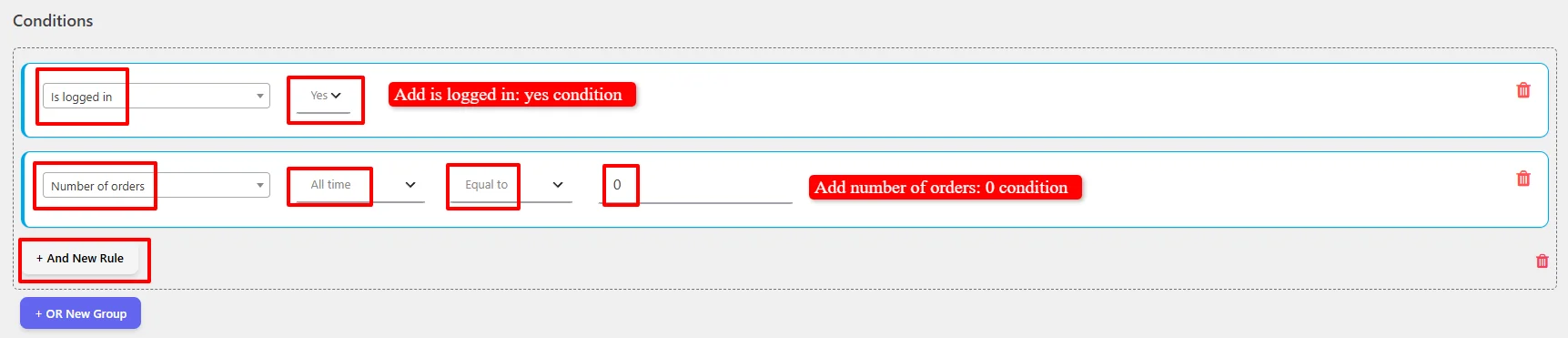
To configure the first-order requirement:
- Condition 1 (Account Status):
- Select Is logged in from the dropdown.
- Set the value to Yes.
- Click the
+ And New Rulebutton to add the order history validation in the same group. - Condition 2 (Order History):
- Select Number of orders from the dropdown.
- Set the time range to All time.
- Set the comparison operator to Equal to.
- Enter
0in the value field.
Why Use Both Conditions?
Is logged in: Yesensures that WooCommerce knows the customer's identity and account.Number of orders (All time) = 0queries the customer's historical order records across all time. If the customer has zero prior completed or processing orders, they qualify for the welcome gift!
To learn how to combine first-order rules with minimum spend thresholds, specific product categories, or shipping countries, check out our Complete Rule Conditions Guide.
Step 7: Review Complete Rule Configuration and Save
Review the entire rule setup to ensure all parameters are configured correctly:
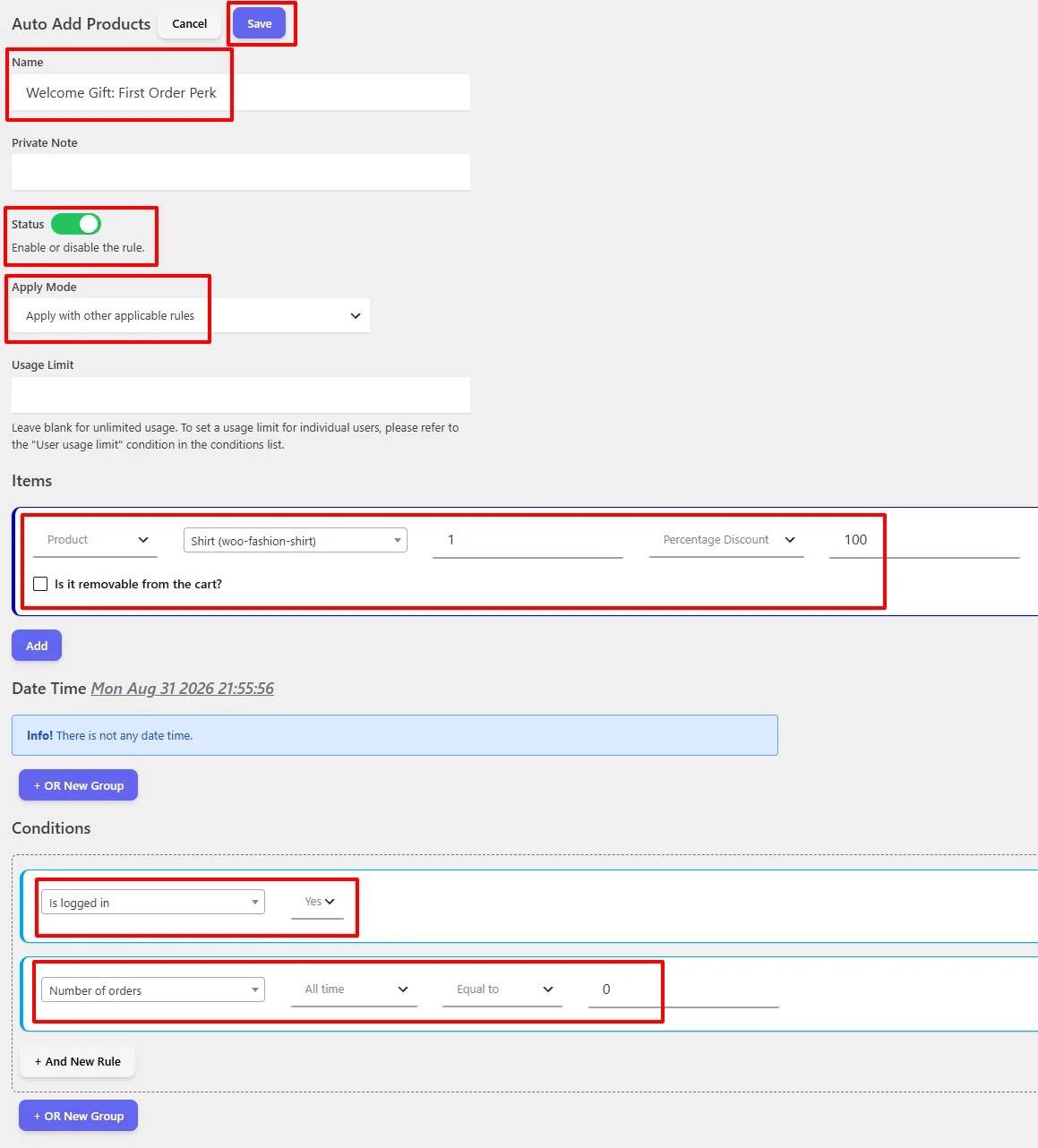
Rule Verification Checklist:
| Configuration Field | Configured Setting | Purpose & Logic |
|---|---|---|
| Rule Name | Welcome Gift: First Order Perk | Identifies the promotion in admin |
| Status Toggle | Active (Green) | Enables the rule on checkout and cart |
| Apply Mode | Apply with other applicable rules | Stacks alongside other pricing and shipping rules |
| Items (Free Gift) | Product: Shirt | Qty: 1 | Percentage Discount: 100 | Injects the free product at $0.00 |
| Date Time | Unscheduled (or configured sale dates) | Active continuously or during promotional events |
| Condition 1 | Is logged in = Yes | Ensures user is logged into their account |
| Condition 2 | Number of orders | All time | Equal to | 0 | Restricts gift strictly to new buyers with 0 orders |
Click the blue Save button in the top header. Your automated first-order welcome gift campaign is now live!
🛒 Result Example: First-Time Customer Cart Verification
Let's look at how the front-end cart behaves when a new customer registers and adds products to their cart.
Cart with First Order Free Gift Applied:
The new shopper registers an account (0 previous orders) and adds items to their shopping cart:
- Shirt – Cream: 25.00$ × 1 = 25.00$
- Jacket: 25.00$ × 1 = 25.00$
Subtotal: 50.00$
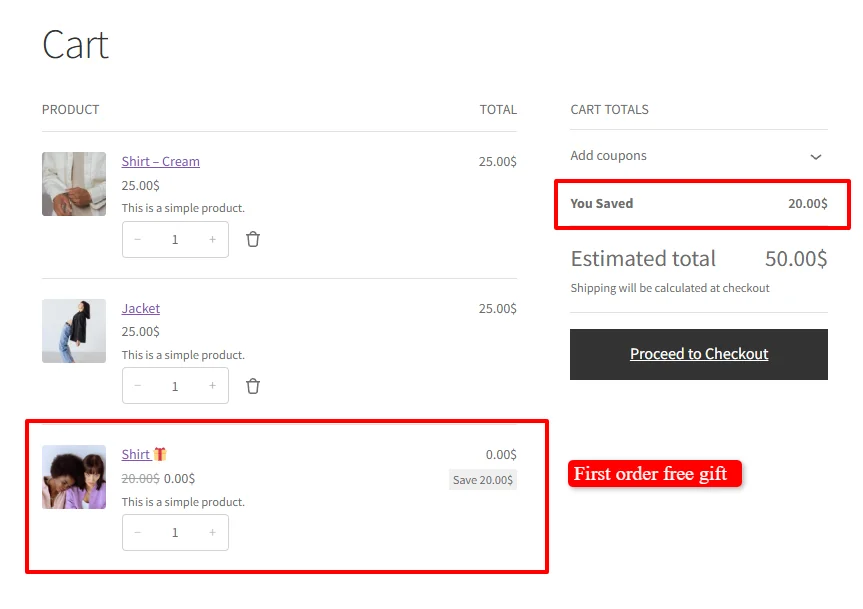
Front-End Cart Display & Totals Breakdown:
- Complimentary Welcome Gift Added: The plugin automatically injects
Shirt 🎁into the cart line items. - Price Display: The original price of
$20.00is crossed out (20.00$ 0.00$), accompanied by a greenSave 20.00$badge. - Cart Totals:
- Subtotal:
50.00$ - You Saved:
20.00$ - Estimated Total:
50.00$(The customer pays only for their chosen goods; the welcome gift adds $0.00 to the bill).
- Subtotal:
Returning Customer Verification:
Once this customer completes their first purchase, their order count becomes 1. On any subsequent visit, the condition Number of orders = 0 evaluates to false, and the free gift will never be added again.
👤 How Guest Checkout vs. Logged-In Customers Work
You can tailor your first-order welcome strategy depending on whether you want to mandate account registration or allow guest checkouts:
Strategy 1: Logged-In Users Only (Recommended)
- Conditions:
Is logged in: YesANDNumber of orders (All time) = 0. - Advantage: Maximum security against abuse. Encourages visitors to create an account before checkout, growing your verified email subscriber list.
- Cart Behavior: The gift appears immediately as soon as the user logs in or registers.
Strategy 2: Both Logged-In and Guest Users (Email Matching)
- Conditions:
Number of orders (All time) = 0(Remove theIs logged incondition). - Advantage: Frictionless checkout for guest visitors who don't want to create a password.
- How It Works: When a guest user enters their billing email address at the checkout page, the plugin queries WooCommerce for past orders matching that email address. If no previous orders exist, the free gift is applied.
🎯 Real-World First Order Free Gift Scenarios
Scenario 1: Storewide Free Welcome Gift for New Registered Shoppers
- Objective: Accelerate new customer acquisition across your entire store.
- Name:
New Customer Welcome Gift - Gift Item:
Branded Tote Bag| Qty:1| Discount:100% - Conditions:
Is logged in: YesANDNumber of orders = 0 - Outcome: Every newly registered customer receives a free tote bag on their first transaction.
Scenario 2: First Order Free Gift with Minimum Spend ($50+)
- Objective: Acquire new buyers while ensuring a profitable initial basket size.
- Name:
Welcome Gift on First Orders Over $50 - Gift Item:
Stainless Steel Water Bottle ($25 value)| Qty:1| Discount:100% - Conditions:
Is logged in: Yes- AND
Number of orders (All time) = 0 - AND
Subtotal including tax≥50
- Outcome: First-time buyers only receive the premium gift if their order subtotal reaches at least $50.
Scenario 3: Category-Specific First Order Free Sample
- Objective: Introduce new buyers to a specific product category (e.g., Skincare or Cosmetics).
- Name:
First Beauty Purchase Free Sample Kit - Gift Item:
Mini Serum Sample Pack| Qty:1| Discount:100% - Conditions:
Number of orders (All time) = 0- AND
Categories in cartAt least one ofSkincare
- Outcome: Customers placing their first beauty order automatically receive a complimentary sample kit.
Scenario 4: Limited-Time Welcome Gift Event (Black Friday / New Year)
- Objective: Capitalize on peak seasonal traffic to turn holiday browsers into registered members.
- Name:
Black Friday First-Time Buyer Gift - Gift Item:
Holiday Beanie ($30 value)| Qty:1| Discount:100% - Date Time:
Date Rangefrom2026-11-27to2026-11-30 - Conditions:
Is logged in: YesANDNumber of orders = 0 - Outcome: Creates high urgency for new shoppers to make their first purchase during Black Friday weekend.
Scenario 5: First Purchase Free Product Variation (Size / Color)
- Objective: Gift an apparel item with a designated popular size and color.
- Name:
Welcome Gift: Free Large Sweater - Gift Item:
Product Variation: Sweater (Beige - Large)| Qty:1| Discount:100% - Conditions:
Is logged in: YesANDNumber of orders = 0 - Outcome: Automatically injects the exact variation SKU into the customer's cart.
🔀 Apply Mode Behavior (Exclusive vs. Non-Exclusive)
When running multiple auto-add rules simultaneously, the Apply Mode dictates rule execution and priority:
| Apply Mode | Type | Behavior When Multiple Rules Match | Best For |
|---|---|---|---|
| Apply with other applicable rules | Non-Exclusive | Stacks this welcome gift alongside other active gift promotions (e.g., Welcome Gift + Spend Threshold Gift). | Maximizing delight for first-time high spenders. |
| Apply this rule and disregard other rules | Exclusive Priority | Triggers the welcome gift and suppresses all other auto-add rules. | Keeping first-order gift campaigns strictly standalone. |
| Apply if other rules are not applicable | Exclusive Fallback | Triggers only if zero other auto-add rules applied to the cart. | Default fallback gift for new visitors. |
🔍 Troubleshooting: Welcome Gift Not Showing in Cart?
If the first-order gift does not auto-add to the cart, review this diagnostic checklist:
- Verify Customer Login Status: If your rule requires
Is logged in: Yes, verify that you are logged into a customer account. If tested in an incognito window without logging in, the rule will not trigger. - Check Past Order History: The user account must have exactly
0historical orders. Ensure the test account has no prior orders in Pending, Processing, Completed, or On Hold statuses. - Verify Product Stock Availability: If the welcome gift product is set to "Out of stock" and backorders are disabled, WooCommerce cannot add it to the cart. Ensure stock is available.
- Check Apply Mode Conflicts: If another auto-add rule has "Apply this rule and disregard other rules" active with higher execution priority, it will suppress this welcome gift.
- Verify Timezone & Date Constraints: If using the Date Time scheduler, verify your WordPress timezone under Settings > General > Timezone.
- Clear Browser & Object Cache: Caching tools (WP Rocket, LiteSpeed, W3 Total Cache, Cloudflare) must exclude WooCommerce cart (
/cart/) and checkout (/checkout/) pages. Clear Redis/Memcached object cache before testing. - Check for Plugin Conflicts:
- Competing Discount & Free Gift Plugins: Having other dynamic pricing plugins, third-party "Free Gifts for WooCommerce" add-ons, or BOGO tools active simultaneously can cause race conditions or duplicate line items. Temporarily deactivate competing plugins to test.
- Custom Mini-Cart Drawers & Side Carts: Slide-out carts or popup carts intercept WooCommerce AJAX cart fragments (
get_refreshed_fragments). If the third-party drawer script does not re-render line items properly upon receiving updated fragments, the free gift may be in the cart session but invisible in the drawer until a full page refresh. - Admin Screen Script Conflicts: If you cannot select products in dropdowns or the template modal fails to open, inspect your browser console (F12) for JavaScript errors caused by plugins enqueued globally across all admin screens (such as SkyVerge or analytics tools).
- Page Builders & Custom Cart Blocks: Custom checkout and cart blocks (Elementor Cart, Divi, or Gutenberg Cart Blocks) may override standard WooCommerce cart hooks. Switch temporarily to the classic WooCommerce
[woocommerce_cart]shortcode to verify. - Step-by-Step Diagnostic Guide: For full conflict isolation walkthroughs, see our Complete Troubleshooting Guide.
❓ Frequently Asked Questions (FAQ)
What plugin or addon do I need to offer a first-order free gift?
You will need the Discount Rules and Dynamic Pricing for WooCommerce PRO plugin installed alongside the Auto Add Products to Cart for WooCommerce addon. Both the PRO plugin and the addon are required to unlock the dedicated Auto Add Products dashboard, purchase history evaluation engine, and welcome gift templates.
Does the free gift automatically disappear for returning customers?
Yes! The plugin checks order history on every cart update. As soon as a customer completes their first order, their order count becomes greater than 0, making them ineligible for the welcome gift on any future purchase.
Can guest customers claim the first order gift without creating an account?
Yes, if you configure the rule using only the Number of orders = 0 condition (without Is logged in: Yes). The plugin checks the guest customer's billing email address at checkout against historical orders in your WooCommerce database.
What order statuses are considered in "Number of orders"?
WooCommerce evaluates valid paid orders (such as Completed and Processing). Cancelled, refunded, or failed orders typically do not count against the customer's purchase history.
Can I combine a first-order free gift with first-order free shipping?
Yes! The plugin's modules work together seamlessly. You can run this Auto Add Products rule alongside our First Order Free Shipping rule so that first-time buyers receive both a complimentary welcome gift AND free delivery on their inaugural order!
Can I gift a specific variation (e.g., size or color) instead of a simple product?
Yes. Under the Items section, select Product Variation from the dropdown and pick any specific variation (such as Sweater - Beige, Size: Large) to auto-add as the complimentary welcome reward.
📚 Related Guides & Next Steps
Explore other powerful customer acquisition, dynamic pricing, and promotional features:
- Auto Add Free Gift on Minimum Spend — Provide free gifts when cart subtotal crosses a spend threshold.
- Create First Order Free Shipping — Offer 100% free delivery on first orders to reduce cart abandonment.
- User Signup Discounts in WooCommerce — Reward newly registered shoppers with automatic cart discount coupons.
- Create Free Shipping Threshold — Incentivize higher cart totals with order spend free shipping.
- Minimum Spend Shipping Discounts — Offer percentage or flat shipping discounts on qualifying spend.
- Buy One Get One Free (BOGO Deals) — Set up Buy 1 Get 1 Free and Buy X Get Y deals.
- Complete Rule Conditions Guide — Master purchase history conditions, customer roles, and cart requirements.
- Scheduling & Date-Time Guide — Configure promotional schedules, flash sales, and timezone setups.
- Complete Troubleshooting Guide — Diagnose and resolve cart calculation, caching, and plugin conflict issues.
🔎 SEO Keywords & Optimization Summary
- Primary Search Queries & Target Keywords: first order free gift in woocommerce, woocommerce first order free gift, how to automatically add free gift on first order in woocommerce, woocommerce welcome gift for new customers, auto add free gift on first purchase woocommerce, first purchase free gift woocommerce.
- Secondary & Long-Tail Variations: woocommerce free gift first order, new customer welcome gift woocommerce, free gift with first purchase woocommerce, auto add product on first order woocommerce, woocommerce welcome perk gift, conditional first order gift woocommerce, first time buyer free gift woocommerce, Discount Rules and Dynamic Pricing for WooCommerce, Auto Add Products to Cart for WooCommerce.
- Keyword Density & Content Structure: All target keywords are distributed organically across the H1, H2, and H3 subheadings, frontmatter metadata, comparison tables, step-by-step instructions, guest vs. logged-in workflows, troubleshooting checkpoints, and FAQ sections (maintaining an optimal 1.8% – 2.4% keyword density without stuffing).