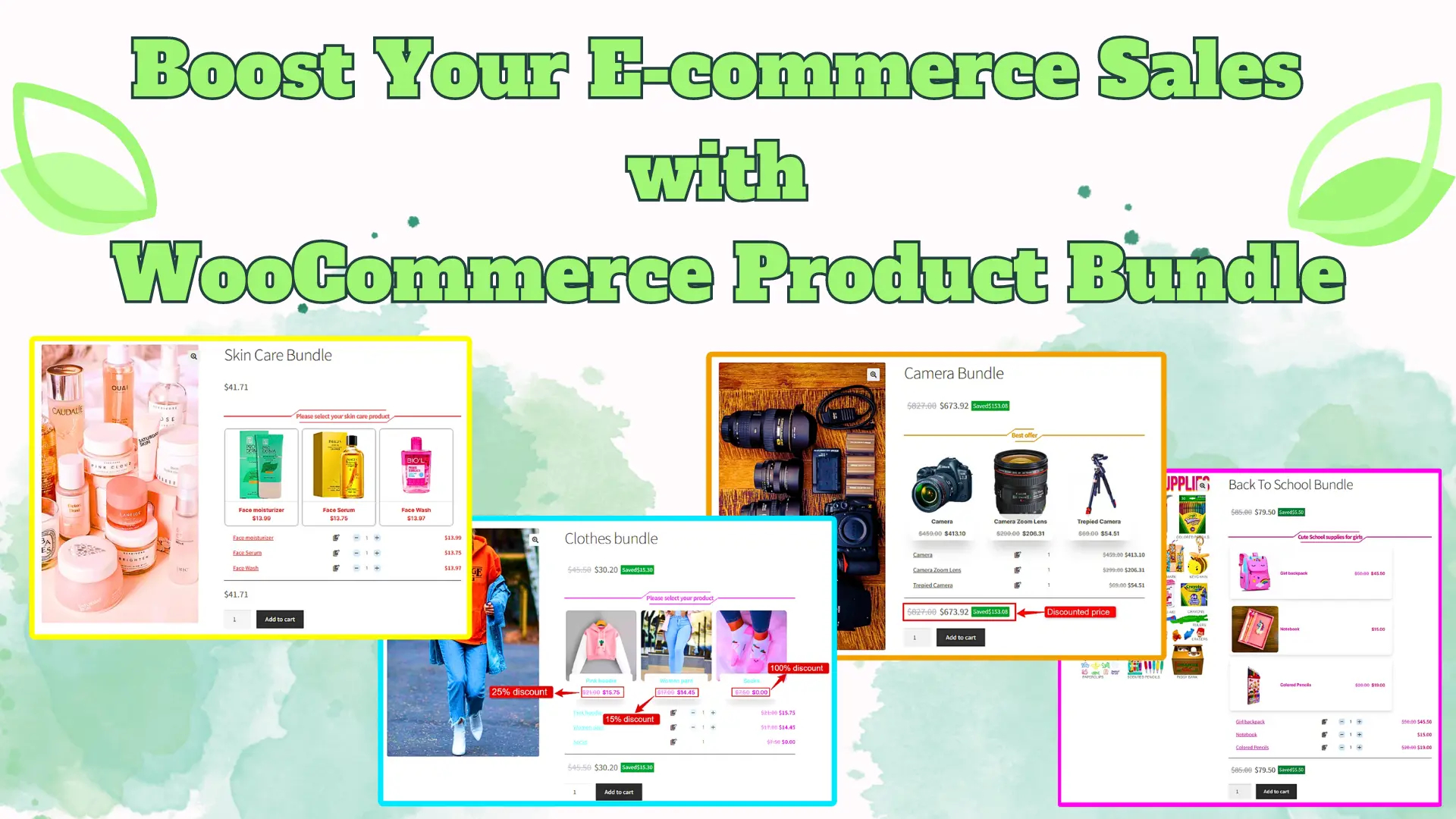
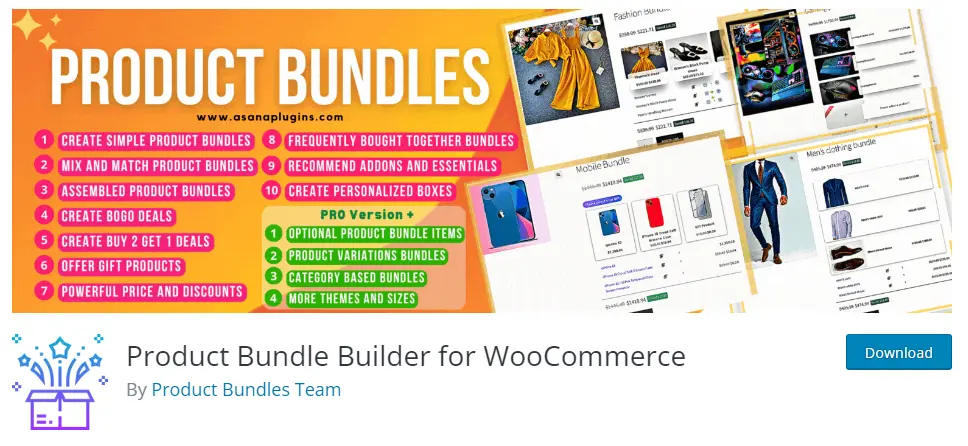
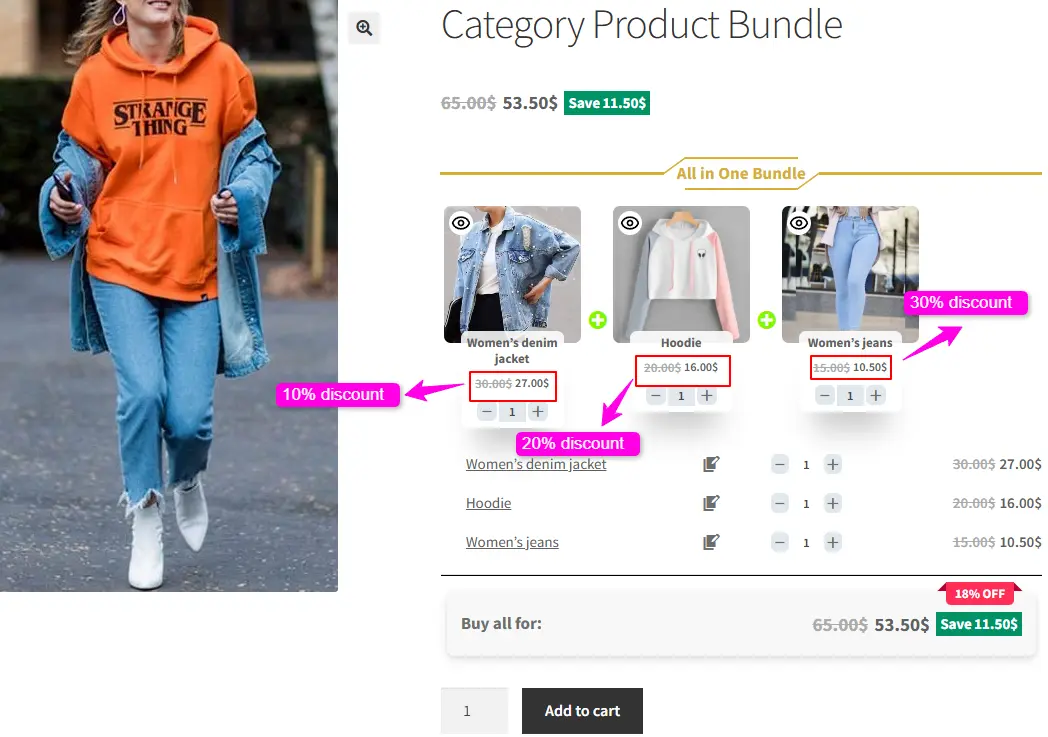
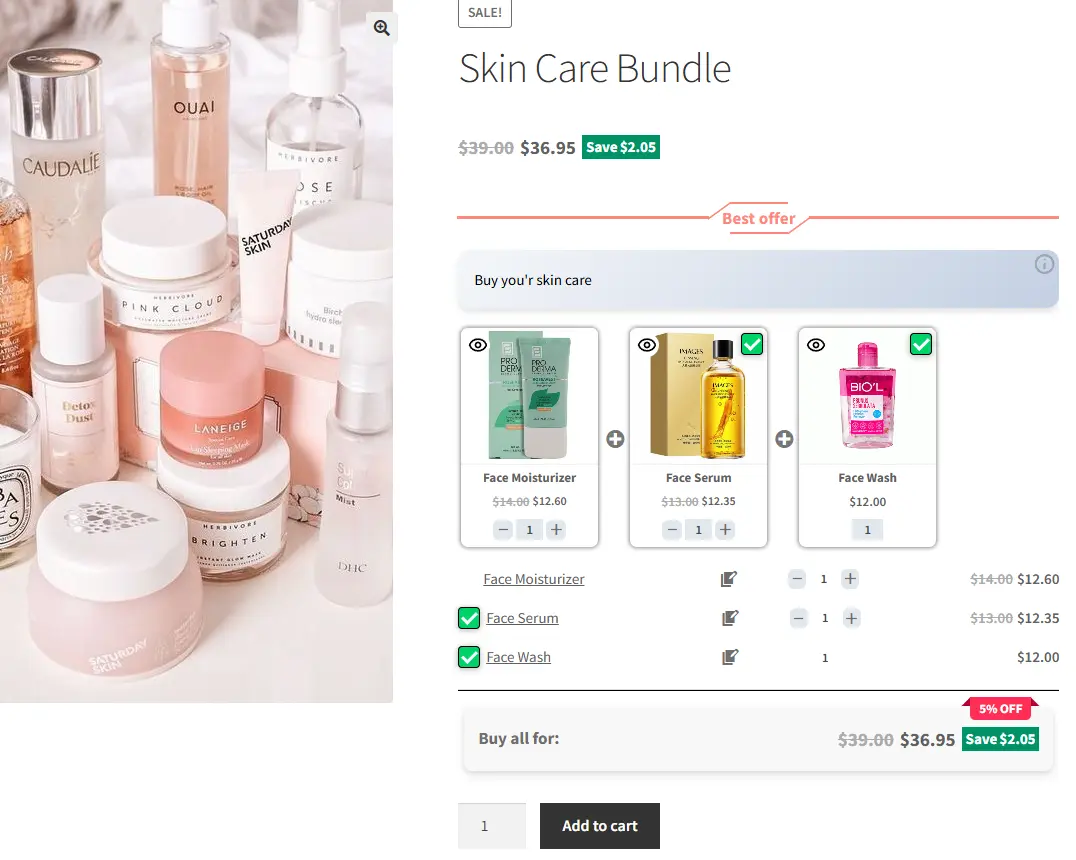
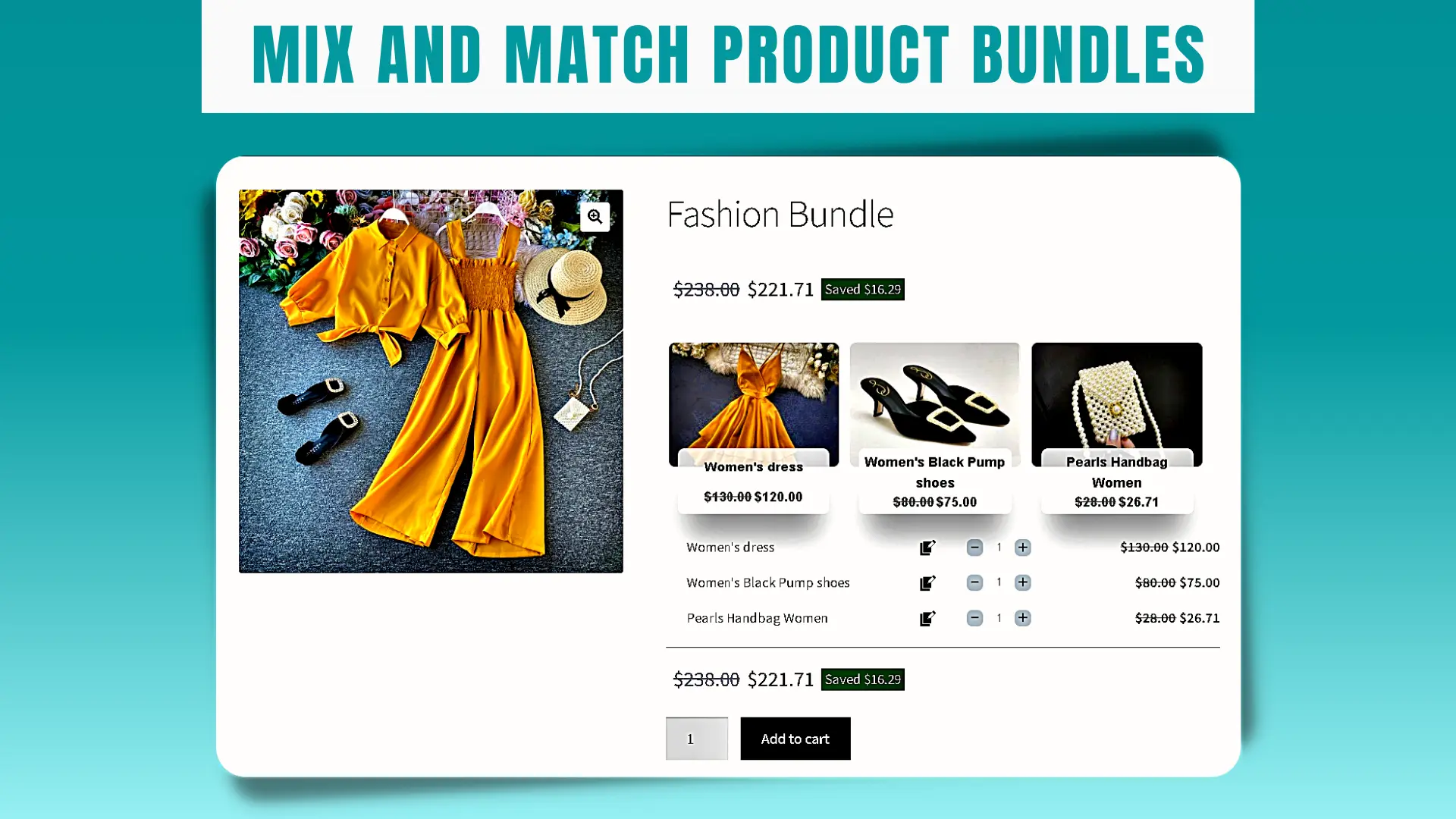
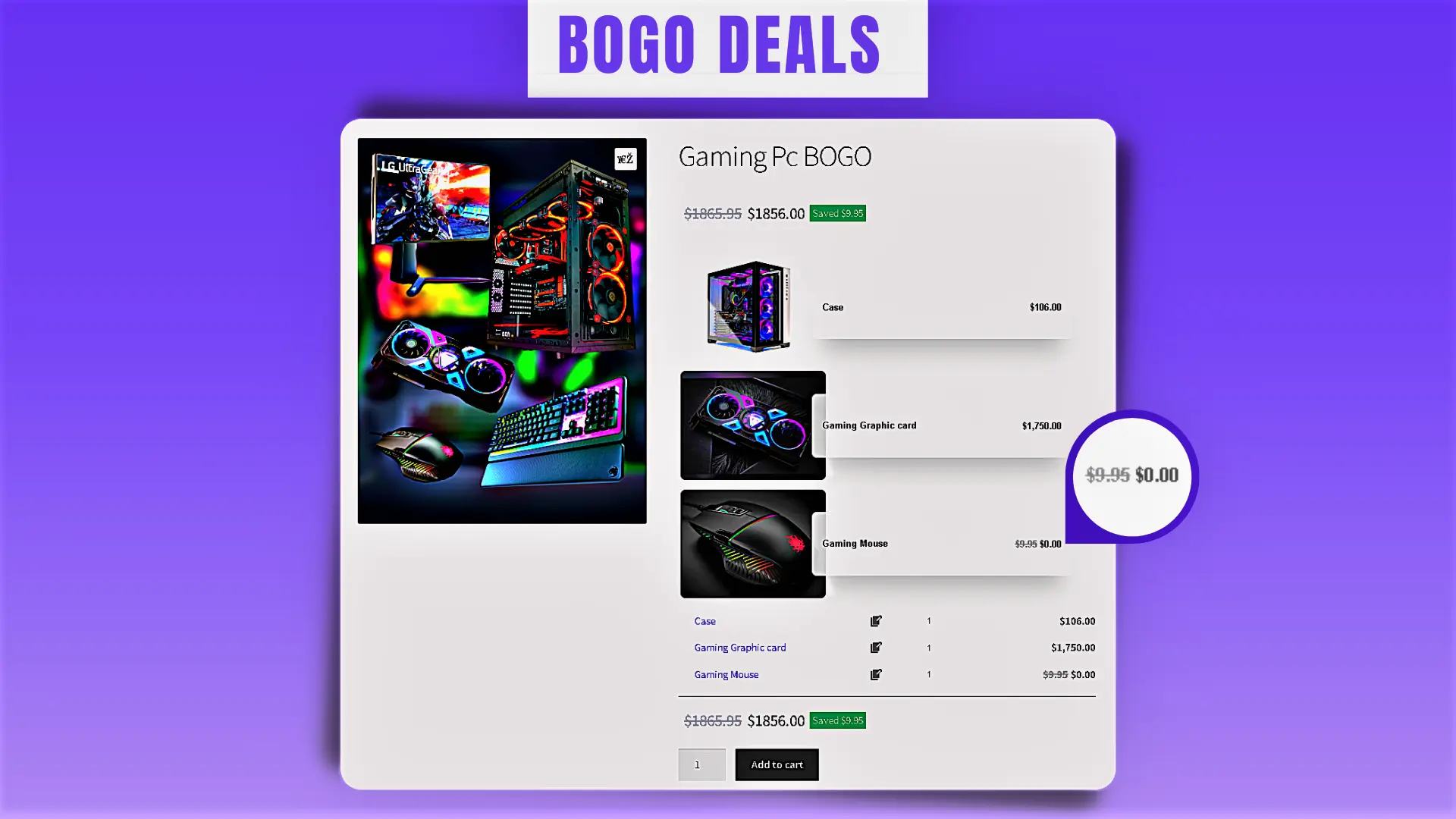
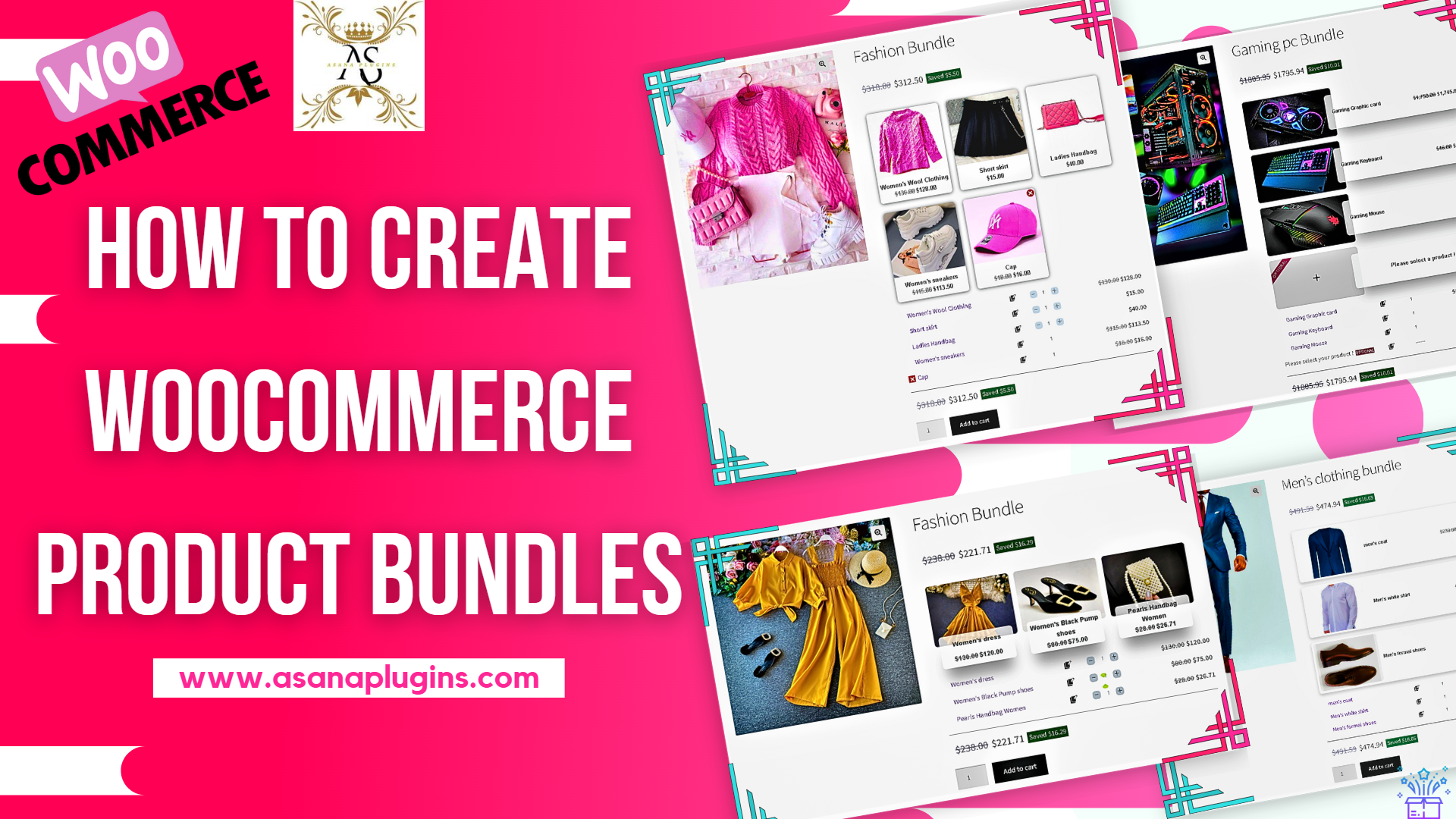
The WooCommerce Product Bundles plugin is a powerful and easy way to increase your online store’s sales and revenue. Instead of selling products one by one, you can group related items together and offer them at a special discounted price. Customers love getting a better deal when buying multiple products, and this strategy naturally encourages them to purchase more in a single order. By creating attractive bundles, you not only improve the shopping experience but also increase your average order value and overall profitability.
Benefits of using WooCommerce Product Bundles
One of the biggest advantages of using WooCommerce Product Bundles is that it encourages customers to purchase multiple products in a single order. When shoppers see a bundle offered at a discounted price, they are more likely to choose the deal instead of buying items separately at full price. This naturally increases your sales revenue and helps grow your average order value.
Another important benefit is flexibility. You can create custom bundles that match your customers’ needs and shopping behavior. Choose exactly which products to include, combine related or complementary items, and set the discount amount for each bundle. This gives you full control over your pricing strategy while allowing you to design offers that are both attractive to customers and profitable for your store.
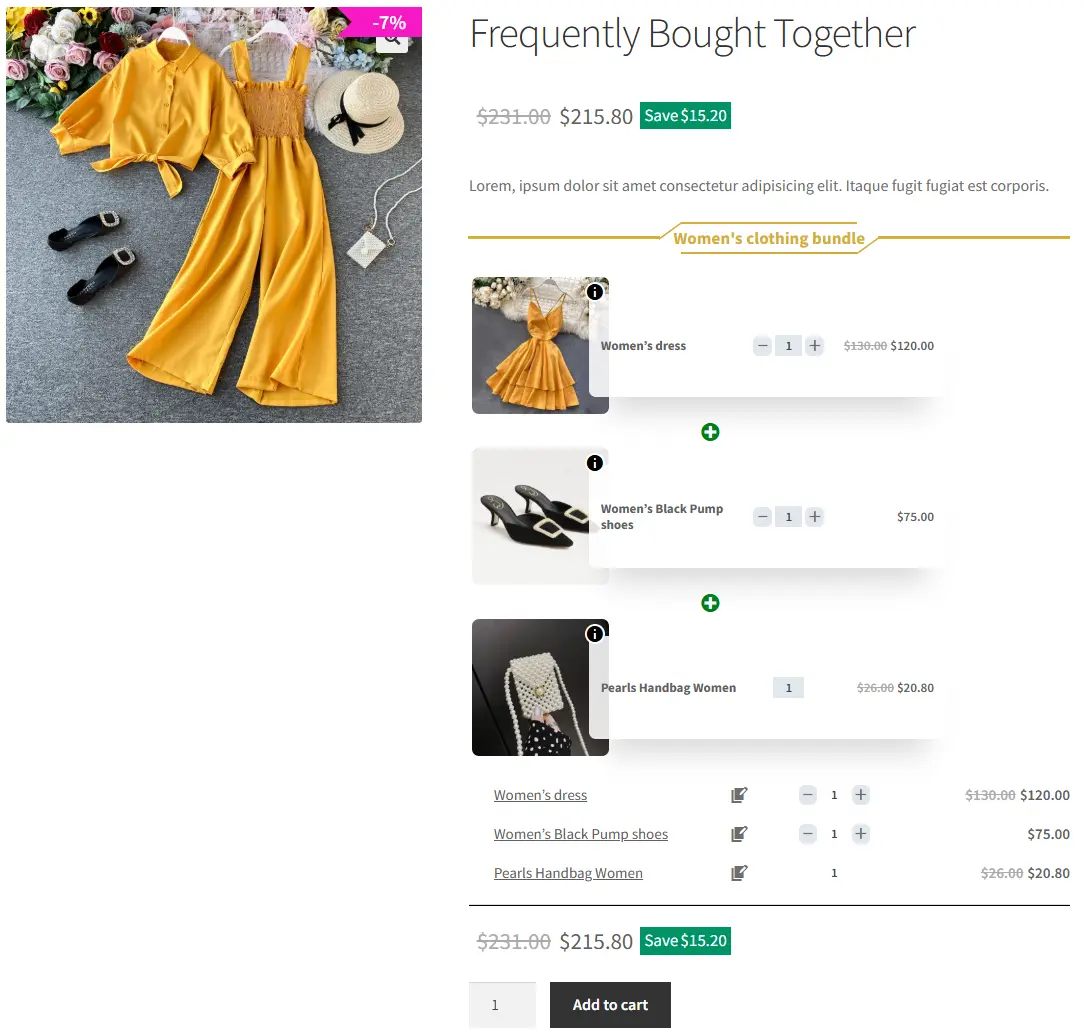
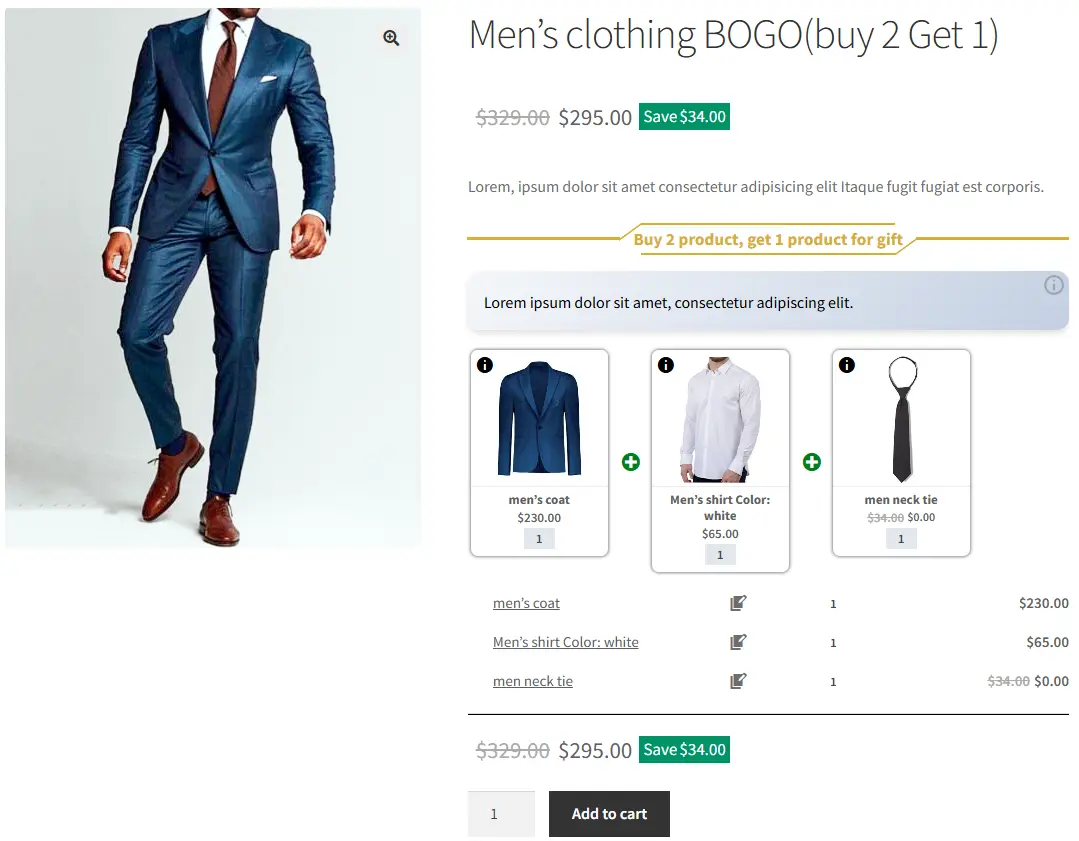
Here we introduce some examples of using WooCommerce Product Bundleto increase your sales:
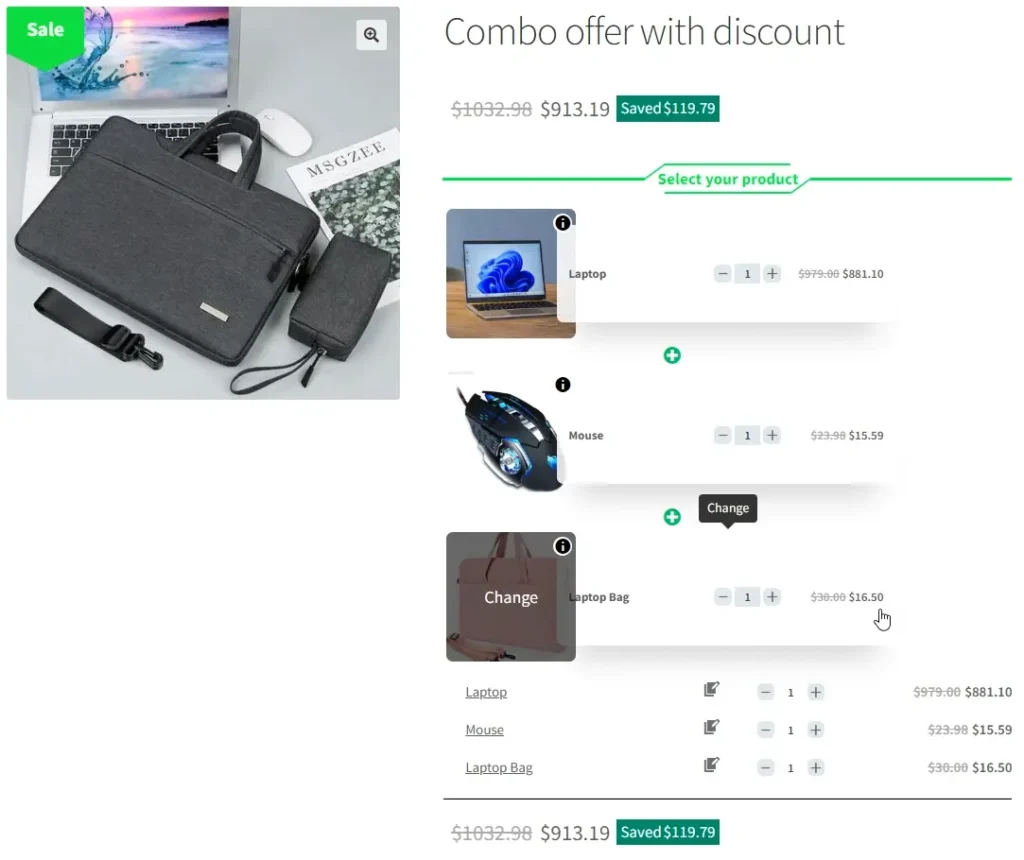
Offer discounts
To motivate customers to purchase a bundle, always provide a clear discount or special price compared to buying each product separately. Shoppers are more likely to choose a bundle when they can easily see the savings. You can also increase the appeal by offering free shipping on bundle purchases. These added incentives make the offer more attractive and encourage customers to complete their purchase.
Cross-Sell Bundles:
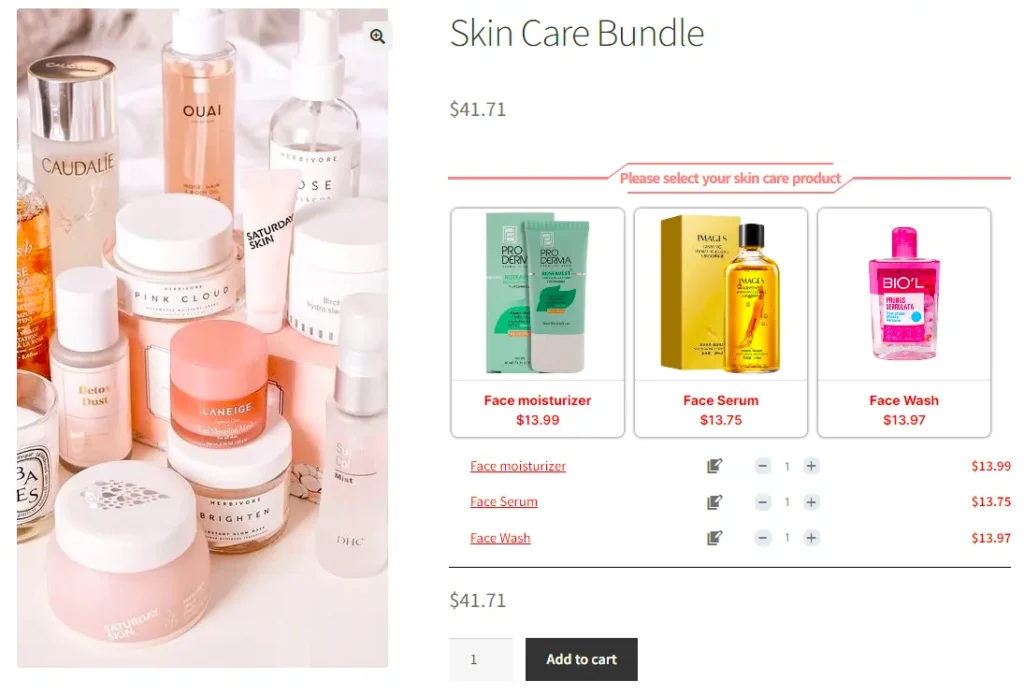
Create bundles that include complementary products customers commonly purchase together. This strategy makes shopping easier and increases the likelihood of larger orders. For example, if you sell skincare products, you can offer a bundle that includes a moisturizer, serum, and face wash. By grouping related items into one convenient package, you improve the customer experience while boosting your overall sales.
Seasonal Packages
Create product bundles around special seasons, holidays, or major sales events to make your offers feel timely and irresistible. Seasonal bundles simplify the buying process by giving customers everything they need in one complete package.
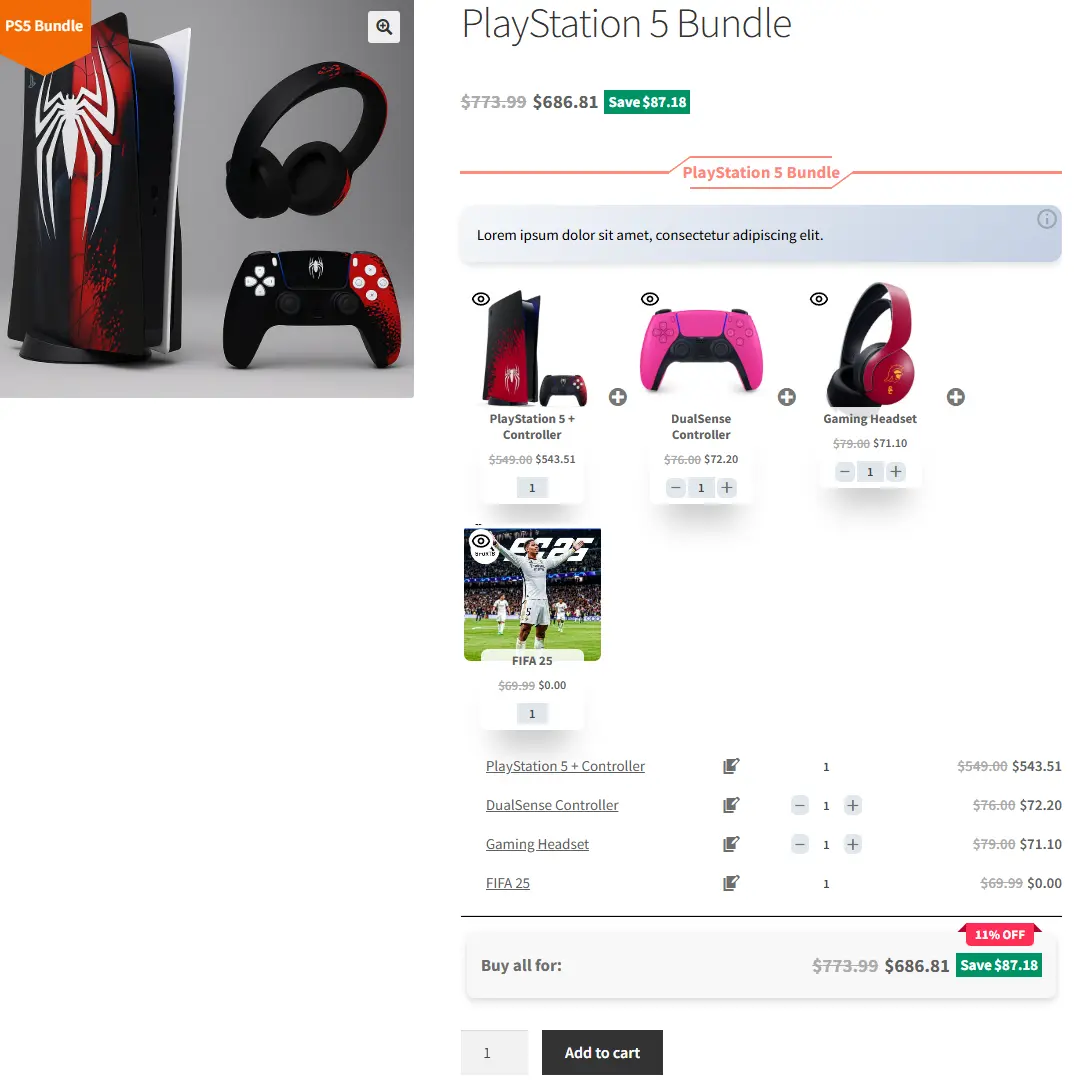
For example, launch a limited-time PlayStation 5 Bundle that includes the console, an extra DualSense controller, a top-selling game, and a gaming headset—all at a special holiday price. Instead of purchasing each item separately, customers get a complete gaming setup in one click while saving money.
These exclusive, limited-time bundles create urgency, increase perceived value, and encourage faster purchasing decisions. When customers feel they’re getting a full experience at a better price—and only for a short time—they’re far more likely to complete their purchase and spend more.
Highlight savings
Always make the savings clear and impossible to miss. When customers instantly see how much they’re saving by choosing a bundle, the offer becomes far more persuasive.
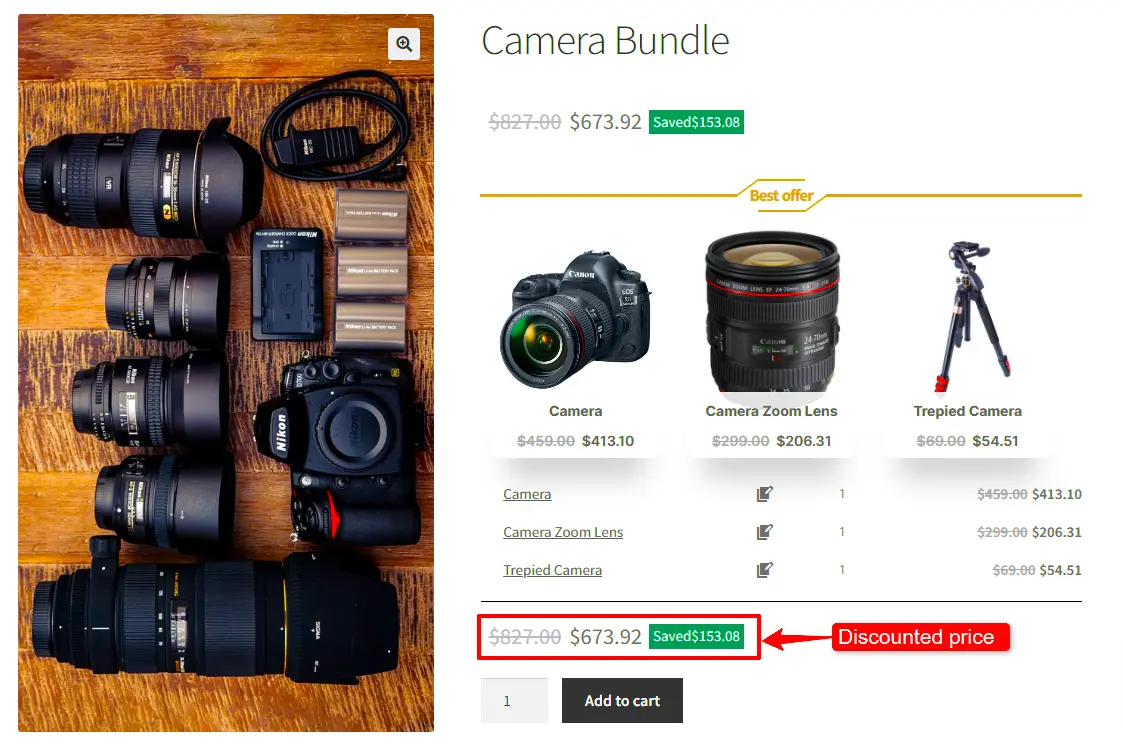
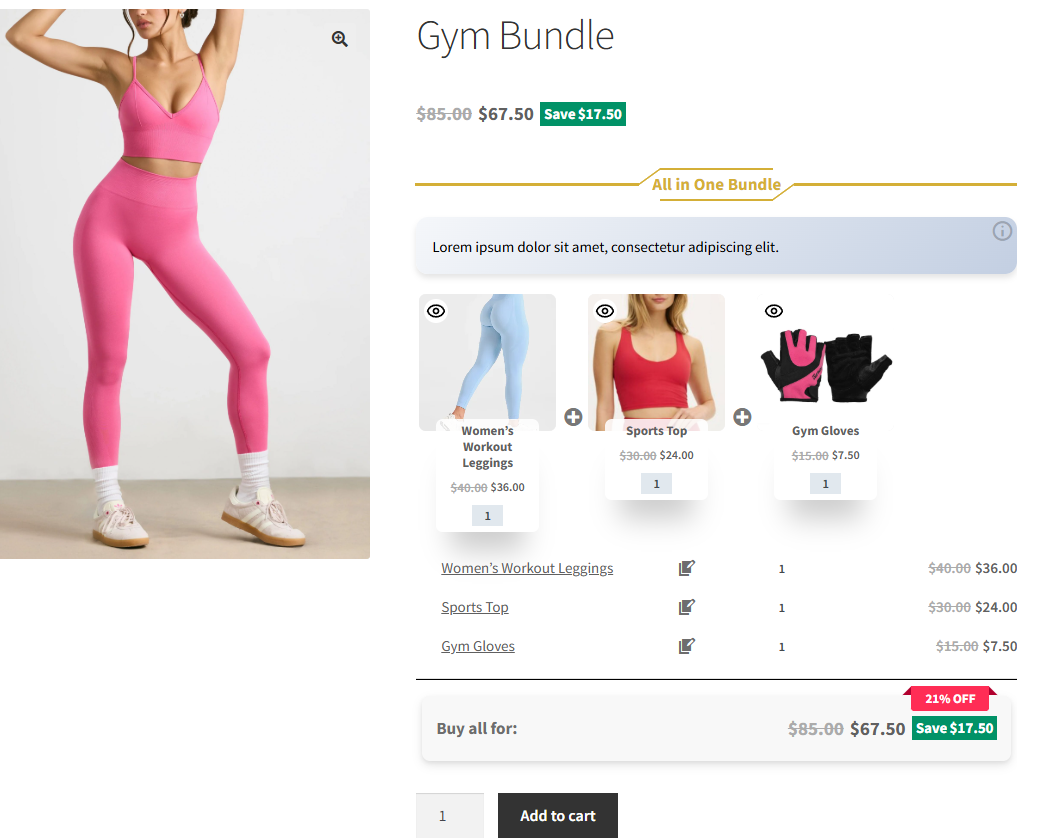
Display the original total price and the discounted bundle price side by side so shoppers can easily compare the difference. Showing the exact amount or percentage saved increases the perceived value of the deal and builds trust. When the benefit is visible at a glance, customers are more confident in their purchase decision and more likely to complete the order.
Gift bundle
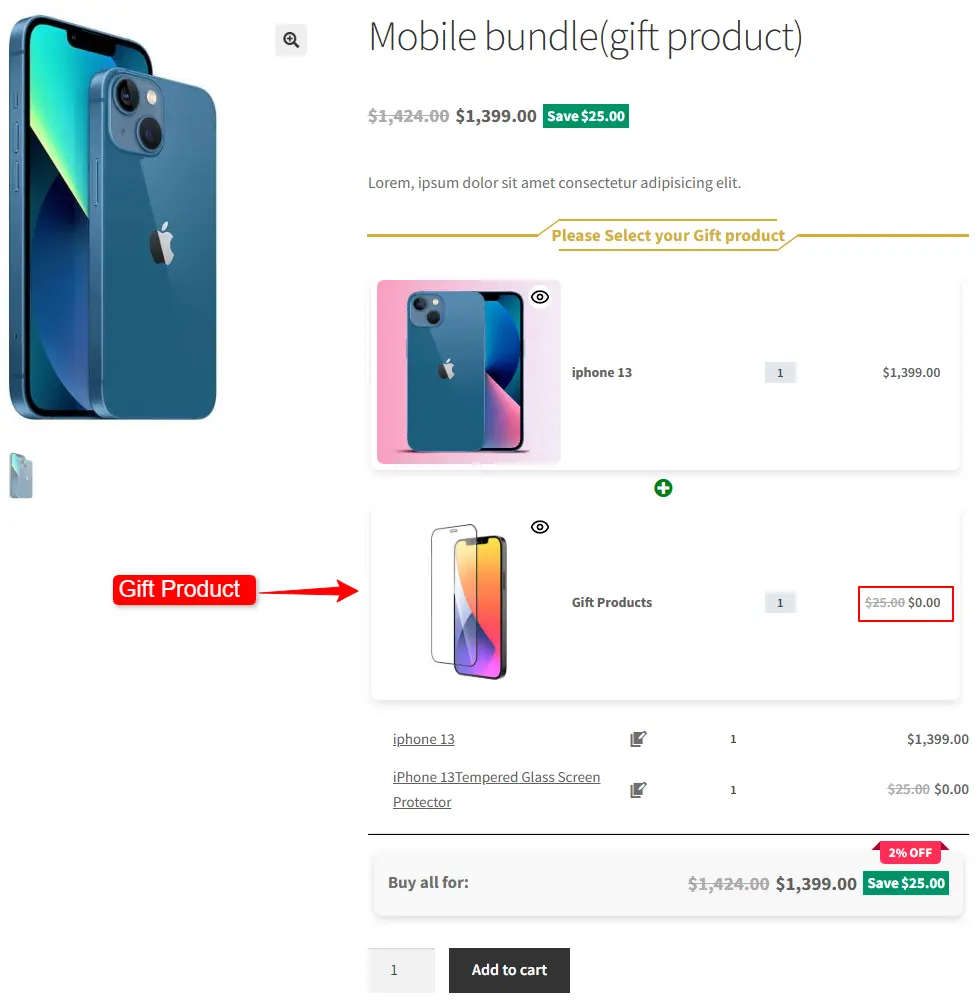
Create ready-to-purchase gift bundles that customers can quickly buy and give without extra effort. Pre-packaged gift sets save time, reduce decision stress, and make the shopping experience smoother—especially during special occasions.
For example, you can design themed gift bundles for Valentine’s Day that include complementary products beautifully packaged together. Whether it’s chocolates, perfumes, accessories, or personalized items, presenting them as a complete gift solution increases perceived value and encourages customers to choose the bundle instead of buying individual products separately.
Understand your customers
Before creating product bundles, take time to truly understand your customers and what they actually want. Successful bundles are not random combinations—they are built around real buying behavior and customer needs.
Analyze purchase history, search trends, and customer feedback to discover which products are frequently bought together. Look for patterns in behavior and identify your best-selling or complementary items. When your bundles are based on real data instead of guesswork, they feel more relevant, more valuable, and far more likely to convert.
Clearance Bundles
WooCommerce Product Bundles are a smart way to move slow-selling or overstocked items without relying on heavy discounts alone. Instead of promoting these products individually, combine them with popular or best-selling items to increase their visibility and perceived value.
By pairing a slower-moving product with something customers already want, you make the bundle more attractive and reduce hesitation. This strategy helps clear inventory, improve cash flow, and introduce customers to products they might not have purchased on their own—all while maintaining a strong overall offer.
customer loyalty
Offering bundled discounts is more than just a pricing strategy—it’s a way to build long-term relationships with your customers. When shoppers see that they’re getting better value through thoughtfully created bundles, they feel appreciated and rewarded for choosing your store.
Consistently providing attractive bundle offers shows that you care about delivering real savings and meaningful deals. Over time, this builds trust, strengthens customer loyalty, and increases the likelihood of repeat purchases.
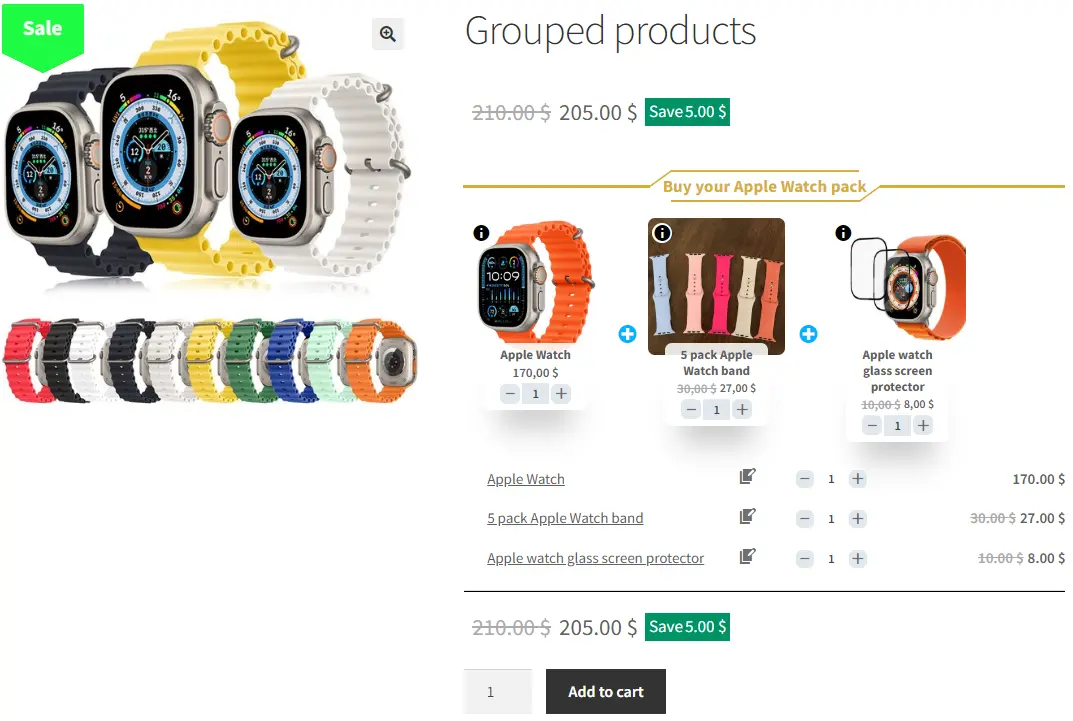
Some other examples that you can create with the Easy WooCommerce Product Bundles plugin to boost sales:
Overall, WooCommerce Product bundle is a powerful and modern tool with many features that allow you to create and manage products in your online store, helping you sell products more comfortably, effectively and efficiently to increase your income.
Articles
To delve deeper into the realm of Product Bundle plugin and their applications, we invite you to explore the array of informative resources we’ve compiled in the list below. These resources promise to expand your understanding and proficiency in leveraging the potential of this plugin to the fullest:
WooCommerce is already a powerful platform for online stores, but sometimes you want to offer more flexibility and creativity. With the WooCommerce Product Bundle Plugin, you can create custom bundles that combine multiple products into one smart, convenient package. Even better, you can now use product categories inside your bundles. That means customers can choose from a group of related items instead of being limited to specific products. In this tutorial, you’ll learn how to easily create category-based product bundles in WooCommerce and give shoppers a more dynamic buying experience.
Custom bundles are a smart way to boost sales while giving customers more flexibility and value. Instead of selling products one by one, you can combine related items into a single, attractive offer. With the WooCommerce Product Bundle Plugin, creating these bundles takes just a few steps, allowing you to build unique product packages that stand out in your store.
By using product categories inside your bundles, you make things even more powerful. Customers can choose from a group of related products rather than being limited to fixed items. This creates a more personalized shopping experience and helps you design bundles that better match different needs and preferences.
Boost Your Sales with Custom Bundles in WooCommerce
Growing an online store means finding smart ways to increase both sales and customer satisfaction. One proven strategy is to offer custom product bundles that let customers buy multiple related items together—often at a better overall price. Bundles not only increase average order value, but they also make shopping easier and more convenient.
With the WooCommerce Product Bundle Plugin, you can quickly create flexible, attractive bundles tailored to your audience. Whether you want to offer discounted sets, mix-and-match packages, or category-based selections, custom bundles give your customers more choice while helping you generate more revenue.
The Power of WooCommerce Categories Product Bundles
One of the most powerful features of the WooCommerce Product Bundle Plugin is the ability to use product categories inside your bundles. Instead of selecting products one by one, you can add an entire category and let customers choose from related items within that group.
Categories help organize products clearly and logically. This makes it easier for customers to browse, compare options, and build bundles that match their needs. By allowing shoppers to select items from specific categories, you create a smoother, more flexible shopping experience—one that naturally encourages higher engagement and increases the likelihood of completing a purchase.
Video Tutorial
How to Create Custom Bundles with Categories in WooCommerce
Creating custom bundles with categories in WooCommerce is a straightforward process. First, you’ll need to install the WooCommerce Product Bundle Plugin and configure the settings to suit your needs. Next, you can create a product bundle in WooCommerce and add categories for each item. You can set discounts and pricing for each bundle item that makes the bundle attractive to customers and profitable for your business. Follow the below steps to create a product bundle with categories in WooCommerce.
Step1: Installing the Product Bundle Builder for WooCommerce
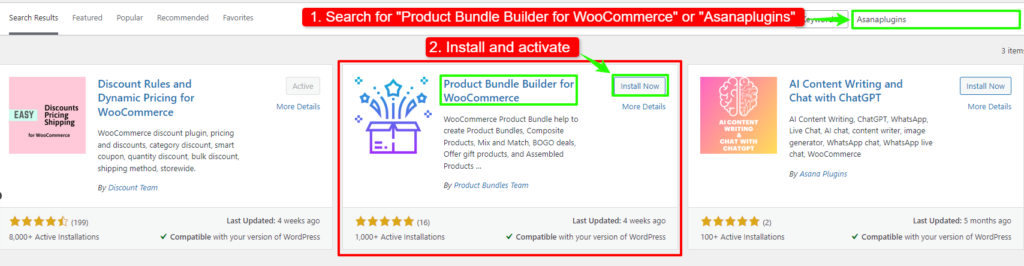
The Easy WooCommerce Product Bundles free plugin is one of the best WooCommerce plugins for creating product bundles in your online store so Follow the steps below to install this plugin :
1. Navigate to the Plugins >>Add New menu on your WordPress website
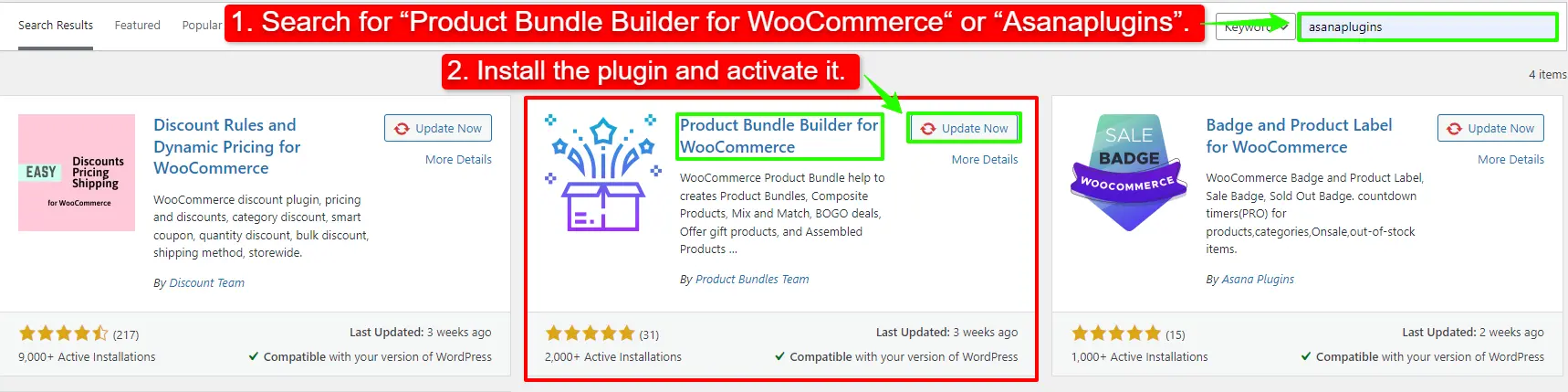
2. Then search for “Easy Product Bundles for WooCommerce“ or “AsanaPlugins“
3. Find the “Product Bundle Builder for WooCommerce” by “Asana Plugins“
4. Install and activate the plugin.
Step 2: Create a Category Product Bundle in WooCommerce
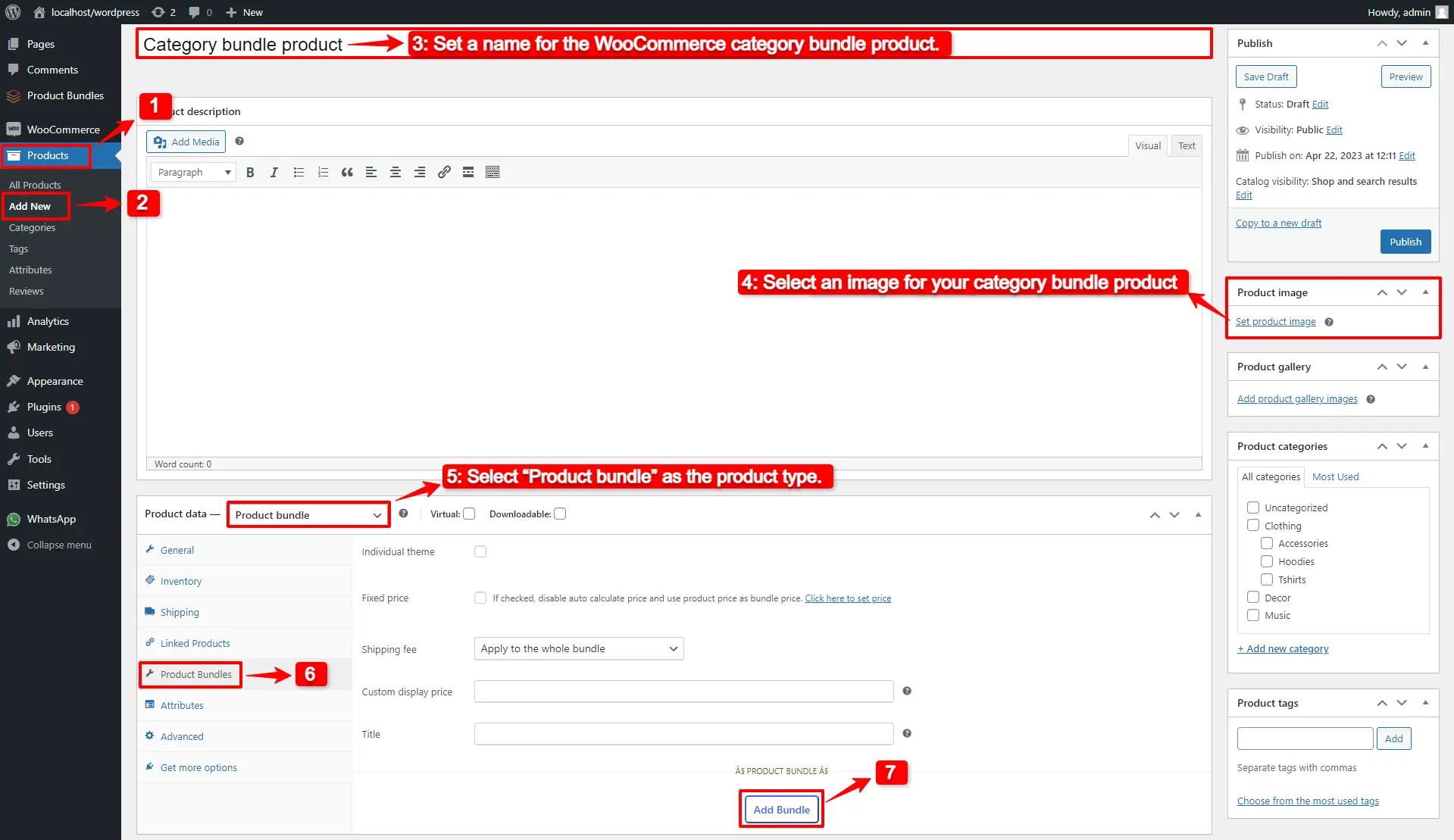
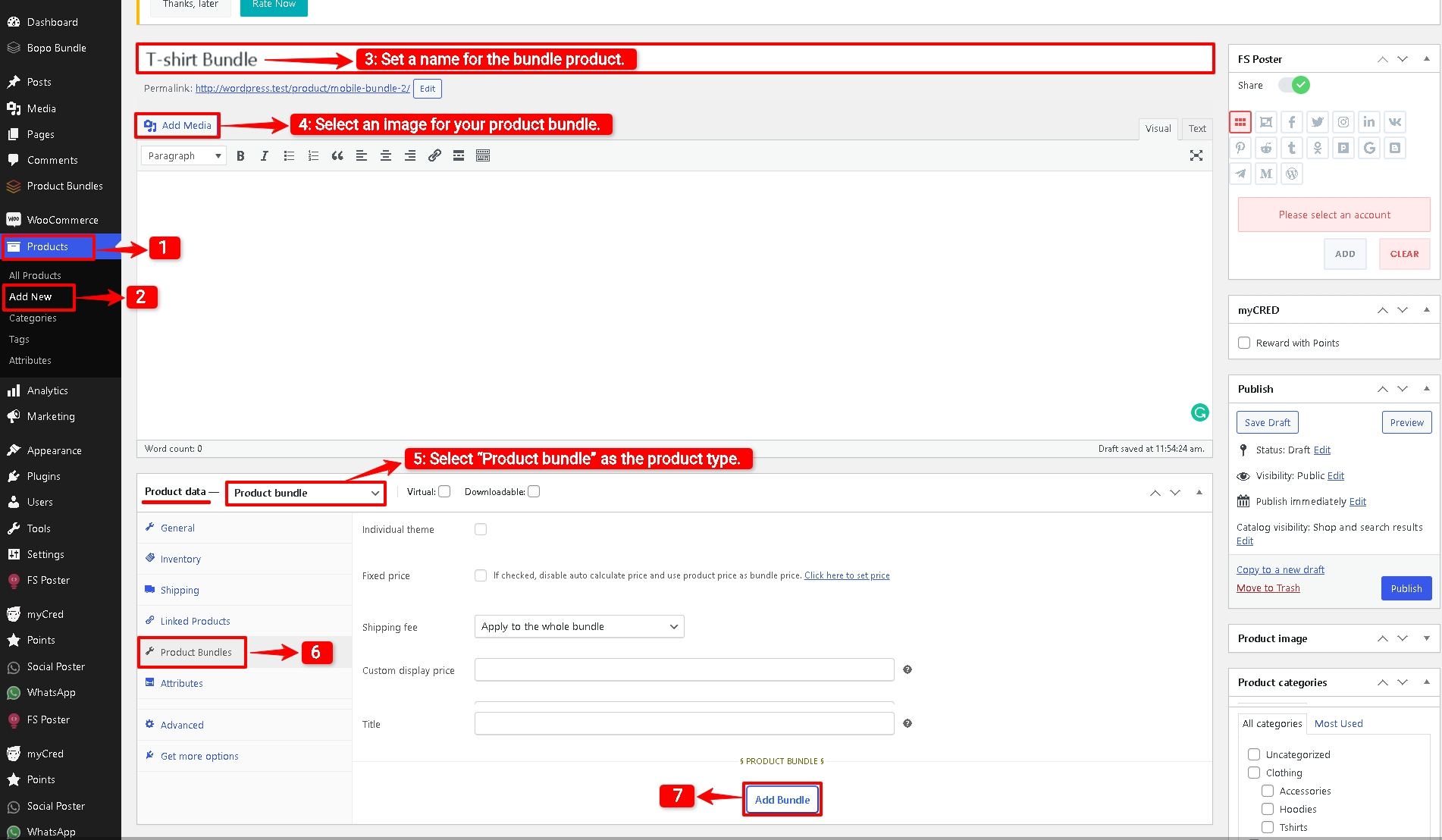
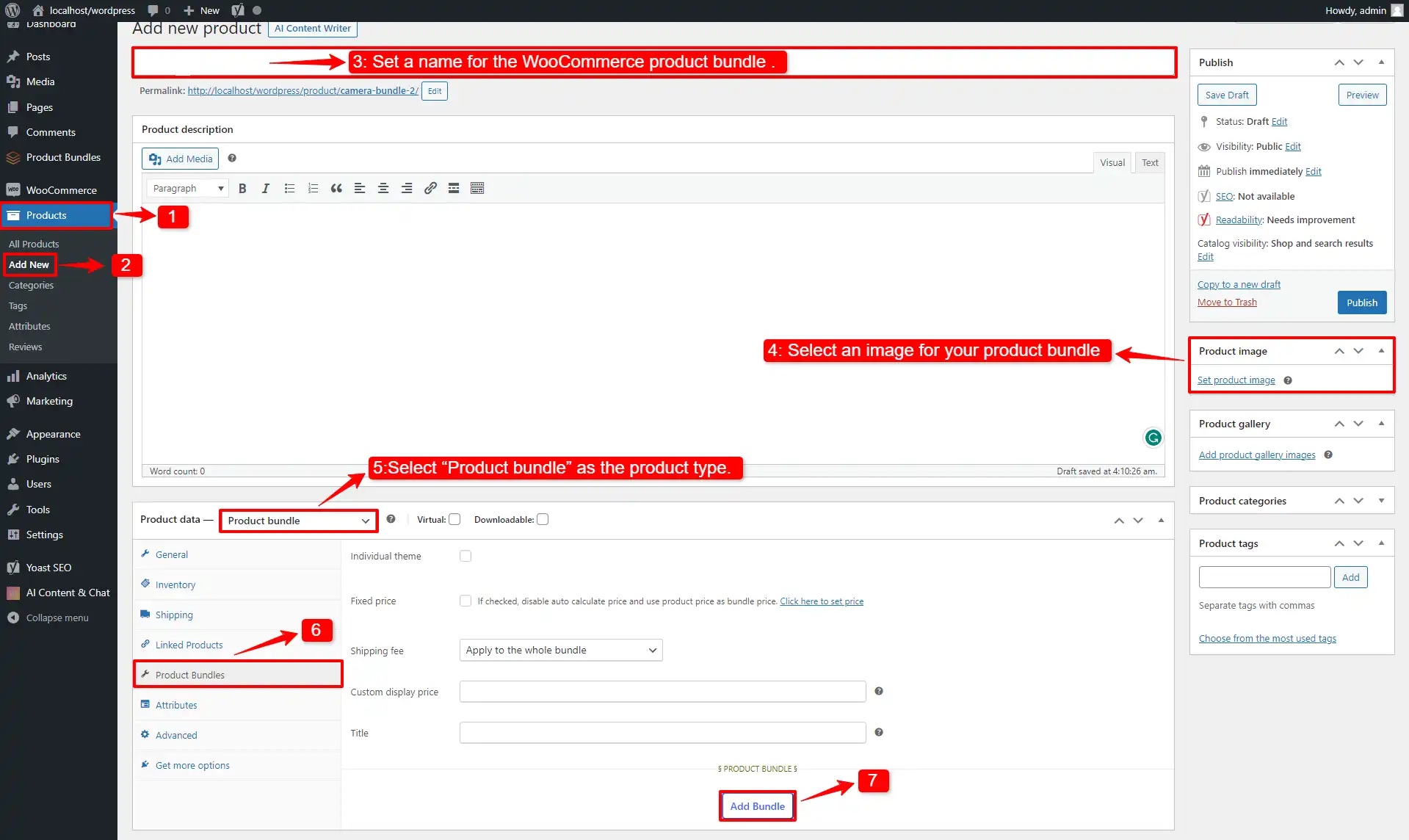
1. Navigate to the WooCommerce “Products” field in the WordPress dashboard.
2. Click on “Add New” to create a new product.
3. Set a name for the WooCommerce category bundle product.
4. Click on “Set product image” from the right sidebar and select an image for your category bundle product.
5. Now navigate to the Product data panel, and select “Product bundle” as the product type.
6. After selecting “Product bundle” as the product type, the “Product Bundles” tab will appear in the product data panel.
7. Navigate to the “Product Bundles” tab and click on the “Add Bundle” button to add a new bundle item.
Step 3: Add items to the WooCommerce categories product bundle
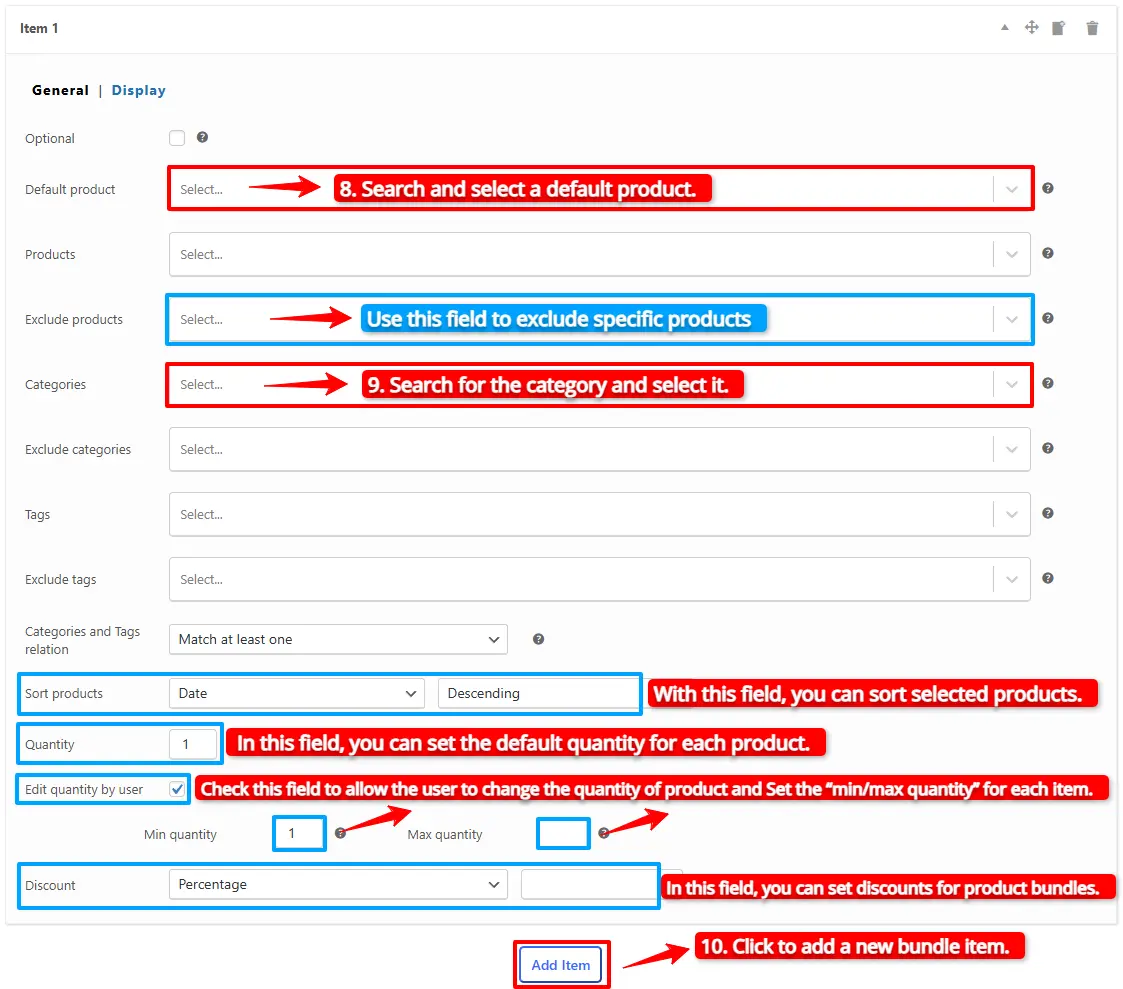
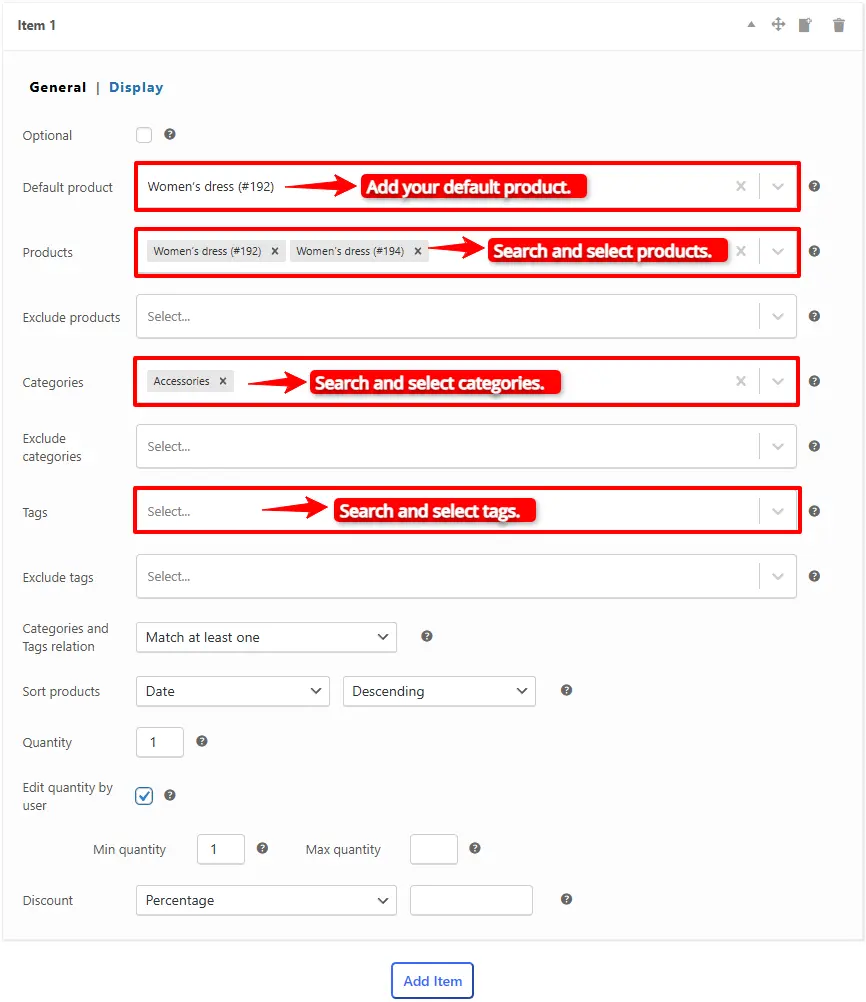
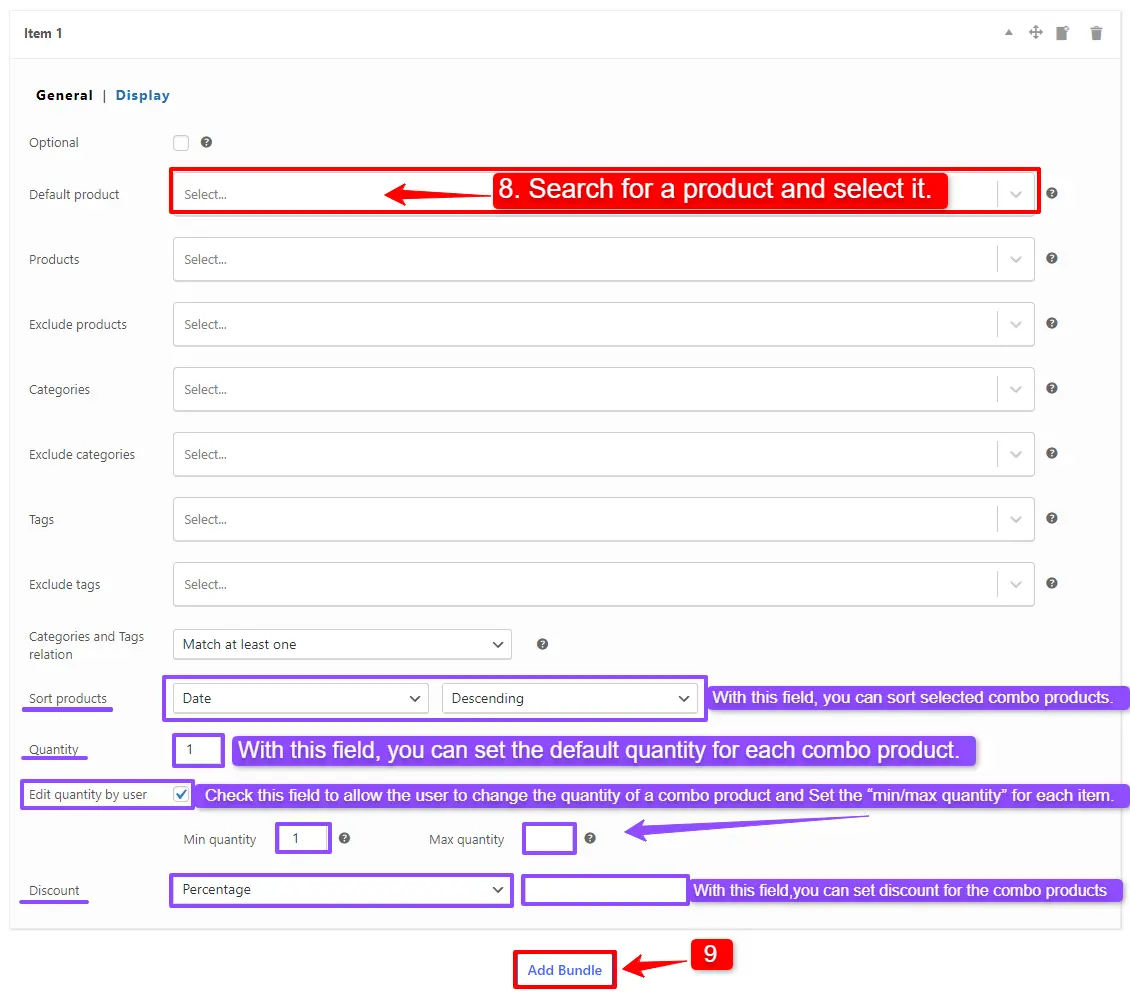
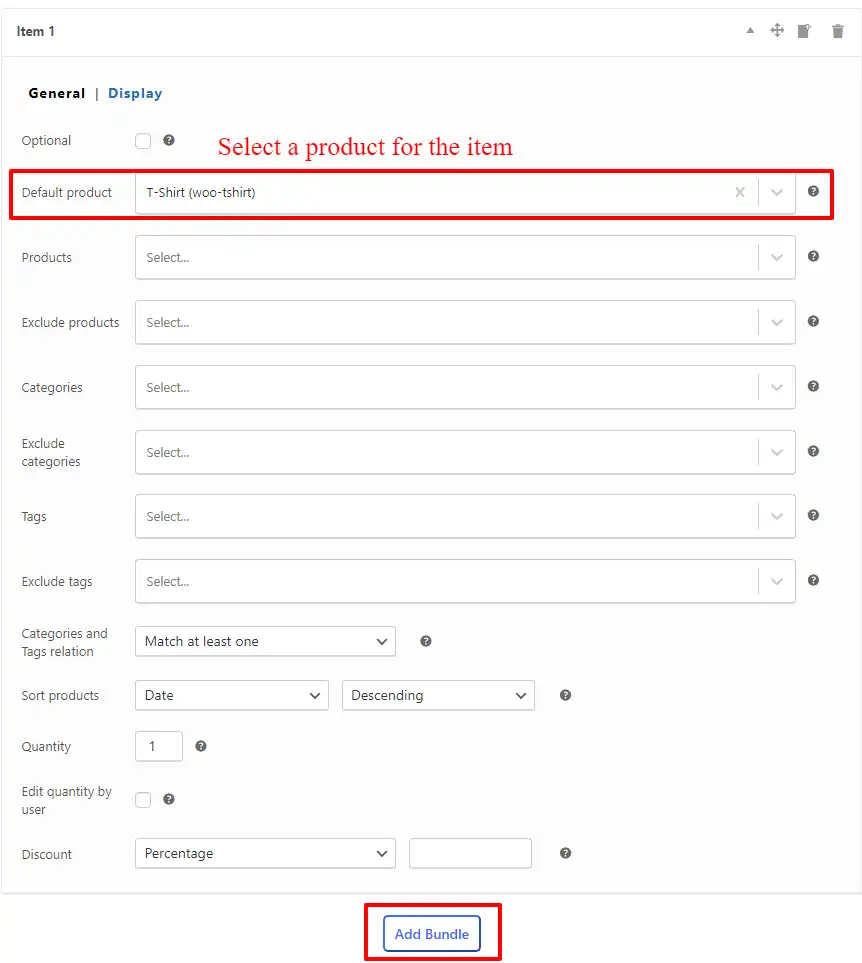
8. You can set a “Default Product” for the bundle item by selecting a product in the “Default product” field.
9. In the “Categories” field, you can include as many categories as you want. It will load products from the selected categories.
Note: If you would like to exclude some of the category products, then you can use the “Exclude products” field and specify products that should be excluded.
Step 4: Customising WooCommerce Product Bundle
You can also configure the settings below for your WooCommerce Product Bundlein the item field:
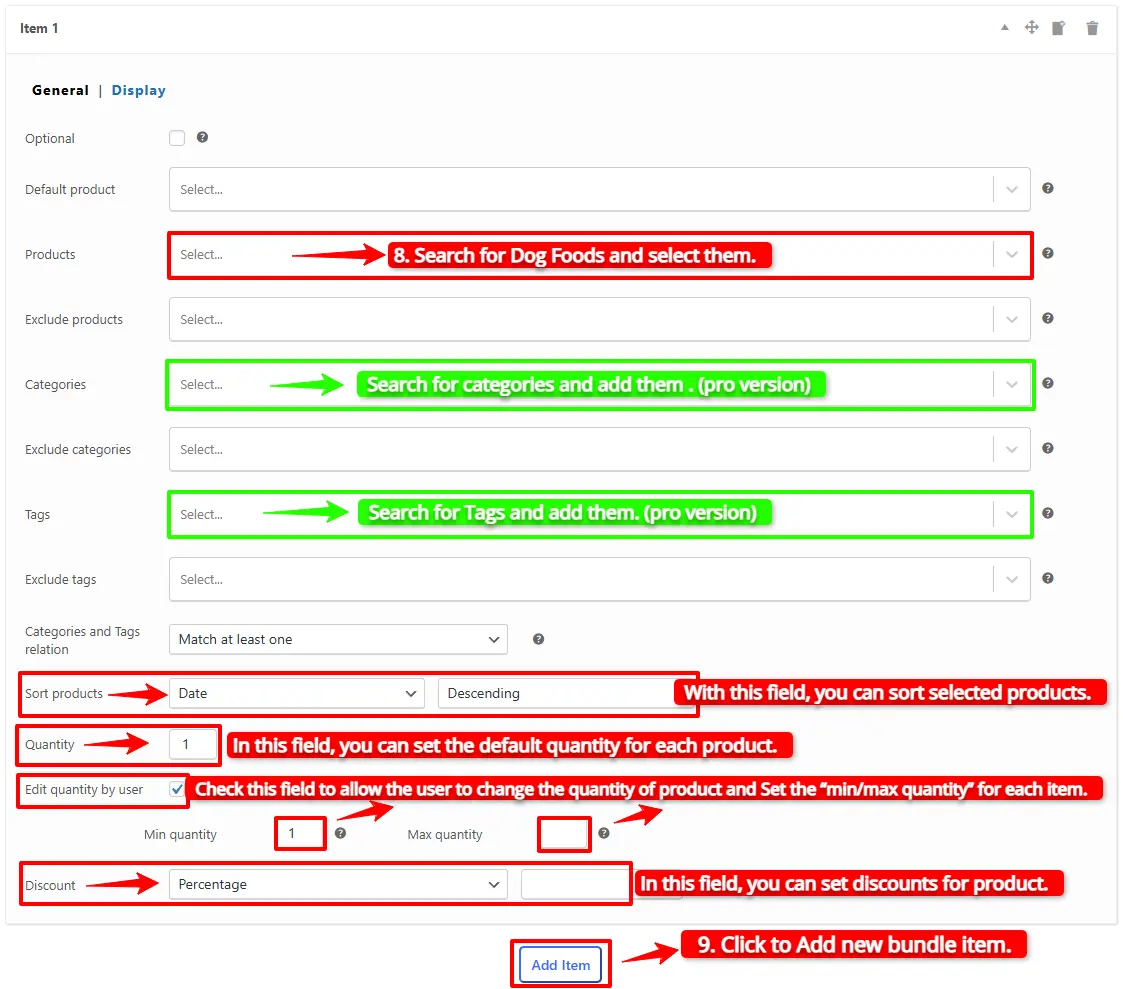
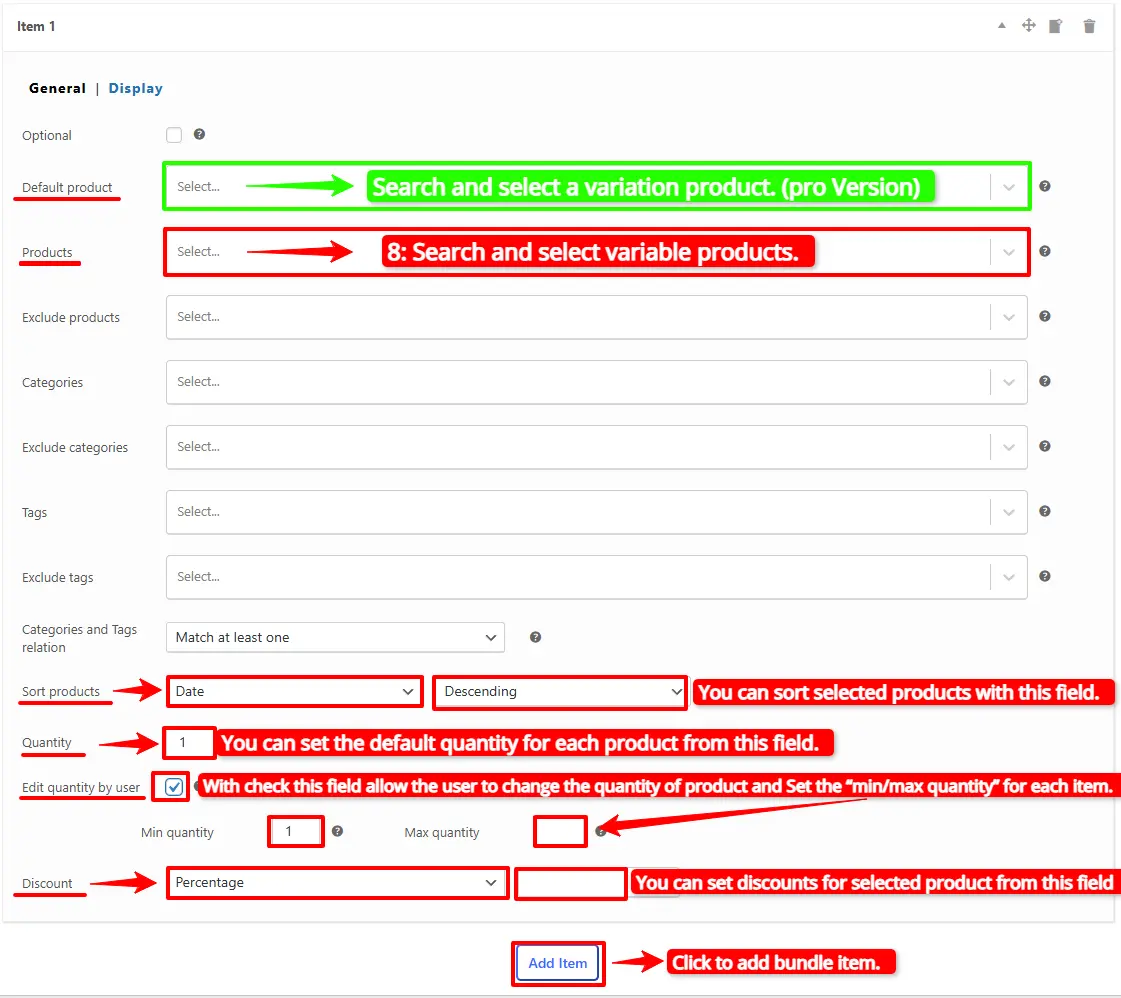
Sort products: With this field, you can sort selected products by “ID”, “Title”, “Menu order”,” Date”, “Price”, “popularity”, and“Rating”.
Quantity: In this field, you can set the default quantity for each product.
Edit quantity by user: Check this field to allow the user to change the quantity of product and Set the “min/max quantity” for each item.
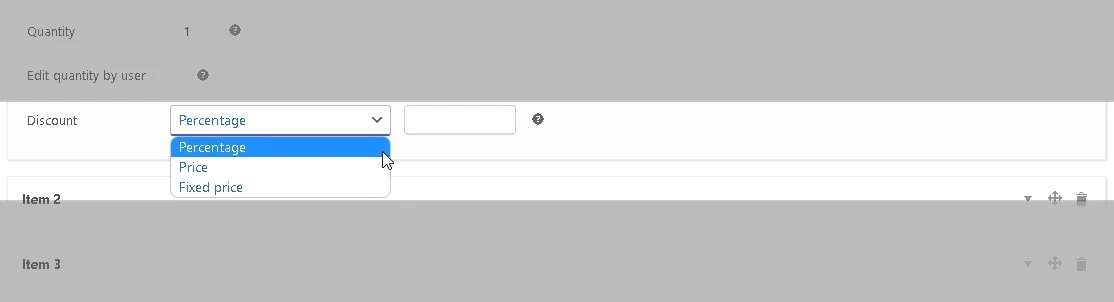
Discount: In this field, you can set discounts for product bundles by percentage, price, or fixed price.
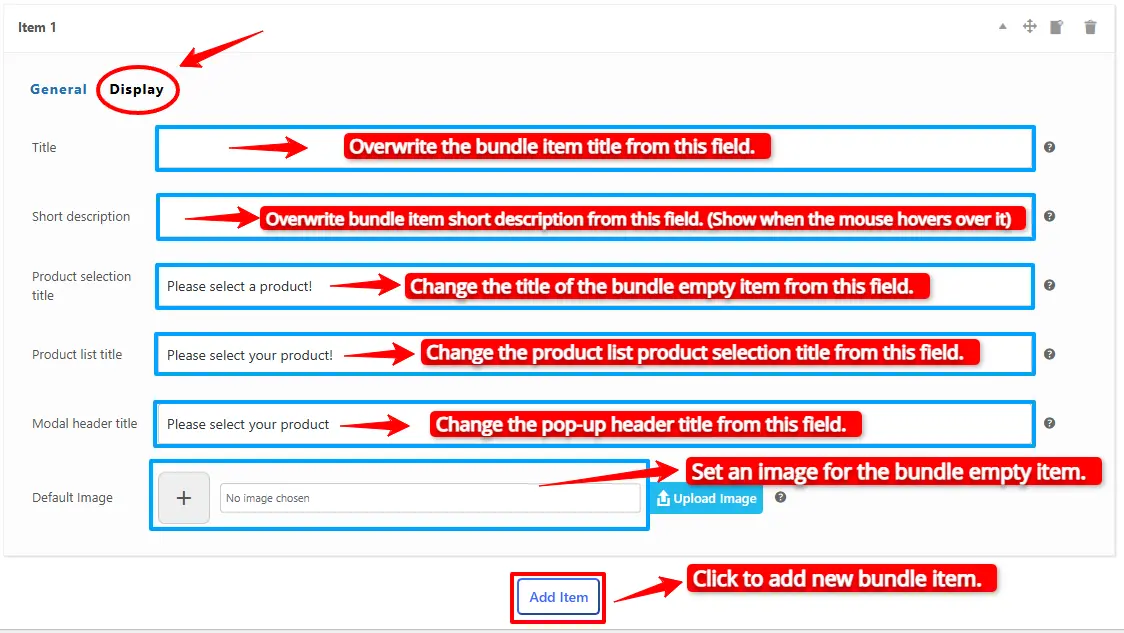
Now you can go to the “display” tab of the item and configure the following sections:
Overwrite bundle item title.
Overwrite bundle item short description. (Show when the mouse hovers over it)
Change the title of the bundle’s empty item.
Change the product list product selection title.
Change the pop-up header title.
Set an image for the empty item.
10. Then click on “Add Item” to add a new item to the bundle and select the category for it. We repeated the rule and added two items to the bundle: one for the hoodies category and another for the pants category.
Auto-calculate the price based on selected products
1. Fixed Price
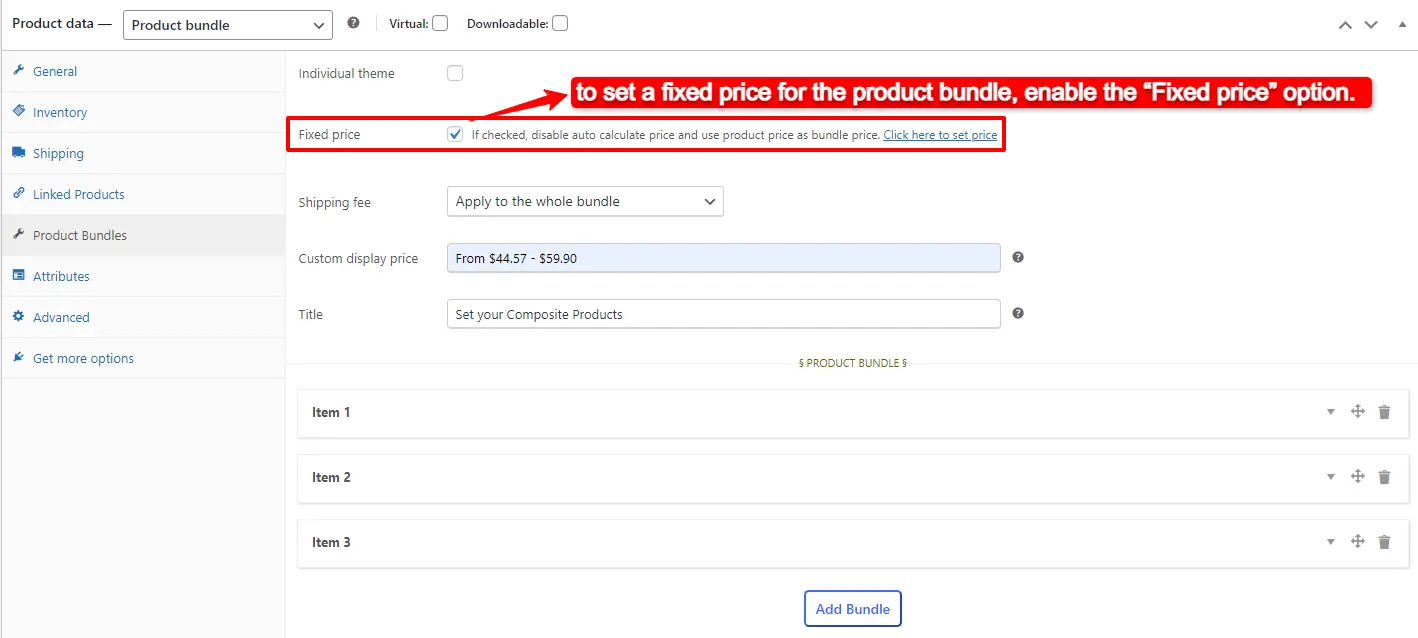
If you would like to set a fixed price for the whole bundle product, then check the “Fixed Price” option.
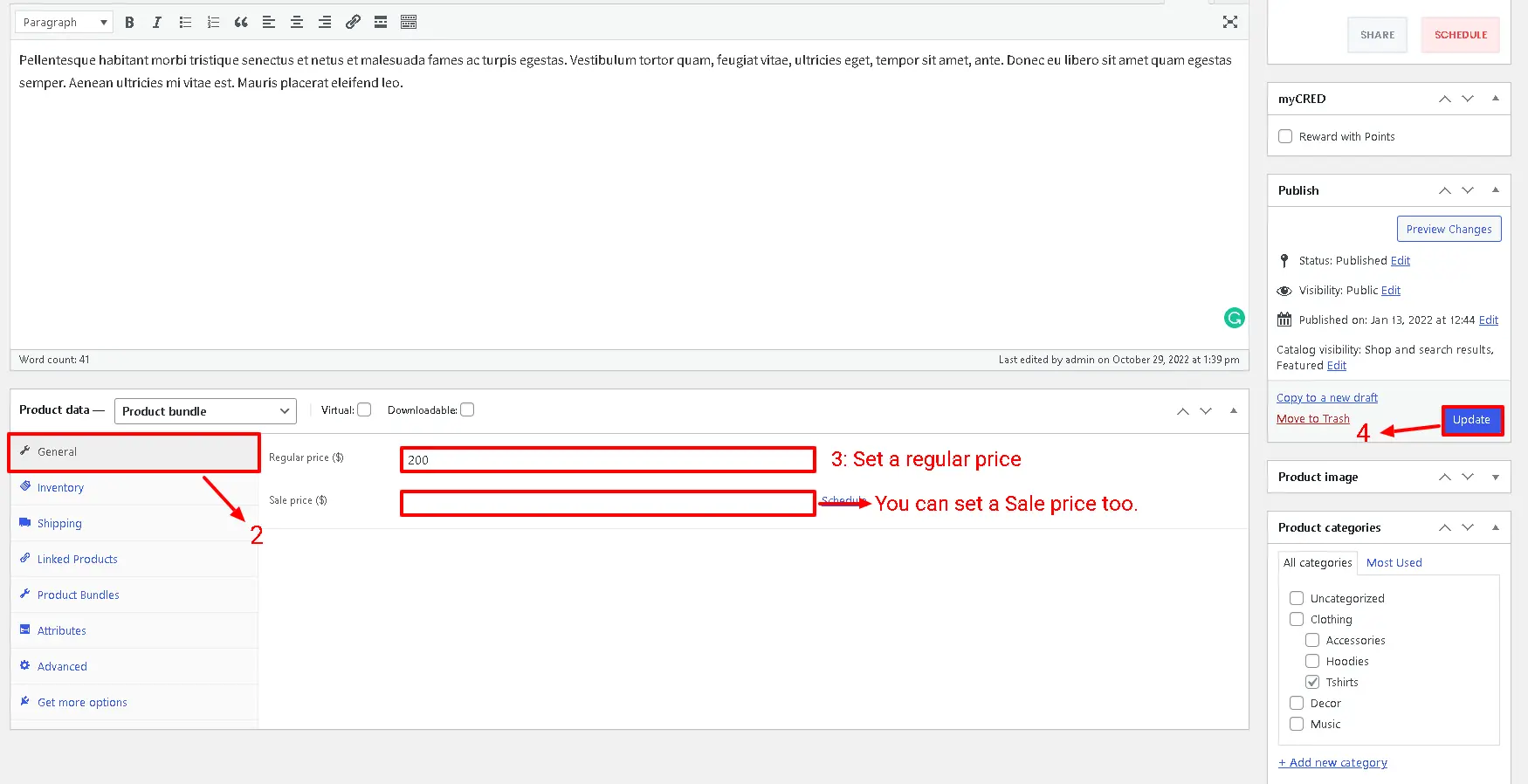
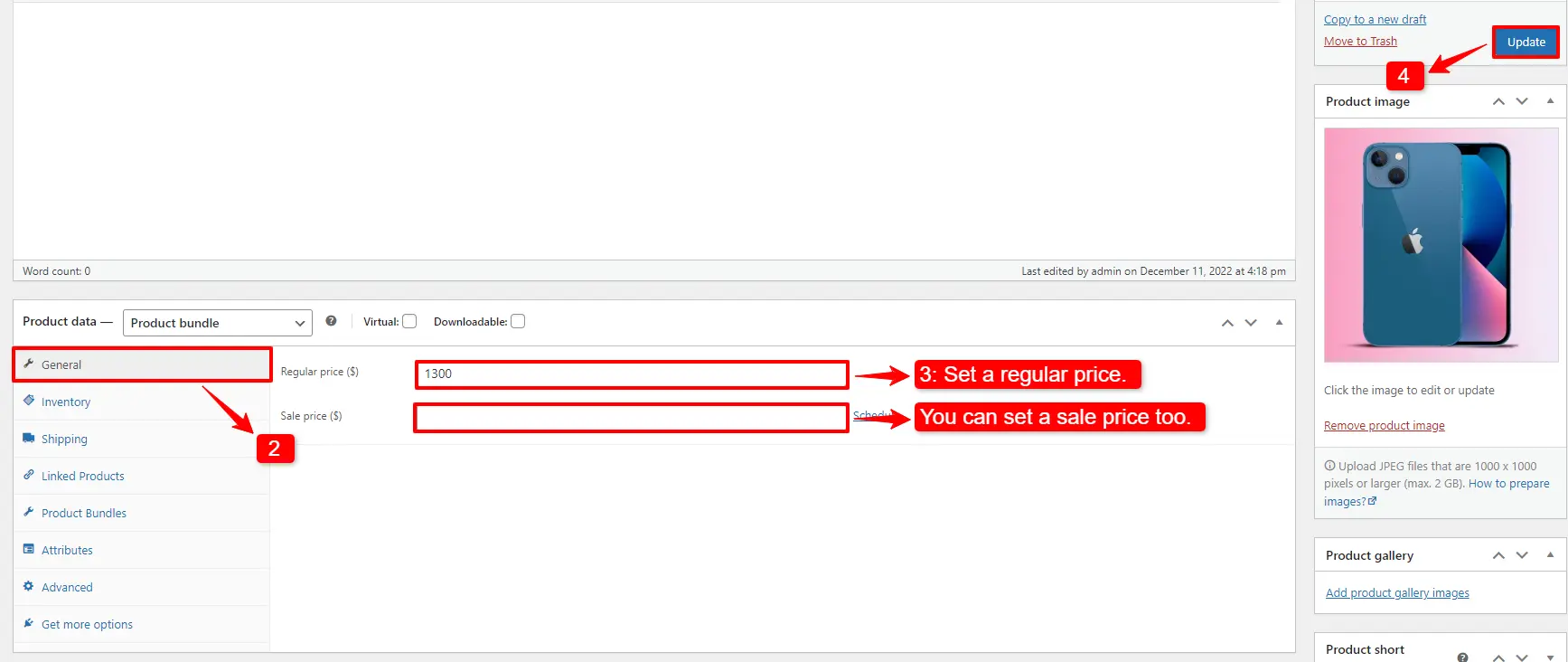
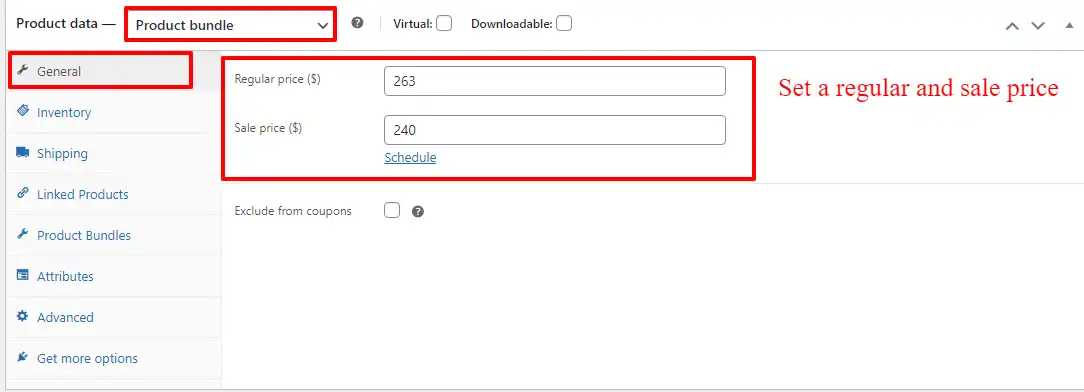
Navigate to the “General” tab and set a regular price for the Product. You can set a Sale price too.
After setting a price, update the product.
2. Auto Calculate Price
Auto calculates price helps to set a dynamic price for the product bundle based on selected items for the bundle.
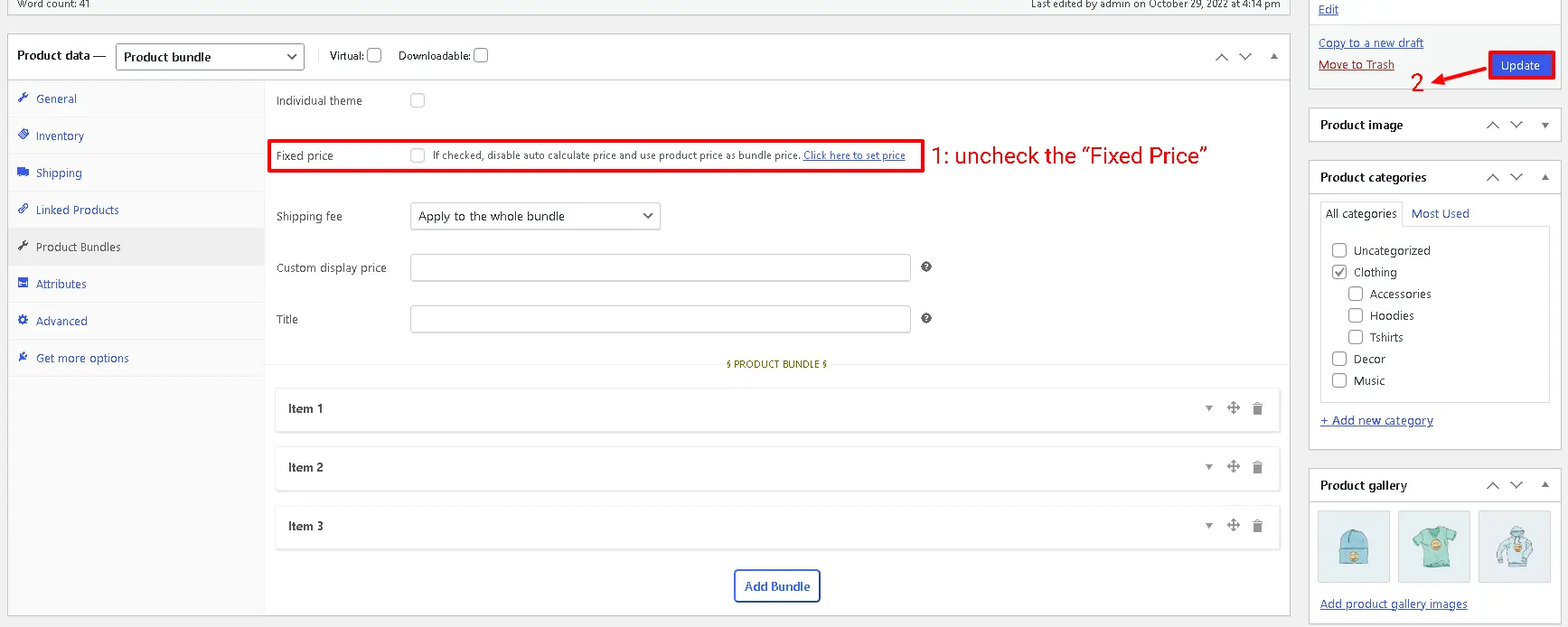
To use the auto-calculate price feature, uncheck the “Fixed Price” option and update the product.
10. At the end, publish the product bundle on your website.
Step 6: Configure the Plugin Settings
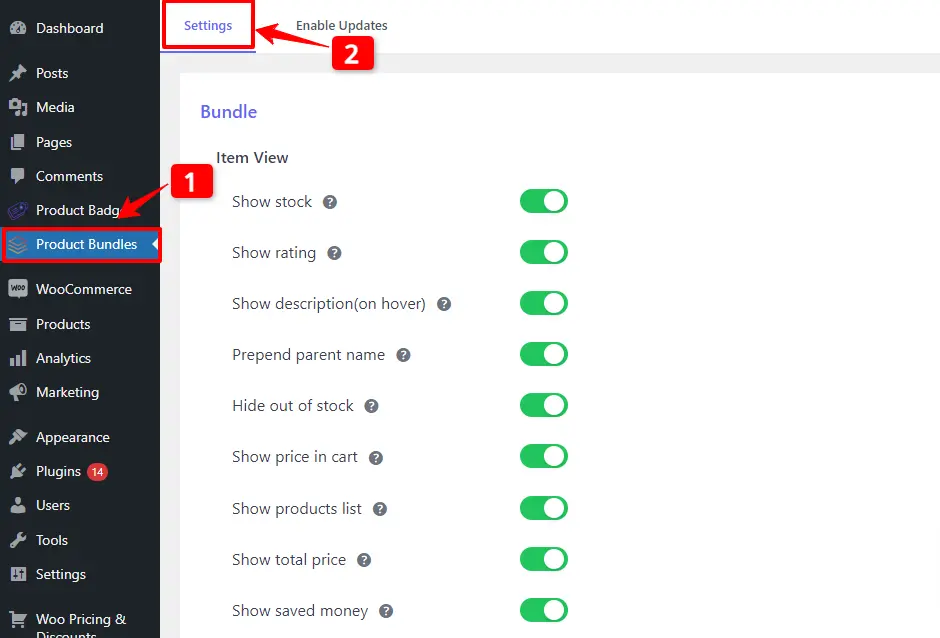
All the plugin settings you need can be found on the “Product Bundles” tab in the WordPress dashboard.
Settings and customization are available on this page:
Item View: In this section, you can configure various settings, such as displaying stock availability, showing product ratings and descriptions, adding a quantity field on item pages, displaying a plus icon for items, setting the theme and size options, positioning product bundles on the product page, defining custom CSS selectors, specifying the product price selector, and many other customizable options.
Change product popup: In this section, you can configure popup settings.
Styles: In this section, you can customize the colours of different parts of your bundle and set the product image object-fit CSS.
Final Result of Category Product Bundles
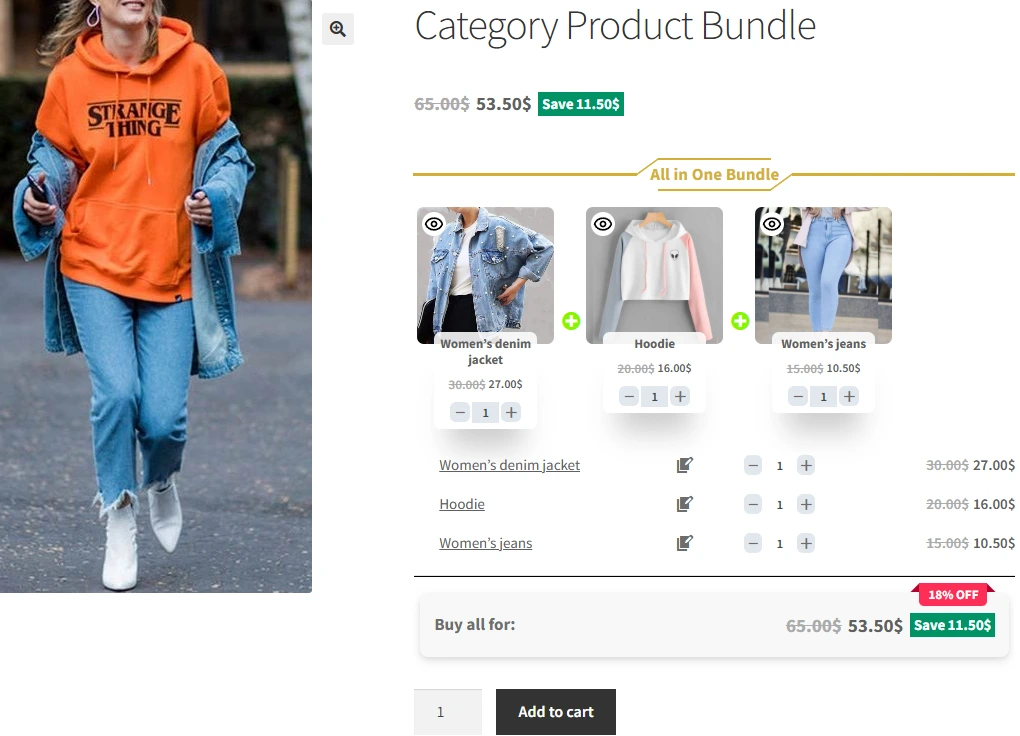
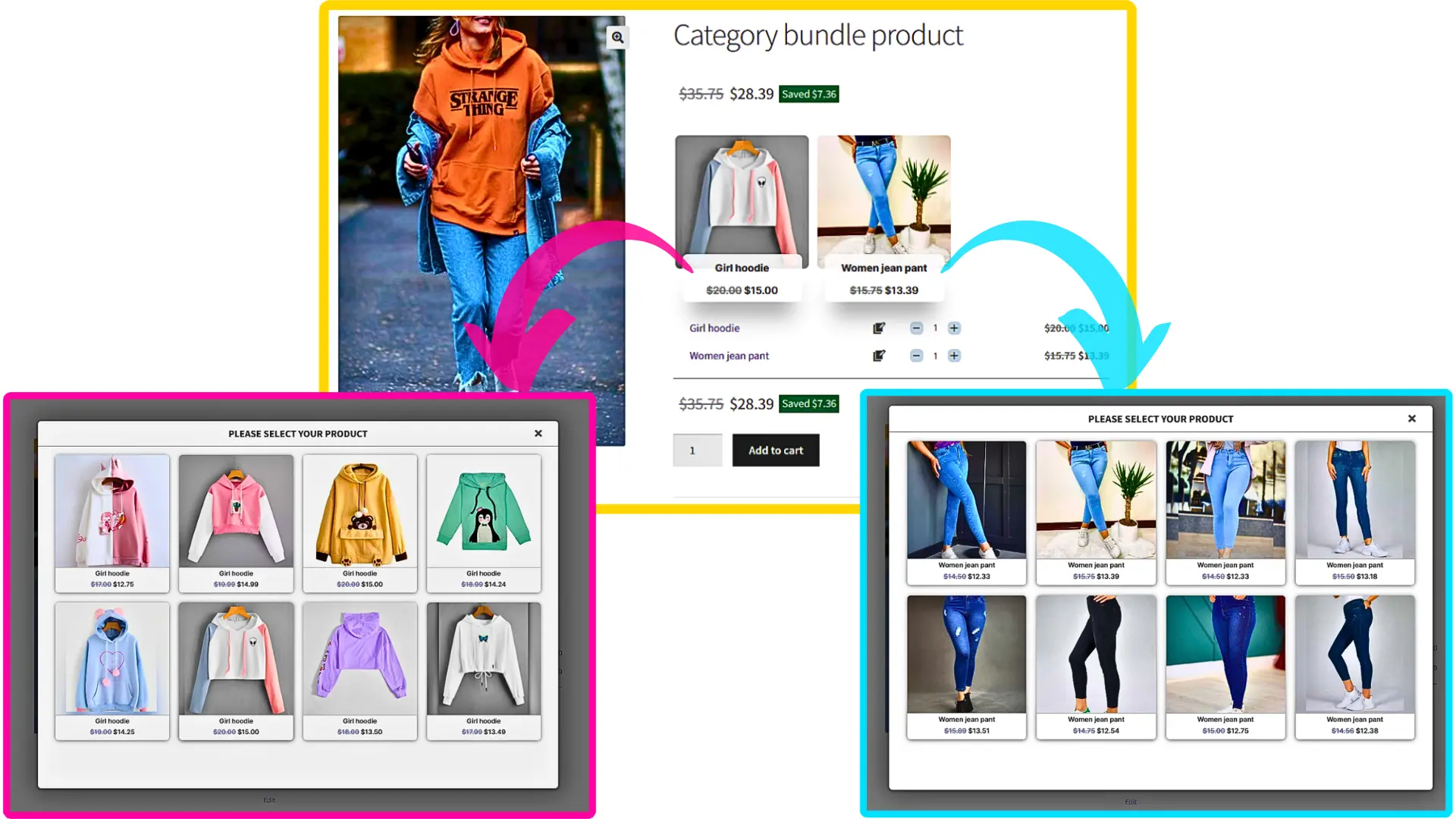
After creating and publishing the category product bundle in WooCommerce, navigate to the product page and select a product for each item from popup, then add it to the cart.
Create Unique Product Bundles with Different Categories in WooCommerce
One of the most powerful aspects of the WooCommerce Product Bundle Plugin is the ability to create unique bundles that include products from different categories. This allows you to offer customers a more personalized shopping experience and increase the likelihood of a sale. For example, you could create a bundle that includes a shirt, pants, and shoes from different categories, and offer a discount on the total price. By offering these types of bundles, you can differentiate yourself from competitors and drive more sales to your store.
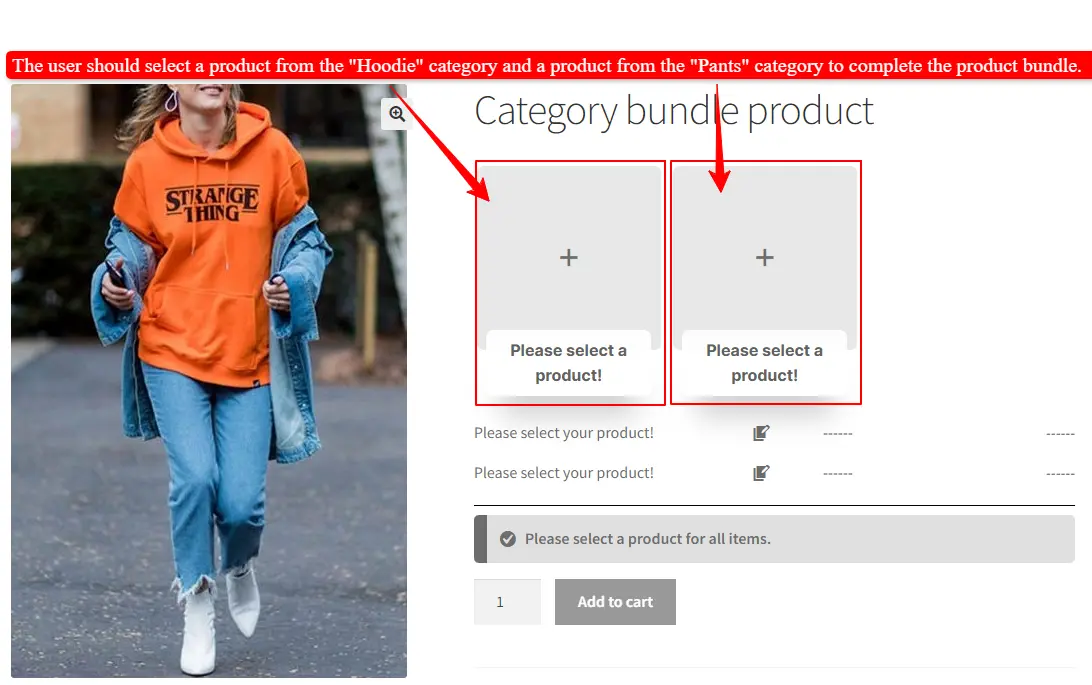
If you want to force users to select products from different categories, then you should add an item for each category.
For example, we want to force users to select a hoodie and a pant. We should add 2 items to the bundle.
Step 1: Create a New Bundle
Go to WooCommerce → Products → Add New.
Add a name and image for Product Bundle.
Choose Product Bundle as the product type.
After selecting “Product bundle” as the product type, the “Product Bundles” tab will appear in the product data panel.
Navigate to the “Product Bundles” tab and click on the “Add item” button to add a new bundle item.
Tip: Choose a clear, catchy name for your bundle that highlights the value or theme (e.g., “Casual Hoodie & Pant Set”).
Step 2: Configure Each Item
Select the hoodie category for the item in the category field (e.g., Hoodie).
Set Default Quantity, Min/Max Quantity, and Discount.
Now, click on the” Add Item” button to add item 2 to the bundle.
Repeat the top steps for the second item (e.g., Pant).
Tip: Offering a small discount encourages customers to buy the full bundle instead of individual products.
Step 3: Publish and Test
Review your bundle and make sure each category is set correctly.
At the end, publish the bundle.
Pro Tip: Highlight the flexibility of the bundle in your product description. Phrases like “Mix & Match your favorite Hoodie and Pant” make the offer more appealing.
Customers must now choose one product from each category in the bundle.
As you can see in the image below, the user should select a product from the “Hoodie” category and a product from the “Pant” category to complete the product bundle.
Using category-based bundles helps you increase average order value, improve customer satisfaction, and differentiate your store from competitors.
The Ultimate Guide to Creating Product Bundles with Categories in WooCommerce
In conclusion, the WooCommerce Product Bundle Plugin is a powerful tool for online retailers looking to boost sales and offer a more personalized shopping experience to customers. By using categories in your bundles, you can organize products in a way that makes sense for your customers and create bundles that are both attractive and profitable. Whether you’re just starting with custom bundles or looking to take your existing bundles to the next level, the WooCommerce Product Bundle Plugin is a must-have tool for any online retailer.
Articles
To delve deeper into the realm of Product Bundle plugin and its applications, we invite you to explore the array of informative resources we’ve compiled in the list below. These resources promise to expand your understanding and proficiency in leveraging the potential of this plugin to the fullest:
This article provides a clear and practical guide on How to Create WooCommerce Composite Products in 2026 using the free and powerful Easy WooCommerce Product Bundles plugin. You’ll learn how to build flexible, customizable composite products in WooCommerce that allow customers to mix and match components based on their preferences. The guide walks you through configuring product components, setting dynamic or fixed pricing, managing stock for individual items, and optimizing the overall shopping experience. Whether you’re selling build-your-own kits, customizable bundles, or personalized product packages, this step-by-step guide will help you create high-converting composite product offers in WooCommerce.
WooCommerce composite products allow customers to build and purchase fully customizable products by selecting from predefined components or options. Instead of buying a fixed item, shoppers can assemble a product that fits their exact needs. For example, with a “Build Your Own PC” composite product, customers can choose the case, motherboard, graphics card, and other components to create a personalized computer. Another popular example is a “Build Your Pet Basket,” where customers select toys, treats, grooming products, and more to create a custom gift basket. As different options are selected, the total price updates dynamically based on the chosen items.
Composite products give customers flexibility while keeping the buying process structured and easy. By offering tailored product combinations, you can improve the shopping experience and increase conversions in your WooCommerce store. This means more visitors complete their purchases instead of leaving the site, helping you generate higher sales from the same amount of traffic.
Benefits of WooCommerce Composite Products
WooCommerce composite products offer powerful advantages for online stores that want to sell smarter, not just more.
Customization: Customers can build products that match their exact needs. This creates a more personal shopping experience and increases satisfaction.
Flexibility: Composite products work for many business models—such as build-your-own kits, product bundles, subscription boxes, or configurable packages.
Higher Sales Potential: When customers select components themselves, they often add more items than they originally planned. This naturally increases average order value (AOV).
Built-in Upselling and Cross-Selling: During the configuration process, you can suggest related items or premium upgrades, encouraging customers to enhance their purchase.
Stronger Competitive Position: Offering customizable products helps your store stand out. Unique product experiences are harder for competitors to copy.
Better Customer Engagement: Interactive product building keeps customers involved longer, which builds trust and increases the likelihood of completing the purchase.
Smarter Marketing Opportunities: You can promote personalized bundles, seasonal kits, or targeted offers based on customer preferences.
Valuable Data Insights: By analyzing which components customers choose most often, you gain insights into buying behavior. This helps you optimize inventory, pricing, and future product strategies.
In short, composite products don’t just improve the shopping experience—they turn your WooCommerce store into a more strategic and data-driven business.
Meal Kits: Main Ingredients, Side Dishes, Sauces, Spices, Cooking Instructions
Custom Apparel: T-Shirts, Hoodies, Pants, Hats, Custom Prints
Beauty and Skincare Sets: Cleansers, Toners, Moisturizers, Serums, Masks
How to Create WooCommerce Composite Products
🎥Video Tutorial
Step1: Installing the Product Bundle Builder for WooCommerce
The Easy WooCommerce Product Bundles free plugin is one of the best WooCommerce plugins for creating composite products in your online store, so Follow the steps below to install this plugin :
1. Navigate to the Plugins >>Add New menu on your WordPress website
2. Then search for “Easy Product Bundles for WooCommerce“
3. Find the “Bundles – WooCommerce Product Bundles” by “Asana Plugins“
4. Install the plugin and activate it.
Some examples that you can create with the Easy WooCommerce Product Bundles plugin:
Simple or Pure product bundles
Advanced and Dynamic product bundles
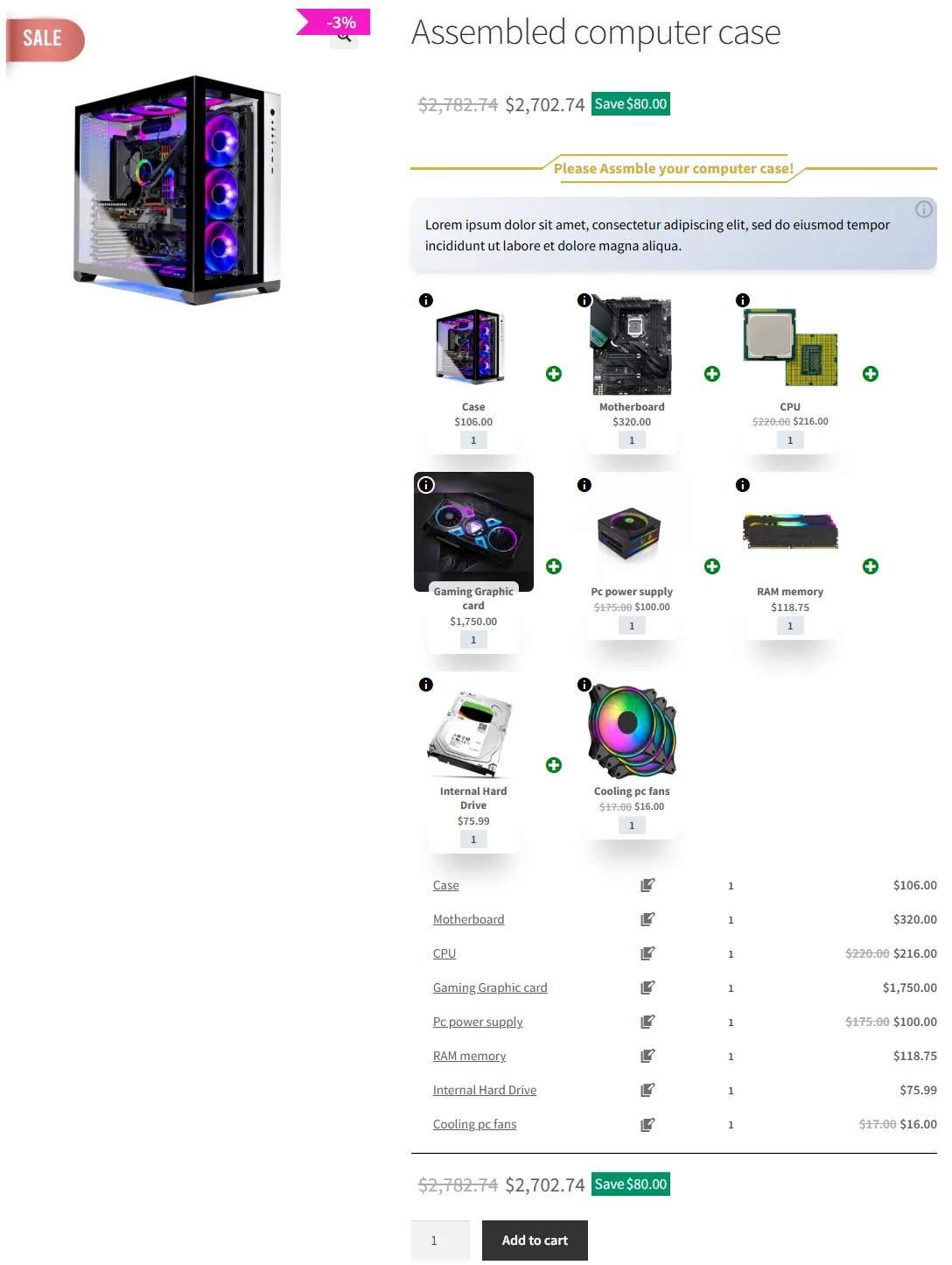
Assembled products bundle
Mix-and-Match products bundle
Frequently bought together products bundle
Create BOGO deals
Give gift products
Create Personalized Boxes
Recommend addons and essentials
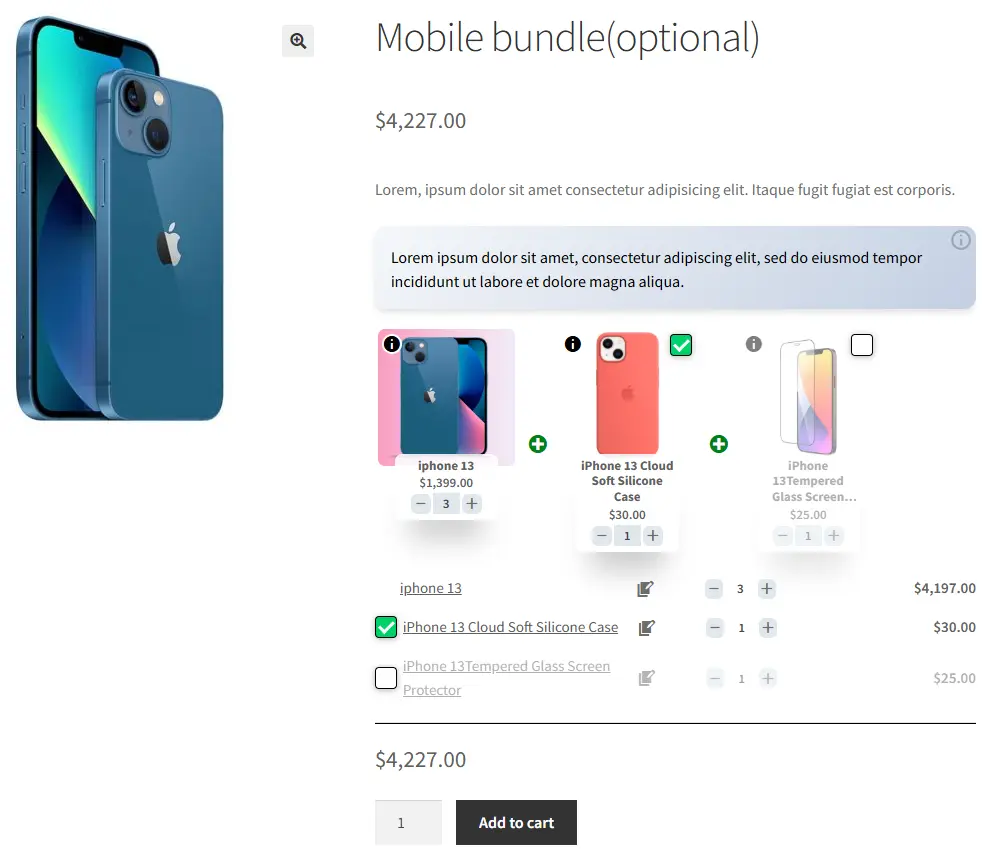
Optional products in WooCommerce Product Bundles
Step2: Creating WooCommerce Composite Products
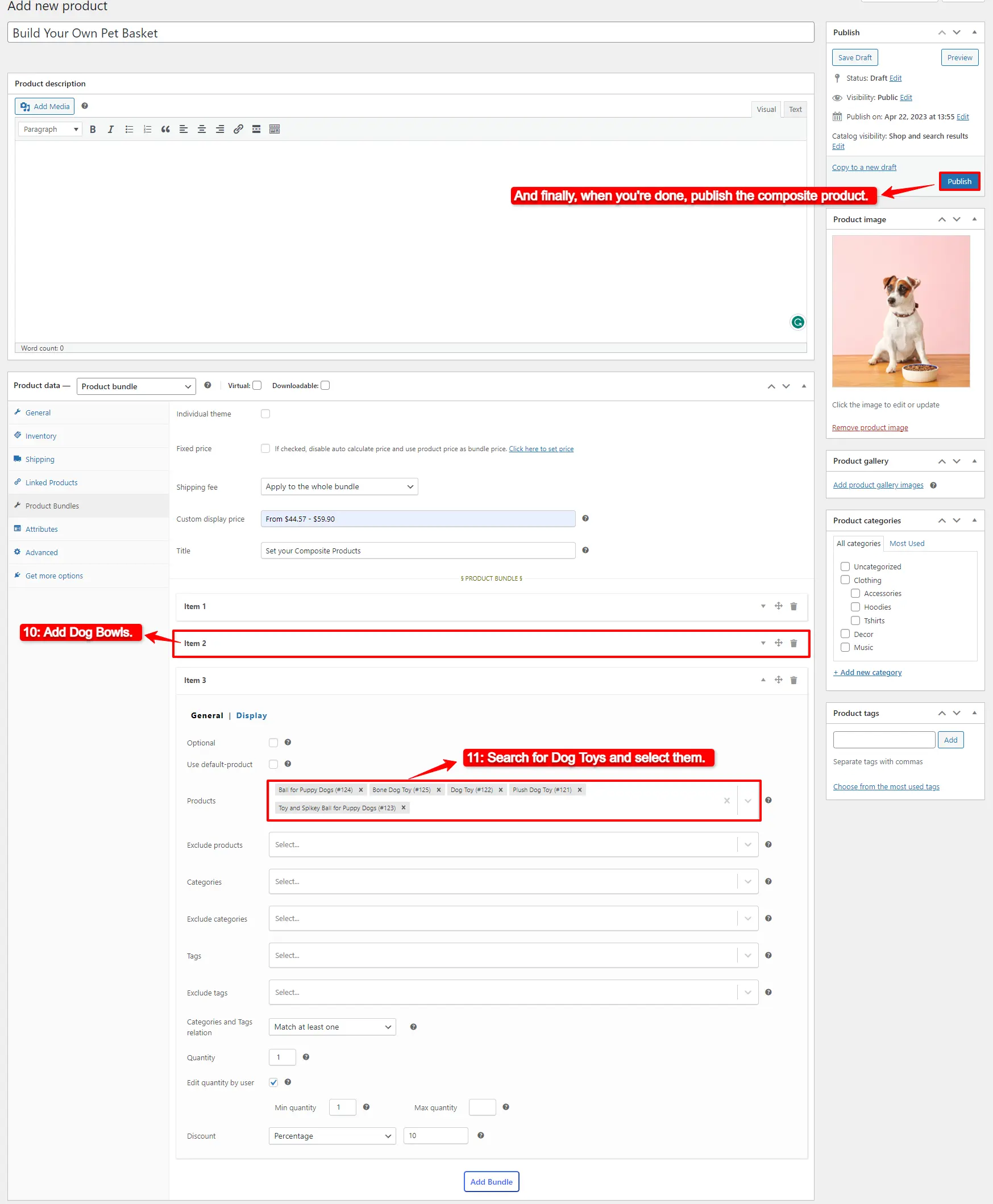
Therefore after installing the Easy WooCommerce Product Bundles free plugin, you can create composite products in WooCommerce. Here we will create composite products from Pet Supplies:
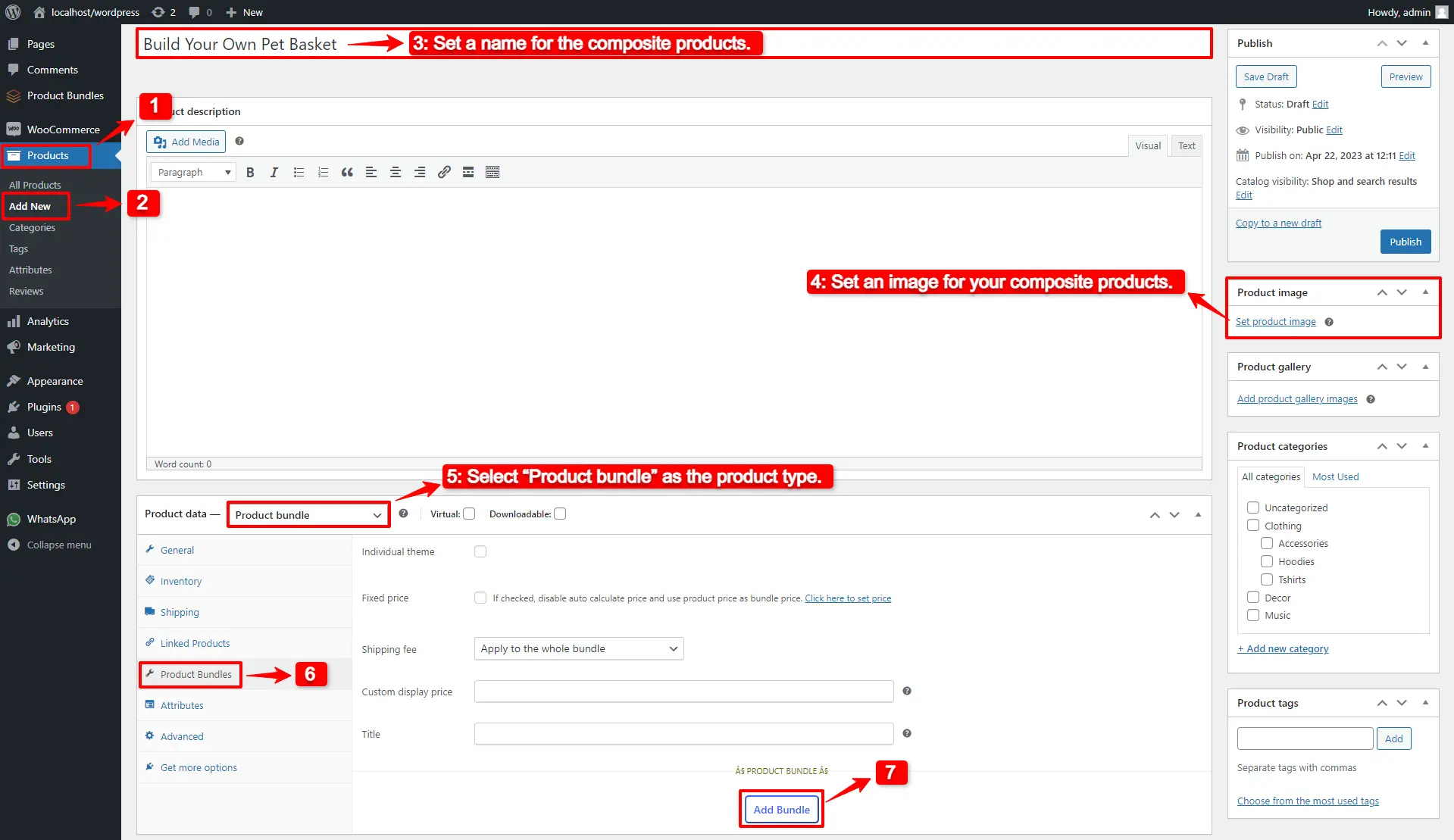
1. Navigate to WooCommerce “Products”.
2. Click on “Add New” to create a new product.
3. Set a name for the composite products, for instance, “Build Your Own Pet Basket”.
4. Click on “Set product image” from the right sidebar and select an image for your composite products.
5. Now navigate to the Product data panel, and select “Product bundle” as the product type.
6. After selecting “Product bundle” as the product type the “Product Bundles” tab will appear in the product data panel.
7. Navigate to the “Product Bundles” tab and click on the “Add Item” button to add a new bundle item to the composite products.
8. Now, in the “Products” field, search for Dog Foods and select them.
Or Likewise, if you would like to include products from a category, you can do it with the “Categories” field of the item. therefore you can search for categories and add them to the “Categories” field. (pro version)
in addition, you can do the same for the product tags and include them in the “Tags” field. (pro version)
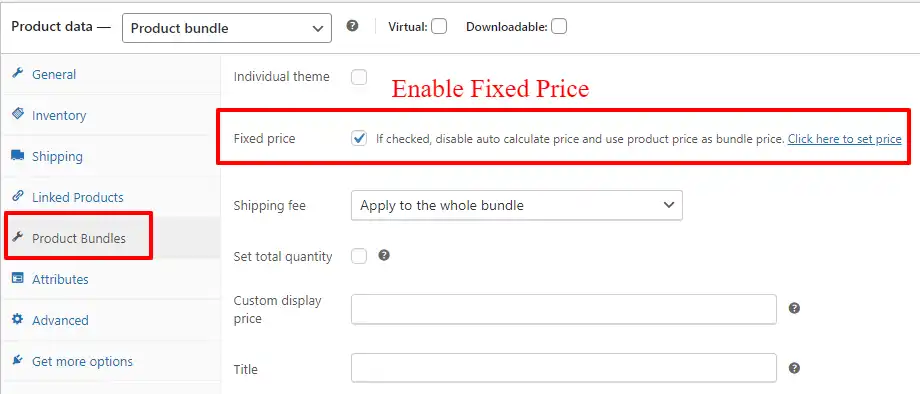
Fixed Price: Sets a fixed price for the whole composite products
Auto Calculate Bundle Price: Allow the plugin to calculate the composite product price using the selected products for the bundle items.
If you want to set a fixed price for the composite product, enable the “Fixed price” option then navigate to the “General tab”, and set a price for the “Regular price” field. You can set a “Sale price” too.
To use the “Auto Calculate Bundle Price” disable the “Fixed price” option.
12. Now you can publish the composite products on your website.
Step 5: Configure the Plugin Settings
All the plugin settings you need can be found on the “Product Bundles” tab in the WordPress dashboard.
Settings and customization are available on this page:
Item View: In this section, you can configure various settings, such as displaying stock availability, showing product ratings and descriptions, adding a quantity field on item pages, displaying a plus icon for items, setting the theme and size options, positioning product bundles on the product page, defining custom CSS selectors, specifying the product price selector, and many other customizable options.
Change product popup: In this section, you can configure popup settings.
Styles: In this section, you can customize the colours of different parts of your bundle and set the product image object-fit CSS.
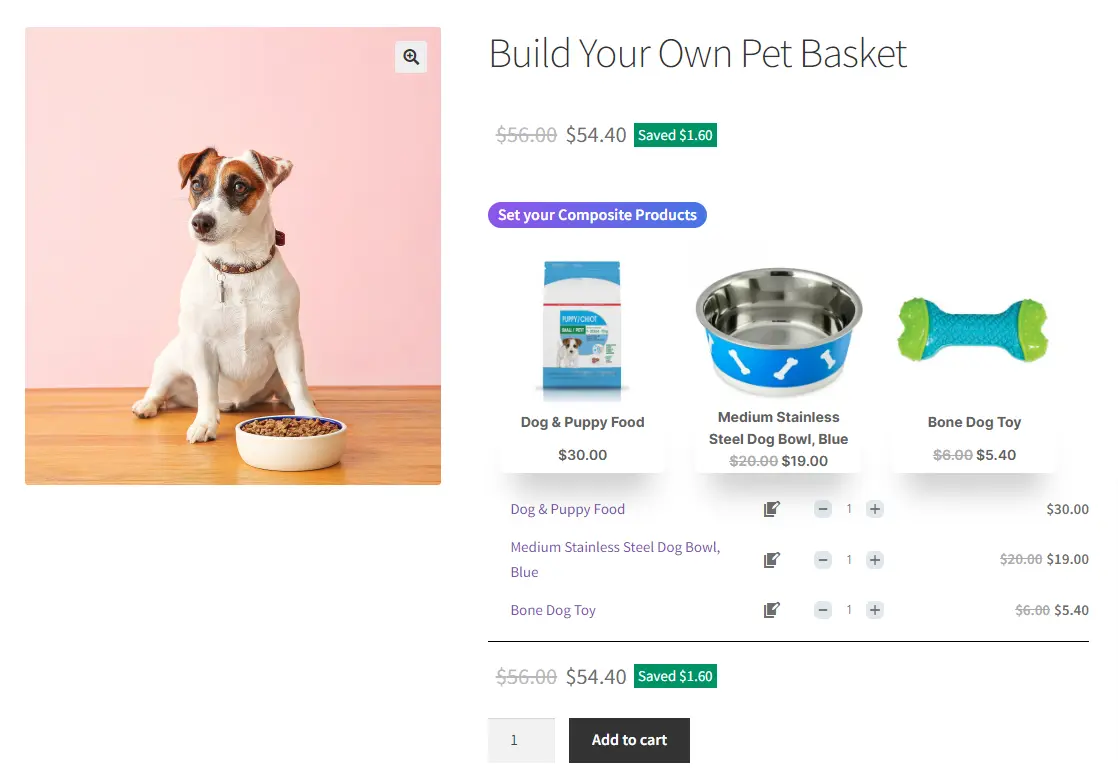
Final Result of WooCommerce Composite Products
As a result, the WooCommerce composite products are like the image below.
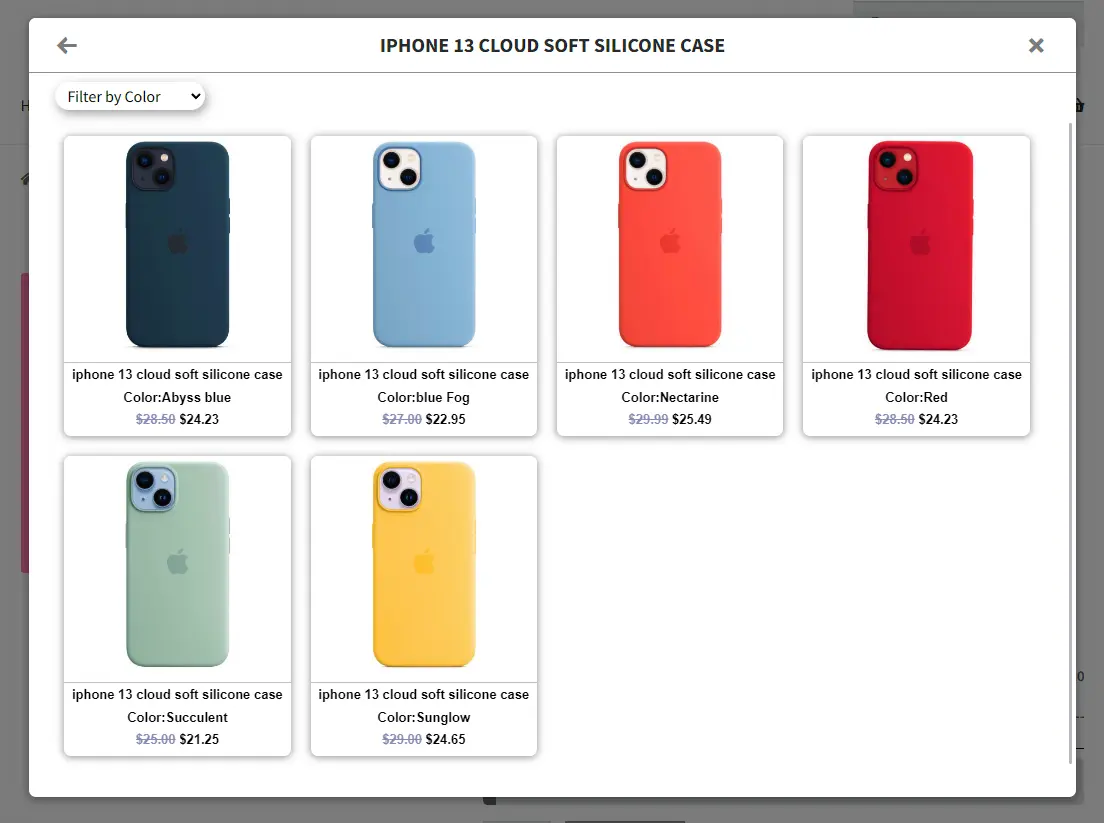
And the customer can choose other available products from the popup.
How to Create a WooCommerce Composite Product with Variable Products
Creating WooCommerce composite products with flexible variable options allows you to deliver a more interactive and personalized shopping experience in 2026. Customers can easily build product bundles that match their exact needs—whether that means choosing size, color, model, or technical specifications—all from a single product page.
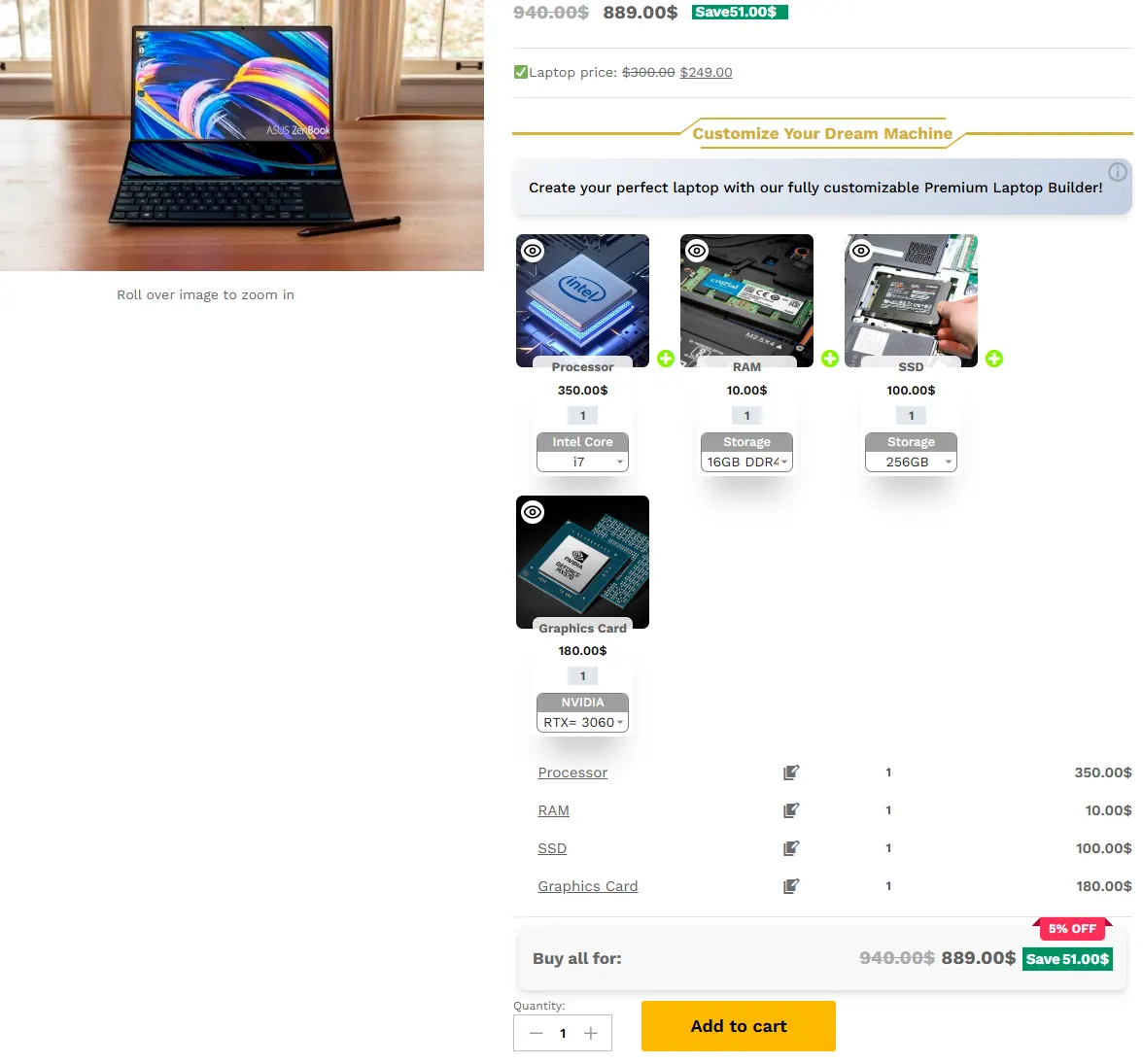
For example, you can create a custom laptop builder where users select their processor, RAM, storage, graphics card, and accessories step by step. The price updates dynamically as options change, giving customers full transparency before checkout.
This structured customization improves confidence, reduces cart abandonment, and increases average order value. At the same time, you maintain better inventory control by managing each component individually. The result is a smoother buying journey for customers and a more scalable, professional system for your WooCommerce store.
🎥Tutorial
Step 1: Create Variable Products in WooCommerce
First, you should create Variable products in WooCommerce.
For customising the composite product, please read this sectionof the article for more information.
9. Then click on “Add Item” to add a new item to the composite products with Variable product and configure it as in the previous steps. We have created 2 other bundle items.
Step 4: Pricing for composite Products with Variable Products
For customising the composite product, please read this sectionof the article for more information.
10. Now you can publish the composite products with variables on your website.
Step 5: Configure the Plugin Settings
To configure the Plugin Settings, you can just read this section of the article for more information.
Final Result
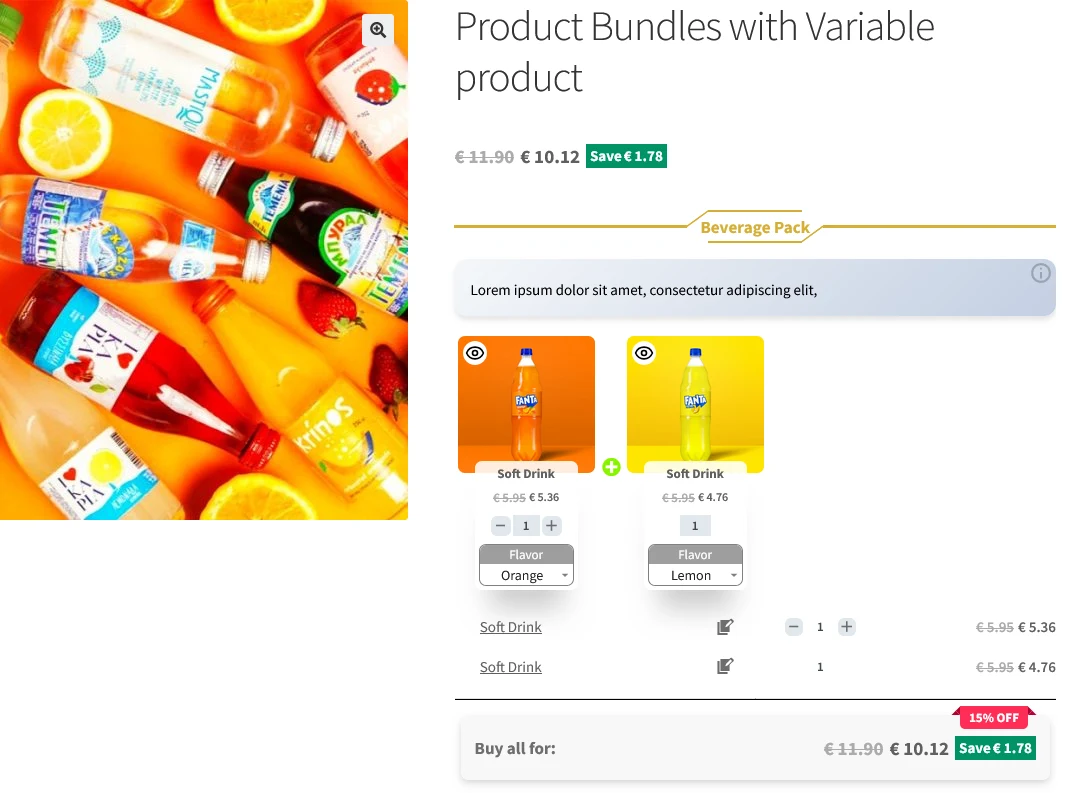
Now open the product page on the front end. As a result, after selecting a variation product, for all of the bundle items, the WooCommerce composite products with variable will be shown in the image below.
Shortcodes
[asnp_wepb_product] Use it on the product page to show the bundles.
[asnp_wepb_product show_add_to_cart="1"] Use it on the product page to show the bundles + add to cart button.
Other Article
To delve deeper into the realm of the Product Bundle plugin and its applications, we invite you to explore the array of informative resources we’ve compiled in the list below, Furthermore, these resources promise to expand your understanding and proficiency in leveraging the full potential of this plugin:
In this article, we want to introduce 4 Best WooCommerce free plugins to boost sales and revenue for online stores that use WooCommerce, which is a popular e-commerce platform for WordPress websites. These plugins offer various features and tools to help store owners promote their products and incentivize customers to make more purchases and make it easy for website visitors to contact the website owner or customer support team. Overall, WooCommerce Boost Sales plugins aim to help store owners increase sales and revenue by making it easier and more appealing for customers to make additional purchases.
The desired plugins are as follows:
Discount Rules and Dynamic Pricing for WooCommerce
1) Discount Rules and Dynamic Pricing for WooCommerce
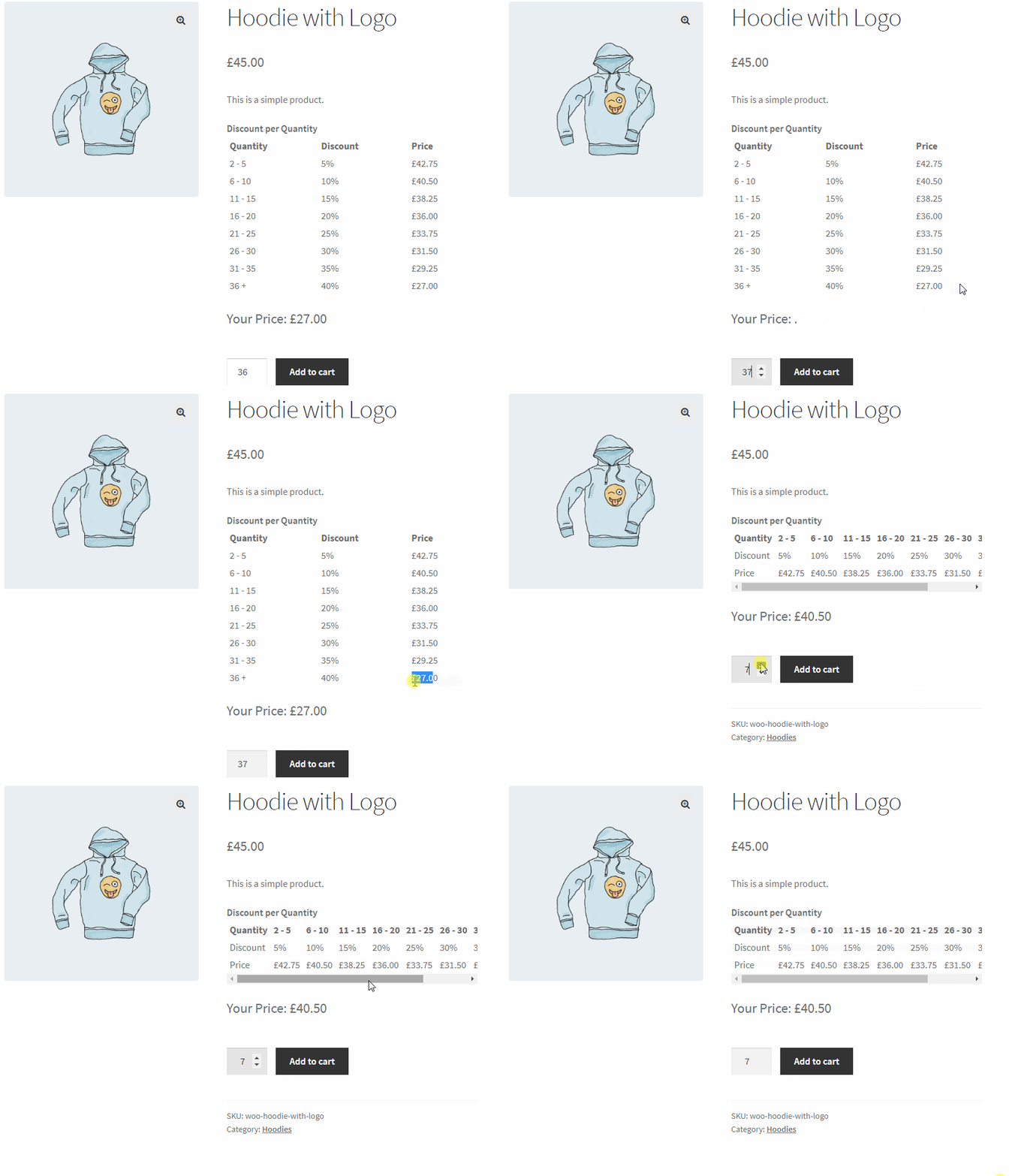
The WooCommerce Dynamic Pricing & Discounts plugin is a comprehensive tool that provides practical solutions for setting up discount offers on your WooCommerce store. As one of the best WooCommerce free plugins to boost sales, it offers a perfect combination of ease of use and powerful features. Whether you’re a beginner or an experienced user, this plugin is easy to use and comes with advanced features to cater to your needs. It enables you to create and customize your discount rules with ease, ensuring that your customers get the best deals on your products. With its intuitive interface and out-of-the-box functionality, this plugin is an ideal solution for anyone looking to boost sales and improve customer engagement on their WooCommerce store.
WooCommerce Product Bundle Builder is a top-notch WooCommerce free plugin designed to help online store owners create irresistible deals that package multiple products for sale together. This powerful tool provides an excellent way to boost sales of various product types while also offering customers attractive benefits. With Woo Product Bundle Builder, you can enhance cross-selling strategies on your WooCommerce shop, which is a smart way to increase revenue. Moreover, this plugin is search engine optimized, which helps improve your site’s ranking and ensure a higher conversion rate. Whether you’re a small business owner or a large enterprise, WooCommerce Product Bundle Builder is a smart tool to help you create compelling deals and increase sales on your WooCommerce store.
Video tutorial
🚀FEATURES
Let’s take a brief look at some of the cool features of this plugin:
Create Simple to Advanced Product Bundles
Create Woocommerce Composite Products
Create Dynamic Product Bundles Allow your customers to create dynamic and advanced bundles at the same time.
Create Mix and Match Products
Create BOGO deals Offer Buy One Get One deal.
Create Assembled Products
Gift Products Allow your customers to choose gift products from multiple available gift products.
Bundle Discount Set discount for product bundles by percentage or price.
Dynamic Price Calculates dynamic price for product bundles based on chosen items in the bundle.
Min/Max Quantity Set the min/max quantity for each item in the bundle.
Fixed Price Set a fixed price for each bundle item.
Item Gallery View the product gallery in a popup.
Customize the title for empty items.
Hide out of stock products option to the plugin settings.
include parent price Added an option to include parent price in the bundle total price or no.
Product Sorting now you can sort products by ID, Title, Menu order, Date, Price, Popularity, and Rating.
🚀 PRO VERSION FEATURES
Variation Products Allow selecting variation products for the bundle items. (Premium Version)
Categories Selecting products of certain categories to appear on the bundle item list. (Premium Version)
Tags Selecting products of certain tags to appear on the bundle item list. (Premium Version)
Optional Items Make an item of the product bundle optional so the customer does not have to choose a product for that item. (Premium Version)
Themes Multiple and beautiful grids and list items theme. (Premium Version)
Size Small/Medium/Large size for bundle items. (Premium Version)
Product Quick View View the product quick view in a popup. (Premium Version)
Total quantity Set min or max total quantity of bundled items. (Premium Version)
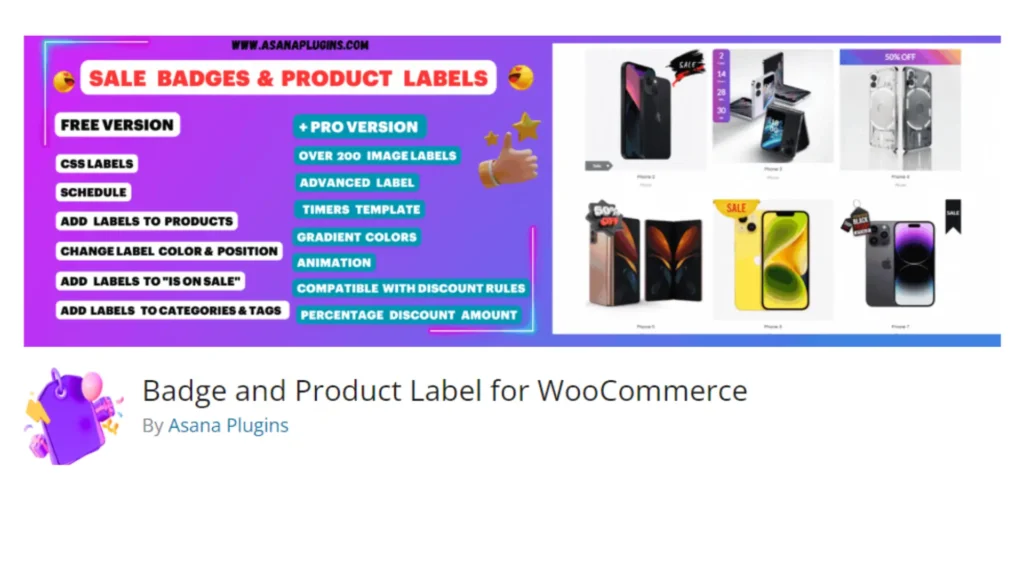
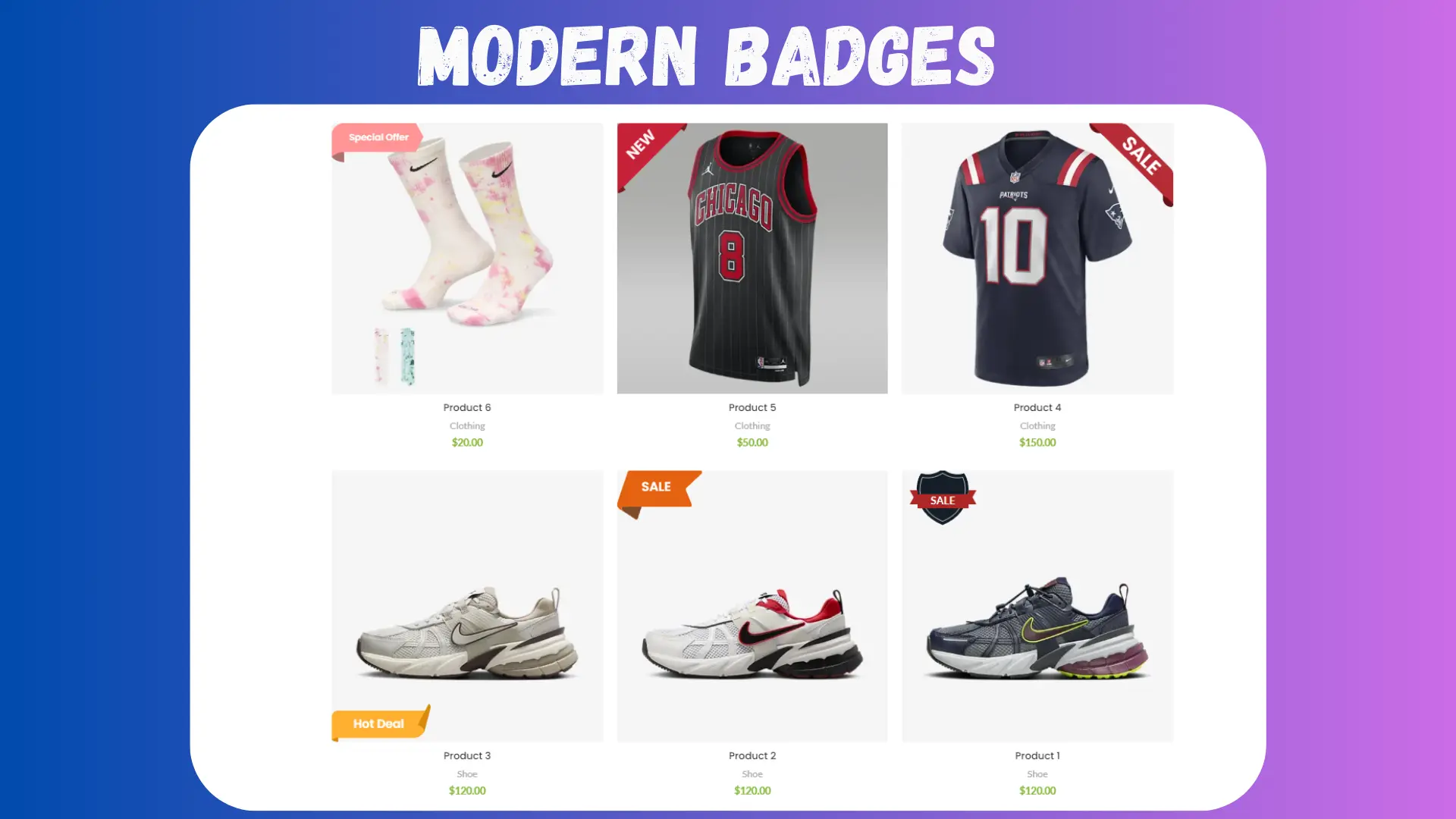
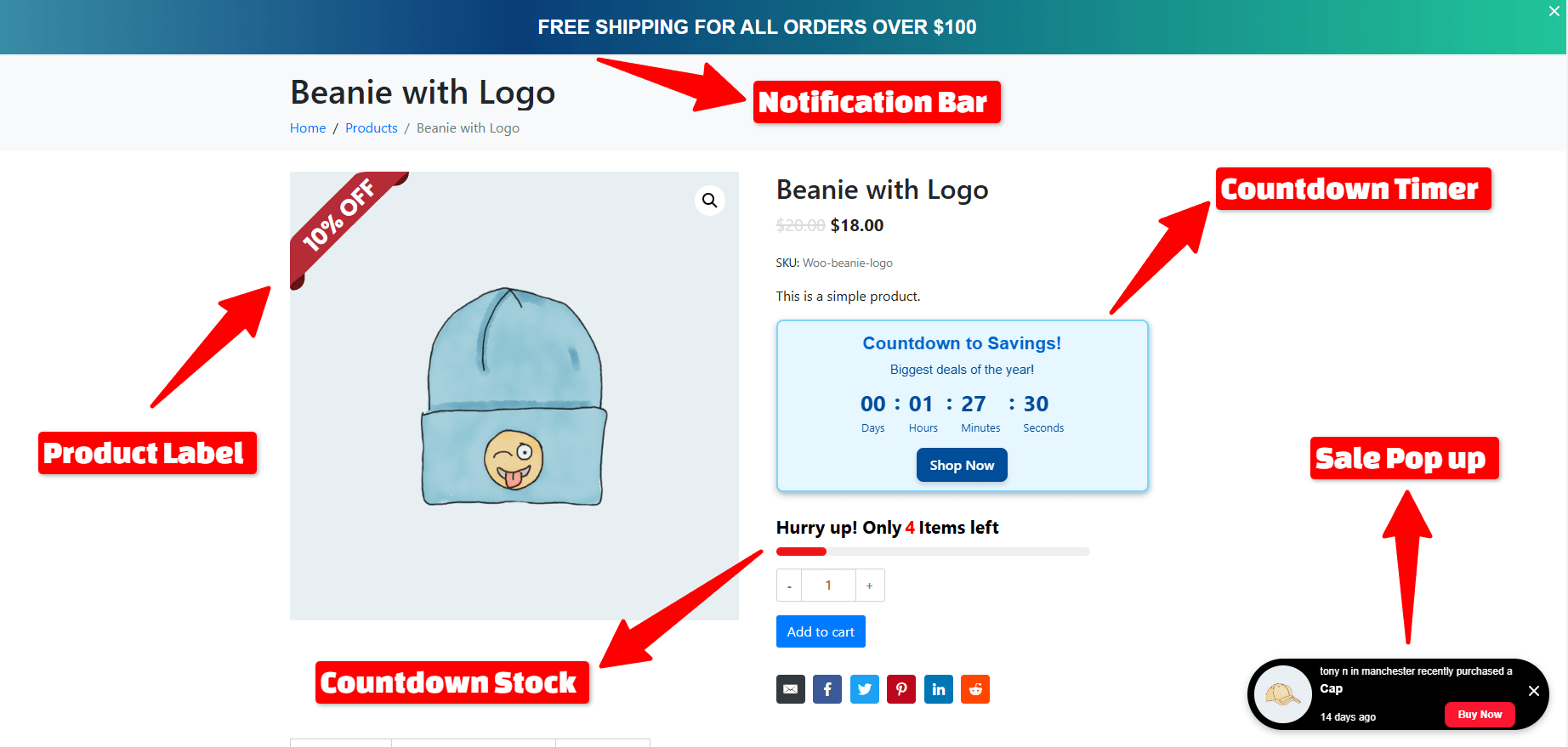
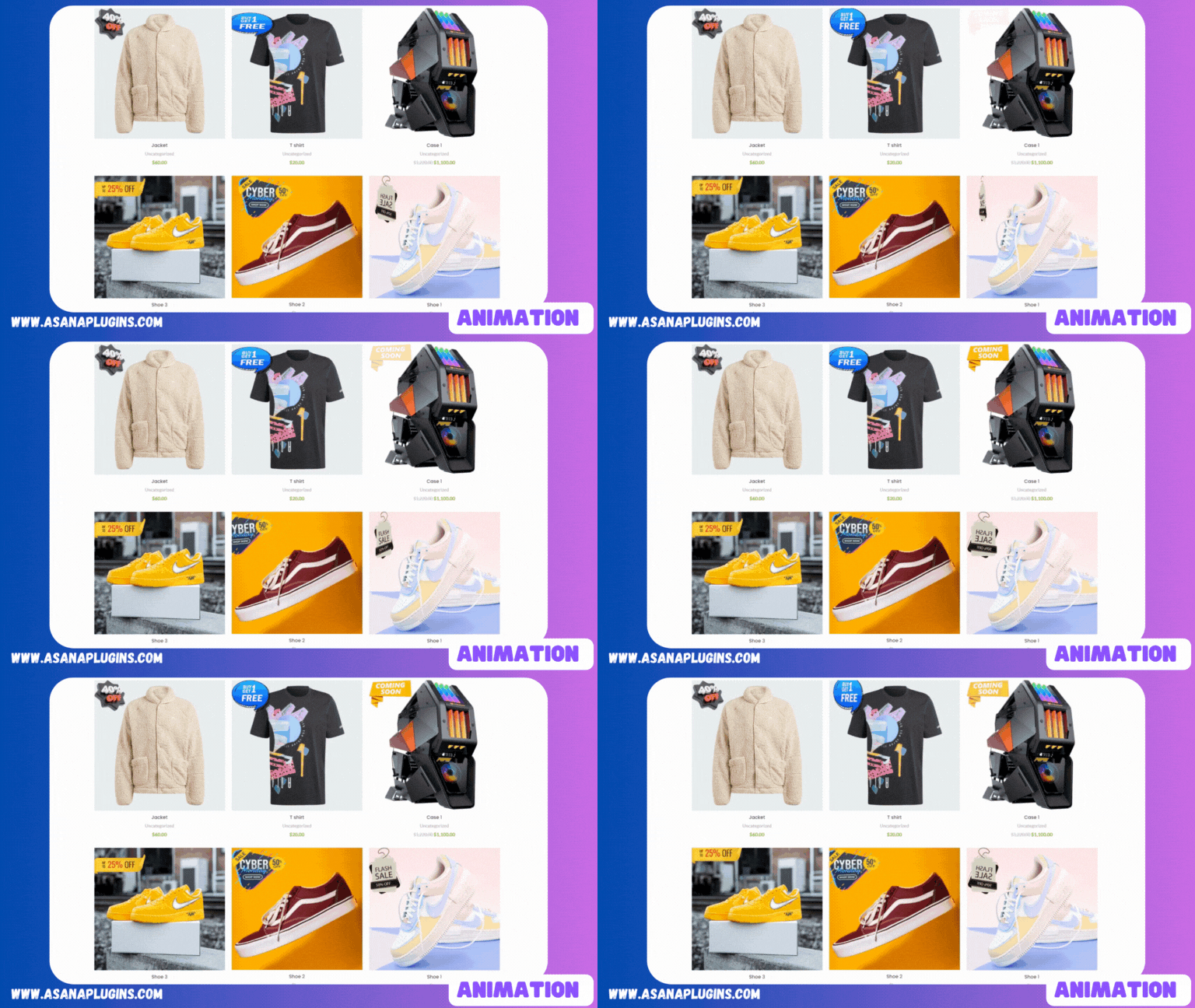
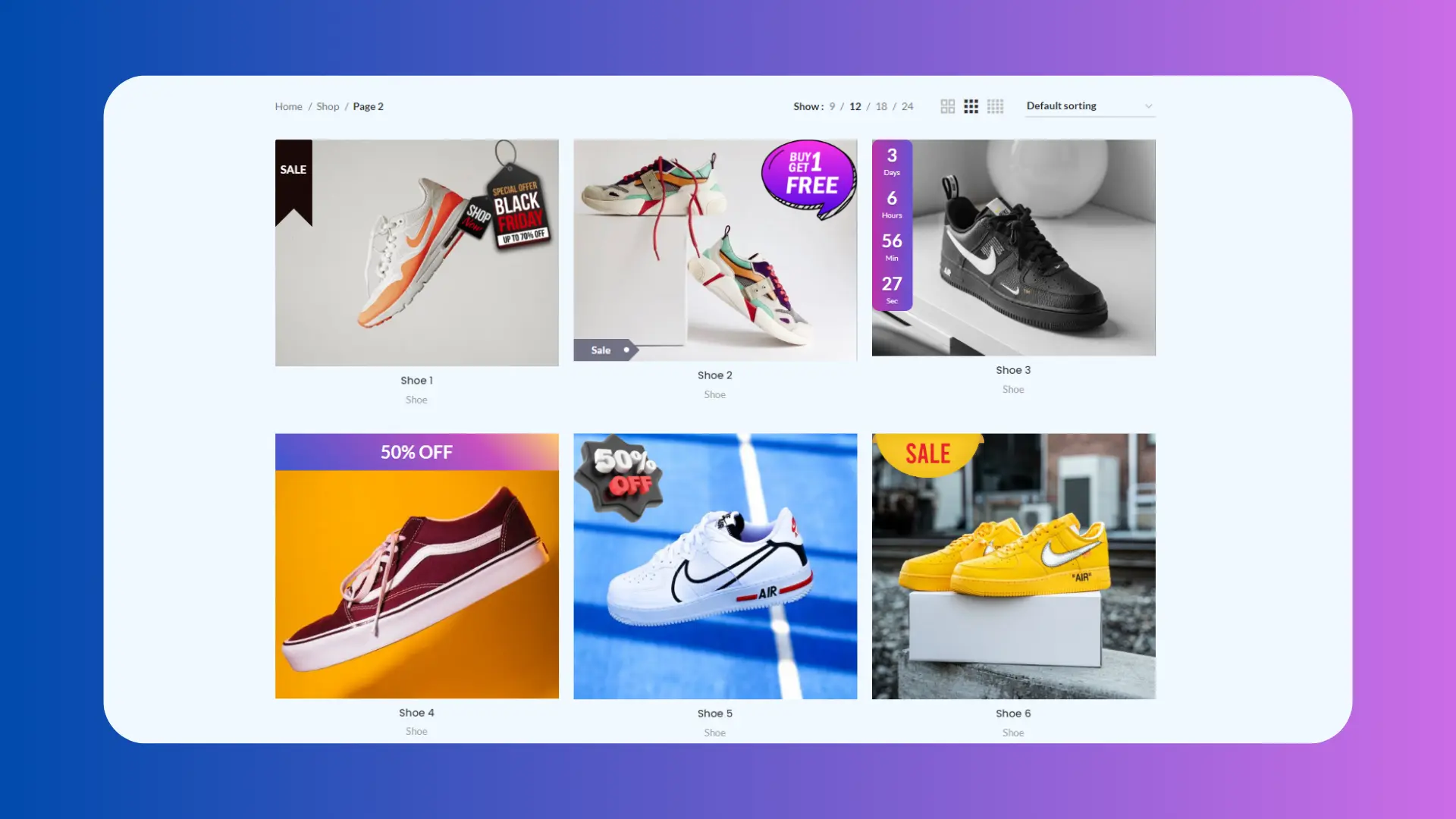
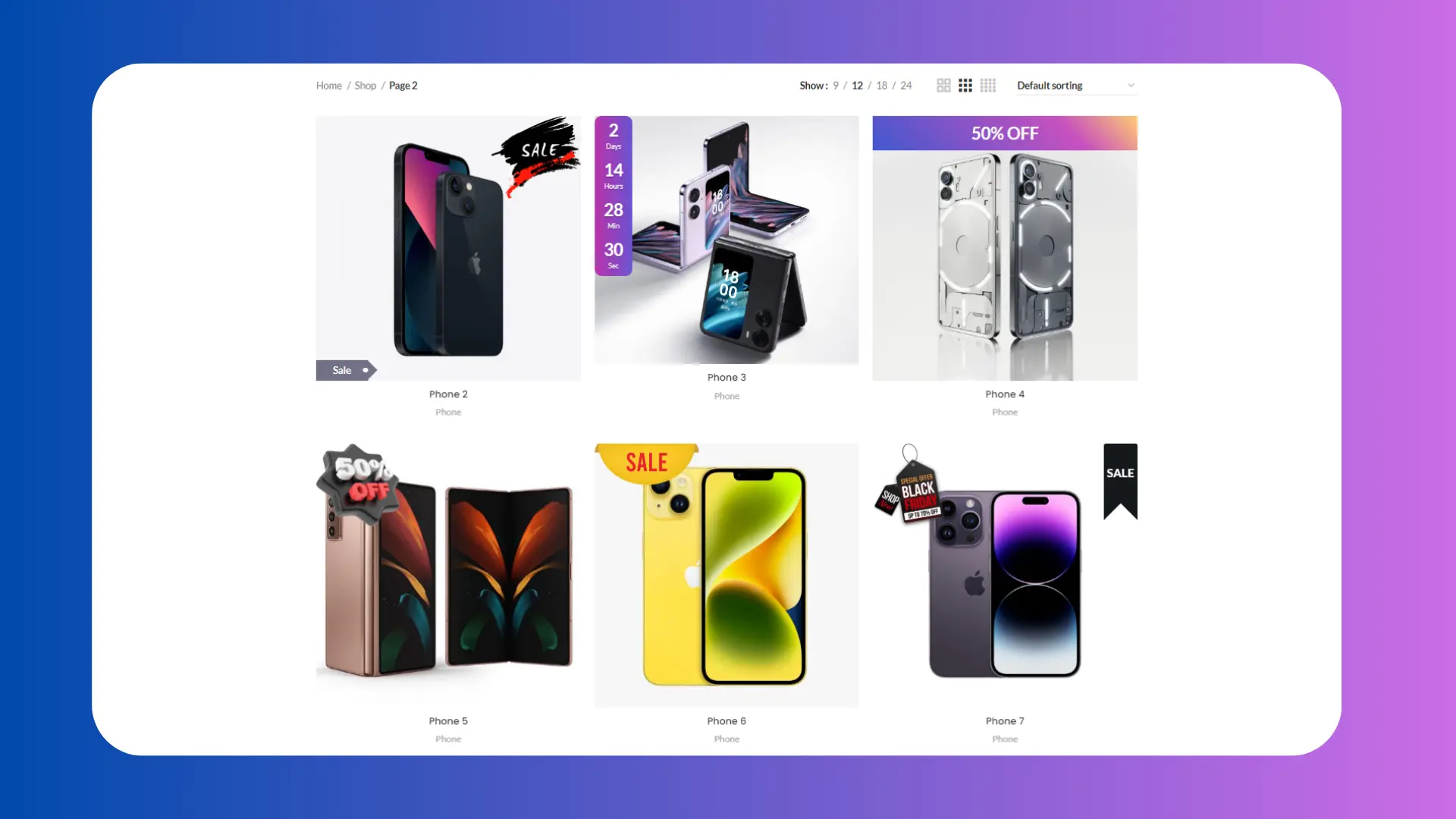
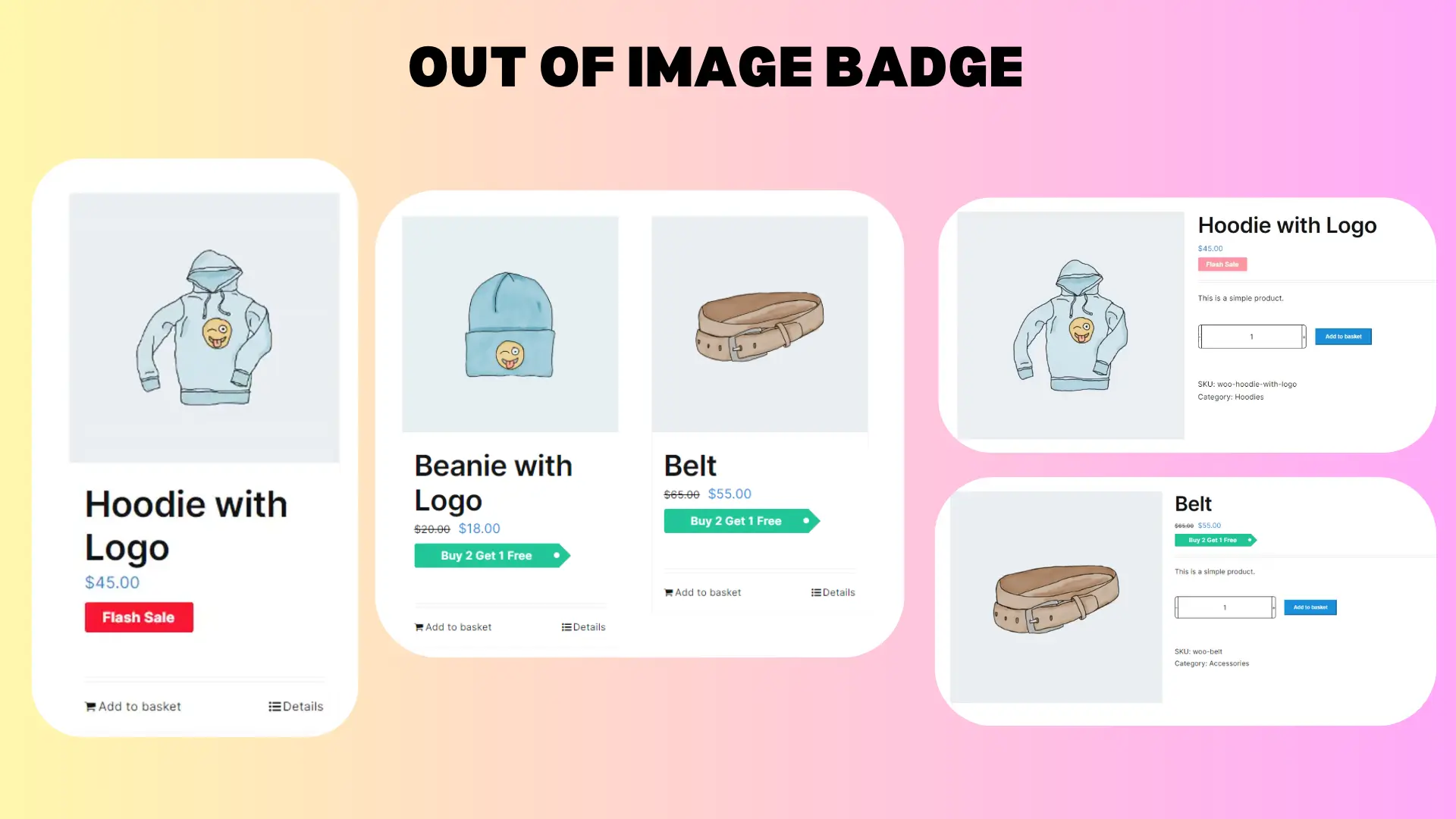
WooCommerce Badge and Product Label elevate your store’s appeal with customized badges and countdown timers (PRO Version). As one of the best WooCommerce free plugins to boost sales, it enhances your store with sale badges, product labels, and countdown timers designed to drive conversions. This all-in-one plugin empowers you to create eye-catching labels and scheduled badges for products, categories, and tags. Highlighting discount values, product quantities, ratings, shipping classes, stock status, and sale status, these labels provide valuable information to your customers. Plus, leverage the power of countdown timers to create urgency and boost sales. With an intuitive interface, you can easily customize labels and replace default on-sale badges. Take your WooCommerce store to new heights with visually appealing badges, labels, and countdown timers tailored to your unique offerings.
Video tutorial
🚀FEATURES
Let’s take a brief look at some of the cool features of this plugin:
Over 200 Image Labels
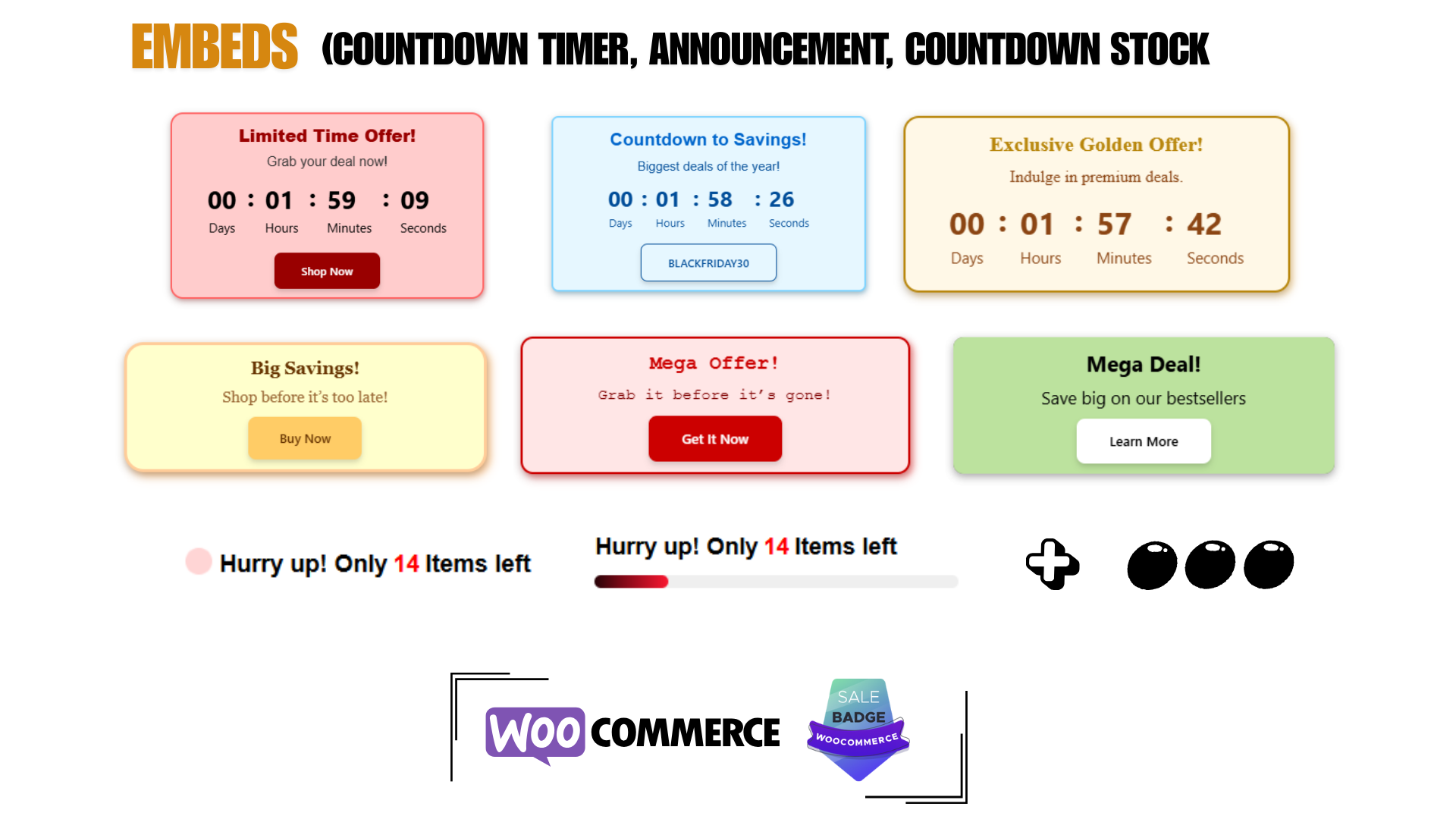
Add Countdown timer for embeds
Add Countdown stock for embeds
Add Announcement feature for embeds
Add Sales Pop up
Add Notification Bar
Add Free Shipping Bar
Over 10 CSS Labels
5 Advanced Labels
8 Timers Template
10 Animation Effects
Add Badge to Out Of Image Position
Incorporate Gradient Colors
Implement Discount Rules
Add a Percentage Discount amount
Rotate CSS Labels, Image Labels, and Advanced Labels
Add Easy Custom labels on products
Access CSS label templates
Preview is available live for easy placement and customization
Add Badges to specific WooCommerce products, categories, or tags
Add Badges to “Is On Sale”
Add Badges to “In Stock” and “Out Of Stock”
Customize label attributes, including color, font size, line height, width, opacity, position, and much more
Transform And Rotate Css Labels
Set Toggle To the visibility of badges
Include an option to set an expiration Date and Time for badges
A unique feature for adjusting hooks that control the presentation of product labels, beneficial if your theme encounters issues displaying them or if you wish to reposition the labels
Adjust the Position of CSS Labels, Image Labels, and Advanced Labels
Include both Vertical and Horizontal Timers
Personalize Sale Timers with Styling Options
Sale Image Labels
Percentage Off Image Labels
Coming Soon Image Labels
Pre-Order Image Labels
Free Image Labels
Black Friday Image Labels
Valentine’s Day Image Labels
Xmas Image Labels
Tested with more than 40+ Themes
Flatsome
WoodMart
Avada
The7
Divi
Betheme
Uncode
Enfold
Bridge
Salient
JupiterX
XStore
Porto
StoreFront
Astra
OceanWP
and much more
📽️Demo
Visit this plugin Live Demo here to see how it works.
AI Content Writing and Chat with ChatGPT is one of the best WooCommerce free plugins to boost sales, combining the power of AI and real-time messaging to elevate your customer support and lead generation efforts. With WhatsApp being the most popular messaging app globally—used by over 2 billion people—adding a chat support feature to your website is essential for engaging with your customers where they already are. This plugin allows you to seamlessly integrate a WhatsApp chat button into your site, giving visitors a quick and direct way to reach your support team. At the same time, it helps capture valuable leads and drive more conversions, ultimately increasing your store’s revenue.
Video tutorial
🚀FEATURES
Add ChatGpt AI BOT
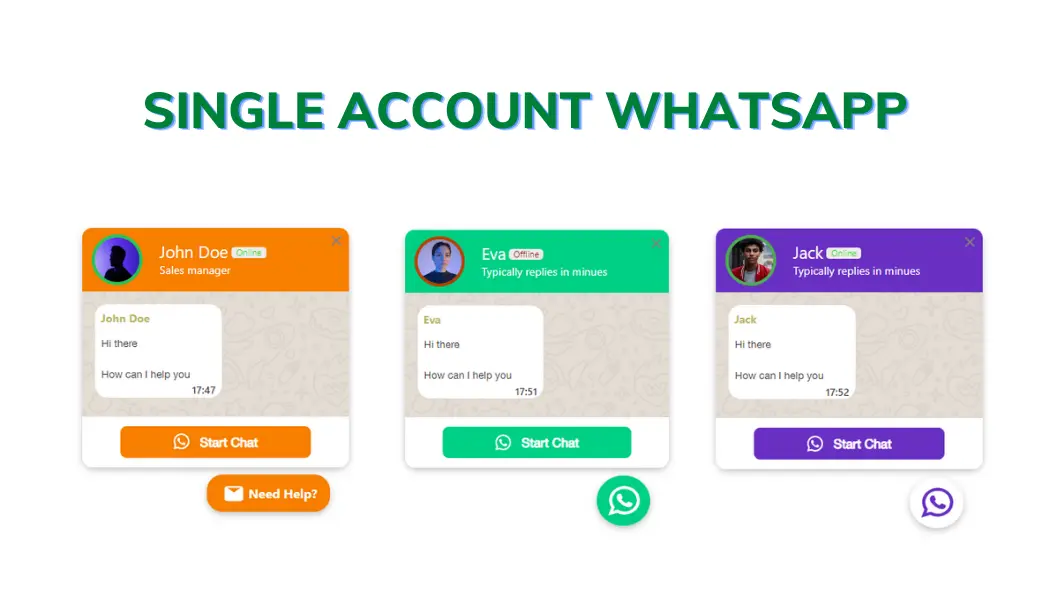
Add single-agent WhatsApp chat support
Add multi-agent WhatsApp chat support
Add a floating chat button to your website
Add a floating chat button to specific pages
Display chat support for “All Visitors”, “New Visitors”, “Returning Visitors”, “Logged in users (PRO)”, “Guest Users (PRO)”
Add a chat button to specific WooCommerce products, categories (PRO) or tags (PRO)
Add chat support to specific pages by URL.
Exclude chat support from specific pages by URL.
Display single account or multi account chat window in the floating chat button
Create multiple accounts with specific avatars or predefined avatars
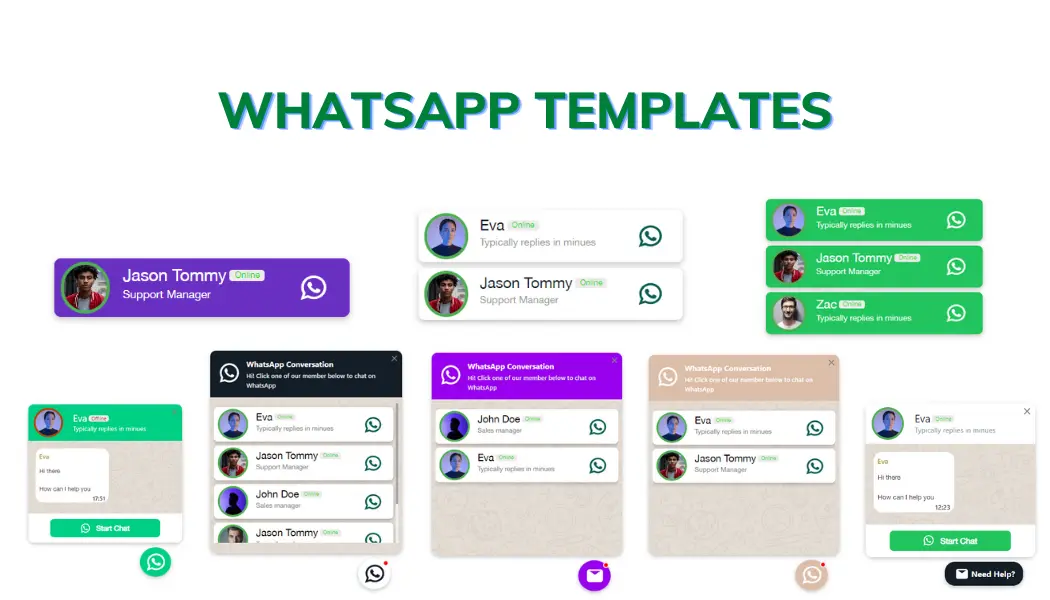
Predefined templates to create chat easily and in a minute
Different styles and positions for Mobile and Desktop
Preview the live chat button in the admin when designing it
Custom colors, greetings, icons and avatars
Define custom availability and working hours for each account (PRO)
Define custom availability timezone for each account (PRO)
Keep communicating directly from your WhatsApp account
Translating the WooCommerce product bundle plugin into your local language can significantly increase your online store’s revenue. When customers can browse and shop in their native language, they are more likely to trust your store and complete a purchase. Offering localized content allows you to reach new markets, expand your customer base, and improve the overall shopping experience. It also enhances customer satisfaction and can improve your store’s visibility in search engines by targeting keywords in different languages. Altogether, these benefits create a strong competitive advantage and help boost sales and long-term growth. In this article, we will show you how to translate the WooCommerce Product Bundle plugin into your own language.
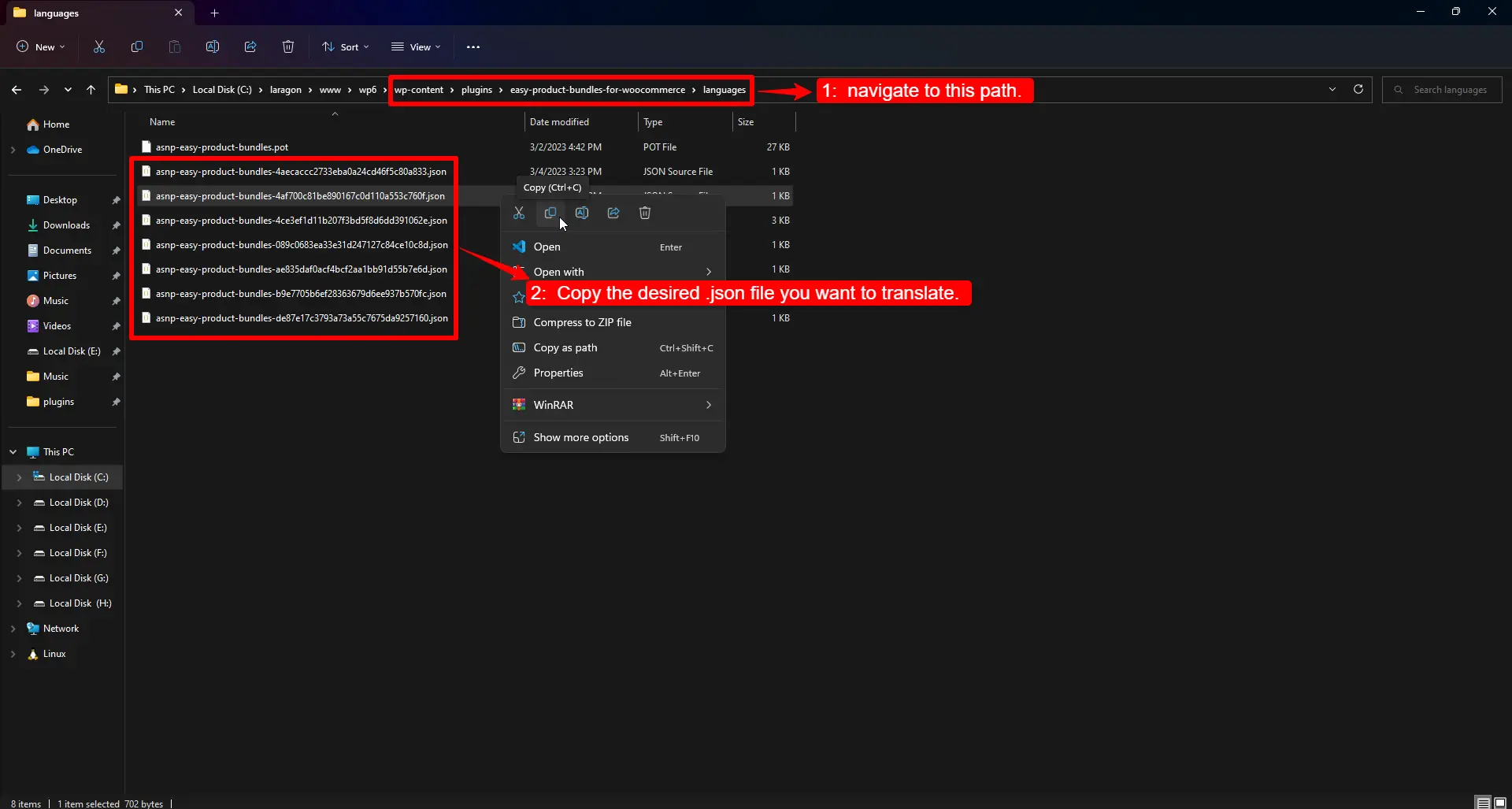
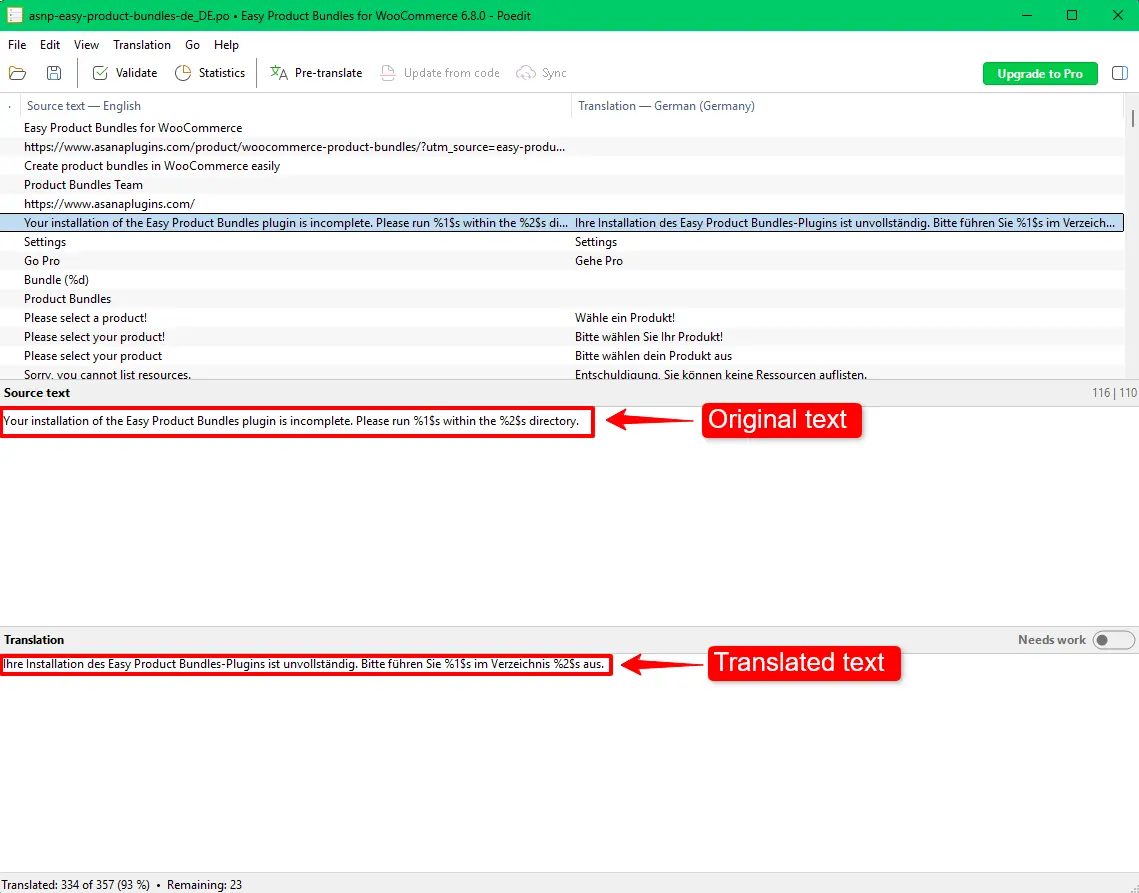
Inside this folder, you will find multiple .json files, each containing translations for different parts of the plugin. These files represent separate sections or features of the plugin. You can select a specific file to translate or copy all of them if you plan to translate the entire plugin.
2. Copy the JSON Files to a Safe Location
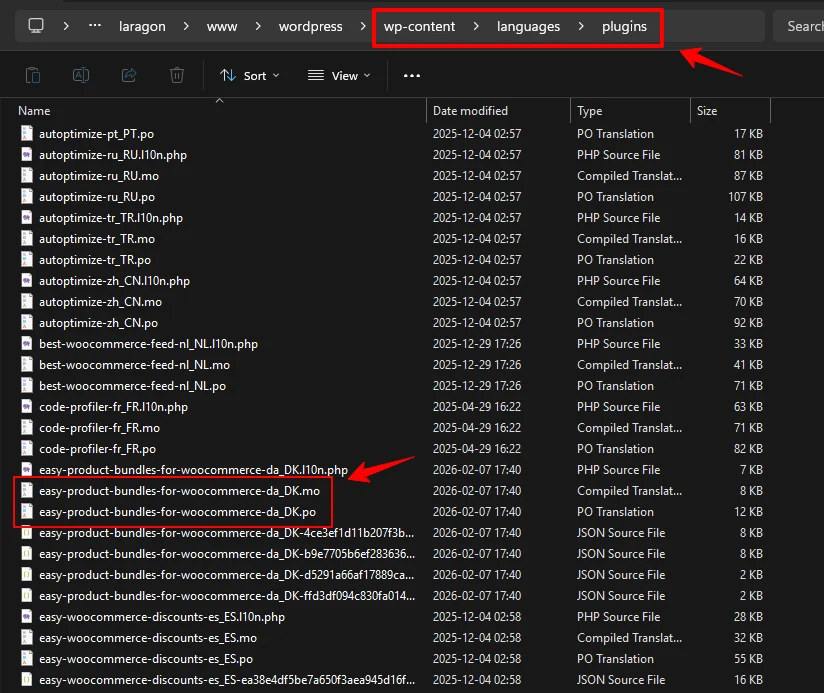
Copy and paste the selected .json file(s) into the WordPress plugin language directory:
wp-content/languages/plugins/
Using this location ensures that your translations will not be overwritten when the plugin is updated.
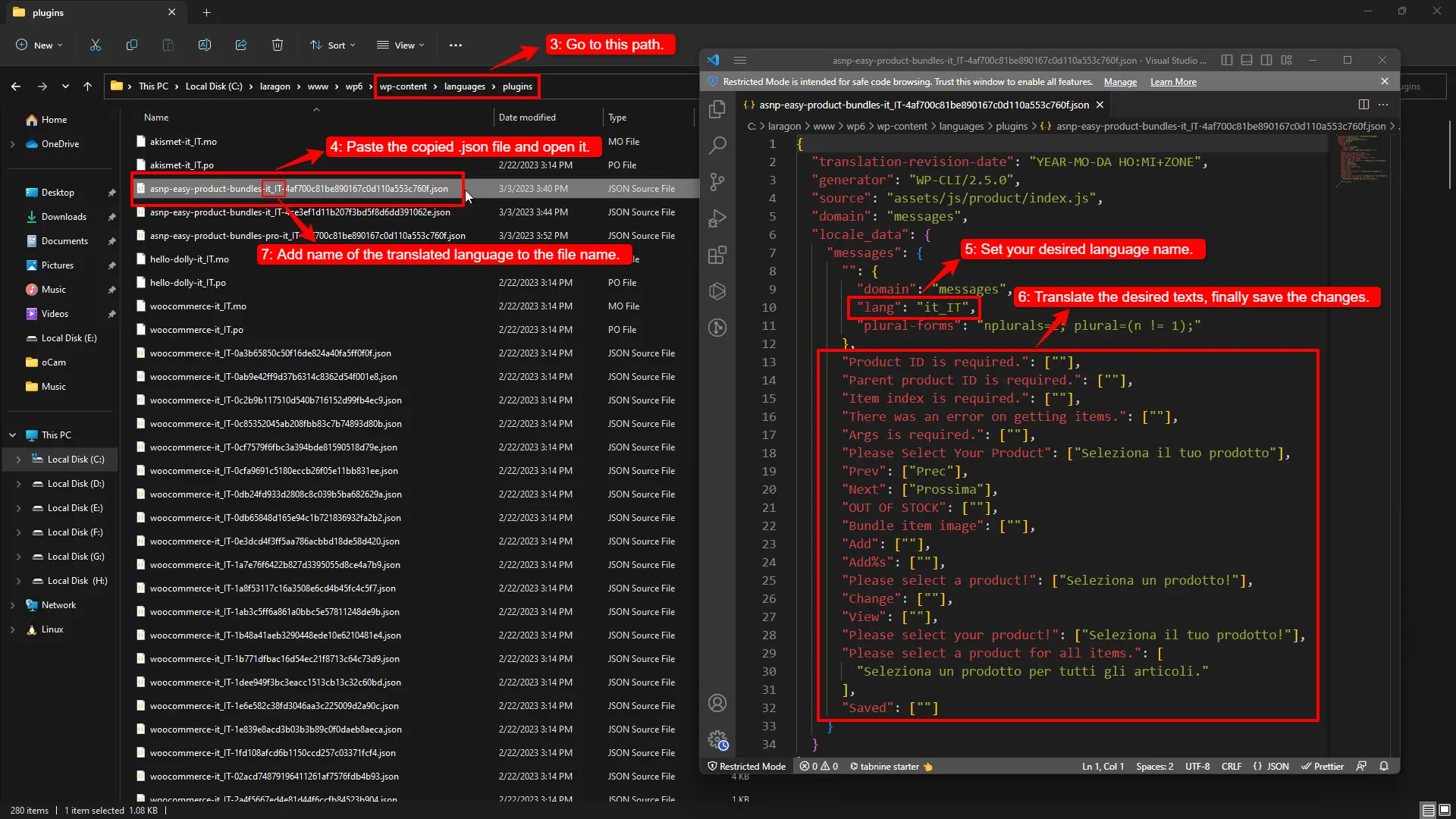
3. Open the JSON Files in a Code Editor
Open the copied .json file(s) using a text or code editor such as VS Code, Sublime Text, or Notepad++. Using a proper editor prevents formatting errors that could break the translation.
4. Set Your Local Language
Inside each JSON file, find the line specifying the language:
"lang": "en"
Replace "en" with your target WordPress locale. For example, for Italian:
Keep the original hash (-4af700c81be890167c0d110a553c760f) if present.
Insert your locale code before the hash (e.g., it_IT for Italian).
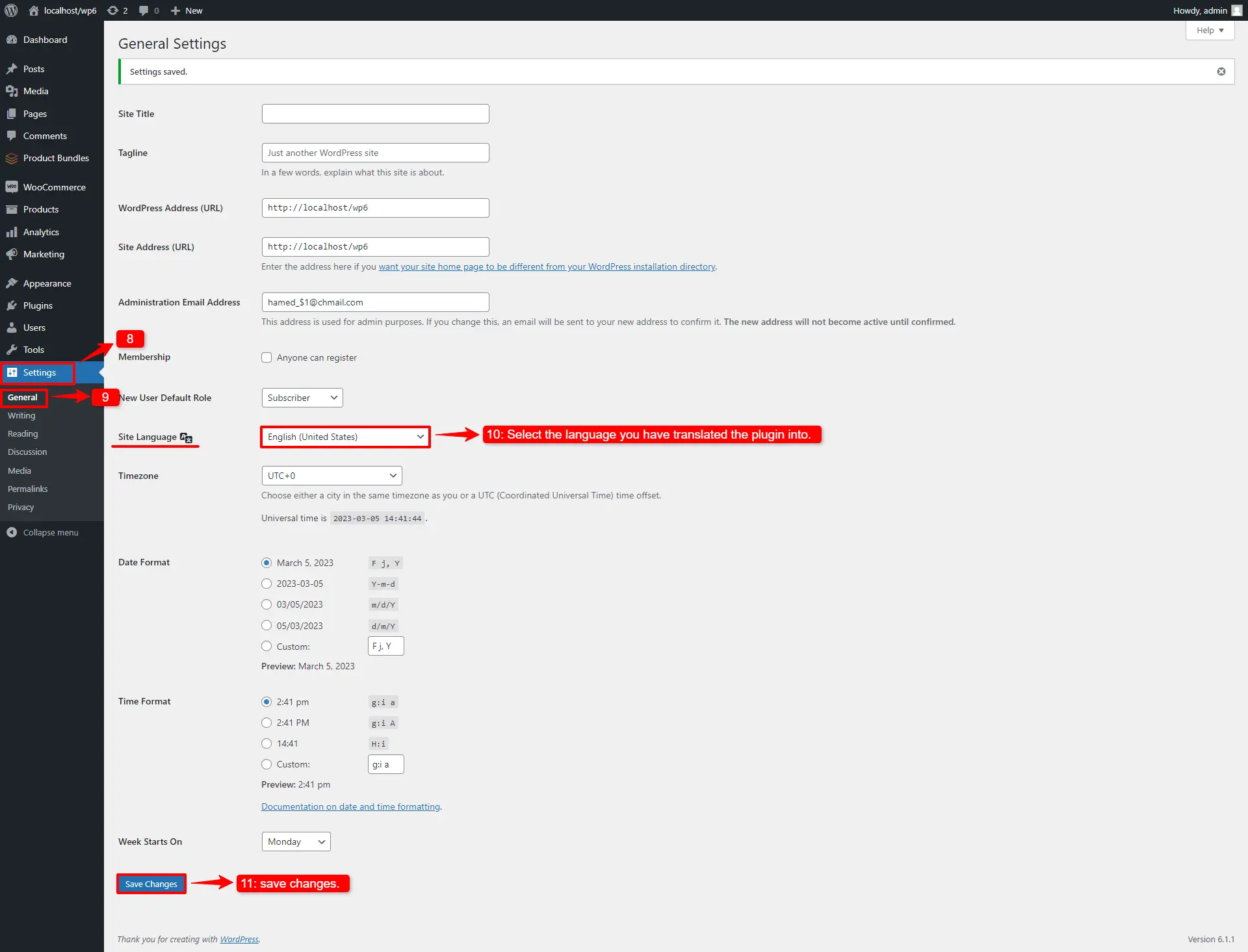
7. Set Your Site Language
Log in to your WordPress admin panel.
Go to Settings → General.
In the Site Language field, select the local language that matches your translation.
8. Save Changes
Click Save Changes at the bottom of the page. This activates your translated language across your site, including the WooCommerce Product Bundles plugin.
9. Verify the Translation
Visit your store frontend and check product bundle pages.
Confirm that all translated strings appear correctly.
If any text is missing, double-check the JSON formatting, locale code, and file placement.
Clear any caching plugins or server cache if necessary.
Additional Tips and Best Practices
Do not edit the original plugin files; always work on the copy in wp-content/languages/plugins/.
Use valid WordPress locale codes.
Double-check JSON formatting to prevent errors.
Backup your translation files before updating the plugin.
Remember: JSON translations are for JavaScript strings. PHP strings might still require PO/MO files or a translation plugin such as Loco Translate.
How to translate the .pot file of the WooCommerce product bundle plugin
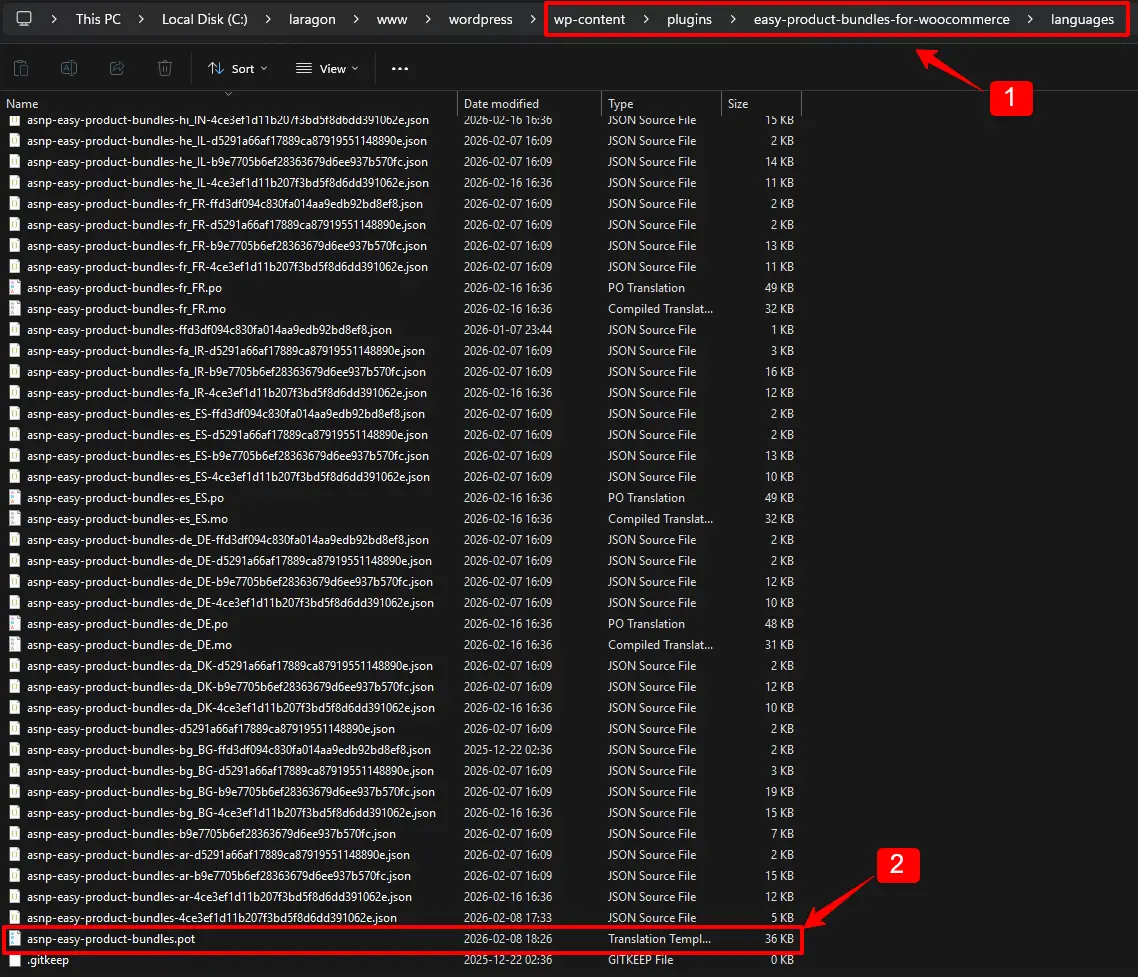
This guide walks you through the translation process from start to finish using the WooCommerce product bundle plugin’s POT file.
Most WordPress plugins that are translation-ready include a POT (Portable Object Template) file. This file contains all strings marked for translation.
Also, confirm that your WordPress site language matches the locale under:
Settings → General → Site Language
Step 6: Clear Cache and Test
If you use a caching plugin or server cache, clear it. Then visit pages where the plugin strings appear. Your translations should now be visible in the site frontend and admin interface.
Best Practices
Avoid editing plugin core files directly.
Always store translation files in the wp-content/languages/plugins/ directory when possible.
If you prefer not to use Poedit, you can use plugins like Loco Translate directly inside WordPress:
Install and activate the translation plugin.
Navigate to Loco Translate → Plugins → Easy Product Bundles for WooCommerce.
Create or edit translation files from the admin UI.
This method can be easier for many users, but it requires careful file placement to avoid overwriting during updates.
Conclusion
Translating Easy Product Bundles for WooCommerce using its POT file ensures a professional, update-safe multilingual experience for your WooCommerce store. With Poedit and correct file placement, you can localize every user-facing label and message in the plugin.
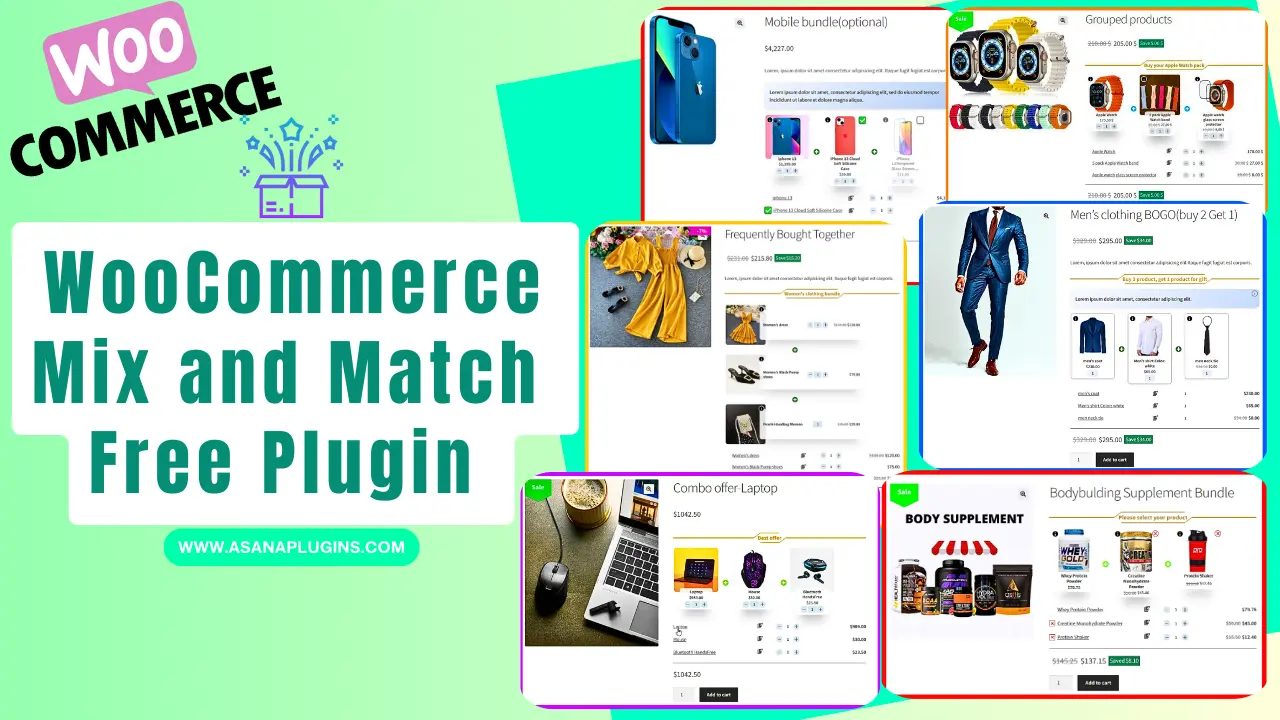
A WooCommerce Mix and Match Free Plugin lets customers build their own personalized box by selecting items from a set of available products on your store. In this article, we introduce the WooCommerce Mix and Match Free Plugin, which helps you create anything from simple custom boxes to advanced product bundles with flexible options.
If your products can be combined to form attractive bundles, you can easily set them up using the WooCommerce Mix and Match Free Plugin and offer customers a more interactive, customizable shopping experience.
A WooCommerce Mix and Match product is a product that allows customers to create their own personalized boxes from individual products available on your site. Customers can select different products and set the quantity for each item, then mix them to build a custom bundle.
This type of product helps store owners offer flexible bundles that encourage customers to purchase more items in one order and increase Average Order Value (AOV).
Create WooCommerce Mix and Match Product
To create a WooCommerce Mix and Match products, you can use the Easy Product Bundles for WooCommerce free plugin. This powerful plugin lets you build everything from simple mix-and-match boxes to advanced mix-and-match scenarios with flexible product selection and quantity control.
It’s an easy and reliable solution for creating customizable bundles that improve the shopping experience and help increase your sales.
WooCommerce Mix and Match Free Plugin
Unfortunately, it is not possible to create a mix-and-match product with WooCommerce core. The good news is that Easy Product Bundles for WooCommerce is the best WooCommerce mix-and-match free plugin that allows creating mix and match products easily.
Some of the WooCommerce mix and match plugin features:
Bundle item discounts: Apply discounts to individual items inside the mix and match bundle.
Fixed-price mix and match products: Sell the entire bundle at a fixed price, regardless of which products the customer selects.
Automatic price calculation: Dynamically calculate the bundle price based on selected products and quantities.
Optional bundle items: Allow customers to skip optional items while building their custom box.
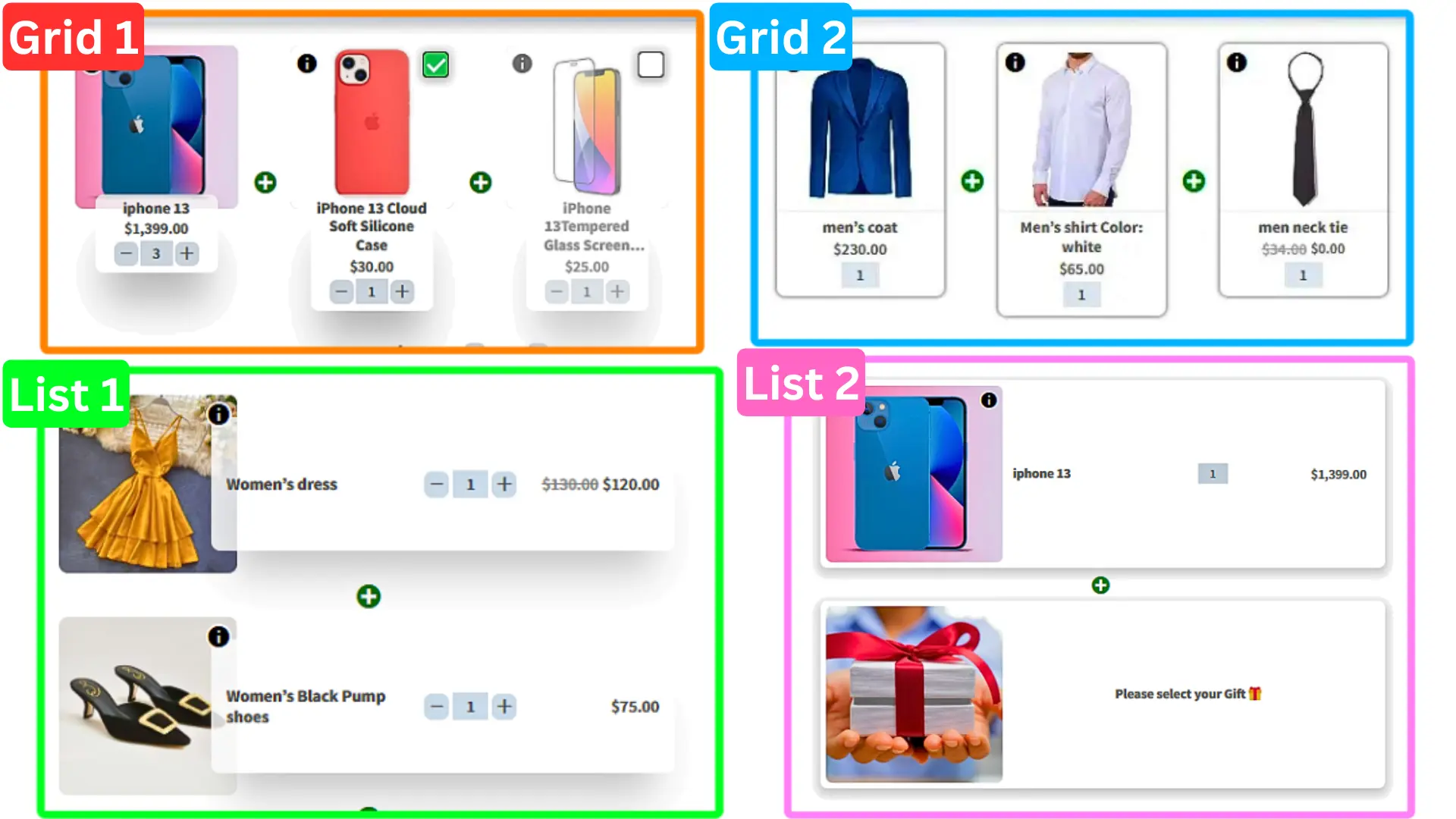
Multiple layout styles: Choose from beautiful Grid and List layouts in small, medium, and large sizes.
Rule-based product selection: Force customers to follow a specific structure, such as selecting one product from Category A and another from Category B.
Flexible product sources: Offer products based on specific products, categories, or tags.
Quantity limits per item: Set minimum and maximum quantity limits for each bundle item.
Advanced shipping control: Decide whether shipping costs apply to the whole bundle or to individual bundle items.
Video Tutorial
Examples of WooCommerce Mix and Match Products
Mix and match products work by allowing customers to select individual products they’d like to purchase and add them to a gift hamper, product box, or bundle.
Some of the popular examples of WooCommerce mix and match products are:
Bundle Discounts
BOGO deals
Gift products
Customizable products or Product boxes
Bundle Discounts
To increase Average Order Value (AOV), you can combine related products into a mix-and-match bundle and offer them with a discount. Providing a better price for the bundle encourages customers to purchase multiple items together instead of buying a single product.
For example, if you sell mobile phones, you can create a bundle that includes the phone along with a protective case and a screen protector, offered at a discounted price compared to purchasing each item separately.
Gift Products
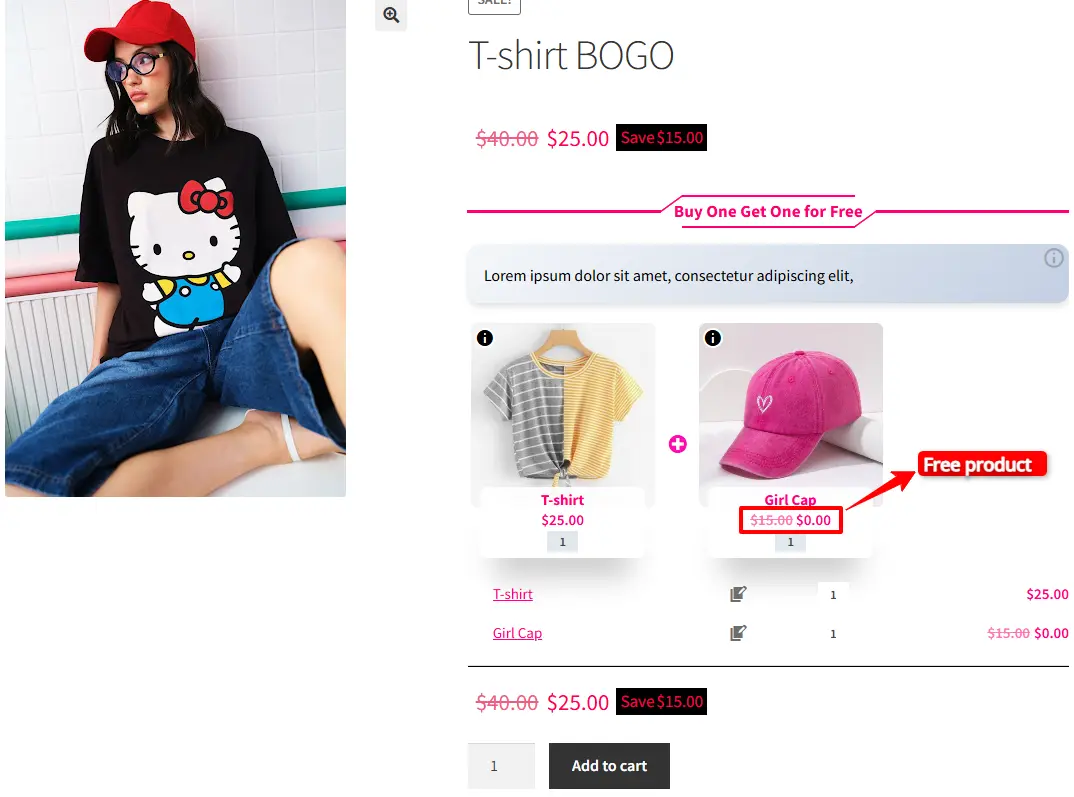
You can build customer loyalty and encourage customers to buy more by offering gift products with selected purchases. For example, you can automatically add a free product when a customer buys a specific item or qualifies for a special offer.
With WooCommerce Mix and Match, you can also let customers choose their own gift from multiple available products. This flexibility creates a more engaging shopping experience and makes bundled offers more appealing.
Product Boxes
You can allow your customers to build their own boxes using Mix and Match products for WooCommerce.
Customizable foods like sandwiches, pizzas, and salads can be offered as product boxes. Customers can configure products and build their own delicious foods by picking food items.
How to Create WooCommerce Mix and Match Products
In this guide, we’ll show you practical examples of how to create Mix and Match products in WooCommerce.
In this tutorial, you’ll learn how to set up the following examples:
Mobile bundle
How to create mix-and-match product bundles with variable products.
Mobile bundle with optional items
Offer a gift product (BOGO deal)
Offer multiple gift products
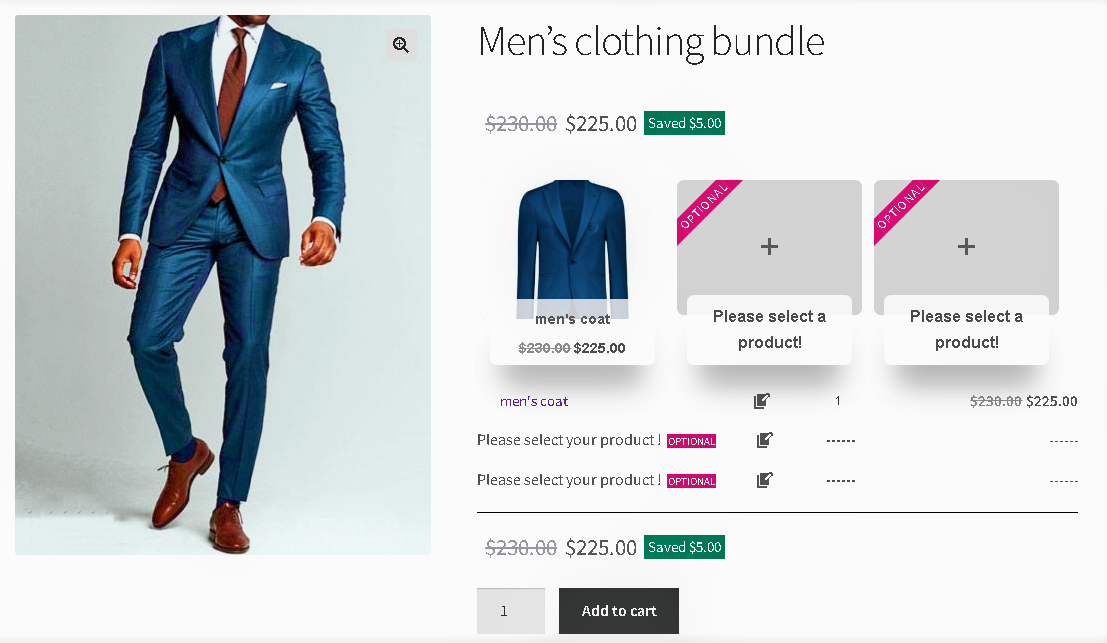
Men’s clothes as a configurable or personalized product
Create Mobile Bundle Discount in WooCommerce
If you have a mobile store, then you can increase average order value by creating and offering a mobile bundle discount in WooCommerce.
Follow these steps to create a bundle discount in WooCommerce.
First, you should create regular products in WooCommerce for mobile, mobile cases, and mobile glass covers.
To create a simple product in WooCommerce read this article in addition you can read create variable products in WooCommerce to create a variable product.
Step 3: Create a Product Bundle in WooCommerce
Now you should create a product bundle that bundles mobile, case, and glass covers with a discount or without.
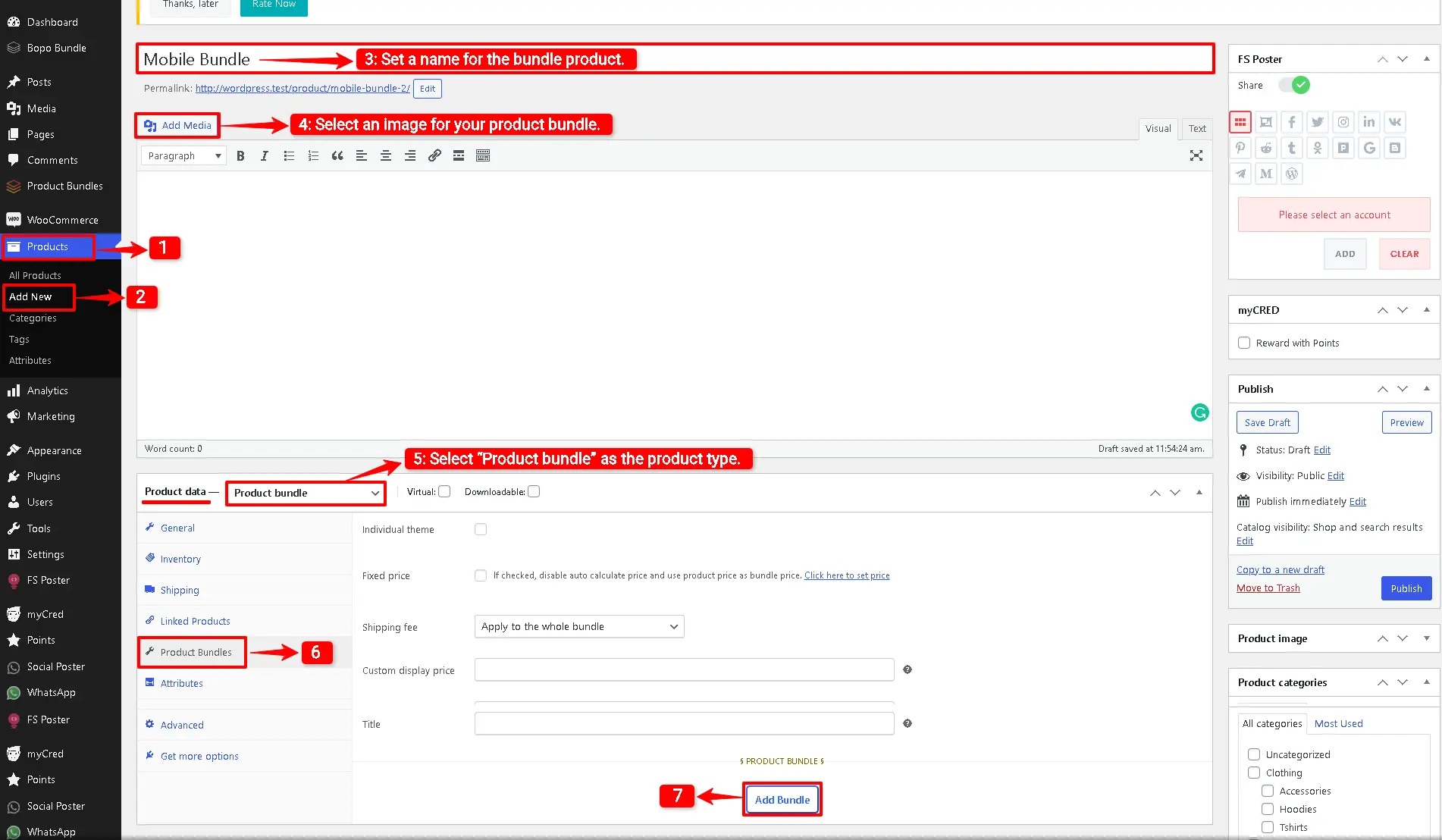
1. Navigate to WooCommerce Products >> Add New product to create a new product.
2. Set a name for the bundle product, for instance, “Mobile Bundle”.
3. Click “Set product image” from the right sidebar and select an image for your Product Bundle.
4. Now navigate to the Product data panel, and select “Product bundle” as the product type.
Step 4: Add Bundle Items
5. After selecting “Product bundle” as the product type the “Product Bundles” tab will appear in the product data panel.
6. Click on the “Product Bundles” tab.
7. Click the “Add Bundle” button to add a new bundle item to the product bundle.
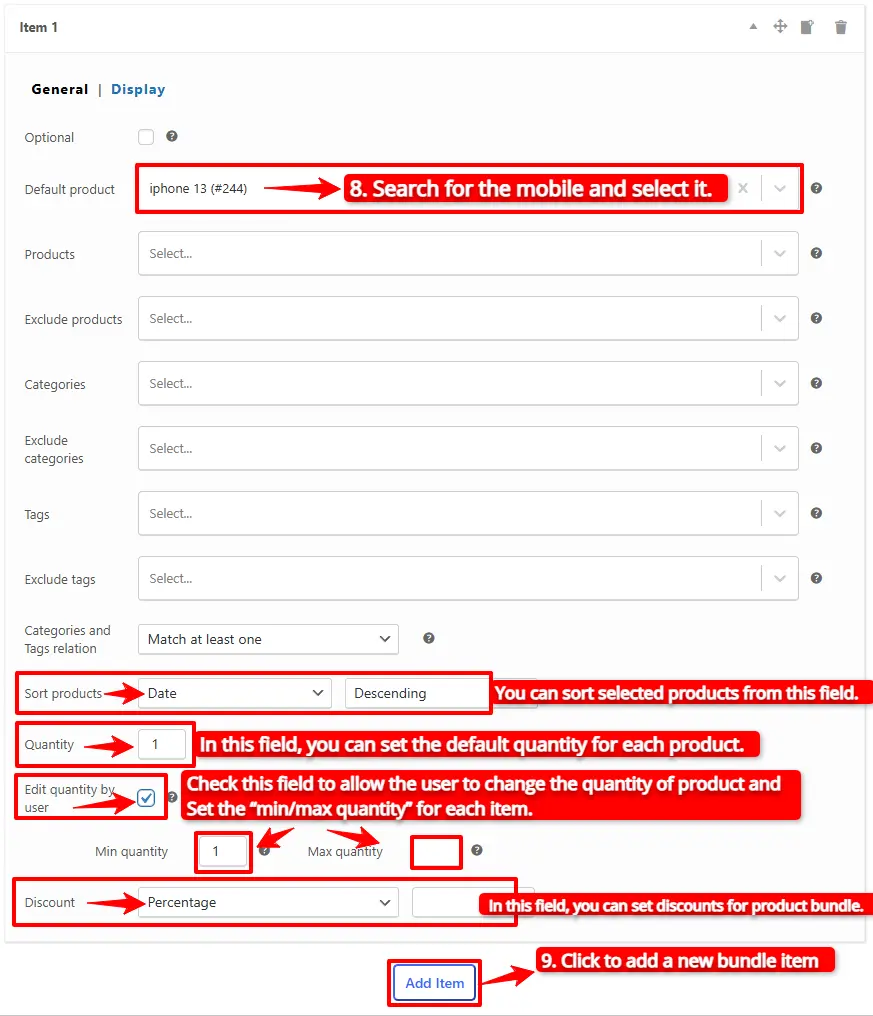
8. Now, in the “Default Product” field, search for the mobile and select it.
Step 5: Customising WooCommerce Product Bundle
You can also configure the below settings to your WooCommerce Product Bundle in the item field:
Sort products: With this field, you can sort selected products by “ID”, “Title”, “Menu order”,” Date”, “Price”, “popularity” and“Rating”.
Quantity: In this field, you can set the default quantity for each product.
Edit quantity by user: Check this field to allow the user to change the quantity of product and Set the “min/max quantity” for each item.
Discount: In this field, you can set discounts for product bundles by percentage, price or fixed price.
Now you can go to the “display” tab of the item and configure the following sections:
Overwrite bundle item title.
Overwrite bundle item short description. (Show when the mouse hovers over it)
Change the title of the bundle’s empty item.
Change the product list product selection title.
Change the pop-up header title.
Set an image for the empty item.
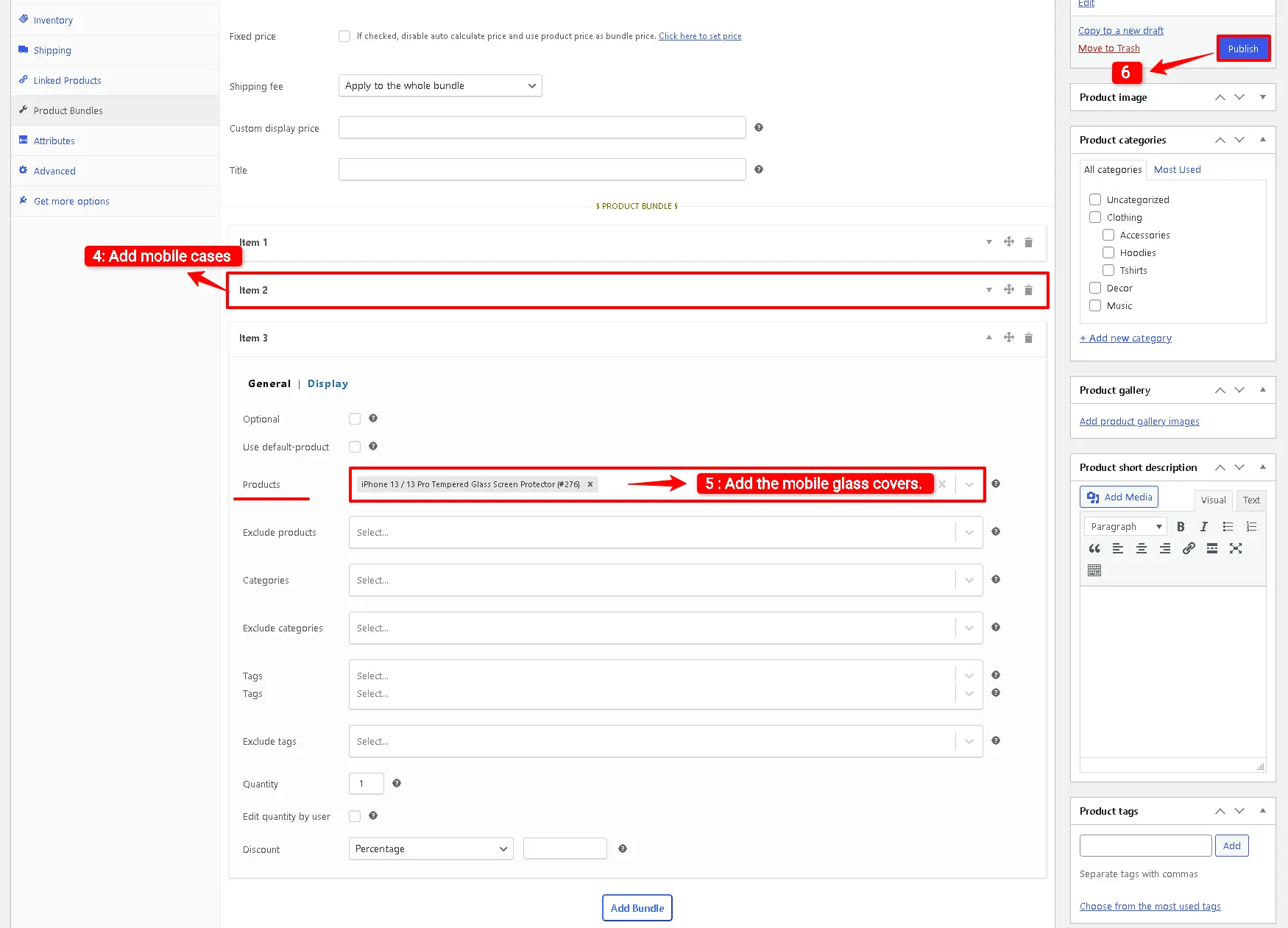
9. Then click on the “Add Item” button to add a new bundle item for the mobile cases.
10. Now, in the “Products” field, search for mobile cases and select them. You can add multiple products in the “Products” field.
11. Click the “Add Item” button to add a new bundle item for the mobile glass covers.
12. In the “Products” field, search for the mobile glass covers and select them. You can include multiple glass covers; therefore, the customer has multiple choices.
13. Now you can publish the Mix and Match product bundle on your website.
Auto-calculate the price based on selected products
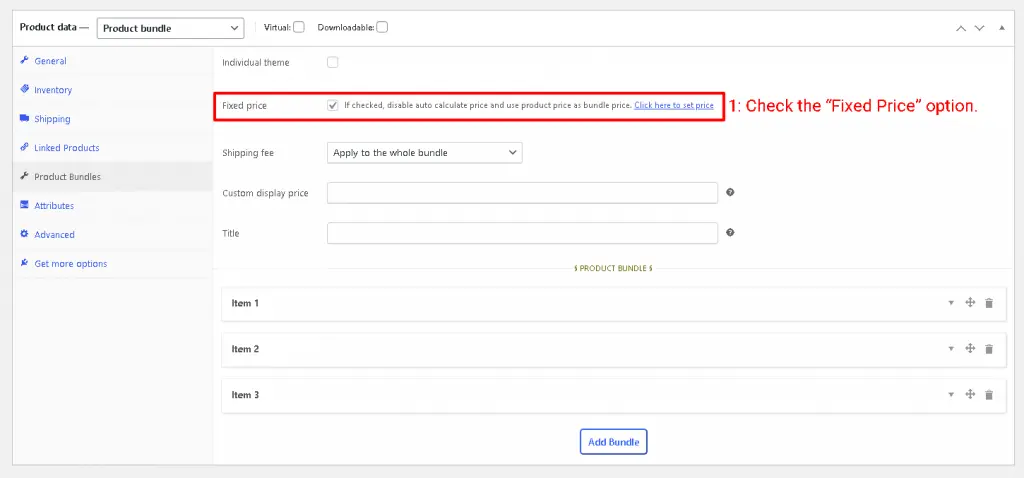
1. Fixed Price
If you would like to set a fixed price for the whole bundle product, then check the “Fixed Price” option.
Fixed price product bundle in WooCommerce
Navigate to the “General” tab and set a regular price for the Product. You can set a Sale price too.
After setting a price, update the product.
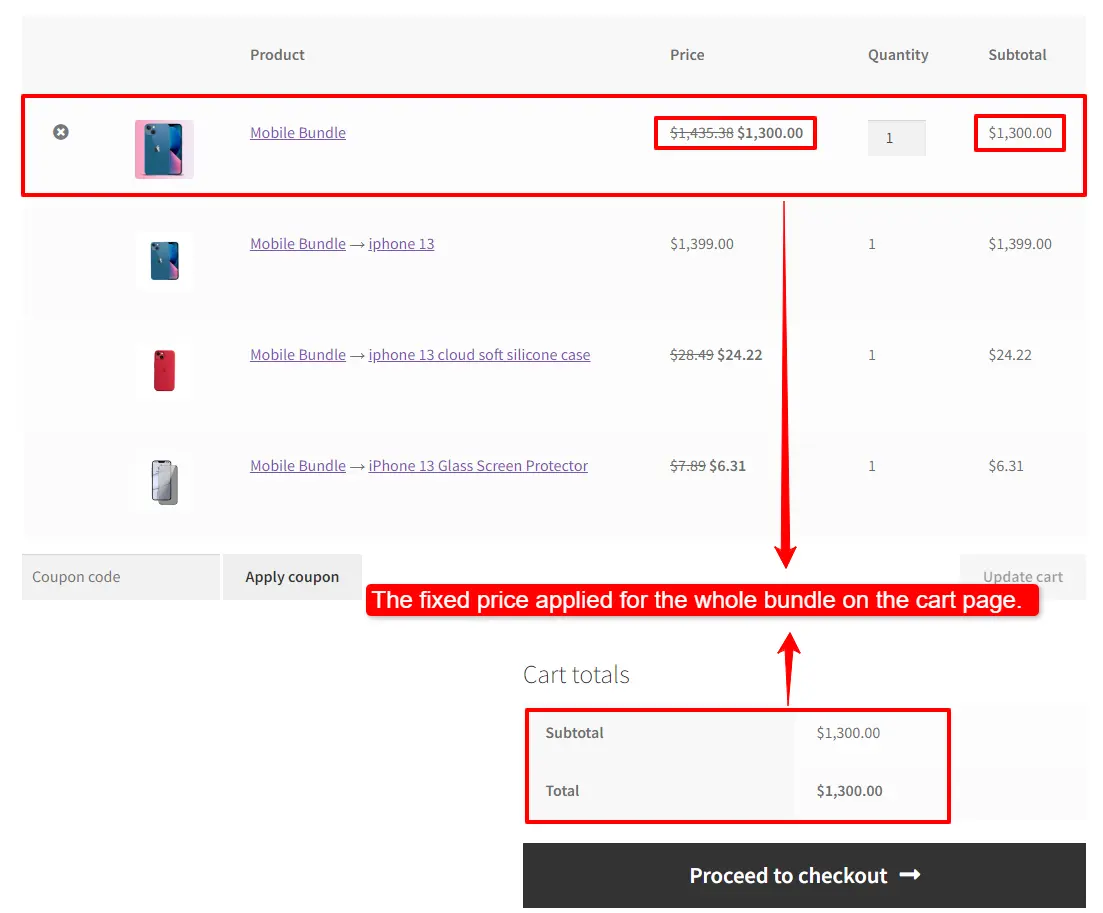
A fixed price product bundle applies to the bundle total price.
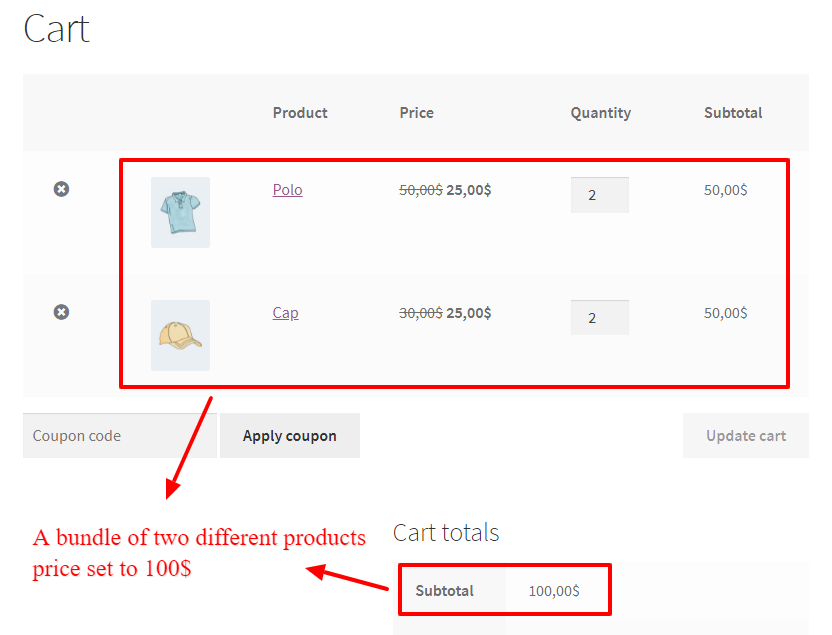
An example of WooCommerce mix and match product bundles in the cart.
2. Auto Calculate Price
Auto-calculates price helps set a dynamic price for the product bundle based on the selected items.
To use the auto-calculate price feature, uncheck the “Fixed Price” option and update the product.
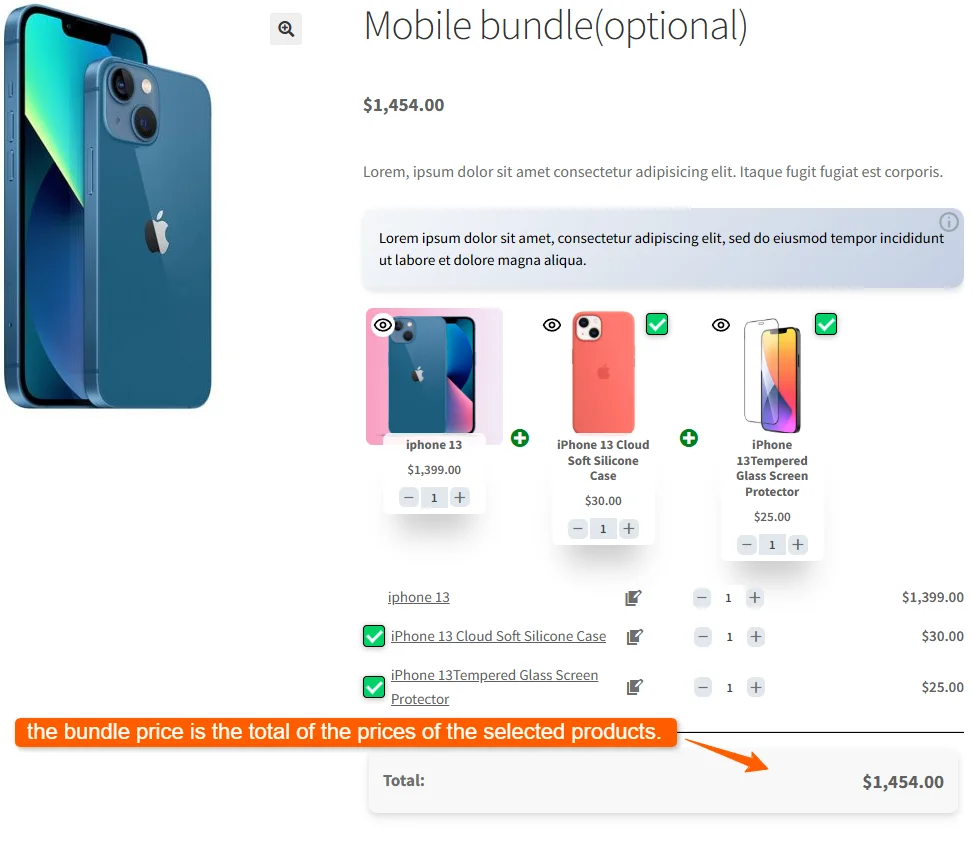
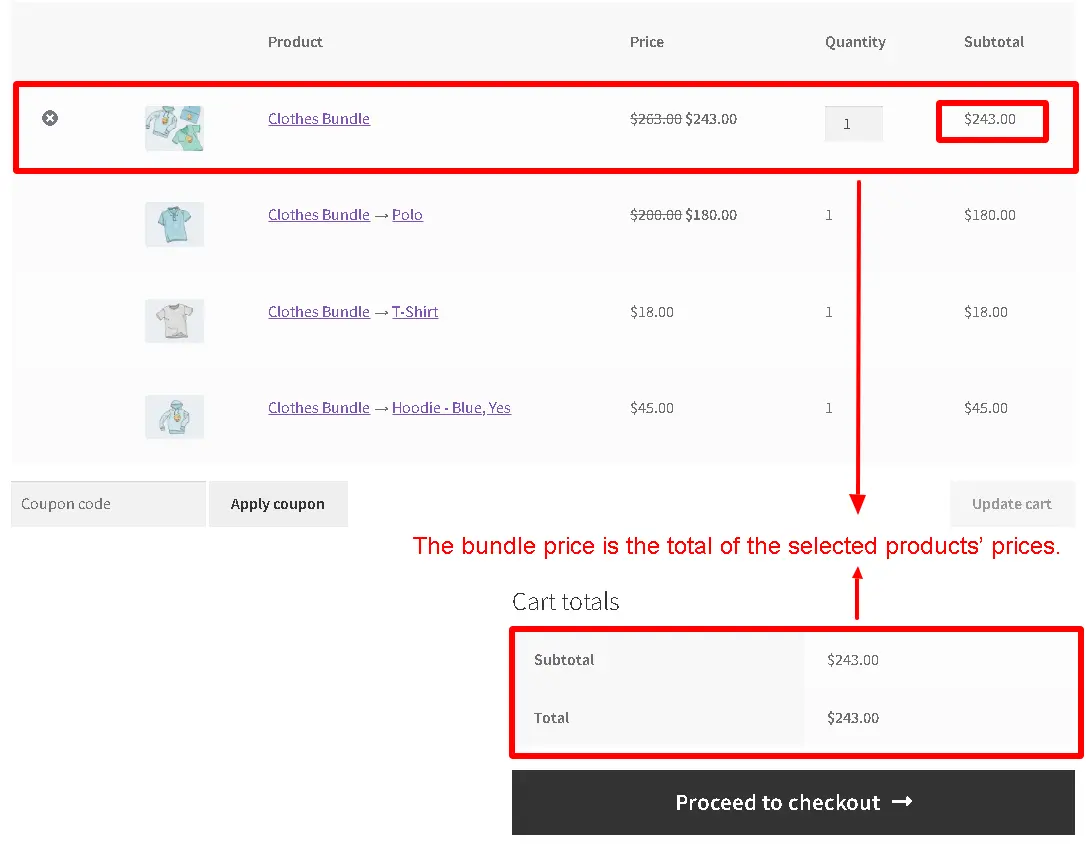
As you can see in the image below, the bundle price is the total of the prices of the selected products.
Step 7: Configure the Plugin Settings
All the plugin settings you need can be found on the “Product Bundles” tab in the WordPress dashboard.
Settings and customization are available on this page:
Item View:In this section, you can configure various settings, such as displaying stock availability, showing product ratings and descriptions, adding a quantity field on item pages, displaying a plus icon for items, setting the theme and size options, positioning product bundles on the product page, defining custom CSS selectors, specifying the product price selector, and many other customizable options.
Change product popup: In this section, you can configure popup settings.
Styles: In this section, you can customize the colours of different parts of your bundle and set the product image object-fit CSS.
Final Result for Mix and Match Products in WooCommerce
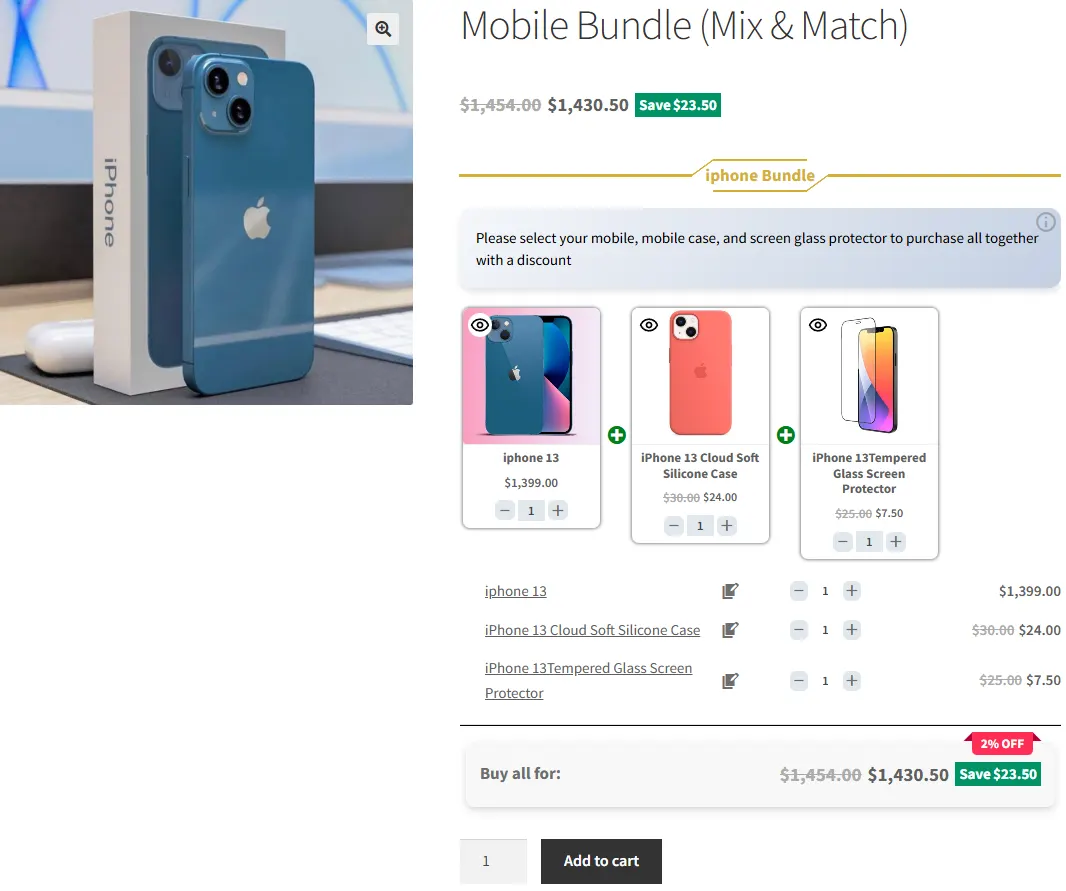
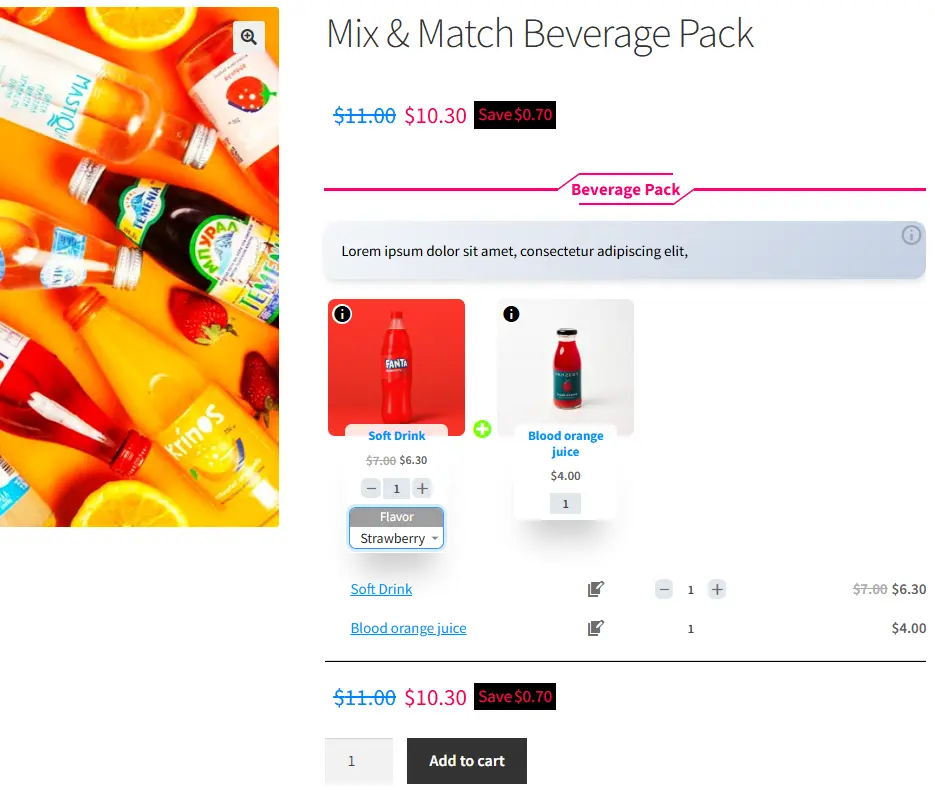
WooCommerce Mix and Match Product will be shown on your site like this
How to create mix-and-match product bundles with variable products
To create mix-and-match product bundles with variable products, follow the steps below:
📽️Video tutorial
Step 1: Create mix-and-match product bundles with variable products
1. Navigate to the “Products” section in WooCommerce.
2. Click on “Add New” to create a new product.
3. Set a name for the mix-and-match product bundles
4. Click on “Set product image” from the right sidebar and select an image for product bundles.
5. Navigate to the Product data panel, and select “Product bundle” as the product type.
6. After selecting “Product bundle” as the product type the “Product Bundles” tab will appear in the product data panel.
7. Navigate to the “Product Bundles” tab and click on the “Add Item” button to add a new bundle item.
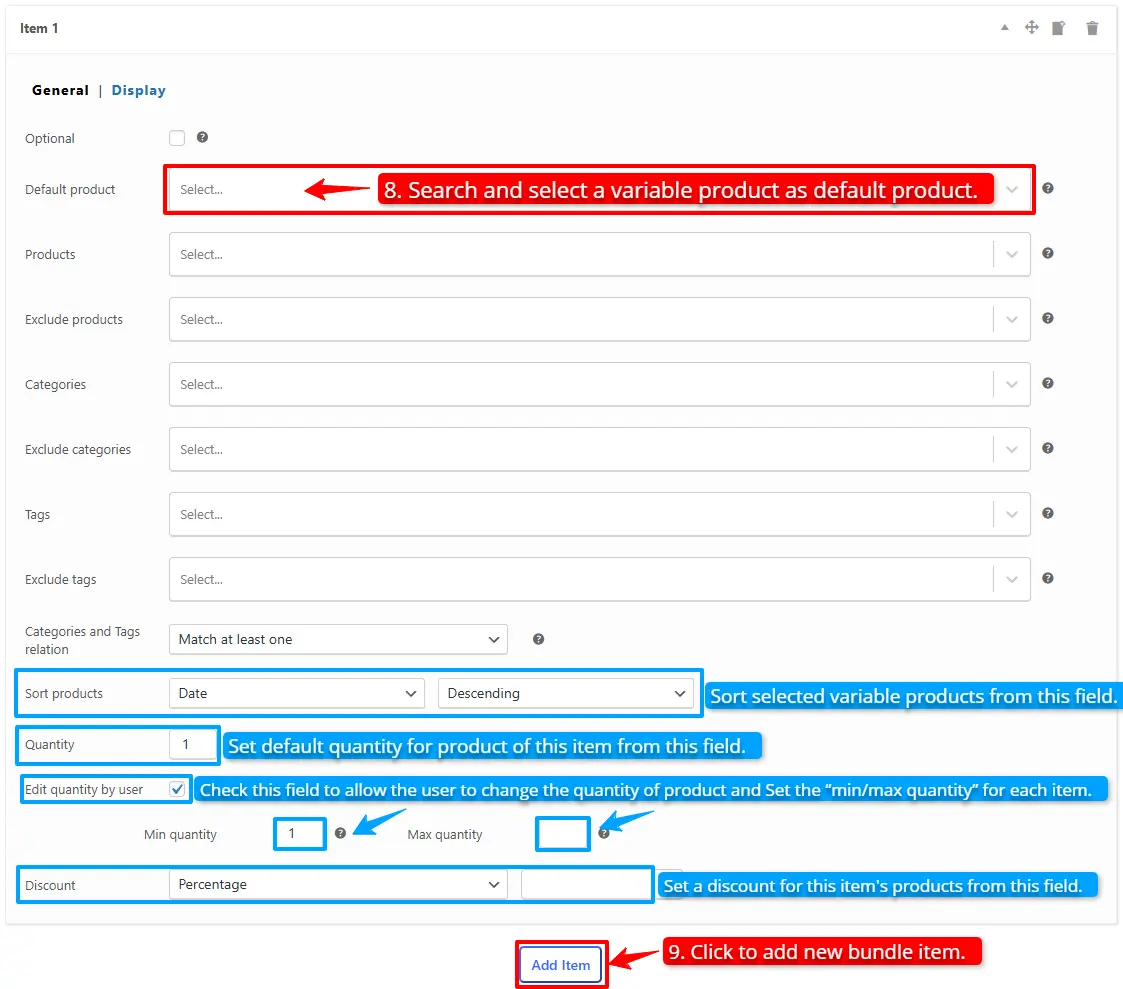
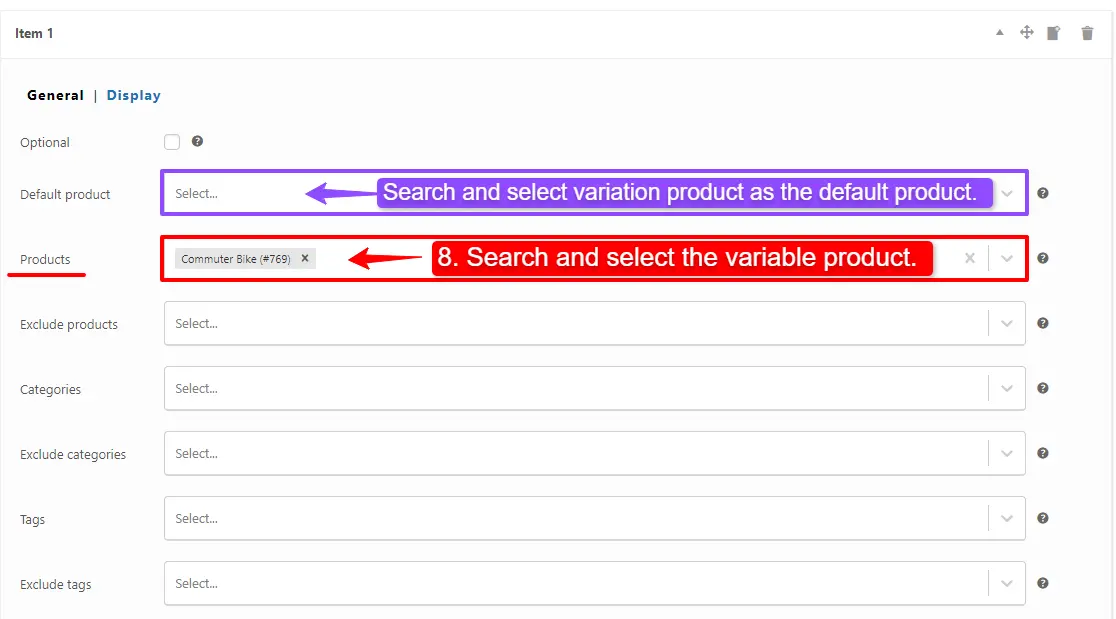
8. Now, in the “default product” field, search and select a variable product. You can also select as many variable products as you want in the products section.
Likewise, if you would like to include variable products from a category, you can do it with the “Categories” field of the item. therefore you can search for categories and add them.
In addition, you can do the same for the variable product tags and include them in the “Tags” field.
You can also configure the below settings to your mix and match Product Bundlein the item field:
Sort products: With this field, you can sort selected variable products by “ID”, “Title”, “Menu order”,” Date”, “Price”, “popularity” and“Rating”.
Quantity: In this field, you can set the default quantity for each product.
Edit quantity by user: Check this field to allow the user to change the quantity of product and Set the “min/max quantity” for each item.
Discount: In this field, you can set discounts for product bundles by percentage, price or fixed price.
Now you can navigate to the “display” tab of the item and configure the following sections:
Overwrite bundle item title.
Overwrite bundle item short description. (Show when the mouse hovers over it)
Change the title of the bundle empty item.
Change the product list product selection title.
Change the pop-up header title.
Set an image for the empty item.
9. Then you can click on “Add Item” to add a new item to the mix and match product bundles and configure it as in the previous steps. we create one other item and select simple products for this item.
Step 3: Configure the Plugin Settings
To configure the Plugin Settings, you can just read this section of the article for more information.
Final result of Mix and Match With Variable Products
Now open the product page on the frontend to see the mix-and-match product bundles.
Optional Items in WooCommerce Product Bundles
You can make product bundle items optional, so that the customer does not have to select a product for that bundle item.
Step 1: Create optional product bundle item
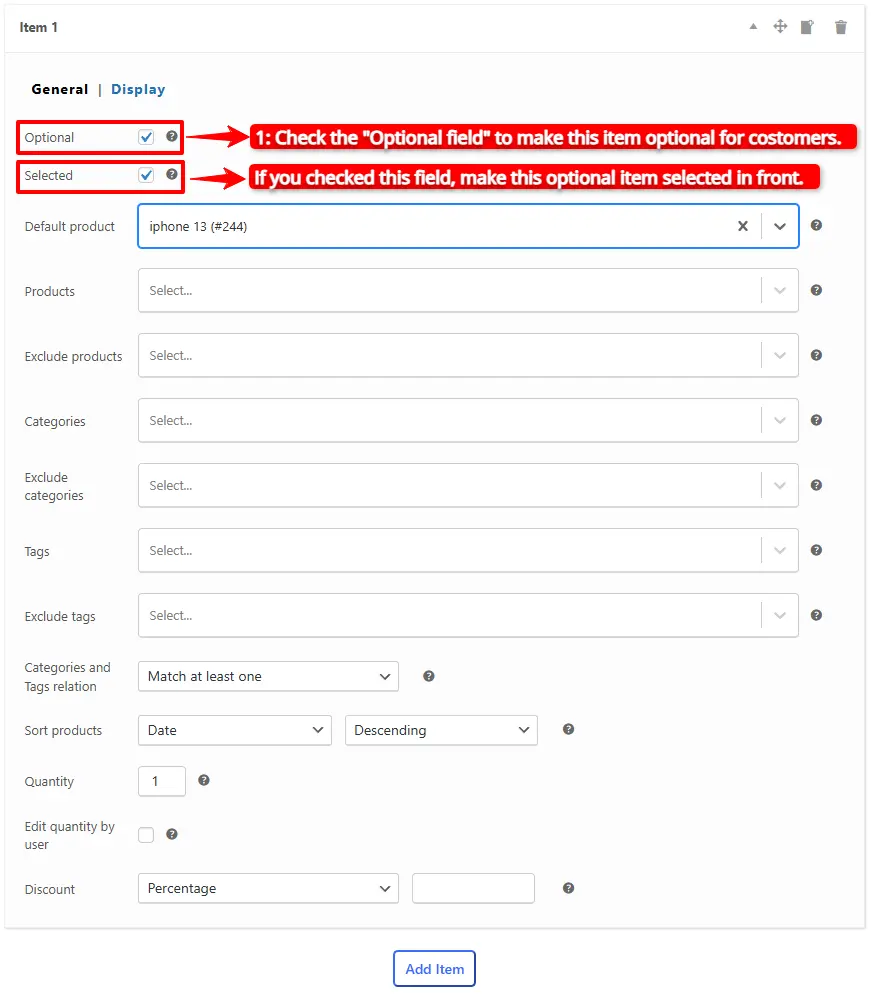
1. To make an item optional, open it and check the “Optional” field. This option is available in the pro version of the Easy Product Bundles for WooCommerce.
2. Check the “Selected” field to make this optional item selected at first time in front.
Step 2:Change the Optional item mode
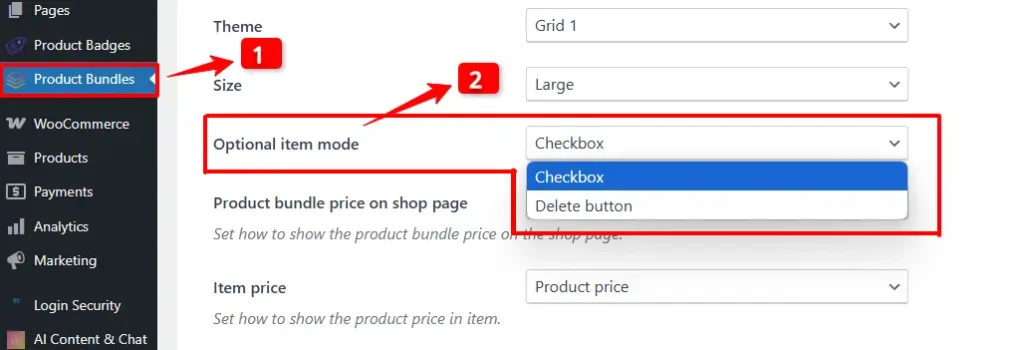
3. Go to the “product bundle” tab in the WordPress dashboard.
4. In the settings, navigate to the “Optional Item Mode” section and change the mode of the optional item to either “Checkbox” or “Delete Button”.
FinalResult of Optional Product Bundles
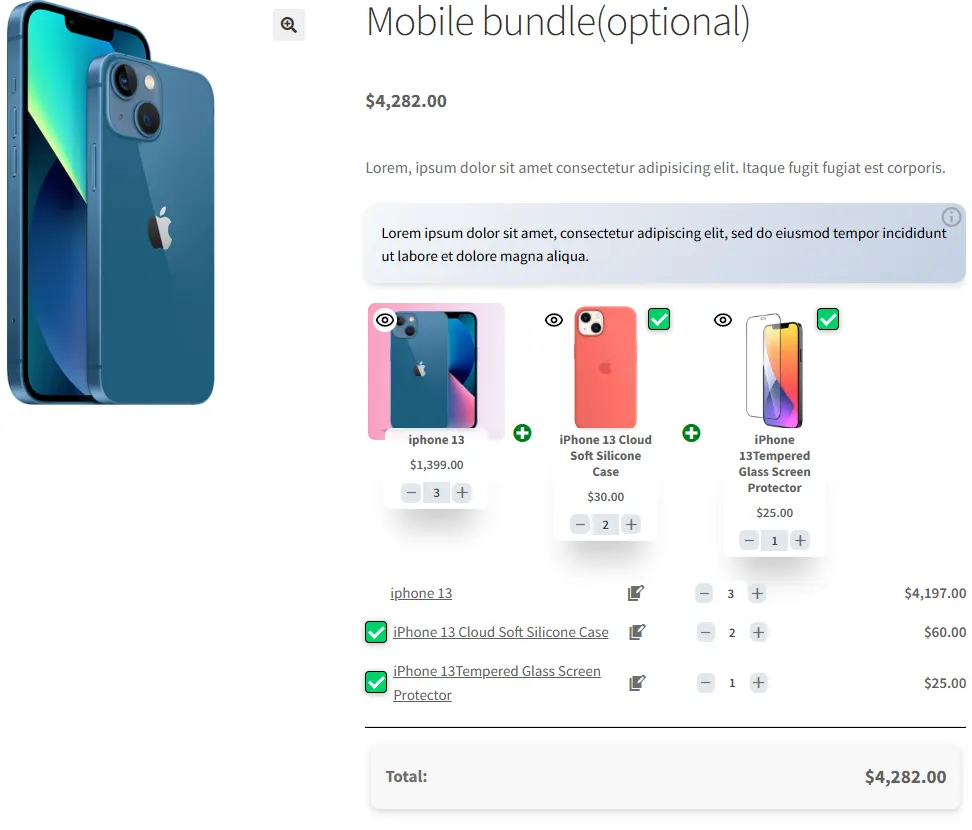
After setting an item as optional, a checkbox or delete button will appear above the bundled item, allowing the customer to choose whether or not to include that product in their purchase.
Offer BOGO Deals in WooCommerce
BOGO deals are one of the best strategies to make money and build customer loyalty.
In the BOGO deal offered in the above example, we offered one product as a gift product. So we can edit it to include multiple product items.
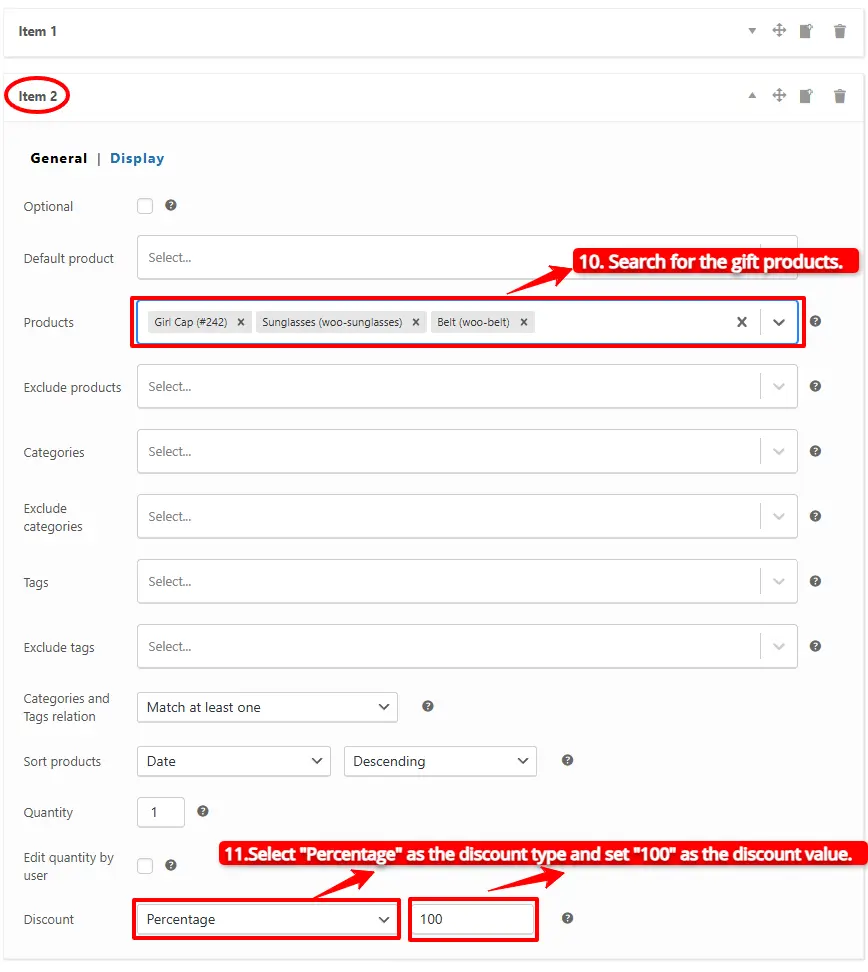
1. To offer multiple products as gifts, edit the “Products” field of the item and include all of the gift products there, so the customer can choose from them.
2. In the “Products” field, search for the gift products and include them as shown in the image below.
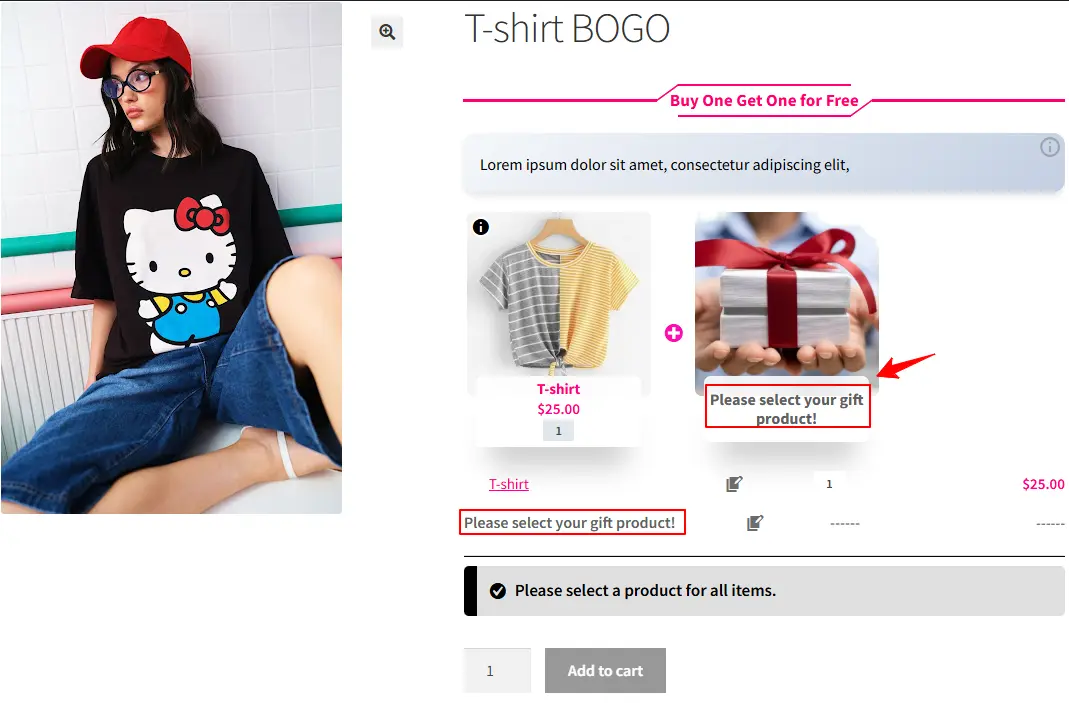
You can use one of the gift products as a default gift product or leave it empty to allow the customer to choose it.
Final result of offering multiple gift products
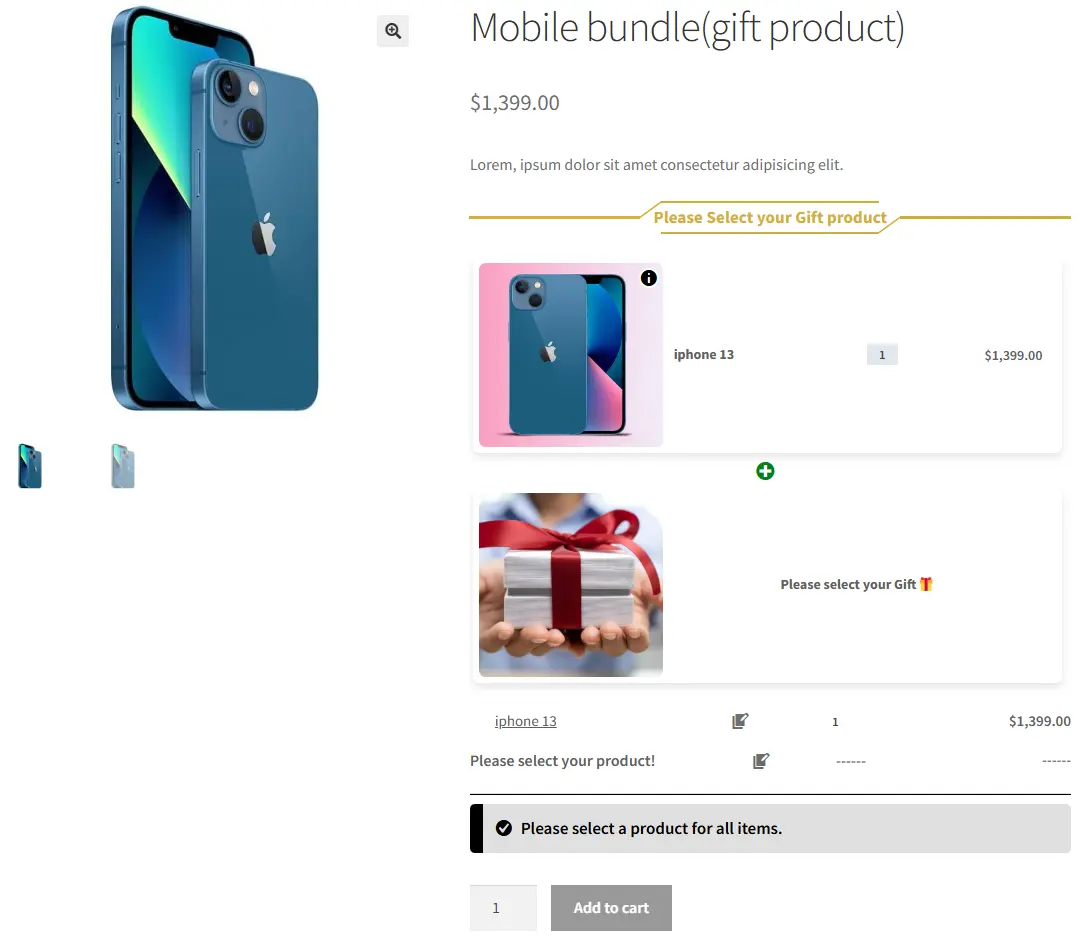
The product page will be like the image and allows the customer to choose the gift product in a popup.
Create Configurable or Personalized Products in WooCommerce
Products like food or clothes sets are examples of configurable or personalized products.
If you want to make your restaurant different from other ones, you can offer configurable foods. It allows customers to make the food as they like it.
Step 1: Create regular products
To create a configurable product, first, you should create simple or variable products that you want to include in the bundle.
Step 2: Create a Product Bundle
1. After creating regular products in WooCommerce, navigate to WooCommerce Products >> Add New to create a new product.
2. Now navigate to the Product data panel, and select “Product bundle” as the product type.
3. After selecting “Product bundle” as the product type the “Product Bundles” tab will appear in the product data panel.
Step 3: Add Items to the Bundle
4. Navigate to the “Product Bundles” tab and click on the “Add Bundle” button to add a new bundle item to the product bundle.
5. You can set a default product for each bundle item by selecting the default product in the “Default product” field.
6. Now you can include other available options for that item in the “Products” field of the item. Search for the products and add them to the “Products” field.
Or if you would like to include products from a category, you can do it with the “Categories” field of the item. You can search for categories and add them to the “Categories” field.
You can do the same for the product tags and include them in the “Tags” field.
Now we have added an item to the bundle, and you can repeat the above “Add Items to the Bundle” steps to add other items to the bundle.
Final Result of WooCommerce Mix and Match Free Plugin
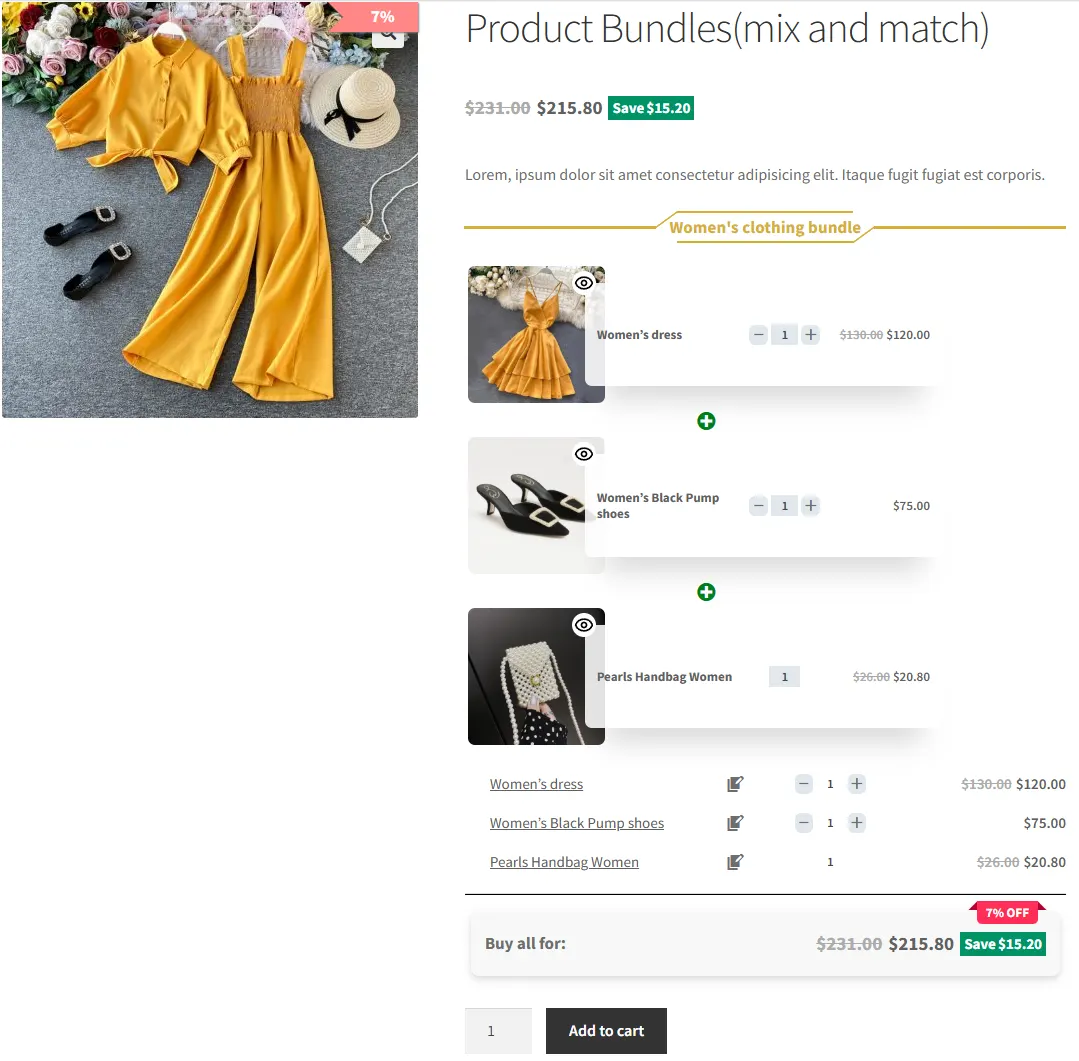
We have created a configurable Women’s clothes set that allows customers to build their own set, like the image below.
Shortcodes
The plugin has the below shortcodes and you can use them:
[asnp_wepb_product] Use it on the product page to show the bundles.
[asnp_wepb_product show_add_to_cart="1"] Use it on the product page to show the bundles + add to cart button.
Articles
To delve deeper into the realm of Product Bundle plugin and their applications, we invite you to explore the array of informative resources we’ve compiled in the list below. These resources promise to expand your understanding and proficiency in leveraging the potential of this plugin to the fullest:
A mix-and-match product allows customers to create personalized boxes. They can select products and quantities from multiple available products and mix them together to build their own one.
How to create a mix and match product in WooCommerce?
To create a mix and match product you can use the Easy Product Bundles for WooCommerce. The plugin allows creating simple to advanced mix and match products like bundle discounts, BOGO deals, multiple gift products, custom products, and configurable or personalized products easily.
How do I merge two products in WooCommerce?
If you want to merge products and sell them together then you can create a bundle product and sell it. You can use the Easy Product Bundles for WooCommerce plugin to create simple to advanced bundles.
Do you want to create powerful WooCommerce Product Bundle with Variations and boost your store’s sales? In this article, we’ll show you how to build flexible product bundles using variable products and product variations—the smart way.
With product bundles, customers can create their own custom bundles from available products, choose the desired variations, and set the quantity for each item. The result? A fully personalized bundle offered at an attractive discounted price that encourages higher spending.
Product bundles are not just a sales feature—they’re a proven strategy to increase average order value (AOV), improve customer experience, and drive more conversions. When done right, bundles help you sell more products in a single order while giving customers the feeling of control and savings.
In this guide, you’ll learn how to create professional WooCommerce bundles with variations that are easy to manage, visually appealing, and optimized for higher revenue.
A WooCommerce Product Bundle is a product type that combines multiple related products into a single package. Instead of buying items separately, customers can purchase them together as one bundle—often at a discounted price.
For example, an iPhone bundle may include an iPhone 14, a protective case, and a screen protector, all in one convenient offer. Product bundles help improve the shopping experience and increase average order value (AOV) by encouraging customers to purchase more in a single order.
What is the goal of the WooCommerce Product Bundle?
The main goal of a WooCommerce Product Bundle is to increase your store’s sales by encouraging customers to purchase multiple products in a single order. By offering attractive bundles with a discounted price, customers are more likely to buy related products together instead of purchasing them separately. Product bundles also improve the shopping experience by making it easier and more convenient for customers to get everything they need in one package.
Benefits of Creating Product Bundles in WooCommerce
Some of the important benefits of creating product bundles in WooCommerce are:
To set a default product for the item, in the “Default Product” field, search for a variation and select it. Selecting variation products is only available in the Pro version.
Step 4: Customising WooCommerce Product Bundle
You can also configure the below settings to your WooCommerce Product Bundlein the item field:
Sort products: With this field, you can sort selected products by “ID”, “Title”, “Menu order”,” Date”, “Price”, “popularity” and“Rating”.
Quantity: In this field, you can set the default quantity for each product.
Edit quantity by user: Check this field to allow the user to change the quantity of product and Set the “min/max quantity” for each item.
Discount: In this field, you can set discounts for product bundles by percentage, price or fixed price.
Now you can go to the “display” tab of the item and configure the following sections:
Overwrite bundle item title.
Overwrite bundle item short description. (Show when the mouse hovers over it)
Change the title of the bundle empty item.
Change the product list product selection title.
Change the pop-up header title.
Set an image for the empty item.
9. Then you can click on “Add item” to add a new item to the bundle and select a default product for it. We have created two bundle items .
Step 5: Set price for Product Bundle
The plugin allows two types of pricing for product bundles.
Fixed Price: Sets a fixed price for the whole bundle product.
Auto Calculate Bundle Price: Allow the plugin to calculate the bundle product price using the selected products for the bundle items.
If you want to set a fixed price for the product bundle, enable the “Fixed price” option and navigate to the “General” tab, and set a price for the “Regular price” field. You can set a “Sale price” too.
To use the “Auto Calculate Bundle Price” disable the “Fixed price” option.
10. Finally, publish the Product Bundle with Variations on your website.
Step 6: Configure the Plugin Settings
All the plugin settings you need can be found on the “Product Bundles” tab in the WordPress dashboard.
Settings and customization are available on this page:
Item View: In this section, you can configure various settings, such as displaying stock availability, showing product ratings and descriptions, adding a quantity field on item pages, displaying a plus icon for items, setting the theme and size options, positioning product bundles on the product page, defining custom CSS selectors, specifying the product price selector, and many other customizable options.
Change product popup: In this section, you can configure popup settings.
Styles: In this section, you can customize the colours of different parts of your bundle and set the product image object-fit CSS.
Final Result
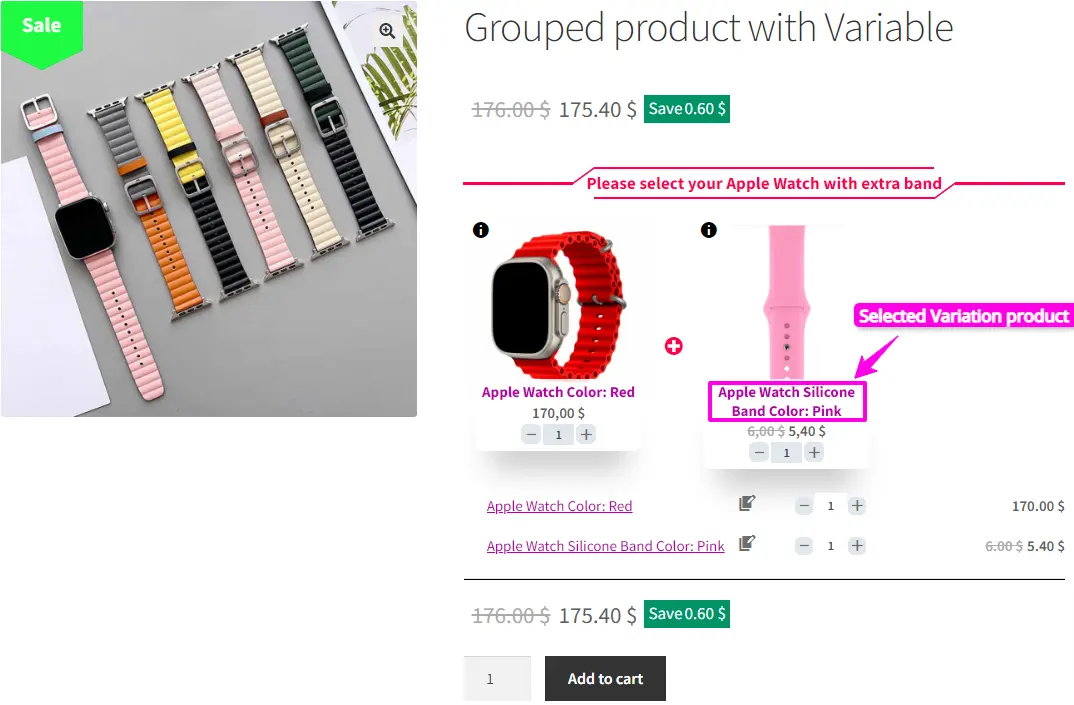
WooCommerce product bundle with variations will be shown in front like this image.
The customer can choose other available variations from the popup.
How to Create a WooCommerce Product Bundle with Variations
If you want to create a WooCommerce product bundle with variations, then you can use the WooCommerce Product Bundles pro version. You have the ability to include specific variations in the product bundle.
Step 1: Install WooCommerce Product Bundles Pro Plugin
To create a WooCommerce Product Bundle with Variations, you should install and activate the WooCommerce Product Bundles Pro plugin.
Step 2: Create a Bundle Product in WooCommerce
To include variation products in the bundle items follow the below steps.
1. Navigate to WooCommerce Products >> Add New product to create a new product.
2. Set a name for the product bundle.
3. Click “Set product image” from the right sidebar and select an image for your Product Bundle.
4. Now navigate to the Product data panel, and select “Product bundle” as the product type.
6. After selecting “Product bundle” as the product type, the “Product Bundles” tab will appear in the product data panel.
Step3: Add Bundle Items
7. Navigate to the “Product Bundles” tab and click on the “Add item” button to add a new bundle item to the product bundle.
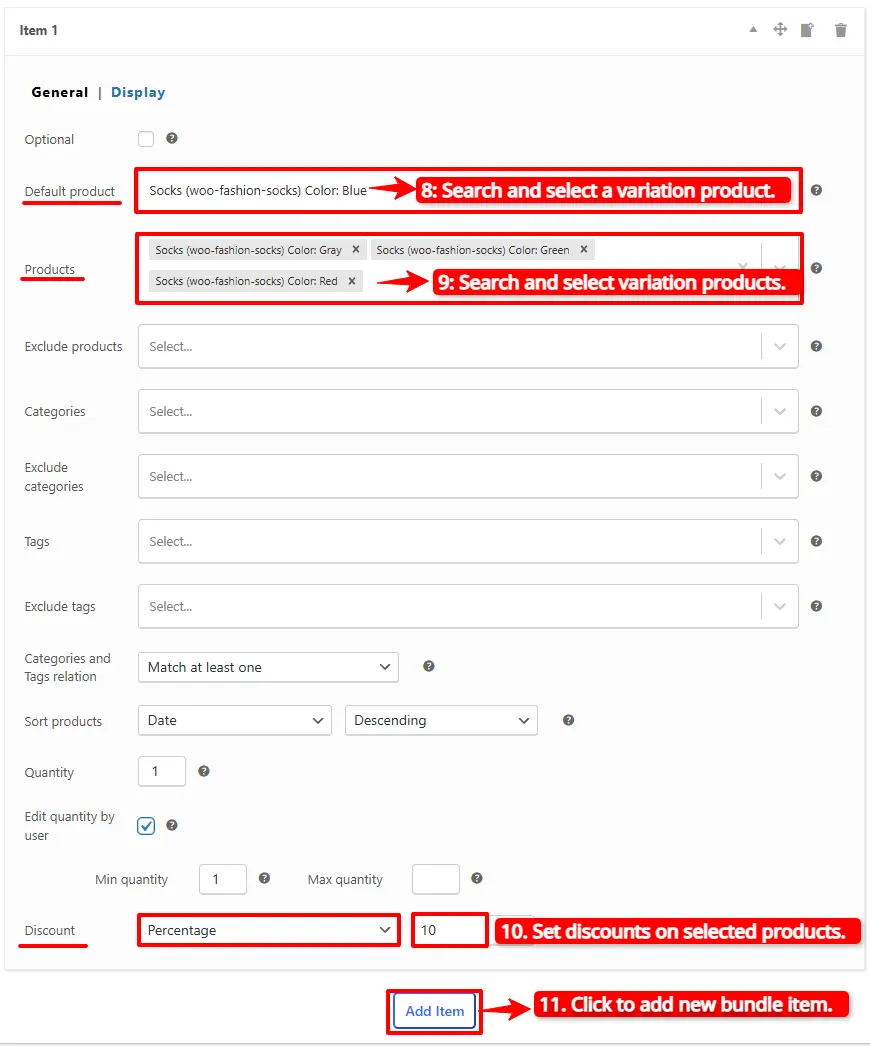
8. Search and select a variation product in the “default product” field.
9. To add other variations to the item, in the “Products” field search for variations and select them.
10. You can set a “percentage, price, or fixed price” discount on the bundle item by using the “Discount” field of the item.
11. If you want to add other bundle items, you can click on the “Add item” button to add another bundle item. Follow the steps “Add bundle items“. We created two bundle items.
Step 4: Set price for Product Bundle
The plugin allows two types of pricing for product bundles.
Fixed Price: Sets a fixed price for the whole bundle product.
Auto Calculate Bundle Price: Allow the plugin to calculate the bundle product price using the selected products for the bundle items.
If you want to set a fixed price for the product bundle, enable the “Fixed price” option and navigate to the “General tab”, and enter a price in the “Regular price” field. You can set a “Sale price” too.
To use the “Auto Calculate Bundle Price” disable the “Fixed price” option.
Final Result
12. Now you can publish the product on your website.
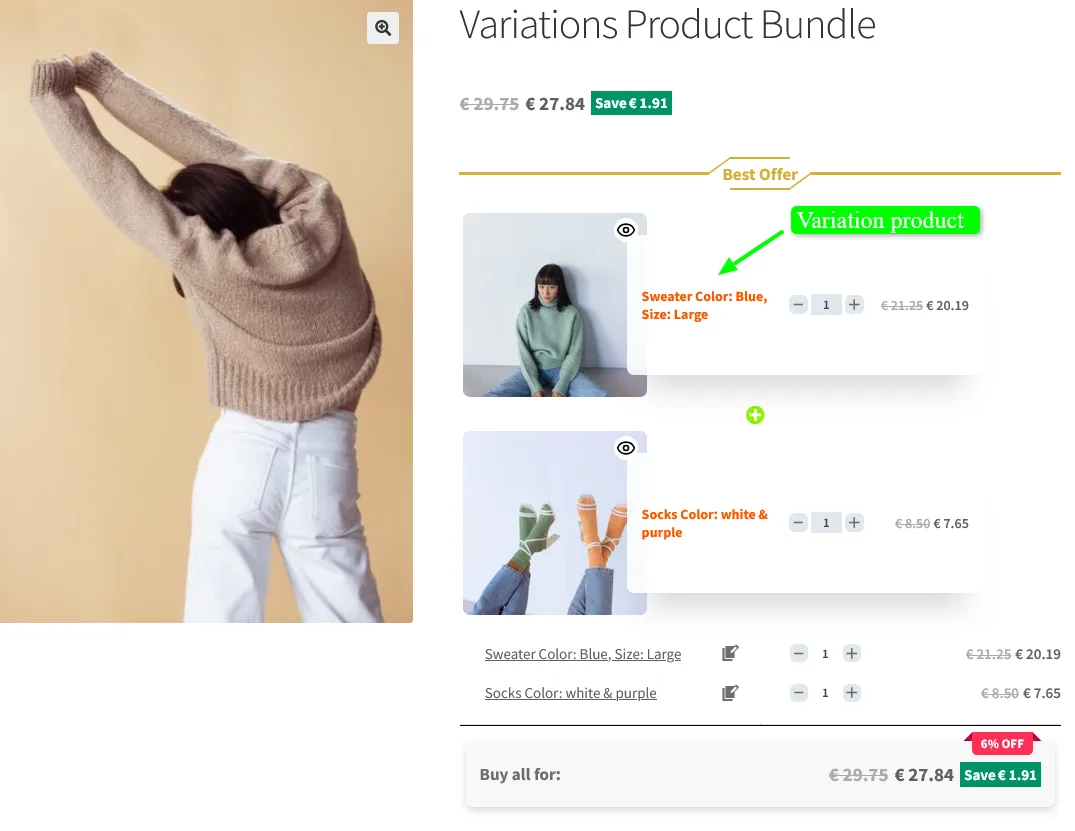
The WooCommerce product bundle with variations is like the image.
The customer can choose other available variations from the pop-up.
Shortcodes
The plugin has the below shortcodes, and you can use them:
[asnp_wepb_product] Use it on the product page to show the bundles.
[asnp_wepb_product show_add_to_cart="1"] Use it on the product page to show the bundles + add to cart button.
Articles
To delve deeper into the realm of Product Bundle plugin and their applications, we invite you to explore the array of informative resources we’ve compiled in the list below. These resources promise to expand your understanding and proficiency in leveraging the potential of this plugin to the fullest:
Easy WooCommerce Product Bundles is a free plugin designed to help store owners create attractive product bundles and sell multiple products together as a single offer. It allows you to build powerful deals across different product types, boosting sales while giving customers better value and a smoother shopping experience. As a smart product bundle builder, this plugin strengthens cross-selling strategies, improves conversions, and supports better visibility in search engines.
In this article, you’ll learn how to create product bundles in WooCommerce step by step using this free plugin.
To create product bundles in WooCommerce, we use the free and powerfulProduct Bundle Builder for WooCommerceplugin, one of the most popular WordPress plugins in 2025. This plugin is easy to use and provides a wide range of customization options, allowing store owners to create flexible, attractive bundles tailored to their customers’ needs.
Here we will create a product bundle with three default products.
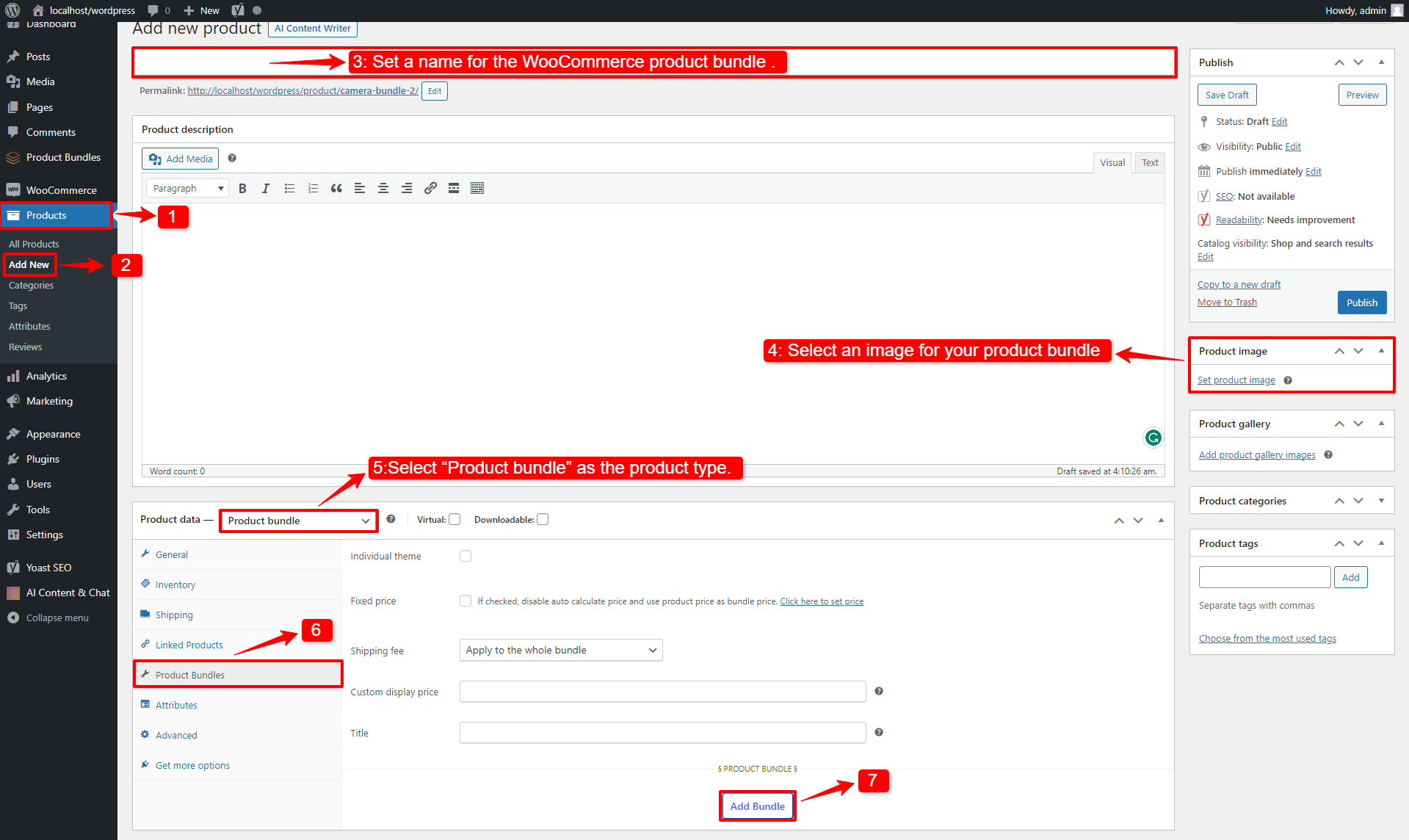
Navigate to WooCommerce Products >> Add New to create a new product.
Set a name for the product bundles.
Click on “Set product image” from the right sidebar and select an image for your Product Bundles.
Now navigate to the Product data panel, and select “Product bundle” as the product type.
After selecting “Product bundle” as the product type, the “Product Bundles” tab will appear in the product data panel.
Click on the “Product Bundles” tab.
And click on the “Add Bundle” button to add a new bundle item to the product bundle.
8. Now, in “the default product” field, search for a product and select it.
Step 3: Customising WooCommerce Product Bundles
You can also configure the settings below for your WooCommerce Product Bundlesin the item field:
Sort products: With this field, you can sort selected products by “ID”, “Title”, “Menu order”,” Date”, “Price”, “popularity” and“Rating”.
Quantity: In this field, you can set the default quantity for each product.
Edit quantity by user: Check this field to allow the user to change the quantity of product and Set the “min/max quantity” for each item.
Discount: In this field, you can set discounts for product bundles by percentage, price or fixed price.
Now you can go to the “display” tab of the item and configure the following sections:
Overwrite bundle item title.
Overwrite bundle item short description. (Show when the mouse hovers over it)
Change the title of the bundle’s empty item.
Change the product list product selection title.
Change the pop-up header title.
Set an image for the empty item.
9. Then you can click on “Add Item” to add a new item to the bundle and select a default product for it. We have created two bundle items.
10. At the end, publish the product bundles on your website.
Step 4: Configure the Plugin Settings
All the plugin settings you need can be found on the “Product Bundles” tab in the WordPress dashboard.
Settings and customization are available on this page:
Item View: In this section, you can configure various settings, such as displaying stock availability, showing product ratings and descriptions, adding a quantity field on item pages, displaying a plus icon for items, setting the theme and size options, positioning product bundles on the product page, defining custom CSS selectors, specifying the product price selector, and many other customizable options.
Change product popup: In this section, you can configure popup settings.
Styles: In this section, you can customize the colours of different parts of your bundle and set the product image object-fit CSS.
Final Result
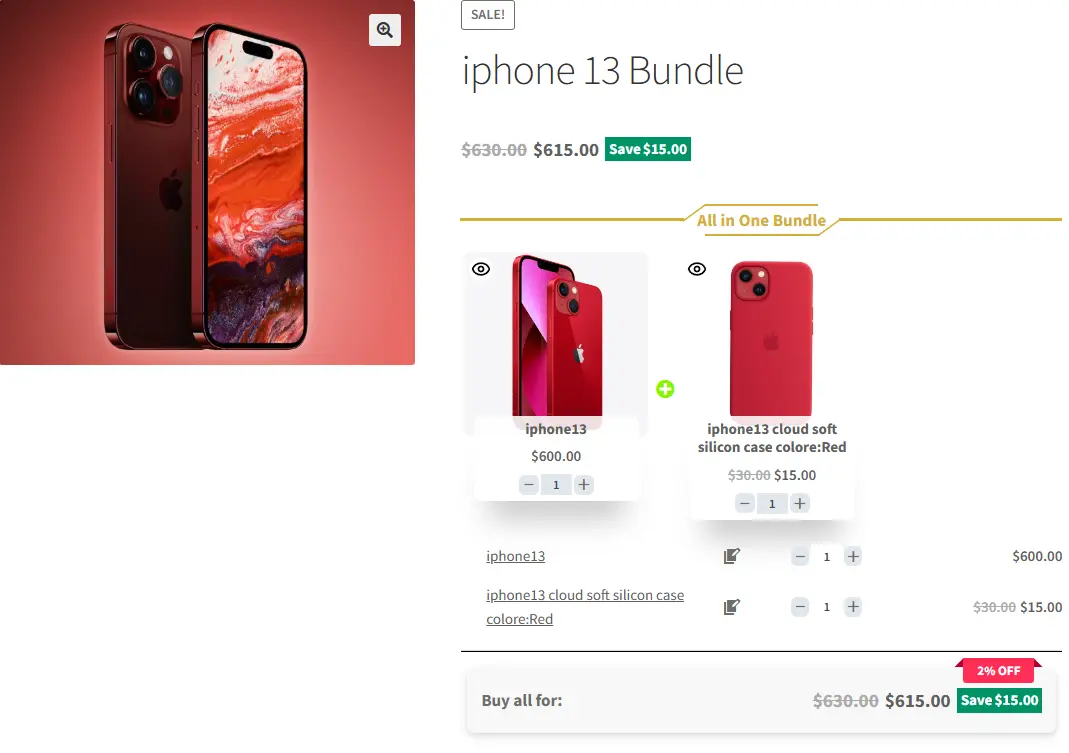
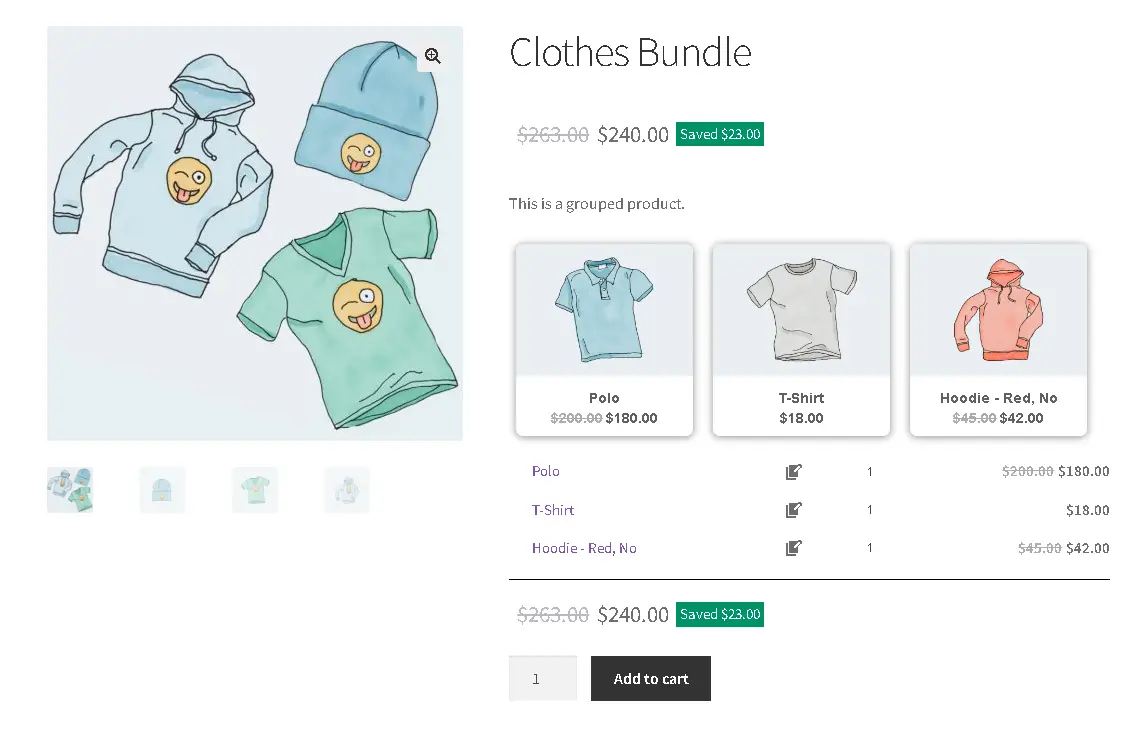
WooCommerce product bundles will be shown in front like this image.
Auto calculate the price based on selected products
1. Fixed Price
If you would like to set a fixed price for the whole bundle product, then check the “Fixed Price” option.
Navigate to the “General” tab and set a regular price for the Product. You can set a Sale price too.
After setting a price, update the product.
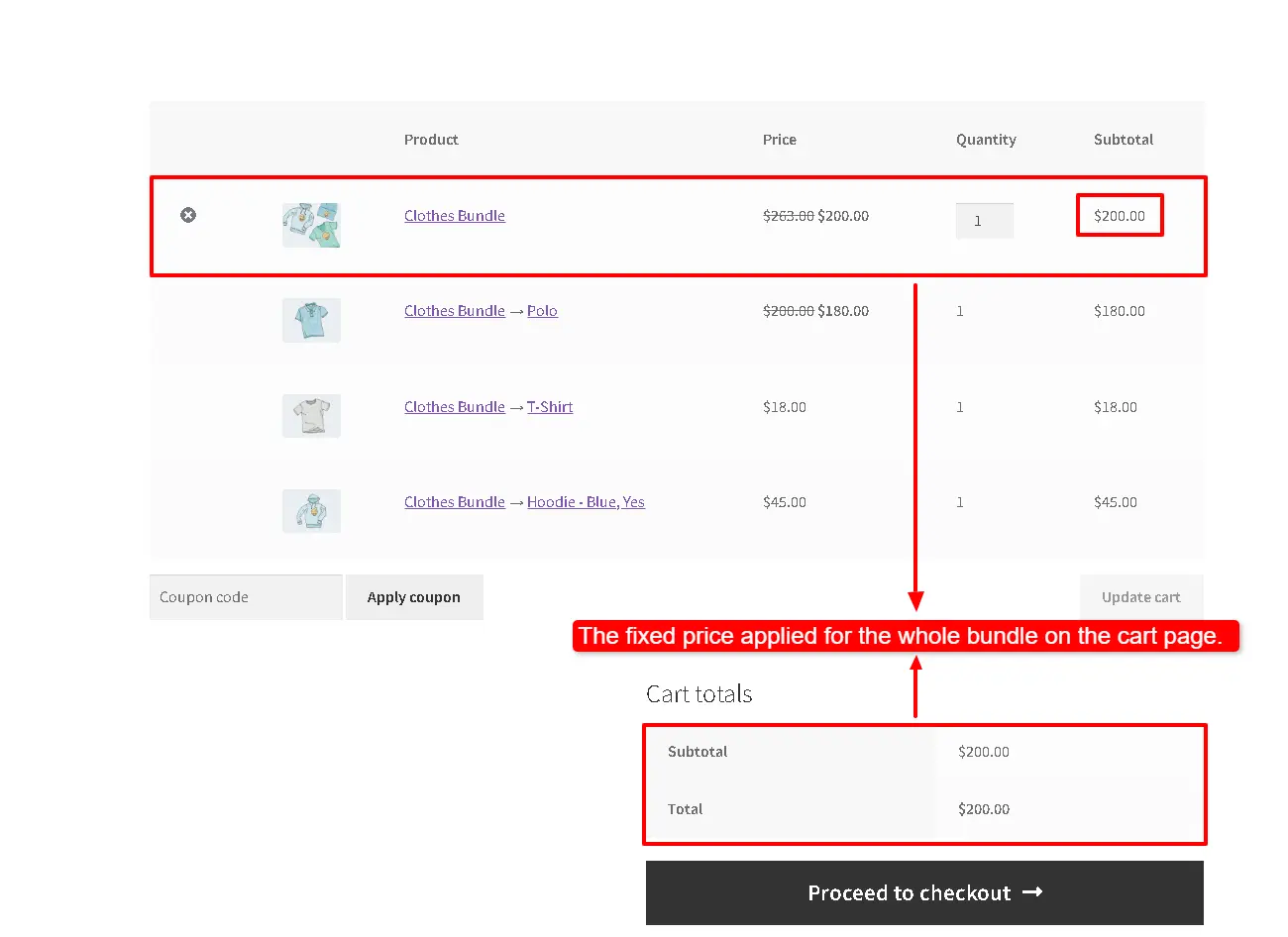
Now you can see the fixed price for the whole bundle on the product and cart pages.
2.Auto Calculate Price
Auto calculates price helps to set a dynamic price for the product bundle based on selected items for the bundle.
To use the auto-calculate price feature, uncheck the “Fixed Price” option and update the product.
As you can see in the below image, the bundle price is the total of the selected products’ prices.
WooCommerce Product Bundles with Variables
Learn how to create product bundles that include variable products in WooCommerce. In the following, we’ll guide you through the step-by-step process of setting them up.
Video
Step 1: Create WooCommerce Product Bundles with Variables
Navigate to WooCommerce Products >> Add New to create a new product.
Set a name for the Variables product bundles.
Click on “Set product image” from the right sidebar and select an image for your Variables Product Bundles.
Now navigate to the Product data panel, and select “Product bundle” as the product type.
After selecting “Product bundle” as the product type the “Product Bundles” tab will appear in the product data panel.
Navigate to the “Product Bundles” tab and click on the “Add Bundle” button to add a new bundle item to the product bundle.
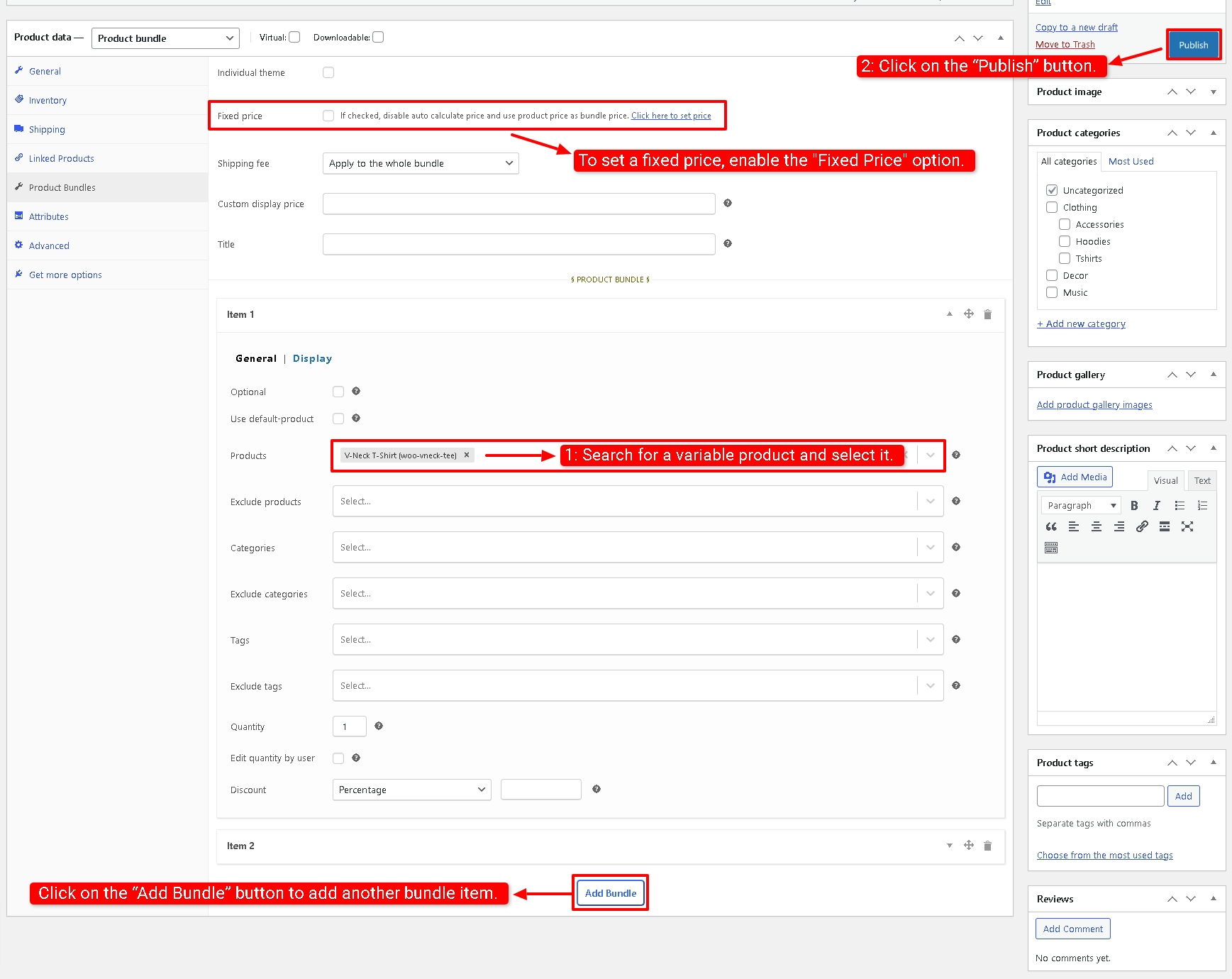
7. Now in the “Products” field of the bundle item search for a variable product and select it.
8. You can include as many products as you want in the “Products” field.
9. If you want to add another bundle item, you can click on the “Add Bundle” button to add another bundle item. We created a product bundle with two bundle items.
10. You can set a fixed price or auto-calculate the price for the product bundle.
To set a fixed price, enable the Fixed Price option and set a regular price for the product in the General tab.
To use the auto-calculate price, disable the fixed price option.
11. Click on the “Publish” button to publish the bundle product in your WooCommerce store.
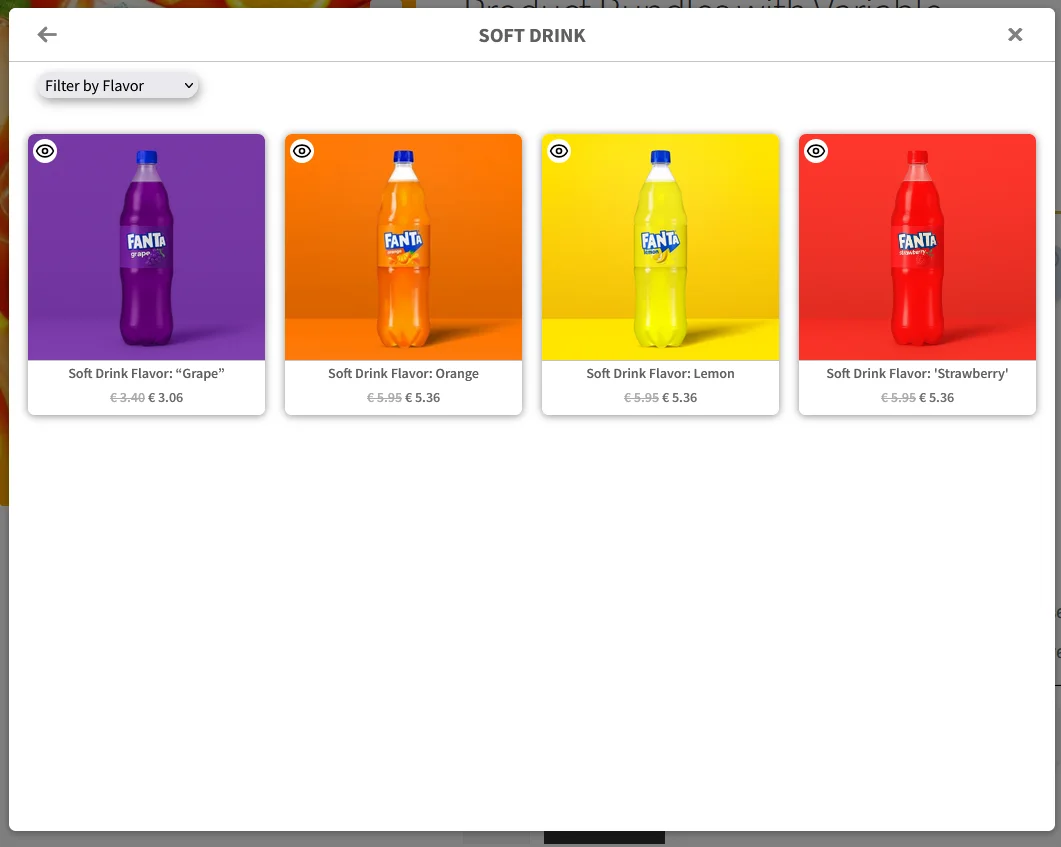
The variable product in the frontend will be shown as below in a pop-up.
Apply Discounts on WooCommerce Product Bundles
It is possible to apply discounts to WooCommerce Product Bundle items.
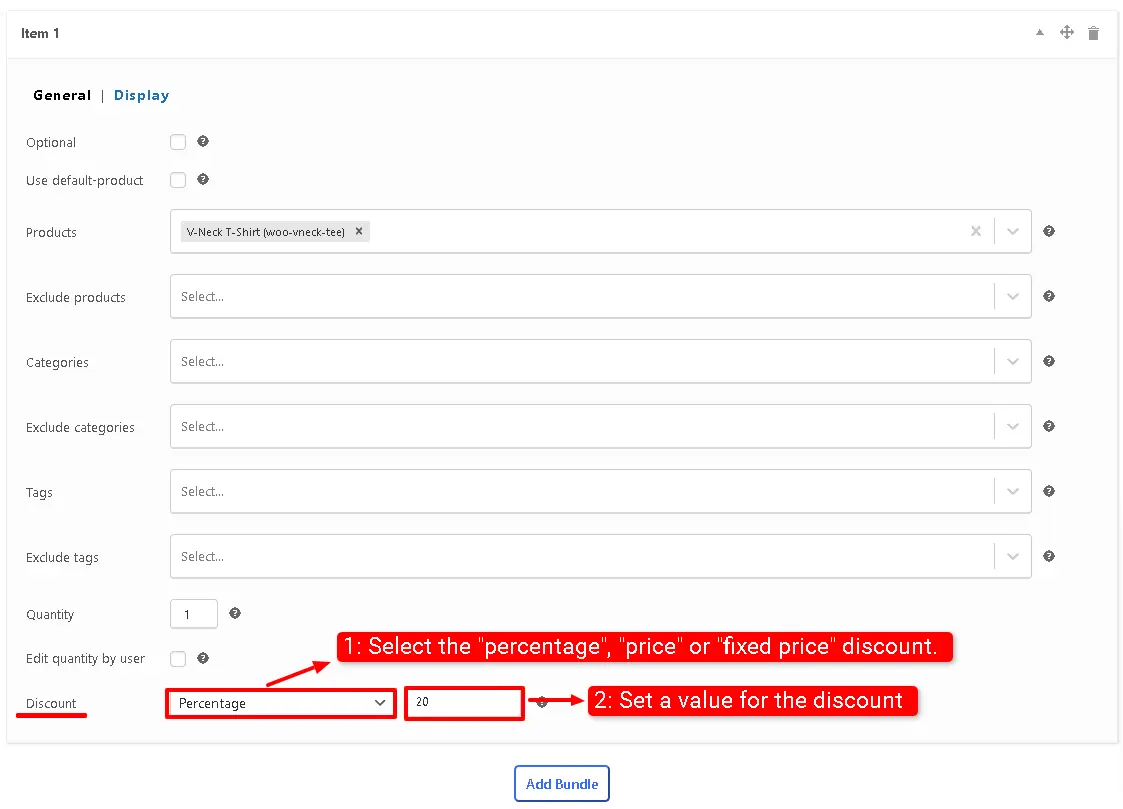
You can set a percentage, price, or fixed price discount on the products
Each bundle item in Product Bundles for WooCommerce has a discount field, and you can use it to apply a discount.
In the example, we applied a 20% discount on the bundle item.
Create WooCommerce Product Bundles with Variations
If you would like to include variation products in your WooCommerce Product Bundle, we recommend you use the pro version of the Easy WooCommerce Product Bundles pro plugin.
You can read this article to create WooCommerce Product Bundles with Variations.
Create Personalized Product Bundles in WooCommerce
If you want to offer your customers to create their Product Bundles from multiple available products, then personalized product bundles can help you.
The Easy WooCommerce Product Bundles pro plugin offers multiple beautiful Grid and List themes. Also, you can select “small, medium, large” for the theme size.
You can set a theme for all of the product bundles on your site, or you can set a theme individually for a specific product bundle.
To set a theme, follow the steps below:
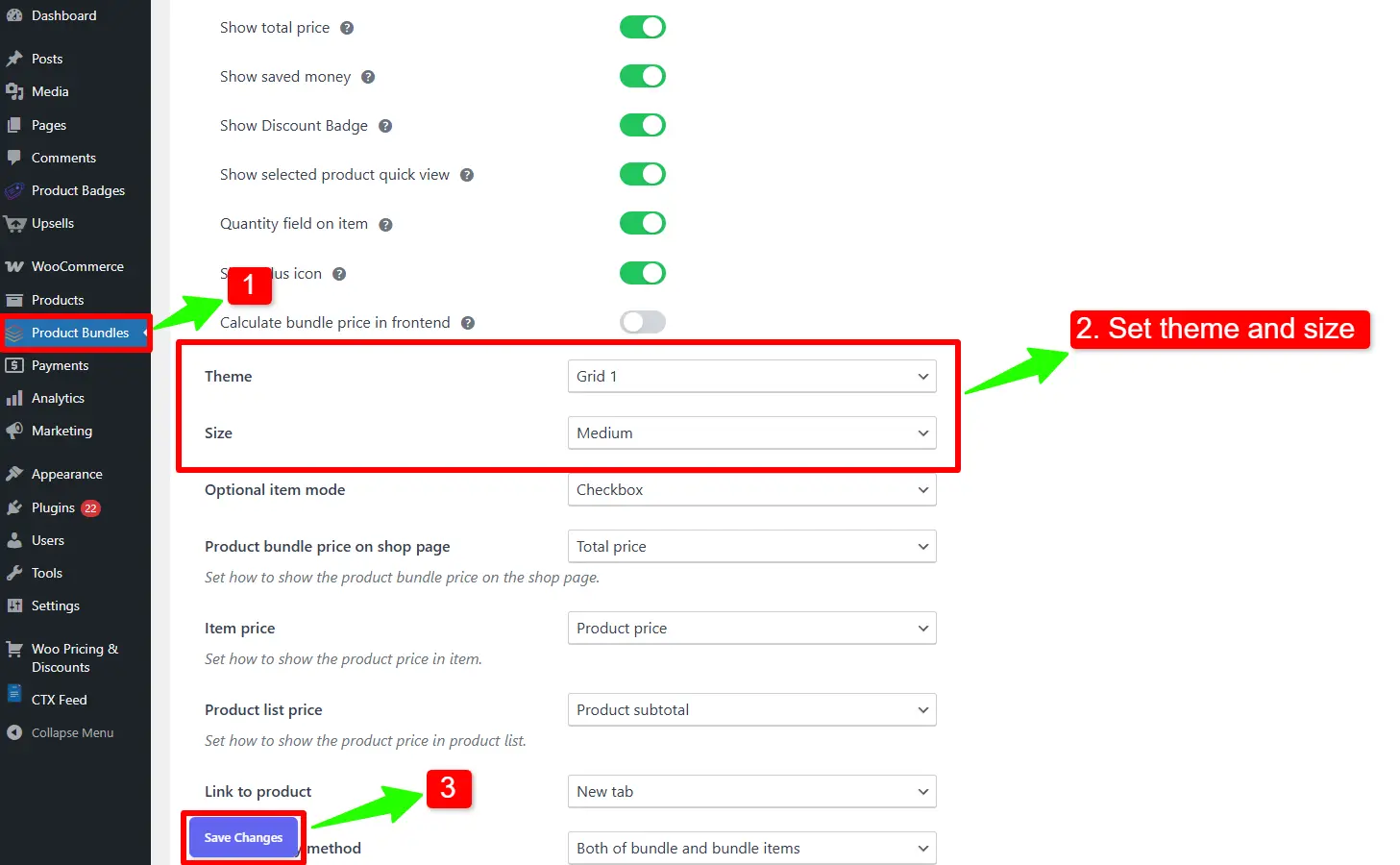
Navigate to the “Product Bundles” menu in the WordPress dashboard.
In the Settings tab, there is a Theme and Size option to set a global theme and size.
Set your desired theme and size and save the settings.
Save the changes.
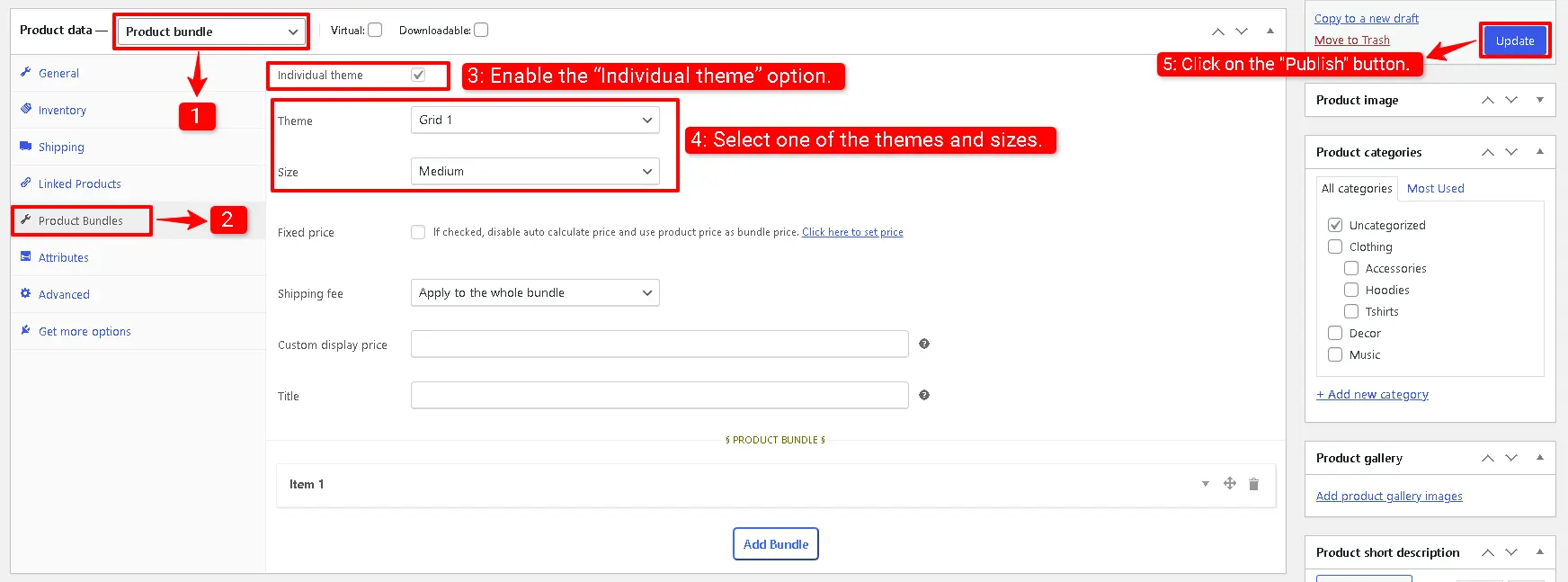
To apply a theme individually to a specific product bundle, follow the below steps.
Open the edit product page.
Navigate to the “Product Bundles” tab in the “Product data” panel.
The plugin has the below shortcodes and you can use them:
[asnp_wepb_product] Use it on the product page to show the bundles.
[asnp_wepb_product show_add_to_cart="1"] Use it on the product page to show the bundles + add to cart button.
To delve deeper into the realm of Product Bundle plugins and their applications, I invite you to explore the array of informative resources I’ve compiled in the list below. These resources promise to expand your understanding and proficiency in leveraging the potential of these plugins to the fullest:
Product Bundle or Product Groups is a strategy to group products together and sell them with a discount or without. This strategy convinces the customer to spend more money on increasing the average order value. In this tutorial, we will learn how to create various WooCommerce Product Bundles quickly and easily.
There are several methods to implement product bounding in WooCommerce. In this guide, we will introduce some useful product bundle strategies like Assembled Products, Mix-and-Match products, Dynamic Bundles, Simple Bundles, BOGO (Buy One Get One Deal), Gift Products, Optional Products, Frequently Bought Together Products, personalized boxes, recommend add-ons and essential.
Some example product bundles that you can create with the Easy WooCommerce Product Bundles plugin.
Simple or Pure product bundles
Advanced and Dynamic product bundles
Composite Products
Custom Bundles with Categories
Assembled products bundle
Mix-and-Match products bundle
Frequently bought together products bundle
Create BOGO deals
Give gift products
Create Personalized Boxes
Recommend addons and essentials
Optional products in WooCommerce Product Bundles
How to Create Simple WooCommerce Product Bundles
If you want to sell several related products together as one package, this method is a simple and effective solution.
With this approach, the products inside the bundle are already selected by the store owner, so the customer does not need to choose or add items manually. They simply add the bundle to the cart and complete the purchase.
Available pricing strategies:
Fixed Price: Set a regular or sale price for the entire product bundle.
Auto-calculated Price: The plugin automatically calculates the final price based on the selected products. You can apply a percentage discount, a fixed discount amount, or a custom price for each bundle item.
How to Create WooCommerce Product Bundle with Variations (Free Plugin)
Creating a product bundle in WooCommerce with a free plugin simply means selling a few related products together in one place, while still letting customers choose options like color or size for each product. Instead of adding items to the cart one by one, the customer selects everything on a single page and buys them together. This makes shopping easier for customers and helps store owners sell more, without using complicated or paid plugins.
A WooCommerce Mix and Match product lets customers build their own custom bundle by choosing individual items and quantities from a selection you provide, creating personalized product boxes like gift sets, assortments, or custom offers right on your store. The free Easy Product Bundles for WooCommerce plugin makes this possible without complex setup, offering flexible pricing (fixed or auto-calculated), optional items, quantity limits, and visual layouts so shoppers can mix products as they like.
A WooCommerce Composite Product is a type of product that lets customers create and purchase a customized item by selecting from a set of pre-defined components or options. For example, a “Build Your Own Pet Basket” allows customers to choose the products that will make up their unique gift basket for their beloved furry friends, giving them full control over the contents while keeping the shopping experience simple and seamless.
One of the main features of the WooCommerce Product Bundle plugin is the ability to assign categories to bundle items. Categories help group related products together, making it easier for customers to find what they need and create personalized bundles that match their preferences. Using categories in your bundles not only simplifies the shopping experience but also increases the chances of a sale by guiding customers to the right products effortlessly.
Provide Free Gift Products in WooCommerce Complete Guide
This guide explains how to offer free gift products in your WooCommerce store to delight customers and boost sales. You’ll learn practical ways to add complimentary items to orders based on rules like minimum purchase amount, specific products, or cart conditions. The step‑by‑step instructions help you create attractive promotions that increase average order value and improve the overall shopping experience.
How to Create Dynamic and Flexible Bundles in WooCommerce
This article walks you through how to build dynamic product bundles in WooCommerce that give customers flexible choices and boost your store’s sales. Instead of fixed sets, dynamic bundles let shoppers pick items or variations within a bundle, creating custom combinations that suit their needs. You’ll find clear, step‑by‑step guidance and examples to set up these smart bundles using a free or premium plugin, helping you increase conversions and improve the shopping experience.
How to Create WooCommerce Flexible Optional Product Bundles
This guide explains how to create flexible optional product bundles in WooCommerce, allowing customers to choose which items they want to include in a bundle. Instead of forcing all products, shoppers can mix and match options according to their preferences, making the purchase more personalized and engaging. Using flexible bundles helps increase customer satisfaction, boost sales, and improve the overall shopping experience.
WooCommerce Combo Offers let you create attractive deals by bundling multiple products together. Customers can enjoy discounts, “buy one, get one” promotions, or special pricing when they purchase specific product combinations. This strategy makes shopping simpler, encourages larger orders, boosts your sales, and enhances the overall customer experience.
If you sell products that can be customized, WooCommerce Product Bundles lets your customers create their own unique combinations. Shoppers can assemble a product by selecting from the available components, giving them full control over what goes into their bundle and making the shopping experience more personalized and engaging.
This article explains how to use WooCommerce Grouped Products to display related items together on a single product page, letting customers add multiple products to their cart at once. Instead of selling items individually on separate pages, grouped products show complementary products—like accessories or related tools—together in one place, improving the shopping experience and increasing potential sales. The guide also covers practical steps and tips for setting up and managing grouped products in your store using the Product Bundle Builder plugin.
Stores like Amazon boost sales by showing products that are “frequently bought together.” With theWooCommerce Product Bundles plugin, you can create your own bundles of these popular product combinations. You can also add a discount to make the bundle even more appealing, encouraging customers to buy more and increasing your average order value.
How to Create BOGO Deals with WooCommerce Product Bundles
Want to offer “Buy One Get One” (BOGO) deals in your WooCommerce store? With the Product Bundle Builder for WooCommerce, you can easily create simple BOGO deals by bundling products together. This allows you to attract new customers, encourage larger orders, and increase sales—all directly through the plugin’s features.
In this article, we also show you how to create BOGO (Buy One Get One) deals in WooCommerce.
If a product has add-ons or essentials you can create a product bundle and offer add-ons as bundle items of that product. Also, you can offer add-ons or essentials as optional bundle items. This way you can increase the average order value.
How to translate WooCommerce product bundles
Translating theWooCommerce product bundle into your own language can have a positive effect on increasing the income of your online store, you can reach customers who may not speak English and are more likely to shop in their native language.
There are multiple beautiful grids and list themes in the WooCommerce Product Bundles plugin.
Also, you can choose “small, medium, or large” sizes for items of the product bundle in WooCommerce.
Powerful Price Calculation
The Product Bundles for WooCommerce plugin offers fixed price or auto-calculated price options to create bundles. You can set a fixed price for the whole bundle or allow the plugin to calculate a dynamic price based on each bundle item’s price.
Add discounts to your product Bundles
The plugin allows adding percentage, price, or fixed price discounts on each bundle item when using the auto-calculate price feature.
Shipping Fee Calculation
Select to calculate the shipping fee for the whole bundle or each bundle item.
Coupon Apply Method
Control how coupons should be applied to the bundle product (Both bundle and bundle items | Only bundle | On bundle items | None).
WooCommerce Product Bundles Settings
All the plugin settings you need can be found on the “Product Bundles” tab in the WordPress dashboard.
Settings and customization are available on this page:
Item View: In this section, you can configure various settings, such as displaying stock availability, showing product ratings and descriptions, enabling modal quick views, adding a quantity field on item pages, displaying a plus icon for items, setting the theme and size options, positioning product bundles on the product page, defining custom CSS selectors, specifying the product price selector, and many other customizable options.
Change product model: In this section, you can configure the number of products per pop-up page.
Styles: In this section, you can customize the colours of different parts of your bundle and set the product image object-fit CSS.
Articles
To delve deeper into the realm of Product Bundle plugin and their applications, we invite you to explore the array of informative resources we’ve compiled in the list below. These resources promise to expand your understanding and proficiency in leveraging the potential of this plugin to the fullest:
Discover the power of bundle discounts in WooCommerce, which allows you to entice customers with exclusive pricing on grouped products or sets. With bundle discounts, you can create irresistible offers like “Any 4 t-shirts for 120$”. By implementing these attractive deals, you can boost sales and enhance your overall sales strategy. Read on to learn how to create bundle discounts in WooCommerce and start maximizing your revenue today.
What is a WooCommerce bundle discount?
If you’re looking to create bundled product offerings and offer them at a discounted price compared to their original prices, WooCommerce bundle discounts are the solution you need. With this powerful feature, you can easily apply discounts to a curated group of products, effectively creating attractive bundles for your customers. By leveraging WooCommerce product bundles, you can effortlessly run promotions and marketing campaigns centered around product groups, opening up exciting opportunities to boost your store’s revenue and customer engagement.
Grouped products are a valuable feature included in the core functionality of WooCommerce. They provide a seamless way for customers to add multiple similar products to their shopping cart all at once. By utilizing grouped products, you can enhance the shopping experience and streamline the purchasing process for your customers. To learn more about how to add and manage grouped products, refer to the comprehensive WooCommerce documentation.
What is Mix and Match products in WooCommerce?
A Mix and Match products for WooCommerce is a strategy that allows customers to create a custom bundle from products in your store that will be available with a discount.
For example, any 4 t-shirts from the t-shirts category for 100$, then the customer can build a custom bundle from the t-shirt category which has 4 items, and will get them for 100$. Or, any 3 products from the Hoodie category with a 30% discount.
Why use a WooCommerce bundle discount?
WooCommerce bundle discounts offer numerous benefits for your store, boosting both your profits and revenue. Here are some compelling reasons to utilize WooCommerce bundle discounts:
Advantages:
Strategic Product Bundling: With WooCommerce bundle discounts, you can pair lesser-known products with your best sellers and sell them together as a bundled package. This strategic approach enables you to showcase lesser-known items and increase their visibility while leveraging the popularity of your best sellers to drive sales.
Profit Maximization: Implementing bundle discounts can significantly impact your profits. By offering a bundled price that is lower than the sum of the individual product prices, you create an attractive value proposition for customers. This incentivizes them to purchase the bundle, resulting in increased order values and higher profitability for your store.
Inventory Clearance: WooCommerce bundle discounts provide an effective solution for clearing out excess inventory. By bundling slow-moving or surplus items with popular products, you can encourage customers to purchase the bundle, ultimately reducing inventory levels and freeing up valuable storage space.
Enhanced Customer Satisfaction: Bundling products at a discounted price not only benefits your store but also enhances the overall shopping experience for customers. They can enjoy the convenience of purchasing complementary items together while saving money. This positive customer experience can lead to increased customer loyalty and repeat business.
Competitive Advantage: Utilizing WooCommerce bundle discounts sets your store apart from the competition. By offering unique bundled packages at attractive prices, you can stand out in the market and attract customers who are seeking value and convenience. This competitive advantage can help you capture a larger share of the market and drive sustainable growth.
By leveraging WooCommerce bundle discounts, you can tap into new sales opportunities, increase profits, clear out inventory, and provide exceptional value to your customers. Embrace this powerful pricing strategy to elevate your store’s success and stay ahead in the dynamic world of ecommerce.
Creating a bundle discounts in WooCommerce
In this article, we will dive deep into bundle discounts in WooCommerce and will learn more about them.
In this article, we will create the below variations of bundle discounts in WooCommerce
Storewide bundle discounts e.g: Buy any 4 products for 100$
Category based bundle discounts e.g: Buy 2 products from category A or B for 50$
Product-specific bundle discounts e.g: Any 3 quantity of product A or product B for 60$
Different products bundle discounts or combination of products e.g: Buy 2 of product A and 2 of product B for 40$
Video Tutorial
Creating Storewide bundle discounts in WooCommerce
If you want to offer discounts like any 4 products in the store for 100$ then you can use a storewide bundle discount rule. When a customer buys 4 quantities of the same product or different products then he will get them all for a 100$.
To create a storewide bundle discounts in WooCommerce go to the Woo Pricing & Discounts >> Pricing tab and add a new pricing rule like the below image.
Create WooCommerce Pricing Rule
Now create a pricing rule like the below image. By using this rule customer will get any 4 products for 100$.
storewide bundle discount rule in WooCommerce
In the above rule, we set the “Adjustment type” to the “Fixed price per group” and then set the “Adjustment” value to “100”, so if there is a group of 4 items their price will be 100$. There are other “Adjustment type” values and you can use them based on your requirements.
Now, if you add at least 4 items to the cart from your store, then a WooCommerce product bundle discount will apply on them like the below image.
Product bundle discounts in WooCommerce
As you can see in the above image, there are 4 items in the cart then the cart subtotal will be 100$ because a WooCommerce product bundle discount is applied to the cart.
Creating category based bundle discounts in WooCommerce
Category based bundle discounts in WooCommerce helps customers to create custom bundles in a category to get them with a discount. This strategy can help you to increase a specific category sales.
In this section of the article we will create a bundle discount for categories in WooCommerce. The bundle contains two products from category A or B for 50$.
To create a category-based bundle discount in WooCommerce, go to the Woo Pricing & Discounts >> Pricing tab and add a new pricing rule like the below image.
Category bundle price rule in WooCommerce
If customer adds 2 items from category A or B then a bundle will be created and its price will be 50$.
Category based bundle discount in WooCommerce
In the above image, because there are 2 quantities from category “t-shirts” and “hoodies” then the bundle price set to 50$.
Category bundle discount in WooCommerce
In the above image, because there are 2 items from the “t-shirts” category in the cart, then bundle created and its price set to 50$.
If you would like to create a bundle based on different categories, you can use a rule like the below image. In this rule customer should have at least 1 product from category A and 1 product from category B to create a product bundle in WooCommerce.
Bundle of different categories rule in WooCommerce
When a customer has at least 1 quantity of “t-shirts” category and 1 quantity of “hoodies” category in the cart, then a bundle will be created.
Different categories bundle in WooComerce
Creating product specific bundle discounts in WooCommerce
Product specific bundle discounts in WooCommerce helps you to sell less know products with best seller products.
We will create a rule to sell 3 items from product A or product B for 15$. When a customer purchases 3 quantities from product A or product B or a combination of them, then the bundle price will be 60$.
To create a product-specific bundle discount in WooCommerce, navigate to the Woo Pricing & Discounts >> Pricing tab and add a pricing rule like the below image.
Product specific bundle discount rule
Now if a customer adds 3 items from the “Polo” or “Cap” or combination of them to the cart, then bundle price will be 60$.
Bundle discount for combination of products
Creating different products bundle discount in WooCommerce
If you would like to create a bundle that have different products in it, and customer should buy those products to create a bundle then you need a different products bundle discount in WooCommerce.
Create different products bundle discount in WooCommerce by navigating to the Woo Pricing & Discounts >> Pricing tab and adding a new pricing rule like the below image.
Different products bundle discount rule
Now if the customer has 2 quantities of “Polo” product and 2 quantities of the “Cap” product in the cart then, a product bundle in WooCommerce created and price will be set to 100$.
Product bundle price in WooCommerce
How do I add a bundle discount in WooCommerce?
Offering customers the ability to create customized product bundles with attractive discounts has emerged as a highly effective strategy for boosting sales and increasing customer satisfaction. By providing the option for shoppers to curate their own bundles, tailored to their unique preferences, you tap into their desire for personalization and create a more engaging shopping experience.
The concept is simple yet compelling: customers can select multiple products from your inventory and combine them into a bundle, all while enjoying a discounted price. This approach not only incentivizes customers to purchase more items but also empowers them to feel a sense of ownership over their buying decisions. By granting them the freedom to mix and match products according to their preferences, you create a sense of exclusivity and cater to their individual tastes.
To create dynamic bundles, we will use the WooCommerce Product Bundle Builder plugin, which is a professional tool to create a product bundle with a discount in WooCommerce.
To begin the installation and activation process, access your WordPress admin dashboard and sign in. Once signed in, navigate to the “Plugins” tab and click on “Add New” From there, locate and click on the “Upload Plugin” button to proceed.
After selecting the “Upload Plugin” button, you will be prompted to choose the plugin ZIP file that you have recently downloaded. Simply locate the file on your computer and click on it. Next, click on the “Install Now” button to initiate the installation process. Once the installation is complete, click on the “Activate” button to activate the plugin and start using it.
2: Create a product bundle
Navigate to WooCommerce Products >> Add New to create a new product.
Set a name for the bundle product, for instance, “Mobile Bundle”.
Click on “Add Media” and select an image for your product bundle.
Now navigate to the Product data panel, and select “Product bundle” as the product type.
3: Set a discount for the product bundle
In the “General” tab, you can set a “Regular price” and “Sale price” of the bundle product.
Navigate to the “Product Bundles” tab .
Enable the “Fixed price” field to use the prices that you set in the “General” tab as the product bundle price.
4: Add product bundle items
Click on the “Add Bundle” button to add a new bundle item to the product bundle.
Inside the item, use the “Default Product” field and set a default product for the item.
Use “Products“, “Categories“, or “tags” fields to list more products for this item. Users will be able to select a product from a list of products.
You can use the “Discount” field to set a discount for this item.
Repeat the above steps, to add more items to the bundle.
Publish the product.
5. Final Result
You have created a product bundle discount in WooCommerce successfully.
Refer to the product page, to see the bundle with a discount like the below image.
WooCommerce Products Bundles FAQ
What is WooCommerce Product Bundles?
WooCommerce product bundles, which are instrumental tools or rules, allow you to create groups of products and sell them together, leading to increased sales and revenue. By utilizing this feature, you can strategically combine related products into enticing bundles, leveraging the power of convenience and value to entice customers.
What is product bundle pricing?
Product bundle pricing is bundling products or services in a single package and sell them at a discounted price. While it decreases the prices, but it can help to bring more sales and increase your revenue.
How do you do product bundling?
There are some strategies for product bundling in WooCommerce, like bundling different products together, bundling different categories products and etc. Bundles work well when you combine products that are often purchased together.
How to offer bundle discounts in WooCommerce?
Install the Discount Rules and Dynamic Pricing for WooCommerce plugin and then navigate to the Woo Pricing & Discounts >> Pricing to create a bundle discount rule based on products, categories, often purchased products and etc.
How to Mix and Match products in WooCommerce?
A Mix and Match products for WooCommerce is a strategy that allows customers to create a custom bundle from products in your store that will be available with a discount. You can use the Discount Rules and Dynamic Pricing for WooCommerce plugin to create Mix and Match products in WooCommerce.
Can you bundle products on WooCommerce?
Absolutely! With WooCommerce, you have the ability to create bundled products effortlessly. By installing the Product Bundle Builder for WooCommerce plugin, you can easily create simple to advanced bundles. What’s more, you can empower your customers to personalize their own product bundles, adding a unique touch to their shopping experience. Explore the flexibility and creativity of bundled products with WooCommerce today.