Posted on — Leave a comment

Best Free WooCommerce Side Cart Plugins Compared

A free WooCommerce side cart plugin lets customers check their basket, update items, and move toward checkout while staying on the page they are browsing. Some free plugins also let you recommend an accessory, accept a coupon, or show how much more a customer needs to spend for free shipping.

In this guide, we compare five of the best free WooCommerce side cart plugins, including their features, demos, pricing, and screenshots. Start with AsanaPlugins if you want conditional offers across your store, or compare Caddy if a free shipping bar and in-cart recommendations are your main priorities.

Disclosure: AsanaPlugins develops the first plugin on this list. Features and listed prices were checked against official sources on October 31, 2026. This is a feature comparison, not a performance test. However, vendor demos and screenshots may include Pro features, which we identify below.

1. Side Cart & Upsell for WooCommerce by AsanaPlugins

Side Cart & Upsell for WooCommerce brings a slide-out cart and product offers into one plugin. Customers can review their basket in the drawer, while you choose relevant recommendations for the product page, side cart, Cart page, and Checkout page.

If you want a WooCommerce side cart plugin with targeted offers, this one gives you control over each offer. You can build conditions around the shopper or basket, then recommend an appropriate product with an optional discount. For example, an accessories store could suggest a matching belt when a customer adds an item from a selected category. However, the free edition supports up to three side-cart upsell rules.

Examples

🚀 Free WooCommerce Side Cart Features

Included in the free version:

  • Open the floating cart icon, then review items in the AJAX drawer.
  • Build up to three side-cart upsell rules so you can target different offers.
  • Show product recommendations as well as related-product campaigns.
  • Also offer product add-ons for complementary items.
  • Offers on the Cart and Checkout pages.
  • Conditions based on login status, user role, cart contents, item quantity, and subtotal.
  • Apply offer discounts automatically so shoppers can see the savings.
  • For example, adjust the cart appearance, text, and icons to match your store.

Available in Pro:

  • Unlimited side-cart rules and dedicated exclusions for items already in the cart or previously purchased.
  • Free shipping progress bar and reward milestones.
  • Premium cart theme, promo banner, and countdown.
  • Upsell, add-ons, and downsell popups.
  • Additional offer layouts and product quick view.

See the side-cart upsell documentation for the rule limit and available controls. Therefore, choose this plugin when targeted offers matter more than having a shipping bar on the free plan.

📽️ Demo

Explore the AsanaPlugins storefront demo, then follow our free side-cart setup tutorial to build your own drawer. The demo also showcases Pro options.

💵 Free WooCommerce Side Cart Pricing (Free vs Pro)

📽️ Video Tutorial

Alternatively, watch the official free-features overview for a closer look at the plugin.

🖼️ Free WooCommerce Side Cart Screenshots

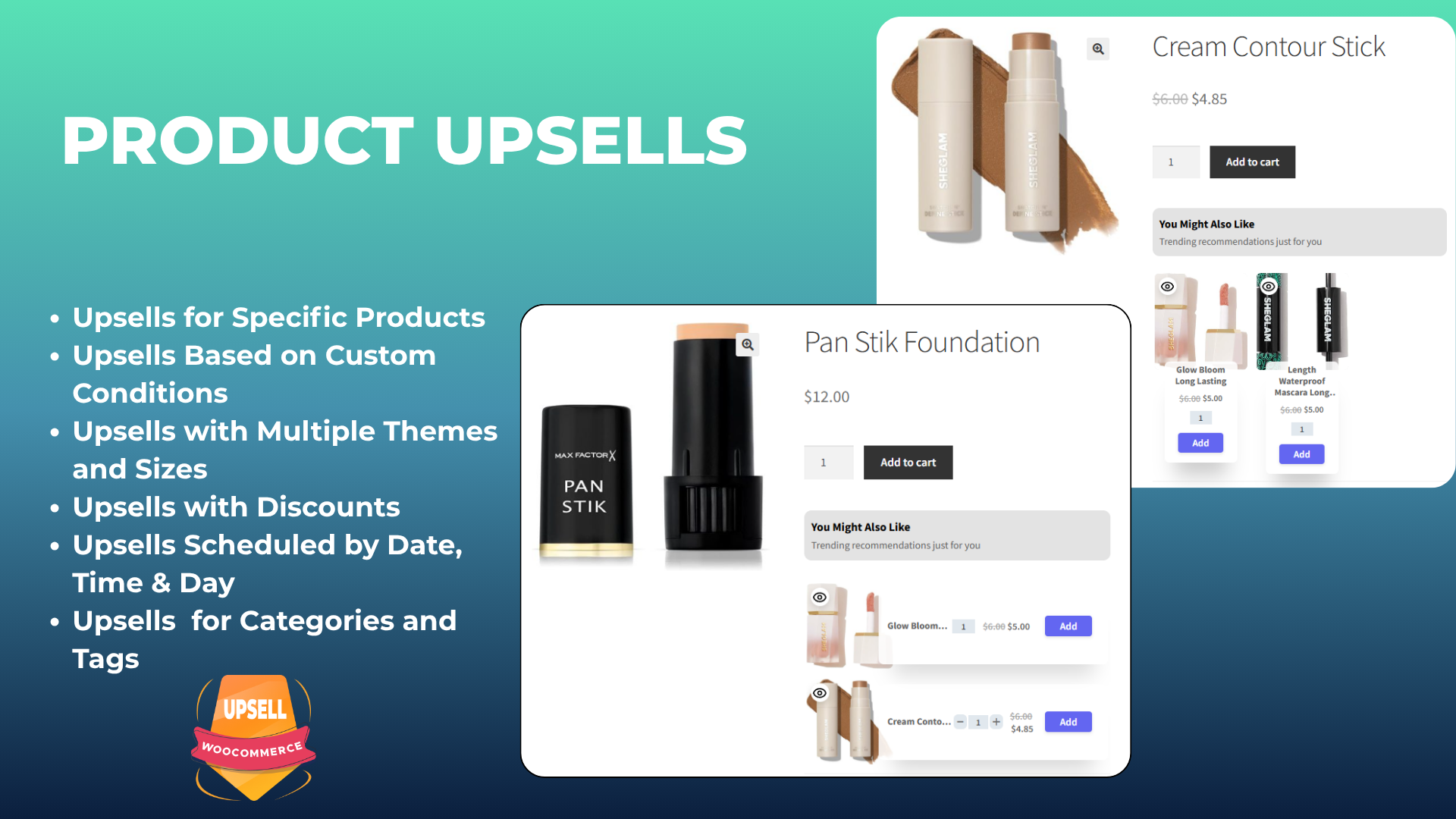
Free WooCommerce side cart plugin by AsanaPlugins with upsells on desktop and mobile.
Product upsell recommendations on WooCommerce product pages.
Cart-page upsell offers for complementary WooCommerce products.
Checkout-page upsell recommendations before order completion.
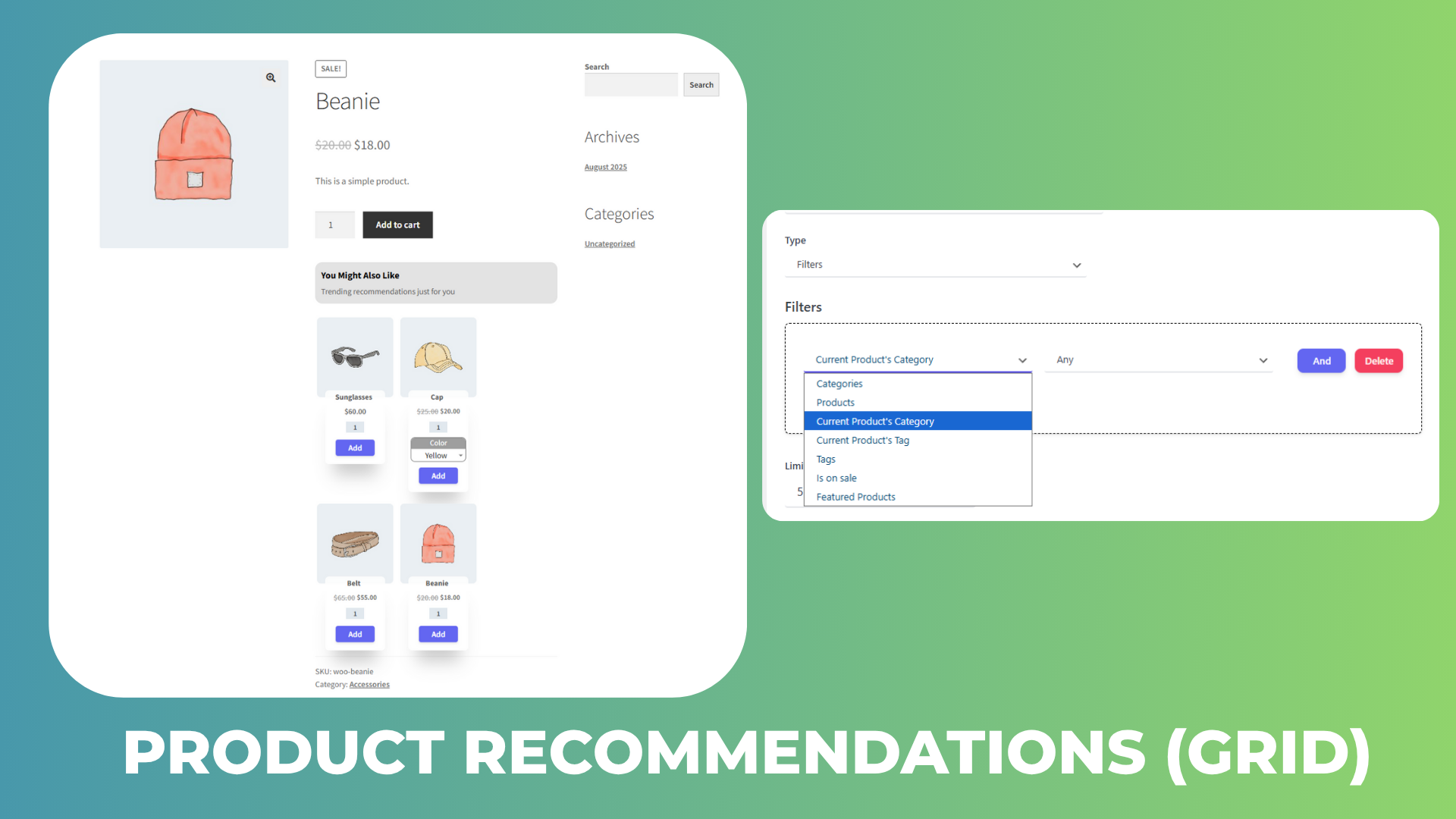
Product recommendations grid and category-based selection controls.
Related products displayed on product and cart pages.
Product add-ons for complementary items on a WooCommerce product page.
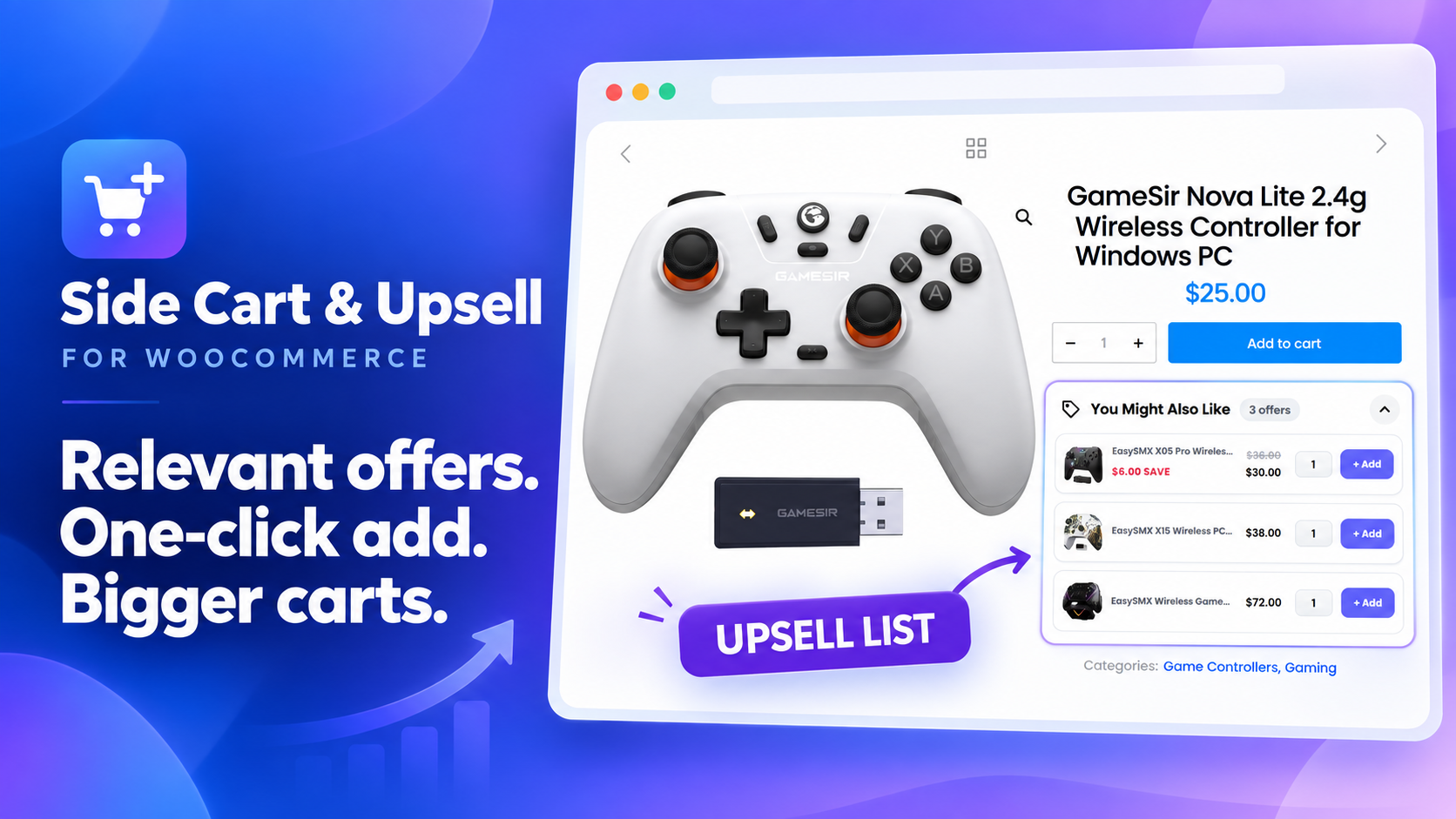
Product upsell list with one-click add buttons on a product page.

2. Caddy — Free WooCommerce Side Cart & Shipping Bar

Caddy is a useful side cart plugin when you want recommendations and shipping progress in the drawer. Lite also lets shoppers apply coupons and save products for later when they are logged in.

Caddy documents its use of the WooCommerce Store API and WordPress Interactivity API. However, these describe how it is built; they do not prove that it is faster than other cart plugins.

🚀 Free WooCommerce Side Cart Features

Included in Lite:

  • Open the floating cart drawer and then adjust item quantities.
  • Show upsell recommendations as well as cross-sells inside the cart.
  • Free shipping progress meter.
  • Coupon entry in the drawer.
  • Logged-in shoppers can save products for later and then return to them.
  • In addition, customize the drawer with CSS.

Pro adds: advanced workflows, cart analytics, multi-tier rewards, and further design controls. Basic recommendations are free. In contrast, the automation engine is a paid feature.

📽️ Demo

Visit the Caddy live demo to explore the drawer. Check the tier of any advanced feature you try.

💵 Pricing

  • Lite: free.
  • Single: $99/year for one website.
  • Multi-Site: $199/year for five websites.
  • Agency: $399/year for unlimited websites.

Source: Caddy pricing. In addition, annual plans include support and updates.

🖼️ Side Cart Screenshots
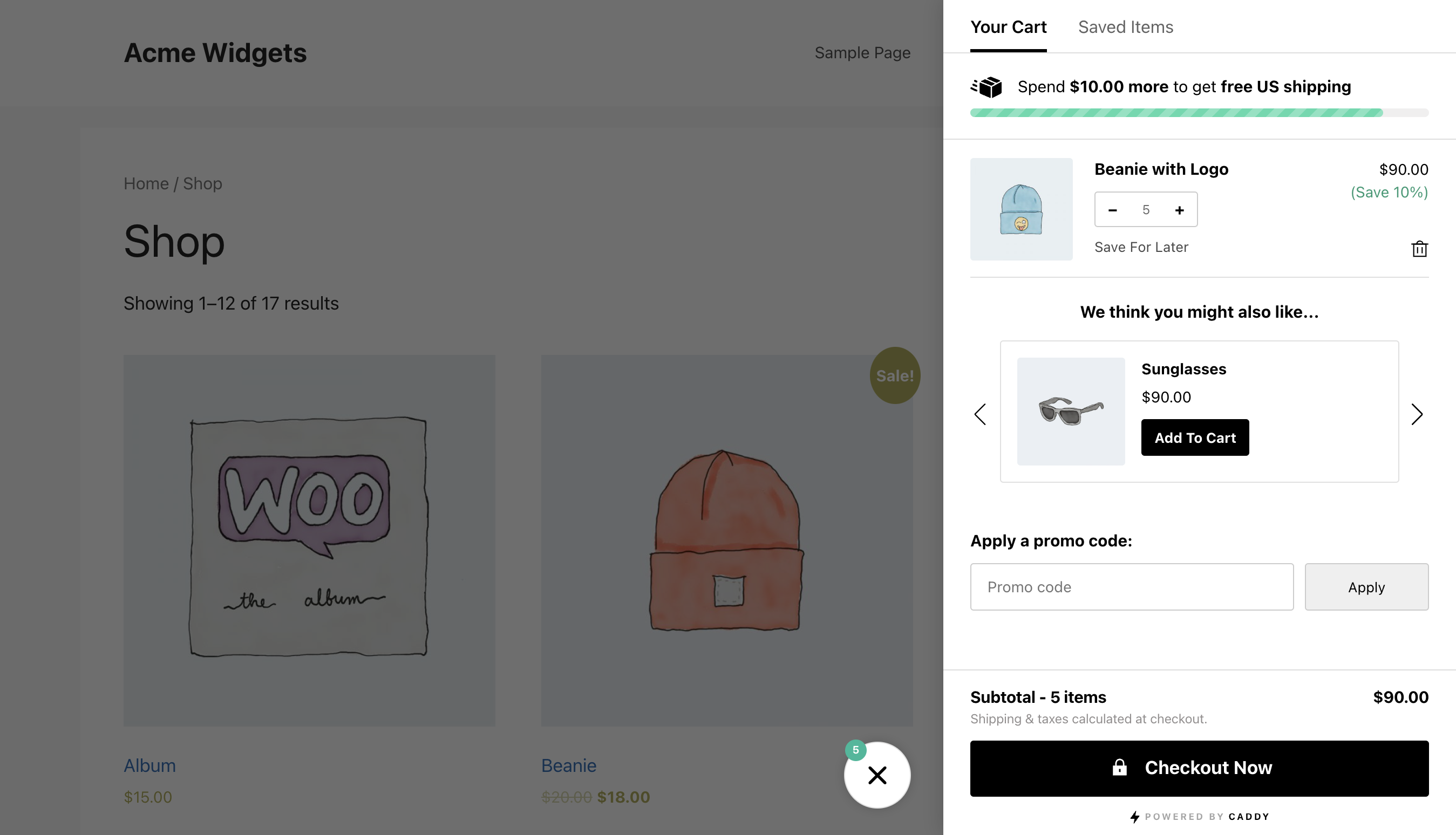
Caddy WooCommerce side cart with a shipping progress bar, product recommendation, coupon field, and saved-items tab.
Caddy side cart open over a WooCommerce shop page, showing a recommendation and shipping goal.

3. Side Cart WooCommerce by Xootix

Xootix Side Cart WooCommerce focuses on a configurable cart drawer with a floating basket and appearance controls. For example, consider it when you want to adjust the cart’s layout and keep shoppers on the current page.

🚀 Free WooCommerce Side Cart Features

Included in the free version:

  • AJAX drawer for viewing and managing items.
  • Floating basket and menu integration.
  • For example, change the cart width, height, colors, and icons.
  • Hide the drawer on selected pages so it appears only where you need it.
  • Also edit quantities in the free edition, starting with version 2.8.0.

Pro adds: product recommendations, in-drawer coupons, shipping calculation, rewards, and additional payment options.

The 2.8.0 changelog confirms free quantity editing, although an older marketing section still groups quantity management under Pro.

📽️ Demo

Try the Xootix side-cart demo. However, the demo includes paid recommendations and reward features.

💵 Pricing

  • Free: base cart plugin.
  • Pro, single site: $29.
  • Pro, up to five sites: $89.
  • Pro, unlimited sites: $139.

Source: Xootix product page. The license includes one year of updates. After that, renew it to keep receiving updates and register new sites.

🖼️ Side Cart Screenshots

Xootix WooCommerce side cart with Pro recommendations, reward milestones, cart items, and payment buttons.
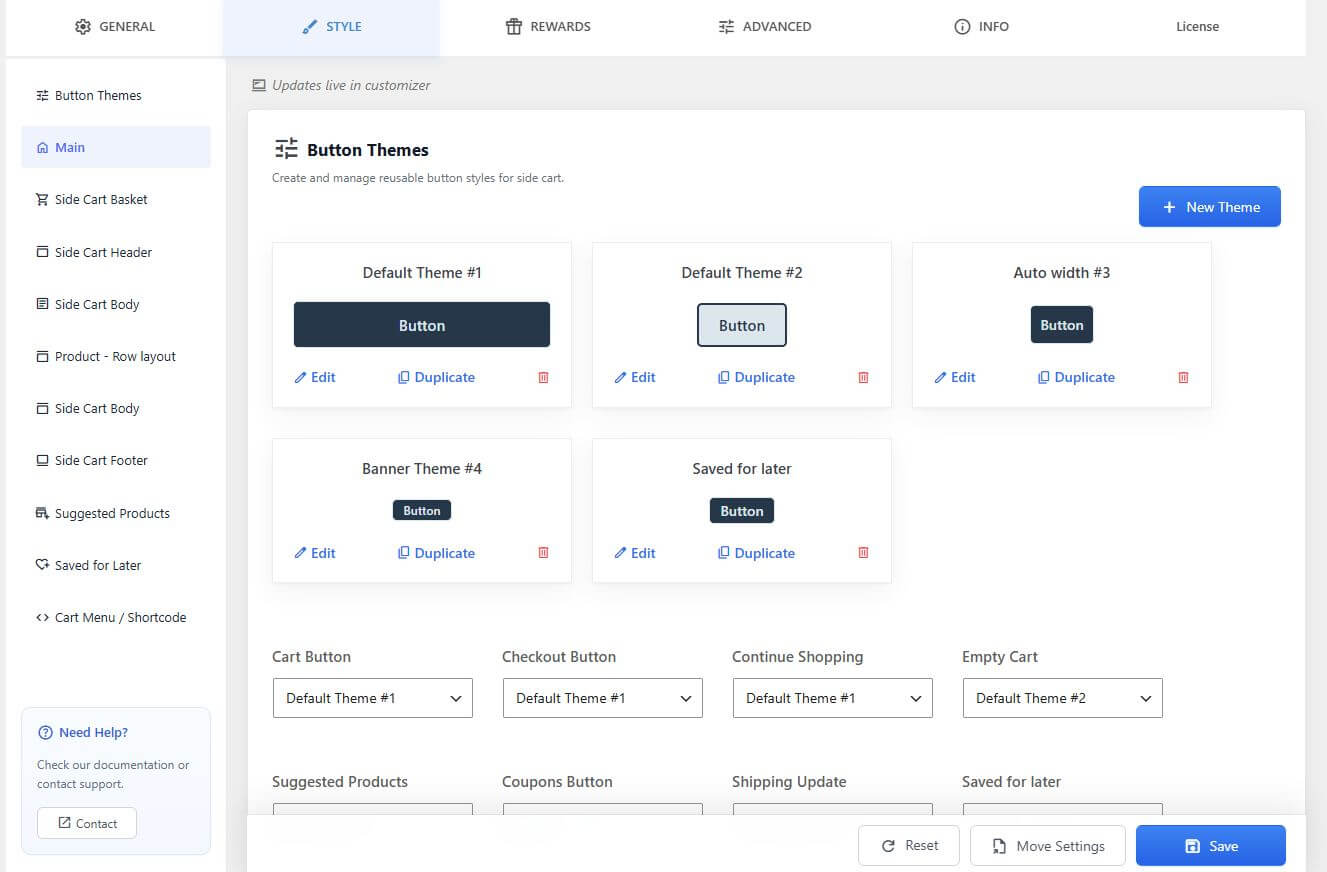
Xootix WooCommerce side cart button theme settings screen.

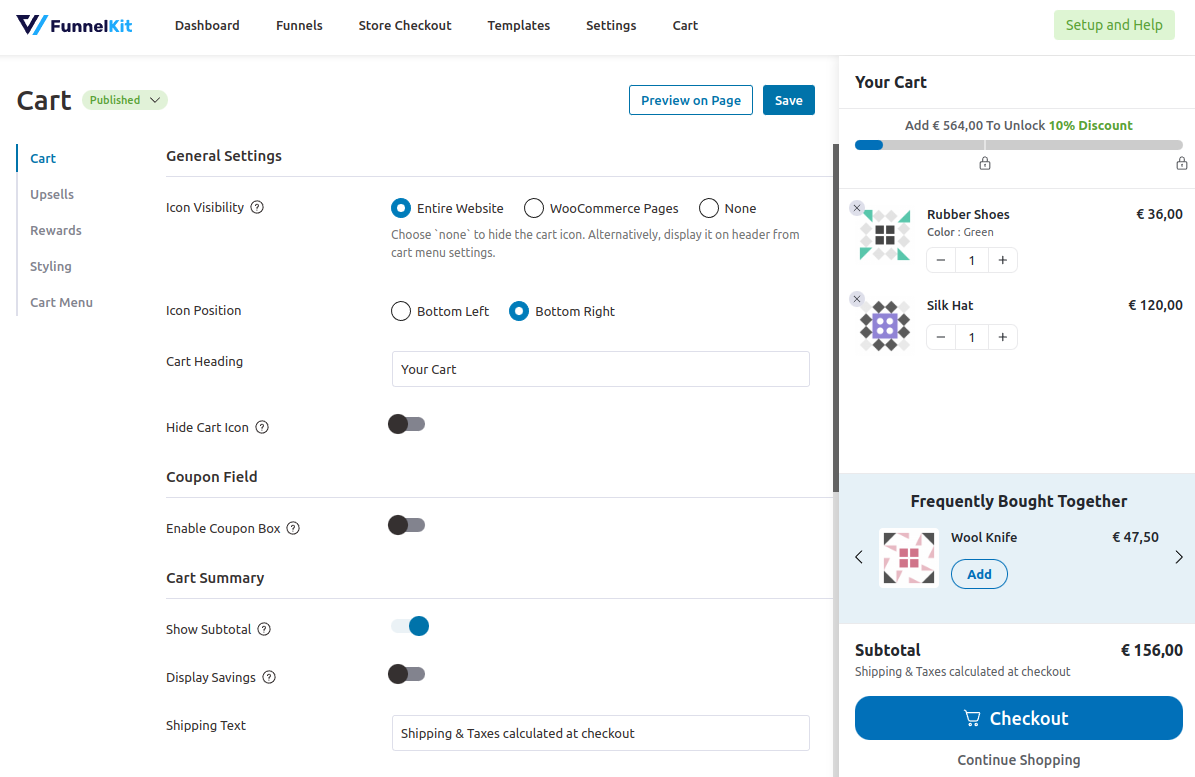
4. Sliding Cart for WooCommerce by FunnelKit

FunnelKit Cart Lite gives shoppers a drawer where they can change quantities, remove products, and apply a coupon. Therefore, this WooCommerce side cart plugin suits stores that want cart controls without buying an upsell toolkit immediately.

🚀 Free WooCommerce Side Cart Features

Included in Lite:

  • Slide-in cart with a cart icon.
  • AJAX item changes and removal.
  • Quantity editing inside the drawer.
  • For example, keep the coupon field open or let shoppers expand it.
  • In addition, adjust the cart text, colors, and styling.

Pro adds: in-cart upsells and cross-sells, milestone rewards, free-shipping incentives, and additional checkout options. These are distinct from the free coupon field.

📽️ Demo

Explore the official cart showcase and the free and Pro setup walkthrough. However, the showcase includes premium features.

💵 Pricing

  • Cart Lite: free on WordPress.org.
  • Paid cart features: available through qualifying FunnelKit plans. Compare the specific Slide Cart Pro features in the current plan table, including introductory and renewal terms.

Installing Cart Lite does not include every FunnelKit funnel or automation product.

🖼️ Side Cart Screenshots
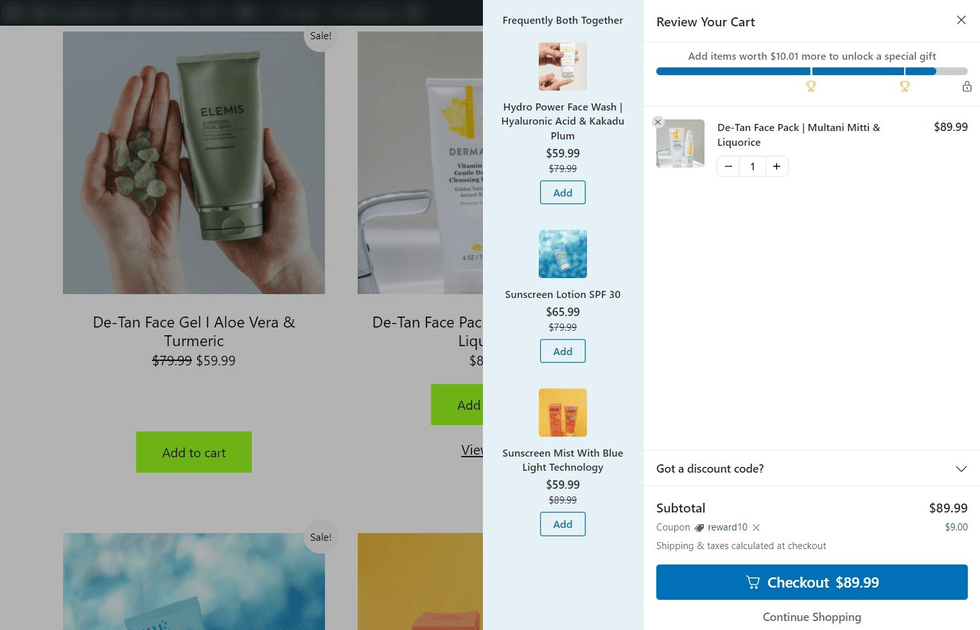
FunnelKit WooCommerce side cart with Pro product suggestions, reward progress, a cart item, and a coupon field.
FunnelKit WooCommerce cart drawer showing Pro shipping rewards, a recommended product, coupon field, and checkout.
FunnelKit WooCommerce side cart settings and preview with Pro rewards and recommendations.

5. Modern Cart — WooCommerce Side Cart & Popup Cart

Modern Cart offers a slide-out cart with a coupon form and shipping progress. As a result, it is another free WooCommerce side cart plugin to compare when a visible shipping goal matters most.

🚀 Free WooCommerce Side Cart Features

Free features documented by the vendor:

  • Side-cart drawer and floating cart icon.
  • Change items and quantities with AJAX so the page does not need to reload.
  • Also let shoppers enter a coupon directly in the cart.
  • Show a free shipping progress bar so shoppers can see the remaining amount.

Pro adds: in-cart product recommendations and additional display and design controls.

Popup availability needs checking: the directory listing says both drawer and popup modes are included, but the settings guide labels the Cart Type selector Pro. Therefore, verify the free version before choosing it specifically for a popup.

📽️ Demo

Open the official Modern Cart demo launcher to explore the product. However, the demo may include Pro features.

💵 Pricing

  • Free: base plugin from WordPress.org.
  • Pro annual: advertised at $99 for the first year, renewing at $149/year, for up to three websites.
  • Pro lifetime: advertised at $299 for up to three websites.

Source: Modern Cart pricing. Because offers can change, check the selected term before purchase.

🖼️ Side Cart Screenshots

Modern Cart WooCommerce cart drawer showing cart items, Pro product suggestions, a coupon field, subtotal, and checkout button.

Which free WooCommerce side cart plugin should you choose?

The right free WooCommerce side cart plugin depends on the feature you need today. For example, AsanaPlugins suits stores that want conditional offers across product, cart, and checkout pages. In contrast, Caddy is a strong alternative when free recommendations and a shipping bar matter most. Xootix offers a configurable drawer, FunnelKit Lite includes convenient coupon and item controls, and Modern Cart provides another shipping-bar option.

Before choosing, test a simple product, a variable product, a coupon, and a complete test order with your theme. Next, check mobile scrolling and keyboard access, and make sure the shipping message agrees with checkout. Above all, activate one cart drawer at a time while comparing.

Ready to try the first option? Follow our WooCommerce side-cart setup tutorial or use the Side Cart & Upsell documentation to create your first drawer and offer.

Posted on — Leave a comment

How to Add a Side Cart to WooCommerce Without Code

Here’s how to add a side cart to WooCommerce without code: install Side Cart & Upsell for WooCommerce, enable the drawer and AJAX updates, and choose how shoppers open it. Then customize its buttons, icon, and colors from the plugin settings. You can complete the basic setup with the free version.

A side cart is a panel that slides over the current page. As a result, customers can review items and head to checkout while keeping the shop in view. This guide follows the settings in the screenshots below, with optional product offers after the main setup.

Key takeaways

  • First, enable the side cart, AJAX updates, and automatic opening.
  • Next, choose the drawer layout and a cart icon that shoppers can easily reach.
  • Use the built-in color controls so you can style the cart without editing your theme.
  • Finally, test the drawer on your storefront before adding optional upsell rules.

About this guide: AsanaPlugins develops the plugin used here. The supplied screenshots show both free and Pro controls; paid options are identified beside the relevant steps. The admin preview uses sample products, so test your actual products on the storefront.

Before you add a side cart

You need an active WooCommerce store, permission to install plugins, and at least one purchasable product. First, confirm that your usual Cart and Checkout pages work. Also disable any other automatic cart drawer while testing, because two drawers can respond to the same button.

If you are still choosing a plugin, compare the options in our free WooCommerce side cart plugin comparison. This tutorial uses the free Side Cart & Upsell plugin, with settings you can change directly in WordPress.

1. Install a WooCommerce side cart plugin

Choose your version: Get the free Side Cart & Upsell plugin for the no-code drawer, AJAX cart updates, and basic styling used in this guide. Explore Side Cart & Upsell Pro if you want the additional Pro controls mentioned below. Pro is optional for this setup and requires the free plugin to be installed and active first.

In your WordPress dashboard, open Plugins → Add New Plugin. Search for Side Cart & Upsell for WooCommerce by AsanaPlugins. Next, click Install Now, followed by Activate.

After activation, open Side Cart & Upsell → Side Cart. You will find the General, Side Cart, Icon, Styles, and Addons tabs. A live preview sits beside the controls, so you can inspect changes before saving.

You do not need a page builder for this method. In addition, you can keep your existing theme and standard WooCommerce Cart page.

2. Enable the WooCommerce side cart without code

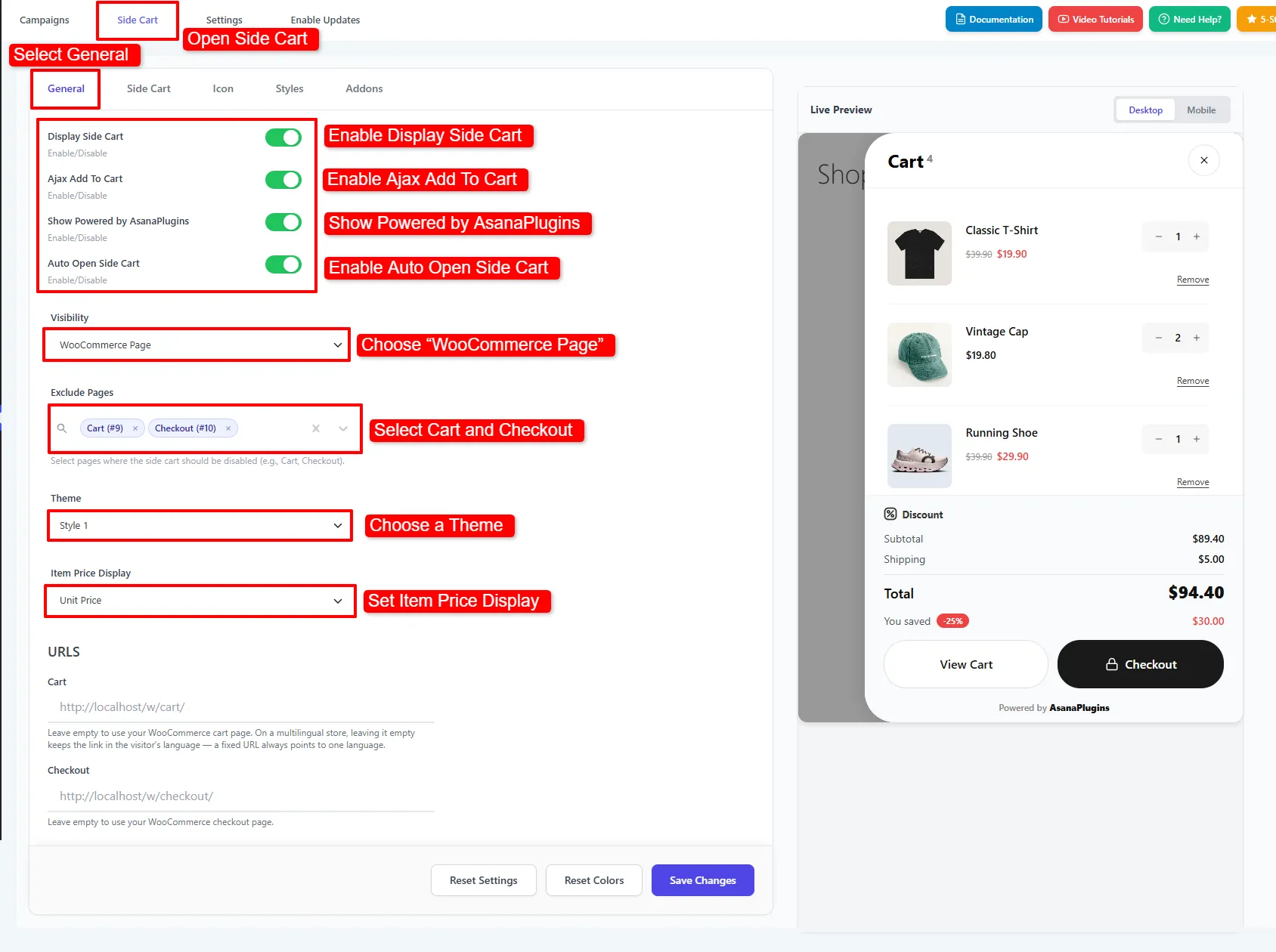
Start in the General tab. When learning how to add a side cart to WooCommerce without code, the first switch to check is Display Side Cart. Turn it on to enable the drawer. Then enable Ajax Add To Cart so supported Add to cart actions update the basket without a full page reload.

Also enable Auto Open Side Cart if the drawer should appear after a customer adds an item. Alternatively, leave automatic opening off and let customers open it through a cart icon.

WooCommerce side cart General settings with drawer, AJAX, automatic opening, visibility, and exclusions highlighted.
Enable the drawer and AJAX updates, then choose where the cart appears.

For the setup shown above, choose WooCommerce Page under Visibility. Then add the Cart and Checkout pages under Exclude Pages if you want those pages to handle their own flow. Choose Entire Website instead if shoppers should access the drawer from other pages too.

Select Style 1 for the free drawer and Unit Price for the item price display. The screenshot also shows the Powered by AsanaPlugins control; changing that setting requires Pro. You can leave it at its default while following this tutorial.

Leave the Cart and Checkout URL fields empty to use WooCommerce’s assigned pages. This also avoids hard-coding a language-specific link on a multilingual store. Finally, click Save Changes.

3. Set up the WooCommerce side cart layout

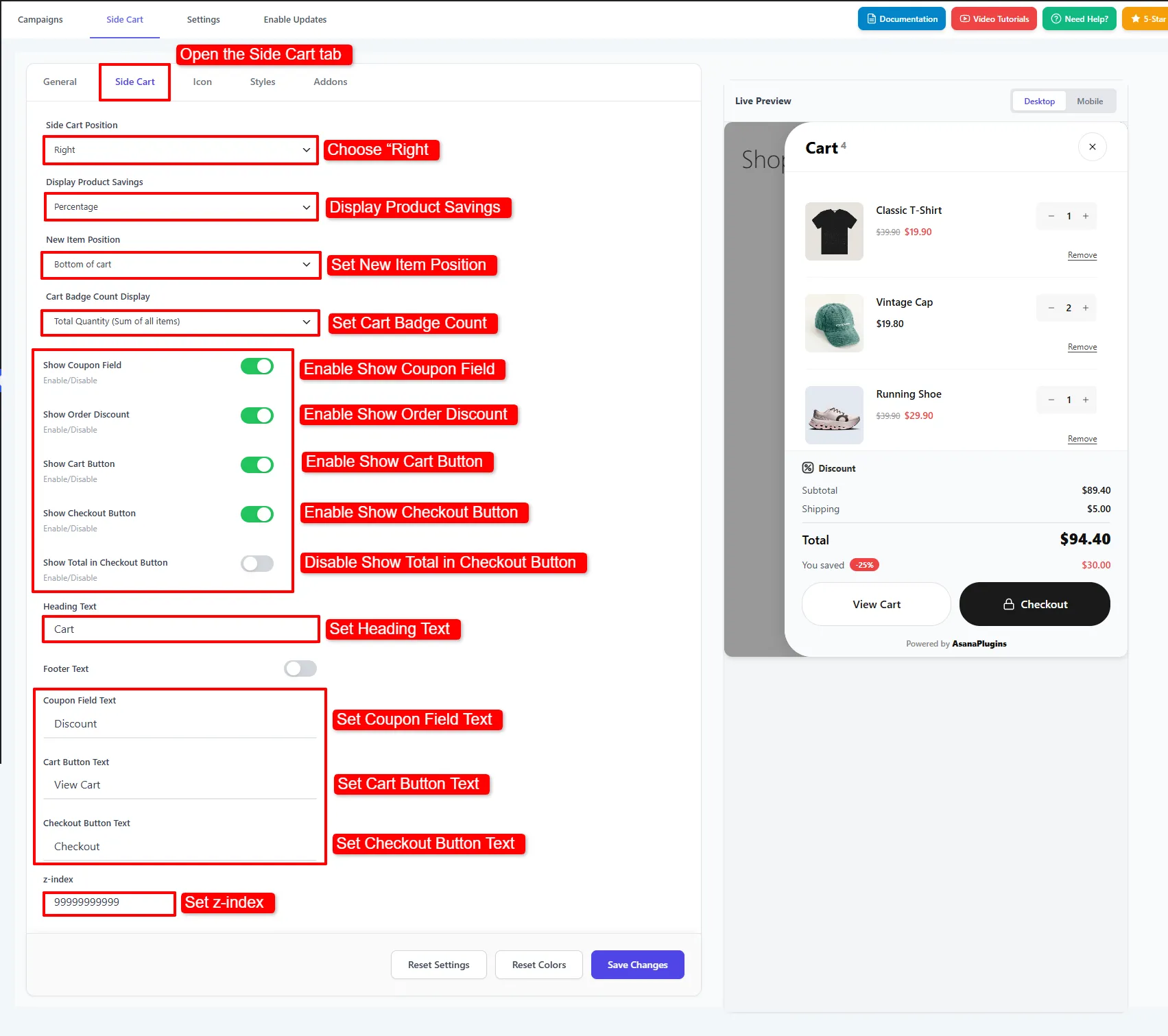
Open the inner Side Cart tab to choose what the drawer contains. For example, set Side Cart Position to Right and New Item Position to Bottom of cart to follow the screenshot.

Drawer layout settings for position, quantities, coupons, labels, and checkout buttons.
Choose the drawer contents and labels in the Side Cart tab.

Choose whether the cart badge shows total quantity or unique line items. With total quantity, two units of one product count as two. In contrast, a line-item count treats that product row as one.

Enable Show Cart Button and Show Checkout Button so shoppers can reach both pages. You can also show the coupon field and order discount. However, displaying a coupon field does not create a coupon; you still need a valid WooCommerce coupon.

Next, use clear labels such as Cart, View Cart, and Checkout. The screenshot leaves Show Total in Checkout Button off, but that choice is optional. Keep the default z-index unless another element covers the drawer; the large sample value is not a requirement.

Save the layout, then reopen the storefront. If you are learning how to add a side cart to WooCommerce without code, test both buttons now so you catch a wrong destination before styling the rest of the drawer.

4. Add a WooCommerce side cart icon

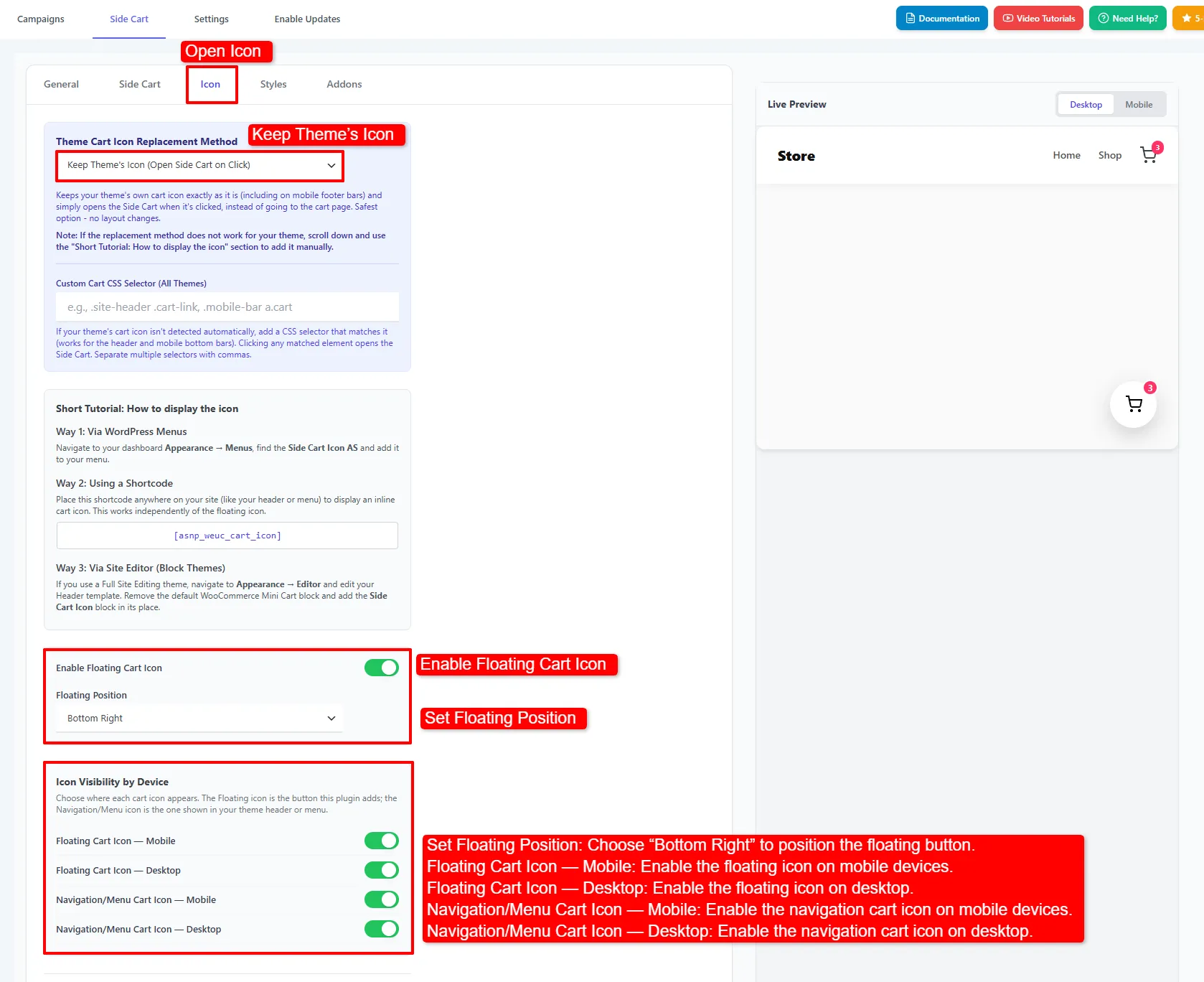
The Icon tab controls how shoppers reopen a closed drawer. For the simplest setup, enable Enable Floating Cart Icon and choose a position such as Bottom Right. Then check that it does not cover a chat widget or mobile navigation.

Icon tab showing the existing theme icon, floating cart position, and Pro device controls.
Use a floating icon or keep your theme icon. The separate device visibility controls shown here are Pro.

If your theme already has a cart icon, try Keep Theme’s Icon (Open Side Cart on Click). This preserves the theme’s icon while changing what happens when shoppers click it. However, a custom theme trigger may need additional configuration. You can use the floating icon to complete this no-code tutorial without entering a CSS selector.

Pro control in this screenshot: separate mobile and desktop visibility switches for floating and navigation icons require Pro. They are optional; the basic floating icon is available in the free plugin.

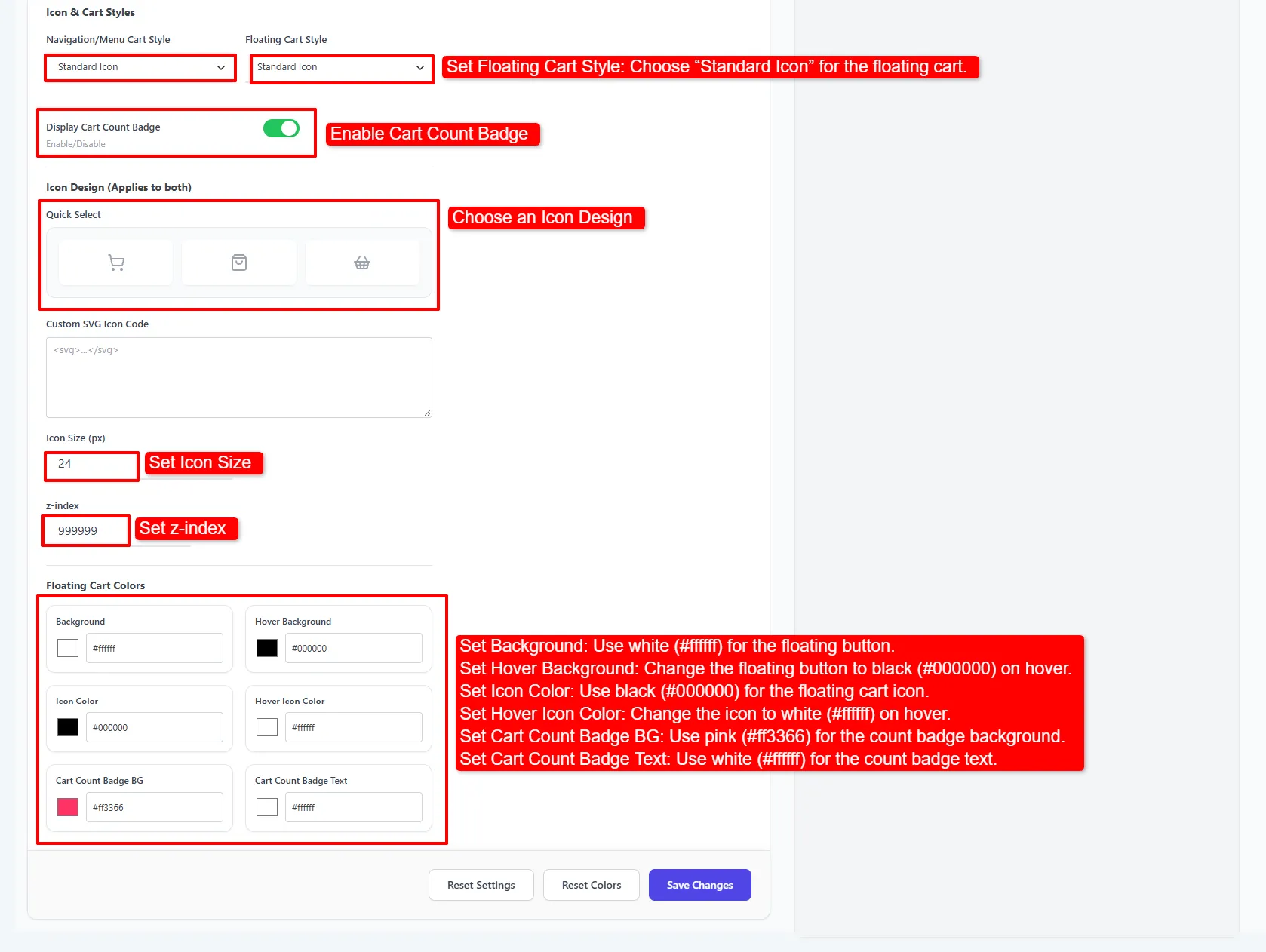
Next, choose Standard Icon, turn on Display Cart Count Badge, and select a preset under Quick Select. Because presets are built in, you can leave the Custom SVG Icon Code field empty.

Icon presets, count badge, size, and floating button colors.
Choose a preset icon and readable colors without entering custom SVG code.

For example, the screenshot pairs a white icon background with a black cart symbol and a pink count badge. You can choose your own colors instead. Also check the hover colors so the icon stays visible when a customer points at it. Click Save Changes after adjusting the size and colors.

5. Style the WooCommerce side cart without code

Open Styles to change the drawer background, heading, prices, and buttons. Start with your store’s normal text and background colors. Then give Checkout enough contrast to stand out from View Cart.

Drawer Styles tab with background, text, price, and checkout button color controls.
Match the drawer and button colors to your storefront.

Use the color pickers or enter hex values in the settings; neither method requires editing a theme file. Also review the hover states and close icon. Finally, compare Desktop and Mobile in the live preview, then save your changes.

At this point, you have learned how to add a side cart to WooCommerce without code and style the basic drawer. The next section is optional. You can skip ahead to testing if you only need the cart panel.

6. Add optional WooCommerce side cart upsells

Once you know how to add a side cart to WooCommerce without code, product offers are an optional next step. Open Addons → Upsells and switch on Enable Upsells. The free edition supports up to three side-cart upsell rules. Therefore, start with one clear recommendation before adding more conditions.

Create an offer from a product category

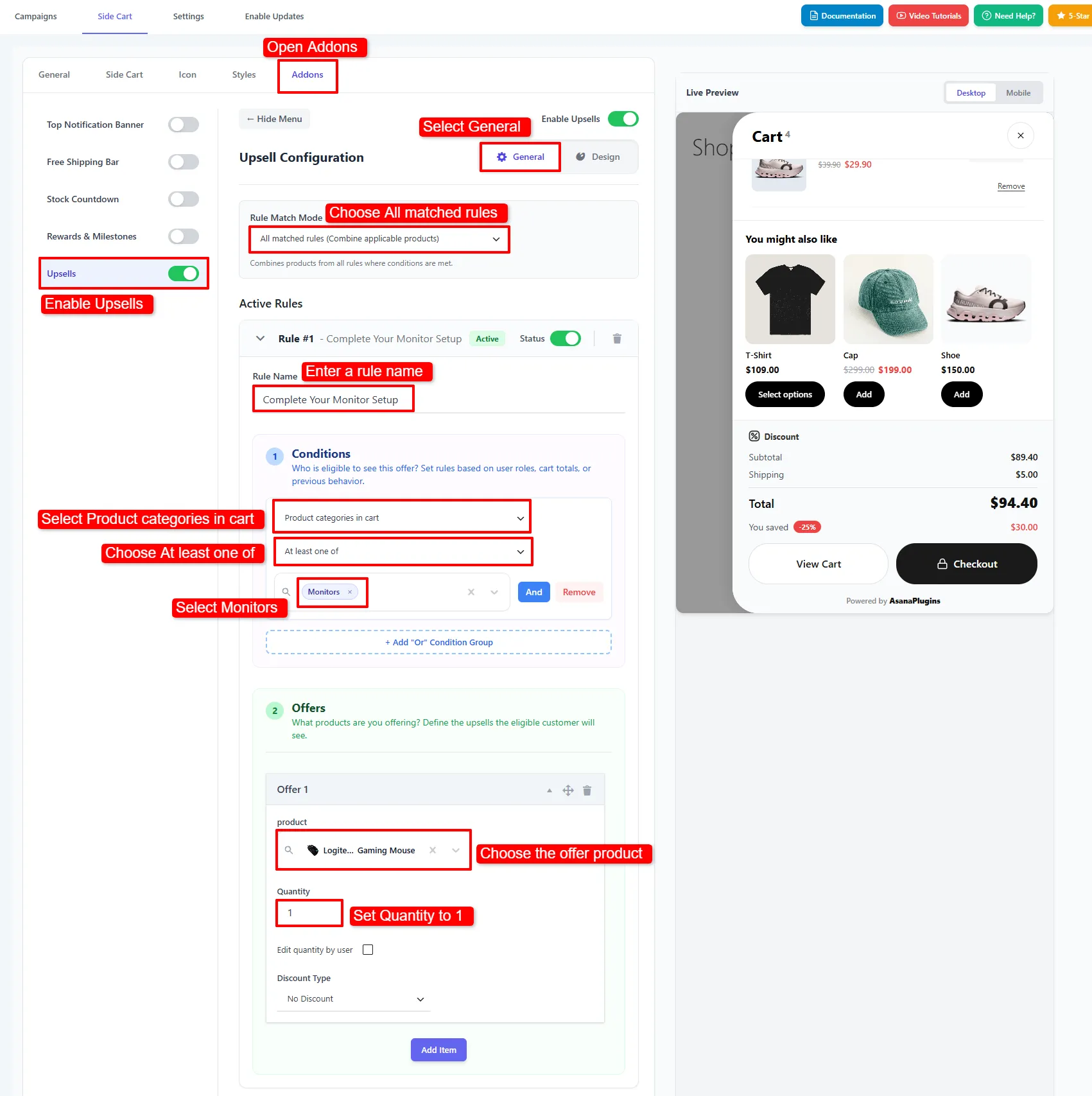
In General, choose All matched rules (Combine applicable products) to combine offers from eligible rules. Alternatively, choose First match wins when you want one matching rule to take priority.

WooCommerce side cart upsell rule targeting the Monitors category and offering a mouse with no discount.
Create a category-based offer and choose the product, quantity, and optional discount.

Name your first rule Complete Your Monitor Setup. Then choose Product categories in cart → At least one of → Monitors. Under Offers, select a mouse, set Quantity to 1, and keep No Discount if you want to charge its normal price.

The mouse is a complementary product, so this is a cross-sell even though the settings group it under Upsells. Replace Monitors and the example mouse with a category and product from your own store. Also leave the rule’s Status switch enabled.

Use cart totals for more offers

The next screenshots show two more examples. First, the $100 Cart Bonus – Headset rule uses Subtotal excluding tax → Greater equal to → 100. It offers two headsets at 10% off and a controller at 3% off.

In contrast, Premium Monitor Setup requires a Monitors item and a subtotal greater than 150. Its keyboard offer has a 5% discount. Because these are example thresholds, adjust them to your store currency and margins.

Use the gallery arrows to compare the rules, or open the subtotal rule screenshot and combined-conditions screenshot at full size.

Keep the difference between the operators in mind: Greater equal to includes the threshold itself, while Greater than does not. Also use the subtotal excluding tax when testing these examples; the final checkout total may include shipping and tax.

Choose fallback products and style offers

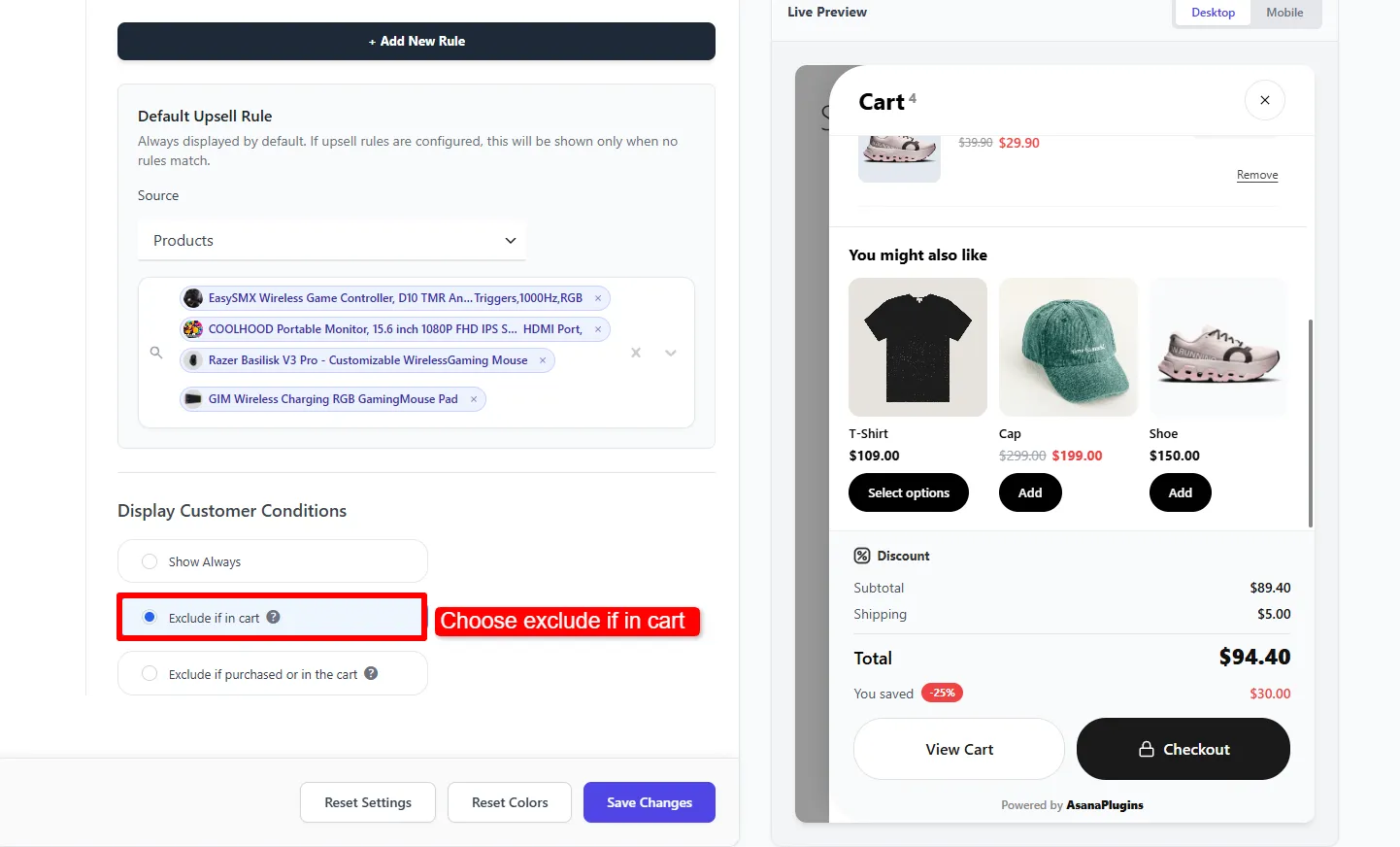
Under Default Upsell Rule, select Products and choose fallback items. These appear when no active rule matches. However, they are still optional, so leave the selection empty if you want recommendations only for matched rules.

Default product selection and the Pro Exclude if in cart control.
Choose fallback products. The highlighted Exclude if in cart option requires Pro.

Pro control in this screenshot: Display Customer Conditions, including Exclude if in cart, requires Pro. You can configure the free rules without enabling that control. For the exact rule limits, see the side-cart upsell documentation.

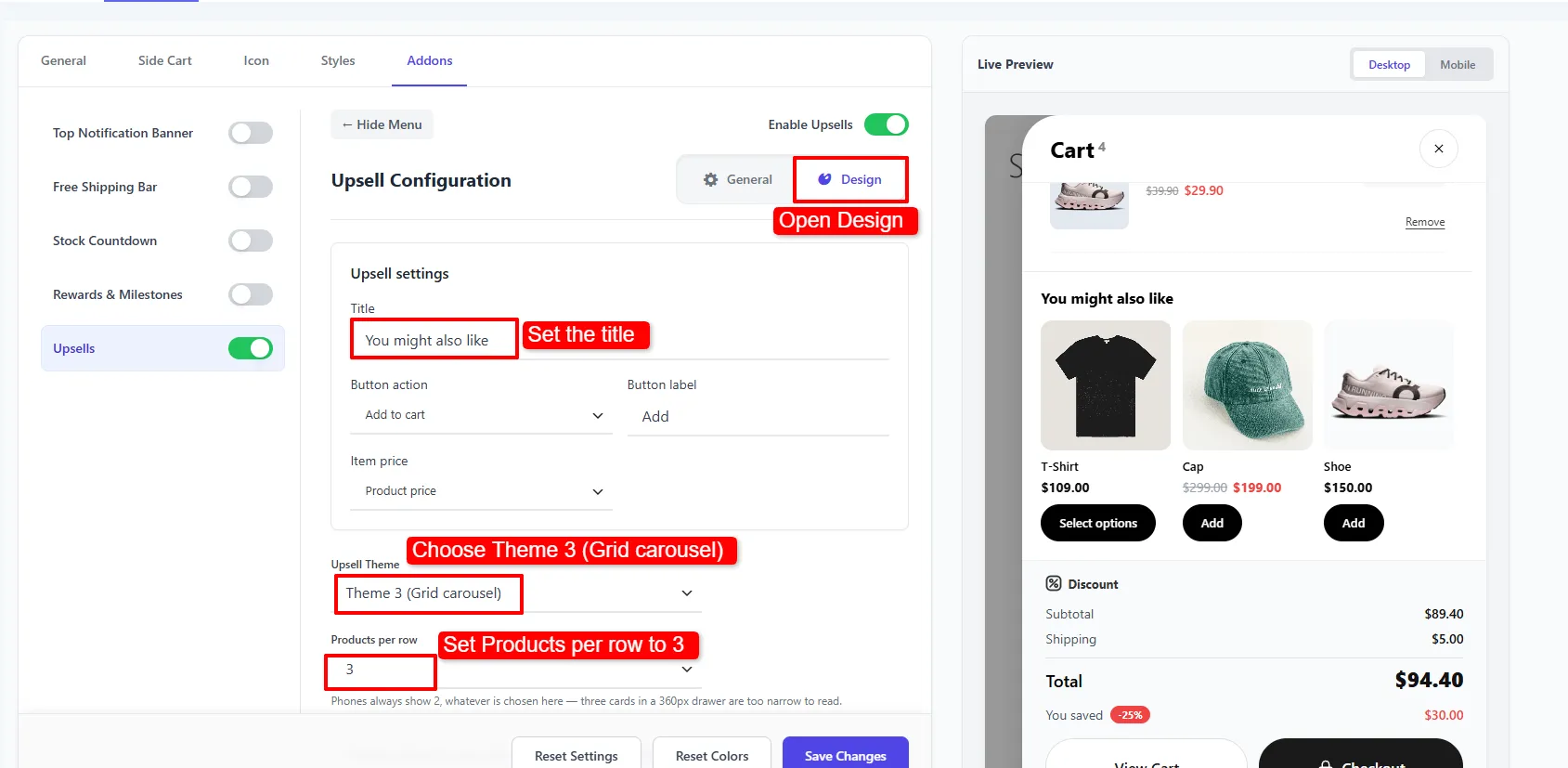
Next, open Design. Use a clear title such as You might also like, set Button action to Add to cart, and choose a short label such as Add. The screenshot uses Theme 3 (Grid carousel) with three products per row; phones show two.

WooCommerce side cart upsell Design tab with the recommendation title, Add button, and Theme 3 grid carousel.
The offer grid uses its own theme and products-per-row setting.

Finally, match the offer colors to the drawer and click Save Changes. These recommendation layouts are separate from the main drawer’s Style 1 and Style 2 choices. The premium drawer theme, free-shipping progress bar, rewards, banner, and countdown are not required for this setup. You can return to offer styling later if you only need to know how to add a side cart to WooCommerce.

Offer color controls and highlighted Save Changes button.
Set offer colors and save the completed upsell configuration.

7. Test the side cart on your storefront

Open your store in a logged-out or private browsing window. First, add a simple product and check that the drawer opens. Then change its quantity, remove it, and add it again. The item count and totals should follow each action.

WooCommerce side cart open over a gaming shop with cart items, product offers, totals, and checkout buttons.
Storefront example after setup: shoppers can review the basket and optional offers in one drawer.

Next, test a variable product after choosing its options. Also try a valid coupon if you enabled the coupon field. Finally, follow View Cart and Checkout to confirm that the drawer leads to your assigned pages.

If you added offers, test a matching category and a cart that does not match. Then test values below, at, and above each subtotal threshold. Because the rule uses the subtotal excluding tax, compare the same amount when checking eligibility.

Repeat the checks at phone width. In particular, confirm that you can scroll the drawer, close it, and reach Checkout. The admin preview is useful, but your live theme, products, and other plugins determine the final result.

Fix common setup problems

Why does the side cart not open?

First, check Display Side Cart and Auto Open Side Cart. Then check Visibility and Exclude Pages. If the floating icon works but the theme icon does not, revisit the Icon tab or keep using the floating trigger.

Why does the drawer show old items?

Confirm that AJAX updates are enabled, then clear any site and browser caches. Next, retest with script delay or combination temporarily disabled on a staging copy. If that resolves the issue, narrow down the conflicting optimization before changing your live settings.

Why are offers missing?

Check Enable Upsells, the rule Status, and whether the basket meets every condition in the group. Also confirm that the offer product is available to buy. Finally, check the fallback products if no rule should match.

Common questions

Can I add a side cart to WooCommerce for free?

Yes. The free plugin includes the basic drawer, floating cart icon, and up to three side-cart upsell rules. However, the premium drawer theme and several extra controls shown in the screenshots require Pro.

Does this replace the Cart page?

No. It adds a quick basket view while leaving the normal Cart page available. Therefore, keep your Cart and Checkout pages assigned and test their links after setup.

Do I need to edit my theme or add code?

No code is needed for the floating-icon setup in this guide. Use the preset icon, color controls, and built-in buttons. If your custom header icon needs a selector, you can use the floating icon instead.

Your next step

You now know how to add a side cart to WooCommerce without code, from enabling the drawer to checking checkout links. Start with the basic cart and then add one relevant offer. For more settings, use the complete side-cart setup documentation, or revisit our free plugin comparison before choosing your preferred tool.