
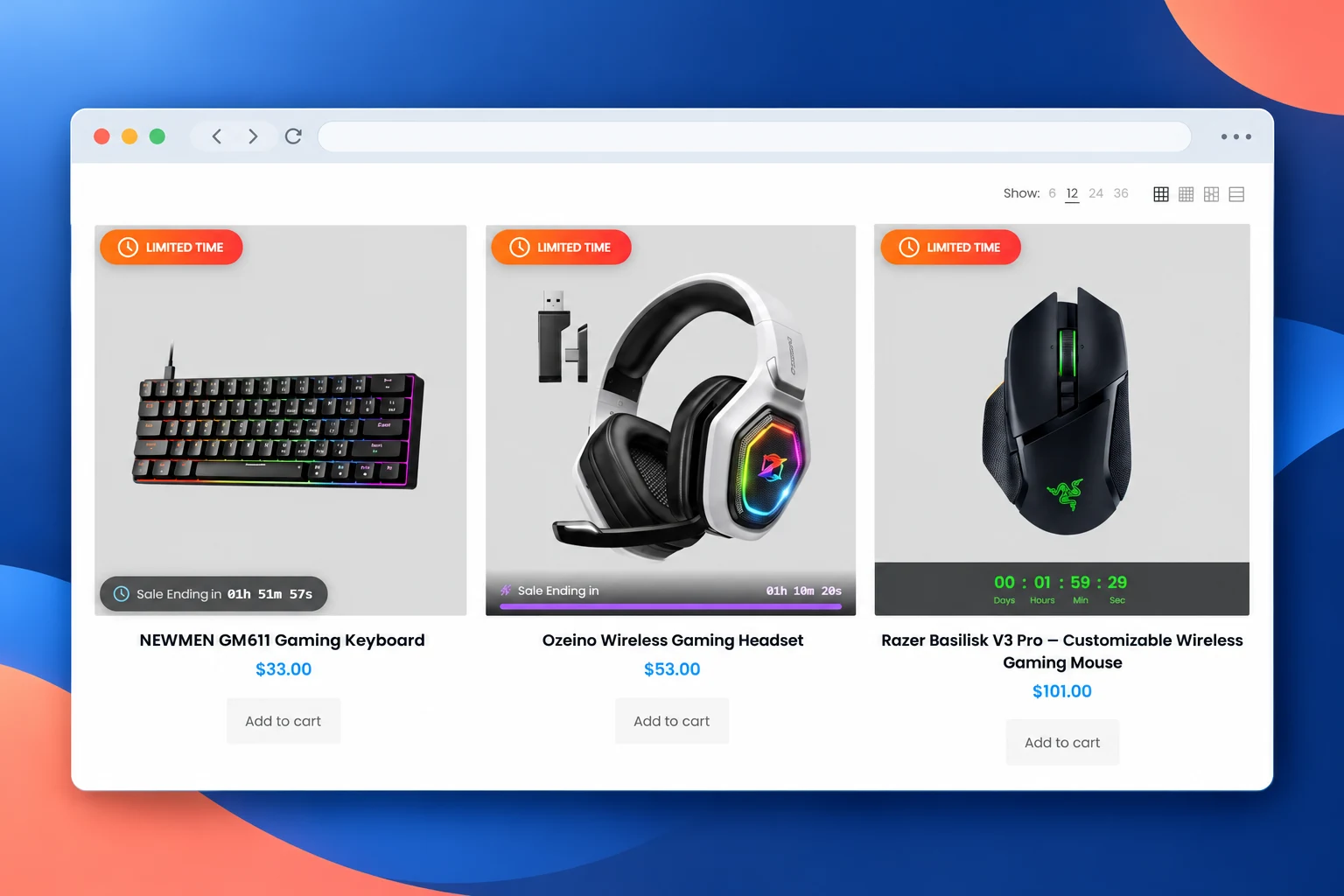
WOOCOMMERCE COUNTDOWN TIMER PLUGIN FOR REAL SALES
Make the end of a sale clear on every product
This WooCommerce countdown timer plugin puts real sale deadlines on product images and product pages. Then choose a real deadline, show it only on qualifying products, and give shoppers a clear reason to act while the offer is available.
Fixed sale deadlines · Product targeting · More timer layouts in Pro · Setup documentation

Real sale deadlinesShow shoppers when a genuine offer ends.
Relevant products onlyChoose products and conditions for each campaign.
Placement that fitsStart on product images and expand with Pro.
ONE DEADLINE, WHERE IT MATTERS
Where this WooCommerce countdown timer plugin appears
A countdown on a product image is visible in the shop or category grid, before a shopper opens the product page. For example, you can place a timer on selected products, target sale items or categories, and adjust its position so it does not cover the product name or price. Meanwhile, Pro offers timer layouts outside the image and embeds that can sit near the buying action.
Product image countdown
For example, put a compact deadline directly on products in the shop grid. Then use it for a flash sale or a limited promotion that has a real end time.
Countdown near Add to Cart
For example, use a Pro countdown embed on the product page when the deadline belongs beside the price, offer details, and Add to Cart form.
Storewide countdown bar
Meanwhile, use a Pro countdown notification bar for a promotion shared across the store and link it to the relevant offer page.
PRODUCT IMAGE COUNTDOWN EXAMPLES
WooCommerce countdown timer plugin demos: six product styles
For example, compare a badge, progress bar, digital strip, below-image timer, circular countdown, and sale progress layout. Then look at each product to see where its deadline appears.
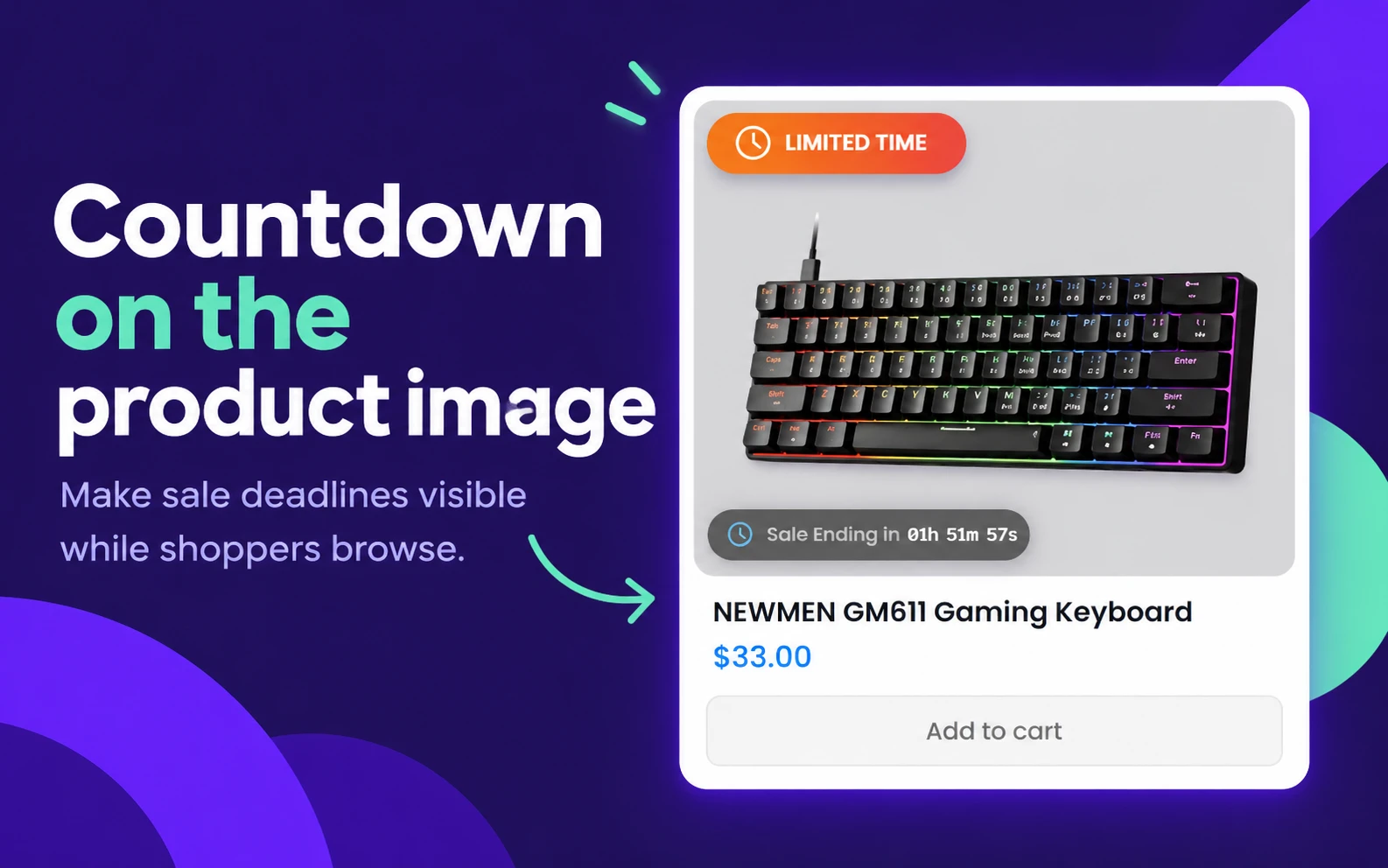
NEWMEN GM611 keyboard
Compact countdown badge on the product image

Ozeino gaming headset
Purple progress bar across the product image
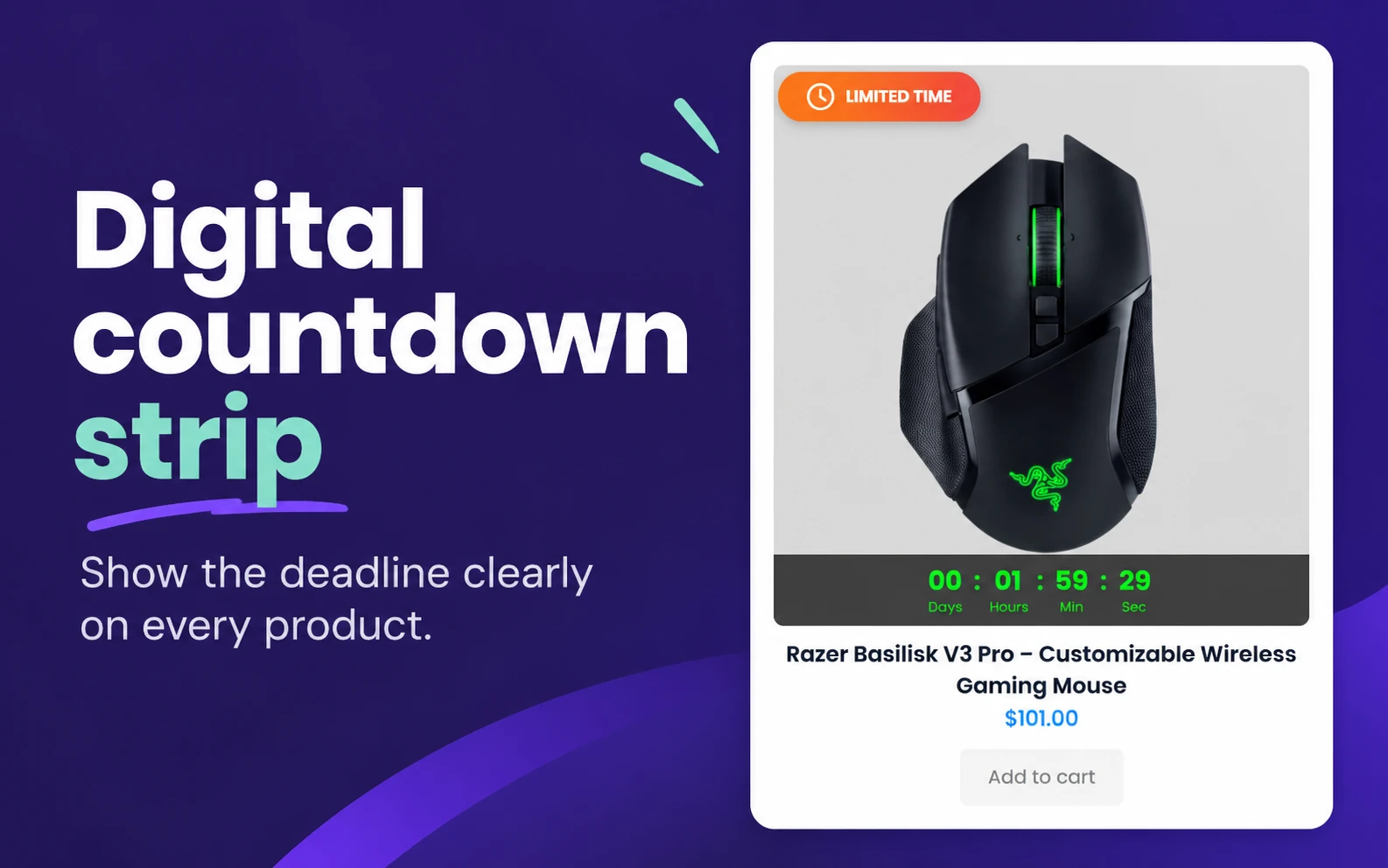
Razer Basilisk V3 Pro mouse
Digital countdown in a dark strip
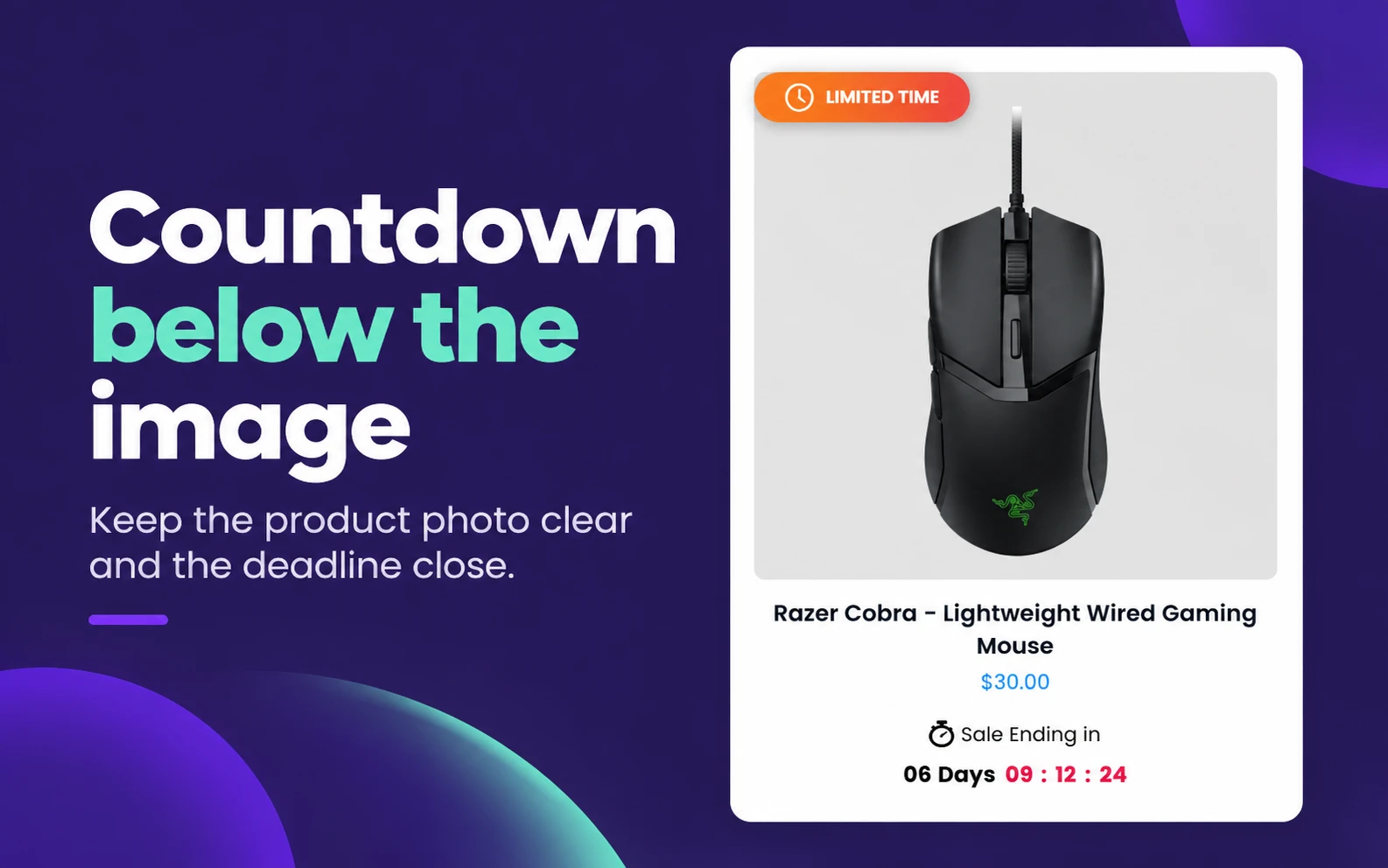
Razer Cobra mouse
Sale deadline below the product image
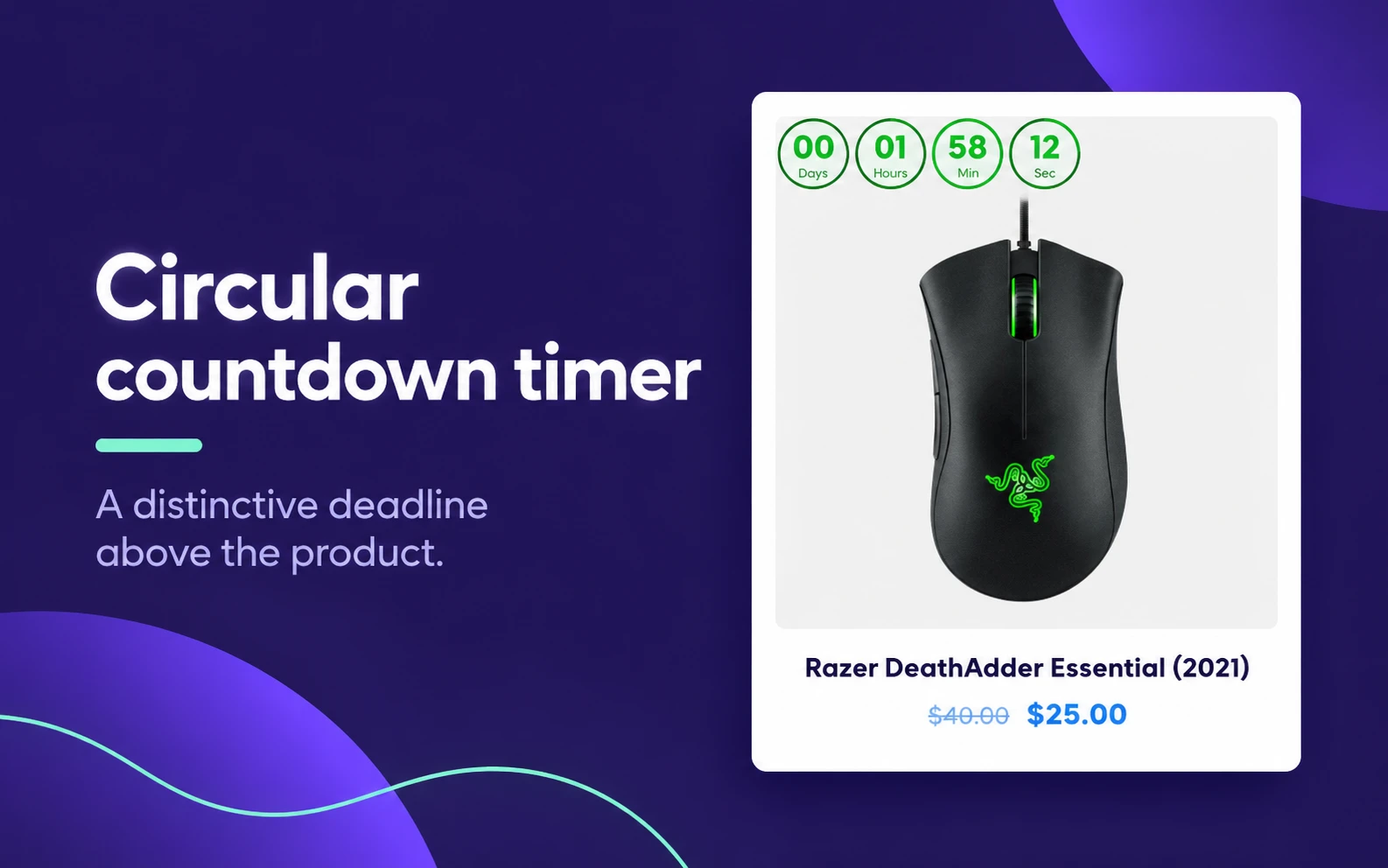
Razer DeathAdder Essential mouse
Four circular countdown units
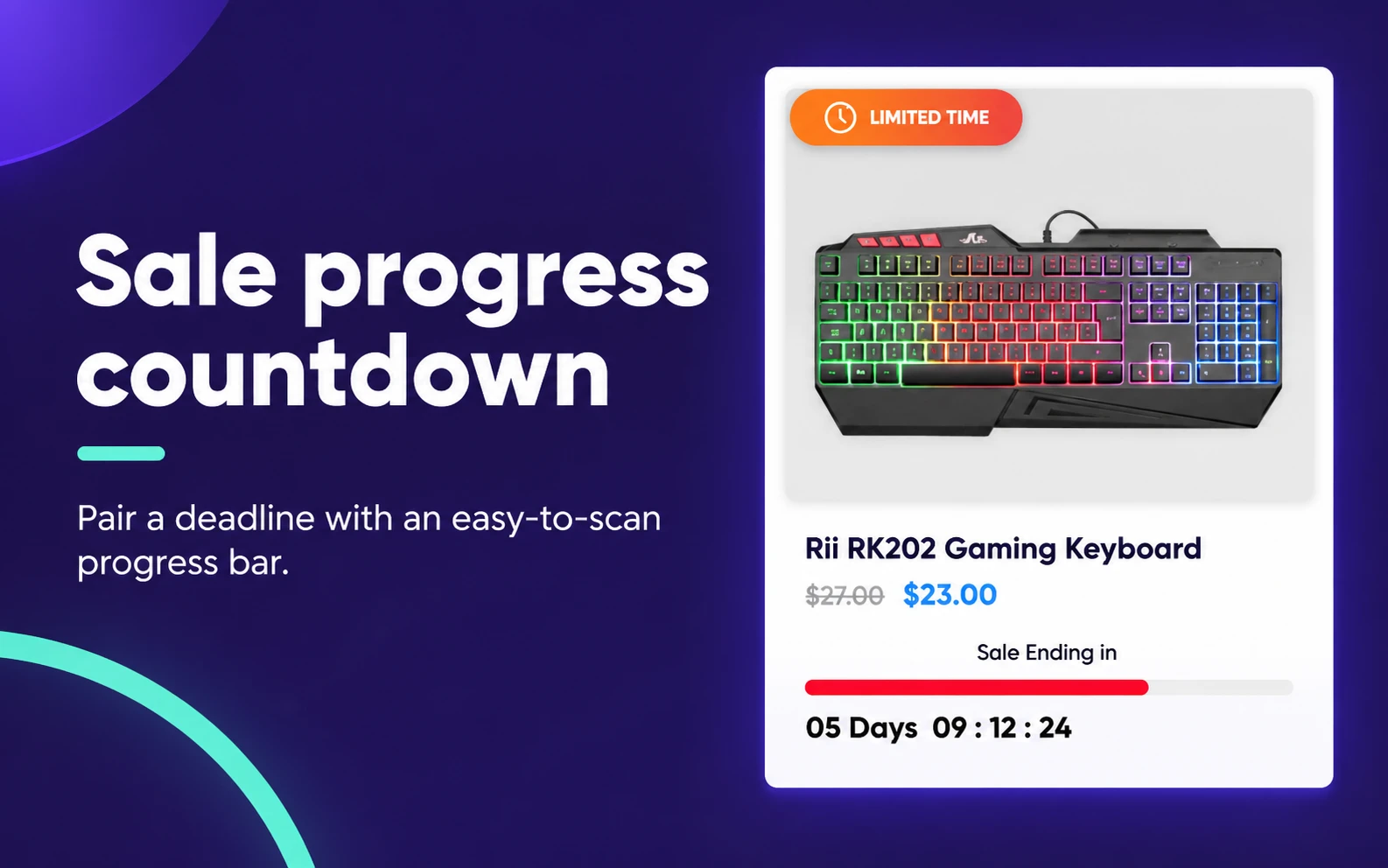
Rii RK202 keyboard
Countdown with a red sale progress bar
STOREWIDE COUNTDOWN BAR
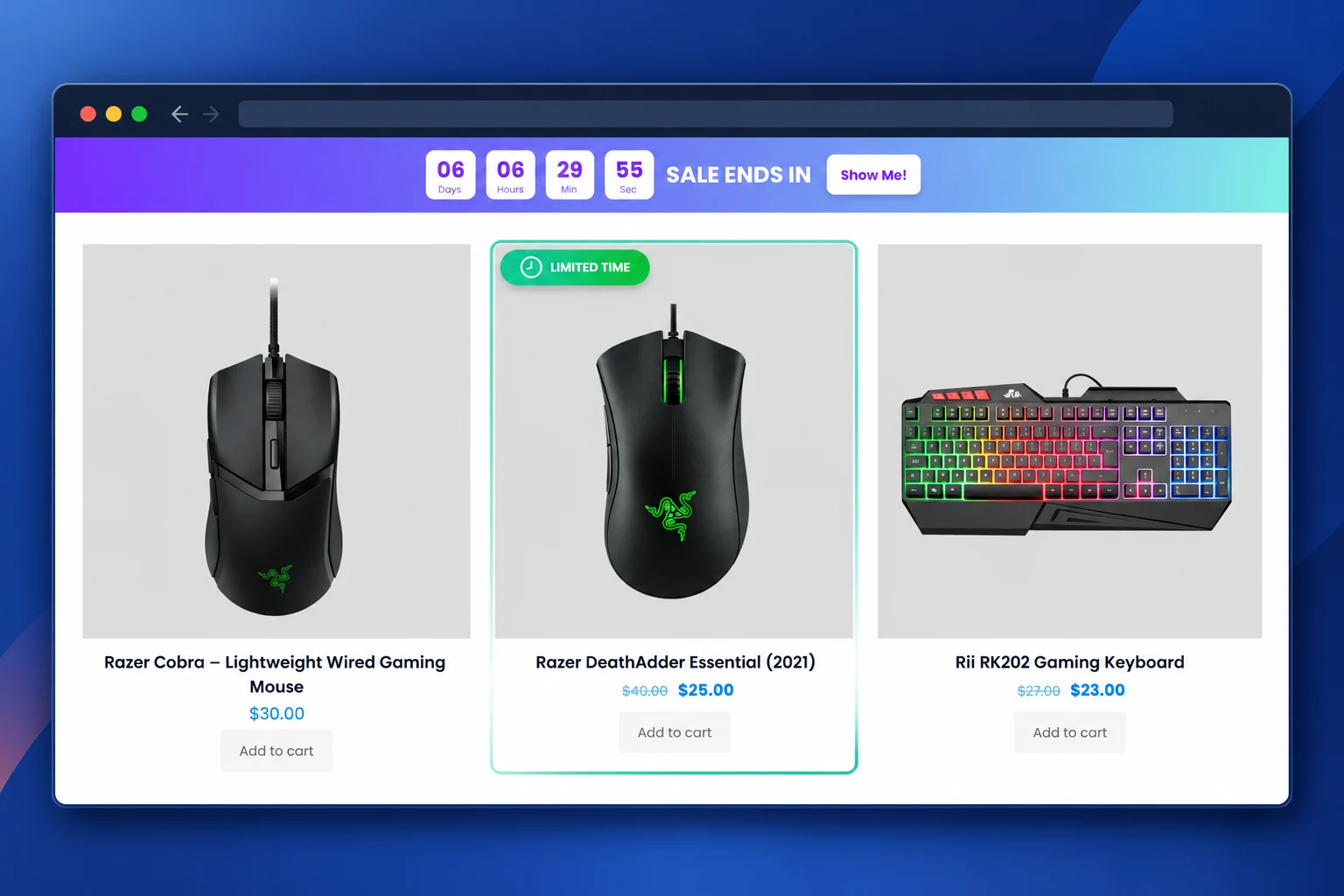
Storewide WooCommerce countdown timer plugin bar
When one promotion covers the store, a Pro countdown notification bar keeps the same real end time visible as shoppers browse. Then use a clear button to take them straight to the offer, and choose colors that fit the campaign.
COUNTDOWN BANNER
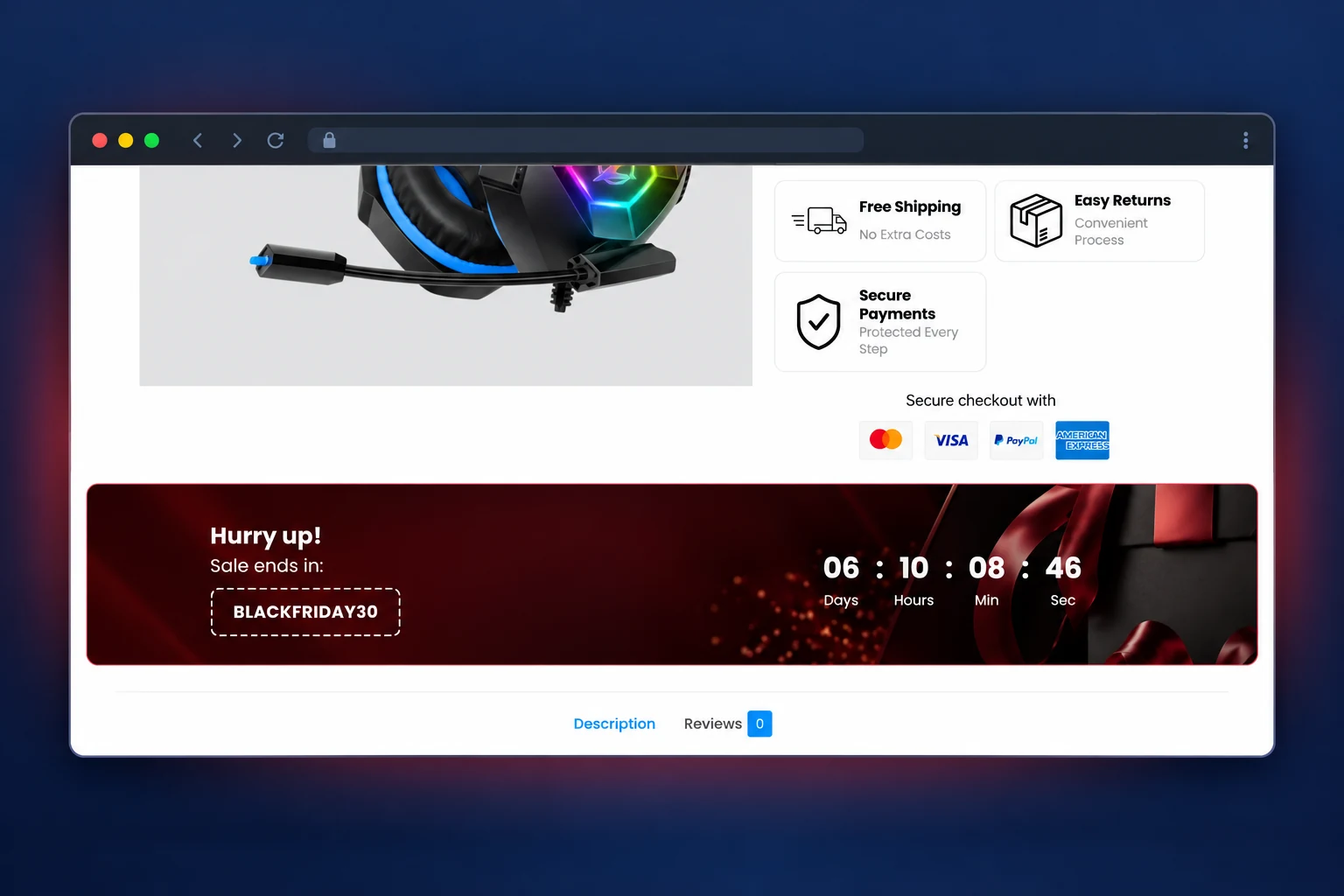
Make your sale impossible to miss
Use a Pro countdown banner when the promotion needs a wider visual treatment. Then put the offer, a real deadline, and any coupon in one clear place on the product page. The screenshot also shows the existing plugin banner design.
FROM IDEA TO LIVE CAMPAIGN
Set up your countdown in three steps
Initially, pick a design. Then set a real deadline. Finally, check it on your store before publishing.
01
Choose a timer design
Initially, create a countdown in Sale Booster. Then choose a layout that fits your product image without hiding important details.
02
Set deadline and rules
Then enter the campaign dates, choose which products qualify, and decide where the timer appears.
03
Preview and publish
Finally, check the timer on desktop and mobile. Afterward, confirm it disappears or changes when the sale ends.
For a walkthrough, read the countdown timer tutorial.
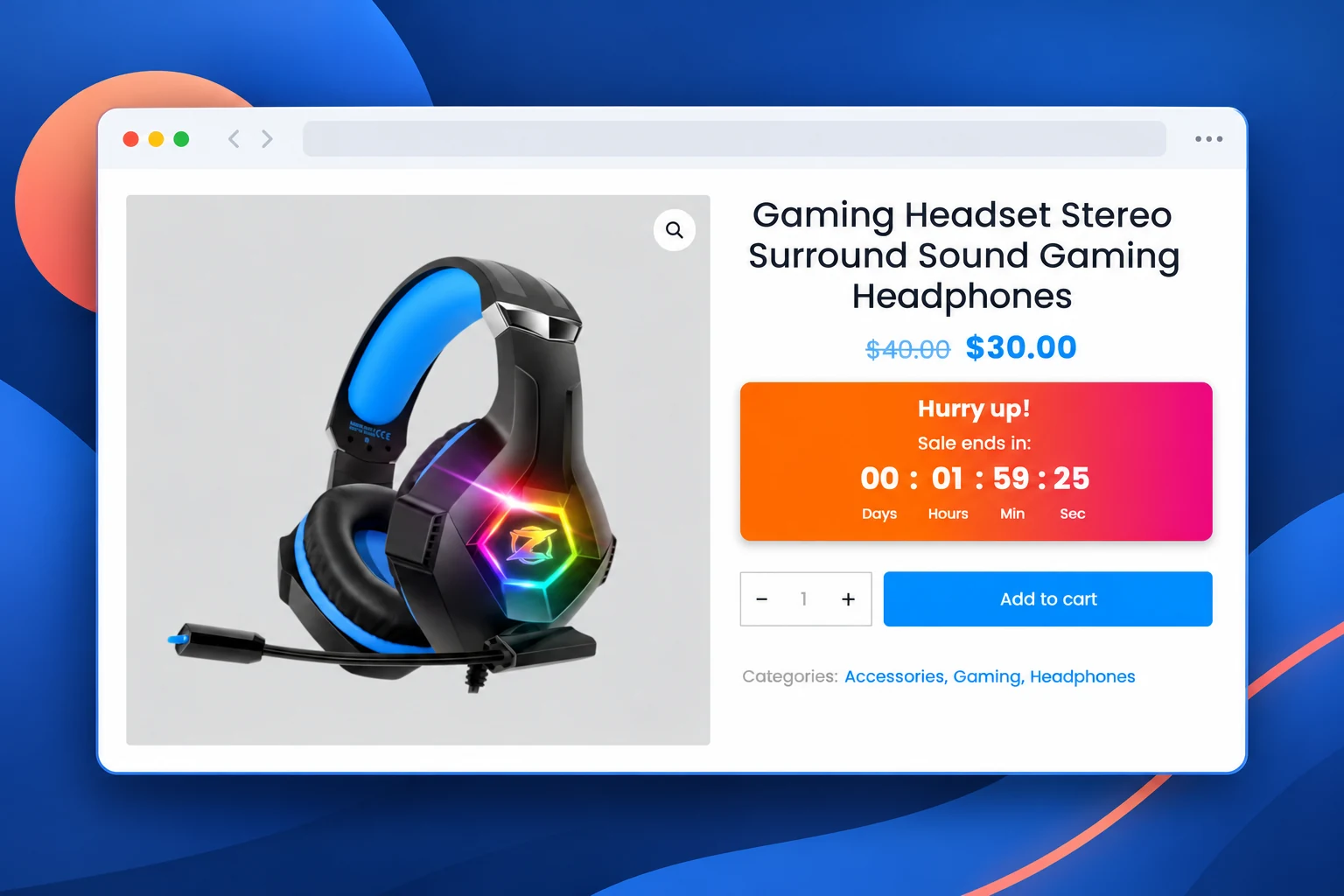
Use the WooCommerce countdown timer plugin near Add to Cart
For that reason, a product page timer works best when the message is next to the action it explains. For example, with the Pro countdown embed, you can add a short headline, show the ticking digits, and place the unit before the Add to Cart form. In addition, you can target selected products and match the colors to your store.
For a promotion that applies throughout the shop, a countdown notification bar can carry the deadline at the top of the page. As a result, each message stays tied to one real offer and shoppers know what the deadline means.
WooCommerce countdown timer plugin: Free vs Pro
Specifically, the free version of this WooCommerce countdown timer plugin is a good place to start with a countdown badge on selected products. However, choose Pro when the campaign needs more timer designs, placement outside the product image, evergreen timing, stock countdowns, or a countdown embed beside Add to Cart.
| Timer capability | Free | Pro |
|---|---|---|
| Product badge countdown | Yes | Yes |
| Product and condition targeting | Yes | Yes |
| More timer designs and advanced styles | — | Yes |
| Out-of-image timer placement | — | Yes |
| Evergreen and stock countdown options | — | Yes |
| Product page countdown embed | — | Yes |
Frequently asked questions
Can I add a countdown timer to individual WooCommerce products?
Yes. For example, use product and condition rules to show a countdown badge only on products that belong to your promotion. You can also target categories or sale items.
Does the free version include a countdown timer?
Yes. The free plugin includes product badge countdowns. In addition, Pro adds more timer styles, additional placement options, evergreen timing, stock countdowns, and product page embeds.
What is the difference between fixed and evergreen timers?
A fixed timer counts toward one campaign deadline shared by everyone. Conversely, an evergreen timer can run for a set duration per visitor. Therefore, choose the mode that matches how your offer actually works.
What happens after the deadline?
The countdown stops showing when it finishes. If you want the complete badge removed at the end of a scheduled sale, set a matching badge schedule and test the end state before publishing the campaign.
Can the timer appear beside Add to Cart?
Yes, with a Pro countdown embed. Then place it near the Add to Cart form on selected product pages, and preview the layout on desktop and mobile.
Put your next sale on the clock
Start with one real deadline and show it on the products in the sale. Then expand the design and placement when your campaign needs it.