
WOOCOMMERCE ANNOUNCEMENT BAR PLUGIN · SIX REAL STOREFRONT FORMATS
WooCommerce announcement bar plugin for offers shoppers notice
Use this WooCommerce announcement bar plugin to put a clear sale, shipping offer, deadline, or store update where shoppers will see it. Then choose from six Sale Booster Pro notification bar formats, with page targeting, scheduling, and colors that fit your store.
Real plugin UI · Top or bottom placement · Desktop and mobile targeting · Setup documentation
Six bar formatsChoose the message that matches your campaign.
Precise display rulesTarget pages, products, devices, and shoppers.
Campaign timingSchedule the bar around the real offer window.
REAL STOREFRONT EXAMPLES
Explore WooCommerce announcement bar plugin designs
These app-style demos are based on real frontend captures from the plugin. Compare the color, message, and action in context, then choose the bar that supports one clear goal. In addition, all six examples are visible here, so there is no slider to browse.
01 / SIMPLE MESSAGE
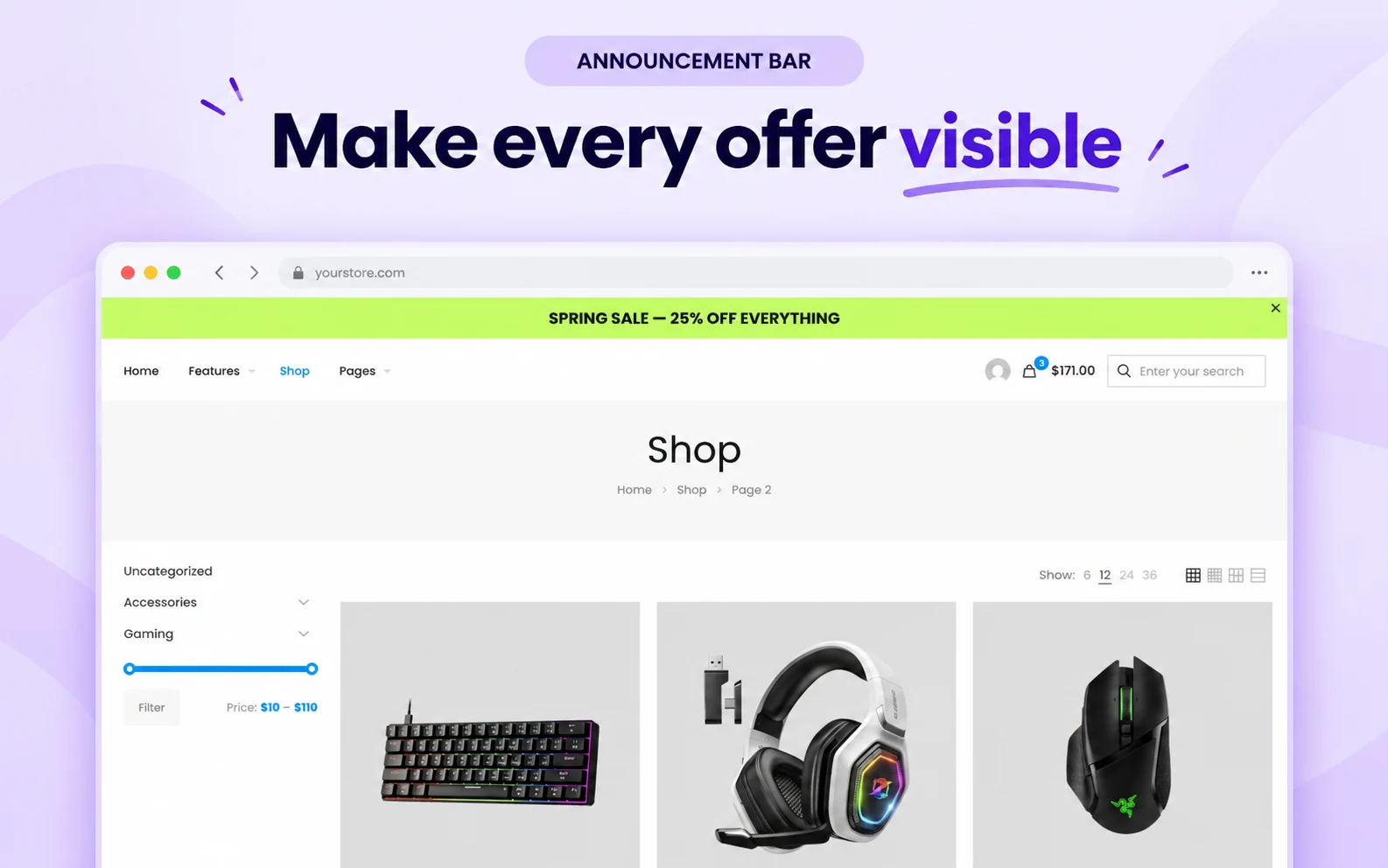
Announcement Bar
First, lead with one short promotion or store notice. For example, the lime design makes a spring sale visible above the shop without adding a second step for the shopper.
02 / MESSAGE + BUTTON
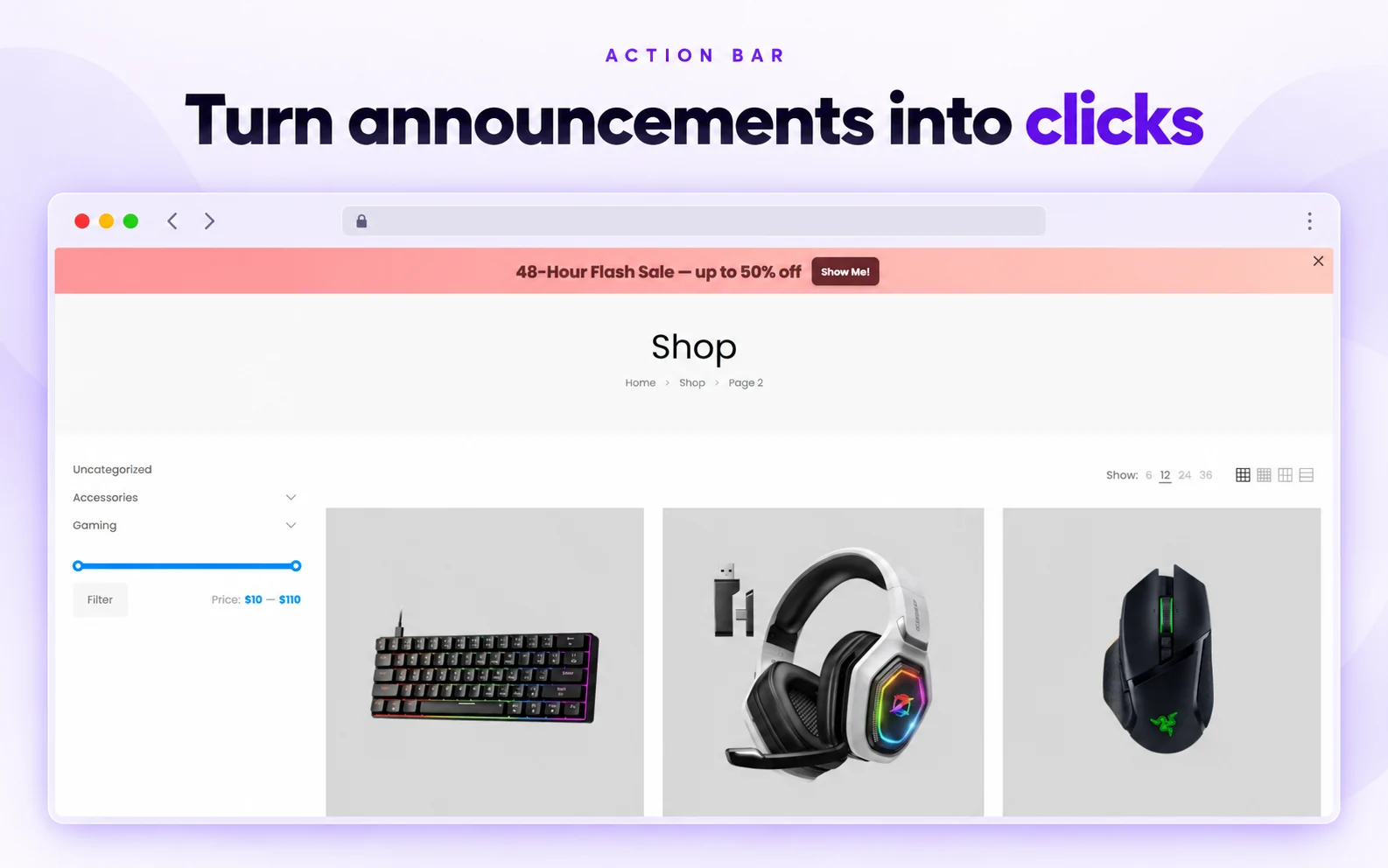
Action Bar
Next, pair a focused offer with a call-to-action button. Then send shoppers directly to the sale collection or product page, while the button color stays distinct from the message.
03 / REAL DEADLINE
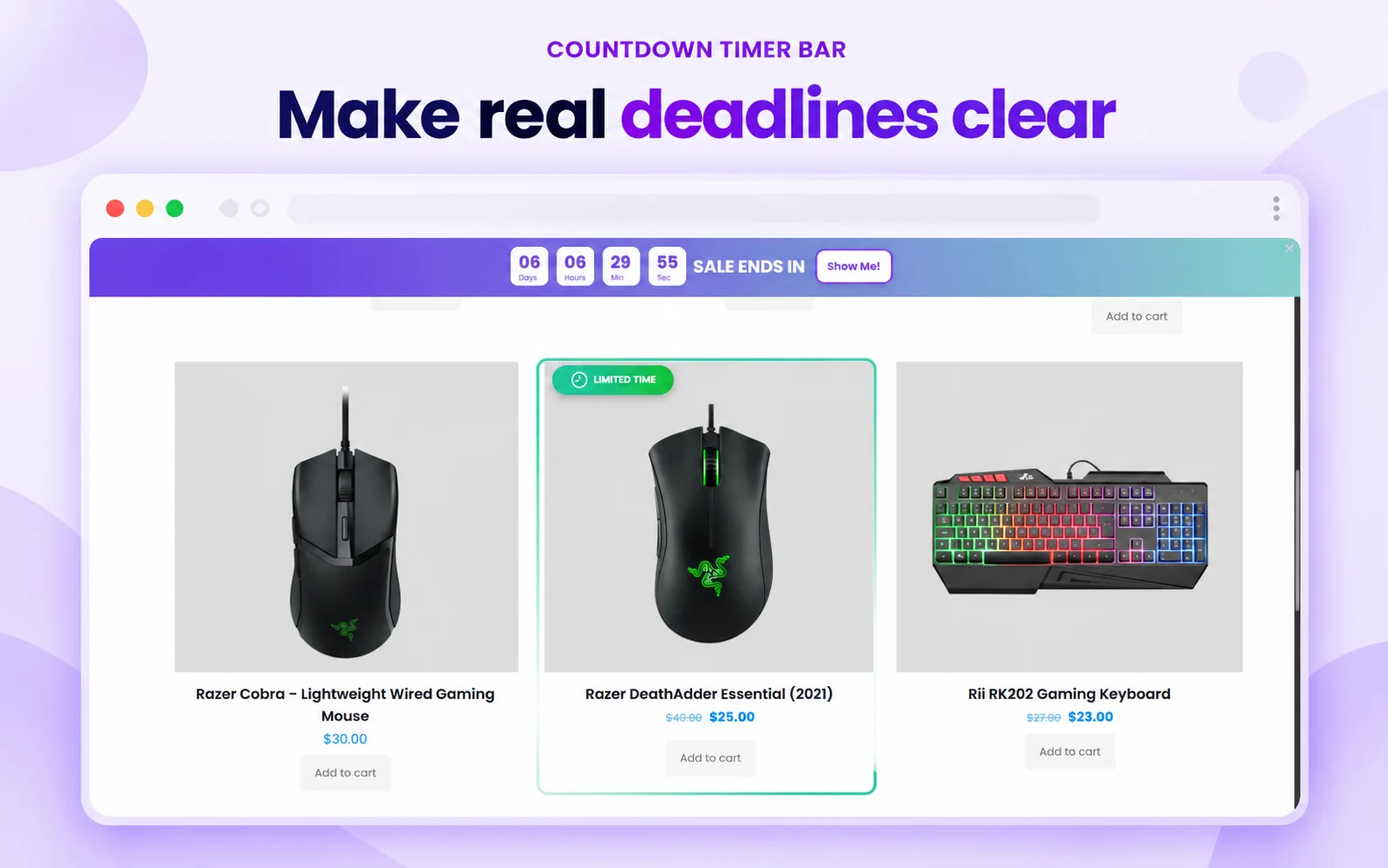
Countdown Timer Bar
Show a ticking clock for an offer with a genuine end time. For instance, use a shared end date for a campaign or an evergreen duration when the offer truly works per visitor.
04 / CART PROGRESS
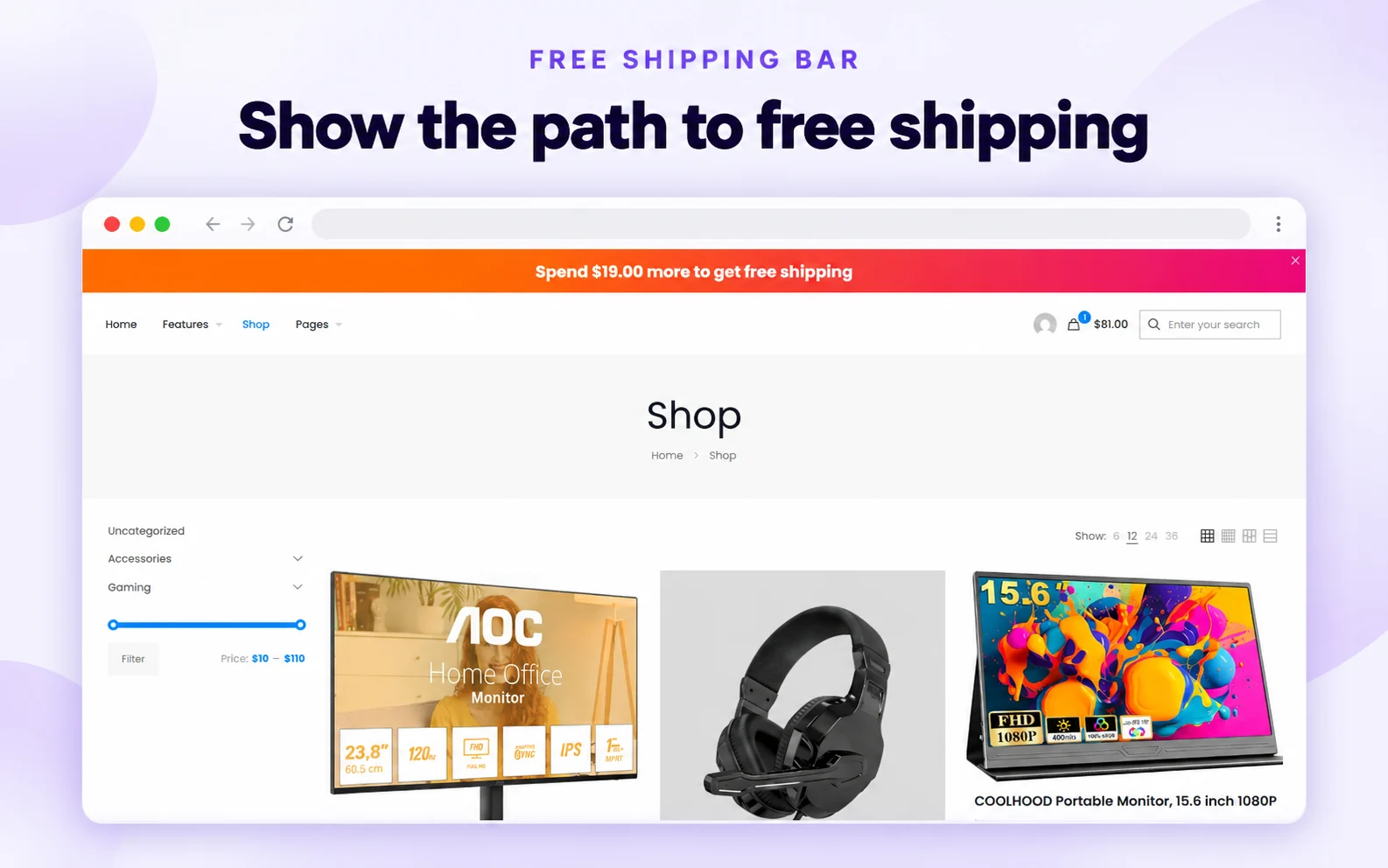
Free Shipping Bar
For example, show the amount still needed to unlock free shipping. As a result, the message changes with the cart and makes the next step clear without interrupting shopping.
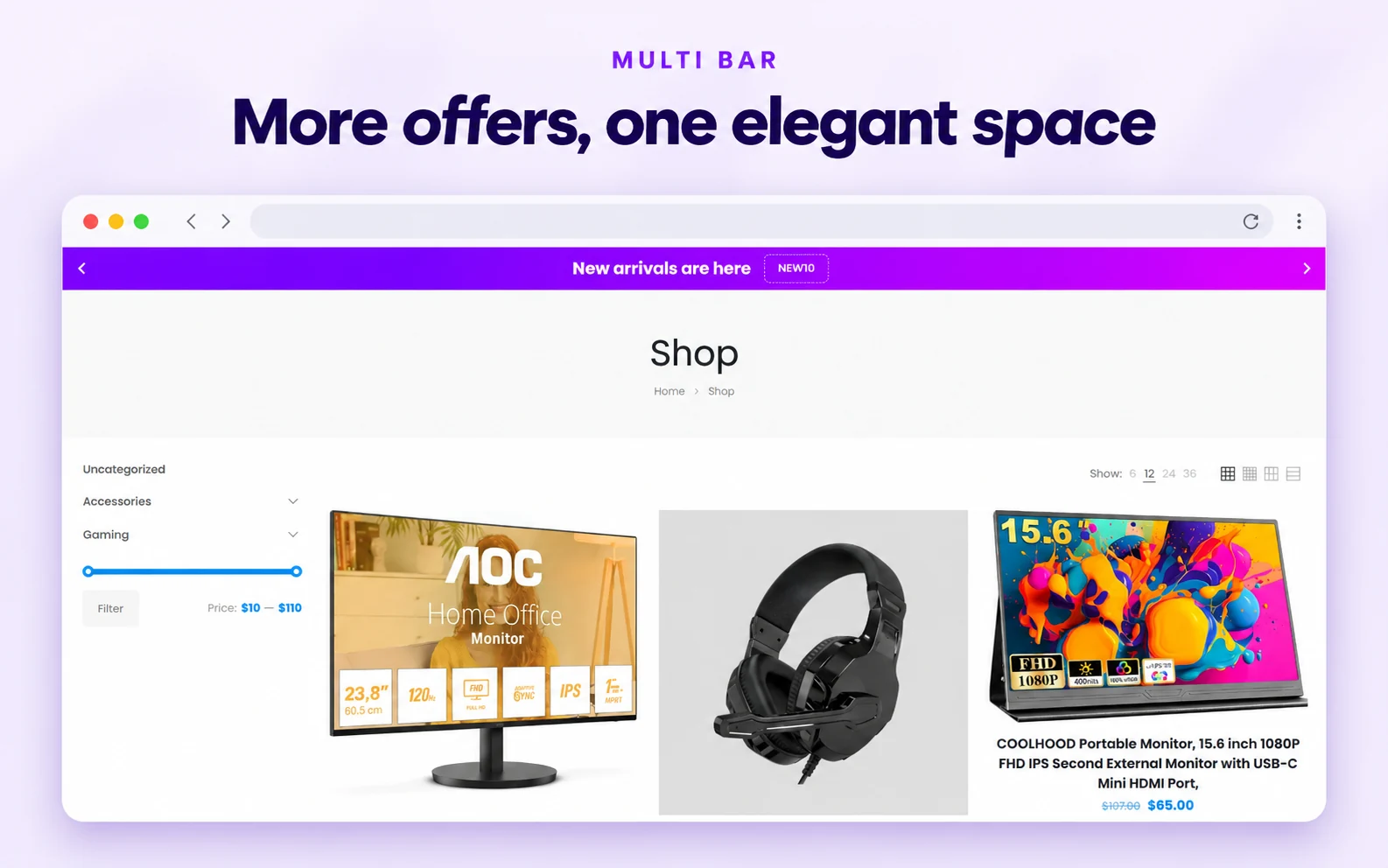
05 / ROTATING OFFERS
Multi Bar
In addition, cycle through several short messages in one place. Meanwhile, give each offer its own action so shoppers can use the arrows to move between messages.
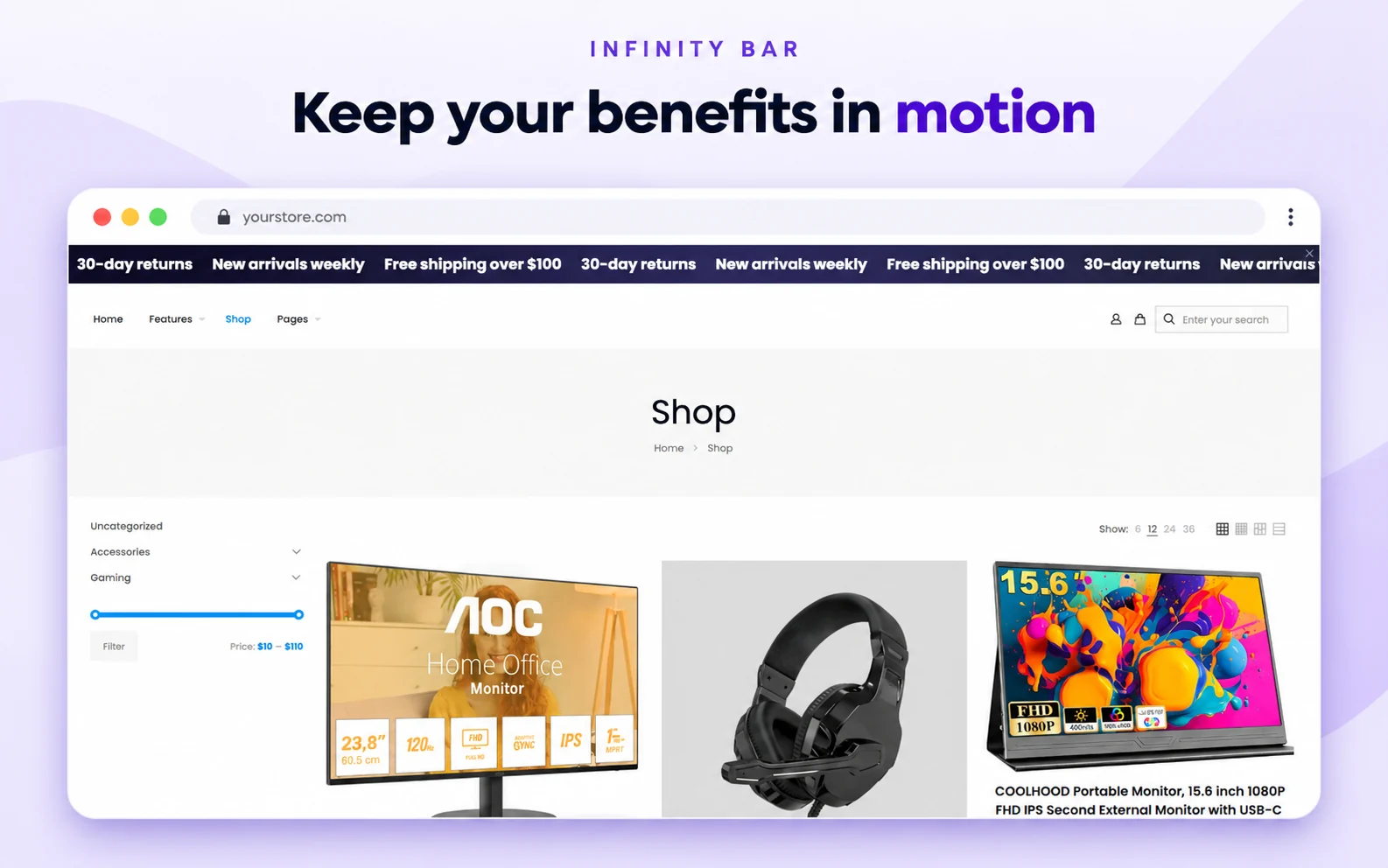
06 / CONTINUOUS MESSAGE
Infinity Bar
Repeat concise benefits in a scrolling strip. For example, use it for returns, new arrivals, and shipping promises that stay relevant throughout a visit.
DESIGNED AROUND YOUR STORE
Place your WooCommerce announcement bar plugin where it matters
Choose a top or bottom position, keep the bar fixed when it needs to remain visible, and preview the result before publishing. Then use page, product, device, and visitor rules so the message appears only where the offer applies.
For a time-limited promotion, a schedule can switch the bar on and off automatically. Meanwhile, the color templates and styling controls help the message feel like part of your store rather than an unrelated overlay.
PlacementTop or bottom, with an optional fixed position as shoppers scroll.
TargetingShow the message on chosen pages and devices, with visitor conditions when needed.
Style & timingUse templates, custom colors, and start and end dates for each campaign.
FROM TEMPLATE TO LIVE STOREFRONT
Set up the WooCommerce announcement bar plugin in three steps
The Notification Bar editor uses one workflow for all six formats. First, pick a template. Then write the message and define its action. Finally, preview the design on the pages where shoppers will see it.
01
Choose a WooCommerce announcement bar plugin template
Open Sale Booster → Notification Bar → Add New and select the format that matches the offer.
02
Write and target
Add a short message, optional button or coupon, then choose page and device rules.
03
Preview and publish
Check desktop and mobile, set a schedule if needed, and save the bar when the offer is ready.
Need the exact settings? Follow the WooCommerce notification bar documentation for templates, placement, targeting, scheduling, and publishing.
CLEAR FREE VS PRO
The WooCommerce announcement bar plugin is part of Sale Booster Pro
For example, the free plugin is a good starting point for product badges and countdown badges. However, the six notification bar formats on this page belong to Sale Booster Pro, along with their page targeting and campaign controls. For product-image deadlines, see the WooCommerce countdown timer plugin page.
Free plugin
Product badges and image-based countdown badges.
Sale Booster Pro
Announcement, action, countdown, free shipping, multi-message, and infinity bars.
Choose Pro when your campaign needs a message beyond the product image.
FREQUENTLY ASKED QUESTIONS
WooCommerce announcement bar plugin questions
What is a WooCommerce announcement bar?
It is a message strip at the top or bottom of a store page. You can use it for a sale, shipping offer, coupon, deadline, or store update. Sale Booster Pro adds six bar formats for different campaign goals.
Can I make the notification bar sticky?
Yes. Enable Banner Fixed when you want the bar to remain visible as shoppers scroll. Then preview the store on mobile so the bar does not cover navigation or checkout controls.
Can I show a bar only on selected pages or devices?
Yes. Use Targeting to choose desktop, mobile, or both, and add page, product, or visitor conditions. As a result, a sale message can stay on relevant pages instead of appearing across the entire store.
Does the free plugin include notification bars?
No. The Notification Bar module is included in Sale Booster Pro. The free plugin includes product badge features, so you can try those before choosing Pro for storewide bars.
Which bar should I use for free shipping?
Choose the Free Shipping Bar when the message should follow cart progress. Set the same threshold in WooCommerce shipping settings and in the bar, then test the start, progress, and success messages.
Make your next store message impossible to miss
Choose the bar that fits the offer, show it to the right shoppers, and give them a clear next step. Then publish it when the campaign is ready.