Posted on — Leave a comment

Auto-Apply Coupons in WooCommerce: 3 Easy Ways to Apply Discounts Automatically

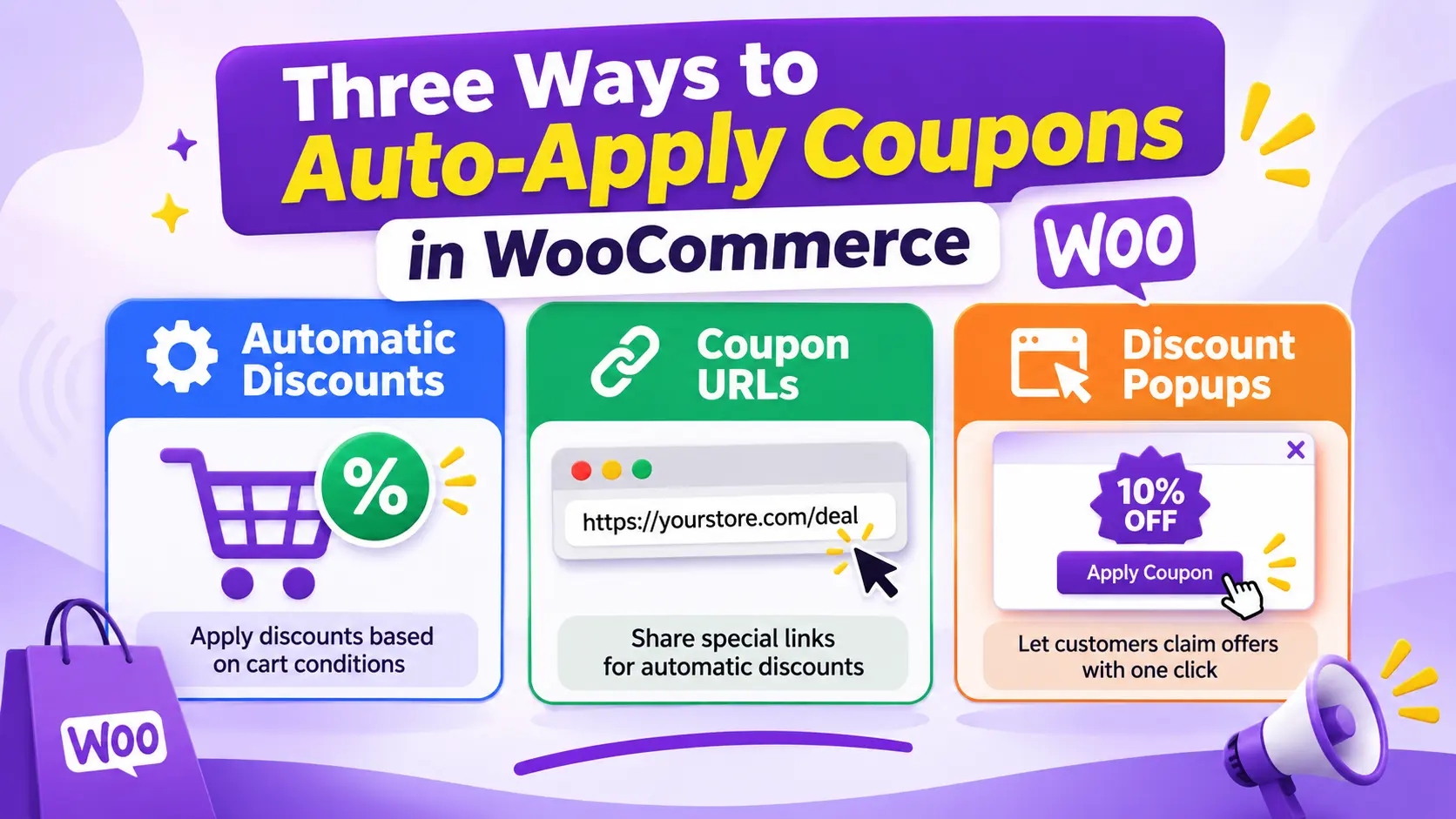
Three ways to auto-apply coupons in WooCommerce using automatic discounts, coupon URLs, and discount popups

Auto-Apply Coupons in WooCommerce is a simple way to make shopping easier and encourage customers to complete their purchases. Instead of asking shoppers to find and enter coupon codes manually, you can automatically apply discounts when specific conditions are met, use coupon URLs, or let customers apply coupons with a single click.

Automatic coupons make shopping easier, remove unnecessary checkout steps, and help you run targeted promotions without manually managing every order.

The good news is that you don’t need to hire a developer or write custom PHP code to set them up.

In this guide, you’ll learn three practical ways to auto-apply coupons in WooCommerce without writing code, including how to set up automatic discounts with Discount Rules.

Let’s get started!

Table of Contents

Quick Overview: 3 Ways to Auto-Apply Coupons in WooCommerce

There are several ways to automatically apply coupons in WooCommerce, depending on how you want customers to receive their offers.

MethodHow It WorksBest For
Automatic discount rulesDiscounts apply when cart conditions are met.Storewide sales, minimum-spend offers, product and category discounts.
Coupon linksCustomers receive a discount when they click a special URL.Email campaigns, social media, affiliates, and advertisements.
One-click coupon popupsCustomers activate a discount directly from a promotional popup.Welcome offers, special promotions, and targeted campaigns.

Which method should you choose?

If you want discounts to appear automatically whenever customers qualify, use automatic discount rules. If you want to distribute exclusive promotional codes through marketing campaigns, coupon links are a better option. And if you want to promote a coupon directly on your website, a one-click coupon popup makes it easy for shoppers to claim the offer.

Why Should You Automatically Apply Coupons in WooCommerce?

By default, WooCommerce requires customers to enter a coupon code and click the Apply button before receiving a discount.

Although this works, it introduces an extra step into the buying process.

Imagine a customer has added $120 worth of products to their cart. You advertise a 10% discount for orders over $100, but the customer must find the coupon code, copy it, return to your store, and enter it at checkout.

Some customers will complete these steps. Others might forget, get distracted, or leave your website searching for a better coupon.

Automatically applying eligible discounts eliminates this unnecessary work.

Here are four reasons why automatic WooCommerce coupons can improve the shopping experience and help your store generate more sales.

1. Reduce Checkout Friction

Customers don’t want to work to receive a discount they’ve already qualified for.

Research from the Baymard Institute found that promotional code fields can interrupt the checkout process. Some shoppers stop to search for coupon codes elsewhere, potentially leaving the original store without completing their purchases.

Automatically applying eligible discounts helps avoid this problem.

Instead of asking customers to enter a code, show the discount in their cart or checkout automatically.

2. Encourage Customers to Spend More

Automatic discounts are particularly useful for increasing average order value (AOV).

For example, you could create this promotion:

  • Spend $50 and get 5% off.
  • Spend $100 and get 10% off.
  • Spend $150 and get 15% off.

A customer with $85 in their cart might decide to add another $15 product to unlock the next discount.

This makes the promotion more than just a price reduction. It gives customers a reason to purchase additional products.

Research published in the Journal of Consumer Research in 2026 examined threshold-based and capped promotions across seven preregistered studies, including a field study. Its findings suggest that threshold offers can encourage stronger purchase intentions and conversions under certain conditions.

You can read the research on promotion architecture.

3. Make Promotional Campaigns Easier to Manage

Imagine running a Black Friday promotion with a 20% discount.

Without automation, you might need to distribute coupon codes, answer questions from customers who cannot apply them, and manually activate or deactivate the promotion.

With automatic discount rules, you can configure the conditions in advance and let WooCommerce handle the application.

You can also schedule promotional periods, target selected products, and create different offers for different shopping situations.

4. Reduce Missed Discounts and Improve Customer Satisfaction

When customers qualify for a discount but forget to apply their coupon code, they may feel frustrated after completing their purchase.

Automatic discounts make promotions more transparent. Customers can see their savings in the cart before placing their order.

This creates a smoother buying experience and makes your offers easier to understand.

Important: Discounts are not guaranteed to increase profitability. If you offer excessive discounts without considering product margins, you could generate more orders while earning less profit. Always set discount amounts and eligibility conditions carefully.

Method 1: Automatically Apply WooCommerce Discounts Using a Free Plugin

Best for: Storewide discounts, minimum-spend promotions, product-specific deals, and category discounts.

WooCommerce doesn’t include a built-in feature for automatically applying coupon codes based on custom cart conditions. However, you can add this functionality using a WooCommerce discount plugin.

One option is Discount Rules and Dynamic Pricing for WooCommerce by AsanaPlugins.

The plugin has a free version that lets you create automatic cart discounts and coupon rules without writing code.

You can configure discounts based on:

  • Cart subtotal: Automatically discount orders that reach a minimum amount.
  • Specific products: Discount selected products or variations.
  • Product categories: Apply discounts to eligible category items.
  • Storewide promotions: Offer percentage or fixed-amount cart discounts.
  • Promotional schedules: Configure supported promotional dates and times.

Let’s create an automatic discount step by step.

Step 1: Enable Coupons in WooCommerce

Before creating your first automatic coupon, make sure WooCommerce coupons are enabled.

  1. Open your WordPress dashboard.
  2. Navigate to WooCommerce → Settings.
  3. Open the General tab.
  4. Find the Enable coupons option.
  5. Check the box to enable coupon codes.
  6. Click Save changes.

Your store is now ready to use coupon-based discount rules.

Step 2: Install Discount Rules and Dynamic Pricing

Next, install the free plugin.

  1. Go to Plugins → Add New Plugin.
  2. Search for Discount Rules and Dynamic Pricing for WooCommerce.
  3. Find the plugin published by AsanaPlugins.
  4. Click Install Now.
  5. Click Activate.

You can also download it directly from the WordPress plugin directory.

Once activated, you’ll find the Woo Pricing & Discounts menu in your WordPress dashboard.

Step 3: Create an Automatic WooCommerce Discount Rule

Now let’s create a practical example: automatically give customers 5% off when their cart reaches $100.

  1. Open Woo Pricing & Discounts.
  2. Navigate to the Discounts tab.
  3. Click Add from Template.
  4. Find the Automatic Coupons section.
  5. Choose a suitable template, such as a minimum-spend discount.
  6. Click Add Campaign.

You can also create a custom rule instead of using a template.
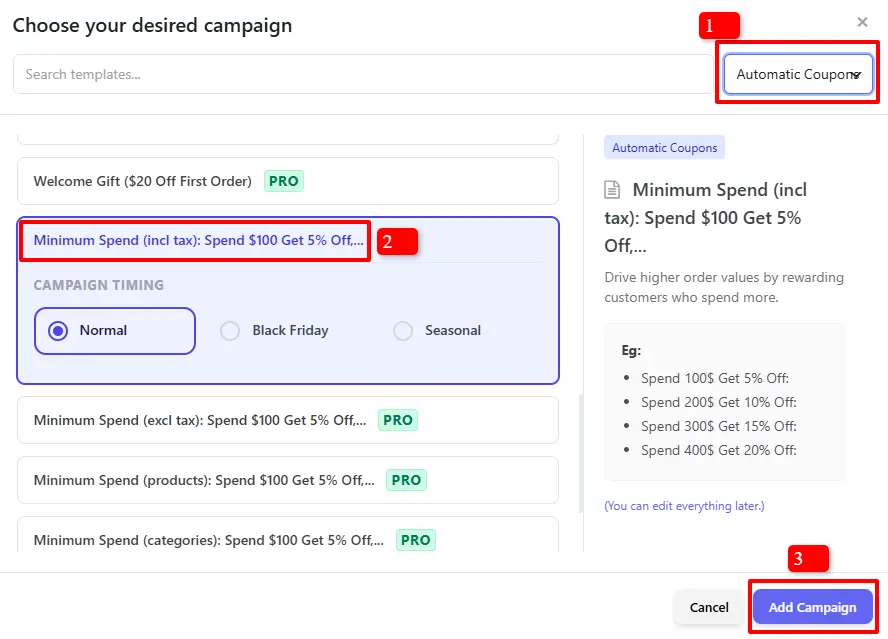
Automatically apply coupons in WooCommerce using automatic discount rules

Step 4: Configure the Discount

After selecting your template, configure the discount settings.

For our example, use the following settings:

SettingValue
Rule NameMinimum Spend
StatusEnabled
Manual CouponDisabled / Unchecked
Discount TypeCart Subtotal

Important: Leave the Manual Coupon option unchecked. This allows the discount to apply automatically when the customer meets the conditions, without entering a coupon code.

You can also configure how this rule interacts with other discount rules using the Apply Mode field:

  • Non-Exclusive: Apply this discount alongside other eligible rules.
  • Exclusive: Apply this rule instead of other applicable rules.
  • Fallback: Apply this rule only when other rules are not applicable.

Choose the option that best matches your store’s discount strategy.

minimum spend coupon configuration

Step 5: Set the Minimum Cart Amount

Under the order total or subtotal conditions, configure the minimum amount required to receive the discount.

For example:

  • Minimum subtotal: $100
  • Discount type: Percentage
  • Discount amount: 5%

You can also create multiple spending thresholds.

For example:

Cart SubtotalAutomatic Discount
$1005% OFF
$20010% OFF
$30015% OFF
$400 or more20% OFF

This type of promotion encourages customers to increase their order value to unlock better savings.

min spend coupon ranges

Step 6: Schedule Your Promotion (Optional)

If you’re preparing a seasonal campaign, you can configure when the discount should become active.

Depending on the campaign and available features, you can use:

  • Date range: Run a promotion between two dates.
  • Date and time range: Schedule precise promotional start and end times.
  • Specific date: Activate a promotion on a particular day.
  • Days: Run recurring promotions on selected weekdays.
  • Time: Restrict the discount to specific hours.

For example, you can schedule a Black Friday discount to start on Friday and expire automatically when the promotion ends.

Keep the rule enabled so its scheduling conditions can control when it becomes active.

Step 7: Save and Test Your Automatic Coupon

Click Save to publish your rule.

Now visit your store as a customer and add products to your cart.

Test both situations:

Scenario 1: Cart below $100

A customer adds $85 worth of products.

No discount should be applied because the minimum spending requirement hasn’t been reached.

Scenario 2: Cart reaches $100
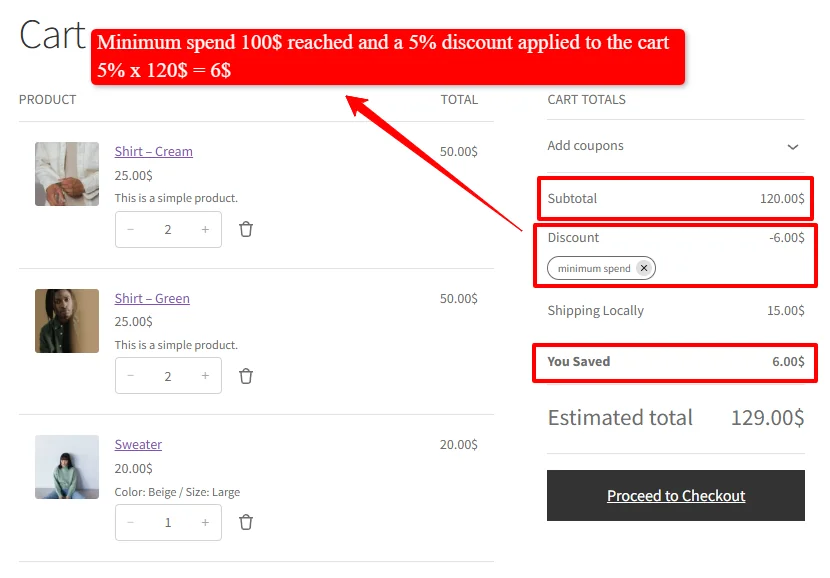
The customer adds another product, bringing the cart subtotal to $120.

The 5% discount should now apply automatically.

DescriptionAmount
Cart subtotal$120
Automatic discount (5%)-$6.0
Subtotal after discount$114

The customer receives the discount without entering a coupon code.

That’s it! You’ve successfully created an automatic WooCommerce discount without writing any code.

Want more examples? Explore our complete guide to automatic coupons and cart discounts in WooCommerce.

You can also learn how to create product-specific discounts and minimum-spend discounts.

Method 2: Automatically Apply WooCommerce Coupons Using a URL

Best for: Email marketing, social media promotions, affiliate campaigns, and exclusive discount offers.

Want to send customers a discount without asking them to remember or enter a coupon code?

WooCommerce URL Coupons make this possible.

Instead of sharing a traditional coupon code, you create a unique URL. When customers visit that link, the associated discount is automatically applied to their cart.

For example, imagine you’re running a summer promotion with a 10% discount.

Instead of sending customers this message:

“Use SUMMER10 at checkout to receive 10% off.”

You can share a special URL. When customers click it, the discount is automatically applied without requiring them to enter anything.

This is particularly useful for:

  • Email newsletters and promotional campaigns.
  • Facebook and Instagram promotions.
  • Affiliate marketing campaigns.
  • SMS and WhatsApp marketing.
  • Abandoned cart recovery emails.
  • Exclusive discounts for selected customers.

How to Create WooCommerce URL Coupons

You can create URL coupons using the URL Coupons for WooCommerce addon, designed to work with Discount Rules and Dynamic Pricing for WooCommerce PRO.

The addon lets you create unique coupon URLs using your existing discount rules. You can then share these links with customers and automatically apply discounts when they visit them.

Here’s how to set it up.

Step 1: Install Discount Rules PRO and the URL Coupons Addon

First, make sure you have Discount Rules and Dynamic Pricing PRO installed and activated.

Next, purchase and install the URL Coupons for WooCommerce addon.

Once both plugins are activated, you can start creating URL coupon campaigns.

Step 2: Create a New URL Coupon Rule

From your WordPress dashboard:

  1. Open Woo Pricing & Discounts.
  2. Navigate to the Discounts tab.
  3. Click Add from Template.
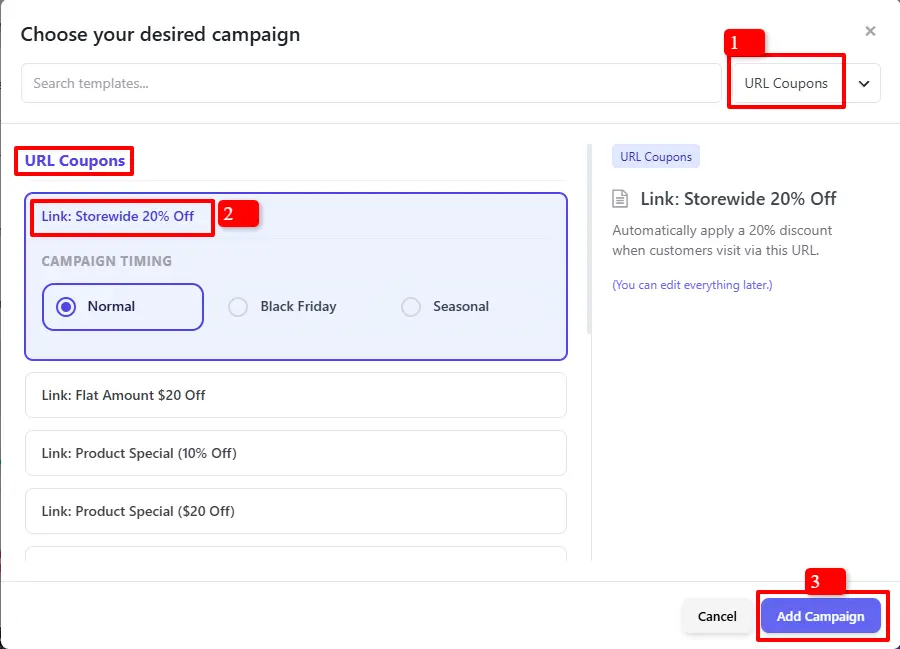
  4. Choose URL Coupons from the categories or find the URL Coupons section.
  5. Choose a suitable template, such as Link: Storewide 20% Off
  6. Click Add Campaign.
Auto-apply WooCommerce coupons using a unique coupon URL

For example, let’s create a promotion that gives customers 20% off their cart.

Step 3: Configure Your Discount

Set up the discount according to your campaign requirements.

For our example, configure a 20% discount.

You can also create targeted URL coupon campaigns for specific products or categories.

For example:

  • Give customers 10% off their entire cart.
  • Offer $5 off a selected product.
  • Give customers 15% off products in a particular category.

This allows you to create different promotional links for different marketing campaigns.

After selecting your template, configure the discount settings.

For our example, use the following settings:

SettingValue
Rule NameLink: Storewide 20% Off
StatusEnabled
Manual CouponDisabled / Unchecked
Discount TypePercentage
Discount Amount20
URL CouponEnabled

Important: Leave the Manual Coupon option unchecked. This allows the discount to apply automatically when the customer meets the conditions, without entering a coupon code.

You can also configure how this rule interacts with other discount rules using the Apply Mode field:

  • Non-Exclusive: Apply this discount alongside other eligible rules.
  • Exclusive: Apply this rule instead of other applicable rules.
  • Fallback: Apply this rule only when other rules are not applicable.

Choose the option that best matches your store’s discount strategy.
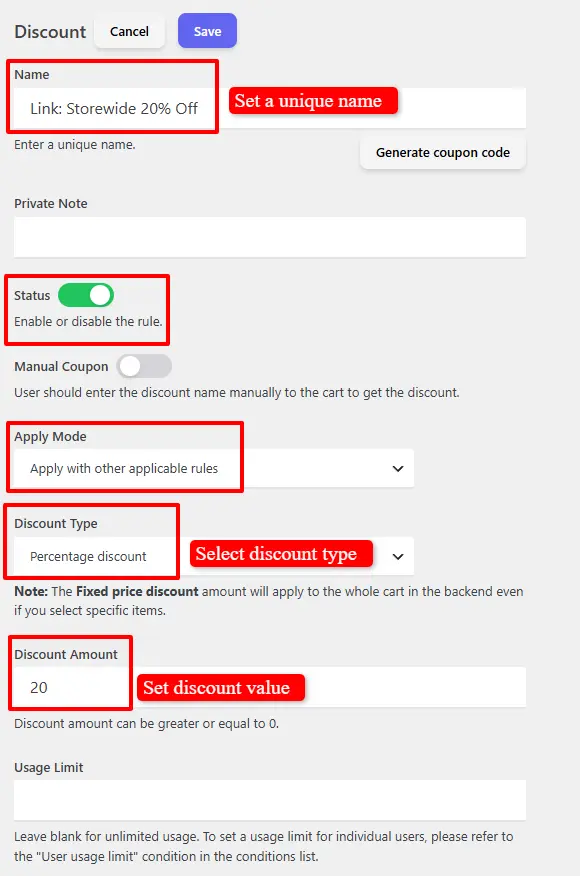
WooCommerce URL Coupon configuration

Step 4: Copy Your Unique Coupon URL

After configuring the rule, find the Coupon URL field.

Copy the generated URL. This is the link you’ll share with your customers.
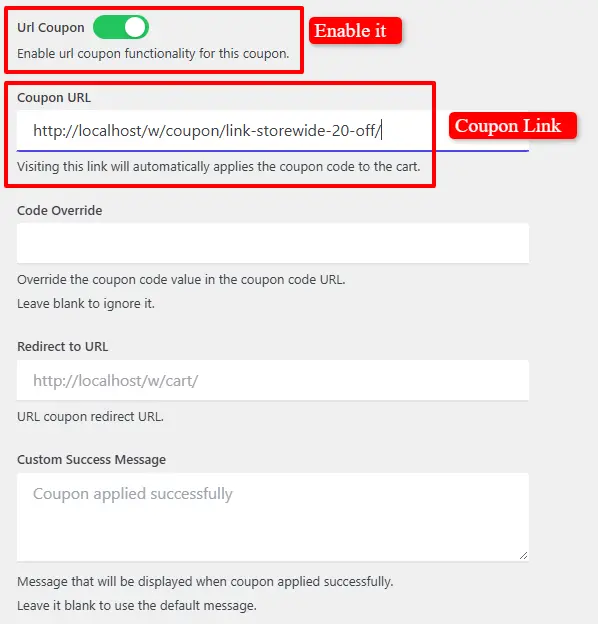
URL coupon for WooCommerce link

You can include it in:

  • Marketing emails.
  • Social media posts.
  • Promotional banners.
  • Affiliate campaigns.
  • SMS messages.

Step 5: Test and Share Your Coupon Link

Open the generated URL in a browser and check that the discount is automatically applied to the cart.

You can now share the link with your customers.

For example, send your newsletter subscribers a special URL for a 10% summer discount. When they click it, the discount is applied without requiring them to copy or enter a coupon code.

That’s it! You’ve created a WooCommerce URL coupon that automatically applies a discount when customers visit its unique link.

Bonus: Create URL Coupons for Specific Products and Categories

You don’t have to limit URL coupons to storewide discounts.

You can also create targeted campaigns for specific products or categories.

Product-specific URL coupons

For example, create a promotional link that gives customers $2 off a selected product. When customers visit the link and have the eligible product in their cart, the discount is applied to that product.

Category-specific URL coupons

You can also create a link that gives customers 10% off products in a selected category.

This is particularly useful when promoting a specific product collection through email marketing or social media.

Explore the URL Coupons for WooCommerce addon to learn more and add shareable coupon campaigns to your store.

Method 3: Apply WooCommerce Coupons Using a One-Click Discount Popup

Best for: Welcome discounts, promotional campaigns, and special offers displayed directly on your website.

What if you want customers to discover a discount while browsing your store?

A promotional coupon popup can help.

Instead of displaying a coupon code that customers must remember and enter later, you can show a popup with an Apply Coupon button.

Customers click the button, and the coupon is applied through the popup.

For this method, you can use Sale Booster – Product Badges, Labels and Countdown Timer.

Its PRO version includes a discount popup feature that can display an existing WooCommerce coupon and let shoppers apply it with one click.

Apply WooCommerce coupons automatically with a one-click discount popup

Step 1: Install Sale Booster PRO

Install and activate the Sale Booster PRO plugin.

Make sure you’ve already created a valid WooCommerce coupon that you want to promote.

Step 2: Create a Discount Popup

From your WordPress dashboard:

  1. Navigate to Sale Badges → Popups.
  2. Click Add New.
  3. Enter a name for your popup.
  4. Enable its status.
  5. Select Discount as the popup type.
  6. Choose a suitable popup template.

You can customize the popup design to match your store.
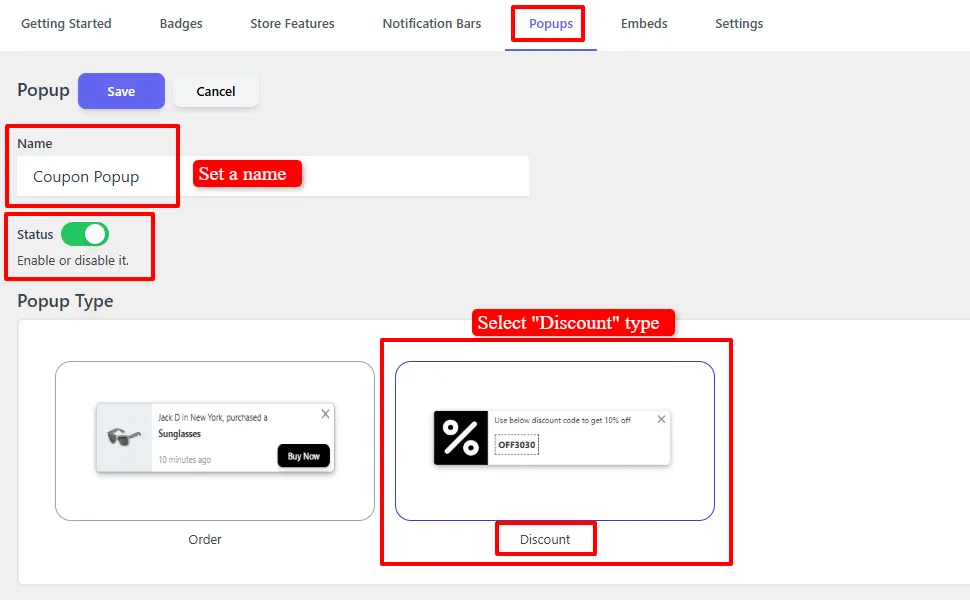
Coupon popup for WooCommerce configuration

Step 3: Configure the Coupon

Open the Content tab.

Configure the following settings:

  • Coupon Source: Select the “WooCommerce or Discount Plugin” option.
  • In the search field, search for and select your WooCommerce coupon.
  • Top Message: Add a promotional message, such as “Enjoy 10% OFF your order!”

You can customize the text to make your offer more attractive.

auto-apply coupons in WooCommerce with coupon popups configuration

Step 4: Enable the Apply Coupon Option

Open the General tab and find the Link Options setting.

Choose: Apply Coupon
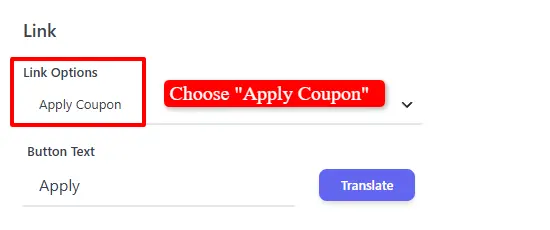
Coupon popup link options

This allows customers to activate the displayed coupon with a single click.

You can also choose other behaviors:

OptionFunction
NoneDisplays the coupon without an action.
Copy CouponCopies the coupon code.
Apply CouponApplies the coupon with one click.
Custom URLSends customers to a selected page.

Step 5: Choose Where the Popup Appears

Access the Targeting tab and select the pages where the discount popup will appear. The default setting is “All pages,” but you can apply specific conditions to display it only on certain pages, such as the cart and checkout pages.

Step 6: Save and Test Your Popup

Save your popup and visit your storefront.

Check that:

  • The popup appears as configured.
  • The correct coupon is displayed.
  • The Apply Coupon action works.
  • The discount appears correctly in the cart or checkout.
  • Expired or restricted coupons aren’t advertised as available offers.

Important: This method requires a customer click to activate the coupon. Unlike automatic discount rules, it doesn’t silently apply the coupon just because a customer qualifies.

You can find additional instructions in our WooCommerce discount popup documentation.

Which WooCommerce Auto-Apply Coupon Method Is Best?

All three methods can remove the need for customers to manually type coupon codes, but they serve different purposes.

Here’s a quick comparison:

FeatureAutomatic Discount RulesCoupon URLsDiscount Popup
No coding requiredYesYesYes
Customer enters a codeNoNoNo
Requires a customer clickNoYesYes
Cart-based conditionsYesDepends on coupon restrictionsDepends on coupon restrictions
Minimum-spend offersYesDepends on coupon setupDepends on coupon setup
Product-specific offersYesDepends on coupon setupDepends on coupon setup
Email marketingPossibleExcellentNot its primary purpose
Website promotionsExcellentGoodExcellent

Our recommendation: Use automatic discount rules if your goal is to apply discounts whenever customers qualify. They’re particularly useful for minimum-spend offers, product discounts, and storewide promotions.

Coupon URLs and promotional popups are excellent additional tools when you’re running marketing campaigns and want to distribute specific offers.

5 Smart Automatic Discount Strategies to Increase WooCommerce Sales

Automatically applying coupons is only the beginning. The real benefit comes from choosing the right discount strategy.

Here are five practical promotions you can use in your store.

1. Minimum Spend Discounts

Encourage customers to spend more by offering discounts when their cart reaches a specific amount.

Example:

  • Spend $100, get 5% off.
  • Spend $200, get 10% off.
  • Spend $300, get 15% off.

This strategy works particularly well when customers are close to reaching the next discount threshold.

2. Product-Specific Discounts

Not every product needs the same discount.

You can automatically discount selected products to promote new arrivals, clear excess inventory, or increase sales of particular items.

For example:

“Get 15% off selected accessories.”

This lets you run targeted promotions without reducing the price of your entire catalog.

3. Category Discounts

If you want to promote an entire product category, create a discount that applies whenever eligible products are added to the cart.

For example:

“Get 20% off all products in the Clothing category.”

This is useful for seasonal promotions and category-wide clearance sales.

4. First-Order and Customer Loyalty Discounts

You can reward new customers or encourage repeat purchases with targeted discounts.

For example:

  • New customers receive 10% off their first order.
  • VIP customers receive exclusive discounts.
  • Returning customers receive special promotional offers.

These advanced customer-targeting scenarios may require the PRO version of your discount plugin, depending on the conditions you want to use.

5. Free Shipping and Threshold Promotions

Shipping costs can influence whether customers complete their purchases.

Consider offering free shipping when the cart reaches a minimum amount.

For example:

“Spend $75 and get free shipping.”

You can combine this strategy with a product promotion or a cart discount, provided your rules and margins allow it.

For stores selling complementary products, you can also use WooCommerce product bundles to encourage customers to purchase products together, or Side Cart & Upsells to recommend additional products during shopping.

Tips for Running Profitable Automatic Coupon Campaigns

Automatic discounts can make promotions easier to use, but they should be configured carefully.

Here are a few tips to get better results.

Set minimum spending requirements. Avoid giving discounts without a clear business objective. Minimum-spend offers can encourage larger orders.

Avoid excessive discounts. Calculate your product margins before launching a promotion. More orders don’t always mean more profit.

Set expiration dates. Time-limited offers can encourage customers to purchase sooner. Make sure the promotion actually expires when advertised.

Exclude products with low margins. Not every product can support the same discount.

Test discount combinations. Make sure customers cannot combine promotions in ways that produce unintended discounts.

Show savings clearly. Displaying the discount in the cart and checkout helps customers understand the value of the promotion.

Monitor performance. Compare order volume, average order value, revenue, and discount costs before and after a campaign. Use the results to improve your next promotion.

Frequently Asked Questions

Can WooCommerce automatically apply coupon codes?

Not by default. WooCommerce includes coupon creation and redemption functionality, but customers normally need to enter a coupon code and click Apply. You can add automatic coupon functionality using a compatible discount plugin or extension.

How do I automatically apply a coupon in WooCommerce without coding?

Install a WooCommerce discount plugin that supports automatic discounts. Enable WooCommerce coupons, create a discount rule, configure its conditions, and leave the Manual Coupon option unchecked if the plugin uses that setting for automatic application.

For example, Discount Rules and Dynamic Pricing for WooCommerce offers a free way to create automatic cart discounts and coupon rules.

Can I automatically apply a discount when a customer spends a certain amount?

Yes. You can create a minimum-spend rule that automatically applies a discount when the cart reaches a specified subtotal.

For example, give customers 10% off when their eligible cart subtotal reaches $100.

Can I automatically apply coupons to specific products?

Yes. With a compatible WooCommerce discount plugin, you can target selected products, variations, or categories. The discount is applied when the customer adds eligible items to the cart and meets the rule conditions.

Can I automatically apply multiple coupons in WooCommerce?

This depends on the plugin, discount rules, and their compatibility settings. Some solutions allow multiple discounts to apply together, while others support exclusive rules or fallback conditions.

Always test combinations before launching your promotion.

Can I automatically apply coupons for first-time customers?

Yes. Advanced discount plugins can use customer-related conditions to offer first-order or new-customer discounts. Depending on the plugin, these features may require a PRO license and may have different requirements for guest customers.

Do automatic WooCommerce coupons work with guest checkout?

Many automatic discount solutions support guest checkout, but the exact behavior depends on the conditions used.

For example, cart-subtotal and product-based discounts can generally be evaluated without requiring customers to log in. Customer-history and account-based conditions may require additional information.

Test your chosen rules with guest checkout enabled.

Do automatic coupons work with variable products?

Compatible discount plugins can target variable products and, in some cases, individual variations. Check the plugin’s supported product conditions and test the specific variations you want to discount.

Will automatic discounts reduce my profit?

They can if you don’t calculate your margins carefully.

Before creating a promotion, consider product costs, payment fees, shipping expenses, and the discount amount. Use minimum-spend conditions, product exclusions, and discount limits to protect profitability.

Final Thoughts

Automatically applying coupons in WooCommerce is a simple way to make promotions easier to use and reduce unnecessary checkout friction.

Whether you want to offer storewide discounts, reward customers who spend more, promote selected products, or distribute special coupon links, there is a solution that doesn’t require custom coding.

Here are the three methods covered in this guide:

  1. Automatic discount rules: Best for applying discounts based on cart conditions, products, and spending thresholds.
  2. Coupon URLs: Best for email marketing, social media, and promotional campaigns.
  3. One-click coupon popups: Best for displaying special offers directly on your website.

If you’re looking for a free and flexible way to get started, try Discount Rules and Dynamic Pricing for WooCommerce.

You can create automatic cart discounts, product promotions, category discounts, and more without asking customers to enter coupon codes.

Get Discount Rules for Free and start creating smarter promotions for your WooCommerce store today.

Updated on — Leave a comment

WooCommerce Combo Offers Free Plugin (2024)

WooCommerce Combo Offers

In this article, our goal is to offer comprehensive guidance on utilizing WooCommerce Combo Offers (Free Plugin) the feature to its fullest potential. We’ll walk you through the process step-by-step, from setting up your combo offers to implementing effective marketing strategies. Whether you’re a beginner looking to increase sales or a seasoned e-commerce veteran seeking to optimize your offerings, this guide will equip you with the knowledge and tools you need to succeed with WooCommerce combo offers.

What is WooCommerce combo offers?

WooCommerce combo offers harness the dynamic strategy of bundling multiple products or services into irresistible deals, designed to captivate customers and drive sales. This feature empowers online store owners using the WooCommerce platform to craft compelling incentives, such as exclusive discounts or special pricing, when customers purchase specific combinations of items. For instance, imagine enticing “buy one, get one free” promotions on related products or bundled packages of complementary items offered at a discounted rate. By tapping into the potential of WooCommerce combo offers, merchants can supercharge their sales, inspire larger transactions, swiftly clear inventory, and elevate the shopping journey for their valued clientele.

Benefits of Using Combo Offers

  1. Increased Sales: Combo offers entice customers to purchase multiple items, boosting overall sales volume.
  2. Enhanced Value Perception: Bundling products together creates a perception of greater value for customers, making your offers more appealing and irresistible.
  3. Cost Savings: Combo offers usually come at a discounted price compared to purchasing each item individually. This cost savings is attractive to consumers who perceive greater value in getting multiple items for a lower overall price.
  4. Convenience: Buying multiple items together saves consumers time and effort compared to purchasing each item separately. It simplifies the shopping process and reduces the need to search for individual products.
  5. Customer Satisfaction: Combo offers offer customers more options and flexibility in purchasing decisions. They can choose from different combinations of products or services that best suit their needs, leading to greater satisfaction with their purchase.
  6. Competitive Advantage: Offering attractive combo deals can differentiate a business from its competitors and attract customers looking for the best value for their money. It can also help build customer loyalty by providing added benefits and savings.
  7. Promotional Opportunities: Combo offers can be used as part of promotional campaigns to attract attention and generate buzz around specific products or services. They provide businesses with a flexible marketing tool to drive sales and increase brand visibility.
  8. Seasonal Promotions: Combo offers can be tailored to seasonal trends or occasions, such as holidays, festivals, or special events. Businesses can create themed bundles that appeal to seasonal demand and capitalize on consumer spending patterns during specific times of the year.
  9. Brand Awareness and Exposure: Offering combo deals can help increase brand awareness and exposure. When customers see enticing bundle offers, they become more familiar with the brand and its range of products or services, potentially leading to future purchases.

Video Tuorial

How to Create WooCommerce Combo Offers

Harnessing the power of the Product Bundle Builder for WooCommerce, we seamlessly concoct captivating combo offers within our WooCommerce platform. This invaluable tool empowers us with the effortless creation of bundled deals, streamlining the process for an enhanced shopping experience and heightened sales potential. therefore In the below section, we’ll guide you through the step-by-step process of installing and creating combo offers in WooCommerce:

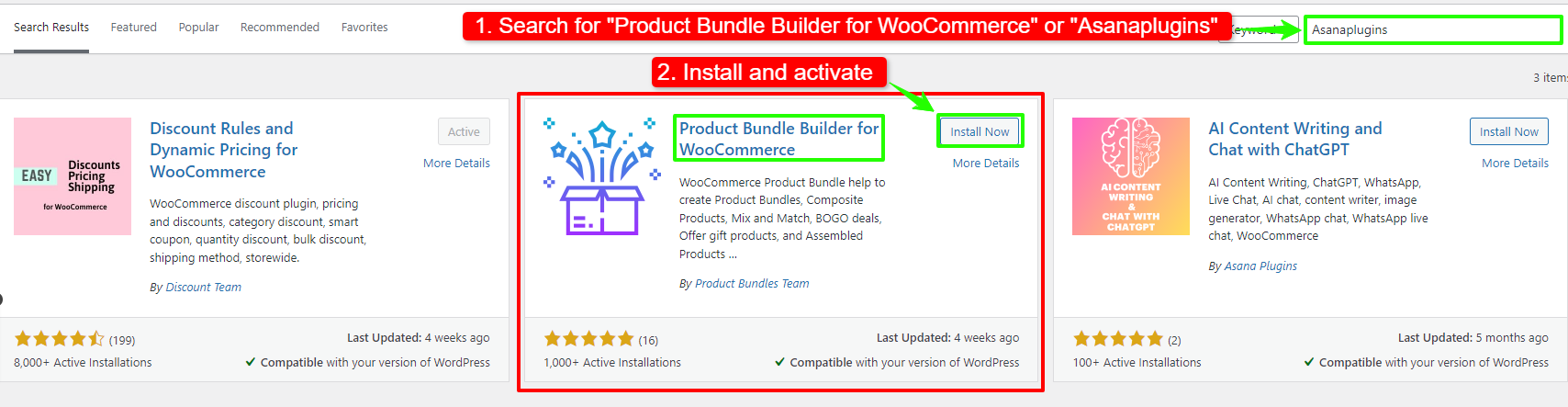
Step 1: Installing Product Bundle Free Plugin

To install the Product Bundle Builder for the WooCommerce plugin, follow the below steps:

WooCommerce Combo Offers (Free Plugin)

Step 2: Create Simple Combo Offers in WooCommerce

To create WooCommerce combo offers, follow the below steps:

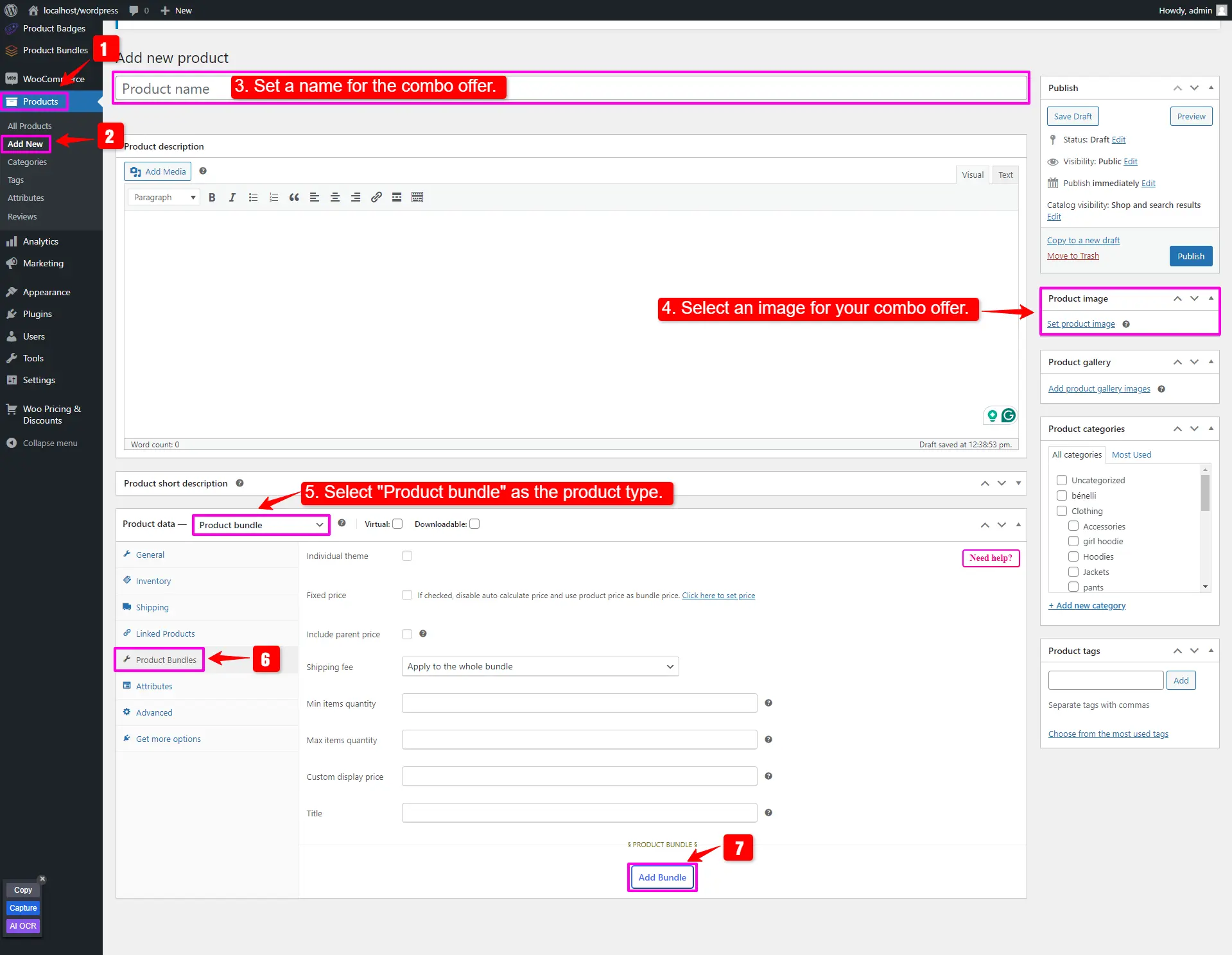
1. Navigate to WooCommerce “Products”.

2. Click on “Add New” to create a new product.

3. Set a name for the combo offer.

4. Click on “Set product image” from the right sidebar and select an image for your combo offer.

5. Now navigate to the Product data panel, and select “Product bundle” as the product type.

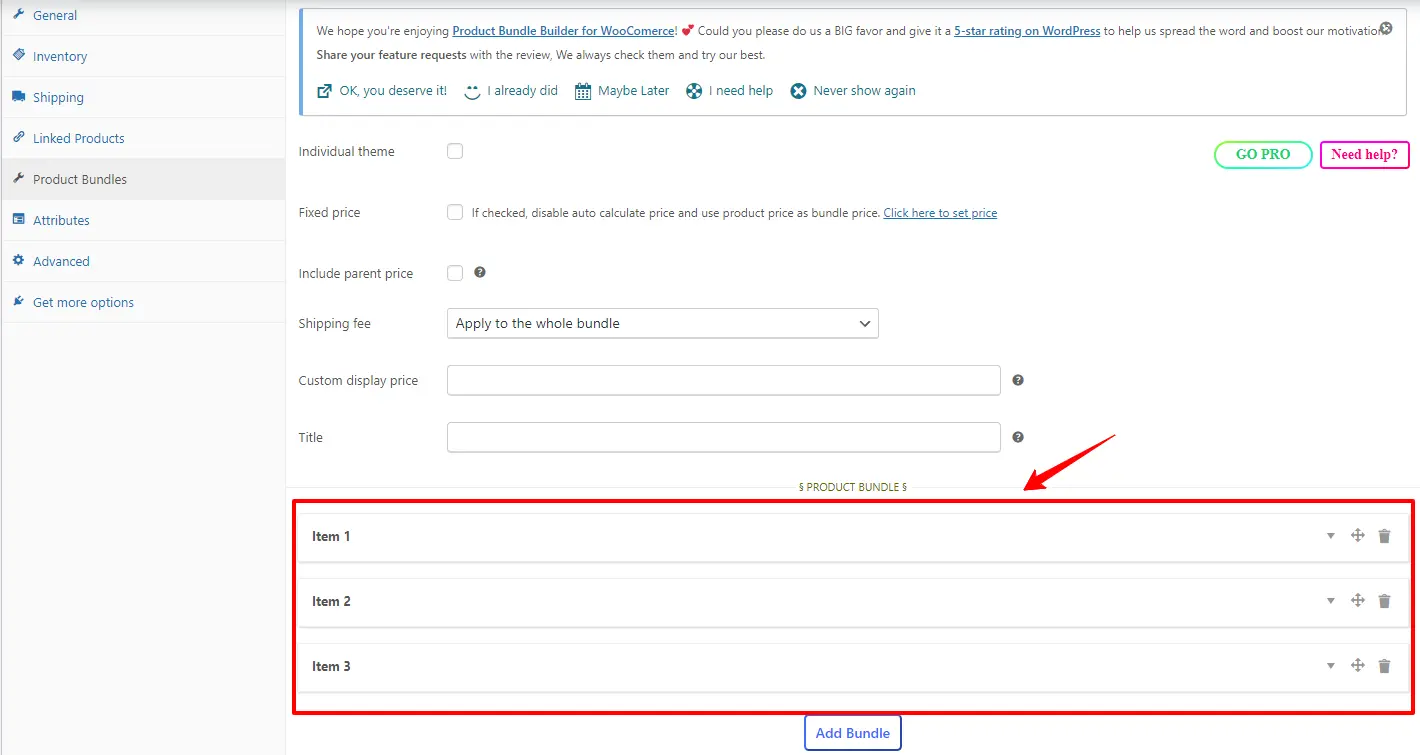
6. After selecting “Product bundle” as the product type the “Product Bundles” tab will appear in the product data panel.

7. Navigate to the “Product Bundles” tab and click on the “Add Bundle” button to add a new bundle item.

WooCommerce Combo Offers (Free Plugin)-Create Simple Combo Offers in WooCommerce

Step 3: Add items to Combo offers in WooCommerce

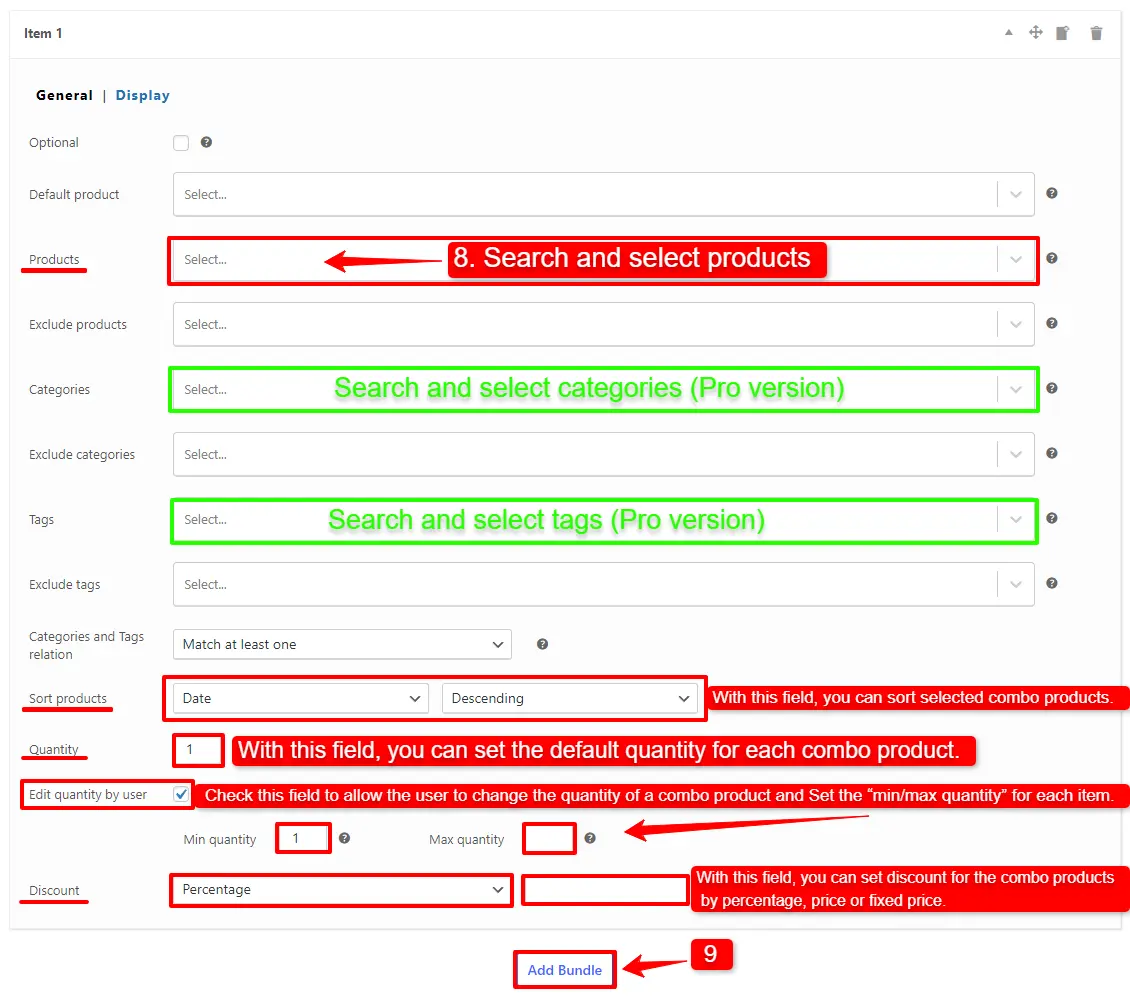
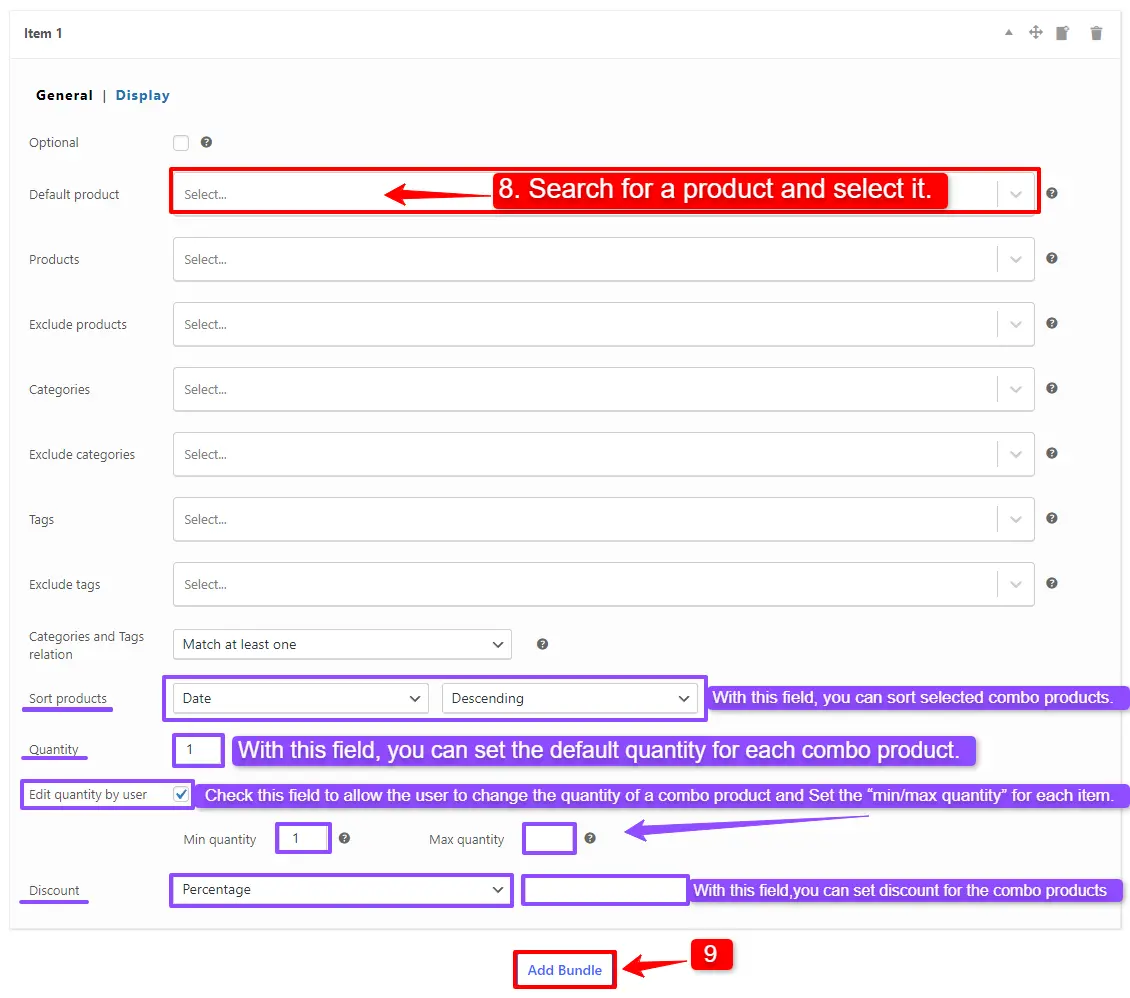
8. Now in the “Products” field Search and select the product you want, you can also set the default product for this item in the default product field.

  • Likewise, if you would like to include products from a category, you can do it with the “Categories” field of the item. therefore you can search for categories and add them to the “Categories” field. (PRO VERSION)
  • in addition, you can do the same for the product tags and include them in the “Tags” field. (PRO VERSION)

You can also add the following settings to your products :

  • Sort products: With this field, you can sort selected combo products by “ID”, “Title”, “Menu order”,” Date”, “Price”, “popularity” and“Rating”.
  • Quantity: In this field, you can set the default quantity for each combo product.
  • Edit quantity by user: Check this field to allow the user to change the quantity of a combo product and Set the “min/max quantity” for each item.
  • Discount: In this field, you can set discount for the combo products by percentage, price or fixed price.
Add items to Combo offers in WooCommerce

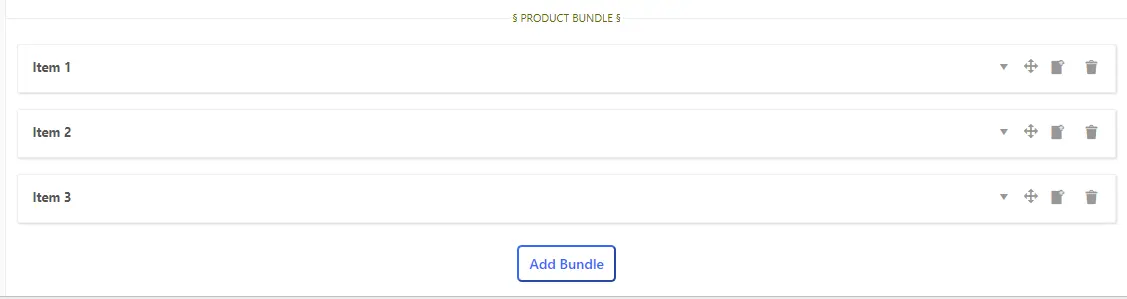
9. Then you can click on “Add Bundle” to add a new item to the combo offer and Configure it as in the previous steps. We have created three bundle items like the below image.

Combo offers in WooCommerce

Step 4: Pricing for WooCommerce Combo offers

After adding products you can choose how want to price your combo product.

The Easy WooCommerce Product Bundles free plugin offers two pricing strategies:

  1. Fixed Price: Sets a fixed price for the whole combo offer.
  2. Auto Calculate Bundle Price: Allow the plugin to calculate the combo offer price using the selected products for the bundle items.

1. Fixed Price

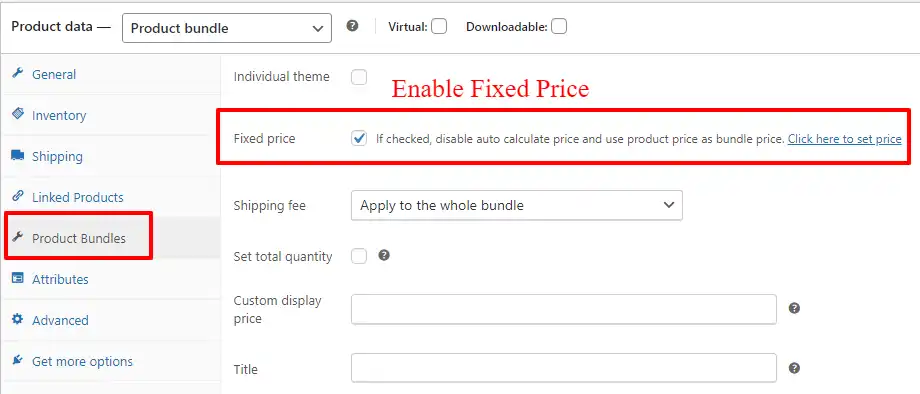
If you want to set a fixed price for the whole combo offer product, check the “Fixed Price” option.

Fixed Price for WooCommerce Combo offers

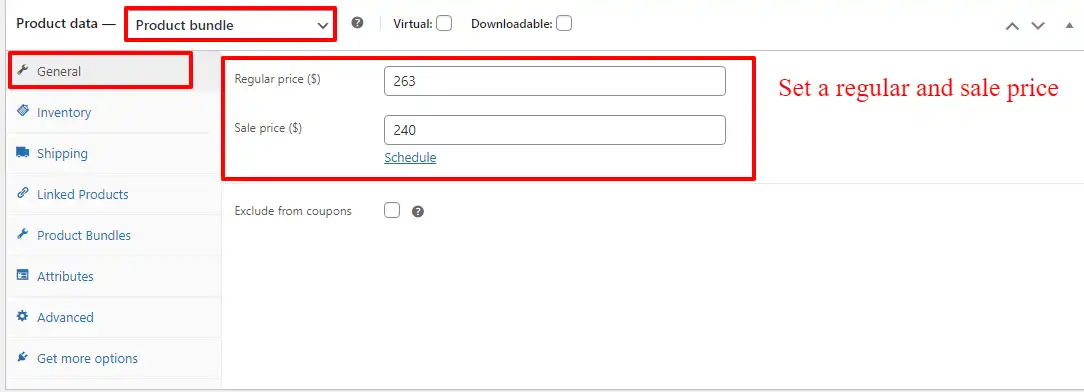
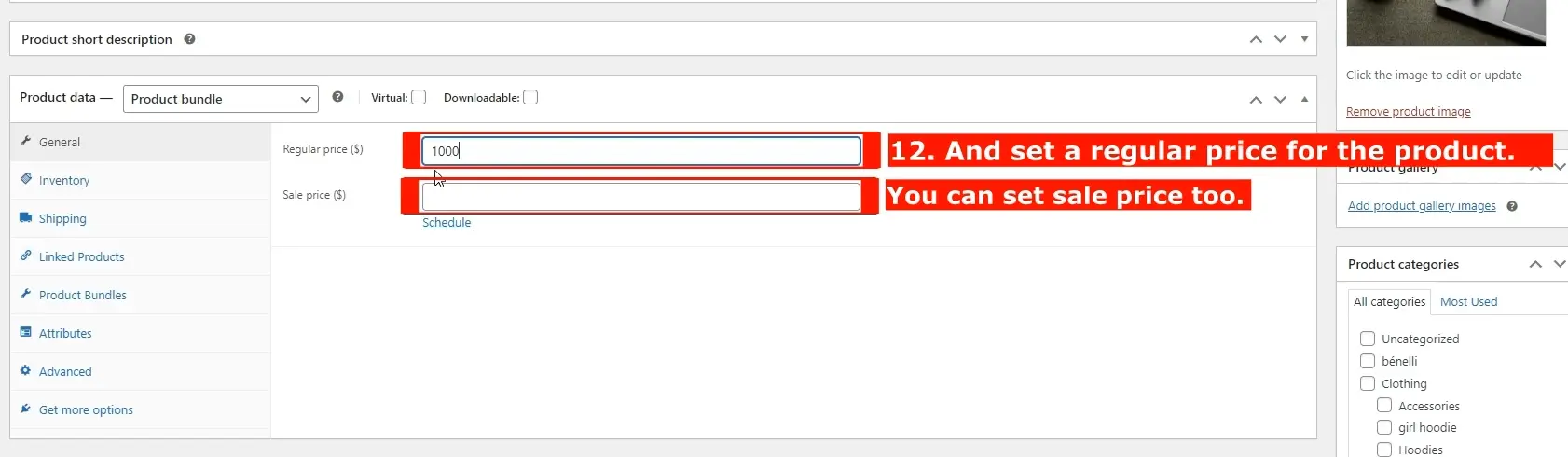
Navigate to the “General” tab and set a regular price for the Product. You can set a Sale price too.

Fixed Price for WooCommerce Combo offers

After setting a price, update the product

2. Auto Calculate Price

Auto calculates price helps to set a dynamic price for the combo offer on selected items for the bundle.

Therefore to use the auto-calculate price feature, uncheck the “Fixed Price” option and update the product.

Step 5: Position of Combo Offers

You can set a position for the Combo offers on the product page by following the below steps.

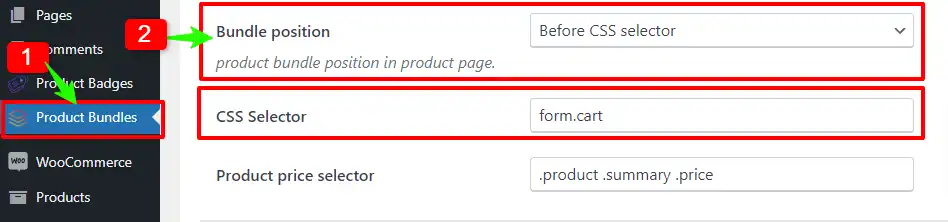
  • Navigate to the “Product Bundles” menu page in WordPress admin.
  • In the settings tab, there is a “Bundle position” option to change the bundle position on the product page.
  • You can select the appropriate position from the available options like “before add to cart button”, “after add to cart button”, etc.
  • Also, there are options to show the product bundle before or after a CSS selector.
  • After selecting “before” or “after” CSS selector, find a CSS selector on the product page and put it in the “CSS Selector” field.
  • Save the settings, after selecting a position for the bundle.
Position of Combo Offer

In the case, that none of the listed positions helps, you can use the below shortcodes of the plugin.

  • Use it on the product page to show the bundles.
  • Use it on the product page to show the bundles + add to cart button.

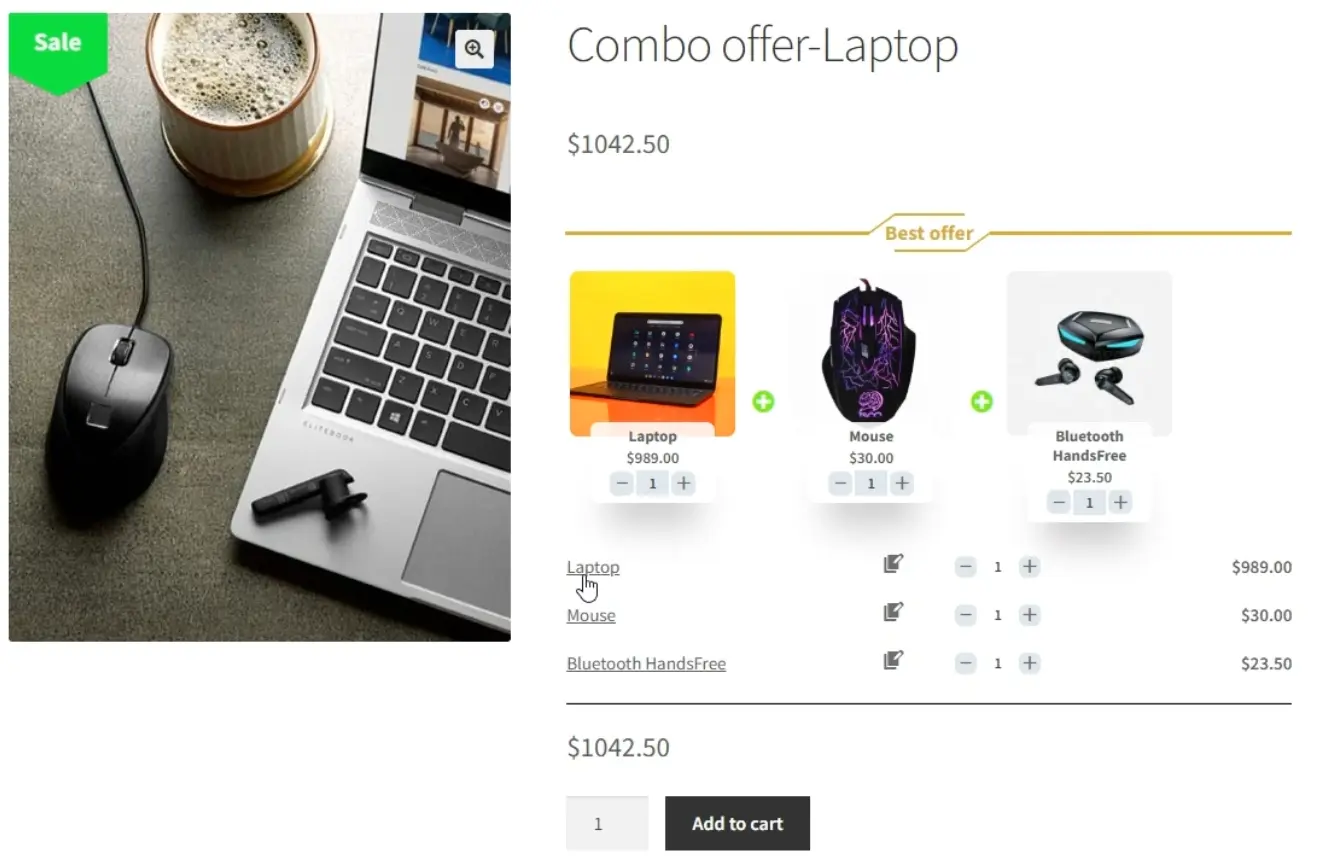
After creating and publishing the combo offer, open the product page on the front end.
As a result, After selecting a product, for all of the bundle items the WooCommerce combo offer will be shown as the image below.

Final Result

WooCommerce Combo Offers (Free Plugin)

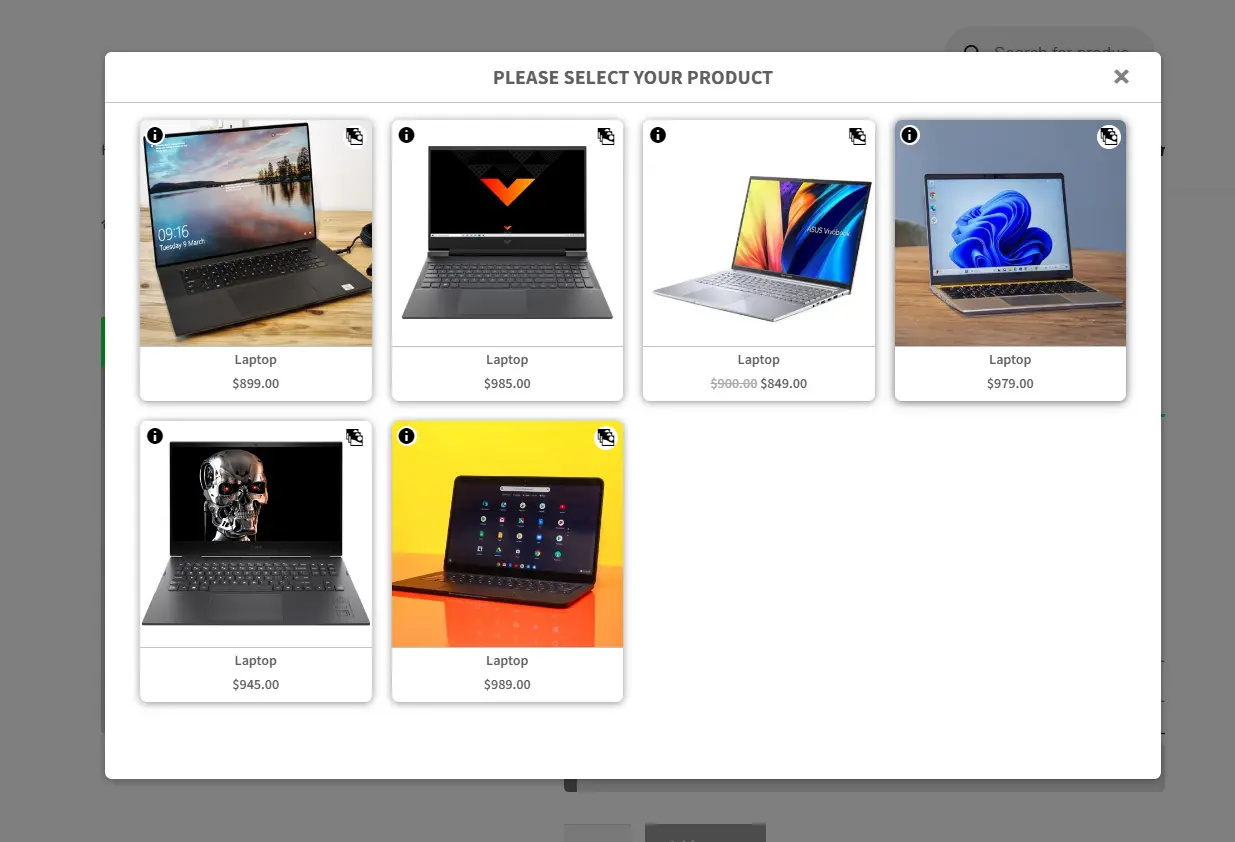
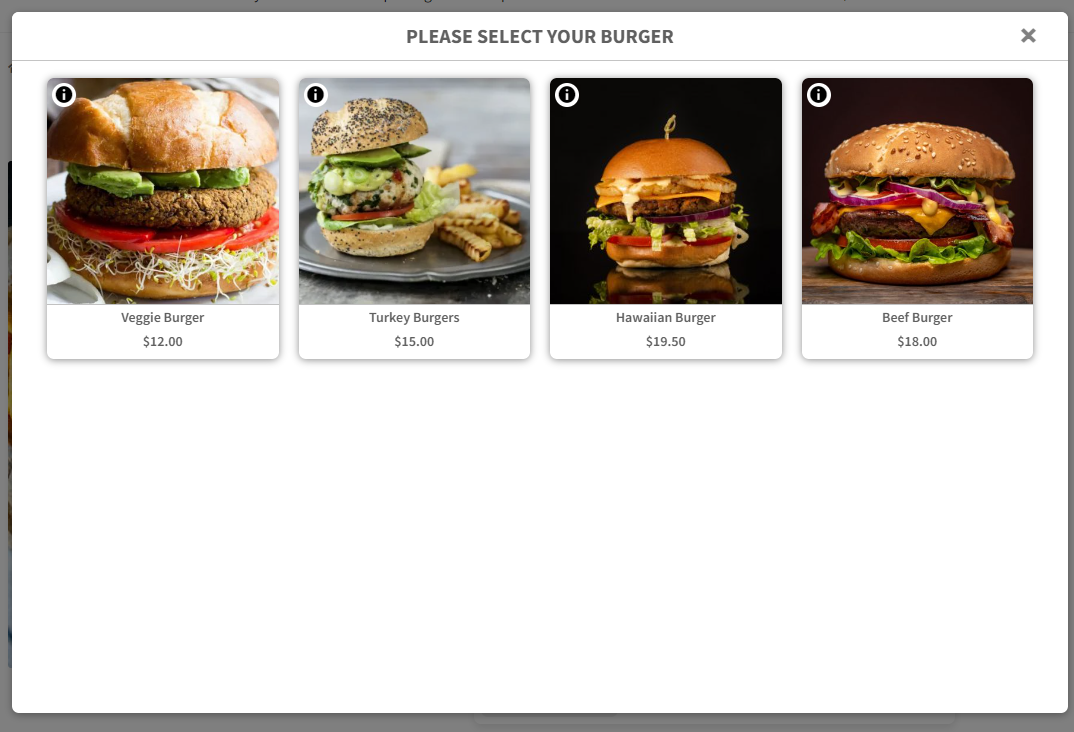
When the user clicks on each bundle item, he can select the desired product from multiple available products like in the below image.

Final result of Combo offers in WooCommerce

How to create combo offers with discount

Creating combo offers with discounts provides a myriad of benefits for businesses and customers alike. Not only do these promotions boost sales volumes by enticing customers to purchase multiple items at once, but they also facilitate inventory clearance by bundling slower-moving products with more popular ones. Customers appreciate the added value and savings, resulting in increased satisfaction and loyalty. Moreover, these offers enable cross-promotion of related items, enhancing product visibility and potentially attracting new customers. With the potential for higher average order values and a competitive edge in the market, combo offers with discounts serve as effective marketing tools that drive sales while benefiting both businesses and consumers. So follow the steps below to create a combined offer with a discount

Step 1: Create combo offers with discount

1. Navigate to WooCommerce “Products”.

2. Click on “Add New” to create a new product.

3. Set a name for the combo offer.

4. Click on “Set product image” from the right sidebar and select an image for your combo offer.

5. Now navigate to the Product data panel, and select “Product bundle” as the product type.

6. After selecting “Product bundle” as the product type the “Product Bundles” tab will appear in the product data panel.

7. Navigate to the “Product Bundles” tab and click on the “Add Bundle” button to add a new bundle item.

How to create combo offers with discount

Step 2: Add items to combo offers with discount

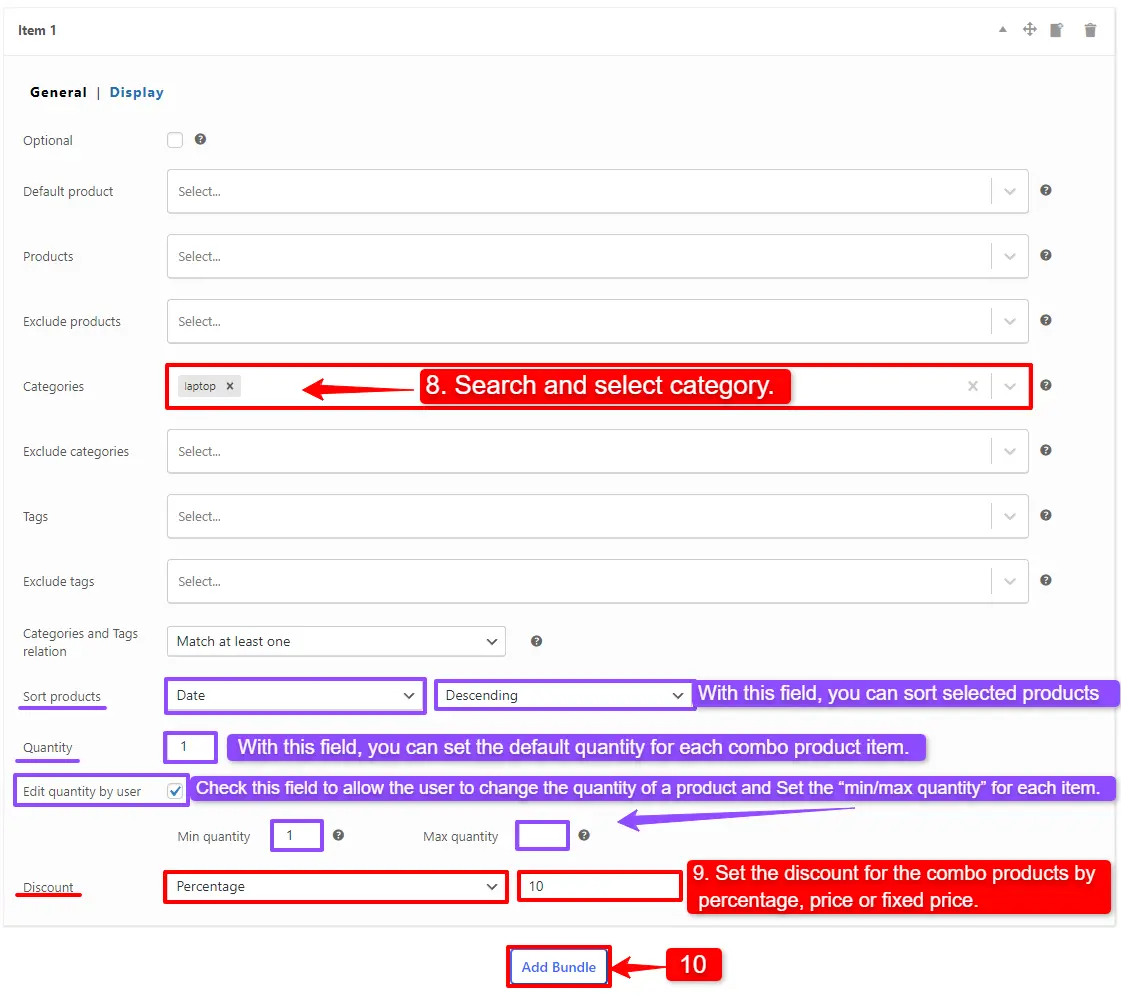
8. Now if you have the pro version of Easy WooCommerce Product Bundles in the “Categories” field of the bundle item search for a category and select it. otherwise in the “Products” field of the bundle item search for a product and select it.

You can also add the following settings to your products :

  • Sort products: With this field, you can sort selected products by “ID”, “Title”, “Menu order”,” Date”, “Price”, “popularity” and“Rating”.
  • Quantity: In this field, you can set the default quantity for each bundled product item.
  • Edit quantity by user: Check this field to allow the user to change the quantity of a product and Set the “min/max quantity” for each item.

9. Now In the discount field, set the discount for the combo products by percentage, price or fixed price.

10. Then you can click on “Add Bundle” button to add a new item to the combo offer with discount and Configure it as in the previous steps. We have created two other bundle items with discounts.

11. After making the desired settings, at the end publish the changes.

Final Result

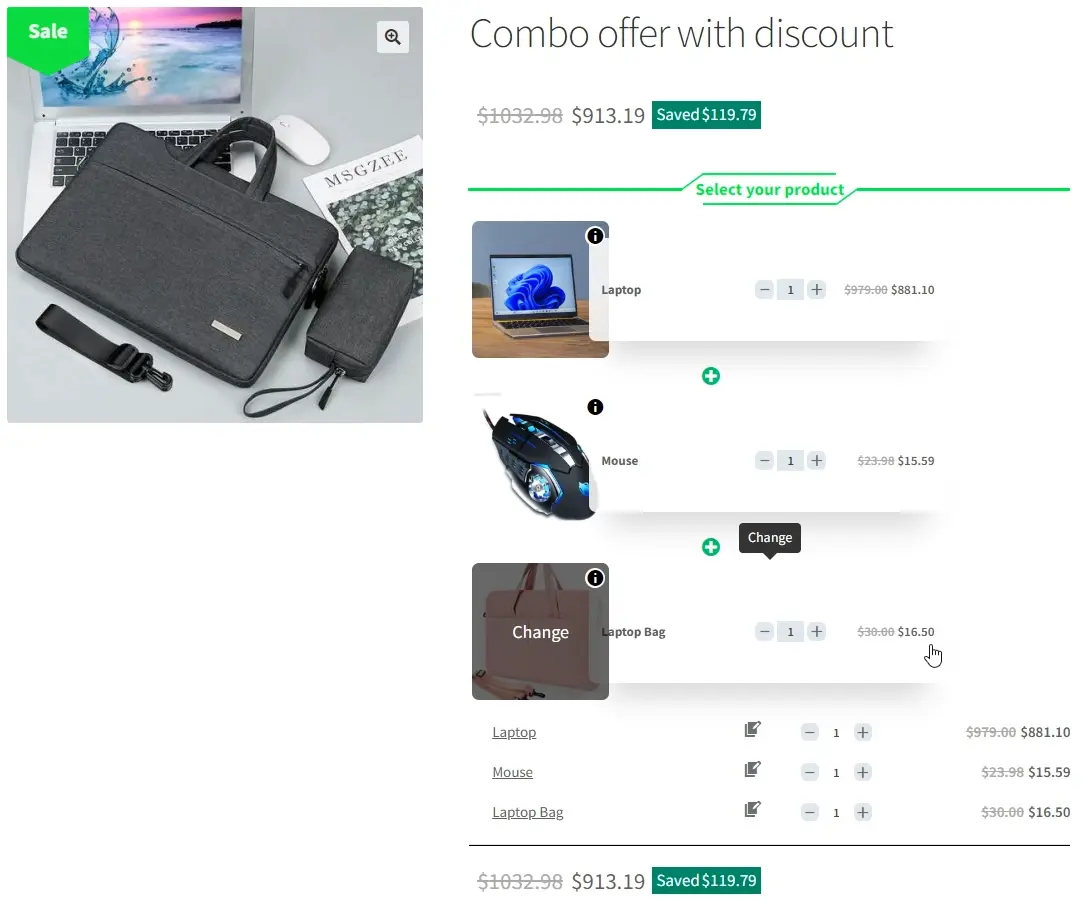
After creating and publishing the combo offer with discount, open the product page on the front end.
As a result, After selecting a product, for all of the bundle items the WooCommerce combo offer with discount will be shown as the image below.

Final result of combo offers with discount

How to create WooCommerce combo offers with a fixed price

A combo offer with a fixed price is a marketing strategy businesses use to attract customers by bundling several products or services together and selling them at a set price. This type of offer typically provides better customer value than purchasing each item individually, So follow the steps below to create the WooCommerce combo offers with a fixed price:

Step 1: Create combo offers with a fixed price

1. Navigate to WooCommerce “Products”.

2. Click on “Add New” to create a new product.

3. Set a name for the combo offer.

4. Click on “Set product image” from the right sidebar and select an image for your combo offer.

5. Now navigate to the Product data panel, and select “Product bundle” as the product type.

6. After selecting “Product bundle” as the product type the “Product Bundles” tab will appear in the product data panel.

7. Navigate to the “Product Bundles” tab and click on the “Add Bundle” button to add a new bundle item.

How to create combo offers with a fixed price

Step 2: Add item to combo offers with a fixed price

8. Now in the “default product” search for a product and select it as the default product for this item.

  • Likewise, if you would like to include products from a category, you can do it with the “Categories” field of the item. therefore you can search for categories and add them to the “Categories” field. (PRO VERSION)
  • in addition, you can do the same for the product tags and include them in the “Tags” field. (PRO VERSION)

You can also add the following settings to your products :

  • Sort products: With this field, you can sort selected combo products by “ID”, “Title”, “Menu order”,” Date”, “Price”, “popularity” and“Rating”.
  • Quantity: In this field, you can set the default quantity for each combo product.
  • Edit quantity by user: Check this field to allow the user to change the quantity of a combo product and Set the “min/max quantity” for each item.
  • Discount: In this field, you can set discount for the combo products by percentage, price or fixed price.
Create product bundle

9. Then you can click on the “Add Bundle” button to add a new item to the combo offer with a fixed price and Configure it as in the previous steps. We have created one other bundle item.

Step 3: Set fixed price to combo offers with a fixed price

10. Now to set fixed for the whole combo offer navigate top of the page and check the “Fixed Price” option.

Set fixed price combo offers

11. Navigate to the “General” tab and set a regular price for the Product. You can set a Sale price too.

set fixed price

12. At the end publish the changes.

Final Result

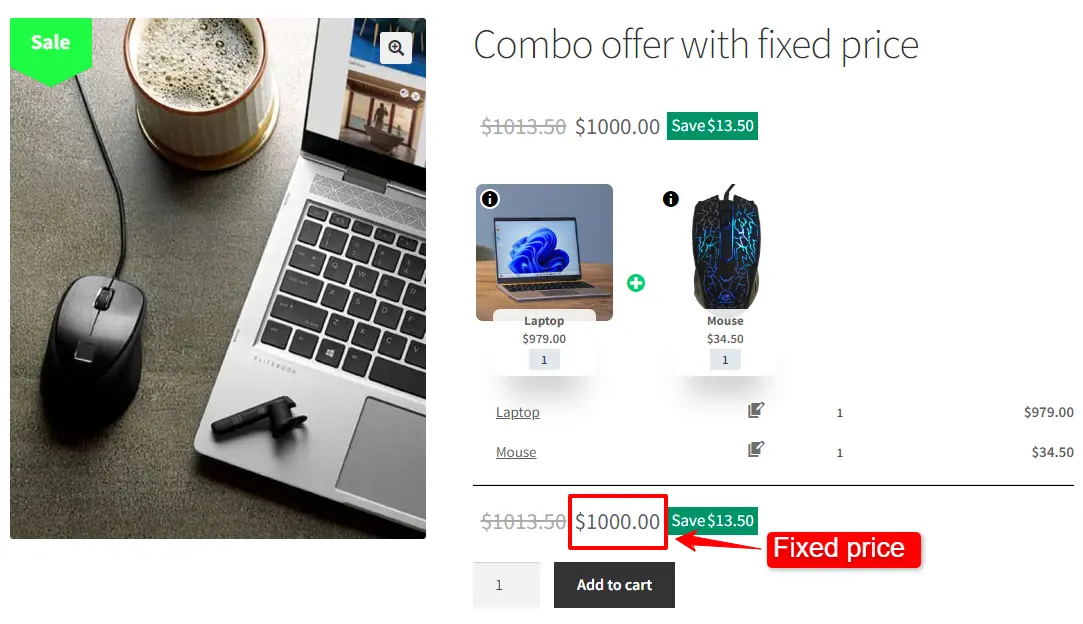
After creating and publishing the combo offer with a fixed price, open the product page on the front end. the WooCommerce combo offer with a fixed price will be shown as the image below.

Final result of combo offers with a fixed price in WooCommerce

How to create WooCommerce combo offers BOGO deal

A BOGO (Buy One, Get One) deal is a popular type of promotional offer used by businesses to attract customers and boost sales.BOGO deal is used in two ways: 1) Buy One, Get One Free (BOGO Free), 2)Buy One, Get One at a Discount (BOGO Half-Off), In this tutorial, we use the first method (Buy One, Get One Free) So follow the steps below to create this method:

Step 1: Create WooCommerce combo offers BOGO deal

1. Navigate to WooCommerce “Products”.

2. Click on “Add New” to create a new product.

3. Set a name for the combo offer.

4. Click on “Set product image” from the right sidebar and select an image for your combo offer.

5. Now navigate to the Product data panel, and select “Product bundle” as the product type.

6. After selecting “Product bundle” as the product type the “Product Bundles” tab will appear in the product data panel.

7. Navigate to the “Product Bundles” tab and click on the “Add Bundle” button to add a new bundle item.

Create BOGO deal

Step 2: Add item to WooCommerce combo offers BOGO deal

8. Now in the “product” field search for product and select it.

  • Likewise, if you would like to include products from a category, you can do it with the “Categories” field of the item. therefore you can search for categories and add them to the “Categories” field. (PRO VERSION)
  • in addition, you can do the same for the product tags and include them in the “Tags” field. (PRO VERSION)

You can also add the following settings to your products :

  • Sort products: With this field, you can sort selected combo products by “ID”, “Title”, “Menu order”,” Date”, “Price”, “popularity” and“Rating”.
  • Quantity: In this field, you can set the default quantity for each combo product.
  • Edit quantity by user: Check this field to allow the user to change the quantity of a combo product and Set the “min/max quantity” for each item.

9. Then you can click on the “Add Bundle” button to add a new bundle item for the gift product.

Create BOGO deal

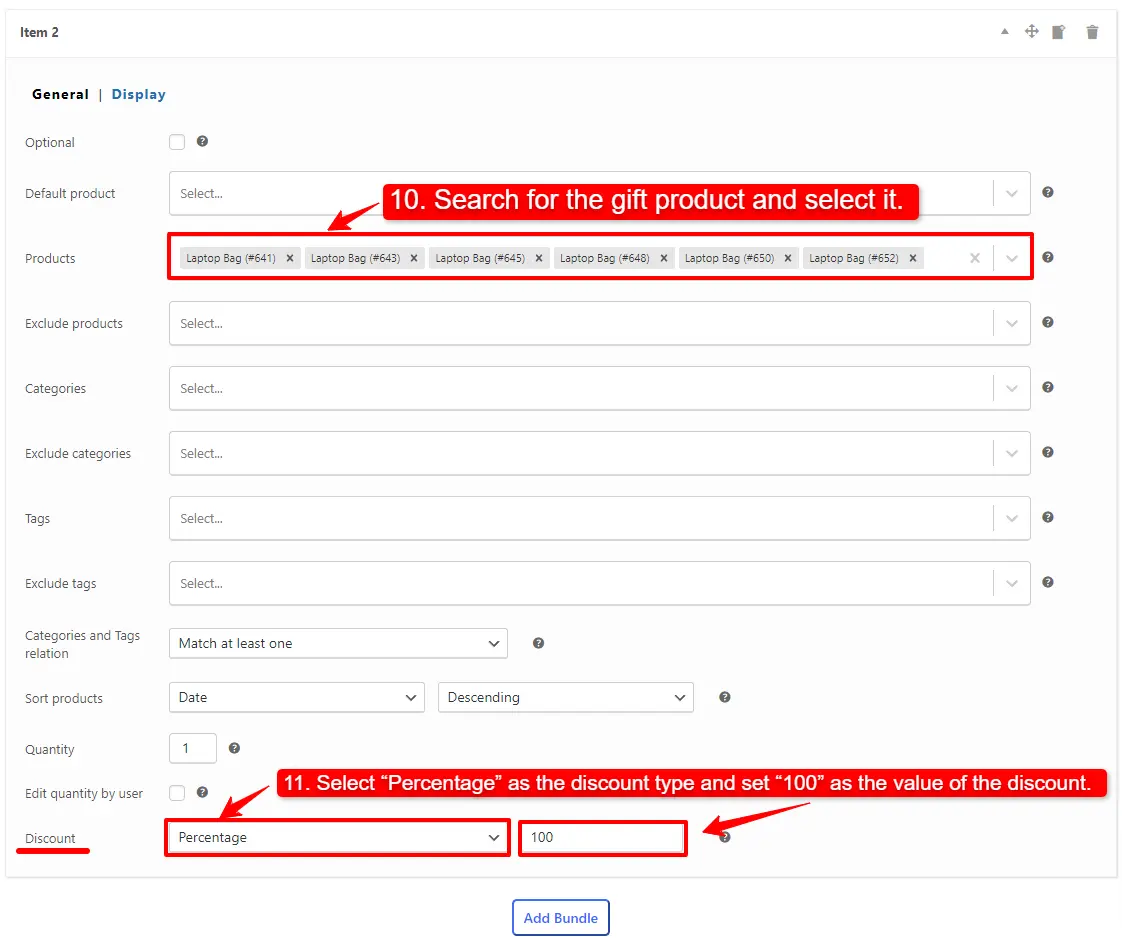
10. Now in the “product” field search for the gift product and select it.

11. in the “discount” field Select “Percentage” as the discount type and set “100” as the value of the discount. The gift products will be free.

Create buy one get one for free

12. After making the desired settings, at the end publish the changes.

Final Result

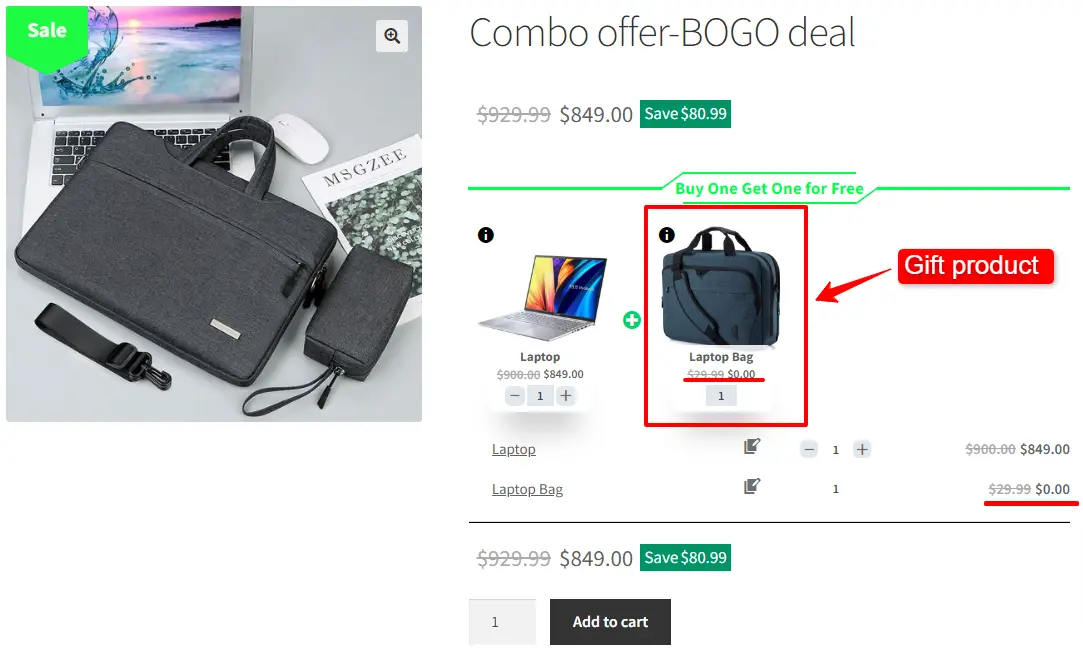
After creating and publishing the combo offer BOGO deal, open the product page on the front end. the WooCommerce combo offer BOGO deal will be shown as the image below.

Final result of combo offers-BOGO deal

How to create Optional Combo Offers

Optional Combo Offers in WooCommerce allow store owners to create special promotions where customers can purchase multiple products together at a discounted rate. These offers can greatly increase average order value, clear out inventory, or introduce new products. So if you have the pro version of Easy WooCommerce Product Bundles follow the steps below to create the WooCommerce optional combo offers:

Step 1: Create Optional Combo Offers

1. Navigate to WooCommerce “Products”.

2. Click on “Add New” to create a new product.

3. Set a name for the combo offer.

4. Click on “Set product image” from the right sidebar and select an image for your combo offer.

5. Now navigate to the Product data panel, and select “Product bundle” as the product type.

6. After selecting “Product bundle” as the product type the “Product Bundles” tab will appear in the product data panel.

7. Navigate to the “Product Bundles” tab and click on the “Add Bundle” button to add a new bundle item.

How to create Optional products

Step 2: Add item to Optional Combo Offers

8.  in the “Categories” field search for a category and select it.

You can also add the following settings to your products :

  • Sort products: With this field, you can sort selected combo products by “ID”, “Title”, “Menu order”,” Date”, “Price”, “popularity” and“Rating”.
  • Quantity: In this field, you can set the default quantity for each combo product.
  • Edit quantity by user: Check this field to allow the user to change the quantity of a combo product and Set the “min/max quantity” for each item.
  • Discount: In this field, you can set discount for the combo products by percentage, price or fixed price.

9. Then click on the “Add Bundle” button to add a new item to the optional combo offer.

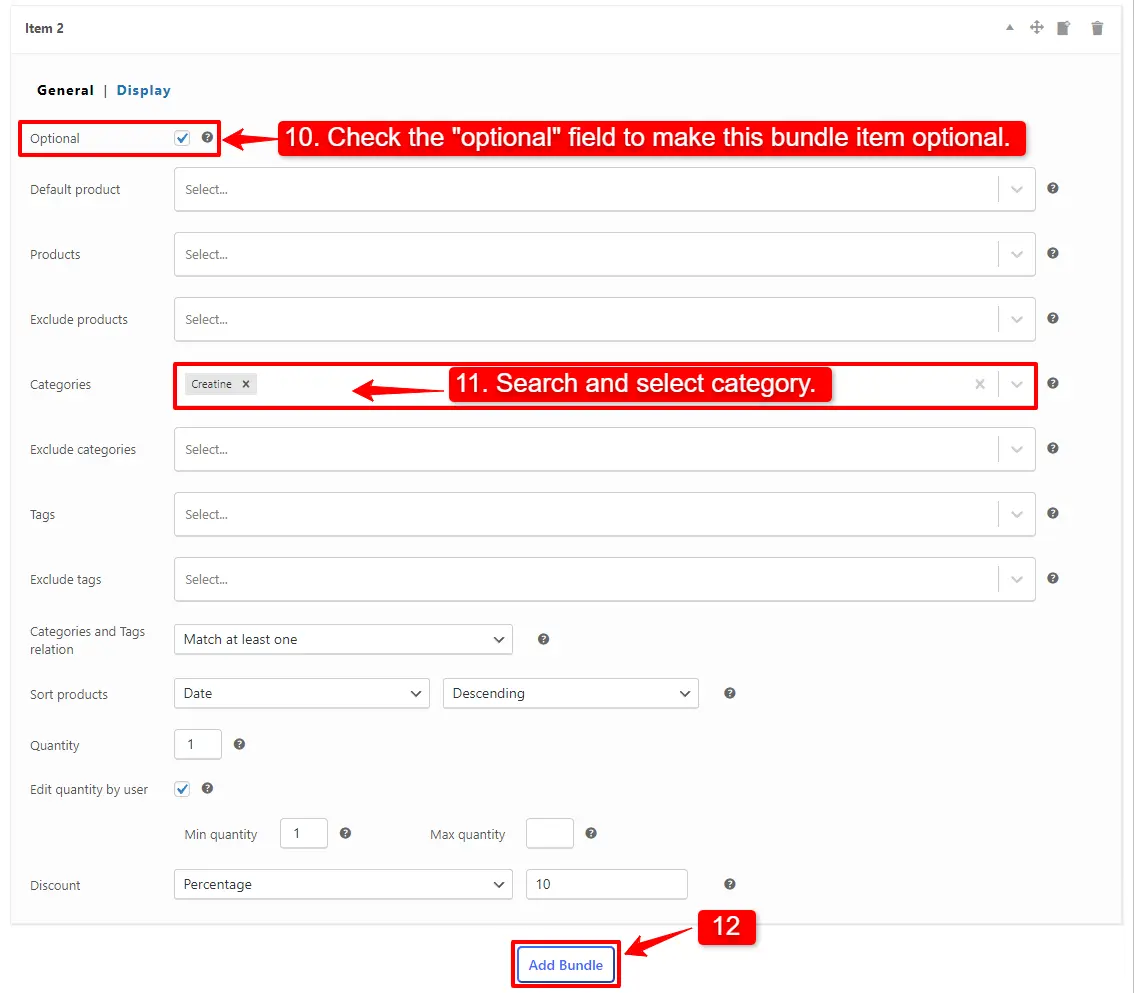
10. Check the “optional” field to make this bundle item optional.

11. And in the “Categories” field search for a category and select it.

12. Then click on the “Add Bundle” button to add another new item to the optional combo offer.

Create Optional products

12. And we set the third item as the second item.

13. After making the desired settings, at the end publish the changes.

Final Result

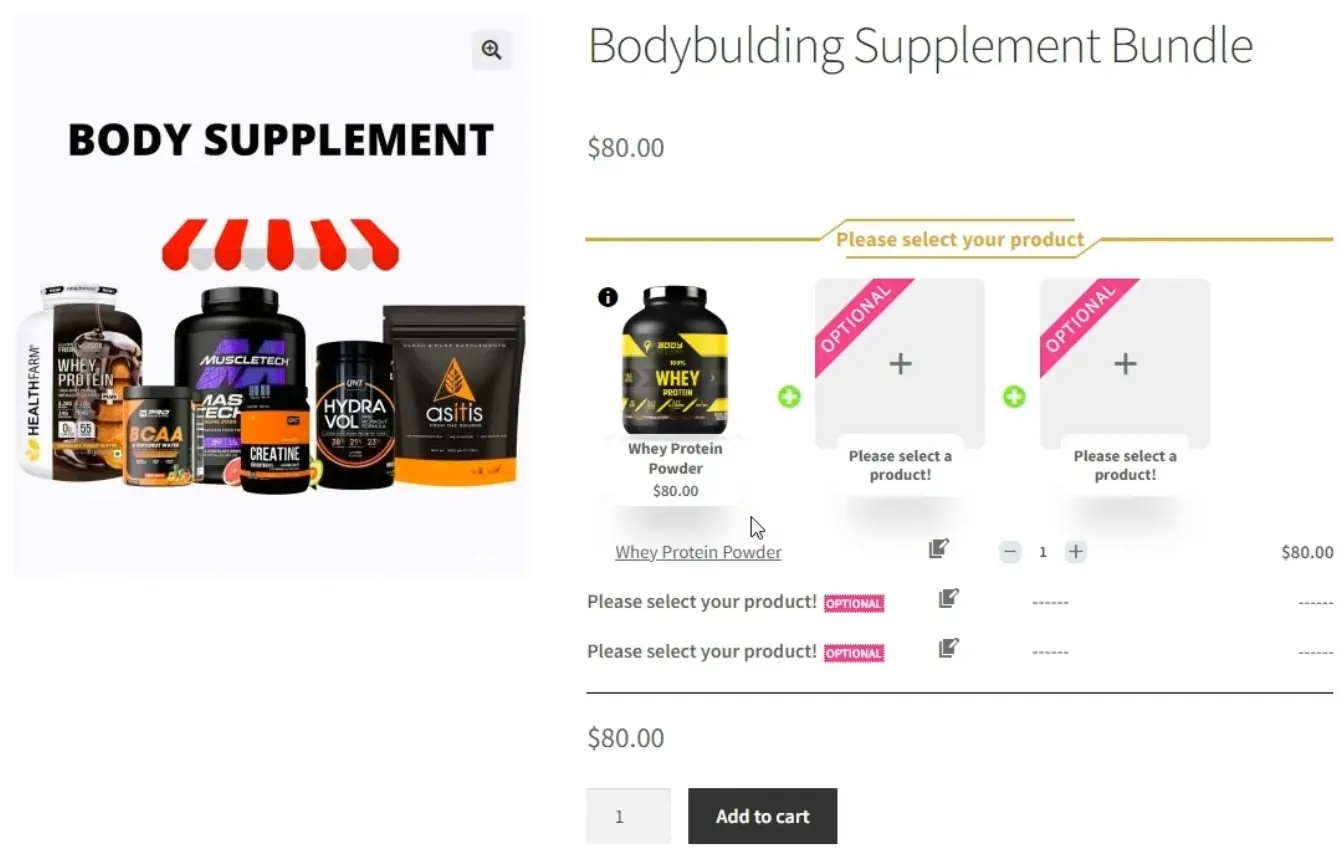
After creating and publishing the WooCommerce optional combo offer, open the product page on the front end. the WooCommerce optional combo offer will be shown as the image below.

Optional Combo Offers

Shortcodes

The plugin has the below shortcodes and you can use them:

  • [asnp_wepb_product] Use it on the product page to show the bundles.
  • [asnp_wepb_product show_add_to_cart="1"] Use it on the product page to show the bundles + add to cart button.

Related Resources

Want to learn more about WooCommerce product bundles and related strategies? Explore these helpful guides:

🌐SOCIAL MEDIA LINKS

Updated on — Leave a comment

10 Best WooCommerce Discount Plugins in 2026 (Free & Paid)

10 best WooCommerce discount plugins for dynamic pricing, BOGO deals, and automatic discounts

Finding the best WooCommerce discount plugins can help you increase sales, encourage larger orders, and run promotional campaigns without manually changing product prices. Whether you want to offer bulk discounts, create Buy One Get One Free (BOGO) deals, reward loyal customers, or automate seasonal promotions, the right WooCommerce discount plugin makes managing these offers much easier.

WooCommerce includes basic coupon functionality, but it doesn’t provide every pricing strategy that growing stores need. Creating advanced quantity discounts, tiered pricing, automatic BOGO offers, customer-specific discounts, and conditional cart promotions usually requires an additional plugin.

In this guide, we’ll compare 10 WooCommerce discount plugins in 2026, including free and premium options. We’ll examine their features, pricing, advantages, and limitations to help you choose the right solution for your store.

We’ll also look at how product badges, countdown timers, and promotional notifications can make your discounts more visible to shoppers.

Whether you need a WooCommerce dynamic pricing plugin, a bulk discount solution, a BOGO plugin, or a tool for coupon automation, you’ll find suitable options below.

Table of Contents

Quick Comparison of the Best WooCommerce Discount Plugins

Here is a quick overview of the best WooCommerce discount plugins and what makes each one useful.

PluginFree versionDynamic pricingBOGOBulk discountsBest for
Discount Rules & Dynamic Pricing (AsanaPlugins)YesYesYesYesAll-around discount campaigns
Discount Rules for WooCommerce (Flycart)YesYesProYesAdvanced discount rules
Advanced Dynamic Pricing (AlgolPlus)YesYesProYesComplex pricing conditions
WooCommerce Discount Manager (Barn2)NoYesYesYesDiscount creation and display
Dynamic Pricing With Discount Rules (Acowebs)YesYesProYesFlexible product pricing
Advanced CouponsYesLimitedProLimitedAdvanced coupon campaigns
YayPricingYesYesYesYesDynamic promotions
YITH Dynamic Pricing & DiscountsNoYesYesYesAdvanced promotional rules
ELEX Dynamic Pricing & DiscountsYesYesProYesWeight- and quantity-based pricing
Smart Coupons (WebToffee)YesCoupon-basedYesLimitedCoupon management

Important: The availability of specific features depends on the plugin version and license. Some free versions offer basic functionality while reserving advanced conditions and promotional options for Pro.

Which WooCommerce Discount Plugin Is Best for Your Store?

If you don’t have time to read all ten reviews, here are our recommendations by use case.

Your requirementRecommended plugin
Best all-around discount pluginDiscount Rules and Dynamic Pricing
Best free discount solutionDiscount Rules and Dynamic Pricing
Advanced rule-based discountsFlycart Discount Rules
Complex dynamic pricing conditionsAdvanced Dynamic Pricing
Discount tables and storefront displaysBarn2 Discount Manager
Flexible product and quantity pricingAcowebs Dynamic Pricing
Coupon marketing and store creditAdvanced Coupons
Modern dynamic pricing and promotionsYayPricing
Advanced BOGO and gift campaignsYITH Dynamic Pricing
Weight-based and quantity discountsELEX Dynamic Pricing
Coupon automationWebToffee Smart Coupons

How We Evaluated These WooCommerce Discount Plugins

There are many WooCommerce discount plugins, but not all of them solve the same problem.

Some are designed to create dynamic product prices, while others specialize in coupon marketing, BOGO promotions, or customer-specific pricing.

To make this comparison useful, we considered the following criteria:

1. Discount types

We considered whether each plugin supports percentage discounts, fixed discounts, BOGO offers, quantity discounts, tiered pricing, cart discounts, and other common promotions.

2. Rule flexibility

We looked at the ability to target specific products, categories, customers, user roles, and cart conditions.

3. Automation

We considered automatic discount application, scheduled promotions, and coupon automation.

4. Ease of use

A discount plugin should make it easy to create and manage promotional rules without requiring custom code.

5. Frontend discount presentation

Customers should be able to understand available discounts. We considered product-page messages, pricing tables, discounted prices, and savings displays.

6. Free and Pro functionality

We compared the functionality available in free versions against premium upgrades.

7. Pricing, maintenance, and support

We considered official license pricing where publicly available, documentation, update activity, and customer feedback.

Disclosure: AsanaPlugins develops the first plugin in this comparison. We’ve identified that relationship and included competing products with their own advantages and limitations to help store owners make informed decisions.

1. Discount Rules and Dynamic Pricing for WooCommerce (AsanaPlugins)

Discount Rules and Dynamic Pricing for WooCommerce with BOGO, bulk pricing, and automatic discounts

Best for: Store owners who want a comprehensive discount solution with BOGO deals, bulk pricing, automatic coupons, and advanced dynamic pricing.

Free version: Available on WordPress.org.

Pro version: €39–€99, depending on the selected license.

WordPress.org rating: 4.7/5.

Active installations: 9,000+.

Official website: Discount Rules and Dynamic Pricing for WooCommerce

Free download: Download Discount Rules

Documentation: Discount Rules Documentation

Discount Rules and Dynamic Pricing for WooCommerce by AsanaPlugins is a comprehensive solution for creating product discounts, cart promotions, quantity-based pricing, and BOGO campaigns.

It allows store owners to create promotional rules without manually editing product prices or requiring customers to enter coupon codes for every offer.

One of its biggest advantages is its free version, which already supports many of the discount types that WooCommerce store owners commonly need.

Main Features

Product and category discounts

Create percentage-based and fixed-amount discounts for individual products, selected categories, or your entire store.

For example:

  • Apply 20% off to an entire product category.
  • Give customers $10 off selected products.
  • Run a storewide percentage discount during Black Friday.
  • Schedule a promotion for a specific date range.

You can also exclude selected products from discount rules when some items should remain at their regular prices.

WooCommerce Bulk and Quantity Discounts

Encourage customers to purchase more by offering lower prices when they buy larger quantities.

For example:

QuantityDiscount
1–4 itemsRegular price
5–9 items10% off
10–19 items15% off
20+ items20% off

Basic quantity-based discount tiers are available in the free version. Pro adds more advanced tiered pricing conditions and customer-specific pricing.

The plugin can also display a quantity pricing table on the product page so customers can see how much they save when purchasing more.

WooCommerce BOGO Deals and Buy One Get One Free Offers

Create different BOGO promotions, including:

  • Buy 1 Get 1 Free.
  • Buy 2 Get 1 Free.
  • Buy 3 Get 1 Free.
  • Buy X Get Y.
  • Buy X and receive Y at a discounted price.
  • Buy products from selected categories and receive additional products.

For example, you can allow customers to purchase two units of a product and receive a third unit for free.

The free version supports common BOGO scenarios for simple and variable products. Advanced category-based and variation-specific BOGO conditions are available in Pro.

Read how to create Buy One Get One Free deals in WooCommerce for more information.

Automatic WooCommerce Discounts and Manual Coupons

Create automatic coupons that apply when customers meet specific conditions, or use traditional coupon codes for targeted promotions.

For example, automatically apply a 10% discount when the cart subtotal reaches $100.

Cart and order discounts

Create discounts based on cart value, product quantities, and other conditions.

Examples include:

  • Spend $100 and receive 10% off.
  • Spend $200 and receive 15% off.
  • Apply a discount when a minimum number of products is added to the cart.
  • Run a storewide cart promotion during a seasonal sale.

Shipping promotions

Create free-shipping methods based on cart total, product weight, and other conditions.

The plugin also supports scheduled shipping methods and rules for showing or hiding shipping options. Advanced shipping conditions and the dedicated shipping-discount functionality are available through the relevant Pro features and add-on.

Advanced WooCommerce Discount Rules and Customer Targeting

The Pro version provides more advanced options, including:

  • User-role and wholesale pricing.
  • Purchase-history conditions.
  • First-order discounts.
  • Customer-specific pricing.
  • Advanced tiered pricing.
  • Live product-page price updates.
  • Product bundle discounts.
  • Mix-and-match pricing.
  • Conditional checkout fees.
  • URL coupons.
  • Recurring discounts for WooCommerce Subscriptions.
  • Advanced shipping discounts.

These capabilities are useful when you want to create different offers for wholesale customers, returning customers, or shoppers who meet particular cart conditions.

Free vs. Pro Comparison

FeatureFreePro
Product discountsYesYes
Category discountsYesYes
Storewide discountsYesYes
Basic quantity discountsYesYes
Advanced tiered pricingLimitedYes
BOGO dealsYesYes
Category-based BOGONoYes
Variation-specific BOGOLimitedYes
Automatic couponsYesYes
Manual couponsYesYes
Cart-total discountsYesYes
Basic free-shipping conditionsYesYes
Advanced shipping conditionsNoYes
Advanced user-role pricingNoYes
Purchase-history conditionsNoYes
Live product-price displayNoYes
Product bundle discountsNoYes
Mix-and-match discountsNoYes
Conditional checkout feesNoYes
URL couponsNoYes

Pros

  • Generous free version with several useful discount types.
  • Supports multiple BOGO scenarios.
  • Offers bulk and quantity-based pricing.
  • Automatically applies eligible discounts.
  • Supports scheduled promotional rules.
  • Displays quantity pricing tables and product-page messages.
  • Provides cart and checkout savings information.
  • Advanced conditions support more targeted campaigns.
  • Detailed documentation and video tutorials.

Cons

  • Advanced pricing rules can take some time to learn.
  • Sophisticated customer-targeting and pricing scenarios require Pro.
  • Stores using multiple discount extensions should test rule interactions and checkout compatibility.

Pricing

The official product page displays Pro license options ranging from €39 to €99, depending on the selected license.

The free version is available through WordPress.org.

You can start with the free version and upgrade when you need advanced pricing conditions, customer-specific discounts, or additional promotional capabilities.

Verdict: Discount Rules and Dynamic Pricing is an excellent starting point for stores that need more than basic WooCommerce coupons. Its combination of free BOGO, quantity discounts, cart promotions, and advanced Pro functionality makes it a strong all-around choice.

Download the free plugin | Explore Pro

2. Discount Rules for WooCommerce (Flycart)

Discount Rules for WooCommerce by Flycart

Best for: Stores that need a flexible discount-rule engine and advanced promotional conditions.

Free version: Available.

Pro version: Single-site pricing is listed at $255 for three years, equivalent to $85 per year at regular pricing. Promotional offers may reduce the total.

Active installations: 100,000+.

Official website: Discount Rules for WooCommerce

Discount Rules for WooCommerce by Flycart is one of the established options in the WooCommerce dynamic pricing category.

It allows store owners to configure discounts based on products, quantities, cart totals, customer roles, and other conditions.

The plugin is particularly useful for stores that need more control over how discounts are calculated.

Main Features

  • Percentage-based discounts.
  • Fixed-price discounts.
  • Storewide promotions.
  • Product-specific discounts.
  • Category-based discount rules.
  • Bulk and tiered pricing.
  • Quantity-based discounts.
  • Cart subtotal discounts.
  • User-role-based pricing.
  • Purchase-history conditions.
  • Product variation discounts.
  • BOGO promotions.
  • Free-product offers.
  • Scheduled promotions.
  • Product and cart discount messages.
  • Multiple discount-rule conditions.

For example, you can offer 10% off when customers purchase five products, or create a special discount for wholesale customers.

The Pro version provides more advanced promotions, including BOGO, product bundles, customer-specific conditions, and additional targeting options.

Pros

  • Established plugin with a large installed base.
  • Extensive discount-rule functionality.
  • Supports bulk and tiered pricing.
  • Advanced customer conditions.
  • Multiple promotional strategies.
  • Detailed documentation.

Cons

  • Several advanced promotional features require Pro.
  • Advanced rule configurations may be complicated for beginners.
  • The feature set may be excessive for stores that only need basic discounts.

Pricing

The official pricing page lists the single-site Pro license at $255 for three years, equivalent to $85 per year at regular pricing.

Five-site and 25-site licenses are also available.

Check the official pricing page for active promotional offers and renewal terms.

Verdict: Flycart is a strong option for stores that need an established discount engine with advanced rules. It is particularly worth considering when you need complex targeting and are comfortable purchasing a premium license.

Download the free version | View Pro pricing

3. Advanced Dynamic Pricing for WooCommerce (AlgolPlus)

Best for: Stores that need advanced discount calculations, complex cart conditions, and dynamic pricing.

Free version: Available.

Pro version: Starts at $60/year for one website.

Official website: Advanced Dynamic Pricing for WooCommerce

Advanced Dynamic Pricing for WooCommerce by AlgolPlus provides a rule-based system for configuring product and cart discounts.

It is useful for stores that need more control over discount calculations, customer conditions, and combinations of products.

Main Features

  • Product-specific discounts.
  • Category-based pricing rules.
  • Bulk and quantity discounts.
  • Cart discounts.
  • Product-combination conditions.
  • Customer and user-role conditions.
  • Purchase-history conditions.
  • BOGO promotions in Pro.
  • Gift-product promotions.
  • Scheduled promotional rules.
  • Dynamic frontend pricing.
  • Shipping-method conditions.
  • Payment-method conditions.
  • Discounts based on exact time periods.

For example, a store can offer a special discount to customers placing their first order, or create promotions based on the total weight of products in the cart.

The Pro version also supports updating prices dynamically when customers change quantities on product pages.

Pros

  • Flexible discount calculations.
  • Supports advanced cart conditions.
  • Useful for stores with complex pricing requirements.
  • Dynamic frontend pricing.
  • Multiple license options.

Cons

  • The number of settings can be overwhelming for beginners.
  • Advanced promotions require the paid version.
  • Complex pricing strategies require careful testing.

Pricing

The official website lists the following Pro licenses:

LicenseAnnual price
1 website$60
3 websites$120
5 websites$180
10 websites$250

The license includes one year of updates and support.

Verdict: Advanced Dynamic Pricing is worth considering if your store relies on complex pricing conditions, product combinations, and customer-specific offers.

Download the free version | View Pro pricing

4. WooCommerce Discount Manager (Barn2)

Best for: Store owners who want to create discounts and display promotional offers clearly on product pages.

Free version: No standalone WordPress.org version listed.

Premium version: Check the current official pricing and licensing options.

Official website: WooCommerce Discount Manager

WooCommerce Discount Manager by Barn2 focuses on making it easier to create discounts and communicate promotional offers to shoppers.

One of its main strengths is its attention to how discounts are presented on the storefront.

This is important because customers need to understand available offers before deciding to add more products to their carts.

Main Features

  • Percentage and fixed-price discounts.
  • Total-spend discounts.
  • Product and category promotions.
  • Storewide sales.
  • BOGO and free-product offers.
  • Buy X products for a fixed price.
  • Quantity-based discount tiers.
  • Bulk pricing.
  • Volume bundles.
  • User-role-based pricing.
  • Customer-specific pricing.
  • Scheduled promotions.
  • Product-page discount messages.
  • Quantity pricing tables.
  • Cart savings displays.

For example, you can offer five products for $100 or give customers a percentage discount when they purchase a minimum quantity.

The plugin also allows store owners to display promotional messages and pricing tables that help customers understand how much they can save.

Pros

  • Strong focus on discount presentation.
  • Multiple discount types in one plugin.
  • Quantity pricing tables.
  • Scheduled promotional rules.
  • Customer and role targeting.
  • Guided setup and support.

Cons

  • No standalone free version is listed.
  • Licensing may be less attractive for stores looking for a low-cost single-purpose plugin.
  • Stores needing advanced coupon marketing may need an additional coupon plugin.
  • Some discount display configurations require additional setup.

Pricing

Barn2 offers individual plugin licensing and bundle options. Its current official product page also promotes an All Access Pass.

Because the available licensing and bundle offers can change, check the current purchase options before selecting a plan.

Verdict: Barn2 is a good option if your priority is creating straightforward promotions and displaying them clearly on product and cart pages. It is particularly attractive to store owners who prefer a guided setup process.

View WooCommerce Discount Manager

5. Dynamic Pricing with Discount Rules for WooCommerce (Acowebs)

Best for: Stores that need flexible product discounts, quantity pricing, and customer-based promotional rules.

Free version: Available.

Pro version: Starts at $49/year for one website, with lifetime options listed by the vendor.

Official website: Acowebs Dynamic Pricing

Acowebs Dynamic Pricing with Discount Rules is designed to help WooCommerce store owners create conditional pricing rules and promotional campaigns.

It provides options for applying discounts based on products, quantities, users, and cart conditions.

Main Features

  • Product-based discount rules.
  • Category-based pricing.
  • Percentage and fixed-price discounts.
  • Quantity discounts.
  • Bulk pricing.
  • Cart-based discounts.
  • BOGO promotions in Pro.
  • Gift-product offers in Pro.
  • User-role restrictions.
  • Individual customer targeting.
  • Purchase-history conditions.
  • Usage limits.
  • Scheduled discounts.
  • Product-page pricing tables.
  • Active-discount shortcodes.

For example, you can configure a promotion that gives customers a discount when purchasing multiple quantities of a product.

The Pro version also supports gifting products when customers meet certain conditions, such as purchasing from a selected category or reaching a minimum cart value.

Pros

  • Offers a range of discount types.
  • Supports quantity-based pricing.
  • Provides customer and role restrictions.
  • Includes scheduling and usage-limit options.
  • Offers product-page pricing tables.
  • Supports multilingual websites.

Cons

  • Advanced features require the Pro version.
  • The number of configuration options may require some learning.
  • Its free version uses virtual coupons, so WooCommerce coupon functionality must remain enabled.
  • The frontend experience should be tested with your active theme.

Pricing

The vendor’s listed pricing includes:

LicenseAnnualLifetime
1 website$49$119
Up to 5 websites$119$249

Check the official pricing page for the current license options.

Verdict: Acowebs is worth considering if you need conditional discount rules, product pricing tables, and scheduled promotions in one plugin.

Download the free version | Explore Pro

6. Advanced Coupons for WooCommerce

Advanced Coupons plugin for WooCommerce

Best for: Stores that focus on coupon marketing, BOGO coupon campaigns, and store-credit promotions.

Free version: Available.

Premium version: Growth pricing and introductory offers vary; check the current official pricing page.

Official website: Advanced Coupons

Advanced Coupons takes a different approach from traditional dynamic-pricing plugins.

Instead of focusing primarily on changing product prices according to quantities, it expands WooCommerce’s coupon functionality.

This makes it especially useful for stores that use coupons as part of their marketing strategy.

Main Features

  • Advanced coupon conditions.
  • BOGO coupon offers.
  • Automatic coupon application.
  • Coupon scheduling.
  • URL coupons.
  • Store credit.
  • Advanced shipping discounts.
  • Payment-method restrictions.
  • User-role restrictions.
  • Cashback coupons.
  • Subscription-related coupon functionality.
  • Cart discount conditions.
  • Coupon usage restrictions.

For example, you can create a coupon that gives customers a free product when they purchase a qualifying item.

You can also share coupon links through email campaigns or social media, allowing customers to activate promotions without manually entering a coupon code.

Pros

  • Strong coupon-management functionality.
  • Useful for marketing campaigns.
  • BOGO coupon support.
  • URL coupons and automatic application.
  • Store-credit functionality.
  • Free version available.
  • Established product with extensive documentation.

Cons

  • Not a complete replacement for every dynamic-pricing plugin.
  • Some advanced coupon functionality requires Pro.
  • Premium licensing may be expensive for stores that only need basic discounts.
  • Multiple coupon conditions can take time to configure.

Pricing

Advanced Coupons provides free and premium plans. Its Growth plan has been advertised with an introductory price of $99.50/year compared with a regular listed price of $199/year.

These are promotional figures and should be checked at the official checkout before publication.

Verdict: Advanced Coupons is a particularly good choice if your promotional strategy revolves around coupon codes, store credit, and targeted coupon campaigns rather than extensive dynamic product pricing.

Download Advanced Coupons Free | View pricing

7. YayPricing – WooCommerce Dynamic Pricing and Discounts

Best for: Stores that want modern dynamic pricing rules, BOGO campaigns, and product or cart promotions.

Free version: Available.

Premium version: The WooCommerce marketplace lists a $99 one-year plan.

Official website: YayPricing

YayPricing is a dynamic-pricing plugin designed to simplify the creation of promotional campaigns in WooCommerce.

It provides a visual approach to creating pricing rules and supports multiple promotional strategies, including BOGO offers, bulk pricing, and product bundles.

Main Features

  • Product discounts.
  • Cart discounts.
  • Bulk pricing.
  • Tiered pricing.
  • Buy X Get Y promotions.
  • BOGO offers.
  • Product bundle discounts.
  • Category-based rules.
  • User-role conditions.
  • Cart conditions.
  • Scheduled promotions.
  • Discount usage limits.
  • Checkout fees.
  • Discount messages and pricing tables.
  • Product and cart promotional displays.

For example, you can offer a percentage discount when customers purchase a minimum quantity, or create a Buy X Get Y campaign for selected products.

The plugin also supports different conditions for determining when a promotional rule should apply.

Pros

  • Modern administration interface.
  • Multiple dynamic pricing strategies.
  • BOGO and bulk pricing support.
  • Product bundle promotions.
  • Flexible discount conditions.
  • Regular feature development.
  • Free version available.

Cons

  • Some advanced features require Pro.
  • Smaller installed base than some established competitors.
  • Complex campaigns still require testing.
  • The free version has limited premium functionality and support.

Pricing

The WooCommerce marketplace lists the Premium one-year plan at $99. A two-year option is also available.

The free version can be downloaded from WordPress.org.

Verdict: YayPricing is worth considering if you prefer a modern interface and want to create different types of dynamic pricing campaigns without manually changing product prices.

Download YayPricing | View Premium pricing

8. YITH WooCommerce Dynamic Pricing and Discounts

Best for: Stores that need advanced promotional offers, quantity-based discounts, and gift products.

Free version: No standalone free version listed.

Premium version: Paid license; check the official product page for current pricing.

Official website: YITH WooCommerce Dynamic Pricing and Discounts

YITH WooCommerce Dynamic Pricing and Discounts is a premium solution for creating different promotional rules and pricing strategies.

It supports a variety of promotional scenarios, including quantity discounts, BOGO deals, cart discounts, and free gifts.

Main Features

  • Buy One Get One promotions.
  • Buy 2 Get 1 Free and 3-for-2 offers.
  • Product-specific discounts.
  • Category discounts.
  • Storewide promotions.
  • Quantity-based pricing.
  • Product and cart discount rules.
  • Gift products.
  • Free-shipping conditions.
  • Customer and user-role targeting.
  • Purchase-history conditions.
  • Scheduled promotions.
  • Dynamic product and cart messages.
  • Countdown-based promotional offers.
  • Quantity pricing tables.

One useful feature is the ability to give shoppers free products when they meet certain conditions.

For example, you can offer a free gift when customers spend more than $100 or purchase a particular product.

YITH also allows store owners to control how different promotional rules interact.

Pros

  • Extensive promotional options.
  • Supports multiple BOGO and gift scenarios.
  • Quantity pricing tables.
  • Customer and role targeting.
  • Scheduled campaigns.
  • Integrates with other YITH extensions.
  • Detailed documentation.

Cons

  • No standalone free version is listed.
  • Premium pricing may be excessive for small stores.
  • Some integrations require additional YITH extensions.
  • The number of options may be unnecessary for stores with basic discount requirements.

Pricing

YITH offers a premium license with updates and technical support. Check the current official product page for the exact license price and renewal terms.

Verdict: YITH is a good choice for store owners who want an extensive promotional system and already use other products in the YITH ecosystem.

View YITH Dynamic Pricing & Discounts

9. ELEX WooCommerce Dynamic Pricing and Discounts

Best for: Stores that need quantity-, weight-, and price-based discount rules.

Free version: Available.

Premium version: Available; check the official website for current license pricing.

Official website: ELEXtensions

ELEX WooCommerce Dynamic Pricing and Discounts provides rule-based pricing for products and categories.

One of its distinguishing features is the ability to calculate discounts using different parameters, including quantity, product weight, price, and total units.

This makes it particularly useful for stores selling products where weight and quantity are important pricing factors.

Main Features

The free version supports:

  • Product-specific discounts.
  • Category discounts.
  • Quantity-based pricing.
  • Weight-based discounts.
  • Price-based rules.
  • Total-unit conditions.
  • Percentage discounts.
  • Fixed-amount discounts.
  • Fixed product pricing.
  • Discount expiry dates.
  • User-role conditions.
  • Product-page pricing tables.
  • Maximum discount limits.

The Pro version adds additional capabilities, including:

  • BOGO promotions.
  • Tag-based discount rules.
  • Advanced category and cart rules.
  • Product-combination discounts.
  • Customer restrictions.
  • Purchase-history conditions.
  • Multi-product pricing rules.
  • Advanced promotional conditions.

For example, you can offer a 20% discount when customers purchase a specific number of products, or configure a pricing rule based on the combined weight of items in the cart.

Pros

  • Supports weight-based discount rules.
  • Offers several pricing conditions.
  • Allows maximum discount limits.
  • Includes a free version.
  • Useful for stores with quantity- or weight-based products.
  • Supports product pricing tables.

Cons

  • The free version does not include every advanced promotion.
  • Some advanced features require Pro.
  • Smaller WordPress.org user base than several established competitors.
  • Some complex rule combinations require careful configuration.

Pricing

The free plugin is available through WordPress.org. Check the ELEX website for current Pro license options and pricing.

Verdict: ELEX is worth considering if you sell products by weight or need pricing rules based on several different product and cart parameters.

Download ELEX Free | Visit ELEXtensions

10. Smart Coupons for WooCommerce (WebToffee)

Best for: Stores that need coupon automation, BOGO offers, and promotional coupon management.

Free version: Available.

Premium options: Check the official WebToffee website for current premium products and pricing.

Official website: WebToffee

Smart Coupons for WooCommerce by WebToffee is a coupon-focused plugin that expands the promotional capabilities of the default WooCommerce coupon system.

It allows store owners to create different coupon types and apply restrictions based on products, categories, customers, and checkout conditions.

Main Features

  • BOGO coupon offers.
  • Automatic coupon application.
  • Coupon restrictions.
  • Product and category restrictions.
  • Quantity-based conditions.
  • Subtotal-based discounts.
  • Shipping-method restrictions.
  • Payment-method restrictions.
  • User-role restrictions.
  • Giveaway coupons.
  • Coupon URLs.
  • Coupon categorization.
  • Coupon customization.
  • Displaying available coupons to shoppers.

For example, you can create a coupon that automatically applies when a customer purchases a specific product or meets a minimum order quantity.

You can also create promotional coupons for selected products and categories.

Pros

  • Useful free coupon functionality.
  • Supports BOGO offers.
  • Automatic coupon application.
  • Product and category restrictions.
  • Coupon URLs.
  • Large WordPress.org user base.
  • Good option for coupon-based promotions.

Cons

  • Primarily focused on coupons rather than a complete dynamic-pricing engine.
  • Advanced coupon workflows may require additional premium products.
  • Not the ideal choice if you mainly need complex product-level pricing tables and tiered pricing.

Pricing

The WordPress.org plugin is available for free. WebToffee offers additional premium coupon products and extensions, with pricing depending on the selected product and license.

Check the official website for current options.

Verdict: Smart Coupons is a good option for stores that want to expand their coupon marketing capabilities without replacing WooCommerce’s existing coupon system.

Download Smart Coupons Free | Explore WebToffee

Bonus: Sale Booster – Product Badges, Countdown Timers, and Promotional Tools for WooCommerce

Sale Booster for WooCommerce with product sale badges and countdown timers

Best for: Store owners who want to highlight discounts, create promotional urgency, and make special offers more visible throughout their WooCommerce store.

Free version: Available.

Pro version: €39–€99, depending on the selected license.

Official website: Sale Booster for WooCommerce

Free download: Sale Booster on WordPress.org

Documentation: Sale Booster Documentation

Creating an attractive discount is important, but customers also need to notice it.

A promotional campaign can be difficult to communicate if shoppers cannot easily see which products are discounted, how much they can save, or when an offer expires.

This is where Sale Booster by AsanaPlugins comes in.

Unlike dynamic-pricing plugins, Sale Booster is not designed to calculate and apply discount rules. Instead, it focuses on displaying promotions and making products more attractive through customizable badges, countdown timers, notifications, and promotional bars.

It complements discount plugins by helping store owners communicate their offers more effectively.

1. Custom WooCommerce Product Badges and Labels

Sale Booster allows you to create custom product badges and labels to highlight special offers and product information.

For example, you can display:

  • 20% OFF.
  • 50% OFF.
  • Black Friday Sale.
  • Cyber Monday Deal.
  • Buy 2 Get 1 Free.
  • New Arrival.
  • Best Seller.
  • Limited-Time Offer.
  • Free Shipping.
  • Sold Out.

You can customize label colors, text, font sizes, positions, and other design options.

The plugin also supports CSS labels, image labels, and multiple badge styles.

2. Dynamic Discount Badges

Instead of manually creating a different badge for every product, use dynamic placeholders to display information such as:

  • Discount percentage.
  • Amount saved.
  • Regular price.
  • Sale price.
  • Product quantity.
  • SKU.
  • Sale end date.

For example, a product with a regular price of $100 and a sale price of $80 can display:

“20% OFF – SAVE $20”

This makes it easier for customers to understand the value of an offer.

3. WooCommerce Countdown Timers

Countdown timers are useful for limited-time promotions.

Sale Booster allows store owners to display countdown timers for scheduled sales and promotional campaigns.

You can use them for:

  • Black Friday sales.
  • Cyber Monday promotions.
  • Flash sales.
  • Seasonal discounts.
  • Product launches.
  • Limited-time offers.

The Pro version also provides additional timer designs, animations, and display options.

4. Schedule Product Badges

You can schedule badges to appear and disappear automatically.

For example, you can create a Black Friday badge that appears on November 27 and expires at the end of the promotional campaign.

You can also target particular products, categories, and tags.

This is useful when you want to prepare promotional labels in advance rather than manually enabling and disabling them.

5. Quick View for WooCommerce Products

Sale Booster includes a Quick View feature that allows customers to view product details from the shop page without opening the individual product page.

The Pro version provides additional Quick View themes and customization options.

This can make browsing easier, particularly in stores with large product catalogs.

6. Sticky Add to Cart

The Pro version provides a sticky Add to Cart bar on product pages.

It can display:

  • Product name.
  • Price.
  • Quantity selector.
  • Variation selector.
  • Add to Cart button.

The bar can be customized with different designs, animations, and desktop/mobile display settings.

This helps keep the purchase option accessible while customers scroll through product information.

7. Sales Popups and Discount Notifications

Use promotional popups to highlight special offers and campaigns.

The Pro version includes Sales Popups, Discount Popups, and Notification Bars.

You can use these elements to communicate seasonal promotions, limited-time offers, and other important announcements.

8. Free Shipping Progress Bar

The Pro version includes a Free Shipping Bar that shows shoppers how much more they need to spend to qualify for free shipping.

For example:

“Spend $20 more to unlock FREE SHIPPING!”

Once the customer reaches the required cart value, the message can change to confirm that free shipping has been unlocked.

This is particularly useful when you want to encourage customers to add another product to their cart.

9. Trust Badges, Payment Icons, and Promotional Banners

Sale Booster Pro also provides additional promotional elements, including:

  • Trust badges.
  • Payment icons.
  • Social media icons.
  • Announcement bars.
  • Countdown banners.
  • Multiple promotional bars.
  • Sales notifications.
  • Seasonal promotional designs.

These features help store owners communicate important information and highlight campaigns without creating every promotional element manually.

Free vs. Pro Comparison

FeatureFreePro
Custom product labelsYesYes
CSS label templatesYesYes
Image labelsYesYes
Dynamic discount placeholdersYesYes
Scheduled badgesYesYes
Product and category targetingYesYes
Countdown timerYesYes
Quick ViewYesAdvanced themes
Sticky Add to CartNoYes
Discount PopupNoYes
Sales PopupNoYes
Notification BarNoYes
Free Shipping BarNoYes
Trust BadgesNoYes
Payment IconsNoYes
Social Media IconsNoYes
Countdown BannerNoYes
Advanced promotional embedsNoYes
Advanced badge conditionsLimitedYes

Pros

  • Customizable product badges and labels.
  • Dynamic discount placeholders.
  • Scheduled product badges.
  • Countdown timer functionality.
  • Multiple CSS and image label designs.
  • Quick View functionality.
  • Sticky Add to Cart in Pro.
  • Free shipping and notification bars in Pro.
  • Supports Elementor and WPML.
  • Compatible with Discount Rules and Dynamic Pricing.

Cons

  • It does not calculate or apply dynamic discount rules by itself.
  • Advanced promotional displays require Pro.
  • Some features may require styling adjustments depending on the active theme.
  • Store owners should avoid displaying too many badges, popups, and countdown timers simultaneously.

Pricing

Sale Booster offers a free version through WordPress.org.

The Pro product page currently displays license options ranging from €39 to €99, depending on the selected license.

Why Use Discount Rules and Sale Booster Together?

Discount Rules and Sale Booster serve different purposes, which makes them useful together.

Discount Rules calculates and applies the promotion, while Sale Booster helps customers notice and understand it.

For example, imagine that you want to run a 30% Black Friday promotion.

You can use Discount Rules to:

  1. Create a 30% discount for selected products.
  2. Schedule the discount to start and end automatically.
  3. Apply the discount to eligible customers.
  4. Display the discounted price and savings.

Then use Sale Booster to:

  1. Display a Black Friday badge on qualifying products.
  2. Show a countdown timer.
  3. Add a promotional notification bar.
  4. Highlight the free-shipping offer.

The result is a promotion that is both functional and clearly communicated to shoppers.

Verdict: Sale Booster is a useful complementary plugin for stores that want to make their discounts more visible. If you already use a discount plugin, Sale Booster adds product badges, countdown timers, promotional notifications, and other storefront marketing tools.

How WooCommerce Discounts Can Increase Sales and Average Order Value

Discounts are not just about reducing product prices. When planned properly, they can help improve several important ecommerce metrics.

Let’s look at some ways discounts can benefit your store.

1. Increase Average Order Value with Bulk Discounts

Bulk discounts encourage customers to purchase larger quantities to receive a better price.

For example:

QuantityPrice per itemTotal
1 item$20$20
5 items$18$90
10 items$16$160

Customers receive a lower unit price when purchasing more products, while the store increases the total value of each order.

This strategy is particularly useful for wholesale stores, cosmetics, clothing, accessories, and products customers regularly purchase.

2. Encourage More Purchases with BOGO Deals

Buy One Get One Free promotions give customers an additional reason to purchase.

For example, instead of buying one product for $30, customers can receive two products for the same price.

You can also create variations such as:

  • Buy 2 Get 1 Free.
  • Buy 3 Get 1 Free.
  • Buy Product A and Get Product B Free.
  • Buy One Get One 50% Off.

These offers can help move inventory and increase the number of items sold per order.

However, calculate your product costs carefully before offering free products.

3. Encourage Customers to Spend More with Cart Discounts

Minimum-spend promotions encourage customers to increase their cart value.

For example:

“Spend $100 and get 15% off your order.”

A customer with $85 worth of products may decide to add another product to qualify for the discount.

This strategy is useful when the additional purchase increases the order’s profitability.

4. Attract New Customers with First-Order Discounts

A first-order discount can encourage visitors who have never purchased from your store to complete their first transaction.

For example:

“Get 10% off your first purchase.”

You can also create targeted discounts for newsletter subscribers, registered users, or specific customer groups.

5. Encourage Repeat Purchases with Customer-Specific Discounts

Reward loyal customers with special offers based on their purchase history.

For example:

  • Give VIP customers 15% off.
  • Reward customers after five completed orders.
  • Offer returning customers a special coupon.
  • Give wholesale customers different pricing.

These strategies can help build customer loyalty and encourage repeat purchases.

How Much More Revenue Can a WooCommerce Store Generate with Discounts?

Let’s look at a simplified example.

Suppose your WooCommerce store receives 1,000 visitors every month.

Assume that your original conversion rate is 2%, with an average order value of $50.

Now imagine that a promotional campaign increases the conversion rate to 2.5% and average order value to $55.

MetricBefore promotionAfter promotion
Monthly visitors1,0001,000
Conversion rate2%2.5%
Orders2025
Average order value$50$55
Monthly revenue$1,000$1,375

In this hypothetical example, monthly revenue increases by $375, or 37.5%.

Important: These numbers are illustrative, not measured results or a guarantee that discounts will produce the same improvement in your store. Actual profitability depends on product margins, discount costs, shipping, payment fees, and other expenses.

The lesson is that a well-planned discount strategy should focus on profitable orders, not simply increasing the number of discounts offered.

Read how to run a Black Friday sale in WooCommerce.

Why the Structure of a Discount Matters

Not all promotions influence shoppers in the same way.

Consider these two offers:

Offer A: Get $5 off when you spend $25.

Offer B: Get 20% off, up to a maximum discount of $5.

Both can provide a maximum saving of $5, but they communicate different incentives.

Offer A encourages customers to reach a minimum spending threshold. Offer B focuses on a percentage discount with a spending cap.

A 2026 academic study published in the Journal of Consumer Research examined threshold promotions and capped discounts across seven preregistered studies, including a field study. It found that lower-trigger threshold promotions could increase purchase intentions and conversion rates compared with economically equivalent capped discounts, although purchase amounts could be lower.

This illustrates an important point: the structure of a promotion can matter as much as its discount value.

How to Choose the Right WooCommerce Dynamic Pricing Plugin

Choosing a discount plugin depends on your promotional strategy and the type of products you sell.

Here are some important things to consider before installing one.

1. Identify the Discount Types You Need

Start by deciding which promotional strategies you want to implement.

Do you need:

  • Percentage and fixed discounts?
  • BOGO promotions?
  • Bulk and quantity discounts?
  • Cart-total discounts?
  • Automatic coupons?
  • Customer-specific pricing?
  • Free-shipping promotions?
  • Scheduled campaigns?
  • Product bundle discounts?

Not every plugin supports all these features in its free version.

Choose one that supports your current requirements and can accommodate your future promotional strategies.

2. Check the Free and Pro Versions

Many WooCommerce discount plugins offer free versions, but advanced features may require a premium license.

Compare the features before purchasing.

If you only need basic percentage discounts and coupons, a free plugin may be sufficient.

However, if you need advanced pricing rules, customer-specific discounts, or complex BOGO campaigns, consider a premium solution.

3. Check Compatibility with WooCommerce

Make sure the plugin supports your WordPress and WooCommerce versions.

You should also test compatibility with:

  • Your active WordPress theme.
  • Cart and checkout extensions.
  • Subscription plugins, if applicable.
  • Multi-currency plugins.
  • Product bundle extensions.
  • Other pricing and coupon plugins.

Pay particular attention to how multiple discount rules interact.

4. Consider How Discounts Appear to Customers

A discount should be easy to understand.

Look for features such as:

  • Crossed-out original prices.
  • Discounted product prices.
  • Quantity pricing tables.
  • Promotional messages.
  • Savings information in the cart.
  • Sale badges.
  • Countdown timers.

A discount that customers cannot see or understand may not achieve its intended purpose.

5. Compare Pricing and Support

Don’t choose a plugin based only on its initial price.

Consider:

  • Number of websites included.
  • Annual renewal costs.
  • Technical support.
  • Documentation.
  • Update frequency.

A well-maintained plugin with good documentation can save considerable time when configuring complex discount campaigns.

Frequently Asked Questions

What is the best free WooCommerce discount plugin?

Discount Rules and Dynamic Pricing for WooCommerce is a strong free option for stores that need bulk discounts, BOGO offers, category discounts, cart promotions, and automatic coupons.

Its free version covers several common promotional scenarios, while the Pro version adds more advanced pricing conditions and customer-targeting capabilities.

What is the best WooCommerce dynamic pricing plugin?

The best option depends on your requirements.

Discount Rules by AsanaPlugins, Flycart Discount Rules, and Advanced Dynamic Pricing by AlgolPlus are worth considering for stores that need dynamic product pricing and flexible discount conditions.

Compare their free and premium features before making a decision.

How do I automatically apply discounts in WooCommerce?

WooCommerce discount plugins can automatically apply eligible discounts when customers meet predefined conditions.

For example, you can configure a rule that applies a 10% discount when the cart reaches $100.

Plugins such as Discount Rules and Dynamic Pricing and Advanced Coupons support automatic discount or coupon functionality.

Can I create Buy One Get One Free offers in WooCommerce?

Yes. You can use a WooCommerce BOGO plugin to create promotions such as:

  • Buy 1 Get 1 Free.
  • Buy 2 Get 1 Free.
  • Buy X Get Y Free.
  • Buy one product and receive another product at a discount.

The available BOGO options depend on the plugin and its license.

Can I create bulk discounts in WooCommerce?

Yes. Bulk discount plugins allow you to reduce product prices based on the quantity purchased.

For example, you can offer 10% off when customers purchase five products and 20% off when they purchase ten.

Some plugins also display quantity pricing tables on product pages.

Can I schedule WooCommerce discounts?

Yes. Several WooCommerce discount plugins support scheduled promotions.

You can configure start and end dates for campaigns such as Black Friday, Cyber Monday, Christmas, and seasonal sales.

Some plugins also support specific times and recurring schedules.

Do WooCommerce discount plugins slow down a website?

A well-developed discount plugin should be designed to calculate pricing efficiently. However, performance can depend on the number of active rules, product catalog size, cart complexity, and other installed extensions.

To minimize performance problems:

  • Avoid creating unnecessary discount rules.
  • Test complex conditions.
  • Use compatible caching configurations.
  • Keep plugins updated.
  • Monitor cart and checkout performance.

Always test discount calculations on a staging site before launching large promotional campaigns.

Can I use multiple WooCommerce discount plugins together?

You can install multiple discount plugins, but that does not mean their rules will always work together correctly.

For example, two plugins may attempt to modify the same product price or apply different discounts to the same cart.

Before using multiple discount extensions, test:

  • Discount priorities.
  • Coupon stacking.
  • Product sale prices.
  • Cart totals.
  • Tax calculations.
  • Checkout behavior.

Whenever possible, use one primary discount engine to manage your pricing rules.

What is the difference between a discount plugin and a sale badge plugin?

A discount plugin calculates and applies promotional prices based on rules and conditions.

A sale badge plugin displays promotional information to shoppers.

For example, Discount Rules can apply a 20% discount to selected products, while Sale Booster can display a 20% OFF badge and a countdown timer on those products.

The two plugins have different purposes and can complement each other.

Final Verdict: Choosing the Best WooCommerce Discount Plugin

The best WooCommerce discount plugin depends on the type of promotions you want to run.

Here are our recommendations:

RequirementRecommended plugin
Best all-around discount solutionDiscount Rules and Dynamic Pricing
Best free discount solutionDiscount Rules and Dynamic Pricing
Advanced discount rulesFlycart Discount Rules
Complex pricing conditionsAdvanced Dynamic Pricing
Discount creation and presentationBarn2 Discount Manager
Flexible product pricingAcowebs Dynamic Pricing
Advanced coupon campaignsAdvanced Coupons
Modern dynamic promotionsYayPricing
Advanced gift and BOGO campaignsYITH Dynamic Pricing
Weight-based and quantity discountsELEX Dynamic Pricing
Coupon automationWebToffee Smart Coupons

If you want a flexible discount solution with a generous free version, Discount Rules and Dynamic Pricing for WooCommerce is a great place to start.

You can create product and category discounts, bulk pricing, BOGO deals, cart promotions, and automatic coupons without purchasing a premium license.

When your store needs more advanced pricing conditions and customer-specific offers, you can upgrade to Pro.

And if you want to make your promotional campaigns more visible, combine your discount rules with Sale Booster to display product badges, countdown timers, sales notifications, and free-shipping progress bars.

The important thing is to choose a discount strategy that encourages customers to purchase more while keeping your store profitable.