

The default WooCommerce sale badge percentage tells shoppers that a product is discounted—but not how much they can save. A percentage-based badge makes the value clear at a glance.
How to Show a Discount Percentage on a WooCommerce Sale Badge
Learn how to replace the generic “Sale!” label with a dynamic discount percentage that updates automatically with your product’s live WooCommerce pricing.
Table of Contents
- How to Show a Discount Percentage on a WooCommerce Sale Badge
- How to customize a WooCommerce sale badge percentage
- Method 1: Show the discount percentage with Sale Booster
- What if the percentage is wrong?
- Alternative: use a fixed percentage label
- Best practices for percentage sale badges
- How to Test a WooCommerce Sale Badge percentage
- Where Should a WooCommerce Sale Badge Appear?
- Frequently Asked Questions
- Conclusion
- More WooCommerce guides
The WooCommerce sale badge tells shoppers that a product is discounted, but it doesn’t tell them how much they can save. Replacing that generic label with a live percentage—such as 20% OFF—makes the value easier to understand while customers scan a shop or category page.
The quickest method is to use Product Badge, Label, Countdown Timer for WooCommerce – Sale Booster. Create a CSS label, enter the {saved_percent} placeholder, target products that are on sale, and hide the default WooCommerce badge if you want one clean label. The percentage updates from the product’s current pricing instead of requiring a separate badge for every discount level.
Key takeaways
- Use a dynamic percentage instead of a hard-coded discount label.
- Hide the default Sale badge when it would create duplicate messaging.
- Test the result on archive pages, product pages, mobile layouts, and variable products.
Key Takeaways
– Use{saved_percent} OFFto show each product’s live discount percentage.
– Target the badge to on-sale products so it doesn’t appear on full-price items.
– Disable the default WooCommerce Sale badge if you want to avoid duplicate labels.
– Test variable products, mobile layouts, and cached pages before publishing the change.
For related setup, see the complete guide to adding WooCommerce product badges.
How to customize a WooCommerce sale badge percentage
A percentage badge gives shoppers a faster comparison point than the word “Sale” alone. It can also make a product grid easier to scan when multiple products have different sale prices.
Use a percentage badge when the discount is the main reason to buy. Use a different message—such as NEW, BEST SELLER, or FREE SHIPPING—when the product’s strongest selling point is not price.
The important rule is accuracy: the percentage should match the current regular and sale prices. Don’t use a hard-coded 30% OFF label on products whose discounts may change.
Method 1: Show the discount percentage with Sale Booster
1. Open the badge editor
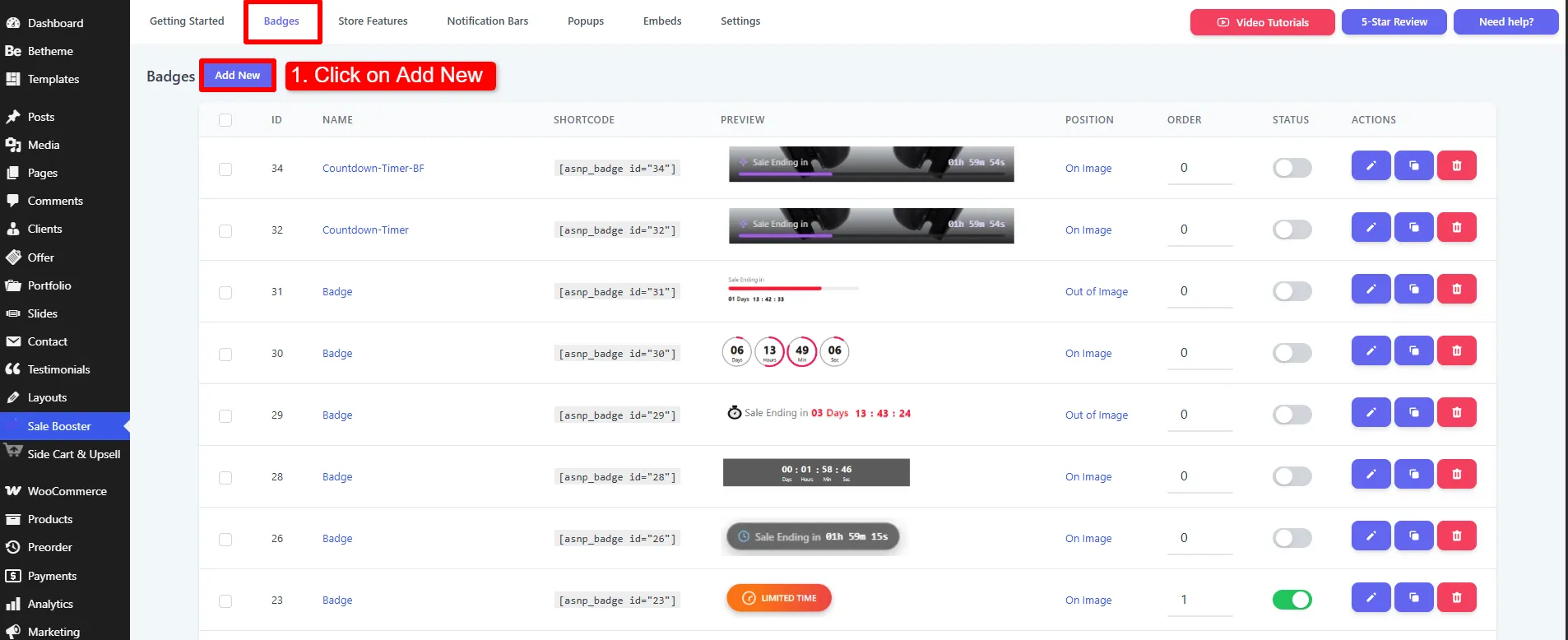
In WordPress, go to Sale Booster → Badges → Add New. Give the badge an internal name such as Automatic Percentage Sale Badge, enable its status, and choose whether it should display on the archive/shop page, the product page, or both.
2. Enter the dynamic percentage placeholder
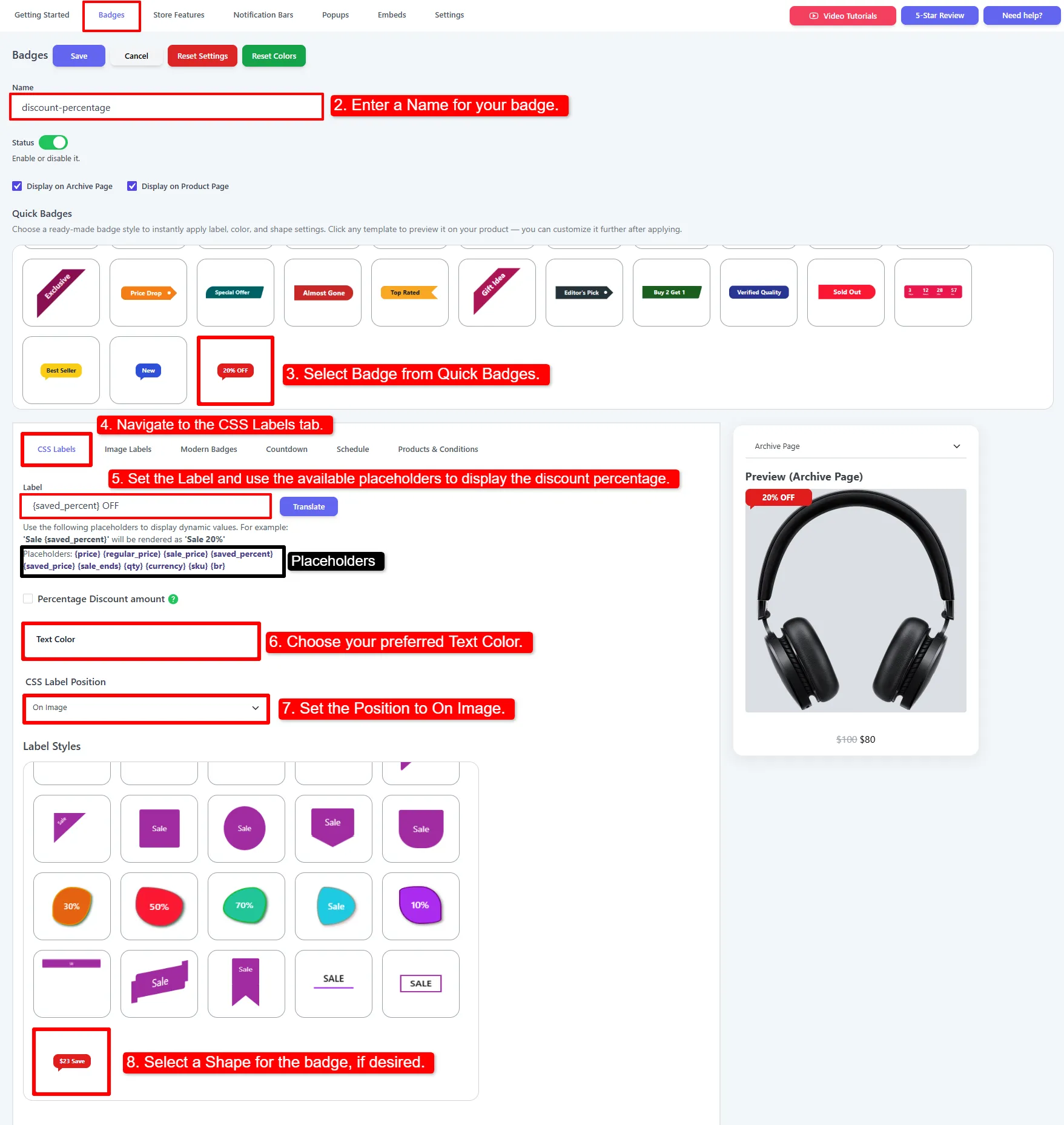
Open the CSS Labels tab and enter this in the Label field:
Sale Booster replaces {saved_percent} with the product’s actual discount percentage. A product discounted from $100 to $80 can show 20% OFF, while a product discounted from $50 to $35 can show 30% OFF using the same badge.
You can also use the plugin’s percentage-discount option when you want the label to contain only the percentage. Add OFF when the context needs to be clearer for shoppers.
3. Choose a readable shape and color
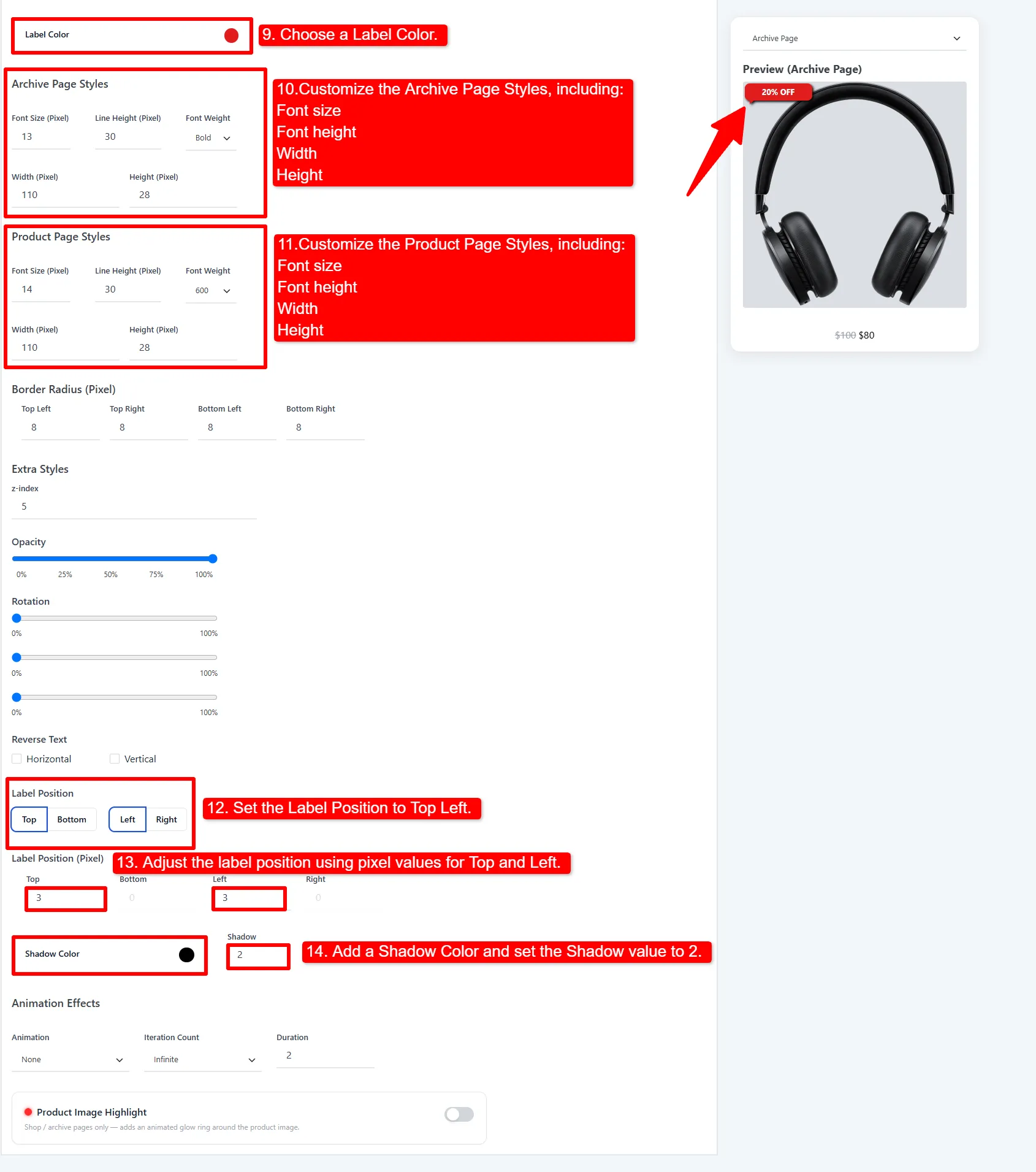
Pick a CSS label shape from the gallery, then set the badge color and text color. A strong contrast—such as white text on a red or dark background—helps the percentage stay readable over product photography.
Keep the badge short. {saved_percent} OFF is usually more legible than a sentence such as You save {saved_percent} on this product today.
4. Target on-sale products
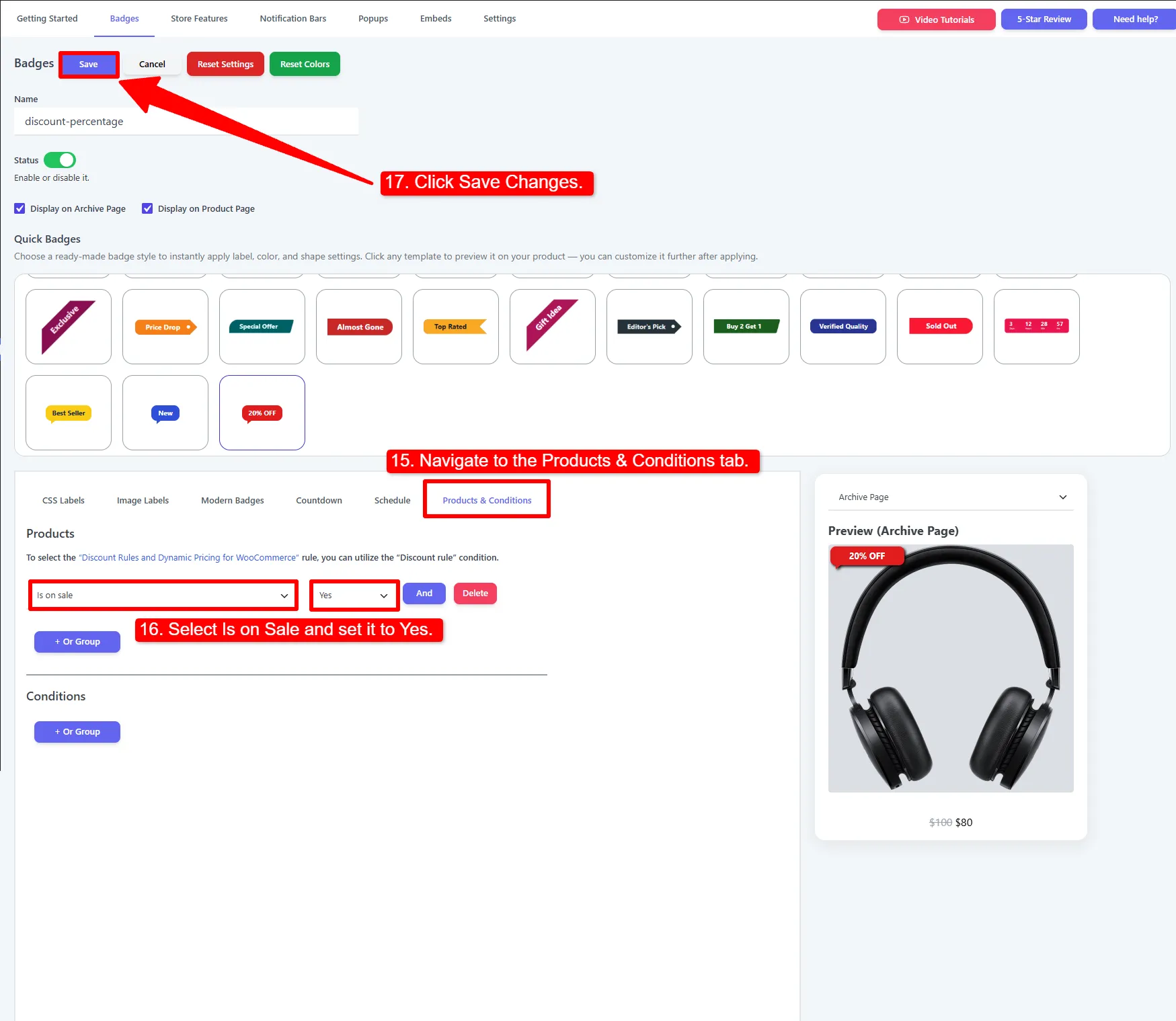
Open Products & Conditions and add the Is On Sale product rule. This keeps the percentage badge connected to products that have an active sale price.
If you want a campaign-specific label, use an Include → Category, Include → Tag, or specific-product rule as well. For example, you can target on-sale products in the Summer category without showing the badge on every discounted product in the catalog.
5. Hide the default “Sale!” label
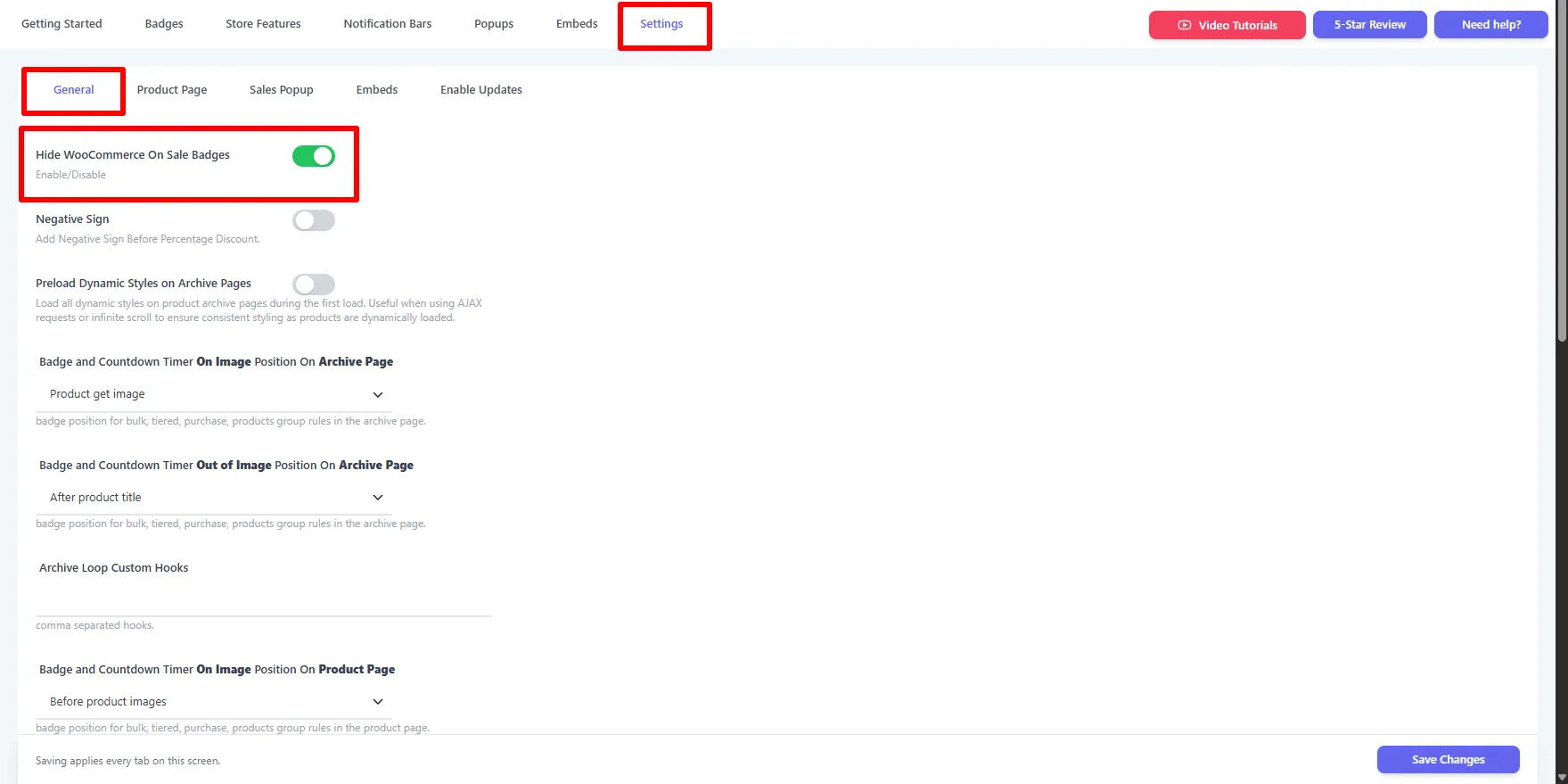
If both labels appear, open Sale Booster → Settings → General and enable the option to hide WooCommerce’s default on-sale badge. Save the setting and clear your page cache before checking the storefront again.
Whether you hide the default depends on your design. A custom percentage badge usually works best by itself; a theme-specific sale marker may still be useful if it appears in a different location.
Click Save, then test a product with a known regular price and sale price. Check the shop grid and the single product page if both display locations are enabled.
What if the percentage is wrong?
First, verify the product’s regular price and sale price in WooCommerce. The displayed percentage depends on that underlying product data. Then check whether a variable product is showing a parent price or a selected variation price in the template you’re testing.
Also check caching. A full-page cache may continue serving the previous badge text after the product price changes. Clear the page cache, object cache, and CDN cache where applicable, then test in a private browser window.
If the badge is correct in the editor preview but missing on the storefront, follow the WooCommerce sale badge troubleshooting guide.
Alternative: use a fixed percentage label
A fixed label such as 20% OFF is appropriate when every product in the rule has the same discount and the promotion is controlled elsewhere. It is not appropriate when sale prices vary or may change during the campaign.
Dynamic text is safer for mixed catalogs because the message follows each product’s actual discount. If you use fixed text, schedule the badge and remove or update it when the promotion changes.
Best practices for percentage sale badges
- Use
{saved_percent} OFFfor mixed-discount catalogs. - Keep the badge to one short message.
- Use a clear color reserved for discounts.
- Don’t show a discount badge on full-price products.
- Check that the percentage is readable on light and dark product images.
- Test a simple product and a variable product.
- Check the archive, category, search, related-product, and single-product layouts.
- Clear caches after changing price rules or badge settings.
How to Test a WooCommerce Sale Badge percentage
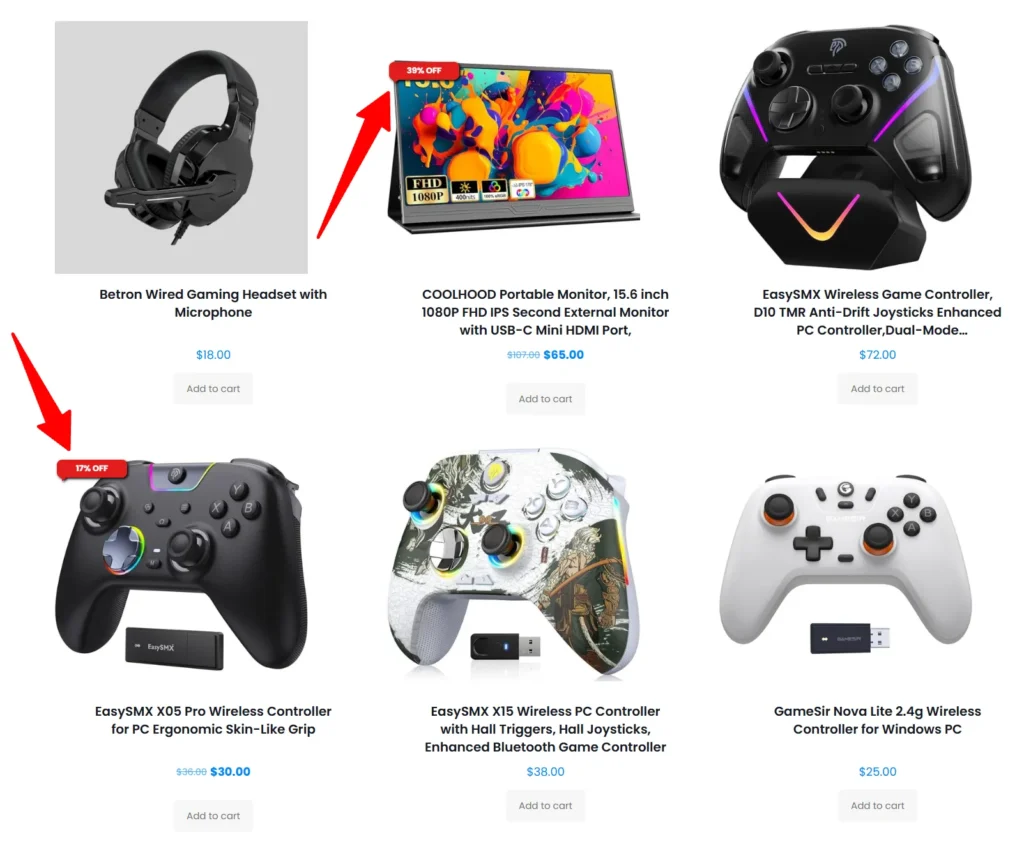
Before publishing, test the WooCommerce sale badge on simple and variable products with different sale prices. Confirm that the discount percentage is accurate, the text is readable on mobile screens, and the badge does not appear on full-price products. Clear your cache after making changes so shoppers see the latest version.
Where Should a WooCommerce Sale Badge Appear?
A WooCommerce sale badge can appear on shop pages, category pages, search results, and individual product pages. Display it where shoppers compare products, but avoid showing duplicate badges in multiple locations. A consistent position makes the discount easier to notice without distracting from the product image.
Frequently Asked Questions
How do I show a discount percentage instead of “Sale!” in WooCommerce?
Create a badge in Sale Booster → Badges, open CSS Labels, and enter {saved_percent} OFF in the Label field. Target the badge to on-sale products and disable the default WooCommerce on-sale badge if both labels appear.
What placeholder shows the WooCommerce discount percentage?
Use {saved_percent}. Add text around it, such as {saved_percent} OFF, to create a complete customer-facing label.
Can I show different discount percentages on different products?
Yes. The same dynamic badge can render the current percentage for each matching product, provided the product’s regular and sale prices are configured correctly.
Why does my WooCommerce sale badge still say “Sale!”?
The default WooCommerce badge may still be enabled, your custom badge may not be active, or the product may not match its rule. Check the badge status, the on-sale condition, display location, and the setting that hides the default badge.
Conclusion
To change the WooCommerce sale badge to show a discount percentage, use a dynamic label instead of hard-coded text. In Sale Booster, create a CSS label with {saved_percent} OFF, target on-sale products, choose a readable style, and hide the default badge when necessary.